
Around the world in 80 days… come on, Jules Verne. We’ll do it in 5! Let us leave Phileas out in the Fogg as the virtual train (with world-class trainers) is set to whistle away from the station in ~ two weeks’ time.
GlobalCon2 – full steam ahead (soon).
Jeff “Globe Trotter” Teper (CVP, Microsoft) will be giving a keynote that’ll be multi-geographical for sure, plus Microsoft speakers delivering breakout sessions among thought leaders and members of the community from around the world. Review all sessions and start your own globetrotting today.
What: GlobalCon2 to learn more | Get your ticket today
When: June 15-19, 2020 – unique content throughout the week; full agenda
Speaker ambassadors: 37 sessions – all top-notch speakers (MVPs, RDs, Microsoft and community members)
Cost: Free during the week; Paid to get all on-demand + 10 free eBooks + content from the recent Microsoft teams event.
Primary Twitter hashtag: #GlobalCon2 (join in) & follow @Collab365
GlobalCon2 – June 15-19, 2020 (online training)
Each session will be a collectible stamp in your virtual passport. GlobalCon2 has something for everyone in all reaches of the Microsoft 365 world. The world, online, is indeed flat! You’ll find no corner of the map uncharted: Microsoft 365, Microsoft Teams, SharePoint, OneDrive, Yammer, Stream, Power Platform, Azure & much more. Passports please.
Below is a list of the Microsoft sessions – including Jeff’s keynote:
- The latest innovations in SharePoint, OneDrive, and Office for content collaboration [Microsoft keynote] | by Jeff Teper
- Microsoft 365 Live Events and remote work | by Lorena Huang Liu & Christina Torok
- Knowledge and Project Cortex – the Microsoft 365 Vision | by Naomi Moneypenny and Chris McNulty
- Share and track your information with lists across Microsoft 365 | by Lincoln DeMaris
- Design productivity apps with SharePoint lists and libraries, Power Apps, and Power Automate | by Chaks Chandran
- Connect the workplace with engaging, dynamic experiences across your intranet | by Debjani Mitra and Brad McCabe
- Content collaboration with SharePoint, Planner, and Microsoft Teams | by Mark Kashman
- The New Yammer | by Jason Mayans
- Architecting Your Intranet | by Melissa Torres
- OneDrive powers intelligent file experiences across Microsoft 365 | by Randy Wong
- Collaboration and external file sharing across Microsoft 365 | by Ankita Kirti
- Migration to SharePoint, OneDrive, and Microsoft Teams in Microsoft 365, free and easy | by Hani Loza & Eric Warnke
- Security and compliance in SharePoint and OneDrive | by Sesha Mani
- SharePoint developer overview | by Luca Bandinelli
- Jump start your projects with community projects from Patterns and Practices (PnP) | by Vesa Juvonen
Shout out to community “train conductor” members Helen Jones, Mark Jones, and the #GlobalCon2 crew who are navigating this conference by the light of the web-stars and moon, supporting and promoting the knowledge and expertise that reaffirms this: Microsoft 365 has the best tech community in the world – one that spans and chugga-chugga-choo-choos across geographies.
Ready to global trot, Mark 
![Remote Working: Fewer people working on-premises doesn’t mean less risk to their identities]()
Collaborated with @Ricky Simpson.
Almost everyone has had their work-life routines interrupted by the COVID-19 pandemic. Many people are working from home for the first time, leaving vast numbers of workplaces sitting empty. It’s vital that organizations continue to protect the resources that reside on-premises. As we’ve seen already, attackers are using COVID-19 to extract information from people by preying on their fears.
Two notable trends have emerged:
First, the necessity of remote work has led organizations to quickly reevaluate how staff access information. They cannot guarantee the efficacy of their users’ home network security, and a big part of how risk was identified before – as a user trying to access resources remotely – is now part of the norm post-pandemic. Organizations must balance the demands of a remote workforce as well as the appropriate security considerations.
Second, IT teams are under enormous amounts of pressure to maintain business continuity and spin up new technologies to enable remote work. A sudden shift in priorities could increase the risk of attacks on on-premises resources going unnoticed, especially if the attacks are more subtle in nature, like network reconnaissance.
How can we continue to monitor risk based on user activity, and how can we continue to protect on-premises resources when we’re nearly all using cloud technologies to work through this period of uncertainty?
Protection with Azure Advanced Threat Protection
As organizations shift to remote work, remote users could be connecting directly to on-premises resources, leaving open connections to corporate assets. Routers without proper and secure configuration are vulnerable. Attackers can take advantage of these and use reconnaissance techniques to, map all the users in the organization, move laterally in search of users and assets to exfiltrate, and ultimately gain persistence in the environment.
Organizations need to strengthen their cloud defense strategy during COVID-19; however, it is important to protect on-premises environments as well. Azure Advanced Threat Protection (Azure ATP) is a cloud-based security solution that leverages on-premises Active Directory (AD) signals to protect on-premises identities, detect and investigate lateral movement of on-premises attacks, and identify compromised identities and malicious insiders.
Azure ATP can identify account enumeration reconnaissance and provide details about the resource being accessed, providing the necessary evidence and data enrichment. The attack can be quickly remediated by changing the user’s password and enforcing multi-factor authentication (MFA) before further damage can be done.
In addition, Azure ATP’s identity security posture assessments recognize common misconfigurations, legacy components, and dormant entities that can expose the organization. For example, Azure ATP identifies dormant accounts that have been disabled or expired in Active Directory. Organizations who fail to secure dormant user accounts are leaving the door unlocked for their sensitive users.
Azure ATP also provides remediation and action plans to improve the organization’s security posture. Now more than ever, when administrators have limited visibility into on-premises apps and services that could introduce new vulnerabilities, it should be top of mind to reduce the attack surface.
For example, a common vector attackers can use to compromise identities are legacy protocols such as NTLMv1. Azure ATP uncovers internal entities and applications that leverage these protocols and helps admins review the impacted entities and take the proper actions, including disabling the protocols.

Attacks play out in phases: discovery, credential access, lateral movement, and persistence. Azure ATP leverages network traffic, trace data, and events to find anomalies quickly, using a combination of behavioral known attack techniques and security signals. This provides visibility at each stage of an attack and clearly outlines the investigation and remediation steps throughout.

During this pandemic we’ve seen organizations deploy Azure ATP on-premises and begin protecting their identities during this pandemic. It’s easy to deploy even in large environments with numerous domain controllers, and it can be done within hours, to provide immediate value and help organizations identify the attacker’s steps.
To protect your on-premises identities, identify attackers, and reduce your attack surface, deploy Azure ATP on all your domain controllers. Throughout these unprecedented times protect hybrid and on-premise environments and ensure users are protected and can successfully work remotely uninterrupted.”
For more information on Azure ATP, please find all documentations here. To begin a trial of Azure ATP, click here. To find out how to set up your Azure ATP instance, click here.
Azure ATP also feeds into Microsoft Threat Protection, Microsoft’s end-to-end experience that integrates and correlates signals from Microsoft 365 security products, including Office 365 ATP, Microsoft Defender ATP, and Microsoft Cloud App Security, responding to attacks and healing affected assets across user identities, endpoints, cloud applications, and email and collaboration tools. Click here to see how SecOps teams can use signals from across Microsoft’s security portfolio to advance their threat protection capabilities.
Announcing the private preview of improved sensitive information types (aka classification depth preview) in M365 Services. This preview will include multiple features over the course of the program while we introduce improvements to the sensitive information types and how they can be used. The initial feature for preview is the introduction of 65 new/improved sensitive types for EU GDPR (57 SITs) and APAC (8 SITs).
The easiest way to test these types will be:
We are currently reviewing release cycles to plan when these will be available to additional clients (such as Microsoft 365 Apps – formerly Office 365 Pro Plus).
An important aspect of this preview is sharing the results of your testing with our preview team.
The private preview will begin rolling out this week. You can sign up to express your interest in joining this preview program by completing the following form.

Every month, tens of millions of people turn to SharePoint lists to track and manage critical business and team data. Lists enable organizations and teams to store and visualize rows of data to share and collaborate on scenarios like inventory management, status reporting, deal milestones and more. They are easy to use, secure, with high capacity up to 30 million items in a single list.
Today, we’re pleased to announce lists from Excel is now rolled out worldwide to customers in Microsoft 365. This is a new way to create a list, saving you time while putting the data in a location that opens new scenarios.
Let’s dive into the details…
Lists from Excel
To create a list from Excel, you can select a table from the Excel files in the SharePoint site, or from your device. You can change the field type of the column if needed, and all your table data will be copied to the new list.
When you create a list from Microsoft Excel, you map table data to a new list – adjusting column types before you click Create.
A quick step-by-step ‘how to’
- From within your SharePoint site, click the upper-right gear icon and select Site contents*
- At the top of the Site contents page, Click New > List
- Click the From Excel tab
- Enter a name for your new list
- Click Upload file to select from your local device or pick from files already in Microsoft 365
- Update the column type headers; for example, change “Number” to Date and time; choice fields work, too, automatically aggregating unique values.
- Click Create to import the Excel table data and create a new SharePoint list
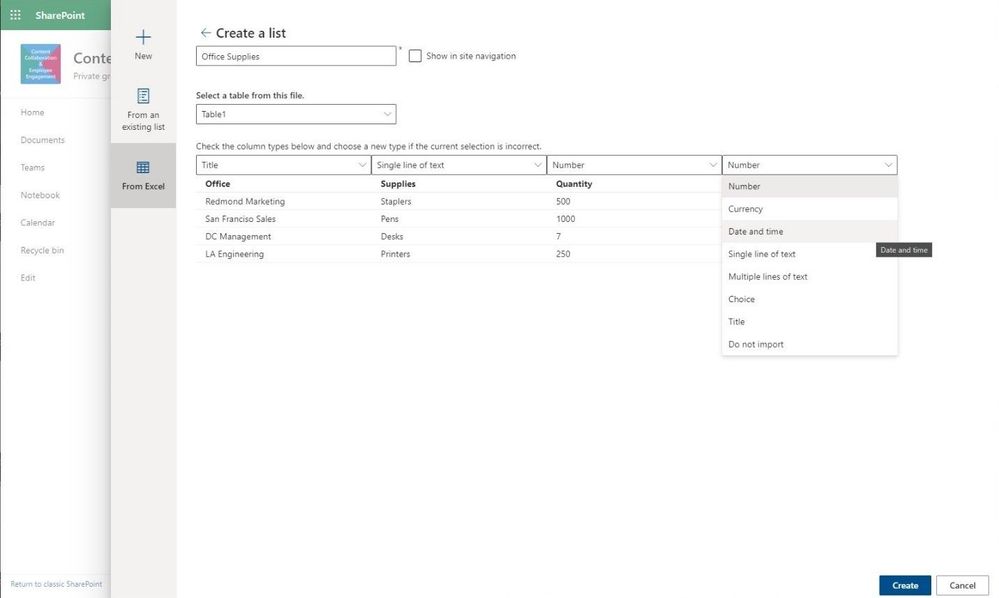 Adjust the SharePoint column types before you import the Excel table data into Microsoft 365.
Your Excel data is now intact; your SharePoint list ready to extend in numerous ways:
- Further assign and adjust data types to columns in your list
- Enhance visuals by designing list row and column formatting
- Use conditional formatting rules to make the list data intuitive and helpful
- Set reminders on list items
- Build productivity apps with Power Automate (custom flows) and Power Apps (custom forms); your list becomes the foundational data source.
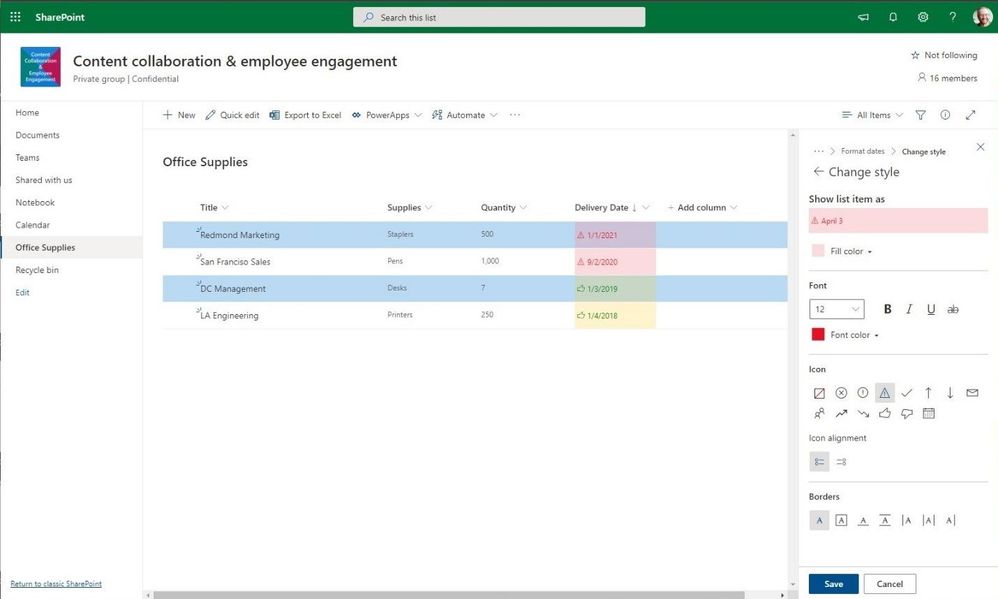 Further refine your list with conditional formatting on rows and columns.
Note: You can analyze SharePoint list items from a view of the list to Excel – to work with the data in a spreadsheet; simply click Export to Excel. Note: Excel creates an Excel table with a one-way data connection based on a web query file. To bring a fresh copy of the SharePoint list to Excel, select Refresh All on the Data tab from within Excel. Changes made to the Excel table will not be sent to the SharePoint list. Learn more how to export to Excel from SharePoint.
In Summary
It is easier than ever to get started with SharePoint lists – using Excel as shown above or based on existing lists. No matter how you start, it’s then easy to further configure lists by using views, filters, rules and reminders to increase the usefulness of your data – especially as data changes or is missing.
You can further customize lists, too. It is possible to further extend with native integrations leveraging Power Apps and Power Automate. And when your forms and workflows get more complex or pull from multiple sources lean on the Power Platform tools directly available from your list.
Note | We recently announced Microsoft Lists and how it is an evolution of SharePoint lists. For the list from Excel announcement above, we want to emphasize that you will be able to create a list from Microsoft Excel today and in the future when Microsoft Lists begins to roll out and broaden the lists story.
Learn more about how to create a list from Microsoft Excel.
Want to see it in action? Click into the SharePoint list: “Create list from Excel” click-thru demo.
Additional resources:
Thanks, Mark Kashman, senior product manager – Microsoft
*Frequently Asked Question
Q: When will I see the new list creation user interface from a team site home page (New > List) drop-down menu?
A: We are planning to include the New > List entry point from a site home page early Summer 2020. Until then, you can accomplish the above actions from the site’s Site Contents page, accessed from the upper-right gear icon menu.
![Remote Working: Fewer people working on-premises doesn’t mean less risk to their identities]()
Microsoft runs on trust. With digital data growing exponentially, online threats becoming very sophisticated, and remote work necessary, it is more important than ever to safeguard your corporate data.
At Microsoft, our goal is to provide a built-in, intelligent, unified, and extensible solution to protect sensitive data across your enterprise – in Microsoft 365 cloud services, on-premises, third-party SaaS applications, and more. With Microsoft Information Protection, we are building a unified set of capabilities for classification, labeling, and protection across Microsoft 365 apps (Word, PowerPoint, Excel, Outlook) and productivity services like OneDrive, SharePoint, Teams, and Exchange.
Sensitivity labels are central to how your business-critical data can be protected using Microsoft Information Protection. You can create a sensitivity label and associate it with protection like encryption and visual marking. Label-applied protection will persist with the file wherever it goes.
You can start by empowering your users to manually label documents and emails in Office apps across a wide range of platforms (e.g. Windows, Mac, iOS, Android and online). Learn more here on how to enable this manual classification. However, users may forget to label manually or label sensitive data inaccurately. Relying on users alone to manually classify corporate data using labels is not sufficient. The scalable approach is to automatically discover, label, and protect sensitive data. To help you achieve that, we are excited to announce the general availability of automatic classification with sensitivity labels in SharePoint, OneDrive, and Exchange.
You can create an auto-labeling policy with rules tailored for your organization’s sensitive data, targeting specific locations in your enterprise. A policy can either be in simulation or active mode. You can run the policy first in simulation mode and if the results satisfy your organization’s needs then you can proceed and publish the policy.
 Figure 1. Auto label policy across two modes: simulation and active modes
With our 100+ out-of-the-box sensitive information types and ability to create custom ones, you have the flexibility to tailor the auto-labelling policy to specific sensitive information types. You can also scope the policy to a specific SharePoint site or OneDrive account or Exchange mailbox.
Policy Simulator provides insight into policy effectiveness and enables you to simulate in your production environment with real data with no impact on end users until the policy is published.
 Figure 2. Auto labelling policy simulation mode results
Auto classification with sensitivity labels, along with Policy Simulator, is a powerful capability that enable organizations to automatically designate eligible Excel, PowerPoint, Word files, and emails as sensitive in a scalable way.
Your users can search for content within these protected documents, coauthor using Office web apps and be assured that the protection will persist even after the documents are downloaded. This way your security needs are in harmony with your user’s productivity needs.
 Figure 3. Document library experience in SharePoint showing files automatically labelled
Getting Started
As a Microsoft 365 customer, you can turn on this feature in Microsoft 365 compliance center. To learn more about this feature, please read our online documentation. This advanced capability is included with Microsoft 365 SKUs (E5, E5 Compliance and E5 Information Protection & Governance) and Office 365 E5 SKU. You can learn more about our licensing here.
If you are new to Microsoft 365, learn how to try or buy a Microsoft 365 subscription.
As you navigate this challenging time, we have additional resources to help. For more information about securing your organization in this time of crisis, visit our Remote Work site. We’re here to help in any way we can.
Thank you!
Sesha Mani, Principal Group Product Manager, Microsoft
Tony Themelis, Principal PM Manager, Microsoft
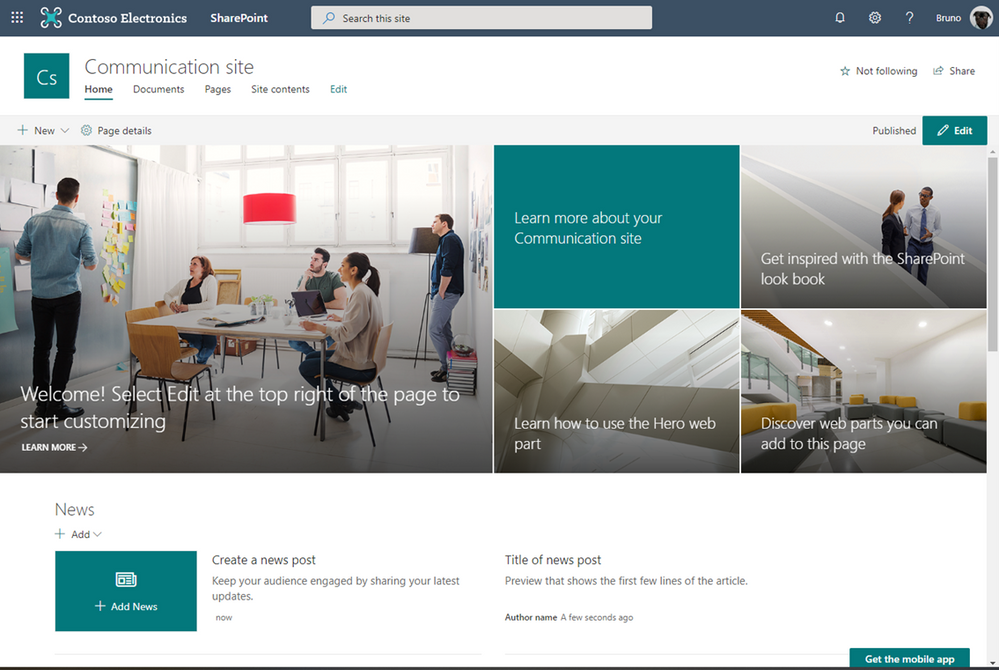
Over the last year, SharePoint has embraced the new Microsoft Office icons that were announced in late 2018. A large part of this change is the transition of the SharePoint identity from blue to teal, signaling a shift in the identifying color scheme. In order to best embrace this shift, we are now working to complete an update from blue to teal across the product more broadly. Updating the SharePoint default theme from blue to teal is the final step to adopting the new SharePoint identity.
With this update, you will see classic and modern SharePoint communication sites and team sites (new and existing) update to the teal theme if they have not been customized. A site is considered customized when a custom theme has been selected in the Change the look panel or customizations have been made for classic. This will not impact your sites in any way beyond changing colors from blue to teal as seen in the images below.
How will this impact you?
All new sites from the time of change to teal will be created with teal as the default theme color. This change will happen for any communication site, regardless of modern or classic and for classic team sites. Any modern team site that is group connected will still be created in the existing color selection associated to the M365 group.
This update will not impact custom themes, settings, or the content and structure of sites. This update will only change the theme of new and existing sites that have not been customized.
Current blue theme on a communication site:
New Teal theme on a communication site:
SharePoint Communication Site – Teal Theme
Do I need to do anything?
This update is automatic, and no action is required by admins or users.
If you decide to keep the blue theme – or just want to change the theme – site owners can edit the theme in the Change the look panel. This change can be made at any time, and each site will require a manual change.
To automate this process, create a site design that is configured to apply a custom theme. Site designs are a reusable script that will allow site owners and creators to easily apply your organization’s preferred default theme in site settings. Learn more about SharePoint site design scripts.
Below is the sample code of the blue theme if this theme is preferred:
Blue standard theme JSON code:
{
“themePrimary”: “#0078d4”,
“themeLighterAlt”: “#eff6fc”,
“themeLighter”: “#deecf9”,
“themeLight”: “#c7e0f4”,
“themeTertiary”: “#71afe5”,
“themeSecondary”: “#2b88d8”,
“themeDarkAlt”: “#106ebe”,
“themeDark”: “#005a9e”,
“themeDarker”: “#004578”,
“neutralLighterAlt”: “#faf9f8”,
“neutralLighter”: “#f3f2f1”,
“neutralLight”: “#edebe9”,
“neutralQuaternaryAlt”: “#e1dfdd”,
“neutralQuaternary”: “#d0d0d0”,
“neutralTertiaryAlt”: “#c8c6c4”,
“neutralTertiary”: “#a19f9d”,
“neutralSecondary”: “#605e5c”,
“neutralPrimaryAlt”: “#3b3a39”,
“neutralPrimary”: “#323130”,
“neutralDark”: “#201f1e”,
“black”: “#000000”,
“white”: “#ffffff”
}
If you do nothing?
Starting in June, sites that have not been customized will switch from blue to teal and does not require any action from you. New sites you create will default to the teal theme until you change it either through the Change the look panel or by using a custom Site Design.
This change will not impact any custom themes or settings you have currently installed and applied within your tenant. We do not have an opt-out option for administrators.
What site types and states will be impacted:
|
Site Type
|
Customized state
|
Impacted
|
|
Classic Publishing
|
NOT customized with a theme
|
Yes
|
|
Classic Publishing
|
Customized with a theme
|
No
|
|
Classic Team sites
|
NOT customized with a theme
|
Yes
|
|
Classic Team sites
|
Customized with a theme
|
No
|
|
Modern Communication sites
|
NOT customized with a theme
|
Yes
|
|
Modern Communication sites
|
Customized with a theme
|
No
|
|
Group connected Team Sites
|
N/A
|
No
|

Captain’s log, stardate 365.0602.0609.2, our destination – to boldly go where no virtual conference has gone before.
The Galactic Collaboration Summit is about to hit warp speed 10, to help you explore a Milky Way Galaxy full of sessions. Set your phasers on fun, to learn, and engage!
Jeff “Captain” Teper (CVP, Microsoft) will be giving a keynote that’ll be out of this world, plus Microsoft speakers delivering breakout sessions among thought leaders and members of the community from around the world. Review all sessions and start your Galactic exploration today.
What: Galactic Collaboration Summit to learn more | Get your ticket today
When: June 2nd & 9th, 2020 (unique content on both days)
I’m a presenter, not a doctor: 65+ speakers (MVPs, RDs, Microsoft and community members)
Cost: Free and voluntary payment
Primary Twitter hashtag: #GalacticSummit (join in) & follow @CollabSummit
Galactic Collaboration Summit – June 2nd & 9th, 2020 (online training)
Seal up your helmet and ready your best cosmonaut impersonation. The Galactic Collaboration Summit has something for everyone in all reaches of the Microsoft 365 galaxy: far, far away. You’ll find no star or cluster uncharted: modern workplace, remote working and distance learning topics on Microsoft’s technologies, such as Microsoft 365, Microsoft Teams and SharePoint, Microsoft Azure topics relevant to the modern workplace, as well as different Business App topics (Power Apps, Logic Apps, Power Automate, Planner, Yammer), and more.
Below is a list of the Microsoft sessions – including Jeff’s keynote:
- The latest innovations in SharePoint, OneDrive, and Office for content collaboration [Microsoft keynote] | by Jeff Teper
- Microsoft 365 Live Events and remote work | by Lorena Huang Liu & Christina Torok
- Knowledge and Project Cortex – the Microsoft 365 Vision | by Naomi Moneypenny and Chris McNulty
- Share and track your information with Microsoft Lists across Microsoft 365 | by Lincoln DeMaris
- Design productivity apps with SharePoint lists and libraries, Power Apps, and Power Automate | by Chaks Chandran
- The New Yammer | by Jason Mayans
- Migration to SharePoint, OneDrive, and Microsoft Teams in Microsoft 365, free and easy | by Hani Loza & Eric Warnke
- Security and compliance in SharePoint and OneDrive | by Sesha Mani
- Jump start your projects with community projects from Patterns and Practices (PnP) | by Vesa Juvonen
Shout out to community members Spencer Harbar, Adis Jugo and the #GalacticSummit crew who are giving the conference all they got, soon transporting you into the online holodeck and beyond, navigating the far reaches and for supporting and promoting the knowledge and expertise that reaffirms this: Microsoft 365 has the best tech community in the galaxy – one that shall live long and prosper.
Beam me up Spency, Mark
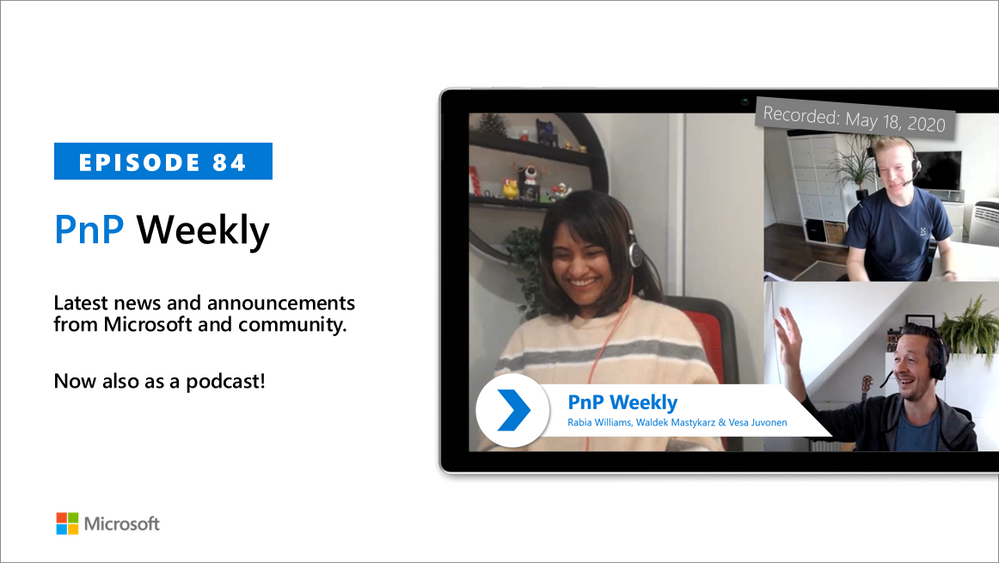
In this weekly discussion of latest news and topics around Microsoft 365, hosts – Vesa Juvonen (Microsoft), Waldek Mastykarz (Rencore), are joined by Rabia Williams – MVP, Developer with Engage Squared in Brisbane, Australia.
This episode’s conversation evolves from the ease of working with SharePoint Framework, to challenges of cloud-based authentication, to being involved with the tremendous growth of Microsoft Teams apps and extensions. On becoming an MVP – focus on creating awareness and on sharing your interests and learnings with others. On PnP awareness – the reality is there are more newbies than experts out there, it’s incumbent on us to keep learning how to explain the basics better.
The trio agrees – contributing to an open-source effort is a different type of developer experience. It’s people to people focused, it’s inclusive, it’s addictive and it’s rewarding
This episode was recorded on Monday, May 18, 2020.
Did we miss your article? Please use #PnPWeekly hashtag in the Twitter for letting us know the content which you have created.
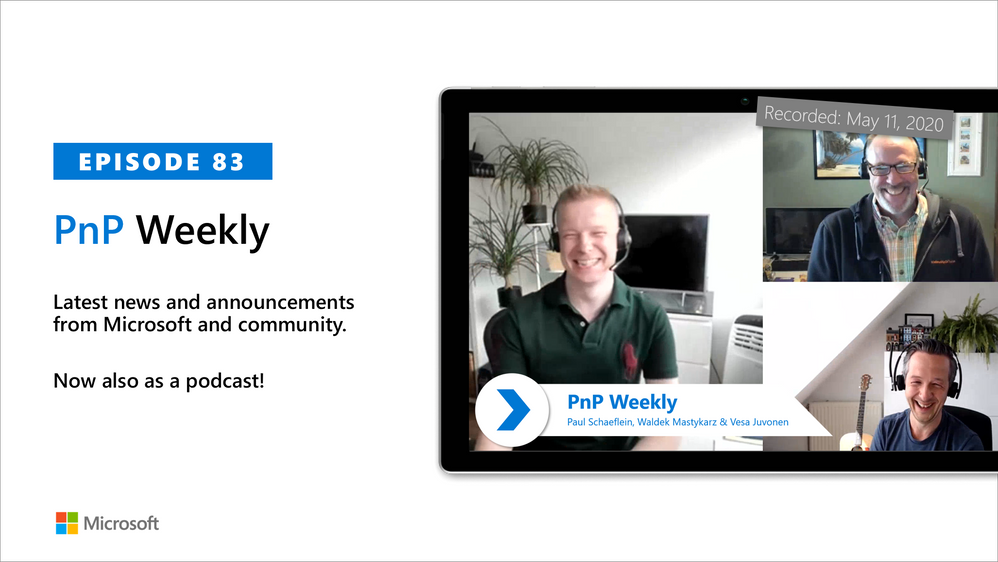
In this weekly discussion of latest news and topics around Microsoft 365, hosts – Vesa Juvonen (Microsoft), Waldek Mastykarz (Rencore), are joined by Paul Schaeflein – MVP, Developer, Technical Architect and Microsoft 365 Podcaster in Chicago, Illinois, based Addin365.
Paul is focused on helping peers and customers use the parts of Microsoft 365 that are relevant to their job. What is the Microsoft 365 opportunity for developers? Of course, that depends. Microsoft 365 provides many options. First understand and bridge the gap between what your staff can do (their knowledge) and what the service can do for you/them. Key focus areas for newbies?
Learn how to write and secure an API, understand React and now React hooks, know your native coding tool – editor, know how to use search engines to find people and information efficiently, understand how to interact with a service you don’t own and finally, keep learning.
As always, if you need help on an issue, want to share a discovery, or just want to say: “Job well done”, please reach out to Vesa, to Waldek or to your PnP Community.
This episode was recorded on Monday, May 11, 2020.
Did we miss your article? Please use #PnPWeekly hashtag in the Twitter for letting us know the content which you have created.
The Microsoft Information Protection (MIP) and Compliance Customer Experience (CXE) team are part of M365 Security Engineering at Microsoft. We work with Microsoft’s largest enterprise customers to help them accelerate deployment of our features by providing deployment guidance and advisory services.
An important part of our function is to gather customer feedback and present this back internally to the team to improve our MIP and Compliance products. We can’t work with every customer, so we have combined all these experiences into a deployment acceleration guide. This document will guide our customers on their information protection and compliance journey, learn best practices and key benefits to help get the most out of their Microsoft 365 investments.
Attached to this post you will find a link to download our deployment acceleration guide.
We hope you will find it useful and beneficial.
Feel free to send us feedback!
mipsccxe@microsoft.com







