Investigative Tools to Empower Stronger Threat Protection
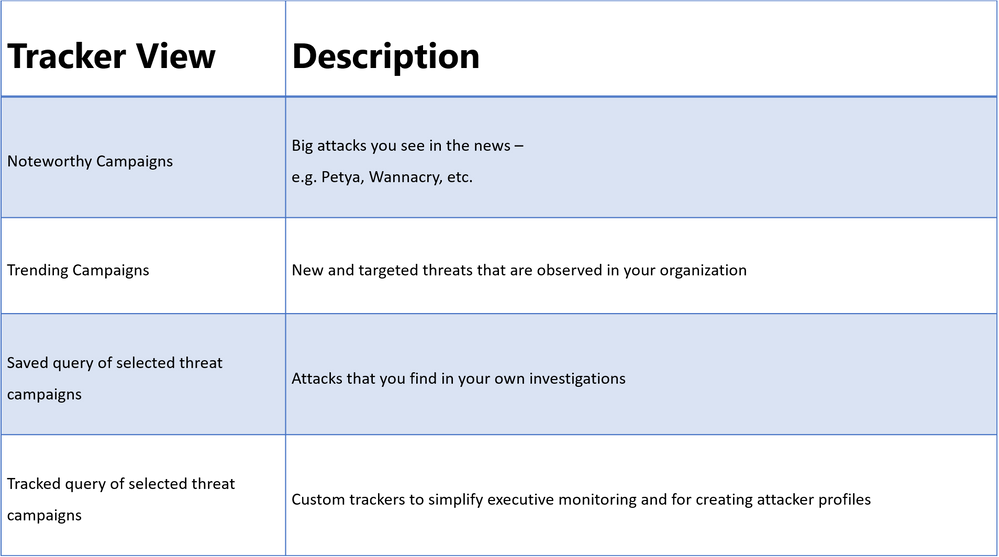
We launched Office 365 Threat Intelligence to help organization’s become more secure by enhancing admin capabilities which offer greater visibility, deeper insights, and powerful executable actions (check out the recent webinar overviewing the service). Today we’re excited to announce ‘Threat Trackers’ for Office 365 Threat Intelligence, enabling efficient monitoring and management of threat investigations to help admins quickly remediate and respond to threats. The feature can be found under ‘Threat Management’ in the Security and Compliance Center. Table 1 summarizes the four available ‘Threat tracker’ categories.
Table 1. The different tracker categories available in Office 365 Threat Intelligence Threat Trackers view
Threat Tracker Categories
Noteworthy campaigns are classified, as well known and important global threats. Office 365 Threat Intelligence pre-builds Noteworthy Campaign monitors, enabling admins to quickly review the impact of these threats, assessing both their volume and frequency. This automated monitoring allows admins speedy remediation from these threats. Noteworthy Campaign monitors update hourly, showing the latest impact of these threats to your organization. Click ‘Explore’ if you want to see the detailed events detected by the filter.
The Trending Campaigns view provides dynamic assessments of email threats impacting your organization’s Office 365 environment. This view shows tenant level malware trends, identifying malware families on the rise, flat, or declining, giving admins greater insight into which threats require further attention. New threats not seen recently in your organization will appear at the top of the page (sorted by trend). Trending Campaigns also offers a comparative view on how a threat impacts your organization versus others. If an organization’s targeting percentage is >10%, it indicates that it is being specifically targeted by the attack. Admins can further investigate targeted and trending attacks in Explorer, where actions such as deleting or moving the malware to junk can be taken. Targeted attacks are typically short-lived, so these types of attacks in the Trending Campaigns view may drop out of the view within a few days.
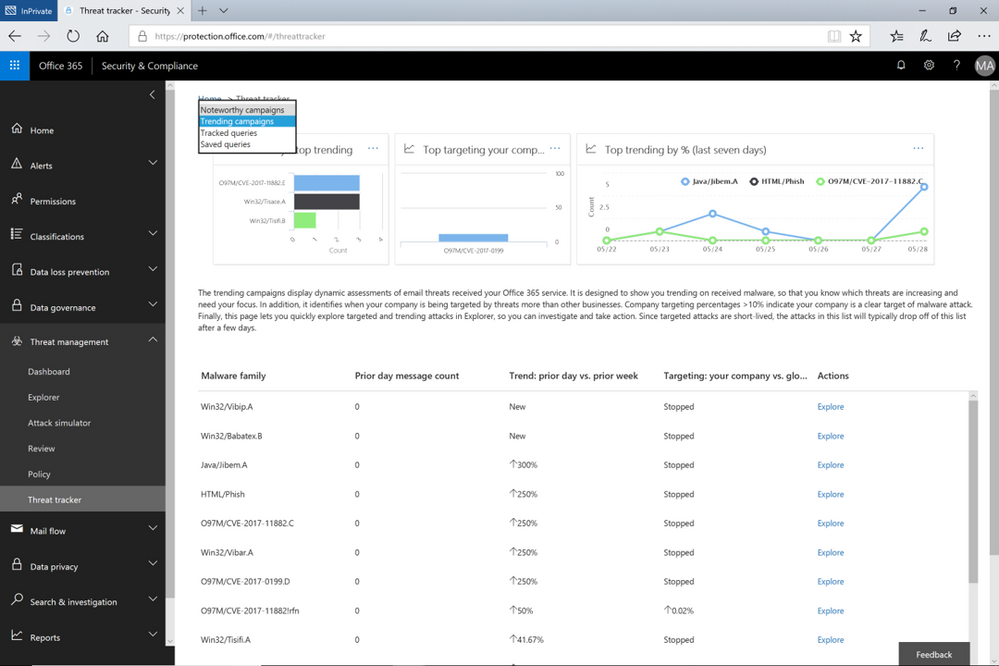 Figure 1. The Trending Campaigns view in Office 365 Threat Intelligence Threat trackers
While the campaign views enable tracking and quick assessment of threats, queries are powerful investigative views allowing deeper understanding of threats, aiding admins to make data driven security updates. Queries can be accessed from either campaign view by clicking on ‘Explorer’ which displays that tracked threat campaign. Saved Queries provides a view into all Explorer searches saved as queries. Admins can monitor malware and phish events with the scope (number of emails included in an incident) defined and saved from Explorer. Saved queries are useful for checking items frequently. To create more saved queries, go to the Explorer, add filters to view specific sets of events, then select ‘Save query’ (button at top of page).
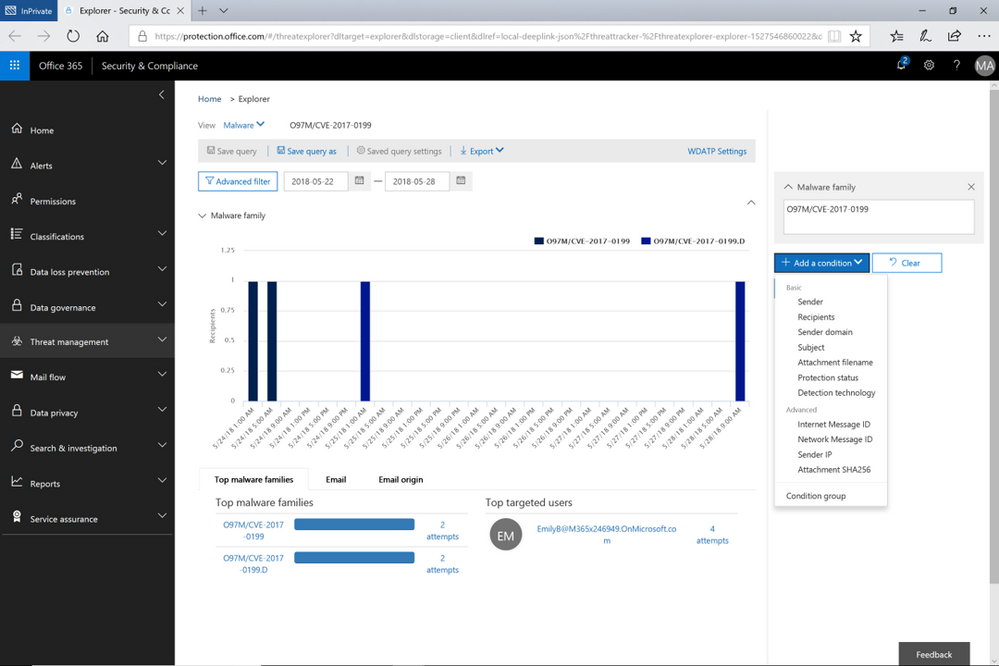 Figure 2. Opened Explorer page on tracked threat campaign. The threat campaign can be saved as query from the Explorer
Tracked queries provide regular assessments of malware, phish, and other events with the scope defined from Threat Explorer. Tracked queries help monitor items frequently, providing reports, allowing quick and in-depth evaluation of threats or groups. A limited number of tracked queries are available for each organization. Admins can choose to convert saved queries and begin tracking them using the edit option for that query.
These ‘Threat Trackers’ enrich the admin experience, providing a powerful new tool for monitoring and managing, investigations, which ultimately enables quick response to threats. With this added feature, Office 365 Threat Intelligence provides admins to more efficiently and easily secure their organization.
Send Us Your Feedback
Let us know what you think of the new Threat trackers feature by beginning an Office 365 E5 trial today to experience the powerful capabilities of Office 365 Threat Intelligence. Your feedback enables us to make updates and enhancements to provide you with the best protection for Office 365. Please watch our recent webinar on Office 365 Threat Intelligence to learn further details on how the service can help your organization become more secure.
Investigative Tools to Empower Stronger Threat Protection
We launched Office 365 Threat Intelligence to help organization’s become more secure by enhancing admin capabilities which offer greater visibility, deeper insights, and powerful executable actions (check out the recent webinar overviewing the service). Today we’re excited to announce ‘Threat Trackers’ for Office 365 Threat Intelligence, enabling efficient monitoring and management of threat investigations to help admins quickly remediate and respond to threats. The feature can be found under ‘Threat Management’ in the Security and Compliance Center. Table 1 summarizes the four available ‘Threat tracker’ categories.
Table 1. The different tracker categories available in Office 365 Threat Intelligence Threat Trackers view
Threat Tracker Categories
Noteworthy campaigns are classified, as well known and important global threats. Office 365 Threat Intelligence pre-builds Noteworthy Campaign monitors, enabling admins to quickly review the impact of these threats, assessing both their volume and frequency. This automated monitoring allows admins speedy remediation from these threats. Noteworthy Campaign monitors update hourly, showing the latest impact of these threats to your organization. Click ‘Explore’ if you want to see the detailed events detected by the filter.
The Trending Campaigns view provides dynamic assessments of email threats impacting your organization’s Office 365 environment. This view shows tenant level malware trends, identifying malware families on the rise, flat, or declining, giving admins greater insight into which threats require further attention. New threats not seen recently in your organization will appear at the top of the page (sorted by trend). Trending Campaigns also offers a comparative view on how a threat impacts your organization versus others. If an organization’s targeting percentage is >10%, it indicates that it is being specifically targeted by the attack. Admins can further investigate targeted and trending attacks in Explorer, where actions such as deleting or moving the malware to junk can be taken. Targeted attacks are typically short-lived, so these types of attacks in the Trending Campaigns view may drop out of the view within a few days.
Figure 1. The Trending Campaigns view in Office 365 Threat Intelligence Threat trackers
While the campaign views enable tracking and quick assessment of threats, queries are powerful investigative views allowing deeper understanding of threats, aiding admins to make data driven security updates. Queries can be accessed from either campaign view by clicking on ‘Explorer’ which displays that tracked threat campaign. Saved Queries provides a view into all Explorer searches saved as queries. Admins can monitor malware and phish events with the scope (number of emails included in an incident) defined and saved from Explorer. Saved queries are useful for checking items frequently. To create more saved queries, go to the Explorer, add filters to view specific sets of events, then select ‘Save query’ (button at top of page).
Figure 2. Opened Explorer page on tracked threat campaign. The threat campaign can be saved as query from the Explorer
Tracked queries provide regular assessments of malware, phish, and other events with the scope defined from Threat Explorer. Tracked queries help monitor items frequently, providing reports, allowing quick and in-depth evaluation of threats or groups. A limited number of tracked queries are available for each organization. Admins can choose to convert saved queries and begin tracking them using the edit option for that query.
These ‘Threat Trackers’ enrich the admin experience, providing a powerful new tool for monitoring and managing, investigations, which ultimately enables quick response to threats. With this added feature, Office 365 Threat Intelligence provides admins to more efficiently and easily secure their organization.
Send Us Your Feedback
Let us know what you think of the new Threat trackers feature by beginning an Office 365 E5 trial today to experience the powerful capabilities of Office 365 Threat Intelligence. Your feedback enables us to make updates and enhancements to provide you with the best protection for Office 365. Please watch our recent webinar on Office 365 Threat Intelligence to learn further details on how the service can help your organization become more secure.
Investigative Tools to Empower Stronger Threat Protection
We launched Office 365 Threat Intelligence to help organization’s become more secure by enhancing admin capabilities which offer greater visibility, deeper insights, and powerful executable actions (check out the recent webinar overviewing the service). Today we’re excited to announce ‘Threat Trackers’ for Office 365 Threat Intelligence, enabling efficient monitoring and management of threat investigations to help admins quickly remediate and respond to threats. The feature can be found under ‘Threat Management’ in the Security and Compliance Center. Table 1 summarizes the four available ‘Threat tracker’ categories.
Table 1. The different tracker categories available in Office 365 Threat Intelligence Threat Trackers view
Threat Tracker Categories
Noteworthy campaigns are classified, as well known and important global threats. Office 365 Threat Intelligence pre-builds Noteworthy Campaign monitors, enabling admins to quickly review the impact of these threats, assessing both their volume and frequency. This automated monitoring allows admins speedy remediation from these threats. Noteworthy Campaign monitors update hourly, showing the latest impact of these threats to your organization. Click ‘Explore’ if you want to see the detailed events detected by the filter.
The Trending Campaigns view provides dynamic assessments of email threats impacting your organization’s Office 365 environment. This view shows tenant level malware trends, identifying malware families on the rise, flat, or declining, giving admins greater insight into which threats require further attention. New threats not seen recently in your organization will appear at the top of the page (sorted by trend). Trending Campaigns also offers a comparative view on how a threat impacts your organization versus others. If an organization’s targeting percentage is >10%, it indicates that it is being specifically targeted by the attack. Admins can further investigate targeted and trending attacks in Explorer, where actions such as deleting or moving the malware to junk can be taken. Targeted attacks are typically short-lived, so these types of attacks in the Trending Campaigns view may drop out of the view within a few days.
Figure 1. The Trending Campaigns view in Office 365 Threat Intelligence Threat trackers
While the campaign views enable tracking and quick assessment of threats, queries are powerful investigative views allowing deeper understanding of threats, aiding admins to make data driven security updates. Queries can be accessed from either campaign view by clicking on ‘Explorer’ which displays that tracked threat campaign. Saved Queries provides a view into all Explorer searches saved as queries. Admins can monitor malware and phish events with the scope (number of emails included in an incident) defined and saved from Explorer. Saved queries are useful for checking items frequently. To create more saved queries, go to the Explorer, add filters to view specific sets of events, then select ‘Save query’ (button at top of page).
Figure 2. Opened Explorer page on tracked threat campaign. The threat campaign can be saved as query from the Explorer
Tracked queries provide regular assessments of malware, phish, and other events with the scope defined from Threat Explorer. Tracked queries help monitor items frequently, providing reports, allowing quick and in-depth evaluation of threats or groups. A limited number of tracked queries are available for each organization. Admins can choose to convert saved queries and begin tracking them using the edit option for that query.
These ‘Threat Trackers’ enrich the admin experience, providing a powerful new tool for monitoring and managing, investigations, which ultimately enables quick response to threats. With this added feature, Office 365 Threat Intelligence provides admins to more efficiently and easily secure their organization.
Send Us Your Feedback
Let us know what you think of the new Threat trackers feature by beginning an Office 365 E5 trial today to experience the powerful capabilities of Office 365 Threat Intelligence. Your feedback enables us to make updates and enhancements to provide you with the best protection for Office 365. Please watch our recent webinar on Office 365 Threat Intelligence to learn further details on how the service can help your organization become more secure.
Investigative Tools to Empower Stronger Threat Protection
We launched Office 365 Threat Intelligence to help organization’s become more secure by enhancing admin capabilities which offer greater visibility, deeper insights, and powerful executable actions (check out the recent webinar overviewing the service). Today we’re excited to announce ‘Threat Trackers’ for Office 365 Threat Intelligence, enabling efficient monitoring and management of threat investigations to help admins quickly remediate and respond to threats. The feature can be found under ‘Threat Management’ in the Security and Compliance Center. Table 1 summarizes the four available ‘Threat tracker’ categories.
Table 1. The different tracker categories available in Office 365 Threat Intelligence Threat Trackers view
Threat Tracker Categories
Noteworthy campaigns are classified, as well known and important global threats. Office 365 Threat Intelligence pre-builds Noteworthy Campaign monitors, enabling admins to quickly review the impact of these threats, assessing both their volume and frequency. This automated monitoring allows admins speedy remediation from these threats. Noteworthy Campaign monitors update hourly, showing the latest impact of these threats to your organization. Click ‘Explore’ if you want to see the detailed events detected by the filter.
The Trending Campaigns view provides dynamic assessments of email threats impacting your organization’s Office 365 environment. This view shows tenant level malware trends, identifying malware families on the rise, flat, or declining, giving admins greater insight into which threats require further attention. New threats not seen recently in your organization will appear at the top of the page (sorted by trend). Trending Campaigns also offers a comparative view on how a threat impacts your organization versus others. If an organization’s targeting percentage is >10%, it indicates that it is being specifically targeted by the attack. Admins can further investigate targeted and trending attacks in Explorer, where actions such as deleting or moving the malware to junk can be taken. Targeted attacks are typically short-lived, so these types of attacks in the Trending Campaigns view may drop out of the view within a few days.
Figure 1. The Trending Campaigns view in Office 365 Threat Intelligence Threat trackers
While the campaign views enable tracking and quick assessment of threats, queries are powerful investigative views allowing deeper understanding of threats, aiding admins to make data driven security updates. Queries can be accessed from either campaign view by clicking on ‘Explorer’ which displays that tracked threat campaign. Saved Queries provides a view into all Explorer searches saved as queries. Admins can monitor malware and phish events with the scope (number of emails included in an incident) defined and saved from Explorer. Saved queries are useful for checking items frequently. To create more saved queries, go to the Explorer, add filters to view specific sets of events, then select ‘Save query’ (button at top of page).
Figure 2. Opened Explorer page on tracked threat campaign. The threat campaign can be saved as query from the Explorer
Tracked queries provide regular assessments of malware, phish, and other events with the scope defined from Threat Explorer. Tracked queries help monitor items frequently, providing reports, allowing quick and in-depth evaluation of threats or groups. A limited number of tracked queries are available for each organization. Admins can choose to convert saved queries and begin tracking them using the edit option for that query.
These ‘Threat Trackers’ enrich the admin experience, providing a powerful new tool for monitoring and managing, investigations, which ultimately enables quick response to threats. With this added feature, Office 365 Threat Intelligence provides admins to more efficiently and easily secure their organization.
Send Us Your Feedback
Let us know what you think of the new Threat trackers feature by beginning an Office 365 E5 trial today to experience the powerful capabilities of Office 365 Threat Intelligence. Your feedback enables us to make updates and enhancements to provide you with the best protection for Office 365. Please watch our recent webinar on Office 365 Threat Intelligence to learn further details on how the service can help your organization become more secure.
Today is the enforcement date of the EU’s General Data Protection Regulation (GDPR), which establishes an important milestone for individual privacy rights. Microsoft has been a strong supporter of the GDPR since it was first proposed in 2012. The GDPR sets a strong standard for privacy because it puts people in control of their own data.
In this post, we summarize the resources on the Service Trust Portal that can help you with GDPR readiness when using Microsoft Cloud services.
Service Trust Portal – Get in-depth information to help you meet GDPR obligations
The Privacy area on Service Trust Portal provides GDPR resources across Microsoft Cloud services, including Office 365, Azure, Dynamics 365, Windows, and Professional Services. You can find 3 primary topics under the Privacy tab:
- Data Subject Requests (DSRs): get information about how specific Microsoft Cloud services enable you to discover, access, rectify, restrict, delete, and export personal data; connect you to the DSRs tools Microsoft builds to help you respond to DSRs (e.g. Data Log Export for responding to telemetry log DSRs).
- Data breach notification: find information about how Microsoft detects and responds to personal data breaches, and how you can set up your privacy contact to receive breach notifications from Microsoft in the event of personal data breach.
- Data Protection Impact Assessments (DPIAs): learn about Microsoft’s and your responsibilities for DPIA compliance, and get information provided by Microsoft that can support you to create your own DPIAs.
Visit it today at https://aka.ms/GDPRGetStarted and learn more about how to use Service Trust Portal to plan and implement GDPR controls in this video:
Compliance Manager – Assess and improve your GDPR compliance posture
Compliance Manager is a cross-Microsoft-Cloud solution that helps organizations understand and manage the complex compliance landscape with 3 key capabilities:
- Ongoing risk assessment: gain visibility into Microsoft’s internal controls as well as your compliance performance and make better plans with Compliance Score.[1]
- Actionable insights: get guidance on implementing controls to increase your Compliance Score and enhance data protection capabilities.
- Simplified compliance: use the built-in dashboard, control management, and audit-ready reporting functions to assign, track, and record your compliance activities
GDPR assessments are now available in Compliance Manager for Azure, Dynamics 365, Office 365, and Microsoft Professional Services.[2] Check out Compliance Manager today at https://aka.ms/compliancemanager.
Watch this 2-min video, which summarizes the capabilities of Compliance Manager:
More Resources
You can find more resources about Service Trust Portal and Compliance Manager below:
[1] Compliance Manager is a dashboard that provides the Compliance Score and a summary of your data protection and compliance stature as well as recommendations to improve data protection and compliance. This is a recommendation, it is up to you to evaluate and validate the effectiveness of customer controls as per your regulatory environment. Recommendations from Compliance Manager and Compliance Score should not be interpreted as a guarantee of compliance.
[2] Note that Office 365 GCC customers can access Compliance Manager; however, users should evaluate whether to use the document upload feature of Compliance Manager, as the storage for document upload is compliant with Office 365 Tier C only. Compliance Manager is not yet available in sovereign clouds including Office 365 U.S. Government Community High (GCC High), Office 365 Department of Defense (DoD), Office 365 Operated by 21 Vianet, and Office 365 Germany.







