
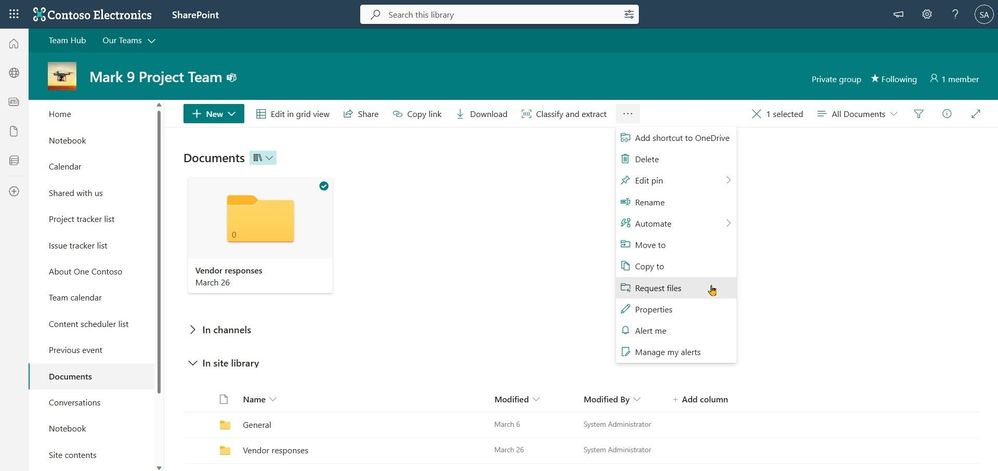
Request external files into SharePoint document libraries
The magic of “requesting files” into Microsoft 365 started with OneDrive (Oct. 2019) providing users with a quick and secure way to request and collect files from anyone. And now we have extended the same capability for SharePoint – specifically requesting file into document libraries. Voila!
It is easy and safe. A file request can start from a link in your email signature (see below tip), a link in a chat, a hyperlink that is a part of your intake or onboarding processes with customers, clients, and vendors. For the recipient, it is a simple web interface to upload a file and send it. And for you, the file(s) arrive(s) without granting access to your SharePoint document libraries or other sites – just the ability to upload to a specific folder you manage and control.
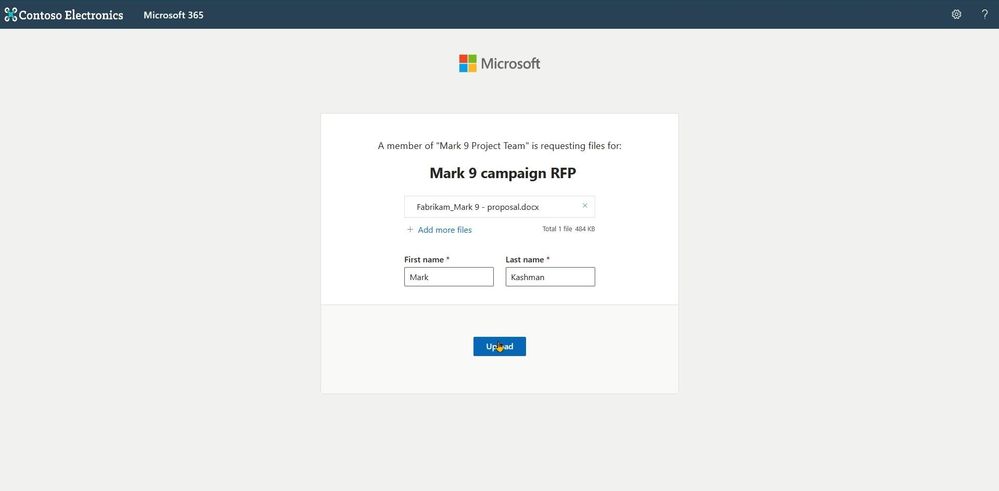
To start, you simply select a folder you want the recipient to place documents into and click Request Files. Fill in the name of the folder, and then type in the email address of the person you want to request files from. The recipient clicks on the link, picks her or his files, and uploads – only able to see the files they upload. The original requestor will get an email when new files are added – seeing the new files with the name of the person who uploaded them. Files requested – files done.
Look at it all in action:
Anyone with the file request link will be able to upload files without having to sign in, no Microsoft 365 account needed. Best of all, uploaders will only be able to upload files. They cannot view, edit, or even see who else may have uploaded to the request.
There are multiple use cases where this feature can be extremely valuable – consider “Request for Proposal” (RFP) scenario where you need to collect bids, or a marketing professional accumulating quotes from various vendors for a campaign, a teacher collecting assignments, a manager reaching out for feedback from team members, collecting images and videos from an event, or a financial rep or recruiter gathering documents from their clients – just to name a few.
Note | If Anyone links are enabled at the tenant level, request files are available. Admins can use the SharePoint Online Management Shell to disable or enable the Request Files feature on OneDrive or SharePoint sites. If there is no change in sharing capability for all sites, then the file request feature can be enabled.
Tip | Consider assigning a common folder for broader file requests. Once you set up the right folder within a SharePoint document library – use the request files link within your email signature with a simple phrase: “Send me a file” with the word ‘Send’ hyperlinked using your newly created request files link/URL.
Support.Microsoft.com | Learn more about requesting files to OneDrive and SharePoint, plus how admins can enable file requests.
Let us know what you think in the comments below. You can also reach us via Twitter (@SharePoint) and send future innovation requests to the SharePoint Feedback portal. We are here to expand content collaboration capabilities and refine your experience along the way.
Cheers and thanks, Irfan
#4 – Bash command for Process Management
#3 – Bash command for Text Processing

Develop Applications that use Sites.Selected permissions for SPO sites.
Develop Applications that use Sites.Selected permissions for SPO sites.
Microsoft Graph APIs have improved consistently over the years.
In 2021, one highly demanded feature, Application Only or granular access to individual site instead of whole tenant, was implemented, this scope is called “Sites.Selected”.
Initially, for this scope, there are two permission levels that can assigned to the Applications, “read” and “write.”
Some customers found there are management tasks cannot be executed with even “write” permission level. To address that, “fullcontrol” and “manage” permission level was added this year.
Here are the steps to implement App Only Sites.Selected permissions:
Step I, Register AAD Application in Azure Portal, https://portal.azure.com, and let’s call this Application “Target Application”.
Please see these articles for details:
Quickstart: Register an app in the Microsoft identity platform – Microsoft Entra | Microsoft Learn
Tutorial: Register an app with Azure Active Directory (Microsoft Dataverse) – Power Apps | Microsoft…
Once you registered the Target Application, copy below information to a text file:
Display name: Contoso Time Manager App
Client Id: d806f38b-a107****-1ec8e90c8ccc
Client Secret: XZW8Q*****855JDEw1cxP
Directory(tenant) ID: 31********95c59c1b
Step II, Give Target Application the permission for Graph API and/or SharePoint API in Azure Portal depending on whether you will access the site resource with
Graph API, like, https://graph.microsoft.com/v1.0/…
or SharePoint Rest API, like, https://contoso.sharepoint.com/sites/demo/_api/…
If you need to use Graph API to access SharePoint, you give Graph API permissions.
If you need to use SharePoint APIs, for example, SPO Rest API, SPO CSOM, you give SharePoint API permissions.

Step III, Use Graph API endpoint listed in this article, https://learn.microsoft.com/en-us/graph/api/site-post-permissions?view=graph-rest-1.0&tabs=http , to assign Target Application the permission to specific SharePoint Online site.
Content-Type: application/json{
“roles”: [“write”],
“grantedToIdentities”: [{
“application”: {
“id”: “89ea5c94-7736-4e25-95ad-3fa95f62b66e”, //Target Application’s Client Id
“displayName”: “Contoso Time Manager App” //Target Application’s Display name
}
}]
}
The import thing is, to do that, you need to have another Application which has Sites.FullControl.All permission for Graph API, then you get an App Only AccessToken with this Application’s identity and you can make above call with Authorization Header, the value is “Bearer {tokenvalue}”.
Below is Fiddler Trace of the Graph API call to assign permission for the target Application:

Authorization: Bearer eyJ0eXAiOiJKV8CJY2R……………qtlW1WoBXu3fdR8G7R-
Accept: application/json
User-Agent: NONISV|SharePointPnP|PnPCore/1.11.2.0 (Microsoft Windows NT 10.0.22621.0)
Content-Type: application/json
Host: graph.microsoft.com
Content-Length: 132
{“roles”:[“write”],”grantedToIdentities”:[{“application”:{“id”:”ea5f05ef-2a5c-418b-b679-0380b3e83fd3″,”displayName”:”aadAppOnly”}}]}
Now, your Target Application has been given the permission to the specific site successfully!
If you have chosen Graph API Sites.Selected Application permission, you can use Graph API to access the site.
If you have chosen SharePoint Sites.Selected Application permission, you can use SharePoint Rest API or CSOM to access the site.
NOTE, For SharePoint APIs, you cannot use just client secret to do the authentication, you have to setup certificate to gain Access Token.
A. Graph API Test Run:
To Test the access to specific site, you can use following sample PowerShell script to get App Only Access Token and retrieve the site with Graph API, see reference https://learn.microsoft.com/en-us/graph/api/site-get?view=graph-rest-1.0&tabs=http
$tenantId=”{tenantId}”
$aadClientId = “{clientId}”
$aadClientSecret = “{clientSecret}”
$scopes = “https://graph.microsoft.com/.default”
$loginURL = “https://login.microsoftonline.com/$tenantId/oauth2/v2.0/token”
$body = @{grant_type=”client_credentials”;client_id=$aadClientId;client_secret=$aadClientSecret;scope=$scopes}
$Token = Invoke-RestMethod -Method Post -Uri $loginURL -Body $body
$Token.access_token #expires after one hour
$headerParams = @{‘Authorization’=”$($Token.token_type) $($Token.access_token)”}
$headerParams
#Graph API call to get site
Invoke-WebRequest -Method Get -Headers $headerParams -Uri “https://graph.microsoft.com/v1.0/sites/contoso.sharepoint.com:/sites/demo”
Response:
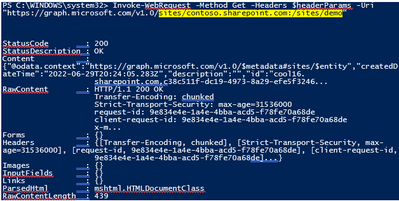
If you try to access another site that permission has not been given to, you will get error (403) Forbidden.:

B. SharePoint API Access:
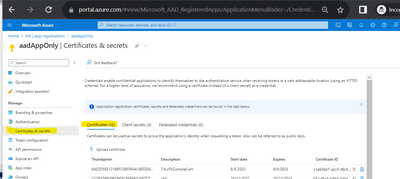
To make App only SPO REST and CSOM calls, you will need to generate certificates and upload the public key (.cer file) to Azure – App Registration – App – Certificates & secrets:
The simplest test script using PnP commands: Reference: Connect-PnPOnline | PnP PowerShell
$SiteURL = https://contoso.sharepoint.com/sites/demo
$secure = ConvertTo-SecureString “***” -AsPlainText –Force
Connect-PnPOnline -Url $SiteURL -CertificatePath c:..test.pfx -Tenant contoso.onmicrosoft.com -ClientId $aadClientId -CertificatePassword $Secure
Get-PnPSite
In other programming languages, you can use MSAL library to get the App Only Access Token with certificate through client credential flow, then you can attach that Token for the web requests, see reference: https://learn.microsoft.com/en-us/azure/active-directory/develop/sample-v2-code.







