Seems creating Microsoft 365/O365 Group sites via CSOM not working. If you try to use SharePoint Client Side Object Model(CSOM) you might run into following exception:
Microsoft.SharePoint.Client.ServerException
HResult=0x80131500
Message=The web template GROUP#0 is not available for sites on this tenant.
Source=Microsoft.SharePoint.Client.Runtime
StackTrace:
at Microsoft.SharePoint.Client.ClientRequest.ProcessResponseStream(Stream responseStream)
at Microsoft.SharePoint.Client.ClientRequest.ProcessResponse()
at Microsoft.SharePoint.Client.ClientRequest.ExecuteQueryToServer(ChunkStringBuilder sb)
at Microsoft.SharePoint.Client.ClientContext.ExecuteQuery()
We have to use Graph API and this sample should help get started. ROPC authentication is used. Delegated authentication should also work but not tested.
Setup Steps:
1] Setup Native App in AAD.
2] Copy the App Id as you will need to provide it later in the code.
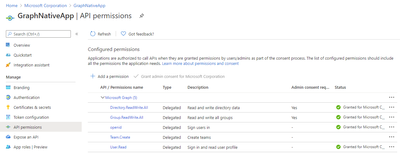
3] Provide following Delegated Graph API permissions.
Groups.ReadWite.All, Directory.ReadWrite.All, openid, Team.Create, User.Read
4] Grant Admin consent.
5] See screenshot below:
6] Sample C# code to Create Microsoft 365/O365 Group site with Teams:
using System;
using System.Net.Http;
using System.Net.Http.Headers;
using System.Collections.Generic;
using System.Threading.Tasks;
using Newtonsoft.Json;
using Newtonsoft.Json.Linq;
using System.Text;
namespace CreateGroupMultiGeo
{
class Program
{
static async Task Main(string[] args)
{
string clientId = “50168119-04dd-0000-0000-000000000000”;
string email = “someuser@spotenant.onmicrosoft.com”;
string passwordStr = “password”;
var req = new HttpRequestMessage(HttpMethod.Post, “https://login.microsoftonline.com/bc8dcd4c-0d60-0000-0000-000000000000/oauth2/token”)
{
Content = new FormUrlEncodedContent(new Dictionary<string, string>
{
[“resource”] = “https://graph.microsoft.com”,
[“grant_type”] = “password”,
[“client_id”] = clientId,
[“username”] = email,
[“password”] = passwordStr,
[“scope”] = “openid”
})
};
HttpClient httpClient = new HttpClient();
var res = await httpClient.SendAsync(req);
string json = await res.Content.ReadAsStringAsync();
if (!res.IsSuccessStatusCode)
{
throw new Exception(“Failed to acquire token: ” + json);
}
var result = (JObject)JsonConvert.DeserializeObject(json);
//create a group
HttpClient httpClientGroup = new HttpClient();
httpClientGroup.DefaultRequestHeaders.Authorization = new AuthenticationHeaderValue(“Bearer”, result.Value<string>(“access_token”));
// Create a string variable and get user input from the keyboard and store it in the variable
string grpName = “MultiGeoGraphAPIGrp1″;
string contentGroup = @”{
‘displayName’: ‘” + grpName + @”‘,”
+ @”‘groupTypes’: [‘Unified’],
‘mailEnabled’: true,
‘mailNickname’: ‘” + grpName + @”‘,”
+ @”‘securityEnabled’: false,
‘visibility’:’Public’,
‘preferredDataLocation’:’GBR’,
‘owners@odata.bind’: [‘https://graph.microsoft.com/v1.0/users/ecc0fc81-244b-0000-0000-000000000000’]
}”;
var httpContentGroup = new StringContent(contentGroup, Encoding.GetEncoding(“utf-8”), “application/json”);
var responseGroup = httpClientGroup.PostAsync(“https://graph.microsoft.com/v1.0/groups”, httpContentGroup).Result;
var content = await responseGroup.Content.ReadAsStringAsync();
dynamic grp = JsonConvert.DeserializeObject<object>(content);
Console.WriteLine(responseGroup.Content.ReadAsStringAsync().Result);
System.Threading.Thread.Sleep(3000);
//create a Team
HttpClient httpClientTeam = new HttpClient();
httpClientTeam.DefaultRequestHeaders.Authorization = new AuthenticationHeaderValue(“Bearer”, result.Value<string>(“access_token”));
//create a team
string contentTeam = @”{
‘memberSettings’: {
‘allowCreateUpdateChannels’: true
},
‘messagingSettings’: {
‘allowUserEditMessages’: true,
‘allowUserDeleteMessages’: true
},
‘funSettings’: {
‘allowGiphy’: true,
‘giphyContentRating’: ‘strict’
}
}”;
var httpContentTeam = new StringContent(contentTeam, Encoding.GetEncoding(“utf-8”), “application/json”);
////Refere: https://docs.microsoft.com/en-us/graph/api/team-put-teams?view=graph-rest-1.0&tabs=http
var responseTeam = httpClientTeam.PutAsync(@”https://graph.microsoft.com/v1.0/groups/” + grp.id + @”/team”, httpContentTeam).Result;
Console.WriteLine(responseTeam.Content.ReadAsStringAsync().Result);
Console.ReadKey();
}
}
}
Seems creating Microsoft/O365 Group sites via CSOM not working. If you try to use SharePoint Client Side Object Model(CSOM) you might run into following exception:
Microsoft.SharePoint.Client.ServerException
HResult=0x80131500
Message=The web template GROUP#0 is not available for sites on this tenant.
Source=Microsoft.SharePoint.Client.Runtime
StackTrace:
at Microsoft.SharePoint.Client.ClientRequest.ProcessResponseStream(Stream responseStream)
at Microsoft.SharePoint.Client.ClientRequest.ProcessResponse()
at Microsoft.SharePoint.Client.ClientRequest.ExecuteQueryToServer(ChunkStringBuilder sb)
at Microsoft.SharePoint.Client.ClientContext.ExecuteQuery()
We have to use Graph API and this sample should help get started. ROPC authentication is used. Delegated authentication should also work but not tested.
Setup Steps:
1] Setup Native App in AAD.
2] Copy the App Id as you will need to provide it later in the code.
3] Provide following Delegated Graph API permissions.
Groups.ReadWite.All, Directory.ReadWrite.All, openid, Team.Create, User.Read
4] Grant Admin consent.
5] See screenshot below:
6] Sample C# code to Create Microsoft/O365 Group site with Teams:
using System;
using System.Net.Http;
using System.Net.Http.Headers;
using System.Collections.Generic;
using System.Threading.Tasks;
using Newtonsoft.Json;
using Newtonsoft.Json.Linq;
using System.Text;
namespace CreateGroupMultiGeo
{
class Program
{
static async Task Main(string[] args)
{
string clientId = “50168119-04dd-0000-0000-000000000000”;
string email = “someuser@spotenant.onmicrosoft.com”;
string passwordStr = “password”;
var req = new HttpRequestMessage(HttpMethod.Post, “https://login.microsoftonline.com/bc8dcd4c-0d60-0000-0000-000000000000/oauth2/token”)
{
Content = new FormUrlEncodedContent(new Dictionary<string, string>
{
[“resource”] = “https://graph.microsoft.com”,
[“grant_type”] = “password”,
[“client_id”] = clientId,
[“username”] = email,
[“password”] = passwordStr,
[“scope”] = “openid”
})
};
HttpClient httpClient = new HttpClient();
var res = await httpClient.SendAsync(req);
string json = await res.Content.ReadAsStringAsync();
if (!res.IsSuccessStatusCode)
{
throw new Exception(“Failed to acquire token: ” + json);
}
var result = (JObject)JsonConvert.DeserializeObject(json);
//create a group
HttpClient httpClientGroup = new HttpClient();
httpClientGroup.DefaultRequestHeaders.Authorization = new AuthenticationHeaderValue(“Bearer”, result.Value<string>(“access_token”));
// Create a string variable and get user input from the keyboard and store it in the variable
string grpName = “MultiGeoGraphAPIGrp1″;
string contentGroup = @”{
‘displayName’: ‘” + grpName + @”‘,”
+ @”‘groupTypes’: [‘Unified’],
‘mailEnabled’: true,
‘mailNickname’: ‘” + grpName + @”‘,”
+ @”‘securityEnabled’: false,
‘visibility’:’Public’,
‘preferredDataLocation’:’GBR’,
‘owners@odata.bind’: [‘https://graph.microsoft.com/v1.0/users/ecc0fc81-244b-0000-0000-000000000000’]
}”;
var httpContentGroup = new StringContent(contentGroup, Encoding.GetEncoding(“utf-8”), “application/json”);
var responseGroup = httpClientGroup.PostAsync(“https://graph.microsoft.com/v1.0/groups”, httpContentGroup).Result;
var content = await responseGroup.Content.ReadAsStringAsync();
dynamic grp = JsonConvert.DeserializeObject<object>(content);
Console.WriteLine(responseGroup.Content.ReadAsStringAsync().Result);
System.Threading.Thread.Sleep(3000);
//create a Team
HttpClient httpClientTeam = new HttpClient();
httpClientTeam.DefaultRequestHeaders.Authorization = new AuthenticationHeaderValue(“Bearer”, result.Value<string>(“access_token”));
//create a team
string contentTeam = @”{
‘memberSettings’: {
‘allowCreateUpdateChannels’: true
},
‘messagingSettings’: {
‘allowUserEditMessages’: true,
‘allowUserDeleteMessages’: true
},
‘funSettings’: {
‘allowGiphy’: true,
‘giphyContentRating’: ‘strict’
}
}”;
var httpContentTeam = new StringContent(contentTeam, Encoding.GetEncoding(“utf-8”), “application/json”);
////Refere: https://docs.microsoft.com/en-us/graph/api/team-put-teams?view=graph-rest-1.0&tabs=http
var responseTeam = httpClientTeam.PutAsync(@”https://graph.microsoft.com/v1.0/groups/” + grp.id + @”/team”, httpContentTeam).Result;
Console.WriteLine(responseTeam.Content.ReadAsStringAsync().Result);
Console.ReadKey();
}
}
}

In this installment of the weekly discussion revolving around the latest news and topics on Microsoft 365, hosts – Vesa Juvonen (Microsoft) | @vesajuvonen, Waldek Mastykarz (Microsoft) | , are joined by Business Apps MVP Serge Luca (a.k.a., Dr. Flow) (Power Platform Associates) | @sergeluca.
Discussed in this session – Serge’s interest in Power Platform, growth in the number of available connectors – application integration, and data storage options. As well, the need for more developer focused patterns and practices was called out.
Regarding data storage, the group more-or-less defined a decision tree. There is product – CDS (free or paid), SQL/Azure, SharePoint, or Hybrid and there are other considerations – licensing, app types, security/permission requirements, data storage costs, and database management. Finally, Serge gives viewers a quick tour of the workflow companion tool he has been developing called BPM.
This episode was recorded on Monday, November 23, 2020.
Did we miss your article? Please use #PnPWeekly hashtag in the Twitter for letting us know the content which you have created.
As always, if you need help on an issue, want to share a discovery, or just want to say: “Job well done”, please reach out to Vesa, to Waldek or to your PnP Community.
Sharing is caring!

n this installment of the weekly discussion revolving around the latest news and topics on Microsoft 365, hosts – Vesa Juvonen (Microsoft) | @vesajuvonen, Waldek Mastykarz (Microsoft) | @waldekm, are joined by Alistair Pugin (Tangent Solutions) | @AlistairPugin – Head of Cloud Services based in South Africa.
Since hearing about SharePoint Syntex recently during the monthly SharePoint Community call – November 2020, gain additional insights and perspective on Syntex during this call. Enterprise Content Management (ECM) is dead, long live content services. Syntex is ECM2.0. What Power BI does for Structured Data, Cortex does for unstructured data. Intelligence is built into unstructured data, now access it. Also discussed: Hybrid is an end state. The intelligent intranet now supersized with Cortex, how AI supports Syntex and Teams is the centralized access point to everything.
This episode was recorded on Monday, November 16, 2020.
Did we miss your article? Please use #PnPWeekly hashtag in the Twitter for letting us know the content which you have created.
As always, if you need help on an issue, want to share a discovery, or just want to say: “Job well done”, please reach out to Vesa, to Waldek or to your PnP Community.
Sharing is caring!

Microsoft 365 & SharePoint Ecosystem (PnP) November 2020 update is out with a summary of the latest guidance, samples, and solutions from Microsoft or from the community for the community. This article is a summary of all the different areas and topics around the community work we do around Microsoft 365 and SharePoint ecosystem during the past month.
Thank you for being part of this initiative. Sharing is caring!
Got feedback, suggestions or ideas? – don’t hesitate to contact.







