
In SP2019 environment, sometime when trying to browse to pages that have SPFx Web Part in secure SharePoint site, error shows:
“Something went wrong….”
Or developer/admin tries to deploy the SPFx solution in the secure site and gets error:
Interestingly, some users find they can browse to the same pages and deploy the same SPFx web part with the corresponding Non-SSL URL just fine:

ULS log has following entries:
09/22/2020 21:03:38.57 w3wp.exe (0x2828) 0x3CAC SharePoint Foundation Site Cache bm4im High LookupHostHeaderSite: could not find SPSiteLookupInfo for host-header site-based multi-url lookup string https://sp2019 for request Uri https://sp2019/_api/web/GetOnePageContextAsStream in Database Using site lookup provider: Microsoft.SharePoint.Administration.SPConfigurationDatabaseSiteLookupProvider. UserAgent: Mozilla/5.0 (Windows NT 10.0; Win64; x64) AppleWebKit/537.36 (KHTML, like Gecko) Chrome/85.0.4183.102 Safari/537.36 Edg/85.0.564.51 45b47c9f-c217-10f4-a763-6e50045c7103
09/22/2020 21:03:38.57 w3wp.exe (0x2828) 0x3CAC SharePoint Foundation Configuration 8059 Warning Alternate access mappings have not been configured. Users or services are accessing the site http://sp2019 with the URL https://sp2019. This may cause incorrect links to be stored or returned to users. If this is expected, add the URL https://sp2019 as an AAM response URL.
In this case, the ULS log is quite helpful, it tells us that AAM has not be set correctly for the SSL site.
To fix this, go to Central Admin, add the SSL site URL as public URL of the AAM setting for the web application:

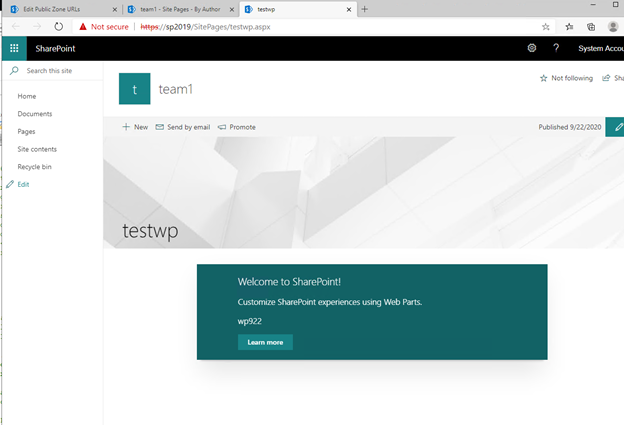
Now browsing to SSL pages and deployment in the SSL site should both work:
We are on a journey to align the SharePoint admin center with the Microsoft 365 suite designing it to be more interconnected and aligned with the changing collaboration needs of your people. Today at Microsoft Ignite 2020, we announced several new updates to the overall SharePoint admin center experience – to enable visual, actionable management of your intelligent intranet, report on what content services power your content productivity and ease of migration from Box:
- Meet the updated SharePoint admin center home page with actionable insights
- Improved visibility on where sites are created from and by whom
- Microsoft 365 migration for Box
- Bringing OneDrive settings into the SharePoint admin center
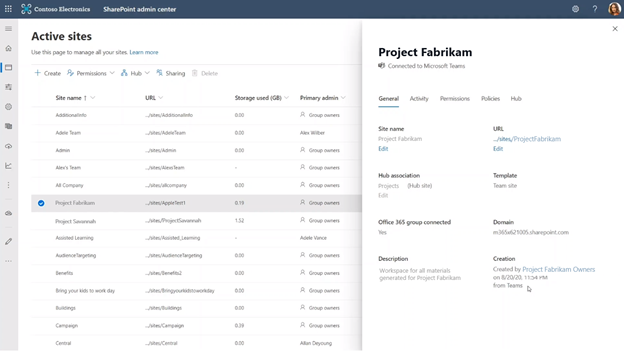
Active sites in the SharePoint admin center now showcase where the site was created from, by whom and whether it is yet connected to Microsoft Teams.
The intelligent intranet is personal, collaborative, and ever changing. The updates highlighted below will be coming to your Microsoft 365 tenant by the end of this calendar year (2020) – all to monitor and manage the state of your organization’s intranet and utilize the new experiences to stay productive – especially when you have 100s or 1000s of sites to manage, across terabytes or petabytes of active content.
Meet the updated SharePoint admin center home page with actionable insights
Everything we build is inspired from the feedback we receive from the community and is designed to make your day-to-day administration easier. One of the most common pieces of feedback we receive is around insights and reporting, right behind admin experience consistency throughout the suite. So, we’re working on loading up the default SharePoint admin center home page with all the information, insights and contextual actions you need at a glance – and hey, it looks a lot like what you’ve seen as updates to the Microsoft 365 admin center.
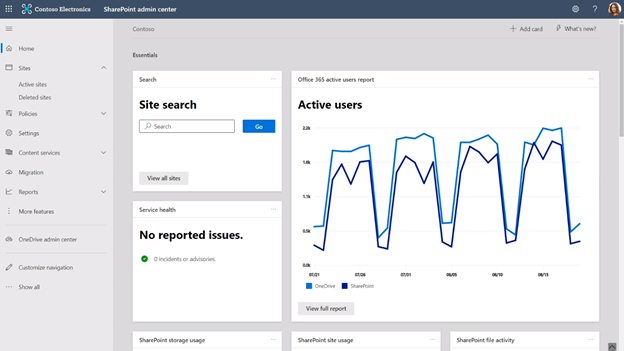 1 of 4 – the new SharePoint admin home page showing several cards: Site search, Active users, and Service health.
Beyond the default set of cards, you can create customizable search cards. Simply navigate to the Active sites page, create a view with the desired columns and settings intact and then click the Track button. This puts a new custom card on the home page that you can place in any location of the home page layout.
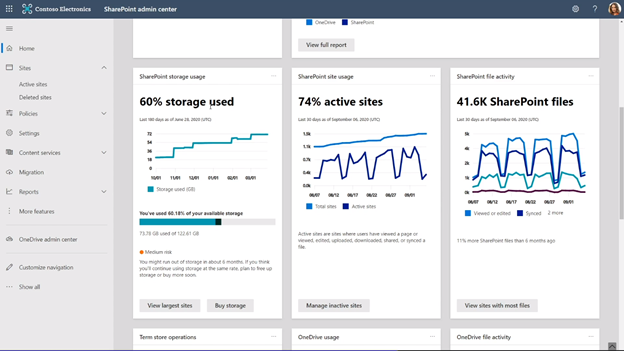 3 of 4 – as you scroll the new SharePoint admin home page further, you see more cards: Sensitivity labels across sites, OneDrive usage, and OneDrive file activity.
We, too, are adding proactive recommendations to the top of the home page. These recommendations are tailored to each individual and helps you learn about improvements that you may not know about.
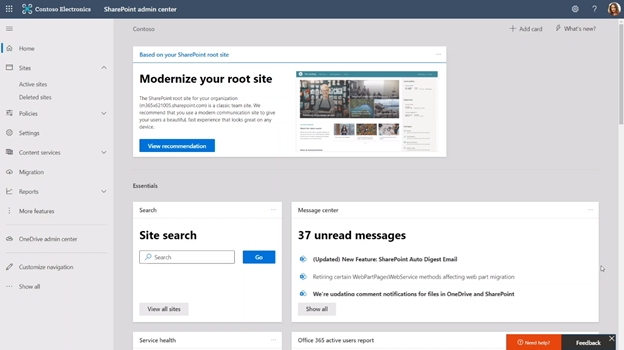 4 of 4 – as you scroll back to the top of the new SharePoint admin home page, at time you’ll see proactive recommendations – like above suggesting you modernize your root site (including more information and quick-start button).
You can create your preferred home page experience using any combination of the following visual, actionable cards:
|
· Site search
· Message center
· Service health
· Active users
· SharePoint site usage
· SharePoint file activity
|
· SharePoint storage usage
· Sites creation breakdown
· OneDrive usage
· OneDrive file activity
· Term store operations
· Sensitivity labels across sites
|
… plus, the ability to create your own custom search-driven cards as described above.
 Create your own custom search-driven cards; above shows pivot of sites on certain criteria (left) and the card that gets created on the home page (right) after clicking the track button.
Last, anyone who is assigned as a SharePoint admin within your organization can personalize their own home page experience. Thus, each SharePoint admin can focus on their main tasks, especially when they differ across administration delegation.
SharePoint admin center – updated home page dashboard | Roadmap ID: 68812.
Improved visibility on where sites are created from and by whom
The mystery of who created a site and from where has mystified SharePoint seekers for ages. Seek no more. The origins that cast lore about the land stops soon.
The Active sites tab is getting new insights. At a glance, you’ll be able to tell where a site was created from – like via PowerShell, API or Microsoft Teams – and in a column nearby, you’ll be able to see who the site was created by.
 Use the Created from column to filter a list of sites down by where it was created from.
Microsoft Teams is an important productivity integration for your people and their content – powered by SharePoint. So, to improve visibility on which sites are already connected to Teams, you’ll find a new column that tells you exactly that – whether the site is yet connected to Teams, or not. And if it isn’t, the ability to ‘Teamify’ the site is merely one-click away.
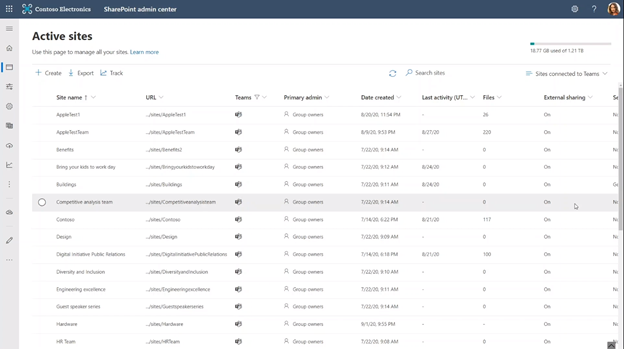 Easily see if a SharePoint team site has an existing connection to Microsoft Teams.
SharePoint admin center – site creation source | Roadmap ID: 68813.
Microsoft 365 migration for Box
With our recent Mover acquisition, we are excited to expand our capabilities to allow moving content from third-party cloud storage providers directly from within the SharePoint admin center – starting with Box.com migration.
 Scan discovery (you’ll see files and folder and quantity), assessment, and then move to migrate (where you’ll see source and progress).
You’re in control every step of the way, and we’re there to help. As you connect to a Box enterprise account, the service begins discovering users and their files. We auto-map to individual’s OneDrive accounts. You, too, can manually map the destination to specific OneDrive user accounts, SharePoint sites, or Teams Files (a SharePoint document library under the covers).
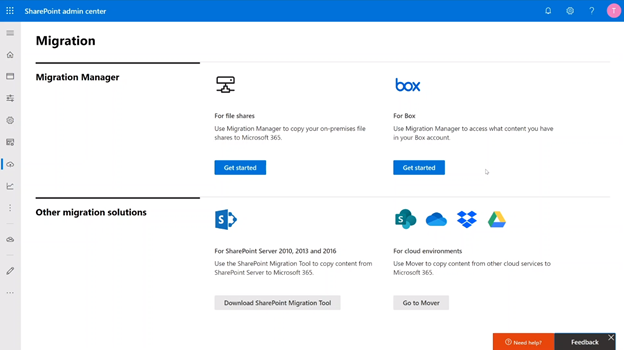 Start your Box migration from within the SharePoint admin center Migration tab in Microsoft 365.
The rest is a seamless transition of your files and folders to Microsoft 365 – including the transfer and conversion of Box notes to Word documents.
Try this later in the year. Our plan is to move more of the Mover capabilities into the SharePoint admin center in Microsoft 365.
SharePoint admin center – Migration Manager: Box migrations | Roadmap ID: [68816].
Bringing OneDrive settings into the SharePoint admin center
Less admin is more. Especially when the less means better managing the same platform across various experiences. In this case, we want to make it easier to access OneDrive settings from within your SharePoint admin center – without needing to go to the OneDrive admin center.
 Access many OneDrive settings from within the SharePoint admin center Settings page.
Go to the Settings tab and find ease-of-access to manage default storage limits, allows notifications, set default retention owners for deleted users and manage important sync settings (including sync reporting (announced at Ignite 2020 and coming soon).
And as mentioned above, you can use two new OneDrive-specific home page cards to see OneDrive usage and OneDrive file activity.
SharePoint admin center – OneDrive settings | Roadmap ID: 68814.
Additional resources
“Monitor and manage SharePoint investments in Microsoft 365” presented by Dave Minasyan, Rk Menon, and Trent Green:
“What’s new to easily migrate your content to Microsoft 365” presented by Eric Warnke and Yogesh Ratnaparkhi:
- Related session on-demand
- Recent, related blogs:
Closing
Managing SharePoint and OneDrive in Microsoft 365 continues to improve. Beyond new innovation, take a moment to learn more about the SharePoint admin role in Microsoft 365 to best manage sites, control external sharing, move content into Microsoft 365, manage metadata, and more.
We invite you to engage our FastTrack team to help with adoption and migration. Our goal is to empower you and every person on your team to achieve more. Let us know what you need next. We are always open to feedback via UserVoice and continued dialog in the SharePoint community in the Microsoft Tech Community —and we always have an eye on tweets to @SharePoint. Let us know.
Thanks, Mark Kashman – senior product manager – Microsoft 365
This week at Microsoft Ignite we announced the new home site app. The app gives employees a gateway to your organization, starting with the app’s name and icon, which you can customize to reflect the identity of your organization or your intranet. The app’s multi-level navigation lets people find sites across the organization, including portals, teams, communities and applications.
We are happy to see the excitement for this in the community and with our customers. Many of you have asked for additional information. As part of Ignite we have released a new session, on demand, focused on the home site app.
We have also put together an FAQ with the most common questions we have been asked.
Home site app
Q: Can any site be pinned as a Home site app in Teams?
A: Communication sites designated as Home Sites are eligible for pinning in Teams as the Home site app using our default configuration flow.
Q: Where are global navigation links curated?
A: Links for global navigation are managed through the home site, by home site owners, freeing global admins from having to play the role of curator
Q: Can my classic site be pinned in Teams ?
A: Only home sites are eligible to be pinned as the home site app in Teams with our default configuration flow. Home sites must be modern SharePoint communication sites.
Q: What is difference between Home site app and Home page pinned as tab?
A: The home site app provides organizations to pin company branded entry point to their intranet as a top level app in Teams. It provides an immersive site consumption experience, complete with navigation, mega-manus and support for tenant wide search. It also provides quick access to company curated resources, important sites and news similar to those provided by the SharePoint App Bar in the web. Home pages (or any other SharePoint pages) pinned as tabs in Channels provide ways to bring content directly into Team collaboration scenarios, and these pages have navigation and search elements removed to facilitate focus on the page content itself.
Q: Do I need a Home site app for the Global nav to show up in Teams?
A: Yes, the global navigation links are stored in the home site of a tenant, and is required in order for the navigation panel to appear in the home site app in Teams
Q: Can a Team site be a Home site?
A: No. Only communication sites can be made a Home site in a tenant.
We are humbled and honored by the reaction to this upcoming feature and appreciate all the engagement with us. Please, keep your feedback and questions coming.
We are on a journey to align the SharePoint admin center with the Microsoft 365 suite designing it to be more interconnected and aligned with the changing collaboration needs of your people. Today at Microsoft Ignite 2020, we announced several new updates to the overall SharePoint admin center experience – to enable visual, actionable management of your intelligent intranet, report on what content services power your content productivity and ease of migration from Box:
- Meet the updated SharePoint admin center home page with actionable insights
- Improved visibility on where sites are created from and by whom
- Microsoft 365 migration for Box
- Bringing OneDrive settings into the SharePoint admin center
Active sites in the SharePoint admin center now showcase where the site was created from, by whom and whether it is yet connected to Microsoft Teams.
The intelligent intranet is personal, collaborative, and ever changing. The updates highlighted below will be coming to your Microsoft 365 tenant by the end of this calendar year (2020) – all to monitor and manage the state of your organization’s intranet and utilize the new experiences to stay productive – especially when you have 100s or 1000s of sites to manage, across terabytes or petabytes of active content.
Meet the updated SharePoint admin center home page with actionable insights
Everything we build is inspired from the feedback we receive from the community and is designed to make your day-to-day administration easier. One of the most common pieces of feedback we receive is around insights and reporting, right behind admin experience consistency throughout the suite. So, we’re working on loading up the default SharePoint admin center home page with all the information, insights and contextual actions you need at a glance – and hey, it looks a lot like what you’ve seen as updates to the Microsoft 365 admin center.
1 of 4 – the new SharePoint admin home page showing several cards: Site search, Active users, and Service health.
Beyond the default set of cards, you can create customizable search cards. Simply navigate to the Active sites page, create a view with the desired columns and settings intact and then click the Track button. This puts a new custom card on the home page that you can place in any location of the home page layout.
3 of 4 – as you scroll the new SharePoint admin home page further, you see more cards: Sensitivity labels across sites, OneDrive usage, and OneDrive file activity.
We, too, are adding proactive recommendations to the top of the home page. These recommendations are tailored to each individual and helps you learn about improvements that you may not know about.
4 of 4 – as you scroll back to the top of the new SharePoint admin home page, at time you’ll see proactive recommendations – like above suggesting you modernize your root site (including more information and quick-start button).
You can create your preferred home page experience using any combination of the following visual, actionable cards:
|
· Site search
· Message center
· Service health
· Active users
· SharePoint site usage
· SharePoint file activity
|
· SharePoint storage usage
· Sites creation breakdown
· OneDrive usage
· OneDrive file activity
· Term store operations
· Sensitivity labels across sites
|
… plus, the ability to create your own custom search-driven cards as described above.
Create your own custom search-driven cards; above shows pivot of sites on certain criteria (left) and the card that gets created on the home page (right) after clicking the track button.
Last, anyone who is assigned as a SharePoint admin within your organization can personalize their own home page experience. Thus, each SharePoint admin can focus on their main tasks, especially when they differ across administration delegation.
SharePoint admin center – updated home page dashboard | Roadmap ID: 68812.
Improved visibility on where sites are created from and by whom
The mystery of who created a site and from where has mystified SharePoint seekers for ages. Seek no more. The origins that cast lore about the land stops soon.
The Active sites tab is getting new insights. At a glance, you’ll be able to tell where a site was created from – like via PowerShell, API or Microsoft Teams – and in a column nearby, you’ll be able to see who the site was created by.
Use the Created from column to filter a list of sites down by where it was created from.
Microsoft Teams is an important productivity integration for your people and their content – powered by SharePoint. So, to improve visibility on which sites are already connected to Teams, you’ll find a new column that tells you exactly that – whether the site is yet connected to Teams, or not. And if it isn’t, the ability to ‘Teamify’ the site is merely one-click away.
Easily see if a SharePoint team site has an existing connection to Microsoft Teams.
SharePoint admin center – site creation source | Roadmap ID: 68813.
Microsoft 365 migration for Box
With our recent Mover acquisition, we are excited to expand our capabilities to allow moving content from third-party cloud storage providers directly from within the SharePoint admin center – starting with Box.com migration.
Scan discovery (you’ll see files and folder and quantity), assessment, and then move to migrate (where you’ll see source and progress).
You’re in control every step of the way, and we’re there to help. As you connect to a Box enterprise account, the service begins discovering users and their files. We auto-map to individual’s OneDrive accounts. You, too, can manually map the destination to specific OneDrive user accounts, SharePoint sites, or Teams Files (a SharePoint document library under the covers).
Start your Box migration from within the SharePoint admin center Migration tab in Microsoft 365.
The rest is a seamless transition of your files and folders to Microsoft 365 – including the transfer and conversion of Box notes to Word documents.
Try this later in the year. Our plan is to move more of the Mover capabilities into the SharePoint admin center in Microsoft 365.
SharePoint admin center – Migration Manager: Box migrations | Roadmap ID: [68816].
Bringing OneDrive settings into the SharePoint admin center
Less admin is more. Especially when the less means better managing the same platform across various experiences. In this case, we want to make it easier to access OneDrive settings from within your SharePoint admin center – without needing to go to the OneDrive admin center.
Access many OneDrive settings from within the SharePoint admin center Settings page.
Go to the Settings tab and find ease-of-access to manage default storage limits, allows notifications, set default retention owners for deleted users and manage important sync settings (including sync reporting (announced at Ignite 2020 and coming soon).
And as mentioned above, you can use two new OneDrive-specific home page cards to see OneDrive usage and OneDrive file activity.
SharePoint admin center – OneDrive settings | Roadmap ID: 68814.
Additional resources
“Monitor and manage SharePoint investments in Microsoft 365” presented by Dave Minasyan, Rk Menon, and Trent Green:
“What’s new to easily migrate your content to Microsoft 365” presented by Eric Warnke and Yogesh Ratnaparkhi:
- Related session on-demand
- Recent, related blogs:
Closing
Managing SharePoint and OneDrive in Microsoft 365 continues to improve. Beyond new innovation, take a moment to learn more about the SharePoint admin role in Microsoft 365 to best manage sites, control external sharing, move content into Microsoft 365, manage metadata, and more.
We invite you to engage our FastTrack team to help with adoption and migration. Our goal is to empower you and every person on your team to achieve more. Let us know what you need next. We are always open to feedback via UserVoice and continued dialog in the SharePoint community in the Microsoft Tech Community —and we always have an eye on tweets to @SharePoint. Let us know.
Thanks, Mark Kashman – senior product manager – Microsoft 365

In an increasingly volatile world, organizational resilience depends upon the agility and responsiveness of your people. It’s more critical than ever to connect, inspire, and activate people. But it is also more difficult than ever. While many people may have adapted to working remotely, we hear from customers that it’s challenging to connect people, particularly outside of their core working groups, to drive culture and communication, and foster knowledge sharing and innovation.
Today, at Microsoft Ignite, we announced innovations that transform workplace communications, and empower communicators with integrated storytelling tools to inform, engage and inspire people across the organization. These innovations are informed by you, our customers. Top announcements include:
- Home site app for Microsoft Teams. Bring your home site and the best of your intranet directly into Microsoft Teams—seamlessly. The home site app gives your users global navigation across sites, communities, and teams; quick access to sites they use regularly; and a personalized news feed.
- SharePoint app bar. Create a consistent navigation experience to every site on your intelligent intranet, featuring quick access to important sites across the organization, personally relevant sites, and the news feed.
- Boost news in SharePoint. Prioritize important news and announcements to appear at the top of news feeds across Microsoft 365. You can boost the visibility of a news article for a set time, until an employee has seen your content, or until a viewer has seen the item in their feed a set number of times.
- Share news to email, Microsoft Teams, and Yammer. Share a news article directly to your audience’s team, community, or inboxes.
- Enhancements for communicators in Yammer. Send notifications for priority announcements to the inboxes of all community members or raise the visibility of a post by featuring it in the community and discovery feed. And, with delegate posting, designated users can share messages and announcements to the organization on leadership’s behalf.
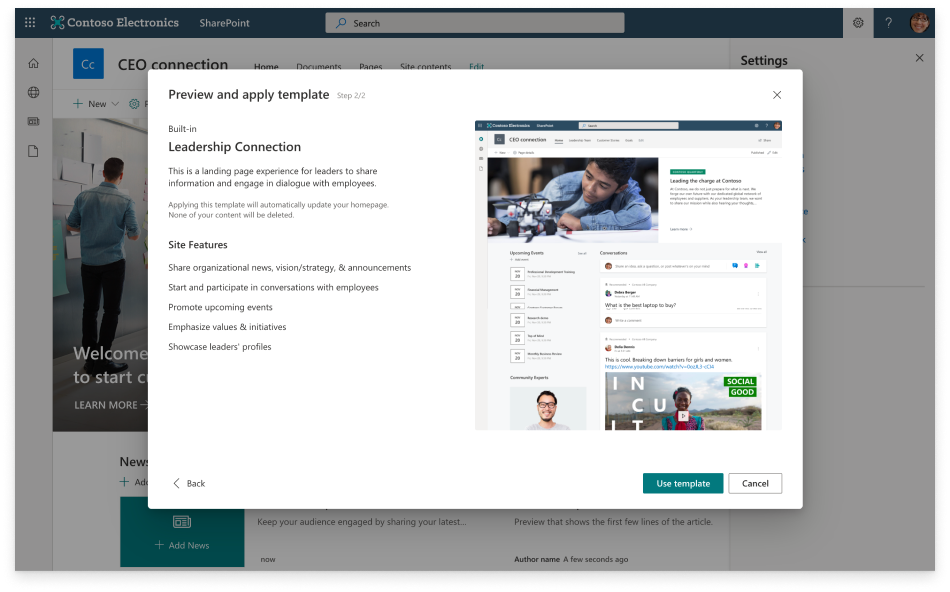
- Built-in templates. Quickly deploy robust scenarios by using predefined sites that integrate the superpowers of Microsoft 365. Easily customize built-in templates to your needs, such as the template for Leadership Connection, and apply them to any existing SharePoint site to give it new superpowers and a beautiful design.
- Insights for communicators. Understand your reach, impact, and engagement across Microsoft 365 by using new analytics in SharePoint, such as dwell time on content, heatmap views of interaction, and automatic analytics digest powered by AI. Combined these insights with analytics in Yammer, such as enhanced Community Insights, Live Events, and Question and Answers.
The intelligent intranet and Teams: better together
For many of you, the intranet is a canvas for communications, and for nearly two decades, SharePoint has been the leading platform for intranets, enabling organizations to connect the workplace, share information, and deliver rich employee experiences. Recent innovations in SharePoint like home sites, multilingual support, and audience targeting allow customers to create award-winning intranets in Microsoft 365, with no code.
As more people use Teams as a hub for teamwork, customers have asked us to integrate the superpowers of SharePoint with Teams, to reach people effectively where they work.
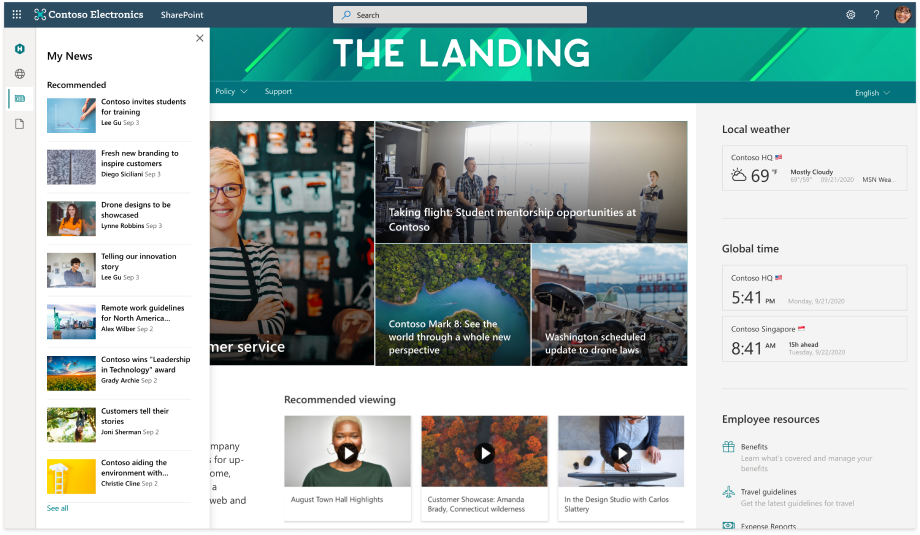
Today, we’re pleased to announce the new home site app for Teams, which brings your home site and the best of your intelligent intranet to Teams. The app gives users a gateway to your organization, starting with the app’s name and icon, which you can customize to reflect the identity of your organization or your intranet. The app’s multi-level navigation lets people find sites across the organization, including portals, teams, communities and applications.
Sites built on modern SharePoint will render inside Teams itself. And the app makes it easy to share and discuss content from intranet sites in Teams channels and chat.
With the home site app, people can tap into news and resources across the intelligent intranet without leaving the hub for teamwork. And communicators can build and deliver rich communications experiences in Teams.
Global navigation and news, on any site
Customers have also asked us to provide a global navigation experience that connects the workplace. The new SharePoint app bar brings a consistent navigation experience to every site on your intelligent intranet, featuring quick access to important sites across the organization, personally relevant sites, and the news feed. The customizable, global navigation in the app bar is shared with the home site app, giving employees that consistent navigation experience across Teams and the browser.
Improvements to news feeds and digests
Communicators told us that it’s harder than ever to get the right information to the right people, at the right time, across applications and devices. Today we announced improvements to news feeds and news digests.
The news feed delivers an intelligent view of news, targeted to you based on factors like your role or location, and further personalized based on signals in Microsoft Graph about where, how, and with whom you work. But communicators have told us that not all announcements and news are equal. Sometimes you need to boost the visibility of important news articles in the feed, rather than relying solely on AI. Soon, you can boost a news post until it has been read, for a set number of impressions, or until a given date. When the criteria is satisfied, the post returns to its normal position in the feed.
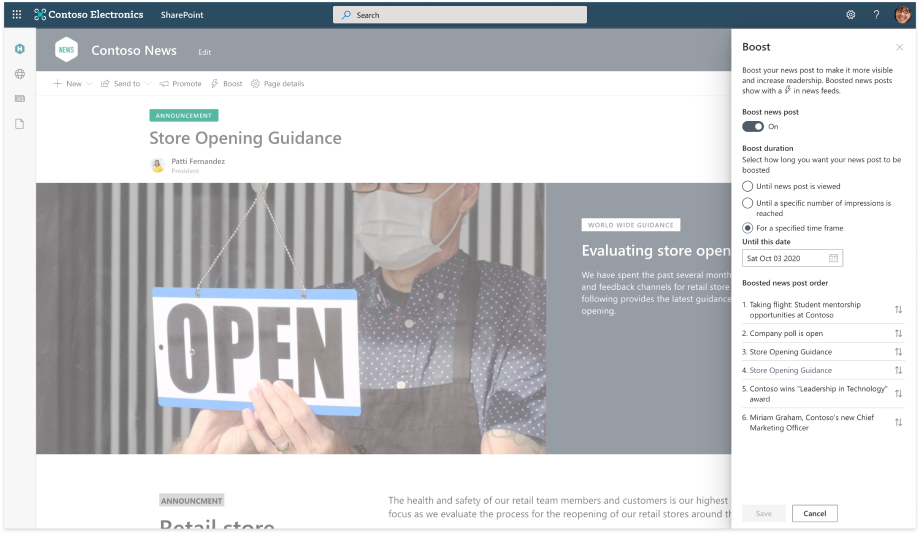
We’re delivering an enhanced news feed that supports boosting news in Edge, in news web parts, and in the SharePoint start page. In the future, we’ll be bringing this improved news feed to other experiences, and we’ll be adding new superpowers to the feed.
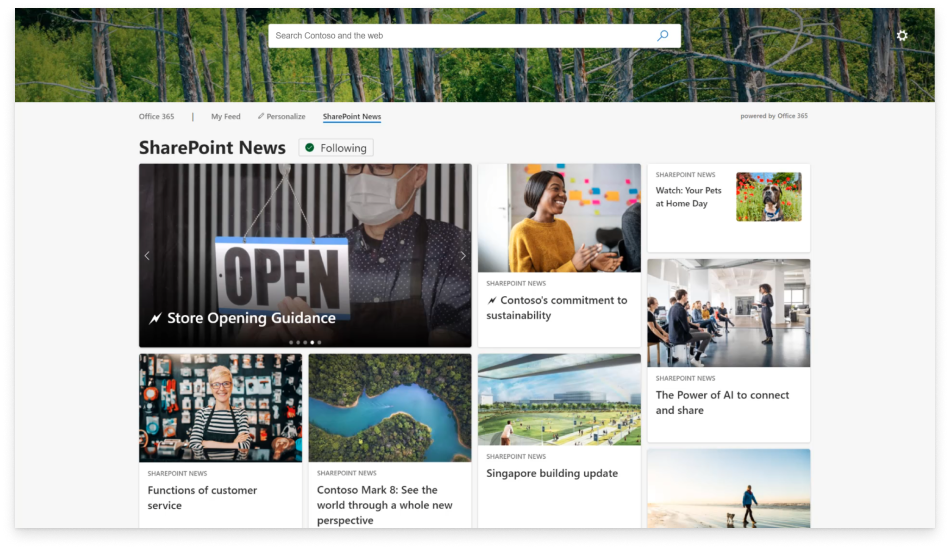
And employees have told us that keeping up with so much news and information can be challenging. To help you keep up-to-date with workplace communications, the automatically generated news digest will send an email summary, curated by AI, of news articles you may have missed or not read that week. The digest will help ensure people stay on top of news that you have boosted. And you can customize the news digest with your organization’s branding.

For communities in Yammer, we’ve recently empowered community managers to pin conversations to the top of the feed, and now you can feature a conversation, which showcases the conversation in the community feed and raises its visibility in Yammer’s home feed. You can also post priority announcements, which raises the visibility of notifications in community members’ inboxes. Additionally, leaders can delegate the ability to post to Yammer to their communications leads, allowing communicators to post news and announcements on behalf of leaders.
Reach and engage people in the apps they use every day
Communicators have also told us that to engage an audience that represents diverse generations and workstyles, you need to reach people where they are. You can share news and announcements to people and engage them across your SharePoint intranet, and now, Teams and Yammer.
You can share a news article to a Teams channel or a Yammer community, to reach your audience and encourage conversation about the item. You can spark richer engagement with the superpowers of these apps. For example, when sharing a news article to Yammer, you can add a poll to measure sentiment, or share it as a question to crowdsource ideas.

Create captivating communications experiences
Customers have told us that they do not want to spend precious resources and brain cycles designing intranet sites. Last year we introduced the lookbook to help you build beautiful employee experiences.
Now you can use built-in templates to give any existing site an extreme makeover. Templates, like the leadership connection template, have been purpose-built to support specific scenarios. They integrate the superpowers of SharePoint and other Microsoft 365 experiences, and deliver a beautiful, out-of-box design that you can customize with no code to reflect your branding and your needs. Of course, templates are responsive and accessible, so your experiences can be inclusive of all users, across devices.
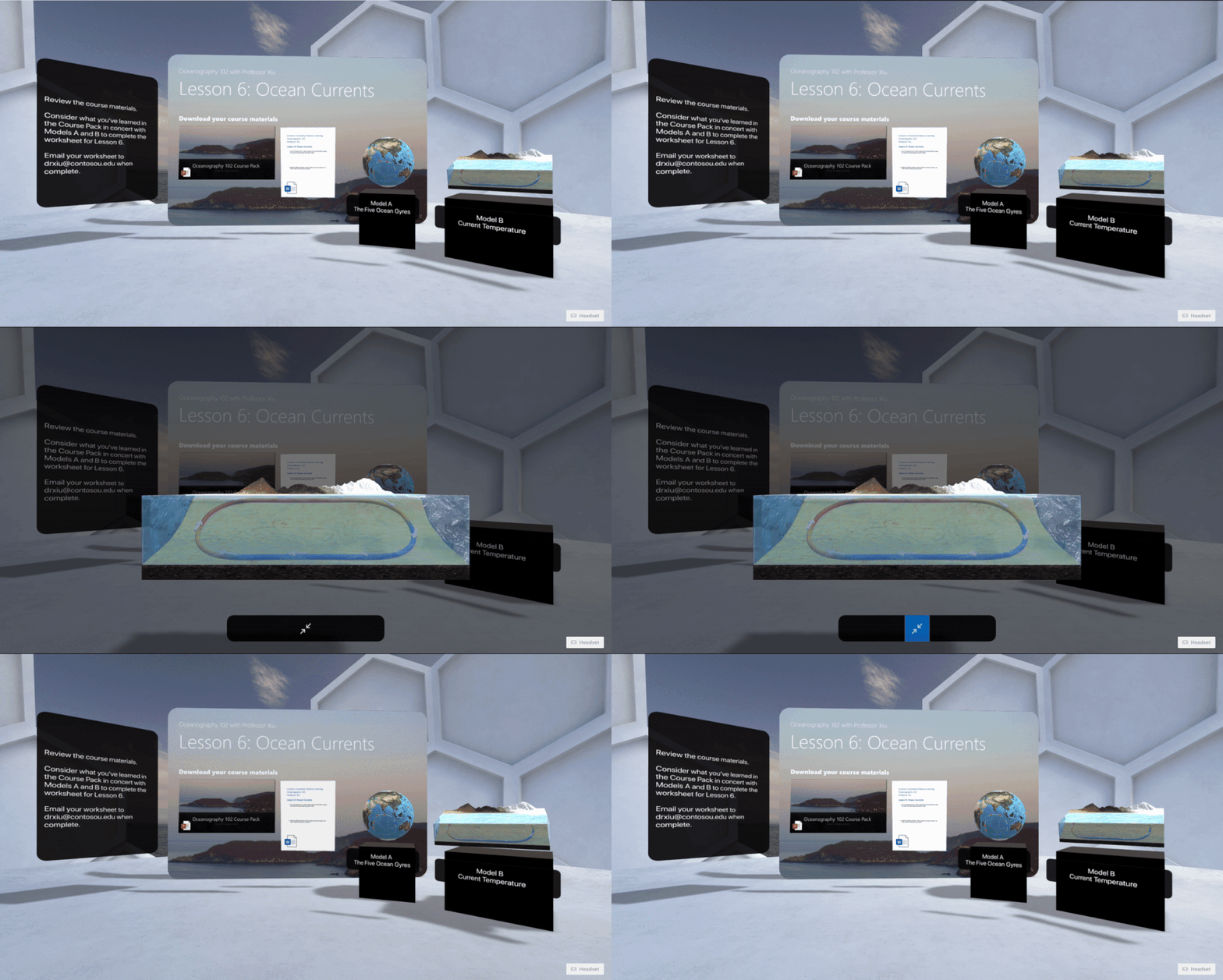
Today we also announced that SharePoint spaces reaches general availability this fall. SharePoint spaces enable anyone to create immersive and engaging mixed reality experiences that showcase 3D content, models and 360° imagery, and bring 2D content to life in stunning new ways. Spaces transform scenarios from hosting virtual events to onboarding employees, and can be experienced across devices, with a browser or a headset. The SharePoint spaces team sends a special “Thank you!” to our numerous early adopters and preview customers who provided us with rich feedback to guide the development of this revolutionary experience.
Foster a tighter workplace community
Because customers emphasize the need to connect and engage everyone, across the organization, we continue to invest in communities that foster a culture of inclusion, where everyone feels empowered to contribute to the conversation.
Innovations for Yammer’s All Company community turn it into a powerful tool for informing and engaging the entire organization, from the top-floor to the shop floor. Posts to the All Company community are discoverable by everyone, and anyone can engage. Now, you can customize the All Company community with your organization’s branding, and you can restrict who can post announcements or start new conversations in the community.
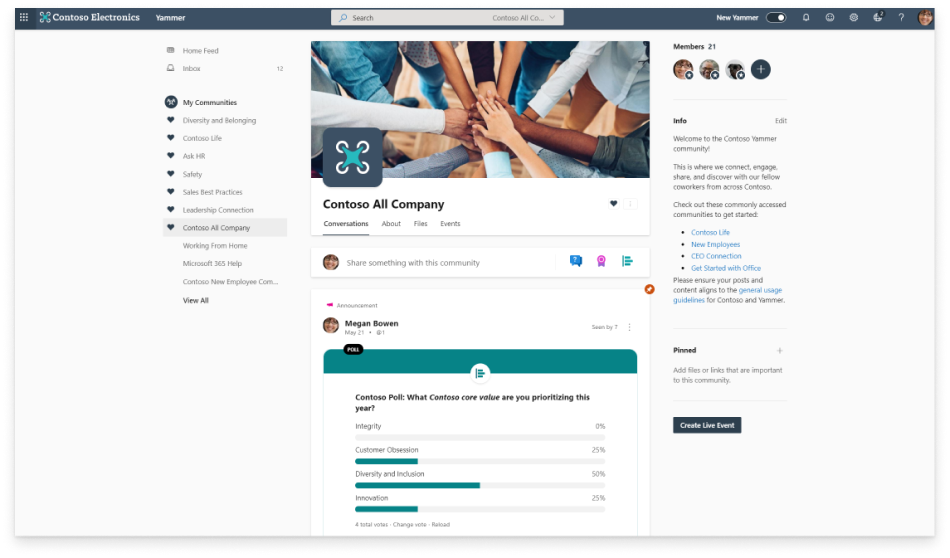
And when you share an announcement in Yammer’s All Company community, notifications are generated for everyone in the organization across Yammer, Outlook, and now Teams; across web, desktop and mobile. People can engage from the apps they use every day and express themselves with nuance using new reactions.

Better measure the impact of your communications
Finally, communicators have emphasized the importance of measuring the reach and effectiveness of communications. New insights include a heatmap of interaction or dwell time on content. An analytics digest, powered by AI, will automatically be sent to the author of a news post one week after content is posted, and provides suggestions to increase visibility of their post. And in Yammer, updated Community Insights empower communicators and community managers with detailed analytics for Conversations, Live Events, and Question and Answers.

It has never been more critical for organizations to connect, inspire, and activate their employees. Microsoft 365 brings you innovations that transform workplace communications. Whether you’re a leader, an HR or communications professional, or a communicator anywhere in the organization, we will continue to invest in integrated storytelling capabilities that empower you to inform, engage and inspire people, and to measure and improve your impact. We look forward to your feedback on these innovations, and to sharing the journey ahead.







