Last September, we announced new capabilities in Office 365 Message Encryption that enable users to seamlessly collaborate on protected emails with anyone. This release included Do Not Forward an out-of-the-box policy that encrypts emails and Office attachments, and restricts the content and email from being forwarded, printed or copied.
Today, we are happy to share that we are releasing another out-of-the-box policy called encrypt only. With the encrypt-only policy, users can send encrypted email to any recipient, whether they are inside or outside the organization, and the protection follows the lifecycle of the email. That means recipients can copy, print and forward the email, and encryption will not be removed. This new policy provides more flexibility in the type of protection that can be applied to your sensitive emails.
This is valuable for organizations that want persistent encryption, but do not want to add additional restrictions. For example, a doctor looking to protect an email containing sensitive personal information, can apply the encrypt-only policy, and the patient receiving the email can easily consume the protected message regardless of their email provider, and forward that email to another trusted party.
With this new, flexible policy, users and admins can apply different levels of protection to best fit their data protection needs.
Read more to understand what the encrypt-only policy looks like and how to apply the policy.
How the encrypt-only policy works
The encrypt-only policy is an out-of-the box policy that can be used without additional configuration, and as the name suggests, only applies encryption to the email. You can apply the policy through end-user controls in Outlook or through automatic admin managed controls in the Exchange admin center. Users can apply this policy to individual emails through end-user controls in Outlook, and Admins can apply this policy automatically to any email that matches the set criteria through admin-managed controls in the Exchange admin center.
Customers that have enabled the new Office 365 Message Encryption capabilities will see the encrypt-only policy first through Outlook on the web and in the Exchange admin center under mail flow rules. Updates to Outlook for Windows and Outlook for Mac are planned for the coming months.
How to send an email with the encrypt-only policy in Outlook on the web
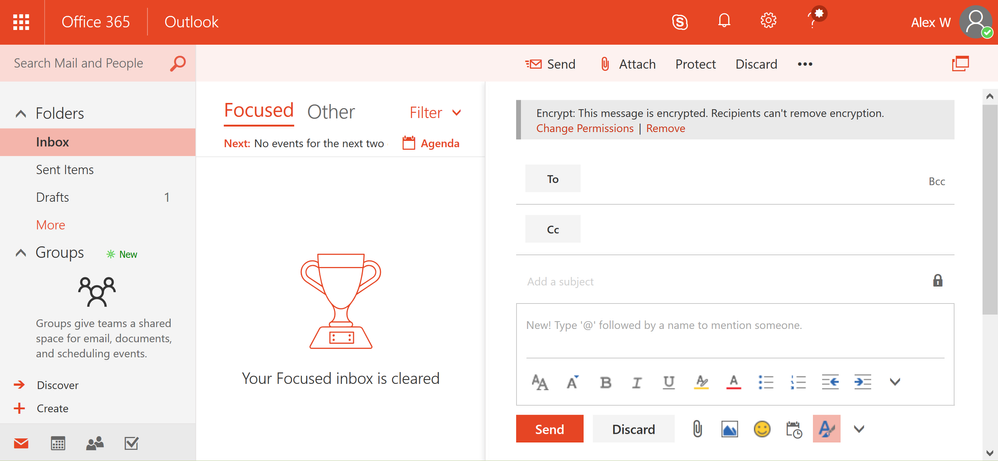
Users can apply protection with the encrypt-only policy by clicking on the protect button and changing the permissions to just encrypt. While the other options encrypt the message, the encrypt option will apply the encrypt-only policy to the message, therefore enabling recipients to forward, copy and print the message.
Applying this option will offer added flexibility for recipients to share the email with other trusted parties while encryption continues to persist and throughout the lifecycle of the email.
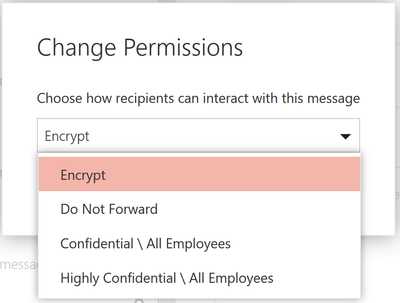 In Outlook on the web, users can click on the protect button to change the permissions of the email. Once a user clicks on protect, the users can click on encrypt, to only encrypt the email. Once the encrypt-only policy is applied, the user will see a notification that encryption has been applied.
How to apply the encrypt-only policy through Exchange mail flow rules
As an administrator, you can apply the encrypt-only policy automatically to emails that meet certain conditions by creating a mail flow rule. When you do this, email affected by the encrypt-only policy is encrypted in transport by Office 365.
For instructions on creating a mail flow rule that employs the encrypt-only policy, see define mail flow rules to encrypt email messages in Office 365.
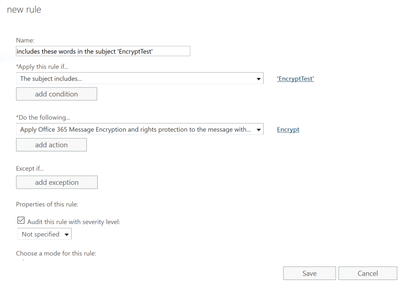 You as an administrator can create new mail flow rule to automatically apply the encrypt-only policy to emails.
How to read encrypt-only email using Outlook on the web and Outlook mobile
Office 365 recipients can easily read and reply to emails that have been applied with the encrypt-only policy using Outlook on the web and Outlook mobile directly from the client.
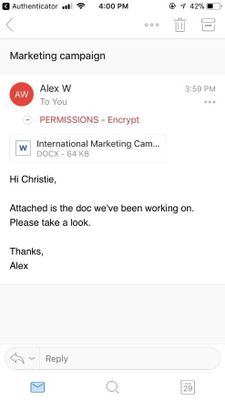 Users can read the encrypted message natively directly in Outlook on the web and Outlook mobile.
The inline reading experience for Outlook desktop (Windows and Mac) will be available in the coming months. In the meantime, Office 365 users using Outlook desktop will see the encrypted mail as an html mail with an rpmsg_v2 attachment.
How to read encrypt-only emails for non-Office 365 users (on-prem, Gmail, and Outlook.com users)
Non-Office 365 users, receive an html mail with an rpmsg_v4 attachment. Once they click Read Message they are redirected to the Office 365 Message Encryption portal where they can reply, forward, print, or take other allowed actions. More information can be found in this article.
Get started!
The new encrypt-only policy rolls out starting today as part of Office 365 Message Encryption.
Office 365 Message Encryption is offered in Office 365 E3 and E5, or as an add-on -you can find the full list of where Office 365 Message Encryption is offered here.
Please let us know what you think here or give us your feedback on uservoice!
Last September, we announced new capabilities in Office 365 Message Encryption that enable users to seamlessly collaborate on protected emails with anyone. This release included Do Not Forward an out-of-the-box policy that encrypts emails and Office attachments, and restricts the content and email from being forwarded, printed or copied.
Today, we are happy to share that we are releasing another out-of-the-box policy called encrypt only. With the encrypt-only policy, users can send encrypted email to any recipient, whether they are inside or outside the organization, and the protection follows the lifecycle of the email. That means recipients can copy, print and forward the email, and encryption will not be removed. This new policy provides more flexibility in the type of protection that can be applied to your sensitive emails.
This is valuable for organizations that want persistent encryption, but do not want to add additional restrictions. For example, a doctor looking to protect an email containing sensitive personal information, can apply the encrypt-only policy, and the patient receiving the email can easily consume the protected message regardless of their email provider, and forward that email to another trusted party.
With this new, flexible policy, users and admins can apply different levels of protection to best fit their data protection needs.
Read more to understand what the encrypt-only policy looks like and how to apply the policy.
How the encrypt-only policy works
The encrypt-only policy is an out-of-the box policy that can be used without additional configuration, and as the name suggests, only applies encryption to the email. You can apply the policy through end-user controls in Outlook or through automatic admin managed controls in the Exchange admin center. Users can apply this policy to individual emails through end-user controls in Outlook, and Admins can apply this policy automatically to any email that matches the set criteria through admin-managed controls in the Exchange admin center.
Customers that have enabled the new Office 365 Message Encryption capabilities will see the encrypt-only policy first through Outlook on the web and in the Exchange admin center under mail flow rules. Updates to Outlook for Windows and Outlook for Mac are planned for the coming months.
How to send an email with the encrypt-only policy in Outlook on the web
Users can apply protection with the encrypt-only policy by clicking on the protect button and changing the permissions to just encrypt. While the other options encrypt the message, the encrypt option will apply the encrypt-only policy to the message, therefore enabling recipients to forward, copy and print the message.
Applying this option will offer added flexibility for recipients to share the email with other trusted parties while encryption continues to persist and throughout the lifecycle of the email.
In Outlook on the web, users can click on the protect button to change the permissions of the email. Once a user clicks on protect, the users can click on encrypt, to only encrypt the email. Once the encrypt-only policy is applied, the user will see a notification that encryption has been applied.
How to apply the encrypt-only policy through Exchange mail flow rules
As an administrator, you can apply the encrypt-only policy automatically to emails that meet certain conditions by creating a mail flow rule. When you do this, email affected by the encrypt-only policy is encrypted in transport by Office 365.
For instructions on creating a mail flow rule that employs the encrypt-only policy, see define mail flow rules to encrypt email messages in Office 365.
You as an administrator can create new mail flow rule to automatically apply the encrypt-only policy to emails.
How to read encrypt-only email using Outlook on the web and Outlook mobile
Office 365 recipients can easily read and reply to emails that have been applied with the encrypt-only policy using Outlook on the web and Outlook mobile directly from the client.
Users can read the encrypted message natively directly in Outlook on the web and Outlook mobile.
The inline reading experience for Outlook desktop (Windows and Mac) will be available in the coming months. In the meantime, Office 365 users using Outlook desktop will see the encrypted mail as an html mail with an rpmsg_v2 attachment.
How to read encrypt-only emails for non-Office 365 users (on-prem, Gmail, and Outlook.com users)
Non-Office 365 users, receive an html mail with an rpmsg_v4 attachment. Once they click Read Message they are redirected to the Office 365 Message Encryption portal where they can reply, forward, print, or take other allowed actions. More information can be found in this article.
Get started!
The new encrypt-only policy rolls out starting today as part of Office 365 Message Encryption.
Office 365 Message Encryption is offered in Office 365 E3 and E5, or as an add-on -you can find the full list of where Office 365 Message Encryption is offered here.
Please let us know what you think here or give us your feedback on uservoice!

Last week, I attended a great Microsoft session concerning Compliance and Data Protection across the Office products, focusing on Archiving, Retention / Hold, Discovery and Data Loss Protection concerning compliance in 2013 products. I mentioned that I have clients who are interested in Office 365 but need some comfort concerning compliance, and queried if there was further information available. Was informed that there was a document available that described this which I must share with you all.
This document covers topics such as Office 365 Built in Security, like monitoring, isolation, automated operations, secure network and encrypted data. It describes security best practice, and the customer controls. It talks about how compliance is enabled through DPL, audit and retention, eDiscovery and Data spillage. It also describes the standards of compliance met, like ISO 27001, FISMA, HIPAA BAA, EU Model Clauses, and the CSA (Cloud Security Alliance).
If you are embarking on SharePoint migration to Office 365, or having a hybrid operation with on-premise SharePoint and Office 365, I would recommend reading this paper, as it will give you valuable information proving to the customer that Office 365 includes security features, protects data and provides administrators with the ability to configure, integrate and manage security.
To give you a taster, here’s the intro:
The ability for organizations to control and customize security features in cloud-based productivity services, such as email, calendars, content management, collaboration, and unified communications, is becoming an essential requirement for virtually every company. Today, IT teams are being required to deliver access to productivity services and associated documents and data from more devices, platforms, and places than ever before. While user benefits are undeniable, broader access makes security management more challenging. Each endpoint represents a potential attack surface and another point of management for security professionals. At the same time, organizations face ever-evolving threats from around the world and must manage the risk created by their own users accidentally losing or compromising sensitive data. For these reasons, organizations require a cloud service that has both (a) built-in robust security features and (b) a wide variety of customizable security features that organizations can tune to meet their individual requirements. Organizations expanding remote access while maintaining security best practices may find it difficult and expensive to add this combination of security functionality if they deploy productivity services solely on-premises.
You can download the article from here:
http://www.geoffevelyn.com/downloads/Security-in-Office-365-Whitepaper.pdf
And from here:
http://www.microsoft.com/en-us/download/details.aspx?id=26552







