
Microsoft 365 & SharePoint Ecosystem (PnP) November 2020 update is out with a summary of the latest guidance, samples, and solutions from Microsoft or from the community for the community. This article is a summary of all the different areas and topics around the community work we do around Microsoft 365 and SharePoint ecosystem during the past month.
Thank you for being part of this initiative. Sharing is caring!
Got feedback, suggestions or ideas? – don’t hesitate to contact.
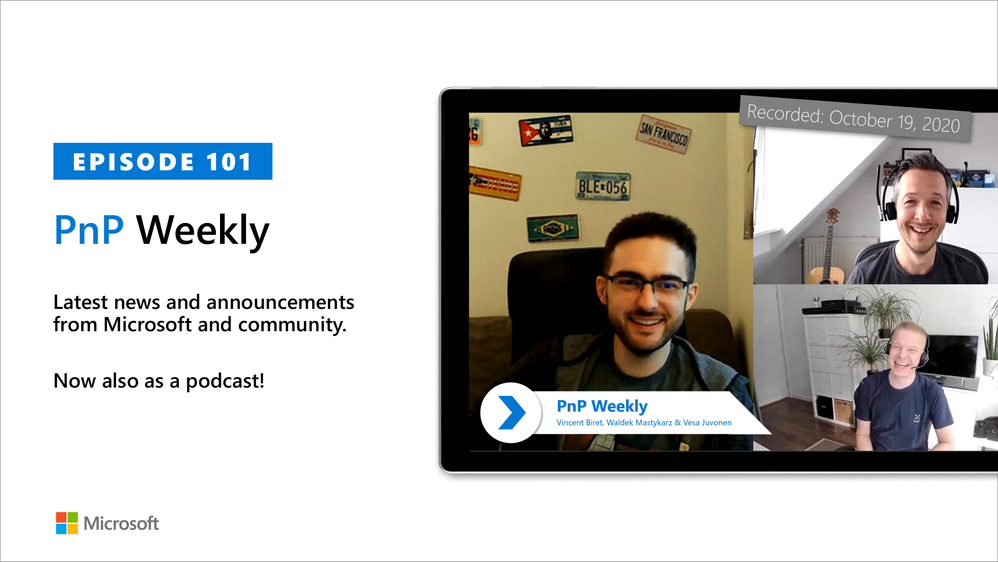
In this 1st installment after the 100th installment of the weekly discussion revolving around the latest news and topics on Microsoft 365, hosts – Vesa Juvonen (Microsoft) | @vesajuvonen, Waldek Mastykarz (Microsoft) | @waldekm, are joined by Vincent Biret (Microsoft) |@baywet, MVP alum, blogger, and presently a software engineer on the Microsoft Graph SDK team.
A number of topics were covered during today’s discussion – Program Management and Development at Microsoft, the advantage of being an SDK developer is working with Community and the elusive “inbox zero” including the novel approach identified by the cohort during this session to address.
This episode was recorded on Monday, October 19, 2020.
Did we miss your article? Please use #PnPWeekly hashtag in the Twitter for letting us know the content which you have created.
As always, if you need help on an issue, want to share a discovery, or just want to say: “Job well done”, please reach out to Vesa, to Waldek or to your PnP Community.
Sharing is caring!

In this weekly discussion of the latest news and topics around Microsoft 365, hosts – Vesa Juvonen (Microsoft) | @vesajuvonen, Waldek Mastykarz (Microsoft) | @waldekm, are joined by Sébastien Levert | @sebastienlevert – Office Apps and Services MVP and head of product at Valo Intranet.
In this milestone Episode 100, Sébastien (Séb) interviews Vesa and Waldek asking questions submitted by community members covering the full gambit of why, what, how.
This episode was recorded on Monday, October 12, 2020.
Did we miss your article? Please use #PnPWeekly hashtag in the Twitter for letting us know the content which you have created.
As always, if you need help on an issue, want to share a discovery, or just want to say: “Job well done”, please reach out to Vesa, to Waldek or to your PnP Community.
Sharing is caring!

In this weekly discussion of latest news and topics around Microsoft 365, hosts – Vesa Juvonen (Microsoft) | @vesajuvonen, Waldek Mastykarz (Microsoft) | @waldekm, are joined by Christina Wheeler | @cwheeler76, a long time Office Apps and Services MVP and principal solutions architect for US-based Canviz.
The discussion ranged from avoiding work burn-out and server management (go cloud!) to architecting solutions that draw upon capabilities across Microsoft 365 to Drone FAA 107 certification and of course many laughs between topics.
This episode was recorded on Friday, October 2, 2020.
Did we miss your article? Please use #PnPWeekly hashtag in the Twitter for letting us know the content which you have created.
As always, if you need help on an issue, want to share a discovery, or just want to say: “Job well done”, please reach out to Vesa, to Waldek or to your PnP Community.
Sharing is caring!

Delta is, by default, a user-scoped API to drive sync-like behavior. It scopes its results down to the set of changes which are definitely impactful to the caller. It filters out changes which it knows are irrelevant to the caller. When the API cannot definitely determine relevance cheaply, e.g. when it needs to make a full permission enumeration to verify, it will include the result, even though it might not be relevant to the caller.
Delta attempts to scope permission-based changes to those relevant to the caller. If the caller’s access wasn’t altered by the permission change, the item may not be included in the delta results.
Clients which are trying to enumerate all permission changes should make sure the follow the recommendations in aka.ms/scanguidance. Namely, there are specific authentication requirements and specific Prefer headers that need to be provided, and failure to do so will result in permission changes being scoped down.
The only way to receive the complete set of changes is to use app-only authentication with the Sites.FullControl.All scope and pass header “Prefer”=”deltashowsharingchanges,hierarchicalsharing”.
Steps:
1] Create an App in AAD with Sites.FullControl.All Application permission, see screen shot below:
2] Sample powershell script to generate the Access token and the delta token link:
<#
Code Example Disclaimer:
Sample Code is provided for the purpose of illustration only and is not intended to be used in a production environment.
THIS SAMPLE CODE AND ANY RELATED INFORMATION ARE PROVIDED “AS IS” WITHOUT WARRANTY OF ANY KIND, EITHER EXPRESSED OR IMPLIED,
INCLUDING BUT NOT LIMITED TO THE IMPLIED WARRANTIES OF MERCHANTABILITY AND/OR FITNESS FOR A PARTICULAR PURPOSE.
We grant You a nonexclusive, royalty-free right to use and modify the Sample Code and to reproduce and distribute the object
code form of the Sample Code, provided that. You agree: (i) to not use Our name, logo, or trademarks to market Your software
product in which the Sample Code is embedded; (ii) to include a valid copyright notice on Your software product in which the
Sample Code is embedded; and (iii) to indemnify, hold harmless, and defend Us and Our suppliers from and against any claims or
lawsuits, including attorneys fees, that arise or result from the use or distribution of the Sample Code.
#>
cls
$host.Runspace.ThreadOptions = “ReuseThread”
Write-Host “STARTED at” (Get-Date).ToString() -f Green
$ClientID = “fa9737d5-5a3e-4fab-0000-000000000000”
$ClientSecret = “1JOe:M8HBBUz-0000000000000000000”
$scope= “https://graph.microsoft.com/.default”
$POSTURI = “https://login.microsoftonline.com/d6f932a7-5f74-0000-0000-000000000000/oauth2/v2.0/token”
$body = @{grant_type=”client_credentials”;client_id=$ClientID;client_secret=$ClientSecret;scope=$scope}
$oauth = Invoke-RestMethod -Method Post -Uri $POSTURI -Body $body
$graphAccessToken = $oauth.access_token
Write-Host “Access token: $($graphAccessToken)”
$requestHeader = @{
“Authorization” = “Bearer $graphAccessToken”
“Content-Type” = “application/json”
“Prefer” = “deltashowsharingchanges,hierarchicalsharing,deltatraversepermissiongaps,deltashowremovedasdeleted”
}
$Uri = “https://graph.microsoft.com/v1.0/sites/spotenant.sharepoint.com,df6ba610-b132-0000-0000-000000000000,e0dbcdc6-0637-4246-0000-000000000000/drive/root/delta?latest”
$Result = (Invoke-RestMethod -Method Get -Headers $requestheader -Uri $Uri)
$deltaUri = $Result.’@odata.deltaLink’
Write-Host $deltaUri
Write-Host “DONE at” (Get-Date).ToString() -f Green
3] Copy the Access token and the deltaUri value output from the above script and use them in the following sample powershell script to retrieve the complete set of permission changes:
<#
Code Example Disclaimer:
Sample Code is provided for the purpose of illustration only and is not intended to be used in a production environment.
THIS SAMPLE CODE AND ANY RELATED INFORMATION ARE PROVIDED “AS IS” WITHOUT WARRANTY OF ANY KIND, EITHER EXPRESSED OR IMPLIED,
INCLUDING BUT NOT LIMITED TO THE IMPLIED WARRANTIES OF MERCHANTABILITY AND/OR FITNESS FOR A PARTICULAR PURPOSE.
We grant You a nonexclusive, royalty-free right to use and modify the Sample Code and to reproduce and distribute the object
code form of the Sample Code, provided that. You agree: (i) to not use Our name, logo, or trademarks to market Your software
product in which the Sample Code is embedded; (ii) to include a valid copyright notice on Your software product in which the
Sample Code is embedded; and (iii) to indemnify, hold harmless, and defend Us and Our suppliers from and against any claims or
lawsuits, including attorneys fees, that arise or result from the use or distribution of the Sample Code.
#>
cls
$host.Runspace.ThreadOptions = “ReuseThread”
Write-Host “STARTED at” (Get-Date).ToString() -f Green
$graphAccessToken = “copied from output of above sample powershell script”
$requestHeader = @{
“Authorization” = “Bearer $graphAccessToken”
“Content-Type” = “application/json”
“Prefer” = “deltashowsharingchanges,hierarchicalsharing”
}
Write-Host
$deltaUri = “copied from output of above sample powershell script” #should look like sample below:
https://graph.microsoft.com/v1.0/sites/spotenant.sharepoint.com,df6ba610-b132-4fc7-0000-000000000000,e0dbcdc6-0637-4246-0000-000000000000/drive/root/delta?token=MzslMjM0OyUyMzE7Mzs3NDlhZjc4NC0zOWU0LTRlOTEtYmJkNy0wNzI5MjAxNTNlMGY7NjM3MzM2NDU1MzMyNDcwMDAwOzMxOTY4OTE4MjslMjM7JTIzOyUyMzA”
$deltaResult = (Invoke-RestMethod -Method Get -Headers $requestheader -Uri $deltaUri)
Write-Host $deltaResult.value
Write-Host
Write-Host “DONE at” (Get-Date).ToString() -f Green

In this weekly discussion of latest news and topics around Microsoft 365, hosts – Vesa Juvonen (Microsoft), Waldek Mastykarz (Rencore), are joined by Tomasz Poszytek, an independent consultant and MVP from Poland.
They talk about Thomasz’s background and how we crew to be an independent consultant running his own business. Key tips from him for anyone who might be looking into doing the same. Discussions on the business automation and the different tools which we have had around these processes in past. Touching the challenge of the licensing models from Microsoft and how that has been simplified from the past… but could be further simplified in future.
Thomasz also talks about this experiences on being a project manager and how he decided to rather be a consultant. In this episode, 21 recently released articles from Microsoft and the PnP Community are highlighted.
This episode was recorded on Monday, September 7, 2020.
Did we miss your article? Please use #PnPWeekly hashtag in the Twitter for letting us know the content which you have created.
As always, if you need help on an issue, want to share a discovery, or just want to say: “Job well done”, please reach out to Vesa, to Waldek or to your PnP Community.
Sharing is caring!

In SP2019 environment, sometime when trying to browse to pages that have SPFx Web Part in secure SharePoint site, error shows:
“Something went wrong….”
Or developer/admin tries to deploy the SPFx solution in the secure site and gets error:
Interestingly, some users find they can browse to the same pages and deploy the same SPFx web part with the corresponding Non-SSL URL just fine:
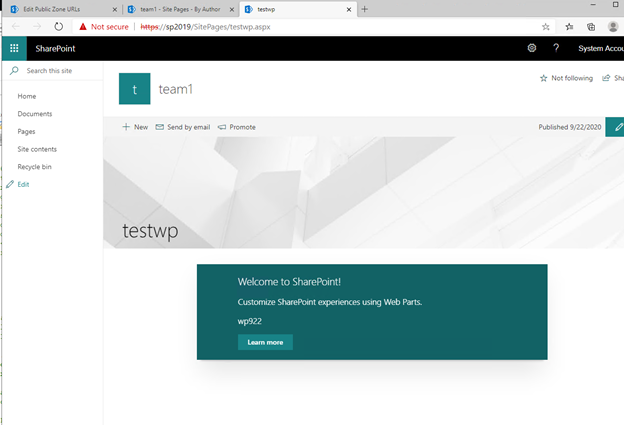

ULS log has following entries:
09/22/2020 21:03:38.57 w3wp.exe (0x2828) 0x3CAC SharePoint Foundation Site Cache bm4im High LookupHostHeaderSite: could not find SPSiteLookupInfo for host-header site-based multi-url lookup string https://sp2019 for request Uri https://sp2019/_api/web/GetOnePageContextAsStream in Database Using site lookup provider: Microsoft.SharePoint.Administration.SPConfigurationDatabaseSiteLookupProvider. UserAgent: Mozilla/5.0 (Windows NT 10.0; Win64; x64) AppleWebKit/537.36 (KHTML, like Gecko) Chrome/85.0.4183.102 Safari/537.36 Edg/85.0.564.51 45b47c9f-c217-10f4-a763-6e50045c7103
09/22/2020 21:03:38.57 w3wp.exe (0x2828) 0x3CAC SharePoint Foundation Configuration 8059 Warning Alternate access mappings have not been configured. Users or services are accessing the site http://sp2019 with the URL https://sp2019. This may cause incorrect links to be stored or returned to users. If this is expected, add the URL https://sp2019 as an AAM response URL.
In this case, the ULS log is quite helpful, it tells us that AAM has not be set correctly for the SSL site.
To fix this, go to Central Admin, add the SSL site URL as public URL of the AAM setting for the web application:

Now browsing to SSL pages and deployment in the SSL site should both work:
We are on a journey to align the SharePoint admin center with the Microsoft 365 suite designing it to be more interconnected and aligned with the changing collaboration needs of your people. Today at Microsoft Ignite 2020, we announced several new updates to the overall SharePoint admin center experience – to enable visual, actionable management of your intelligent intranet, report on what content services power your content productivity and ease of migration from Box:
- Meet the updated SharePoint admin center home page with actionable insights
- Improved visibility on where sites are created from and by whom
- Microsoft 365 migration for Box
- Bringing OneDrive settings into the SharePoint admin center
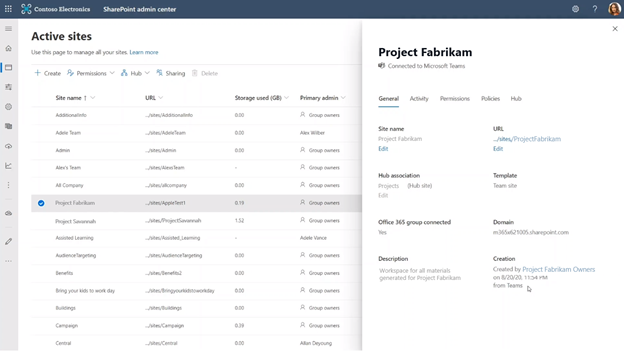
Active sites in the SharePoint admin center now showcase where the site was created from, by whom and whether it is yet connected to Microsoft Teams.
The intelligent intranet is personal, collaborative, and ever changing. The updates highlighted below will be coming to your Microsoft 365 tenant by the end of this calendar year (2020) – all to monitor and manage the state of your organization’s intranet and utilize the new experiences to stay productive – especially when you have 100s or 1000s of sites to manage, across terabytes or petabytes of active content.
Meet the updated SharePoint admin center home page with actionable insights
Everything we build is inspired from the feedback we receive from the community and is designed to make your day-to-day administration easier. One of the most common pieces of feedback we receive is around insights and reporting, right behind admin experience consistency throughout the suite. So, we’re working on loading up the default SharePoint admin center home page with all the information, insights and contextual actions you need at a glance – and hey, it looks a lot like what you’ve seen as updates to the Microsoft 365 admin center.
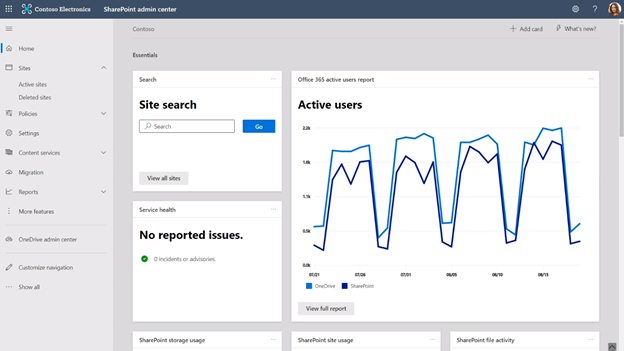 1 of 4 – the new SharePoint admin home page showing several cards: Site search, Active users, and Service health.
Beyond the default set of cards, you can create customizable search cards. Simply navigate to the Active sites page, create a view with the desired columns and settings intact and then click the Track button. This puts a new custom card on the home page that you can place in any location of the home page layout.
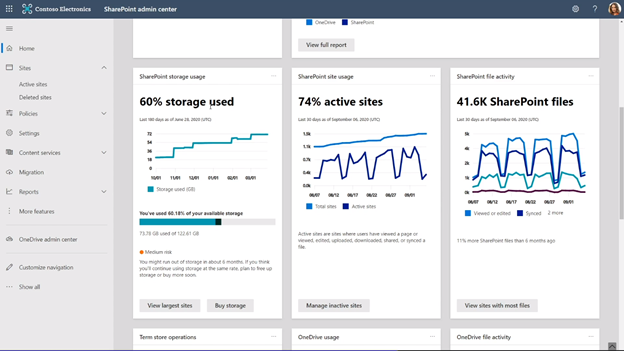 3 of 4 – as you scroll the new SharePoint admin home page further, you see more cards: Sensitivity labels across sites, OneDrive usage, and OneDrive file activity.
We, too, are adding proactive recommendations to the top of the home page. These recommendations are tailored to each individual and helps you learn about improvements that you may not know about.
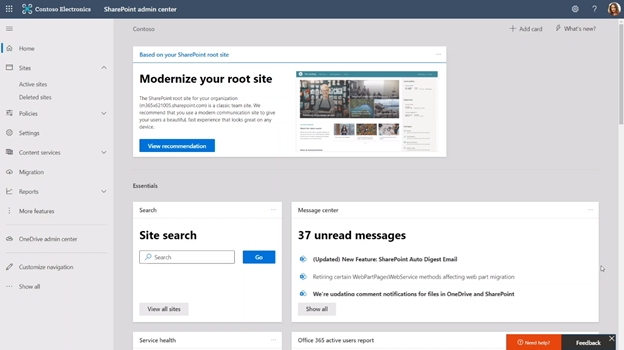 4 of 4 – as you scroll back to the top of the new SharePoint admin home page, at time you’ll see proactive recommendations – like above suggesting you modernize your root site (including more information and quick-start button).
You can create your preferred home page experience using any combination of the following visual, actionable cards:
|
· Site search
· Message center
· Service health
· Active users
· SharePoint site usage
· SharePoint file activity
|
· SharePoint storage usage
· Sites creation breakdown
· OneDrive usage
· OneDrive file activity
· Term store operations
· Sensitivity labels across sites
|
… plus, the ability to create your own custom search-driven cards as described above.
 Create your own custom search-driven cards; above shows pivot of sites on certain criteria (left) and the card that gets created on the home page (right) after clicking the track button.
Last, anyone who is assigned as a SharePoint admin within your organization can personalize their own home page experience. Thus, each SharePoint admin can focus on their main tasks, especially when they differ across administration delegation.
SharePoint admin center – updated home page dashboard | Roadmap ID: 68812.
Improved visibility on where sites are created from and by whom
The mystery of who created a site and from where has mystified SharePoint seekers for ages. Seek no more. The origins that cast lore about the land stops soon.
The Active sites tab is getting new insights. At a glance, you’ll be able to tell where a site was created from – like via PowerShell, API or Microsoft Teams – and in a column nearby, you’ll be able to see who the site was created by.
 Use the Created from column to filter a list of sites down by where it was created from.
Microsoft Teams is an important productivity integration for your people and their content – powered by SharePoint. So, to improve visibility on which sites are already connected to Teams, you’ll find a new column that tells you exactly that – whether the site is yet connected to Teams, or not. And if it isn’t, the ability to ‘Teamify’ the site is merely one-click away.
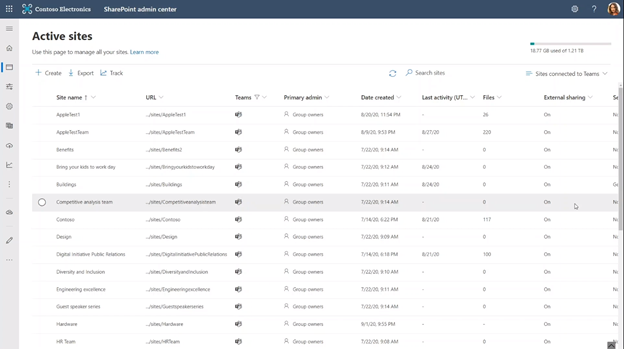 Easily see if a SharePoint team site has an existing connection to Microsoft Teams.
SharePoint admin center – site creation source | Roadmap ID: 68813.
Microsoft 365 migration for Box
With our recent Mover acquisition, we are excited to expand our capabilities to allow moving content from third-party cloud storage providers directly from within the SharePoint admin center – starting with Box.com migration.
 Scan discovery (you’ll see files and folder and quantity), assessment, and then move to migrate (where you’ll see source and progress).
You’re in control every step of the way, and we’re there to help. As you connect to a Box enterprise account, the service begins discovering users and their files. We auto-map to individual’s OneDrive accounts. You, too, can manually map the destination to specific OneDrive user accounts, SharePoint sites, or Teams Files (a SharePoint document library under the covers).
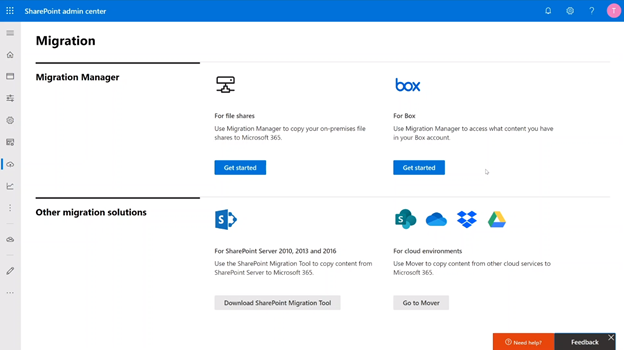 Start your Box migration from within the SharePoint admin center Migration tab in Microsoft 365.
The rest is a seamless transition of your files and folders to Microsoft 365 – including the transfer and conversion of Box notes to Word documents.
Try this later in the year. Our plan is to move more of the Mover capabilities into the SharePoint admin center in Microsoft 365.
SharePoint admin center – Migration Manager: Box migrations | Roadmap ID: [68816].
Bringing OneDrive settings into the SharePoint admin center
Less admin is more. Especially when the less means better managing the same platform across various experiences. In this case, we want to make it easier to access OneDrive settings from within your SharePoint admin center – without needing to go to the OneDrive admin center.
 Access many OneDrive settings from within the SharePoint admin center Settings page.
Go to the Settings tab and find ease-of-access to manage default storage limits, allows notifications, set default retention owners for deleted users and manage important sync settings (including sync reporting (announced at Ignite 2020 and coming soon).
And as mentioned above, you can use two new OneDrive-specific home page cards to see OneDrive usage and OneDrive file activity.
SharePoint admin center – OneDrive settings | Roadmap ID: 68814.
Additional resources
“Monitor and manage SharePoint investments in Microsoft 365” presented by Dave Minasyan, Rk Menon, and Trent Green:
“What’s new to easily migrate your content to Microsoft 365” presented by Eric Warnke and Yogesh Ratnaparkhi:
- Related session on-demand
- Recent, related blogs:
Closing
Managing SharePoint and OneDrive in Microsoft 365 continues to improve. Beyond new innovation, take a moment to learn more about the SharePoint admin role in Microsoft 365 to best manage sites, control external sharing, move content into Microsoft 365, manage metadata, and more.
We invite you to engage our FastTrack team to help with adoption and migration. Our goal is to empower you and every person on your team to achieve more. Let us know what you need next. We are always open to feedback via UserVoice and continued dialog in the SharePoint community in the Microsoft Tech Community —and we always have an eye on tweets to @SharePoint. Let us know.
Thanks, Mark Kashman – senior product manager – Microsoft 365
This week at Microsoft Ignite we announced the new home site app. The app gives employees a gateway to your organization, starting with the app’s name and icon, which you can customize to reflect the identity of your organization or your intranet. The app’s multi-level navigation lets people find sites across the organization, including portals, teams, communities and applications.
We are happy to see the excitement for this in the community and with our customers. Many of you have asked for additional information. As part of Ignite we have released a new session, on demand, focused on the home site app.
We have also put together an FAQ with the most common questions we have been asked.
Home site app
Q: Can any site be pinned as a Home site app in Teams?
A: Communication sites designated as Home Sites are eligible for pinning in Teams as the Home site app using our default configuration flow.
Q: Where are global navigation links curated?
A: Links for global navigation are managed through the home site, by home site owners, freeing global admins from having to play the role of curator
Q: Can my classic site be pinned in Teams ?
A: Only home sites are eligible to be pinned as the home site app in Teams with our default configuration flow. Home sites must be modern SharePoint communication sites.
Q: What is difference between Home site app and Home page pinned as tab?
A: The home site app provides organizations to pin company branded entry point to their intranet as a top level app in Teams. It provides an immersive site consumption experience, complete with navigation, mega-manus and support for tenant wide search. It also provides quick access to company curated resources, important sites and news similar to those provided by the SharePoint App Bar in the web. Home pages (or any other SharePoint pages) pinned as tabs in Channels provide ways to bring content directly into Team collaboration scenarios, and these pages have navigation and search elements removed to facilitate focus on the page content itself.
Q: Do I need a Home site app for the Global nav to show up in Teams?
A: Yes, the global navigation links are stored in the home site of a tenant, and is required in order for the navigation panel to appear in the home site app in Teams
Q: Can a Team site be a Home site?
A: No. Only communication sites can be made a Home site in a tenant.
We are humbled and honored by the reaction to this upcoming feature and appreciate all the engagement with us. Please, keep your feedback and questions coming.
We are on a journey to align the SharePoint admin center with the Microsoft 365 suite designing it to be more interconnected and aligned with the changing collaboration needs of your people. Today at Microsoft Ignite 2020, we announced several new updates to the overall SharePoint admin center experience – to enable visual, actionable management of your intelligent intranet, report on what content services power your content productivity and ease of migration from Box:
- Meet the updated SharePoint admin center home page with actionable insights
- Improved visibility on where sites are created from and by whom
- Microsoft 365 migration for Box
- Bringing OneDrive settings into the SharePoint admin center
Active sites in the SharePoint admin center now showcase where the site was created from, by whom and whether it is yet connected to Microsoft Teams.
The intelligent intranet is personal, collaborative, and ever changing. The updates highlighted below will be coming to your Microsoft 365 tenant by the end of this calendar year (2020) – all to monitor and manage the state of your organization’s intranet and utilize the new experiences to stay productive – especially when you have 100s or 1000s of sites to manage, across terabytes or petabytes of active content.
Meet the updated SharePoint admin center home page with actionable insights
Everything we build is inspired from the feedback we receive from the community and is designed to make your day-to-day administration easier. One of the most common pieces of feedback we receive is around insights and reporting, right behind admin experience consistency throughout the suite. So, we’re working on loading up the default SharePoint admin center home page with all the information, insights and contextual actions you need at a glance – and hey, it looks a lot like what you’ve seen as updates to the Microsoft 365 admin center.
1 of 4 – the new SharePoint admin home page showing several cards: Site search, Active users, and Service health.
Beyond the default set of cards, you can create customizable search cards. Simply navigate to the Active sites page, create a view with the desired columns and settings intact and then click the Track button. This puts a new custom card on the home page that you can place in any location of the home page layout.
3 of 4 – as you scroll the new SharePoint admin home page further, you see more cards: Sensitivity labels across sites, OneDrive usage, and OneDrive file activity.
We, too, are adding proactive recommendations to the top of the home page. These recommendations are tailored to each individual and helps you learn about improvements that you may not know about.
4 of 4 – as you scroll back to the top of the new SharePoint admin home page, at time you’ll see proactive recommendations – like above suggesting you modernize your root site (including more information and quick-start button).
You can create your preferred home page experience using any combination of the following visual, actionable cards:
|
· Site search
· Message center
· Service health
· Active users
· SharePoint site usage
· SharePoint file activity
|
· SharePoint storage usage
· Sites creation breakdown
· OneDrive usage
· OneDrive file activity
· Term store operations
· Sensitivity labels across sites
|
… plus, the ability to create your own custom search-driven cards as described above.
Create your own custom search-driven cards; above shows pivot of sites on certain criteria (left) and the card that gets created on the home page (right) after clicking the track button.
Last, anyone who is assigned as a SharePoint admin within your organization can personalize their own home page experience. Thus, each SharePoint admin can focus on their main tasks, especially when they differ across administration delegation.
SharePoint admin center – updated home page dashboard | Roadmap ID: 68812.
Improved visibility on where sites are created from and by whom
The mystery of who created a site and from where has mystified SharePoint seekers for ages. Seek no more. The origins that cast lore about the land stops soon.
The Active sites tab is getting new insights. At a glance, you’ll be able to tell where a site was created from – like via PowerShell, API or Microsoft Teams – and in a column nearby, you’ll be able to see who the site was created by.
Use the Created from column to filter a list of sites down by where it was created from.
Microsoft Teams is an important productivity integration for your people and their content – powered by SharePoint. So, to improve visibility on which sites are already connected to Teams, you’ll find a new column that tells you exactly that – whether the site is yet connected to Teams, or not. And if it isn’t, the ability to ‘Teamify’ the site is merely one-click away.
Easily see if a SharePoint team site has an existing connection to Microsoft Teams.
SharePoint admin center – site creation source | Roadmap ID: 68813.
Microsoft 365 migration for Box
With our recent Mover acquisition, we are excited to expand our capabilities to allow moving content from third-party cloud storage providers directly from within the SharePoint admin center – starting with Box.com migration.
Scan discovery (you’ll see files and folder and quantity), assessment, and then move to migrate (where you’ll see source and progress).
You’re in control every step of the way, and we’re there to help. As you connect to a Box enterprise account, the service begins discovering users and their files. We auto-map to individual’s OneDrive accounts. You, too, can manually map the destination to specific OneDrive user accounts, SharePoint sites, or Teams Files (a SharePoint document library under the covers).
Start your Box migration from within the SharePoint admin center Migration tab in Microsoft 365.
The rest is a seamless transition of your files and folders to Microsoft 365 – including the transfer and conversion of Box notes to Word documents.
Try this later in the year. Our plan is to move more of the Mover capabilities into the SharePoint admin center in Microsoft 365.
SharePoint admin center – Migration Manager: Box migrations | Roadmap ID: [68816].
Bringing OneDrive settings into the SharePoint admin center
Less admin is more. Especially when the less means better managing the same platform across various experiences. In this case, we want to make it easier to access OneDrive settings from within your SharePoint admin center – without needing to go to the OneDrive admin center.
Access many OneDrive settings from within the SharePoint admin center Settings page.
Go to the Settings tab and find ease-of-access to manage default storage limits, allows notifications, set default retention owners for deleted users and manage important sync settings (including sync reporting (announced at Ignite 2020 and coming soon).
And as mentioned above, you can use two new OneDrive-specific home page cards to see OneDrive usage and OneDrive file activity.
SharePoint admin center – OneDrive settings | Roadmap ID: 68814.
Additional resources
“Monitor and manage SharePoint investments in Microsoft 365” presented by Dave Minasyan, Rk Menon, and Trent Green:
“What’s new to easily migrate your content to Microsoft 365” presented by Eric Warnke and Yogesh Ratnaparkhi:
- Related session on-demand
- Recent, related blogs:
Closing
Managing SharePoint and OneDrive in Microsoft 365 continues to improve. Beyond new innovation, take a moment to learn more about the SharePoint admin role in Microsoft 365 to best manage sites, control external sharing, move content into Microsoft 365, manage metadata, and more.
We invite you to engage our FastTrack team to help with adoption and migration. Our goal is to empower you and every person on your team to achieve more. Let us know what you need next. We are always open to feedback via UserVoice and continued dialog in the SharePoint community in the Microsoft Tech Community —and we always have an eye on tweets to @SharePoint. Let us know.
Thanks, Mark Kashman – senior product manager – Microsoft 365







