
In this weekly discussion of latest news and topics around Microsoft 365, hosts – Vesa Juvonen (Microsoft), Waldek Mastykarz (Rencore), are joined by Ayça Baş, Cloud Advocate from Microsoft concentrating on Microsoft 365 extensibility based in Dubai, United Arab Emirates.
After working as a Premier Field Engineer on many cloud migrations – Microsoft Teams leveraging Microsoft Graph on Azure deployments, Ayça’s developer advocate focus now is on content development, blogging and events/speaking, in which her real-world customer/developer engagement experiences form a solid foundation for her practical communications to the Microsoft 365 developer community.
In this episode, 14 recently released articles from Microsoft and the PnP Community are highlighted.
This episode was recorded on Monday, August 24, 2020.
Did we miss your article? Please use #PnPWeekly hashtag in the Twitter for letting us know the content which you have created.
As always, if you need help on an issue, want to share a discovery, or just want to say: “Job well done”, please reach out to Vesa, to Waldek or to your PnP Community.
Sharing is caring!

Microsoft 365 & SharePoint Ecosystem (PnP) August 2020 update is out with a summary of the latest guidance, samples, and solutions from Microsoft or from the community for the community. This article is a summary of all the different areas and topics around the community work we do around Microsoft 365 and SharePoint ecosystem during the past month. Thank you for being part of this success. Sharing is caring!
Got feedback, suggestions or ideas? – don’t hesitate to contact.
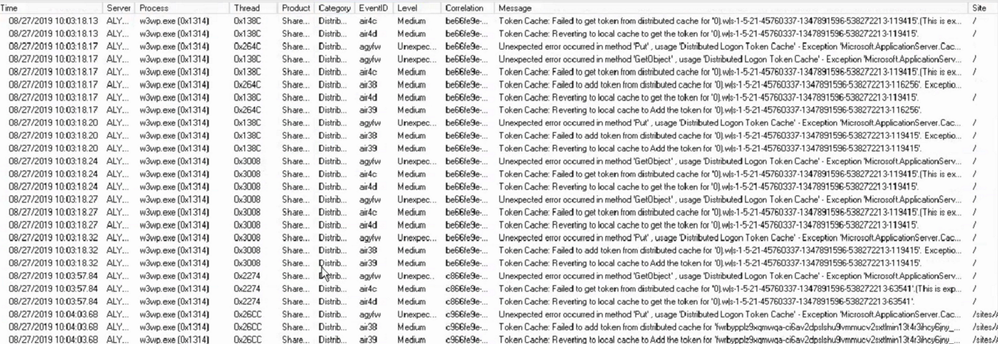
Is your SharePoint 2013 or 2016 farms Distributed Cache services Healthy? If not you might need to patch. One way to validate your Distributed Cache service is healthy is to pull some ULS logs from one of the Distributed cache servers in the farm.
Using ULSViewer, Filter your ULS log files where Category equals DistributedCache, if you see something like the screenshot below. Then your Distributed cache is not healthy and should patch your farm using the steps in this article.
EventId Found – air4c, air4d, agyfw, air4c, air38, air39
Steps for Patching Distributed cache
Patching the distributed cache service on your SharePoint farm will cause user experience to be interrupted a bit and its recommended to be performed during a maintenance window. But It can be performed during production if its all ready down in some cases.
Step 1 – Shut down the Distributed Cache service on one of the distributed cache servers in your farm.
Run the following PowerShell command to stop the distributed cache on the server at a SharePoint command prompt.
Stop-SPDistributedCacheServiceInstance -Graceful
Step 2 – Patch AppFabric 1.1 on the one server you stopped the Distributed Cache service on. Patch the server with CU7 found in the following article where you can download it – https://support.microsoft.com/en-us/kb/3092423
Step 3 – Update the “DistributedCacheService.exe.config” file to run garbage collection process in the background on each Distributed Cache server.
File location – C:Program FilesAppFabric 1.1 for Windows ServerDistributedCacheService.exe.config
Update the file with the section below, see screen shot below – Make sure you put it in the right section or it will not work correctly.
<appSettings>
<add key=”backgroundGC” value=”true”/>
</appSettings>

Step 4 – Repeat steps 1 through 3 on the next distributed cache sever in the farm, repeat these steps until you have patched all the Distributed cache servers using these steps. Once you have them all patched, move on to Step 5.
Step 5 – Fine-tune the Distributed Cache service by using a Windows PowerShell script found in this Microsoft article near the bottom in the section called:
“Fine-tune the Distributed Cache service by using a Windows PowerShell script”
https://technet.microsoft.com/en-us/library/jj219613.aspx
Run the script found in the article on one of your SharePoint servers in the farm. This only has to be done once.
Note – there is a section for SharePoint 2013 and 2016 in the Microsoft article – Use the section that matches your farm.

Step 6 – Start the Distributed cache service using the below PowerShell script in a SharePoint PowerShell command prompt on one of the Distributed cache servers.
$instanceName =”SPDistributedCacheService Name=AppFabricCachingService”
$serviceInstance = Get-SPServiceInstance | ? {($_.service.tostring()) -eq $instanceName -and ($_.server.name) -eq $env:computername}
$serviceInstance.Provision()
Step 7 – Verify the health of the Distributed cache server you started in Step 6 using the below PowerShell commands, Do not go to Step 8 until the server shows UP. You might have to wait a bit for it to come up, its usually slow on the first server to start up.
Use-CacheCluster
Get-CacheHost
NOTE – If you have servers listed as Down, try starting the Distributed cache service in Central admin and re-run the above commands to verify it came up.
Step 8 – Repeat Step 6 through 7 on the rest of the Distributed cache servers until they are all started.
Step 9 – Once all the servers are up, check their health one more time to make sure they are all UP.
Use-CacheCluster
Get-CacheHost

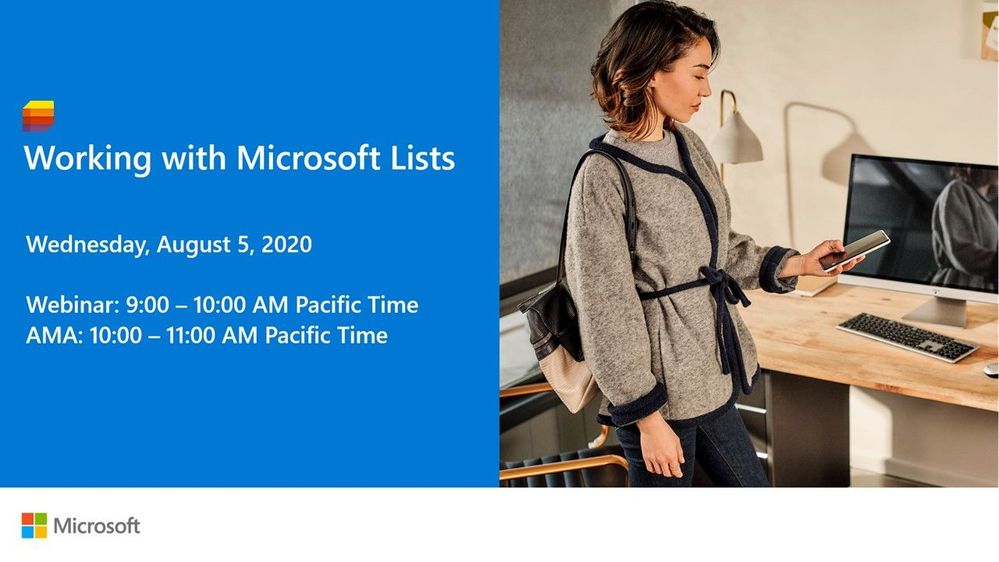
Get started with Microsoft Lists with Microsoft Lists engineers – lots to learn and lots of demos. If you have any questions or feedback for the team, please join us right after the webinar for an Ask Microsoft Anything (AMA) event within the Microsoft Tech Community. Train your brain and the tech will follow.
UPCOMING WEBINAR | ‘Working with Microsoft Lists’
Learn how to get started with Microsoft Lists from the Microsoft Lists engineers themselves. Start a list from a template, add your information, and then use conditional formatting, rules, and key collaboration features to make the list your own – to make it work across your team. Lots to learn. Lots of demos. [below Lists AMA directly after for all your questions]
- Date and time: Wednesday, August 5th, 2020 at 9am PST (12pm EST; 5pm CET) [60 minutes]
- Presented by: Harini Saladi, Miceile Barrett, Chakkaradeep Chandran and Mark Kashman
- Add to your calendar. And join us live on the above date and time.
UPCOMING AMA | “Microsoft Lists AMA”
This will be a 1-hour Ask Microsoft Anything (AMA) within the Microsoft Tech Community. An AMA is like an “Ask Me Anything (AMA)” on Reddit, providing the opportunity for the community to ask questions and have a discussion with a panel of Microsoft experts taking questions about Microsoft Lists, SharePoint list, Lists + Teams integrations, Lists + Power Platform integrations, and more.
- When: Wednesday, August 5th, 2020 at 10am PST (12pm EST; 5pm CET) [60 minutes]
- Where: Microsoft 365 AMA space within the Microsoft Tech Community site
“Working with Microsoft Lists” webinar and AMA [August 5th, 2020 starting at 9:00 AM PST]
Thanks, Mark Kashman (Microsoft Lists PMM — @MKashman)
Learn how to get started with Microsoft Lists from the Microsoft Lists engineers themselves – lots to learn and lots of demos. And if you have any questions or feedback for the team, please join us right after the webinar for an Ask Microsoft Anything (AMA) event within the Microsoft Tech Community. Train your brain and the tech will follow.
UPCOMING WEBINAR | ‘Working with Microsoft Lists’
Learn how to get started with Microsoft Lists from the Microsoft Lists engineers themselves. Start a list from a template, add your information, and then use conditional formatting, rules, and key collaboration features to make the list your own – to make it work across your team. Lots to learn. Lots of demos. [below Lists AMA directly after for all your questions]
- Date and time: Wednesday, August 5th, 2020 at 9am PST (12pm EST; 5pm CET) [60 minutes]
- Presented by: Harini Saladi, Miceile Barrett, Chakkaradeep Chandran and Mark Kashman
- Add to your calendar. And join us live on the above date and time.
UPCOMING AMA | “Microsoft Lists AMA”
This will be a 1-hour Ask Microsoft Anything (AMA) within the Microsoft Tech Community. An AMA is like an “Ask Me Anything (AMA)” on Reddit, providing the opportunity for the community to ask questions and have a discussion with a panel of Microsoft experts taking questions about Microsoft Lists, SharePoint list, Lists + Teams integrations, Lists + Power Platform integrations, and more.
- When: Wednesday, August 5th, 2020 at 10am PST (12pm EST; 5pm CET) [60 minutes]
- Where: Microsoft 365 AMA space within the Microsoft Tech Community site
“Working with Microsoft Lists” webinar and AMA [August 5th, 2020 starting at 9:00 AM PST]
Thanks, Mark Kashman (Microsoft Lists PMM — @MKashman)

Every month, thousands of M365 Administrators turn to Support Central to engage in various self-help options. Support issues can vary in complexity and while sometimes you want to talk to a support agent directly, in other situations it’s more convenient to solve the topic independently via articles , diagnostics or other self-help solutions. In one of my previous posts, I explained how administrators can engage with Support Central to run diagnostics for SharePoint and OneDrive. In this update, I want to dive into some of the other capabilities that our team works on within Support Central as well as ask you for your direct feedback and how we can improve our solutions.
Let’s dive into the details…
What is Support Central?
Support Central is the area within the M365 Admin center where administrators go to engage directly with support agents or other self-help solutions. To access this area, simply navigate to Microsoft 365 Admin Center > Support > New Service Request. Once you are in Support Central you will receive self-help solutions based on your specific query as well as have the option to engage directly with agents. These solutions, based on the query you provided, are run through telemetry and machine learning to provide you with the best possible answer. Based on this information, we not only point you to further relevant resources – such as diagnostics, videos, or help articles – but in many cases, we also directly recommend a specific action for you in-line to solve the problem.
Quickly engage with support central via the “New Service Request” button in the M365 Admin Center.

Get solutions specifically catered to your help query based on machine learning. You can see above that one customer is getting assistance with optimizing SharePoint Migration performance while another is running a diagnostic on OneDrive Quota.
Learning from your feedback!
The OneDrive and SharePoint supportability teams are looking for your feedback on the current Support Central experience – What can we change to ensure you as Administrators have the best possible experience and resources when troubleshooting or learning within the product?
Please take a few minutes to complete our survey regarding diagnostics and self-help solutions. Please ensure you are authorized to provide this information and not violating any company policies. Your responses will be kept confidential with restricted access. For more information, see the Microsoft Privacy Statement. If you have questions about this survey, please contact TechCommunity@microsoft.com
Additional resources:
Thanks, Sam Larson, Supportability Program Manager – Microsoft
Planning, implementing, and managing an onboarding experience for new employees is time consuming and challenging. For organizations, its difficult to efficiently onboard new employees into the complexity of an organization’s structure, people, processes, and culture. Only 12% of employees strongly agree their organization does a great job of onboarding new employees.[1] For new employees, the onboarding experience is often exciting, but can also be stressful, overwhelming, and inconsistent. Based on research, new employees who have a negative onboarding experience are twice as likely to look for new opportunities within the first six months of starting their new job. [2]
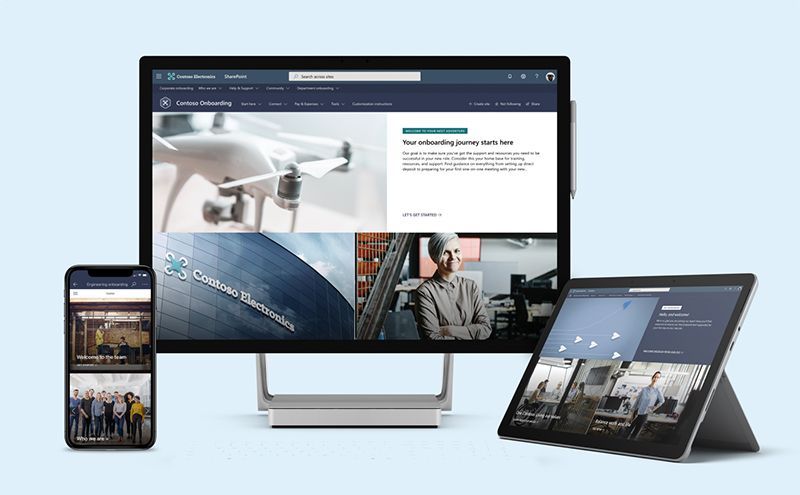
To help our customers improve their new hire onboarding experience, we have launched a new set of SharePoint site templates on the SharePoint look book called the New Employee Onboarding (NEO) hub.
The NEO hub helps organizations:
- Provide new employees resources, support, and general information
- Connect new employees to people, community, and culture
- Help stakeholders easily contribute to new employee onboarding
An engaging and well-organized NEO process can make all the difference in helping a new hire navigate through an exciting – but stressful – career journey, and it can have major organizational benefits:
- Improve new hire performance and time to productivity – Organizations with a standard onboarding process report 50% greater new-hire productivity.[3]
- Improve new employee retention – 69% of employees are more likely to stay with a company for three years if they had a great onboarding experience.[4]
[1] Gallup, State of the American Workplace, 2017
[2] Gallup, State of the American Workplace, 2017
[3] SHRM, Don’t Underestimate the Importance of Good Onboarding, 2017
[4] SHRM, Don’t Underestimate the Importance of Good Onboarding, 2017
NEO hub
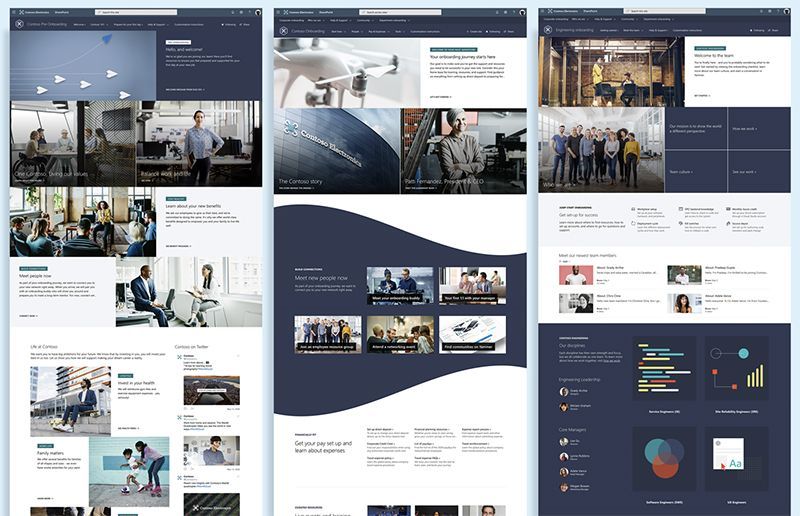
New employee onboarding involves creating an end-to-end experience for new employees that begins before their first day on the job. Research has shown pre-onboarding new hires (after they sign their acceptance letter but before they officially join the company) can lead to higher performance and better retention rates. New employee onboarding also involves providing support on multiple levels within an organization, like corporate and departmental onboarding. Each onboarding level provides its own unique value, contributing to a comprehensive onboarding experience that each new employee will benefit from. To deliver a consistent and integrated new hire onboarding experience the NEO hub consists of three types of SharePoint site templates, designed to work as one cohesive and familiar experience for new hires:
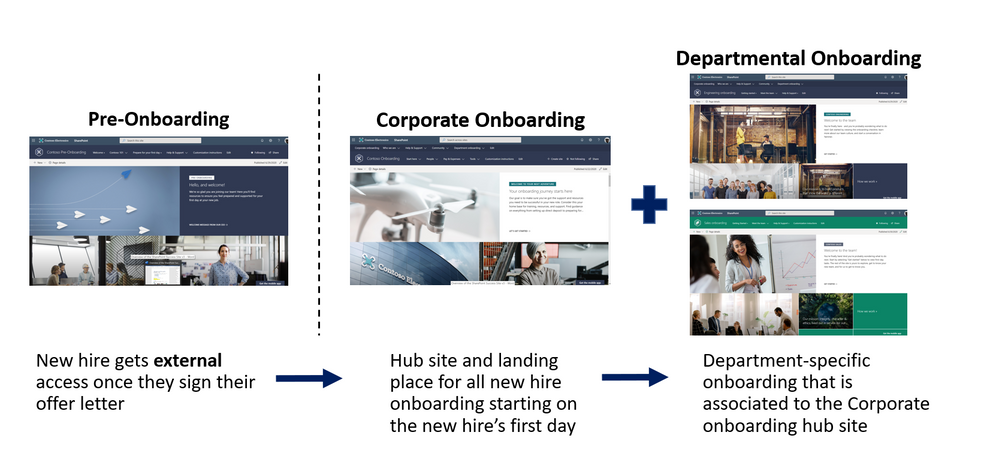
What’s included
To help accelerate your implementation of a new employee onboarding hub in your tenant the following highlights just some of the features included:
- A fully configured and customizable set of new hire sites built on SharePoint communication sites: The NEO hub brings together the sites, information architecture, design, user interface and webparts to help provide new hires with a great onboarding experience. The NEO hub can be customized to add your organization’s new hire content and to align with its look and feel.
- Onboarding checklist: Onboarding can be an overwhelming experience for new hires with everything the new hire is typically expected to do and learn. Avoid overwhelming your new employees by providing them a curated onboarding journey that paces the new hire through a configurable activity list of onboarding to-do’s.
- Sample new hire site pages: To inspire and provide design templates for arranging your content, the NEO hub includes sample inner site pages. Use these site pages as templates for your content.
- Mobile ready: The NEO hub can be easily accessed on mobile devices so your new hires can continue their onboarding from wherever they may be working.
Learn more about the NEO hub. Provision the NEO hub to your tenant today and customize it to help your new hires onboard successfully.
FAQ:
Question: What are the requirements for installing the New Employee Onboarding (NEO) Hub into my tenant environment?
Answer:
- SharePoint Online and Communication Sites enabled.
- The individual that will be provisioning CLO365 must be the admin of the target tenant for install.
Question: How long will it take to install the site in our tenant environment?
Answer: Based on our testing of the installation, it should take less than 20 minutes. This does not include time required to customize the site to your requirements.
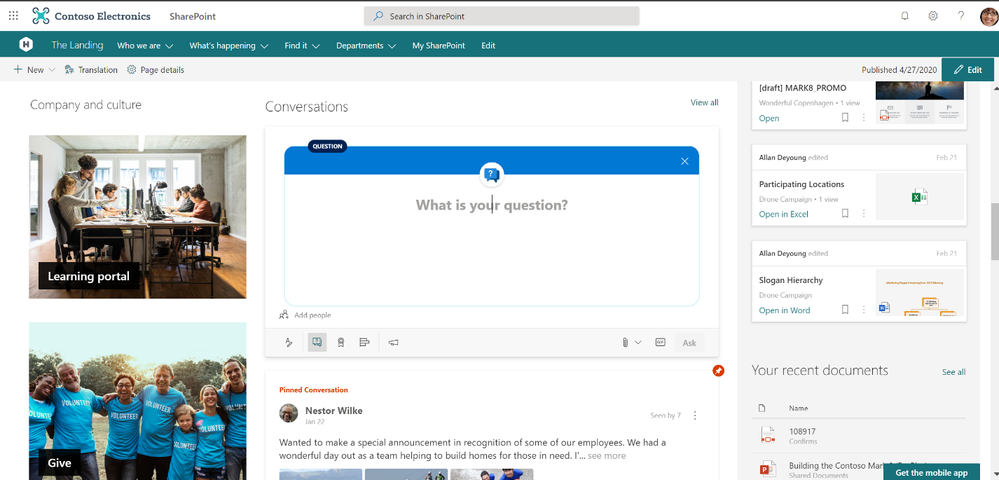
Bring the new Yammer styling and capabilities to your modern intranet. At Microsoft Ignite 2019, we announced that the Yammer Conversations web part for SharePoint Online would be updated with the new Yammer experience. Now, we are excited to announce that it is generally available, meaning that you get all the new Yammer experiences on your SharePoint pages, news articles, and SharePoint sites.
Add the power of community to your sites
The updated Yammer Conversations web parts integrates conversations from any Yammer community, topic, user, or home feed, so you can stay connected to the discussions happening across your organization and add social conversations while still in SharePoint. Starting today, it automatically replace the previous Yammer conversations web part without any action needed from site admins.
What’s New
- The new Yammer look including rich previews for media and visual treatment for questions, praise, and polls.
- The Yammer publisher with functionality like
- creation of any type of Yammer post directly from SharePoint – questions, polls, praise, etc.
- upload of images and files into new conversations and replies directly from SharePoint.
- usage of rich text on messages created from SharePoint Online.
- Yammer management actions such as Close Conversation, Mark Best Answer to a Question, and Pin a conversation, etc.
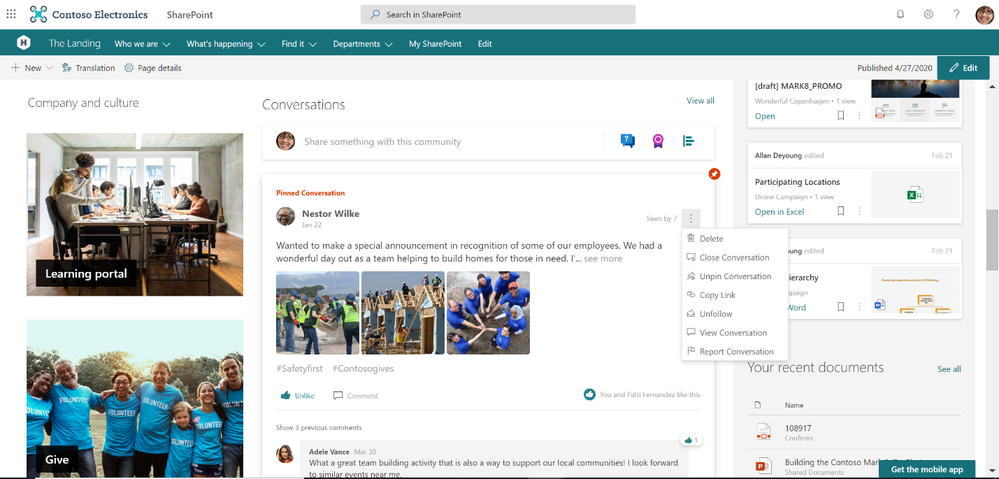
- An improved more relevant Home feed including the ability to start a conversation in any communit when configured to this mode.
- Customize it to view from 2 conversations to 12 conversations.
How to get the new web part
Sites that are already using the Yammer Conversations web part will be updated with the new experience. To add Yammer Conversations to new sites, just visit the web part gallery and select Yammer Conversations and Get Started. Then, you can filter your Community, User, Topic, or Home, and search for your source. Customize the number of conversations to display and select Republish to see and engage with your new Yammer Conversations web part.
Whether you are looking to bring engaging conversations between employees and leaders to your Leadership sites, or allow employees to ask and resolve questions with key services on Employee Service Sites like IT, HR, Travel, or other Community Sites, the updated web part experience enables you to bring rich, social conversations to all of your SharePoint intranet.
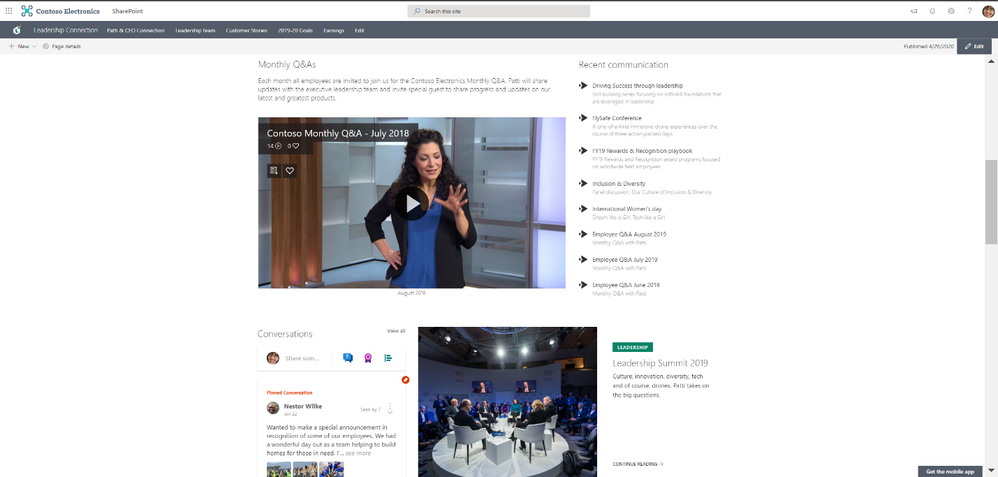 Add Yammer community discussions to your leadership page.
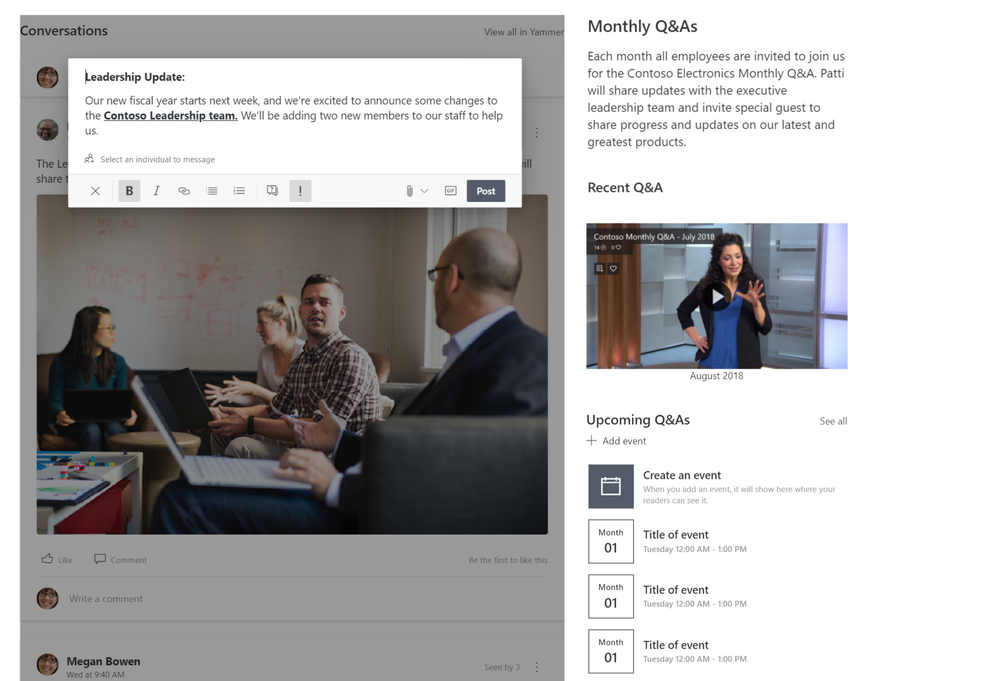 Share news and announcements directly from the web part.
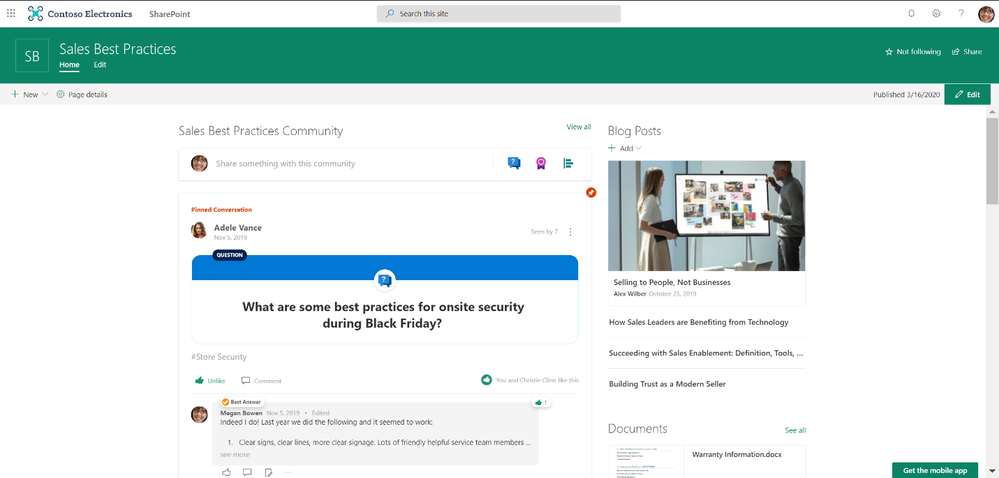 Leverage Yammer communities to share knowledge and best practices alongside helpful resources.
Yammer Everywhere
We’re continuing to build solutions that integrate Yammer communities and conversations into the apps that you use every day. Check out our latest Outlook integration and our Communities app for Microsoft Teams and stay tuned into our public roadmap and blog.

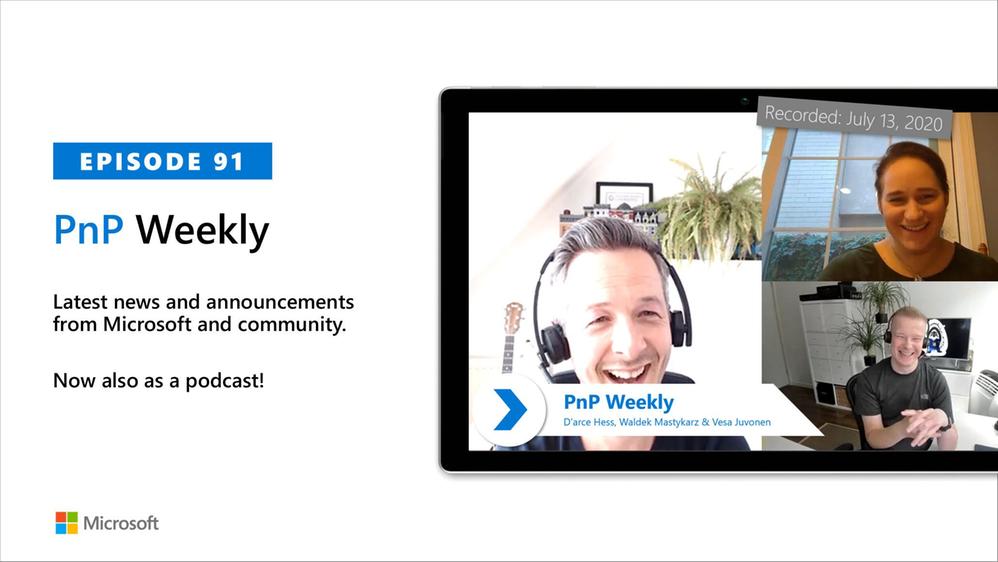
In this weekly discussion of latest news and topics around Microsoft 365, hosts – Vesa Juvonen (Microsoft), Waldek Mastykarz (Rencore), are joined by D’arce Hess (CloudWay) – US based MVP and Information Architect to discuss the importance of information architecture and the human side of IT.
Success is defined by people, not by technology.
There is a need to manage the disconnects between decision makers, IT and information users. Tips for how include: Get end-users in room to define actual requirements, keep refining how to engage and support users, embrace Evergreen mode, manage IT’s fears, make decisions based on analytics and not on emotions. There are opportunities for surfacing actionable data more readily. Are customers transitioning to Teams as their intranet? Teams is the platform for collaboration pared with SharePoint for content discoverability.
Additionally, in this episode, 15 recently released articles from Microsoft and the PnP Community are highlighted.
This episode was recorded on Monday, July 13, 2020.
Did we miss your article? Please use #PnPWeekly hashtag in the Twitter for letting us know the content which you have created.
Notice. Next PnP Weekly will be released on 11th of August as the team will take some time off with families. We’ll be back soon. Have a great summer if you are on the Northern hemisphere!
Sharing is caring!
In this weekly discussion of latest news and topics around Microsoft 365, hosts – Vesa Juvonen (Microsoft), Waldek Mastykarz (Rencore), are joined by D’arce Hess (CloudWay) – US based MVP and Information Architect to discuss the importance of information architecture and the human side of IT.
Success is defined by people, not by technology.
There is a need to manage the disconnects between decision makers, IT and information users. Tips for how include: Get end-users in room to define actual requirements, keep refining how to engage and support users, embrace Evergreen mode, manage IT’s fears, make decisions based on analytics and not on emotions. There are opportunities for surfacing actionable data more readily. Are customers transitioning to Teams as their intranet? Teams is the platform for collaboration pared with SharePoint for content discoverability.
Additionally, in this episode, 15 recently released articles from Microsoft and the PnP Community are highlighted.
This episode was recorded on Monday, July 13, 2020.
Did we miss your article? Please use #PnPWeekly hashtag in the Twitter for letting us know the content which you have created.
Notice. Next PnP Weekly will be released on 11th of August as the team will take some time off with families. We’ll be back soon. Have a great summer if you are on the Northern hemisphere!
Sharing is caring!







