SharePoint Dev Weekly is a video and a podcast series where Vesa Juvonen (Microsoft) and Waldek Mastykarz (Rencore) will have a weekly discussion on the latest SharePoint Dev topics. They are often joined by a visitor to talk about specific topics. We’ll also highlight other latest SharePoint Dev news and most interesting engineering and community articles. This was recorded on Monday 7th of October 2019.

SharePoint Dev Weekly is a video and a podcast series where Vesa Juvonen (Microsoft) and Waldek Mastykarz (Rencore) will have a weekly discussion on the latest SharePoint Dev topics. They are often joined by a visitor to talk about specific topics. We’ll also highlight other latest SharePoint Dev news and most interesting engineering and community articles. This episode was recorded on Monday 30th of September 2019. In session video guys were joined by Marc D Anderson (Sympraxis Consulting).
When people work together and get things done – there is less confusion between team members and the content they create. This is the design goal behind Microsoft Teams – the hub for teamwork – and the reason why SharePoint is deeply integrated to provide great content experiences and services within the same user interface. At Microsoft, our mission is to empower every person and organization on the planet to achieve more. And when you do this together – as a team – it’s teamwork that moves things forward.
This video + blog highlight everything you can do with SharePoint directly from within Teams. Work easily and confidently with files, news, home pages and lists, assured everything is protected by industry-leading security and compliance and the ability to adhere to your desired governance outcomes.
The above video demonstrates each of the four topnotch tips along with guidance on “how to” within your Teams experience. Then, dig into below for more context, screenshots/GIFs and links to learn more per these four tips:
- Work on files together using the Files tab and full SharePoint document libraries
- Let SharePoint news headlines flow into Microsoft Teams
- Add a “business app” by adding the default, group-connected SharePoint team site home page as a tab in Teams
- Make a list (in SharePoint) and check it twice (in Teams)
Happy SharePoint’ing in Teams!
#1: Work on files together using the Files tab and full SharePoint document libraries
It’s easy to work on files in Microsoft Teams. It’s a native experience and powered by SharePoint. This gives give you more options to view, sync, and share your files when working with your peers in Teams channels.
The default Files tab in Teams channels
Within each Microsoft Team there are one, or more, channels where focused discussions take place. Each channel has its own file folder where you can share files with that channel. To access that folder, go to the channel and click the Files tab.
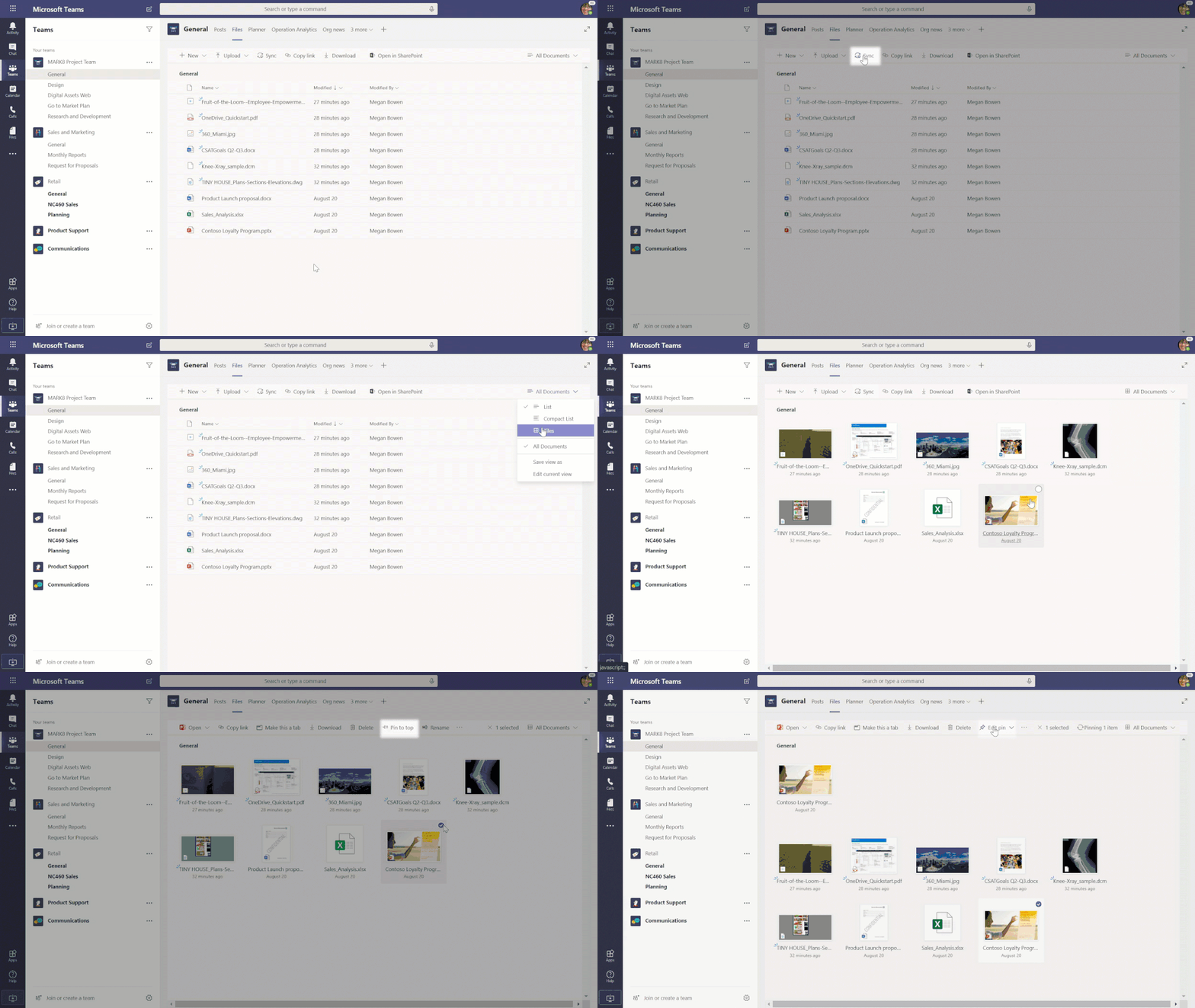
Powerful file experiences inside of Microsoft Teams, powered by SharePoint.
When working with files, team members can upload existing files, create new ones, and collaborate with other members of the team in near and real-time knowing the content is already shared with all owners and members of that team. And coming soon, you’ll be able to sync these files, see rich thumbnail views, filter on views and more.
It’s easy to get started. In any Team, go to the General channel and then click on the Files tab. At the top of the tab, you’ll see +New, Upload, etc… and can access everything via the Web, desktop and mobile.
Note: each channel you use and/or create is associated to a unique folder within the group-connected SharePoint team site document library. It is already in place, connected to Files tab(s), and brings with it the powerful content service of SharePoint.
Adding an individual Office document as a tab in Teams
When you have Office content in a Files tab, you can easily highlight high-value content as a standalone tab of its own. You get the full Web capabilities to view and edit using Office for the Web that is fully integrated without leaving that tab.
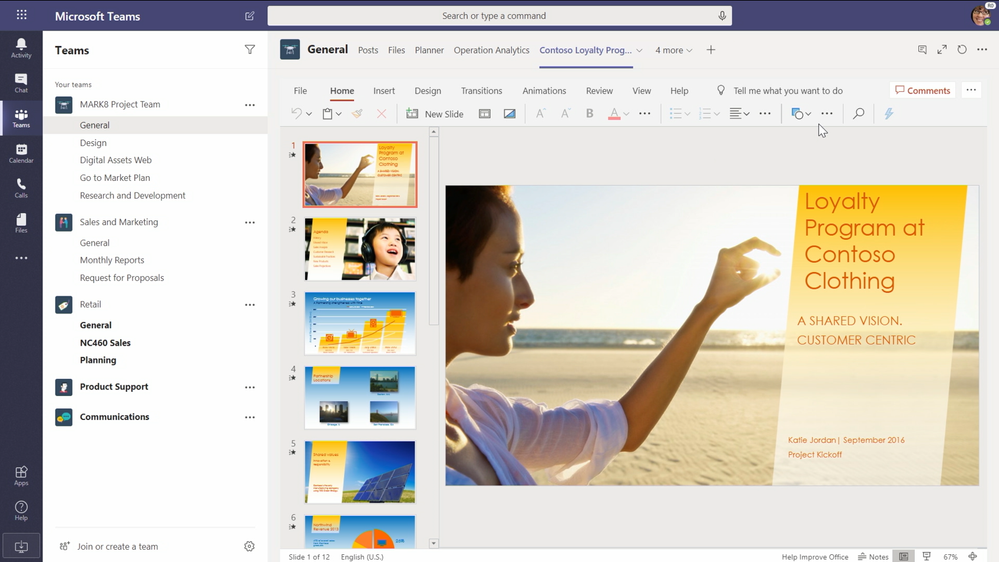 Add an individual Office document as a tab in Teams. As shown above, a PowerPoint file loads in full fidelity using PowerPoint for the Web.
It’s easy. Click the ellipsis of an Office document stored in the Files tab. You’ll see the option to Make this a tab, that when selected brings the Office document in its full fidelity as a unique tab in Teams.
Adding a full SharePoint document library
Yeah, but what about the full group-connected document library with all folders from each channel, or important content that exists elsewhere in the intranet and is of value to the team – like “approved photography” or “customer-ready sales presentations.” Yeah, you can do this, too. And know the original permissions remain intact.
Within the desired channel, click “+” to add a new tab. Click on the Document Library tab. You’ll see a list of relevant sites you can choose from – ones you have permissions to view and work with – and you can always grab a library’s full URL to add it more manually. Once you find the one you want, click it, give it a good name for team members to recognize (this is the name the tab will display), and there you go.
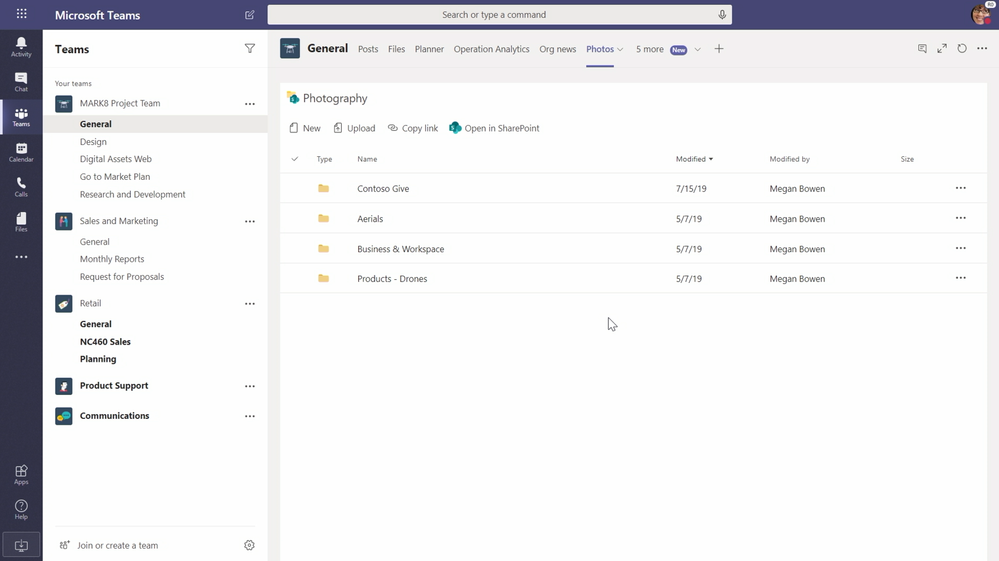 Add a full SharePoint document library as a tab in Teams.
Learn how to collaborate on files with your Team.
#2: Let SharePoint news headlines flow into Microsoft Teams
SharePoint news, both team level news and organization news, provides a rich landscape from which to share and learn what’s happening throughout your intranet. You can easily create dynamic, targeted media-rich experiences in SharePoint and have them flow into Microsoft Teams – keeping everyone informed on the news that matters most to the team.
Let’s take a closer look across three things you can do with SharePoint news in Teams.
Add the default, dynamic team site News page as a tab in Teams
Once you’ve published more than three news articles from the SharePoint team site, an “all-news” page gets created to displays all published team news when you click See all off of the News web part. As new news articles are published, they will automatically appear on this page with the title, brief description, thumbnail, author and publish date. It’s super handy to see all news in one place, and in Teams that one place can be a tab in any channel.
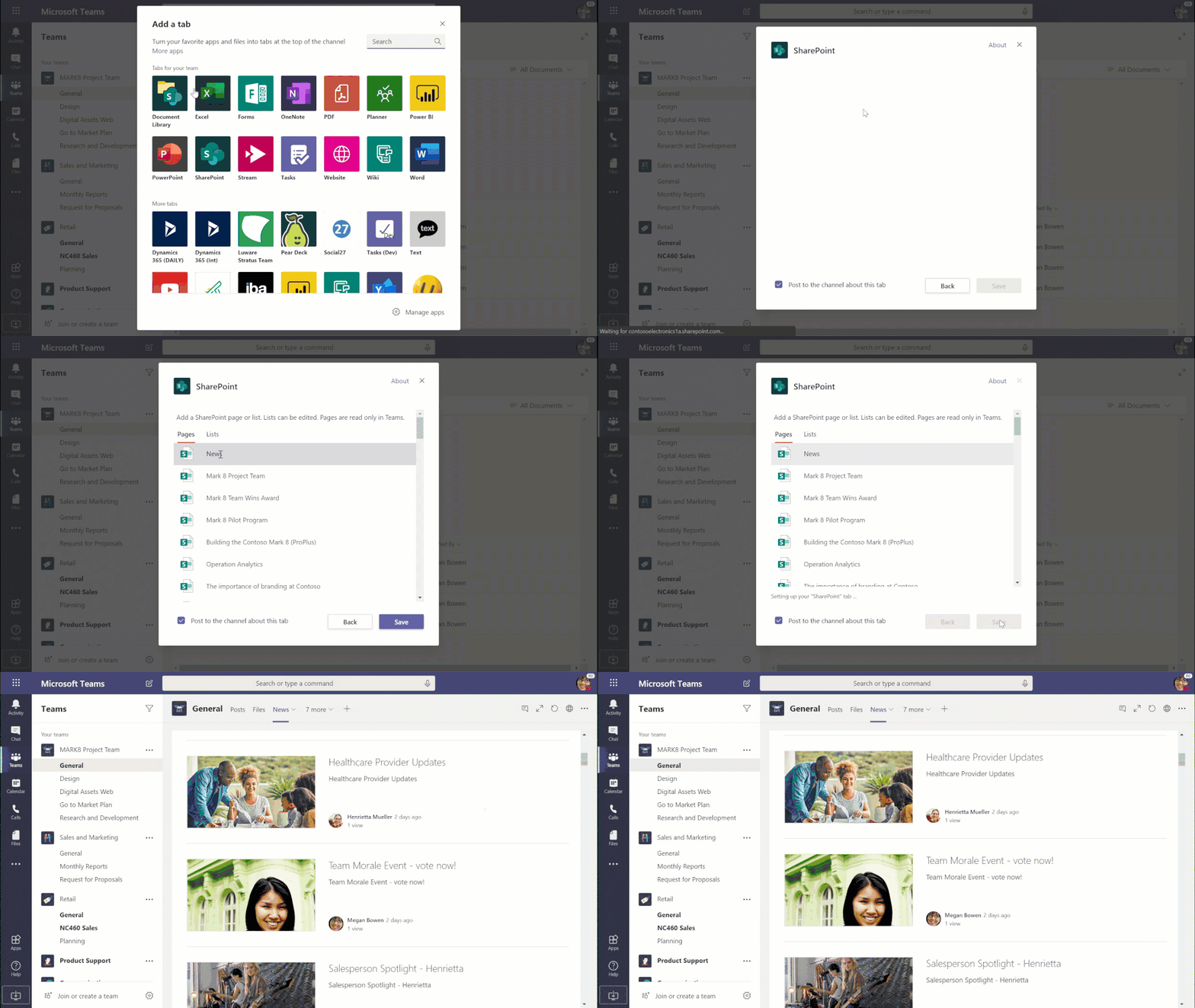 Add the News page from the connected SharePoint team site as a tab in Teams.
Within the desired channel, click the “+” to add a new tab. Click on the SharePoint tab. Under the list of Pages – click on the News page, and then click the “Save” button. The full list of news articles now appears as an easy-to-access page as a tab in Teams.
Add the home page of the organization news site as a tab in Teams
To showcase news that is meant for everyone, you can add an organization news site as a tab – same as you did with the team site News page. Imagine a news portal managed by your central marketing group – available to everyone as consumers (i.e. and organization news site: //contoso.sharepoint.com/sites/News) – that highlights company-wide events, external news, product launches, new HR guidelines and more. Keep it all within reach, both the above team news and news from across the organization.
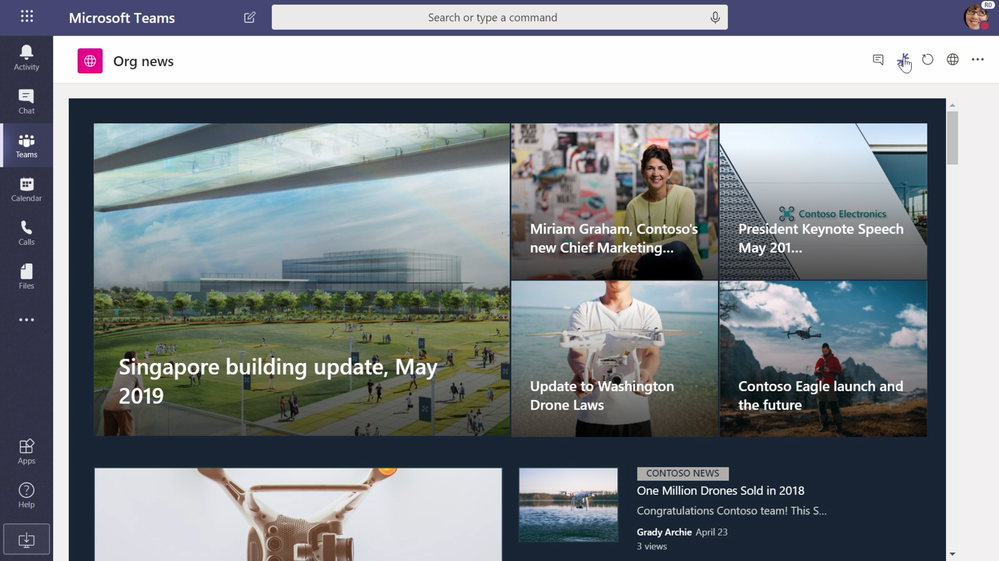 Add the home page of the organization news site as a tab in Teams.
Within the desired channel, click the “+” to add a new tab. This time click on the Website tab. Give the tab a good name (“Org news”), paste in the URL (like the above Contoso example), and click the Save button. All the site’s chrome goes away, leaving you and your team all the news from around the organization right at the tips of your fingertips – as an org news tab in Teams.
Enable the SharePoint News connector at the channel level (published news automatically starts a new conversation thread in that channel)
Use the SharePoint News connector to automatically publish team news articles to generate new conversation threads in the discussion tab in Teams. This will increase the reach of each news article and makes it easy to discuss all that is happening throughout the team. It’s like a news icebreaker, the discussion gets started for you.
Find the Teams channel you wish to enable, click the ellipsis, select “Connectors”, search for “SharePoint” – and then click the “Add” button next to the “SharePoint News” connector. The SharePoint News connector sends notifications about new published team news articles.
Learn more how to create and share news on your SharePoint sites, and then use the SharePoint News connector to bring the news into Microsoft Teams.
#3: Add a “business app” by adding the default, group-connected SharePoint team site home page as a tab in Teams
Home is where the heart (of productivity) is. And you’ll love (I mean “lub dub” love) what it can provide to all members of a Team. What may have taken four to five tabs to pull in the relevant content in context, can be designed and configured on the connected, default SharePoint team site home page, and then brought in as a single tab experience in Teams – all on one page.
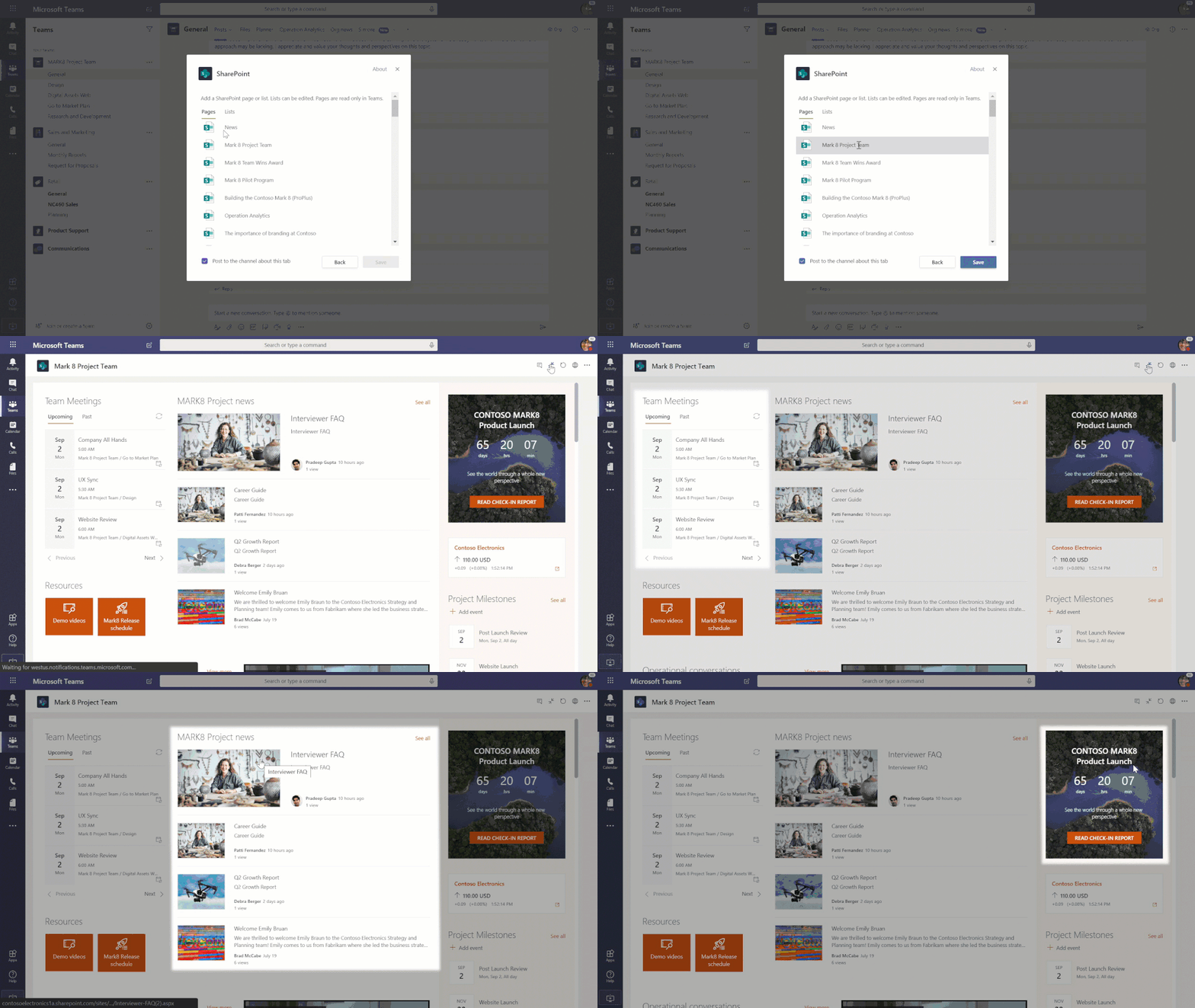 Add the group-connected team site home page – along with your configured web parts – as a tab in Teams
Within the desired channel, click the “+” to add a new tab. Click on the SharePoint tab. Under the list of Pages – click on the team site Home page (often listed as “Home” or as the name of the Teams), and then click the Save button. Note, this page has four powerful web parts that helps guide all team members through a single-pane-of-glass dashboard if you will (News, Documents, Activity and Quick Links), and you can add whatever else that makes sense for your team (videos, Twitter feeds, countdown timers, photos, BI dashboards, and more).
Learn more about SharePoint team site home pages and more.
#4: Make a list (in SharePoint) and check it twice (in Teams)
Whether it’s a simple list of potential clients to follow up with or a broad laptop asset check in/out business solution, SharePoint lists are the backbone of keeping track of things manually or via workflow – with the intent that everyone who views and interacts with them is up-to-date with the information and status they provide.
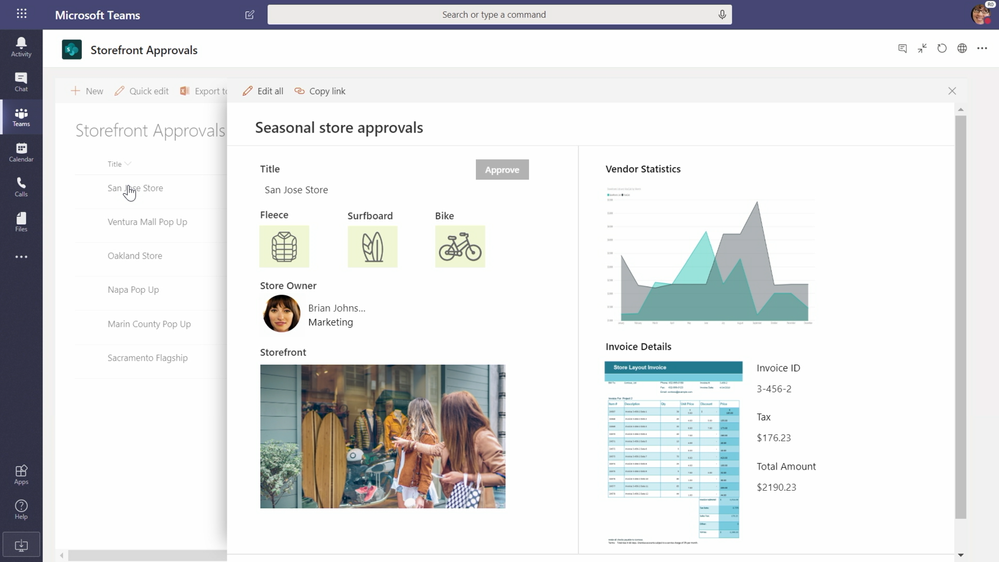 Add a full-power SharePoint list as a tab in Teams.
And with that, it’s very easy to build a list in SharePoint and add it as a tab in Teams. At the top of any Teams’ channel, click the “+” but to add a tab, and then select SharePoint. This launches a dialog box to add individual SharePoint pages and lists. Pivot to the Lists tab of this dialog box, and then click on the name of the list you want to bring into the Teams user interface. Once added, you get the full power of the list to navigate views, filter columns on list items, see full item details, and more – plus all the visual column formatting comes through.
Learn more how to add a SharePoint page or list to a channel in Teams.
And that’s the design integration of Microsoft 365…
… to empower individuals, teams, and organizations to share and work together on content across boundaries, devices and time.
These tips showcase integration between two of Microsoft’s best-of-class applications – SharePoint and Microsoft Teams – optimized for your content collaboration and sharing of intelligent intranet experiences. And, it’s all backed by world-class security and compliance to meet the needs of every team across your organization.
If your SharePoint site is not yet connected to Microsoft Teams, you can connect them in one click right from your team site home page in the lower left-hand corner. That’s the power to “teamify” your SharePoint site; clicking Create a Team will add a new Microsoft Team and connect it to the Office 365 group already associated with this site. Note: this action cannot be reversed.
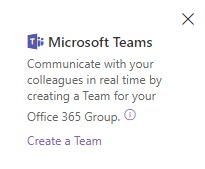 Create a Microsoft Team for an existing group-connected SharePoint team site.
 Microsoft Teams plus SharePoint = better together.
Cheers, and good teamwork to all,
Mark Kashman – senior product manager – Microsoft 365 (OneDrive and SharePoint)

Being a Microsoft Office 365 Partner am keen to follow any news concerning feature changes and updates to Office365. Microsoft announced via this blog, that Office 2013 clients’ connections to commercial Office 365 services will not be supported after October 13, 2020. After this date, ongoing investments in the Office 365 cloud services – including Exchange Online, SharePoint Online, and OneDrive for Business – will proceed based on post-Office 2013 requirements.
(more…)
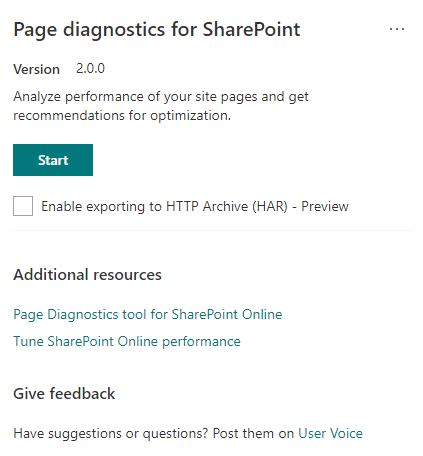
Today we’re pleased to announce availability of the next release of the Page Diagnostics Tool for SharePoint (Version 2.0.0) which now includes the ability to assess modern and classic SharePoint pages.
The Page Diagnostics Tool for SharePoint is a Chromium Browser Extension (can be used in Chrome and Microsoft Edge version 77 or later) designed to help you identify site pages in SharePoint Online that may not be delivering optimal performance.
The Page Diagnostics Tool works by comparing discovered characteristics of a site page in SharePoint Online to known best practices and provide guidance towards remediation of those issues to ensure you are delivering the best possible experience across these pages. In addition to addressing performance of existing pages, the Page Diagnostics Tool can also be used to evaluate existing pages before they are published in your environment. As such it is recommended that you use the tool to evaluate new pages or changes to pages prior to publication in your production tenant or as part of your development life cycle in your development tenant.
The Page Diagnostics Tool is currently available as a Chrome Browser Extension that can be downloaded directly or installed through the Chrome web store.
For additional information on installing and using the Page Diagnostics Tool, refer to the getting started guide https://docs.microsoft.com/en-us/office365/enterprise/page-diagnostics-for-spo
The Page Diagnostic Tool also provides detailed information on a variety of characteristics useful for support and troubleshooting purposes to include the current CorrelationID which is helpful when engaging Microsoft support as well as page load time, and the current URL for the page being evaluated. An additional preview feature has also been included to further assist when working with Microsoft support, “Enable exporting to HTTP Archive (HAR) – Preview”. This can be used to provide debugging data to the Microsoft support engineer.
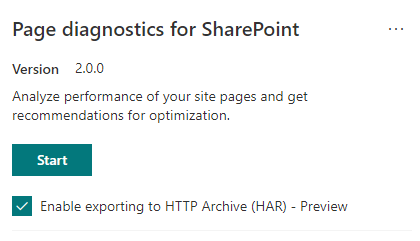
For information on how to use this information, refer to support documentation for the Page Diagnostics Tool at https://docs.microsoft.com/en-us/office365/enterprise/page-diagnostics-for-spo
The tool can analyze both modern and classic sites, but analysis rules for certain tests may use different values to accommodate differences in page architecture.
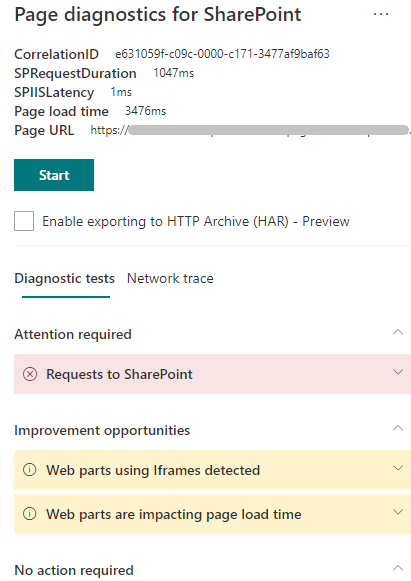
Rules will be added and adjusted with each release so please ensure you update the tool to the latest version. Each rule has an associated “Learn more” link which will take you to the supporting page providing more insights on the rule for the Attention Required (red) and Improvement Opportunities (yellow) sections so that you can review what actions to take.
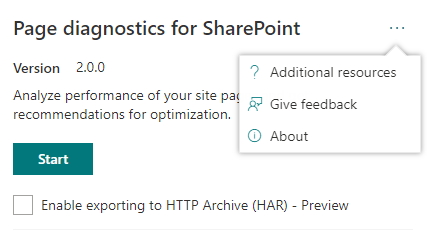
Please use the additional resources section on the start page for the tool should you require additional information on how to use the tool or how to tune SharePoint online performance.
You can also use the ellipse in the top right corner to get to these links.
You can also use the give feedback link to connect directly to UserVoice and log suggested functionality for the tool.
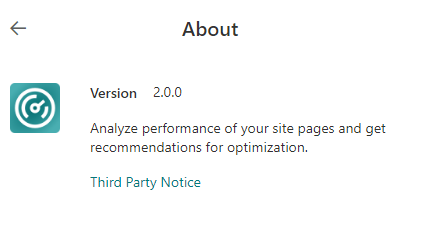
The About link will show you the current version as well as the third-party notice.
We look forward to your feedback as we continue to consider scenarios for future versions of the Page Diagnostics Tool for SharePoint and trust that the recommendations will guide you towards great performing pages.
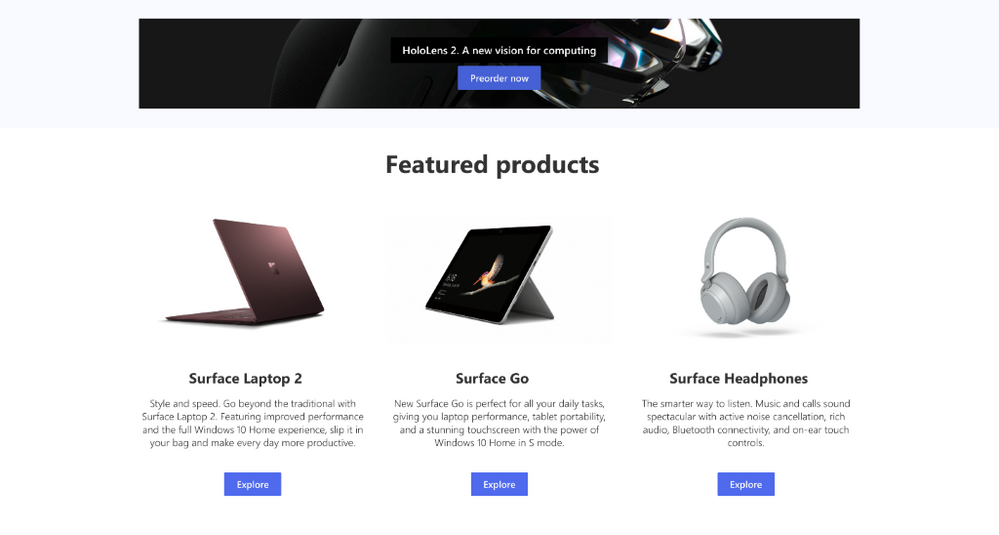
Pages deliver great content and news to your organization. We’ve heard your feedback for more ways to create rich, beautiful experiences through SharePoint and Microsoft Teams. In addition to our out-of-the-box page templates, you can easily add interactivity and automation with SharePoint web parts. Here are our latest updates starting targeted release in summer 2019.
Button & Call to Action
The Button and Call to Action web parts allow you to engage page viewers through guided experiences. For example, you can provide focused text on a button. Clicking it brings viewers to their next content experience. Furthermore, with the Call to Action web part you can add explanatory text or even a background image to further draw viewers’ attention.
World Clock & Weather updates
We’re also adding a World Clock web part and updating the Weather web part. You can now add individual cities/locations, or a group of locations to a web part.
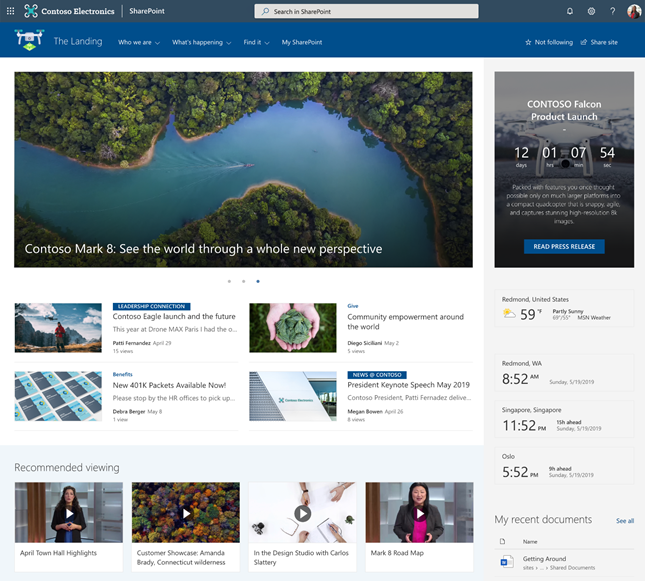
Hero gets secondary call-to-action link for large tiles
In the hero web part, you’ve asked us for two links on larger tiles. The primary link connects to content, while the secondary link can help with other initiatives, such as employee engagement and discussion.

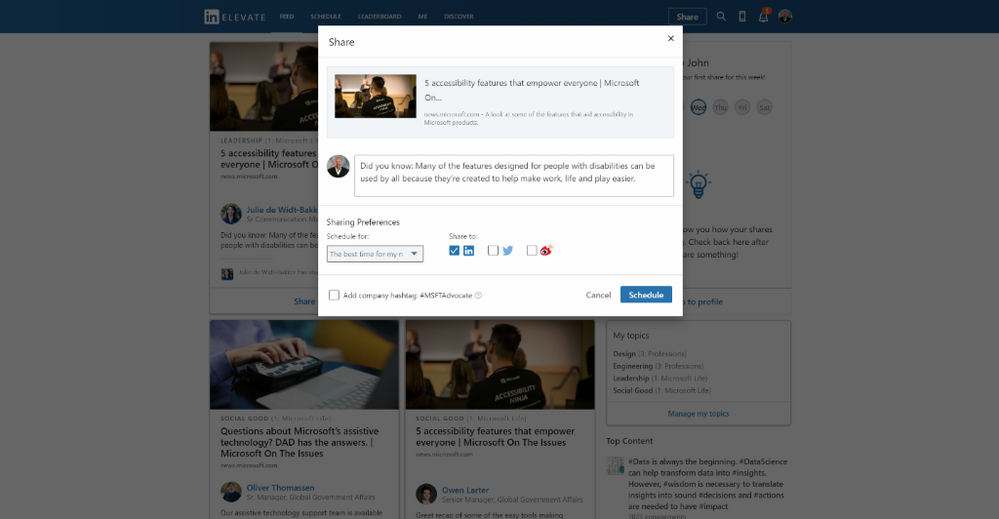
At Microsoft, we already use a similar method to encourage employees to discuss internal content on Yammer, while we leverage LinkedIn Elevate to enable employees to share and discuss public content on social media (LinkedIn, Twitter, etc.).
LinkedIn Elevate lets an organization curate external news articles to internal employees. As staff use Elevate to promote articles to their channels, the organization can marshal a much broader team of “posters” to amplify select content, and track impact and engagement through centralized reporting.
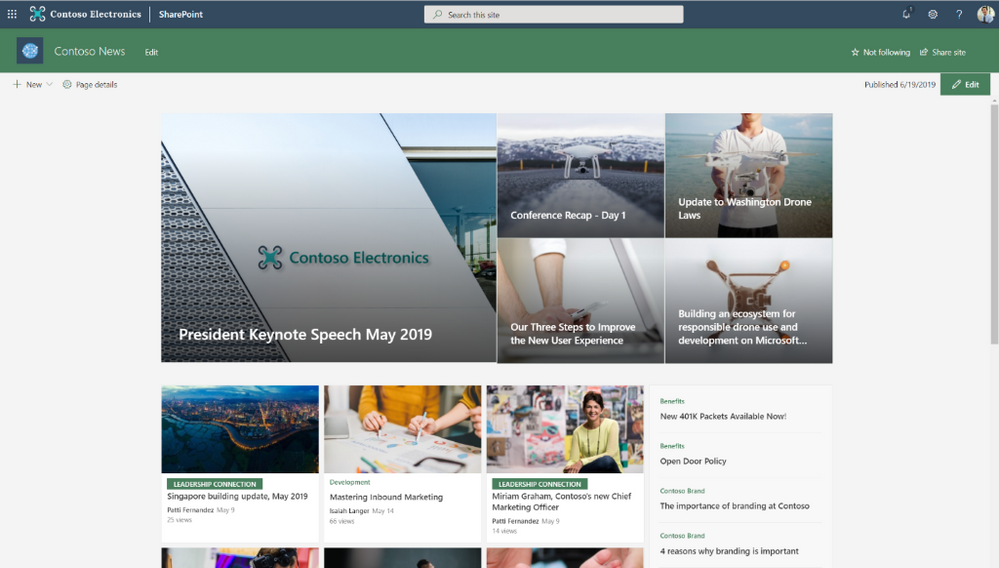
News gets hero tiles as a layout
As more readers see the Hero web part (it’s the default for communication sites), many have asked for similar layouts for the News part. Done and done.
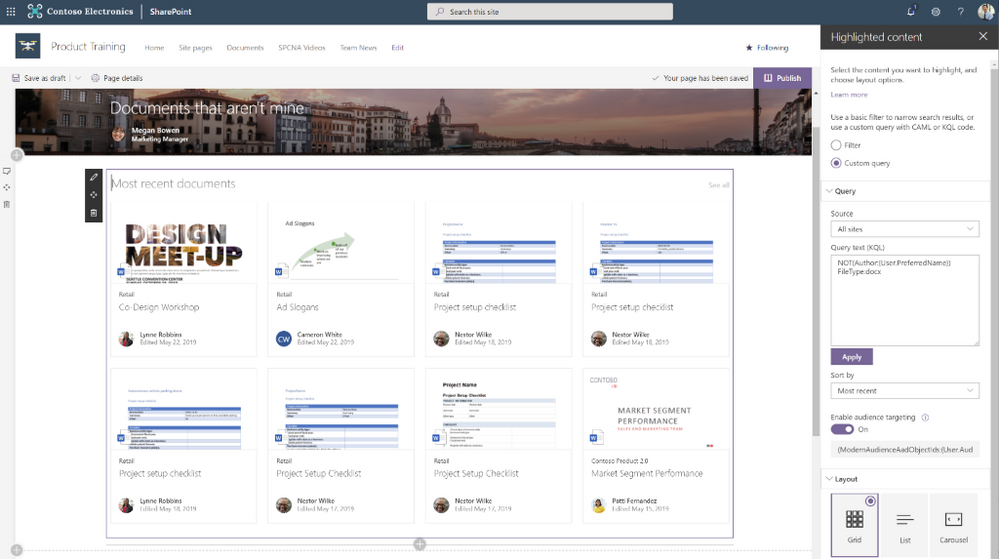
Highlighted Content with custom query filtering
The Highlighted Content web part is a great multi-gadget tool for modern pages. It lets you filter for selected sets of documents by time or relevance. Now, using the new custom query filtering option for Highlighted Content, you can now craft CAML or KQL to display precise sets of content. You even have the option to combine multiple CAML or KQL filters together using AND, OR, and NOT operators. For example, you can filter for document types, authors or other custom metadata across any sites in your tenant.
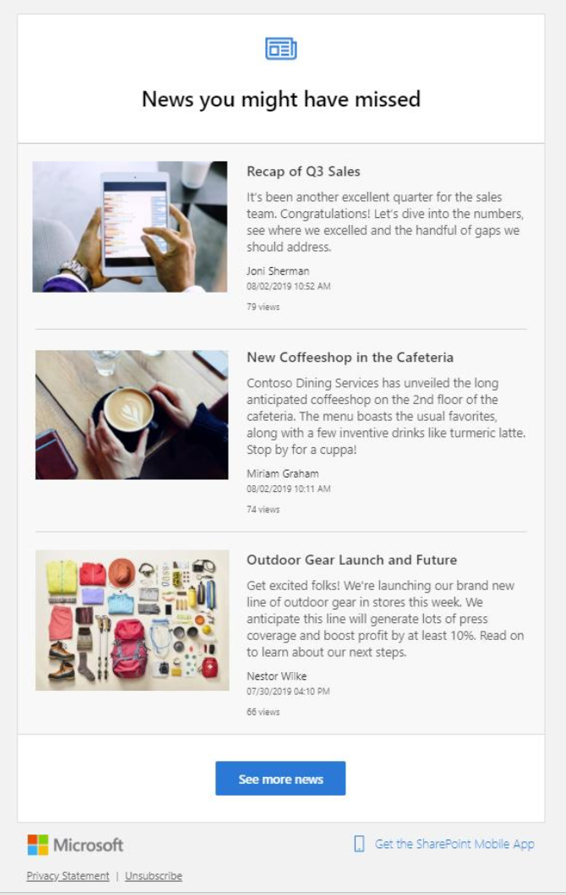
Email roll-ups of missed SharePoint news posts
SharePoint can send you emails rolling up recent unread news posts. You can click on each news post in the email separately. Clicking on the “See more news” button takes you to your SharePoint start page, where you can access your complete news feed.
To stop receiving emails for missed news posts, simply click on the Unsubscribe link in the footer.
Conclusion –
Thanks again for all your feedback here on TechCommunity and on UserVoice. We’ll keep more features coming soon.
Document management is a core capability for SharePoint and Microsoft 365. Today, we’re pleased to announce the following new capabilities which will start rolling out to Targeted Release by late August 2019.
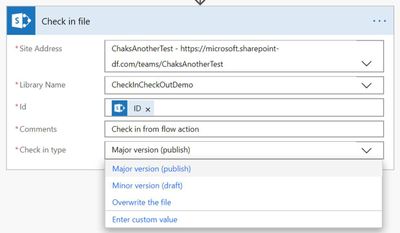
New document management actions for SharePoint in Flow
Organizations may require users to check-out documents before they can make any changes. Instead of always requiring user interaction, you can now automate document check in and checkout using Microsoft Flow. The check-out file and check-in file actions will allow Flow authors to check-out, make changes, and then finally check-in the file to the library. These new actions will start being available in the SharePoint connector during August 2019.
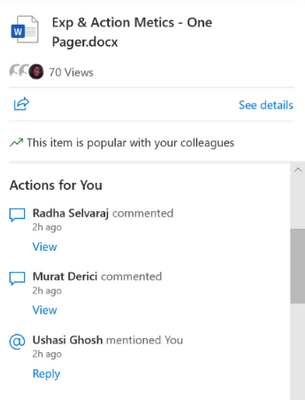
Activity Highlights in the File Hover Card
We’re also adding activity highlights to the File Hover Card. This feature shows relevant activities related to the files you’re working on. If someone you work with edits, comments, or @mentions you, this activity will be displayed in the File Hover Card, along with a link to take you directly to the relevant activity. This feature started rollout to Targeted Release in July 2019.
Bulk approvals
Coming soon, you’ll be able to and select multiple items or documents pending approvals and complete the process with a single action (three easy steps!) Let’s review:
First find and select the items you’d like to approve or reject:
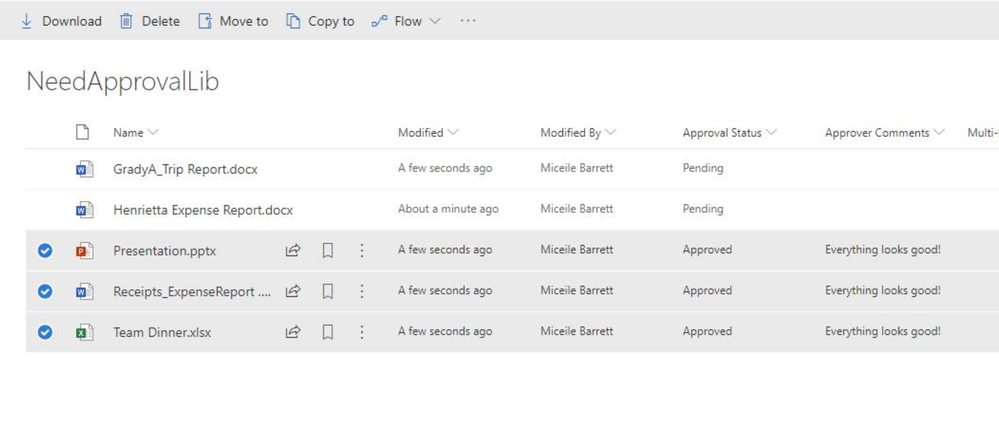
Right-click on the selected items. In the resulting menu, under the “More” option, click “Approve/reject”
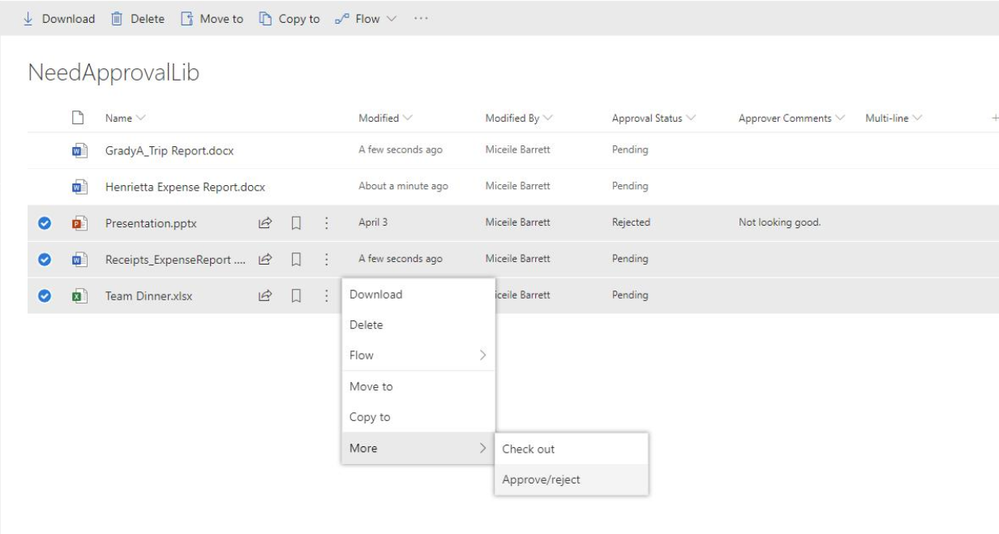
And you’re done. Hope you approve. :smiling_face_with_smiling_eyes:
We welcome your feedback as these and other new features roll out this summer. Please share your comments here on the SharePoint blog, or through UserVoice. Thanks.
A growing rise in regulatory requirements places more onus on organizations to control the geographic location of where data is stored so that it can be kept within specific regional boundaries.
If you don’t have a solution for this, you may feel less confident in expanding your business into new markets, distributing your workforce or even moving to the Cloud. The traditional way to tackle data residency has been to manage people and resources who reside in different countries or regions within the organization as separate entities, even though you are all part of the same organization.
To solve for this, maybe you’ve opted for a distributed datacenter model on-premises aligned to geographic locations, or perhaps you find yourself maintaining a often complex hybrid architecture to offer Office 365 to users in a limited number of geographies to address data compliance needs.
While this can potentially keep your data in the appropriate location, we know that these approaches can be expensive and worse of all, create data silos, which limit collaboration on your organizations most important currency, information. Data fluidity, or lack of it, constrains your organization’s overall productivity and innovation.
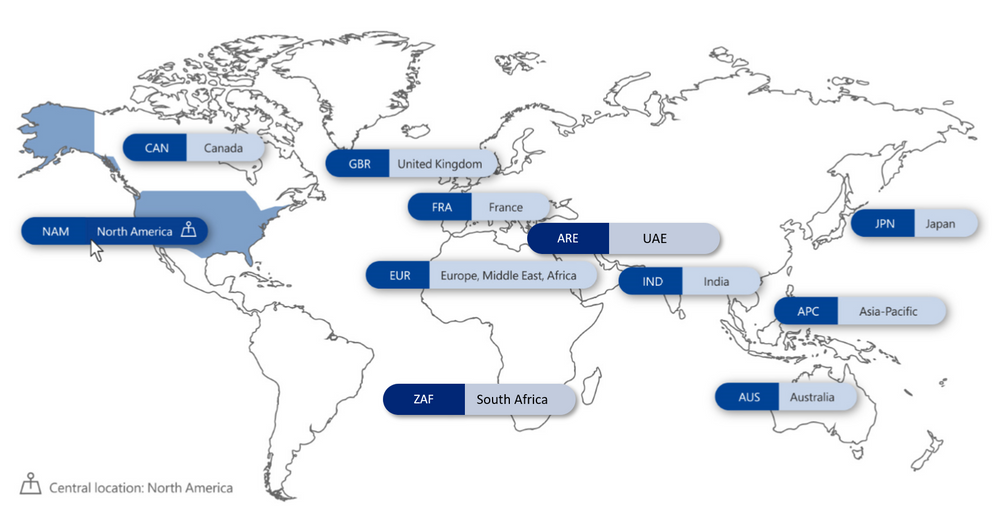
The good news is that there’s now a better and more efficient way to solve for this challenge with Multi-Geo in Office 365. It allows you to operate a single global Office 365 tenant and facilitates control to pin point locations around the world where each user’s content is stored at rest and where future content will be stored.
Office 365 Multi-Geo capabilities enable a single Office 365 tenant to span across multiple Office 365 datacenter geographies (geos), and gives customers the ability to store their Exchange Online and OneDrive, SharePoint Online and Office 365 Groups data, at-rest, on a per-user basis, in their chosen geos and today we’re pleased to announce to expanded Office 365 Multi-Geo capabilities to South Africa and the United Arab Emirates.
Learn more on how Office Multi-Geo works, how to get started, and FaQ’s in the Microsoft Mechanics video below:
Learn more about Office 365 Multi-Geo pricing and how to get started at https://products.office.com/en-us/business/multi-geo-capabilities.
Additional Resources
Office 365 Multi-Geo Resource Center
Office 365 Multi-Geo Community on the Microsoft Tech Community
Office 365 Multi-Geo Capabilities eBook
Addressing data residency needs with Microsoft 365 eBook
Building informative and attractive pages is an essential step in engaging employees with news, applications, and critical information in SharePoint and Microsoft Teams. Today we’re pleased to announce a series of enhancements to make authoring pages faster and more intuitive.
All of these are scheduled to start rolling out to Targeted Release in August 2019, with general availability following soon after.
Undo/Redo
Office applications such as Word have long offered “undo” actions after a change. Now, we’re bringing this option to SharePoint pages as well, providing the option to undo changes during authoring. Once you save or publish your page, you can no longer undo previous changes.
Drag and drop files to the canvas
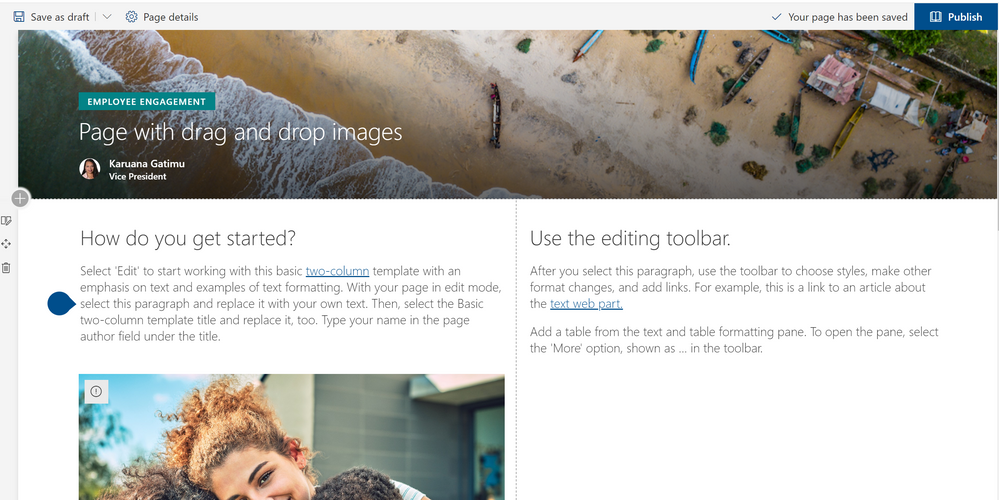
Adding files to pages is simpler than ever. You can drag and drop files from desktop views and SharePoint will automatically add the file viewer and upload the file to the SharePoint document library. We’ve also added a rich preview for links pasted into the text editor to embed videos from Stream and YouTube links, or images with title and description from other links.
Click here or on the image below to see how easy it is to drag and drop files into your pages.
New vertical sections
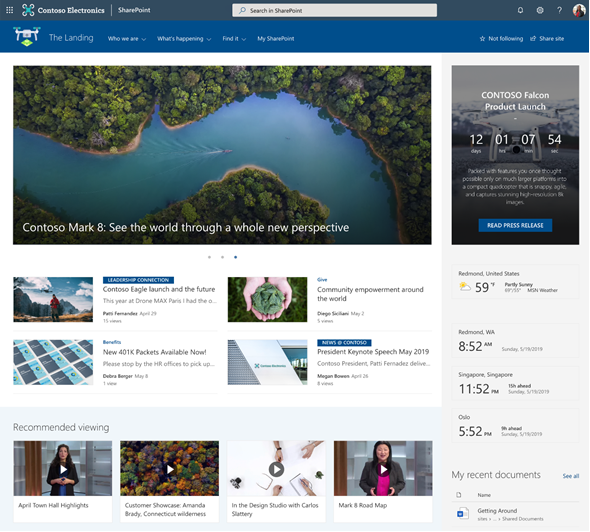
As mentioned on our home site announcement blog, modern pages can now have vertical sections as shown below.
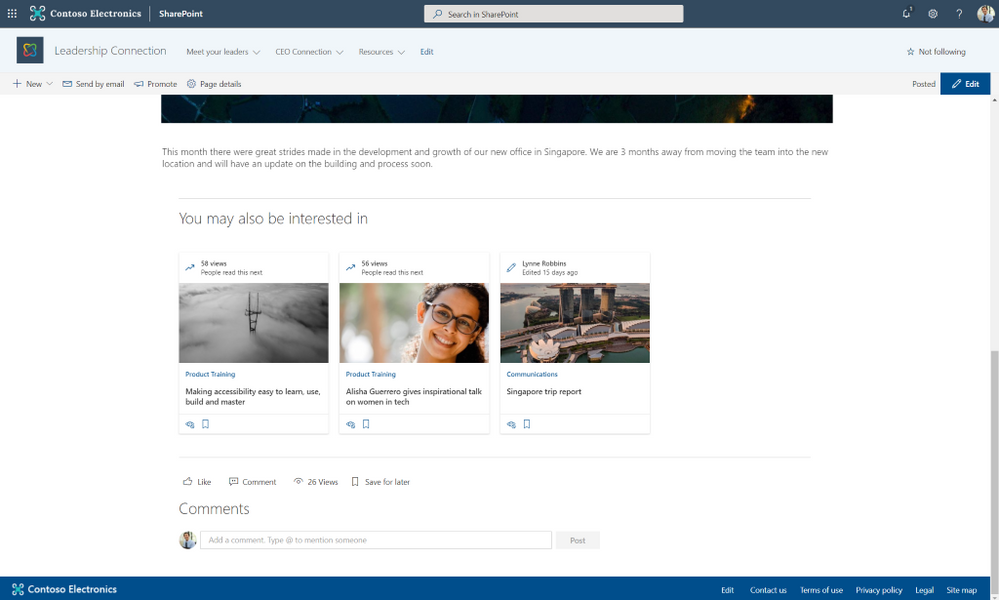
Recommendations
Pages and news can now include a web part showing related and recommended content. Pages are suggested based on trends and personalization derived from the Microsoft Graph.
On page anchors
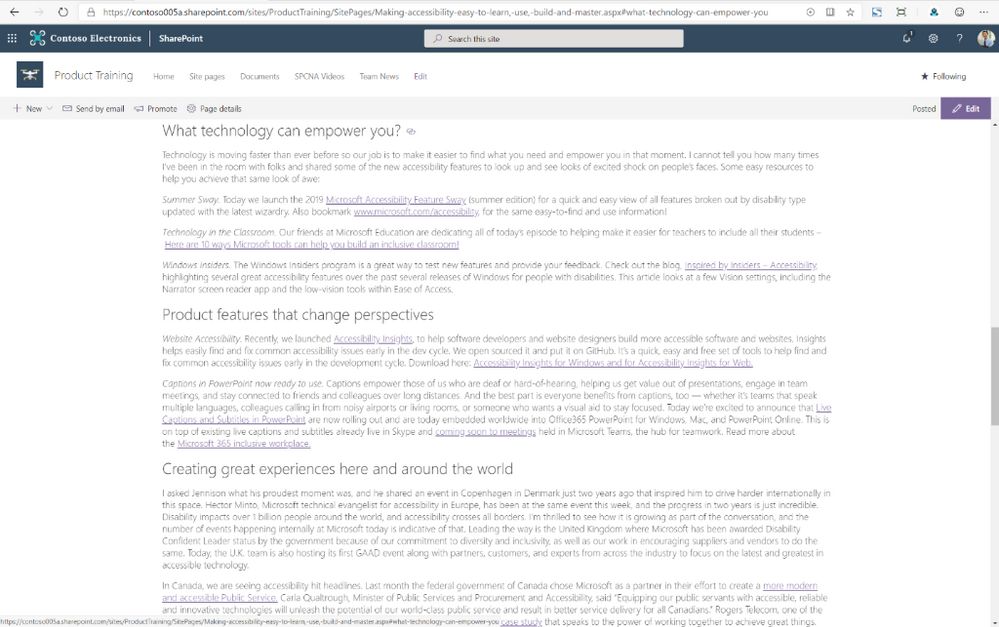
Beautiful long-form content brings expansive information to your pages. Now you can add links to headings within that content to focus readers on the most relevant portions of your content.
SharePoint automatically adds anchor links to all first, second and third level headings in your page. Then simply hover over the headings and you’ll see a link symbol. Clicking it will give you the fully rendered URL, including the anchor. If you click this symbol, the heading will be added to the URL bar, or you can right-click to save it to your copy buffer.
Please continue to stay engaged with us on the TechCommunity and on UserVoice as we continue to update our page and news authoring experiences. Thanks.
If you need to streamline business processes, you need great tools to edit data in lists and libraries. Excel has long been a foundational tool for collecting, editing and analyzing data. People understand and embrace the simplicity of sorting and editing data values in a grid.
As we announced at SPC18, we are pleased to finally release our enhanced Quick Edit, bringing the power and simplicity of “spreadsheet” views to modern SharePoint lists and libraries.
You can preview the new Quick Edit in this self-service walk through. Let’s look in more detail.
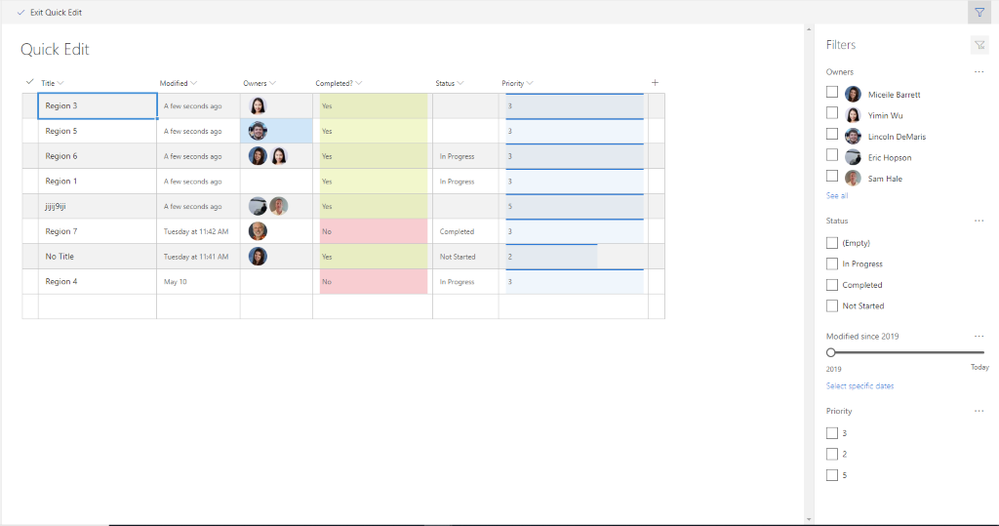
Filters Pane is now available in Quick Edit Mode
Users can filter their content in Quick Edit mode to locate the items for updates. In addition, any filters or sorting applied in Quick Edit will persist as the user navigates back to the normal view.
Filtering in Quick Edit
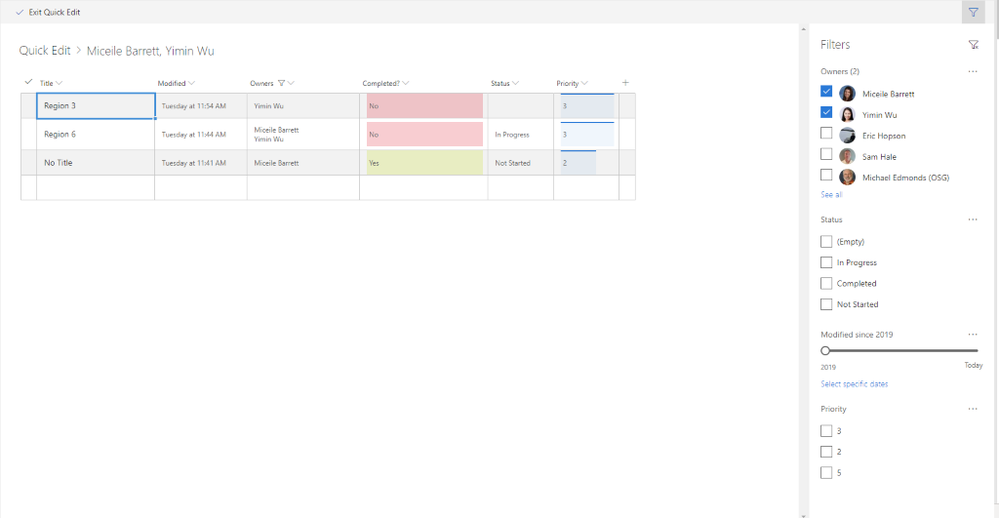
All formatting appears in Quick Edit
Any custom formatting for the list or document library will now also render in Quick Edit. For example, this includes experiences like row formatting, user profile photos, conditional formatting, and data bars.
 Formatting in Quick Edit
Breadcrumb
Just as in normal list and document library views, the breadcrumb will now appear in Quick Edit. This gives you a visual clue about applied filters and a simple way to navigate “back” to larger data sets.
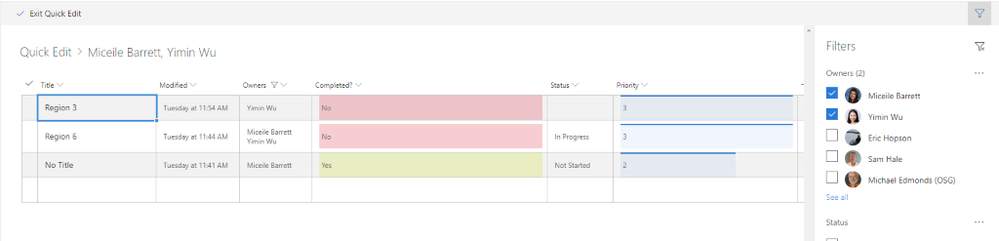 Quick Edit breadcrumbs
Adjust and save column widths
Users can now define their preferred column widths by dragging and dropping directly within Quick Edit. In addition, any previously save column widths (either in the view or in local storage) will persist for users when they navigate to Quick Edit.
Drag and drop columns
Easily re-order your columns within Quick Edit by dragging and dropping.
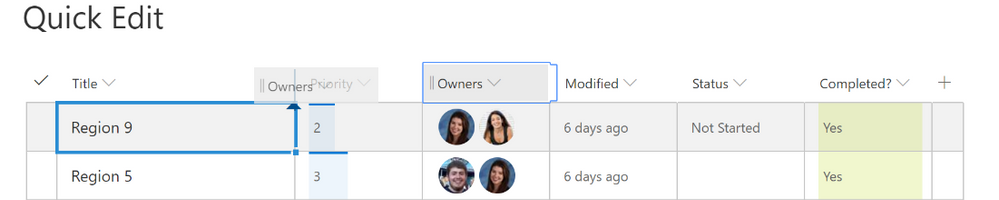 Drag and drop columns
Enhanced people picker
You can now browse and selected users from your organization directory efficiently with our new people picker. You can browse for partial name matches and see user photos and titles in line, as shown below.
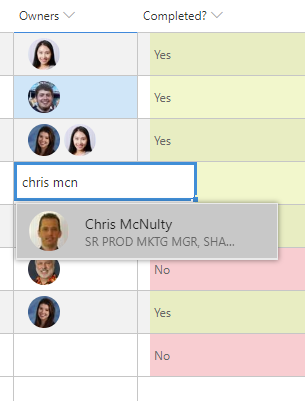 Enhanced people picker
Quick Edit enhancements will start rolling out to Targeted Release in July 2019. We’ll continue to share the latest news here on the TechCommunity. Thanks.







