The strength of the SharePoint community is one of the primary drivers for the platform’s success over the last 15-20 years. As the community has grown and strengthened, there has been a plethora of content available to end users and developers from Microsoft, MVPs, and bloggers of all experience levels.
The SharePoint Developer Documents (sp-dev-docs) have become the proven community model for content creation and management. This community-driven repository of content has become a valuable source for developer information and a feedback mechanism for the product groups.
We are now expanding the reach of our community‘s involvement with the Microsoft 365 Community Docs. Our goal is to harness the same community energy and the expertise of the people who are true implementers and practitioners of all aspects of Microsoft 365: the citizen developers, power users, site admins, end users, and other heroes who configure and use the platform to solve important business challenges every single day.
Join us!
We want to hear your voice and your perspective. Tell us about your real–world stories of solving business problems. Share with others how you use Microsoft 365. If you have solution for needs specific to your industry, we would love to hear it. Contribute scenarios to help others understand what possibilities are available.
We aren’t trying to replace any existing documentation. What we’ll be really excited to see is different ways you use the myriad of services across Microsoft 365 to solve your day to day problems. The inventiveness of this community is astounding; let’s lift the bushel and let our light shine ever more brightly.
We are excited to widen the scope of the effort and encourage everyone in the community to use the content as a set of resources as well as consider contributing to it. We expect the structure of the Microsoft 365 community docs to evolve over time as we receive more and more contributions from experienced practitioners who have been working with SharePoint for many years.
How do I contribute?
Want to get started? Not familiar with GitHub? This article shows you the way: Welcome to the Microsoft 365 Community Docs.
Still confused or need some help? Simply create an issue with your questions and we will work to help you out. If you see issues you can help with or have other content ideas, please submit an issue in the GitHub repo. Note: “Issues” may sound intimidating, but it’s the mechanism to provide input and feedback on the GitHub platform. When you add an issue, you can choose from several templates: Question, Article Suggestion, or Article Issue.
We believe the community-driven content model has been a tremendous success in the past and that this new set of docs will be another success for the entire community. Join us on this journey, and we will all succeed together. Remember: Sharing Is Caring!
Thanks to everyone who has already contributed! Every month on the PnP calls we will list the contributors, and you will be listed in the blog posts about the effort.
Why should I contribute? What’s in it for me?
Oftentimes, people wonder how they can become more active in the community. We hope this effort will become another “on ramp” where people can direct their energy – and this community has plenty of energy!
- If you don’t consider yourself a writer, but you have ideas for articles you wish were out there, add your ideas in to the mix.
- If you’d like some help writing something, we’ll find you someone to work with you to turn your thoughts into a valuable resource.
- If you’re a blogger and have a favorite article or two, consider contributing them to give your work a longer life.
- If you’re an MVP, why not use this as yet another way to offer the community your expertise?
- Get some recognition for what you know in the PnP calls and blog posts.
This isn’t a one-size-fits-all idea: bring your energy and we will help you figure out how you can help.
Got feedback or suggestions on this model? – Please do let us know!
![Hunt more broadly and effectively with new Microsoft Threat Protection features on preview]()
The Microsoft Threat Protection team has been working hard to make your advanced hunting experience even more straightforward, interesting, and productive. With app & identity signals, custom detections, and charts now available on preview, your proactive threat hunting activities have never been as comprehensive and effective. Turn on Microsoft Threat Protection and sign up for previews to can start enjoying these new experiences and let us know what you think.
Hunt across domains with identity and cloud app signals
While Microsoft Threat Protection automatically flags and remediates threats, advanced hunting lets you take your response a step further by enabling you to efficiently inspect benign events that in certain contexts can be indicative of breach activity. For several months now, in Microsoft 365 security center, SecOps staff for various organizations have started hunting for clues on endpoints after receiving suspicious emails. This has been made easy and convenient by endpoint data from Microsoft Defender ATP and email data from Office 365 ATP.
Today, we’re expanding that coverage to include data from Azure ATP and Microsoft Cloud App Security with the following new schema tables:
- IdentityQueryEvents — contains data about attempts to query identity information in Active Directory using LDAP and other protocols. These events are also tracked by Azure ATP to find reconnaissance activities, including activities meant to discover critical targets on your network.
- IdentityLogonEvents — contains authentication events from Active Directory as well as monitored cloud apps and services. Use this to surface suspicious logon activities, including repetitive attempts and the use of atypical logon methods.
- AppFileEvents — covers file-related activities involving apps monitored by Microsoft Cloud App Security. This gives you coverage over attempts to handle files that might contain sensitive information as well as malicious code.

See the full list of advanced hunting schema tables
Sample scenarios you can try
With these new data sets, you can hunt for activities that happen across the cybersecurity attack chain. Check out the sample scenarios below to explore what you can do with the expanded schema.
SAMR queries to Active Directory
With IdentityQueryEvents, you can now quickly find reconnaissance activities, such as processes performing suspicious SAMR queries against users and admins in your org.
IdentityQueryEvents
| where Timestamp > ago(7d)
| where ActionType == "SamrQuerySuccess" and isnotempty(AccountName)
| project QueryTime = Timestamp, DeviceName, AccountName, Query, QueryTarget
| join kind=inner (
  DeviceProcessEvents
  | where Timestamp > ago(7d)
  | extend DeviceName = toupper(trim(@"..*$",DeviceName))
  | project ProcessCreationTime = Timestamp, DeviceName, AccountName, InitiatingProcessFileName,
  InitiatingProcessCommandLine
) on DeviceName, AccountName
| where ProcessCreationTime - QueryTime between (-2m .. 2m)
| project QueryTime, DeviceName, AccountName, InitiatingProcessFileName,
InitiatingProcessCommandLine, Query, QueryTarget
LDAP authentication with cleartext passwords
With IdentityLogonEvents, you can identify possible lateral movement activities by searching for logon attempts using compromised accounts or logons over unprotected protocols, such cleartext authentications over LDAP.
This query identifies processes that have attempted to authenticate using a clear-text password, which are typically obtained using known credential theft methods.
IdentityLogonEvents
| where Timestamp > ago(7d)
| where LogonType == "LDAP cleartext" and isnotempty(AccountName)
| project LogonTime = Timestamp, DeviceName, AccountName, Application, LogonType
| join kind=inner (
  DeviceNetworkEvents
  | where Timestamp > ago(7d)
  | where ActionType == "ConnectionSuccess"
  | extend DeviceName = toupper(trim(@"..*$",DeviceName))
  | where RemotePort == "389"
  | project NetworkConnectionTime = Timestamp, DeviceName,
  AccountName = InitiatingProcessAccountName, InitiatingProcessFileName,
  InitiatingProcessCommandLine
  ) on DeviceName, AccountName
| where LogonTime - NetworkConnectionTime between (-2m .. 2m)
| project Application, LogonType, LogonTime, DeviceName, AccountName,
InitiatingProcessFileName, InitiatingProcessCommandLine
Renaming of .docx files to .doc
With AppFileEvents, you can hunt for attempts to move and stage malicious content using cloud apps. The following query locates attempts to rename .docx file to .doc, possibly to bypass protection mechanisms and allow malicious macros to run.
AppFileEvents
| where Timestamp > ago(7d)
| where ActionType == "FileRenamed"
| join kind=inner (
  DeviceFileEvents
  | where Timestamp > ago(7d)
  | project FileName, AccountName = InitiatingProcessAccountName, DeviceName
  ) on FileName, AccountName
| where FileName endswith "doc" and PreviousFileName endswith "docx"
| project Timestamp, FileName, PreviousFileName, Application, AccountName, DeviceName
Sensitive file uploads
You can also use the AppFileEvents table to hunt for exfiltration scenarios by querying for attempts to upload sensitive files to cloud apps like SharePoint, OneDrive, or Dropbox. You can use data under SensitivityLabel in the DeviceFileEvents table to locate sensitive files. However, a simpler way would be look for a specific string in file names, like sensitive in the query below:
AppFileEvents
| where ActionType == "FileUploaded"
| where Application in ("Microsoft OneDrive for Business",
"Microsoft SharePoint Online", "Dropbox")
| where FileName contains "sensitive"
| project Timestamp, ActionType, Application, FileName, FolderPath, AccountUpn,
AccountName, AccountDomain, IPAddress, Location
| take 10
For more queries, check out the Microsoft Threat Protection query repository on GitHub.
Customize alerts and take automatic actions
Many of you might have already benefited from custom detection alerts driven by advanced hunting queries in Microsoft Defender ATP. To simplify your hunt and optimize your use of the expanded schema, we’ve delivered the same custom detection functionality to Microsoft Threat Protection.
Using advanced hunting queries, you can now automate your hunts so that you can effortlessly check fresh signals and raise alerts for new finds. Make sure you set your custom detection rules to take immediate response actions for you.
To create one, simply run a query—we used the last example above for sensitive file uploads. If you don’t have results, simulate the activity by uploading a file called sensitive.txt to OneDrive, SharePoint, or Dropbox.

After confirming that the query runs well and returns meaningful results, click Create detection rules and start customizing your detection rule.
Note: To create custom detection rules, you need to be a security administrator or a security operator. If you have Microsoft Defender ATP RBAC turned on, make sure you have the managed security settings permission.

When identifying impacted entities, the user—identified by the AccountUpn column in this example—will work since the exfiltration event does not affect specific endpoints or mailboxes. Identifying the right impacted entities helps Microsoft Threat Protection aggregate relevant alerts, correlate incidents, and target response actions.
When you save your custom detection, it will run immediately and then run again based on your preferred interval. To check for alerts, head over to the Hunting > Custom detections > [Rule name] and open the Triggered alerts tab.

Learn more about creating custom detection rules
Visualize query results
To help you extract insights from your queries and add some color to your work, we’ve added an option to view query results as a chart. Now available to all customers, the chart options currently include line, column, pie, scatter, and many other chart types. After running your query, select the right chart type that matches your data.
The line chart shown below highlights spikes in activity involving a specific file. Learn how to optimize queries to render effective charts

We hope you enjoyed learning about these new hunting experiences. Don’t forget to let us know what you think!
Stay safe and happy hunting!
– Microsoft Threat Protection Team
![Hunt more broadly and effectively with new Microsoft Threat Protection features on preview]()
At Microsoft, our goal is to provide a built-in, intelligent, unified, and extensible solution to protect sensitive data across your digital estate – in Microsoft 365 cloud services, on-premises, third-party SaaS applications, and more. With Microsoft Information Protection (MIP), we are building a unified set of capabilities for classification, labeling, and protection not only in Office apps, but also in other popular productivity services where information resides (e.g., OneDrive, SharePoint Online, and Exchange Online).
Sensitivity labels are central to Microsoft Information Protection. You can apply a sensitivity label to important documents and associate it with protection policies and actions like encryption and visual marking. You can also be assured that the protection will persist with the document throughout its life-cycle. You can also associate device and privacy policies to sensitivity labels and apply sensitivity labels to sites, teams, and Office 365 groups.
You can start using sensitivity labels by allowing users to manually classify emails and documents by applying these labels based on their assessment of the content and their interpretation of the organizational guidelines. However, users can sometimes forget to apply labels or apply them inaccurately, especially in these stressful times, so you need a method that will scale with the vast amount of data you have.
To help you achieve that scale, we are announcing public preview of automatic classification with sensitivity labels for documents stored on OneDrive and SharePoint Online, and for emails in transit in Exchange Online. The public preview will begin rolling out this week. As with manual classification, you can now set up sensitivity labels to automatically apply to Office files (e.g., PowerPoint, Excel, Word, etc.) and emails based on organizational policies. In addition to having users manually label files, you can configure auto classification policies in Microsoft 365 services like OneDrive, SharePoint Online, and Exchange Online. These policies can automatically label files at rest and emails in transit based on the rules you’ve set.

Figure 1. Three different policy modes for auto-classification policies
In the SharePoint and OneDrive document library experience, as shown in the screenshot below, users can see files that are labelled by their admin’s auto classification policy by hovering over the Sensitivity column. This ensures users are made aware of how the file got labeled – either automatically or manually.

Figure 2. Document library experience in SharePoint showing files automatically labeled
Before publishing an auto-classification policy, you will want to test how well your new policy works across your data environment. There are three main reasons for this:
- There is no guarantee that a well-developed auto-classification policy performs as expected. This is due to the unexpected variability in your environment
- Even if you are experienced in policy creation, you can inadvertently trigger false positive or false negative matches
- Deploying an incorrectly defined classification policy can result in a high number of help desk calls and incidents
To address this, we are also announcing the public preview of a capability called ‘Policy Simulator’ to assist you in validating and fine-tuning your auto-classification policies. Policy Simulator is designed to:
- Enable you to understand the impact of the policy and fine tune it for best accuracy and scalability
- Provide insights on the estimated length of time to deploy a policy at scale
- Add guardrails to prevent deployment of ineffective or bad policies and help minimize incident management costs
With Policy Simulator, you can validate and gain confidence in your policies prior to enforcement. You can publish your policies in successively broader scopes, thereby mitigating the risk of inadvertent consequences.

Figure 3. Overview of auto-classification policy simulator results
Auto-classification with sensitivity labels along with policy simulator are powerful capabilities that enable organizations to automatically designate eligible Excel, PowerPoint, Word files, and emails as sensitive in a scalable way.
To learn more about these new capabilities, including how they compares to auto-classification in Office apps for files in use, see our online documentation, “Apply a sensitivity label to content automatically”.
We are excited to roll out these capabilities and help you in your information protection journey.

For organizations, finding and governing content is critical to improve productivity. Content metadata—also called properties, attributes, columns, terms or tags—is essential for information architecture, workflow, , and compliance. Managed Metadata Service (MMS) delivers centralized management of taxonomy (hierarchies of tags and terms) and content types. Today, MMS is used to provide a unified set of terms to apply to content in Microsoft 365.
As we prepare for the general release of Project Cortex later in 2020, our first step is to update the MMS in SharePoint. In April 2020, we’ll start to release the following enhancements to Targeted Release:
- A modern term management system in the SharePoint admin center.
- A modern content type gallery in the SharePoint admin center, to create and manage content types in the content type hub.
- An update to the tagging and filtering interface for MMS columns in lists and libraries.
Importantly, these features will require no migration or change to the data—terms or content types—in your existing MMS, but will unlock new capabilities for admins and information workers.
.
Managing taxonomies in the SharePoint admin center
You’ll find the new term manager in the Content services section of the SharePoint admin center, providing modern, integrated controls for the creation and management of organizational taxonomies and glossaries. You’ll be able to work with your preexisting global term sets and create new sets without reconfiguring your existing MMS Taxonomy. We’ve also increased the number of terms supported at a tenant level from 200,000 to 1,000,000.
Figure 1 – Modern taxonomy management
Content type gallery
You can now manage content types in the new content type gallery in the SharePoint admin center.
What’s a content type? Content types create a hierarchy of information categories that you can use to define templates, metadata and document processing rules.
The content type list allows you to group on different columns and save custom views. The content type gallery also streamlines the process of adding, removing or changing custom columns. The new gallery provides a centralized view over content types originally established in the original site-based content type hubs.
 Figure 2- Content Type Gallery
 Figure 3 – Managing content types
In SharePoint lists and libraries, an updated tree view makes it easier to tag and filter content with terms.
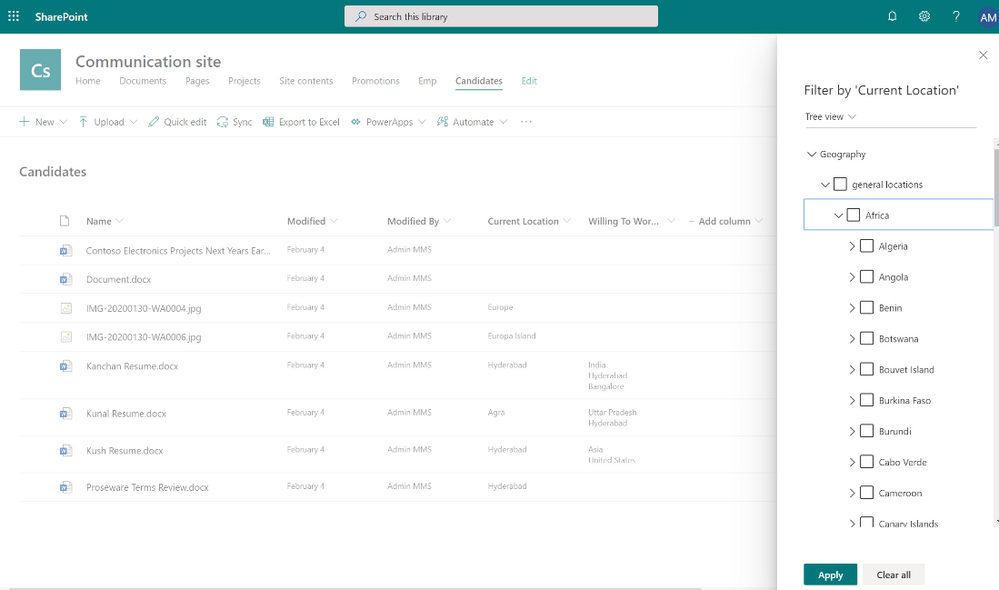 Figure 4 – Managed metadata filtering
What’s next
We’ll have the product team available live to answer questions on MMS during the Project Cortex Office Hours call on May 20, 2020.
After the initial release of modern MMS experiences, we’ll be updating the site-based admin experiences to match the tenant admin interface. And we’ll have new APIs ready to empower custom development using Microsoft Graph and RESTful syntax.
Updating MMS will provide great value to SharePoint today, and MMS will be essential to delivering new premium value to Project Cortex later this year. Thank you.

In this weekly discussion of latest news and topics around Microsoft 365, hosts – Vesa Juvonen (Microsoft), Waldek Mastykarz (Rencore), are joined by Wictor Wilén – global innovation lead for modern workplace at Avanade, SharePoint MVP for 10 years, SP Master, SP Certified Architect and creator of Yo Teams, to learn more about his increased focus on Microsoft Teams extensibility.
For Wictor, his latest work is in no way a departure from SharePoint rather as Azure and Microsoft 365 capabilities are working hand-in-hand, Teams opens new doors to add onto SharePoint. The group discusses the differences between developing apps for Teams vs for SharePoint. As well as differences between the requirements of knowledge workers vs first line workers – who are keenly interested in actionable apps.
The attraction of the Teams platform is wide access to a host of complementary capabilities – bots, conversations, integrations, content store, chat, video, phone all tied together by Microsoft Graph and Azure Active Directory. Teams was built to be extensible. Architects – are you designing apps for the remote work future in which we are finding ourselves today?
This episode was recorded on Monday, March 30, 2020
Got feedback, ideas, other input – please do let us know!







