Build a crisis management site to connect people and information

Build a crisis management site to connect people and information

Change agents, from virus outbreaks like COVID-19 to unexpected weather emergencies, highlight the importance of establishing and keeping open the lines of communication. The goal: to ensure everyone stays briefed on the situation and any business impacts.


To address crises, meetings move online, daily guidance email updates get sent, and dedicated sites emerge to consolidate news, related resources and topical Q&A.


This ‘how to’ post addresses the latter, to guide you through simple steps and configuration to establish a crisis management site based on a SharePoint communication site. You, too, will also find additional links to helpful guides and videos at the end.


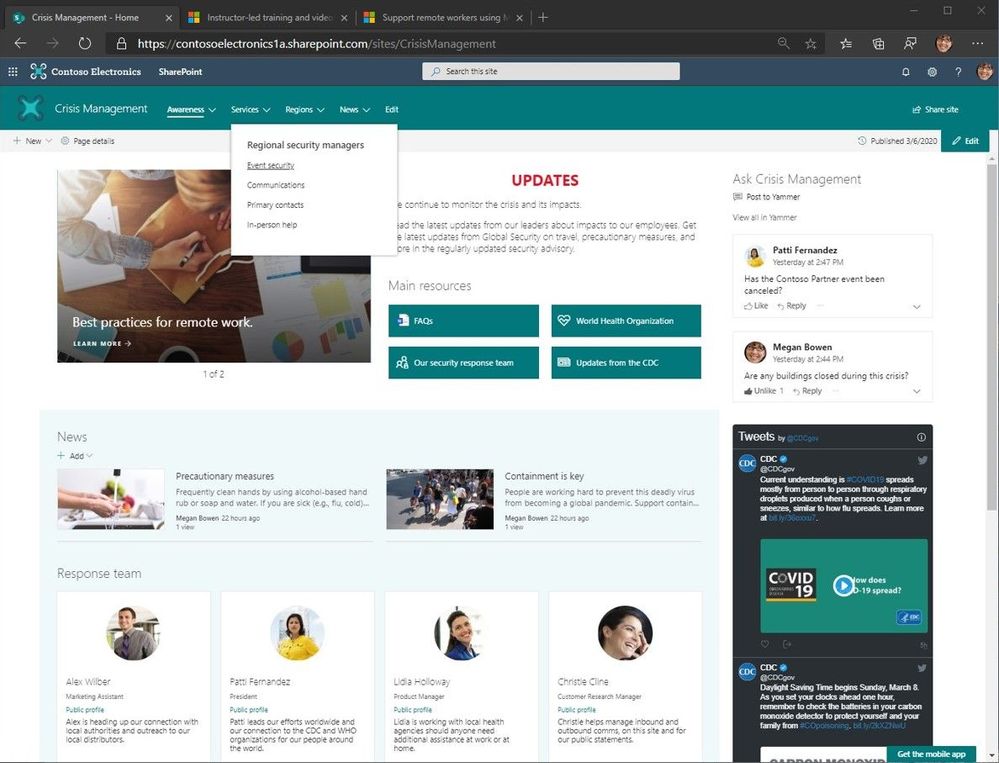
“Crisis Management” SharePoint communication site with top navigation and seven web parts laid out to provide access to people and information from inside and outside the organization.“Crisis Management” SharePoint communication site with top navigation and seven web parts laid out to provide access to people and information from inside and outside the organization.

Note: tenant admins can provision a pre-configured crisis management site using this new look book design: “Crisis Communications – announcements, news, resources, communities and calls-to-action.” Kudos and thanks to  & .  


How to create a crisis management site

Beyond reading this blog, getting from concept to live site should take no more than two hours. And before you commit to a single pixel, we suggest you take a few minutes to draft a wireframe of the site to identify desired content and information placement; this is what you see as #1 in the below four-image graphic; this, too, will start to describe what SharePoint web parts you will need.


Back of the napkin, check. Let’s get to it.


Create the site


  1. Go to your SharePoint start page
    • Note: Use this common URL pattern to go right to it, or click the SharePoint tile within the Office 365 app launcher (aka, the waffle in the upper left of Office 365 user interface): https://[yourcompany].sharepoint.com/_layouts/15/sharepoint.aspx 
  2. Click + Create site
  3. Choose Communication site [Support article: “Create a communication site in SharePoint Online“]
    • Note: This is what you see as #2 in the below four-image graphic.
  4. Choose the Topic design, enter site name, and click Finish.
    • Note: You’ll then see your new communication site with placeholder content. This is what you see as #3 in the below four-image graphic.
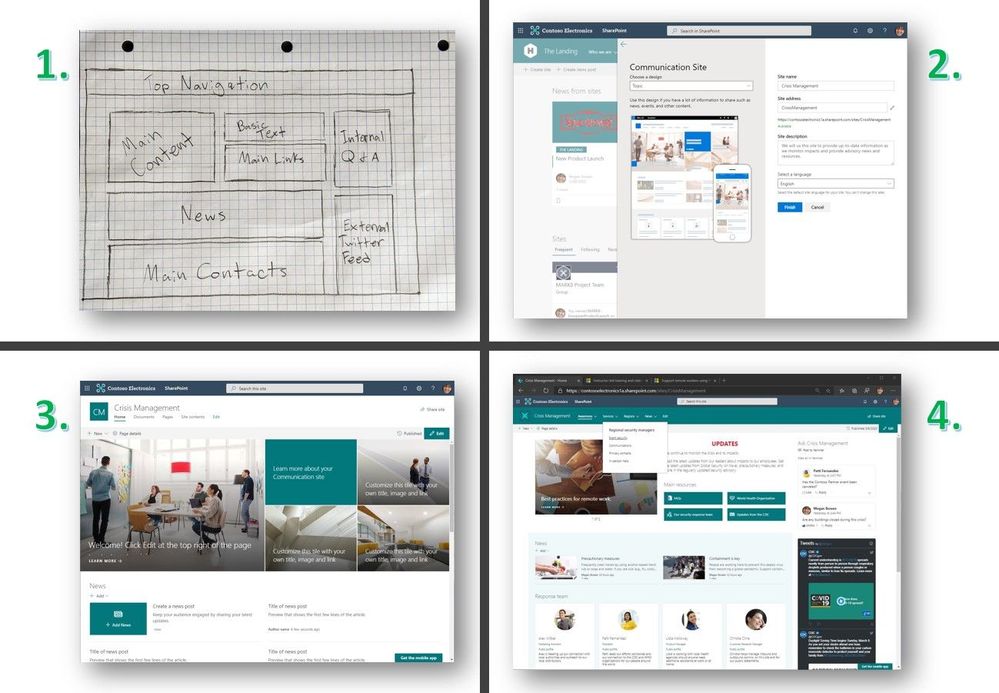
Create the SharePoint communication site in four steps: 1) draw wire frame content layout plan, 2) create the site from SharePoint start page, 3) edit and rearrange text, words, links, sections, layouts off of template, and 4) finalize design, content and permissions.Create the SharePoint communication site in four steps: 1) draw wire frame content layout plan, 2) create the site from SharePoint start page, 3) edit and rearrange text, words, links, sections, layouts off of template, and 4) finalize design, content and permissions.

Note: if you are unable to create sites within your Office 365 tenant, send a request to your SharePoint admin to create the site and assign you as a site owner. Once created and assigned, you can move to the next steps described in this post.


Adjust section layouts and add useful web parts


From here, it’s all about actualizing your wire frame; if it has a coffee stain on it by now – that just adds character. It’s now time to add sections, select useful web parts and content layout.


On the new crisis management site, click the highlighted Edit button. Hover your mouse below the title area and you’ll see a “+” appear: this applies to both section layouts (the “+” sign appears when hovering near the left side of the page) and when adding web parts (the “+” sign appears more in the middle of the page, and then under each added web part).
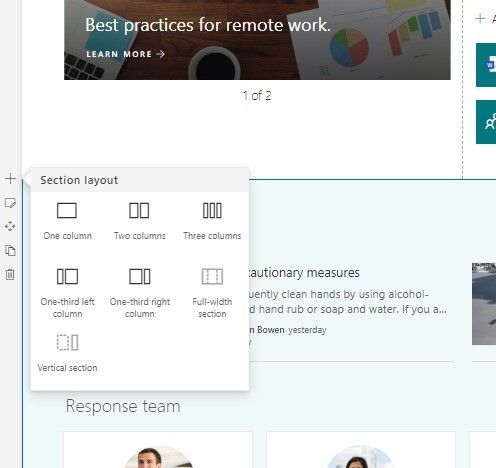
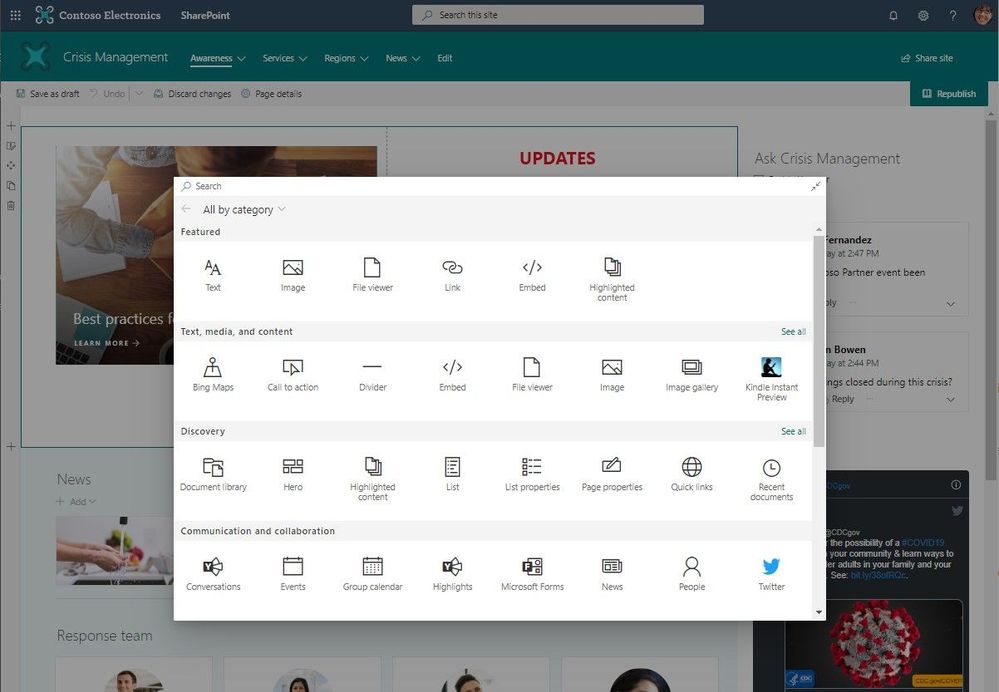
 

Hover near the left side of the page makes the "+" sign appear to add section layouts.Hover near the left side of the page makes the “+” sign appear to add section layouts.

Hover more in the center of the page to make the "+" sign appear to add web parts.Hover more in the center of the page to make the “+” sign appear to add web parts.

Click + to add content like text, documents, video and more; learn more about how to find and use web parts & add sections and columns.


Now, make the site useful and actionable.


Add your content, and update it any time

In the above example crisis management site (first larger graphic in this post and #4 in the above four-image graphic), it uses top navigation (mega menu), a two-column section above a single column section – all to the left of a vertically laid out section, and a total of seven web parts.


Going left-to-right, top-down, the crisis management site uses the following web parts:

  • Hero – use this to highlight the most important, or newest, content on the site. The one in the example uses the carousel layout.
  • Text – use the rich-text editor to add and update the main intent of the site, or an important message. You can use and adjust color, font size, hyperlink and tables.  
  • Quick links – call out primary resources. These can be internal sites, pages, documents, videos, FAQs, and can be external links, too.
  • Yammer Conversations – create an associated “Crisis Management” community and take questions and manage feedback directly from the site.
  • News – publish daily and weekly news posts. They will appear here on the site and flow into everyone SharePoint start page where News from sites appear.  
  • Twitter – pull in feeds from public Twitter handles; the above example (per COVID-19) highlights @CDCgov and I also suggest: @CDCemergency & @WHO.
  • People – indicate the right people dedicated to the specific crisis. This is tied to Azure Active Directory and on-hover, visitors of the site will be able to see all their contact information.

There, too, are web parts to showcase videos, BI dashboards, lists and more; see all web parts in production (scroll down to the “Available web parts” section of this help article).


You can adjust content at any time. You can rearrange where content is placed – aka, drag’n’drop web parts as you need. And know that everything will look great across web and mobile, resizing to the screen your people are using to get to the information.


Categorize top navigation with important pages, sites and more

Mega menus enable site navigation to be displayed at-a-glance. This increases the ease of use and exposure of more key content. You can put up to three levels of hierarchy, both enabling visual buckets of information and increases the likelihood of resources being discovered.
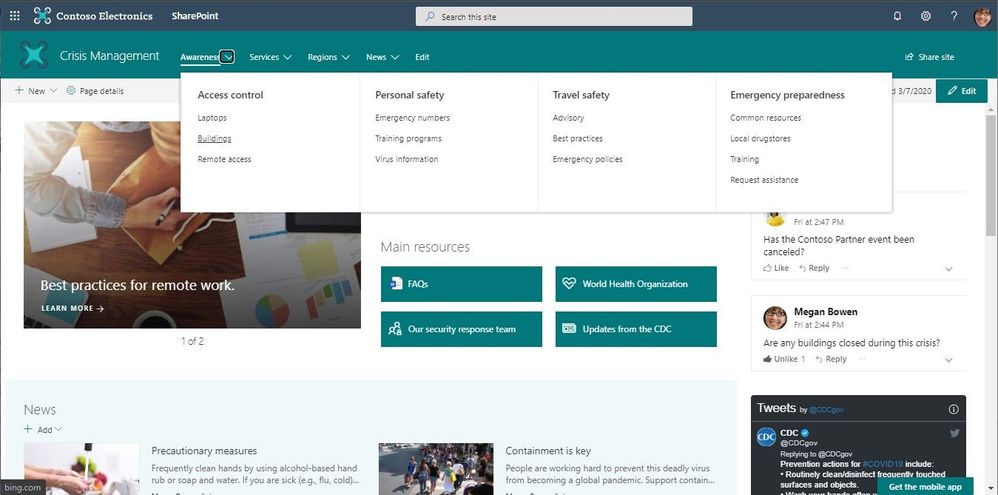
 

SharePoint mega menus enable site navigation to be displayed at-a-glance.SharePoint mega menus enable site navigation to be displayed at-a-glance.

Click Edit to the right of the default navigation elements to begin to add, adjust, delete and rearrange nav items. To Add a new header or sub-link, hover above header labels and select the + icon that will appear. To EditMovePromote, and Remove select the ellipses next to the menu topic. Move and Promote headers and sub-links until they are in the desired position and select Save. Once you’ve arranged the hierarchy that works, click the upper right gear icon (site settings) and select Change the look. Select Mega menu and then select Save.


Make the top nav work for you. Make it your own. Learn more how to create and adjust a mega menu in SharePoint communication sites.


Last step: Share your site, aka, give the right permissions

You set permissions to grant people access to the site. And you can broadly communicate to raise awareness about the new crisis management site.


Above the site, in the upper right, you’ll see a gear icon. Click it, select Site permissions, and then click Share site. Now you can type in broader security groups, Office 365 Groups or individuals (possibly others to help you manage the site; give them Edit permissions). For a site like this, it’s common to use the “Everyone” or “Everyone except external users” and ensure they are given Read permissions so that the most users in your organization can access the site in the right way once it’s ready; this then denotes them as Site visitors. Note: I typically uncheck the “Send email” option and rather use Outlook or Yammer to broadly communicate or Teams chat to raise awareness to my teams. Once you’ve decided on the right
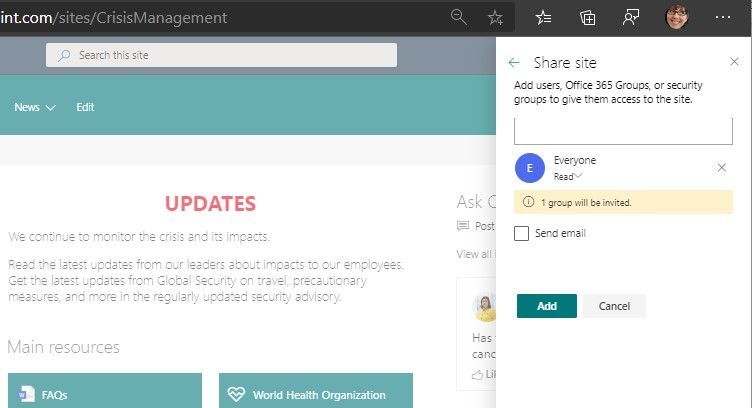
 

Share the site to give permissions to all or select users and groups you wish to have access to the new site.Share the site to give permissions to all or select users and groups you wish to have access to the new site.

Learn more how to manage site permissions.


OK, on to additional materials out there to help best assess, learn and move forward.


‘How to’ webinar [now on-demand; embedded below]

TitleSharePoint: how to build a crisis management site

Description: This ‘how to’ webinar walks you through how to establish a *crisis management* site using a SharePoint communication site in Office 365, both manually and with a pre-configured site design from the Microsoft Look Book. 

Date of recording: March 27, 2020

Webinar PowerPoint presentation: PDF


Two of the FAQs from the webinar that were not yet covered in this blog post:

Q: Is it possible to create multiple crisis managements sites within the same tenant?

A: Yes. You can create multiple crisis management type sites so long as you use different names for each site; aka, unique URLs.
Q: I want to create a portal for external people. Is that possible?

A: Yes. Make sure to work with your SharePoint administrator to help enable external sharing for the new site, inline with your external user governance plan before inviting guests.


Helpful, related reads and resources

Stay safe out there, wash your hands (Thanks, ellentube), and be kind to your neighbor at work and at home. Create your site. Share what you know and ask about what you don’t.


We’re here to help,

Mark Kashman, senior product manager – Microsoft

SharePoint Online: News from associated sites are not displayed in the hub News Webpart

SharePoint Online: News from associated sites are not displayed in the hub News Webpart

Summary

I recently worked on a case where News from associated sites are not displayed in the hub News Webpart.


1.png


This took several months to resolve due to the complexity of hub news webpart and how it integrates with the Search Engine to retrieve and display news from the associated sites.


Before getting into the problem, just providing a quick example of the News webpart configuration with a Hub Site.


Hub Site Example: The following image shows a Hub site named “hubsite” and 2 associated sites (“hubsitechild1” and hubsitechild2”)


2.png


Posting News items from the Hub:


3.png

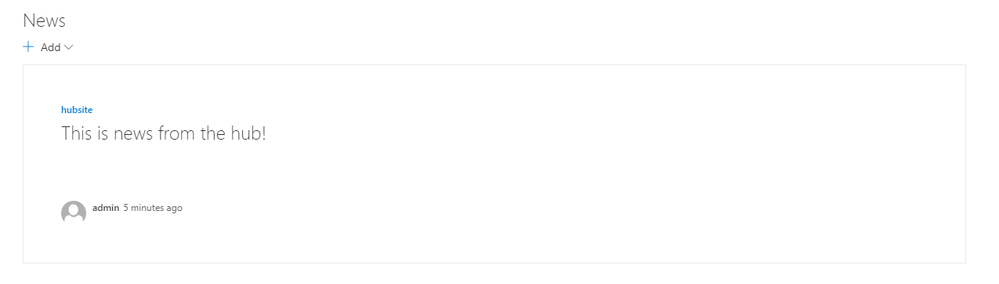
This is what the News Webpart looks like from the root Hub Site:


4.png


Now let’s look at a child site:


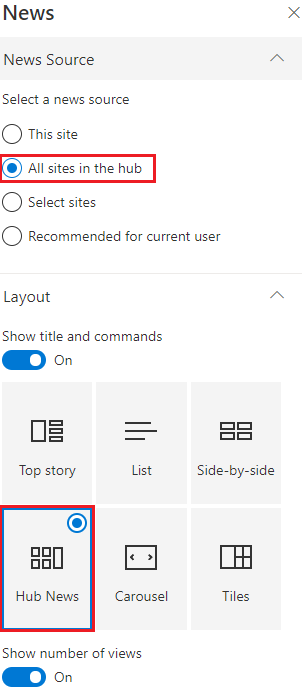
By default, the News Webpart will only show news from the current site:


5.png


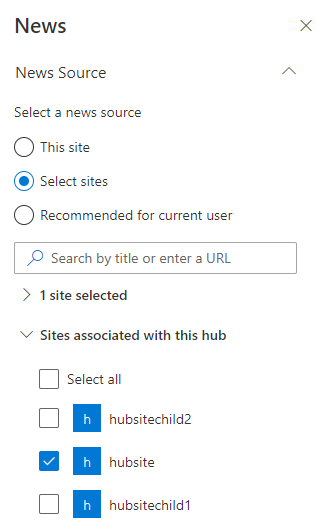
Site Admins will need to change this Webpart to view news from the Hub or any associated Hub site. In this example I will choose the “Hubsite”.


6.png


With this configuration “Hubsitechild1” will display News posts from the Hub site


7.png


Note: Since the retrieval of the new posts are based on search, you will not see new posts show up in the news webpart for about 5-15 minutes.


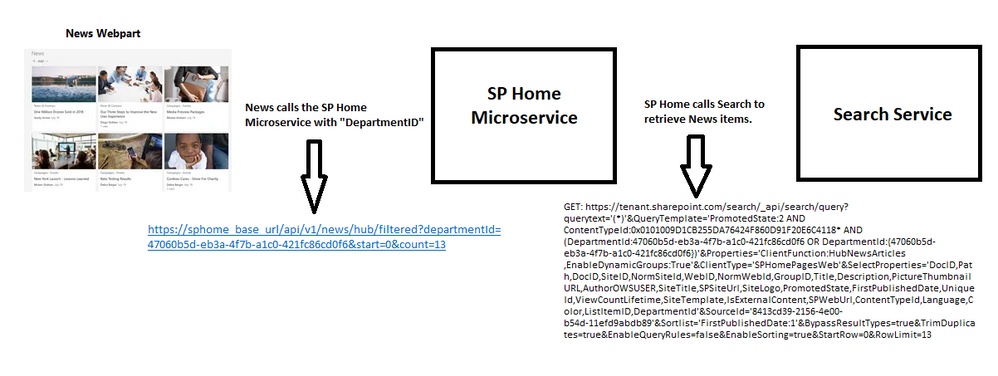
How does it work?


13.PNG

  1. The News Webpart triggers a request to the SP Home Microservice with “DepartmentID”


Example:

https://sphome_base_url/api/v1/news/hub/filtered?departmentId=47060b5d-eb3a-4f7b-a1c0-421fc86cd0f6&start=0&count=13


Note: The DepartmentID will be the Site ID of the root hub site.


  1. The SP Home Micrososervice then calls the Search service with “ContentTypeId”, “PromotedState”, “DepartmentId” to retrieve the News items.


Example:


GET: https://tenant.sharepoint.com/search/_api/search/query?querytext='(*)'&QueryTemplate='PromotedState:2 AND ContentTypeId:0x0101009D1CB255DA76424F860D91F20E6C4118* AND (DepartmentId:47060b5d-eb3a-4f7b-a1c0-421fc86cd0f6 OR DepartmentId:{47060b5d-eb3a-4f7b-a1c0-421fc86cd0f6})'&Properties='ClientFunction:HubNewsArticles ,EnableDynamicGroups:True'&ClientType='SPHomePagesWeb'&SelectProperties='DocID,Path,DocID,SiteID,NormSiteId,WebID,NormWebId,GroupID,Title,Description,PictureThumbnailURL,AuthorOWSUSER,SiteTitle,SPSiteUrl,SiteLogo,PromotedState,FirstPublishedDate,UniqueId,ViewCountLifetime,SiteTemplate,IsExternalContent,SPWebUrl,ContentTypeId,Language,Color,ListItemID,DepartmentId'&SourceId='8413cd39-2156-4e00-b54d-11efd9abdb89'&Sortlist='FirstPublishedDate:1'&BypassResultTypes=true&TrimDuplicates=true&EnableQueryRules=false&EnableSorting=true&StartRow=0&RowLimit=13


  1. The Search results are sent back to the News Webpart and displayed as configured.


However, in the case that I was working, the Webpart was not displaying any news, even though the Search request was correct.


Cause


We found that the default Search Schema had been modified either manually or by a 3rd party product. In this case the managed property “ AuthorOWSUSER” is used to locate News items. If the value of this property is unexpected or NULL, Hub News items will not be displayed within the Webpart.


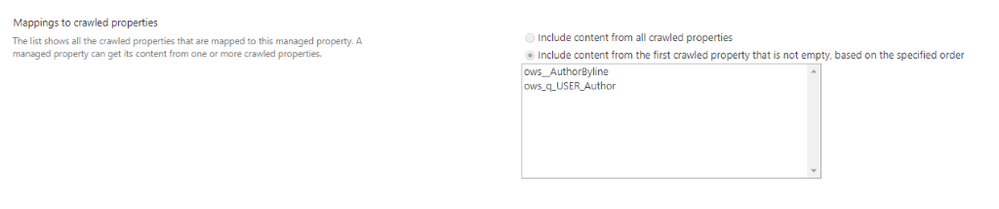
Here is the default setting for the “AuthorOWSUSER “managed property.


8.png


14.png

As you can see there are 2 crawled properties by default.


  • ows_q_USER__AuthorByline
  • ows_q_USER_Author


If either one of these crawled properties are missing, Hub News will not be displayed.

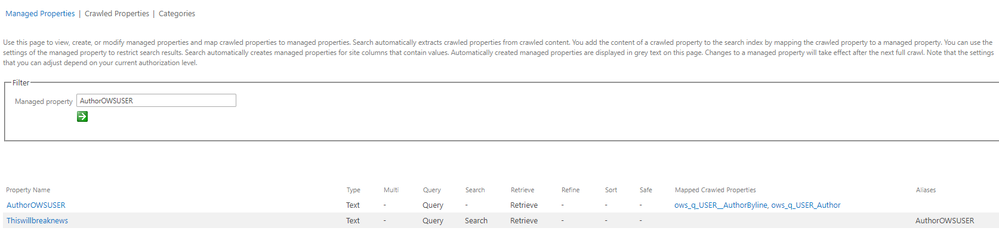
Also, we found that in some cases there is a new managed property that uses “AuthorOWSUSER” as an alias.


9.png


Resolution


To resolve this issue, simply fix the modified search schema, which can be modified at the tenant level or the site collection level .

The AuthorOWSUSER property exists at both tenant level and site level.


How do we reach tenant level settings?


  1. Copy this URL and open in the new tab where tenant admin is already signed in https://admin.microsoft.com/sharepoint?page=classicfeatures&modern=true.
  2. Under Search, select Open.
  3. Select Manage Search Schema on the search administration page.


How do we reach site level settings?


  1. On one of your affected hub sites, select Settings, and then select Site Settings. If you don’t see Site settings, select Site information, and then select View all site settings.

15.png


  1. Under Site Collection Administration, select Search Schema.


  1. At this point your URL should look like this https://TENANT-NAME.sharepoint.com/sites/Hub-SITE-NAME/_layouts/15/listmanagedproperties.aspx?level=sitecol


After opening the managed properties list at the tenant/hub site level:


1. Search for “AuthorOWSUSER”

16.png

2. You see all matches, including any custom managed properties that set AuthorOWSUSER as an alias.


17.png


3. Locate the problematic Managed property and correct the issue by deleting the property or changing the alias. In this example, I will change the alias of “Thiswillbreaknews”.

18.png


4. Make sure AuthorOWSUSER is mapped to “ows_q_USER__AuthorByline” and “ows_q_USER_Author”, if the mapping is incorrect, fix it.


Please Note: Since these some of these properties are used in real-time, the problem should be resolved almost immediately.  In a worst-case scenario, you will have to re-index the site , wait for Search to complete (about 15 minutes), then re-create the News Webpart.


Steps to Re-index the site:


  1. On the hub site site, select Settings
     

    and then select Site settings. If you don’t see Site settings, select Site information, and then select View all site settings.

  2. Under Search, click Search and offline availability.
  3. In the Reindex site section, click Reindex site.


More Information


For additional reading on the topics discussed in this blog see the following articles.


What is a SharePoint hub site?

Create a hub site in SharePoint

Use the News web part on a SharePoint page

Manage the search schema in SharePoint Online

Manually request crawling and re-indexing of a site, a library or a list

Microsoft 365 & SharePoint PnP Weekly – Episode 76

Microsoft 365 & SharePoint PnP Weekly – Episode 76

episode-76-promo.png


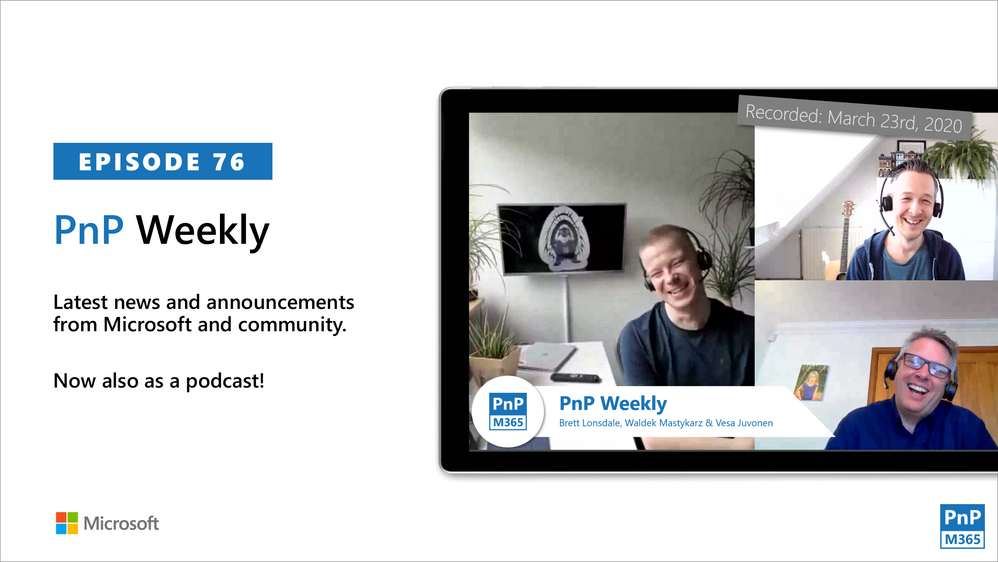
In this session of PnP Weekly, hosts – Vesa Juvonen (Microsoft), Waldek Mastykarz (Rencore), and typically a special guest from the PnP Community, discuss the latest news and topics around Microsoft 365 development. This week, Vesa and Waldek are joined by Brett Lonsdale – Office Apps and Services MVP, owner of UK based Lightning Tools developing “gap filler” products like BDC Meta Man and Lightning Conductor for the Microsoft 365 Suite.


Topics of discussion included: 


  • Decreasing time between release and adoption
  • Improved product use experience as a result of adopting SPFx
  • Building personal apps (including Social-Squared – discussion forum tool) for Microsoft Teams
  • Using Microsoft Graph to connect with apps and data across the M365 suite.


This episode was recorded on Monday, March 23, 2020


Got feedback, ideas, other input – please do let us know!

Migrating your localization settings from AIP to MIP

With the announcement earlier this month that we plan to deprecate the AIP (classic) client and label management from the Azure Portal, customers are actively working to migrate their label management from the Azure Portal to the M365 Compliance portal. 


This is the aim whether your plan for Windows clients is to use the Azure Information Protection (AIP) unified labeling client , or use the Microsoft Information Protection (MIP) features built-in to Office Pro Plus. This isn’t a concern For non-Windows platforms as they leverage the features built-in to our Office products.


As a recap, we discuss the strategic options for which client to use on Windows in our recent migrating to Unified Labeling webinar and the client comparison matrix in our Microsoft documentation.


After activating unified labeling one of the challenges your organization might have is the need to configure the localizations you had in AIP for MIP clients. The AIP CXE team has recently published a great blog post that can help you tackle this challenge. You can read the post here.


Thanks!

@Adam Bell  on behalf of the MIP and Compliance CXE team


SharePoint mobile app will now allow admins to customize their tenant theme with branding

SharePoint mobile app will now allow admins to customize their tenant theme with branding

More of your employees are working remotely and depending on their mobile device for important company information. The current world climate and the concerns surrounding the COVID-19 virus have only amplified this need.


For many organizations their intranet is the hub for knowledge and information, and the SharePoint mobile app is the best way for employees to access this from any mobile device. A request we have heard from you is to allow the SharePoint mobile app to be more customizable and enable you brand it with your company’s guidelines easily. We are happy to announce that the SharePoint mobile app will now allow admins to customize their tenant theme in the Microsoft 365 admin center. The SharePoint mobile app will allow users to view their tenant theme on the app if admins have configured in on the Microsoft 365 admin center. This ability is available today for both iOS and Android devices.


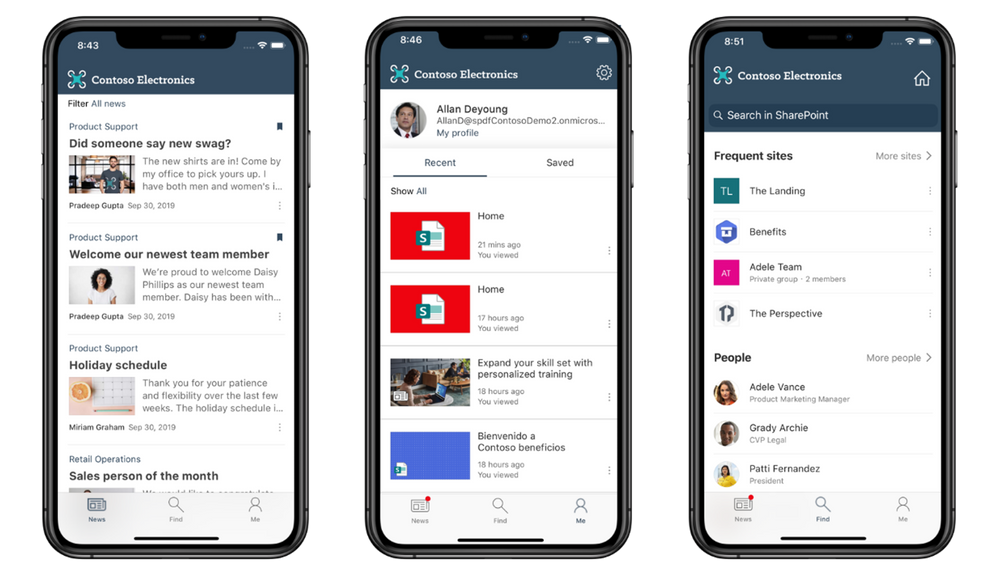
Company branding with the SharePoint mobile appCompany branding with the SharePoint mobile app

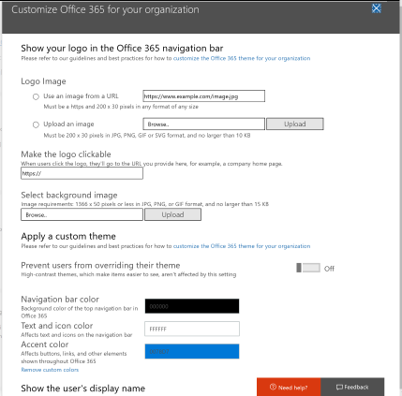
For more information on how to customize your tenant them see Customize the Office 365 theme for your organization.

Administrators can configure the following for the SharePoint mobile app:

  1. Logo Image: Logo of SVG format (Images uploaded in any other format will not display in the app)
  2. Nav Bar Color: This is background color that appears in the background of the nav bar for all 3 tabs. (Please note sites will not be impacted by this nav bar color input).
  3. Text and Icon Color: This section input affects text and icons color on the navigation bar
  4. Accent Color: This input will affect buttons, links and other elements defined on the app for branding.

If you have already configured this information employee will automatically start seeing the branded app after they update the mobile app to latest version.


Customize for your organizationCustomize for your organization

Download or update the SharePoint mobile app from iOS and Android app store today to experience company branding.