We’ve been on a journey to modernize user experiences throughout SharePoint.
Lists and libraries are the primary containers for data and content, enriched with custom metadata. Previously, we introduced column formatting, which lets you cut and paste JSON scripts into a formatting window to add interactions, color coding, visualizations, or other transformations on data in a list or library column. This summer we also introduced view formatting – which let you use the same JSON techniques to build transformation for every element in a view — such as multiline displays, Microsoft Flow buttons, or data integrated from Bing maps or other business services.
Today, there are dozens of sample scripts you can use in our SharePoint patterns and practices GitHub repository. Some of these are highlighted here on the TechCommunity Resource Cenrter. We recognize, however, that this is a more advanced technique, and most users are unfamiliar with JSON syntax.
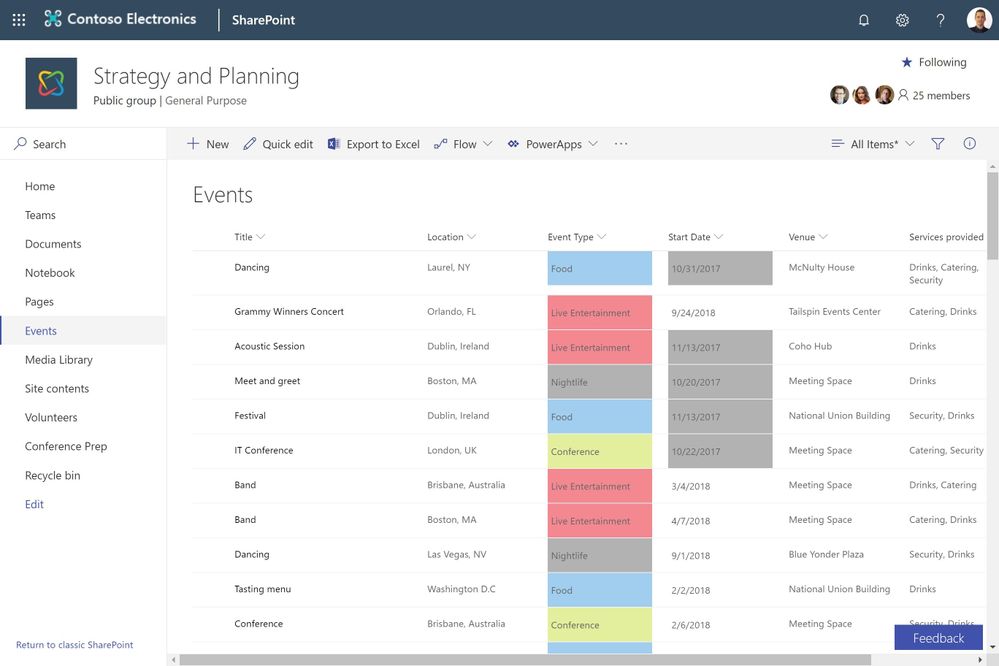
That’s why we’re excited to introduce custom formatting. It’s like column formatting, since it lets you add conditional coloring based on column values. However, custom formatting requires absolutely no scripting. Custom formatting works on choice, date and Boolean columns. When you select the “Format this column” option, you can apply a pre-built template, or you can adjust the colors if desired. For developers, you can still use “advanced mode” to apply a JSON script.
In the link below, you can experience custom formatting. It’s never been easier to transform and optimize the display of business data in SharePoint pages.
Custom formatting demo on TechCommunity
https://demobuilderwebcpptxz.blob.core.windows.net/custom-formatting/startdemo.html
Custom formatting will begin rolling out to targeted release customers in late December, with general release following in January. Later in 2019, we’ll add support for more column types.
We encourage you to share your thoughts and experience with us. Thank you, and happy holidays.
We are happy to announce the release of page management and approvals, as we disclosed at Ignite 2018.
SharePoint page authoring makes it simple to craft beautiful immersive experiences that integrate applications, data, text, media and more. Pages are also essential for team news, which let you share impactful updates with an automated distribution engine that reaches portals, mobile, email, Microsoft Teams and more.
News pages can be highly visible, since they are automatically aggregated in hub sites, mobile apps and the SharePoint home page. Some organizations want to standardize page templates and layouts, and institute a review process to assure that all updates are approved.
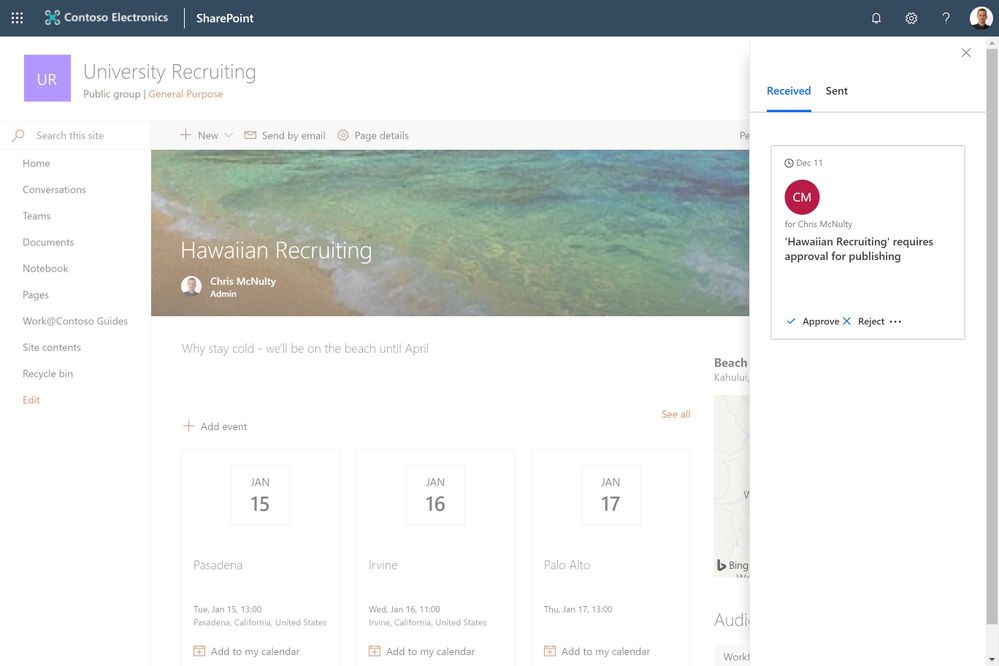
Now you can setup approval processes, based on Microsoft Flow, to ensure page review if required. Inside the pages library, you can use the Flow pulldown menu option to create an approval process with just a few mouse clicks.
You can use the immersive demo link below to expereince page management and approvals.
Tech Community Demos
https://demobuilderwebcpptxz.blob.core.windows.net/page-approvals/startdemo.html
Configuring approvals is optional – you can continue to publish pages without an approval step based on your governance and publication style. Page approvals will begin rolling out to targeted release in mid-December 2018.
We are happy to announce the release of page management and approvals, as we disclosed at Ignite 2018.
SharePoint page authoring makes it simple to craft beautiful immersive experiences that integrate applications, data, text, media and more. Pages are also essential for team news, which let you share impactful updates with an automated distribution engine that reaches portals, mobile, email, Microsoft Teams and more.
News pages can be highly visible, since they are automatically aggregated in hub sites, mobile apps and the SharePoint home page. Some organizations want to standardize page templates and layouts, and institute a review process to assure that all updates are approved.
Now you can setup approval processes, based on Microsoft Flow, to ensure page review if required. Inside the pages library, you can use the Flow pulldown menu option to create an approval process with just a few mouse clicks.
You can use the immersive demo link below to expereince page management and approvals.
Tech Community Demos
https://demobuilderwebcpptxz.blob.core.windows.net/page-approvals/startdemo.html
Configuring approvals is optional – you can continue to publish pages without an approval step based on your governance and publication style. Page approvals will begin rolling out to targeted release in mid-December 2018.
Personal productivity is essential to teamwork. SharePoint lists and libraries have long allowed to you defined custom metadata columns to track dates. As announced at Ignite 2018, we are releasing a new capability that lets you set reminders for any of these dates. You’ll be able to receive a personal email alert ‘x’ days in advance of a date on any document or item in SharePoint.
Create a reminder flow
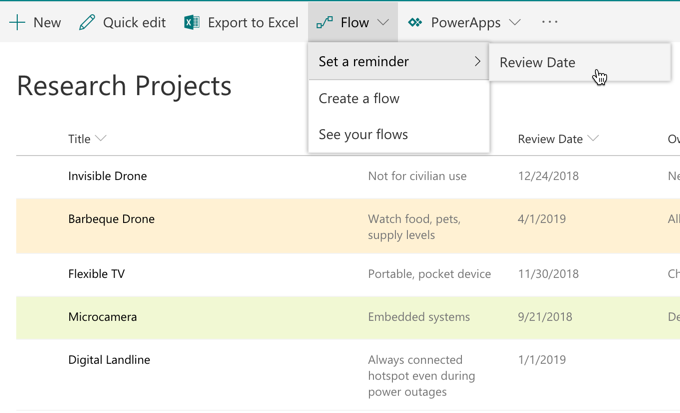
To create the reminder flow, your list or library should have at least one date/time column in the current view. You’ll then able to create a reminder by selecting the Flow->Set a reminder menu.
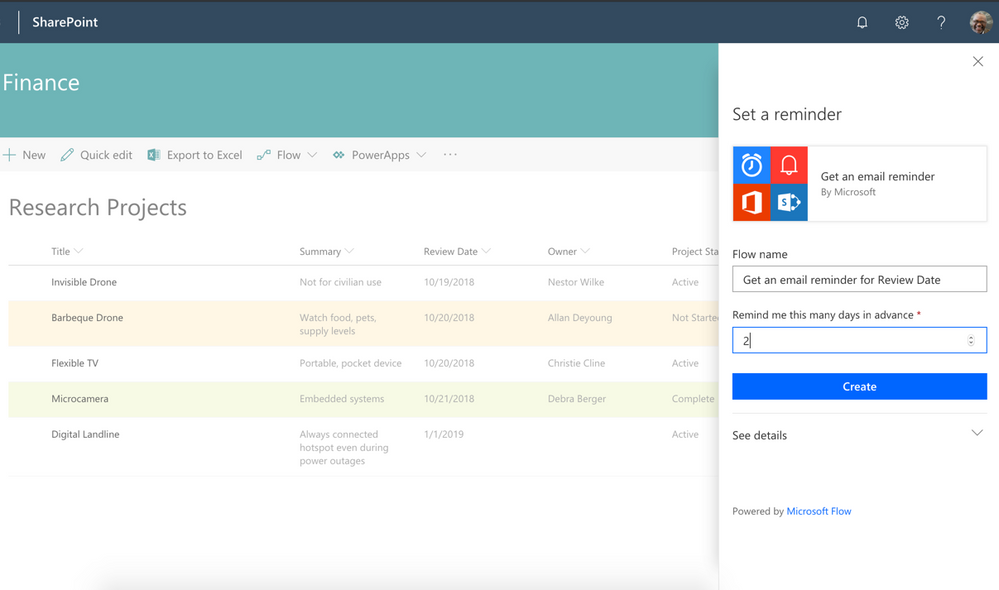
You can enter the number of days in advance for the reminder, based on the selected date column.
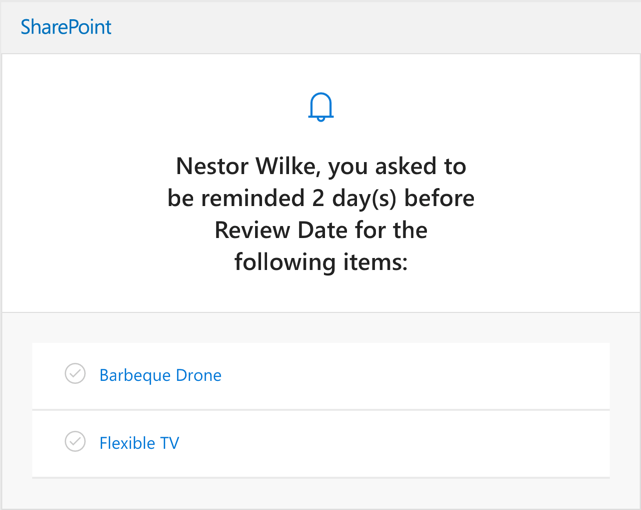
Based on your selection, you’ll get an email from Microsoft Flow for any items or documents ‘x’ days in advance of the selected data column value.
Once the flow is created, it can be edited from the Microsoft Flow website. You can modify “days in advance”, or add additional actions.
This feature is slated to begin rollout to Targeted Release on or about December 18, 2018. If you’d like to try it in advance, you can see reminders in action on the Business Apps Resource Center.
As always, we are listening for feedback. Please let us know if you have any questions or suggestions. Thanks.
Personal productivity is essential to teamwork. SharePoint lists and libraries have long allowed to you defined custom metadata columns to track dates. As announced at Ignite 2018, we are releasing a new capability that lets you set reminders for any of these dates. You’ll be able to receive a personal email alert ‘x’ days in advance of a date on any document or item in SharePoint.
Create a reminder flow
To create the reminder flow, your list or library should have at least one date/time column in the current view. You’ll then able to create a reminder by selecting the Flow->Set a reminder menu.
You can enter the number of days in advance for the reminder, based on the selected date column.
Based on your selection, you’ll get an email from Microsoft Flow for any items or documents ‘x’ days in advance of the selected data column value.
Once the flow is created, it can be edited from the Microsoft Flow website. You can modify “days in advance”, or add additional actions.
This feature is slated to begin rollout to Targeted Release on or about December 18, 2018. If you’d like to try it in advance, you can see reminders in action on the Business Apps Resource Center.
As always, we are listening for feedback. Please let us know if you have any questions or suggestions. Thanks.







