
‘Tis the season! Did you grab a Microsoft-themed sweater? Sold out? Don’t worry. We’ve created three SharePoint-themed winter holiday sweaters to back you up – in Microsoft Teams, or to use as wallpaper on your desktop.
Make your productivity festive and intranet’ty! Grab the png’s and follow the ‘how to’ link below.
Download SharePoint holiday sweater background – abstract.

Download SharePoint holiday sweater background – Hanukkah.

Download SharePoint holiday sweater background – Christmas.
Learn how to change your background for a Microsoft Teams meeting.
Special thanks to our design team for creating the fun.
View more Microsoft background and wallpapers.
Stay safe and happy holidays,
Wenvi Hidayat
Seems creating Microsoft 365/O365 Group via CSOM not working. If you try to use SharePoint Client Side Object Model(CSOM) you might run into following exception:
Microsoft.SharePoint.Client.ServerException
HResult=0x80131500
Message=The web template GROUP#0 is not available for sites on this tenant.
Source=Microsoft.SharePoint.Client.Runtime
StackTrace:
at Microsoft.SharePoint.Client.ClientRequest.ProcessResponseStream(Stream responseStream)
at Microsoft.SharePoint.Client.ClientRequest.ProcessResponse()
at Microsoft.SharePoint.Client.ClientRequest.ExecuteQueryToServer(ChunkStringBuilder sb)
at Microsoft.SharePoint.Client.ClientContext.ExecuteQuery()
We have to use Graph API and this sample should help get started. ROPC authentication is used. Delegated authentication should also work but not tested.
Setup Steps:
1] Setup Native App in AAD.
2] Copy the App Id as you will need to provide it later in the code.
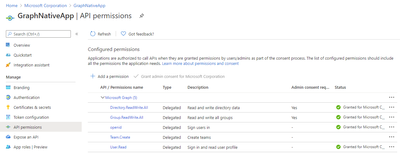
3] Provide following Delegated Graph API permissions.
Groups.ReadWite.All, Directory.ReadWrite.All, openid, Team.Create, User.Read
4] Grant Admin consent.
5] See screenshot below:
6] Sample C# code to Create Microsoft 365/O365 Group with Teams:
using System;
using System.Net.Http;
using System.Net.Http.Headers;
using System.Collections.Generic;
using System.Threading.Tasks;
using Newtonsoft.Json;
using Newtonsoft.Json.Linq;
using System.Text;
namespace CreateGroupMultiGeo
{
class Program
{
static async Task Main(string[] args)
{
string clientId = “50168119-04dd-0000-0000-000000000000”;
string email = “someuser@spotenant.onmicrosoft.com”;
string passwordStr = “password”;
var req = new HttpRequestMessage(HttpMethod.Post, “https://login.microsoftonline.com/bc8dcd4c-0d60-0000-0000-000000000000/oauth2/token”)
{
Content = new FormUrlEncodedContent(new Dictionary<string, string>
{
[“resource”] = “https://graph.microsoft.com”,
[“grant_type”] = “password”,
[“client_id”] = clientId,
[“username”] = email,
[“password”] = passwordStr,
[“scope”] = “openid”
})
};
HttpClient httpClient = new HttpClient();
var res = await httpClient.SendAsync(req);
string json = await res.Content.ReadAsStringAsync();
if (!res.IsSuccessStatusCode)
{
throw new Exception(“Failed to acquire token: ” + json);
}
var result = (JObject)JsonConvert.DeserializeObject(json);
//create a group
HttpClient httpClientGroup = new HttpClient();
httpClientGroup.DefaultRequestHeaders.Authorization = new AuthenticationHeaderValue(“Bearer”, result.Value<string>(“access_token”));
// Create a string variable and get user input from the keyboard and store it in the variable
string grpName = “MultiGeoGraphAPIGrp1″;
string contentGroup = @”{
‘displayName’: ‘” + grpName + @”‘,”
+ @”‘groupTypes’: [‘Unified’],
‘mailEnabled’: true,
‘mailNickname’: ‘” + grpName + @”‘,”
+ @”‘securityEnabled’: false,
‘visibility’:’Public’,
‘preferredDataLocation’:’GBR’,
‘owners@odata.bind’: [‘https://graph.microsoft.com/v1.0/users/ecc0fc81-244b-0000-0000-000000000000’]
}”;
var httpContentGroup = new StringContent(contentGroup, Encoding.GetEncoding(“utf-8”), “application/json”);
var responseGroup = httpClientGroup.PostAsync(“https://graph.microsoft.com/v1.0/groups”, httpContentGroup).Result;
var content = await responseGroup.Content.ReadAsStringAsync();
dynamic grp = JsonConvert.DeserializeObject<object>(content);
Console.WriteLine(responseGroup.Content.ReadAsStringAsync().Result);
System.Threading.Thread.Sleep(3000);
//create a Team
HttpClient httpClientTeam = new HttpClient();
httpClientTeam.DefaultRequestHeaders.Authorization = new AuthenticationHeaderValue(“Bearer”, result.Value<string>(“access_token”));
//create a team
string contentTeam = @”{
‘memberSettings’: {
‘allowCreateUpdateChannels’: true
},
‘messagingSettings’: {
‘allowUserEditMessages’: true,
‘allowUserDeleteMessages’: true
},
‘funSettings’: {
‘allowGiphy’: true,
‘giphyContentRating’: ‘strict’
}
}”;
var httpContentTeam = new StringContent(contentTeam, Encoding.GetEncoding(“utf-8”), “application/json”);
////Refere: https://docs.microsoft.com/en-us/graph/api/team-put-teams?view=graph-rest-1.0&tabs=http
var responseTeam = httpClientTeam.PutAsync(@”https://graph.microsoft.com/v1.0/groups/” + grp.id + @”/team”, httpContentTeam).Result;
Console.WriteLine(responseTeam.Content.ReadAsStringAsync().Result);
Console.ReadKey();
}
}
}

In this installment of the weekly discussion revolving around the latest news and topics on Microsoft 365, hosts – Vesa Juvonen (Microsoft) | @vesajuvonen, Waldek Mastykarz (Microsoft) | @waldekm, are joined by Data Architect, Transition Evangelist, Data Platform MVP Isabelle van Campenhoudt (ShareQL – Power Platform Associates) | @thesqlgrrrl, based in Belgium.
Topics discussed:
- The challenge for customers today is too much data, its availability, accuracy, recency, history, and shareability.
- The multiple levels of reporting on which all agree that what’s more important is what information needs to be conveyed in the report.
- Training needs to focus on “Consuming a Report” – and how to understand and manipulate data in a visual way.
- Finally, discussion on organizing or cataloging data, there is a data governance tool – Microsoft Azure Pureview – previously known as data catalog.
This episode was recorded on Monday, December 8, 2020.
Did we miss your article? Please use #PnPWeekly hashtag in the Twitter for letting us know the content which you have created.
As always, if you need help on an issue, want to share a discovery, or just want to say: “Job well done”, please reach out to Vesa, to Waldek or to your Microsoft 365 PnP Community.
Sharing is caring!

In this installment of the weekly discussion revolving around the latest news and topics on Microsoft 365, hosts – Vesa Juvonen (Microsoft) | @vesajuvonen, Waldek Mastykarz (Microsoft) | @waldekm, are joined by Independent Consultant, Office Developer and Business Apps (Power Platform) MVP Fabio Franzini | @franzinifabio.
Topics discussed in this session include:
- Becoming and prospering as an independent consultant – drive exposure by delivering training, watch parties, and speaking at conferences.
- When to go with Power Platform vs traditional coding – the key is architecting the complete solution and including change management.
- Thoughts on extending SPFx beyond SharePoint and Teams to create add-ins for all office clients.
- And finally, a few words from Fabio around styling with Tailwind CSS.
This episode was recorded on Monday, November 30, 2020.
Did we miss your article? Please use #PnPWeekly hashtag in the Twitter for letting us know the content which you have created.
As always, if you need help on an issue, want to share a discovery, or just want to say: “Job well done”, please reach out to Vesa, to Waldek or to your Microsoft 365 PnP Community.
Sharing is caring!

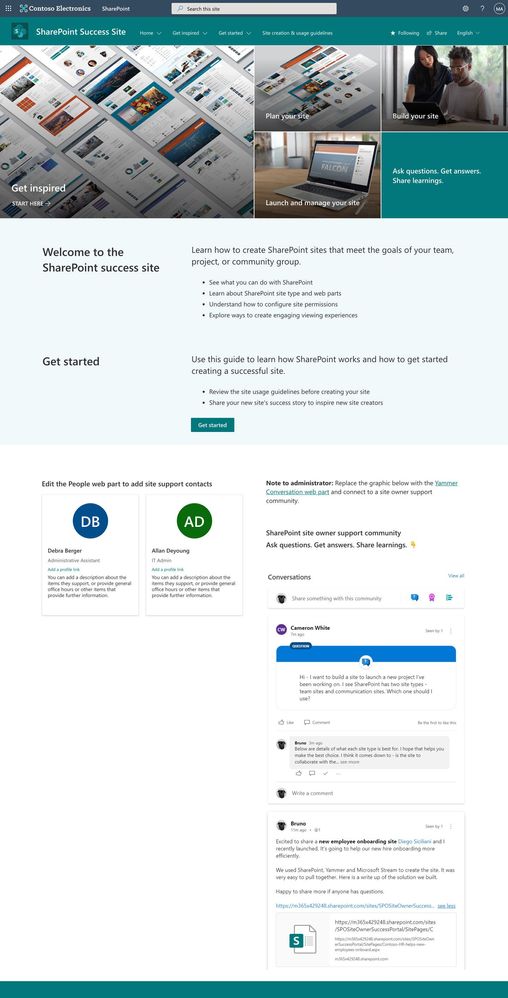
To help our customers drive adoption and get the most out of SharePoint, we are launching the new SharePoint Success Site. The SharePoint Success Site is a ready to deploy and customizable SharePoint communication site that helps your colleagues create high-impact sites to meet the goals of your organization. The SharePoint Success Site builds on the power of Microsoft 365 learning pathways which allows you to train end users via Microsoft-maintained playlists and custom playlists you create.
To help your colleagues get the most out of SharePoint, the SharePoint Success Site comes pre-populated with site creation inspiration and training on how to create high quality and purposeful SharePoint sites. The SharePoint Success Site is not just about creating high impact sites – organizations need users to meet their responsibilities as site owners and to adhere to your organization’s policies on how SharePoint is to be used. The SharePoint Success Site includes a page dedicated to site creation and usage policies that should be customized to fit the needs of your organization.
The SharePoint Success Site brings together all the critical elements that site owners need to know to create amazing SharePoint sites. Provision the SharePoint Success Site in your tenant to:
- Get more out of SharePoint – Help people understand the ways to work with SharePoint to achieve business goals. Then, show users how to utilize the power behind SharePoint’s collaboration capabilities with step-by-step guidance.
- Enable Site owners to create high-impact sites – Ensure Site owners have the right information and support to create purposeful sites that are widely adopted by the intended audience.
- Ensure Site owners follow site ownership policies – Customize the site creation and usage policies page in your SharePoint Success Site to ensure sites created in your organization are compliant with your policies.
- Provide the most up-to-date content – Equip Site owners with SharePoint training content that is maintained by Microsoft and published as SharePoint evolves.
What’s included?
To help accelerate your implementation of a SharePoint Success Site in your tenant the following highlights just some of the features included:
- A fully configured and customizable site owner SharePoint Communication Site: The SharePoint Success Site is a SharePoint communication site that includes pre-populated pages, pre-configured training, web parts, and site navigation. The site can be customized to incorporate your organization’s existing branding, support, and training content.
- Microsoft maintained SharePoint training content feed: The SharePoint Success Site’s up-to-date content feed includes a range of content that helps new users and existing Site owners plan, build, and manage SharePoint sites.
- Site inspiration: Content that helps users understand the different ways to leverage SharePoint to meet common business objectives.
- Success stories: A success stories gallery to showcase internal SharePoint site success stories that inspire others in the organization.
- Site creation guidelines: A starting point template to educate new Site owners about SharePoint site creation and usage policies for your organization. The customizable guidelines include suggested usage policy topics and questions to prompt consideration of usage policies within your organization.
Next steps
Learn more about the SharePoint Success Site. Provision the SharePoint Success Site to your tenant today and customize it to help your colleagues adopt SharePoint. Create custom learning paths to meet the unique needs of your environment. You can also create custom playlists by blending learning content from Microsoft’s online content catalog with your organization’s SharePoint specific process content.
We hope the SharePoint Success Site helps you and your colleagues get the most out of SharePoint. Share your feedback and experience with us in the Driving Adoption forum in the Microsoft Technical Community.
Frequently asked questions (FAQs)
Question: What are the requirements for installing the SharePoint Success Site into my tenant environment?
Answer:
- Ensure SharePoint Online is enabled in your environment.
- The individual that will provision the SharePoint Success Site must be the global admin (formerly called the Tenant admin) of the target tenant for install.
- The tenant where the site will be provisioned must have:







