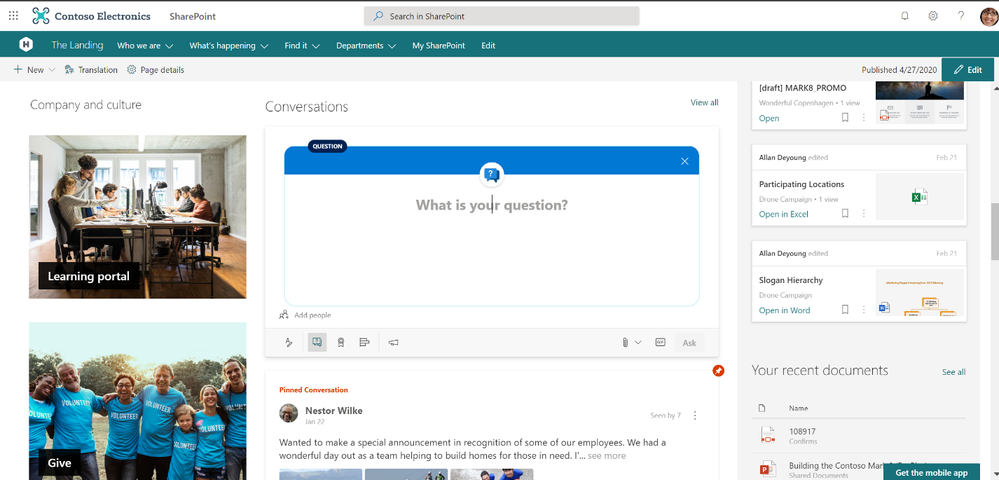
Bring the new Yammer styling and capabilities to your modern intranet. At Microsoft Ignite 2019, we announced that the Yammer Conversations web part for SharePoint Online would be updated with the new Yammer experience. Now, we are excited to announce that it is generally available, meaning that you get all the new Yammer experiences on your SharePoint pages, news articles, and SharePoint sites.
Add the power of community to your sites
The updated Yammer Conversations web parts integrates conversations from any Yammer community, topic, user, or home feed, so you can stay connected to the discussions happening across your organization and add social conversations while still in SharePoint. Starting today, it automatically replace the previous Yammer conversations web part without any action needed from site admins.
What’s New
- The new Yammer look including rich previews for media and visual treatment for questions, praise, and polls.
- The Yammer publisher with functionality like
- creation of any type of Yammer post directly from SharePoint – questions, polls, praise, etc.
- upload of images and files into new conversations and replies directly from SharePoint.
- usage of rich text on messages created from SharePoint Online.
- Yammer management actions such as Close Conversation, Mark Best Answer to a Question, and Pin a conversation, etc.
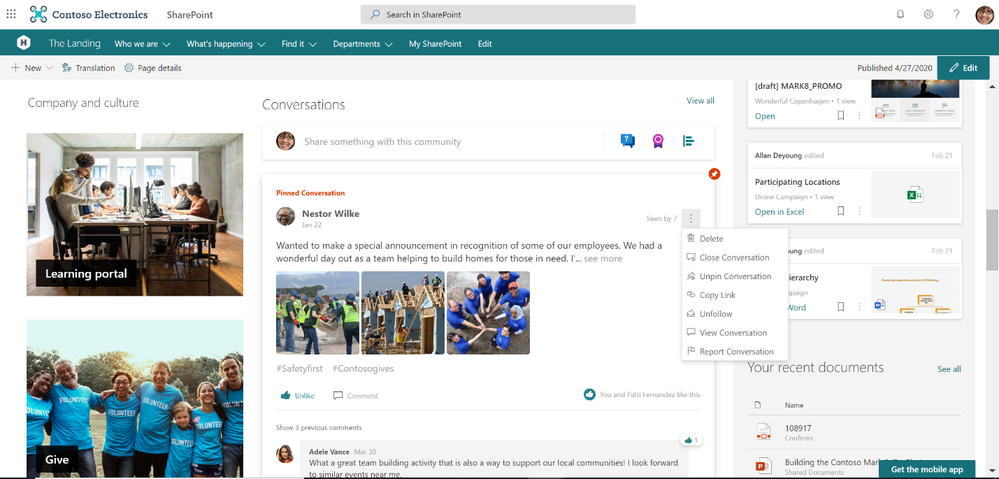
- An improved more relevant Home feed including the ability to start a conversation in any communit when configured to this mode.
- Customize it to view from 2 conversations to 12 conversations.
How to get the new web part
Sites that are already using the Yammer Conversations web part will be updated with the new experience. To add Yammer Conversations to new sites, just visit the web part gallery and select Yammer Conversations and Get Started. Then, you can filter your Community, User, Topic, or Home, and search for your source. Customize the number of conversations to display and select Republish to see and engage with your new Yammer Conversations web part.
Whether you are looking to bring engaging conversations between employees and leaders to your Leadership sites, or allow employees to ask and resolve questions with key services on Employee Service Sites like IT, HR, Travel, or other Community Sites, the updated web part experience enables you to bring rich, social conversations to all of your SharePoint intranet.
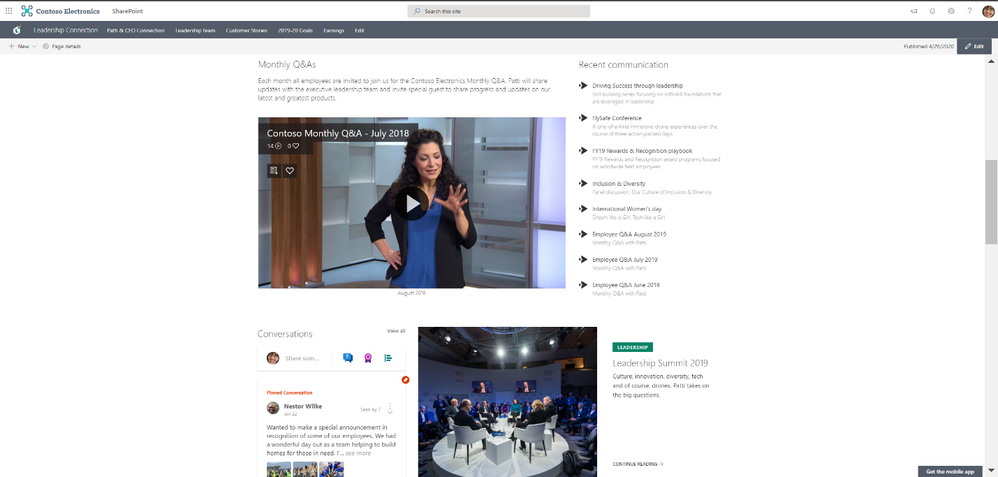 Add Yammer community discussions to your leadership page.
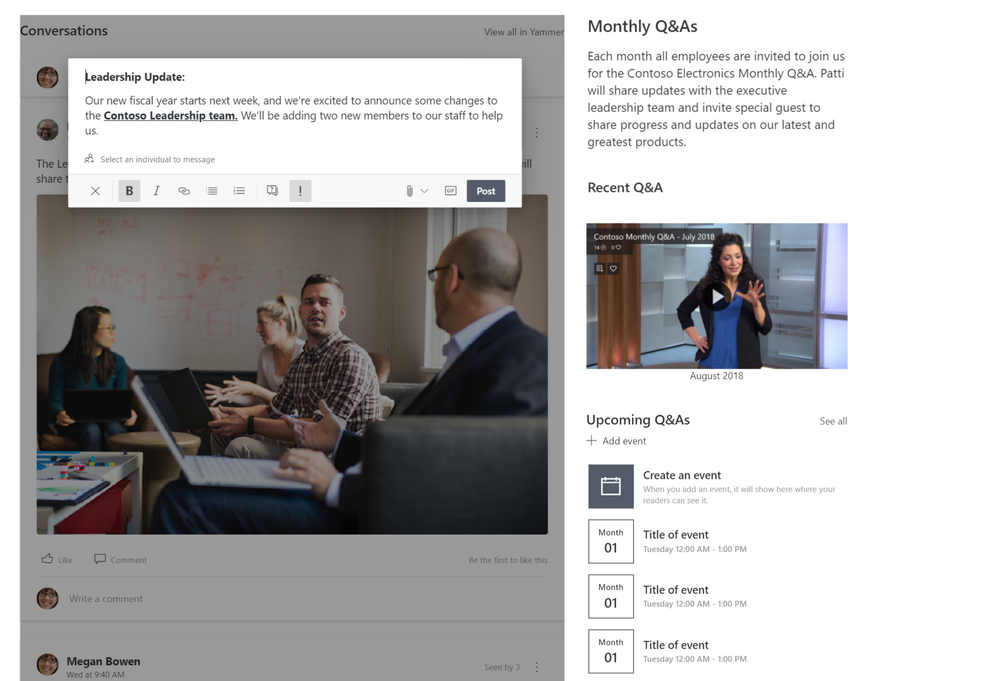 Share news and announcements directly from the web part.
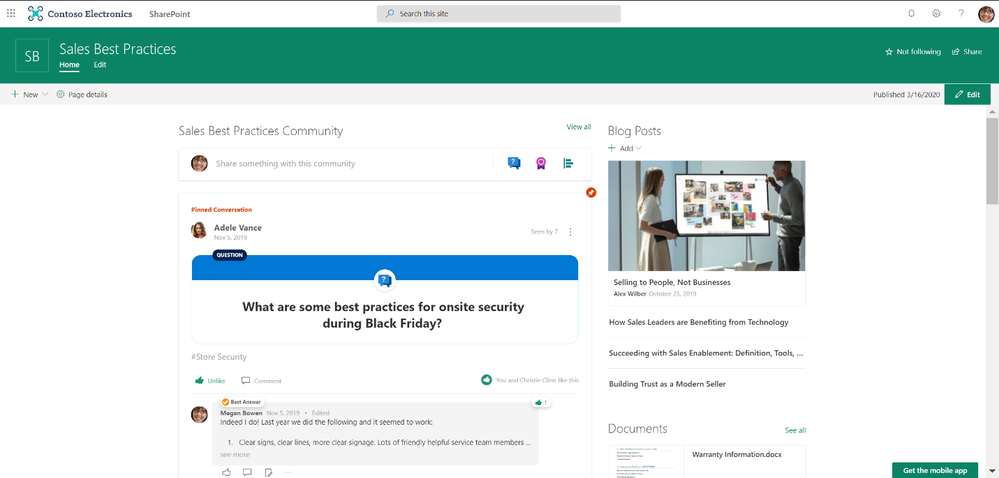 Leverage Yammer communities to share knowledge and best practices alongside helpful resources.
Yammer Everywhere
We’re continuing to build solutions that integrate Yammer communities and conversations into the apps that you use every day. Check out our latest Outlook integration and our Communities app for Microsoft Teams and stay tuned into our public roadmap and blog.

In this weekly discussion of latest news and topics around Microsoft 365, hosts – Vesa Juvonen (Microsoft), Waldek Mastykarz (Rencore), are joined by D’arce Hess (CloudWay) – US based MVP and Information Architect to discuss the importance of information architecture and the human side of IT.
Success is defined by people, not by technology.
There is a need to manage the disconnects between decision makers, IT and information users. Tips for how include: Get end-users in room to define actual requirements, keep refining how to engage and support users, embrace Evergreen mode, manage IT’s fears, make decisions based on analytics and not on emotions. There are opportunities for surfacing actionable data more readily. Are customers transitioning to Teams as their intranet? Teams is the platform for collaboration pared with SharePoint for content discoverability.
Additionally, in this episode, 15 recently released articles from Microsoft and the PnP Community are highlighted.
This episode was recorded on Monday, July 13, 2020.
Did we miss your article? Please use #PnPWeekly hashtag in the Twitter for letting us know the content which you have created.
Notice. Next PnP Weekly will be released on 11th of August as the team will take some time off with families. We’ll be back soon. Have a great summer if you are on the Northern hemisphere!
Sharing is caring!
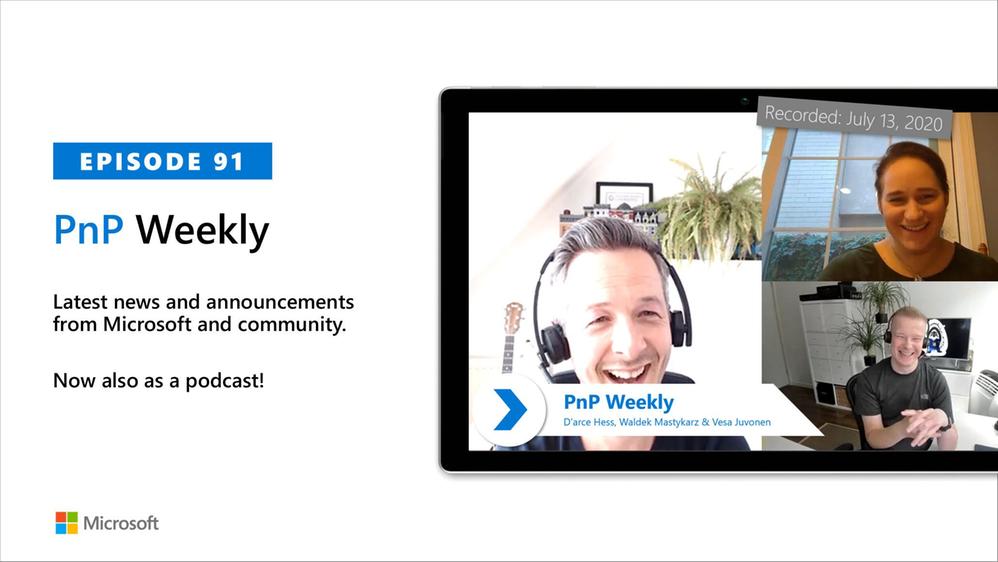
In this weekly discussion of latest news and topics around Microsoft 365, hosts – Vesa Juvonen (Microsoft), Waldek Mastykarz (Rencore), are joined by D’arce Hess (CloudWay) – US based MVP and Information Architect to discuss the importance of information architecture and the human side of IT.
Success is defined by people, not by technology.
There is a need to manage the disconnects between decision makers, IT and information users. Tips for how include: Get end-users in room to define actual requirements, keep refining how to engage and support users, embrace Evergreen mode, manage IT’s fears, make decisions based on analytics and not on emotions. There are opportunities for surfacing actionable data more readily. Are customers transitioning to Teams as their intranet? Teams is the platform for collaboration pared with SharePoint for content discoverability.
Additionally, in this episode, 15 recently released articles from Microsoft and the PnP Community are highlighted.
This episode was recorded on Monday, July 13, 2020.
Did we miss your article? Please use #PnPWeekly hashtag in the Twitter for letting us know the content which you have created.
Notice. Next PnP Weekly will be released on 11th of August as the team will take some time off with families. We’ll be back soon. Have a great summer if you are on the Northern hemisphere!
Sharing is caring!

Summary
A customer asked if there was a method to identity documents stored in SharePoint online that were encrypted with passwords. Since nothing like this existed, it was created using PowerShell. I’m sharing this because the logic in the script may be useful for others.
The Code
#Title: find-docpasswords
#Description: Iterates through each item in a specified list to find documents stored with passwords.
#Date: 7/8/2020
#Author: Mike Lee
#Disclaimer: This PowerShell script is provided "as-is" with no warranties expressed or implied. Use it at your own risk.
#Dependencies: SharePoint Online Client Components SDK: https://www.microsoft.com/en-us/download/details.aspx?id=42038
#Tested with SharePoint Online Client Components SDK version 16.0.6906.1200
#Parameters: $SiteURL, $ListName, $username


#Add references to SharePoint client assemblies
[System.Reflection.Assembly]::LoadWithPartialName("Microsoft.SharePoint.Client")
[System.Reflection.Assembly]::LoadWithPartialName("WindowsBase")


#Your SPO Tenant
$SiteURL = "https://tenant.sharepoint.com"

#The name of your document library
$Listname = "Documents"

#The admin account that has access to the library
$username = "admin@tenant.onmicrosoft.com"
$password = Read-Host "Enter Password" -AsSecureString

#Building Context
$ctx = New-Object Microsoft.SharePoint.Client.ClientContext($SiteURL)
$ctx.Credentials = New-Object Microsoft.SharePoint.Client.SharePointOnlineCredentials($userName, $password)
$List = $ctx.Web.Lists.GetByTitle($ListName)


#CAML Query to recursively look at all items in the library with a 5000 item row limit.
$camlQuery = New-Object Microsoft.SharePoint.Client.CamlQuery
$camlQuery.ViewXml = @"
<View Scope="RecursiveAll">
<Query>
<OrderBy><FieldRef Name='ID' Ascending='TRUE'/></OrderBy>
</Query>
<RowLimit Paged="TRUE">5000</RowLimit>
</View>
"@

$items = $list.GetItems($camlQuery)
$ctx.Load($items)
$ctx.ExecuteQuery()

#function to read documents

function find-docpasswords($ctx, $FileUrl)
{
#Collect Documents Data
$FileURL = $Item.FieldValues['FileRef']

#Read the files from SharePoint online document library.
$fileInfo = [Microsoft.SharePoint.Client.File]::OpenBinaryDirect($ctx,$FileURL)
$stream = New-Object System.IO.MemoryStream
$fileInfo.Stream.CopyTo($stream)

#Read the first row of bytes as text
$Start = [System.Text.Encoding]::Default.GetString($stream.ToArray()[0000..2000])

# Record files that are password protected
if($Start -match "E.n.c.r.y.p.t.e.d.P.a.c.k.a.g.e")
{
Write-Host "$SiteURL$FileURL -- Is Password Protected" -ForegroundColor Yellow
}
else
{
Write-Host "$SiteURL$FileURL -- Not Password Protected" -ForegroundColor Green
}

$stream.Close()
$fileinfo.Dispose()
$ctx.Dispose()
}


#Run the function to loop through all items in the library and find documents stored with passwords

foreach($item in $items)
{
$fileUrl = $item.FieldValues["fileref"]
find-docpasswords $ctx $fileurl
}
Takeaways
This scripts loops though a specified document library and reads the first 200 binary bytes as text. If the encrypted string is found, the document URL is reported in the console output.
Here is an example of the output:
You will need a few things to make this works.
- Installed the SharePoint Online Client Components SDK
- Specify the “$SiteURL, $Listname, and $username in the script.
Train your mind and the tech will follow.
This series of training videos covers the value and recent updates across SharePoint, OneDrive, Microsoft Lists, Microsoft Teams, Project Cortex, Yammer, and Stream – including information for employees, admins, and developers – all in the context of scenarios supported within Microsoft 365 across teamwork and employee engagement.
It is all here in one blog post, inline… consume at your leisure.
Scroll down and learn about all as you go or click each title in the grid below to jump down the page to watch specific sessions – each with related links to learn more:
Microsoft 365 Collaboration [keynote]
Microsoft 365 empowers individuals, teams, and organizations to be creative, collaborative, and effective with an integrated suite of experiences that are simple, superior, smart, and secure. Jeff Teper shares the latest innovations and updates for content collaboration, employee engagement and communications, and knowledge management. Learn how the experiences in Microsoft 365—including SharePoint, OneDrive, Yammer, Stream, and Office—integrate to power collaboration across devices, on the web, in desktop and mobile apps, and in the hub for teamwork, Microsoft Teams.
Presented by Jeff Teper [LinkedIn | Twitter], Omar Shahine [LinkedIn | Twitter], Navjot Virk [LinkedIn | Twitter], Susan Hanley [LinkedIn | Twitter], Graham Sheldon [LinkedIn | Twitter], and Ed Averett [LinkedIn | Twitter].
Learn more:
[Back to top]
OneDrive powers intelligent file experiences across Microsoft 365
OneDrive is the intelligent files app for Microsoft 365. In this session we will cover upcoming innovations and explore functionalities that empower you to access, share and collaborate on all your files from anywhere while protecting your work.
Presented by Randy Wong [LinkedIn | Twitter].
Learn more about OneDrive in Microsoft 365: https://aka.ms/OneDrive/blog
[Back to top]
Collaboration & external file sharing across Microsoft 365
Microsoft 365 provides a rich set of solutions for collaborating with users both inside and outside of your organization. This session offers an in-depth look at existing and brand-new external sharing capabilities. Learn best practices for configuring external sharing and educating users on how to best leverage Teams, SharePoint, and OneDrive for collaborating with others.
Presented by Ankita Kirti [LinkedIn | Twitter].
Learn more:
[Back to top]
Microsoft Lists – Share and track information with across Microsoft 365
Get an early look at Microsoft Lists – your smart information tracking app in Microsoft 365. Lincoln will showcase how Lists evolve from SharePoint lists today and how current and new innovation empower individuals and teams to create, share and track information – all in the apps they use every day, including Microsoft Teams. Lots of demos highlighting Lists home, mobile, conditional formatting, fast quick edit, ready-made templates, new views, alerts, flows and more – work tracking with built-in security and compliance.
Presented by Lincoln DeMaris [LinkedIn | Twitter].
Learn more:
[Back to top]
Design productivity apps with SharePoint lists and libraries, Power Apps, and Power Automate
No-code and low-code apps have been essential in SharePoint for a long time. Additional tolls from the Power Platform – Power Apps and Power Automate – provide additional power and capability to build productivity using SharePoint lists as the data source. We also discuss the patterns to help transform customer solutions that remain on-premises and/or in legacy tool sets like InfoPath, SharePoint Designer or Access Web Apps.
Presented by Chakkaradeep “Chaks” Chandran [LinkedIn | Twitter].
Learn more how to create a Power App for a list in SharePoint for Microsoft 365.
[Back to top]
Knowledge and Project Cortex – the Microsoft 365 Vision
In a world of rapid change, harnessing knowledge empowers people to act quickly, and organizations to be more resilient. Later this year, Microsoft will release Project Cortex, our new knowledge and content management solution. Join us for an overview of Project Cortex and Microsoft Search and how they help customers harness knowledge throughout Microsoft 365.
Presented by Naomi Moneypenny [LinkedIn | Twitter] and Chris McNulty [LinkedIn | Twitter].
Learn more about Project Cortex: https://aka.ms/ProjectCortex.
[Back to top]
Connect the workplace with engaging, dynamic experiences across your intranet
The intelligent intranet in Microsoft 365 powers collaboration, employee engagement, and knowledge management. The intelligent intranet is mobile-ready, personalized, social, and actionable. Join in and explore innovations like multilingual pages, navigation, news, pages, and broader integrated solutions with Yammer, Stream, and Microsoft Teams.
Presented by Debjani Mitra [LinkedIn | Twitter] and Brad McCabe [LinkedIn].
Learn more:
[Back to top]
The New Yammer
The new Yammer is landing. See how Yammer has been completely redesigned to power leadership engagement, company-wide communication, and communities in Microsoft 365. Explore the new capabilities, features, and styling while discovering how Yammer continues to supercharge community, knowledge sharing, and engagement across Microsoft 365.
Presented by Jason Mayans [LinkedIn | Twitter].
Learn more about The New Yammer and Yammer in general.
[Back to top]
Microsoft 365 Live Events and remote work
Learn how live events can help your organization deliver better communications, training and more. In this session, we will walk through a detailed setup of a live event and look at the underlying technology that enables successful live broadcasts.
Presented by Lorena Huang Liu [LinkedIn | Twitter] & Christina Torok [LinkedIn | Twitter].
Learn more about Microsoft Live Events.
[Back to top]
Architecting Your Intranet
You are ready to start bringing the power of the intelligent intranet to your organization, but you are wondering where to start. What should you do with your existing sites? What about navigation? How should you think about your IA? These are just a few of the questions you might be wondering. Join us for this discussion as we help break through the analysis paralysis and learn from the best practices of numerous customers that have already started the journey.
Presented by Melissa Torres [LinkedIn | Twitter].
Learn more about the Microsoft 365 intelligent intranet and how to use SharePoint site designs and site scripting in Microsoft 365.
[Back to top]
Migration to SharePoint, OneDrive, and Microsoft Teams in Microsoft 365, free and easy
Regardless of your organization’s size, data scale or information complexity, you can migrate documents and sites into SharePoint in Office 365 successfully. Come learn about new capabilities available in the SharePoint Migration Tool (aka.ms/SPMT) in addition to performance and reliability investments to best assess, plan and implement your migration. Learn how to migrate file shares, doc libraries, and SharePoint Server 2013 sites and more using the SharePoint Migration Tool and new capabilities to simplify large file share migrations through SharePoint Admin Center.
Presented by Hani Loza [LinkedIn | Twitter] and Eric Warnke [LinkedIn | Twitter].
Learn more:
[Back to top]
SharePoint developer overview
Discover how every experience can become more collaborative and engaging with the Microsoft 365 platform – starting with SharePoint. SharePoint serves as the center of collaboration – where content is stored and communicated across teams, departments, and the whole organization. See the latest development advancements and new capabilities for SharePoint. You’ll take away new ideas for building next-generation collaboration applications and get the essential roadmap for custom apps in your organization.
Presented by Luca Bandinelli [LinkedIn].
Learn more about the SharePoint Framework (SPFx).
[Back to top]
Jumpstart your projects with community projects from Patterns and Practices (PnP)
Across SharePoint and Microsoft 365, an extremely active developer community has come together with SharePoint engineering and have released numerous valuable reusable components and controls, which will simplify design, implementation, and management of Microsoft 365 and on-premises deployments. Join this session to hear the latest updates around the different guidance, samples, and reusable assets built by the community for the community.
Presented by Vesa Juvonen [LinkedIn | Twitter].
Learn more:
[Back to top]
Security and compliance in SharePoint and OneDrive
Safeguard your devices, personal information, and files from being compromised. This session explores the core tenets of platform security, secure access and sharing, information governance, and compliance across SharePoint, Microsoft OneDrive, and Microsoft 365.
Presented by Sesha Mani [LinkedIn | Twitter].
Learn more about security and compliance in Microsoft 365.
[Back to top]
Well, if you’ve made it this far then your mind is full. And now, the tech shall follow.
Thanks for learning with us :),
Mark







