![What’s new in Office 365 Administration – Ignite Edition]()
In a cloud-based workplace powered by Microsoft 365, organizations can enable their employees to be creative and work together securely, by leveraging innovative, always up-to-date services that continuously evolve to meet the needs of the modern workforce.
To support the modern way of managing cloud-based services, we believe that IT administration tools need to be personalized and actionable while providing deep enterprise capabilities. IT is at the center of the digital transformation and needs tools that enables administrators to manage all aspects of the service across the entire IT lifecycle, from deployment to day-to-day management tasks and monitoring.
Today, we’re introducing a wealth of new capabilities to enable you to manage Office 365 more effectively.
Personalized management solutions built for you
Focused admin experience – The admin center provides you with rich management capabilities. But not all admins need all functionality on a regular basis. To assure that you can more easily find and access the functionality most important to you – such as user management, group management, or billing information – we’e streamlining the admin center homepage and navigation menu.
All functionality will of course still be available for you and you’ll be able modify both the navigation menu and the homepage – making it a truly personalized experience.
Assisted guides – When an employee leaves the company, blocking access to Office 365 for that user is an obvious first action for IT admins. But what about their email? How can you transfer their files to somebody else? And are there other actions you should take?
A new assisted guide will help you to easily offboard an employee from Office 365 using Microsoft best practices. The guide will take you through the process step-by-step, helping with key tasks such as transferring data to somebody else or providing another person access to the mailbox.
The offboarding guide will become availale later this year. We’re currenlty evaluating scenarios for additional guides.
 Succesfully offboard an employee with the assisted offboarding guide
Recommendations – In Office 365, often small admin actions can help make the service more secure or efficient. To help you with that, we’ll start showing personalized recommendations to you in the Office 365 admin center. For example, you might see a prompt to update your password settings if we detect that you haven’t set a password expiration rule yet.
Leveraging telemetry data, all recommendations will be tenant specific and easy to implement – often one click is all you’ll need to apply the recommendation. Recommendations will become available at the end of the year.
 Recommendations based on telemetry data
Prioritize management tasks with more actionable information
Usage reporting improvements – By driving usage of the services, IT can transform how their organization communicates, collaborates and creatively solves problems, enabling a truly modern workplace. We’re introducing new usage reporting capabilities that help organizations drive end user adoption.
- Track usage of Microsoft Teams – Microsoft Teams is a hub for teamwork and has become a crucial tool for millions of people. We’re adding two new usage reports to the admin center so you can understand how people in your organization are leveraging this powerful tool. Both reports will roll out to customers mid-October.
- Easily delegate access to usage insights – In many organizations, the task to drive usage and adoption of Office 365 is shared by the IT department and non-IT staff such as business managers who do not have access to the admin center. With this need in mind, we’re introducing a new reports reader role that you can assign to anyone in the organization and that will roll out to customers this week.
- Office 365 Usage Analytics reaches GA in 2018 – Office 365 Usage Analytics – currently available as preview as Office 365 Adoption Content Pack in PowerBI – combines the intelligence of the usage reports with the interactive analysis capabilities of Power BI, providing a wealth of usage and adoption insights. At the beginning of 2018, Usage Analytics will reach general availability with an updated version that will include new metrics on teamwork and collaboration, as well as usage data for Microsoft Teams, Yammer Groups and Office 365 Groups, and more.
 Visualize and analyze usage with Office 365 Usage Analytics in PowerBI
- Microsoft Graph reporting APIs reach GA – The Microsoft Graph reporting APIs enable customers to access the data provided in the Office 365 usage reports. To assure that you can monitor your IT services in one unified place, the APIs complement the existing usage reports by allowing organizations to incorporate the Office 365 activity data into their existing reporting solutions. Next week, the reporting APIs will reach general availability.
- Read the blog post “What’s new in Office 365 usage reporting – Ignite edition” for all details.
Message center updates – Many of you have shared that you want to have better visibility into when features are rolling out. This is important for you to be able to prepare for a successful rollout – to train your help desk and users or possibly plan an adoption campaign. With that in mind, we’re improving the Office 365 message center that provides you with information about new features coming to your organization:
- Better understand changes to your environment – We’re introducing the concept of major updates to the message center. A major update is a major change to the service such as a new service or feature or a change that requires an admin action. For any major update, you will receive a notification – both in the message center and via email – when it is being announced, when it starts rolling out to First Release, as well as when it becomes available broadly. Any major update will stay in First Release for a defined period, ensuring you have enough time to plan.
- Weekly digest reaches GA – The weekly digest is an email summary of your message center notifications that makes it easier for you to stay up to date and to share notifications with your co-workers. The weekly digest has reached GA and has started to roll out to all customers as of this week.
Service Health Notifications via email – To enable you to directly find out about issues that may be impacting your service, you can now sign up for service health notifications via email, enabling you to easily monitor the service and track issues. To sign up for the preview, please send an email with your tenant ID to shdpreviewsignup@service.microsoft.com by October 13th.
New admin and end user training – In a modern workplace where features and functionality continue to evolve, training is critical to enable people – admins as well as users -to get the most out of the service. To make it easy for you to learn about all aspects of Office 365, we’re improving our training offers:
- The new admin and IT Pro training courses – brought to you by LinkedIn Learning – gives you access to premium online training on critical skills you need to learn to manage Office 365.
- Microsoft Tech Academy is a new platform that gives you access to free, multimedia training and combines various readiness and learning platforms for IT Professionals into a single place. You can leverage curated to kick start learning for a specific topic such as Microsoft 365 or Security Advanced.
- We have updated the Office Training Center with new video training, quick start guides and templates. It now provides you with over 130 training resources that enable you to get your users up and running quickly with Office 365.
Advanced enterprise capabilities
Introducing Scoped Admin Roles (preview) – In many organizations, IT management is split among various members of the IT department. For example, a large university is often made up of many autonomous schools (business school, engineering school, etc.). Such divisions often have their own IT administrators who control access, manage users, and set policies specifically for their division. Central administrators want to be able grant these divisional administrators permissions over the users in their particular divisions.
To provide more flexibility in admin permission delegation, we’re adding support for “Azure Active Directory Administrative Units” (preview) to the Office 365 admin center.
Administrative Units – currently in preview – enable global admins to define a group of users (departments, regions, etc.) and then delegate and restrict administrative permissions for this group by a scoped-admin to the group. When the scoped administrator signs into the Office 365 admin center, they will see a drop down in the right corner showing them the scope they are assigned to.
Scoped Admin roles will become available in the coming weeks and will only apply to user management in the main admin center. Thus, when the admin navigates to any user management related page of the admin center – such as the active users page, guest users page and deleted users page – the admin will only see the users that are part of the specific administrative unit and thus are assigned to him.
On all other pages i.e. billing or the service health dashboard, they will see and be able to modify information and settings for users in the entire tenant.
 Delegate admin permissions with administrative units
New SharePoint admin center – In the last few months, SharePoint has introduced many new features and functionality that focus on making the SharePoint user experiences simpler, more intuitive, and more powerful. We believe the administration experience should be just as simple, just as intuitive, and just as powerful as the SharePoint end user experience. Thus, we’re introducing a revamped SharePoint Admin center that enables admins to more effectively manage all aspects of SharePoint.
The redesigned “Home” surfaces important information helping you quickly find key data including service health and usage statistics.
A new site management page gives you a one stop shop for viewing and managing some of the most important aspects of SharePoint Online sites.
 Manage SharePoint more effectively with the new SharePoint admin center
To get early access to the preview version of the new SharePoint admin center, please register at https://aka.ms/joinAdminPreview. The new experience will roll out to all customers at the beginning of 2018. Learn more
New Microsoft Teams and Skype admin center – Microsoft Teams will evolve as the primary client for intelligent communications in Office 365, replacing the current Skype for Business client over time. To enable you to better manage the various aspects of Microsoft Teams and Skype for Business, we’re happy to announce a new Microsoft Teams & Skype admin center that will become available at the end of this year.
The new admin center for Microsoft Teams and Skype brings together all the separate tools that we have today and consolidates them into a single coherent admin experience. This will provide you with a one stop location to manage all aspects of both Teams and Skype for business.
The home page will surface important information such as call volume or call quality to you in cards. The experience will be customizable so you can remove or rearrange cards to have the ones most important to you directly at your fingertips.
 Manage Microsoft Teams and Skype in a single admin experience
Introducing Multi-Geo capabilities to Office 365 – Many enterprise organizations have compliance needs that require them to store data locally. To meet those needs, organizations often stand up on-premises servers in the various locations to store data for their employees in a compliant way. This approach is costly and creates silos across the organization, placing hurdles in the way of employee collaboration, thus hindering innovation and productivity.
To help you meet data residency needs, we’re introducing Multi-Geo Capabilities in Office 365, a new feature that enables a single Office 365 tenant to span across multiple Office 365 datacenter geographies (geos) and store Office 365 data at rest, on a per-user basis, in customer chosen geos. Multi-Geo enables your organization to meet its local or corporate data residency requirements, and enables modern communication and collaboration experiences for globally dispersed employees.
Multi-Geo is currently in preview for OneDrive and Exchange, with the SharePoint preview coming at the end of this year. Read the full announcement.
Let us know what you think!
Try the new features and provide feedback using the feedback link in the lower right corner in the admin center. We’d also love to hear your feedback on the new concept that we’re working on! Please leaves us a comment on this blog post to let us know what you think. We read every piece of feedback that we receive to make sure the Office 365 administration experience meets your needs.
– Anne Michels, @Anne_Michels, senior product marketing manager for the Office 365 Marketing team
With Microsoft, you are the owner of your customer data. We use your customer data only to provide the services we have agreed upon, and for purposes that are compatible with providing those services. We do not share your data with our advertiser-supported services, nor do we mine it for marketing or advertising. And if you leave our services, we take the necessary steps to ensure your continued ownership of your data.
When you create content in Microsoft Office 365 or import content into Office 365, what happens to it? The answer is best given as an illustration using a fictitious customer, Woodgrove Bank (WB).
WB just purchased Office 365, and they are planning on using Exchange Online, SharePoint Online, and Skype for Business. They will initially configure a hybrid configuration for Exchange Online and will migrate Exchange mailboxes first. Then, they will upload their document libraries to SharePoint Online.
WB begins their cloud migration by choosing the appropriate network configuration for their organization. After their network design has been chosen and implemented, they configure a hybrid environment with Office 365. This is the first time that customer data is touched by any Microsoft cloud service (specifically, at this point WB can optionally synchronize their internal Active Directory with Azure Active Directory).
WB has decided to migrate the data using the online mailbox move process. The Exchange data migration is started by running the Online Move Mailbox Wizard. The mailbox move process is as follows:
- The Exchange Online Mailbox Replication Service (MRS) connects securely to the customer’s on-premises Exchange server running client access services.
- MRS asynchronously transfers the mailbox data via HTTPS to a client access front-end (CAFÉ) server in Office 365.
- The CAFÉ server transfers the data via HTTPS to the Store Driver on a Mailbox server in a database availability group in the appropriate datacenter.
As with all Exchange Online servers, the transferred mailbox data is stored in a mailbox database which is hosted on a BitLocker-encrypted storage volume. Once the contents of a mailbox have been completely copied to a new mailbox in Exchange Online, the original (source) mailbox is soft-deleted, the user’s Active Directory security principle is updated to reflect the new mailbox location, and the user is redirected to communicate with Office 365 for all mailbox access. Had WB opted for a PST migration, the data would have also been encrypted prior to ingestion.
During the mailbox data transfer and upon completion, an audit trail of the mailbox move is logged on servers in both the source on-premises Exchange organization and on servers in Office 365. MRS will also produce a report of the mailbox move and its statistics.
Once WB’s data is stored in a mailbox in Exchange Online, it will be replicated and indexed and sitting at rest in an encrypted state, with access control limited to the designated user and anyone else granted permission by WB’s administrator.
Next, WB wants to upload some documents to SharePoint Online. The process starts by creating one or more sites in SharePoint Online to hold the documents. All client communication with SharePoint Online is done via HTTP secured with TLS. When uploading one or more documents to SharePoint Online, the documents are transmitted using standard HTTP PUT with TLS 1.2 encryption used between the client and SharePoint Online server. Once the document has been received by the SharePoint Online server, it is stored in an encrypted state. The document is then replicated to another local server and to remote servers, where it is also stored in an encrypted state.
Next, WB wants to upload some documents to OneDrive for Business. The process begins by opening the OneDrive for Business folder on the client and copying the files into the folder. Once the files have been copied, a synchronization process copies the data to the user’s cloud-based OneDrive for Business folder.
Once the document has been received by the OneDrive for Business server, it is stored in an encrypted state. The documents are then replicated to another local server and to remote servers, where they are also stored in an encrypted state.
At this point, WB has on-boarded to Exchange Online and SharePoint Online, and now want to start using Skype for Business for online meetings and other features. Occasionally, meeting participants will upload files to the meeting for sharing. When a file is uploaded to Skype for Business, it is transferred from the client to the Skype for Business server using encrypted communications. Once the document has been uploaded to the Skype for Business server, it is stored in an encrypted state.
As part of our ongoing transparency efforts, and to help you fully understand how your data is processed and protected in Office 365, we have published a library of whitepapers that describe various architectural and technological aspects of our service. These whitepapers, along with other content, are aligned to things that we do with customer data.
Going back to the example, WB’s data (like all tenant data in our multi-tenant environment) is:
- Isolated logically from other tenants
- Accessible to a limited, controlled, and secured set of users, from specific clients:
- Encrypted in-transit and at-rest
- Secured for access using RBAC-based access controls
- Replicated to multiple servers, storage endpoints and datacenters for redundancy
- Protected against network (DoS, etc.), phishing, and other attacks
- Monitored for unauthorized access, excessive resource consumption, availability
- Audited for activities, such as view, copy, modify, and delete
- Indexed for faster access and eDiscovery tools and processes
Each of the above links will take you to content in our Office 365 risk assurance documentation library that describes things like how we isolate one tenant’s data from another’s, how we encrypt and replicate your data, and how your data is protected against and monitored for unauthorized access. All the documents in our library are living documents that are updated as needed. The aka.ms URL won’t change, so you’ll always be able to download the latest version using the same URL.
We welcome your input and feedback on these documents, and any other topics you would like us to consider publishing. You can reach us directly at cxprad@microsoft.com.
-Scott
We’re back with another edition of the Modern Service Management for Office 365 blog series! In this article, we review monitoring with a focus on communications from Microsoft related to incident and change management. These insights and best practices are brought to you by Carroll Moon, Senior Architect for Modern Service Management and Chris Carlson, Senior Consultant for Modern Service Management.
Part 1: Introducing Modern Service Management for Office 365
Part 2: Monitoring and Major Incident Management
Part 3: Audit and Bad-Guy-Detection
Part 4: Leveraging the Office 365 Service Communications API
Part 5: Evolving IT for Cloud Productivity Services
Part 6: IT Agility to Realize Full Cloud Value – Evergreen Management
———-
Thanks to everyone who is following along with this Modern Service Management for Office 365 series! We hope that it is helpful so far. We wanted to round out the Monitoring and Major Incident Management topic with some real, technical goodness in this blog post. The Office 365 Service Communications API is the focus for this post, and the context for this post may be found here. We will focus on version 1 of the API and version 2 is currently in preview.
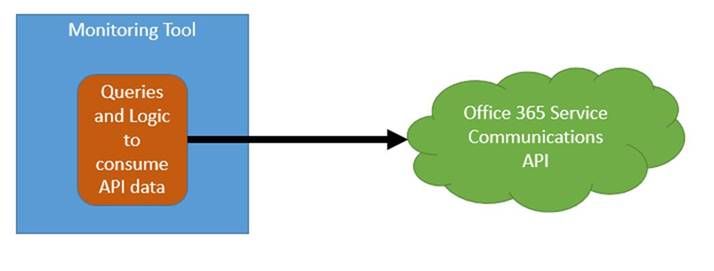
In order to integrate the information from the Office 365 Service Communications API with your existing monitoring toolset, there are two main options:
- Integrate the queries and logic directly into your toolset. This is how the Office 365 SCOM Management Pack is designed.
Often though, in large enterprises, the monitoring team may be in a separate organization from the Office 365-focused team. Often their priorities and timelines for such an effort in a 3rd party tool do not align. Also, it is often the case that the monitoring tools team’s skillset is phenomenal when it comes to the tool, but less experience exists in writing scripts with a focus on Office 365 scenarios. All of that can be worked through, but it is often simpler to have the Office 365 focused team(s) focus on the script and the business rules while the monitoring team focuses on the tool. In that case, the following scenario tends to work better:
- Decouple the queries and logic from the toolset. The script runs from a “watcher node” (which is just a fancy term for a machine that runs the script) owned by the Office 365-focused team, and then the monitoring team simply a) installs an agent on the watcher node b) scrapes the event IDs defined by the Office 365-team and c) builds a few wizard-driven rules within the monitoring tool. This approach also has the benefit of giving the Office 365-focused team some agility because script updates will not require monitoring tool changes unless the event IDs are changing. This approach is also helpful in environments where policy does not allow any administrative access to Office 365 by monitoring-owned service accounts.
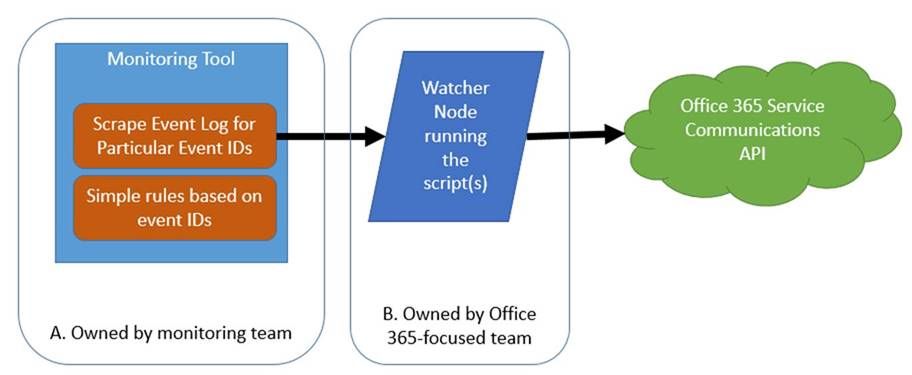
Microsoft does not have a preference as to which approach you take. We do want you to consume the communications as defined in the “monitoring scenarios” in this blog post, but how you accomplish that is up to you. For this blog post, however, we will focus on option #2.
The guidance and suggestions outlined below are shared by Chris Carlson. Chris is a consultant and helps organizations simplify their IT Service Management process integration with the Microsoft Cloud after spending time in the Office 365 product group. Chris has created sample code as an example (“B” above). Chris has also defined the rules and event structure that your monitoring team would use to complete their portion of the work (“A” above). The rest of this article is brought to you by Chris Carlson (thank you Chris!!)
Carroll Moon
———-
As Carroll has alluded, my recommended method for monitoring Office 365 is to leverage the Office 365 SCOM Management Pack. But for those Office 365 customer’s that do not already have an investment in System Center and no plans in the near future to deploy it, I don’t believe that should reduce the experience when it comes to monitoring our online services and integrating that monitoring experience into your existing tools and IT workflows. In order to realize Carroll’s decoupled design in section #2 above we will need some sort of client script or code that will call the API and then output the returned data into a format that we can easily ‘scrape’ into our monitoring tool. For the sake of this example, I will focus on how this can be accomplished using some sample code I published a few days ago. This sample code creates a Windows service that queries the Office 365 Service Communications API and writes the returned data into a Windows event log that can easily be integrated into most 3rd party monitoring tools available today. I’ll walk through the very brief installation process for the sample watcher service, run down the post installation configuration items needed to get you setup and then provide details on what events to look for to build monitoring rules. So let’s get started.
Installation
First off we need to download the sample watcher code and identify a host where we want this service to run. For the purpose of today’s write-up I am installing this onto my Windows 10 laptop but there should be no restriction as to where you run this. Of course the usual caveats apply that this is sample code and you should test in a non-production environment…with that disclaimer out of the way, if you are not one to mess with Visual Studio, for whatever reason, and don’t want to compile your own version of the watcher I did include a pre-compiled version of the service installer in the zip file you will find available for download. To locate this installer, simply download the sample solution, extract the zip file to a location on your local drive and navigate to the <Extracted Location>C#Service Installer folder and there you will find setup.exe.
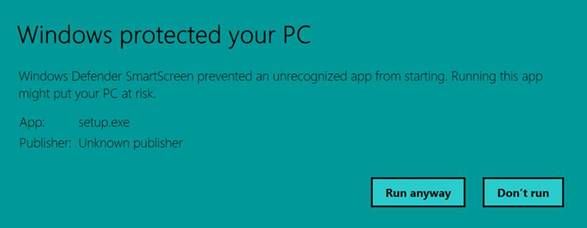
When running setup.exe may run into Windows Defender trying to protect you with the following warning message:

If this does appear, simply click the More info button I circled above and you’ll be presented with a Run anyway button which will allow you to bypass the defender protection, as shown below.
Once we are passed the Windows Defender warnings, the installation really is straightforward. There are three wizard driven screens that will walk you through the service installation process and as you will see in this sample there is no configuration required during the wizard, simply click Next, Install and Finish, as shown below.
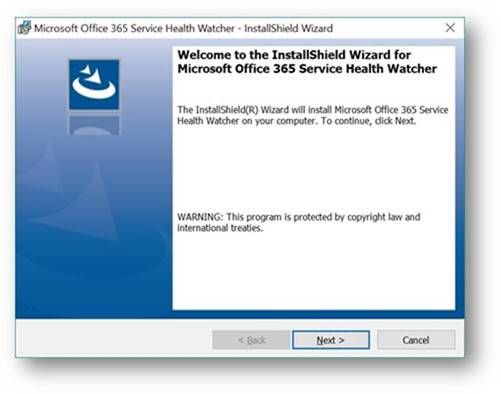
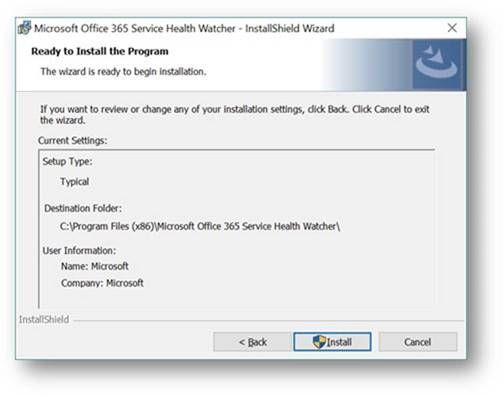
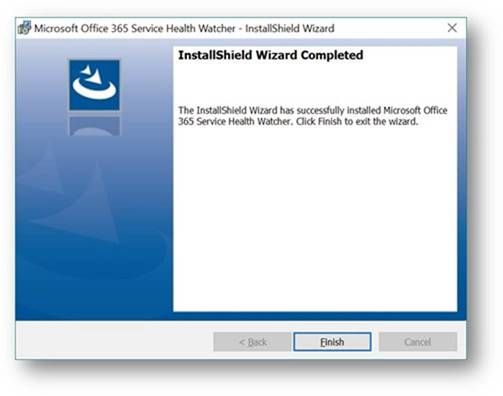
Once the installation wizard has completed, you can verify installation by looking at the list of installed applications via the usual places (Control Panel, Programs, Programs and Features). My Windows 10 machine shows the following entry.

In addition, you can open the services MMC panel (Start->Run->Services.msc) and view the installed service named Microsoft Office 365 Service Health Watcher. The service is installed with a startup type of automatic but left in a stopped state initially. This is because we have some post installation configuration to do prior to spinning it up for the first time. (Yes, I could have extended the install wizard to collect these items, but we’re all busy and this is sample code.) Please read on because the next section will discuss the required configuration items that need to be set and all the other possible values that are available in this sample to modify the monitoring experience.

Service Configuration
So now we have an installed Windows service that will poll the Office 365 Service Communications API for data but we need to tell that service which Office 365 tenant we are interested in monitoring. To do this we need to open the configuration file and enter a few tenant specific values. The service we installed above places files into the C:Program Files (x86)Microsoft Office 365 Service Health Watcher folder and it’s in that location that you will find the file named Microsoft Office 365 Service Health Watcher.exe.config. This is an XML file so you can open and modify it in any of your favorite XML editors, I am using trusty old Notepad for my editing today. When you open the file you will see a few elements listed, similar to the ones below, what we care about however are the attributes of the ConfigSettings element.
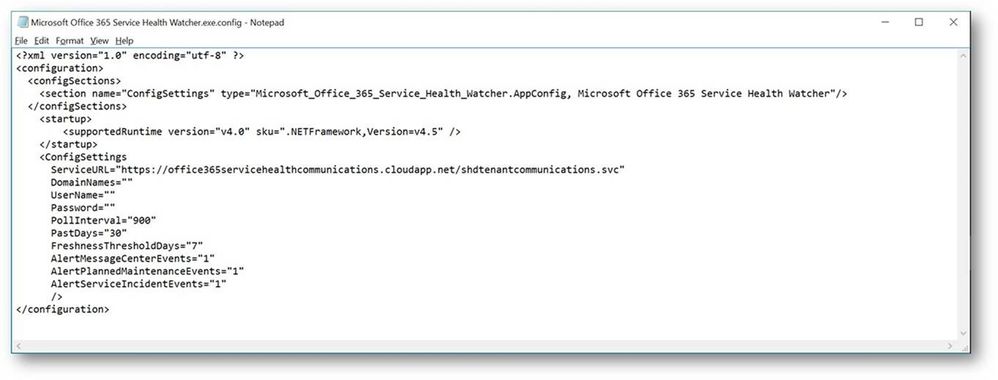
There are several attributes here that can change the way this sample operates, I have listed out all attributes and their meanings below in Table 1, but to get started you need only update the values for DomainNames, UserName and Password. Referring back to the sample code download page, DomainNames represents the domain name of the tenant to be monitored, i.e. contoso.com, adventureworks.com, <pick your favorite MSFT fake company name>.com. UserName needs to contain a user within that same tenant that has been granted the Service administrator role, for more information on Office 365 user roles please review the Office 365 Admin help page. Password is the final attribute that requires a value and this will be the password for the user you defined in the UserName attribute. As noted on the sample code page, this value is stored in plain text within this configuration file. This sample can certainly be extended with your favorite method of encrypting this value but for the sake of board sample usage I chose not to include that functionality at this time. I do however recommend the account used is one that only has the Service administrator role and you review who has permissions to this file to at least ensure a basic level of protection on these credentials.
Table 1 – Watcher Service Configuration items
|
Configuration Item
|
Description
|
|
ServiceURL
|
This is the URL endpoint for the Service Comms API
|
|
DomainNames
|
The domain name of the tenant to be queried for i.e. contoso.com
|
|
UserName
|
The name of a user, defined in the Office 365 tenant, that has ‘Service Administrator’ rights.
|
|
Password
|
The password associated with the above user. See notes about securing this value
|
|
PollInterval
|
This value determines how often, in seconds, the API is polled for new information. The default value is 900 seconds, or 15 minutes.
|
|
PastDays
|
How many days of historical data is retrieved from the API during each poll. The default value is 30 days and it is recommended not to modify this value.
|
|
FreshnessThresholdDays
|
The number of days the locally tracked data in the registry is considered ‘fresh’. This value only applies in case where the API has not been polled for an extended period of time. The sample code will ignore the data in the local registry and update it with new entries from the next API call.
|
|
AlertMessageCenterEvents
|
Can we used to turn off events related to general notifications found in the Message Center. A value of 0 will disable these events and a value of 1 will enable them, the default value is 1.
|
|
AlertPlannedMaintenanceEvents
|
Can we used to turn off events related to Planned Maintenance. A value of 0 will disable these events and a value of 1 will enable them, the default value is 1.
|
|
AlertServiceIncidentEvents
|
Can we used to turn off events related to Service Incident messages. A value of 0 will disable these events and a value of 1 will enable them, the default value is 1.
|
Once you have defined values for these three required items it’s time to fire up the service and give it a try! Read on for what to expect from this sample watcher and how you can, should you choose, build monitoring rules to integrate into your existing systems.
Using the watcher sample to monitor Office 365
To briefly recap, in the previous sections we have installed a sample watcher service and configured it with our Office 365 tenant specific information so now we are ready to let it connect to the Office 365 Service Communications API for the first time and start monitoring our Office 365 tenant, great! If we go to the services MMC panel (Start->Run->services.msc) we can start the service named Microsoft Office 365 Service Health Watcher, as shown below.

This service will write it’s events to the Application event log on the Windows host it was installed on. So let’s open Event Viewer (Start->Run->eventvwr.msc) and see what data we are getting back. Below is a screen shot of my Application event log filtered to an event source of Microsoft Office 365 Service Health Watcher, that is the source for all the events this sample writes to the Application event log. NOTE: You are certainly welcome to extend the sample and register your own source and event values if you like, sky is the limit on that kind of stuff.
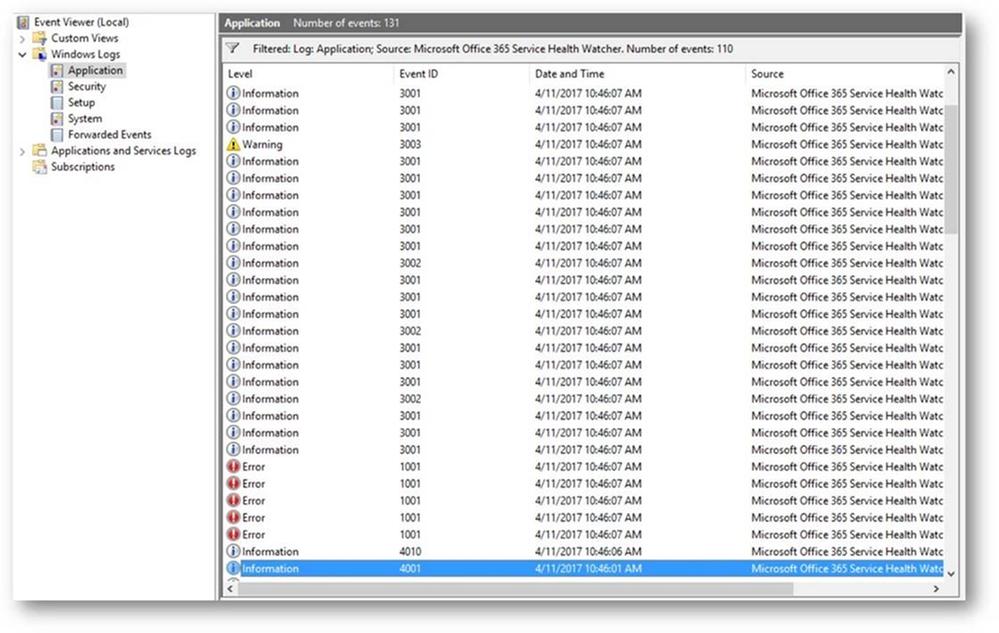
We see above that there is a lot of data coming back from the Service Communications API, so let’s dig into some of these events and see what data this thing is returning…
First we are greeted with a few standard messages, those events with IDs in the 4000 range are related to the watcher process itself, for instance the first two are basic messages that the service has in fact started and it’s starting a polling cycle:
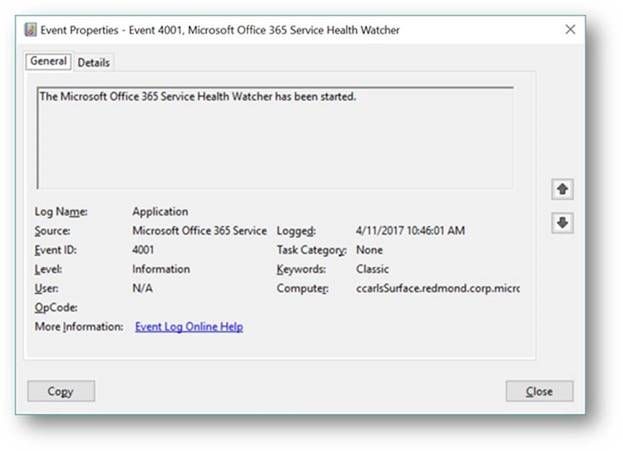

Not terribly interesting but they can be leveraged as a type of heartbeat to ensure monitoring of Office 365 is occurring. For instance, in most monitoring tools you can build a rule that contains logic that will alert when an event is NOT detected within a known period of time, in this case we should be dropping these events every 15 minutes assuming the default polling interval. If we don’t see event ID 4010 then we know we our monitoring is not working for some reason and need to investigate as we could miss important data related to Office 365 service incidents.
Moving on to examine a few more of the events, we see that the next one that was written was an error event with an ID of 1001, for this sample watcher event IDs in the 1000 range denote events related Service Incidents. We can see in the event below that this was an Exchange Online related issue with OWA access that occurred sometime back and has since been resolved.
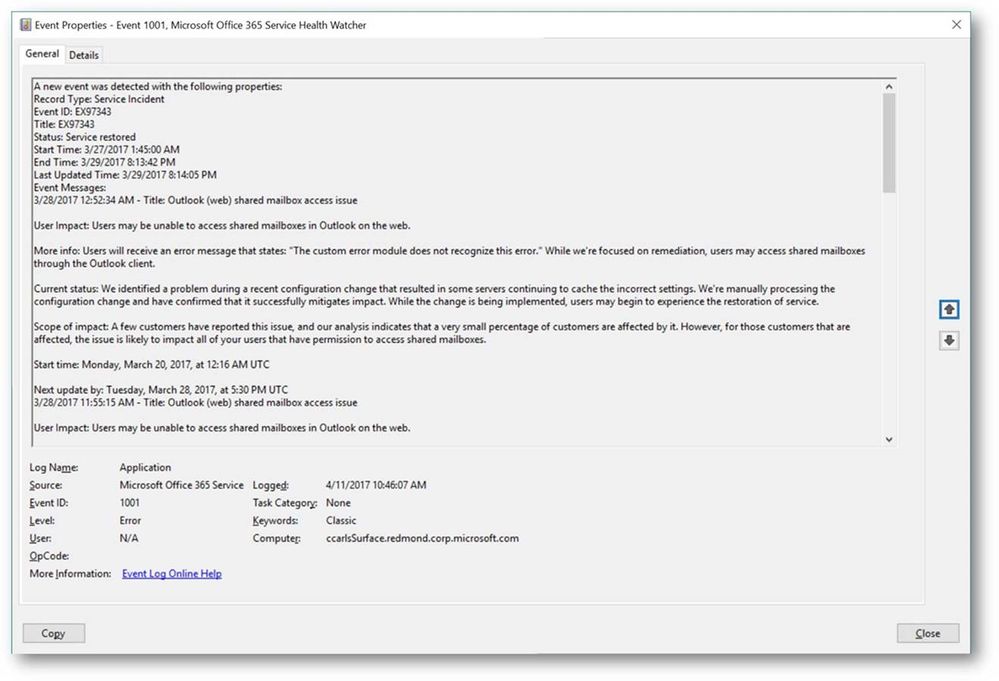
Service Incidents will progress through a series of state, or ‘status’, changes throughout the lifecycle of that incident so you can use the status field returned in these events to further key alerting to specific workflow states i.e. Service restored, Post-incident report published, etc.
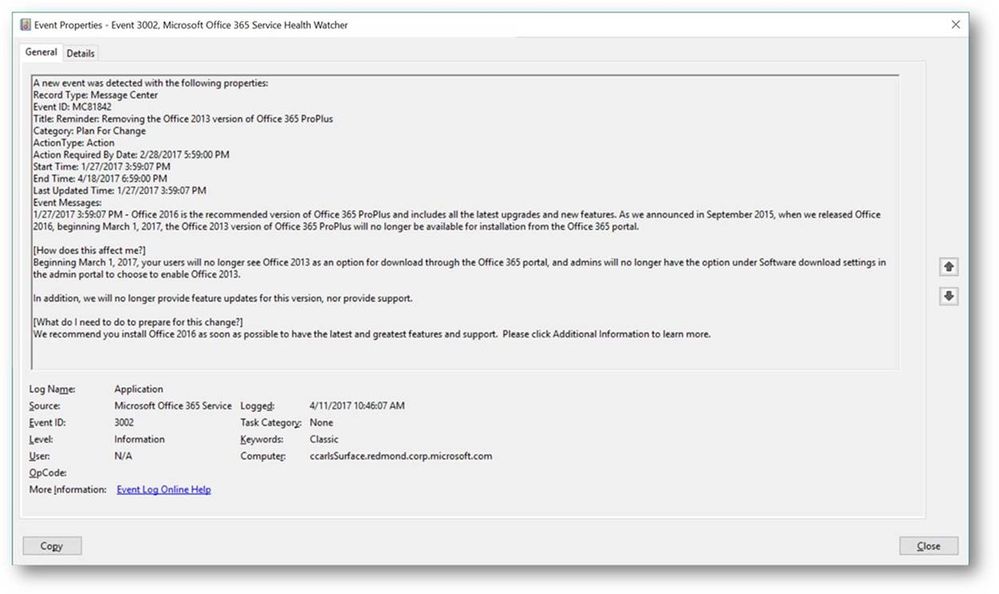
In addition to Service Incident events this watcher sample also drops events related to Planned Maintenance and Message Center event types. The Message Center is the primary change management tool for Office 365 and is used to communicate directly to admins and IT Pros. New feature releases, upcoming changes, and situations requiring action are communicated through the Office 365 Message Center and this API. The example below is a communication that Office 2016 is now recommended and that Office 2013 version of ProPlus will not be available from the portal starting March 1st.
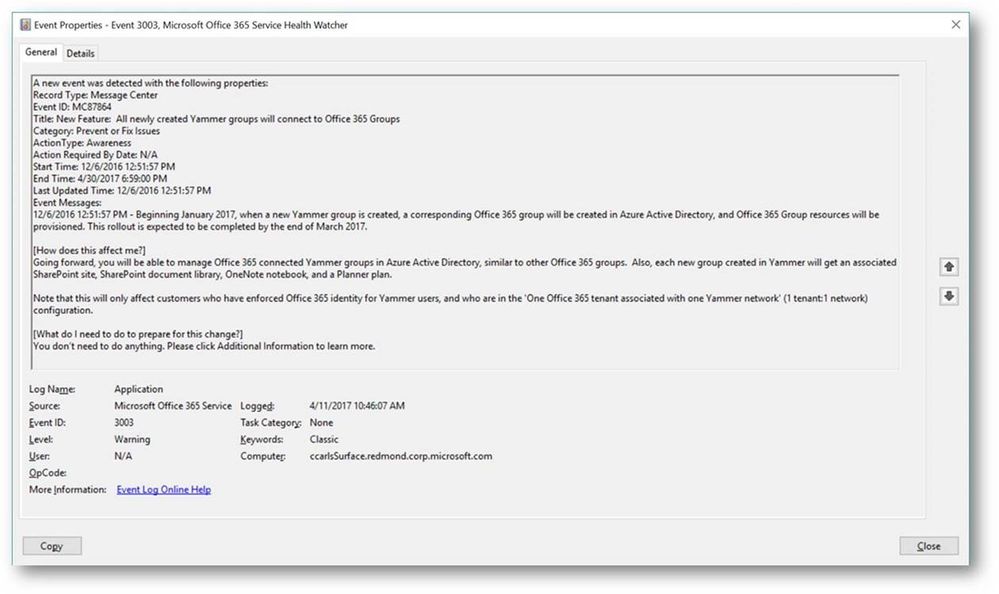
Another example, below, is a communication related to Yammer and how your tenant may be affected.
In many cases these messages, not just service incidents, represent direct action that needs to be taken by someone, whether that individual is within IT or another business unit depends but awareness of the messages needs to be communicated, or ‘alerted’, to the appropriate person or automated workflow. To that end the table below represents a full list of the event types and the event ID that can be dropped by this sample watcher service. In addition I have provided a description of what my intention was when writing the event to the event log and how it might be used to build monitoring related rules.
Table 2 – EventIDs and Descriptions
|
Event Type
|
EventID
|
Purpose
|
|
Service Incident
|
1001
|
This event indicates a new service incident has been posted for the monitored Office 365 tenant. This should be used to alert that a new service incident has been detected. NOTE: This will event will also be written when the service is started for the first time and an existing service incident is returned from the API. This will also be written when the watcher has been offline longer than the value listed in FreshnessThresholdDays in the XML config file.
|
|
Service Incident
|
1002
|
This event indicates a status change for a tracked service incident, since the last poll cycle. This should be used to notify that something noteworthy has changed with the service health state. A review of the service incident’s status message should take place to determine what the status change is. For example, if a service incident has changed from an active state to a resolved status.
|
|
Service Incident
|
1003
|
This event is used simply to inform that we are still seeing data being returned for a tracked service incident, it really is informational in nature.
|
|
Planned Maintenance
|
2001
|
This event is written when a new Planned Maintenance message has been posted for the tenant. The same conditions as noted for event 1001 apply as to the conditions under which this event would be written.
|
|
Planned Maintenance
|
2002
|
Like event 1002, this event informs that status has changed, since the last poll cycle, for this planned maintenance event. This event should indicate that a planned maintenance has started, cancelled or been completed.
|
|
Planned Maintenance
|
2003
|
Like event 1003, this event just notes that we are still seeing data for a tracked planned maintenance event and is informational only.
|
|
Message Center
|
3001
|
Indicates a new Message Center event with a category of ‘Stay Informed’ was returned by the API.
|
|
Message Center
|
3002
|
Indicates a new Message Center event with a category of ‘Plan for Change’ was returned by the API.
|
|
Message Center
|
3003
|
Indicates a new Message Center event with a category of ‘Prevent Or Fix Issues’ was returned by the API.
|
|
Health Watcher
|
4001
|
Indicates that the watcher service has been started
|
|
Health Watcher
|
4002
|
Indicates that the watcher service has been stopped
|
|
Health Watcher
|
4003
|
A connection attempt to the Service Communications API was attempted but was unsuccessful, possibly due to network connectivity or invalid credentials.
|
|
Health Watcher
|
4004
|
A successful connection to the Service Communications API was made but no event data was returned. A likely reason for this would be attempting to use a credential without enough permissions to retrieve data for the specified tenant.
|
|
Health Watcher
|
4006
|
Indicates that an unhandled exception was detected in watcher code.
|
|
Health Watcher
|
4008
|
This event is dropped when a tracking registry key is deleted. This would only occur if there is tracked data in the registry and the watcher enters a ‘first poll’ experience. This would most likely be when the watcher has been offline longer than the value of FreshnessThresholdDays.
|
|
Health Watcher
|
4009
|
This event is written when the XML configuration file does not contain a value for DomainName, UserName or Password. Typically this would be if the service is started before the XML config file has been updated.
|
|
Health Watcher
|
4010
|
An event that is written each time the API polling cycle begins i.e. every 15 min by default. This can be used to determine if API polling is still functioning i.e. monitor for the absence of this event within the last N # of minutes.
|
|
Health Watcher
|
4011
|
An event that is written each time the API polling cycle completes
|
More information
I am always looking for feedback and am happy to answer any questions. If you have any feedback, comments, questions, concerns or even suggestions on how to improve the sample watcher service feel free to leave comments on this blog post or use the Q & A section on the sample code download site. As Carroll mentioned, we’ll be looking to update this sample in the near future using the V2 API and incorporate the changes coming with that version.
<Please note: Sample code is shared for reference and not officially supported by Microsoft Support teams. All recommendations and best practices are the opinions are those of the authors. We recommend that you test and validate any code or scripts prior to deploying into production environments.>
![What’s new in Office 365 Administration – Ignite Edition]()
We’re back with another edition of the Modern Service Management for Office 365 blog series! In this article, we review the function of IT with Office 365 and evolution of IT Pro roles for the cloud. These insights and best practices are brought to you by Carroll Moon, Senior Architect for Modern Service Management.
Part 1: Introducing Modern Service Management for Office 365
Part 2: Monitoring and Major Incident Management
Part 3: Audit and Bad-Guy-Detection
Part 4: Leveraging the Office 365 Service Communications API
Part 5: Evolving IT for Cloud Productivity Services
Part 6: IT Agility to Realize Full Cloud Value – Evergreen Management
———-
In this installment of the blog series, we will dive into the “Business Consumption and Productivity” topic. The whole point of the “Business Consumption and Productivity” category is to focus on the higher-order business projects for whatever business you are in. If you are in the cookie-making business, then the focus should be on making cookies. The opportunity is to use Office 365 to drive productivity for your cookie-making users, to increase market share of your cookie business, or to reduce costs of producing or selling your cookies. This category is about the business rather than about IT. We all want to evolve IT to be more about driving those business-improvement projects. However, in order for IT to help drive those programs with (and for) the business, we need to make sure that the IT Pros and the IT organization are optimized (and are excited) to drive the business improvements. We all need to look at the opportunities to do new things by using the features and the data provided by the Office 365 service to drive business value rather than looking at what we will no longer do or what we will do differently. I always say that none of us got into IT so we could manually patch servers on the weekends, and none of us dreamed about sitting on outage bridges in the middle of the night. On the contrary, most of us got into IT so we could drive cool innovation and cool outcomes with innovative use of technology. I like the idea of using Office 365 as a conduit to get back to our dreams of changing the business/world for the better using technology.

For IT Pros
If you are an IT Pro in an organization who is moving to Office 365 (or to the cloud, or to a devops approach), I would encourage you to figure out where you want to focus. In my discussions with many customers, I encounter IT Pros who are concerned about what the cloud and devops will mean to their careers. My response is always one of excitement. There is opportunity! The following bullets outline just a few of the opportunities that are in front of us all:
- Business-Value Programs. If I were a member of the project team for Office 365 at one of our customers, I would not be able to contain my excitement for driving change in the business. I would focus on one or more scenarios; for example, driving down employee travel costs by using Skype for Business. Such a project would save the company money, but it would also positively impact people’s lives by letting them spend more time at home and less time in hotels for work, so such a scenario would be very fulfilling. I would focus on one or more departments or business units who really want to drive change. Perhaps it would be the sales department because they have the highest travel budget and the highest rate of employee turnover due to burnout in this imaginary example. I would use data provided by the Office 365 user reports and combine it with existing business data on Travel Cost/user/month. I would make a direct impact on the bottom line with my project. I would be able to prove that as Skype for Business use in the Sales Department went up, Travel Costs/user/month went down. That would be real, measurable value, and that would be fun! There are countless scenarios to focus on. By driving the scenarios, I would prove significant business impact, and I would create a new niche for myself. What a wonderful change that would be for many IT Pros from installing servers and getting paged in the middle of the night to driving measurable business impact and improving people’s lives.
- Evolution of Operations. In most organizations, the move to cloud (whether public or private), the move towards a devops culture, the move towards application modernization, and the growth of shadow-IT will continue to drive new requirements for how Operations provides services to the business and to the application development and engineering teams. As an operations guy, that is very exciting to me. Having the opportunity to define (or at least contribute to) how we will create or evolve our operational services is very appealing. In fact, that is a transformation that I got to help lead at Microsoft in the Office 365 Product Group over the years, and it was very fulfilling. For example, how can the operations team evolve from viewing monitoring as a collection of tools to viewing monitoring as a service that is provided to business and appdev teams? That is a very exciting prospect, and it is an area that will be more and more important to every enterprise over the next N years. The changes are inevitable, so we may as well be excited and drive the changes. We must skate to where the [hockey] puck is going to be rather than where it is right now. See this blog series and this webinar for more on the monitoring-as-a-service example.
- Operations Engineering. In support of the evolution of operations topic covered in the previous bullet, there will be numerous projects, services and opportunities where technical prowess is required. In fact, the technical prowess required to deliver on such requirements likely are beyond what we see in most existing operations organizations. Historically, operations is operations and engineering is engineering and the two do not intertwine. In the modern world, operations must be a series of engineering services, so ops really becomes an engineering discussion. Using our monitoring-as-a-service example, there will be a need to have someone architect, design, deploy, and run the new service monitoring service as described in this blog series.
- Operations Programs. In further support of the evolution of operations†topic, there will be the need for program management. That’s great news because there will be some IT Pros who do not want to go down the deep bits and bytes route. For example, who is program managing the creation and implementation of the new service monitoring service described this blog series? Who is interfacing with the various business units who have brought in SaaS solutions outside of IT’s purview (shadow IT) to convince them that it is the business best interest to onboard onto IT’s service monitoring service? Who is doing that same interaction with the application development teams who are moving to a devops approach? Who is managing those groups expectations and satisfaction once they onboard to the service monitoring service? Answer: Operations Program Manager(s) need to step up to do that.
- Modern Service Desk. Historically, Service Desks have been about “taking lots of calls†and resolving them quickly. The modern service desk must be about enabling users to be more productive. That means that we need to work with engineering teams to be about eliminating calls altogether and when we cannot eliminate an issue, push the resolution to the end-user instead of taking the call at the service desk. The goals should be to help the users be more productive. And that means that we also need to assign the modern service desk the goal of “go seek users to help them be more productive. As discussed in the Monitoring: Audit and Bad-Guy-Detection blog post, wouldn’t it be great if the service desk used the data provided by the service to find users who are having the most authentication failures so they could proactively go train the users? That is just one example, but such a service would delight the user. Such a service would help the business because the user would be more productive. And such a change of pace from reactive to proactive would be a welcome change for most of us working on the service desk. One of my peers, John Clark, just published a two-part series on the topic of Modern Service Desk: Part 1 and Part 2.
- Status Quo. Some people do not want to evolve at all, and that should be ok. If you think about it, most enterprises have thousands of applications in their IT Portfolios. Email is just one example. So, if the enterprise moves Email to the cloud, that leaves thousands of other applications that have not yet moved. Also, in most enterprises, there are new on-premise components (e.g. Directory Synchronization) introduced as the cloud comes into the picture; someone has to manage those new components. And, of course, there are often hybrid components (e.g. hybrid smtp mailflow) in the end-to-end delivery chain at least during migrations. And if all else fails, there are other enterprises who are not evolving with cloud and devops as quickly. There are always options.
The bullet list above is not exhaustive for Office 365. The bullets are here as examples only. My hope is that the bullets provide food for thought and excitement. The list expands rapidly as we start to discuss Infrastructure-as-a-Service and Platform-as-a-Service. There is vast opportunity for all of us to truly follow our passions and to chase our dreams. When automobiles were invented, of course some horse and buggy drivers were not excited. I have to assume, however, that some horse enthusiasts were very excited for the automobiles too. For those who were excited to change and evolve, there was opportunity for them with automobiles. For those who wanted to stay with the status quo and keep driving horse-drawn-buggies, they found a way to do that. Even today in 2017, there are horse-drawn-carriage rides in Central Park in New York City (and in many other cities). So, there is always opportunity.
For IT Management
In the ~13 years that I have focused on cloud services at Microsoft since our very first customer for what is now called Office 365 the question that I have been asked the most is “how do I monitor it? The second most frequent question comes from senior IT managers: How do I need to change my IT organization to support Office 365? And a close third most frequent question is from IT Pros and front-line IT managers: How will my role change as we move to Office 365?
Simplicity is a requirement. As you continue on this journey with us in this blog series, I encourage you to push yourself to keep it simple from the service management perspective. Change as little as possible. For example, if you can monitor and integrate with your existing monitoring toolset, do so. We will continue to simplify the scenarios for you to ease that integration. From a process perspective, there is no need to invent something new. For example, you already have a great Major Incident process you have a business and your business is running, so that implies that you are able to handle Major Incidents already. For Office 365, you will want to quantify and plan for the specific Major Incident scenarios that you may encounter. You will want to integrate those scenarios into your existing workflows with joined data from your monitoring streams and the information from the Office 365 APIs. We have covered those examples already in the blog series, so the simplistic approach should be more evident at this point.
From an IT Pro Role and Accountability perspective, it is important to be intentional and specific about how each role will evolve and how the specific accountabilities will evolve in support of Office 365. For example, how should the “Monitoring role change for Email? And how will you measure the role to ensure that the desired behaviors and outcomes are achieved?
What about the IT Organization?
Most of the time, when I get the IT organization question, customers are asking about whether they should reorganize. My answer is always the following: there are three keys to maximizing your outcomes with this cloud paradigm shift:
- Assign granular accountabilities…make people accountable, not teams. For example, if we miss an outage with monitoring, senior management should have a single individual who is accountable for that service or feature being adequately covered with monitoring.
- Ensure metrics for each accountability…#1 will not do any good if you cannot measure the accountability, so you need metrics. Most of the time, the metrics that you need for this topic can easily be gathered during your existing internal Major Problem Review process.
- Hold [at least] monthly Rhythm of the Business meetings with senior management to review the metrics. At Microsoft, we call these meetings Monthly Service Reviews (MSRs). In these meetings, the accountable individuals should represent their achievement (or lack of achievement) of their targets so that senior management can a) make decisions and b) remove blockers. The goal is to enable the decisions to be made at the senior levels without micro-management.
I tell customers that if they get those three things right, the organizational chart becomes about organizing their talent (the accountable people) into the right groups. If one gets those three bullets right, the org chart does not matter as much. However, no matter how one changes the IT Organizational chart, if one gets those three bullets wrong, the outcomes will not be as optimized as we want them to be. So, my guidance is to always to start with these three bullets rather than the org chart. The combination of these three bullets will drive the right outcomes. The right outcomes sometimes drive an organizational chart adjustment, but in most cases, organizational shifts are not required.
Think of it this way, if you move a handful of workloads to the cloud, the majority of your IT portfolio will still be managed as business-as-usual, so a major organizational shift just for the cloud likely will not make sense. If I have 100 apps in my IT portfolio and I move 3 apps to the cloud, then would I re-organize around the 3 apps? Or would I keep my organization intact for the 97 apps and adapt only where I must adapt for the 3 cloud apps?
The IT Organization is about the sum of the IT Pros
From a people perspective, the importance of being intentional and communicative cannot be overstated. Senior management should quantify the vision for the IT organization and articulate how Office 365 fits into that vision. It is important to remember that IT Pros are real people with real families and lives outside of work. Many IT Pros worry that the cloud means that they do not have a job in the future. That, of course, is not true. Just as the centralization of the electrical grid did not eliminate the need for electricians, the centralization of the business productivity grid into the cloud does not eliminate the need for the IT Pro. But just as the role of an electrician evolved as the generation of power moved from the on-premise-water-wheel to the utility grid, the role of IT Pro will evolve as business productivity services move to the cloud. The electrician’s role evolved to be more focused on the business-use of the electrical grid. So too will the IT Pro’s role evolve to support the business value realization of the business productivity services. We intend to help with that journey in future blog posts focused on the Consumption and Productivity category.
As senior management plans through the cloud, we recommend that they dig into at least the following role groupings to plan how each will evolve with respect to Office 365 workloads:
- Engineering / Tier 3 / Workload or Service Owners…will we still support servers, or will we focus on tenant management and business improvement projects?
- Service Desk Tiers and Service Desk Managers…will we support end-users in the same way? With the same documentation? Will our metrics stay the same, or should they evolve?
- Major Incident Managers…will we still run bridges for the Office 365 workloads? How will those bridges be initiated? Will our team’s metrics evolve? Given that many of the MSR metrics come from our Major Problem Reviews, is our team’s importance increasing?
- Monitoring Engineers and Monitoring Managers…will we accountable for whether we miss something with monitoring for Office 365 workloads? Or perhaps do we support the monitoring service with the Tier 3 engineers being accountable for the rule sets? Should we focus on building a Service Monitoring Service?
- Change and Release Managers…how are we going to absorb the evergreen changes and the pace-of-change from Microsoft and still achieve the required outcomes of our Change and Release Management processes?
As you spend time in the Monitoring and Major Incident Management content in this blog series, I encourage you to think through how implementation of the content may change things for the IT Pros using that example. If you implement the monitoring recommendations, will it be simply business-as-usual for your monitoring team? What about the Tier 3 workload team? Or, perhaps is it a shift in how things are done? Perhaps for your on-premise world, the monitoring team owns the monitoring tool and the installed Exchange monitoring management packs. Perhaps in practice, when there is an outage on-premise, the Service Desk recognizes the outage based on call patterns, and then they initiate an incident bridge. Perhaps once the bridge is underway, someone then opens the monitoring tool to look for a possible root cause of the outage. Will that same approach continue in the cloud for Exchange Online, or should we look to evolve that? Perhaps in the cloud we should have the Tier 3 workload team be accountable for missed by monitoring for any end-to-end impact for Exchange regardless of where root cause lies. Perhaps we should have the monitoring team be accountable for the monitoring service with metrics like we describe here. And perhaps we should review both the Exchange monitoring metrics and the Monitoring Service metrics (and any metric-misses) every month in a Monthly Service Review (MSR) with the IT executive team as covered in #3 above. What I describe here is usually a pretty big, yet desirable, culture shift for most IT teams.
Some customers want hands-on assistance
As I mentioned, I get these questions often. Some customers want Microsoft to help guide them on the IT Pro and organizational front. In response to customer requests, my peers and I have created a 3-day, on-site course for IT Executives and IT Management to help them plan for the people side of the change. The workshop focuses on the scenarios, personas and metrics for the evolution discussed in this blog post. The workshop also helps develop employee communications and resistance management plans. The workshop is part of the Adoption and Change Management Services from Microsoft. Ask your Technical Account Manager about the “Managing Change for IT Pros: Office 365†workshop, or find me onTwitter @carrollm_itsm.
Looking ahead
My goal with this blog post is to get everyone thinking. I hope that the commentary was helpful. We’ll jump back into the scenarios in the next post which will focus on Evergreen Management.
![What’s new in Office 365 Administration – Ignite Edition]()
Announcing the public preview of the Office 365 Adoption Content Pack in PowerBI
Understanding how your users adopt and use Office 365 is critical for you as an Office 365 admin. It allows you to plan targeted user training and communication to increase usage and to get the most out of Office 365.
Today, we’re pleased to announce the public preview of the Office 365 Adoption Content Pack in Power BI, which enables customers to get more out of Office 365.
The content pack builds on the usage reports in the Office 365 admin center and lets admins further visualize and analyze their Office 365 usage data, create custom reports, share insights and understand how specific regions or departments use Office 365.
It gives you a cross-product view of how users communicate and collaborate making is easy for you to decide where to prioritize training efforts and to provide more targeted user communication.
Read the blog post on Office blogs for all details:
https://blogs.office.com/2017/05/22/announcing-the-public-preview-of-the-office-365-adoption-content-pack-in-powerbi/

If you have questions, please post them in the Adoption Content Pack group in the Microsoft Tech Community. Also, join us for an Ask Microsoft Anything (AMA) session, hosted by the Microsoft Tech Community on June 7, 2017 at 9 a.m. PDT. This live online event will give you the opportunity to connect with members of the product and engineering teams who will be on hand to answer your questions and listen to feedback. Add the event to your calendar and join us in the Adoption Content Pack in Power BI AMA group.

We are excited to announce our second major update of Office Online Server (OOS), which allows organizations to deliver browser-based versions of Word, PowerPoint, Excel and OneNote to users from their own datacenters.
In this release, we officially offer support for Windows Server 2016, which has been highly requested. If you are running Windows Server 2016, you can now install OOS on it. Please verify that you have the latest version of the OOS release to ensure the best experience.
This release includes the following improvements:
- Performance improvements to co-authoring in PowerPoint Online
- Equation viewing in Word Online
- New navigation pane in Word Online
- Improved undo/redo in Word Online
- Enhanced W3C accessibility support for users that rely on assistive technologies
- Accessibility checkers for all applications to ensure that all Office documents can be read and authored by people with different abilities
More about Office Online Server
Microsoft recognizes that many organizations still value running server products on-premises for a variety of reasons. With Office Online Server, you get the same functionality we offer with Office Online in your own datacenter. OOS is the successor to Office Web Apps Server 2013 and we have had three releases starting from our initial launch in May of 2016.
Office Online Server scales well for your enterprise whether you have 100 employees or 100,000. The architecture enables one OOS farm to serve multiple SharePoint, Exchange and Skype for Business instances. OOS is designed to work with SharePoint Server 2016, Exchange Server 2016 and Skype for Business Server 2015. It is also backwards compatible with SharePoint Server 2013, Lync Server 2013 and, in some scenarios, with Exchange Server 2013. You can also integrate other products with OOS through our public APIs.
How do I get OOS/download the update?
If you already have OOS, we encourage you to visit the Volume License Servicing Center to download the April 17 release. You must uninstall the previous version of OOS to install this release. We only support the latest version of OOS with bug fixes and security patches, available via the Microsoft Updates Download Center.
Customers who do not yet have OOS but have a Volume Licensing account can download OOS from the Volume License Servicing Center at no cost and will have view-only functionality, which includes PowerPoint sharing in Skype for Business. Customers that require document creation, edit and save functionality in OOS need to have an on-premises Office Suite license with Software Assurance or an Office 365 ProPlus subscription. For more information on licensing requirements, please refer to our product terms.
In the modern world, organizations are transforming how they work with their partners and customers. This means seizing new opportunities quickly, reinventing business processes, and delivering greater value to customers. More important than ever are the strong and trusted relationships that allow for employees to collaborate with partners, contractors and customers outside the business.
At Microsoft, our mission is to empower every person and every organization on the planet to achieve more and we can do this by helping organizations work together, better. Business-to-business collaboration (B2B collaboration) allows Office 365 customers to provide external user accounts with secure access to documents, resources, and applications—while maintaining control over internal data. This let’s your employees work with anyone outside your business (even if they don’t have Office 365) as if they’re a user in your business.
There’s no need to add external users to your directory, sync them, or manage their lifecycle; IT can invite collaborators to use any email address—Office 365, on-premises Microsoft Exchange, or even a personal address (Outlook.com, Gmail, Yahoo!, etc.)—and even set up conditional access policies, including multi-factor authentication. Your developers can use the Azure AD B2B colloboration APIs to write applications that bring together different organizations in a secure way—and deliver a seamless and intuitive end user experience.
B2B collaboration is a feature provided by Microsoft’s cloud-based user authentication service, Azure AD. Office 365 uses Azure AD to manage user accounts and is included as part of your Office 365 scubscription. For more information on Office 365 and the Azure AD version that is included visit the technical documentation.
What you need to know about Azure AD B2B collaboration and Office 365:
- Work with any user from any partner
- Partners use their own credentials
- No requirement for partners to use Azure AD
- No external directories or complex set-up required
- Simple and secure collaboration
- Provide access to any corporate application or resource
- Seamless user experiences
- Enterprise-grade security for applications and data
- No management overhead
- No external account or password management
- No sync or manual account lifecycle management
- No external administrative overhead
Over 3 million users from thousands of business have already been using Azure AD B2B collaboration capabilities available through public preview. When we talk to our customers, 97% have told us Azure AD B2B collaboration is very important to them. We have spent countless hours with these customers diving into how we can serve their needs better with Azure AD B2B collaboration. Today’s announcement would not be possible without their partnership.
To get started, watch our latest Micrsofot Mechanics Video to see the benefits of cloud-based B2B identity and access management. You can read more details on the Azure AD B2B team blog (including the licensing requirements) and then get started with Azure Active Directory B2B collaboration today.

Oooo… Things are gaining ground in the SharePoint 2016 arena. A fantastic set of links to resources, concerning planning, setup, operations, upgrading and lot more is available on the TechNet site.
(more…)







