

Develop Applications that use Sites.Selected permissions for SPO sites.
Develop Applications that use Sites.Selected permissions for SPO sites.
Microsoft Graph APIs have improved consistently over the years.
In 2021, one highly demanded feature, Application Only or granular access to individual site instead of whole tenant, was implemented, this scope is called “Sites.Selected”.
Initially, for this scope, there are two permission levels that can assigned to the Applications, “read” and “write.”
Some customers found there are management tasks cannot be executed with even “write” permission level. To address that, “fullcontrol” and “manage” permission level was added this year.
Here are the steps to implement App Only Sites.Selected permissions:
Step I, Register AAD Application in Azure Portal, https://portal.azure.com, and let’s call this Application “Target Application”.
Please see these articles for details:
Quickstart: Register an app in the Microsoft identity platform – Microsoft Entra | Microsoft Learn
Tutorial: Register an app with Azure Active Directory (Microsoft Dataverse) – Power Apps | Microsoft…
Once you registered the Target Application, copy below information to a text file:
Display name: Contoso Time Manager App
Client Id: d806f38b-a107****-1ec8e90c8ccc
Client Secret: XZW8Q*****855JDEw1cxP
Directory(tenant) ID: 31********95c59c1b
Step II, Give Target Application the permission for Graph API and/or SharePoint API in Azure Portal depending on whether you will access the site resource with
Graph API, like, https://graph.microsoft.com/v1.0/…
or SharePoint Rest API, like, https://contoso.sharepoint.com/sites/demo/_api/…
If you need to use Graph API to access SharePoint, you give Graph API permissions.
If you need to use SharePoint APIs, for example, SPO Rest API, SPO CSOM, you give SharePoint API permissions.

Step III, Use Graph API endpoint listed in this article, https://learn.microsoft.com/en-us/graph/api/site-post-permissions?view=graph-rest-1.0&tabs=http , to assign Target Application the permission to specific SharePoint Online site.
Content-Type: application/json{
“roles”: [“write”],
“grantedToIdentities”: [{
“application”: {
“id”: “89ea5c94-7736-4e25-95ad-3fa95f62b66e”, //Target Application’s Client Id
“displayName”: “Contoso Time Manager App” //Target Application’s Display name
}
}]
}
The import thing is, to do that, you need to have another Application which has Sites.FullControl.All permission for Graph API, then you get an App Only AccessToken with this Application’s identity and you can make above call with Authorization Header, the value is “Bearer {tokenvalue}”.
Below is Fiddler Trace of the Graph API call to assign permission for the target Application:

Authorization: Bearer eyJ0eXAiOiJKV8CJY2R……………qtlW1WoBXu3fdR8G7R-
Accept: application/json
User-Agent: NONISV|SharePointPnP|PnPCore/1.11.2.0 (Microsoft Windows NT 10.0.22621.0)
Content-Type: application/json
Host: graph.microsoft.com
Content-Length: 132
{“roles”:[“write”],”grantedToIdentities”:[{“application”:{“id”:”ea5f05ef-2a5c-418b-b679-0380b3e83fd3″,”displayName”:”aadAppOnly”}}]}
Now, your Target Application has been given the permission to the specific site successfully!
If you have chosen Graph API Sites.Selected Application permission, you can use Graph API to access the site.
If you have chosen SharePoint Sites.Selected Application permission, you can use SharePoint Rest API or CSOM to access the site.
NOTE, For SharePoint APIs, you cannot use just client secret to do the authentication, you have to setup certificate to gain Access Token.
A. Graph API Test Run:
To Test the access to specific site, you can use following sample PowerShell script to get App Only Access Token and retrieve the site with Graph API, see reference https://learn.microsoft.com/en-us/graph/api/site-get?view=graph-rest-1.0&tabs=http
$tenantId=”{tenantId}”
$aadClientId = “{clientId}”
$aadClientSecret = “{clientSecret}”
$scopes = “https://graph.microsoft.com/.default”
$loginURL = “https://login.microsoftonline.com/$tenantId/oauth2/v2.0/token”
$body = @{grant_type=”client_credentials”;client_id=$aadClientId;client_secret=$aadClientSecret;scope=$scopes}
$Token = Invoke-RestMethod -Method Post -Uri $loginURL -Body $body
$Token.access_token #expires after one hour
$headerParams = @{‘Authorization’=”$($Token.token_type) $($Token.access_token)”}
$headerParams
#Graph API call to get site
Invoke-WebRequest -Method Get -Headers $headerParams -Uri “https://graph.microsoft.com/v1.0/sites/contoso.sharepoint.com:/sites/demo”
Response:
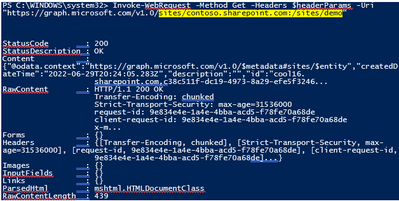
If you try to access another site that permission has not been given to, you will get error (403) Forbidden.:

B. SharePoint API Access:
To make App only SPO REST and CSOM calls, you will need to generate certificates and upload the public key (.cer file) to Azure – App Registration – App – Certificates & secrets:
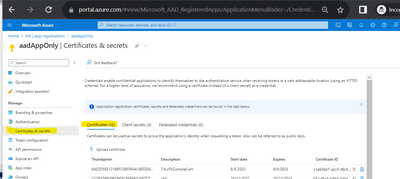
The simplest test script using PnP commands: Reference: Connect-PnPOnline | PnP PowerShell
$SiteURL = https://contoso.sharepoint.com/sites/demo
$secure = ConvertTo-SecureString “***” -AsPlainText –Force
Connect-PnPOnline -Url $SiteURL -CertificatePath c:..test.pfx -Tenant contoso.onmicrosoft.com -ClientId $aadClientId -CertificatePassword $Secure
Get-PnPSite
In other programming languages, you can use MSAL library to get the App Only Access Token with certificate through client credential flow, then you can attach that Token for the web requests, see reference: https://learn.microsoft.com/en-us/azure/active-directory/develop/sample-v2-code.
#2 – Bash command for File Navigation
Why should developers and testers should learn Linux and shell scripting?
#1 – Getting started with Shell scripting – Introduction and Installation
Improving the Azure OpenAI models in Power Automate to save people time
In October of 2022 we released the Describe it to design it feature where you can write a simple sentence and get a flow based on this description. In this post, we’ll dive more into the details of the improvements we’ve been making with this feature.







