
Power Automate for desktop – March 2022 update
Power Automate for desktop comes with new additions in March 2022 release, including the support of Internet Explorer mode in Microsoft Edge for web actions.
See what’s new for Power Automate at the Microsoft Business Applications Launch Event
We’re excited to invite you to the Microsoft Business Applications Launch Event on April 6. Register now for your first look at hundreds of new features, enhancements, and innovations to transform your business into a more agile, customer-centric organization.
Part 9 – Understanding Separation of Concerns and writing better software test automation code
Starting 2022 with the release of twenty-three new and updated connectors
We are excited to start 2022 by releasing a total of twenty-three new and updated connectors, developed by their API owners, with eleven new connectors and twelve updates. Read this post to learn more about these services and their capabilities.
Explore the new AI Builder homepage
The new AI Builder’s explore page is available. This new page provides clearer, useful material to get started with AI Builder.
API Testing with RestSharp along with framework development in C# .NET [Course Intro]
Automate your work day with workflows in Teams
Automating your routine tasks has now become a more fundamental part of our work and our organizations. Therefore we’re bringing easy to use workflow automation powered by Power Automate directly within the Teams Store.

Enable management of content types and add taxonomy columns from modern libraries and lists view
For organizations, finding and governing content is critical to improve productivity. Content metadata—also called properties, attributes, columns, terms, or tags—is vital for information architecture, workflow, and compliance. Our taxonomy service (formerly known as Managed Metadata Service, or MMS) delivers centralized management of taxonomy (hierarchies of tags and terms) and content types (reusable collection of metadata).
As we launched SharePoint Syntex, our first step was to update the taxonomy experience, which included modernizing the term store and content type gallery and introducing programmatic support to manage Taxonomy and Content Types.
Now, as we progress towards building more features that aid in better content classification and management, we will be releasing the following features in March-April’2022 timeline:
- Add taxonomy column from modern library views
- Enable management of content types from modern library views
With both the releases, we will empower admins and information workers to unlock the power of taxonomy in document libraries without having to switch context and move to different pages to configure.
1. Add Taxonomy column from modern SharePoint library views
Users will see a new Managed metadata option as a column type within the Add column menu in SharePoint lists and libraries.
Figure 1: Managed metadata option visible in the Add Column menu
On selecting the option, users will be able to specify the column information such as its name and description and select the desired term set or term that exists within your organization, to associate the column with.
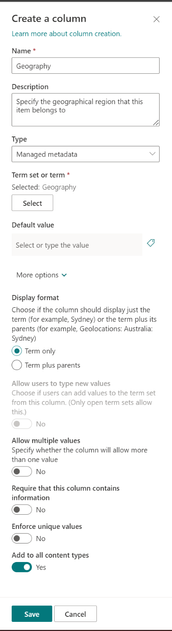
Figure 2: Configuration options for Managed metadata column
On clicking Select for term set or term, you can see an intuitive term picker where you can select the desired term or type in relevant term set and get suggested term set to associate the column with.

Figure 3: Term picker to select or find relevant term set to associate with Taxonomy column
Before this update, users had to create managed metadata columns from within “More options” in the Add column experience.
2. Enable management of content types from modern library views
If you are a SharePoint site collection administrator, you can now enable management of content types directly from SharePoint modern document library and list views, instead of having to navigate to classic library settings
What’s a content type? A content type is a reusable collection of metadata (columns) and it enables you to manage the settings for a category of information in a centralized, usable way. In essence, content types allow you to group on different columns and save custom views.
SharePoint site collection administrators will see Content Type option in the Add Column menu, even when they have not enabled Allow management of Content types from the Advanced settings option of Library Settings.
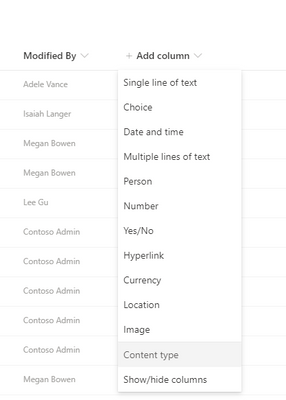
Figure 4: Content type option visible in the Add Column menu
Once the admin selects the desired Content types for the library and clicks on Apply, we will enable content types for the library automatically and then sync the content types to the library or list.
Adopting the taxonomy service to consistently manage and govern content across SharePoint document libraries and lists will provide great value to SharePoint, and deliver new premium value to Syntex and Microsoft Viva Topics .
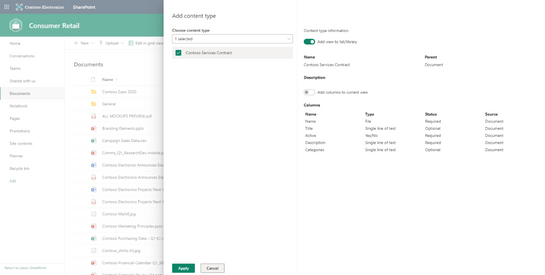
Figure 5: Apply content types and automatically enable management of content types in the library
Before this update, users had to enable management of content types from Settings > Library Settings > Advanced Settings experience.
This new option will be visible in SharePoint lists & libraries to users having SharePoint site collection administrator permission. But once Content Types are applied to the library, all users can view the Content Type option from Add Column menu, as is the current behavior. The existing option of enabling management of Content types within List setting & Library settings will continue to be available.
VillageMD designs a “legal OS” using SharePoint, Lists and Power BI
We’re pleased to share a new customer success story, from VillageMD – a national leader in value-based clinical care extending primary care access to more than 1.6 million patients through providers operating in 200-plus clinics across the United States.
VillageMD, designed a “legal OS” on SharePoint + Microsoft Lists + Microsoft Forms + Power Automate + Power BI to track activities, self-serve auto-generated contracts, and visualize progress. They looked to Microsoft 365 to power and automate technological transformation with self-service legal operations – especially for their non-technical, internal clients.
And to make things more approachable for any of their non-technical, internal clients, they refer to the system as “Sharon Pointer” – a nice nod to the friendly AI who’s there to help: SharePoint :).
You can watch the video below and read the full case study on the Microsoft customer stories site: “VillageMD powers technological transformation of legal operations with Microsoft services“:
Last, a fun, real compliment Sharon got from someone inside VillageMD:
“Sharon, Thank you so much for your super quick turnaround with the NDAs! Appreciate you very much!”
Go, Sharon Pointer, go!
Cheers, Mark







