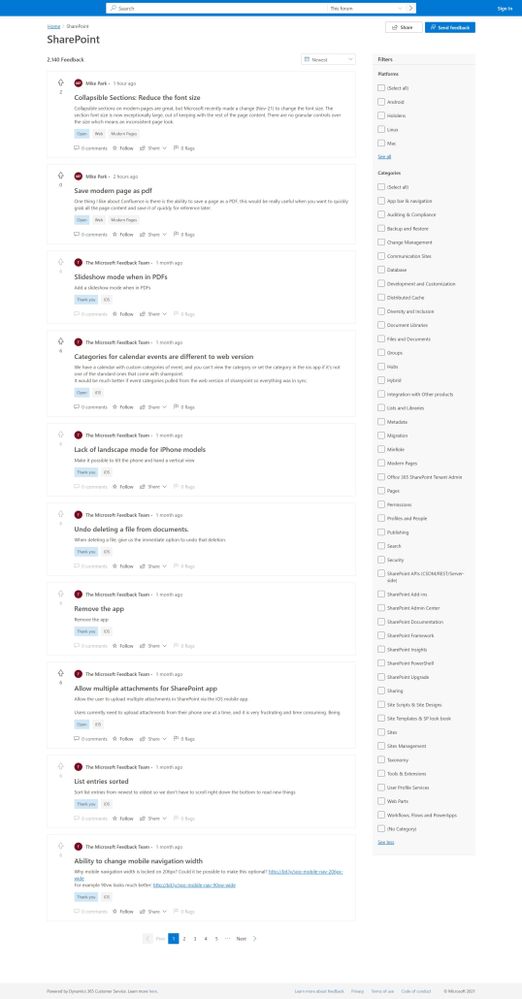
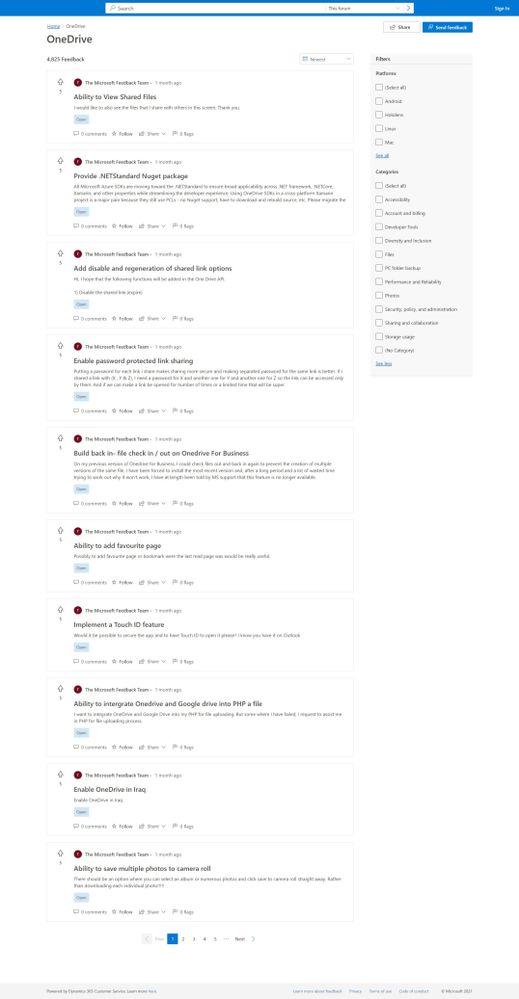
Over the years, we have enjoyed getting your feedback through SharePoint UserVoice. We’ve been hard at work on the replacement solution, one that carries forward past submissions and evolves for feedback going forward. Today, we are happy to announce support the Microsoft Feedback portal. It’s in preview and ready for your feature ideas and feedback for OneDrive and SharePoint.
The Feedback portal is built on Dynamics 365 Customer Service and is a central location for numerous Microsoft products. You can give feedback for Teams, SharePoint, OneDrive, Yammer, Microsoft Stream, Microsoft Viva, and more. Our primary goal is to advance the development of our products and services, guided by your input.
The Feedback portal allows people to submit their own feedback, browse other ideas, track official Microsoft responses, view top voted customer ideas, upvote the feedback they agree with, and comment on ideas throughout.
In Feedback, users will also be able to easily track their favorite ideas through the ‘star’ icon and receive notifications when those ideas are responded to by Microsoft.
Explore the new Feedback portal segments for OneDrive and SharePoint at:
We appreciate all the suggestions, ideas, feedback, and details you share with us, all the ways that make this the best community in technology – with open dialog and two-way engagement.
Learn more about Feedback at Microsoft.
Thank you and let us know what you’re thinking.
We are dramatically raising the Power platform daily request volume throttles that have existed for Power Apps, Power Automate, Power Virtual Agents, and Dynamics 365 users, and, enabling pay-as-you-go for overages.

The Microsoft 365 Collaboration Conference offers five in-person Microsoft keynotes from Scott Guthrie, Jeff Teper, Karuana Gatimu, Charles Lamanna, and Dan Holme.
- What: Microsoft 365 Collaboration Conference to learn more
- When & where: December 7-9, 2021 | In-person event – Las Vegas, Nevada – MGM Grand
- Sessions: 4 Microsoft keynotes || 200+ overall sessions | 20 full-day workshops
- Presenters: 150+ speakers | Microsoft, MVPs, and community members
- Twitter & hashtag: @M365CONF | #M365CONF
- Cost: $1,749 full conference (additional costs for full-day workshops) – learn more
“Innovation, customer success, and category leadership is only possible because of the support of the best community in tech. Your engagement at events around the world and feedback to us has inspired all of us to do our best work.” – Jeff Teper, Corporate Vice President, Teams, SharePoint, and OneDrive – Microsoft
Join Microsoft and community experts in person in one place. The Microsoft 365 Collaboration Conference returns to Las Vegas, NV, December 7-9, 2021. It’s dedicated to SharePoint, Teams, Viva, Power Platform, and related technologies. You’ll hear the latest news and roadmap from top industry experts, filled with real-world solutions across keynotes, sessions, and pre/post event deep-dive workshops to build your expertise – presented by Microsoft product team members, Microsoft MVPs, and community experts. We hope you join in to learn, share, and engage.
Microsoft keynotes, sessions, and workshops: SharePoint, Viva, OneDrive, and related technology
Microsoft keynotes
Hear from Microsoft leadership revealing the latest innovations shaping the flexible, innovative, and secure business environments of the future. [all times listed in PST]
- “Innovate anywhere from multicloud to edge” with Scott Guthrie – EVP, Cloud + AI Platform | Tuesday, December 7th, 8:00am – 9:15am
- “Embracing the hybrid workplace – progress and plans for Microsoft Teams, OneDrive, and SharePoint” with Jeff Teper – CVP, OneDrive, SharePoint, and Teams | Tuesday, December 7th, 9:30am – 10:45am
- “Build a hyperconnected business” with Charles Lamanna – CVP, Business Applications & Platform | Wednesday, December 8th, 8:00am – 9:00am
- “Culture and communications for hybrid work” with Karuana Gatimu – Principal Manager, Customer Advocacy Group (Microsoft Teams) and Dan Holme – Principal Product Manager Lead (Yammer) | Thursday, December 9th, 8:00am – 9:00am
- “Media and entertainment panel discussion” with Simon Crownshaw, George Howell, Jonathan Silverstein, and Zoiner Tejada | Thursday, December 9th, 2:00pm – 3:00pm
Microsoft AMA and breakout sessions [45-60 minutes; all times listed in PST]
Take the opportunity to select the sessions best suited for your role and interests. All breakouts are packed with news, demos, customer stories, and insights into product and solution strategy. You can review all sessions with a subset of Microsoft-led sessions listed below:
“Microsoft AMA” with Jeff Teper, Cathy Dew, Chris McNulty, Dan Holme, Karuana Gatimu, Laurie Pottmeyer, Liz Sundet, Mark Kashman, Naomi Moneypenny, and Stephen Rose | Wednesday, December 8th, 9:15am – 10:00am PST
Microsoft Viva and SharePoint Syntex [sessions]
SharePoint, OneDrive, Lists, Office, and related technology [sessions]
Microsoft Teams [sessions]
Power Platform [sessions]
Lightning sessions (25 minutes)
Full-day, Microsoft-led workshops [all times listed in PST]
The learning and skilling continues, on your own time. Take a deep dive into technology to help refine your practices and bring learnings back to your team and organization to extend the application and use of your Microsoft 365 investment. All Microsoft 365 Collaboration Conference workshops either take place pre-event on Sunday (Dec.5) or Monday (Dec.6) or post-event on Friday (Dec.10).
- “Go further with Microsoft Lists” with Mark Kashman – senior product manager (SharePoint/Lists) | Sunday, December 5th, 9:00am – 4:00pm
- “Microsoft Viva: Fundamentals for deployment and adoption” with team members from Avanade: Anthony Molisani, Austin Govella, Jill Hannemann, Michelle Boyd, Michelle Caldwell, Stephanie Meyer, and Tiffany Songvilay, plus introduction and Q&A with Microsoft: Chris McNulty, Liz Sundet, and Naomi Moneypenny | Monday, December 6th, 9:00am – 4:00pm
- “Building solutions for Microsoft Teams and SharePoint – PowerClass” with Hugo Bernier, Beau Cameron, Chris Kent, David Warner, Julie Turner, and Marc D. Anderson | Monday, December 6th, 9:00am – 4:00pm
- “Level up: Unlock your career and personal skills” with Cathy Dew and Liz Sundet | Friday, December 10th, 8:00am – 3:00pm
- “It’s time to get started with BOTS in Microsoft 365” with Bob German and Mark Rackley | Friday, December 10th, 9:00am – 4:00pm
Conference Health Protocols from the Microsoft 365 Collaboration Conference event team
“The Microsoft 365 Collaboration Conference is creating a safer space for you, please note Las Vegas is doing the same, requiring masks at all hotels and conference areas and proof of Covid-19 vaccinations at some concerts, sporting events, and conferences. In accordance with these local requirements, we will require that all attendees, staff, and speakers at the December conference provide proof of vaccination at registration via digital or paper vaccination card or a negative Covid-19 test within 72 hours.”
 Microsoft 365 Collaboration Conference speakers and attendees must provide proof of vaccination at registration via digital or paper vaccination card or a negative Covid-19 test within 72 hours.
Learn more
Visit M365Conf.com and follow the action on @Twitter: @M365CONF, @SharePoint, @OneDrive, @MSPowerPlat, and @MicrosoftTeams.
Cheers,
Mark Kashman, senior product manager – Microsoft
In September and October, there were a total of 14 new Independent Publisher connectors.
As organizations begin to grow and scale RPA it is critical to do so in a responsible way. To support the ability for enterprise admins to apply managements and controls over automations, we are happy to announce that data loss prevention (DLP) for desktop flows is now in preview.
At Ignite, we announced the next evolution in helping organizations streamline how they work with the preview of process mining via process advisor in Microsoft Power Automate.
Posted at https://aka.ms/SharePoint/SPSE.
Following the September release of Office LTSC and SharePoint Server Subscription Edition Public Preview, we’re pleased to announce that SharePoint Server Subscription Edition is now generally available.
SharePoint Server Subscription Edition represents the next step in the SharePoint Server journey emphasizing the specific needs of our on-premises customers and includes new features to help simplify management, improve your security posture, and streamline your upgrade from earlier versions of SharePoint Server.
Beginning today you will be able to download SharePoint Server Subscription Edition (incl. Project Server) from:
SharePoint Server Subscription Edition (Full Installer)
Language Packs for SharePoint Server Subscription Edition
To learn more about all of the improvements in SharePoint Server Subscription Edition see https://go.microsoft.com/fwlink/?linkid=2168262.
Share your feedback and questions in our community forum at https://go.microsoft.com/fwlink/?linkid=2167959.
The security and compliance landscape continues to evolve as more organizations look to digitally transform while their digital estate continues to exponentially grow. Safeguarding people and the tools/devices they use to stay connected, get work done, and thrive in today’s hybrid environment is critical. Microsoft runs on trust. We continue to innovate and offer you a comprehensive approach to cybersecurity, privacy, compliance, and management.
Today at Microsoft Ignite 2021 we are thrilled to announce the following new security, compliance, and administration/management capabilities in SharePoint, OneDrive, and Teams.
Here is what’s new in:
Secure internal and external collaboration
Control default sharing link types with sensitivity labels – General Availability
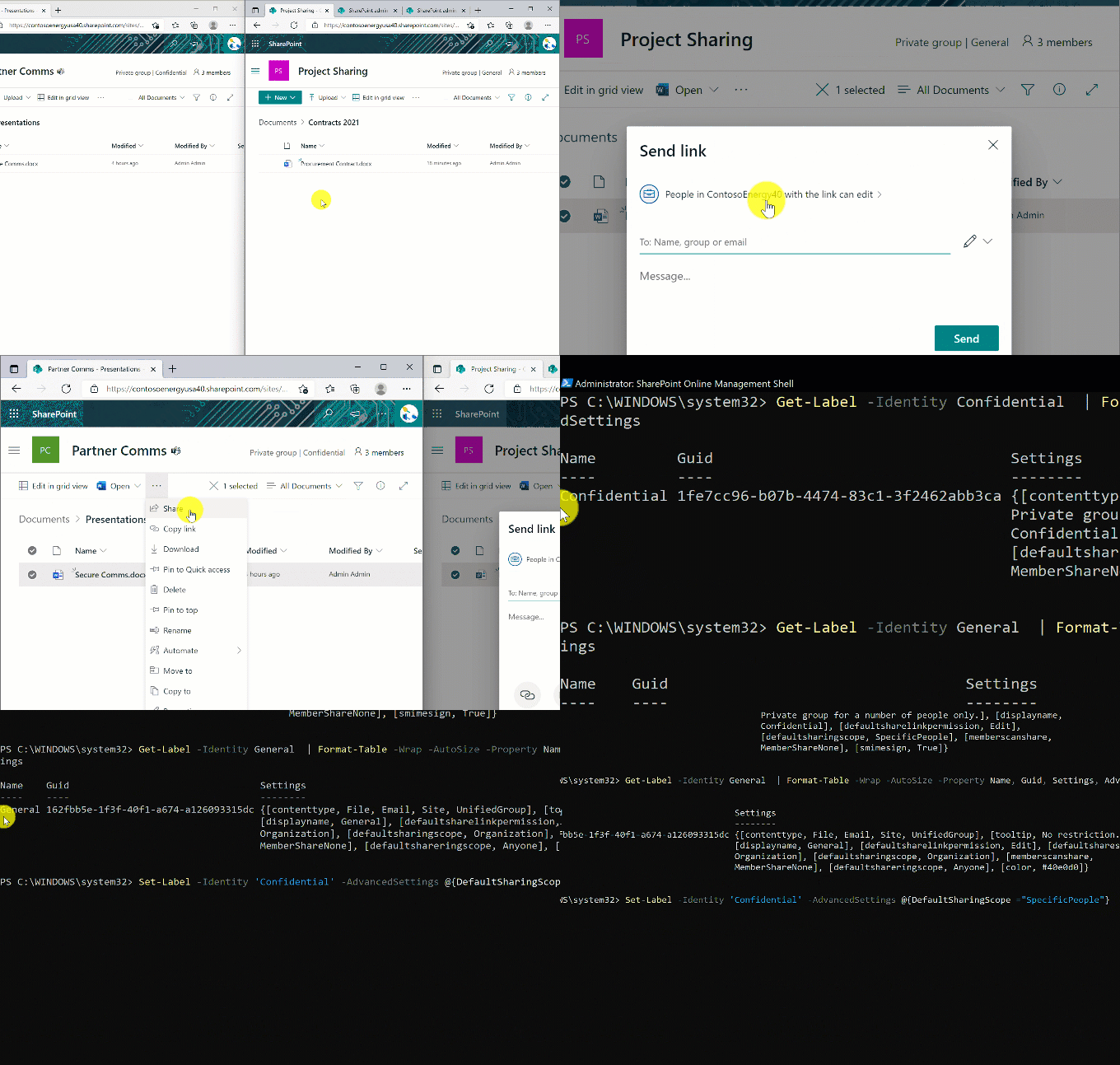
In the Spring Ignite’21 announcement, we announced the Microsoft Information Protection (MIP) labels-based external sharing policies. We are now extending that support to simplify default sharing experience for internal and external collaboration. Today, we are excited to announce the general availability of sensitivity labels-based default sharing link type for SharePoint sites.
For example, if a team or site is labelled as Confidential, then you could configure the default sharing link type to be “Specific People” and ensure users are selecting specific users to collaborate with instead of selecting broader audience. On the other hand, if a team or site is labelled as General, then you could configure the default sharing link type to be “Anyone link” and allow open collaboration in that team or site.
To learn more about this feature, check out product article here.
Figure. Labels-based default sharing link type in action for General and Confidential labelled SharePoint sites
Auto labeling enhancements for Office documents in SharePoint and OneDrive – General Availability
A year ago, we announced the auto labeling capability that empowers administrators to create rules to detect sensitive files in their corpus and then automatically label them, targeting specific SharePoint Sites or OneDrive accounts. For example, if a file contains 10 credit card numbers, then label it as Confidential.
We are taking auto labeling capability steps further, today we are thrilled to announce auto labelling enhancements that enable administrators to create auto labelling policies targeting all OneDrive accounts and SharePoint Sites within their organization. This includes files that are being created or uploaded through Teams. This is a big step forward in the lens of scale, ease of use for administrators, and most importantly completeness i.e., detecting your sensitive documents no matter where it resides in Microsoft 365.
We have also improved the simulation experience such that it is predictable and intuitive. For example, you will be able to create an auto labeling policy and get a simulation result in a few hours with sample files that match the policy, instead of waiting for a complete list of files that meet the policy criteria.
To learn more about these enhancements, check out our product article here.
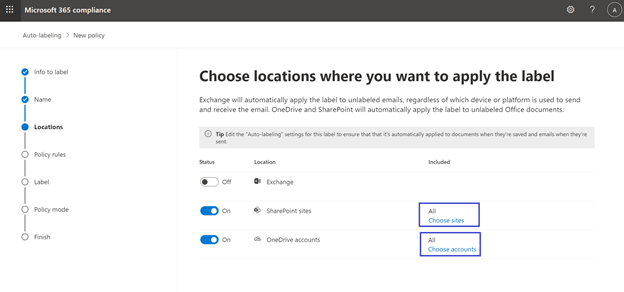 Figure. Admin selecting all SharePoint sites and OneDrive accounts for an auto-labeling policy in Microsoft 365 Compliance Center
SharePoint Syntex support for Sensitivity Labels – General Availability
SharePoint Syntex uses advanced AI and machine teaching to amplify human expertise, automate content processing, and transform content into knowledge. Now, it also can detect sensitive content and automatically label the content to protect it from unauthorized access by applying labels-based policies such as encryption.
Today, we are excited to announce SharePoint Syntex support for Sensitivity Labels is Generally Available. When you create a Syntex model, you can now pick the appropriate sensitivity label that your organization has published to you to auto label the documents and protect with the appropriate security policies.
For example, for Tax Forms content as the content gets automatically processed and extracted by Syntex the documents deemed as Tax Forms are labeled as Confidential. The encryption policy associated with this Confidential label will protect these Tax Forms documents.
For more details on this feature, learn more here.
 Figure. User selecting a sensitivity label during a SharePoint Syntex model creation in SharePoint
Data access governance in SharePoint and OneDrive – Public Preview
Using sensitivity labels, you can classify all your digital assets in SharePoint, OneDrive, and Teams, however, you may wonder how to ensure the right labels and security policies are set for the sites that matter the most in your organization. As external collaboration becomes a norm in your organization, you may wonder how to avoid oversharing or accidental sharing of sensitive sites. Look no further, admins can now use data access governance insights dashboard in SharePoint admin center to monitor the external sharing activities and label/policy settings for the sites that matter the most.
In last year’s Ignite, we introduced this roadmap feature. Today, we are happy to announce that data access governance feature is in public preview. These insights allow you to: a) discover your top sites, the sites with the greatest number of sensitive documents or with most content shared using anyone links or company sharable links, b) validate they have appropriate sensitivity labels and access policies for your security posture, and c) tailor the labels and policies as needed.
Interested in learning more? Check out the product article here.
 Figure. Administrator views the sharing activity report in Data Access Governance page in SharePoint Admin Center
Co-authoring and autosave on Office documents encrypted with MIP (Microsoft Information Protection) – General Availability
In the Spring Ignite’21 announcement, we shared with you that co-authoring and autosave on Microsoft Information Protection (MIP) labelled and encrypted documents was available in Preview. In Sep’21 we announced that co-authoring and autosave on Office documents encrypted with MIP is Generally Available for Windows and Mac. See the feature’s blog post here for details.
Just like with regular Office documents, two or more users can co-author encrypted Office document, be it a Word, Excel, or PowerPoint document, hosted in SharePoint and OneDrive and experience the modern productivity, while the security posture of the document is intact.
To learn more about this capability, check out the product article here.
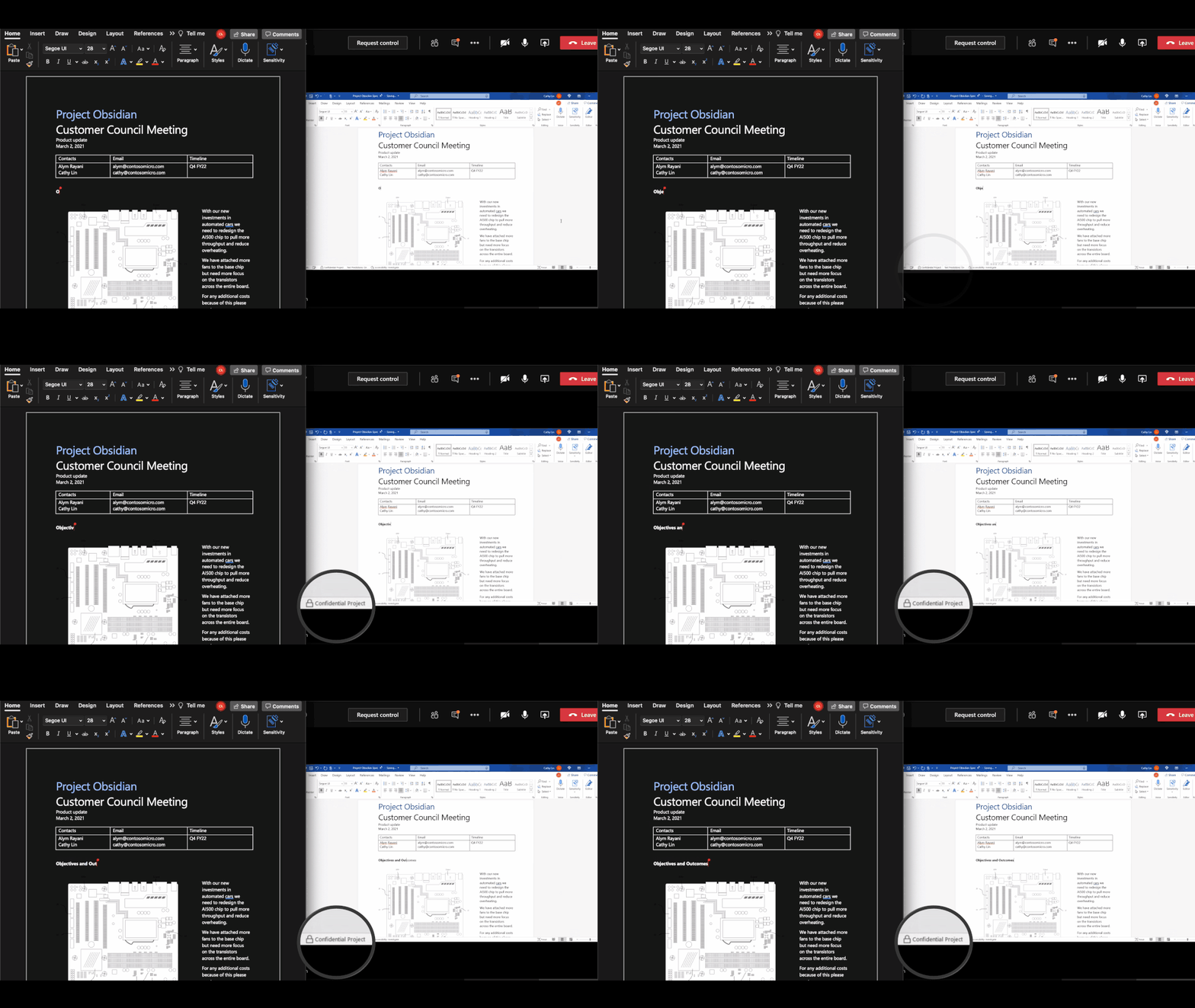 Figure. Office users on Windows and Mac co-authoring an encrypted and labelled Word document
Back to top
Secure access with contextual and continuous policy evaluations
Secure sensitive sites with Labels-based Granular Conditional Access Policies (GCAP) – Public Preview
Zero trust is the security norm these days and gone are the days users expected to VPN (Virtual Private Network) in to access the corporate data. Also, number of sensitive sites are growing in the organizations as they digitally transform their business. Tailored and least privileged access to the sensitive sites is crucial to avoid any leakage.
To help you secure sensitive sites, today we are announcing Microsoft Information Protection (MIP) labels-based granular conditional access policies (GCAP) for SharePoint and OneDrive Sites in Public Preview. Administrators can now create sensitivity labels that can be associated with the granular conditional access policies in Microsoft 365 Compliance Center. You can then associate these labels with sites that have or intend to have sensitive content.
For example, let us assume in Azure Active Directory your directory administrator has created ‘Single factor authentication’ that requires single factor authentication like password authentication and ‘MFA authentication with IP’ that requires multi factor authentication (MFA) like OTP (one time passcode) verification and IP network location policy. You can then associate these granular conditional access policies with MIP sensitivity labels in Microsoft 365 Compliance center. ‘General’ label requires ‘Password authentication’ policies whereas ‘Confidential’ label requires ‘MFA authentication with IP’ policies. For sensitive sites users just need to associate the ’Confidential’ label and the appropriate security policies are automatically enforced.
Users can be productive without any interruptions and only when accessing sensitive sites that require additional security policies then they provide on-demand additional verifications.
To learn more about this feature, check out the product article here.
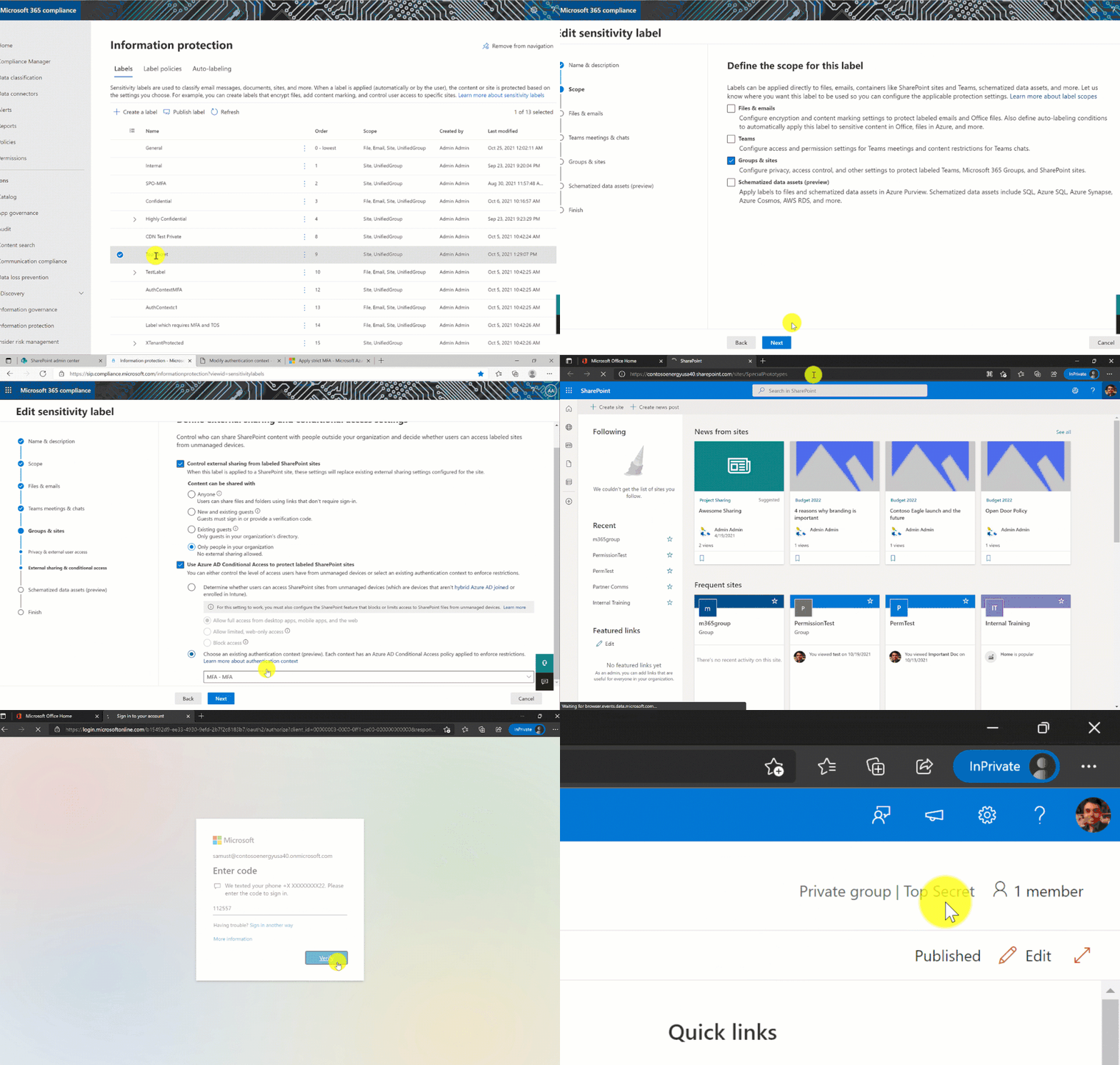 Figure. Configuring a sensitivity label with granular conditional access policies in Microsoft 365 Compliance Center
Continuous Access Evaluation (CAE) in SharePoint and OneDrive – General Availability
One of the core principles of Zero Trust is verify explicitly i.e., always authenticate and authorize based on all available data points such as user identity state, IP address of location, device health, etc., With conditional access policies support we advanced the authorization scenarios in SharePoint, OneDrive, and Teams such that a sensitive site is accessible only from a managed device, for example.
We are taking our authorization journey one step further with continuous evaluation of the conditions under which users access the content. For example, if you disable a user’s account in the directory for whatever business reason, then the user’s access to content in Microsoft 365 is revoked in near real time instead of waiting on session expiration. This is made possible with Continuous Access Evaluation (CAE).
Today, we are thrilled to announce General Availability of Continuous Access Evaluation (CAE) support in SharePoint and OneDrive. For security centric administrative actions like user account disabled in the directory, user’s password has changed, user’s session has been revoked, and MFA (multi-factor-authentication) is enabled for a user account all will be honored near real-time in SharePoint and OneDrive. Also, the IP address conditional access policy is continuously evaluated.
For example, let us assume you have configured IP address network policy in Azure Active Directory and users are allowed access only from within your corporate IPs. A user is authenticated and accessing a SharePoint site within corporate office. When the user travels to a coffee shop and then tries to continue accessing the site, he/she will get access denied in real-time. This is Continuous Access Evaluation (CAE) in action in SharePoint and OneDrive.
We continue to add more events, like changes in user account risk, in near future, stay tuned.
To learn more, check out the product article here.
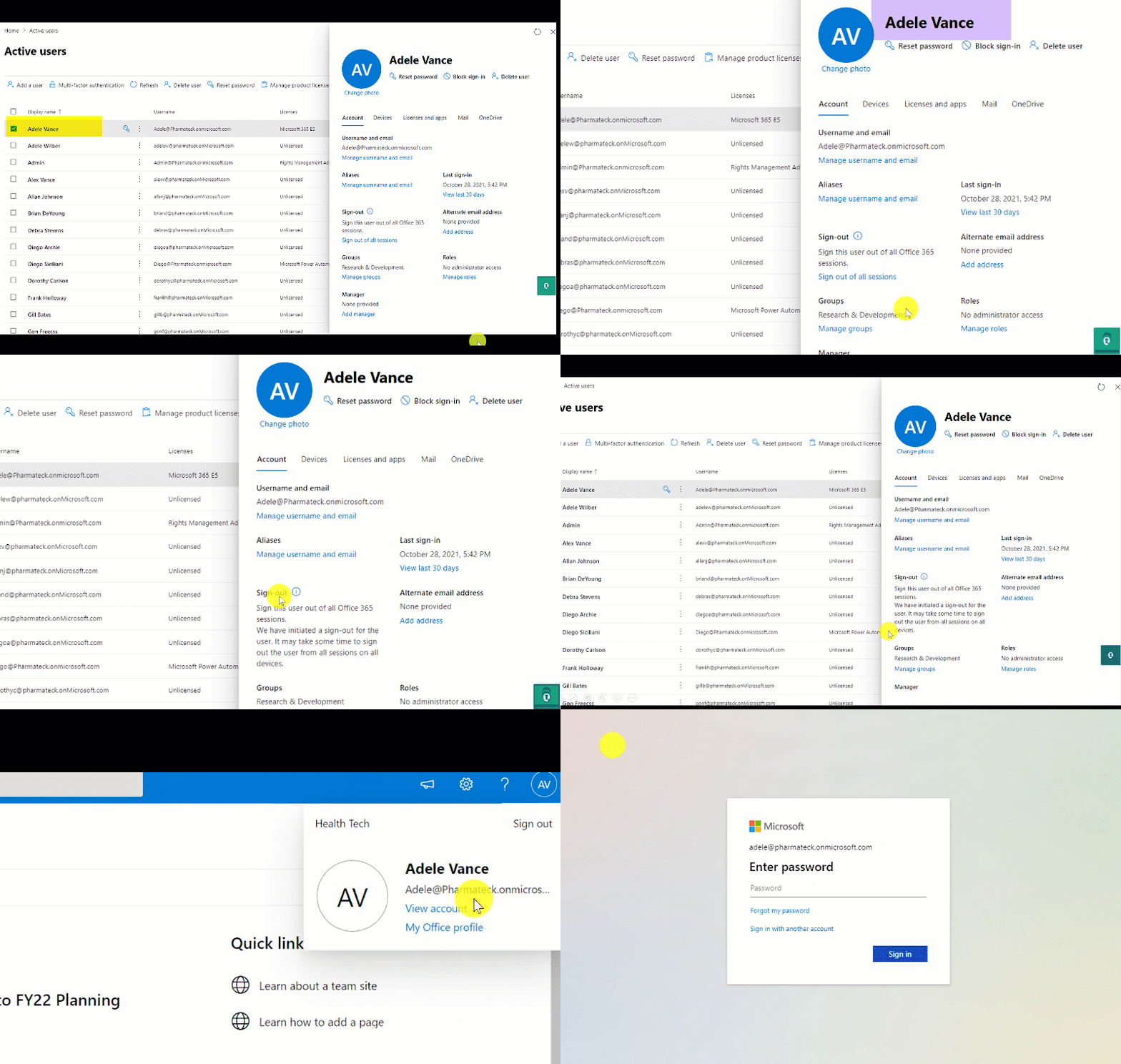 Figure. Administrator signing out a user from all Microsoft 365 sessions in Microsoft 365 Admin Center
Back to top
Comprehensive Compliance
Information Barriers Enhancements – Modes, Insight cards, and more – General Availability at the end of CY21
Insider trading continues to be top of mind for highly regulated industries. For example, in financial vertical FINRA like compliance requires organizations to show compliance controls are in place to prevent and control the insider trading. Microsoft 365 Information Barriers is the solution for this business compliance need. It is designed to help you segment your users per business compliance needs and restrict collaboration and communication between the segmented users in SharePoint, OneDrive, and Teams.
We continue to innovate in information barriers journey and today we are thrilled to announce general availability of three Information Barriers Enhancements.
First, we are simplifying the information barriers policy adoption with the concept of Info Barriers Modes. You simply set the Information Barriers Modes for a given site or team and the appropriate restrictions will automatically apply, no need to manage segments association to a site or team unless you need to. There are 4 modes, Open, Implicit, Owner Moderated, Explicit. To learn more about these modes, check out our product documentation here.
Second, we are introducing information barriers insight cards in the SharePoint Admin Center. As the picture shows below, you can get a compiled view of what percentage of SharePoint Sites and OneDrive accounts in your organization are information barriers enabled and with which segments.
Third, one of the frequent feedbacks we heard from you is to offer an ability to enforce Microsoft 365 Groups or Teams membership while allowing access to the corresponding SharePoint Site. We are happy to share that with Implicit mode introduction we are now bringing that capability in SharePoint Site. For example, if you have an Investment Banker Team and its associated SharePoint site is set to information barriers mode Implicit, then only the users who belong to that Team or Microsoft 365 Group are allowed to access the associated SharePoint site.
To learn about these enhancements in detail, check out our product article here.
 Figure. Information barrier insight cards in SharePoint Admin Center
Back to top
Administration experience and management scenarios
Channel Sites Management in SharePoint Admin Center – General Availability at the end of CY21
We continue to innovate and simplify the administration experience for SharePoint and OneDrive. There are many insight cards on the SharePoint Admin Center home page we recently released. Today, we are thrilled to announce the general availability of channel sites management in SharePoint Admin Center, starting roll out at the end of CY21.
As the usage of Teams becomes ubiquitous, the number of teams-connected and channels-connected sites in SharePoint grows in organizations. We heard your feedback to have a simple way to discover and manage these sites. With this new experience you have a collective view of all sites that are associated with a Team and its channels, see below picture. You can easily view the settings and policies that are configured for the Team and the channel sites too.
To learn more about this experience, we will be updating our product article here towards end of CY21.
 Figure. Admin managing channel sites in SharePoint Admin Center
SharePoint Tenant Rename – Public Preview
One of the top asks for SharePoint management was to provide the capability of renaming the SharePoint domain i.e., ability to rename the tenant’s URL, for example from contoso.sharepoint.com to fabrikam.sharepoint.com. Today, we are excited to announce that SharePoint support for Tenant Rename is here, in public preview. If your tenant has a total of <1K SharePoint sites and OneDrives, then you can take advantage of this capability.
We are looking to expand the support to tenants that have >1K total SharePoint sites and OneDrives in near future, will keep you posted.
There are many reasons you might have this need to rename your tenant’s SharePoint URL, your company’s brand name has changed, or your organization went through a merger & divestiture etc., Using the SharePoint Online PowerShell you can now trigger the URL rename for your tenant.
Interested to use this preview capability, check out the product documentation here.
 Figure. Renaming a tenant’s SharePoint URL domain from contoso.sharepoint.com to fabrikam.sharepoint.com
Back to top
For licensing information for all these features, check out the respective feature’s product documentation.
There are many Teams innovations announced at Ignite’21, for full list check out Innovations coming to Microsoft Teams blog.
For full list of new SharePoint, OneDrive, Teams capabilities announced at Ignite’21, check out Jeff Teper’s blog Rich, secure content and collaboration for hybrid work Ignite 2021 announcements.
We have a beautiful security and compliance cookbook for SharePoint, OneDrive, and Microsoft 365 administrators, you can download SharePoint and OneDrive Security Cookbook for FREE.
Finally, check out our recent video on “SharePoint runs on Trust”:
Get started!
To learn more about the above features in detail, check out the product documentation articles below:
Interested in participating in the private previews of our upcoming new features? Check out available features and sign up here: https://aka.ms/ODSPSecurityPreviews
If you are new to Microsoft 365, learn how to try or buy a Microsoft 365 subscription.
As you navigate this challenging time, we have additional resources to help. For more information about how we are responding together to COVID-19, visit our Remote Work site. We’re here to help in any way we can.
Thank you!
Sesha Mani – Principal Group Product Manager (GPM)
Microsoft 365, SharePoint & OneDrive
John Gruszczyk – Product Marketing Manager (PMM)
Microsoft 365, Teams

Much has happened since the launch of Microsoft Lists in Microsoft 365. We have received a lot of feedback and monthly usage is growing fast. Today, we are pleased to share future Lists innovation, as announced at Microsoft Ignite March 2-4, 2021, including new integrations with Microsoft , Office.com, and the Power Platform.
To start, tune into Omar Shahine, VP of Product OneDrive and SharePoint (Microsoft 365), as he talks with @Jeremy Chapman on the Microsoft Mechanics episode sharing and showing all of the new Lists innovation, in addition to a variety of new OneDrive and SharePoint features he and his team disclosed this week (Note: the Lists segment starts at 9:05), “New hybrid work and collaboration experiences across Microsoft 365 to save you time”:
Microsoft Lists is a Microsoft 365 app that helps you track information and organize work. Lists are simple, smart, and flexible, so you can stay on top of what matters most to your team. And our engineering team is constantly addressing feedback and requests, as you’ll see in all the announcements below.
Note: Click on the roadmap ID links per announcements to best track Targeted Release dates and additional information on the public Microsoft 365 roadmap); all will be active as of 9:30am PDT, November 2nd, 2021.
Microsoft Lists: Board view [Roadmap ID: 85634]
Soon, you’ll be able to work with list data in a board– an oft requested Lists view. This view is ideal when you want to track items as they move forward in a process or workflow. Moving items through stages is as easy as dragging and dropping. It’s easy to configure which columns from your list are displayed in the cards and in what order.
@Mark Kashman the one feature that we have in lists in Teams is the ability to comment and @mention … that’s rolling out as we speak and early usage numbers are looking really strong. If we wanna have something Teams related here, you should include a blurb! [LD1]
Use Board view to track and adjust list items in vertical columns by dragging forward or backward through stages or status.
The board view is just a one way of visualizing and working with the same list data. In any list, I can switch to the Grid view to see all the data in a table. I can point, click, and drag to update the status of many items at once.
Modern lookup columns [Roadmap ID: 82156]
Lookup columns allow you to connect a list to a column from another list you have on your site. Once connected, you can easily “lookup” other information and include this in your new list. This makes it easy to maintain team-level, centralized lists that contain information you use repeatedly.
 Lookup columns allow you to connect a list to a column from another list you have on your site.
Create and view lists from the SharePoint app bar [Roadmap ID: 82160]
Now you’ll be able to view and start creating lists as an action from within the SharePoint app bar. This means, no matter where you are in SharePoint, or in Viva Connections, you can jump right into the list viewing or creation process – and stay in the flow of work.
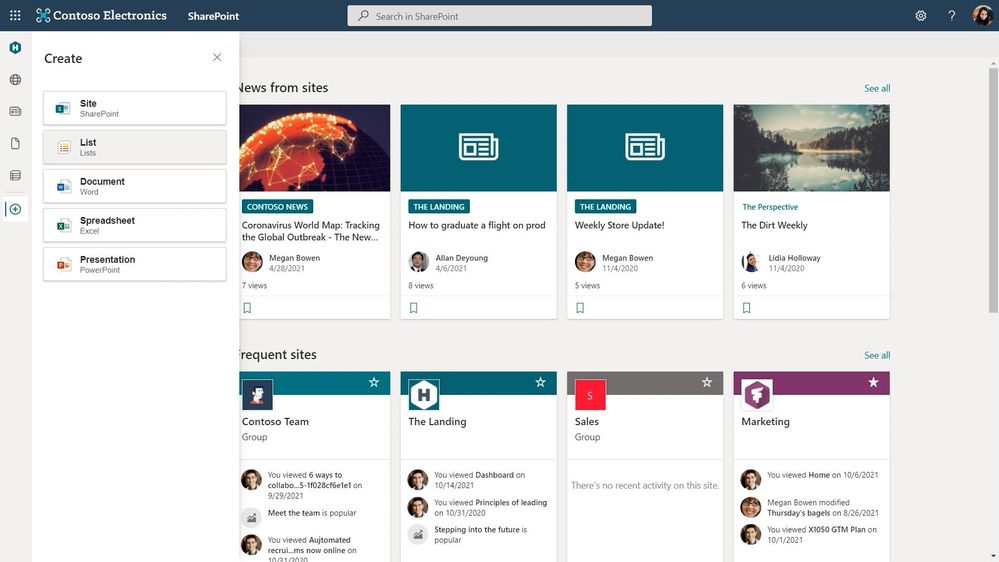 Create lists from the SharePoint app bar – shown here from within the SharePoint start page.
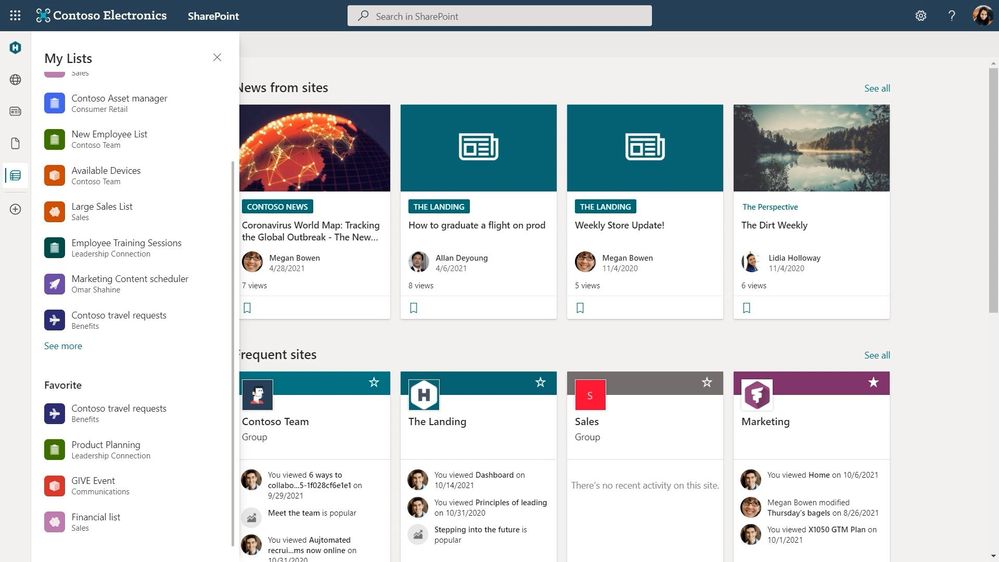 View your lists in the SharePoint app bar under My Lists.
Microsoft Lists: Rich-text editor (RTE) updates [Roadmap ID: 82154]
We continue to make steady improvements to editors in the Grid view – one change I’m proudest of is our new rich text editor. It’s a snap to click in and quickly apply formatting to items that need it. If you make a mistake, edits are quickly reversible – I can use the undo/redo buttons or keyboard shortcuts to roll back any changes I don’t want to be final.
 Apply formatting to your Lists text columns using the new rich-text editor (RTE).
Microsoft Lists: Improved link sharing [Roadmap ID: 82155]
Lists now support all the same link-sharing capabilities as files, so you can easily grab a link that works for anybody in the world, or just scoped to your organization. And all the goodness I showed earlier in the sharing dialog, like the ability to see who a list has been shared with, is here as well.
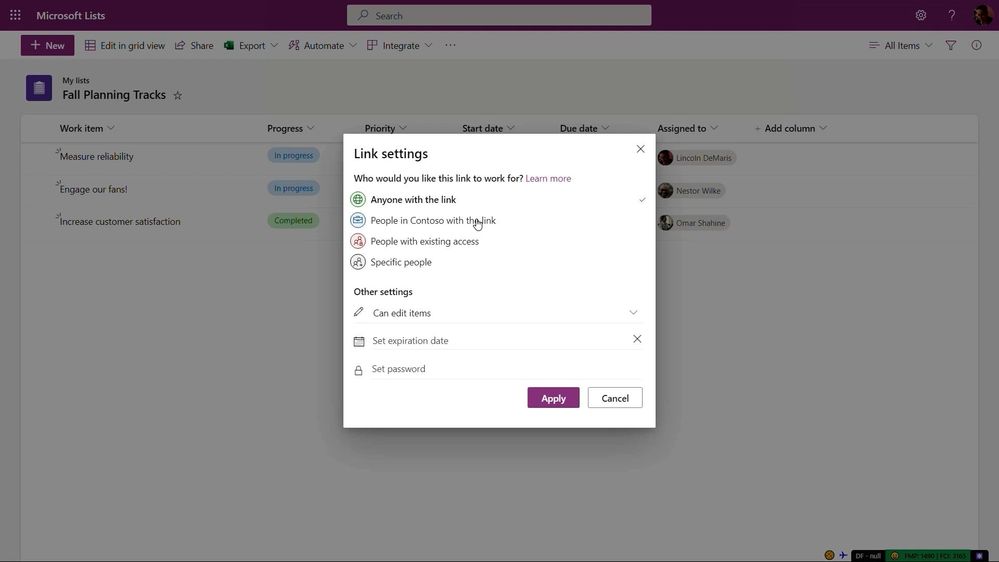 Like files, you can now share the way you prefer – scope who gains access, ability to view/edit, setting expiration, and password protection.
Microsoft Lists for Android (Private Preview) [Roadmap ID: 70704]
We’re pleased to announce that the Microsoft Lists app is coming to Android devices early next year. Like Microsoft Lists for iOS, expect to access your favorite and recent lists, create a new list using a template – view, edit and organize list items at the tap of your finger. You, too, will be able to scan and upload documents as attachments to your items.
 Microsoft Lists for Android – showing the Home screen with Favorites, Recent lists, and access to create new.
Now, no matter what device you’ve got – iOS, MacOS, Windows, or Android, there’s a Lists app for you. If you’d like to join the external preview of this app later this year, stay tuned for updates.
Sign up today for the Microsoft Lists for Android (Private Preview).
Microsoft Lists: Fast and offline (General Availability) [Roadmap ID: 68809]
Lists you work with now get automatically synchronized to your Windows device, if that device has the OneDrive sync app installed. This means numerous improvements to your everyday Lists experience. First, it means you can load the Lists app and view and edit list data when you’re offline. Second, loading and interacting with lists just got a whole lot faster, whether you’re online or offline. Finally, views inside synced lists never get throttled, regardless of the number of items in the view, or whether those columns get indexed.
 New Lists indicators show when your items are being save to your device (offline; as shown above), when the list is synchronizing, and when all is up to date (synced).
We’re pleased to announce that we’ve reached general availability with this exciting new functionality. This is a huge milestone for the team and product, and we think you’re going to love the overall user experience improvements.
New Office.com create experience – includes creating Lists [Roadmap ID: 82169]
It all starts with a click of the plus sign to start creating.
Create is your place for beginning something new. You can start from a template or by the type of content. The new Create goes beyond common Office files; I can start a Form, a list, or post for Yammer. You can create files using templates, even company-branded templates, like these ones shown below designed by Contoso Electronics.
 Create Lists directly from Office.com. Access them from the Recent, Shared and Favorites sections.
Packaging list templates with Power Platform and rules [Roadmap ID: 82157]
We’re pleased to announce new capabilities for custom list templates. As you design and define custom list templates, you can now program in Power Platform app experiences and Lists rules to be pre-created for use when a new list gets created.
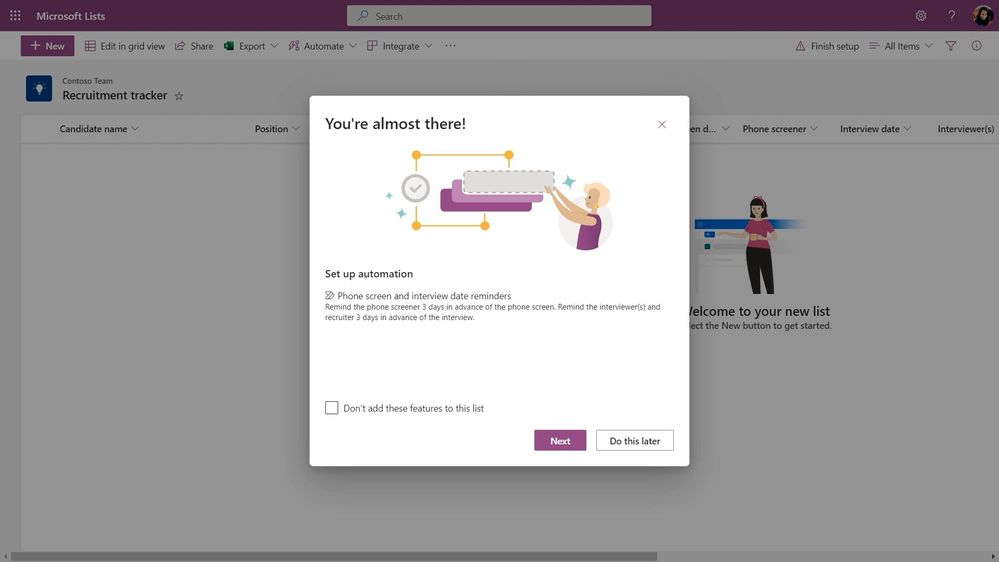 Power Platform apps can be built into your custom list templates – above shows a prompt to finalize a connected Power Automate flow right after your new list gets created.
Note, you will continue to be able to manage which templates are available to which people, based on their job role – for both custom list templates and Microsoft-provided templates.
Learn more
Check out the “What’s new for Microsoft Lists” on-demand Ignite session (OD117) with Harini Saladi and Sahil Baid – published on Nov. 2nd, 2021 at 11am PDT. You’ll see all the above and more to learn about Lists today and what comes next.
Additional resources:
In closing…
Microsoft Lists builds on the trusted SharePoint information platform – bringing new user experiences and capabilities to the existing foundation. improving them across all fronts. The value of existing integrations with the Power Platform continue and expand when you need to further customize list forms with Power Apps, design robust workflows with Power Automate, and analyze your data in Power BI. And for developers, the power and value of the Lists API extends custom solutions to connect the list data as a source via Microsoft Graph. It’s all a part of Microsoft 365, within a service level agreement you can rely on for enterprise-ready security and compliance while designing lists as core content within your governance plans.
Track what matters most. And we hope you had a great Microsoft Ignite.
Thanks, Mark Kashman – senior product manager – Microsoft 365

We built the Microsoft 365 cloud platform together over the last decade. With your commitment and feedback, we have invested in fundamentals, user experiences, and admin controls. We are honored to see the growth of Microsoft 365 to hundreds of millions of users of Teams, SharePoint, and more. Thank you.
Over the last five years we have transformed the SharePoint architecture to power innovative experiences across Microsoft 365. We provide unparalleled flexibility in content types, workflow, search, security, and compliance to address your growing content collaboration needs. Today, we’re pleased to announce updates and features coming soon to SharePoint, OneDrive, Teams, and more.
SharePoint powers innovative experiences across Microsoft 365 –Office, Teams, OneDrive, Lists, Yammer, PowerApps, Stream, Viva, our new Whiteboard, and much more – all with unparalleled flexibility, security, and compliance to address growing content collaboration needs worldwide.
This innovation is only possible because of the support of the best community in tech. Your engagement with customers and at events around the world, plus feedback inspires all of us to do our best work including all the news below we share today.
To start, tune into Omar Shahine, VP of Product OneDrive and SharePoint (Microsoft 365), as he talks with @Jeremy Chapman on the new Microsoft Mechanics episode, “New hybrid work and collaboration experiences across Microsoft 365 to save you time” – sharing and showing new innovation across SharePoint, Viva, Syntex, Lists, Outlook, and more revealed this week:
And join me, Lincoln DeMaris, Ian Todd, Naomi Moneypenny, Navjot Virk, Cathy Dew, and Yina Arenas for our Ignite breakout session, “Rich, secure content and collaboration for hybrid work” (BRK206) on Wednesday, November 3rd from 8:30am – 9:00am PDT. We, too, have a dedicated, connected ATE session, “Ask the Experts: Content and collaboration across OneDrive, SharePoint and Teams” (CONATEBRK206), right after the breakout session starting at 9:30am PDT.
Let’s take a scroll together and dig into all the news about OneDrive, Lists, Office.com, SharePoint + Teams, admin, security and more.
Note: Click on the roadmap ID links per announcements to best track Targeted Release dates and additional information on the public Microsoft 365 roadmap; all will be active as of 9:30am PDT, November 2nd, 2021.
Rich content experiences in OneDrive
With OneDrive, we’ve been focused on making it easier for people to organize their files and folders, and quickly get back to the most important ones. And it’s why your team can work together in real time – simple access to all your files across Microsoft 365.
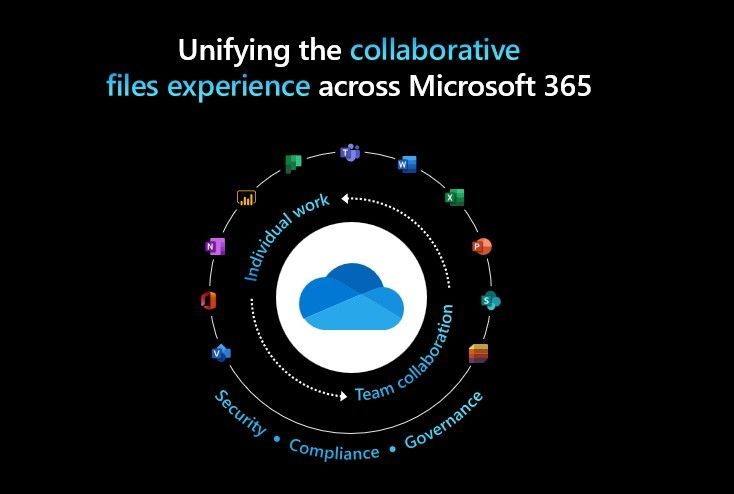 OneDrive unifies the collaborative files experience across Microsoft 365.
OneDrive: Quick Access – pin and reorder your shared libraries [roadmap ID: 82165]
We took inspiration from the Quick Access list in Windows Files Explorer to create a list of places you’ve recently accessed or opened a file from. You can PIN these places so you can easily & predictably get back to what you’ve been working on.
 Reorder and pin your preferred shared libraries with OneDrive Quick access.
OneDrive: Organize ‘add to OneDrive’ shortcuts [Roadmap ID: 82166]
Add to OneDrive is another powerful way to take any shared folder or document library, and keep it your OneDrive for easy access later, on the web, on your PC, or on your phone. We listened to your feedback and now you can organize those shortcuts the way you want by moving them into any private folder you create in your OneDrive.
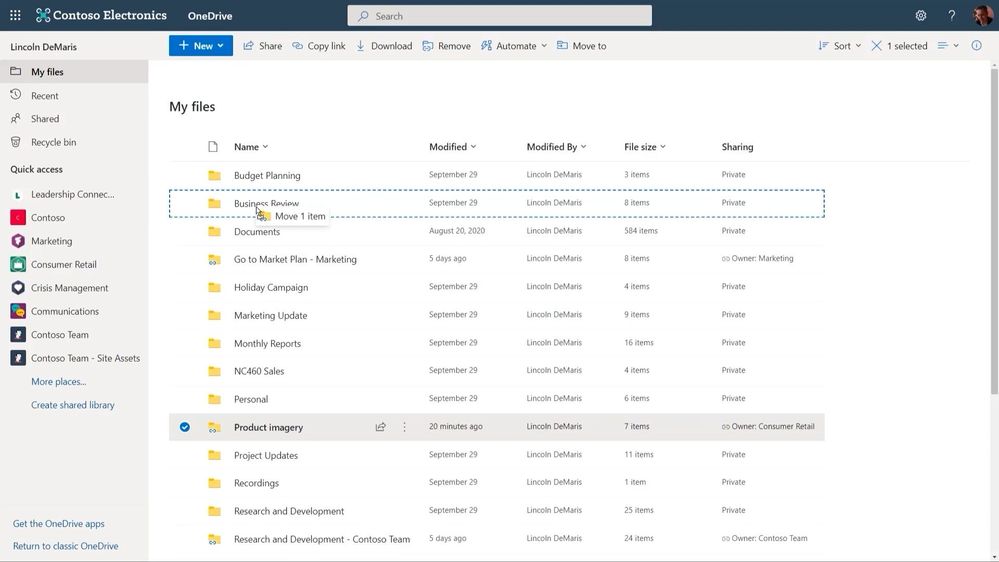 Organize your OneDrive shortcuts – aka, “Add to OneDrive” – now being able to move them into subfolders.
OneDrive: Improved sharing experience [Roadmap ID: 83725]
We’re also continuing to improve the experience for sharing files and folders across OneDrive and SharePoint. One new feature we added is the ability to see immediately who has access to a shared resource already. We also made it easier to share to Teams – you can specify the name of a recipient to send them a link in chat, or the name of a channel to send the link there.
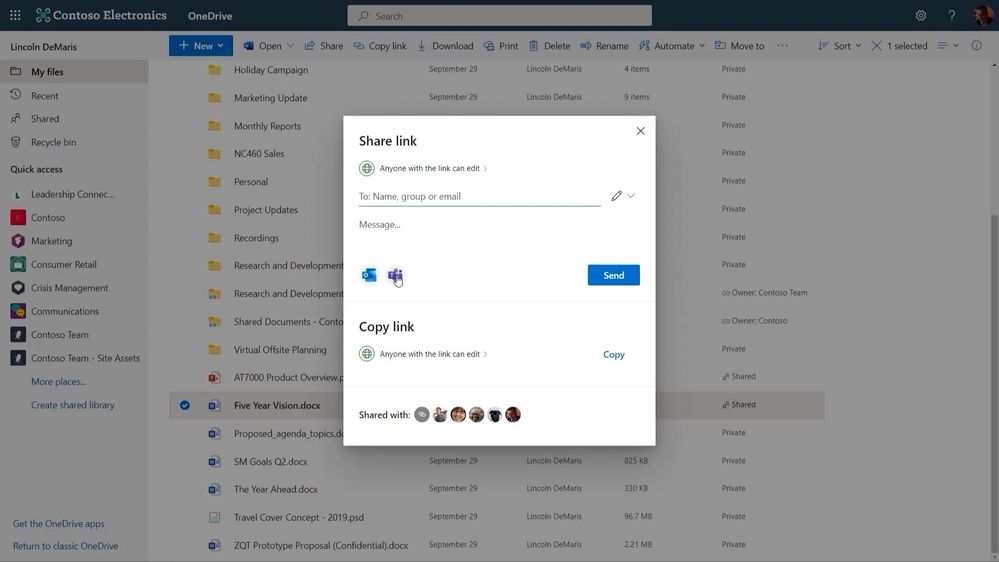 When you share a file, you can immediately see who already has access to a shared resource and Send a share link directly to Outlook and Teams.
OneDrive: Microsoft Teams meetings, video transcription [Roadmap ID: 82057]
When you record a Teams meeting it is saved directly to OneDrive. This brings easy access and intelligent experiences to all these valuable recordings. You can view the transcription of the meeting and instantly jump to the part of the meeting you’re interested in reliving.
 View video transcripts during playback and jump to certain portions of the video when you click on text from the Transcript.
And of course, living in OneDrive means that videos enjoy the same set of sharing, commenting, @mentioning, and searching capabilities as all your other files.
 Comment and at-mention for video files, same as you can for other document types.
Check out the dedicated OneDrive announcements blog, “What’s new and coming to files experiences in Microsoft 365“ and don’t miss the “What’s new for file experiences in OneDrive, SharePoint, and Teams in Microsoft 365” on-demand session (OD109) with Ankita Kirti, Arjun Tomar, and Carter Green, published on November 2nd, 2021 at 11am PDT.
Organize your work with Microsoft Lists
Microsoft Lists: Board view [Roadmap ID: 85634]
Soon, you’ll be able to work with list data in a board– an oft requested Lists view. This view is ideal when you want to track items as they move forward in a process or workflow. Moving items through stages is as easy as dragging and dropping. It’s easy to configure which columns from your list are displayed in the cards and in what order.
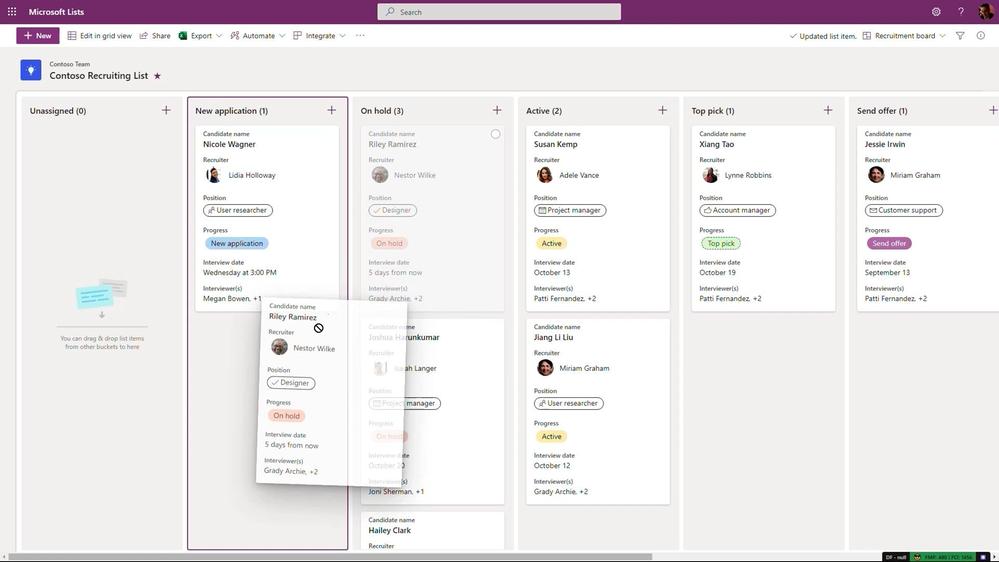 Use Board view to track and adjust list items in vertical columns by dragging forward or backward through stages or status.
The board view is just a one way of visualizing and working with the same list data. In any list, I can switch to the Grid view to see all the data in a table. I can point, click, and drag to update the status of many items at once.
Microsoft Lists: Rich-text editor (RTE) updates [Roadmap ID: 82154]
We continue to make steady improvements to editors in the Grid view – one change I’m proudest of is our new rich text editor. It’s a snap to click in and quickly apply formatting to items that need it. If you make a mistake, edits are quickly reversible – I can use the undo/redo buttons or keyboard shortcuts to roll back any changes I don’t want to be final.
 Apply formatting to your Lists text columns using the new rich-text editor (RTE).
Microsoft Lists: Improved link sharing [Roadmap ID: 82155]
Lists now support all the same link-sharing capabilities as files, so you can easily grab a link that works for anybody in the world, or just scoped to your organization. And all the goodness I showed earlier in the sharing dialog, like the ability to see who a list has been shared with, is here as well.
 Like files, you can now share the way you prefer – scope who gains access, ability to view/edit, setting expiration, and password protection.
Microsoft Lists for Android (Private Preview) [Roadmap ID: 70704]
We’re pleased to announce that the Microsoft Lists app is coming to Android devices early next year. Like Microsoft Lists for iOS, expect to access your favorite and recent lists, create a new list using a template – view, edit and organize list items at the tap of your finger. You, too, will be able to scan and upload documents as attachments to your items.
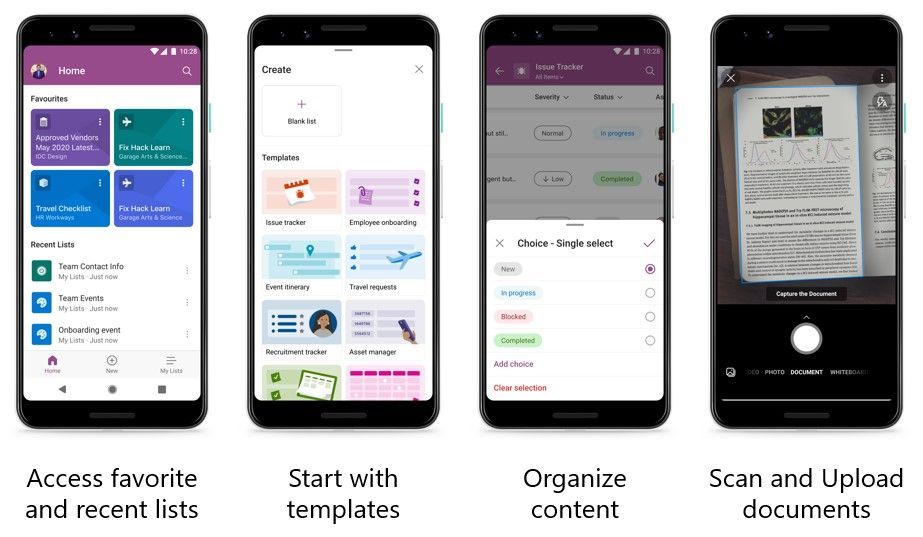 Microsoft Lists for Android – showing the Home screen with Favorites, Recent lists and access to create new.
Now, no matter what device you’ve got – iOS, MacOS, Windows, or Android, there’s a Lists app for you. If you’d like to join the external preview of this app later this year, stay tuned for updates.
Sign up today for the Microsoft Lists for Android (Private Preview).
Microsoft Lists: Fast and offline (General Availability) [Roadmap ID: 68809]
Lists you work with now get automatically synchronized to your Windows device, if that device has the OneDrive sync app installed, and the list contains 250 thousand items or fewer. This means a lot of improvements to your everyday Lists experience. First, it means you can load the Lists app and view and edit list data when you’re offline. Second, loading and interacting with lists just got a whole lot faster, whether you’re online or offline. Finally, views inside synced lists NEVER get throttled, regardless of the number of items in the view, or whether those columns get indexed.
 New Lists indicators show when your items are being save to your device (offline; as shown above), when the list is syncing, and when all is up to date (synced).
We’re pleased to announce that we’ve reached general availability with this exciting new functionality. This is a huge milestone for the team and product, and we think you’re going to love the overall user experience improvements.
Check out the Microsoft Lists announcements blog with more news, “Microsoft Lists announcements – Ignite 2021 (Nov.2-4)” and the “What’s new for Microsoft Lists” on-demand Ignite session (OD117) with Harini Saladi and Sahil Baid, published November 2nd, 2021 at 11am PDT.
Office.com updates to better manage content, people, and meetings
Office.com, and the Office mobile and desktop apps, infuse intelligence into the overall content experience so you can stay on top of things, get access to all your tools, and quickly act without leaving your workflow. Office.com is the best place to start, whether it’s the start of the day or you’re getting back to your work.
“Recommended actions” [Roadmap ID: 72233]
Join your next meeting, complete a To Do task, or reply to a comment you were at-mentioned in.
 Recommended action at the top of Office.com alert you to important actions – like meeting reminders, comment replies, and To Do task suggestions.
View an infinite list of your content [Roadmap ID: 82167]
We’re not limiting the number of files in your most recently used list and you can use infinite scroll to see all the things on which you’ve been working.
 View an infinite list of content when you click All on Office.com – keep scrolling to go back in time.
Browse by people and meetings [Roadmap ID: 82168]
Office.com also has new filters for meetings and people.
The people view is great if you know who shared a file with you, but don’t recall the name of the file.
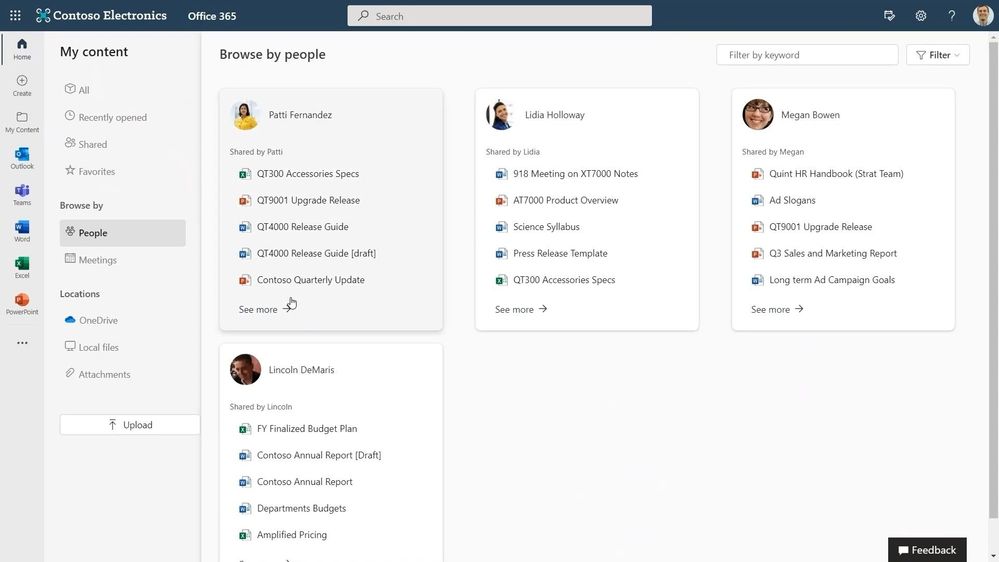 Browse your Office.com content by People.
When you browse by meetings, you see a history of your meetings and all the related content.
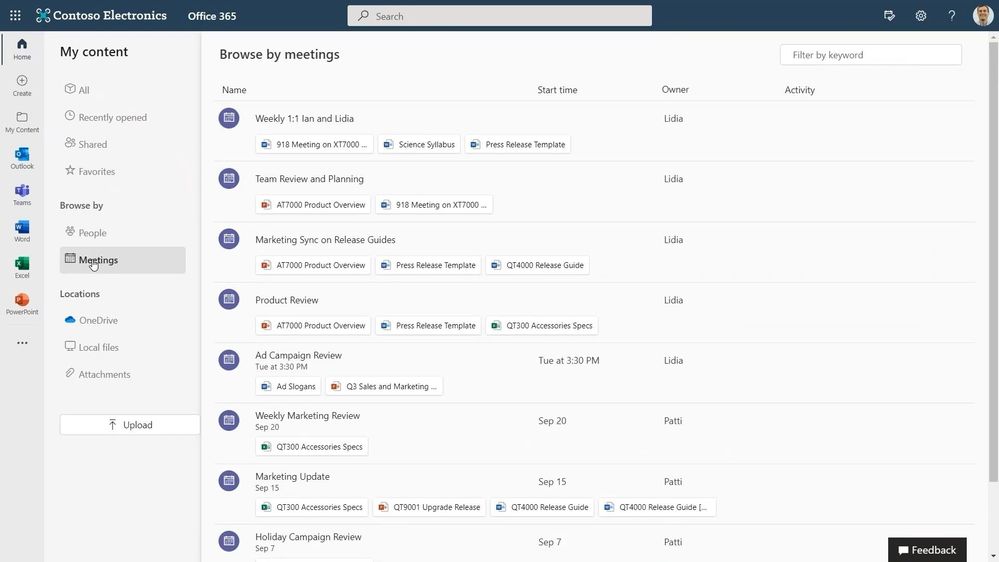 Browse your Office.com content as it aligns with your meetings.
New create experience [Roadmap ID: 82169]
It all starts with a click of the plus sign to start creating.
Create is your place for beginning something new. You can start from a template or by the type of content. The new Create goes beyond common Office files; I can start a Form, a list, or post for Yammer. You can create files using templates, even company-branded templates, like these ones shown below designed by Contoso Electronics.
 Click Create and start a variety of new content directly from Office.com: Documents, Presentation, Page, Lists, and more – including templates from Microsoft or your organization.
Check out the dedicated Office.com blog and the “Office: The universal interactive canvas for all creators” session (BRK201) with Wangui McKelvey, November 3, 9:30 AM – 10:00 AM.
SharePoint content and collaboration in Microsoft Teams
SharePoint pages and news authoring in Microsoft Teams [Roadmap ID: 82159]
Earlier this year we delivered the ability to edit pages and news directly in Teams, soon you will be able to create them as well without leaving the Teams app. At the core of pages is the authoring experience, and we want to make it intuitive and simple to use.
 Create new SharePoint pages as tabs in Teams – directly from within Teams.
We’re integrating with Editor for grammar and spelling suggestions. We’re surfacing more commands in our canvas toolbars, and support for inline images so you can have text alongside images.
 Use spelling and grammar check within the SharePoint Text web part, along with being able to resize an image and align it with the text.
We also want to make it easier to design beautiful pages so we’re providing section templates that serve as a great starting point for building out your pages and news posts.
Microsoft 365 connected templates [Roadmap ID: 82158]
One of the best things about SharePoint and Teams is how separately they provide world class collaboration, and when you combine them together that boundary disappears. With our newest Microsoft 365 connected templates, we are bringing both into one seamless creation flow – no matter where you start from.
 Microsoft 365 templates combine Teams templates and SharePoint site templates – along with other app templates – so you more quickly, and consistently, start to your preference.
When we create this team using the template, the project management channels and apps, and the connected SharePoint template gets applied automatically. Critically, the pages, lists, and power platform integrations are pinned right here in Teams, and best of all these pages and lists are fully editable right in Teams.
Create and view lists from the SharePoint app bar [Roadmap ID: 82160]
Now you ‘ll be able to view and start creating lists as an action from within the SharePoint app bar. This means, no matter where you are in SharePoint, or in Viva Connections, you can jump right into the list viewing or creation process – and stay in the flow of work.
 Create and view lists from the SharePoint app bar – the view experience “My Lists” shown above.
Customer story: United Airlines extends communications using the Microsoft Teams platform
United Airlines unites the world to the moments that matter most, holding themselves to the highest standards in safety and reliability. With Microsoft, they are making changes to empower their frontline employees, to drive efficiencies and improve customer satisfaction. By using the Teams extensibility platform, United designed and implemented its Uchat and United Bot to power dynamic communications between their operations and flight crews.
 United Airlines unites the world to the moments that matter most.
SharePoint admin center offers new insights for admins
Aligning with admin center designs across the suite. These updates highlight activities and connections for your sites and content, with actionable controls for managing your intelligent intranet. Everything we build is inspired from community feedback and is designed to make day-to-day administration easier.
 SharePoint service innovation improves performance with faster upload/download speeds, massive storage growth, and an expanding global footprint.
We’ve focused heavily on improving performance in parallel to supporting massive storage growth and a global footprint – so your users can have the best experience wherever they may be located. And we are also focused on giving you, the best security and management controls for your data.
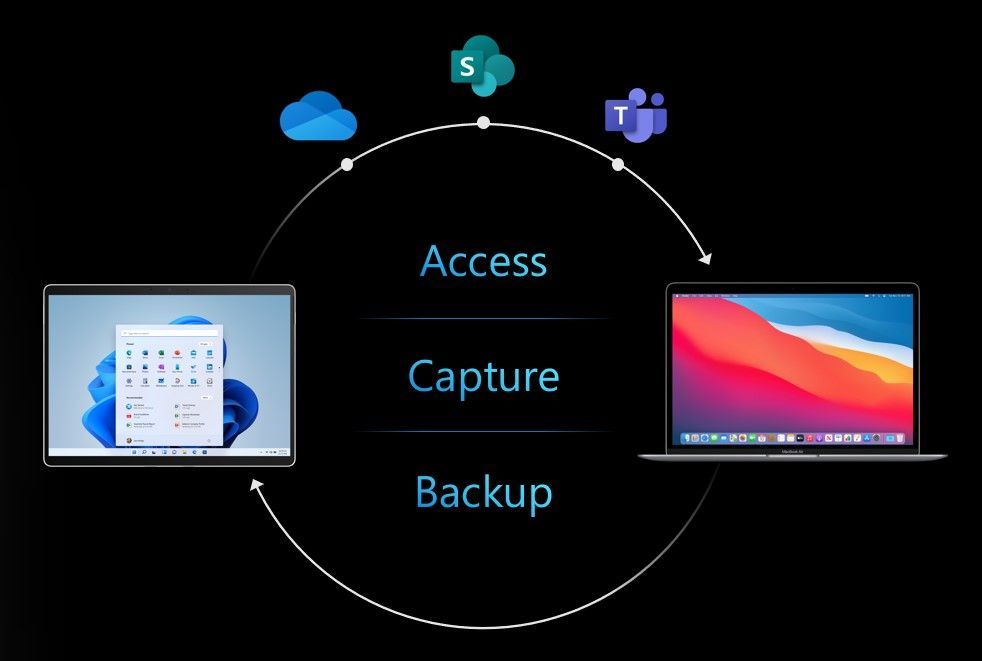 Your known desktop folders are protected in OneDrive, no matter where you’re working from.
OneDrive: Known Folder Move (KFM) for macOS [Roadmap ID: 82032]
Known Folder Move – or KFM – keeps your Desktop, Documents and Pictures folders protected in OneDrive, no matter where you’re working from. We’re pleased to announce that we’re bringing KFM to macOS with the same admin controls you’re used to on Windows.
 Known Folder Move – or KFM – keeps your Desktop, Documents and Pictures folders protected in OneDrive; coming for macOS.
We’re also bringing the Silent Account Config setting to macOS, so you can automatically sign users in and deploy KFM seamlessly.
SharePoint admin center: OneDrive sync reports now support Mac devices [Roadmap ID: 81982]
Earlier this year, we launched a public preview of the OneDrive Sync Admin reports for Windows devices, to give you more visibility into who is signed in, who has KFM enabled, and who has sync errors preventing files from being uploaded to OneDrive. The Sync Admin Reports help you visualize progress when rolling out KFM and figure out if there are any issues that need to be addressed.
 OneDrive sync health will include macOS devices – to give you a broader view of OneDrive sync health across devices.
With the new custom filtering functionality, you can filter to just Mac devices, view which users are protecting all three folders or have errors. In this case, you can see I’m only protecting the Desktop and Documents folders on my Mac, and I have no errors. You can also filter to only devices that have errors to see if there are users you want to reach out to help address any issues.
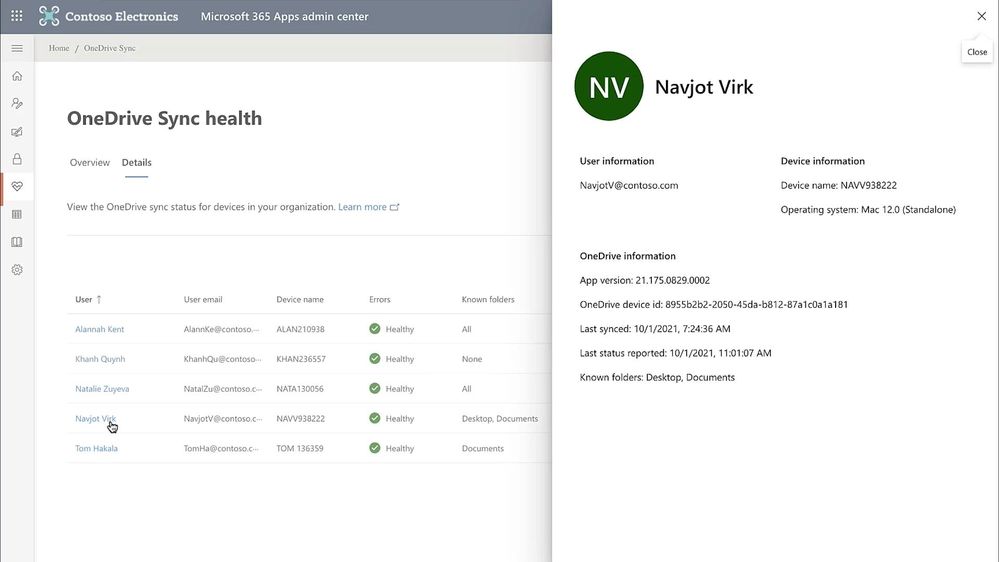 OneDrive sync health will include macOS devices – with the ability to drill down into an individual person’s device(s).
SharePoint admin center: Manage Teams and channel connected team sites [Roadmap ID: 82161]
With growing adoption of Teams and Channels we heard your feedback to simplify management of Teams and Channel connected sites. So now, when I go to a teams-connected site in SharePoint admin center, I can see all corresponding channel sites and right from here, I can ensure that right optional security policies are inherited from the parent site.
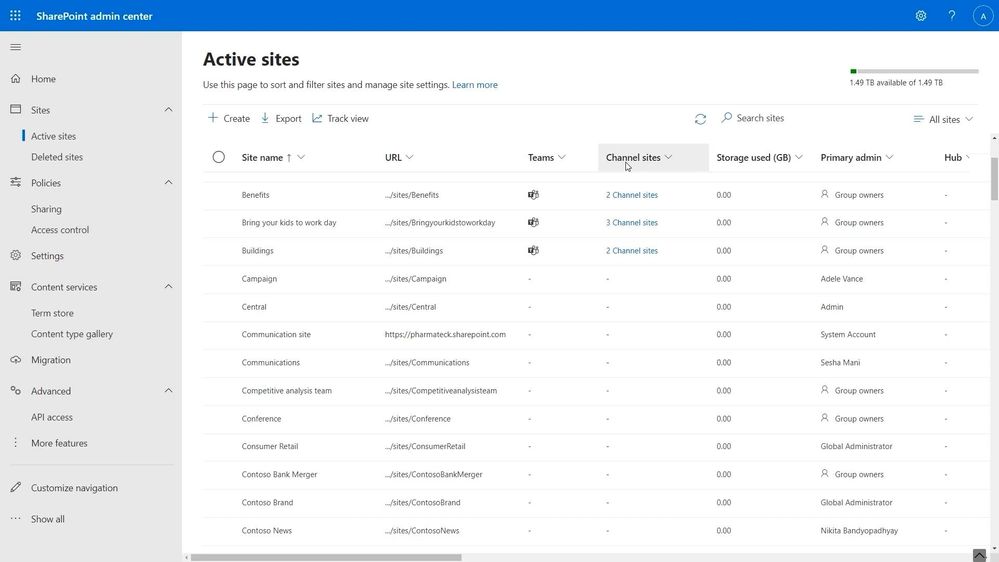 The Sharepoint admin center ‘Active sites’ page will include SharePoint team sites connected to various Teams channels (shared or private).
This same site information panel is also going to be available in M365 admin center and Teams admin center so you can easily manage your sites from anywhere.
SharePoint admin center: Migration Manager file scanning for Box [Roadmap ID: 82000]
You now have actionable insights into your source environment to effectively plan your migrations and know what to watch out for. Once items are ready to migrate, you can now group them with Tags and schedule a migration based on your organization’s plans.
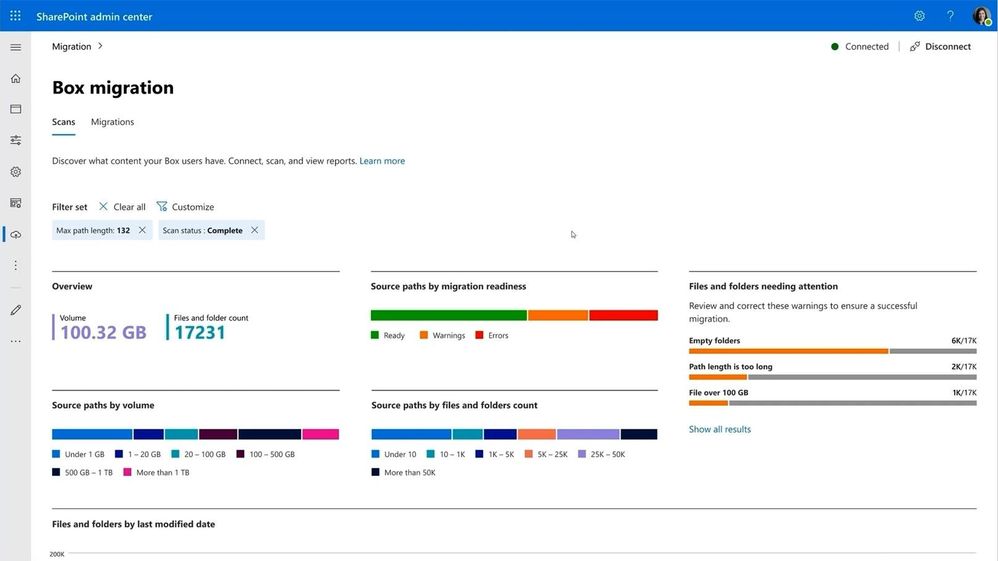 Scan and assess to get a broader view of your content in Box before migration.
SharePoint admin center: Migrate SharePoint Server on-premises workflow to Power Automate flows [Roadmap ID: 82108]
For SharePoint on-premises customers, you can now migrate SharePoint workflows directly to Power Automate. You can select workflow migration option and run the migration task by following the wizard. All it takes is to simply provide the source site and then enter the destination. After the migration is completed, the flow owner can sign into Power Automate, navigate to the right solution, and validate the migrated flows.
 Migrate and convert your SharePoint Server on-premises workflows into Microsoft 365 as Power Automate flows.
SharePoint tenant rename (Public preview) [Roadmap ID: 82162]
Recently, we’ve been enabling the ability for admins and site owners to rename their sites and related URLs. We’re pleased to apply this same pattern so you can change the SharePoint domain name for your organization in Microsoft 365. For example, if the name of your organization changes from “Contoso” to “Fabrikam,” you can change contoso.sharepoint.com to fabrikam.sharepoint.com.
Visit our “Rename your SharePoint domain” page in docs.microsoft.com to learn more and join the public preview. Note: Microsoft will sequentially enable customers based on the number of sites and OneDrives – starting with smaller-sized tenants and moving toward mid-sized and larger enterprises.
Security and compliance in SharePoint
Today at Microsoft Ignite (November 2-4, 2021), we are excited to announce the following new security and compliance capabilities in SharePoint, OneDrive, and Teams that help you to secure and govern your data holistically in this remote work era.
Security: Granular conditional access policies (Public Preview) [Roadmap ID: 82163]
We are also continuing our investment in sensitivity labels by adding more policy controls, like my favorite one – granular Conditional Access. For example, the Top-Secret label, can now have a conditional access policy that requires multi-factor authentication when accessing a site.
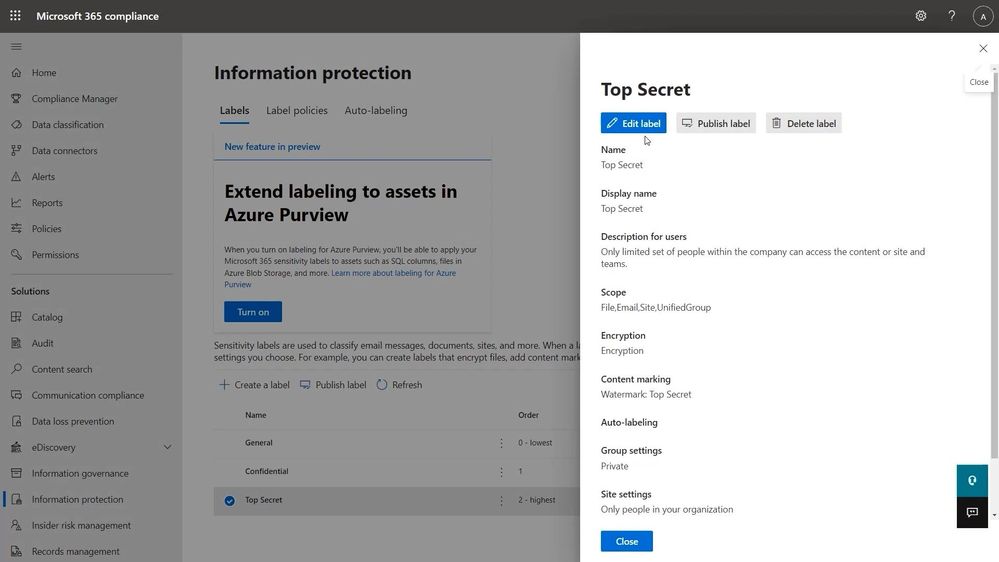 Define, control, and manage granular conditional access policies.
Imagine, as a site owner I have a business need to create a Top-Secret site and make sure it follows the right policies. I can simply apply the “Top Secret” label to the site and the rest is taken care of by the service.
Please visit our related ‘Site access’ article to learn more about what’s possible and to sign up for the public preview.
Security: Data access governance (Public Preview) [Roadmap ID: 82164]
We are also expanding our insights story to help you easily see what matters most in your organization. With our new Data Access Governance insights, you can monitor sharing activity to detect oversharing. You can review and monitor sites based on the type of sharing. You can quickly see essential information about the sites like sensitivity, level of access from unmanaged devices or if the site can be shared externally.
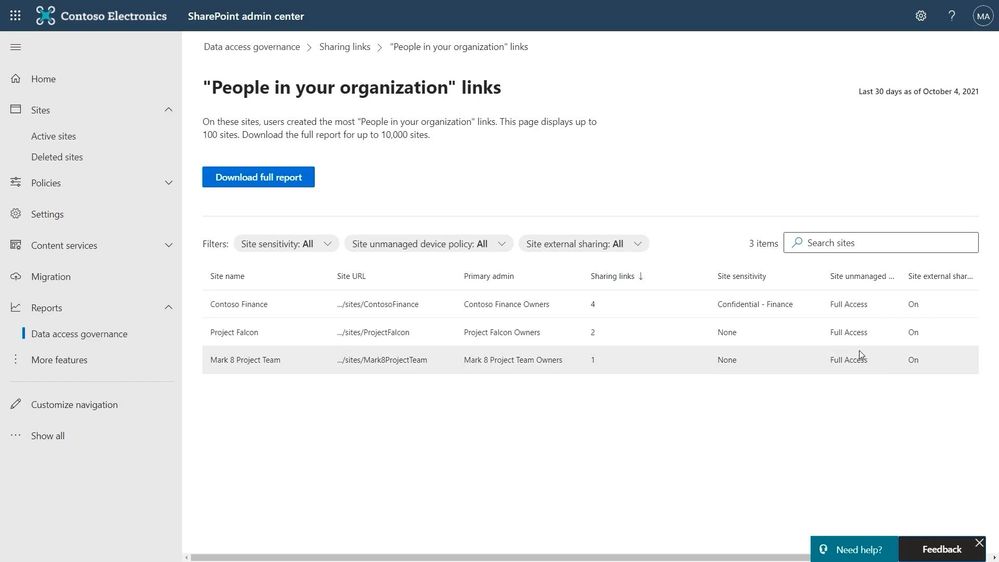 Review and adjust data access governance to control and manage sharing activity.
Like me, if you want to dive into the details, you can download the detailed reports which show the top 10,000 sites so you can easily slice and dice that data. Data Access Governance helps you see the panoramic view of your digital real estate and ensure the right set of policies are in place for the sites that matter the most.
Please visit our related ‘Data access’ article to learn more about what’s possible and to sign up for the public preview. And catch up on all “What’s new in Security and Compliance in SharePoint, OneDrive, and Teams – Microsoft Ignite 2021” news published during Ignite.
Final thoughts
Through Microsoft 365, we offer you the world’s most flexible content management platform. It is customizable, fast, and innovative.
Please, keep telling us what you like, and share your ideas for how we can make you and your organization as productive as possible.
Lean into content and collaboration to transform hybrid work with Microsoft Teams. Dive into Viva to enhance and embrace employee experiences across your culture, wellbeing, knowledge, and growth. Customize and build your own user experiences on top of the platform.
We work hard to provide innovative, fast, reliable user experiences that scale across the platform. We aim to earn and keep your trust every day in our secure, reliable, compliant, geo-distributed Microsoft Cloud –to keep you in the flow of work and maintain data governance.
Thank you, Jeff