
In an increasingly volatile world, organizational resilience depends upon the agility and responsiveness of your people. It’s more critical than ever to connect, inspire, and activate people. But it is also more difficult than ever. While many people may have adapted to working remotely, we hear from customers that it’s challenging to connect people, particularly outside of their core working groups, to drive culture and communication, and foster knowledge sharing and innovation.
Today, at Microsoft Ignite, we announced innovations that transform workplace communications, and empower communicators with integrated storytelling tools to inform, engage and inspire people across the organization. These innovations are informed by you, our customers. Top announcements include:
- Home site app for Microsoft Teams. Bring your home site and the best of your intranet directly into Microsoft Teams—seamlessly. The home site app gives your users global navigation across sites, communities, and teams; quick access to sites they use regularly; and a personalized news feed.
- SharePoint app bar. Create a consistent navigation experience to every site on your intelligent intranet, featuring quick access to important sites across the organization, personally relevant sites, and the news feed.
- Boost news in SharePoint. Prioritize important news and announcements to appear at the top of news feeds across Microsoft 365. You can boost the visibility of a news article for a set time, until an employee has seen your content, or until a viewer has seen the item in their feed a set number of times.
- Share news to email, Microsoft Teams, and Yammer. Share a news article directly to your audience’s team, community, or inboxes.
- Enhancements for communicators in Yammer. Send notifications for priority announcements to the inboxes of all community members or raise the visibility of a post by featuring it in the community and discovery feed. And, with delegate posting, designated users can share messages and announcements to the organization on leadership’s behalf.
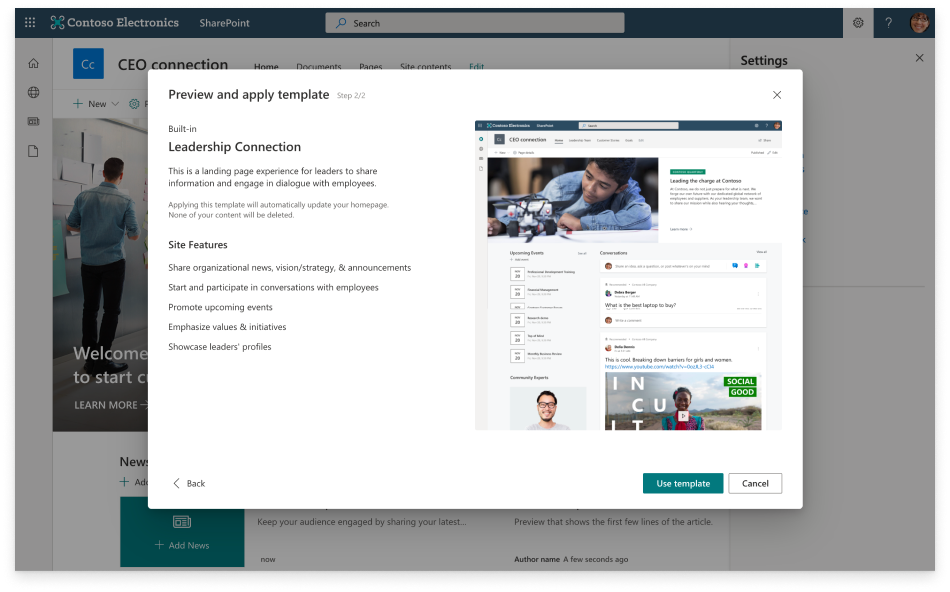
- Built-in templates. Quickly deploy robust scenarios by using predefined sites that integrate the superpowers of Microsoft 365. Easily customize built-in templates to your needs, such as the template for Leadership Connection, and apply them to any existing SharePoint site to give it new superpowers and a beautiful design.
- Insights for communicators. Understand your reach, impact, and engagement across Microsoft 365 by using new analytics in SharePoint, such as dwell time on content, heatmap views of interaction, and automatic analytics digest powered by AI. Combined these insights with analytics in Yammer, such as enhanced Community Insights, Live Events, and Question and Answers.
The intelligent intranet and Teams: better together
For many of you, the intranet is a canvas for communications, and for nearly two decades, SharePoint has been the leading platform for intranets, enabling organizations to connect the workplace, share information, and deliver rich employee experiences. Recent innovations in SharePoint like home sites, multilingual support, and audience targeting allow customers to create award-winning intranets in Microsoft 365, with no code.
As more people use Teams as a hub for teamwork, customers have asked us to integrate the superpowers of SharePoint with Teams, to reach people effectively where they work.
Today, we’re pleased to announce the new home site app for Teams, which brings your home site and the best of your intelligent intranet to Teams. The app gives users a gateway to your organization, starting with the app’s name and icon, which you can customize to reflect the identity of your organization or your intranet. The app’s multi-level navigation lets people find sites across the organization, including portals, teams, communities and applications.
Sites built on modern SharePoint will render inside Teams itself. And the app makes it easy to share and discuss content from intranet sites in Teams channels and chat.
With the home site app, people can tap into news and resources across the intelligent intranet without leaving the hub for teamwork. And communicators can build and deliver rich communications experiences in Teams.
Global navigation and news, on any site
Customers have also asked us to provide a global navigation experience that connects the workplace. The new SharePoint app bar brings a consistent navigation experience to every site on your intelligent intranet, featuring quick access to important sites across the organization, personally relevant sites, and the news feed. The customizable, global navigation in the app bar is shared with the home site app, giving employees that consistent navigation experience across Teams and the browser.
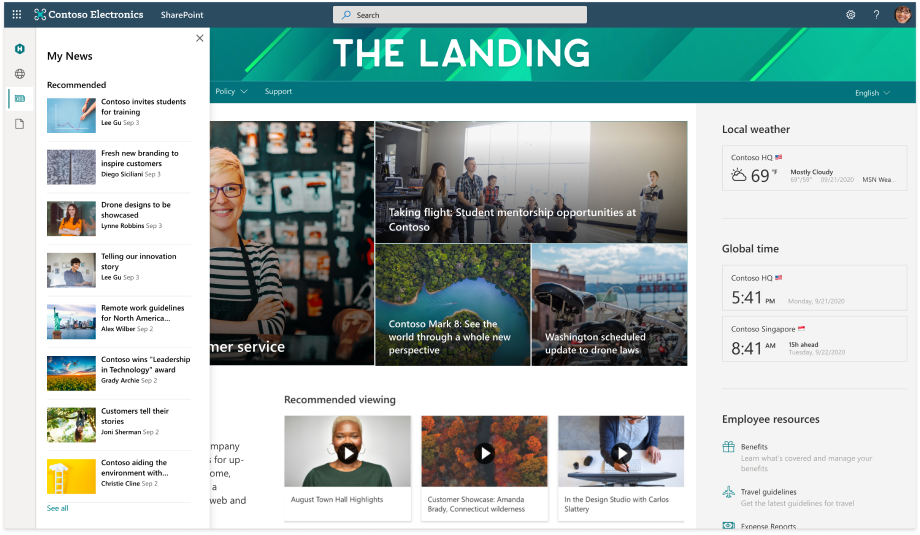
Improvements to news feeds and digests
Communicators told us that it’s harder than ever to get the right information to the right people, at the right time, across applications and devices. Today we announced improvements to news feeds and news digests.
The news feed delivers an intelligent view of news, targeted to you based on factors like your role or location, and further personalized based on signals in Microsoft Graph about where, how, and with whom you work. But communicators have told us that not all announcements and news are equal. Sometimes you need to boost the visibility of important news articles in the feed, rather than relying solely on AI. Soon, you can boost a news post until it has been read, for a set number of impressions, or until a given date. When the criteria is satisfied, the post returns to its normal position in the feed.
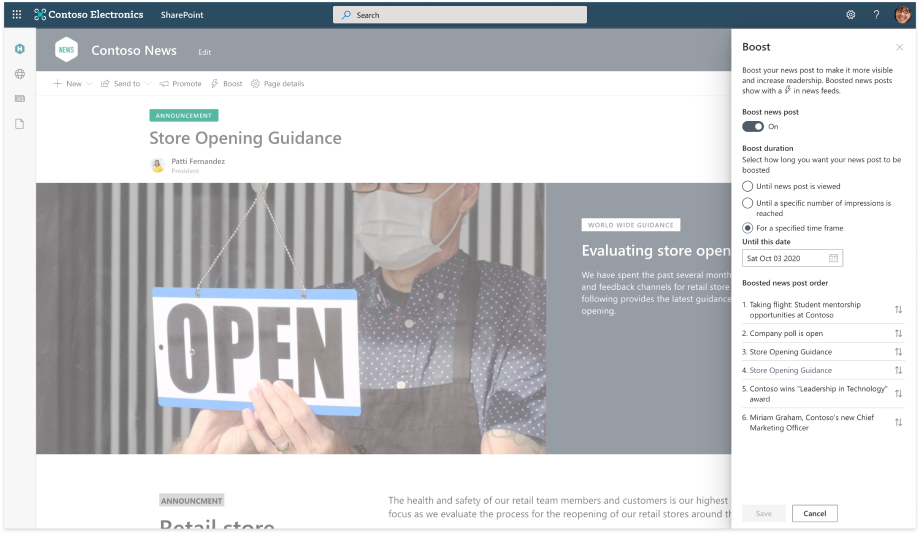
We’re delivering an enhanced news feed that supports boosting news in Edge, in news web parts, and in the SharePoint start page. In the future, we’ll be bringing this improved news feed to other experiences, and we’ll be adding new superpowers to the feed.
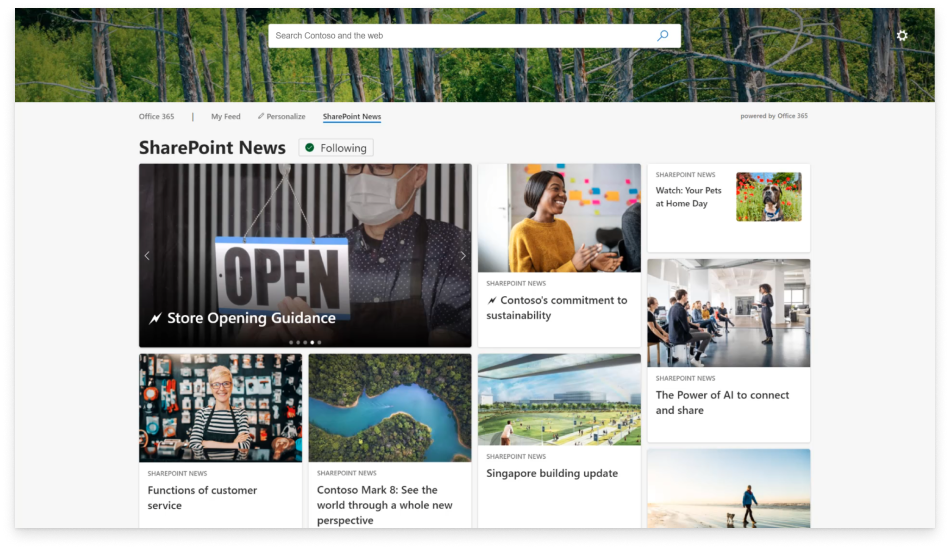
And employees have told us that keeping up with so much news and information can be challenging. To help you keep up-to-date with workplace communications, the automatically generated news digest will send an email summary, curated by AI, of news articles you may have missed or not read that week. The digest will help ensure people stay on top of news that you have boosted. And you can customize the news digest with your organization’s branding.

For communities in Yammer, we’ve recently empowered community managers to pin conversations to the top of the feed, and now you can feature a conversation, which showcases the conversation in the community feed and raises its visibility in Yammer’s home feed. You can also post priority announcements, which raises the visibility of notifications in community members’ inboxes. Additionally, leaders can delegate the ability to post to Yammer to their communications leads, allowing communicators to post news and announcements on behalf of leaders.
Reach and engage people in the apps they use every day
Communicators have also told us that to engage an audience that represents diverse generations and workstyles, you need to reach people where they are. You can share news and announcements to people and engage them across your SharePoint intranet, and now, Teams and Yammer.
You can share a news article to a Teams channel or a Yammer community, to reach your audience and encourage conversation about the item. You can spark richer engagement with the superpowers of these apps. For example, when sharing a news article to Yammer, you can add a poll to measure sentiment, or share it as a question to crowdsource ideas.

Create captivating communications experiences
Customers have told us that they do not want to spend precious resources and brain cycles designing intranet sites. Last year we introduced the lookbook to help you build beautiful employee experiences.
Now you can use built-in templates to give any existing site an extreme makeover. Templates, like the leadership connection template, have been purpose-built to support specific scenarios. They integrate the superpowers of SharePoint and other Microsoft 365 experiences, and deliver a beautiful, out-of-box design that you can customize with no code to reflect your branding and your needs. Of course, templates are responsive and accessible, so your experiences can be inclusive of all users, across devices.
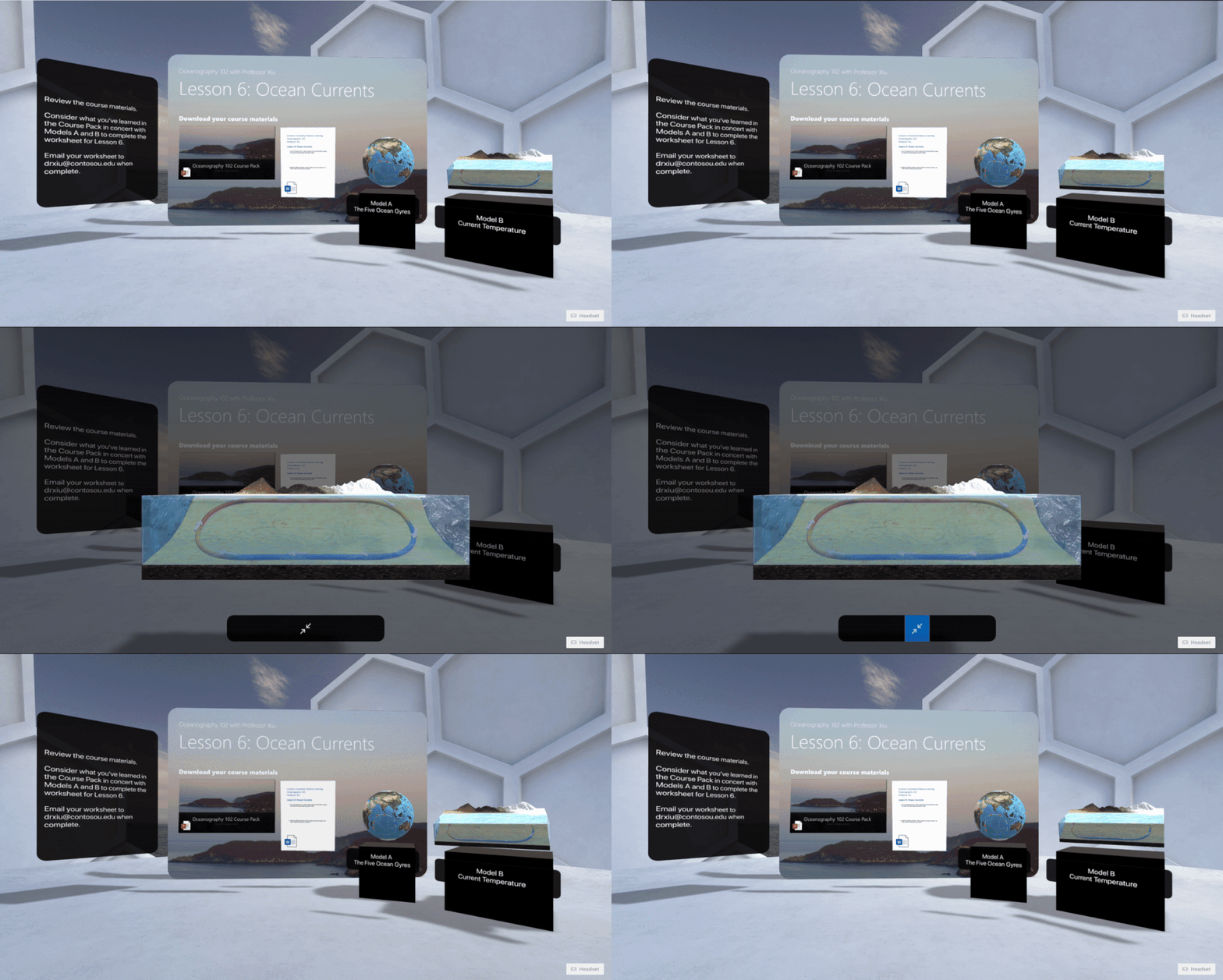
Today we also announced that SharePoint spaces reaches general availability this fall. SharePoint spaces enable anyone to create immersive and engaging mixed reality experiences that showcase 3D content, models and 360° imagery, and bring 2D content to life in stunning new ways. Spaces transform scenarios from hosting virtual events to onboarding employees, and can be experienced across devices, with a browser or a headset. The SharePoint spaces team sends a special “Thank you!” to our numerous early adopters and preview customers who provided us with rich feedback to guide the development of this revolutionary experience.
Foster a tighter workplace community
Because customers emphasize the need to connect and engage everyone, across the organization, we continue to invest in communities that foster a culture of inclusion, where everyone feels empowered to contribute to the conversation.
Innovations for Yammer’s All Company community turn it into a powerful tool for informing and engaging the entire organization, from the top-floor to the shop floor. Posts to the All Company community are discoverable by everyone, and anyone can engage. Now, you can customize the All Company community with your organization’s branding, and you can restrict who can post announcements or start new conversations in the community.
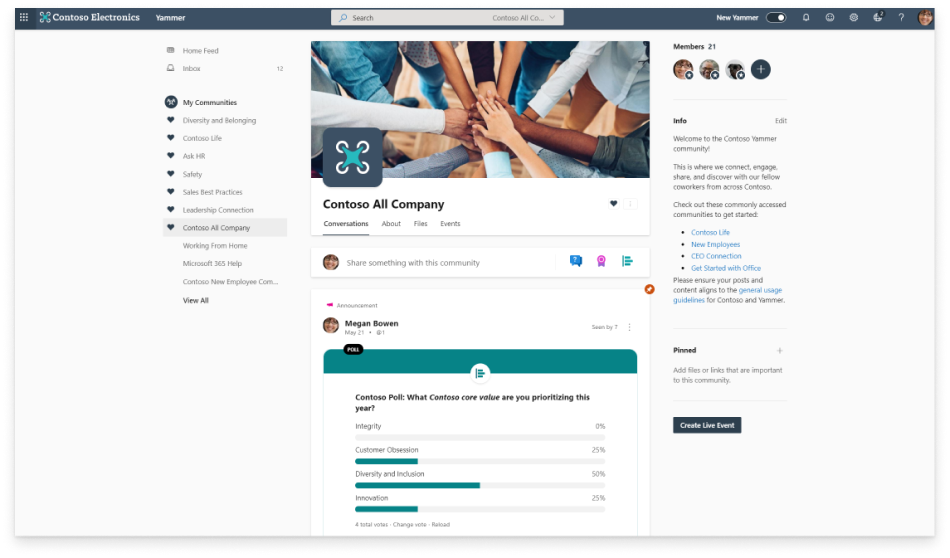
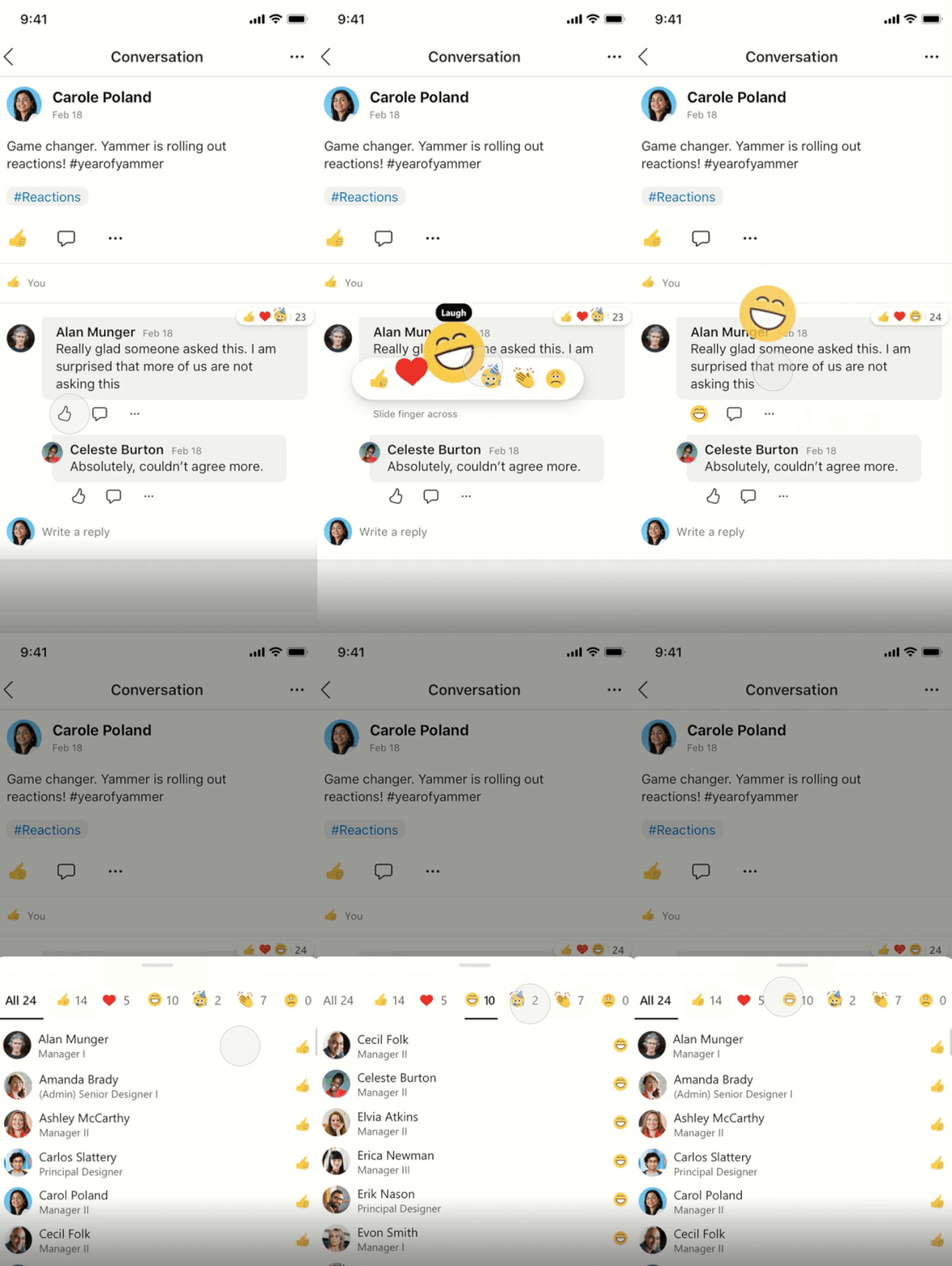
And when you share an announcement in Yammer’s All Company community, notifications are generated for everyone in the organization across Yammer, Outlook, and now Teams; across web, desktop and mobile. People can engage from the apps they use every day and express themselves with nuance using new reactions.
Better measure the impact of your communications
Finally, communicators have emphasized the importance of measuring the reach and effectiveness of communications. New insights include a heatmap of interaction or dwell time on content. An analytics digest, powered by AI, will automatically be sent to the author of a news post one week after content is posted, and provides suggestions to increase visibility of their post. And in Yammer, updated Community Insights empower communicators and community managers with detailed analytics for Conversations, Live Events, and Question and Answers.

It has never been more critical for organizations to connect, inspire, and activate their employees. Microsoft 365 brings you innovations that transform workplace communications. Whether you’re a leader, an HR or communications professional, or a communicator anywhere in the organization, we will continue to invest in integrated storytelling capabilities that empower you to inform, engage and inspire people, and to measure and improve your impact. We look forward to your feedback on these innovations, and to sharing the journey ahead.

Microsoft 365 & SharePoint Ecosystem (PnP) September 2020 update is out with a summary of the latest guidance, samples, and solutions from Microsoft or from the community for the community. This article is a summary of all the different areas and topics around the community work we do around Microsoft 365 and SharePoint ecosystem during the past month.
Thank you for being part of this initiative. Sharing is caring!
Got feedback, suggestions or ideas? – don’t hesitate to contact.

In this weekly discussion of latest news and topics around Microsoft 365, hosts – Vesa Juvonen (Microsoft), Waldek Mastykarz (Rencore), are joined by Tomasz Poszytek, an independent consultant and MVP from Poland.
They talk about Thomasz’s background and how we crew to be an independent consultant running his own business. Key tips from him for anyone who might be looking into doing the same. Discussions on the business automation and the different tools which we have had around these processes in past. Touching the challenge of the licensing models from Microsoft and how that has been simplified from the past… but could be further simplified in future.
Thomasz also talks about this experiences on being a project manager and how he decided to rather be a consultant. In this episode, 21 recently released articles from Microsoft and the PnP Community are highlighted.
This episode was recorded on Monday, September 7, 2020.
Did we miss your article? Please use #PnPWeekly hashtag in the Twitter for letting us know the content which you have created.
As always, if you need help on an issue, want to share a discovery, or just want to say: “Job well done”, please reach out to Vesa, to Waldek or to your PnP Community.
Sharing is caring!

In this weekly discussion of latest news and topics around Microsoft 365, hosts – Vesa Juvonen (Microsoft), Waldek Mastykarz (Rencore), are joined by. by Phil Worrell (Swisscom) – Community Evangelist based in Switzerland.
The trio discusses the significance of the datacenter and cloud adoption in Switzerland, embracing the new work reality, and REgarding 365 – a WW community of MVPs delivering opinions, interviews, conferences, blog posts, weekly talk show and support on everything Microsoft 365.
Waldek and the PnP CLI team are gearing up to ship v3.0 of PnP CLI for Microsoft 365 this weekend. In this episode, 17 recently released articles from Microsoft and the PnP Community are highlighted.
This episode was recorded on Monday, August 31, 2020.
Did we miss your article? Please use #PnPWeekly hashtag in the Twitter for letting us know the content which you have created.
As always, if you need help on an issue, want to share a discovery, or just want to say: “Job well done”, please reach out to Vesa, to Waldek or to your PnP Community.
Sharing is caring!
First published on TECHNET on Mar 06, 2017
This post is a contribution from Sohail Sayed, an engineer with the SharePoint Developer Support team
We recently worked on an issue with a customer configuring TFS build for SharePoint 2013
Customer followed the article https://msdn.microsoft.com/en-us/library/ff622991.aspx
There seems to be some changes compared to this article for resolving the SharePoint reference assemblies which I have listed below
As per the above msdn link to resolve the references we need to follow the below steps
It is recommended that you copy the SharePoint Server assemblies to the folder:
.. Program FilesReference AssembliesSharePoint
And then add one of the following registry entries:
For 64-bit systems:
HKEY_LOCAL_SYSTEMSOFTWAREMicrosoftWow6432Node.NETFrameworkv4.0.30319AssemblyFoldersExSharePoint15]@=
“<AssemblyFolderLocation>”.
Change
We could not find the HKEY_LOCAL_SYSTEM key in the registry.
Instead we had to update HKEY_LOCAL_MACHINESOFTWAREMicrosoftWow6432Node.NETFrameworkv4.0.30319AssemblyFoldersExSharePoint]@=
“<AssemblyFolderLocation>”.
However this change will not work on its own
We had to add the command line argument ” /tv:12.0″ to specify the tool version.
In addition we need to ensure the build is happening as 64 bit and not 32 bit and the build should be able to resolve the SharePoint references successfully.

In the dazzling array of services among the Microsoft cloud offerings, the rollout of TLS 1.0/1.1 deprecations is not being done all at once. This has lead to some confusion and questions around which endpoints are dropping the older TLS support and when.
Here I want to provide some dates and times of the endpoints, along with some .NET code guidance on how to use the newer TLS protocol (1.2), with some more information on TLS across the Microsoft Cloud.
So to begin, here are some of the endpoints that we know of.
| Service |
end date |
Release |
| Office 365 (Exchange/SharePoint/etc) |
|
|
| Office 365 Dod/GCC |
1/1/2020 |
|
| Office 365 consumer |
10/15/2020 |
|
| Graph |
|
|
| Graph Government |
8/5/2020 |
|
| Graph Consumer |
10/15/2020 |
|
| Azure |
|
|
| Azure Guest OS images |
1/1/2019 |
Family 6 release |
| Azure Application Proxy |
1/31/2019 |
|
| Azure intra-service traffic |
1/1/2020 |
|
| Azure SQL DB managed instance (pre SQL 2016) |
1/1/2020 |
|
| Azure Cosmos DB |
7/29/2020 |
|
| Azure File Sync |
8/1/2020 |
|
| Azure AD registration service in all sovereign clouds (GCC High, DoD etc.) |
8/31/2020 |
|
| Azure Automation |
9/1/2020 |
|
| Azure AD registration service in all commercial clouds |
10/30/2020 |
|
| Azure App Services (Web apps/functions/etc.) no announced timeline, can be set by admin still. |
?? |
|
If you are not sure about a particular endpoint, you can use this powershell to test the endpoint to see which versions of TLS it supports-
<#
Created by: whall
Date Created: 3/25/2020
Product Area Tags: Connectivity
Technology Tags: SSL TLS
Use Case:
Shows which version(s) of TLS is supported for a URL
Description:
When you run this, it checks each TLS type connection to see if it is supported.
Parameters:
-url this is the URL of the site you are testing against
Keywords: sockets secure https
Code Example Disclaimer:
Sample Code is provided for the purpose of illustration only and is not intended to be used in a production environment. THIS SAMPLE CODE AND ANY RELATED INFORMATION ARE PROVIDED ‘AS IS’
-This is intended as a sample of how code might be written for a similar purpose and you will need to make changes to fit to your requirements.
-This code has not been tested. This code is also not to be considered best practices or prescriptive guidance.
-No debugging or error handling has been implemented.
-It is highly recommended that you FULLY understand what this code is doing and use this code at your own risk.
#>
#TLS check
param([Parameter(Mandatory=$true)][string]$url)
function TLSAvailable([string]$url){
Write-Host =======================
Write-Host $url
Write-Host =======================
[System.Net.ServicePointManager]::SecurityProtocol = “Tls”
try{
$resp1 = Invoke-WebRequest -uri $url -Method GET -DisableKeepAlive
if($resp1.StatusCode -eq 200){
Write-Host “TLS/SSL 1.0 supported” -ForegroundColor green
}
}catch {
Write-Host “TLS/SSL 1.0 not supported” -ForegroundColor Red
#$_.Exception
}
[System.Net.ServicePointManager]::SecurityProtocol = “Tls11”
try{
$resp2 = Invoke-WebRequest -uri $url -Method GET -DisableKeepAlive
if($resp2.StatusCode -eq 200){
Write-Host “TLS/SSL 1.1 supported” -ForegroundColor green
}
}catch {
Write-Host “TLS/SSL 1.1 not supported” -ForegroundColor Red
#$_.Exception
}
[System.Net.ServicePointManager]::SecurityProtocol = “Tls12”
try{
$resp3 = Invoke-WebRequest -uri $url -Method GET -DisableKeepAlive
if($resp3.StatusCode -eq 200){
Write-Host “TLS/SSL 1.2 supported” -ForegroundColor green
}
}catch{
Write-Host “TLS/SSL 1.2 not supported” -ForegroundColor Red
#$_.Exception
}
Write-Host =======================
}
TLSAvailable -url $url
Azure Web Application Services
If you are running a .NET web application in the Azure web application services, you can set the TLS level under the application settings as below-
.NET Framework Code
If you are compiling your code for .NET framework 4.7 (4.7.1 for WCF apps) or later, it will use the default TLS version for the OS.
If you complied to a previous .NET framework version, it will use older versions of TLS unless you apply the right patch, and use one of the following methods-
- Set a registry setting to force all .NET code to use strong cryptography
- Set a config setting for the app context overrides to use the strong cryptography
- Add a line of code to change the TLS version used for HTTPS calls
Method 1 (System wide registry change)-
This enables something called strong cryptography which makes .NET use the strongest cryptography available currently. This affects all .NET applications with one registry change (per CLR version).
Enable strong cryptography for .NET CLR 4 versions (64 bit)-
Windows Registry Editor Version 5.00
[HKEY_LOCAL_MACHINESOFTWAREMicrosoft.NETFrameworkv4.0.30319]
“SchUseStrongCrypto”=dword:00000001
[HKEY_LOCAL_MACHINESOFTWAREWow6432NodeMicrosoft.NETFrameworkv4.0.30319]
“SchUseStrongCrypto”=dword:00000001
Enable strong cryptography for .NET CLR 2 versions (64 bit)-
Windows Registry Editor Version 5.00
[HKEY_LOCAL_MACHINESOFTWAREMicrosoft.NETFrameworkv2.0.50727]
“SchUseStrongCrypto”=dword:00000001
[HKEY_LOCAL_MACHINESOFTWAREWow6432NodeMicrosoft.NETFrameworkv2.0.50727]
“SchUseStrongCrypto”=dword:00000001
Method 2 (Config file change)-
Add the following to your .NET config file
<runtime>
<AppContextSwitchOverrides value=”Switch.System.Net.DontEnableSchUseStrongCrypto=false” />
</runtime>
Method 3 (Hardcoded in the application)-
Use this line of C# code in your application during the initialization so that all web calls will use the newer TLS 1.2 protocol-
System.Net.ServicePointManager.SecurityProtocol = SecurityProtocolType.Tls12;
If you are using PowerShell you can use the same object with this-
[System.Net.ServicePointManager]::SecurityProtocol = “Tls12”
More on these here-
https://docs.microsoft.com/en-us/dotnet/framework/network-programming/tls
Browser Support (Edge/Chrome/Edge legacy/IE/Firefox/Safari)
The following clients are known to be unable to use TLS 1.2. Update these clients to ensure uninterrupted access to the service.
- Android 4.3 and earlier versions
- Firefox version 5.0 and earlier versions
- Internet Explorer 8-10 on Windows 7 and earlier versions
- Internet Explorer 10 on Windows Phone 8
- Safari 6.0.4/OS X10.8.4 and earlier versions
Edge chromium disabled 1.0 and 1.1 around July 2020 (ver 84).
For all supported versions of Internet Explorer 11 and Microsoft Edge Legacy (EdgeHTML-based), TLS 1.0 and TLS 1.1 will be disabled by default as of September 8, 2020.
TLS 1.3
The next version of TLS is already implemented in some browsers, and is just around that corner, but as of yet should not be causing issues since TLS 1.2 is just getting to the lowest mandatory version.
More information
For more information on the patches for various products and more details to some of the .NET settings related to TLS please see the following articles.
Azure
https://azure.microsoft.com/en-us/updates/azuretls12/
https://azure.microsoft.com/en-us/updates/?query=TLS
Windows/.NET/SQL/SharePoint (on-Prem)
SQL-
https://support.microsoft.com/en-us/help/3135244/tls-1-2-support-for-microsoft-sql-server
SharePoint (this covers .NET/windows/SQL/browsers as well)-
https://docs.microsoft.com/en-us/sharepoint/security-for-sharepoint-server/enable-tls-1-1-and-tls-1-2-support-in-sharepoint-server-2019
.NET 4.5-
https://docs.microsoft.com/en-us/sharepoint/security-for-sharepoint-server/enable-tls-1-1-and-tls-1-2-support-in-sharepoint-server-2019#34—enable-strong-cryptography-in-net-framework-45-or-higher
.NET 3.5 update for TLS 1.1/1.2 support-
https://docs.microsoft.com/en-us/sharepoint/security-for-sharepoint-server/enable-tls-1-1-and-tls-1-2-support-in-sharepoint-server-2019#35—install-net-framework-35-update-for-tls-11-and-tls-12-support
.NET programming guidance-
https://docs.microsoft.com/en-us/dotnet/framework/network-programming/tls

SharePoint OOB Approval workflows are missing on SharePoint online site even after activatingreactivating the “Workflows” site collection feature.
Missing workflow templates:
Publishing Approval
Approval – SharePoint 2010
Collect feedback – SharePoint 2010
Collect Signatures – SharePoint 2010
Issue:
SharePoint OOB Approval workflows are missing on SharePoint online site even after activatingreactivating the “Workflows” site collection feature.
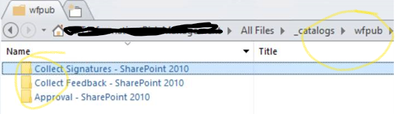
We just see below templates,
And in SharePoint designer, Wfpub contents are shown as folder and NOT as a library.
Background:
- Workflows feature depends on OffWfCommon (c9c9515d-e4e2-4001-9050-74f980f93160).
- OffWfCommon generates wfpub library when activated.
- Workflows features will deploy globally reusable workflows in wfpub when activated.
Initially activating Workflows means activating OffWfCommon and Workflows at the same time.
So, OffWfCommon will generate wfpub library and Workflows will deploy those workflows.
But unfortunately from the 2nd time, activation of Workflows feature only means the Workflows feature itself. This is because OffWfCommon remains activated. So it works like this.
- Workflows features will deploy globally reusable workflows in wfpub when activated…
But wfpub is not there. So empty folders are generated to cover up.
Expected:
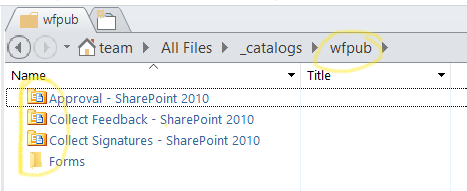
Actual:
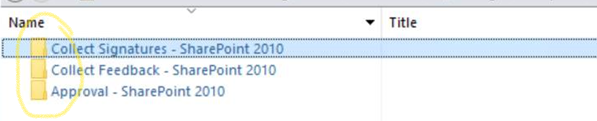
Resolution:
-Deactivate the “Workflows” site collection feature.
-Remove Wfpub folder from “_catalogs” – SharePoint designer
-Toggle the OffWfCommon feature
- Connect to PNP site collection and run below cmd,
Disable-PnPFeature -Identity c9c9515d-e4e2-4001-9050-74f980f93160 -Scope Site
Enable-PnPFeature -Identity c9c9515d-e4e2-4001-9050-74f980f93160 -Scope Site
-Now activate the “workflows” feature from UI should bring back the missing OOB workflows.
Problem: You receive a “Sorry, this document can’t be opened for editing” error when you try to create or edit an Office document in Office Web Apps.
Issue 1:
In some situations, users that are members of Active Directory (AD) Security Groups may be unable to edit documents in the browser. The solution is to ensure the User Profile Service Application (UPA) is properly configured and fully synchronized with user and group memberships. For more information, see the KB article SharePoint 2013 Unable to edit Office Web Apps 2013 files with users that are members of security groups.
Issue 2:
This error will also occur if co-authoring is disabled on the web application. For more information, see the KB article Disable co-authoring in SharePoint Server. Make sure that co-authoring is enabled ($web.DisableCoauthoring = $false) on web applications using Office Web Apps.
asnp *sh*
##RUN THIS TO SEE WHAT STATE IT SET TO
$web = Get-SPWebApplication <webapplication>
$web.DisableCoauthoring
##RUN THIS TO SET CO-AUTHORING TO ENABLED
$web = Get-SPWebApplication <webapplication>
$web.DisableCoauthoring = “False”
$web.Update()
Note: Disabling co-authoring via PowerShell ($web.DisableCoauthoring = “True”) will break Office Web Apps functionality for Microsoft Word. Microsoft Word Web Application requires Co-authoring to be enabled to function properly and is enabled by default.
For more information see: Configure Office Web Apps for SharePoint 2013
Below is a Sample for 1 Node WFM farm using WFM/SB certificate generation key – resetting expired certificate process:
- In order to reset generation key for WFM and SB the following steps needs to be done:
System date and clock of WFM node must be set back before certificate expiration date (step needs to be done if multiple WFM nodes in farm)
- Ensure you have credentials for WFM Run-As service account and WFM passphrase for generated certificate.
- In order to reset generation key for WFM and SB the following steps needs to be done WFM node:
System date and clock of WFM node must be set back before certificate expiration date (step needs to be done if multiple WFM nodes in farm)
- Stop Windows Time Service
- Change System date and clock to Day before certificate expired
Steps to follow once System date and time has been set prior to expiration date:
- Output workflow manager powershell commands to clipboard and paste to notepad:
////Workflow Manager Powershell results – use “|clip” parameter to output results to clipboard and paste to notepad
Get-WFFarm | clip
Get-SBFarm | clip
Get-SBNamespace |clip
** “Get-SBNamespace” command will list ManageUser accounts – one of those accounts should be the logon credentials used. Account should have the required SQL permissions to reset expired certificates.
- Run below commands – reverting date and time should display all services are “Running” before proceeding to next steps:
Get-WFFarmStatus
Get-SBFarmStatus – There are scenarios where Service Bus Message Broker service will get stuck at “Starting”, regardless continue to next step
- From Administrative SharePoint Management Shell, run below command to get current WorkflowHostURI used to register WFM to SharePoint:
$wfProxy = Get-SPWorkflowServiceApplicationProxy
$wfProxy.GetWorkflowServiceAddress((Get-SPSite -Limit 1 -WarningAction SilentlyContinue))
- Run below WFM powershell command to change passphrase and thumbprints:
$CertKey=convertto-securestring ‘PASSPHRASE’ -asplaintext -force;
Set-WFCertificateAutoGenerationKey –Key $CertKey
Set-SBCertificateAutogenerationKey –Key $CertKey
Then run:
Stop-SBFarm
Update-SBHost
- Run Workflow Manager Configuration Wizard – leave WFM farm first and then rejoin WFM farm
- Enable Windows Time Service – this will automatically change server back to current date and time
- SharePoint 2016: Step by Step guide to add Workflow Manager Certificate into SharePoint trust
https://social.technet.microsoft.com/wiki/contents/articles/34451.sharepoint-2016-step-by-step-guide-to-add-workflow-manager-certificate-into-sharepoint-trust.aspx
- Export WFM Client certificate using below command from Workflow Manager Powershell:
Get-WFAutoGeneratedCA
- Above command creates “AutoGeneratedCA.cer” file in path where command was executed – default C:Program FilesWorkFlow Manager1.0
- Copy “AutoGeneratedCA.cer” file to all SP nodes and Web Frontends – install certificate to Trusted Root Certification Authorities certificate store
- Register WFM to SharePoint –
Sample command:
Register-SPWorkflowService –SPSite “http://FQDN” –WorkflowHostUri “http://FQDN:12291” -AllowOAuthhttp -force
- From SharePoint Central Admin, run daily timer “Refresh Trusted Security Token Services Metadata feed [Farm job – Daily]”
- Test 2013 workflow
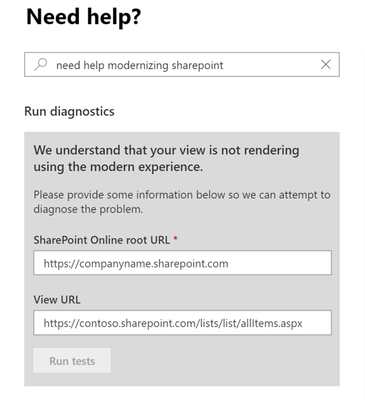
Administrators may have started to notice our diagnostics starting to render within the M365 Admin Center support portal for certain text queries as early as December 2018. Please refer to our previous diagnostic blog post How to troubleshoot issues in SharePoint Online and OneDrive with diagnostics.
Start Diagnostics from New Service Request
How to ensure I can use the diagnostic?
From the Microsoft 365 Admin portal select Support > New Service Request and type Diag: Classic View to Modern to render the diagnostic.
What does this diagnostic evaluate?
Evaluates that a view can render in Modern mode.
What tenant and SharePoint checks does it complete?
For additional details, see SharePoint Online Lists and Libraries Modern View Compatibility check
and Customizing “modern” lists and libraries.
Validates that page is compatible with Modern mode.
- Determines if the page is Modern mode compatible.
- Determines if XslLink customization is present.
- Determines if page contains a Special View Type.
- Determines if a Library has a custom new form page.
- Determines if the page resides outside of a Library.
- Determines if Modern mode is disabled at the site collection setting level.
- Determines if form page fields are valid.
- Determines if List or Library can be found.
- Determines if the page contains multiple web parts.
- Determines if Modern mode is disabled due to an unsupported List or Library type.
- Determines if Publishing fields are present.
- Determines if a Classic Publishing view was customized.
- Determines if Modern mode is disabled due to a List or Library setting.
- Determines if a form page was customized.
- Determines if a page was customized.
- Determines if the form page contains supported fields.
- Determines if JSLink customization is present.
- Determines if Business Data Connectivity fields are present.
- Determines if Modern mode is disabled at the site setting level.
- Determines if form page control mode is valid.
- Determines if Task Outcome fields are present.
- Determines if the Page is a List or Library View.
Validates various page related properties.
- Determines if the web page exists.







