
Captain’s log, stardate 365.0602.0609.2, our destination – to boldly go where no virtual conference has gone before.
The Galactic Collaboration Summit is about to hit warp speed 10, to help you explore a Milky Way Galaxy full of sessions. Set your phasers on fun, to learn, and engage!
Jeff “Captain” Teper (CVP, Microsoft) will be giving a keynote that’ll be out of this world, plus Microsoft speakers delivering breakout sessions among thought leaders and members of the community from around the world. Review all sessions and start your Galactic exploration today.
What: Galactic Collaboration Summit to learn more | Get your ticket today
When: June 2nd & 9th, 2020 (unique content on both days)
I’m a presenter, not a doctor: 65+ speakers (MVPs, RDs, Microsoft and community members)
Cost: Free and voluntary payment
Primary Twitter hashtag: #GalacticSummit (join in) & follow @CollabSummit
Galactic Collaboration Summit – June 2nd & 9th, 2020 (online training)
Seal up your helmet and ready your best cosmonaut impersonation. The Galactic Collaboration Summit has something for everyone in all reaches of the Microsoft 365 galaxy: far, far away. You’ll find no star or cluster uncharted: modern workplace, remote working and distance learning topics on Microsoft’s technologies, such as Microsoft 365, Microsoft Teams and SharePoint, Microsoft Azure topics relevant to the modern workplace, as well as different Business App topics (Power Apps, Logic Apps, Power Automate, Planner, Yammer), and more.
Below is a list of the Microsoft sessions – including Jeff’s keynote:
- The latest innovations in SharePoint, OneDrive, and Office for content collaboration [Microsoft keynote] | by Jeff Teper
- Microsoft 365 Live Events and remote work | by Lorena Huang Liu & Christina Torok
- Knowledge and Project Cortex – the Microsoft 365 Vision | by Naomi Moneypenny and Chris McNulty
- Share and track your information with Microsoft Lists across Microsoft 365 | by Lincoln DeMaris
- Design productivity apps with SharePoint lists and libraries, Power Apps, and Power Automate | by Chaks Chandran
- The New Yammer | by Jason Mayans
- Migration to SharePoint, OneDrive, and Microsoft Teams in Microsoft 365, free and easy | by Hani Loza & Eric Warnke
- Security and compliance in SharePoint and OneDrive | by Sesha Mani
- Jump start your projects with community projects from Patterns and Practices (PnP) | by Vesa Juvonen
Shout out to community members Spencer Harbar, Adis Jugo and the #GalacticSummit crew who are giving the conference all they got, soon transporting you into the online holodeck and beyond, navigating the far reaches and for supporting and promoting the knowledge and expertise that reaffirms this: Microsoft 365 has the best tech community in the galaxy – one that shall live long and prosper.
Beam me up Spency, Mark
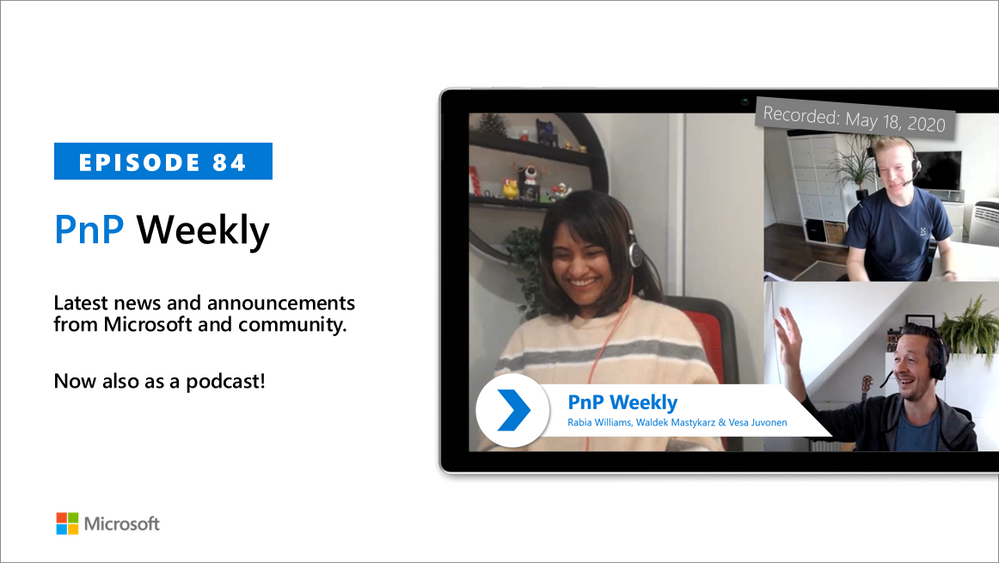
In this weekly discussion of latest news and topics around Microsoft 365, hosts – Vesa Juvonen (Microsoft), Waldek Mastykarz (Rencore), are joined by Rabia Williams – MVP, Developer with Engage Squared in Brisbane, Australia.
This episode’s conversation evolves from the ease of working with SharePoint Framework, to challenges of cloud-based authentication, to being involved with the tremendous growth of Microsoft Teams apps and extensions. On becoming an MVP – focus on creating awareness and on sharing your interests and learnings with others. On PnP awareness – the reality is there are more newbies than experts out there, it’s incumbent on us to keep learning how to explain the basics better.
The trio agrees – contributing to an open-source effort is a different type of developer experience. It’s people to people focused, it’s inclusive, it’s addictive and it’s rewarding
This episode was recorded on Monday, May 18, 2020.
Did we miss your article? Please use #PnPWeekly hashtag in the Twitter for letting us know the content which you have created.
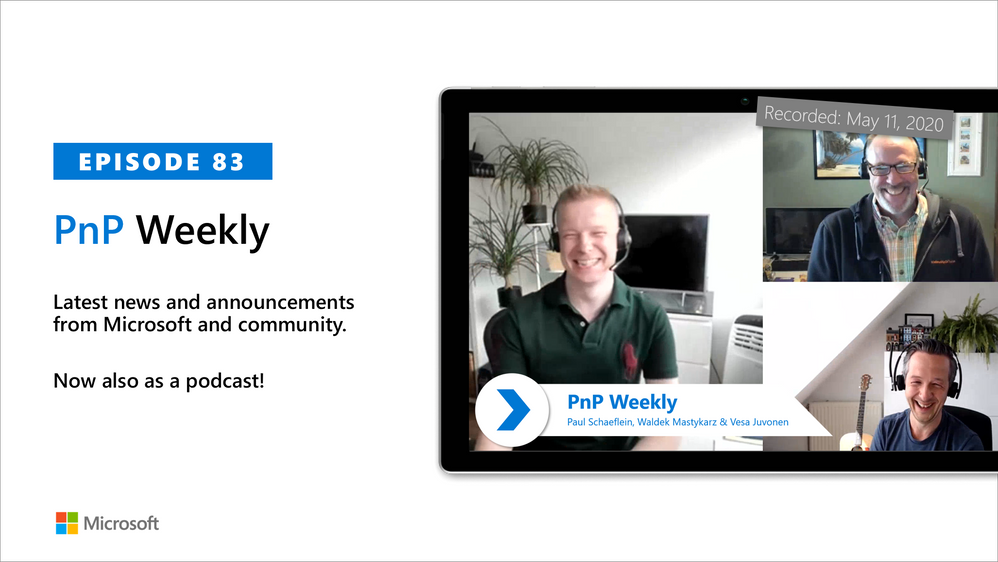
In this weekly discussion of latest news and topics around Microsoft 365, hosts – Vesa Juvonen (Microsoft), Waldek Mastykarz (Rencore), are joined by Paul Schaeflein – MVP, Developer, Technical Architect and Microsoft 365 Podcaster in Chicago, Illinois, based Addin365.
Paul is focused on helping peers and customers use the parts of Microsoft 365 that are relevant to their job. What is the Microsoft 365 opportunity for developers? Of course, that depends. Microsoft 365 provides many options. First understand and bridge the gap between what your staff can do (their knowledge) and what the service can do for you/them. Key focus areas for newbies?
Learn how to write and secure an API, understand React and now React hooks, know your native coding tool – editor, know how to use search engines to find people and information efficiently, understand how to interact with a service you don’t own and finally, keep learning.
As always, if you need help on an issue, want to share a discovery, or just want to say: “Job well done”, please reach out to Vesa, to Waldek or to your PnP Community.
This episode was recorded on Monday, May 11, 2020.
Did we miss your article? Please use #PnPWeekly hashtag in the Twitter for letting us know the content which you have created.
The Microsoft Information Protection (MIP) and Compliance Customer Experience (CXE) team are part of M365 Security Engineering at Microsoft. We work with Microsoft’s largest enterprise customers to help them accelerate deployment of our features by providing deployment guidance and advisory services.
An important part of our function is to gather customer feedback and present this back internally to the team to improve our MIP and Compliance products. We can’t work with every customer, so we have combined all these experiences into a deployment acceleration guide. This document will guide our customers on their information protection and compliance journey, learn best practices and key benefits to help get the most out of their Microsoft 365 investments.
Attached to this post you will find a link to download our deployment acceleration guide.
We hope you will find it useful and beneficial.
Feel free to send us feedback!
mipsccxe@microsoft.com
![Implementing Microsoft Exact Data Match (EDM) Part 3]()
Welcome to Part 3 of this blog series. First I want to apologize for the delay in getting this Part 3 published, my day job got in the way a bit! If you have not already read the first two parts I recommend it prior to reading this one. In Part 1 we discussed why a company would want to use EDM and the benefits it provides. We also began the setup of EDM in our tenant. Part 2 finished up the overall configuration of EDM, specifically the rule pack file. We ended Part 2 with the upload of our datastore. We are now ready to work on the DLP Policies that will utilize the EDM sensitive info types we created.
To start creating the DLP Policies, go to the new Compliance Center, compliance.microsoft.com. This site is not 100% completed with the move away from the Security and Compliance Center (SCC), protection.office.com, but is making great progress. Once in the Compliance Center, we can check on the new Sensitive Info Types that were created as part of the EDM setup. To do this go to the Data Classification blade in the left-hand menu. Select Sensitive Info Types from the top menu and you should then be able to find the four new types we created. Two of them we already went over when setting up the Rule Pack, and the two newer ones were created once the rule pack was uploaded.

Now that we have verified the new ExactMatch custom Sensitive info types, we can build a DLP policy using them. If you do not see “Data loss prevention” on the left-hand menu, scroll all the way down to the bottom and select “Show all” Once you do this you will see all the menu items, select Data loss prevention.
Note: If you want an option to always be present in the navigation, click on “Show in Navigation” in the upper right of the screen. Now the item will always be visible in the navigation without the need to select “Show all” first.
- From the Data Loss Prevention blade, select Create policy

- Keep custom policy selected and press Next

- Give the policy a name and description. Click Next

- Select Let me choose specific locations, click Next

- De-select SharePoint Sites (currently EDM does not work with SharePoint Sites, but will support soon), click Next

- Select Use advanced settings, click Next
- Select New Rule

- Give the rule a name and description

- Click Add Condition then Content Contains in the Conditions section

- Select Add then Sensitive Info Type

- Select Add then locate and select the Superhero-SRN-EDM and Superhero-Nickname-EDM sensitive info types, click Add

- Click done

- I then modified the Match Accuracy to be between the Confidence Levels set within the Rulepack for just finding the SRN and Nickname without any other fields. Also be sure that Any of These is present, this results in an OR situation, where the service can find an SRN or Nickname, but both do not need to be present. Editing the fields by just selecting the numbers and changing them.
Note: You could use the Add group button to add more Sensitive info types and require either an AND or OR criteria with the first set of sensitive info types.

- Click add a condition and content is shared and then choose with people outside my organization.

Note: you can add additional conditions if you wish, but for this rule I only am configuring the Content is shared condition
- For this rule I am not going to have any actions taken, just notify the user, the next rules will have actions.
- Within User Notifications, turn them on and then you can configure what notifications are sent to whom and customize the messages if you would like. I have elected to notify the user who sent, shared, or last modified the content and I also customized the email and policy tip for the rule.

- Because we do not have any actions on this rule, I do not have to configure User overrides, we will do this in later rules
- Next configure Incidents Reports, for this low rule condition I might not normally configure this but will for this demo. I am specifically keeping the severity for this rule as low and just including the Admin for both alert and incident report notification.

- After setting up Incident reports, you can click Save. Will discuss rule priority later


20. That will bring you back to the Policy settings page again, select New rule again and give the rule a name and description

- For Conditions add the same two sensitive info types as the previous rule, but this time I am going to change the match accuracy to match on the SRN and Nickname with supporting info. For SRN this is 75-84, which means the system will have found the SRN and 2 other fields of data. For Nickname it will be 75-84, which means the system will have found Nickname with 2 other fields. I am taking these ranges from the rulepack file created in Part 2 again.

- Add in the same condition as the previous rule, Content is shared with people outside my organization

- For this rule we will add an action “Restrict or encrypt the content” keep the defaults to “block people from sharing…and Only people outside your organization…”

- The User actions section is like the last rule, just changed the wording in the email and policy tip

- For this rule will allow User Overrides, I am setting it to require a business justification. If you are familiar with DLP, this will require the user to give justification for overriding a policy and will become an auditable entry as well.

- Incident reports section will be the same as the first rule except will raise the severity of this alert to medium.

- Options will remain unchanged, click save.
- From the Customize Type of content to protect screen click on New rule one last time
- Name the Rule

- Add the same two sensitive info types as the previous two rules for the condition. This time I am raising the Match accuracy to match additional criteria found as configured in the rulepack. Also set the same condition as the 2nd rule for sharing with people outside my organization.

- In Actions I am setting the same action as rule two, block people from sharing with people outside my organization.
- User notifications are like the last two rules

- No User overrides, this requires that the data be removed before the action attempted (sharing, sending email) can be completed

- Incident reports, only change it to set the sensitivity as High

- Click save and done creating the rules for the Policy
- Back at Policy settings, you can turn rules on or off as well as select the 3 dots you can move the priority of the rule up or down. Click Next

- Select to turn the policy on or put it in test mode first. Since I am working in a demo lab I will turn in on, click Next

- Review the settings and click Create

- I changed the order so my new Superhero Secret Identity Protection Policy would be set at 0 or the first policy evaluated. In my lab it did not matter much as I only have 1 active Policy. But you will want to pay attention to Order when you have multiple policies and specifically if you select the “Stop processing additional DLP Policies and rules if this rule matches” option


Next step is to test out the Policy and the Rules! Best to let the policy replicate for a couple hours before testing to ensure it will be fully enabled.
For testing the Policy and rules I am going to switch to login as Megan Bowen to do the test. I have logged into Office 365 as Megan and going to start by showing the Policy and rules in action via email.
- Now I am going to compose an email to Adele Vance, another internal SIPA employee, and provide information about Superman

- I have highlighted the data that is present in the email that is also in the datastore CSV that we uploaded. Why did I not get a Policy tip for finding this data in the email? I did not get a policy tip because Adele, as mentioned, is an internal employee and my rules only apply to sharing with people outside my organization. Now I will add an additional recipient to someone outside the organization and see what happens, lets try sending to Lex Luthor of Legion of Doom.

- Now see the highlighted Policy tip, this is the policy tip from our 3rd rule we created within the DLP Policy. Let’s examine the show details

Now I see the reason for the alert is that Lex.luther@legionofdoom.org is not authorized to receive this type of info. I also see what sensitive message type was found.
- If I try to send the email without removing Lex or the sensitive data then this pops up, not allowing the email to be sent.

5. When I attempt to share a file that contains Sensitive Info to someone outside my organization, I am blocked from doing so as well

The above shows how the Office 365 DLP policy uses EDM data. What about Microsoft Cloud App Security (MCAS)? It is just as easy. For MCAS I will create a simple File Policy, here are the steps
- Login to the MCAS Admin portal at Portal.cloudappsecurity.com, select Control and Policies on the left-hand menu and then select Create Policy

- Select File Policy from the drop-down menu

- Give the policy a name and description. For this policy I will not use any filters as I want to include all files.

- Now select Data Classification for the Inspection method and the choose to add the two EDM Sensitive Information type created previously, set the Alerting you wish

- You can elect to provide Governance Actions if you want. Once the policy is completed, sit back, and wait for the alerts to come in

I can see alerts show up in the Alerts Area

Clicking on the Top alert allows me to review the information

Clicking on the 1 Policy Match I can see the actual data the caused the file to be alerted.

This is going to wrap up the blog series. Hope you found this informative and useful when you look to integrate EDM into your DLP solution!
I was working on a case recently, where the users were trying to delete the Index from SharePoint Cloud SSA and when followed the article https://docs.microsoft.com/en-gb/archive/blogs/spses/cloud-search-service-application-removing-items-from-the-office-365-search-index , it had the script to perform the same.
However, the end user had their accounts configured with Multi Factor Authentication and the above didn’t have the context.
Went ahead and tweaked the script and wrote one to leverage the App Context and connect to the SPO Service.
Alternatively, You can use
PowerShell PnP authentication manager which allows for a web login to provide your SPO credentials, which will allow for MFA.
<#
.SYNOPSIS
Issue a call to SharePoint Online to delete all metadata from on-premises content that was
indexed through cloud hybrid search. This operation is asynchronous.
.PARAMETER PortalUrl
SharePoint Online portal URL, for example ‘https://abhassai.sharepoint.com‘.
.PARAMETER Credential
Logon credential for tenant admin. Will prompt for credential if not specified.
#>
param(
[Parameter(Mandatory=$true, HelpMessage=”SharePoint Online portal URL, for example ‘https://contoso.sharepoint.com‘.”)]
[ValidateNotNullOrEmpty()]
[String] $PortalUrl,
[Parameter(Mandatory=$false, HelpMessage=”Logon credential for tenant admin. Will be prompted if not specified.”)]
[PSCredential] $Credential
)
$AzureEnvironment = “AzureCloud”
$IsGermanCloud = $false
$IsChinaCloud = $false
$IsITARvNext = $false
If ($Portalurl.EndsWith(“.de”) -or $Portalurl.EndsWith(“.de/”))
{
$IsGermanCloud = $true
$AzureEnvironment = “AzureGermanyCloud”
}
If ($Portalurl.EndsWith(“.cn”) -or $Portalurl.EndsWith(“.cn/”))
{
$IsChinaCloud = $true
$AzureEnvironment = “AzureChinaCloud”
}
If ($Portalurl.EndsWith(“.dps.mil”) -or $Portalurl.EndsWith(“.dps.mil/”) -or $Portalurl.EndsWith(“.sharepoint-mil.us”) -or $Portalurl.EndsWith(“.sharepoint-mil.us/”) -or $Portalurl.EndsWith(“.sharepoint.us”) -or $Portalurl.EndsWith(“.sharepoint.us/”))
{
$IsITARvNext = $true
$AzureEnvironment = “USGovernment”
}
If ($IsPortalForUSGovernment)
{
$AzureEnvironment = “USGovernment”
}
$SP_VERSION = “15”
$regKey = Get-ItemProperty -Path “HKLM:SOFTWAREMicrosoftOffice Server15.0Search” -ErrorAction SilentlyContinue
if ($regKey -eq $null) {
$regKey = Get-ItemProperty -Path “HKLM:SOFTWAREMicrosoftOffice Server16.0Search” -ErrorAction SilentlyContinue
if ($regKey -eq $null) {
throw “Unable to detect SharePoint Server installation.”
}
$SP_VERSION = “16”
}
$code = @”
using System;
using System.Net;
using System.Security;
using Microsoft.SharePoint;
using Microsoft.SharePoint.Administration;
using Microsoft.SharePoint.Client;
using Microsoft.SharePoint.IdentityModel;
using Microsoft.SharePoint.IdentityModel.OAuth2;
static public class ClientContextHelper
{
public static ClientContext GetAppClientContext(string siteUrl)
{
SPServiceContext serviceContext = SPServiceContext.GetContext(SPServiceApplicationProxyGroup.Default, SPSiteSubscriptionIdentifier.Default);
using (SPServiceContextScope serviceContextScope = new SPServiceContextScope(serviceContext))
{
ClientContext clientContext = new ClientContext(siteUrl);
ICredentials credentials = null;
clientContext.ExecutingWebRequest += (sndr, request) =>
{
request.WebRequestExecutor.RequestHeaders.Add(HttpRequestHeader.Authorization, “Bearer”);
request.WebRequestExecutor.WebRequest.PreAuthenticate = true;
};
// Run elevated to get app credentials
SPSecurity.RunWithElevatedPrivileges(delegate()
{
credentials = SPOAuth2BearerCredentials.Create();
});
clientContext.Credentials = credentials;
return clientContext;
}
}
}
“@
$assemblies = @(
“System.Core.dll”,
“System.Web.dll”,
“Microsoft.SharePoint, Version=$SP_VERSION.0.0.0, Culture=neutral, PublicKeyToken=71e9bce111e9429c”,
“Microsoft.SharePoint.Client, Version=$SP_VERSION.0.0.0, Culture=neutral, PublicKeyToken=71e9bce111e9429c”,
“Microsoft.SharePoint.Client.Runtime, Version=$SP_VERSION.0.0.0, Culture=neutral, PublicKeyToken=71e9bce111e9429c”
)
Add-Type -AssemblyName (“Microsoft.SharePoint.Client, Version=$SP_VERSION.0.0.0, Culture=neutral, PublicKeyToken=71e9bce111e9429c”)
Add-Type -AssemblyName (“Microsoft.SharePoint.Client.Search, Version=$SP_VERSION.0.0.0, Culture=neutral, PublicKeyToken=71e9bce111e9429c”)
Add-Type -AssemblyName (“Microsoft.SharePoint.Client.Runtime, Version=$SP_VERSION.0.0.0, Culture=neutral, PublicKeyToken=71e9bce111e9429c”)
Add-Type -TypeDefinition $code -ReferencedAssemblies $assemblies
<# if ($Credential -eq $null)
{
$Credential = Get-Credential -Message “SharePoint Online tenant admin credential”
} #>
Connect-MsolService -AzureEnvironment $AzureEnvironment
$cctx = [ClientContextHelper]::GetAppClientContext($PortalUrl)
$manager = New-Object Microsoft.SharePoint.Client.Search.ContentPush.PushTenantManager $cctx
$task = $manager.DeleteAllCloudHybridSearchContent()
$cctx.ExecuteQuery()
Write-Host “Started delete task (id=$($task.Value))”
![Implementing Microsoft Exact Data Match (EDM) Part 3]()
Announcing general availability of ‘know your data’ (discovery and review capabilities) in the Microsoft 365 compliance center
As employees shift to working remotely, it is more important than ever that organizations prioritize protecting their business-critical and sensitive data. Your employees are accessing, sharing, creating, and storing data in new ways, and you need to make sure this is being done in a protected and compliant manner. At Microsoft, our goal is to provide a built-in, intelligent, unified, and extensible solution to protect and govern your data across your digital estate – in Microsoft 365 cloud services, on-premises, third-party SaaS applications, and more. With our Information Protection & Governance solution, we are building a unified set of capabilities for discovery, classification, labeling, protection, and governance not only in Office apps, but also in other popular productivity services where information resides (e.g. SharePoint, Exchange, OneDrive).
Know your sensitive data
The first step in the journey to protect and govern your data is getting a holistic understanding of the sensitive data in your digital estate. The data classification capabilities in the Microsoft 365 compliance center enable you to discover, classify, review, and monitor your data and establish appropriate policies to better protect and govern critical data (e.g. by applying sensitivity and retention labels or data loss prevention policies).
Today, we are excited to announce the general availability of ‘Overview’, ‘Content explorer’, and ‘Activity explorer’ capabilities to give you a holistic view of your sensitive data.
The Overview tab shows you at-a-glance the most common sensitive information types and labels used in your organization and how they are being used. You do not need to set up any policy to understand these details.

Figure 1. Overview tab showing a quick snapshot of data classification and usage of sensitivity and retention labels
The Content explorer tab provides you with a richer understanding of data at risk by displaying the amount and types of sensitive data in a document. An integrated viewer displays the full content in documents or emails for those with appropriate permissions. You can also filter by label or sensitive type to get a detailed view of locations where sensitive data is stored. Based on your feedback, we have added the ability to ‘Search’ and find sensitive files in specific locations or by specific file types or file names. You can also now ‘Export’ the meta data of content displayed into Excel, for further reporting and investigation, with a single click.

Figure 2. Integrated viewer showing contents of document in the ‘Content explorer’ tab
Note: OneDrive views in this experience will remain in ‘preview’ mode while we incorporate your feedback. We appreciate your continued support on this and thank you for your feedback.
The Activity explorer tab provides a better understanding of activities related to your sensitive data, sensitivity and retention labels , such as decreased protection due to label downgrades or changes. It helps you investigate events that could be leading towards data leak scenarios (e.g., removal of labels). Understanding these activities gives you the ability to identify the right policies for protection or data loss prevention (DLP) to ensure that your most sensitive data is secure.

Figure 3. Activity explorer tab displaying activity related to sensitive information
Customer feedback
A large financial services customer, for example, used these new capabilities to discover vulnerable data on their 8000 SharePoint sites and then prevent its overexposure, thereby reducing their risk on vulnerable data.
Several other customers have shared that they were pleasantly surprised to see the quantity and quality of insights available in Content explorer and Activity explorer, and it prompted them to create protection policies they had previously not considered. Microsoft’s IT also relies on these capabilities to ensure that the data in over 150,000 mailboxes and 300,000 SharePoint /Teams sites is protected even as a huge amount of sensitive data continues to be created and shared.
“Content explorer is a welcome addition to my remediation and tuning efforts. In the past, when I wanted to get a sense of the impact of a particular policy, we would run eDiscovery searches to know the amount of data out there that matches a particular sensitive type (built-in or custom). Now with Content Explorer, I can get a quick sense of the number of findings by simply selecting the sensitive type from the many filters available within Content Explorer. From there, I can explore those items to understand the signal to noise ratio and progress with my remediation efforts. The key is that I can quickly search for the site name and then the file name, which helps me to review content quickly without making copies of content. This used to take a lot of time but now with this tool I can do it in half the time.” John Cardarelli, Data Loss Prevention Architect in Microsoft’s IT Department
Get started
Overview, Content explorer and Activity explorer enable you to discover, classify, review, and monitor sensitive data in your Microsoft 365 services like SharePoint and Exchange ‘in place’ without having to move your data elsewhere. To learn more about how these capabilities enable you to know your sensitive information, watch this short video and see our online documentation. To experience this capability, click on ‘data classification’ in the Microsoft 365 compliance center. With a Microsoft 365 E3 license you can benefit from the Overview tab and get programmatic access to basic reporting and audit. Microsoft 365 E5 licensing SKUs (e.g. E5 Compliance and E5 Information Protection & Governance) get you access to advanced capabilities like Content explorer and Activity explorer. You can learn more about our licensing here.
We are excited to roll out general availability of these data discovery and review capabilities for SharePoint and Exchange today. We will continue to add more workloads like Office client apps, endpoints, Teams, on-premises. We are committed to expanding on these capabilities to enhance your ability to protect and govern data. We are working hard at other exciting innovations – stay tuned!
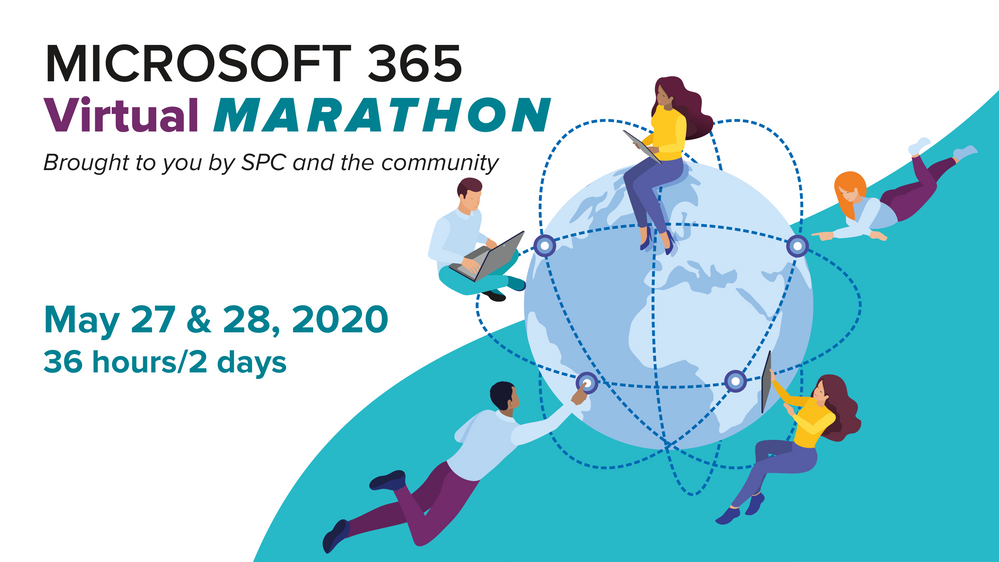
Attendees, on your marks, get set, GO!
Lace up your training shoes. Load up on the v-carbs. And start pounding the water today. The Microsoft 365 Virtual Marathon is around the corner. World class speakers prepped to be your first-class training coaches. And the content, the content is what gets you across the finish line. So much good content.
Jeff Teper (CVP, Microsoft) will be giving a keynote that’s not to be missed, plus Microsoft speakers delivering breakout sessions among thought leaders and members of the community from around the world. Review all 200+ sessions and start your Marathon training plan today.
What: Microsoft 365 Virtual Marathon to learn more | Register today
When: May 27-28, 2020 (36 hours / 2 days)
Presenters: 300+ speakers (MVPs, RDs, Microsoft and community members) from 44 countries speaking in 7 different languages
Cost: Free
Primary Twitter hashtag: #M365VM (join in)
Microsoft 365 Virtual Marathon – May 27-28, 2020 (online training)
Set your pace and jump in. The Microsoft 365 Virtual Marathon has something for everyone running the “miles” of Microsoft 365, including Azure. You’ll find no hill or valley unmapped: AI, bots, sharing, intranet, BI, admin, Teams, SharePoint, OneDrive, Yammer, Power Platform, Microsoft Graph, SPFx, security & compliance, Project Cortex, custom development, migration, search and more.
Below is a list of the Microsoft sessions | presenters – including Jeff’s keynote:
- The latest innovations in SharePoint, OneDrive, and Office for content collaboration [Microsoft keynote] | with Jeff Teper
- Microsoft 365 Live Events and remote work | Lorena Huang Liu & Christina Torok
- Knowledge and Project Cortex – the Microsoft 365 Vision | Naomi Moneypenny and Chris McNulty
- Share and track your information with lists across Microsoft 365 | Lincoln DeMaris
- Design productivity apps with SharePoint lists and libraries, Power Apps, and Power Automate | Chaks Chandran
- Connect the workplace with engaging, dynamic experiences across your intranet | Debjani Mitra and Brad McCabe
- The New Yammer | Jason Mayans
- Architecting Your Intranet | Melissa Torres
- OneDrive powers intelligent file experiences across Microsoft 365 | Randy Wong
- Collaboration and external file sharing across Microsoft 365 | Ankita Kirti
- Migration to SharePoint, OneDrive, and Microsoft Teams in Microsoft 365, free and easy | Hani Loza and Eric Warnke
- Security and compliance in SharePoint and OneDrive | Sesha Mani
- SharePoint developer overview | Luca Bandinelli
- Jump start your projects with community projects from Patterns and Practices (PnP) | Vesa Juvonen
Shout out to community members and and the #M365VM team for putting together the online race, mapping the course and for supporting and promoting the knowledge and expertise that reaffirms this: Microsoft 365 has the best tech community in the world – with the endurance to prove it.
Cheers and see you at the race,
Mark 🏃🏻
In this weekly discussion of latest news and topics around Microsoft 365, hosts – Vesa Juvonen (Microsoft), Waldek Mastykarz (Rencore), are joined by Paul Schaeflein – MVP, Developer, Technical Architect and Microsoft 365 Podcaster in Chicago, Illinois, based Addin365.
Paul is focused on helping peers and customers use the parts of Microsoft 365 that are relevant to their job. What is the Microsoft 365 opportunity for developers? Of course, that depends. Microsoft 365 provides many options. First understand and bridge the gap between what your staff can do (their knowledge) and what the service can do for you/them. Key focus areas for newbies?
Learn how to write and secure an API, understand React and now React hooks, know your native coding tool – editor, know how to use search engines to find people and information efficiently, understand how to interact with a service you don’t own and finally, keep learning.
As always, if you need help on an issue, want to share a discovery, or just want to say: “Job well done”, please reach out to Vesa, to Waldek or to your PnP Community.
This episode was recorded on Monday, May 11, 2020.
Did we miss your article? Please use #PnPWeekly hashtag in the Twitter for letting us know the content which you have created.
In this difficult time, remote work is becoming the new normal for many companies around the world. Part of this new normal is increased focus on implementing stricter security controls and data loss prevention policies within the solutions that already exist within your environment. We understand that you may be looking at our portfolio of solutions and trying to better understand how we can help provide the appropriate balance of security and productivity.
References:
This webinar was presented on Mon Apr 27th, 2020, and the recording can be found here.
Attached to this post are:
- The FAQ document that summarizes the questions and answers that came up over the course of both Webinars; and
- A PDF copy of the presentation.
Thanks to those of you who participated during the two sessions and if you haven’t already, don’t forget to check out our resources available on the Tech Community.
Thanks!
@Adam Bell on behalf of the MIP and Compliance CXE team







