We are excited to share a new capability in Customer Lockbox that can provide more flexibility in who can approve Customer Lockbox requests. Read further to learn more.
First, what is Customer Lockbox?
Many customers, and in particular regulated customers, have compliance obligations that require access control capabilities to be implemented or for procedures to be in place before privileged access is provided to sensitive data.
Customer Lockbox is part of the access control system in Office 365. It extends the default access control workflow so customers can review and approve (or deny) requests for service provider access during service operations. With Customer Lockbox, organizations can demonstrate that there are procedures in place for explicit data access authorization, which may help customers meet certain regulatory or internal compliance obligations. Actions taken by Microsoft engineers in response to Customer Lockbox requests are logged and auditable.
You can view this short video for a closer look at how Customer Lockbox works:
What’s new in Customer Lockbox?
Until recently, approving or denying Customer Lockbox requests was reserved to the Global Administrator. Today, we are announcing the availability of a new custom administrator role: Customer Lockbox access approver. This new custom role and the members of this role are now allowed to configure, approve and deny Customer Lockbox requests.
This has been a key ask from customers who want to add, for example, non-IT roles such as a compliance officer, data protection officer or legal officer to approve privileged access to their Office 365 content by Microsoft personnel during support operations.
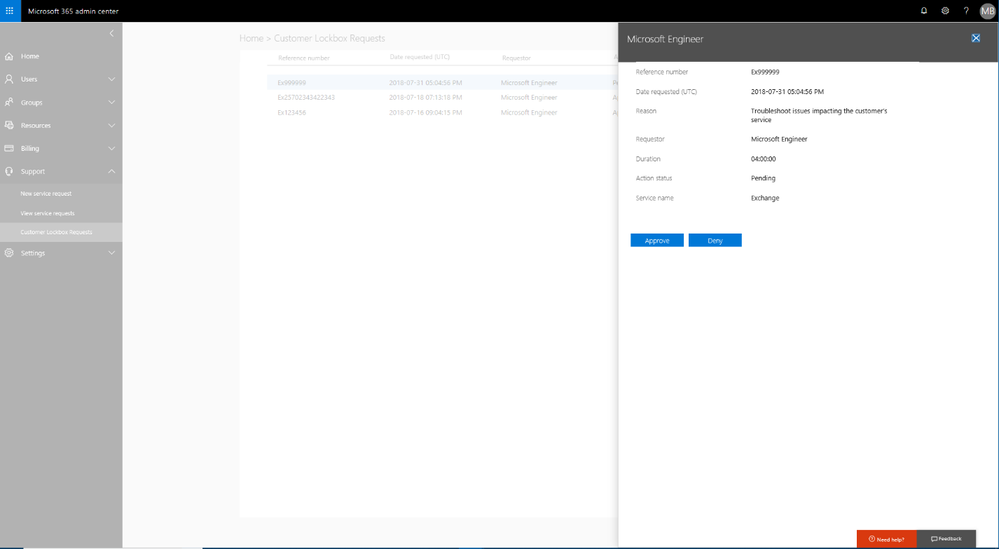
Here are a few examples of what the new capability looks like.
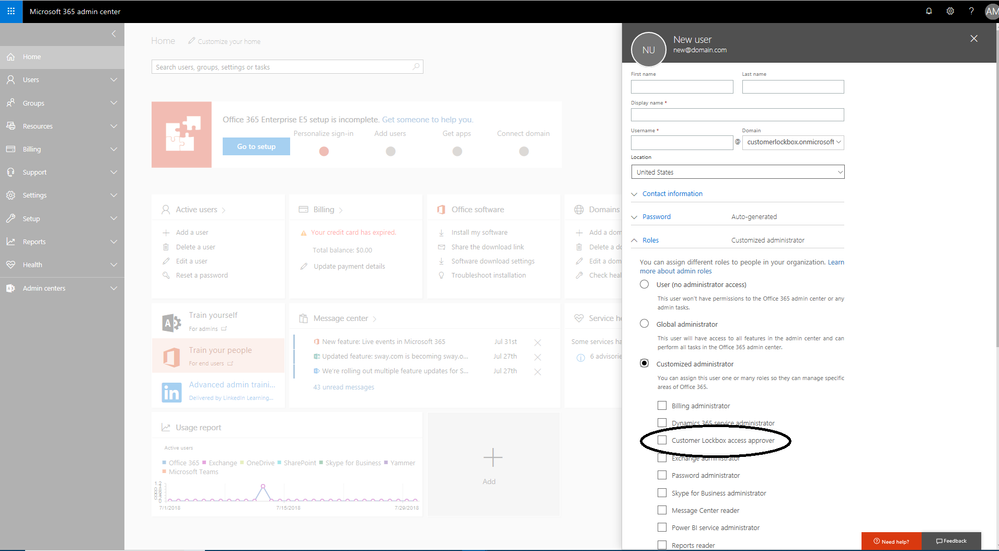 Graphic 1: Add users to Customer Lockbox access approver roleGraphic 2: User with Customer Lockbox access approver role approving requests
Get started today!
The Customer Lockbox access approver role is now generally available. Customers who have purchased Office 365 E5 or the Advanced Compliance SKU, and have Customer Lockbox provisioned should be able to use the new capability today.
You can find further documentation and resources below to help you get started!
Tell us what you think! If there are additional features that you would like to see in Customer Lockbox, we would love to hear from you on uservoice.
FAQ
Q: How do I turn on Customer Lockbox?
A: For licensed customers, the tenant administrator and Customer Lockbox access approver can enable and configure Customer Lockbox from the Admin Center. For detail on how to turn this on please go here.
Q: Which services are covered by Customer Lockbox?
A: Exchange Online, SharePoint Online and OneDrive for Business have complete coverage. Skype for Business coverage does not include Skype Meeting Broadcast recordings or Skype Meeting content uploads.
Q: Who is notified when there is a request to access my content?
A: The Global Administrators and the Customer Lockbox access approver roles are notified via email and can approve or deny Customer Lockbox request via Microsoft 365 Admin Center portal or PowerShell.
Q: Who can approve or reject these requests in my organization?
A: Customers control membership of the groups that can approve or reject Customer Lockbox requests.
Q: Can a regular user admins reset the password for members of Customer Lockbox access approver role?
A: Only global admins can reset the passwords of people assigned to this role as it’s considered a privileged role.
Q: Is there a limit on the members who can be part of this role?
A: No, there is no limit on the number of members who can be part of this role. However, since this is a privileged role, our recommendation is to limit the members of the group to a smaller manageable size.
Q: When a Customer Lockbox request is approved, how long are the permissions valid?
A: The maximum period for permissions granted following a Customer Lockbox approval is currently 4 hours. The Microsoft engineer may request a shorter period as well.
Q: How can I get a history of all Customer Lockbox requests?
A: All Customer Lockbox requests can be viewed directly from the Microsoft 365 Admin Center.
We are excited to share a new capability in Customer Lockbox that can provide more flexibility in who can approve Customer Lockbox requests. Read further to learn more.
First, what is Customer Lockbox?
Many customers, and in particular regulated customers, have compliance obligations that require access control capabilities to be implemented or for procedures to be in place before privileged access is provided to sensitive data.
Customer Lockbox is part of the access control system in Office 365. It extends the default access control workflow so customers can review and approve (or deny) requests for service provider access during service operations. With Customer Lockbox, organizations can demonstrate that there are procedures in place for explicit data access authorization, which may help customers meet certain regulatory or internal compliance obligations. Actions taken by Microsoft engineers in response to Customer Lockbox requests are logged and auditable.
You can view this short video for a closer look at how Customer Lockbox works:
What’s new in Customer Lockbox?
Until recently, approving or denying Customer Lockbox requests was reserved to the Global Administrator. Today, we are announcing the availability of a new custom administrator role: Customer Lockbox access approver. This new custom role and the members of this role are now allowed to configure, approve and deny Customer Lockbox requests.
This has been a key ask from customers who want to add, for example, non-IT roles such as a compliance officer, data protection officer or legal officer to approve privileged access to their Office 365 content by Microsoft personnel during support operations.
Here are a few examples of what the new capability looks like.
Graphic 1: Add users to Customer Lockbox access approver roleGraphic 2: User with Customer Lockbox access approver role approving requests
Get started today!
The Customer Lockbox access approver role is now generally available. Customers who have purchased Office 365 E5 or the Advanced Compliance SKU, and have Customer Lockbox provisioned should be able to use the new capability today.
You can find further documentation and resources below to help you get started!
Tell us what you think! If there are additional features that you would like to see in Customer Lockbox, we would love to hear from you on uservoice.
FAQ
Q: How do I turn on Customer Lockbox?
A: For licensed customers, the tenant administrator and Customer Lockbox access approver can enable and configure Customer Lockbox from the Admin Center. For detail on how to turn this on please go here.
Q: Which services are covered by Customer Lockbox?
A: Exchange Online, SharePoint Online and OneDrive for Business have complete coverage. Skype for Business coverage does not include Skype Meeting Broadcast recordings or Skype Meeting content uploads.
Q: Who is notified when there is a request to access my content?
A: The Global Administrators and the Customer Lockbox access approver roles are notified via email and can approve or deny Customer Lockbox request via Microsoft 365 Admin Center portal or PowerShell.
Q: Who can approve or reject these requests in my organization?
A: Customers control membership of the groups that can approve or reject Customer Lockbox requests.
Q: Can a regular user admins reset the password for members of Customer Lockbox access approver role?
A: Only global admins can reset the passwords of people assigned to this role as it’s considered a privileged role.
Q: Is there a limit on the members who can be part of this role?
A: No, there is no limit on the number of members who can be part of this role. However, since this is a privileged role, our recommendation is to limit the members of the group to a smaller manageable size.
Q: When a Customer Lockbox request is approved, how long are the permissions valid?
A: The maximum period for permissions granted following a Customer Lockbox approval is currently 4 hours. The Microsoft engineer may request a shorter period as well.
Q: How can I get a history of all Customer Lockbox requests?
A: All Customer Lockbox requests can be viewed directly from the Microsoft 365 Admin Center.
We are excited to share a new capability in Customer Lockbox that can provide more flexibility in who can approve Customer Lockbox requests. Read further to learn more.
First, what is Customer Lockbox?
Many customers, and in particular regulated customers, have compliance obligations that require access control capabilities to be implemented or for procedures to be in place before privileged access is provided to sensitive data.
Customer Lockbox is part of the access control system in Office 365. It extends the default access control workflow so customers can review and approve (or deny) requests for service provider access during service operations. With Customer Lockbox, organizations can demonstrate that there are procedures in place for explicit data access authorization, which may help customers meet certain regulatory or internal compliance obligations. Actions taken by Microsoft engineers in response to Customer Lockbox requests are logged and auditable.
You can view this short video for a closer look at how Customer Lockbox works:
What’s new in Customer Lockbox?
Until recently, approving or denying Customer Lockbox requests was reserved to the Global Administrator. Today, we are announcing the availability of a new custom administrator role: Customer Lockbox access approver. This new custom role and the members of this role are now allowed to configure, approve and deny Customer Lockbox requests.
This has been a key ask from customers who want to add, for example, non-IT roles such as a compliance officer, data protection officer or legal officer to approve privileged access to their Office 365 content by Microsoft personnel during support operations.
Here are a few examples of what the new capability looks like.
Graphic 1: Add users to Customer Lockbox access approver roleGraphic 2: User with Customer Lockbox access approver role approving requests
Get started today!
The Customer Lockbox access approver role is now generally available. Customers who have purchased Office 365 E5 or the Advanced Compliance SKU, and have Customer Lockbox provisioned should be able to use the new capability today.
You can find further documentation and resources below to help you get started!
Tell us what you think! If there are additional features that you would like to see in Customer Lockbox, we would love to hear from you on uservoice.
FAQ
Q: How do I turn on Customer Lockbox?
A: For licensed customers, the tenant administrator and Customer Lockbox access approver can enable and configure Customer Lockbox from the Admin Center. For detail on how to turn this on please go here.
Q: Which services are covered by Customer Lockbox?
A: Exchange Online, SharePoint Online and OneDrive for Business have complete coverage. Skype for Business coverage does not include Skype Meeting Broadcast recordings or Skype Meeting content uploads.
Q: Who is notified when there is a request to access my content?
A: The Global Administrators and the Customer Lockbox access approver roles are notified via email and can approve or deny Customer Lockbox request via Microsoft 365 Admin Center portal or PowerShell.
Q: Who can approve or reject these requests in my organization?
A: Customers control membership of the groups that can approve or reject Customer Lockbox requests.
Q: Can a regular user admins reset the password for members of Customer Lockbox access approver role?
A: Only global admins can reset the passwords of people assigned to this role as it’s considered a privileged role.
Q: Is there a limit on the members who can be part of this role?
A: No, there is no limit on the number of members who can be part of this role. However, since this is a privileged role, our recommendation is to limit the members of the group to a smaller manageable size.
Q: When a Customer Lockbox request is approved, how long are the permissions valid?
A: The maximum period for permissions granted following a Customer Lockbox approval is currently 4 hours. The Microsoft engineer may request a shorter period as well.
Q: How can I get a history of all Customer Lockbox requests?
A: All Customer Lockbox requests can be viewed directly from the Microsoft 365 Admin Center.
We are excited to share a new capability in Customer Lockbox that can provide more flexibility in who can approve Customer Lockbox requests. Read further to learn more.
First, what is Customer Lockbox?
Many customers, and in particular regulated customers, have compliance obligations that require access control capabilities to be implemented or for procedures to be in place before privileged access is provided to sensitive data.
Customer Lockbox is part of the access control system in Office 365. It extends the default access control workflow so customers can review and approve (or deny) requests for service provider access during service operations. With Customer Lockbox, organizations can demonstrate that there are procedures in place for explicit data access authorization, which may help customers meet certain regulatory or internal compliance obligations. Actions taken by Microsoft engineers in response to Customer Lockbox requests are logged and auditable.
You can view this short video for a closer look at how Customer Lockbox works:
What’s new in Customer Lockbox?
Until recently, approving or denying Customer Lockbox requests was reserved to the Global Administrator. Today, we are announcing the availability of a new custom administrator role: Customer Lockbox access approver. This new custom role and the members of this role are now allowed to configure, approve and deny Customer Lockbox requests.
This has been a key ask from customers who want to add, for example, non-IT roles such as a compliance officer, data protection officer or legal officer to approve privileged access to their Office 365 content by Microsoft personnel during support operations.
Here are a few examples of what the new capability looks like.
Graphic 1: Add users to Customer Lockbox access approver roleGraphic 2: User with Customer Lockbox access approver role approving requests
Get started today!
The Customer Lockbox access approver role is now generally available. Customers who have purchased Office 365 E5 or the Advanced Compliance SKU, and have Customer Lockbox provisioned should be able to use the new capability today.
You can find further documentation and resources below to help you get started!
Tell us what you think! If there are additional features that you would like to see in Customer Lockbox, we would love to hear from you on uservoice.
FAQ
Q: How do I turn on Customer Lockbox?
A: For licensed customers, the tenant administrator and Customer Lockbox access approver can enable and configure Customer Lockbox from the Admin Center. For detail on how to turn this on please go here.
Q: Which services are covered by Customer Lockbox?
A: Exchange Online, SharePoint Online and OneDrive for Business have complete coverage. Skype for Business coverage does not include Skype Meeting Broadcast recordings or Skype Meeting content uploads.
Q: Who is notified when there is a request to access my content?
A: The Global Administrators and the Customer Lockbox access approver roles are notified via email and can approve or deny Customer Lockbox request via Microsoft 365 Admin Center portal or PowerShell.
Q: Who can approve or reject these requests in my organization?
A: Customers control membership of the groups that can approve or reject Customer Lockbox requests.
Q: Can a regular user admins reset the password for members of Customer Lockbox access approver role?
A: Only global admins can reset the passwords of people assigned to this role as it’s considered a privileged role.
Q: Is there a limit on the members who can be part of this role?
A: No, there is no limit on the number of members who can be part of this role. However, since this is a privileged role, our recommendation is to limit the members of the group to a smaller manageable size.
Q: When a Customer Lockbox request is approved, how long are the permissions valid?
A: The maximum period for permissions granted following a Customer Lockbox approval is currently 4 hours. The Microsoft engineer may request a shorter period as well.
Q: How can I get a history of all Customer Lockbox requests?
A: All Customer Lockbox requests can be viewed directly from the Microsoft 365 Admin Center.
Over the last several months, we have made many advancements to Office 365 Advanced Threat Protection (ATP). Due to our impressive malware catch effectiveness, threat actors have altered attack methods to bypass security capabilities leading to an increase in phishing campaigns. To this end, we have enhanced our anti-phish capabilities. Recently we improved the admin experience in Office 365. Now we combine both the advancements in our anti-phish capabilities and admin experience, to deliver powerful new tools that further upgrade our ability to mitigate phishing campaigns.
Enhancements to the Office 365 ATP anti-phishing policy
Office 365 ATP customers will now benefit from a default anti-phishing policy providing visibility into the advanced anti-phishing features enabled for the organization. We’re excited to deliver this as customers often ask for a single view where they can fine-tune the anti-phishing protections applied across all users within the organization. Admins can also continue to create new or user existing custom anti-phishing policies configured for specific users, groups, or domains within the organization. The custom policies created will take precedence over the default policy for the scoped users.
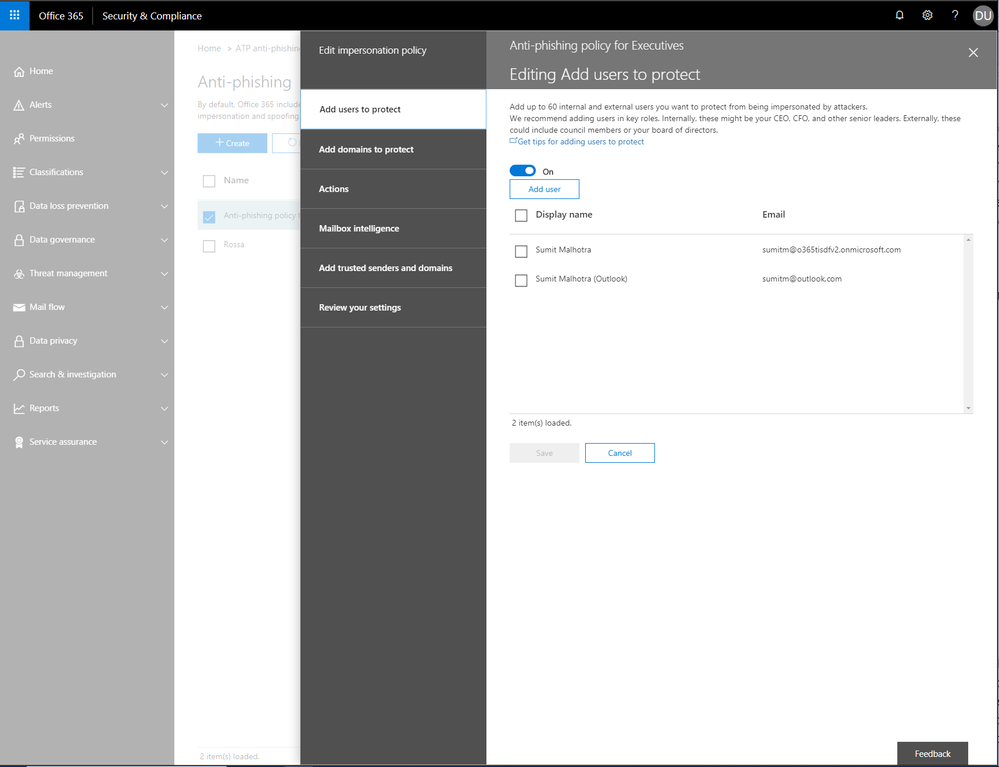
Customer feedback also led us to increase coverage of our anti-impersonation rule to 60 users and we simplified the spoof protection configurations within the ATP anti-phishing policy.
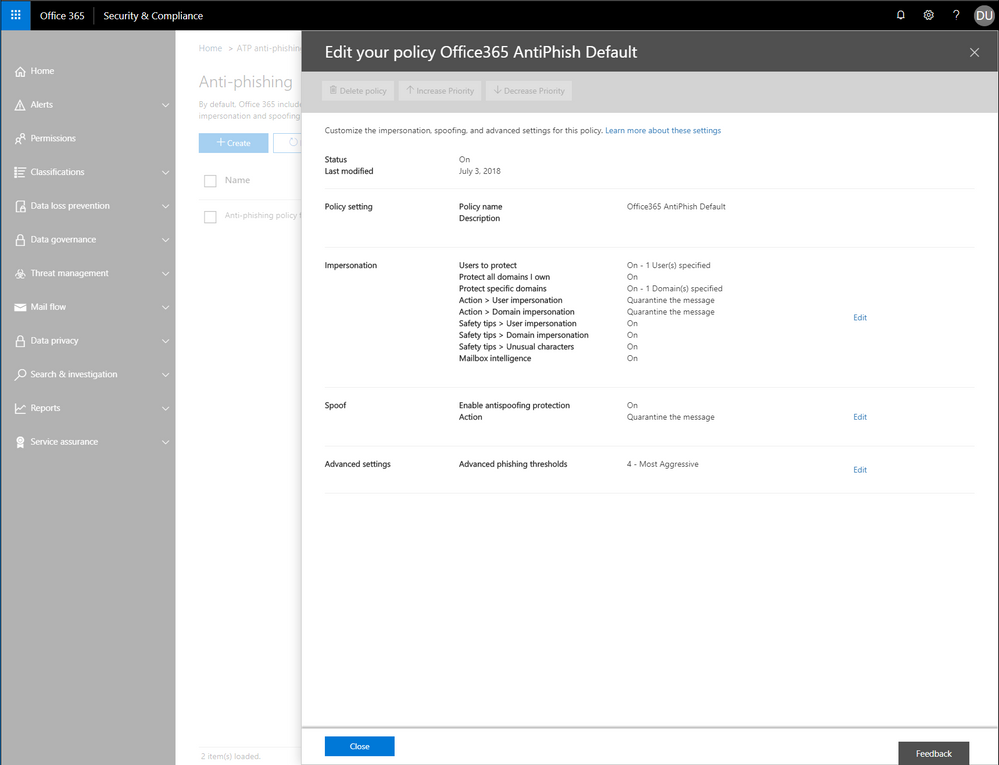 Figure 1 – ATP anti-phishing default policy settingsFigure 2 – ATP anti-phishing impersonation settings
Empowering admins with anti-phishing insights
We recently added a set of in-depth insights to the Security & Compliance Center and now we are excited to announce a new set of anti-phishing insights. These insights provide real-time detections for spoofing, domain and user impersonation, capabilities to manage true and false positives, and include what-if scenarios for fine-tuning and improving protection from these features.
- Spoof Intelligence insights allow admins to review senders spoofing external domains, providing rich information about the sender and inline management of the spoof safe sender list. If spoof protection is not enabled, admins can review spoofed messages that would have been detected if protection was turned on (what-if analysis), turn on the protection, and manage the spoof safe sender list proactively.
- Domain and User Impersonation insights allow admins to review senders attempting to impersonate domains that you own, your custom protected domains, and protected users within your organization. You can also review impersonation messages that would have been detected if protection was turned on (what-if analysis), turn on impersonation protection, and proactively manage the safe domain and safe sender list before enforcing any action.
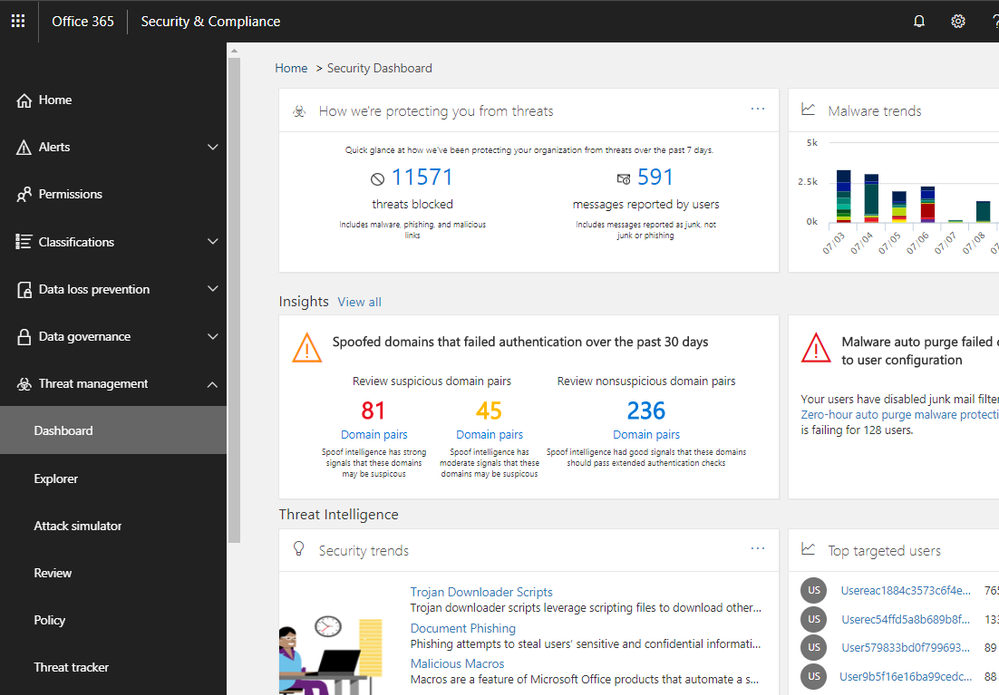 Figure 3 – Spoof Intelligence insight widget
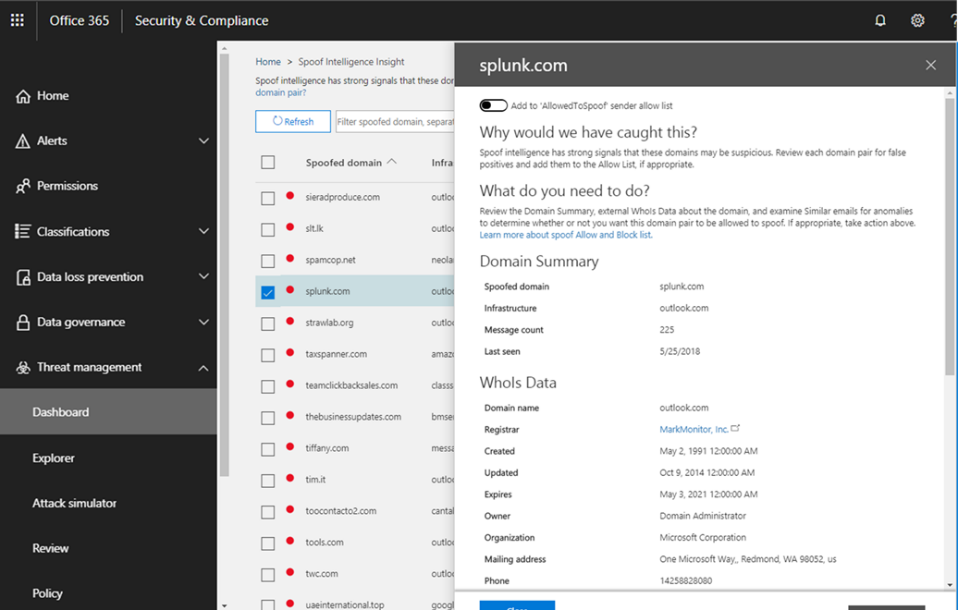 Figure
Explorer, Real-time reports and Office 365 management API will now include phish and URL detections
Earlier this year, we released real-time reports for malware, phish and user-reported messages for Office 365 ATP customers. We are now excited to extend email phishing views in Real-time reports and Explorer experiences to include additional phishing detection details including the detection technology that resulted in the phish detection. These views are enriched with additional details on URLs. This includes URLs included in messages, filtering based on URL information, display of URL information in the graph/pivot, and Safe Links time-of-click data on allowed/blocked clicks from messages. Threat Intelligence customers will also get URL data in the ‘all email view’, enabling analysis on URLs for delivered mail, supporting security analysis for missed phish, data loss, and other security investigations. We have also enriched phish detection events in the Office 365 management API. The schema will now include email phish and URL click events. We believe these enhanced views are critical to powering security investigation and remediation scenarios across advanced phishing attack vectors.
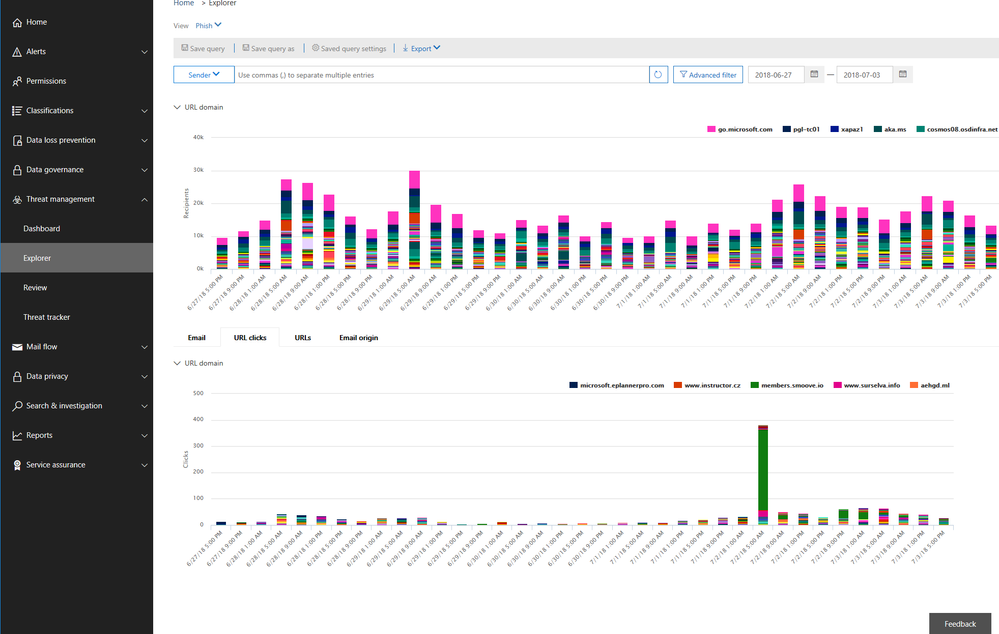 Figure 5 – URL domain and URL clicks view
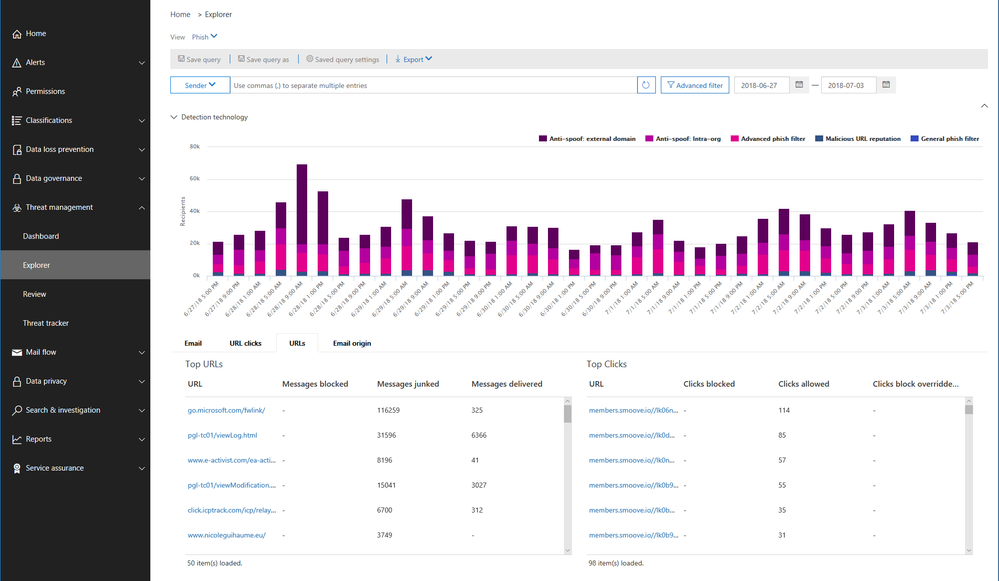 Figure 6 – Phish detection technology and URL click verdicts
Send Your Feedback
We hope you try these new features and provide feedback. Your feedback enables us to continue improving and adding features that continue making ATP the premiere advanced security service for Office 365. If you have not tried Office 365 Advanced Threat Protection, you should begin a free Office 365 E5 trial today and start securing your organization from today’s threat landscape.
Over the last several months, we have made many advancements to Office 365 Advanced Threat Protection (ATP). Due to our impressive malware catch effectiveness, threat actors have altered attack methods to bypass security capabilities leading to an increase in phishing campaigns. To this end, we have enhanced our anti-phish capabilities. Recently we improved the admin experience in Office 365. Now we combine both the advancements in our anti-phish capabilities and admin experience, to deliver powerful new tools that further upgrade our ability to mitigate phishing campaigns.
Enhancements to the Office 365 ATP anti-phishing policy
Office 365 ATP customers will now benefit from a default anti-phishing policy providing visibility into the advanced anti-phishing features enabled for the organization. We’re excited to deliver this as customers often ask for a single view where they can fine-tune the anti-phishing protections applied across all users within the organization. Admins can also continue to create new or user existing custom anti-phishing policies configured for specific users, groups, or domains within the organization. The custom policies created will take precedence over the default policy for the scoped users.
Customer feedback also led us to increase coverage of our anti-impersonation rule to 60 users and we simplified the spoof protection configurations within the ATP anti-phishing policy.
Figure 1 – ATP anti-phishing default policy settingsFigure 2 – ATP anti-phishing impersonation settings
Empowering admins with anti-phishing insights
We recently added a set of in-depth insights to the Security & Compliance Center and now we are excited to announce a new set of anti-phishing insights. These insights provide real-time detections for spoofing, domain and user impersonation, capabilities to manage true and false positives, and include what-if scenarios for fine-tuning and improving protection from these features.
- Spoof Intelligence insights allow admins to review senders spoofing external domains, providing rich information about the sender and inline management of the spoof safe sender list. If spoof protection is not enabled, admins can review spoofed messages that would have been detected if protection was turned on (what-if analysis), turn on the protection, and manage the spoof safe sender list proactively.
- Domain and User Impersonation insights allow admins to review senders attempting to impersonate domains that you own, your custom protected domains, and protected users within your organization. You can also review impersonation messages that would have been detected if protection was turned on (what-if analysis), turn on impersonation protection, and proactively manage the safe domain and safe sender list before enforcing any action.
Figure 3 – Spoof Intelligence insight widget
Figure
Explorer, Real-time reports and Office 365 management API will now include phish and URL detections
Earlier this year, we released real-time reports for malware, phish and user-reported messages for Office 365 ATP customers. We are now excited to extend email phishing views in Real-time reports and Explorer experiences to include additional phishing detection details including the detection technology that resulted in the phish detection. These views are enriched with additional details on URLs. This includes URLs included in messages, filtering based on URL information, display of URL information in the graph/pivot, and Safe Links time-of-click data on allowed/blocked clicks from messages. Threat Intelligence customers will also get URL data in the ‘all email view’, enabling analysis on URLs for delivered mail, supporting security analysis for missed phish, data loss, and other security investigations. We have also enriched phish detection events in the Office 365 management API. The schema will now include email phish and URL click events. We believe these enhanced views are critical to powering security investigation and remediation scenarios across advanced phishing attack vectors.
Figure 5 – URL domain and URL clicks view
Figure 6 – Phish detection technology and URL click verdicts
Send Your Feedback
We hope you try these new features and provide feedback. Your feedback enables us to continue improving and adding features that continue making ATP the premiere advanced security service for Office 365. If you have not tried Office 365 Advanced Threat Protection, you should begin a free Office 365 E5 trial today and start securing your organization from today’s threat landscape.
Over the last several months, we have made many advancements to Office 365 Advanced Threat Protection (ATP). Due to our impressive malware catch effectiveness, threat actors have altered attack methods to bypass security capabilities leading to an increase in phishing campaigns. To this end, we have enhanced our anti-phish capabilities. Recently we improved the admin experience in Office 365. Now we combine both the advancements in our anti-phish capabilities and admin experience, to deliver powerful new tools that further upgrade our ability to mitigate phishing campaigns.
Enhancements to the Office 365 ATP anti-phishing policy
Office 365 ATP customers will now benefit from a default anti-phishing policy providing visibility into the advanced anti-phishing features enabled for the organization. We’re excited to deliver this as customers often ask for a single view where they can fine-tune the anti-phishing protections applied across all users within the organization. Admins can also continue to create new or user existing custom anti-phishing policies configured for specific users, groups, or domains within the organization. The custom policies created will take precedence over the default policy for the scoped users.
Customer feedback also led us to increase coverage of our anti-impersonation rule to 60 users and we simplified the spoof protection configurations within the ATP anti-phishing policy.
Figure 1 – ATP anti-phishing default policy settingsFigure 2 – ATP anti-phishing impersonation settings
Empowering admins with anti-phishing insights
We recently added a set of in-depth insights to the Security & Compliance Center and now we are excited to announce a new set of anti-phishing insights. These insights provide real-time detections for spoofing, domain and user impersonation, capabilities to manage true and false positives, and include what-if scenarios for fine-tuning and improving protection from these features.
- Spoof Intelligence insights allow admins to review senders spoofing external domains, providing rich information about the sender and inline management of the spoof safe sender list. If spoof protection is not enabled, admins can review spoofed messages that would have been detected if protection was turned on (what-if analysis), turn on the protection, and manage the spoof safe sender list proactively.
- Domain and User Impersonation insights allow admins to review senders attempting to impersonate domains that you own, your custom protected domains, and protected users within your organization. You can also review impersonation messages that would have been detected if protection was turned on (what-if analysis), turn on impersonation protection, and proactively manage the safe domain and safe sender list before enforcing any action.
Figure 3 – Spoof Intelligence insight widget
Figure
Explorer, Real-time reports and Office 365 management API will now include phish and URL detections
Earlier this year, we released real-time reports for malware, phish and user-reported messages for Office 365 ATP customers. We are now excited to extend email phishing views in Real-time reports and Explorer experiences to include additional phishing detection details including the detection technology that resulted in the phish detection. These views are enriched with additional details on URLs. This includes URLs included in messages, filtering based on URL information, display of URL information in the graph/pivot, and Safe Links time-of-click data on allowed/blocked clicks from messages. Threat Intelligence customers will also get URL data in the ‘all email view’, enabling analysis on URLs for delivered mail, supporting security analysis for missed phish, data loss, and other security investigations. We have also enriched phish detection events in the Office 365 management API. The schema will now include email phish and URL click events. We believe these enhanced views are critical to powering security investigation and remediation scenarios across advanced phishing attack vectors.
Figure 5 – URL domain and URL clicks view
Figure 6 – Phish detection technology and URL click verdicts
Send Your Feedback
We hope you try these new features and provide feedback. Your feedback enables us to continue improving and adding features that continue making ATP the premiere advanced security service for Office 365. If you have not tried Office 365 Advanced Threat Protection, you should begin a free Office 365 E5 trial today and start securing your organization from today’s threat landscape.
Over the last several months, we have made many advancements to Office 365 Advanced Threat Protection (ATP). Due to our impressive malware catch effectiveness, threat actors have altered attack methods to bypass security capabilities leading to an increase in phishing campaigns. To this end, we have enhanced our anti-phish capabilities. Recently we improved the admin experience in Office 365. Now we combine both the advancements in our anti-phish capabilities and admin experience, to deliver powerful new tools that further upgrade our ability to mitigate phishing campaigns.
Enhancements to the Office 365 ATP anti-phishing policy
Office 365 ATP customers will now benefit from a default anti-phishing policy providing visibility into the advanced anti-phishing features enabled for the organization. We’re excited to deliver this as customers often ask for a single view where they can fine-tune the anti-phishing protections applied across all users within the organization. Admins can also continue to create new or user existing custom anti-phishing policies configured for specific users, groups, or domains within the organization. The custom policies created will take precedence over the default policy for the scoped users.
Customer feedback also led us to increase coverage of our anti-impersonation rule to 60 users and we simplified the spoof protection configurations within the ATP anti-phishing policy.
Figure 1 – ATP anti-phishing default policy settingsFigure 2 – ATP anti-phishing impersonation settings
Empowering admins with anti-phishing insights
We recently added a set of in-depth insights to the Security & Compliance Center and now we are excited to announce a new set of anti-phishing insights. These insights provide real-time detections for spoofing, domain and user impersonation, capabilities to manage true and false positives, and include what-if scenarios for fine-tuning and improving protection from these features.
- Spoof Intelligence insights allow admins to review senders spoofing external domains, providing rich information about the sender and inline management of the spoof safe sender list. If spoof protection is not enabled, admins can review spoofed messages that would have been detected if protection was turned on (what-if analysis), turn on the protection, and manage the spoof safe sender list proactively.
- Domain and User Impersonation insights allow admins to review senders attempting to impersonate domains that you own, your custom protected domains, and protected users within your organization. You can also review impersonation messages that would have been detected if protection was turned on (what-if analysis), turn on impersonation protection, and proactively manage the safe domain and safe sender list before enforcing any action.
Figure 3 – Spoof Intelligence insight widget
Figure
Explorer, Real-time reports and Office 365 management API will now include phish and URL detections
Earlier this year, we released real-time reports for malware, phish and user-reported messages for Office 365 ATP customers. We are now excited to extend email phishing views in Real-time reports and Explorer experiences to include additional phishing detection details including the detection technology that resulted in the phish detection. These views are enriched with additional details on URLs. This includes URLs included in messages, filtering based on URL information, display of URL information in the graph/pivot, and Safe Links time-of-click data on allowed/blocked clicks from messages. Threat Intelligence customers will also get URL data in the ‘all email view’, enabling analysis on URLs for delivered mail, supporting security analysis for missed phish, data loss, and other security investigations. We have also enriched phish detection events in the Office 365 management API. The schema will now include email phish and URL click events. We believe these enhanced views are critical to powering security investigation and remediation scenarios across advanced phishing attack vectors.
Figure 5 – URL domain and URL clicks view
Figure 6 – Phish detection technology and URL click verdicts
Send Your Feedback
We hope you try these new features and provide feedback. Your feedback enables us to continue improving and adding features that continue making ATP the premiere advanced security service for Office 365. If you have not tried Office 365 Advanced Threat Protection, you should begin a free Office 365 E5 trial today and start securing your organization from today’s threat landscape.
Cybersecurity remains a critical management issue in the era of digital transforming. In April, Brad Smith, President and Chief Legal Officer of Microsoft, published a blog post to discuss a Cybersecurity Tech Accord, and to reinforce the importance of supporting an open, free, and secure Internet. As Brad mentions in his post, one of the core principles of the proposed Tech Accord is to empower users, customers, and developers to strengthen cybersecurity protection.
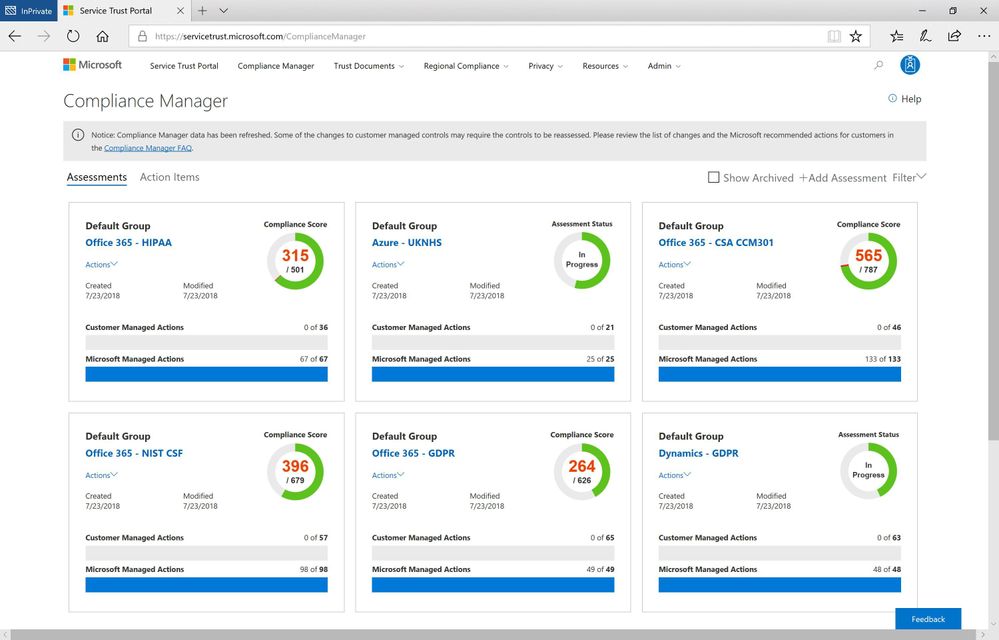
As part of our work on this principle, we are continuing to build and enhance the Assessments available in Compliance Manager to help organizations implement and verify security controls for their Microsoft cloud tenant.
New available Assessments in Compliance Manager
With the July release of Compliance Manager, we are announcing the availability of new and updated Assessments for Office 365 and Azure:
- National Institute of Standards and Technology’s Cybersecurity Framework (NIST CSF) for Office 365: NIST CSF is a set of standards, best practices, and recommendations that can help organizations enhance their cybersecurity at the organizational level. Organizations can follow the customer actions provided in the NIST CSF Assessment to configure and assess their Office 365 environment.
- Cloud Security Alliance Cloud Controls Matrix (CSA CCM) for Office 365: CSA has defined the Cloud Control Matrix, which provides best practices to help ensure a more secure cloud computing environment. Potential cloud customers can use this Assessment to make informed decisions when transitioning their IT operations to the cloud. Office 365 customers can leverage the recommended customer actions to strengthen their cloud security controls.
- UK National Health Service (NHS) for Azure: NHS in England provided a single standard that governs the collection, storage, and processing of patient data. Organizations can evaluate Microsoft’s internal controls and see how they adhere to the requirements and review their responsibilities for controls.
- Health Insurance Portability and Accountability Act (HIPAA)/ Health Information Technology for Economic and Clinical Health (HITECH) Act for Office 365: We also added HITECH controls into the HIPAA Assessment.
You can create these new Assessments in Compliance Manager today. To learn about how to add new Assessments, please see the support documentation.
Since we released Compliance Manager in February, many companies have begun using it as part of their overall compliance process. We’d like to share one such story with you. Watch this video and see how the biggest stadium in France uses Compliance Manager to protect confidential data with Microsoft 365:
If you are not familiar with Compliance Manager, you can download this white paper to learn more. We will continue to add Assessments for Microsoft Cloud services, so keep watching the Security, Privacy, and Compliance blog.
Cybersecurity remains a critical management issue in the era of digital transforming. In April, Brad Smith, President and Chief Legal Officer of Microsoft, published a blog post to discuss a Cybersecurity Tech Accord, and to reinforce the importance of supporting an open, free, and secure Internet. As Brad mentions in his post, one of the core principles of the proposed Tech Accord is to empower users, customers, and developers to strengthen cybersecurity protection.
As part of our work on this principle, we are continuing to build and enhance the Assessments available in Compliance Manager to help organizations implement and verify security controls for their Microsoft cloud tenant.
New available Assessments in Compliance Manager
With the July release of Compliance Manager, we are announcing the availability of new and updated Assessments for Office 365 and Azure:
- National Institute of Standards and Technology’s Cybersecurity Framework (NIST CSF) for Office 365: NIST CSF is a set of standards, best practices, and recommendations that can help organizations enhance their cybersecurity at the organizational level. Organizations can follow the customer actions provided in the NIST CSF Assessment to configure and assess their Office 365 environment.
- Cloud Security Alliance Cloud Controls Matrix (CSA CCM) for Office 365: CSA has defined the Cloud Control Matrix, which provides best practices to help ensure a more secure cloud computing environment. Potential cloud customers can use this Assessment to make informed decisions when transitioning their IT operations to the cloud. Office 365 customers can leverage the recommended customer actions to strengthen their cloud security controls.
- UK National Health Service (NHS) for Azure: NHS in England provided a single standard that governs the collection, storage, and processing of patient data. Organizations can evaluate Microsoft’s internal controls and see how they adhere to the requirements and review their responsibilities for controls.
- Health Insurance Portability and Accountability Act (HIPAA)/ Health Information Technology for Economic and Clinical Health (HITECH) Act for Office 365: We also added HITECH controls into the HIPAA Assessment.
You can create these new Assessments in Compliance Manager today. To learn about how to add new Assessments, please see the support documentation.
Since we released Compliance Manager in February, many companies have begun using it as part of their overall compliance process. We’d like to share one such story with you. Watch this video and see how the biggest stadium in France uses Compliance Manager to protect confidential data with Microsoft 365:
If you are not familiar with Compliance Manager, you can download this white paper to learn more. We will continue to add Assessments for Microsoft Cloud services, so keep watching the Security, Privacy, and Compliance blog.







