Today we are announcing a preview of the Office Customization Tool for Click-to-Run, a simple to use web application that enables desktop administrators to customize Office 365 clients.
Until today, Windows desktop administrators would use notepad or an equivalent text editor to compile various XML statements to define the Office edition, feature update frequency, version, language and other number of available settings. This somewhat tedious task, in most cases, would result in installation errors from fouled up manual entries or copy-and-paste actions into the text editor.
With the new Office Customization Tool, desktop admins can leverage the rich user interface that intuitively shows all available options to build the desired Office configurations. The configuration tool groups the commonly used settings in the following categories:
- software & language
- installation & update
- licensing & display
Each of these areas provide admins with options to help meet their security and regulatory needs.
One of our favorite additions, is the configuration builder. Desktop admins can quickly see a list of all configuration settings being chosen on the right-hand side of the screen, giving the desktop admin a quick and easy way to see the result of their selections without jumping through multiple screens.
When all the desired settings have been selected, desktop admins are provided with the option to download the resulting configuration.xml file which is to be used in conjunction with the Office Deployment Tool for the settings to take affect during installation time of the Office 365 client.
Desktop Admin also have an option to upload any previously configured XML files to the configuration tool and modify them with new or existing settings.
For those of you who are familiar with the old Win32 Office Customization Tool which came with your perpetual (MS Installer) bits, you’ll notice the new customization tool has a lack of install-time user preferences. Over the next several months we will be enhancing the tool to enable desktop admins to select many configurable user preferences that are currently being offered with the perpetual counterpart. We encourage you to try out the new Office Customization Tool which is available in preview today, by clicking on the link or typing http://config.office.com in your browser. Send us feedback and let us know what you think by using the send a smile feature, located on the top right of the web application.
Amesh Mansukhani
Senior Program Manager – Office Engineering
![Rethinking the modern workplace with Microsoft 365]()

Today’s post was written by Catherine Boeger, general manager for Microsoft Office marketing
Today the rapid pace of change is challenging businesses and government organizations to rethink everything we do. What’s changing? For the first time ever, we have five generations in the workforce, from Baby Boomers to Generation Z, all with different ideas about how work gets done and different levels of comfort and expectations around technology. Constantly changing customer and citizen expectations are pushing businesses to innovate quickly and find new ways to leverage information from both inside and outside organizations. And ever-growing cyber security threats remind us we must remain vigilant in protecting our employees and customer data and in maintaining regulatory and industry compliance. One of the primary questions is, how can you embrace these modern workplace trends to help drive business growth? I want to share some of the ways Microsoft 365, which brings together Office 365, Windows 10, and Enterprise Security + Mobility, can help organizations like yours leverage digital transformation to enable people to come together in a secure way and get the best results from each other to drive business forward.
Let’s first look at the generational shift in the workplace. With five generations of workers on the payroll, how can you create a connected environment to leverage that diversity, which can be so critical for your success? At Microsoft, we’ve found that teamwork is key—bringing together groups of people, no matter their generation, function, or location, to address problems and opportunities with a shared sense of accountability to complete the task in front of them. That’s why we built Microsoft Teams in Microsoft 365: to help you create a digital hub for teamwork where everyone can easily share or access information they need and focus on a common goal. Powerful features like threaded persistent chats and access to recorded meetings can help create an ongoing dialog and enable people to learn from each other and get caught up quickly. And while we all may have a habit of thinking that mobility is more important to Millennials or younger generations, really the need and desire to be productive from anywhere has become a reality of all our lives, which is why Teams is accessible from almost any device.
Generational diversity isn’t the only gap we can bridge to help drive business growth. We’re building tools for the modern workplace that close longstanding technology gaps that separate employees from data, resources and expertise they need to do their best work. We believe a truly modern workplace can empower everyone in the organization to turn ideas into action – from the executive team to the Firstline Workforce.
Firstline Workers are often the first to engage customers, the first to represent a company’s brand and first to see products and services in action. They are the people behind the counter, on the phone, in the clinics, on shop floor and in the field. Their unique perspective provides the on-the-ground facts that help organizations spot trends, challenges and best practices. We see organizations take advantage of this firstline perspective every day to unlock innovation and growth. I’m reminded of a Microsoft customer, Fruit of the Loom, who recognized that “their greatest thinkers are within the company,” according to their Chief Operating Officer, Tony Pelaski. Fruit of the Loom is using Microsoft 365 Enterprise to connect the entire organization and foster an engaged workforce with the capabilities and tools to deliver against customer insights, market trends, and new ideas. Customer stories like these inspired us to create a version of Microsoft 365 specifically for your Firstline Workforce. We know that all organizations have critical data, and I believe it will be those that take advantage of their firstline data and empower all workers that will achieve a true and sustainable competitive advantage.
Of course, any data you collect must be secured. Today we all face constant pressure to have open flows of information to drive productivity and teamwork, and it’s as critical as ever to protect our organizations because threats today are complex and target everyone. Cyber threats have grown so pervasive that 74 percent of organizations expect to be hacked in the next year.[1] That’s why Microsoft built security into all layers of Microsoft 365, powered by the Microsoft Intelligent Security Graph, to help you detect threats and protect your people, data, and devices without disrupting employee productivity. Customers like the UK Ministry of Defence have felt confident in shifting to the Microsoft cloud because capabilities like Office 365 Advanced Threat Protection and Customer Lockbox help provide the security and privacy controls they need to protect sensitive data.
And on top of security, we all worry about how best to maintain compliance and data privacy, because no doing so can stop any organization—no matter how innovative—in its tracks. Microsoft works closely with regulators and customers to ensure that our services are compliant with global, regional, and industry regulations. Microsoft 365 provides advanced compliance functionality to help adhere to these regulations, including General Data Protection Regulation, also known as GDPR. Microsoft 365 is ready for May 25, 2018 – the day when GDPR takes effect, and can help you accelerate your compliance journey.
As a keynote speaker at the upcoming Microsoft Tech Summit Toronto December 13 and 14, I’ll be talking in depth about how Microsoft 365 can help you create a modern workplace that brings people together in secure ways to innovate new products and services. I hope you’ll join me and Arpan Shah, general manager of Azure Infrastructure marketing at Microsoft, to discover the latest trends, tools, and product roadmaps designed to help you thrive in a new world of work.
[1] http://www.isaca.org/cyber/Documents/State-of-Cybersecurity-infographic.pdf
The Office Online team is pleased to release our latest update to Office Online Server (OOS). OOS empowers organizations to view, edit, and create documents in the browser with Word, PowerPoint, Excel, and OneNote from their own datacenter. Please verify that you have the latest version of the OOS release to ensure the best experience.
The November 2017 update of OOS includes the following improvements:
- Improved booting performance in PowerPoint Online editing scenarios
- Enhanced transitions in PowerPoint Online
- Improved Find functionality in Excel Online
- Document format conversion from xls to xlsx supported in Excel Online
- Emoji support in Word Online
- Increased table capabilities in Word Online
- Insert image from host in Word Online
- Doubled the time limit for audio recordings in OneNote Online
- Accessibility & usability improvements across all applications
- Many more improvements + bug fixes across all applications
How do I get OOS/download the update?
We encourage OOS customers to download the November 2017 release, as only the latest version will be supported with bug fixes and security patches available from the Microsoft Updates Download Center. You must uninstall the previous version of OOS to install this release.
With the exception of those who have access through the Open Program, Volume Licensing customers with a Volume Licensing account can download at no cost and will have view-only functionality which includes PowerPoint sharing in Skype for Business. Customers that require document creation, edit and save functionality in OOS need to have an on-premises Office Suite license with Software Assurance or an Office 365 ProPlus subscription. To download the latest update of OOS, please proceed to the Volume License Servicing Center. Office Online Server is a component of Office; therefore, it will be shown under each of the Office product pages including Office Standard 2016, Office Professional Plus 2016, and Office 2016 for Mac Standard. For more information on licensing requirements, please refer to our product terms.
For customers whose licenses qualify for OOS, but cannot obtain OOS through the Volume Licensing Services Center, the following actions are possible:
This blog series is written by Cyril Belikoff, Senior Director of Office Marketing
This is the fourth and final post from our blog series on the four success factors for driving Microsoft 365 adoption.
Part 1: Enable your business stakeholders with a successful Microsoft 365 adoption
Part 2: Recruit key stakeholders to help with your adoption
Part 3: Identify business needs and prioritize Microsoft 365 scenarios
In this blog post I will focus on the last two success factors – Awareness and Training, outlining best practices and available resources.
Utilizing a combination of internal communication campaigns and training to promote awareness and ensure end user readiness is crucial in overcoming the typical apathy that awaits new technology rollouts. Awareness and training really do have a big impact. According to research, high usage Office 365 customers were more likely to have implemented awareness and training activities as part of their adoption plan when compared to customers with lower usage.
Setting the stage for effective awareness and training
We are all too familiar with how hard it is to get people to change. Let’s face it, most people approach change from a selfish perspective. Therefore, it’s important your communication and training efforts are positioned in the context of what your end users care about most – what’s in it for them. Also, your training must go beyond the procedural “how-to” information for performing tasks with Microsoft 365. Let your end users know why the change is happening and what’s in it for them. An effective way of doing this is to tailor your communications and training around the scenarios you identified and prioritized earlier in your planning efforts.
Like any change, it’s important to reinforce it to ensure end users sustain their adoption of Microsoft 365 and the new culture of work it brings. Don’t think of your awareness and training execution as a one-time event, rather it should cover pre-launch, launch, and post-launch.
Create internal awareness and excitement
To drive sustained adoption, users must be aware of and excited for Microsoft 365. This means doing internal communications to promote Office 365 and engagement events. Use the resources we’ve made available, including email, poster, and tips and tricks templates you can customize for your rollout. Have a senior leader in the business be the face of your awareness campaign to validate the importance of the organization adopting Microsoft 365 and getting everyone onboard.
“We knew we had to be crystal clear with employees about how Office 365 would make their lives easier and help them do their jobs better. So, we branded it as four things: Work Anywhere, Work Anytime You Like, Work Together, and Work on Any Device.”
Joe Kamara
Nec Group, Lead Change Manager
Enable end users to be successful with Microsoft 365
Given the diversity of people in any organization you’ll likely have multiple audiences to serve with your training program. In preparing your plan it’s important to consider:
- What are the different user types in your organization? What is their comfort level with new technology?
- What is their role in the organization? What are some of the tasks they perform?
- Where do users perform these tasks? On a mobile device? In the office using a workstation?
- How might organizational policies be affected by the integration of the new tool set – e.g., sharing documents, storing files, collaborating with external partners, using email attachments?
Training end users should take on multiple forms to accommodate different learning styles, geographical barriers, and any constraints you face. To get started with your training, take advantage of the available resources from Microsoft, including the Office Training Center and Windows 10 Quick Start Guides. Use your champions to help supplement your training plan, they are very effective at helping ready your end users.
Next steps
Now that we’ve reviewed all four of the success factors for driving Microsoft 365 adoption – Stakeholders, Scenarios, Awareness and Training – your question may be what’s next? It’s time to start planning how you are going to ensure these success factors are in place for your adoption. I’d suggest getting your stakeholders and project team members onboard. Work with Microsoft FastTrack, our customer success service, and a Microsoft partner to build your Success Plan and get further guidance and resources to help you implement these four success factors.
Reach out to us and your peers who are also on this journey by checking out the Drive Adoption community. We look forward to hearing about your Microsoft 365 success story!
This blog series is written by Cyril Belikoff, Senior Director of Office Marketing
This is the third post from our blog series on the four success factors for driving Microsoft 365 adoption.
Check out the other posts part of this series:
Part 1: Enable your business stakeholders with a successful Microsoft 365 adoption
Part 2: Recruit key stakeholders to help with your adoption
In this blog post I will focus on the second success factor – Scenarios, and how to identify and prioritize them, while measuring their impact on your organization.
The true measure of success for your Microsoft 365 adoption, like any change or new technology, will be the value realized by your organization from its investment. Your opportunity with Microsoft 365 is to enable the different Lines of Business (LoBs) and departments in your organization to realize important business outcomes. This requires identifying and prioritizing scenarios – which are the different ways people and teams in your organization can use the capabilities of Microsoft 365 to achieve their goals.
Get started with early wins and build on that success
Our most successful customers typically start their journey with more basic scenarios that have universal appeal across the organization:
- Employee Engagement & Communication: Create a sustainable, consistent way for senior leaders to connect with employees, using Yammer as a community to share and engage, and Skype Meeting Broadcast for companywide meetings.
- Bring Campaigns to Market Faster: Enable marketers to collaborate with people inside and outside the organization using Microsoft Teams as their shared workspace for communicating and sharing with team members.
- Increase Sales Productivity and Grow Revenue: Provide sales teams with a centralized hub with Microsoft Teams for sales planning, real time collaboration on proposals and RFPs, and for managing their monthly, quarterly, and annual business reviews.
- Streamline Business Reviews: Help finance move beyond gathering and cleaning data to be able to analyze data with Power BI, and collaborate together on the data in one place with Microsoft Teams.
Once you’ve delivered value with these more basic scenarios, you have more credibility to engage your business stakeholders for custom scenarios that deliver unique value. Think of this value realization motion as a flywheel – score some early wins with cross organization scenarios, and then move on to more ambitious areas of impact for each LoB or department. As you provide more and more impact to the business, more stakeholders will get engaged and the momentum of the flywheel builds and builds.
So, how can you work with your business stakeholders to identify relevant scenarios for their teams to adopt? At it’s most basic level it’s about identifying what the team wants to accomplish, how they can use the technology to accomplish their goal, and what the expected impact of the Scenario is. To help you get started, check out the Microsoft 365 productivity library, where you can discover new scenarios based on your industry and different functional departments.
The IT team leading the Microsoft 365 adoption at Standard Bank – Africa’s largest banking group, has done a great job engaging with the business to identify scenarios that are helping different stakeholders accomplish their goals. Standard Bank dedicated an adoption team within IT to engage with each business unit and functional department to realize unique value with Microsoft 365 in a consistent manner – i) conduct an “art of the possible” session with the team so they can start to envision relevant Microsoft 365 scenarios, ii) workshop scenarios by mapping Microsoft 365 capabilities to the team’s challenges and goals, iii) prototyping and implementing prioritized scenarios, and iv) enabling the business unit to be self-sustainable in their adoption of scenarios and evolving the solutions to suit their needs.
“You don’t need a large team and budget to get going. Dedicate some resources who are passionate about improving the business, who can get in where the work is happening and can assist business users in making the bridge between their day to day challenges and friction points, and the enabling technology that comes with Microsoft 365.
A great resource to help with this is the Microsoft 365 Productivity Library, we’ve used it to help our business discover scenarios and use cases that are relevant to them. Once they see that they can bring different components of the suite together to respond to different needs, they get it.”
Ian Doyle
Standard Bank, IT Executive
To avoid overwhelming end users with too many scenarios at the same time it’s important to prioritize your scenarios based on expected impact and difficulty of implementing. This prioritized list will determine what scenarios get rolled out when.
Measure and share success
To measure the success of your Microsoft 365 rollout, it’s critical to develop a set of criteria to evaluate the different scenarios you and your team have implemented. Identify Key Performance Indicators (KPIs) that you expect will improve based on adopting your scenarios. Evaluate where you are before implementing Microsoft 365 and measure your ongoing progress post implementation. While it’s important to measure and showcase the business value you are providing the organization with your Microsoft 365 implementation, monitoring and reporting on usage helps demonstrate overall adoption levels and areas where improvement is required. The Office 365 adoption content pack is available to gain insights on how your organization is adopting the various services within Office 365.
Success stories are often just as valuable as quantitative measures when demonstrating Microsoft 365 success. Encourage your project team members and champions to identify examples of people and teams using Microsoft 365 to accomplish their goals and everyday tasks. Make sure you share these success stories through Yammer or other internal channels.
Now that you have identified and prioritized your scenarios, it’s time to create internal excitement about the scenarios and ready end users to successfully adopt them. Stay tuned for the next blog post where I will cover the final two success factors for driving Microsoft 365 adoption – Awareness and Training.
![Rethinking the modern workplace with Microsoft 365]()
This blog series is written by Cyril Belikoff, Senior Director of Office Marketing
This is the second post from our blog series on how to help your organization accelerate time to value with its Microsoft 365 adoption.
In the initial blog post in this series, I shared our viewpoint on the opportunity Information Technology (IT) teams have with solutions, such as Microsoft 365, to enable business value for their organization and I outlined the four success factors for adopting Microsoft 365.
This blog post will focus on the first success factor – Stakeholders, and their importance in driving the change necessary to realize the full value of Microsoft 365.
Your Microsoft 365 rollout is not just about implementing new technologies, rather it’s part of a broader transformation to achieve the business outcomes that matter most to your organization. For example, many of our customers adopt Microsoft 365 to enable a new culture of work that empowers their employees to be creative and work together, securely. Transforming to this new culture of work requires buy-in from across the organization. There are two stakeholder groups whose participation is critical to getting this buy-in:
- Executive sponsors whose influence can help drive the change required for your organization to achieve its business goals with Microsoft 365
- Champions whose passion for this new way of working will help bring their colleagues along
Executive sponsors
Like any other organizational transformation – enabling a new culture of work by adopting Microsoft 365 requires executive sponsorship. According to a McKinsey & Company survey, transformation projects are more successful when there is a visible executive sponsor.

Executive sponsors play three important roles in your organization’s Microsoft 365 adoption:
- Help articulate the business priorities and envision how Microsoft 365 can be used to solve different business problems
- Lead the transformation and communicate the business benefits to other leaders across the organization
- Actively participate and use the technology to help drive adoption across end users and reinforce desired behaviors.
Champions
Finding passionate end users, who believe that technology can change the way we work to be Microsoft 365 champions, is a great way to scale your adoption efforts. Microsoft 365 champions are your power users and an extension of you and your team, evangelizing to their colleagues how Microsoft 365 can be used to help them in everyday tasks.
There are many ways champions can help their colleagues adopt Microsoft 365, such as running lunch and learn sessions with their team, using Microsoft 365 apps and services for the different collaboration scenarios their team engages in, and welcoming new users to Microsoft 365. It’s important to communicate internally that champions are not IT help desk, rather they are business representatives who can help their team members work in new ways with Microsoft 365.
To build a successful champions community as part of your Microsoft 365 adoption consider the following:
- Recruit champions who are excited about technology and new ways of working, and who are eager to share and help their colleagues
- Ready and support your champions through lightweight Microsoft 365 training and a Yammer group to connect the community to support and encourage each other
- Enable the champions by sharing materials they can reuse in their engagement with colleagues
- Recognize the efforts of your champions
Mott MacDonald, a global engineering, management, and development consultancy, implemented a successful Office 365 champions community. As part of their program, they paired area of practice senior leaders with Office 365 champions. The result was champions learn more about how the business works and senior leaders learn about the technology and how it can be used in their practice area. Also, the mentorship opportunity with a senior leader in the business worked as a great champion recruiting tool. Learn more champion tips and tricks directly from Mott MacDonald in this short video clip.
Help your champions be successful in their role by encouraging them to join our champions program. They will gain access to the latest news and tips, champion-peer networking and sharing, partnerships with Microsoft at premier events and meetups in your industry, and access to Microsoft subject matter experts and unique Office 365 training and content.
Gaining buy-in and participation from key stakeholders, such as executive sponsors and champions, requires educating them about how Microsoft 365 can be used to achieve their goals. In the next blog I will share more about how to work with your business stakeholders to identify and prioritize the Microsoft 365 scenarios that are most relevant to their teams.
![Rethinking the modern workplace with Microsoft 365]()
After migrating to Office 365, the role of IT is more critical than ever. By driving usage of the services, IT can transform how their organization communicates, collaborates and creatively solves problems, enabling a truly modern workplace. As advocates of technology, IT admins play a crucial role in enabling their people with the best tools to not only improve productivity, but also to accelerate business outcomes.
One of the keys to achieve this goal is to ensure admins understand how every person is using the services in Office 365 so that they can prioritize their efforts, drive targeted end user training and measure the success of their adoption campaigns.
In Office 365, admins have access to a suite of usage reporting tools – including the reporting dashboard in the admin center with 18 reports and Usage Analytics in PowerBI – that enable them to get a deep understanding of how their organization is using Office 365.
Today, we’re introducing a wealth of new usage reporting capabilities that help organizations drive end user adoption.
Track usage of Microsoft Teams
Microsoft Teams is a hub for teamwork and has become a crucial tool for millions of people. We’re adding two new usage reports to the admin center so you can understand how your users are leveraging this powerful tool.
The Microsoft Teams user activity report gives you a view of the most common activities that your users perform in Microsoft Teams – including how many people engage in team chat, how many communicate via private chat message, and how many participate in calls or meetings. You can see this information both at the tenant level, as well as for each individual user.
The Microsoft Teams app usage report provides you with information about how your users connect to Microsoft Teams, including mobile apps. The report helps admins understand what devices are popular in their organization and how many users work on the go.
We’re also added a new card for Microsoft Teams to the reporting dashboard. The tile gives you an overview of the activity in Microsoft Teams – including the number of active users – so that you can quickly understand how many users are using Microsoft Teams.
Both reports will roll out to customers worldwide in November.
 Understand how your organization uses Microsoft Teams
Easily provide access to usage insights
In many organizations, the task to drive usage and adoption of Office 365 is shared by the IT department and non-IT staff such as training managers who do not have access to the admin center. Providing these business stakeholders with access to the usage insights is crucial in enabling them to successfully drive and track adoption.
With this need in mind, we’re introducing a new reports reader role that you can now assign to any user in the Office 365 admin center. This capability will roll out to customers worldwide this week.
This role provides access to the usage reporting dashboard in the admin center, the adoption content pack in PowerBI as well as the data returned by the Microsoft Graph reporting API. In the admin center, a reports reader will be able to access areas relevant to usage and adoption only – for example, a user with this role cannot configure settings or access the product specific admin centers. The reports reader role UI is not available yet in Azure Active Directory but will come soon.
 A reports reader will see a reduced homepage and navigation menu
Visualize and analyze usage in PowerBI with Office 365 Usage Analytics
Office 365 Usage Analytics – currently available as preview as Office 365 Adoption Content Pack in PowerBI – combines the intelligence of the usage reports with the interactive analysis capabilities of Power BI, providing a wealth of usage and adoption insights.
At the beginning of 2018, the content pack will be renamed to Usage Analytics and will reach general availability with an updated version that will include new metrics on teamwork and collaboration, usage data for Microsoft Teams, Yammer Groups and Office 365 Groups, and more.
 Visualize and analyze usage with Office 365 Usage Analytics in PowerBI
A new “Social Collaboration” area will provide you insights about how people work in teams, and especially how they leverage Microsoft Teams to do so.
All SharePoint reports will be enhanced with activity information from all site types (in addition to groups and team sites) and additional site activity information (page views: number of pages viewed in a site and number of unique pages visited in a site).
 Analyze usage of Microsoft Teams with Office 365 Usage Analytics
Microsoft Graph Reporting APIs reach general availability
The Microsoft Graph reporting APIs enable customers to access the data provided in the Office 365 usage reports. To assure that you can monitor your IT services in one unified place, the APIs complement the existing usage reports by allowing organizations and independent software vendors to incorporate the Office 365 activity data into their existing reporting solutions.
In October, the reporting APIs will reach general availability service.
In November, the currently available Office 365 reporting web services will be retired and will not be supported anymore. Please see the full list of deprecated APIs.
We will also be providing a new beta endpoint that will return json data object with full ODATA support. The new endpoint will be fully integrated into the Microsoft Graph SDK. Learn more
More to come
In the coming months, we will continue to further improve the Office 365 usage reporting experience to provide you with a complete picture of how your organization is using Office 365. We’re currently working on the following concepts:
Usage Score – Insights by Scenario and Maturity Level
Office 365 is a suite of products providing a variety of services that together enable modern workplace scenarios such as real-time co-authoring, real-time group chat or working from anywhere. People get the most value out of Office 365 when they take advantage of the full set of capabilities of the service.
In the new modern workplace, we have seen IT concentrating heavily on how to help users use technology effectively for desired business outcomes. To enable IT organizations to better understand the value that Office 365 is providing to their users, we’re introducing Usage Score:
Insights by Scenario and Maturity Level – Usage Score analyzes how well your organization is using the various Office 365 service and provides you with usage insights for scenarios such as document collaboration, team work, meetings, mobility, and data protection. For each scenario, you will receive a score that determines your maturity level enabling you to quickly understand where your organization is on their digital transformation journey. Detailed information will help you understand how your organization could leverage Office 365 even better to accomplish your goals.
 Usage Score – Usage insights by scenario
Recommendations to take action – To help you maximize the value you’re getting out of Office 365, Usage Score provides you with personalized and contextual recommendations on how to improve your score – such as changing a configuration setting or starting a targeted adoption campaign. In addition, Usage Score will make it easy for you to take targeted action. If the recommendation is to drive an adoption campaign via email, you will be able to access email templates and launch a targeted email campaign to the right users directly from the admin center.
Usage Score will become available in 2018.
 Easily take action to improve your score
Advanced Usage Analytics
Advanced Usage Analytics enables you to access more granular usage data enabling your organization to perform advanced analytics on your organization’s Office 365 usage data.
- Leverage a scalable and extensible solution template to transmit the Office 365 usage dataset into your Azure datastore
- Dynamically join usage data with complete user metadata from Azure Active Directory
- Bring your own user metadata – i.e. as a csv file – to enrich the dataset with your organization’s context or any other LOB data
- Stand up an end-to-end solution in minutes including data extraction, Azure SQL, Azure Analysis Services (optional), and Power BI reports
- Access usage data at the granularity of your choice such as daily, weekly, or monthly.
Putting the reports in action
The Microsoft 365 user adoption guide provides you a plan to leverage the Office 365 usage repots to meet your goal of driving end user adoption. This guidance is available as part of Microsoft FastTrack customer success service to help you realize value faster. FastTrack can help get started or extend your use of your services, including helping you with adoption planning resources and services.
Let us know what you think!
Try the new features and provide feedback using the feedback link in the lower right corner in the admin center. We’d also love to hear your feedback on the new concept that we’re working on! Please leaves us a comment on this blog post to let us know what you think.
We read every piece of feedback that we receive to make sure the Office 365 reporting experience meets your needs.
– Anne Michels, @Anne_Michels, senior product marketing manager for the Office 365 Marketing team
![Rethinking the modern workplace with Microsoft 365]()
In a cloud-based workplace powered by Microsoft 365, organizations can enable their employees to be creative and work together securely, by leveraging innovative, always up-to-date services that continuously evolve to meet the needs of the modern workforce.
To support the modern way of managing cloud-based services, we believe that IT administration tools need to be personalized and actionable while providing deep enterprise capabilities. IT is at the center of the digital transformation and needs tools that enables administrators to manage all aspects of the service across the entire IT lifecycle, from deployment to day-to-day management tasks and monitoring.
Today, we’re introducing a wealth of new capabilities to enable you to manage Office 365 more effectively.
Personalized management solutions built for you
Focused admin experience – The admin center provides you with rich management capabilities. But not all admins need all functionality on a regular basis. To assure that you can more easily find and access the functionality most important to you – such as user management, group management, or billing information – we’e streamlining the admin center homepage and navigation menu.
All functionality will of course still be available for you and you’ll be able modify both the navigation menu and the homepage – making it a truly personalized experience.
Assisted guides – When an employee leaves the company, blocking access to Office 365 for that user is an obvious first action for IT admins. But what about their email? How can you transfer their files to somebody else? And are there other actions you should take?
A new assisted guide will help you to easily offboard an employee from Office 365 using Microsoft best practices. The guide will take you through the process step-by-step, helping with key tasks such as transferring data to somebody else or providing another person access to the mailbox.
The offboarding guide will become availale later this year. We’re currenlty evaluating scenarios for additional guides.
 Succesfully offboard an employee with the assisted offboarding guide
Recommendations – In Office 365, often small admin actions can help make the service more secure or efficient. To help you with that, we’ll start showing personalized recommendations to you in the Office 365 admin center. For example, you might see a prompt to update your password settings if we detect that you haven’t set a password expiration rule yet.
Leveraging telemetry data, all recommendations will be tenant specific and easy to implement – often one click is all you’ll need to apply the recommendation. Recommendations will become available at the end of the year.
 Recommendations based on telemetry data
Prioritize management tasks with more actionable information
Usage reporting improvements – By driving usage of the services, IT can transform how their organization communicates, collaborates and creatively solves problems, enabling a truly modern workplace. We’re introducing new usage reporting capabilities that help organizations drive end user adoption.
- Track usage of Microsoft Teams – Microsoft Teams is a hub for teamwork and has become a crucial tool for millions of people. We’re adding two new usage reports to the admin center so you can understand how people in your organization are leveraging this powerful tool. Both reports will roll out to customers mid-October.
- Easily delegate access to usage insights – In many organizations, the task to drive usage and adoption of Office 365 is shared by the IT department and non-IT staff such as business managers who do not have access to the admin center. With this need in mind, we’re introducing a new reports reader role that you can assign to anyone in the organization and that will roll out to customers this week.
- Office 365 Usage Analytics reaches GA in 2018 – Office 365 Usage Analytics – currently available as preview as Office 365 Adoption Content Pack in PowerBI – combines the intelligence of the usage reports with the interactive analysis capabilities of Power BI, providing a wealth of usage and adoption insights. At the beginning of 2018, Usage Analytics will reach general availability with an updated version that will include new metrics on teamwork and collaboration, as well as usage data for Microsoft Teams, Yammer Groups and Office 365 Groups, and more.
 Visualize and analyze usage with Office 365 Usage Analytics in PowerBI
- Microsoft Graph reporting APIs reach GA – The Microsoft Graph reporting APIs enable customers to access the data provided in the Office 365 usage reports. To assure that you can monitor your IT services in one unified place, the APIs complement the existing usage reports by allowing organizations to incorporate the Office 365 activity data into their existing reporting solutions. Next week, the reporting APIs will reach general availability.
- Read the blog post “What’s new in Office 365 usage reporting – Ignite edition” for all details.
Message center updates – Many of you have shared that you want to have better visibility into when features are rolling out. This is important for you to be able to prepare for a successful rollout – to train your help desk and users or possibly plan an adoption campaign. With that in mind, we’re improving the Office 365 message center that provides you with information about new features coming to your organization:
- Better understand changes to your environment – We’re introducing the concept of major updates to the message center. A major update is a major change to the service such as a new service or feature or a change that requires an admin action. For any major update, you will receive a notification – both in the message center and via email – when it is being announced, when it starts rolling out to First Release, as well as when it becomes available broadly. Any major update will stay in First Release for a defined period, ensuring you have enough time to plan.
- Weekly digest reaches GA – The weekly digest is an email summary of your message center notifications that makes it easier for you to stay up to date and to share notifications with your co-workers. The weekly digest has reached GA and has started to roll out to all customers as of this week.
Service Health Notifications via email – To enable you to directly find out about issues that may be impacting your service, you can now sign up for service health notifications via email, enabling you to easily monitor the service and track issues. To sign up for the preview, please send an email with your tenant ID to shdpreviewsignup@service.microsoft.com by October 13th.
New admin and end user training – In a modern workplace where features and functionality continue to evolve, training is critical to enable people – admins as well as users -to get the most out of the service. To make it easy for you to learn about all aspects of Office 365, we’re improving our training offers:
- The new admin and IT Pro training courses – brought to you by LinkedIn Learning – gives you access to premium online training on critical skills you need to learn to manage Office 365.
- Microsoft Tech Academy is a new platform that gives you access to free, multimedia training and combines various readiness and learning platforms for IT Professionals into a single place. You can leverage curated to kick start learning for a specific topic such as Microsoft 365 or Security Advanced.
- We have updated the Office Training Center with new video training, quick start guides and templates. It now provides you with over 130 training resources that enable you to get your users up and running quickly with Office 365.
Advanced enterprise capabilities
Introducing Scoped Admin Roles (preview) – In many organizations, IT management is split among various members of the IT department. For example, a large university is often made up of many autonomous schools (business school, engineering school, etc.). Such divisions often have their own IT administrators who control access, manage users, and set policies specifically for their division. Central administrators want to be able grant these divisional administrators permissions over the users in their particular divisions.
To provide more flexibility in admin permission delegation, we’re adding support for “Azure Active Directory Administrative Units” (preview) to the Office 365 admin center.
Administrative Units – currently in preview – enable global admins to define a group of users (departments, regions, etc.) and then delegate and restrict administrative permissions for this group by a scoped-admin to the group. When the scoped administrator signs into the Office 365 admin center, they will see a drop down in the right corner showing them the scope they are assigned to.
Scoped Admin roles will become available in the coming weeks and will only apply to user management in the main admin center. Thus, when the admin navigates to any user management related page of the admin center – such as the active users page, guest users page and deleted users page – the admin will only see the users that are part of the specific administrative unit and thus are assigned to him.
On all other pages i.e. billing or the service health dashboard, they will see and be able to modify information and settings for users in the entire tenant.
 Delegate admin permissions with administrative units
New SharePoint admin center – In the last few months, SharePoint has introduced many new features and functionality that focus on making the SharePoint user experiences simpler, more intuitive, and more powerful. We believe the administration experience should be just as simple, just as intuitive, and just as powerful as the SharePoint end user experience. Thus, we’re introducing a revamped SharePoint Admin center that enables admins to more effectively manage all aspects of SharePoint.
The redesigned “Home” surfaces important information helping you quickly find key data including service health and usage statistics.
A new site management page gives you a one stop shop for viewing and managing some of the most important aspects of SharePoint Online sites.
 Manage SharePoint more effectively with the new SharePoint admin center
To get early access to the preview version of the new SharePoint admin center, please register at https://aka.ms/joinAdminPreview. The new experience will roll out to all customers at the beginning of 2018. Learn more
New Microsoft Teams and Skype admin center – Microsoft Teams will evolve as the primary client for intelligent communications in Office 365, replacing the current Skype for Business client over time. To enable you to better manage the various aspects of Microsoft Teams and Skype for Business, we’re happy to announce a new Microsoft Teams & Skype admin center that will become available at the end of this year.
The new admin center for Microsoft Teams and Skype brings together all the separate tools that we have today and consolidates them into a single coherent admin experience. This will provide you with a one stop location to manage all aspects of both Teams and Skype for business.
The home page will surface important information such as call volume or call quality to you in cards. The experience will be customizable so you can remove or rearrange cards to have the ones most important to you directly at your fingertips.
 Manage Microsoft Teams and Skype in a single admin experience
Introducing Multi-Geo capabilities to Office 365 – Many enterprise organizations have compliance needs that require them to store data locally. To meet those needs, organizations often stand up on-premises servers in the various locations to store data for their employees in a compliant way. This approach is costly and creates silos across the organization, placing hurdles in the way of employee collaboration, thus hindering innovation and productivity.
To help you meet data residency needs, we’re introducing Multi-Geo Capabilities in Office 365, a new feature that enables a single Office 365 tenant to span across multiple Office 365 datacenter geographies (geos) and store Office 365 data at rest, on a per-user basis, in customer chosen geos. Multi-Geo enables your organization to meet its local or corporate data residency requirements, and enables modern communication and collaboration experiences for globally dispersed employees.
Multi-Geo is currently in preview for OneDrive and Exchange, with the SharePoint preview coming at the end of this year. Read the full announcement.
Let us know what you think!
Try the new features and provide feedback using the feedback link in the lower right corner in the admin center. We’d also love to hear your feedback on the new concept that we’re working on! Please leaves us a comment on this blog post to let us know what you think. We read every piece of feedback that we receive to make sure the Office 365 administration experience meets your needs.
– Anne Michels, @Anne_Michels, senior product marketing manager for the Office 365 Marketing team
With Microsoft, you are the owner of your customer data. We use your customer data only to provide the services we have agreed upon, and for purposes that are compatible with providing those services. We do not share your data with our advertiser-supported services, nor do we mine it for marketing or advertising. And if you leave our services, we take the necessary steps to ensure your continued ownership of your data.
When you create content in Microsoft Office 365 or import content into Office 365, what happens to it? The answer is best given as an illustration using a fictitious customer, Woodgrove Bank (WB).
WB just purchased Office 365, and they are planning on using Exchange Online, SharePoint Online, and Skype for Business. They will initially configure a hybrid configuration for Exchange Online and will migrate Exchange mailboxes first. Then, they will upload their document libraries to SharePoint Online.
WB begins their cloud migration by choosing the appropriate network configuration for their organization. After their network design has been chosen and implemented, they configure a hybrid environment with Office 365. This is the first time that customer data is touched by any Microsoft cloud service (specifically, at this point WB can optionally synchronize their internal Active Directory with Azure Active Directory).
WB has decided to migrate the data using the online mailbox move process. The Exchange data migration is started by running the Online Move Mailbox Wizard. The mailbox move process is as follows:
- The Exchange Online Mailbox Replication Service (MRS) connects securely to the customer’s on-premises Exchange server running client access services.
- MRS asynchronously transfers the mailbox data via HTTPS to a client access front-end (CAFÉ) server in Office 365.
- The CAFÉ server transfers the data via HTTPS to the Store Driver on a Mailbox server in a database availability group in the appropriate datacenter.
As with all Exchange Online servers, the transferred mailbox data is stored in a mailbox database which is hosted on a BitLocker-encrypted storage volume. Once the contents of a mailbox have been completely copied to a new mailbox in Exchange Online, the original (source) mailbox is soft-deleted, the user’s Active Directory security principle is updated to reflect the new mailbox location, and the user is redirected to communicate with Office 365 for all mailbox access. Had WB opted for a PST migration, the data would have also been encrypted prior to ingestion.
During the mailbox data transfer and upon completion, an audit trail of the mailbox move is logged on servers in both the source on-premises Exchange organization and on servers in Office 365. MRS will also produce a report of the mailbox move and its statistics.
Once WB’s data is stored in a mailbox in Exchange Online, it will be replicated and indexed and sitting at rest in an encrypted state, with access control limited to the designated user and anyone else granted permission by WB’s administrator.
Next, WB wants to upload some documents to SharePoint Online. The process starts by creating one or more sites in SharePoint Online to hold the documents. All client communication with SharePoint Online is done via HTTP secured with TLS. When uploading one or more documents to SharePoint Online, the documents are transmitted using standard HTTP PUT with TLS 1.2 encryption used between the client and SharePoint Online server. Once the document has been received by the SharePoint Online server, it is stored in an encrypted state. The document is then replicated to another local server and to remote servers, where it is also stored in an encrypted state.
Next, WB wants to upload some documents to OneDrive for Business. The process begins by opening the OneDrive for Business folder on the client and copying the files into the folder. Once the files have been copied, a synchronization process copies the data to the user’s cloud-based OneDrive for Business folder.
Once the document has been received by the OneDrive for Business server, it is stored in an encrypted state. The documents are then replicated to another local server and to remote servers, where they are also stored in an encrypted state.
At this point, WB has on-boarded to Exchange Online and SharePoint Online, and now want to start using Skype for Business for online meetings and other features. Occasionally, meeting participants will upload files to the meeting for sharing. When a file is uploaded to Skype for Business, it is transferred from the client to the Skype for Business server using encrypted communications. Once the document has been uploaded to the Skype for Business server, it is stored in an encrypted state.
As part of our ongoing transparency efforts, and to help you fully understand how your data is processed and protected in Office 365, we have published a library of whitepapers that describe various architectural and technological aspects of our service. These whitepapers, along with other content, are aligned to things that we do with customer data.
Going back to the example, WB’s data (like all tenant data in our multi-tenant environment) is:
- Isolated logically from other tenants
- Accessible to a limited, controlled, and secured set of users, from specific clients:
- Encrypted in-transit and at-rest
- Secured for access using RBAC-based access controls
- Replicated to multiple servers, storage endpoints and datacenters for redundancy
- Protected against network (DoS, etc.), phishing, and other attacks
- Monitored for unauthorized access, excessive resource consumption, availability
- Audited for activities, such as view, copy, modify, and delete
- Indexed for faster access and eDiscovery tools and processes
Each of the above links will take you to content in our Office 365 risk assurance documentation library that describes things like how we isolate one tenant’s data from another’s, how we encrypt and replicate your data, and how your data is protected against and monitored for unauthorized access. All the documents in our library are living documents that are updated as needed. The aka.ms URL won’t change, so you’ll always be able to download the latest version using the same URL.
We welcome your input and feedback on these documents, and any other topics you would like us to consider publishing. You can reach us directly at cxprad@microsoft.com.
-Scott
We’re back with another edition of the Modern Service Management for Office 365 blog series! In this article, we review monitoring with a focus on communications from Microsoft related to incident and change management. These insights and best practices are brought to you by Carroll Moon, Senior Architect for Modern Service Management and Chris Carlson, Senior Consultant for Modern Service Management.
Part 1: Introducing Modern Service Management for Office 365
Part 2: Monitoring and Major Incident Management
Part 3: Audit and Bad-Guy-Detection
Part 4: Leveraging the Office 365 Service Communications API
Part 5: Evolving IT for Cloud Productivity Services
Part 6: IT Agility to Realize Full Cloud Value – Evergreen Management
———-
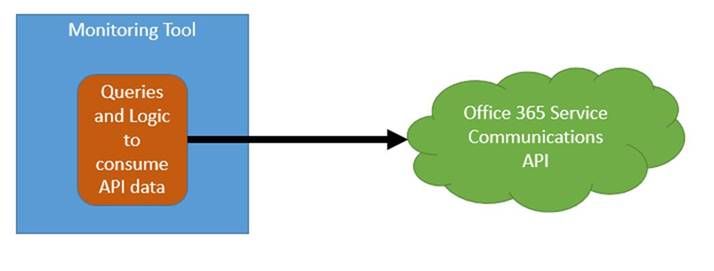
Thanks to everyone who is following along with this Modern Service Management for Office 365 series! We hope that it is helpful so far. We wanted to round out the Monitoring and Major Incident Management topic with some real, technical goodness in this blog post. The Office 365 Service Communications API is the focus for this post, and the context for this post may be found here. We will focus on version 1 of the API and version 2 is currently in preview.
In order to integrate the information from the Office 365 Service Communications API with your existing monitoring toolset, there are two main options:
- Integrate the queries and logic directly into your toolset. This is how the Office 365 SCOM Management Pack is designed.
Often though, in large enterprises, the monitoring team may be in a separate organization from the Office 365-focused team. Often their priorities and timelines for such an effort in a 3rd party tool do not align. Also, it is often the case that the monitoring tools team’s skillset is phenomenal when it comes to the tool, but less experience exists in writing scripts with a focus on Office 365 scenarios. All of that can be worked through, but it is often simpler to have the Office 365 focused team(s) focus on the script and the business rules while the monitoring team focuses on the tool. In that case, the following scenario tends to work better:
- Decouple the queries and logic from the toolset. The script runs from a “watcher node” (which is just a fancy term for a machine that runs the script) owned by the Office 365-focused team, and then the monitoring team simply a) installs an agent on the watcher node b) scrapes the event IDs defined by the Office 365-team and c) builds a few wizard-driven rules within the monitoring tool. This approach also has the benefit of giving the Office 365-focused team some agility because script updates will not require monitoring tool changes unless the event IDs are changing. This approach is also helpful in environments where policy does not allow any administrative access to Office 365 by monitoring-owned service accounts.
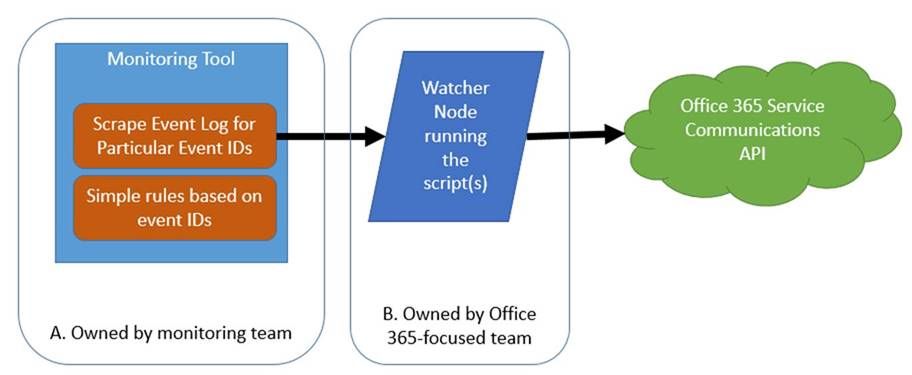
Microsoft does not have a preference as to which approach you take. We do want you to consume the communications as defined in the “monitoring scenarios” in this blog post, but how you accomplish that is up to you. For this blog post, however, we will focus on option #2.
The guidance and suggestions outlined below are shared by Chris Carlson. Chris is a consultant and helps organizations simplify their IT Service Management process integration with the Microsoft Cloud after spending time in the Office 365 product group. Chris has created sample code as an example (“B” above). Chris has also defined the rules and event structure that your monitoring team would use to complete their portion of the work (“A” above). The rest of this article is brought to you by Chris Carlson (thank you Chris!!)
Carroll Moon
———-
As Carroll has alluded, my recommended method for monitoring Office 365 is to leverage the Office 365 SCOM Management Pack. But for those Office 365 customer’s that do not already have an investment in System Center and no plans in the near future to deploy it, I don’t believe that should reduce the experience when it comes to monitoring our online services and integrating that monitoring experience into your existing tools and IT workflows. In order to realize Carroll’s decoupled design in section #2 above we will need some sort of client script or code that will call the API and then output the returned data into a format that we can easily ‘scrape’ into our monitoring tool. For the sake of this example, I will focus on how this can be accomplished using some sample code I published a few days ago. This sample code creates a Windows service that queries the Office 365 Service Communications API and writes the returned data into a Windows event log that can easily be integrated into most 3rd party monitoring tools available today. I’ll walk through the very brief installation process for the sample watcher service, run down the post installation configuration items needed to get you setup and then provide details on what events to look for to build monitoring rules. So let’s get started.
Installation
First off we need to download the sample watcher code and identify a host where we want this service to run. For the purpose of today’s write-up I am installing this onto my Windows 10 laptop but there should be no restriction as to where you run this. Of course the usual caveats apply that this is sample code and you should test in a non-production environment…with that disclaimer out of the way, if you are not one to mess with Visual Studio, for whatever reason, and don’t want to compile your own version of the watcher I did include a pre-compiled version of the service installer in the zip file you will find available for download. To locate this installer, simply download the sample solution, extract the zip file to a location on your local drive and navigate to the <Extracted Location>C#Service Installer folder and there you will find setup.exe.
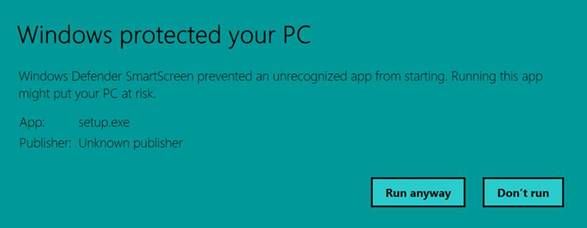
When running setup.exe may run into Windows Defender trying to protect you with the following warning message:

If this does appear, simply click the More info button I circled above and you’ll be presented with a Run anyway button which will allow you to bypass the defender protection, as shown below.
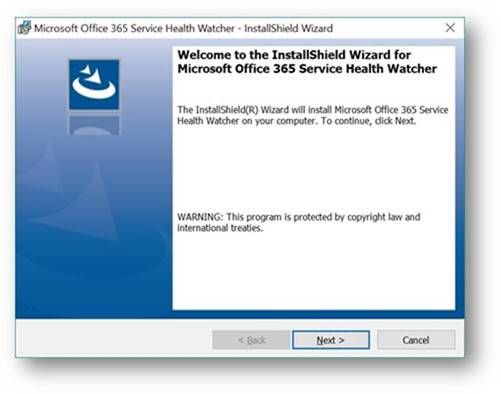
Once we are passed the Windows Defender warnings, the installation really is straightforward. There are three wizard driven screens that will walk you through the service installation process and as you will see in this sample there is no configuration required during the wizard, simply click Next, Install and Finish, as shown below.
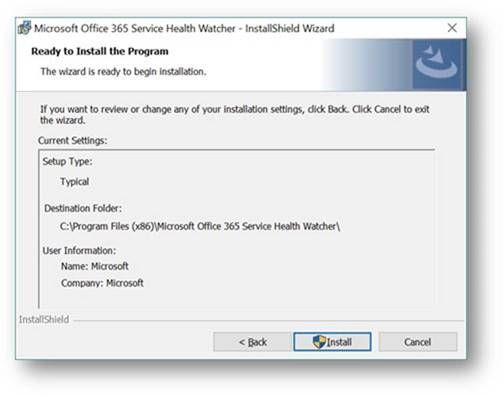
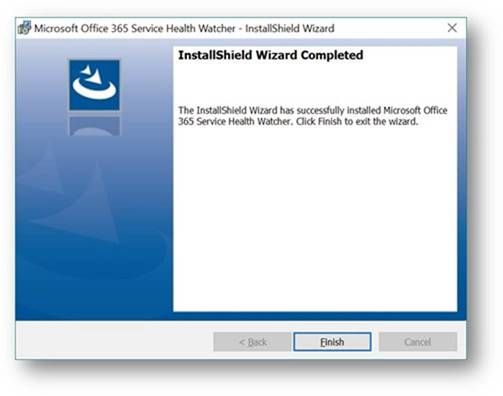
Once the installation wizard has completed, you can verify installation by looking at the list of installed applications via the usual places (Control Panel, Programs, Programs and Features). My Windows 10 machine shows the following entry.

In addition, you can open the services MMC panel (Start->Run->Services.msc) and view the installed service named Microsoft Office 365 Service Health Watcher. The service is installed with a startup type of automatic but left in a stopped state initially. This is because we have some post installation configuration to do prior to spinning it up for the first time. (Yes, I could have extended the install wizard to collect these items, but we’re all busy and this is sample code.) Please read on because the next section will discuss the required configuration items that need to be set and all the other possible values that are available in this sample to modify the monitoring experience.

Service Configuration
So now we have an installed Windows service that will poll the Office 365 Service Communications API for data but we need to tell that service which Office 365 tenant we are interested in monitoring. To do this we need to open the configuration file and enter a few tenant specific values. The service we installed above places files into the C:Program Files (x86)Microsoft Office 365 Service Health Watcher folder and it’s in that location that you will find the file named Microsoft Office 365 Service Health Watcher.exe.config. This is an XML file so you can open and modify it in any of your favorite XML editors, I am using trusty old Notepad for my editing today. When you open the file you will see a few elements listed, similar to the ones below, what we care about however are the attributes of the ConfigSettings element.
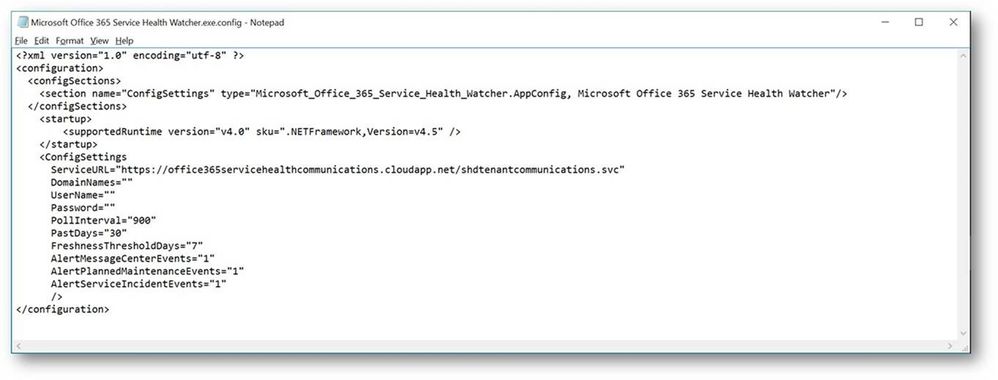
There are several attributes here that can change the way this sample operates, I have listed out all attributes and their meanings below in Table 1, but to get started you need only update the values for DomainNames, UserName and Password. Referring back to the sample code download page, DomainNames represents the domain name of the tenant to be monitored, i.e. contoso.com, adventureworks.com, <pick your favorite MSFT fake company name>.com. UserName needs to contain a user within that same tenant that has been granted the Service administrator role, for more information on Office 365 user roles please review the Office 365 Admin help page. Password is the final attribute that requires a value and this will be the password for the user you defined in the UserName attribute. As noted on the sample code page, this value is stored in plain text within this configuration file. This sample can certainly be extended with your favorite method of encrypting this value but for the sake of board sample usage I chose not to include that functionality at this time. I do however recommend the account used is one that only has the Service administrator role and you review who has permissions to this file to at least ensure a basic level of protection on these credentials.
Table 1 – Watcher Service Configuration items
|
Configuration Item
|
Description
|
|
ServiceURL
|
This is the URL endpoint for the Service Comms API
|
|
DomainNames
|
The domain name of the tenant to be queried for i.e. contoso.com
|
|
UserName
|
The name of a user, defined in the Office 365 tenant, that has ‘Service Administrator’ rights.
|
|
Password
|
The password associated with the above user. See notes about securing this value
|
|
PollInterval
|
This value determines how often, in seconds, the API is polled for new information. The default value is 900 seconds, or 15 minutes.
|
|
PastDays
|
How many days of historical data is retrieved from the API during each poll. The default value is 30 days and it is recommended not to modify this value.
|
|
FreshnessThresholdDays
|
The number of days the locally tracked data in the registry is considered ‘fresh’. This value only applies in case where the API has not been polled for an extended period of time. The sample code will ignore the data in the local registry and update it with new entries from the next API call.
|
|
AlertMessageCenterEvents
|
Can we used to turn off events related to general notifications found in the Message Center. A value of 0 will disable these events and a value of 1 will enable them, the default value is 1.
|
|
AlertPlannedMaintenanceEvents
|
Can we used to turn off events related to Planned Maintenance. A value of 0 will disable these events and a value of 1 will enable them, the default value is 1.
|
|
AlertServiceIncidentEvents
|
Can we used to turn off events related to Service Incident messages. A value of 0 will disable these events and a value of 1 will enable them, the default value is 1.
|
Once you have defined values for these three required items it’s time to fire up the service and give it a try! Read on for what to expect from this sample watcher and how you can, should you choose, build monitoring rules to integrate into your existing systems.
Using the watcher sample to monitor Office 365
To briefly recap, in the previous sections we have installed a sample watcher service and configured it with our Office 365 tenant specific information so now we are ready to let it connect to the Office 365 Service Communications API for the first time and start monitoring our Office 365 tenant, great! If we go to the services MMC panel (Start->Run->services.msc) we can start the service named Microsoft Office 365 Service Health Watcher, as shown below.

This service will write it’s events to the Application event log on the Windows host it was installed on. So let’s open Event Viewer (Start->Run->eventvwr.msc) and see what data we are getting back. Below is a screen shot of my Application event log filtered to an event source of Microsoft Office 365 Service Health Watcher, that is the source for all the events this sample writes to the Application event log. NOTE: You are certainly welcome to extend the sample and register your own source and event values if you like, sky is the limit on that kind of stuff.
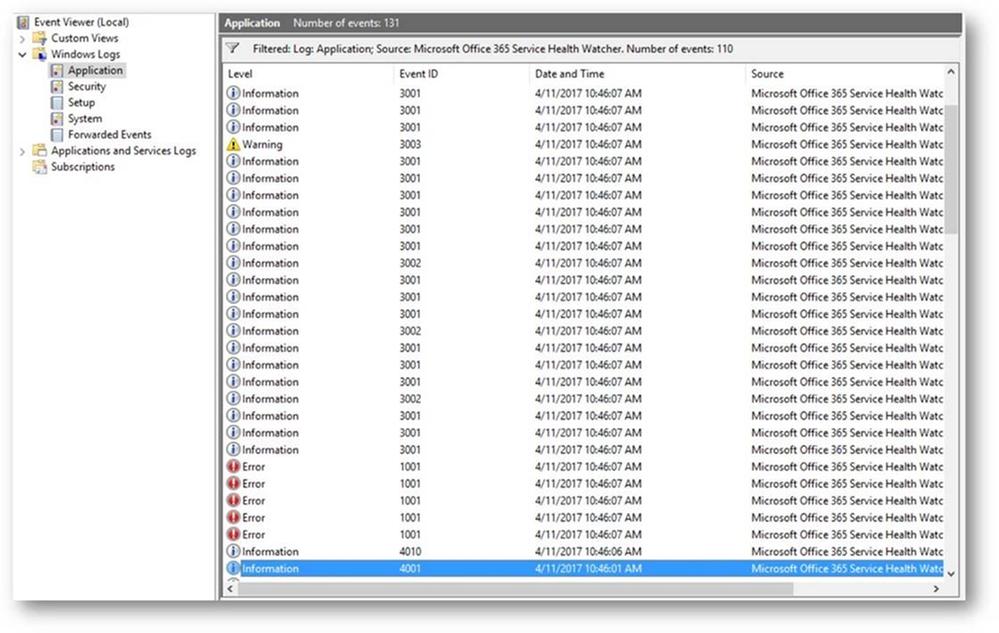
We see above that there is a lot of data coming back from the Service Communications API, so let’s dig into some of these events and see what data this thing is returning…
First we are greeted with a few standard messages, those events with IDs in the 4000 range are related to the watcher process itself, for instance the first two are basic messages that the service has in fact started and it’s starting a polling cycle:
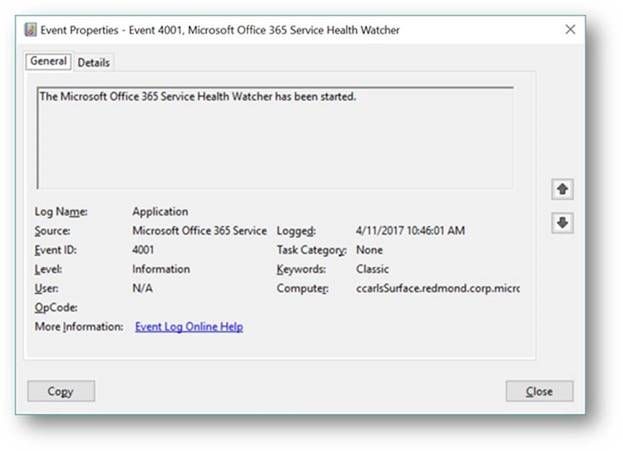

Not terribly interesting but they can be leveraged as a type of heartbeat to ensure monitoring of Office 365 is occurring. For instance, in most monitoring tools you can build a rule that contains logic that will alert when an event is NOT detected within a known period of time, in this case we should be dropping these events every 15 minutes assuming the default polling interval. If we don’t see event ID 4010 then we know we our monitoring is not working for some reason and need to investigate as we could miss important data related to Office 365 service incidents.
Moving on to examine a few more of the events, we see that the next one that was written was an error event with an ID of 1001, for this sample watcher event IDs in the 1000 range denote events related Service Incidents. We can see in the event below that this was an Exchange Online related issue with OWA access that occurred sometime back and has since been resolved.
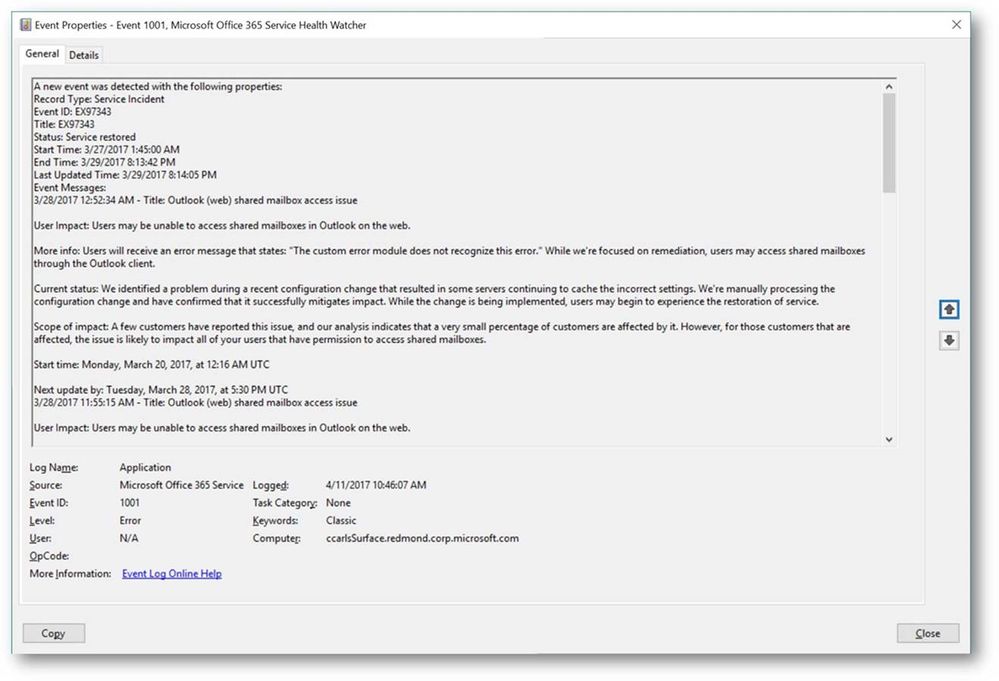
Service Incidents will progress through a series of state, or ‘status’, changes throughout the lifecycle of that incident so you can use the status field returned in these events to further key alerting to specific workflow states i.e. Service restored, Post-incident report published, etc.
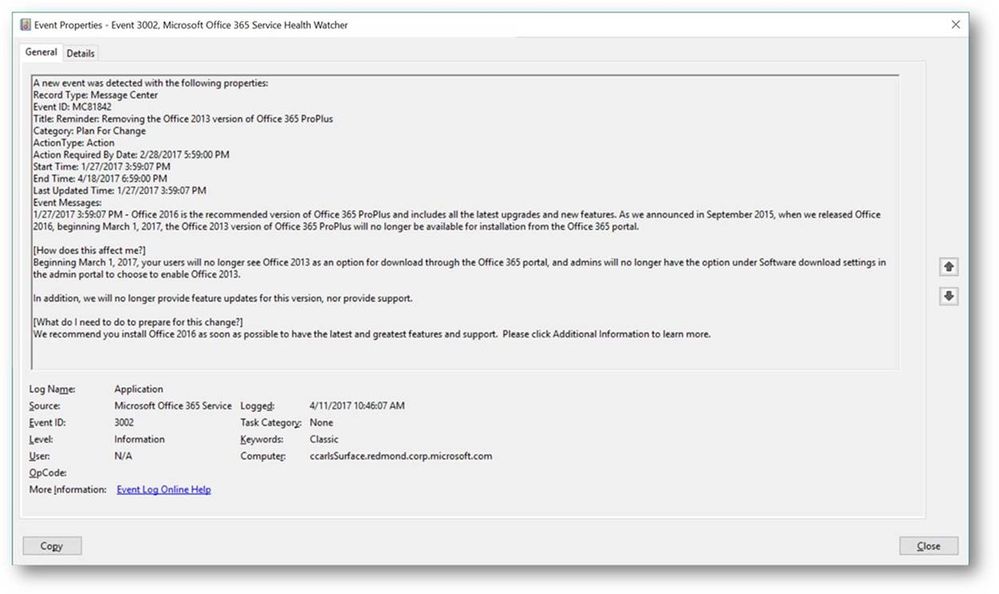
In addition to Service Incident events this watcher sample also drops events related to Planned Maintenance and Message Center event types. The Message Center is the primary change management tool for Office 365 and is used to communicate directly to admins and IT Pros. New feature releases, upcoming changes, and situations requiring action are communicated through the Office 365 Message Center and this API. The example below is a communication that Office 2016 is now recommended and that Office 2013 version of ProPlus will not be available from the portal starting March 1st.
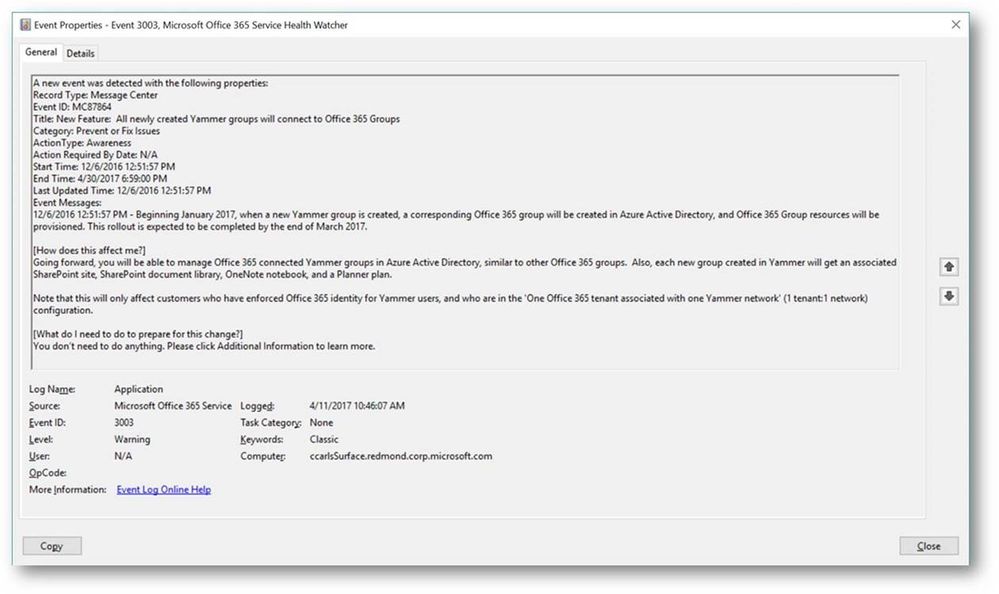
Another example, below, is a communication related to Yammer and how your tenant may be affected.
In many cases these messages, not just service incidents, represent direct action that needs to be taken by someone, whether that individual is within IT or another business unit depends but awareness of the messages needs to be communicated, or ‘alerted’, to the appropriate person or automated workflow. To that end the table below represents a full list of the event types and the event ID that can be dropped by this sample watcher service. In addition I have provided a description of what my intention was when writing the event to the event log and how it might be used to build monitoring related rules.
Table 2 – EventIDs and Descriptions
|
Event Type
|
EventID
|
Purpose
|
|
Service Incident
|
1001
|
This event indicates a new service incident has been posted for the monitored Office 365 tenant. This should be used to alert that a new service incident has been detected. NOTE: This will event will also be written when the service is started for the first time and an existing service incident is returned from the API. This will also be written when the watcher has been offline longer than the value listed in FreshnessThresholdDays in the XML config file.
|
|
Service Incident
|
1002
|
This event indicates a status change for a tracked service incident, since the last poll cycle. This should be used to notify that something noteworthy has changed with the service health state. A review of the service incident’s status message should take place to determine what the status change is. For example, if a service incident has changed from an active state to a resolved status.
|
|
Service Incident
|
1003
|
This event is used simply to inform that we are still seeing data being returned for a tracked service incident, it really is informational in nature.
|
|
Planned Maintenance
|
2001
|
This event is written when a new Planned Maintenance message has been posted for the tenant. The same conditions as noted for event 1001 apply as to the conditions under which this event would be written.
|
|
Planned Maintenance
|
2002
|
Like event 1002, this event informs that status has changed, since the last poll cycle, for this planned maintenance event. This event should indicate that a planned maintenance has started, cancelled or been completed.
|
|
Planned Maintenance
|
2003
|
Like event 1003, this event just notes that we are still seeing data for a tracked planned maintenance event and is informational only.
|
|
Message Center
|
3001
|
Indicates a new Message Center event with a category of ‘Stay Informed’ was returned by the API.
|
|
Message Center
|
3002
|
Indicates a new Message Center event with a category of ‘Plan for Change’ was returned by the API.
|
|
Message Center
|
3003
|
Indicates a new Message Center event with a category of ‘Prevent Or Fix Issues’ was returned by the API.
|
|
Health Watcher
|
4001
|
Indicates that the watcher service has been started
|
|
Health Watcher
|
4002
|
Indicates that the watcher service has been stopped
|
|
Health Watcher
|
4003
|
A connection attempt to the Service Communications API was attempted but was unsuccessful, possibly due to network connectivity or invalid credentials.
|
|
Health Watcher
|
4004
|
A successful connection to the Service Communications API was made but no event data was returned. A likely reason for this would be attempting to use a credential without enough permissions to retrieve data for the specified tenant.
|
|
Health Watcher
|
4006
|
Indicates that an unhandled exception was detected in watcher code.
|
|
Health Watcher
|
4008
|
This event is dropped when a tracking registry key is deleted. This would only occur if there is tracked data in the registry and the watcher enters a ‘first poll’ experience. This would most likely be when the watcher has been offline longer than the value of FreshnessThresholdDays.
|
|
Health Watcher
|
4009
|
This event is written when the XML configuration file does not contain a value for DomainName, UserName or Password. Typically this would be if the service is started before the XML config file has been updated.
|
|
Health Watcher
|
4010
|
An event that is written each time the API polling cycle begins i.e. every 15 min by default. This can be used to determine if API polling is still functioning i.e. monitor for the absence of this event within the last N # of minutes.
|
|
Health Watcher
|
4011
|
An event that is written each time the API polling cycle completes
|
More information
I am always looking for feedback and am happy to answer any questions. If you have any feedback, comments, questions, concerns or even suggestions on how to improve the sample watcher service feel free to leave comments on this blog post or use the Q & A section on the sample code download site. As Carroll mentioned, we’ll be looking to update this sample in the near future using the V2 API and incorporate the changes coming with that version.
<Please note: Sample code is shared for reference and not officially supported by Microsoft Support teams. All recommendations and best practices are the opinions are those of the authors. We recommend that you test and validate any code or scripts prior to deploying into production environments.>