EDITORS NOTE 1/3/2019
We have updated the blog to reflect that we’ve expanded the ability to control if Office attachments are protected for recipients inside Office 365 – previously this was only supported for non-Office 365 users. Changes are reflected below in the blog.
Summary
Administrators can now control whether Office attachments are protected for recipients inside and outside of Office 365 when the Encrypt-Only template is used. This was a key ask from Office 365 Message Encryption customers and is now available as a tenant-level setting.
Background
We have now made it possible for administrators to control how Encrypt-Only behaves for attachments. By default, when a user sends an email and attachments using Encrypt-only, the Office attachments are also protected with Encrypt-Only permissions and that encryption persists throughout lifecycle of the content. To provide more flexible controls for recipients, organizations can control if recipients have unrestricted permissions on the attachment or not for Encrypt-Only emails. For example, one scenario this is valued is when a doctor shares a protected attachment to her patient, and the patient wants to share this with his family, the attachment is no longer encrypted so they can open the attachment without any additional steps.
What is available
Admins can control whether attachments have unrestricted permissions for Encrypt-Only emails. Details on implementing the settings are below.
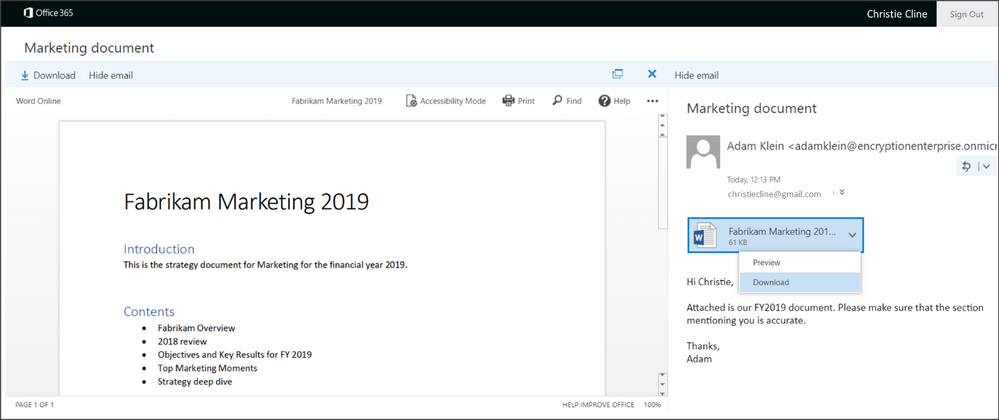
When the recipient signs-in to the Office 365 Message Encryption portal, they can preview attachments as before.
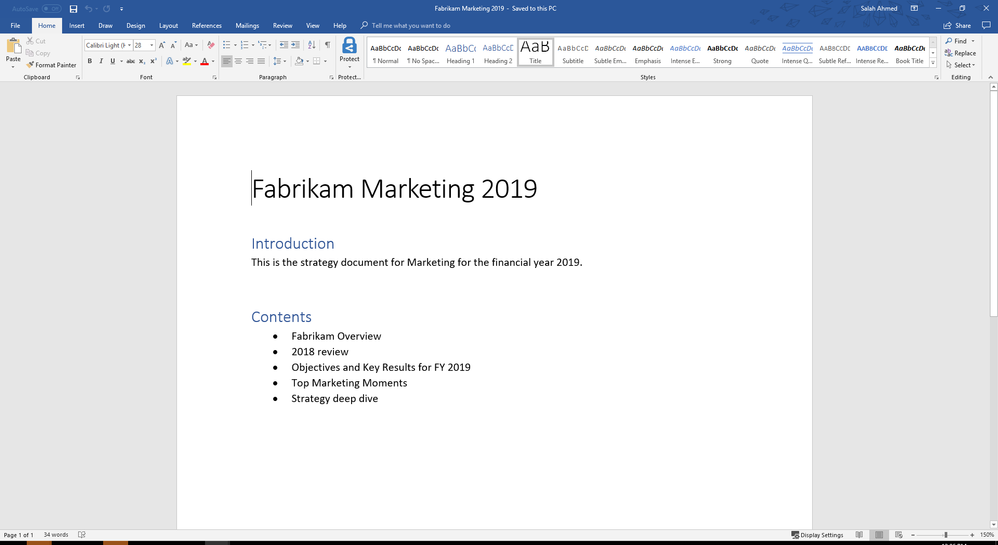
If the control to unrestrict the attachment is enabled, the document will be decrypted and the recipient will be able to view it normally. Additionally, the content will remain decrypted and unrestricted unless additional protections are applied.
Scope
This setting is available for the Encrypt-only template and not for the Do Not Forward or Custom templates.
It’s enforced at the tenant level.
How to control the setting
To manage whether to allow recipients to download Encrypt-only attachments without encryption, follow these steps:
Connect to Exchange Online Using Remote PowerShell (see https://aka.ms/exopowershell)
Run the Set-IRMConfiguration cmdlet with the DecryptAttachmentForEncryptOnly parameter as follows:
Set-IRMConfiguration – DecryptAttachmentForEncryptOnly <$true|$false>
For example, to allow download of attachments without protection for Encrypt-only:
Set-IRMConfiguration – DecryptAttachmentForEncryptOnly $true
If you decide that you want to revert the setting and keep attachments protected even after download:
Set-IRMConfiguration – DecryptAttachmentForEncryptOnly $false
Please note, as of 12/13/18, we have deprecated DecryptAttachmentFromPortal. It will continue working for existing customers who have run the old cmdlet but new customers should start using the new cmdlet (DecryptAttachmentForEncryptOnly) updated above.
Additional Resources
This was a key ask from organizations that had a broad set of scenarios which requires email recipients to “own” the attachment by unrestricting permissions on the attachment. We hope this additional control can provide more flexibility in collaborating on protected content for all users. Your feedback matters- leave us a comment below or go to uservoice and submit your feedback/vote!
For additional resources on Office 365 Message Encryption – you can find them below:
EDITORS NOTE 1/3/2019
We have updated the blog to reflect that we’ve expanded the ability to control if Office attachments are protected for recipients inside Office 365 – previously this was only supported for non-Office 365 users. Changes are reflected below in the blog.
Summary
Administrators can now control whether Office attachments are protected for recipients inside and outside of Office 365 when the Encrypt-Only template is used. This was a key ask from Office 365 Message Encryption customers and is now available as a tenant-level setting.
Background
We have now made it possible for administrators to control how Encrypt-Only behaves for attachments. By default, when a user sends an email and attachments using Encrypt-only, the Office attachments are also protected with Encrypt-Only permissions and that encryption persists throughout lifecycle of the content. To provide more flexible controls for recipients, organizations can control if recipients have unrestricted permissions on the attachment or not for Encrypt-Only emails. For example, one scenario this is valued is when a doctor shares a protected attachment to her patient, and the patient wants to share this with his family, the attachment is no longer encrypted so they can open the attachment without any additional steps.
What is available
Admins can control whether attachments have unrestricted permissions for Encrypt-Only emails. Details on implementing the settings are below.
When the recipient signs-in to the Office 365 Message Encryption portal, they can preview attachments as before.
If the control to unrestrict the attachment is enabled, the document will be decrypted and the recipient will be able to view it normally. Additionally, the content will remain decrypted and unrestricted unless additional protections are applied.
Scope
This setting is available for the Encrypt-only template and not for the Do Not Forward or Custom templates.
It’s enforced at the tenant level.
How to control the setting
To manage whether to allow recipients to download Encrypt-only attachments without encryption, follow these steps:
Connect to Exchange Online Using Remote PowerShell (see https://aka.ms/exopowershell)
Run the Set-IRMConfiguration cmdlet with the DecryptAttachmentForEncryptOnly parameter as follows:
Set-IRMConfiguration – DecryptAttachmentForEncryptOnly <$true|$false>
For example, to allow download of attachments without protection for Encrypt-only:
Set-IRMConfiguration – DecryptAttachmentForEncryptOnly $true
If you decide that you want to revert the setting and keep attachments protected even after download:
Set-IRMConfiguration – DecryptAttachmentForEncryptOnly $false
Please note, as of 12/13/18, we have deprecated DecryptAttachmentFromPortal. It will continue working for existing customers who have run the old cmdlet but new customers should start using the new cmdlet (DecryptAttachmentForEncryptOnly) updated above.
Additional Resources
This was a key ask from organizations that had a broad set of scenarios which requires email recipients to “own” the attachment by unrestricting permissions on the attachment. We hope this additional control can provide more flexibility in collaborating on protected content for all users. Your feedback matters- leave us a comment below or go to uservoice and submit your feedback/vote!
For additional resources on Office 365 Message Encryption – you can find them below:
EDITORS NOTE 1/3/2019
We have updated the blog to reflect that we’ve expanded the ability to control if Office attachments are protected for recipients inside Office 365 – previously this was only supported for non-Office 365 users. Changes are reflected below in the blog.
Summary
Administrators can now control whether Office attachments are protected for recipients inside and outside of Office 365 when the Encrypt-Only template is used. This was a key ask from Office 365 Message Encryption customers and is now available as a tenant-level setting.
Background
We have now made it possible for administrators to control how Encrypt-Only behaves for attachments. By default, when a user sends an email and attachments using Encrypt-only, the Office attachments are also protected with Encrypt-Only permissions and that encryption persists throughout lifecycle of the content. To provide more flexible controls for recipients, organizations can control if recipients have unrestricted permissions on the attachment or not for Encrypt-Only emails. For example, one scenario this is valued is when a doctor shares a protected attachment to her patient, and the patient wants to share this with his family, the attachment is no longer encrypted so they can open the attachment without any additional steps.
What is available
Admins can control whether attachments have unrestricted permissions for Encrypt-Only emails. Details on implementing the settings are below.
When the recipient signs-in to the Office 365 Message Encryption portal, they can preview attachments as before.
If the control to unrestrict the attachment is enabled, the document will be decrypted and the recipient will be able to view it normally. Additionally, the content will remain decrypted and unrestricted unless additional protections are applied.
Scope
This setting is available for the Encrypt-only template and not for the Do Not Forward or Custom templates.
It’s enforced at the tenant level.
How to control the setting
To manage whether to allow recipients to download Encrypt-only attachments without encryption, follow these steps:
Connect to Exchange Online Using Remote PowerShell (see https://aka.ms/exopowershell)
Run the Set-IRMConfiguration cmdlet with the DecryptAttachmentForEncryptOnly parameter as follows:
Set-IRMConfiguration – DecryptAttachmentForEncryptOnly <$true|$false>
For example, to allow download of attachments without protection for Encrypt-only:
Set-IRMConfiguration – DecryptAttachmentForEncryptOnly $true
If you decide that you want to revert the setting and keep attachments protected even after download:
Set-IRMConfiguration – DecryptAttachmentForEncryptOnly $false
Please note, as of 12/13/18, we have deprecated DecryptAttachmentFromPortal. It will continue working for existing customers who have run the old cmdlet but new customers should start using the new cmdlet (DecryptAttachmentForEncryptOnly) updated above.
Additional Resources
This was a key ask from organizations that had a broad set of scenarios which requires email recipients to “own” the attachment by unrestricting permissions on the attachment. We hope this additional control can provide more flexibility in collaborating on protected content for all users. Your feedback matters- leave us a comment below or go to uservoice and submit your feedback/vote!
For additional resources on Office 365 Message Encryption – you can find them below:
EDITORS NOTE 1/3/2019
We have updated the blog to reflect that we’ve expanded the ability to control if Office attachments are protected for recipients inside Office 365 – previously this was only supported for non-Office 365 users. Changes are reflected below in the blog.
Summary
Administrators can now control whether Office attachments are protected for recipients inside and outside of Office 365 when the Encrypt-Only template is used. This was a key ask from Office 365 Message Encryption customers and is now available as a tenant-level setting.
Background
We have now made it possible for administrators to control how Encrypt-Only behaves for attachments. By default, when a user sends an email and attachments using Encrypt-only, the Office attachments are also protected with Encrypt-Only permissions and that encryption persists throughout lifecycle of the content. To provide more flexible controls for recipients, organizations can control if recipients have unrestricted permissions on the attachment or not for Encrypt-Only emails. For example, one scenario this is valued is when a doctor shares a protected attachment to her patient, and the patient wants to share this with his family, the attachment is no longer encrypted so they can open the attachment without any additional steps.
What is available
Admins can control whether attachments have unrestricted permissions for Encrypt-Only emails. Details on implementing the settings are below.
When the recipient signs-in to the Office 365 Message Encryption portal, they can preview attachments as before.
If the control to unrestrict the attachment is enabled, the document will be decrypted and the recipient will be able to view it normally. Additionally, the content will remain decrypted and unrestricted unless additional protections are applied.
Scope
This setting is available for the Encrypt-only template and not for the Do Not Forward or Custom templates.
It’s enforced at the tenant level.
How to control the setting
To manage whether to allow recipients to download Encrypt-only attachments without encryption, follow these steps:
Connect to Exchange Online Using Remote PowerShell (see https://aka.ms/exopowershell)
Run the Set-IRMConfiguration cmdlet with the DecryptAttachmentForEncryptOnly parameter as follows:
Set-IRMConfiguration – DecryptAttachmentForEncryptOnly <$true|$false>
For example, to allow download of attachments without protection for Encrypt-only:
Set-IRMConfiguration – DecryptAttachmentForEncryptOnly $true
If you decide that you want to revert the setting and keep attachments protected even after download:
Set-IRMConfiguration – DecryptAttachmentForEncryptOnly $false
Please note, as of 12/13/18, we have deprecated DecryptAttachmentFromPortal. It will continue working for existing customers who have run the old cmdlet but new customers should start using the new cmdlet (DecryptAttachmentForEncryptOnly) updated above.
Additional Resources
This was a key ask from organizations that had a broad set of scenarios which requires email recipients to “own” the attachment by unrestricting permissions on the attachment. We hope this additional control can provide more flexibility in collaborating on protected content for all users. Your feedback matters- leave us a comment below or go to uservoice and submit your feedback/vote!
For additional resources on Office 365 Message Encryption – you can find them below:
We’ve been on a journey to modernize user experiences throughout SharePoint.
Lists and libraries are the primary containers for data and content, enriched with custom metadata. Previously, we introduced column formatting, which lets you cut and paste JSON scripts into a formatting window to add interactions, color coding, visualizations, or other transformations on data in a list or library column. This summer we also introduced view formatting – which let you use the same JSON techniques to build transformation for every element in a view — such as multiline displays, Microsoft Flow buttons, or data integrated from Bing maps or other business services.
Today, there are dozens of sample scripts you can use in our SharePoint patterns and practices GitHub repository. Some of these are highlighted here on the TechCommunity Resource Cenrter. We recognize, however, that this is a more advanced technique, and most users are unfamiliar with JSON syntax.
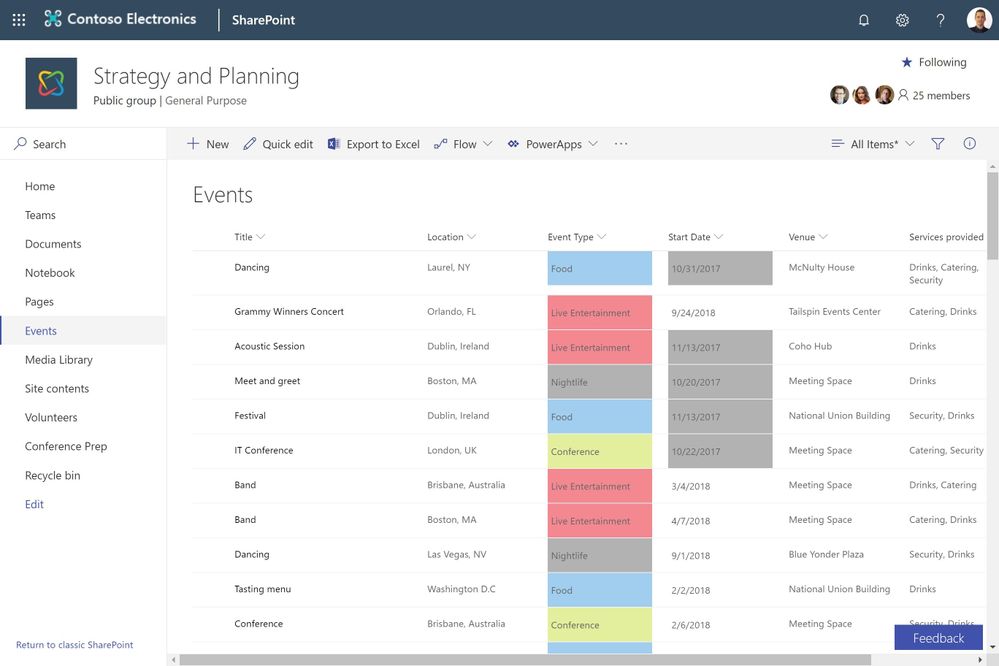
That’s why we’re excited to introduce custom formatting. It’s like column formatting, since it lets you add conditional coloring based on column values. However, custom formatting requires absolutely no scripting. Custom formatting works on choice, date and Boolean columns. When you select the “Format this column” option, you can apply a pre-built template, or you can adjust the colors if desired. For developers, you can still use “advanced mode” to apply a JSON script.
In the link below, you can experience custom formatting. It’s never been easier to transform and optimize the display of business data in SharePoint pages.
Custom formatting demo on TechCommunity
https://demobuilderwebcpptxz.blob.core.windows.net/custom-formatting/startdemo.html
Custom formatting will begin rolling out to targeted release customers in late December, with general release following in January. Later in 2019, we’ll add support for more column types.
We encourage you to share your thoughts and experience with us. Thank you, and happy holidays.







