Having privileged access to an application is all that’s needed to execute commands with malicious intent to inflict damage to or exfiltrate data from an organization. Such high privileges can be misused to create fake accounts, grant excessive permissions, exfiltrate sensitive data, cause damage to infrastructure, wipe out or hold data for ransom, and set rules and policies that make it extremely hard to detect and restore state back. In fact, it’s estimated that 80% of security beaches involve privileged credentials1. Therefore, privileged accounts commonly become lucrative attack vectors for both internal and external attackers.
On top of this, organizations are constantly evolving (acquisitions, divestitures, entering new markets, ect.) – making it challenging to monitor and manage privileged accounts and respond to various compliance requirements regarding privileged access to sensitive data at scale.
One way to address these risks and complexities is to operate on the principle of Zero Standing Access, which means users do not have privileges by default, and when permissions are provided, it’s at the bare minimum with just enough access to perform the specific task.
Microsoft operates on this principle for data center access, or also known as service provider access to customer content, through Lockbox and Customer Lockbox. In fact, Microsoft goes a step further than traditional PAM solutions by eliminating standing privileged access to your data within your organization.
We believe that operating on the principle of zero standing access with just in time and just enough access to perform a privileged task is key to effectively manage accounts with privileged access.
Therefore, we are excited to announce that we are extending the security rigor that Microsoft uses for data center access, to enable customers to enforce Zero Standing Access for privileged admin access within your organization, with privileged access management in Office 365, which is generally available today.
To understand how it works – read further below.
How it works
Privileged access management in Office 365 goes beyond traditional access control capabilities by enabling access governance more granularly for specific tasks.
It’s based on the principle of Zero Standing Access, which means users who need privileged access, must request permissions for access, and once received it is just-in-time and just-enough access to perform the job at hand.
Therefore, Zero Standing Access, combined with access governance, can be an effective deterrent to misuse of privileged access by:
- Requiring users to elevate permissions to execute tasks that may expose sensitive data.
- Providing Just-Enough-Access (JEA) to specific tasks, coupled with Just-In-Time access so access is only allowed for a specific period of time.
- Removing the dependency on having a set of privileged accounts with standing access.
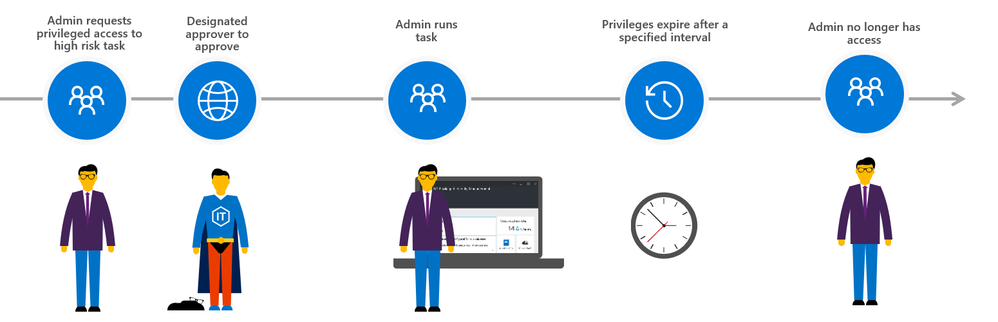
The approval workflow can be enumerated in following steps:
(0) First, set up designed approvers and the privileged access management policy
First the global admin needs to set up a privileged access management group for authorizing privileged tasks within the Microsoft 365 admin center. Once the group is created members need to be added as well.
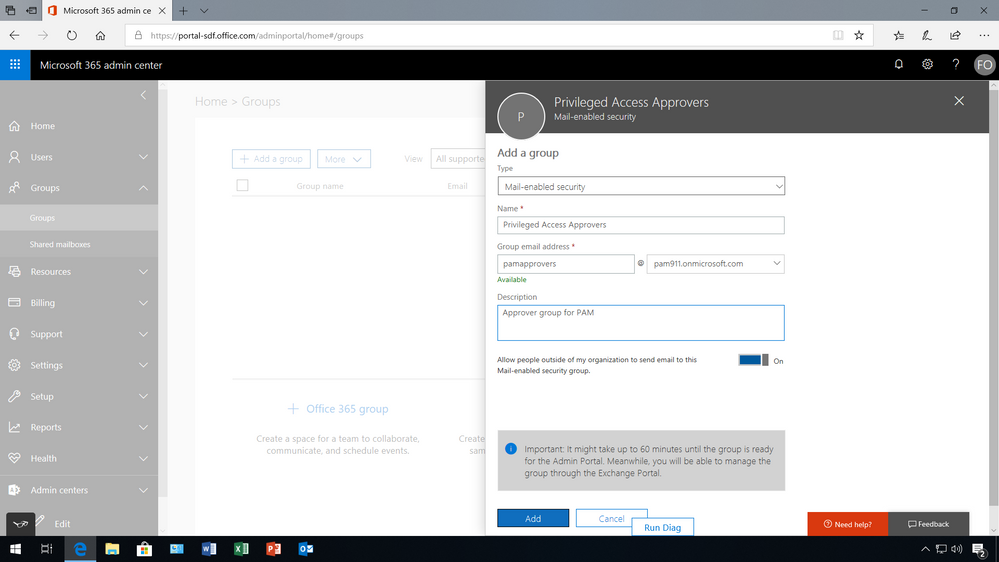
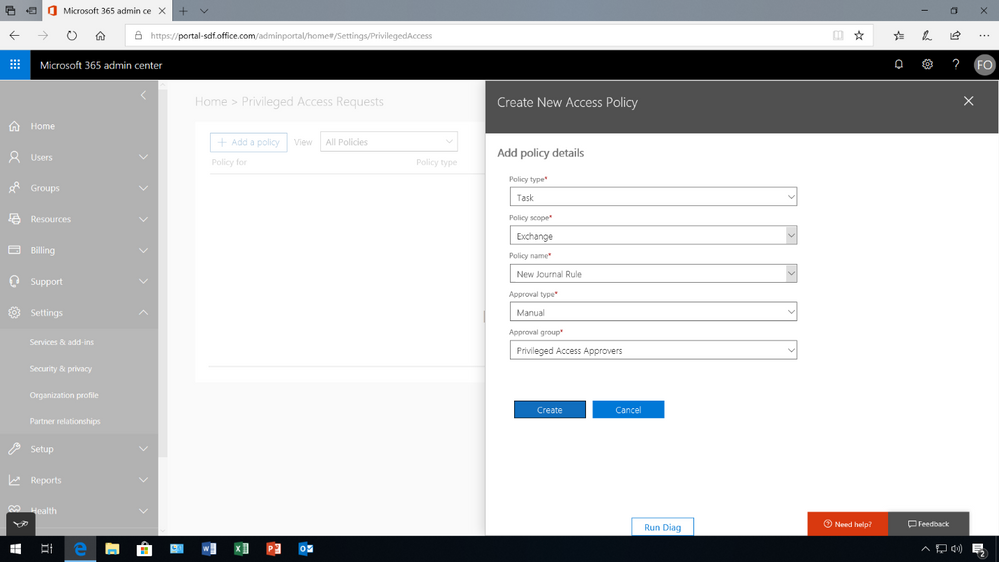
Once the members have been added to the group, under Settings then Security & privacy turn on privileged access management in Office 365 to require approvals for privileged tasks, and select the approval group. Once turned on, you can configure the specific access policy – in this example, an access policy has been added to prevent users from executing journal rules without Manual-approval so that users can’t send copies of sent and received emails to a shadow mailbox without immediate detection.
However, Auto-approval is practical for high-volume tasks such as password resets, but in this case, members of the Privileged Access Approver group will be responsible for reviewing and approving tasks of this nature.
(1) Admin requests privileged access to execute high risk task
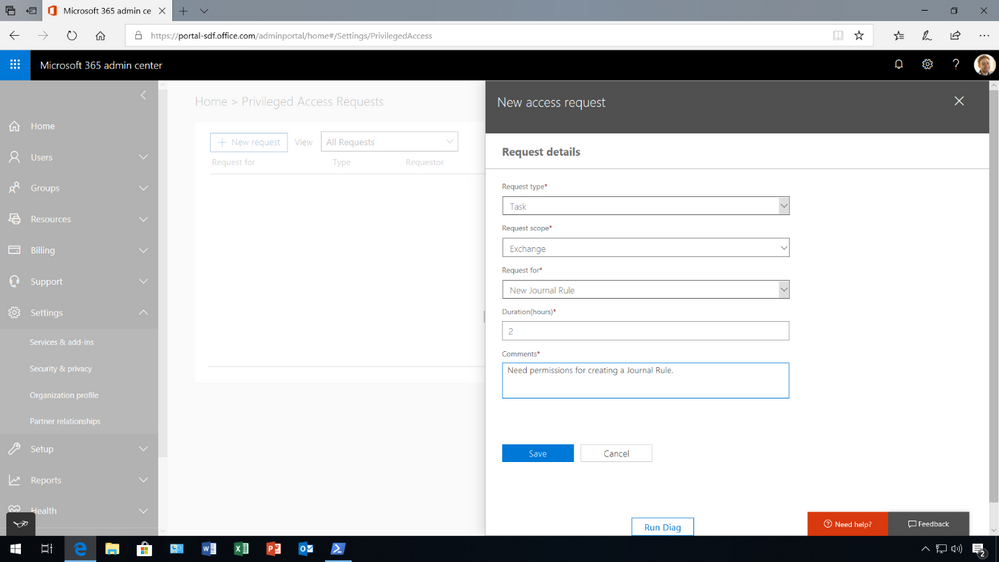
Once a policy is in place, an admin is now required to request permissions for privileged access through the Microsoft 365 admin center.
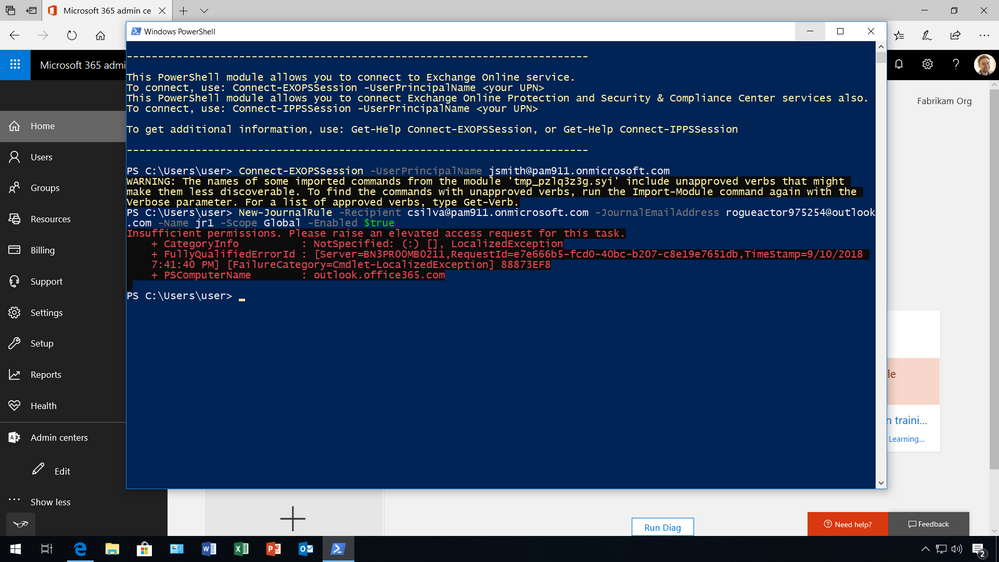
Typically, the admin will know that they need to elevate permissions when they try to execute the command and the system prohibits the admin from running the task because they have insufficient permissions to execute this command.
To request access, the admin must go to the Microsoft 365 Admin center, where privileged access management in Office 365 is managed, under Settings then Security & privacy, to make a new request. Once a request is made, and additional information is provided, such as the type of request, for what workload, task, and the duration.
(2) Designated approver reviews request and takes action
Since the policy requires a manual approval, the request is sent to the designated approval group. The notification message provides the details of the request including who is requesting access, what task they want to execute, for how long and the reason why. All this information is available to help the designated approver decide if the request is appropriate.
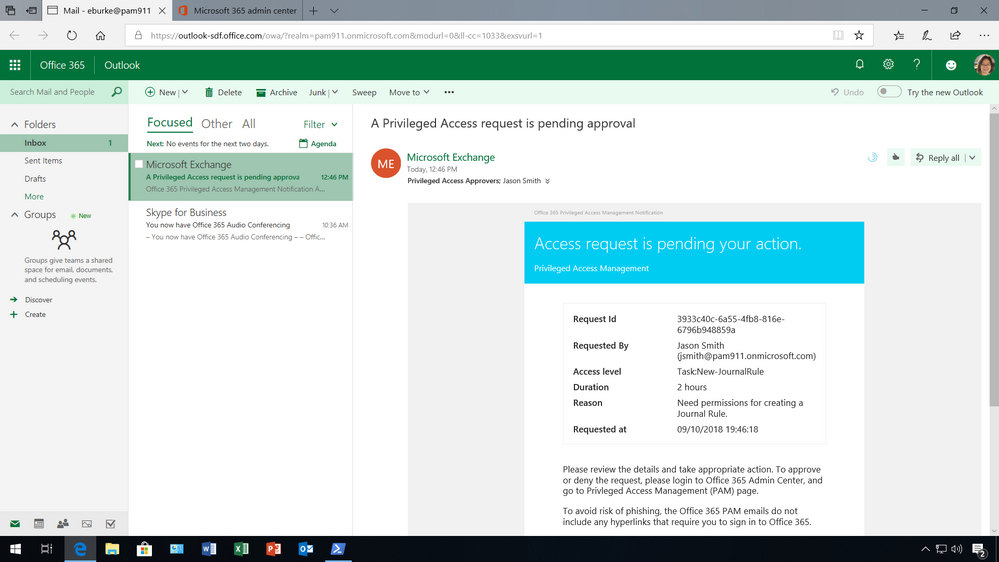
To approve or deny the request, the designated approver must log into the Microsoft 365 admin center to take action.
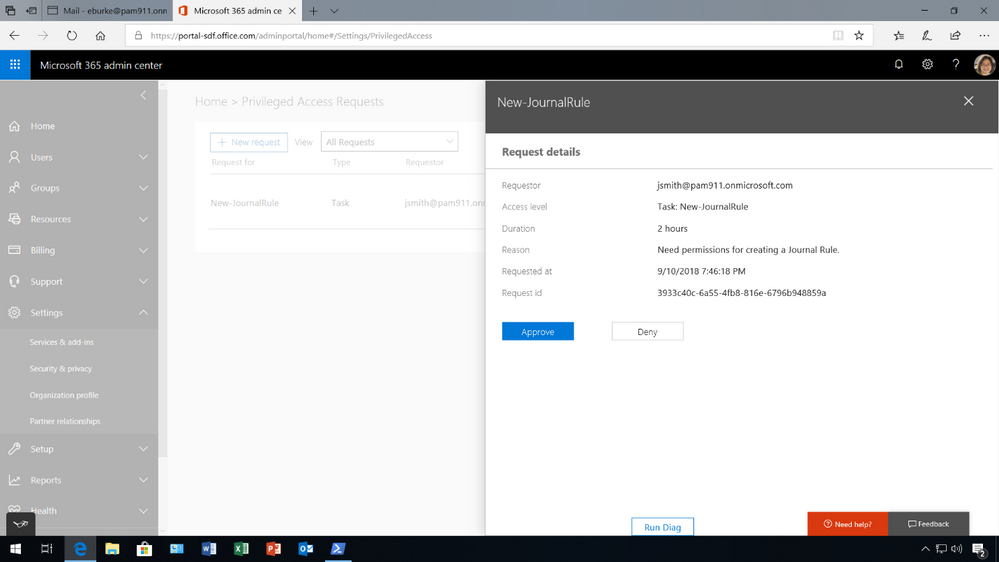
(3) Admin receives notification and takes action for specific amount of time
If the request is appropriate and the designated approver receives an email notification of the request being approved, the requesting user gets access to the privileged tasks and can execute the task for the specified amount of time.
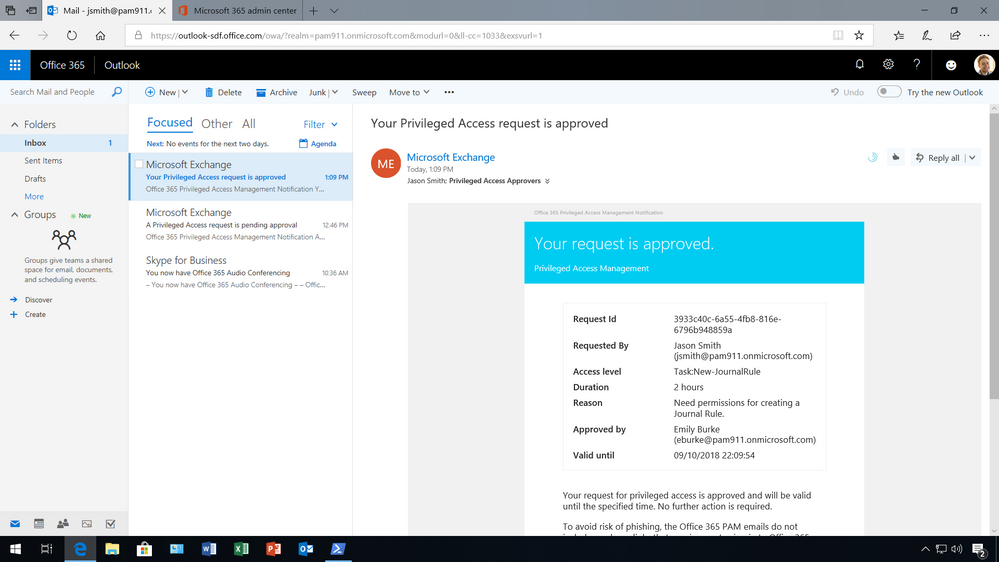
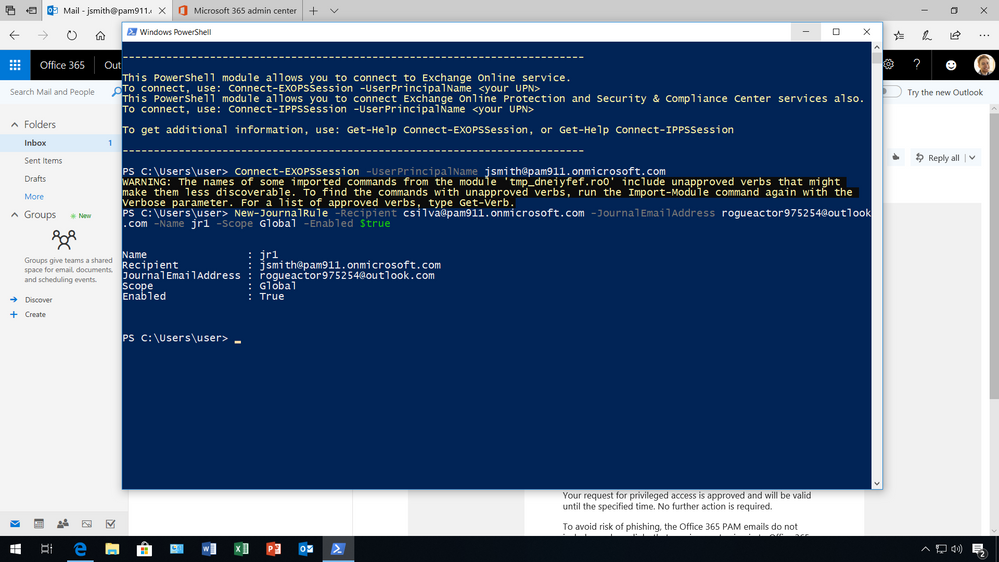
(4) Privileges expire access is no longer available
With privilege access management, each request expires after a specified length of time to reduce the risk of a malicious user stealing access. After the access period has expired, the requester doesn’t have any privileged access to the task anymore.
Managing access governance and responding to compliance obligations
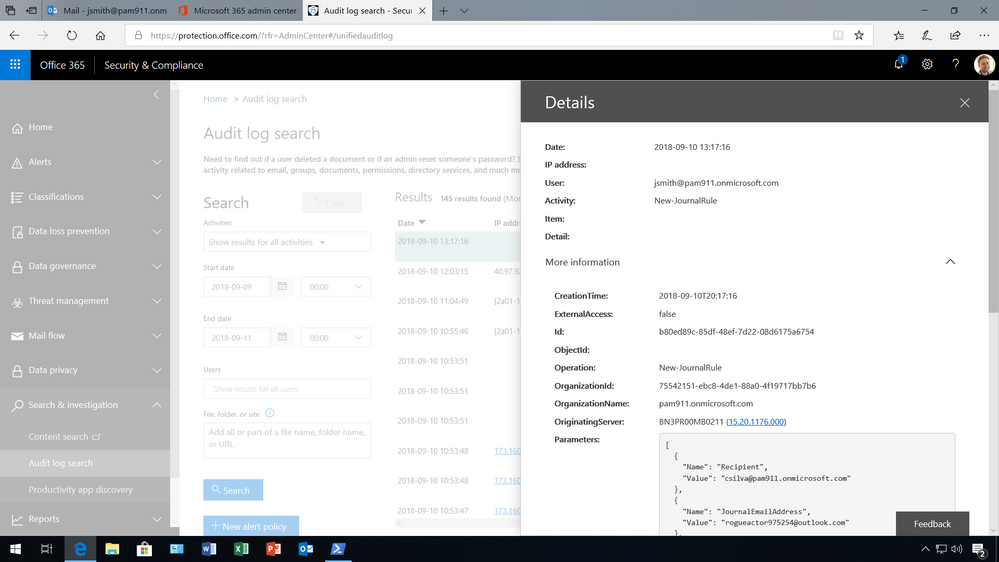
With privileged access management in Office 365, access within an organization is governed, and all instances related to the capability will generate logs and security events. This can be extremely useful to monitor and build alerting on.
Event logs – with information about requests, duration, approvals, and actions performed – are audit ready, and can be aggregated and presented as evidence to meet growing compliance requirements.
Privileged access management is available in the Microsoft 365 Admin Center, and organizations can now also manage Customer Lockbox requests, and Data Access requests from Azure Managed Apps from a single management pane for privileged access to your Microsoft 365 data.
This is the first step towards enabling customers to protect their sensitive data though the principle of Zero Standing Access, with Just-in-Time & Just-Enough-Access. Stay tuned for further updates here on TechCommunity blog.
Get Started Today!
Privileged access management in Office 365 is now generally available and rolling out to customers with Office 365 E5 and Advanced Compliance SKUs.
You can get started by reviewing the below resources:
FAQ
Q: What SKUs do I need to use privileged access management in Office 365?
A: This is offered in the Office 365 E5 or the Advanced Compliance SKU.
Q: Which Office 365 services are supported with privileged access management in Office 365?
A: Privileged access management in Office 365 applies to tasks available in Exchange Online. We are working to expand privileged access management capabilities to other Office 365 workloads.
Q: How is this different from the Azure Active Directory Privileged Identity Management (AAD PIM)?
A: Azure AD Privileged Identity Management (PIM) and privileged access management (PAM) in Office 365 together provide a robust set of controls for protecting privileged access to your corporate data. With Azure AD PIM, customers can secure admin roles to ensure protection across Office 365 and Azure clouds. PAM in Office 365 can provide another granular layer of protection by controlling access to tasks within Office 365.
Q: What permissions do I need to turn this feature on?
A: You need to be a Global or Tenant administrator to be able to turn this feature on. Soon we will enable a new user Role that also will be able to perform these actions.
Q: How is privileged access management in Office 365 related to Customer Lockbox?
A: Customer Lockbox allows a level of access control for organizations around accessed to data by their service provider, i.e. Microsoft. Privileged access management in Office 365, allows granular access control within an organization for all Office 365 privileged tasks.
Q: Is there an API that can be used to work with third party SIEM systems?
A: We do plan on providing even more granular reporting as well as an API that enables you to integrate with your third-party solutions.
1Forrester Wave: Privileged Identity Management, Q3 2016
2Gartner Top 10 Security Projects for 2018
Having privileged access to an application is all that’s needed to execute commands with malicious intent to inflict damage to or exfiltrate data from an organization. Such high privileges can be misused to create fake accounts, grant excessive permissions, exfiltrate sensitive data, cause damage to infrastructure, wipe out or hold data for ransom, and set rules and policies that make it extremely hard to detect and restore state back. In fact, it’s estimated that 80% of security beaches involve privileged credentials1. Therefore, privileged accounts commonly become lucrative attack vectors for both internal and external attackers.
On top of this, organizations are constantly evolving (acquisitions, divestitures, entering new markets, ect.) – making it challenging to monitor and manage privileged accounts and respond to various compliance requirements regarding privileged access to sensitive data at scale.
One way to address these risks and complexities is to operate on the principle of Zero Standing Access, which means users do not have privileges by default, and when permissions are provided, it’s at the bare minimum with just enough access to perform the specific task.
Microsoft operates on this principle for data center access, or also known as service provider access to customer content, through Lockbox and Customer Lockbox. In fact, Microsoft goes a step further than traditional PAM solutions by eliminating standing privileged access to your data within your organization.
We believe that operating on the principle of zero standing access with just in time and just enough access to perform a privileged task is key to effectively manage accounts with privileged access.
Therefore, we are excited to announce that we are extending the security rigor that Microsoft uses for data center access, to enable customers to enforce Zero Standing Access for privileged admin access within your organization, with privileged access management in Office 365, which is generally available today.
To understand how it works – read further below.
How it works
Privileged access management in Office 365 goes beyond traditional access control capabilities by enabling access governance more granularly for specific tasks.
It’s based on the principle of Zero Standing Access, which means users who need privileged access, must request permissions for access, and once received it is just-in-time and just-enough access to perform the job at hand.
Therefore, Zero Standing Access, combined with access governance, can be an effective deterrent to misuse of privileged access by:
- Requiring users to elevate permissions to execute tasks that may expose sensitive data.
- Providing Just-Enough-Access (JEA) to specific tasks, coupled with Just-In-Time access so access is only allowed for a specific period of time.
- Removing the dependency on having a set of privileged accounts with standing access.
The approval workflow can be enumerated in following steps:
(0) First, set up designed approvers and the privileged access management policy
First the global admin needs to set up a privileged access management group for authorizing privileged tasks within the Microsoft 365 admin center. Once the group is created members need to be added as well.
Once the members have been added to the group, under Settings then Security & privacy turn on privileged access management in Office 365 to require approvals for privileged tasks, and select the approval group. Once turned on, you can configure the specific access policy – in this example, an access policy has been added to prevent users from executing journal rules without Manual-approval so that users can’t send copies of sent and received emails to a shadow mailbox without immediate detection.
However, Auto-approval is practical for high-volume tasks such as password resets, but in this case, members of the Privileged Access Approver group will be responsible for reviewing and approving tasks of this nature.
(1) Admin requests privileged access to execute high risk task
Once a policy is in place, an admin is now required to request permissions for privileged access through the Microsoft 365 admin center.
Typically, the admin will know that they need to elevate permissions when they try to execute the command and the system prohibits the admin from running the task because they have insufficient permissions to execute this command.
To request access, the admin must go to the Microsoft 365 Admin center, where privileged access management in Office 365 is managed, under Settings then Security & privacy, to make a new request. Once a request is made, and additional information is provided, such as the type of request, for what workload, task, and the duration.
(2) Designated approver reviews request and takes action
Since the policy requires a manual approval, the request is sent to the designated approval group. The notification message provides the details of the request including who is requesting access, what task they want to execute, for how long and the reason why. All this information is available to help the designated approver decide if the request is appropriate.
To approve or deny the request, the designated approver must log into the Microsoft 365 admin center to take action.
(3) Admin receives notification and takes action for specific amount of time
If the request is appropriate and the designated approver receives an email notification of the request being approved, the requesting user gets access to the privileged tasks and can execute the task for the specified amount of time.
(4) Privileges expire access is no longer available
With privilege access management, each request expires after a specified length of time to reduce the risk of a malicious user stealing access. After the access period has expired, the requester doesn’t have any privileged access to the task anymore.
Managing access governance and responding to compliance obligations
With privileged access management in Office 365, access within an organization is governed, and all instances related to the capability will generate logs and security events. This can be extremely useful to monitor and build alerting on.
Event logs – with information about requests, duration, approvals, and actions performed – are audit ready, and can be aggregated and presented as evidence to meet growing compliance requirements.
Privileged access management is available in the Microsoft 365 Admin Center, and organizations can now also manage Customer Lockbox requests, and Data Access requests from Azure Managed Apps from a single management pane for privileged access to your Microsoft 365 data.
This is the first step towards enabling customers to protect their sensitive data though the principle of Zero Standing Access, with Just-in-Time & Just-Enough-Access. Stay tuned for further updates here on TechCommunity blog.
Get Started Today!
Privileged access management in Office 365 is now generally available and rolling out to customers with Office 365 E5 and Advanced Compliance SKUs.
You can get started by reviewing the below resources:
FAQ
Q: What SKUs do I need to use privileged access management in Office 365?
A: This is offered in the Office 365 E5 or the Advanced Compliance SKU.
Q: Which Office 365 services are supported with privileged access management in Office 365?
A: Privileged access management in Office 365 applies to tasks available in Exchange Online. We are working to expand privileged access management capabilities to other Office 365 workloads.
Q: How is this different from the Azure Active Directory Privileged Identity Management (AAD PIM)?
A: Azure AD Privileged Identity Management (PIM) and privileged access management (PAM) in Office 365 together provide a robust set of controls for protecting privileged access to your corporate data. With Azure AD PIM, customers can secure admin roles to ensure protection across Office 365 and Azure clouds. PAM in Office 365 can provide another granular layer of protection by controlling access to tasks within Office 365.
Q: What permissions do I need to turn this feature on?
A: You need to be a Global or Tenant administrator to be able to turn this feature on. Soon we will enable a new user Role that also will be able to perform these actions.
Q: How is privileged access management in Office 365 related to Customer Lockbox?
A: Customer Lockbox allows a level of access control for organizations around accessed to data by their service provider, i.e. Microsoft. Privileged access management in Office 365, allows granular access control within an organization for all Office 365 privileged tasks.
Q: Is there an API that can be used to work with third party SIEM systems?
A: We do plan on providing even more granular reporting as well as an API that enables you to integrate with your third-party solutions.
1Forrester Wave: Privileged Identity Management, Q3 2016
2Gartner Top 10 Security Projects for 2018
Having privileged access to an application is all that’s needed to execute commands with malicious intent to inflict damage to or exfiltrate data from an organization. Such high privileges can be misused to create fake accounts, grant excessive permissions, exfiltrate sensitive data, cause damage to infrastructure, wipe out or hold data for ransom, and set rules and policies that make it extremely hard to detect and restore state back. In fact, it’s estimated that 80% of security beaches involve privileged credentials1. Therefore, privileged accounts commonly become lucrative attack vectors for both internal and external attackers.
On top of this, organizations are constantly evolving (acquisitions, divestitures, entering new markets, ect.) – making it challenging to monitor and manage privileged accounts and respond to various compliance requirements regarding privileged access to sensitive data at scale.
One way to address these risks and complexities is to operate on the principle of Zero Standing Access, which means users do not have privileges by default, and when permissions are provided, it’s at the bare minimum with just enough access to perform the specific task.
Microsoft operates on this principle for data center access, or also known as service provider access to customer content, through Lockbox and Customer Lockbox. In fact, Microsoft goes a step further than traditional PAM solutions by eliminating standing privileged access to your data within your organization.
We believe that operating on the principle of zero standing access with just in time and just enough access to perform a privileged task is key to effectively manage accounts with privileged access.
Therefore, we are excited to announce that we are extending the security rigor that Microsoft uses for data center access, to enable customers to enforce Zero Standing Access for privileged admin access within your organization, with privileged access management in Office 365, which is generally available today.
To understand how it works – read further below.
How it works
Privileged access management in Office 365 goes beyond traditional access control capabilities by enabling access governance more granularly for specific tasks.
It’s based on the principle of Zero Standing Access, which means users who need privileged access, must request permissions for access, and once received it is just-in-time and just-enough access to perform the job at hand.
Therefore, Zero Standing Access, combined with access governance, can be an effective deterrent to misuse of privileged access by:
- Requiring users to elevate permissions to execute tasks that may expose sensitive data.
- Providing Just-Enough-Access (JEA) to specific tasks, coupled with Just-In-Time access so access is only allowed for a specific period of time.
- Removing the dependency on having a set of privileged accounts with standing access.
The approval workflow can be enumerated in following steps:
(0) First, set up designed approvers and the privileged access management policy
First the global admin needs to set up a privileged access management group for authorizing privileged tasks within the Microsoft 365 admin center. Once the group is created members need to be added as well.
Once the members have been added to the group, under Settings then Security & privacy turn on privileged access management in Office 365 to require approvals for privileged tasks, and select the approval group. Once turned on, you can configure the specific access policy – in this example, an access policy has been added to prevent users from executing journal rules without Manual-approval so that users can’t send copies of sent and received emails to a shadow mailbox without immediate detection.
However, Auto-approval is practical for high-volume tasks such as password resets, but in this case, members of the Privileged Access Approver group will be responsible for reviewing and approving tasks of this nature.
(1) Admin requests privileged access to execute high risk task
Once a policy is in place, an admin is now required to request permissions for privileged access through the Microsoft 365 admin center.
Typically, the admin will know that they need to elevate permissions when they try to execute the command and the system prohibits the admin from running the task because they have insufficient permissions to execute this command.
To request access, the admin must go to the Microsoft 365 Admin center, where privileged access management in Office 365 is managed, under Settings then Security & privacy, to make a new request. Once a request is made, and additional information is provided, such as the type of request, for what workload, task, and the duration.
(2) Designated approver reviews request and takes action
Since the policy requires a manual approval, the request is sent to the designated approval group. The notification message provides the details of the request including who is requesting access, what task they want to execute, for how long and the reason why. All this information is available to help the designated approver decide if the request is appropriate.
To approve or deny the request, the designated approver must log into the Microsoft 365 admin center to take action.
(3) Admin receives notification and takes action for specific amount of time
If the request is appropriate and the designated approver receives an email notification of the request being approved, the requesting user gets access to the privileged tasks and can execute the task for the specified amount of time.
(4) Privileges expire access is no longer available
With privilege access management, each request expires after a specified length of time to reduce the risk of a malicious user stealing access. After the access period has expired, the requester doesn’t have any privileged access to the task anymore.
Managing access governance and responding to compliance obligations
With privileged access management in Office 365, access within an organization is governed, and all instances related to the capability will generate logs and security events. This can be extremely useful to monitor and build alerting on.
Event logs – with information about requests, duration, approvals, and actions performed – are audit ready, and can be aggregated and presented as evidence to meet growing compliance requirements.
Privileged access management is available in the Microsoft 365 Admin Center, and organizations can now also manage Customer Lockbox requests, and Data Access requests from Azure Managed Apps from a single management pane for privileged access to your Microsoft 365 data.
This is the first step towards enabling customers to protect their sensitive data though the principle of Zero Standing Access, with Just-in-Time & Just-Enough-Access. Stay tuned for further updates here on TechCommunity blog.
Get Started Today!
Privileged access management in Office 365 is now generally available and rolling out to customers with Office 365 E5 and Advanced Compliance SKUs.
You can get started by reviewing the below resources:
FAQ
Q: What SKUs do I need to use privileged access management in Office 365?
A: This is offered in the Office 365 E5 or the Advanced Compliance SKU.
Q: Which Office 365 services are supported with privileged access management in Office 365?
A: Privileged access management in Office 365 applies to tasks available in Exchange Online. We are working to expand privileged access management capabilities to other Office 365 workloads.
Q: How is this different from the Azure Active Directory Privileged Identity Management (AAD PIM)?
A: Azure AD Privileged Identity Management (PIM) and privileged access management (PAM) in Office 365 together provide a robust set of controls for protecting privileged access to your corporate data. With Azure AD PIM, customers can secure admin roles to ensure protection across Office 365 and Azure clouds. PAM in Office 365 can provide another granular layer of protection by controlling access to tasks within Office 365.
Q: What permissions do I need to turn this feature on?
A: You need to be a Global or Tenant administrator to be able to turn this feature on. Soon we will enable a new user Role that also will be able to perform these actions.
Q: How is privileged access management in Office 365 related to Customer Lockbox?
A: Customer Lockbox allows a level of access control for organizations around accessed to data by their service provider, i.e. Microsoft. Privileged access management in Office 365, allows granular access control within an organization for all Office 365 privileged tasks.
Q: Is there an API that can be used to work with third party SIEM systems?
A: We do plan on providing even more granular reporting as well as an API that enables you to integrate with your third-party solutions.
1Forrester Wave: Privileged Identity Management, Q3 2016
2Gartner Top 10 Security Projects for 2018
Having privileged access to an application is all that’s needed to execute commands with malicious intent to inflict damage to or exfiltrate data from an organization. Such high privileges can be misused to create fake accounts, grant excessive permissions, exfiltrate sensitive data, cause damage to infrastructure, wipe out or hold data for ransom, and set rules and policies that make it extremely hard to detect and restore state back. In fact, it’s estimated that 80% of security beaches involve privileged credentials1. Therefore, privileged accounts commonly become lucrative attack vectors for both internal and external attackers.
On top of this, organizations are constantly evolving (acquisitions, divestitures, entering new markets, ect.) – making it challenging to monitor and manage privileged accounts and respond to various compliance requirements regarding privileged access to sensitive data at scale.
One way to address these risks and complexities is to operate on the principle of Zero Standing Access, which means users do not have privileges by default, and when permissions are provided, it’s at the bare minimum with just enough access to perform the specific task.
Microsoft operates on this principle for data center access, or also known as service provider access to customer content, through Lockbox and Customer Lockbox. In fact, Microsoft goes a step further than traditional PAM solutions by eliminating standing privileged access to your data within your organization.
We believe that operating on the principle of zero standing access with just in time and just enough access to perform a privileged task is key to effectively manage accounts with privileged access.
Therefore, we are excited to announce that we are extending the security rigor that Microsoft uses for data center access, to enable customers to enforce Zero Standing Access for privileged admin access within your organization, with privileged access management in Office 365, which is generally available today.
To understand how it works – read further below.
How it works
Privileged access management in Office 365 goes beyond traditional access control capabilities by enabling access governance more granularly for specific tasks.
It’s based on the principle of Zero Standing Access, which means users who need privileged access, must request permissions for access, and once received it is just-in-time and just-enough access to perform the job at hand.
Therefore, Zero Standing Access, combined with access governance, can be an effective deterrent to misuse of privileged access by:
- Requiring users to elevate permissions to execute tasks that may expose sensitive data.
- Providing Just-Enough-Access (JEA) to specific tasks, coupled with Just-In-Time access so access is only allowed for a specific period of time.
- Removing the dependency on having a set of privileged accounts with standing access.
The approval workflow can be enumerated in following steps:
(0) First, set up designed approvers and the privileged access management policy
First the global admin needs to set up a privileged access management group for authorizing privileged tasks within the Microsoft 365 admin center. Once the group is created members need to be added as well.
Once the members have been added to the group, under Settings then Security & privacy turn on privileged access management in Office 365 to require approvals for privileged tasks, and select the approval group. Once turned on, you can configure the specific access policy – in this example, an access policy has been added to prevent users from executing journal rules without Manual-approval so that users can’t send copies of sent and received emails to a shadow mailbox without immediate detection.
However, Auto-approval is practical for high-volume tasks such as password resets, but in this case, members of the Privileged Access Approver group will be responsible for reviewing and approving tasks of this nature.
(1) Admin requests privileged access to execute high risk task
Once a policy is in place, an admin is now required to request permissions for privileged access through the Microsoft 365 admin center.
Typically, the admin will know that they need to elevate permissions when they try to execute the command and the system prohibits the admin from running the task because they have insufficient permissions to execute this command.
To request access, the admin must go to the Microsoft 365 Admin center, where privileged access management in Office 365 is managed, under Settings then Security & privacy, to make a new request. Once a request is made, and additional information is provided, such as the type of request, for what workload, task, and the duration.
(2) Designated approver reviews request and takes action
Since the policy requires a manual approval, the request is sent to the designated approval group. The notification message provides the details of the request including who is requesting access, what task they want to execute, for how long and the reason why. All this information is available to help the designated approver decide if the request is appropriate.
To approve or deny the request, the designated approver must log into the Microsoft 365 admin center to take action.
(3) Admin receives notification and takes action for specific amount of time
If the request is appropriate and the designated approver receives an email notification of the request being approved, the requesting user gets access to the privileged tasks and can execute the task for the specified amount of time.
(4) Privileges expire access is no longer available
With privilege access management, each request expires after a specified length of time to reduce the risk of a malicious user stealing access. After the access period has expired, the requester doesn’t have any privileged access to the task anymore.
Managing access governance and responding to compliance obligations
With privileged access management in Office 365, access within an organization is governed, and all instances related to the capability will generate logs and security events. This can be extremely useful to monitor and build alerting on.
Event logs – with information about requests, duration, approvals, and actions performed – are audit ready, and can be aggregated and presented as evidence to meet growing compliance requirements.
Privileged access management is available in the Microsoft 365 Admin Center, and organizations can now also manage Customer Lockbox requests, and Data Access requests from Azure Managed Apps from a single management pane for privileged access to your Microsoft 365 data.
This is the first step towards enabling customers to protect their sensitive data though the principle of Zero Standing Access, with Just-in-Time & Just-Enough-Access. Stay tuned for further updates here on TechCommunity blog.
Get Started Today!
Privileged access management in Office 365 is now generally available and rolling out to customers with Office 365 E5 and Advanced Compliance SKUs.
You can get started by reviewing the below resources:
FAQ
Q: What SKUs do I need to use privileged access management in Office 365?
A: This is offered in the Office 365 E5 or the Advanced Compliance SKU.
Q: Which Office 365 services are supported with privileged access management in Office 365?
A: Privileged access management in Office 365 applies to tasks available in Exchange Online. We are working to expand privileged access management capabilities to other Office 365 workloads.
Q: How is this different from the Azure Active Directory Privileged Identity Management (AAD PIM)?
A: Azure AD Privileged Identity Management (PIM) and privileged access management (PAM) in Office 365 together provide a robust set of controls for protecting privileged access to your corporate data. With Azure AD PIM, customers can secure admin roles to ensure protection across Office 365 and Azure clouds. PAM in Office 365 can provide another granular layer of protection by controlling access to tasks within Office 365.
Q: What permissions do I need to turn this feature on?
A: You need to be a Global or Tenant administrator to be able to turn this feature on. Soon we will enable a new user Role that also will be able to perform these actions.
Q: How is privileged access management in Office 365 related to Customer Lockbox?
A: Customer Lockbox allows a level of access control for organizations around accessed to data by their service provider, i.e. Microsoft. Privileged access management in Office 365, allows granular access control within an organization for all Office 365 privileged tasks.
Q: Is there an API that can be used to work with third party SIEM systems?
A: We do plan on providing even more granular reporting as well as an API that enables you to integrate with your third-party solutions.
1Forrester Wave: Privileged Identity Management, Q3 2016
2Gartner Top 10 Security Projects for 2018
We are excited to share a new capability in Customer Lockbox that can provide more flexibility in who can approve Customer Lockbox requests. Read further to learn more.
First, what is Customer Lockbox?
Many customers, and in particular regulated customers, have compliance obligations that require access control capabilities to be implemented or for procedures to be in place before privileged access is provided to sensitive data.
Customer Lockbox is part of the access control system in Office 365. It extends the default access control workflow so customers can review and approve (or deny) requests for service provider access during service operations. With Customer Lockbox, organizations can demonstrate that there are procedures in place for explicit data access authorization, which may help customers meet certain regulatory or internal compliance obligations. Actions taken by Microsoft engineers in response to Customer Lockbox requests are logged and auditable.
You can view this short video for a closer look at how Customer Lockbox works:
What’s new in Customer Lockbox?
Until recently, approving or denying Customer Lockbox requests was reserved to the Global Administrator. Today, we are announcing the availability of a new custom administrator role: Customer Lockbox access approver. This new custom role and the members of this role are now allowed to configure, approve and deny Customer Lockbox requests.
This has been a key ask from customers who want to add, for example, non-IT roles such as a compliance officer, data protection officer or legal officer to approve privileged access to their Office 365 content by Microsoft personnel during support operations.
Here are a few examples of what the new capability looks like.
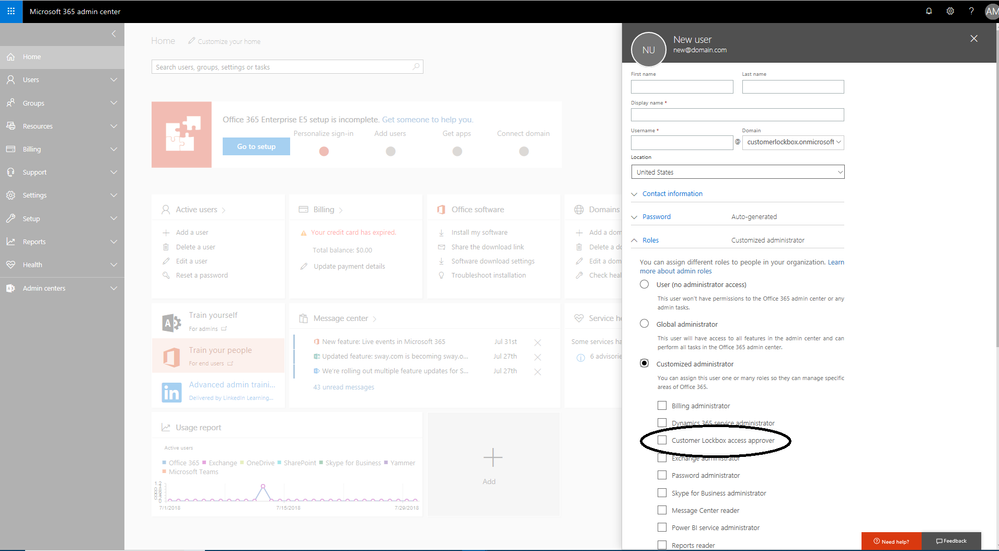 Graphic 1: Add users to Customer Lockbox access approver roleGraphic 2: User with Customer Lockbox access approver role approving requests
Get started today!
The Customer Lockbox access approver role is now generally available. Customers who have purchased Office 365 E5 or the Advanced Compliance SKU, and have Customer Lockbox provisioned should be able to use the new capability today.
You can find further documentation and resources below to help you get started!
Tell us what you think! If there are additional features that you would like to see in Customer Lockbox, we would love to hear from you on uservoice.
FAQ
Q: How do I turn on Customer Lockbox?
A: For licensed customers, the tenant administrator and Customer Lockbox access approver can enable and configure Customer Lockbox from the Admin Center. For detail on how to turn this on please go here.
Q: Which services are covered by Customer Lockbox?
A: Exchange Online, SharePoint Online and OneDrive for Business have complete coverage. Skype for Business coverage does not include Skype Meeting Broadcast recordings or Skype Meeting content uploads.
Q: Who is notified when there is a request to access my content?
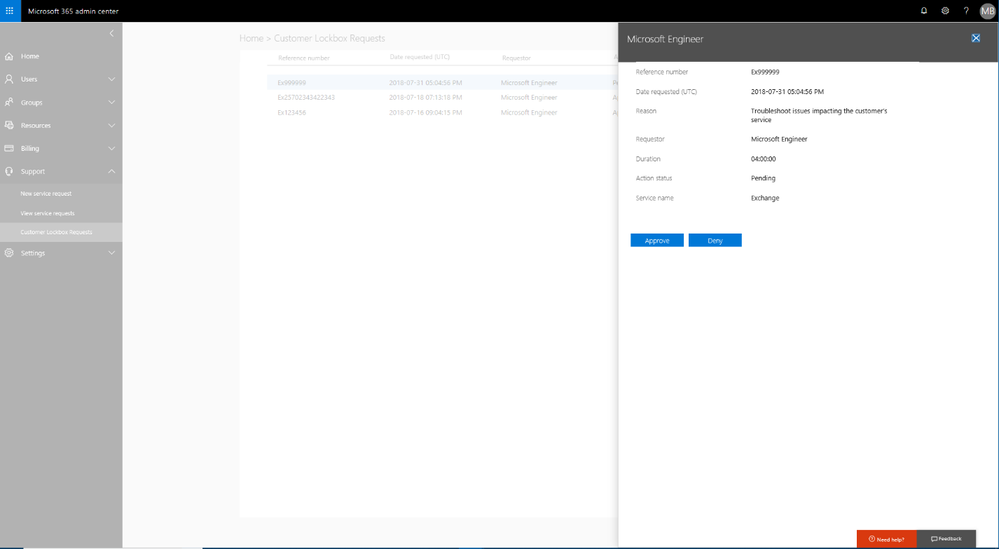
A: The Global Administrators and the Customer Lockbox access approver roles are notified via email and can approve or deny Customer Lockbox request via Microsoft 365 Admin Center portal or PowerShell.
Q: Who can approve or reject these requests in my organization?
A: Customers control membership of the groups that can approve or reject Customer Lockbox requests.
Q: Can a regular user admins reset the password for members of Customer Lockbox access approver role?
A: Only global admins can reset the passwords of people assigned to this role as it’s considered a privileged role.
Q: Is there a limit on the members who can be part of this role?
A: No, there is no limit on the number of members who can be part of this role. However, since this is a privileged role, our recommendation is to limit the members of the group to a smaller manageable size.
Q: When a Customer Lockbox request is approved, how long are the permissions valid?
A: The maximum period for permissions granted following a Customer Lockbox approval is currently 4 hours. The Microsoft engineer may request a shorter period as well.
Q: How can I get a history of all Customer Lockbox requests?
A: All Customer Lockbox requests can be viewed directly from the Microsoft 365 Admin Center.







