
SharePoint OOB Approval workflows are missing on SharePoint online site even after activatingreactivating the “Workflows” site collection feature.
Missing workflow templates:
Publishing Approval
Approval – SharePoint 2010
Collect feedback – SharePoint 2010
Collect Signatures – SharePoint 2010
Issue:
SharePoint OOB Approval workflows are missing on SharePoint online site even after activatingreactivating the “Workflows” site collection feature.
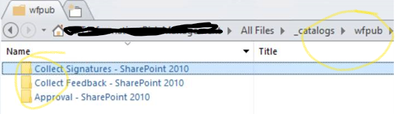
We just see below templates,
And in SharePoint designer, Wfpub contents are shown as folder and NOT as a library.
Background:
- Workflows feature depends on OffWfCommon (c9c9515d-e4e2-4001-9050-74f980f93160).
- OffWfCommon generates wfpub library when activated.
- Workflows features will deploy globally reusable workflows in wfpub when activated.
Initially activating Workflows means activating OffWfCommon and Workflows at the same time.
So, OffWfCommon will generate wfpub library and Workflows will deploy those workflows.
But unfortunately from the 2nd time, activation of Workflows feature only means the Workflows feature itself. This is because OffWfCommon remains activated. So it works like this.
- Workflows features will deploy globally reusable workflows in wfpub when activated…
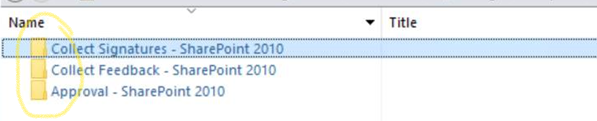
But wfpub is not there. So empty folders are generated to cover up.
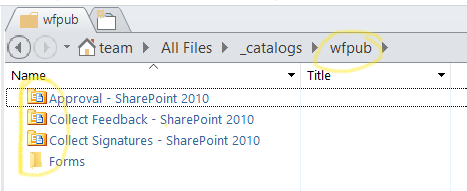
Expected:
Actual:
Resolution:
-Deactivate the “Workflows” site collection feature.
-Remove Wfpub folder from “_catalogs” – SharePoint designer
-Toggle the OffWfCommon feature
- Connect to PNP site collection and run below cmd,
Disable-PnPFeature -Identity c9c9515d-e4e2-4001-9050-74f980f93160 -Scope Site
Enable-PnPFeature -Identity c9c9515d-e4e2-4001-9050-74f980f93160 -Scope Site
-Now activate the “workflows” feature from UI should bring back the missing OOB workflows.
Problem: You receive a “Sorry, this document can’t be opened for editing” error when you try to create or edit an Office document in Office Web Apps.
Issue 1:
In some situations, users that are members of Active Directory (AD) Security Groups may be unable to edit documents in the browser. The solution is to ensure the User Profile Service Application (UPA) is properly configured and fully synchronized with user and group memberships. For more information, see the KB article SharePoint 2013 Unable to edit Office Web Apps 2013 files with users that are members of security groups.
Issue 2:
This error will also occur if co-authoring is disabled on the web application. For more information, see the KB article Disable co-authoring in SharePoint Server. Make sure that co-authoring is enabled ($web.DisableCoauthoring = $false) on web applications using Office Web Apps.
asnp *sh*
##RUN THIS TO SEE WHAT STATE IT SET TO
$web = Get-SPWebApplication <webapplication>
$web.DisableCoauthoring
##RUN THIS TO SET CO-AUTHORING TO ENABLED
$web = Get-SPWebApplication <webapplication>
$web.DisableCoauthoring = “False”
$web.Update()
Note: Disabling co-authoring via PowerShell ($web.DisableCoauthoring = “True”) will break Office Web Apps functionality for Microsoft Word. Microsoft Word Web Application requires Co-authoring to be enabled to function properly and is enabled by default.
For more information see: Configure Office Web Apps for SharePoint 2013
Below is a Sample for 1 Node WFM farm using WFM/SB certificate generation key – resetting expired certificate process:
- In order to reset generation key for WFM and SB the following steps needs to be done:
System date and clock of WFM node must be set back before certificate expiration date (step needs to be done if multiple WFM nodes in farm)
- Ensure you have credentials for WFM Run-As service account and WFM passphrase for generated certificate.
- In order to reset generation key for WFM and SB the following steps needs to be done WFM node:
System date and clock of WFM node must be set back before certificate expiration date (step needs to be done if multiple WFM nodes in farm)
- Stop Windows Time Service
- Change System date and clock to Day before certificate expired
Steps to follow once System date and time has been set prior to expiration date:
- Output workflow manager powershell commands to clipboard and paste to notepad:
////Workflow Manager Powershell results – use “|clip” parameter to output results to clipboard and paste to notepad
Get-WFFarm | clip
Get-SBFarm | clip
Get-SBNamespace |clip
** “Get-SBNamespace” command will list ManageUser accounts – one of those accounts should be the logon credentials used. Account should have the required SQL permissions to reset expired certificates.
- Run below commands – reverting date and time should display all services are “Running” before proceeding to next steps:
Get-WFFarmStatus
Get-SBFarmStatus – There are scenarios where Service Bus Message Broker service will get stuck at “Starting”, regardless continue to next step
- From Administrative SharePoint Management Shell, run below command to get current WorkflowHostURI used to register WFM to SharePoint:
$wfProxy = Get-SPWorkflowServiceApplicationProxy
$wfProxy.GetWorkflowServiceAddress((Get-SPSite -Limit 1 -WarningAction SilentlyContinue))
- Run below WFM powershell command to change passphrase and thumbprints:
$CertKey=convertto-securestring ‘PASSPHRASE’ -asplaintext -force;
Set-WFCertificateAutoGenerationKey –Key $CertKey
Set-SBCertificateAutogenerationKey –Key $CertKey
Then run:
Stop-SBFarm
Update-SBHost
- Run Workflow Manager Configuration Wizard – leave WFM farm first and then rejoin WFM farm
- Enable Windows Time Service – this will automatically change server back to current date and time
- SharePoint 2016: Step by Step guide to add Workflow Manager Certificate into SharePoint trust
https://social.technet.microsoft.com/wiki/contents/articles/34451.sharepoint-2016-step-by-step-guide-to-add-workflow-manager-certificate-into-sharepoint-trust.aspx
- Export WFM Client certificate using below command from Workflow Manager Powershell:
Get-WFAutoGeneratedCA
- Above command creates “AutoGeneratedCA.cer” file in path where command was executed – default C:Program FilesWorkFlow Manager1.0
- Copy “AutoGeneratedCA.cer” file to all SP nodes and Web Frontends – install certificate to Trusted Root Certification Authorities certificate store
- Register WFM to SharePoint –
Sample command:
Register-SPWorkflowService –SPSite “http://FQDN” –WorkflowHostUri “http://FQDN:12291” -AllowOAuthhttp -force
- From SharePoint Central Admin, run daily timer “Refresh Trusted Security Token Services Metadata feed [Farm job – Daily]”
- Test 2013 workflow
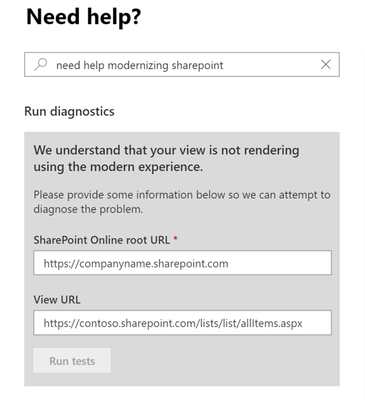
Administrators may have started to notice our diagnostics starting to render within the M365 Admin Center support portal for certain text queries as early as December 2018. Please refer to our previous diagnostic blog post How to troubleshoot issues in SharePoint Online and OneDrive with diagnostics.
Start Diagnostics from New Service Request
How to ensure I can use the diagnostic?
From the Microsoft 365 Admin portal select Support > New Service Request and type Diag: Classic View to Modern to render the diagnostic.
What does this diagnostic evaluate?
Evaluates that a view can render in Modern mode.
What tenant and SharePoint checks does it complete?
For additional details, see SharePoint Online Lists and Libraries Modern View Compatibility check
and Customizing “modern” lists and libraries.
Validates that page is compatible with Modern mode.
- Determines if the page is Modern mode compatible.
- Determines if XslLink customization is present.
- Determines if page contains a Special View Type.
- Determines if a Library has a custom new form page.
- Determines if the page resides outside of a Library.
- Determines if Modern mode is disabled at the site collection setting level.
- Determines if form page fields are valid.
- Determines if List or Library can be found.
- Determines if the page contains multiple web parts.
- Determines if Modern mode is disabled due to an unsupported List or Library type.
- Determines if Publishing fields are present.
- Determines if a Classic Publishing view was customized.
- Determines if Modern mode is disabled due to a List or Library setting.
- Determines if a form page was customized.
- Determines if a page was customized.
- Determines if the form page contains supported fields.
- Determines if JSLink customization is present.
- Determines if Business Data Connectivity fields are present.
- Determines if Modern mode is disabled at the site setting level.
- Determines if form page control mode is valid.
- Determines if Task Outcome fields are present.
- Determines if the Page is a List or Library View.
Validates various page related properties.
- Determines if the web page exists.

Issue :
You are using Google Chrome 80, and when you have ADFS/SAML or FBA configured site, you notice that intermittently, users logging in fails and goes into a login loop.
The following error is received on ADFS :
“An error occured. Contact your administrator for more information”
FBA does not sign you out either.
Cause :
This behavior is because of Chrome’s new security feature :
A cookie associated with a cross-site resource at <URL> was set with the `SameSite` attribute. It has been blocked, as Chrome now only delivers cookies with cross-site requests if they are set with `SameSite=None` and `Secure`. You can review cookies in developer tools under Application>Storage>Cookies.
Ref: https://blog.chromium.org/2020/02/samesite-cookie-changes-in-february.html
Testing/Troubleshooting to understand the behavior :
- First test by passing any load balancer and check if you have the issue
- We need to collect a fiddler trace, and look for the frame in fiddler which is a GET request to the site, and in request header you will see that the ‘Fedauth’ cookie still exists.
- This is the response from the server, a “Set-Cookie” Header, that sets the FedAuth to blank, this is because the user is browsing the site with an expired FedAuth cookie :
- Even after setting it to blank by SharePoint Server, Chrome does not deliver the blank Fedauth cookie(due to the same changes in it’s cookie handling behavior), and in the next POST to the site it sends the same old expired cookie, you can see it in the request header in next request :

- When we use “Set-Cookie” to set the Fedauth to blank, we also see the ‘SameSite=None’ attribute, but Chrome will deliver the cookie ONLY if it HAS ‘SameSite=None’ alongwith ‘Secure’ attribute
Resolution :
Step 1 — Recommendations by Microsoft
Step 2 — If you still see issue continues after March 2020 CU update for SharePoint
- If you still see issues with Load Balancer in place, you will have to contact your load balancer vendor for having an iRule created to add the SameSite=None and Secure parameter in the “Set-Cookie” header.
Step 3 — If you do not have a load balancer that distributes load between servers in SharePoint
Note :
Make sure to take a backup of the web.config file from all SharePoint servers before making the below changes
This is only if you are using a SSL web application
- The Rewrite we will be using is an Outbound Rule, follow below steps
-Start by selecting the IIS site pertaining to the ADFS/SAML web app
-Enter into the URL Rewrite module
-Select Add Rule and then Select the “Blank Rule” under “Outbound Rules”, and configure below options
Matching Scope : Server Variable
Variable Name : RESPONSE_Set_Cookie
Pattern : (FedAuth=;)(.*)(SameSite=None)
Action type : Rewrite
Value : {R:1}{R:2}{R:3};Secure
- Test your web application for the same issues now in newer version of Chrome







