Building an Automation Solution with Nintex and PowerApps
Modern organisations often look for efficient ways to automate their workflows and processes. Nintex and PowerApps are two powerful tools that enable businesses to create robust automation solutions. Below, I will outline the step-by-step process for building an automation solution using these technologies.
- Define the Problem and Objectives
The first step in creating an automation solution is understanding the process you wish to streamline. Ask the following questions:
- What specific tasks or workflows need automation?
- What are the expected outcomes or benefits?
- Who will be the primary users of the solution?
Clearly defining the problem and objectives ensures alignment and provides a roadmap for the development process.
- Analyse the Workflow
Break down the process into its individual steps. Identify:
- Inputs: What data or information is required at each stage of the workflow?
- Outputs: What results or actions should the process generate?
- Pain Points: Where are the inefficiencies or bottlenecks?
Document these details to design the automation solution effectively.
- Design the Solution Architecture
Map out the architecture of your solution, incorporating both Nintex and PowerApps:
- Nintex: Use Nintex workflows for process automation and orchestration. Nintex can manage complex workflows, approvals, and document generation.
- PowerApps: Build a user-friendly interface using PowerApps to interact with the automated processes. PowerApps can act as the front end for data input and user interaction
Clearly define how the tools will integrate and interact to achieve the desired objectives.
- Develop Nintex Workflows
Nintex workflows are designed to automate repetitive tasks and manage approval processes. Follow these steps:
- Access Nintex within your SharePoint or Nintex platform environment.
- Create a new workflow and select the appropriate template.
- Configure workflow actions, such as data collection, condition checks, approvals, notifications, and integrations with external systems.
- Test the workflow to ensure it functions as intended.
Nintex provides a drag-and-drop interface, making it easy to configure workflows even for users with limited technical expertise.
- Build the PowerApps Application
PowerApps allows you to create custom apps without extensive coding knowledge. Here’s how:
- Open PowerApps and select “Create an App.”
- Choose a blank canvas or a template based on your use case.
- Design the app interface, including input fields, buttons, and navigation elements.
- Connect the app to the data sources and Nintex workflows using connectors.
- Test the app to ensure seamless interaction with the workflows.
PowerApps also supports mobile-friendly designs, enabling users to interact with your automation solution on the go.
- Integrate Nintex and PowerApps
To ensure both tools work together seamlessly:
- Use APIs or connectors to establish communication between PowerApps and Nintex workflows.
- Configure triggers in PowerApps to initiate workflows based on user actions (e.g., form submissions, button clicks).
- Ensure data flows correctly between the app and workflows, maintaining accuracy and efficiency.
- Test and Refine the Solution
Before deploying the automation solution:
- Perform thorough testing of the workflows and application.
- Collect feedback from potential users and stakeholders.
- Refine the solution based on feedback and test results.
Testing ensures that the solution is robust, user-friendly, and aligned with organisational needs.
- Deploy and Monitor
Once the solution is finalised:
- Deploy it within your organisation.
- Train users on how to interact with the app and workflows.
- Monitor the solution’s performance and gather metrics to identify areas for improvement.
Regular monitoring helps ensure the solution remains effective and continues to deliver value.
Conclusion
By combining Nintex’s powerful workflow automation capabilities with PowerApps’ user-friendly app development platform, organisations can create customised solutions to automate processes, enhance productivity, and reduce errors. Following the steps outlined above ensures a methodical approach to designing and implementing an effective automation solution.
![Admins- welcome to the Microsoft 365 admin center]()
We built Microsoft 365- a complete IT solution including Office 365, Windows 10, and Enterprise Mobility + Security- to enable organizations to create and work together securely. In that same spirit, our goal is to offer a unified toolset to manage and protect those organizations. In March, we announced the Microsoft 365 admin center as your central location for managing and monitoring applications, services, data, devices, and users across your Microsoft 365 deployment.
Today, we are expanding this integrated and intuitive admin experience to users of Office 365. Users of both Office 365 and Microsoft 365 will now have access to the new Microsoft 365 admin center. For Office 365 admins, this means a simpler experience that easily integrates with you other Microsoft services – all without giving up capabilities or control.
What to expect
If you’ve used the Office 365 admin center before, the experience will feel very similar. The navigation is the same, and you’ll have the same granularity of control over your environment. There will be no change to your Office 365 subscription or billing. As you add new apps and services like device management, those will light up in your left navigation pane. Most importantly, you’ll receive all the latest admin center updates and features as they become available.
New URL, same great experience
To access your new admin center experience, point your web browser to admin.microsoft.com. This is your new front door for managing and monitoring all your Office 365 and Microsoft 365 services. Your new admin center still includes links to all your specialty admin tools for services like OneDrive and SharePoint conveniently linked in the left navigation pane. If you’ve previously created bookmarks for the Office 365 admin center or any of the specialty admin centers, those will continue to work.
Over the next few weeks, we will be updating the admin center links across Office 365 to use the new admin.microsoft.com address.

More to come
In the coming months, we’ll continue to evolve the Microsoft 365 admin center to provide a consistent and intuitive experience across all your Microsoft 365 products. As more information becomes available, we’ll post it here on Microsoft Tech Communities. In the meantime, join the conversation on the Microsoft 365 Tech Communities forums and Twitter.
Microsoft 365 partnered with the American Association of Inside Sales to bring sales end-users content focused on key priorities for sales professionals.
Getting Organized with Outlook
Spend less time drowning in administrative tasks and focus on what’s important: building relationships with your customers, garnering insights, and delivering superior client services. Learn how you can spend more time on selling using Outlook effectively.
Enable Seamless Collaboration with SharePoint
The partnership between marketing and sales is essential. Learn how you can ensure you always have the most up to date content from marketing using SharePoint.
Draw Insights Across Your Organization with Yammer
Learn how to leverage the power of your co-workers: they have worked in similar industries, have similar customers and comparable challenges. Reach across your organization, to find best practices and experts using Yammer.
Strengthen Customer Relationships with Microsoft Teams
Don’t just become an email address for your customer. Create a connection using video calls in Microsoft Teams.
Optimize Sales Performance with PowerBI
Learn how to leverage data visualization to uncover industry and customer insights. You will make smarter business decisions using powerful analytical capabilities within PowerBI.
Discover content to empower effortless sales achievements in the Sales Innovation Hub: https://www.aa-isp.org/sales-innovation-hub
![Admins- welcome to the Microsoft 365 admin center]()
We released new Office 365 training last year. Since then we’ve heard positive feedback and requests for more!
So now we’ve made it easy to find the latest training direct from the Office 365 or Microsoft 365 admin center – choose the training option that interests you.

New training way-finder
Choose “Train yourself” to get training for business owners, admins, or IT Pros. You’ll also find new training for Teams and Yammer plus Microsoft 365.
Visit the Admin center or: aka.ms/OfficeAdminTraining.

Office 365 training for small businesses
For small business owners or admins, learn how to set up Office 365 for your business, use communications tools for email and meetings, store and share files in the cloud, and manage your employees and the service in the Admin center.
Visit: aka.ms/365smallbiz
 Short videos help you get started with Office 365.
For routine admin tasks like reassigning licenses, you’ll find a series of short videos under Management tasks.
Visit: aka.ms/OfficeAdminTraining and choose Management tasks.
 Training options
Office 365 training for IT pros
For enterprise admins or IT pros, ramp up on critical skills for Office 365 deployment, administration, and internal help desk support. Choose the LinkedIn Learning option in the admin center to view over 7 hours of premium video training for free in partnership with LinkedIn Learning. There you will find the option to get a LinkedIn Learning trial or paid subscription if you like.
Choose Advanced training in the Admin center, or visit: aka.ms/365enterprise
 Video training brought to you by LinkedIn Learning
Office 365 training for end users
For everyone else, including employees and end users, get the most out of Office 365 with training, Quick Start guides, templates, infographics, cheat sheets, and more. Choose Train your people in the Admin center or visit: aka.ms/learn365
 Office 365 Training Center
Let us know what you or your customers think. What did we miss? What could be better?
Thank you! Susan Potter & Tom Werner, Office 365 Content
![Admins- welcome to the Microsoft 365 admin center]()
Today we are announcing a preview update to the Office Customization Tool for Click-to-Run, which provides desktop admins with a simple user interface to customize their deployment of Office.
With this update, you can now customize Office application settings as part of your configuration file, which means you can build a single configuration file that installs Office and configures preferences for Office applications. You can search for Office application settings based on Office application, category, and title to quickly find the settings you’re interested in:

For this preview release, we’ve provided a limited set of Office application settings to choose from. We plan to include the full set of application settings later this summer.
In addition to application settings, we have been listening to your feedback and since we introduced the Office Customization Tool for Click-to-Run we have made a few changes to the preview experience; adding Organization Name as a setting that is included as part of the deployment configuration, an update to the language selection experience, and an update to the Automatically accept the EULA option.
In our next update we plan to add many additional enhancements including; an update to the product selection experience to allow you to have more control over the products you can select from and the apps that you exclude, an update to the language selection experience including support for MatchOS, AllowCdnFallback, Proofing Tools and more.
Please try out the new application settings feature as well as the new enhancements and let us know what you think using the Send-a-Smile feature (button in the upper right-hand corner or this web page) — your feedback helps us plan future updates.
As always, make sure you download the latest version of the Office Deployment Tool (ODT) to enable this new feature during deployment.
Chris Hopkins
Senior Program Manager – Office Engineering
![Admins- welcome to the Microsoft 365 admin center]()
Organizations of all sizes win customers and create trust with a consistent and recognizable brand. Web and email addresses that match your organization’s name build brand equity and establish credibility. If your business is called Fourth Coffee, a web address of fourthcoffee.com makes you easy to find online, and email addresses that end in @fourthcoffee.com reassure your customers that they are dealing directly with you.
Microsoft makes it easy to integrate your custom domain with comprehensive collaboration tools like email from Office 365. Let’s look at your options.
Purchase a custom domain with your Office 365 subscription
For organizations creating their online presence for the first time, Microsoft makes it easy to purchase a custom domain and integrate it with Office 365. This new domain will instantly be linked with your Office 365 account, meaning that all your email addresses will include your new custom domain where you can also host your website. You can purchase this new custom domain from Microsoft at the same time as your subscription to Office 365 or later.
We’ve posted step by step instructions on how to purchase a custom domain directly from Microsoft in our support documentation.

Automatically join your own GoDaddy or 1&1 domain with Office 365 (UPDATED)
Many organizations will purchase a domain as soon as they have a name. As they grow and implement more advanced IT solutions, it can be challenging to integrate that custom domain. Microsoft makes it easy to join some domains to Office 365 services through an open standard called Domain Connect. Domain Connect automates many of the manual processes typically required for configuring web hosting and email service. Microsoft has enabled this standard in Office 365 to make it easy to integrate your Domain Connect enabled domains with your Office 365 subscription.
We’re excited to announce today that 1&1, a leading domain provider, has integrated the Domain Connect standard. This new partnership makes it easy to integrate your custom domain from 1&1 with your Office 365 subscription. 1&1 and GoDaddy are the first domain providers to offer compliance with the Domain Connect standard, with more on the way.
If you’re currently using another provider for your organization’s email service, it’s easy to migrate those email addresses and messages to your Office 365 subscription.
Check out the support documentation for more on how you can automatically join your existing domain to your Office 365 subscription and migrate your messages.
Manually join your domain with Office 365
You can still join your custom domain with your Office 365 services if you did not purchase it from Microsoft or a Domain Connect compliant provider. There are a few more steps to take, but it’s straight forward. The outcomes and benefits are the same.
The support documentation contains a step by step procedure for manually joining your domain to your Office 365 services.

Easier to manage; easier to focus on your goals
Automatically connecting your custom domain with your Office 365 services is another example of how we want to simplify your IT management experience so that you can focus on your actual work. Join the Office 365 Tech Community to stay up to date on the latest news and releases.
In order to drive consistent protection for US Government information, employees, and infrastructure, the Department of Homeland Security issued requirements for Federal agencies using email and web services. The “Enhance Email and Web Security” Binding Operational Directive (BOD 18-01) outlines specific controls and configurations to be applied to email servers and web services within 30, 60, and 120 days of issuance.
The Department of Homeland Security is responsible for developing and enforcing binding operational directives under the Federal Information Security Modernization Act of 2014 (FISMA) (Id. § 3553(b)(2)), and BODs are mandatory for federal, executive branch, departments and agencies (44 U.S.C. § 3552(b)(1)). While the BOD 18-01 is not compulsory for the Department of Defense, Intelligence Community, or State and Local Governments, these policies and security protocols are strongly recommended and should be heeded by all agencies in public sector, as well as commercial companies.
The cybersecurity requirements issued by the Department of Homeland Security will help protect information by enforcing encryption and more secure connections when government employees use internet systems for email and websites. Additionally, emails will require a digital signature that makes it harder to fake an email address to deliver malware or trick users into providing passwords. (Learn more in Dan Lohrmann’s cybersecurity blog on govtech.com)
Microsoft’s cloud makes it easy to enhance email and web security to comply with BOD 18-01.
(Action may be required to configure SPF/DMARC policies. Resources can be found below.)
All agencies are required to:
- Within 30 calendar days after issuance of this directive, develop and provide to DHS an “Agency Plan of Action for BOD 18-01” to:
- Enhance email security by:
- Within 90 days after issuance of this directive, configuring:
- All internet-facing mail servers to offer STARTTLS, and
- All second-level agency domains to have valid SPF/DMARC records, with at minimum a DMARC policy of “p=none” and at least one address defined as a recipient of aggregate and/or failure reports.
- Within 120 days after issuance of this directive, ensuring:
- Secure Sockets Layer (SSL)v2 and SSLv3 are disabled on mail servers, and
- 3DES and RC4 ciphers are disabled on mail servers.
- Within 15 days of the establishment of centralized National Cybersecurity & Communications Integration Center (NCCIC) reporting location, adding the NCCIC as a recipient of DMARC aggregate reports.
- Within one year after issuance of this directive, setting a DMARC policy of “reject” for all second-level domains and mail-sending hosts.
- Enhance web security by:
- Within 120 days after issuance of this directive, ensuring:
- All publicly accessible Federal websites and web services provide service through a secure connection (HTTPS-only, with HSTS),
- SSLv2 and SSLv3 are disabled on web servers, and
- 3DES and RC4 ciphers are disabled on web servers.
- Identifying and providing a list to DHS of agency second-level domains that can be HSTS preloaded, for which HTTPS will be enforced for all subdomains.
- Upon delivery of its Agency Plan of Action for BOD 18-01 within 30 days of this directive per required action 1, begin implementing that plan.
- At 60 calendar days after issuance of this directive, provide a report to DHS on the status of that implementation. Continue to report every 30 calendar days thereafter until implementation of the agency’s BOD 18-01 plan is complete.
Source: https://cyber.dhs.gov/
Email security with Exchange Online:
- Uses opportunistic TLS and possible to force TLS
- SSLv2 and SSLv3 are disabled
- RC4 cipher is disabled
- 3DES cipher will be disabled in the future
- Configuring DMARC and SPF within Office 365 is simple
Dynamics 365 (all environments and offerings):
- SSLv2 and SSLv3 are disabled
- RC4 cipher is disabled
- 3DES will be disabled by the end of January
Resources:
On disabling ciphers via GPO:
This entry does not exist in the registry by default. For information about ciphers that are used by the Schannel SSP, see Supported Cipher Suites and Protocols in the Schannel SSP.
Registry path: HKLM SYSTEMCurrentControlSetControlSecurityProvidersSCHANNEL
To disable a cipher, create an Enabled entry in the appropriate subkey. This entry does not exist in the registry by default. After you have created the entry, change the DWORD value to 0. When you disable any algorithm, you disallow all cipher suites that use that algorithm. To enable the cipher, change the DWORD value to 1.
Source: https://technet.microsoft.com/en-us/library/dn786418(v=ws.11).aspx#BKMK_SchannelTR_Ciphers
Want to stay up to date on technology trends in government, Microsoft 365 for US Government product updates, and the musings of a Microsoft product manager? Follow @brian_levenson on Twitter.
![Admins- welcome to the Microsoft 365 admin center]()
We’re incredibly lucky to have millions of passionate OneNote users around the globe, and we love learning how we can help you remember, think, and organize better. In spending time with you, we heard a recurring theme: you want a single version of OneNote on Windows that combines all the benefits of the modern Windows 10 app with the depth and breadth of capabilities in the older OneNote 2016. We took that feedback to heart, and over the last few years we’ve been focused on making OneNote for Windows 10 the best version of OneNote on Windows.
Beginning with the launch of Office 2019 later this year, OneNote for Windows 10 will replace OneNote 2016 as the default OneNote experience for both Office 365 and Office 2019. Why OneNote for Windows 10? The app has improved performance and reliability, and it’s powered by a brand new sync engine (which we’re also bringing to web, Mac, iOS, and Android). You don’t need to worry about being on the latest version since it’s always up-to-date via the Microsoft Store, and it lets us deliver updates faster than ever before. In fact, over the last year and a half we’ve added more than 100 of your favorite OneNote 2016 features based on your feedback (thank you!), with more improvements on the way including tags and better integration with Office documents.
We’d love for you to start using OneNote for Windows 10 today, however we know some of you might not be ready yet. Maybe you rely on a feature we don’t yet support on Windows 10 (please let us know using the Feedback Hub), or you don’t want to store your notebooks in the cloud. If so, you’re more than welcome to continue using OneNote 2016.
What’s happening to OneNote 2016?
While we’re no longer adding new features to OneNote 2016, it’ll still be there if you need it. OneNote 2016 is optionally available for anyone with Office 365 or Office 2019, but it will no longer be installed by default. If you currently use OneNote 2016, you won’t notice any changes when you update to Office 2019. We’ll continue to offer support, bug fixes, and security updates for OneNote 2016 for the duration of the Office 2016 support lifecycle, which runs through October 2020 for mainstream support and October 2025 for extended support. For more details, please refer to this FAQ.
A preview of what’s to come
We’ve been listening to your feedback about what you like—and what you don’t—and working hard to address it in the product. Your opinions, feature requests, and, yes, complaints have been critical in helping us shape the current experience. Today, we’d like to walk you through some of the work we’ve done to bring your favorite features from OneNote 2016 to OneNote for Windows 10, highlight some of the capabilities that are only available in the Windows 10 app, and give you a sneak peek at a few of the improvements coming this year.
Your favorite features, improved
OneNote for Windows 10 was designed to feel natural with any input method, from mouse and keyboard to pen and touch, and it contains numerous improvements under the hood for better performance, reliability, and battery life. It also has a number of new features not available in OneNote 2016, including ink effects* and dramatically improved ink-to-text (check it out—it’ll even preserve your ink color, size, and highlights!), Researcher*, a notification center, deep integration with Windows 10, and much more.
Your browser does not support the video tag.
For many of you, shifting our focus to the Windows 10 app won’t come as a surprise. Aside from a handful of targeted improvements, we haven’t added any new features to OneNote 2016 in some time. Instead we’ve been focusing on consistency, ensuring that nearly all your favorite features in OneNote 2016 are also available in OneNote for Windows 10. We’re almost there, and in the coming months we’ll be adding even more top-requested features.
Top-requested features coming soon to OneNote for Windows 10
Here’s what you can expect later this summer:
-
Insert and search for tags: OneNote 2016’s popular tags feature is coming to OneNote for Windows 10! Soon you’ll be able to insert, create, and search for custom tags, making it easy to mark key information and find it later. Tags you create will now roam with you to across your devices, and OneNote will even show you tags other people have used in a shared notebook so you don’t have to recreate them yourself. The new tags experience was designed based on your feedback, and it will be available later this summer.

-
View and edit files: See live previews of Office files in OneNote, work together on attached documents, and save space in your notebooks with cloud files. You’ll get all the benefits of saving a file on OneDrive with the context and convenience of an attachment or preview on a OneNote page.

These are just a few of the improvements coming soon to OneNote for Windows 10. The app is updated every month with new functionality, and we have a lot of cool stuff in the works—including page templates. Stay tuned for more exciting announcements.
An improved sync experience
We’ve been hard at work making sync faster and more reliable on OneNote for Windows 10, as well as on Mac, iOS, Android, and web. Since a picture is worth a thousand words, here’s a look at the new sync engine in action:
Your browser does not support the video tag.
You can try the first set of improvements today by opening a OneDrive notebook in OneNote for Windows 10, Mac, iOS, or Android. These improvements will be rolled out to OneNote Online in the coming months, as well as notebooks on OneDrive for Business and SharePoint.
Improving the user experience
Last year, we unveiled a new look and feel for OneNote on Windows 10, Mac, iOS, Android, and OneNote Online that aligned the disparate designs into a single, unified interface. In addition to bringing consistency to our apps, the new user experience scales much better for large notebooks and significantly improves accessibility for those who rely on assistive technologies. To learn more about the new design, check out our help article.

This is just a quick look at OneNote for Windows 10, but we’re not done yet. We’ll continue listening to your feedback and incorporating it into our future plans, so leave us a comment below or add your feature request using the Feedback Hub. You can also join the Office Insider program for early access to the latest updates. And before we sign off, we want to say a huge thank you for your support. We really hope you love the new OneNote for Windows!
—OneNote Team
*Requires Office 365 subscription


By meeting compliance requirements of the US and State Governments, Office 365 US Government empowers agencies to realize a modern workplace supported by devices and services. Increased collaboration breaks down siloes within and across agencies, and secure mobility allows civil servants to remain productive in the field and away from desks. Cost savings and data center footprint reduction can be re-invested into digitizing citizen services.
Microsoft delivers Office 365 secure productivity and communication services like email, document creation apps and storage, intranet sites, and instant messaging/telephony to the US Government from three environments designed to meet the unique data handling regulations for controlled unclassified information. Architected according to NIST controls, FedRAMP requirements, and the DISA Security Requirements Guidelines, these environments store content in the continental United States, are operated by US citizens, and are authorized to hold Federal, criminal justice, Federal tax, and covered defense information.
We want to answer a few questions about the Office 365 US Government environments and offerings: What services and applications are included, why is the roadmap different from Enterprise offerings, and what services will be released in the future and when?
To answer this question in a meaningful way, we must explain the compliance commitments, audit process, and accreditation requirements. But if you want to skip ahead, the roadmap for Office 365 Government Community Cloud (GCC), Government Community Cloud (GCC) High, and DoD can be found at the end of this post.
The Office 365 GCC environment is designed for Federal, State, and Local government and has been available for about five years. With millions of monthly active users, agencies across the country are benefitting from cloud productivity and security services that meet their compliance requirements.
The Office 365 GCC High environment is designed for Federal agencies, defense industry, aerospace industry, and other organizations holding Controlled Unclassified Information. Introduced more recently, the GCC High offerings are ideal for national security organizations and companies with International Traffic in Arms Regulations (ITAR) data or Defense Federal Acquisition Regulations Supplement (DFARS) requirements.
The Office 365 DoD environment is designed for the US Department of Defense exclusively.
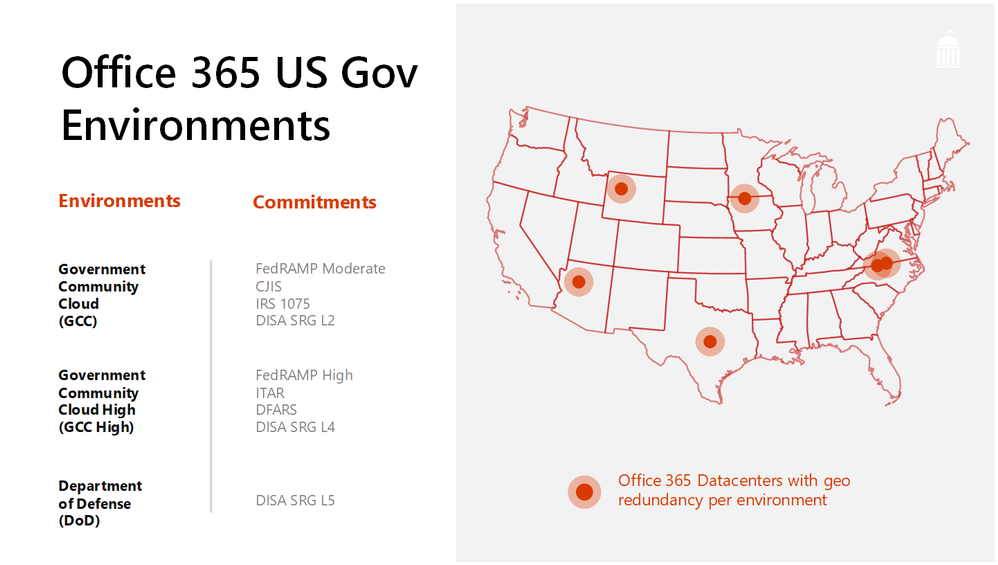 Office 365 US Government environments and associated compliance commitments
Every service introduced into the US Government offerings has undergone a third party review to ensure that we meet our compliance commitments to you. We complete audits regularly to make new capabilities available as frequently as possible. Release cycles differ from Enterprise offerings for new services, but once available, the service will align with the commercial user experience.
The October audit is complete, and Microsoft has received the 3PAO report, so we can confirm what will be released in the coming weeks. We will be sharing an updated roadmap at the Microsoft Government Tech Summit taking place in Washington DC on March 5-6, so stay tuned and don’t hesitate to register to attend! Information will be published online also.
Upcoming Events:
Learn More:
Engage:
Technical:
Brian Levenson is the product manager for Microsoft 365 for US Government. Follow him on Twitter (@brian_levenson) and LinkedIn (Brian Levenson) for the latest in government technology and Microsoft 365 news.

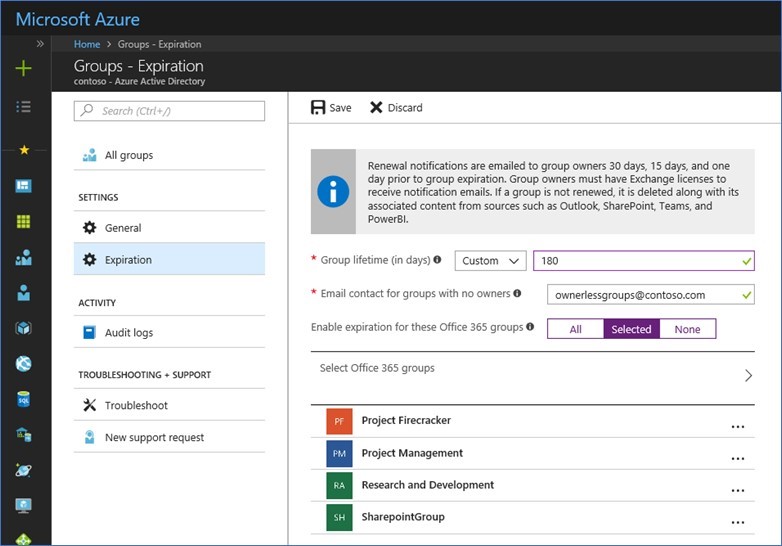
Office 365 groups expiration policies allow administrators to set an expiration timeframe for any Office 365 group. Once that timeframe is set, owners of these groups get notification emails reminding them to renew these groups if they still need them. Groups not renewed will automatically be deleted.
Starting today, this feature is now Generally Available!
<script type=’text/javascript’ src=’https://cloudblogs.microsoft.com/enterprisemobility/wp-content/themes/cloudperspectives/dist/scripts/flexibility.js?ver=3.7.2′></script>
We’ve listened to your feedback and made it even more intuitive for users to decide whether they want to renew their group. The newly redesigned notification emails now provide one-click access to the group content, and also allow the group to be deleted if it’s no longer needed.
Office 365 groups expiration can be configured from the Azure Active Directory portal, as well as programmatically via Azure Active Directory PowerShell. Learn more about how to configure Office 365 groups expiration. For more information head over read the full announcement by Alex Simons over on the EMS Blog.
The Office 365 groups expiration policy feature will require an Azure AD Premium license for every user who is a member of an Office 365 group configured for expiration. Visit Office 365 Support for more licensing details.

Last year, at Inspire, we unveiled Microsoft 365, bringing together Office 365, Windows 10 and Enterprise Mobility + Security, to deliver a complete, intelligent and secure solution for the modern workplace. In October Microsoft 365 Business reached general availability, representing an integrated solution designed to simplify IT for small and medium-sized businesses.
We know that our customers, from small businesses to large enterprises, rely on the admin center for a broad set of activities. From an administration perspective, our vision for Microsoft 365 is to help simplify IT by unifying management across users, devices, apps and services. Today marks an important step in that vision as we are rolling out a new admin experience for Microsoft 365 enterprise customers. This will be a single place for admins to get started with Microsoft 365 and discover the breadth of management capabilities and experiences available to them.
Integrated into this admin center is both the new Microsoft 365 Security & Compliance Center, dedicated to providing security and compliance specialists with integrated management capabilities across Office 365, Windows, and EMS, as well as Microsoft 365 Device Management, dedicated to providing integrated device management capabilities across Intune, Office, and Windows. The Security and Compliance Center will be available shortly, with Device Management to follow afterwards. Please look forward to additional details.
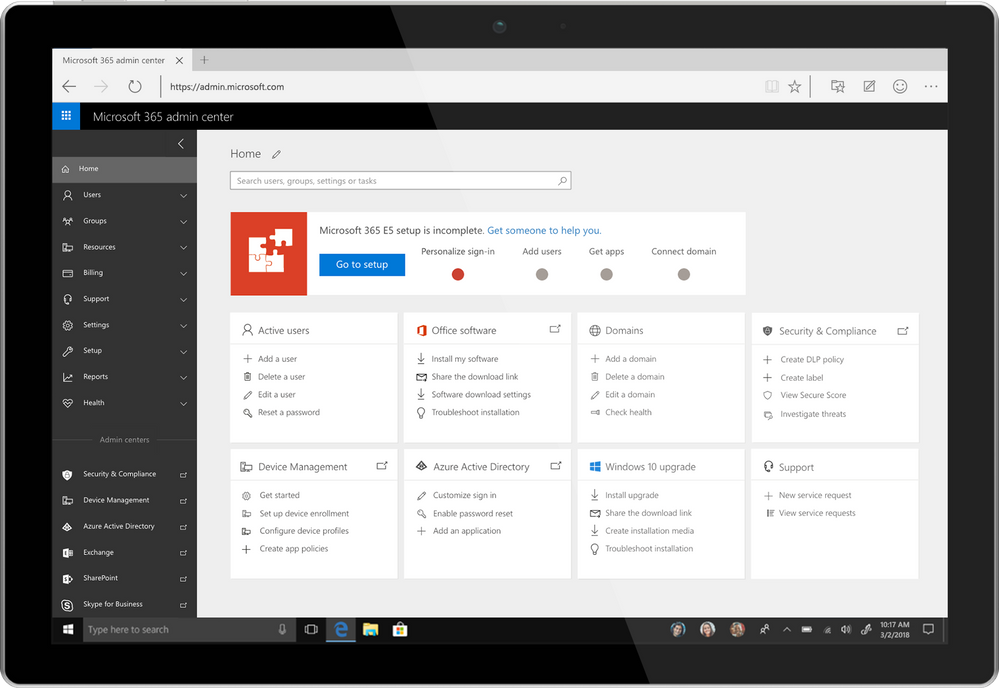
Over the coming months we will continue investing in more integrated, streamlined administration experiences across Microsoft 365 to help organizations become more productive and secure while optimizing their IT resources. We will also continue to improve the admin’s user experience, so admins can complete their tasks faster and easier and get more done with their day.
For Microsoft 365 customers, once this is rolled out to your tenant, you will automatically have the new admin experience. You can login as you usually do, or navigate to admin.microsoft.com to try out the new admin experience.

Our most-popular Office 365 apps—Excel, PowerPoint, and Word—are designed for the modern workplace, with cutting-edge features like real-time co-authoring, AutoSave, and more. With our newest version of Office for Mac, version 16.9.0, we’ve extended these capabilities to Apple users; in fact, this release marks the first time in 20 years that Office shares the same codebase across Windows, Mac, iOS, and Android for core functionalities.
This achievement means users across platforms will gain access to new Office capabilities faster than ever. We’ll prioritize the release of these capabilities based on top customer requests and feedback, along with integration and validation considerations for each platform. All Office capabilities will be tailored to the platform’s specific UI, giving them a native feel, and take advantage of certain unique features, like the MacBook Pro’s Touch Bar.
Read on to learn more about new Mac capabilities available with this release, and in our latest release on iPad. Please note, some of these features require an Office 365 subscription. Such features are marked with an asterisk below.
Boost collaboration and ease-of-use across the core Office apps
With this release, co-authoring in PowerPoint and Word is more powerful than ever. You and your colleagues can create a PowerPoint presentation or edit a Word document on Mac in real-time, seeing each other’s changes as they happen. User flags indicate exactly which slide or sentence your colleagues are editing. For Excel, we’re excited to bring basic co-authoring to Excel for Mac users for the first time. In all the core Office apps, presence thumbnails show you who else is currently working in the file. We’ve extended these capabilities to Office Online, too, so you and your team can work together on files from virtually anywhere. Co-authoring is only available in files stored on OneDrive or SharePoint Online.
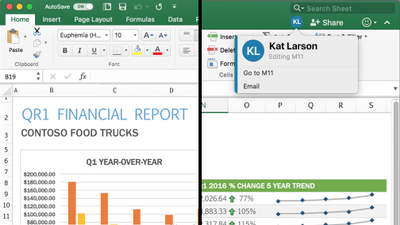
AutoSave*—All core Office apps are now equipped with AutoSave for files stored on OneDrive or SharePoint Online. AutoSave is exactly what it sounds like: Your file is automatically saved every few seconds. Plus, if other people are working in the same file, they can see your changes almost instantaneously. And if you need to roll back, simply check your file’s version history for a list of changes and access earlier copies. AutoSave can be switched on and off using a dedicated toggle button in the ribbon.
Get more data insights faster in Excel
New chart types—Excel’s multitude of charts and graphs has made it one of the world’s premier data analysis tools. Excel 2016 for Mac now includes even more chart types, including sunburst, treemap, histogram, waterfall, and more, to help you visualize your data in new, meaningful ways.
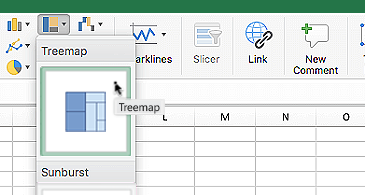
New worksheet functions*—We’ve introduced a pair of new worksheet functions, IFS and SWITCH, for Excel users on Mac to simplify data calculations. The IFS formula takes the place of multiple nested IF statements, making formulas with multiple conditions easier to comprehend. The SWITCH formula evaluates one value against a list of values, and returns the result corresponding to the first matching value.
Table slicers—Using slicers, you can filter table and PivotTable data to quickly curate only the information you need. Slicers also indicate the current filtering state, making it easy to understand what exactly is shown in a filtered table.
Faster calculations—We first introduced multithreaded recalculations in Excel 2007, and have since refined it to help calculations in Excel 2016 for Mac run even faster. To speed up formula outputs, Excel tries identifying parts of the calculation that can be recalculated concurrently on different threads. Read the article on multithreaded recalculations in the Microsoft Dev Center for examples and formula restrictions.
Keep your audience engaged with new PowerPoint features
Trim media*—The best PowerPoint presentations are those that use powerful imagery, instead of words, to convey a message. But what if that imagery is video or audio that’s too long to sensibility include in your presentation? The Trim tool in PowerPoint addresses this issue. With it you can cut unwanted content from the beginning and end of video and audio clips. This feature is only available for media you’ve inserted from your computer and not from the web.

QuickStarter*—If you’re building a research-heavy presentation, using QuickStarter is the perfect way to begin. QuickStarter creates an outline for you based on your presentation’s subject. After conducting initial research, the tool builds out several slides—a title slide, a table of content slides, one slide for each sub-topic, and more—that you can choose to keep or delete. The result is a set of slides that gives you a strong foundation for developing a detailed and factually accurate presentation.
Highlighted changes*—Part of the newly introduced co-authoring feature, PowerPoint automatically highlights changes others made to a shared presentation while you were away. This way, you can quickly see what was updated, when, and by who.
Laser pointer—Turn your mouse into a laser pointer to draw attention to specific parts of your PowerPoint while presenting. You can also change the color of the laser pointer to match the style of your presentation or company.
Do more on mobile in Word
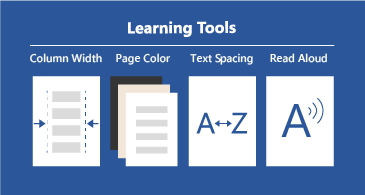
Learning Tools*—Learning Tools in Word for iPad and Word Online was designed to help you improve your reading skills and word pronunciation. Perfect for students or non-native speakers, Learning Tools comes with a variety of features: Read Aloud lets you hear your document; Syllables breaks down words into syllables; Text Spacing increases the space between characters; Column Width reduces visual crowding so you can just focus on the words; and, Page Color gives you the option to change the background to a softer color.
Your feedback is important to us—it’s the primarily reason these capabilities were chosen for this release. Please visit our UserVoice sites for Excel, PowerPoint, and Word to submit your ideas for future features. We invite you to follow Microsoft Office on Twitter and Facebook for the latest news and helpful tips for getting the most out of your Office apps. You can also follow the social feeds for Excel (Twitter and Facebook) and PowerPoint (Twitter) for more specific updates.
* Feature requires an Office 365 on Mac subscription.
General Availability of Microsoft Graph reporting APIs for retrieving Office 365 product usage data
The usage reports in the Office 365 admin center enable admins to understand their company’s usage across the Office 365 services. However, many of you have existing reporting solutions such as a company reporting application or a web portal in place. To assure that you can monitor your IT services in one unified location, the usage reporting APIs complement the usage reports and allow organizations and independent software vendors to incorporate Office 365 usage data into their existing reporting solutions. Using these APIs, you can retrieve the data available in all of the usage reports, including organization level summaries per service, entity level (user, sites, accounts) usage information for reporting periods of the last 7/30/90/180 days, and daily activity aggregates.
Get started with the new APIs
The new APIs are available now, and any user with global admin, product admin rights (for Exchange, Skype for Business and SharePoint), or a reports reader role can retrieve data through these APIs.
You can leverage the Microsoft Graph documentation for the reporting API and submit feature requests by asking or voting on an idea on UserVoice. Please submit questions by posting them on Stack Overflow and tagging microsoftgraph.
With this announcement, we are announcing the deprecation of the following APIs within the Office 365 Reporting Web Service: ConnectionbyClientType, ConnectionbyClientTypeDetail, CsActiveUser, CsAVConferenceTime, CsP2PAVTime, CsConference, CsP2PSession, GroupActivity, MailboxActivity, GroupActivity, MailboxUsage, MailboxUsageDetail, StaleMailbox and StaleMailboxDetail.
We will remove these APIs, as well as any related PowerShell cmdlets, on January 29, 2018.
If you are currently using APIs or any of the related PowerShell cmdlets from the Office 365 Reporting Web Service, please start planning the migration of any subsystems within your organization.
Below is a summary of the APIs and cmdlets that will be deprecated.
|
Office 365 Reporting web service
reference page
|
Office 365 reporting-related
Windows PowerShell cmdlets
|
Description
|
MS Graph Replacement
|
|
CsActiveUser* reports
|
Get-CsAVConferenceTimeReport
|
The number of active, logged-in Lync Online users during the reporting period
|
This method is being deprecated as of January 29, 2018. It is replaced by the new MS Graph Reporting API available at
https://developer.microsoft.com/en-us/graph/docs/api-reference/v1.0/resources/skype_for_business_activity_reports
|
|
CsAVConferenceTime* reports
|
Get-CsActiveUserReport
|
The amount of time logged-in organization users participated in Lync Online conferences during the reporting period
|
This method is being deprecated as of January 29, 2018. It is replaced by the new MS Graph Reporting API available at
https://developer.microsoft.com/en-us/graph/docs/api-reference/v1.0/resources/skype_for_business_organizer_activity_reports
https://developer.microsoft.com/en-us/graph/docs/api-reference/v1.0/resources/skype_for_business_participant_activity_reports
https://developer.microsoft.com/en-us/graph/docs/api-reference/v1.0/resources/skype_for_business_peer_to_peer_activity
|
|
CsP2PAVTime* reports
|
Get-CsP2PAVTimeReport
|
|
|
Get-CsClientDeviceReport
|
View statistics about the client devices that connected to Skype for Business Online in your cloud-based organization.
|
These methods are being deprecated as of January 29, 2018. They are being replaced by the new MS Graph Reporting API available at
https://developer.microsoft.com/en-us/graph/docs/api-reference/v1.0/resources/skype_for_business_device_usage_reports
|
|
Get-CsClientDeviceDetailReport
|
View statistics about the number of peer-to-peer sessions and conferences by users and devices that connected to Skype for Business Online in your cloud-based organization.
|
|
CsConference* reports
|
Get-CsConferenceReport
|
The count of Lync Online conferences and peer-to-peer sessions during the reporting period.
|
This method is being deprecated as of January 29, 2018. It is replaced by the new MS Graph Reporting API available at
Â
https://developer.microsoft.com/en-us/graph/docs/api-reference/v1.0/resources/skype_for_business_organizer_activity_reports
https://developer.microsoft.com/en-us/graph/docs/api-reference/v1.0/resources/skype_for_business_participant_activity_reports
https://developer.microsoft.com/en-us/graph/docs/api-reference/v1.0/resources/skype_for_business_peer_to_peer_activity
|
|
CsP2PSession* reports
|
Get-CsP2PSessionReport
|
|
|
Get-CsUserActivitiesReport
|
View number and type of activities that a user participated in while connected to Skype for Business Online in your cloud-based organization.
|
This method is being deprecated as of January 29, 2018. It is replaced by the new MS Graph Reporting API available at
https://developer.microsoft.com/en-us/graph/docs/api-reference/v1.0/api/reportroot_getskypeforbusinessactivityuserdetail
|
|
|
Get-CsUsersBlockedReport
|
View Skype for Business Online users who have been blocked due to fraudulent call activities.
|
This method is being deprecated as of January 29, 2018. There is no MS Graph replacement.
|
|
|
Get-CsPSTNConferenceTimeReport
|
Show the number of minutes that Skype for Business Online users spent in dial-in or dial-out conferences.
|
This method is being deprecated as of January 29, 2018. There is no MS Graph replacement.
|
|
|
Get-CsPSTNUsageDetailReport
|
View public switched telephone network (PSTN) usage details for Skype for Business Online users.
|
This method is being deprecated as of January 29, 2018. There is no MS Graph replacement.
|
|
ConnectionbyClientType* reports
|
Get-ConnectionByClientTypeReport
|
The number and types of email client-access methods used by the organization’s users during the reporting period. For example, Outlook Web Access, Exchange Web services, and so on.
|
This method is being deprecated as of January 29, 2018. It is replaced by the new MS Graph Reporting API available at https://developer.microsoft.com/en-us/graph/docs/api-reference/v1.0/resources/email_app_usage_reports
|
|
ConnectionbyClientTypeDetail* reports
|
Get-ConnectionByClientTypeDetailReport
|
|
MailboxActivity* reports
GroupActivity* reports
|
Get-MailboxActivityReport
Get-GroupActivityReport
|
Office 365 users created and deleted, summarized over the indicated time periods. Active Directory Domain Services (AD DS) replication can sometimes delay this information up to a day.
|
This method is being deprecated as of January 29, 2018. It is replaced by the new MS Graph Reporting API available at
https://developer.microsoft.com/en-us/graph/docs/api-reference/v1.0/resources/mailbox_usage_reports
https://developer.microsoft.com/en-us/graph/docs/api-reference/v1.0/resources/office_365_groups_activity_reports
|
|
|
Get-ExternalActivityByDomainReport
|
|
This method is being deprecated as of January 29, 2018. There is no MS Graph replacement.
|
|
|
Get-ExternalActivityByUserReport
|
|
This method is being deprecated as of January 29, 2018. There is no MS Graph replacement.
|
|
|
Get-ExternalActivityReport
|
|
This method is being deprecated as of January 29, 2018. There is no MS Graph replacement.
|
|
|
Get-ExternalActivitySummaryReport
|
|
This method is being deprecated as of January 29, 2018. There is no MS Graph replacement.
|
|
|
Get-LicenseVsUsageSummaryReport
|
To retrieve a report that identifies the number of active users for installed software licenses (workloads).
|
This method is being deprecated as of January 29, 2018. There is no MS Graph replacement.
|
|
MailboxUsage report
|
Get-MailboxUsageReport
|
Summary and detailed statistics about organization user mailboxes.
|
This method is being deprecated as of January 29, 2018. It is replaced by the new MS Graph Reporting API available at
https://developer.microsoft.com/en-us/graph/docs/api-reference/v1.0/resources/mailbox_usage_reports
|
|
MailboxUsageDetail report
|
Get-MailboxUsageDetailReport
|
|
MailDetail report
|
Get-MailDetailReport
|
|
This method will continue to work as expected and is not impacted by this deprecation
|
|
MailDetailDlpPolicy report
|
Get-MailDetailDlpPolicyReport
|
|
This method will continue to work as expected and is not impacted by this deprecation
|
|
MailDetailMalware report
|
Get-MailDetailMalwareReport
|
|
This method will continue to work as expected and is not impacted by this deprecation
|
|
MailDetailSpam report
|
Get-MailDetailSpamReport
|
|
This method will continue to work as expected and is not impacted by this deprecation
|
|
MailDetailTransportRule report
|
Get-MailDetailTransportRuleReport
|
|
This method will continue to work as expected and is not impacted by this deprecation
|
|
MailFilterList report
|
Get-MailFilterListReport
|
|
This method will continue to work as expected and is not impacted by this deprecation
|
|
MailTraffic report
|
Get-MailTrafficReport
|
|
This method will continue to work as expected and is not impacted by this deprecation
|
|
MailTrafficPolicy report
|
Get-MailTrafficPolicyReport
|
|
This method will continue to work as expected and is not impacted by this deprecation
|
|
MailTrafficSummary reports
|
Get-MailTrafficSummaryReport
|
|
This method will continue to work as expected and is not impacted by this deprecation
|
|
MailTrafficTop report
|
Get-MailTrafficTopReport
|
|
This method will continue to work as expected and is not impacted by this deprecation
|
|
MessageTrace report
|
Get-MessageTrace
|
|
This method will continue to work as expected and is not impacted by this deprecation
|
|
MessageTraceDetail report
|
Get-MessageTraceDetail
|
|
This method will continue to work as expected and is not impacted by this deprecation
|
|
MxRecordReport report
|
Get-MxRecordReport
|
|
This method will continue to work as expected and is not impacted by this deprecation
|
| |
Get-O365ClientOSReport
|
Get a summary report of client operating system use.
|
This method is being deprecated as of January 29, 2018. There is no MS Graph replacement.
|
|
|
Get-O365ClientOSDetailReport
|
Get a detailed report of client operating system use.
|
This method is being deprecated as of January 29, 2018. There is no MS Graph replacement.
|
|
|
Get-O365ClientBrowserReport
|
Get a summary report of client browser use.
|
This method is being deprecated as of January 29, 2018. There is no MS Graph replacement.
|
|
|
Get-O365ClientBrowserDetailReport
|
Get a detailed report of client browser use.
|
This method is being deprecated as of January 29, 2018. There is no MS Graph replacement.
|
|
OutboundConnectorReport report
|
Get-OutboundConnectorReport
|
|
This method will continue to work as expected and is not impacted by this deprecation.
|
|
|
Get-PartnerClientExpiringSubscriptionReport
|
|
This method is being deprecated as of January 29, 2018. There is no MS Graph replacement.
|
|
|
Get-PartnerCustomerUserReport
|
|
This method is being deprecated as of January 29, 2018. There is no MS Graph replacement.
|
|
|
Get-ScorecardClientDeviceReport
|
|
This method is being deprecated as of January 29, 2018. There is no MS Graph replacement.
|
|
|
Get-ScorecardClientOSReport
|
|
This method is being deprecated as of January 29, 2018. There is no MS Graph replacement.
|
|
|
Get-ScorecardClientOutlookReport
|
|
This method is being deprecated as of January 29, 2018. There is no MS Graph replacement.
|
|
|
Get-ScorecardMetricsReport
|
|
This method is being deprecated as of January 29, 2018. There is no MS Graph replacement.
|
|
ServiceDeliveryReport report
|
Get-ServiceDeliveryReport
|
|
This method will continue to work as expected and is not impacted by this deprecation
|
|
|
Get-SPOActiveUserReport
|
View statistics about Microsoft SharePoint Online users in your cloud-based organization.
|
This method is being deprecated as of January 29, 2018. It is replaced by the new MS Graph Reporting API available at
https://developer.microsoft.com/en-us/graph/docs/api-reference/v1.0/api/reportroot_getsharepointactivityusercounts
|
|
|
Get-SPOOneDriveForBusinessFileActivityReport
|
|
This method is being deprecated as of January 29, 2018. It is replaced by the new MS Graph Reporting API available at
https://developer.microsoft.com/en-us/graph/docs/api-reference/v1.0/api/reportroot_getonedriveactivityfilecounts
|
|
|
Get-SPOOneDriveForBusinessUserStatisticsReport
|
|
This method is being deprecated as of January 29, 2018. It is replaced by the new MS Graph Reporting API available at
https://developer.microsoft.com/en-us/graph/docs/api-reference/v1.0/api/reportroot_getonedriveactivityusercounts
|
|
|
Get-SPOSkyDriveProDeployedReport
|
View the number of My Site sites in your cloud-based organization.
|
This method is being deprecated as of January 29, 2018. It is replaced by the new MS Graph Reporting API available at
https://developer.microsoft.com/en-us/graph/docs/api-reference/v1.0/api/reportroot_getonedriveactivityusercounts
|
|
|
Get-SPOSkyDriveProStorageReport
|
View statistics about the space taken up (in MB) by My Sites in your cloud-based organization.
|
This method is being deprecated as of January 29, 2018. It is replaced by the new MS Graph Reporting API available at
https://developer.microsoft.com/en-us/graph/docs/api-reference/v1.0/api/reportroot_getonedriveusagestorage
|
|
|
Get-SPOTeamSiteDeployedReport
|
View the number of My Site sites in your cloud-based organization.
|
This method is being deprecated as of January 29, 2018. It is replaced by the new MS Graph Reporting API available at
https://developer.microsoft.com/en-us/graph/docs/api-reference/v1.0/api/reportroot_getsharepointsiteusagestorage
|
|
|
Get-SPOTeamSiteStorageReport
|
View statistics about the space taken up (in MB) by team sites in your cloud-based organization.
|
This method is being deprecated as of January 29, 2018. It is replaced by the new MS Graph Reporting API available at
https://developer.microsoft.com/en-us/graph/docs/api-reference/v1.0/api/reportroot_getsharepointsiteusagestorage
|
|
|
Get-SPOTenantStorageMetricReport
|
View statistics about the space taken up (in MB) by all sites in for your cloud-based organization.
|
This method is being deprecated as of January 29, 2018. It is replaced by the new MS Graph Reporting API available at
https://developer.microsoft.com/en-us/graph/docs/api-reference/v1.0/api/reportroot_getsharepointsiteusagestorage
|
|
StaleMailbox report
|
Get-StaleMailboxReport
|
The details and summary counts of mailboxes that have not been accessed within the indicated time period.
|
This method is being deprecated as of January 29, 2018. It is replaced by the new MS Graph Reporting API available at
https://developer.microsoft.com/en-us/graph/docs/api-reference/v1.0/resources/email_activity_reports
|
|
StaleMailboxDetail report
|
Get-StaleMailboxDetailReport
|
Protecting your data against file corruption , data loss, and malicious intent is a top priority for Microsoft, and an integral part of the Office 365 service. Our approach to data protection goes beyond high availability and disaster recovery scenarios. Resiliency and recoverability are built into the service.
Even if a traditional backup solution provides recovery options to address file corruption, deletion, and malicious attacks, it won’t necessarily help you recover quickly from such incidents. Research shows that it can take months to detect the presence of an attacker an organization’s network. Given this, a backup and restore solution could be a potential area of attack, and could further broaden the scope of attack into your disaster recovery environment. Additionally, all backup data would need to be throuroughly cleansed before it could be leveraged as a viable restore option. Gartner predicts that by 2020, 30% of organizations targeted by major cyberattacks will spend more than two months cleansing backup systems and data, resulting in delayed recoveries.[i]
With this in mind, Office 365 has moved beyond the backup and restore solutions that were first established in on-premises environments. Microsoft invests deeply in providing a holistic in-place solution that both keeps multiple copies of your data across multiple locations, and enables you to develop upfront policies for prevention and detection. These policies can be enforced manually and automatically at multiple levels of granularity, including via intelligent location-based classification, patterns, or sensitive types of content.
In addition to the inherent versioning and recycling capabilities provided by applications like Exchange, SharePoint, and OneDrive, Office 365 provides comprehensive solutions to help keep your data safe from both human error as well as malicious attacks:
- Data Loss Prevention helps customers to identify, monitor and protect sensitive data through deep content analysis.
- Exchange Online Protection provides robust email protection against spam, known viruses and malware.
- Advanced Threat Protection extends Exchange Online Protection by safeguarding your Office 365 environment (email, Word, Excel, Powerpoint, SharePoint, OneDrive, and Teams) from today’s most sophisticated unknown threats leveraging behavioral analysis and machine learning techniques to mitigate malicious content. ATP also provides real time, time-of-click protection against malicious URLs, and rich reporting and tracking capabilities, so you can gain critical insights into who is being targeted in your organization and the category, volume, and frequency of attacks you are facing.
- Threat Intelligence provides interactive tools to analyze prevalence and severity of threats in near real-time, real-time and customizable threat alert notifications, and remediation capabilities for suspicious content.
- Auditing helps monitor and investigate actions taken on your data, intelligently identify risks, contain and respond to threats, and protect valuable intellectual property.
- Advanced Data Governance provides smart policy recommendations and automatic data classifications that allow you to take actions on data- such as retention and deletion -throughout its lifecycle. Built-in and custom alerts help you identify data governance risks like unusual volumes of file deletion.
The multiple built-in security capabilities of Office 365 in combination with the above services and controls help ensure your data is protected in-place and incidents like file corruption, deletion, and malicious intent are minimized at all times.
More information:
[i] From Gartner Foundational Research: Prepare for and Respond to a Business Disruption After an Aggressive Cyberattack, ID: G00275607
Today we are announcing a preview of the Office Customization Tool for Click-to-Run, a simple to use web application that enables desktop administrators to customize Office 365 clients.
Until today, Windows desktop administrators would use notepad or an equivalent text editor to compile various XML statements to define the Office edition, feature update frequency, version, language and other number of available settings. This somewhat tedious task, in most cases, would result in installation errors from fouled up manual entries or copy-and-paste actions into the text editor.
With the new Office Customization Tool, desktop admins can leverage the rich user interface that intuitively shows all available options to build the desired Office configurations. The configuration tool groups the commonly used settings in the following categories:
- software & language
- installation & update
- licensing & display
Each of these areas provide admins with options to help meet their security and regulatory needs.
One of our favorite additions, is the configuration builder. Desktop admins can quickly see a list of all configuration settings being chosen on the right-hand side of the screen, giving the desktop admin a quick and easy way to see the result of their selections without jumping through multiple screens.
When all the desired settings have been selected, desktop admins are provided with the option to download the resulting configuration.xml file which is to be used in conjunction with the Office Deployment Tool for the settings to take affect during installation time of the Office 365 client.
Desktop Admin also have an option to upload any previously configured XML files to the configuration tool and modify them with new or existing settings.
For those of you who are familiar with the old Win32 Office Customization Tool which came with your perpetual (MS Installer) bits, you’ll notice the new customization tool has a lack of install-time user preferences. Over the next several months we will be enhancing the tool to enable desktop admins to select many configurable user preferences that are currently being offered with the perpetual counterpart. We encourage you to try out the new Office Customization Tool which is available in preview today, by clicking on the link or typing http://config.office.com in your browser. Send us feedback and let us know what you think by using the send a smile feature, located on the top right of the web application.
Amesh Mansukhani
Senior Program Manager – Office Engineering
![Admins- welcome to the Microsoft 365 admin center]()

Today’s post was written by Catherine Boeger, general manager for Microsoft Office marketing
Today the rapid pace of change is challenging businesses and government organizations to rethink everything we do. What’s changing? For the first time ever, we have five generations in the workforce, from Baby Boomers to Generation Z, all with different ideas about how work gets done and different levels of comfort and expectations around technology. Constantly changing customer and citizen expectations are pushing businesses to innovate quickly and find new ways to leverage information from both inside and outside organizations. And ever-growing cyber security threats remind us we must remain vigilant in protecting our employees and customer data and in maintaining regulatory and industry compliance. One of the primary questions is, how can you embrace these modern workplace trends to help drive business growth? I want to share some of the ways Microsoft 365, which brings together Office 365, Windows 10, and Enterprise Security + Mobility, can help organizations like yours leverage digital transformation to enable people to come together in a secure way and get the best results from each other to drive business forward.
Let’s first look at the generational shift in the workplace. With five generations of workers on the payroll, how can you create a connected environment to leverage that diversity, which can be so critical for your success? At Microsoft, we’ve found that teamwork is key—bringing together groups of people, no matter their generation, function, or location, to address problems and opportunities with a shared sense of accountability to complete the task in front of them. That’s why we built Microsoft Teams in Microsoft 365: to help you create a digital hub for teamwork where everyone can easily share or access information they need and focus on a common goal. Powerful features like threaded persistent chats and access to recorded meetings can help create an ongoing dialog and enable people to learn from each other and get caught up quickly. And while we all may have a habit of thinking that mobility is more important to Millennials or younger generations, really the need and desire to be productive from anywhere has become a reality of all our lives, which is why Teams is accessible from almost any device.
Generational diversity isn’t the only gap we can bridge to help drive business growth. We’re building tools for the modern workplace that close longstanding technology gaps that separate employees from data, resources and expertise they need to do their best work. We believe a truly modern workplace can empower everyone in the organization to turn ideas into action – from the executive team to the Firstline Workforce.
Firstline Workers are often the first to engage customers, the first to represent a company’s brand and first to see products and services in action. They are the people behind the counter, on the phone, in the clinics, on shop floor and in the field. Their unique perspective provides the on-the-ground facts that help organizations spot trends, challenges and best practices. We see organizations take advantage of this firstline perspective every day to unlock innovation and growth. I’m reminded of a Microsoft customer, Fruit of the Loom, who recognized that “their greatest thinkers are within the company,” according to their Chief Operating Officer, Tony Pelaski. Fruit of the Loom is using Microsoft 365 Enterprise to connect the entire organization and foster an engaged workforce with the capabilities and tools to deliver against customer insights, market trends, and new ideas. Customer stories like these inspired us to create a version of Microsoft 365 specifically for your Firstline Workforce. We know that all organizations have critical data, and I believe it will be those that take advantage of their firstline data and empower all workers that will achieve a true and sustainable competitive advantage.
Of course, any data you collect must be secured. Today we all face constant pressure to have open flows of information to drive productivity and teamwork, and it’s as critical as ever to protect our organizations because threats today are complex and target everyone. Cyber threats have grown so pervasive that 74 percent of organizations expect to be hacked in the next year.[1] That’s why Microsoft built security into all layers of Microsoft 365, powered by the Microsoft Intelligent Security Graph, to help you detect threats and protect your people, data, and devices without disrupting employee productivity. Customers like the UK Ministry of Defence have felt confident in shifting to the Microsoft cloud because capabilities like Office 365 Advanced Threat Protection and Customer Lockbox help provide the security and privacy controls they need to protect sensitive data.
And on top of security, we all worry about how best to maintain compliance and data privacy, because no doing so can stop any organization—no matter how innovative—in its tracks. Microsoft works closely with regulators and customers to ensure that our services are compliant with global, regional, and industry regulations. Microsoft 365 provides advanced compliance functionality to help adhere to these regulations, including General Data Protection Regulation, also known as GDPR. Microsoft 365 is ready for May 25, 2018 – the day when GDPR takes effect, and can help you accelerate your compliance journey.
As a keynote speaker at the upcoming Microsoft Tech Summit Toronto December 13 and 14, I’ll be talking in depth about how Microsoft 365 can help you create a modern workplace that brings people together in secure ways to innovate new products and services. I hope you’ll join me and Arpan Shah, general manager of Azure Infrastructure marketing at Microsoft, to discover the latest trends, tools, and product roadmaps designed to help you thrive in a new world of work.
[1] http://www.isaca.org/cyber/Documents/State-of-Cybersecurity-infographic.pdf
The Office Online team is pleased to release our latest update to Office Online Server (OOS). OOS empowers organizations to view, edit, and create documents in the browser with Word, PowerPoint, Excel, and OneNote from their own datacenter. Please verify that you have the latest version of the OOS release to ensure the best experience.
The November 2017 update of OOS includes the following improvements:
- Improved booting performance in PowerPoint Online editing scenarios
- Enhanced transitions in PowerPoint Online
- Improved Find functionality in Excel Online
- Document format conversion from xls to xlsx supported in Excel Online
- Emoji support in Word Online
- Increased table capabilities in Word Online
- Insert image from host in Word Online
- Doubled the time limit for audio recordings in OneNote Online
- Accessibility & usability improvements across all applications
- Many more improvements + bug fixes across all applications
How do I get OOS/download the update?
We encourage OOS customers to download the November 2017 release, as only the latest version will be supported with bug fixes and security patches available from the Microsoft Updates Download Center. You must uninstall the previous version of OOS to install this release.
With the exception of those who have access through the Open Program, Volume Licensing customers with a Volume Licensing account can download at no cost and will have view-only functionality which includes PowerPoint sharing in Skype for Business. Customers that require document creation, edit and save functionality in OOS need to have an on-premises Office Suite license with Software Assurance or an Office 365 ProPlus subscription. To download the latest update of OOS, please proceed to the Volume License Servicing Center. Office Online Server is a component of Office; therefore, it will be shown under each of the Office product pages including Office Standard 2016, Office Professional Plus 2016, and Office 2016 for Mac Standard. For more information on licensing requirements, please refer to our product terms.
For customers whose licenses qualify for OOS, but cannot obtain OOS through the Volume Licensing Services Center, the following actions are possible:
This blog series is written by Cyril Belikoff, Senior Director of Office Marketing
This is the fourth and final post from our blog series on the four success factors for driving Microsoft 365 adoption.
Part 1: Enable your business stakeholders with a successful Microsoft 365 adoption
Part 2: Recruit key stakeholders to help with your adoption
Part 3: Identify business needs and prioritize Microsoft 365 scenarios
In this blog post I will focus on the last two success factors – Awareness and Training, outlining best practices and available resources.
Utilizing a combination of internal communication campaigns and training to promote awareness and ensure end user readiness is crucial in overcoming the typical apathy that awaits new technology rollouts. Awareness and training really do have a big impact. According to research, high usage Office 365 customers were more likely to have implemented awareness and training activities as part of their adoption plan when compared to customers with lower usage.
Setting the stage for effective awareness and training
We are all too familiar with how hard it is to get people to change. Let’s face it, most people approach change from a selfish perspective. Therefore, it’s important your communication and training efforts are positioned in the context of what your end users care about most – what’s in it for them. Also, your training must go beyond the procedural “how-to” information for performing tasks with Microsoft 365. Let your end users know why the change is happening and what’s in it for them. An effective way of doing this is to tailor your communications and training around the scenarios you identified and prioritized earlier in your planning efforts.
Like any change, it’s important to reinforce it to ensure end users sustain their adoption of Microsoft 365 and the new culture of work it brings. Don’t think of your awareness and training execution as a one-time event, rather it should cover pre-launch, launch, and post-launch.
Create internal awareness and excitement
To drive sustained adoption, users must be aware of and excited for Microsoft 365. This means doing internal communications to promote Office 365 and engagement events. Use the resources we’ve made available, including email, poster, and tips and tricks templates you can customize for your rollout. Have a senior leader in the business be the face of your awareness campaign to validate the importance of the organization adopting Microsoft 365 and getting everyone onboard.
“We knew we had to be crystal clear with employees about how Office 365 would make their lives easier and help them do their jobs better. So, we branded it as four things: Work Anywhere, Work Anytime You Like, Work Together, and Work on Any Device.”
Joe Kamara
Nec Group, Lead Change Manager
Enable end users to be successful with Microsoft 365
Given the diversity of people in any organization you’ll likely have multiple audiences to serve with your training program. In preparing your plan it’s important to consider:
- What are the different user types in your organization? What is their comfort level with new technology?
- What is their role in the organization? What are some of the tasks they perform?
- Where do users perform these tasks? On a mobile device? In the office using a workstation?
- How might organizational policies be affected by the integration of the new tool set – e.g., sharing documents, storing files, collaborating with external partners, using email attachments?
Training end users should take on multiple forms to accommodate different learning styles, geographical barriers, and any constraints you face. To get started with your training, take advantage of the available resources from Microsoft, including the Office Training Center and Windows 10 Quick Start Guides. Use your champions to help supplement your training plan, they are very effective at helping ready your end users.
Next steps
Now that we’ve reviewed all four of the success factors for driving Microsoft 365 adoption – Stakeholders, Scenarios, Awareness and Training – your question may be what’s next? It’s time to start planning how you are going to ensure these success factors are in place for your adoption. I’d suggest getting your stakeholders and project team members onboard. Work with Microsoft FastTrack, our customer success service, and a Microsoft partner to build your Success Plan and get further guidance and resources to help you implement these four success factors.
Reach out to us and your peers who are also on this journey by checking out the Drive Adoption community. We look forward to hearing about your Microsoft 365 success story!
This blog series is written by Cyril Belikoff, Senior Director of Office Marketing
This is the third post from our blog series on the four success factors for driving Microsoft 365 adoption.
Check out the other posts part of this series:
Part 1: Enable your business stakeholders with a successful Microsoft 365 adoption
Part 2: Recruit key stakeholders to help with your adoption
In this blog post I will focus on the second success factor – Scenarios, and how to identify and prioritize them, while measuring their impact on your organization.
The true measure of success for your Microsoft 365 adoption, like any change or new technology, will be the value realized by your organization from its investment. Your opportunity with Microsoft 365 is to enable the different Lines of Business (LoBs) and departments in your organization to realize important business outcomes. This requires identifying and prioritizing scenarios – which are the different ways people and teams in your organization can use the capabilities of Microsoft 365 to achieve their goals.
Get started with early wins and build on that success
Our most successful customers typically start their journey with more basic scenarios that have universal appeal across the organization:
- Employee Engagement & Communication: Create a sustainable, consistent way for senior leaders to connect with employees, using Yammer as a community to share and engage, and Skype Meeting Broadcast for companywide meetings.
- Bring Campaigns to Market Faster: Enable marketers to collaborate with people inside and outside the organization using Microsoft Teams as their shared workspace for communicating and sharing with team members.
- Increase Sales Productivity and Grow Revenue: Provide sales teams with a centralized hub with Microsoft Teams for sales planning, real time collaboration on proposals and RFPs, and for managing their monthly, quarterly, and annual business reviews.
- Streamline Business Reviews: Help finance move beyond gathering and cleaning data to be able to analyze data with Power BI, and collaborate together on the data in one place with Microsoft Teams.
Once you’ve delivered value with these more basic scenarios, you have more credibility to engage your business stakeholders for custom scenarios that deliver unique value. Think of this value realization motion as a flywheel – score some early wins with cross organization scenarios, and then move on to more ambitious areas of impact for each LoB or department. As you provide more and more impact to the business, more stakeholders will get engaged and the momentum of the flywheel builds and builds.
So, how can you work with your business stakeholders to identify relevant scenarios for their teams to adopt? At it’s most basic level it’s about identifying what the team wants to accomplish, how they can use the technology to accomplish their goal, and what the expected impact of the Scenario is. To help you get started, check out the Microsoft 365 productivity library, where you can discover new scenarios based on your industry and different functional departments.
The IT team leading the Microsoft 365 adoption at Standard Bank – Africa’s largest banking group, has done a great job engaging with the business to identify scenarios that are helping different stakeholders accomplish their goals. Standard Bank dedicated an adoption team within IT to engage with each business unit and functional department to realize unique value with Microsoft 365 in a consistent manner – i) conduct an “art of the possible” session with the team so they can start to envision relevant Microsoft 365 scenarios, ii) workshop scenarios by mapping Microsoft 365 capabilities to the team’s challenges and goals, iii) prototyping and implementing prioritized scenarios, and iv) enabling the business unit to be self-sustainable in their adoption of scenarios and evolving the solutions to suit their needs.
“You don’t need a large team and budget to get going. Dedicate some resources who are passionate about improving the business, who can get in where the work is happening and can assist business users in making the bridge between their day to day challenges and friction points, and the enabling technology that comes with Microsoft 365.
A great resource to help with this is the Microsoft 365 Productivity Library, we’ve used it to help our business discover scenarios and use cases that are relevant to them. Once they see that they can bring different components of the suite together to respond to different needs, they get it.”
Ian Doyle
Standard Bank, IT Executive
To avoid overwhelming end users with too many scenarios at the same time it’s important to prioritize your scenarios based on expected impact and difficulty of implementing. This prioritized list will determine what scenarios get rolled out when.
Measure and share success
To measure the success of your Microsoft 365 rollout, it’s critical to develop a set of criteria to evaluate the different scenarios you and your team have implemented. Identify Key Performance Indicators (KPIs) that you expect will improve based on adopting your scenarios. Evaluate where you are before implementing Microsoft 365 and measure your ongoing progress post implementation. While it’s important to measure and showcase the business value you are providing the organization with your Microsoft 365 implementation, monitoring and reporting on usage helps demonstrate overall adoption levels and areas where improvement is required. The Office 365 adoption content pack is available to gain insights on how your organization is adopting the various services within Office 365.
Success stories are often just as valuable as quantitative measures when demonstrating Microsoft 365 success. Encourage your project team members and champions to identify examples of people and teams using Microsoft 365 to accomplish their goals and everyday tasks. Make sure you share these success stories through Yammer or other internal channels.
Now that you have identified and prioritized your scenarios, it’s time to create internal excitement about the scenarios and ready end users to successfully adopt them. Stay tuned for the next blog post where I will cover the final two success factors for driving Microsoft 365 adoption – Awareness and Training.
![Admins- welcome to the Microsoft 365 admin center]()
This blog series is written by Cyril Belikoff, Senior Director of Office Marketing
This is the second post from our blog series on how to help your organization accelerate time to value with its Microsoft 365 adoption.
In the initial blog post in this series, I shared our viewpoint on the opportunity Information Technology (IT) teams have with solutions, such as Microsoft 365, to enable business value for their organization and I outlined the four success factors for adopting Microsoft 365.
This blog post will focus on the first success factor – Stakeholders, and their importance in driving the change necessary to realize the full value of Microsoft 365.
Your Microsoft 365 rollout is not just about implementing new technologies, rather it’s part of a broader transformation to achieve the business outcomes that matter most to your organization. For example, many of our customers adopt Microsoft 365 to enable a new culture of work that empowers their employees to be creative and work together, securely. Transforming to this new culture of work requires buy-in from across the organization. There are two stakeholder groups whose participation is critical to getting this buy-in:
- Executive sponsors whose influence can help drive the change required for your organization to achieve its business goals with Microsoft 365
- Champions whose passion for this new way of working will help bring their colleagues along
Executive sponsors
Like any other organizational transformation – enabling a new culture of work by adopting Microsoft 365 requires executive sponsorship. According to a McKinsey & Company survey, transformation projects are more successful when there is a visible executive sponsor.

Executive sponsors play three important roles in your organization’s Microsoft 365 adoption:
- Help articulate the business priorities and envision how Microsoft 365 can be used to solve different business problems
- Lead the transformation and communicate the business benefits to other leaders across the organization
- Actively participate and use the technology to help drive adoption across end users and reinforce desired behaviors.
Champions
Finding passionate end users, who believe that technology can change the way we work to be Microsoft 365 champions, is a great way to scale your adoption efforts. Microsoft 365 champions are your power users and an extension of you and your team, evangelizing to their colleagues how Microsoft 365 can be used to help them in everyday tasks.
There are many ways champions can help their colleagues adopt Microsoft 365, such as running lunch and learn sessions with their team, using Microsoft 365 apps and services for the different collaboration scenarios their team engages in, and welcoming new users to Microsoft 365. It’s important to communicate internally that champions are not IT help desk, rather they are business representatives who can help their team members work in new ways with Microsoft 365.
To build a successful champions community as part of your Microsoft 365 adoption consider the following:
- Recruit champions who are excited about technology and new ways of working, and who are eager to share and help their colleagues
- Ready and support your champions through lightweight Microsoft 365 training and a Yammer group to connect the community to support and encourage each other
- Enable the champions by sharing materials they can reuse in their engagement with colleagues
- Recognize the efforts of your champions
Mott MacDonald, a global engineering, management, and development consultancy, implemented a successful Office 365 champions community. As part of their program, they paired area of practice senior leaders with Office 365 champions. The result was champions learn more about how the business works and senior leaders learn about the technology and how it can be used in their practice area. Also, the mentorship opportunity with a senior leader in the business worked as a great champion recruiting tool. Learn more champion tips and tricks directly from Mott MacDonald in this short video clip.
Help your champions be successful in their role by encouraging them to join our champions program. They will gain access to the latest news and tips, champion-peer networking and sharing, partnerships with Microsoft at premier events and meetups in your industry, and access to Microsoft subject matter experts and unique Office 365 training and content.
Gaining buy-in and participation from key stakeholders, such as executive sponsors and champions, requires educating them about how Microsoft 365 can be used to achieve their goals. In the next blog I will share more about how to work with your business stakeholders to identify and prioritize the Microsoft 365 scenarios that are most relevant to their teams.