![Rethinking the modern workplace with Microsoft 365]()

Today’s post was written by Catherine Boeger, general manager for Microsoft Office marketing
Today the rapid pace of change is challenging businesses and government organizations to rethink everything we do. What’s changing? For the first time ever, we have five generations in the workforce, from Baby Boomers to Generation Z, all with different ideas about how work gets done and different levels of comfort and expectations around technology. Constantly changing customer and citizen expectations are pushing businesses to innovate quickly and find new ways to leverage information from both inside and outside organizations. And ever-growing cyber security threats remind us we must remain vigilant in protecting our employees and customer data and in maintaining regulatory and industry compliance. One of the primary questions is, how can you embrace these modern workplace trends to help drive business growth? I want to share some of the ways Microsoft 365, which brings together Office 365, Windows 10, and Enterprise Security + Mobility, can help organizations like yours leverage digital transformation to enable people to come together in a secure way and get the best results from each other to drive business forward.
Let’s first look at the generational shift in the workplace. With five generations of workers on the payroll, how can you create a connected environment to leverage that diversity, which can be so critical for your success? At Microsoft, we’ve found that teamwork is key—bringing together groups of people, no matter their generation, function, or location, to address problems and opportunities with a shared sense of accountability to complete the task in front of them. That’s why we built Microsoft Teams in Microsoft 365: to help you create a digital hub for teamwork where everyone can easily share or access information they need and focus on a common goal. Powerful features like threaded persistent chats and access to recorded meetings can help create an ongoing dialog and enable people to learn from each other and get caught up quickly. And while we all may have a habit of thinking that mobility is more important to Millennials or younger generations, really the need and desire to be productive from anywhere has become a reality of all our lives, which is why Teams is accessible from almost any device.
Generational diversity isn’t the only gap we can bridge to help drive business growth. We’re building tools for the modern workplace that close longstanding technology gaps that separate employees from data, resources and expertise they need to do their best work. We believe a truly modern workplace can empower everyone in the organization to turn ideas into action – from the executive team to the Firstline Workforce.
Firstline Workers are often the first to engage customers, the first to represent a company’s brand and first to see products and services in action. They are the people behind the counter, on the phone, in the clinics, on shop floor and in the field. Their unique perspective provides the on-the-ground facts that help organizations spot trends, challenges and best practices. We see organizations take advantage of this firstline perspective every day to unlock innovation and growth. I’m reminded of a Microsoft customer, Fruit of the Loom, who recognized that “their greatest thinkers are within the company,” according to their Chief Operating Officer, Tony Pelaski. Fruit of the Loom is using Microsoft 365 Enterprise to connect the entire organization and foster an engaged workforce with the capabilities and tools to deliver against customer insights, market trends, and new ideas. Customer stories like these inspired us to create a version of Microsoft 365 specifically for your Firstline Workforce. We know that all organizations have critical data, and I believe it will be those that take advantage of their firstline data and empower all workers that will achieve a true and sustainable competitive advantage.
Of course, any data you collect must be secured. Today we all face constant pressure to have open flows of information to drive productivity and teamwork, and it’s as critical as ever to protect our organizations because threats today are complex and target everyone. Cyber threats have grown so pervasive that 74 percent of organizations expect to be hacked in the next year.[1] That’s why Microsoft built security into all layers of Microsoft 365, powered by the Microsoft Intelligent Security Graph, to help you detect threats and protect your people, data, and devices without disrupting employee productivity. Customers like the UK Ministry of Defence have felt confident in shifting to the Microsoft cloud because capabilities like Office 365 Advanced Threat Protection and Customer Lockbox help provide the security and privacy controls they need to protect sensitive data.
And on top of security, we all worry about how best to maintain compliance and data privacy, because no doing so can stop any organization—no matter how innovative—in its tracks. Microsoft works closely with regulators and customers to ensure that our services are compliant with global, regional, and industry regulations. Microsoft 365 provides advanced compliance functionality to help adhere to these regulations, including General Data Protection Regulation, also known as GDPR. Microsoft 365 is ready for May 25, 2018 – the day when GDPR takes effect, and can help you accelerate your compliance journey.
As a keynote speaker at the upcoming Microsoft Tech Summit Toronto December 13 and 14, I’ll be talking in depth about how Microsoft 365 can help you create a modern workplace that brings people together in secure ways to innovate new products and services. I hope you’ll join me and Arpan Shah, general manager of Azure Infrastructure marketing at Microsoft, to discover the latest trends, tools, and product roadmaps designed to help you thrive in a new world of work.
[1] http://www.isaca.org/cyber/Documents/State-of-Cybersecurity-infographic.pdf
The Office Online team is pleased to release our latest update to Office Online Server (OOS). OOS empowers organizations to view, edit, and create documents in the browser with Word, PowerPoint, Excel, and OneNote from their own datacenter. Please verify that you have the latest version of the OOS release to ensure the best experience.
The November 2017 update of OOS includes the following improvements:
- Improved booting performance in PowerPoint Online editing scenarios
- Enhanced transitions in PowerPoint Online
- Improved Find functionality in Excel Online
- Document format conversion from xls to xlsx supported in Excel Online
- Emoji support in Word Online
- Increased table capabilities in Word Online
- Insert image from host in Word Online
- Doubled the time limit for audio recordings in OneNote Online
- Accessibility & usability improvements across all applications
- Many more improvements + bug fixes across all applications
How do I get OOS/download the update?
We encourage OOS customers to download the November 2017 release, as only the latest version will be supported with bug fixes and security patches available from the Microsoft Updates Download Center. You must uninstall the previous version of OOS to install this release.
With the exception of those who have access through the Open Program, Volume Licensing customers with a Volume Licensing account can download at no cost and will have view-only functionality which includes PowerPoint sharing in Skype for Business. Customers that require document creation, edit and save functionality in OOS need to have an on-premises Office Suite license with Software Assurance or an Office 365 ProPlus subscription. To download the latest update of OOS, please proceed to the Volume License Servicing Center. Office Online Server is a component of Office; therefore, it will be shown under each of the Office product pages including Office Standard 2016, Office Professional Plus 2016, and Office 2016 for Mac Standard. For more information on licensing requirements, please refer to our product terms.
For customers whose licenses qualify for OOS, but cannot obtain OOS through the Volume Licensing Services Center, the following actions are possible:
This blog series is written by Cyril Belikoff, Senior Director of Office Marketing
This is the fourth and final post from our blog series on the four success factors for driving Microsoft 365 adoption.
Part 1: Enable your business stakeholders with a successful Microsoft 365 adoption
Part 2: Recruit key stakeholders to help with your adoption
Part 3: Identify business needs and prioritize Microsoft 365 scenarios
In this blog post I will focus on the last two success factors – Awareness and Training, outlining best practices and available resources.
Utilizing a combination of internal communication campaigns and training to promote awareness and ensure end user readiness is crucial in overcoming the typical apathy that awaits new technology rollouts. Awareness and training really do have a big impact. According to research, high usage Office 365 customers were more likely to have implemented awareness and training activities as part of their adoption plan when compared to customers with lower usage.
Setting the stage for effective awareness and training
We are all too familiar with how hard it is to get people to change. Let’s face it, most people approach change from a selfish perspective. Therefore, it’s important your communication and training efforts are positioned in the context of what your end users care about most – what’s in it for them. Also, your training must go beyond the procedural “how-to” information for performing tasks with Microsoft 365. Let your end users know why the change is happening and what’s in it for them. An effective way of doing this is to tailor your communications and training around the scenarios you identified and prioritized earlier in your planning efforts.
Like any change, it’s important to reinforce it to ensure end users sustain their adoption of Microsoft 365 and the new culture of work it brings. Don’t think of your awareness and training execution as a one-time event, rather it should cover pre-launch, launch, and post-launch.
Create internal awareness and excitement
To drive sustained adoption, users must be aware of and excited for Microsoft 365. This means doing internal communications to promote Office 365 and engagement events. Use the resources we’ve made available, including email, poster, and tips and tricks templates you can customize for your rollout. Have a senior leader in the business be the face of your awareness campaign to validate the importance of the organization adopting Microsoft 365 and getting everyone onboard.
“We knew we had to be crystal clear with employees about how Office 365 would make their lives easier and help them do their jobs better. So, we branded it as four things: Work Anywhere, Work Anytime You Like, Work Together, and Work on Any Device.”
Joe Kamara
Nec Group, Lead Change Manager
Enable end users to be successful with Microsoft 365
Given the diversity of people in any organization you’ll likely have multiple audiences to serve with your training program. In preparing your plan it’s important to consider:
- What are the different user types in your organization? What is their comfort level with new technology?
- What is their role in the organization? What are some of the tasks they perform?
- Where do users perform these tasks? On a mobile device? In the office using a workstation?
- How might organizational policies be affected by the integration of the new tool set – e.g., sharing documents, storing files, collaborating with external partners, using email attachments?
Training end users should take on multiple forms to accommodate different learning styles, geographical barriers, and any constraints you face. To get started with your training, take advantage of the available resources from Microsoft, including the Office Training Center and Windows 10 Quick Start Guides. Use your champions to help supplement your training plan, they are very effective at helping ready your end users.
Next steps
Now that we’ve reviewed all four of the success factors for driving Microsoft 365 adoption – Stakeholders, Scenarios, Awareness and Training – your question may be what’s next? It’s time to start planning how you are going to ensure these success factors are in place for your adoption. I’d suggest getting your stakeholders and project team members onboard. Work with Microsoft FastTrack, our customer success service, and a Microsoft partner to build your Success Plan and get further guidance and resources to help you implement these four success factors.
Reach out to us and your peers who are also on this journey by checking out the Drive Adoption community. We look forward to hearing about your Microsoft 365 success story!
This blog series is written by Cyril Belikoff, Senior Director of Office Marketing
This is the third post from our blog series on the four success factors for driving Microsoft 365 adoption.
Check out the other posts part of this series:
Part 1: Enable your business stakeholders with a successful Microsoft 365 adoption
Part 2: Recruit key stakeholders to help with your adoption
In this blog post I will focus on the second success factor – Scenarios, and how to identify and prioritize them, while measuring their impact on your organization.
The true measure of success for your Microsoft 365 adoption, like any change or new technology, will be the value realized by your organization from its investment. Your opportunity with Microsoft 365 is to enable the different Lines of Business (LoBs) and departments in your organization to realize important business outcomes. This requires identifying and prioritizing scenarios – which are the different ways people and teams in your organization can use the capabilities of Microsoft 365 to achieve their goals.
Get started with early wins and build on that success
Our most successful customers typically start their journey with more basic scenarios that have universal appeal across the organization:
- Employee Engagement & Communication: Create a sustainable, consistent way for senior leaders to connect with employees, using Yammer as a community to share and engage, and Skype Meeting Broadcast for companywide meetings.
- Bring Campaigns to Market Faster: Enable marketers to collaborate with people inside and outside the organization using Microsoft Teams as their shared workspace for communicating and sharing with team members.
- Increase Sales Productivity and Grow Revenue: Provide sales teams with a centralized hub with Microsoft Teams for sales planning, real time collaboration on proposals and RFPs, and for managing their monthly, quarterly, and annual business reviews.
- Streamline Business Reviews: Help finance move beyond gathering and cleaning data to be able to analyze data with Power BI, and collaborate together on the data in one place with Microsoft Teams.
Once you’ve delivered value with these more basic scenarios, you have more credibility to engage your business stakeholders for custom scenarios that deliver unique value. Think of this value realization motion as a flywheel – score some early wins with cross organization scenarios, and then move on to more ambitious areas of impact for each LoB or department. As you provide more and more impact to the business, more stakeholders will get engaged and the momentum of the flywheel builds and builds.
So, how can you work with your business stakeholders to identify relevant scenarios for their teams to adopt? At it’s most basic level it’s about identifying what the team wants to accomplish, how they can use the technology to accomplish their goal, and what the expected impact of the Scenario is. To help you get started, check out the Microsoft 365 productivity library, where you can discover new scenarios based on your industry and different functional departments.
The IT team leading the Microsoft 365 adoption at Standard Bank – Africa’s largest banking group, has done a great job engaging with the business to identify scenarios that are helping different stakeholders accomplish their goals. Standard Bank dedicated an adoption team within IT to engage with each business unit and functional department to realize unique value with Microsoft 365 in a consistent manner – i) conduct an “art of the possible” session with the team so they can start to envision relevant Microsoft 365 scenarios, ii) workshop scenarios by mapping Microsoft 365 capabilities to the team’s challenges and goals, iii) prototyping and implementing prioritized scenarios, and iv) enabling the business unit to be self-sustainable in their adoption of scenarios and evolving the solutions to suit their needs.
“You don’t need a large team and budget to get going. Dedicate some resources who are passionate about improving the business, who can get in where the work is happening and can assist business users in making the bridge between their day to day challenges and friction points, and the enabling technology that comes with Microsoft 365.
A great resource to help with this is the Microsoft 365 Productivity Library, we’ve used it to help our business discover scenarios and use cases that are relevant to them. Once they see that they can bring different components of the suite together to respond to different needs, they get it.”
Ian Doyle
Standard Bank, IT Executive
To avoid overwhelming end users with too many scenarios at the same time it’s important to prioritize your scenarios based on expected impact and difficulty of implementing. This prioritized list will determine what scenarios get rolled out when.
Measure and share success
To measure the success of your Microsoft 365 rollout, it’s critical to develop a set of criteria to evaluate the different scenarios you and your team have implemented. Identify Key Performance Indicators (KPIs) that you expect will improve based on adopting your scenarios. Evaluate where you are before implementing Microsoft 365 and measure your ongoing progress post implementation. While it’s important to measure and showcase the business value you are providing the organization with your Microsoft 365 implementation, monitoring and reporting on usage helps demonstrate overall adoption levels and areas where improvement is required. The Office 365 adoption content pack is available to gain insights on how your organization is adopting the various services within Office 365.
Success stories are often just as valuable as quantitative measures when demonstrating Microsoft 365 success. Encourage your project team members and champions to identify examples of people and teams using Microsoft 365 to accomplish their goals and everyday tasks. Make sure you share these success stories through Yammer or other internal channels.
Now that you have identified and prioritized your scenarios, it’s time to create internal excitement about the scenarios and ready end users to successfully adopt them. Stay tuned for the next blog post where I will cover the final two success factors for driving Microsoft 365 adoption – Awareness and Training.
![Rethinking the modern workplace with Microsoft 365]()
This blog series is written by Cyril Belikoff, Senior Director of Office Marketing
This is the second post from our blog series on how to help your organization accelerate time to value with its Microsoft 365 adoption.
In the initial blog post in this series, I shared our viewpoint on the opportunity Information Technology (IT) teams have with solutions, such as Microsoft 365, to enable business value for their organization and I outlined the four success factors for adopting Microsoft 365.
This blog post will focus on the first success factor – Stakeholders, and their importance in driving the change necessary to realize the full value of Microsoft 365.
Your Microsoft 365 rollout is not just about implementing new technologies, rather it’s part of a broader transformation to achieve the business outcomes that matter most to your organization. For example, many of our customers adopt Microsoft 365 to enable a new culture of work that empowers their employees to be creative and work together, securely. Transforming to this new culture of work requires buy-in from across the organization. There are two stakeholder groups whose participation is critical to getting this buy-in:
- Executive sponsors whose influence can help drive the change required for your organization to achieve its business goals with Microsoft 365
- Champions whose passion for this new way of working will help bring their colleagues along
Executive sponsors
Like any other organizational transformation – enabling a new culture of work by adopting Microsoft 365 requires executive sponsorship. According to a McKinsey & Company survey, transformation projects are more successful when there is a visible executive sponsor.

Executive sponsors play three important roles in your organization’s Microsoft 365 adoption:
- Help articulate the business priorities and envision how Microsoft 365 can be used to solve different business problems
- Lead the transformation and communicate the business benefits to other leaders across the organization
- Actively participate and use the technology to help drive adoption across end users and reinforce desired behaviors.
Champions
Finding passionate end users, who believe that technology can change the way we work to be Microsoft 365 champions, is a great way to scale your adoption efforts. Microsoft 365 champions are your power users and an extension of you and your team, evangelizing to their colleagues how Microsoft 365 can be used to help them in everyday tasks.
There are many ways champions can help their colleagues adopt Microsoft 365, such as running lunch and learn sessions with their team, using Microsoft 365 apps and services for the different collaboration scenarios their team engages in, and welcoming new users to Microsoft 365. It’s important to communicate internally that champions are not IT help desk, rather they are business representatives who can help their team members work in new ways with Microsoft 365.
To build a successful champions community as part of your Microsoft 365 adoption consider the following:
- Recruit champions who are excited about technology and new ways of working, and who are eager to share and help their colleagues
- Ready and support your champions through lightweight Microsoft 365 training and a Yammer group to connect the community to support and encourage each other
- Enable the champions by sharing materials they can reuse in their engagement with colleagues
- Recognize the efforts of your champions
Mott MacDonald, a global engineering, management, and development consultancy, implemented a successful Office 365 champions community. As part of their program, they paired area of practice senior leaders with Office 365 champions. The result was champions learn more about how the business works and senior leaders learn about the technology and how it can be used in their practice area. Also, the mentorship opportunity with a senior leader in the business worked as a great champion recruiting tool. Learn more champion tips and tricks directly from Mott MacDonald in this short video clip.
Help your champions be successful in their role by encouraging them to join our champions program. They will gain access to the latest news and tips, champion-peer networking and sharing, partnerships with Microsoft at premier events and meetups in your industry, and access to Microsoft subject matter experts and unique Office 365 training and content.
Gaining buy-in and participation from key stakeholders, such as executive sponsors and champions, requires educating them about how Microsoft 365 can be used to achieve their goals. In the next blog I will share more about how to work with your business stakeholders to identify and prioritize the Microsoft 365 scenarios that are most relevant to their teams.
![Rethinking the modern workplace with Microsoft 365]()
After migrating to Office 365, the role of IT is more critical than ever. By driving usage of the services, IT can transform how their organization communicates, collaborates and creatively solves problems, enabling a truly modern workplace. As advocates of technology, IT admins play a crucial role in enabling their people with the best tools to not only improve productivity, but also to accelerate business outcomes.
One of the keys to achieve this goal is to ensure admins understand how every person is using the services in Office 365 so that they can prioritize their efforts, drive targeted end user training and measure the success of their adoption campaigns.
In Office 365, admins have access to a suite of usage reporting tools – including the reporting dashboard in the admin center with 18 reports and Usage Analytics in PowerBI – that enable them to get a deep understanding of how their organization is using Office 365.
Today, we’re introducing a wealth of new usage reporting capabilities that help organizations drive end user adoption.
Track usage of Microsoft Teams
Microsoft Teams is a hub for teamwork and has become a crucial tool for millions of people. We’re adding two new usage reports to the admin center so you can understand how your users are leveraging this powerful tool.
The Microsoft Teams user activity report gives you a view of the most common activities that your users perform in Microsoft Teams – including how many people engage in team chat, how many communicate via private chat message, and how many participate in calls or meetings. You can see this information both at the tenant level, as well as for each individual user.
The Microsoft Teams app usage report provides you with information about how your users connect to Microsoft Teams, including mobile apps. The report helps admins understand what devices are popular in their organization and how many users work on the go.
We’re also added a new card for Microsoft Teams to the reporting dashboard. The tile gives you an overview of the activity in Microsoft Teams – including the number of active users – so that you can quickly understand how many users are using Microsoft Teams.
Both reports will roll out to customers worldwide in November.
 Understand how your organization uses Microsoft Teams
Easily provide access to usage insights
In many organizations, the task to drive usage and adoption of Office 365 is shared by the IT department and non-IT staff such as training managers who do not have access to the admin center. Providing these business stakeholders with access to the usage insights is crucial in enabling them to successfully drive and track adoption.
With this need in mind, we’re introducing a new reports reader role that you can now assign to any user in the Office 365 admin center. This capability will roll out to customers worldwide this week.
This role provides access to the usage reporting dashboard in the admin center, the adoption content pack in PowerBI as well as the data returned by the Microsoft Graph reporting API. In the admin center, a reports reader will be able to access areas relevant to usage and adoption only – for example, a user with this role cannot configure settings or access the product specific admin centers. The reports reader role UI is not available yet in Azure Active Directory but will come soon.
 A reports reader will see a reduced homepage and navigation menu
Visualize and analyze usage in PowerBI with Office 365 Usage Analytics
Office 365 Usage Analytics – currently available as preview as Office 365 Adoption Content Pack in PowerBI – combines the intelligence of the usage reports with the interactive analysis capabilities of Power BI, providing a wealth of usage and adoption insights.
At the beginning of 2018, the content pack will be renamed to Usage Analytics and will reach general availability with an updated version that will include new metrics on teamwork and collaboration, usage data for Microsoft Teams, Yammer Groups and Office 365 Groups, and more.
 Visualize and analyze usage with Office 365 Usage Analytics in PowerBI
A new “Social Collaboration” area will provide you insights about how people work in teams, and especially how they leverage Microsoft Teams to do so.
All SharePoint reports will be enhanced with activity information from all site types (in addition to groups and team sites) and additional site activity information (page views: number of pages viewed in a site and number of unique pages visited in a site).
 Analyze usage of Microsoft Teams with Office 365 Usage Analytics
Microsoft Graph Reporting APIs reach general availability
The Microsoft Graph reporting APIs enable customers to access the data provided in the Office 365 usage reports. To assure that you can monitor your IT services in one unified place, the APIs complement the existing usage reports by allowing organizations and independent software vendors to incorporate the Office 365 activity data into their existing reporting solutions.
In October, the reporting APIs will reach general availability service.
In November, the currently available Office 365 reporting web services will be retired and will not be supported anymore. Please see the full list of deprecated APIs.
We will also be providing a new beta endpoint that will return json data object with full ODATA support. The new endpoint will be fully integrated into the Microsoft Graph SDK. Learn more
More to come
In the coming months, we will continue to further improve the Office 365 usage reporting experience to provide you with a complete picture of how your organization is using Office 365. We’re currently working on the following concepts:
Usage Score – Insights by Scenario and Maturity Level
Office 365 is a suite of products providing a variety of services that together enable modern workplace scenarios such as real-time co-authoring, real-time group chat or working from anywhere. People get the most value out of Office 365 when they take advantage of the full set of capabilities of the service.
In the new modern workplace, we have seen IT concentrating heavily on how to help users use technology effectively for desired business outcomes. To enable IT organizations to better understand the value that Office 365 is providing to their users, we’re introducing Usage Score:
Insights by Scenario and Maturity Level – Usage Score analyzes how well your organization is using the various Office 365 service and provides you with usage insights for scenarios such as document collaboration, team work, meetings, mobility, and data protection. For each scenario, you will receive a score that determines your maturity level enabling you to quickly understand where your organization is on their digital transformation journey. Detailed information will help you understand how your organization could leverage Office 365 even better to accomplish your goals.
 Usage Score – Usage insights by scenario
Recommendations to take action – To help you maximize the value you’re getting out of Office 365, Usage Score provides you with personalized and contextual recommendations on how to improve your score – such as changing a configuration setting or starting a targeted adoption campaign. In addition, Usage Score will make it easy for you to take targeted action. If the recommendation is to drive an adoption campaign via email, you will be able to access email templates and launch a targeted email campaign to the right users directly from the admin center.
Usage Score will become available in 2018.
 Easily take action to improve your score
Advanced Usage Analytics
Advanced Usage Analytics enables you to access more granular usage data enabling your organization to perform advanced analytics on your organization’s Office 365 usage data.
- Leverage a scalable and extensible solution template to transmit the Office 365 usage dataset into your Azure datastore
- Dynamically join usage data with complete user metadata from Azure Active Directory
- Bring your own user metadata – i.e. as a csv file – to enrich the dataset with your organization’s context or any other LOB data
- Stand up an end-to-end solution in minutes including data extraction, Azure SQL, Azure Analysis Services (optional), and Power BI reports
- Access usage data at the granularity of your choice such as daily, weekly, or monthly.
Putting the reports in action
The Microsoft 365 user adoption guide provides you a plan to leverage the Office 365 usage repots to meet your goal of driving end user adoption. This guidance is available as part of Microsoft FastTrack customer success service to help you realize value faster. FastTrack can help get started or extend your use of your services, including helping you with adoption planning resources and services.
Let us know what you think!
Try the new features and provide feedback using the feedback link in the lower right corner in the admin center. We’d also love to hear your feedback on the new concept that we’re working on! Please leaves us a comment on this blog post to let us know what you think.
We read every piece of feedback that we receive to make sure the Office 365 reporting experience meets your needs.
– Anne Michels, @Anne_Michels, senior product marketing manager for the Office 365 Marketing team
![Rethinking the modern workplace with Microsoft 365]()
In a cloud-based workplace powered by Microsoft 365, organizations can enable their employees to be creative and work together securely, by leveraging innovative, always up-to-date services that continuously evolve to meet the needs of the modern workforce.
To support the modern way of managing cloud-based services, we believe that IT administration tools need to be personalized and actionable while providing deep enterprise capabilities. IT is at the center of the digital transformation and needs tools that enables administrators to manage all aspects of the service across the entire IT lifecycle, from deployment to day-to-day management tasks and monitoring.
Today, we’re introducing a wealth of new capabilities to enable you to manage Office 365 more effectively.
Personalized management solutions built for you
Focused admin experience – The admin center provides you with rich management capabilities. But not all admins need all functionality on a regular basis. To assure that you can more easily find and access the functionality most important to you – such as user management, group management, or billing information – we’e streamlining the admin center homepage and navigation menu.
All functionality will of course still be available for you and you’ll be able modify both the navigation menu and the homepage – making it a truly personalized experience.
Assisted guides – When an employee leaves the company, blocking access to Office 365 for that user is an obvious first action for IT admins. But what about their email? How can you transfer their files to somebody else? And are there other actions you should take?
A new assisted guide will help you to easily offboard an employee from Office 365 using Microsoft best practices. The guide will take you through the process step-by-step, helping with key tasks such as transferring data to somebody else or providing another person access to the mailbox.
The offboarding guide will become availale later this year. We’re currenlty evaluating scenarios for additional guides.
 Succesfully offboard an employee with the assisted offboarding guide
Recommendations – In Office 365, often small admin actions can help make the service more secure or efficient. To help you with that, we’ll start showing personalized recommendations to you in the Office 365 admin center. For example, you might see a prompt to update your password settings if we detect that you haven’t set a password expiration rule yet.
Leveraging telemetry data, all recommendations will be tenant specific and easy to implement – often one click is all you’ll need to apply the recommendation. Recommendations will become available at the end of the year.
 Recommendations based on telemetry data
Prioritize management tasks with more actionable information
Usage reporting improvements – By driving usage of the services, IT can transform how their organization communicates, collaborates and creatively solves problems, enabling a truly modern workplace. We’re introducing new usage reporting capabilities that help organizations drive end user adoption.
- Track usage of Microsoft Teams – Microsoft Teams is a hub for teamwork and has become a crucial tool for millions of people. We’re adding two new usage reports to the admin center so you can understand how people in your organization are leveraging this powerful tool. Both reports will roll out to customers mid-October.
- Easily delegate access to usage insights – In many organizations, the task to drive usage and adoption of Office 365 is shared by the IT department and non-IT staff such as business managers who do not have access to the admin center. With this need in mind, we’re introducing a new reports reader role that you can assign to anyone in the organization and that will roll out to customers this week.
- Office 365 Usage Analytics reaches GA in 2018 – Office 365 Usage Analytics – currently available as preview as Office 365 Adoption Content Pack in PowerBI – combines the intelligence of the usage reports with the interactive analysis capabilities of Power BI, providing a wealth of usage and adoption insights. At the beginning of 2018, Usage Analytics will reach general availability with an updated version that will include new metrics on teamwork and collaboration, as well as usage data for Microsoft Teams, Yammer Groups and Office 365 Groups, and more.
 Visualize and analyze usage with Office 365 Usage Analytics in PowerBI
- Microsoft Graph reporting APIs reach GA – The Microsoft Graph reporting APIs enable customers to access the data provided in the Office 365 usage reports. To assure that you can monitor your IT services in one unified place, the APIs complement the existing usage reports by allowing organizations to incorporate the Office 365 activity data into their existing reporting solutions. Next week, the reporting APIs will reach general availability.
- Read the blog post “What’s new in Office 365 usage reporting – Ignite edition” for all details.
Message center updates – Many of you have shared that you want to have better visibility into when features are rolling out. This is important for you to be able to prepare for a successful rollout – to train your help desk and users or possibly plan an adoption campaign. With that in mind, we’re improving the Office 365 message center that provides you with information about new features coming to your organization:
- Better understand changes to your environment – We’re introducing the concept of major updates to the message center. A major update is a major change to the service such as a new service or feature or a change that requires an admin action. For any major update, you will receive a notification – both in the message center and via email – when it is being announced, when it starts rolling out to First Release, as well as when it becomes available broadly. Any major update will stay in First Release for a defined period, ensuring you have enough time to plan.
- Weekly digest reaches GA – The weekly digest is an email summary of your message center notifications that makes it easier for you to stay up to date and to share notifications with your co-workers. The weekly digest has reached GA and has started to roll out to all customers as of this week.
Service Health Notifications via email – To enable you to directly find out about issues that may be impacting your service, you can now sign up for service health notifications via email, enabling you to easily monitor the service and track issues. To sign up for the preview, please send an email with your tenant ID to shdpreviewsignup@service.microsoft.com by October 13th.
New admin and end user training – In a modern workplace where features and functionality continue to evolve, training is critical to enable people – admins as well as users -to get the most out of the service. To make it easy for you to learn about all aspects of Office 365, we’re improving our training offers:
- The new admin and IT Pro training courses – brought to you by LinkedIn Learning – gives you access to premium online training on critical skills you need to learn to manage Office 365.
- Microsoft Tech Academy is a new platform that gives you access to free, multimedia training and combines various readiness and learning platforms for IT Professionals into a single place. You can leverage curated to kick start learning for a specific topic such as Microsoft 365 or Security Advanced.
- We have updated the Office Training Center with new video training, quick start guides and templates. It now provides you with over 130 training resources that enable you to get your users up and running quickly with Office 365.
Advanced enterprise capabilities
Introducing Scoped Admin Roles (preview) – In many organizations, IT management is split among various members of the IT department. For example, a large university is often made up of many autonomous schools (business school, engineering school, etc.). Such divisions often have their own IT administrators who control access, manage users, and set policies specifically for their division. Central administrators want to be able grant these divisional administrators permissions over the users in their particular divisions.
To provide more flexibility in admin permission delegation, we’re adding support for “Azure Active Directory Administrative Units” (preview) to the Office 365 admin center.
Administrative Units – currently in preview – enable global admins to define a group of users (departments, regions, etc.) and then delegate and restrict administrative permissions for this group by a scoped-admin to the group. When the scoped administrator signs into the Office 365 admin center, they will see a drop down in the right corner showing them the scope they are assigned to.
Scoped Admin roles will become available in the coming weeks and will only apply to user management in the main admin center. Thus, when the admin navigates to any user management related page of the admin center – such as the active users page, guest users page and deleted users page – the admin will only see the users that are part of the specific administrative unit and thus are assigned to him.
On all other pages i.e. billing or the service health dashboard, they will see and be able to modify information and settings for users in the entire tenant.
 Delegate admin permissions with administrative units
New SharePoint admin center – In the last few months, SharePoint has introduced many new features and functionality that focus on making the SharePoint user experiences simpler, more intuitive, and more powerful. We believe the administration experience should be just as simple, just as intuitive, and just as powerful as the SharePoint end user experience. Thus, we’re introducing a revamped SharePoint Admin center that enables admins to more effectively manage all aspects of SharePoint.
The redesigned “Home” surfaces important information helping you quickly find key data including service health and usage statistics.
A new site management page gives you a one stop shop for viewing and managing some of the most important aspects of SharePoint Online sites.
 Manage SharePoint more effectively with the new SharePoint admin center
To get early access to the preview version of the new SharePoint admin center, please register at https://aka.ms/joinAdminPreview. The new experience will roll out to all customers at the beginning of 2018. Learn more
New Microsoft Teams and Skype admin center – Microsoft Teams will evolve as the primary client for intelligent communications in Office 365, replacing the current Skype for Business client over time. To enable you to better manage the various aspects of Microsoft Teams and Skype for Business, we’re happy to announce a new Microsoft Teams & Skype admin center that will become available at the end of this year.
The new admin center for Microsoft Teams and Skype brings together all the separate tools that we have today and consolidates them into a single coherent admin experience. This will provide you with a one stop location to manage all aspects of both Teams and Skype for business.
The home page will surface important information such as call volume or call quality to you in cards. The experience will be customizable so you can remove or rearrange cards to have the ones most important to you directly at your fingertips.
 Manage Microsoft Teams and Skype in a single admin experience
Introducing Multi-Geo capabilities to Office 365 – Many enterprise organizations have compliance needs that require them to store data locally. To meet those needs, organizations often stand up on-premises servers in the various locations to store data for their employees in a compliant way. This approach is costly and creates silos across the organization, placing hurdles in the way of employee collaboration, thus hindering innovation and productivity.
To help you meet data residency needs, we’re introducing Multi-Geo Capabilities in Office 365, a new feature that enables a single Office 365 tenant to span across multiple Office 365 datacenter geographies (geos) and store Office 365 data at rest, on a per-user basis, in customer chosen geos. Multi-Geo enables your organization to meet its local or corporate data residency requirements, and enables modern communication and collaboration experiences for globally dispersed employees.
Multi-Geo is currently in preview for OneDrive and Exchange, with the SharePoint preview coming at the end of this year. Read the full announcement.
Let us know what you think!
Try the new features and provide feedback using the feedback link in the lower right corner in the admin center. We’d also love to hear your feedback on the new concept that we’re working on! Please leaves us a comment on this blog post to let us know what you think. We read every piece of feedback that we receive to make sure the Office 365 administration experience meets your needs.
– Anne Michels, @Anne_Michels, senior product marketing manager for the Office 365 Marketing team
With Microsoft, you are the owner of your customer data. We use your customer data only to provide the services we have agreed upon, and for purposes that are compatible with providing those services. We do not share your data with our advertiser-supported services, nor do we mine it for marketing or advertising. And if you leave our services, we take the necessary steps to ensure your continued ownership of your data.
When you create content in Microsoft Office 365 or import content into Office 365, what happens to it? The answer is best given as an illustration using a fictitious customer, Woodgrove Bank (WB).
WB just purchased Office 365, and they are planning on using Exchange Online, SharePoint Online, and Skype for Business. They will initially configure a hybrid configuration for Exchange Online and will migrate Exchange mailboxes first. Then, they will upload their document libraries to SharePoint Online.
WB begins their cloud migration by choosing the appropriate network configuration for their organization. After their network design has been chosen and implemented, they configure a hybrid environment with Office 365. This is the first time that customer data is touched by any Microsoft cloud service (specifically, at this point WB can optionally synchronize their internal Active Directory with Azure Active Directory).
WB has decided to migrate the data using the online mailbox move process. The Exchange data migration is started by running the Online Move Mailbox Wizard. The mailbox move process is as follows:
- The Exchange Online Mailbox Replication Service (MRS) connects securely to the customer’s on-premises Exchange server running client access services.
- MRS asynchronously transfers the mailbox data via HTTPS to a client access front-end (CAFÉ) server in Office 365.
- The CAFÉ server transfers the data via HTTPS to the Store Driver on a Mailbox server in a database availability group in the appropriate datacenter.
As with all Exchange Online servers, the transferred mailbox data is stored in a mailbox database which is hosted on a BitLocker-encrypted storage volume. Once the contents of a mailbox have been completely copied to a new mailbox in Exchange Online, the original (source) mailbox is soft-deleted, the user’s Active Directory security principle is updated to reflect the new mailbox location, and the user is redirected to communicate with Office 365 for all mailbox access. Had WB opted for a PST migration, the data would have also been encrypted prior to ingestion.
During the mailbox data transfer and upon completion, an audit trail of the mailbox move is logged on servers in both the source on-premises Exchange organization and on servers in Office 365. MRS will also produce a report of the mailbox move and its statistics.
Once WB’s data is stored in a mailbox in Exchange Online, it will be replicated and indexed and sitting at rest in an encrypted state, with access control limited to the designated user and anyone else granted permission by WB’s administrator.
Next, WB wants to upload some documents to SharePoint Online. The process starts by creating one or more sites in SharePoint Online to hold the documents. All client communication with SharePoint Online is done via HTTP secured with TLS. When uploading one or more documents to SharePoint Online, the documents are transmitted using standard HTTP PUT with TLS 1.2 encryption used between the client and SharePoint Online server. Once the document has been received by the SharePoint Online server, it is stored in an encrypted state. The document is then replicated to another local server and to remote servers, where it is also stored in an encrypted state.
Next, WB wants to upload some documents to OneDrive for Business. The process begins by opening the OneDrive for Business folder on the client and copying the files into the folder. Once the files have been copied, a synchronization process copies the data to the user’s cloud-based OneDrive for Business folder.
Once the document has been received by the OneDrive for Business server, it is stored in an encrypted state. The documents are then replicated to another local server and to remote servers, where they are also stored in an encrypted state.
At this point, WB has on-boarded to Exchange Online and SharePoint Online, and now want to start using Skype for Business for online meetings and other features. Occasionally, meeting participants will upload files to the meeting for sharing. When a file is uploaded to Skype for Business, it is transferred from the client to the Skype for Business server using encrypted communications. Once the document has been uploaded to the Skype for Business server, it is stored in an encrypted state.
As part of our ongoing transparency efforts, and to help you fully understand how your data is processed and protected in Office 365, we have published a library of whitepapers that describe various architectural and technological aspects of our service. These whitepapers, along with other content, are aligned to things that we do with customer data.
Going back to the example, WB’s data (like all tenant data in our multi-tenant environment) is:
- Isolated logically from other tenants
- Accessible to a limited, controlled, and secured set of users, from specific clients:
- Encrypted in-transit and at-rest
- Secured for access using RBAC-based access controls
- Replicated to multiple servers, storage endpoints and datacenters for redundancy
- Protected against network (DoS, etc.), phishing, and other attacks
- Monitored for unauthorized access, excessive resource consumption, availability
- Audited for activities, such as view, copy, modify, and delete
- Indexed for faster access and eDiscovery tools and processes
Each of the above links will take you to content in our Office 365 risk assurance documentation library that describes things like how we isolate one tenant’s data from another’s, how we encrypt and replicate your data, and how your data is protected against and monitored for unauthorized access. All the documents in our library are living documents that are updated as needed. The aka.ms URL won’t change, so you’ll always be able to download the latest version using the same URL.
We welcome your input and feedback on these documents, and any other topics you would like us to consider publishing. You can reach us directly at cxprad@microsoft.com.
-Scott
We’re back with another edition of the Modern Service Management for Office 365 blog series! In this article, we review monitoring with a focus on communications from Microsoft related to incident and change management. These insights and best practices are brought to you by Carroll Moon, Senior Architect for Modern Service Management and Chris Carlson, Senior Consultant for Modern Service Management.
Part 1: Introducing Modern Service Management for Office 365
Part 2: Monitoring and Major Incident Management
Part 3: Audit and Bad-Guy-Detection
Part 4: Leveraging the Office 365 Service Communications API
Part 5: Evolving IT for Cloud Productivity Services
Part 6: IT Agility to Realize Full Cloud Value – Evergreen Management
———-
Thanks to everyone who is following along with this Modern Service Management for Office 365 series! We hope that it is helpful so far. We wanted to round out the Monitoring and Major Incident Management topic with some real, technical goodness in this blog post. The Office 365 Service Communications API is the focus for this post, and the context for this post may be found here. We will focus on version 1 of the API and version 2 is currently in preview.
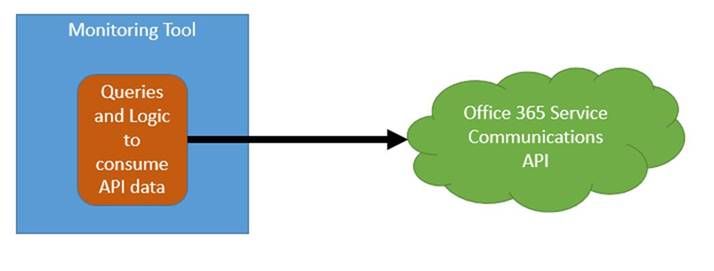
In order to integrate the information from the Office 365 Service Communications API with your existing monitoring toolset, there are two main options:
- Integrate the queries and logic directly into your toolset. This is how the Office 365 SCOM Management Pack is designed.
Often though, in large enterprises, the monitoring team may be in a separate organization from the Office 365-focused team. Often their priorities and timelines for such an effort in a 3rd party tool do not align. Also, it is often the case that the monitoring tools team’s skillset is phenomenal when it comes to the tool, but less experience exists in writing scripts with a focus on Office 365 scenarios. All of that can be worked through, but it is often simpler to have the Office 365 focused team(s) focus on the script and the business rules while the monitoring team focuses on the tool. In that case, the following scenario tends to work better:
- Decouple the queries and logic from the toolset. The script runs from a “watcher node” (which is just a fancy term for a machine that runs the script) owned by the Office 365-focused team, and then the monitoring team simply a) installs an agent on the watcher node b) scrapes the event IDs defined by the Office 365-team and c) builds a few wizard-driven rules within the monitoring tool. This approach also has the benefit of giving the Office 365-focused team some agility because script updates will not require monitoring tool changes unless the event IDs are changing. This approach is also helpful in environments where policy does not allow any administrative access to Office 365 by monitoring-owned service accounts.
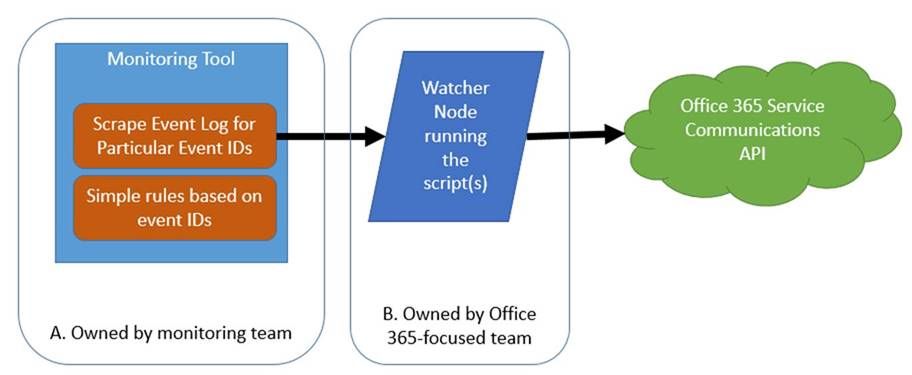
Microsoft does not have a preference as to which approach you take. We do want you to consume the communications as defined in the “monitoring scenarios” in this blog post, but how you accomplish that is up to you. For this blog post, however, we will focus on option #2.
The guidance and suggestions outlined below are shared by Chris Carlson. Chris is a consultant and helps organizations simplify their IT Service Management process integration with the Microsoft Cloud after spending time in the Office 365 product group. Chris has created sample code as an example (“B” above). Chris has also defined the rules and event structure that your monitoring team would use to complete their portion of the work (“A” above). The rest of this article is brought to you by Chris Carlson (thank you Chris!!)
Carroll Moon
———-
As Carroll has alluded, my recommended method for monitoring Office 365 is to leverage the Office 365 SCOM Management Pack. But for those Office 365 customer’s that do not already have an investment in System Center and no plans in the near future to deploy it, I don’t believe that should reduce the experience when it comes to monitoring our online services and integrating that monitoring experience into your existing tools and IT workflows. In order to realize Carroll’s decoupled design in section #2 above we will need some sort of client script or code that will call the API and then output the returned data into a format that we can easily ‘scrape’ into our monitoring tool. For the sake of this example, I will focus on how this can be accomplished using some sample code I published a few days ago. This sample code creates a Windows service that queries the Office 365 Service Communications API and writes the returned data into a Windows event log that can easily be integrated into most 3rd party monitoring tools available today. I’ll walk through the very brief installation process for the sample watcher service, run down the post installation configuration items needed to get you setup and then provide details on what events to look for to build monitoring rules. So let’s get started.
Installation
First off we need to download the sample watcher code and identify a host where we want this service to run. For the purpose of today’s write-up I am installing this onto my Windows 10 laptop but there should be no restriction as to where you run this. Of course the usual caveats apply that this is sample code and you should test in a non-production environment…with that disclaimer out of the way, if you are not one to mess with Visual Studio, for whatever reason, and don’t want to compile your own version of the watcher I did include a pre-compiled version of the service installer in the zip file you will find available for download. To locate this installer, simply download the sample solution, extract the zip file to a location on your local drive and navigate to the <Extracted Location>C#Service Installer folder and there you will find setup.exe.
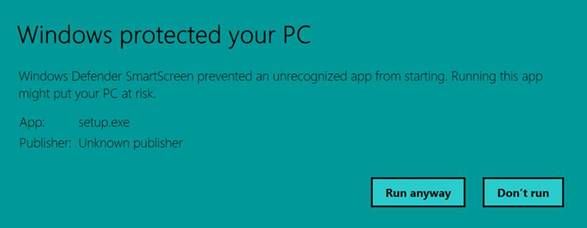
When running setup.exe may run into Windows Defender trying to protect you with the following warning message:

If this does appear, simply click the More info button I circled above and you’ll be presented with a Run anyway button which will allow you to bypass the defender protection, as shown below.
Once we are passed the Windows Defender warnings, the installation really is straightforward. There are three wizard driven screens that will walk you through the service installation process and as you will see in this sample there is no configuration required during the wizard, simply click Next, Install and Finish, as shown below.
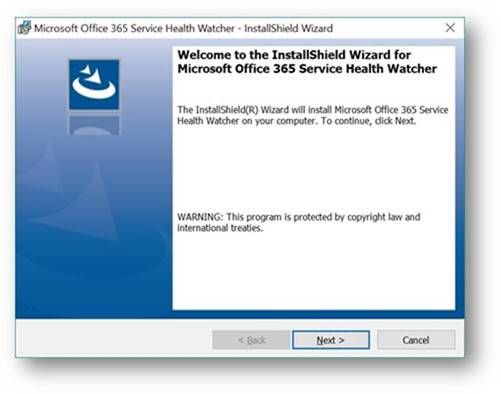
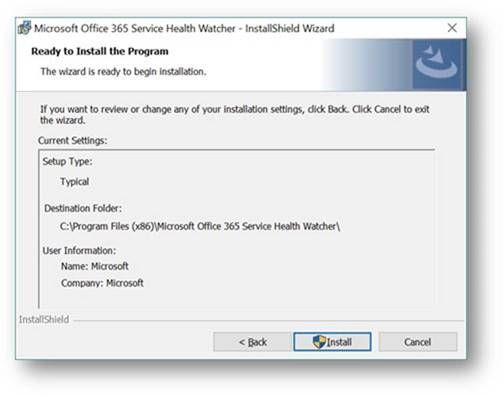
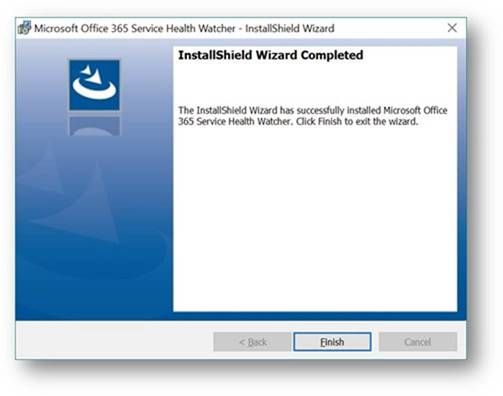
Once the installation wizard has completed, you can verify installation by looking at the list of installed applications via the usual places (Control Panel, Programs, Programs and Features). My Windows 10 machine shows the following entry.

In addition, you can open the services MMC panel (Start->Run->Services.msc) and view the installed service named Microsoft Office 365 Service Health Watcher. The service is installed with a startup type of automatic but left in a stopped state initially. This is because we have some post installation configuration to do prior to spinning it up for the first time. (Yes, I could have extended the install wizard to collect these items, but we’re all busy and this is sample code.) Please read on because the next section will discuss the required configuration items that need to be set and all the other possible values that are available in this sample to modify the monitoring experience.

Service Configuration
So now we have an installed Windows service that will poll the Office 365 Service Communications API for data but we need to tell that service which Office 365 tenant we are interested in monitoring. To do this we need to open the configuration file and enter a few tenant specific values. The service we installed above places files into the C:Program Files (x86)Microsoft Office 365 Service Health Watcher folder and it’s in that location that you will find the file named Microsoft Office 365 Service Health Watcher.exe.config. This is an XML file so you can open and modify it in any of your favorite XML editors, I am using trusty old Notepad for my editing today. When you open the file you will see a few elements listed, similar to the ones below, what we care about however are the attributes of the ConfigSettings element.
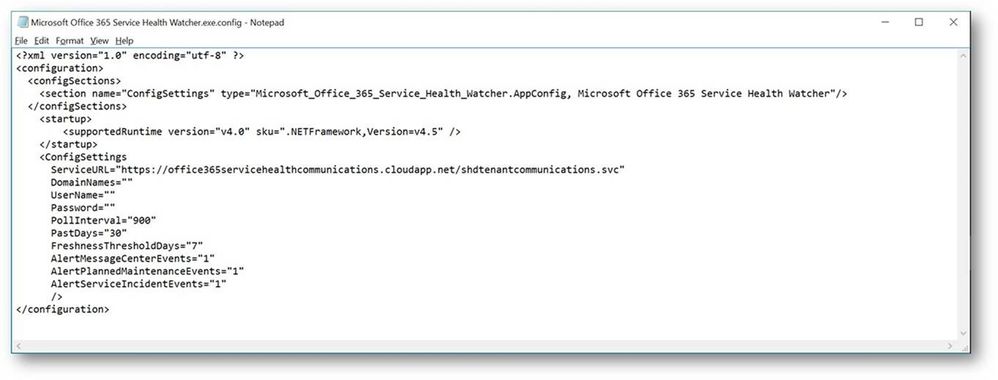
There are several attributes here that can change the way this sample operates, I have listed out all attributes and their meanings below in Table 1, but to get started you need only update the values for DomainNames, UserName and Password. Referring back to the sample code download page, DomainNames represents the domain name of the tenant to be monitored, i.e. contoso.com, adventureworks.com, <pick your favorite MSFT fake company name>.com. UserName needs to contain a user within that same tenant that has been granted the Service administrator role, for more information on Office 365 user roles please review the Office 365 Admin help page. Password is the final attribute that requires a value and this will be the password for the user you defined in the UserName attribute. As noted on the sample code page, this value is stored in plain text within this configuration file. This sample can certainly be extended with your favorite method of encrypting this value but for the sake of board sample usage I chose not to include that functionality at this time. I do however recommend the account used is one that only has the Service administrator role and you review who has permissions to this file to at least ensure a basic level of protection on these credentials.
Table 1 – Watcher Service Configuration items
|
Configuration Item
|
Description
|
|
ServiceURL
|
This is the URL endpoint for the Service Comms API
|
|
DomainNames
|
The domain name of the tenant to be queried for i.e. contoso.com
|
|
UserName
|
The name of a user, defined in the Office 365 tenant, that has ‘Service Administrator’ rights.
|
|
Password
|
The password associated with the above user. See notes about securing this value
|
|
PollInterval
|
This value determines how often, in seconds, the API is polled for new information. The default value is 900 seconds, or 15 minutes.
|
|
PastDays
|
How many days of historical data is retrieved from the API during each poll. The default value is 30 days and it is recommended not to modify this value.
|
|
FreshnessThresholdDays
|
The number of days the locally tracked data in the registry is considered ‘fresh’. This value only applies in case where the API has not been polled for an extended period of time. The sample code will ignore the data in the local registry and update it with new entries from the next API call.
|
|
AlertMessageCenterEvents
|
Can we used to turn off events related to general notifications found in the Message Center. A value of 0 will disable these events and a value of 1 will enable them, the default value is 1.
|
|
AlertPlannedMaintenanceEvents
|
Can we used to turn off events related to Planned Maintenance. A value of 0 will disable these events and a value of 1 will enable them, the default value is 1.
|
|
AlertServiceIncidentEvents
|
Can we used to turn off events related to Service Incident messages. A value of 0 will disable these events and a value of 1 will enable them, the default value is 1.
|
Once you have defined values for these three required items it’s time to fire up the service and give it a try! Read on for what to expect from this sample watcher and how you can, should you choose, build monitoring rules to integrate into your existing systems.
Using the watcher sample to monitor Office 365
To briefly recap, in the previous sections we have installed a sample watcher service and configured it with our Office 365 tenant specific information so now we are ready to let it connect to the Office 365 Service Communications API for the first time and start monitoring our Office 365 tenant, great! If we go to the services MMC panel (Start->Run->services.msc) we can start the service named Microsoft Office 365 Service Health Watcher, as shown below.

This service will write it’s events to the Application event log on the Windows host it was installed on. So let’s open Event Viewer (Start->Run->eventvwr.msc) and see what data we are getting back. Below is a screen shot of my Application event log filtered to an event source of Microsoft Office 365 Service Health Watcher, that is the source for all the events this sample writes to the Application event log. NOTE: You are certainly welcome to extend the sample and register your own source and event values if you like, sky is the limit on that kind of stuff.
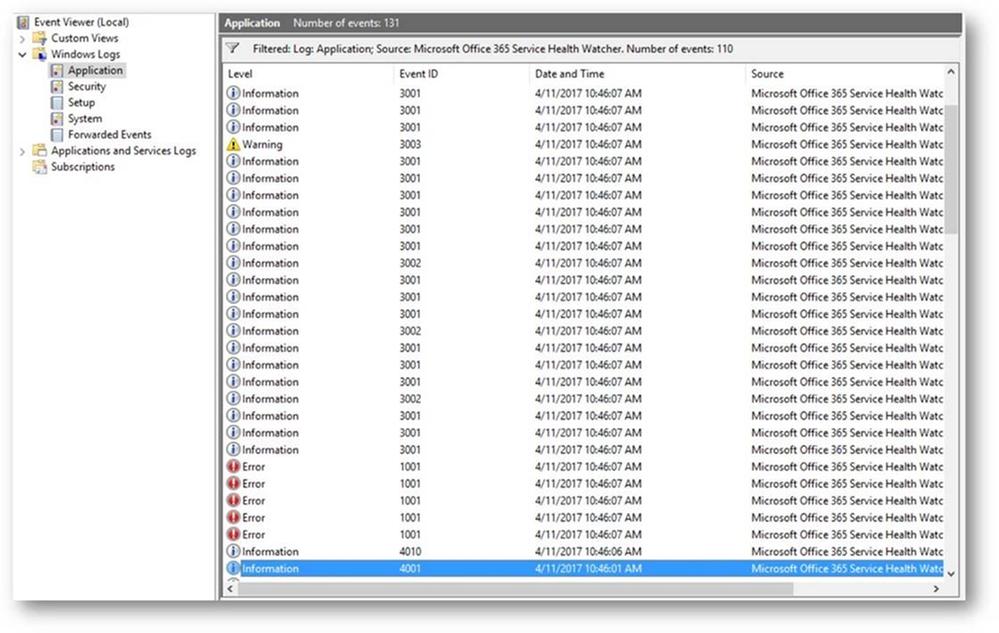
We see above that there is a lot of data coming back from the Service Communications API, so let’s dig into some of these events and see what data this thing is returning…
First we are greeted with a few standard messages, those events with IDs in the 4000 range are related to the watcher process itself, for instance the first two are basic messages that the service has in fact started and it’s starting a polling cycle:
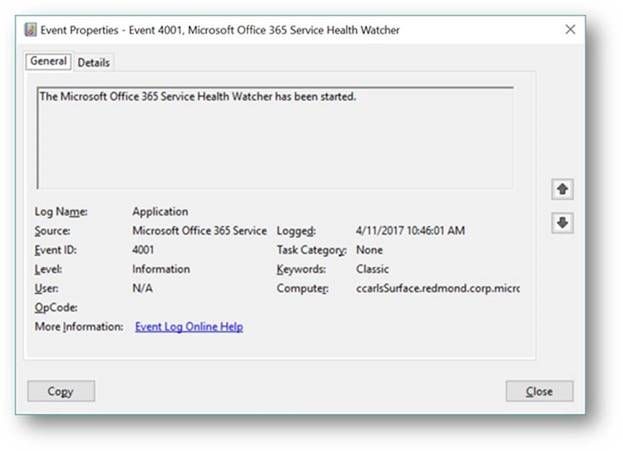

Not terribly interesting but they can be leveraged as a type of heartbeat to ensure monitoring of Office 365 is occurring. For instance, in most monitoring tools you can build a rule that contains logic that will alert when an event is NOT detected within a known period of time, in this case we should be dropping these events every 15 minutes assuming the default polling interval. If we don’t see event ID 4010 then we know we our monitoring is not working for some reason and need to investigate as we could miss important data related to Office 365 service incidents.
Moving on to examine a few more of the events, we see that the next one that was written was an error event with an ID of 1001, for this sample watcher event IDs in the 1000 range denote events related Service Incidents. We can see in the event below that this was an Exchange Online related issue with OWA access that occurred sometime back and has since been resolved.
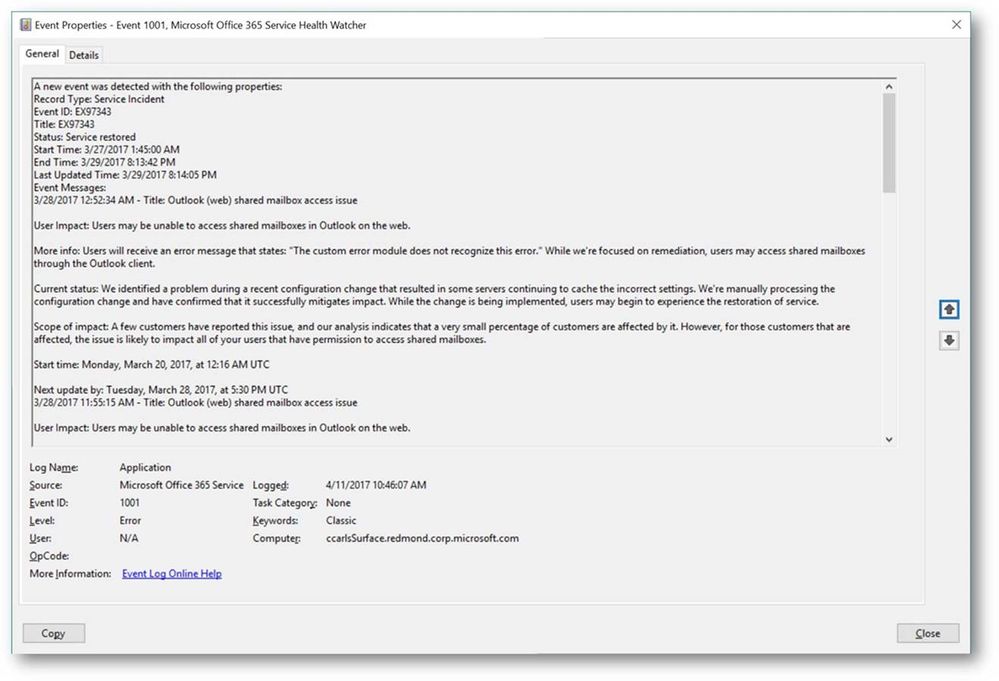
Service Incidents will progress through a series of state, or ‘status’, changes throughout the lifecycle of that incident so you can use the status field returned in these events to further key alerting to specific workflow states i.e. Service restored, Post-incident report published, etc.
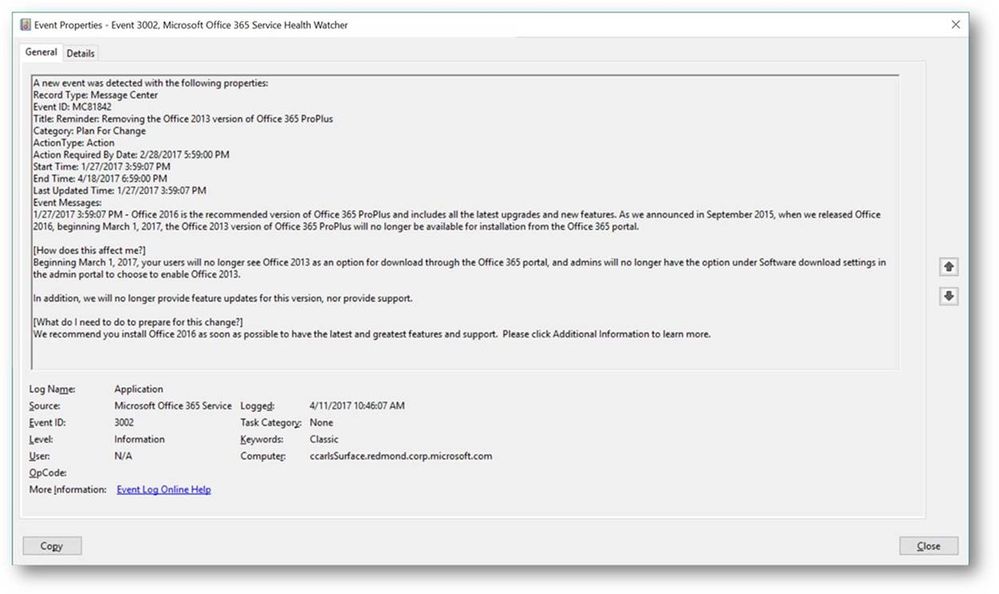
In addition to Service Incident events this watcher sample also drops events related to Planned Maintenance and Message Center event types. The Message Center is the primary change management tool for Office 365 and is used to communicate directly to admins and IT Pros. New feature releases, upcoming changes, and situations requiring action are communicated through the Office 365 Message Center and this API. The example below is a communication that Office 2016 is now recommended and that Office 2013 version of ProPlus will not be available from the portal starting March 1st.
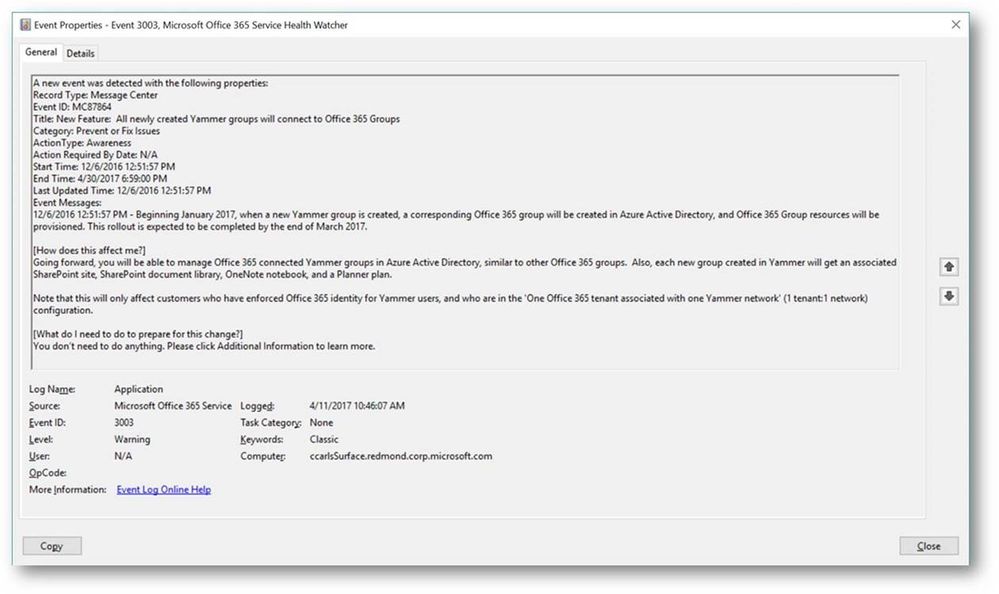
Another example, below, is a communication related to Yammer and how your tenant may be affected.
In many cases these messages, not just service incidents, represent direct action that needs to be taken by someone, whether that individual is within IT or another business unit depends but awareness of the messages needs to be communicated, or ‘alerted’, to the appropriate person or automated workflow. To that end the table below represents a full list of the event types and the event ID that can be dropped by this sample watcher service. In addition I have provided a description of what my intention was when writing the event to the event log and how it might be used to build monitoring related rules.
Table 2 – EventIDs and Descriptions
|
Event Type
|
EventID
|
Purpose
|
|
Service Incident
|
1001
|
This event indicates a new service incident has been posted for the monitored Office 365 tenant. This should be used to alert that a new service incident has been detected. NOTE: This will event will also be written when the service is started for the first time and an existing service incident is returned from the API. This will also be written when the watcher has been offline longer than the value listed in FreshnessThresholdDays in the XML config file.
|
|
Service Incident
|
1002
|
This event indicates a status change for a tracked service incident, since the last poll cycle. This should be used to notify that something noteworthy has changed with the service health state. A review of the service incident’s status message should take place to determine what the status change is. For example, if a service incident has changed from an active state to a resolved status.
|
|
Service Incident
|
1003
|
This event is used simply to inform that we are still seeing data being returned for a tracked service incident, it really is informational in nature.
|
|
Planned Maintenance
|
2001
|
This event is written when a new Planned Maintenance message has been posted for the tenant. The same conditions as noted for event 1001 apply as to the conditions under which this event would be written.
|
|
Planned Maintenance
|
2002
|
Like event 1002, this event informs that status has changed, since the last poll cycle, for this planned maintenance event. This event should indicate that a planned maintenance has started, cancelled or been completed.
|
|
Planned Maintenance
|
2003
|
Like event 1003, this event just notes that we are still seeing data for a tracked planned maintenance event and is informational only.
|
|
Message Center
|
3001
|
Indicates a new Message Center event with a category of ‘Stay Informed’ was returned by the API.
|
|
Message Center
|
3002
|
Indicates a new Message Center event with a category of ‘Plan for Change’ was returned by the API.
|
|
Message Center
|
3003
|
Indicates a new Message Center event with a category of ‘Prevent Or Fix Issues’ was returned by the API.
|
|
Health Watcher
|
4001
|
Indicates that the watcher service has been started
|
|
Health Watcher
|
4002
|
Indicates that the watcher service has been stopped
|
|
Health Watcher
|
4003
|
A connection attempt to the Service Communications API was attempted but was unsuccessful, possibly due to network connectivity or invalid credentials.
|
|
Health Watcher
|
4004
|
A successful connection to the Service Communications API was made but no event data was returned. A likely reason for this would be attempting to use a credential without enough permissions to retrieve data for the specified tenant.
|
|
Health Watcher
|
4006
|
Indicates that an unhandled exception was detected in watcher code.
|
|
Health Watcher
|
4008
|
This event is dropped when a tracking registry key is deleted. This would only occur if there is tracked data in the registry and the watcher enters a ‘first poll’ experience. This would most likely be when the watcher has been offline longer than the value of FreshnessThresholdDays.
|
|
Health Watcher
|
4009
|
This event is written when the XML configuration file does not contain a value for DomainName, UserName or Password. Typically this would be if the service is started before the XML config file has been updated.
|
|
Health Watcher
|
4010
|
An event that is written each time the API polling cycle begins i.e. every 15 min by default. This can be used to determine if API polling is still functioning i.e. monitor for the absence of this event within the last N # of minutes.
|
|
Health Watcher
|
4011
|
An event that is written each time the API polling cycle completes
|
More information
I am always looking for feedback and am happy to answer any questions. If you have any feedback, comments, questions, concerns or even suggestions on how to improve the sample watcher service feel free to leave comments on this blog post or use the Q & A section on the sample code download site. As Carroll mentioned, we’ll be looking to update this sample in the near future using the V2 API and incorporate the changes coming with that version.
<Please note: Sample code is shared for reference and not officially supported by Microsoft Support teams. All recommendations and best practices are the opinions are those of the authors. We recommend that you test and validate any code or scripts prior to deploying into production environments.>
![Rethinking the modern workplace with Microsoft 365]()
We’re back with another edition of the Modern Service Management for Office 365 blog series! In this article, we review the function of IT with Office 365 and evolution of IT Pro roles for the cloud. These insights and best practices are brought to you by Carroll Moon, Senior Architect for Modern Service Management.
Part 1: Introducing Modern Service Management for Office 365
Part 2: Monitoring and Major Incident Management
Part 3: Audit and Bad-Guy-Detection
Part 4: Leveraging the Office 365 Service Communications API
Part 5: Evolving IT for Cloud Productivity Services
Part 6: IT Agility to Realize Full Cloud Value – Evergreen Management
———-
In this installment of the blog series, we will dive into the “Business Consumption and Productivity” topic. The whole point of the “Business Consumption and Productivity” category is to focus on the higher-order business projects for whatever business you are in. If you are in the cookie-making business, then the focus should be on making cookies. The opportunity is to use Office 365 to drive productivity for your cookie-making users, to increase market share of your cookie business, or to reduce costs of producing or selling your cookies. This category is about the business rather than about IT. We all want to evolve IT to be more about driving those business-improvement projects. However, in order for IT to help drive those programs with (and for) the business, we need to make sure that the IT Pros and the IT organization are optimized (and are excited) to drive the business improvements. We all need to look at the opportunities to do new things by using the features and the data provided by the Office 365 service to drive business value rather than looking at what we will no longer do or what we will do differently. I always say that none of us got into IT so we could manually patch servers on the weekends, and none of us dreamed about sitting on outage bridges in the middle of the night. On the contrary, most of us got into IT so we could drive cool innovation and cool outcomes with innovative use of technology. I like the idea of using Office 365 as a conduit to get back to our dreams of changing the business/world for the better using technology.

For IT Pros
If you are an IT Pro in an organization who is moving to Office 365 (or to the cloud, or to a devops approach), I would encourage you to figure out where you want to focus. In my discussions with many customers, I encounter IT Pros who are concerned about what the cloud and devops will mean to their careers. My response is always one of excitement. There is opportunity! The following bullets outline just a few of the opportunities that are in front of us all:
- Business-Value Programs. If I were a member of the project team for Office 365 at one of our customers, I would not be able to contain my excitement for driving change in the business. I would focus on one or more scenarios; for example, driving down employee travel costs by using Skype for Business. Such a project would save the company money, but it would also positively impact people’s lives by letting them spend more time at home and less time in hotels for work, so such a scenario would be very fulfilling. I would focus on one or more departments or business units who really want to drive change. Perhaps it would be the sales department because they have the highest travel budget and the highest rate of employee turnover due to burnout in this imaginary example. I would use data provided by the Office 365 user reports and combine it with existing business data on Travel Cost/user/month. I would make a direct impact on the bottom line with my project. I would be able to prove that as Skype for Business use in the Sales Department went up, Travel Costs/user/month went down. That would be real, measurable value, and that would be fun! There are countless scenarios to focus on. By driving the scenarios, I would prove significant business impact, and I would create a new niche for myself. What a wonderful change that would be for many IT Pros from installing servers and getting paged in the middle of the night to driving measurable business impact and improving people’s lives.
- Evolution of Operations. In most organizations, the move to cloud (whether public or private), the move towards a devops culture, the move towards application modernization, and the growth of shadow-IT will continue to drive new requirements for how Operations provides services to the business and to the application development and engineering teams. As an operations guy, that is very exciting to me. Having the opportunity to define (or at least contribute to) how we will create or evolve our operational services is very appealing. In fact, that is a transformation that I got to help lead at Microsoft in the Office 365 Product Group over the years, and it was very fulfilling. For example, how can the operations team evolve from viewing monitoring as a collection of tools to viewing monitoring as a service that is provided to business and appdev teams? That is a very exciting prospect, and it is an area that will be more and more important to every enterprise over the next N years. The changes are inevitable, so we may as well be excited and drive the changes. We must skate to where the [hockey] puck is going to be rather than where it is right now. See this blog series and this webinar for more on the monitoring-as-a-service example.
- Operations Engineering. In support of the evolution of operations topic covered in the previous bullet, there will be numerous projects, services and opportunities where technical prowess is required. In fact, the technical prowess required to deliver on such requirements likely are beyond what we see in most existing operations organizations. Historically, operations is operations and engineering is engineering and the two do not intertwine. In the modern world, operations must be a series of engineering services, so ops really becomes an engineering discussion. Using our monitoring-as-a-service example, there will be a need to have someone architect, design, deploy, and run the new service monitoring service as described in this blog series.
- Operations Programs. In further support of the evolution of operations†topic, there will be the need for program management. That’s great news because there will be some IT Pros who do not want to go down the deep bits and bytes route. For example, who is program managing the creation and implementation of the new service monitoring service described this blog series? Who is interfacing with the various business units who have brought in SaaS solutions outside of IT’s purview (shadow IT) to convince them that it is the business best interest to onboard onto IT’s service monitoring service? Who is doing that same interaction with the application development teams who are moving to a devops approach? Who is managing those groups expectations and satisfaction once they onboard to the service monitoring service? Answer: Operations Program Manager(s) need to step up to do that.
- Modern Service Desk. Historically, Service Desks have been about “taking lots of calls†and resolving them quickly. The modern service desk must be about enabling users to be more productive. That means that we need to work with engineering teams to be about eliminating calls altogether and when we cannot eliminate an issue, push the resolution to the end-user instead of taking the call at the service desk. The goals should be to help the users be more productive. And that means that we also need to assign the modern service desk the goal of “go seek users to help them be more productive. As discussed in the Monitoring: Audit and Bad-Guy-Detection blog post, wouldn’t it be great if the service desk used the data provided by the service to find users who are having the most authentication failures so they could proactively go train the users? That is just one example, but such a service would delight the user. Such a service would help the business because the user would be more productive. And such a change of pace from reactive to proactive would be a welcome change for most of us working on the service desk. One of my peers, John Clark, just published a two-part series on the topic of Modern Service Desk: Part 1 and Part 2.
- Status Quo. Some people do not want to evolve at all, and that should be ok. If you think about it, most enterprises have thousands of applications in their IT Portfolios. Email is just one example. So, if the enterprise moves Email to the cloud, that leaves thousands of other applications that have not yet moved. Also, in most enterprises, there are new on-premise components (e.g. Directory Synchronization) introduced as the cloud comes into the picture; someone has to manage those new components. And, of course, there are often hybrid components (e.g. hybrid smtp mailflow) in the end-to-end delivery chain at least during migrations. And if all else fails, there are other enterprises who are not evolving with cloud and devops as quickly. There are always options.
The bullet list above is not exhaustive for Office 365. The bullets are here as examples only. My hope is that the bullets provide food for thought and excitement. The list expands rapidly as we start to discuss Infrastructure-as-a-Service and Platform-as-a-Service. There is vast opportunity for all of us to truly follow our passions and to chase our dreams. When automobiles were invented, of course some horse and buggy drivers were not excited. I have to assume, however, that some horse enthusiasts were very excited for the automobiles too. For those who were excited to change and evolve, there was opportunity for them with automobiles. For those who wanted to stay with the status quo and keep driving horse-drawn-buggies, they found a way to do that. Even today in 2017, there are horse-drawn-carriage rides in Central Park in New York City (and in many other cities). So, there is always opportunity.
For IT Management
In the ~13 years that I have focused on cloud services at Microsoft since our very first customer for what is now called Office 365 the question that I have been asked the most is “how do I monitor it? The second most frequent question comes from senior IT managers: How do I need to change my IT organization to support Office 365? And a close third most frequent question is from IT Pros and front-line IT managers: How will my role change as we move to Office 365?
Simplicity is a requirement. As you continue on this journey with us in this blog series, I encourage you to push yourself to keep it simple from the service management perspective. Change as little as possible. For example, if you can monitor and integrate with your existing monitoring toolset, do so. We will continue to simplify the scenarios for you to ease that integration. From a process perspective, there is no need to invent something new. For example, you already have a great Major Incident process you have a business and your business is running, so that implies that you are able to handle Major Incidents already. For Office 365, you will want to quantify and plan for the specific Major Incident scenarios that you may encounter. You will want to integrate those scenarios into your existing workflows with joined data from your monitoring streams and the information from the Office 365 APIs. We have covered those examples already in the blog series, so the simplistic approach should be more evident at this point.
From an IT Pro Role and Accountability perspective, it is important to be intentional and specific about how each role will evolve and how the specific accountabilities will evolve in support of Office 365. For example, how should the “Monitoring role change for Email? And how will you measure the role to ensure that the desired behaviors and outcomes are achieved?
What about the IT Organization?
Most of the time, when I get the IT organization question, customers are asking about whether they should reorganize. My answer is always the following: there are three keys to maximizing your outcomes with this cloud paradigm shift:
- Assign granular accountabilities…make people accountable, not teams. For example, if we miss an outage with monitoring, senior management should have a single individual who is accountable for that service or feature being adequately covered with monitoring.
- Ensure metrics for each accountability…#1 will not do any good if you cannot measure the accountability, so you need metrics. Most of the time, the metrics that you need for this topic can easily be gathered during your existing internal Major Problem Review process.
- Hold [at least] monthly Rhythm of the Business meetings with senior management to review the metrics. At Microsoft, we call these meetings Monthly Service Reviews (MSRs). In these meetings, the accountable individuals should represent their achievement (or lack of achievement) of their targets so that senior management can a) make decisions and b) remove blockers. The goal is to enable the decisions to be made at the senior levels without micro-management.
I tell customers that if they get those three things right, the organizational chart becomes about organizing their talent (the accountable people) into the right groups. If one gets those three bullets right, the org chart does not matter as much. However, no matter how one changes the IT Organizational chart, if one gets those three bullets wrong, the outcomes will not be as optimized as we want them to be. So, my guidance is to always to start with these three bullets rather than the org chart. The combination of these three bullets will drive the right outcomes. The right outcomes sometimes drive an organizational chart adjustment, but in most cases, organizational shifts are not required.
Think of it this way, if you move a handful of workloads to the cloud, the majority of your IT portfolio will still be managed as business-as-usual, so a major organizational shift just for the cloud likely will not make sense. If I have 100 apps in my IT portfolio and I move 3 apps to the cloud, then would I re-organize around the 3 apps? Or would I keep my organization intact for the 97 apps and adapt only where I must adapt for the 3 cloud apps?
The IT Organization is about the sum of the IT Pros
From a people perspective, the importance of being intentional and communicative cannot be overstated. Senior management should quantify the vision for the IT organization and articulate how Office 365 fits into that vision. It is important to remember that IT Pros are real people with real families and lives outside of work. Many IT Pros worry that the cloud means that they do not have a job in the future. That, of course, is not true. Just as the centralization of the electrical grid did not eliminate the need for electricians, the centralization of the business productivity grid into the cloud does not eliminate the need for the IT Pro. But just as the role of an electrician evolved as the generation of power moved from the on-premise-water-wheel to the utility grid, the role of IT Pro will evolve as business productivity services move to the cloud. The electrician’s role evolved to be more focused on the business-use of the electrical grid. So too will the IT Pro’s role evolve to support the business value realization of the business productivity services. We intend to help with that journey in future blog posts focused on the Consumption and Productivity category.
As senior management plans through the cloud, we recommend that they dig into at least the following role groupings to plan how each will evolve with respect to Office 365 workloads:
- Engineering / Tier 3 / Workload or Service Owners…will we still support servers, or will we focus on tenant management and business improvement projects?
- Service Desk Tiers and Service Desk Managers…will we support end-users in the same way? With the same documentation? Will our metrics stay the same, or should they evolve?
- Major Incident Managers…will we still run bridges for the Office 365 workloads? How will those bridges be initiated? Will our team’s metrics evolve? Given that many of the MSR metrics come from our Major Problem Reviews, is our team’s importance increasing?
- Monitoring Engineers and Monitoring Managers…will we accountable for whether we miss something with monitoring for Office 365 workloads? Or perhaps do we support the monitoring service with the Tier 3 engineers being accountable for the rule sets? Should we focus on building a Service Monitoring Service?
- Change and Release Managers…how are we going to absorb the evergreen changes and the pace-of-change from Microsoft and still achieve the required outcomes of our Change and Release Management processes?
As you spend time in the Monitoring and Major Incident Management content in this blog series, I encourage you to think through how implementation of the content may change things for the IT Pros using that example. If you implement the monitoring recommendations, will it be simply business-as-usual for your monitoring team? What about the Tier 3 workload team? Or, perhaps is it a shift in how things are done? Perhaps for your on-premise world, the monitoring team owns the monitoring tool and the installed Exchange monitoring management packs. Perhaps in practice, when there is an outage on-premise, the Service Desk recognizes the outage based on call patterns, and then they initiate an incident bridge. Perhaps once the bridge is underway, someone then opens the monitoring tool to look for a possible root cause of the outage. Will that same approach continue in the cloud for Exchange Online, or should we look to evolve that? Perhaps in the cloud we should have the Tier 3 workload team be accountable for missed by monitoring for any end-to-end impact for Exchange regardless of where root cause lies. Perhaps we should have the monitoring team be accountable for the monitoring service with metrics like we describe here. And perhaps we should review both the Exchange monitoring metrics and the Monitoring Service metrics (and any metric-misses) every month in a Monthly Service Review (MSR) with the IT executive team as covered in #3 above. What I describe here is usually a pretty big, yet desirable, culture shift for most IT teams.
Some customers want hands-on assistance
As I mentioned, I get these questions often. Some customers want Microsoft to help guide them on the IT Pro and organizational front. In response to customer requests, my peers and I have created a 3-day, on-site course for IT Executives and IT Management to help them plan for the people side of the change. The workshop focuses on the scenarios, personas and metrics for the evolution discussed in this blog post. The workshop also helps develop employee communications and resistance management plans. The workshop is part of the Adoption and Change Management Services from Microsoft. Ask your Technical Account Manager about the “Managing Change for IT Pros: Office 365†workshop, or find me onTwitter @carrollm_itsm.
Looking ahead
My goal with this blog post is to get everyone thinking. I hope that the commentary was helpful. We’ll jump back into the scenarios in the next post which will focus on Evergreen Management.
![Rethinking the modern workplace with Microsoft 365]()
Announcing the public preview of the Office 365 Adoption Content Pack in PowerBI
Understanding how your users adopt and use Office 365 is critical for you as an Office 365 admin. It allows you to plan targeted user training and communication to increase usage and to get the most out of Office 365.
Today, we’re pleased to announce the public preview of the Office 365 Adoption Content Pack in Power BI, which enables customers to get more out of Office 365.
The content pack builds on the usage reports in the Office 365 admin center and lets admins further visualize and analyze their Office 365 usage data, create custom reports, share insights and understand how specific regions or departments use Office 365.
It gives you a cross-product view of how users communicate and collaborate making is easy for you to decide where to prioritize training efforts and to provide more targeted user communication.
Read the blog post on Office blogs for all details:
https://blogs.office.com/2017/05/22/announcing-the-public-preview-of-the-office-365-adoption-content-pack-in-powerbi/

If you have questions, please post them in the Adoption Content Pack group in the Microsoft Tech Community. Also, join us for an Ask Microsoft Anything (AMA) session, hosted by the Microsoft Tech Community on June 7, 2017 at 9 a.m. PDT. This live online event will give you the opportunity to connect with members of the product and engineering teams who will be on hand to answer your questions and listen to feedback. Add the event to your calendar and join us in the Adoption Content Pack in Power BI AMA group.

We are excited to announce our second major update of Office Online Server (OOS), which allows organizations to deliver browser-based versions of Word, PowerPoint, Excel and OneNote to users from their own datacenters.
In this release, we officially offer support for Windows Server 2016, which has been highly requested. If you are running Windows Server 2016, you can now install OOS on it. Please verify that you have the latest version of the OOS release to ensure the best experience.
This release includes the following improvements:
- Performance improvements to co-authoring in PowerPoint Online
- Equation viewing in Word Online
- New navigation pane in Word Online
- Improved undo/redo in Word Online
- Enhanced W3C accessibility support for users that rely on assistive technologies
- Accessibility checkers for all applications to ensure that all Office documents can be read and authored by people with different abilities
More about Office Online Server
Microsoft recognizes that many organizations still value running server products on-premises for a variety of reasons. With Office Online Server, you get the same functionality we offer with Office Online in your own datacenter. OOS is the successor to Office Web Apps Server 2013 and we have had three releases starting from our initial launch in May of 2016.
Office Online Server scales well for your enterprise whether you have 100 employees or 100,000. The architecture enables one OOS farm to serve multiple SharePoint, Exchange and Skype for Business instances. OOS is designed to work with SharePoint Server 2016, Exchange Server 2016 and Skype for Business Server 2015. It is also backwards compatible with SharePoint Server 2013, Lync Server 2013 and, in some scenarios, with Exchange Server 2013. You can also integrate other products with OOS through our public APIs.
How do I get OOS/download the update?
If you already have OOS, we encourage you to visit the Volume License Servicing Center to download the April 17 release. You must uninstall the previous version of OOS to install this release. We only support the latest version of OOS with bug fixes and security patches, available via the Microsoft Updates Download Center.
Customers who do not yet have OOS but have a Volume Licensing account can download OOS from the Volume License Servicing Center at no cost and will have view-only functionality, which includes PowerPoint sharing in Skype for Business. Customers that require document creation, edit and save functionality in OOS need to have an on-premises Office Suite license with Software Assurance or an Office 365 ProPlus subscription. For more information on licensing requirements, please refer to our product terms.
In the modern world, organizations are transforming how they work with their partners and customers. This means seizing new opportunities quickly, reinventing business processes, and delivering greater value to customers. More important than ever are the strong and trusted relationships that allow for employees to collaborate with partners, contractors and customers outside the business.
At Microsoft, our mission is to empower every person and every organization on the planet to achieve more and we can do this by helping organizations work together, better. Business-to-business collaboration (B2B collaboration) allows Office 365 customers to provide external user accounts with secure access to documents, resources, and applications—while maintaining control over internal data. This let’s your employees work with anyone outside your business (even if they don’t have Office 365) as if they’re a user in your business.
There’s no need to add external users to your directory, sync them, or manage their lifecycle; IT can invite collaborators to use any email address—Office 365, on-premises Microsoft Exchange, or even a personal address (Outlook.com, Gmail, Yahoo!, etc.)—and even set up conditional access policies, including multi-factor authentication. Your developers can use the Azure AD B2B colloboration APIs to write applications that bring together different organizations in a secure way—and deliver a seamless and intuitive end user experience.
B2B collaboration is a feature provided by Microsoft’s cloud-based user authentication service, Azure AD. Office 365 uses Azure AD to manage user accounts and is included as part of your Office 365 scubscription. For more information on Office 365 and the Azure AD version that is included visit the technical documentation.
What you need to know about Azure AD B2B collaboration and Office 365:
- Work with any user from any partner
- Partners use their own credentials
- No requirement for partners to use Azure AD
- No external directories or complex set-up required
- Simple and secure collaboration
- Provide access to any corporate application or resource
- Seamless user experiences
- Enterprise-grade security for applications and data
- No management overhead
- No external account or password management
- No sync or manual account lifecycle management
- No external administrative overhead
Over 3 million users from thousands of business have already been using Azure AD B2B collaboration capabilities available through public preview. When we talk to our customers, 97% have told us Azure AD B2B collaboration is very important to them. We have spent countless hours with these customers diving into how we can serve their needs better with Azure AD B2B collaboration. Today’s announcement would not be possible without their partnership.
To get started, watch our latest Micrsofot Mechanics Video to see the benefits of cloud-based B2B identity and access management. You can read more details on the Azure AD B2B team blog (including the licensing requirements) and then get started with Azure Active Directory B2B collaboration today.

Cyber security is about data loss prevention, detection and response. Service delivery includes ensuring the protection and managing the integrity of content through its lifecycle. This is cross platform, and cross industry, so in relation to whether you are using SharePoint on / off premise, or SharePoint is at the centre of an estate of multiple technologies, cyber security concerns all of these. These requirements directly relate to a technology current and future state – according to Gartner (and covered in my last keynote):
- By 2016 Biometric sensors will be featured in 40% of smartphones shipped to end users.
- By 2017 one-third of consumers in emerging markets will have never owned a windows device.
- By 2018 more than 50% of users will use a tablet or smartphone first for all online activities.
- By 2020 40% of enterprises will specify Wi-Fi as the default connection for non-mobile devices.
With the match of evolving technologies related to the above points, such as Internet of Things (IOT), Content Analytics, Hybrid Cloud Computing, Big Data, In Memory Database Management and more about to become widespread; how to provide integrity, protection, and governance to data becomes more important. We all work with data, utilising physical and digital technology in our daily lives. We use countless methods to create and use data, and assume that the accessed data has security maintained. In providing measures, providers of secure access to data provide measures to ensure legitimate access. Consequences resulting from unauthorised access to data could include:
- Time, effort and monetary resources to correct.
- Damage, deletion and compromise.
- Damage to reputation.
From a global perspective there are security challenges in the ‘digital developed’ versus ‘digital developing’ world. For the developed world, users’ access information through a digital framework; internet services provisioned over high level Wi-Fi and 3G/4G networks. But, in the developing world, there some 950 million people still without the means to connect to these networks. Security provision is not a one-fits-all. Additional global challenges are ‘Freedom of Speech’, ‘Country A Trust Country B Trusts Country C’ and the ‘Political Will’.
From a company perspective, the primary objective is to ensure the management of security; enforcing breach policies and governance is vitally important to ensure their data integrity. The challenge is that the company workplace is changing, and so is the physical infrastructure. Whilst physical and digital technology has become increasingly sophisticated, like dongles, passwords, data encryption, the task is convincing staff – from senior manages to entry level employees that they need to become more security accountable, becomes harder due to their emotions about security and privacy.
From a personal perspective, security intertwines with privacy. Advances in technology threatens privacy, reducing the amount of control over data. Privacy affects technology use. The challenge is the space in which this takes place in the digital world, which is completely online through the use of the internet, which never corrects and never forgets.
In summary, humans adopt any cyber security imperative. Technology is neutral. This means work must be done in the governance, training, and management of data to protect integrity and at the same time provide detection and contingency against loss. Opportunities include:
- Proactive security reporting
- Automated content filtering
- Protection of content via search engines
- Child Protection, for example, Extremist content removal
- Security Automation – for example, E-mail Scanning

Merry Christmas Everyone!
As the seasonal period quickly approaches, the discussions concerning what happens to supporting SharePoint over the holiday either approaches, or has been covered, or even assumed. The Christmas period is of course where your SharePoint sponsors are more likely to show a little more concern than normal about how their SharePoint platforms are going to be monitored over the period.
So then, lets remind ourselves of the holiday period in question – basically, the days that will relate to anyone, is the week of Christmas starting from the 23rd through to the 28th. There are two days pretty much important to us guys in the UK over the seasonal period, especially in Scotland – Christmas Day and New Years day. Then there is Boxing day when it’s likely that you would be relaxing in front of the telly, or sledging, or skiing – using that day to wind down after the Christmas day madness. Then there’s the two days after boxing day, the 26th and the 27th, where relaxation, relief and playing with the various presents, and getting stuck in to food 🙂
So that means that over the period you are likely to do over those two days, probably a combination of one or more of the following not be in the Office, switch off the mobile, inform people you are not available?
So chances are, that on the days in question, you will be chilling out, and possibly even like me having a choice Mince pie, a Glass of port (or more – like Rum)…
But this is not about what you will be doing over those periods away from the office. It is about how you are going to support SharePoint, isn’t it?
First, let’s consider the available types of support:
- On Premise SharePoint Support / IT Support combined / Outsourced
- Off-Premise Office 365 Microsoft provisioned Support
- Third party product support
-
Throwing caution to the wind
My dad once said to me when I was a lot younger that in order for Santa Claus to know what present I would like, that I should write a letter, and throw it into the wind when it was blowing north, so that the letter would reach the north pole.
Of course, by doing that I eventually realized that the letter would not get there, unless my dad without me seeing ran like the clappers to retrieve the letter once I threw it out of the window.
Clearly, I was throwing caution to the wind, assuming things would happen – luckily for me, most of the times when I did throw that letter, things would work out – but only because there was a contingency – my dad, running like the clappers.
This relates in a way to the lack of responsibility those charged with SharePoint management judge the level of the support needed to ensure the availability of SharePoint services over an important period, like Christmas! There is not enough preparation carried out preceding the Christmas period by some organizations, to ensure that there is adequate coverage of SharePoint support. In some organizations, instead, there is a laissez faire approach, by simply throwing caution to the wind. Or, worse still, their IT support departments will not think to include SharePoint as system that should be monitored, and instead not including those with basic knowledge of SharePoint on the support desk.
Take this real scenario which happened a while back. Fictional company used though, however, if their now SharePoint support individuals are reading this article, they will definitely remember this event!
Five days leading up to Christmas day. Fabrikam has an IT Support department, and a number of individuals who are tasked solely with looking after SharePoint, called ‘SharePoint Admins’. These SharePoint Admins look after the platform solely, there are no monitoring systems in place except for the server monitoring systems (alarm bells ringing already – no pun intended). A member of IT Support asks what the SharePoint Administrators will be doing on Christmas day.
“We won’t be around, that’s for sure…” … “SharePoint looks after itself” – pipped the SharePoint Administrators. “We will just take a peek at midday to make sure all is well”.
IT Support reports this discussion to the IT Support Manager. The IT Support Manager waves his arm saying ‘that’s not a problem, we have IT Support people on the desk who know a little of SharePoint, nothing can really go wrong’.
Over the next 4 days, no more is mentioned as the company ‘winds down’. On the 23rd of December, the CEO puts a Christmas message to the communication team who then puts the message in an announcement list on the Fabrikam SharePoint Extranet.
Christmas Day. At 9.30am that day, the CEO of the company, with his family in the Seychelles, decides to show a friend the message that was put on the SharePoint Portal on the 23rd. When attempting to display the announcement, the web page displays an error. Concerned, he raises a call into IT Support. IT Support try to get hold of the SharePoint Administrator, who has switched off his mobile because he is at the top of the hill where he lives, sledging. The CEO asks whether there is anyone else who can help, but IT Support have no knowledge of anyone and neither do they have any other contact number for the SharePoint Administrator.
The SharePoint Administrator calls in at midday to find chaos. The CEO is fuming because he has no idea whether anyone saw the announcement, and even if they tried saw the error which was embarrassing. IT Support have stated to the CEO that they do not know how to fix the problem, which is embarrassing. And, guess what, the SharePoint Administrator, who fixes the issue in minutes finds that the rest of his day is spent building confidence with the CEO and IT Support – he is embarrassed.
That SharePoint Admin threw caution to the wind. And in doing so, assumed the following:
1: No one will care whether SharePoint is available or not
2: The SharePoint Admins does not care whether SharePoint is available or not
3: The SharePoint Admins assumed that the problem will ‘fix itself’
4: The SharePoint Admins assumed that they will eventually be told or will find out themselves that there is a problem, and that no one will moan when they do, or how long it takes to correct the problem.
5: That if a problem occurs where SharePoint is not available that there is no financial impact or otherwise
-
Preparing for Christmas
You must prepare your SharePoint environment to be supported over the Christmas period. This is just like preparing for Christmas itself. Doing things like putting up a Christmas tree, carefully putting up decorations without falling off ladders, writing Christmas cards, posting them, wrapping presents (carefully) without getting the sellotape stuck on the wrong part of the wrapping paper and making a mess. You put effort into doing all of that because you want to make others comfortable and yourself prepared. Therefore, there is no difference when it comes to SharePoint support.
There are a nine things you could put in place, so that you can ensure that SharePoint is supported over the Christmas period:
- Make it clear the days when there will be SharePoint cover over the period. When on holiday, for example, ensure that there are phone contacts and that is communicated to IT Support and your SharePoint sponsor.
- Ensure that the contact details have a backup. One number is not enough. Consider adding on the home phone number or the number of the place you will be staying / visiting on the key days. Reasons for this could be bad mobile coverage, or you could be travelling
- Ensure that there is a remote method of you accessing the SharePoint environment. Most organisations using on-premise SharePoint have a method whereby individuals can log in over the Internet using say a Citrix / VPN / Xen Desktop etc. connection.
- Ensure that a member of the IT Support team is aware of any resolutions that can be used for ‘possible issues’. For example, one issue could be that in order to quickly reset an application pool for a SharePoint site to go into IIS on a relevant server, etc.
- Ensure that there is a list of the infrastructure, and details of any specific login information.
- Based on point (3) above, try to log into the SharePoint environment at least once a day to quickly check the status of the environment.
- Ensure that relevant third party information concerning their levels of support is listed and the details made known to IT Support.
- Provision monitoring systems for IT support which includes the status of key services to the SharePoint platform (on-premise).
- Provision monitoring services which includes the status of services for Office 365 Tenants
-
On-Premise and Off-Premise Support are that different
At a very basic level, the provision of support for SharePoint over a Christmas could be divided two segments – the SharePoint ‘supporter’ – the associated services ‘supporter’.
For on-premise SharePoint, the levels of support are:
1: The SharePoint ‘supporter’. The person(s) responsible for managing the products provided in SharePoint services.
2: The Associated services ‘supporter’. The person(s) responsible for providing support for the infrastructure and associated services.
The interesting aspect of Off-Premise (e.g. Office 365) Support is that there is in effect, also two levels:
1: The SharePoint ‘supporter’. The person(s) responsible for managing the products provided in the Office 365 tenant – e.g. SharePoint Team Sites and relevant products in those sites.
2: The Associated services ‘supporter’. The person(s) responsible for providing support for the Office 365 tenant.
Both of these, on-premise and Office 365 have monitoring tools. Both have the priorities and service delivery of support defined to SLAs, which is communicated to the person responsible for managing the products provided. This information is then cascaded in an understandable form to the client.
There is a huge amount of monitoring tools available to on-premise SharePoint support (default and third party provisioned), which I will not go into (and there are a huge number of articles that describe them). SharePoint Online now has a good amount of services and tools for monitoring. The Office 365 Admin app for which allows those responsible for supporting Office 365 to connect to their organization’s Office 365 service status on the go. The app enables them to view service health information and maintenance status updates from their mobile device. You can also filter information by service subscriptions and configure app data refresh intervals.
To get the app, go here:
https://www.microsoft.com/en-us/store/apps/office-365-admin/9wzdncrdtbmj
Office 365 also has the Office Message Centre. The Message Centre is located in the Microsoft Online Portal. The Message Centre is the central hub for communicating with you about Office 365. And in there you will find the topics including those in the Admin Task Newsletter, messages on new feature releases, and other important information. The Office Message Centre also links with the Office365 Admin app, so you can have messages concerning the state of services sent direct to your mobile device.
More information about the Office Message Centre: http://blogs.office.com/b/office365tech/default.aspx
There are also methods of logging transactional data through code. Microsoft is releasing the Office 365 Management Activity API which allows visibility of all user and admin transactions within Office365 covering activity logs. These logs would include information like tenant, service, action, object, user location, IP Address and more.
More information about the Office 365 Management Activity API: https://blogs.office.com/2015/04/21/announcing-the-new-office-365-management-activity-api-for-security-and-compliance-monitoring/
Additionally, for those who have access to Microsoft System Centre Operations Manager, there are of course services available to monitor SharePoint on-premise, and to monitor Office 365. For those who have not done this before, or need to get further information, I wrote a blog ‘Office 365 Monitoring using System Centre Operations Manager’ located here:
http://blogs.msdn.com/b/mvpawardprogram/archive/2015/07/08/office365-monitoring-using-system-centre-operations-manager.aspx
-
Conclusion
I hope by reading this article you have understood the importance of providing adequate and understandable SharePoint support over the Christmas period. The ability for you as a SharePoint ‘supporter’ to be forewarned of issues so that at the very least clients can be informed is vital. For on-premise, the ability to be contacted, or the ability provided to IT support to be able to deal with common issues, provides a service which in the eyes of the SharePoint sponsor is ‘good’. So I do hope that you are able to take points from this article and apply them to your SharePoint support cover proposals….
I’d like to finish up by wishing you and yours a wonderful holiday season!

This quick article is going to explain the basis of Microsoft Office Systems Service Delivery (centered a little on SharePoint, ahem) and why it is so important to have in your organization. Also, check out my book (on this link) which covers a lot more on this topic.
(more…)

This article, split into three blogs, goes into detail on describing Managing Value for SharePoint, and the basis of the two key tools to Managing Value. To help you understand the concepts, I will be drawing on real life projects and showing how using the techniques described was able to determine the best solution.
(more…)

This is the second part of the article concerning the delivery of SharePoint solutions. I will start by recapping on why I have produced these set of free articles, which will combine into an e-Book soon, check out this article. In essence, a successful solution delivery process encapsulates a design, creation, provision and support framework – that’s what makes up a SharePoint solution.
As stated in the first article, I am not designing a new process, rather, giving ideas surrounding theory, and actions for the reader to use.
The first article in the series, first looked into the understanding of creating a Usable SharePoint solution. A usable SharePoint solution takes into consideration the service standards applicable like design, development, commonality, consistency, tools and cross platform standards that can be applied when working with SharePoint. In learning the standards relating to usability, repeatability, supportability and extensibility you will be able to continually provision solutions easily, slicker and also help the client learn how to manage the solution once handed over.
A danger in writing these kind of articles is that the reader may be fooled into assuming that this is a business article, and somehow, not related to anything technical in SharePoint. In fact, service delivery is combination of the two – known as Systems Analysis which has been around as long as software has!
This is the second article in the series, concentrating on the key aspect of providing a sustainable solution – repeatability. In essence, this is the use of common processes, components, and products to build SharePoint solutions; continually – meaning using a repeatable method. Before thinking ‘this isn’t for me’ – wrong. As a SharePoint worker, you will be using a ‘repeatable’ process when even the simplest of SharePoint site solutions. For example, a document template re-use is defined as using a repeatable process. A web service that provides solutions such as say copying files from one place to another can be set to carry out the same process on another source and destination with minor customisation. Even a SharePoint site carrying a common structure can be easily created using a template, such as a Team Site Template. Apps are ‘repeatable’. Other examples could include workflows which are re-purposed, like Approval workflows.
The challenge is that most people, faced with constructing a SharePoint solution using components do not understand the principle of re-use which is a key aspect of a repeatable SharePoint solution delivery process. They may understand that something such as a template can be used again and again of course; however, they do not understand why a process ensuring why and when that a re-use management process can be applied; from the lowest component, to sites, site collections, web applications or farms. Even the provision of an Office365 tenant to a client is defined as a repeatable process. If there is no understanding, even a laissez faire approach, no standard or structure applied. And, as time marches on, as components morph, change and multiply, the potential for chaos ensues, where people simply have no idea what component should be used for what solution – instead, a patchwork of ‘guessing’ takes place!
Time I think to put a spin on helping you understand the principles of a ‘repeatable’ SharePoint solution. Again, this is a really challenging article to write, but an enjoyable one as well (like all my articles!).
First, time to get back to basics. Am going to start this section with a strange analogy – IKEA tables.
I went to IKEA Edinburgh last week looking for tables. My partner wanted some new tables to brighten up the conservatory, the kitchen and the cinema room. Now, browsing around IKEA for tables (well in fact anything in IKEA as I am not a great shopper) can be a bit of an experience, and sometimes, an annoyance. Trying the find the right colour, size took a huge wedge of the day to find what would look right.
So, in the end after hunting for tables in IKEA, we decided on three tables, put them into the horsebox and drove back home with them. Once home, I spent the following day putting the tables together. The first attempt at building a table was a nightmare. Yes, the instructions are easy to follow, but unfortunately I am not that great in following IKEA instructions; I dove in blindly with the screwdriver – then once I started getting things wrong, I went to the manual. It took me over 3 hours to build the table. Finally, I managed to put the first table together. Then, onto the second table. This was easier to put together, simply because I remembered all the wrong things I did about the first, and because I followed the manual :). The third was such a blur of activity – I simply didn’t need the manual, and I placed all the components in the order of building – the time taken to build was a fraction of the time to build the first.
Of course, stating that building tables is not a great and wonderful idea of delivering SharePoint solutions using repeatable exercises. But it is a great analogy because of two key reasons:
- All components fit together because the form an object
- A manual is there to guide you through the process
That means this two simple reasons can easily be applied to SharePoint to ensure a repeatable process. Surely it is easier to put a SharePoint site solution together if there are common components that can be reused at will? Surely, if there is a documented process that aids the creation of the SharePoint solution which utilises those common components, then that defines a repeatable method of creating those solutions. However, the concepts I have mentioned are unfortunately not carried out, or is a challenge to understand how to put them in place – and this is because the capabilities that describe how a SharePoint solution can be made ‘efficient’, through its delivery process is not at hand. I am going to attempt to address that, by describing the key capabilities that make the SharePoint solution efficient in terms of its development, deployment and maintenance.
The capabilities that you should consider, which in my view help you create a SharePoint solution (requiring the roles of Systems Analysis, Development, Architecture and Administration) and by definition can help build a ‘repeatable’ framework are:
- Create Service Blocks. Service blocks are a common set of high level components that can be reused. Examples of these are pre-configured Apps (site, repository, third party products and integrated services, workflow templates) which can be combined build SharePoint solutions. A great example of this are workflow templates that can be constructed by the fabric ‘or snippets’ from other workflow templates (Nintex provides a great way of doing this).
- Set a Common Schema. Creating a common format that can be applied to multiple solutions. Examples include branded custom pages, format of the quick launch bar, top line bar, enterprise taxonomy, navigation, etc. House the combined solution designs in a central location armed with keywords and categories to identify them.
- Discover and build the skills necessary. Creating a common set of training and guidance material for the solution that allows the user-base to learn the product, explore and use the relevant possibilities that are available.
- Ensure products can be Self-Provisioned. Users are empowered if the solutions they have constructed can be re-used to solve likewise problems for themselves and others. This aids the productivity of the individual, their peers and enhances the ability of support.
- Build Enterprise Policies. The creation, re-use and management of policies which will aid in the adoption, design, structure, implementation and deployment of the solution.
- Factor in Deployment Management. Drives the configuration management process whereby a SharePoint solution can get from idea to Test to UAT (User Acceptance Test) to Production. Aids the version control management of the solution in terms of how the solution can be updated and upgraded. Aids the document and data control process so that the solution can be adequately documented.
Service Delivery
Service delivery of the relevant solution needs to be efficient. This means being understood and managed by the stakeholders, since they are responsible for managing / devolving the management of the solution going forward.
For Service Delivery to be efficient, the solution delivery mechanism needs to be carried out in a sequenced and logical approach that the customer will understand and be part of. For example, if SharePoint is going to be employed in an organisation, the client needs to understand the part that SharePoint is going to play. This means understanding the information framework, and applying that, including controls for managing and locating that information. The fact that SharePoint is going to be used is irrelevant at that stage, since through the evaluation of the information flow in the organisation, the tools being used, the culture of the organization, amongst other key issues like control, security will influence the platform being employed.
So, a service delivery mechanism which encapsulates vision, decision, design, build, support, sustain, control needs to be defined first. A key outcome of creating a service delivery mechanism provides the stakeholder with the knowledge and comfort that an understood process (which they will manage) is clear and can be adhered to.
This means providing a number of service blocks that can be provided whenever releasing a SharePoint service. Examples of this are:
- Maintaining and managing a list of owners that also concerns who the owners are, the key stakeholders and users.
- Maintaining and managing a list of the key resources used both SharePoint oriented and people who will be using the solution
Efficient Service Deployment
There is confusion on the terminology surrounding the term ‘Service Deployment’. It seems that it is a technological term, and therefore, something related to getting some software from somewhere and installing it. I have witnessed situations where someone says ‘We are going to deploy the software service by following the installation process given in the manual’. In other words, download the product from somewhere and follow the automated installation process by clicking ‘Setup.exe’….
No.
Service Deployment is the process under which the SharePoint solution is deployed from a full implementation perspective and involves all resources necessary for that to take place. That means including people. That is the first simple rule. Keep the users involved.
Example. An app has been sanctioned to be deployed to a SharePoint online team site. The procedure that was followed to get the product sanctioned is a tried and tested method of user requirements, testing, user acceptance.
Efficient Service Deployment is part of a Software Delivery Process. A process by which the deployment of the solution is simply part of its lifecycle. That lifecycle includes the design, build, maintenance, support and any other aspect that defines the solution.
Henceforth, knowing what makes up the SharePoint solution is vital since that naturally produces the information required to ensure that the solution can be deployed. There are a number of documents which should be created:
- Hardware Components
- Software
- Installation Guide
- Related Productions
- UAT Provisioning
- Release Notes
Capability
Because the people must be capable in using the delivered SharePoint solution. Therefore, the solution must be capable in enabling and enhancing business productivity, knowledge, and solving information and management collaboration challenges.
So, in order to repeat the process of creating successful SharePoint solutions, the capability (structure, roles) of the support service team responsible for designing, crafting and, deploying and most likely supporting the solution must be repeatable from solution to solution.
This means that:
- SharePoint support services must be capable of supporting the delivered solution in line with customer expectations
- SharePoint delivery teams must be capable on delivering on the promises that were made about time and quality
- Any relevant SharePoint support services must be capable of standing over any key performance indicators or service level agreements.
Scalability
Scenario: You are going to deliver a SharePoint platform to a client. You gather their information requirements and process. You provision a ‘Proof of Concept’ SharePoint platform open to key stakeholders to showcase, demo, and gather further requirements. The client wants SharePoint. From there, you provision a UAT (User Acceptance Test) environment which maps to their requirements in terms of infrastructure, availability, scalability, extensibility, support. You then open that up to key stakeholders. Workshops ensue. The client still wants SharePoint, the UAT environment provided appears to meet functional and system requirements. You then provision a Production environment which matches the infrastructure provided at UAT level, and then deploy SharePoint services to the client as prescribed in UAT.
The above is a simplistic approach concerning the delivery of SharePoint to a client, following a design, build, deploy process. A repeatable SharePoint Service Delivery mechanism focusing on implementation.
However, the point being made about the scenario given about is a word which encompasses the delivery – future-proofing. ‘Future-proofing’, means that the solution being provided will not only meet the client requirements at the point of inception, but can also in the future because it can be scaled, and therefore will continue to meet changing requirements.
Scaling a SharePoint platform and any relevant solutions is not a single event exercise. Any alteration, addition or deletion to the solutions provided within the SharePoint platform requires a review to determine the impact on the scalability of SharePoint. For example, take the addition of a third party app to SharePoint, which becomes important, an app which the users cannot do without. The impact to the scalability of SharePoint comes into question if, for example, that app cannot itself scale to the next ‘hotfix’ of SharePoint, let alone the next version of SharePoint!
Actions
A lifecycle of delivering SharePoint solution needs to be based on being repeatable. Reasons for doing this have been stressed in this section, but to summarise:
- Stakeholder map per solution. Carrying analysis on the gathered maps will show connections between the common components being used across multiple solutions and also the key individuals helping to create a focal / champion group.
- Efficient Service Deployment. Due to re-use, there will be reduced requirements to bring in key resources build likewise solutions and components leading to reduced cost and management issues.
- Efficient Maintenance. Updates to repeated solutions can be applied generically, change management is easier to define, business policies and rules related to the solutions are easier to enforce and get buy-in.
- Capability. Users and Support gain knowledge and maintain that knowledge more readily than disparate solutions non repeated solutions.
- Scalability. Easier to plan, coordinate and carry out configuration management processes on repeated solutions.
In the Scalability section above, I gave a simple scenario based on deployment of SharePoint and boiled this into a repeatable solution exercise. That’s not the only scenario that uses Repeatable as a method to service deliver SharePoint solutions. SharePoint provides virtually all the components and tools that allows components to be configured, connected and scaled. SharePoint provides the ability for modules of functionality, developed internally or externally to the organization and contained in Apps. Apps that can be re-deployed, and further enhanced based on changing needs of the client, and can be deployed centrally from a bank of other Apps. For example, a simple document library App may alter need the ability to be connected to a third party tool, or may require further enhancement concerning views and sort, or may be required to lookup information from another repository. When completed, the entire configuration of the document library can be transformed into an ‘App’ which can then be redeployed elsewhere without having to re-develop from scratch. Other Apps include Site Apps, and Third Party Apps.
Third Party Apps throw a different kind of repeatable solution scenario because of the added dimension in providing automation, which then leads to the ‘Supportable’ element of the SharePoint Service Framework. This is simply due to the fact that Third Party Apps cannot be successful unless there is a support group. The sheer number of Apps available from the Office Store for SharePoint compounds scenarios concerning re-use, consumption, implementation and administration.
As per all things when implementing a solution in SharePoint, the answer to solving business and information challenges requires you to continually and critically review the requirements to find nuggets of functionality that has already been created. Analyse thoroughly the various elements of the SharePoint solution, so you can identify common areas that can be defined generically and as repeatable components. Harvest them into deliverable chunks and rework to see if they can be repeated. Remember the DEV to UAT to Production model – this applies to any kind of solution (design, develop, test, make it live).
If this sounds a little convoluted, remember the client perspective. Generally, they will not care what the resolution is made up from, is as long as it works – however, they will care, if the solution is usable, whether the solution once implementation can be repeated to meet a likewise requirement elsewhere without having to pay extra, whether the solution can be supported and whether the solution can be extended as the SharePoint platform scales.
Before going onto the relevant actions concerning what you need to implement, how the customers can consume, and how you can administer a SharePoint solution that can be repeated, check out these articles which all have a bearing on this section.
In conclusion to this article, which I will continually come back to update, you should also consider the three actions that you should consider in building a ‘repeatable’ SharePoint solution framework – Implementation, Consumption and Administration.
· Implementation
- List the common attributes of ALL solutions and group them into the four key aspects of SharePoint service provisioning – Support, Automation, Management, Reporting
- When designing solutions, record aspects of those solutions (if not in their entirety) that could be included in other solutions into a knowledge base.
- Record the aspects that allow third party products to export configurations that could be re-used. For example, you could develop a simple SharePoint site that houses developed and them exported Nintex workflow templates, thus making them accessible for re-use to others. In other cases, you could even export workflow templates and have them available for download in other sites.
· Consumption
- Build a process whereby users can provision solutions which are available in a library.
- Communicate available solutions and review all solutions in that library so that you can be sure they are being used effectively
- Record usage of the solutions in terms of where, how and popularity of the solution
· Administration
- Create enterprise policies that ensure users follow rules in terms of re-using ready-made solutions and link them to support
- In relationship to consumption, associate business rules and policies concerning the solutions that are in your library of solution
This article is part of Delivering SharePoint Solutions – Areas of Importance.

Hi there folks!
Sometime ago I created a quick ten step guide and had it published on TechNet – amazed to find so much interest, and great comments! ShareGate contacted me and asked if they could turn it into an info-graphic (which looks great); now available on their site and is displayed below – enjoy!
(more…)
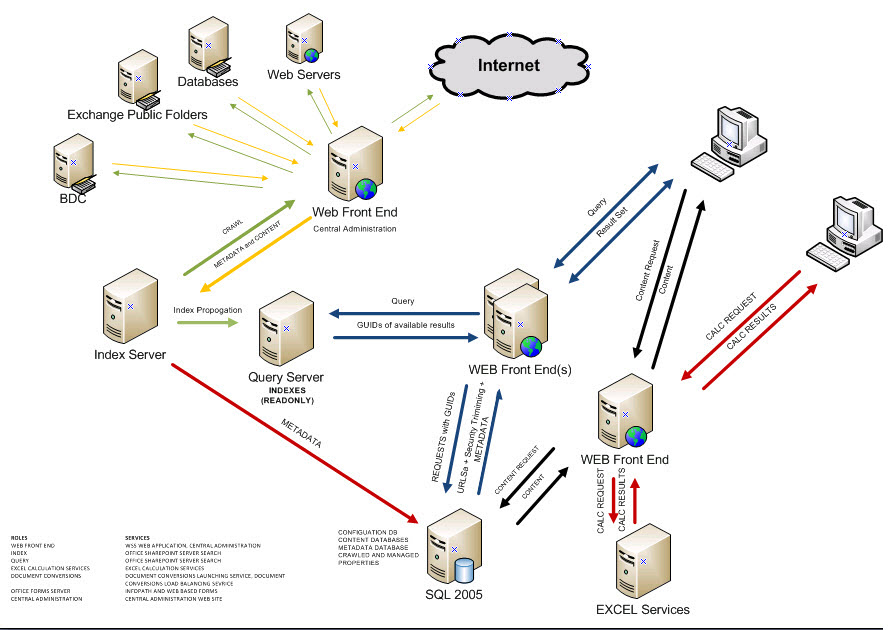
Getting hands on deployment information concerning SharePoint 2019 can be a challenge. Managed to locate this guide which is created by Microsoft detailing the process!
(more…)







