
It’s been exciting to see how all of you are using SharePoint site templates since we released the feature last year. These templates are intended to make it easier to get started creating a SharePoint site quickly and demonstrate the art of what’s possible with our design-focused layouts and content. Have you applied a site template yet?
Since our last blog post, we’ve released a few new templates to address even more scenarios where you might be building a site:
Communication site templates
Volunteer center
Provide a central hub for volunteers in your nonprofit organization to engage with and access key information and resources for training, onboarding, upcoming events, and more.

Team site templates
Retail management
Unite retail managers, keep them informed, and provide access to popular resources.

Store collaboration
Coordinate and prepare retail teams by sharing store news, resources, and training.

Applying site templates
As with all of our other Microsoft-provided site templates, these are automatically available in SharePoint tenants and can be applied by users with site owner permissions or higher. When you create a new site, you will be asked if you’d like to use a template. Select Browse templates to see Microsoft templates and templates from your organization.

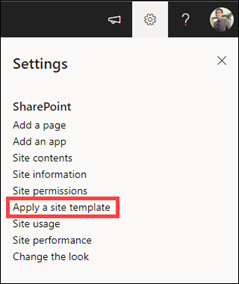
Or apply a template to an existing site by navigating to Settings and then select Apply a site template.
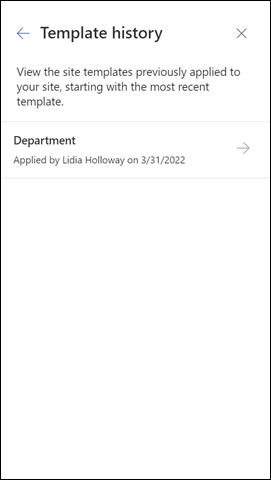
Site template history panel
Additionally, we’ve released the site template history panel. Site owners will be able to access the Site information panel from within Settings, and then select View template history. A history of all site templates previously applied to the site will then be displayed. Selecting an entry will display all site script actions and if they ran successfully or encountered errors.
Looking forward
As we continue to enhance our site templates experience, get excited for connected templates (bringing together SharePoint and Teams templates for a cohesive templating experience from either entry point), an improved site creation experience with templates top-of-mind, and even more new template scenarios! Are there any templates that you’d like to see? Let us know in the comments!
Learn more
Apply and customize SharePoint site templates
SharePoint site design and site script overview

You can save a lot of time using templates when creating new Microsoft Lists. List templates, both ready-made ones and your own custom templates, help keep your information tracking consistent – being able to reuse templates to uniformly create a common set of columns, formatting, views, rules, and more – all within one click – saving you from having to always configure from scratch.
Join Chris Kent and me (Mark Kashman) as we share templating insights and walk you through numerous demos in this new video below, “The broad world of templates when using Microsoft Lists” – watch it all or use its six main YouTube chapters to jump to the section that most speaks to you. And aligned to the video, I highlight everything you see and hear in six sections below, along with more explanation and links to learn more about each aspect of list templates.
Take a scroll and learn more about working with templates in Microsoft Lists.
Start from blank to learn what can be applied and created in a template
The best way to understand what list templates do, or are available for you to design into your own custom templates, is to learn the parts and pieces of what templates can create for you when you use them:
- Columns | When you create a column for a list, you choose a column type that indicates the type of data that you want to store in the column, such as numbers only, formatted text, hyperlink, a choice column – templates support deploying any/all column types.
- Views | You can create a view to save different sort, filter, and grouping selections you’ve made from the column headers or filters pane. The columns you’ve shown or hidden, and the column widths will also be saved with the view.
- Formatting | You can use column, row, or view formatting to customize how lists are displayed. Think of this as color-coding specific fields/column or based on certain conditions. There is a lot you can do to configure and customize how your list data appears – and the real value is not having to do the same formatting over and over, just bake it into a list template and get on with the importance of tracking your information, the way you like to.
- Rules | You can create rules to automate actions such as sending someone a notification when data changes in the list. You’ll choose a condition that triggers the rule and the action that the rule will take. This, too, now includes the ability to include Power Automate flows as a part of what can get created and delivered by a list template.
Starting with a blank template is a great way to learn how to use Microsoft Lists, and to then understand what you can design into a template for the next list you create.
Learn more about getting started with Microsoft Lists – adding columns, creating views, adding rules, and more. I also created a video a little bit ago titled, “Microsoft Lists: The value of the Blank template”, that goes deeper into the beautiful abyss of the blank’ness of Lists around a specific scenario: A shareable list of resources :).
Ready-made templates
Microsoft’s built-in, ready-made templates help you create lists using pre-configured layouts that include columns, color formatting, and data structure. You can customize each list to fit your situation by changing the formatting to highlight important data, configuring forms to see more at a glance, and setting reminders to keep you and your team up to date on what’s happening. Our hope is that these templates will save you time and cover many of the common scenarios for using Microsoft Lists.
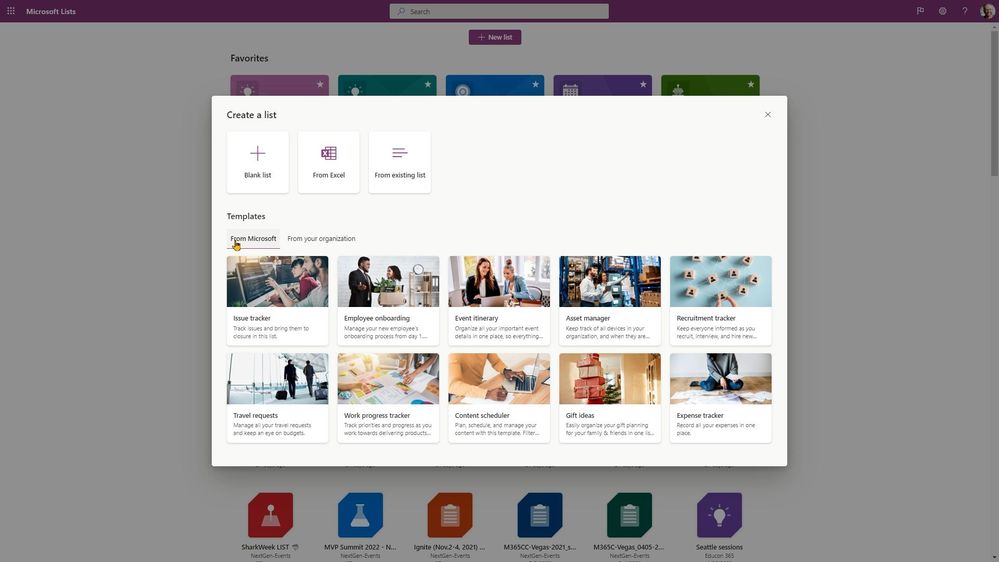 Choose from numerous ready-made templates available in Microsoft Lists as you click “New list.”
Learn more about ready-made templates for Microsoft Lists in Microsoft 365.
Create a list from another list
When you need a consistent and reliable approach to creating similar lists, you can create one from an existing list – especially ones you’ve tweaked just the way you like ‘em. When you do this, the entire list structure is copied, including views, formatting, and columns. However, the actual content of the original list isn’t copied.
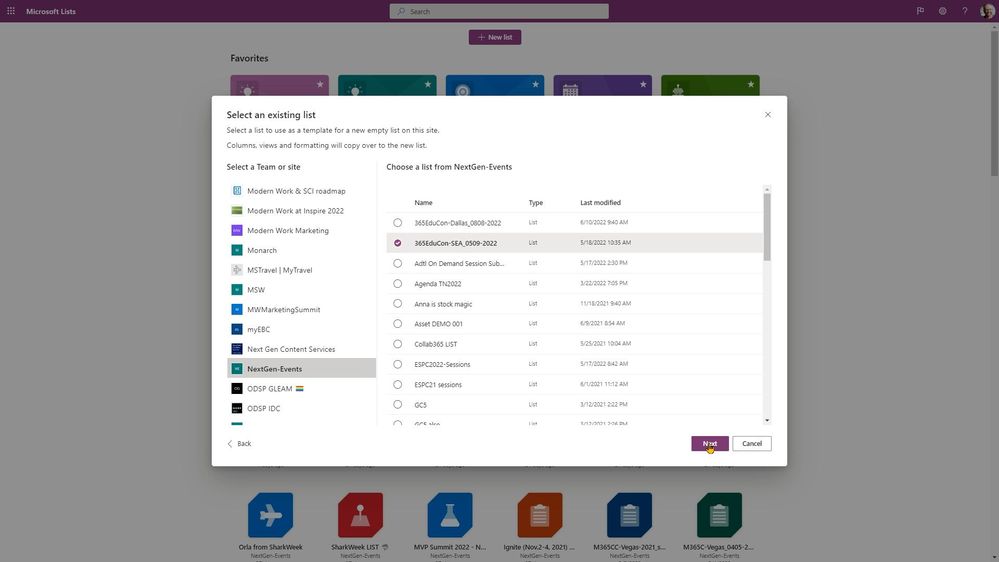 Use the structure and formatting of another list to create a new list with the same schema. Above shows picking the list you wish to replicate in look and feel.
Learn more how to create a new list based on the columns in another list.
Design and deploy your own custom list templates
Sometimes you gotta roll up your sleeves and design what you need specific to your business. And with that, to be able to add it as a default template ‘from your organization’ that will be available to your peers and employees to use in your tenant – to save time and to organize and align with your preferred information tracking patterns.
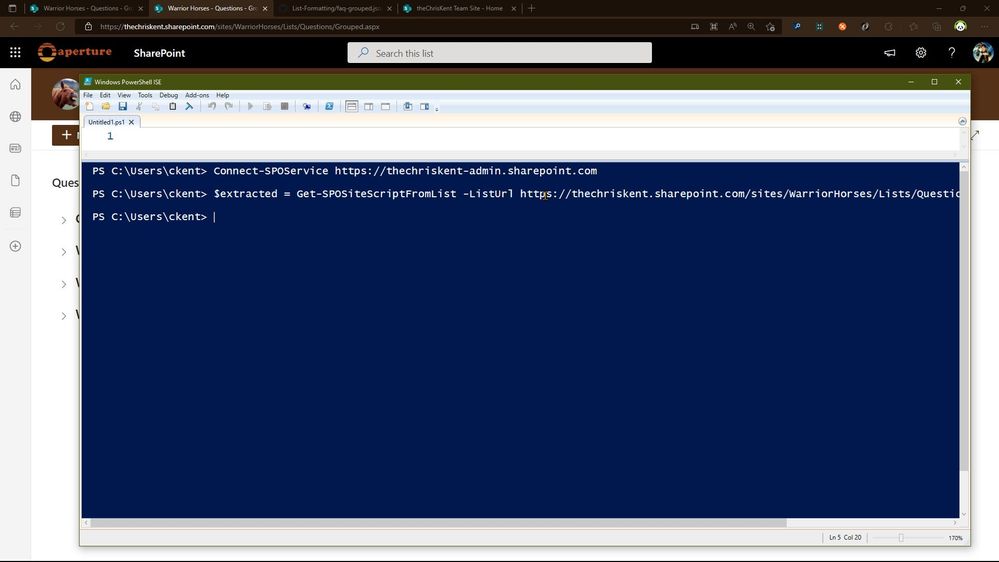 Once you design the list characteristics to your preference, you then extract, package, and deploy the new using PowerShell.
Don’t miss Chris’ demo in the above video – using a great FAQs scenario – he goes into all the best practices for extracting the value from a list to create a custom, deployable list template.
Learn more about creating custom list templates. Note: You’ll need to be a global admin or SharePoint admin in Microsoft 365 and leverage the SharePoint Online Management Shell (built on top of PowerShell).
Microsoft 365 connected templates
One of the best things about SharePoint and Teams is how separately they provide world class collaboration, and when you combine them together that boundary disappears. With our newest Microsoft 365 connected templates, we are bringing both into one seamless creation flow – no matter where you start from.
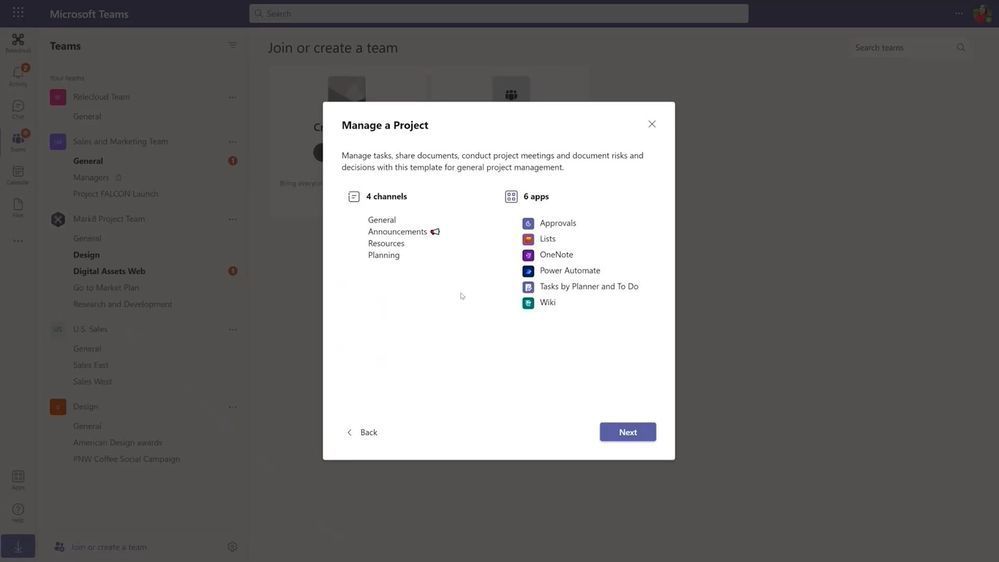 Microsoft 365 templates combine Teams templates and SharePoint site templates – along with other app templates – so you more quickly, and consistently, start to your preference.
When we create this team using the template, the project management channels and apps, and the connected SharePoint template gets applied automatically. Critically, the pages, lists, and power platform integrations are pinned right here in Teams, and best of all these pages and lists are fully editable right in Teams.
This capability is not yet in production. You can track progress on “Microsoft 365 connected templates” on the Microsoft 365 public roadmap, ID: 82158. #ComingSoon
Lists MSA Preview – new consumer and small business-focused templates
Microsoft Lists – MSA Preview is a lightweight version of the Microsoft Lists app designed for small business and individual use in conjunction with your Microsoft account (MSA). It’s also a place where the team has deployed a few new list templates suitable for individuals and small businesses.
Two new templates only in the Lists – MSA Preview (as of June 2022):
- Gift ideas | Easily organize your gift planning for your family & friends in one list and make gift buying and giving a breeze.
- Expense tracker | Record all your personal and/or business expenses in one place.
 When using lists.live.com (Microsoft Lists – MSA Preview), you’ll see new templates in the updated create list experience; the two new ones we cover in the video are ton he bottom-right.
Expect more templates to be released, both for consumer and commercial use.
Learn more the Microsoft Lists – MSA Preview and try it today – go to lists.live.com: sign up, sign in and let us know what you think.
Final thoughts…
We hope you’ve learned more about the value of using and creating list templates – bringing to your own productivity and the time saving, organizational benefits they bring to your business. To learn more about Lists throughout the year, please visit our Microsoft Lists resource center for blogs, demos, help content, videos, podcasts, and more. Plus, jump into the value of Formatting samples in our PnP GitHub repository.
Thanks, &
Creating the M365 group with Sensitivity Label starts the modern Team site with desired protection. This can be done with SPO Rest API or Microsoft Graph API, both require delegated permissions.
The following sample scripts use AAD App ROPC authentication flow (Resource Owner Password Credentials), which is documented in https://docs.microsoft.com/en-us/azure/active-directory-b2c/add-ropc-policy?tabs=app-reg-ga&pivots=b2c-user-flow to get access token before making the API calls, other delegated authentication flows should work as well.
- Microsoft Graph API sample powershell script:
#Parameters
$tenant = “********”
$AdminUser = “********@$tenant.onmicrosoft.com”
$Password = “********” | ConvertTo-SecureString -AsPlainText -Force
$tenantId = “********-****-****-****-************”
$ClientId = “********-****-****-****-************”
$SensitivityLabelId = [GUID](” ********-****-****-****-************”)
#EndofParameters
<#
if($creds -eq $null){
$creds = Get-Credential -Message “Enter username (UPN format) and password”
}#>
$creds = new-object -TypeName System.Management.Automation.PSCredential -argumentlist $AdminUser,$Password
$redirectUri = “https://login.microsoftonline.com/common/oauth2/nativeclient”
$base = “https://login.microsoftonline.com”
$scope = “https://graph.microsoft.com/.default”
function GetToken([PSCredential]$ROPCreds){
$headers = @{“Content-Type”=”application/x-www-form-urlencoded”}
$body= “client_id={0}&scope={1}&username={2}&password={3}&grant_type=password” -f $clientId, [uri]::EscapeDataString($scope), $ROPCreds.UserName, $ROPCreds.GetNetworkCredential().Password
$resp = Invoke-WebRequest -Method Post -Uri “$base/$tenantId/oauth2/v2.0/token” -Headers $headers -Body $body
return $resp
}
#get token with credentials
$bearerToken = GetToken -ROPCreds $creds
#convert to JSON object
$jsonresp = $bearerToken.Content|ConvertFrom-Json
$tokenType = $jsonresp.token_type
$tokenValue = $jsonresp.access_token
#Write-Host $tokenType $tokenValue
$headers = @{
‘Authorization’=”$tokenType $tokenValue”
}
<#Create M365 Group with Graph API #>
$createGroupUri = “https://graph.microsoft.com/v1.0/groups”
$groupBody = @{
“displayName” = “Team from Graph API”
“mailNickname”= “teamfromgraphapi”
“description” = “Demo making a group from Graph API”
“owners@odata.bind” = @(
“https://graph.microsoft.com/v1.0/me”
)
“groupTypes” = @(
“Unified”
)
“mailEnabled” = “true”
“securityEnabled” = “true”
“visibility” = “Private”
“assignedLabels” = @(
@{“LabelId”=$SensitivityLabelId}
)
}
$newGroup = Invoke-RestMethod -Uri $createGroupUri -Method POST -Headers $headers -Body ($groupBody |ConvertTo-Json -Depth 3) -ContentType ‘application/json’
$newGroup
- SPO Rest API sample powershell script:
#Parameters
$tenant = “********” #contoso
$AdminUser = “********”@$tenant.onmicrosoft.com”
$Password = “********” | ConvertTo-SecureString -AsPlainText -Force
$tenantId = “********-****-****-****-************”
$ClientId = ********-****-****-****-************”
$SensitivityLabelId = [GUID](” ********-****-****-****-************”)
#this is one of the SensitivityLabelIds you want to set for your new site
#EndofParameters
$tenantHost = “https://$tenant.sharepoint.com”
$scope = “$tenantHost/.default”
$base = “https://login.microsoftonline.com”
$redirectUri = “https://login.microsoftonline.com/common/oauth2/nativeclient”
$creds = new-object -TypeName System.Management.Automation.PSCredential -argumentlist $AdminUser,$Password
function GetToken([PSCredential]$ROPCreds){
$headers = @{“Content-Type”=”application/x-www-form-urlencoded”}
$body= “client_id={0}&scope={1}&username={2}&password={3}&grant_type=password” -f $clientId, [uri]::EscapeDataString($scope), $creds.UserName, $creds.GetNetworkCredential().Password
$resp = Invoke-WebRequest -Method Post -Uri “$base/$tenantId/oauth2/v2.0/token” -Headers $headers -Body $body
return $resp
}
if($creds -eq $null){
$creds = Get-Credential -Message “Enter username (UPN format) and password”
}
#get token with credentials
$bearerToken = GetToken -ROPCreds $creds
#convert to JSON object
$jsonresp = $bearerToken.Content|ConvertFrom-Json
$tokenType = $jsonresp.token_type
$tokenValue = $jsonresp.access_token
#Creat Group & associated Team Site with /_api/GroupSiteManager/CreateGroupEx
$header = @{
‘Authorization’=”$($tokenType) $($tokenValue)”
“accept”=”application/json;odata=verbose”
}
$createGroupEndPoint = “$tenantHost/_api/GroupSiteManager/CreateGroupEx”
$groupbody=@{
“displayName”= ‘RestApiGroup1’
“alias”= ‘RestApiGroup1’
“isPublic”= ‘false’
“optionalParams”= @{
“Owners”= @(“$AdminUser”)
“CreationOptions” = @(
“SPSiteLanguage:1033”,
“SensitivityLabel:$SensitivityLabelId”
)
}
}
$response = Invoke-WebRequest -Uri $createGroupEndPoint -Method POST -Headers $header -Body ($groupbody|ConvertTo-Json) -ContentType “application/json”
if($response.StatusCode -eq 200){
Write-Host “Group and its associated team Site CREATED SUCCESSFULLY!!”
}
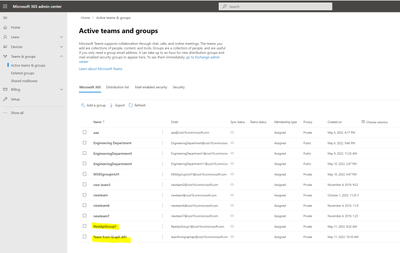
Generated Group and associated modern Team site in SPO Admin portal:
M365 Groups:
M365 Group associated Modern Team Sites with Sensitivity Label set:

SharePoint 2013 Workflows was introduced 10 years ago. Since the release of SharePoint workflows, Microsoft has evolved orchestration to not only encompass SharePoint, but all the productivity services you use within Microsoft 365 and extend to 3rd party apps, through Power Automate.
Power Automate for workflow orchestration connects to all Microsoft 365 services and over 220 other services to let an enterprise build custom workflows. There are also many 3rd party solutions that can directly orchestrate SharePoint data via SharePoint’s open API platform.
SharePoint 2010 Workflows was retired as of November 1st, 2020 with the notice that we would also retire SharePoint Workflow 2013 in the future. Although we currently do not have a timeline to announce for SharePoint 2013 Workflow retirement, it is strongly recommended to move 2013 workflows to the Power Automate platform or some other modern workflow orchestration solution.
To help, a new, open-source Microsoft 365 Assessment tool is available to help you identify and evaluate the usage of SharePoint 2013 workflows in your tenant.
To understand if your organization is using any SharePoint 2013 Workflows or begin planning migration to Power Automate, we recommend that customers run the Microsoft 365 Assessment tool to scan your tenants for active 2013 workflows.
Using the Power BI report generated by the scanner tool, you can:
- Identify all SharePoint 2013 workflows in the tenant, per site collection and site
- Evaluate the recency and volume of usage of SharePoint 2013 workflows
- Identify the Lists, libraries and content types that use the 2013 workflows
- Power Automate upgradability score indicating if the detected actions in the workflows are upgradable to flows on Power Automate
The workflow report along with site information enables tenant administrators to plan the migration of 2013 workflows with minimal impact to the users.
We hope this tool and its ongoing evolution will help your business process modernization in Microsoft 365. We will continue to share updates through our support articles at https://aka.ms/modernize-workflows.
Thank You.

Across the globe we see the celebration of wonderful cultural moments. In living up to our mission statement – “to empower every person and every organization on the planet to achieve more”, we here at Microsoft provide solutions to empower organizations to celebrate these cultural moments with their employees throughout the year.
We are introducing Diversity and Inclusion (D&I) cultural site templates. Our first cultural template we are delivering celebrates Pride Month (June 2022). There is a lot of content and structure that appears by default – to save you time – and all can be further customized to meet the unique needs of your organization.
This leverages modern experience built on SharePoint in Microsoft 365 and is available on the SharePoint look book – LGBTQ+ Employee Resource Group (microsoft.com) site.
The LGBTQ+ Employee Resource Group site features:
- Home page with a unique theme
- Page Template
- Pre-populated content and web parts
- Easy provisioning
- Mobile ready
You will be able to quickly create communication to uplift employee resource groups, support career growth of people in your organization, and to help advance equality and allyship for all.
Coming Soon
Other cultural D&I site templates we are working on:
- Hispanic Heritage Month
- National Disability Employment Awareness Month
- Native American/Indigenous Heritage Month
- Veterans Day
- International Day of Persons with Disabilities







