New ways to share Power Automate Ideas
Between July 18 and July 20, 2022, Power Automate Ideas will migrate to a brand-new community platform powered by Dynamics 365 Customer Service Community.

Between July 18 and July 20, 2022, Power Automate Ideas will migrate to a brand-new community platform powered by Dynamics 365 Customer Service Community.
Komatsu is an industry-leading manufacturer and supplier of equipment, technologies and services for the construction, forklift, mining, industrial and forestry markets. This article describes how a team at Komatsu Australia built a Robotic Process Automation (RPA) solution with Power Automate and AI Builder to automate their manual and repetitive processes for fixing invoices. They went from purchasing licenses to an RPA solution in production within a short span of four weeks. They’ve also built a Center of Excellence for scaling up automation and citizen development within the organization.
Power Automate for desktop comes with new additions in June 2022 release, including the support of more data types for input and output variables and the ability to trigger desktop flows via an external link.
This is the second post in the series on how you can use the Power Platform to Automate the Classification and Validation if US Vaccination Record Cards. This is an extension of the Return to the Workplace Solution (RTW), which provides helpful tools for executive leaders, facility managers, employees, and health and safety leaders.

It’s been exciting to see how all of you are using SharePoint site templates since we released the feature last year. These templates are intended to make it easier to get started creating a SharePoint site quickly and demonstrate the art of what’s possible with our design-focused layouts and content. Have you applied a site template yet?
Since our last blog post, we’ve released a few new templates to address even more scenarios where you might be building a site:
Provide a central hub for volunteers in your nonprofit organization to engage with and access key information and resources for training, onboarding, upcoming events, and more.
Unite retail managers, keep them informed, and provide access to popular resources.
Coordinate and prepare retail teams by sharing store news, resources, and training.
As with all of our other Microsoft-provided site templates, these are automatically available in SharePoint tenants and can be applied by users with site owner permissions or higher. When you create a new site, you will be asked if you’d like to use a template. Select Browse templates to see Microsoft templates and templates from your organization.
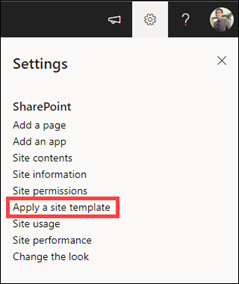
Or apply a template to an existing site by navigating to Settings and then select Apply a site template.
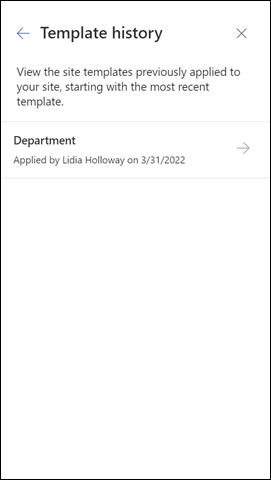
Additionally, we’ve released the site template history panel. Site owners will be able to access the Site information panel from within Settings, and then select View template history. A history of all site templates previously applied to the site will then be displayed. Selecting an entry will display all site script actions and if they ran successfully or encountered errors.
As we continue to enhance our site templates experience, get excited for connected templates (bringing together SharePoint and Teams templates for a cohesive templating experience from either entry point), an improved site creation experience with templates top-of-mind, and even more new template scenarios! Are there any templates that you’d like to see? Let us know in the comments!
Apply and customize SharePoint site templates
SharePoint site design and site script overview
You can now change the owner of a solution flow from Power Automate portal. This feature enables owners, co-owners, and admins to change the owner of a solution flow to enable business continuity when the original owner switches teams or leaves the organization

You can save a lot of time using templates when creating new Microsoft Lists. List templates, both ready-made ones and your own custom templates, help keep your information tracking consistent – being able to reuse templates to uniformly create a common set of columns, formatting, views, rules, and more – all within one click – saving you from having to always configure from scratch.
Join Chris Kent and me (Mark Kashman) as we share templating insights and walk you through numerous demos in this new video below, “The broad world of templates when using Microsoft Lists” – watch it all or use its six main YouTube chapters to jump to the section that most speaks to you. And aligned to the video, I highlight everything you see and hear in six sections below, along with more explanation and links to learn more about each aspect of list templates.
Take a scroll and learn more about working with templates in Microsoft Lists.
Start from blank to learn what can be applied and created in a template
The best way to understand what list templates do, or are available for you to design into your own custom templates, is to learn the parts and pieces of what templates can create for you when you use them:
Learn more about getting started with Microsoft Lists – adding columns, creating views, adding rules, and more. I also created a video a little bit ago titled, “Microsoft Lists: The value of the Blank template”, that goes deeper into the beautiful abyss of the blank’ness of Lists around a specific scenario: A shareable list of resources :).
Ready-made templates
Microsoft’s built-in, ready-made templates help you create lists using pre-configured layouts that include columns, color formatting, and data structure. You can customize each list to fit your situation by changing the formatting to highlight important data, configuring forms to see more at a glance, and setting reminders to keep you and your team up to date on what’s happening. Our hope is that these templates will save you time and cover many of the common scenarios for using Microsoft Lists.
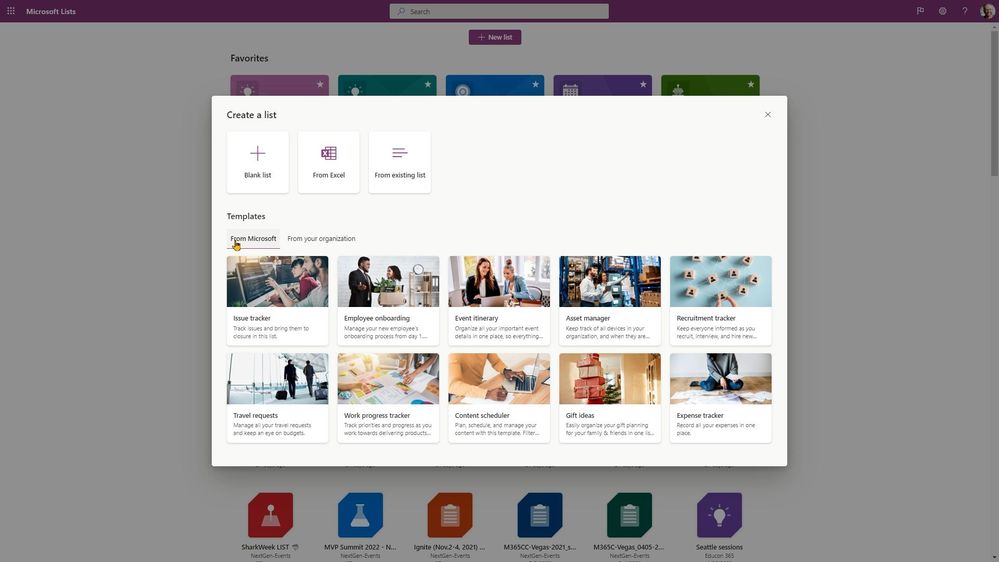
Learn more about ready-made templates for Microsoft Lists in Microsoft 365.
Create a list from another list
When you need a consistent and reliable approach to creating similar lists, you can create one from an existing list – especially ones you’ve tweaked just the way you like ‘em. When you do this, the entire list structure is copied, including views, formatting, and columns. However, the actual content of the original list isn’t copied.
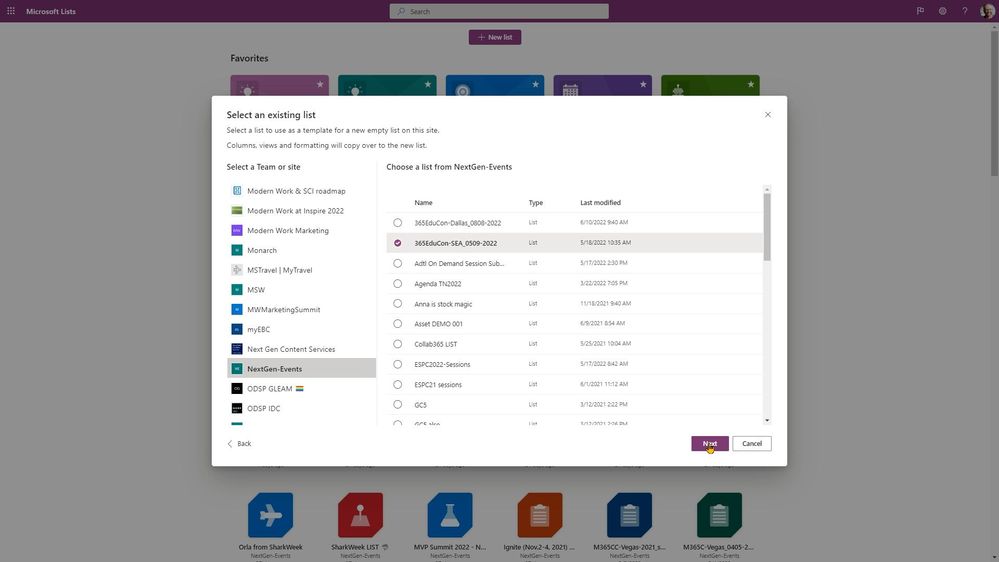
Learn more how to create a new list based on the columns in another list.
Design and deploy your own custom list templates
Sometimes you gotta roll up your sleeves and design what you need specific to your business. And with that, to be able to add it as a default template ‘from your organization’ that will be available to your peers and employees to use in your tenant – to save time and to organize and align with your preferred information tracking patterns.
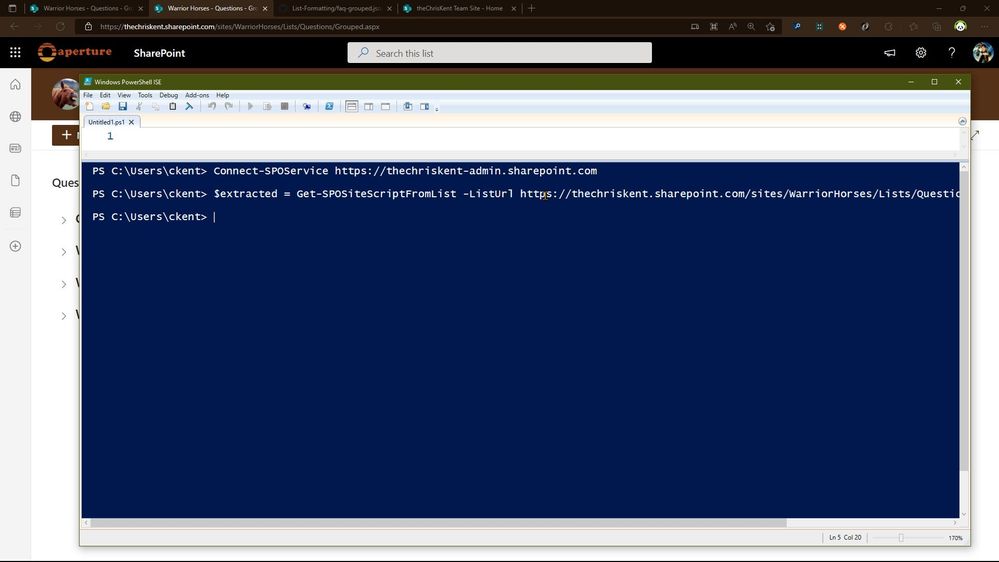
Don’t miss Chris’ demo in the above video – using a great FAQs scenario – he goes into all the best practices for extracting the value from a list to create a custom, deployable list template.
Learn more about creating custom list templates. Note: You’ll need to be a global admin or SharePoint admin in Microsoft 365 and leverage the SharePoint Online Management Shell (built on top of PowerShell).
Microsoft 365 connected templates
One of the best things about SharePoint and Teams is how separately they provide world class collaboration, and when you combine them together that boundary disappears. With our newest Microsoft 365 connected templates, we are bringing both into one seamless creation flow – no matter where you start from.
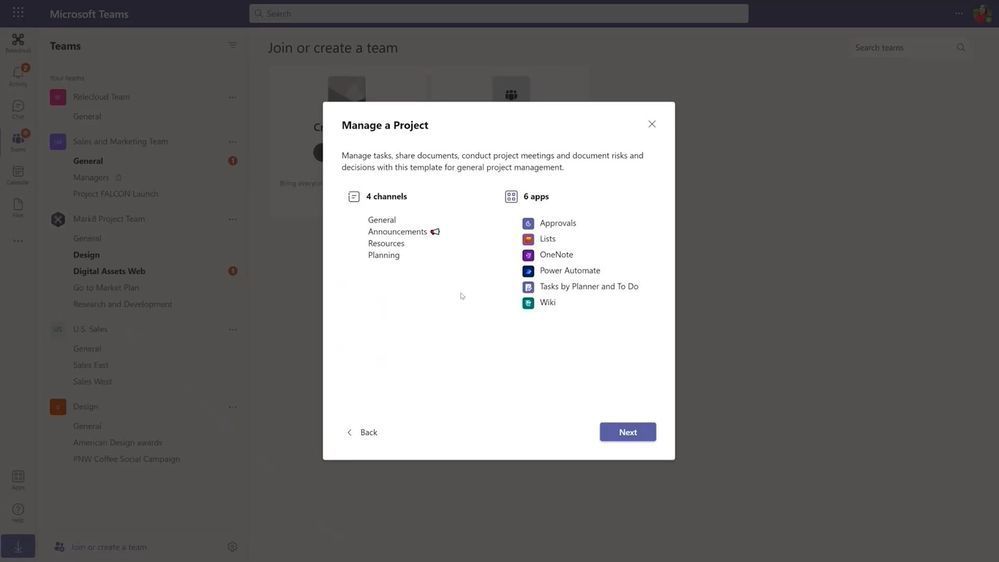
When we create this team using the template, the project management channels and apps, and the connected SharePoint template gets applied automatically. Critically, the pages, lists, and power platform integrations are pinned right here in Teams, and best of all these pages and lists are fully editable right in Teams.
This capability is not yet in production. You can track progress on “Microsoft 365 connected templates” on the Microsoft 365 public roadmap, ID: 82158. #ComingSoon
Lists MSA Preview – new consumer and small business-focused templates
Microsoft Lists – MSA Preview is a lightweight version of the Microsoft Lists app designed for small business and individual use in conjunction with your Microsoft account (MSA). It’s also a place where the team has deployed a few new list templates suitable for individuals and small businesses.
Two new templates only in the Lists – MSA Preview (as of June 2022):

Expect more templates to be released, both for consumer and commercial use.
Learn more the Microsoft Lists – MSA Preview and try it today – go to lists.live.com: sign up, sign in and let us know what you think.
Final thoughts…
We hope you’ve learned more about the value of using and creating list templates – bringing to your own productivity and the time saving, organizational benefits they bring to your business. To learn more about Lists throughout the year, please visit our Microsoft Lists resource center for blogs, demos, help content, videos, podcasts, and more. Plus, jump into the value of Formatting samples in our PnP GitHub repository.
Thanks,