
Issue :
You are using Google Chrome 80, and when you have ADFS/SAML or FBA configured site, you notice that intermittently, users logging in fails and goes into a login loop.
The following error is received on ADFS :
“An error occured. Contact your administrator for more information”
FBA does not sign you out either.
Cause :
This behavior is because of Chrome’s new security feature :
A cookie associated with a cross-site resource at <URL> was set with the `SameSite` attribute. It has been blocked, as Chrome now only delivers cookies with cross-site requests if they are set with `SameSite=None` and `Secure`. You can review cookies in developer tools under Application>Storage>Cookies.
Ref: https://blog.chromium.org/2020/02/samesite-cookie-changes-in-february.html
Testing/Troubleshooting to understand the behavior :
- First test by passing any load balancer and check if you have the issue
- We need to collect a fiddler trace, and look for the frame in fiddler which is a GET request to the site, and in request header you will see that the ‘Fedauth’ cookie still exists.
- This is the response from the server, a “Set-Cookie” Header, that sets the FedAuth to blank, this is because the user is browsing the site with an expired FedAuth cookie :
- Even after setting it to blank by SharePoint Server, Chrome does not deliver the blank Fedauth cookie(due to the same changes in it’s cookie handling behavior), and in the next POST to the site it sends the same old expired cookie, you can see it in the request header in next request :

- When we use “Set-Cookie” to set the Fedauth to blank, we also see the ‘SameSite=None’ attribute, but Chrome will deliver the cookie ONLY if it HAS ‘SameSite=None’ alongwith ‘Secure’ attribute
Resolution :
Step 1 — Recommendations by Microsoft
Step 2 — If you still see issue continues after March 2020 CU update for SharePoint
- If you still see issues with Load Balancer in place, you will have to contact your load balancer vendor for having an iRule created to add the SameSite=None and Secure parameter in the “Set-Cookie” header.
Step 3 — If you do not have a load balancer that distributes load between servers in SharePoint
Note :
Make sure to take a backup of the web.config file from all SharePoint servers before making the below changes
This is only if you are using a SSL web application
- The Rewrite we will be using is an Outbound Rule, follow below steps
-Start by selecting the IIS site pertaining to the ADFS/SAML web app
-Enter into the URL Rewrite module
-Select Add Rule and then Select the “Blank Rule” under “Outbound Rules”, and configure below options
Matching Scope : Server Variable
Variable Name : RESPONSE_Set_Cookie
Pattern : (FedAuth=;)(.*)(SameSite=None)
Action type : Rewrite
Value : {R:1}{R:2}{R:3};Secure
- Test your web application for the same issues now in newer version of Chrome
Overview
Distributed Authoring and Versioning (DAV) is an extension of the HTTP protocol that allows the user to interact with and manipulate files stored on a web server. The Windows implementation of the DAV protocol as a mini-redirector is handled by the WebClient service. As a mini-redirector it allows native Windows applications to interact with the remote file system through native networking API calls similar to the local file system and other remote file storage servers (such as CIFS and SMB). This is typically seen by the user as mapped drives or a Windows Explorer view.
Note: Although Windows 7 and Windows Server 2008 R2 exited support Jan 14, 2020, there are still many machines that will not be upgraded so the information below will still reference issues and resolutions that may be relevant to those operating systems.
Following the re-writing of the service in Windows Vista, the feature set was considered mature and further changes were primarily bug fixes and security updates. The service consists of webclnt.dll, davclnt.dll and mrxdav.sys (minimum version in Windows 7 should be 6.1.7601.23542) but is also reliant upon webio.dll, winhttp.dll (minimum version in Windows 7 should be 6.1.7601.23375) and shell32.dll (minimum version in Windows 7 should be 6.1.7601.22498).
With those files at their latest versions, undesired behavior is typically due to a misconfiguration or a limitation of the implementation.
Common issues with Explorer view
A Root site must exist
There are certain circumstances where the WebClient will walk the path as it would for an SMB file share. Although the path segment does not have to allow WebDAV, it must be present. See https://support.microsoft.com/en-us/kb/2625462 – SharePoint: Office client integration errors when no root site exists
Action: If a Root site is missing, create one. The users do not necessarily need access and there does not even need to be a Site Template selected; it just needs to exist.
Requests issuing OPTIONS and PROPFIND requests must be responded to with a success or an authentication response.
If the OPTIONS call receives a 200 Success response, the Webclient (and Office client) will assume that WebDAV is supported (even if the returned list of Allowed verbs does not include WebDAV verbs).
The PROPFIND request expects a 207 Multi-Status response as a success.
A 401 or 403 response is an indication of inadequate authentication information. A valid 401 response will include WWW-Authenticate headers that identify the type of authentication that is accepted (i.e. Negotiate, NTLM, Basic, Digest, Bearer). If a 403 response is received normally that means the resource is present but there are inadequate privileges to interact with it. Unlike the 401 response, submission of additional authentication will not provide access. A few years ago the 403 status code began being used for responses where Forms Based Authentication (FBA) and claims authentication is used but the requesting agent is unable to process a 302 redirect to a login page (see the MS-OFBA Protocol specification).
If these are not the responses received by the client then typically the request is being blocked, either by the HTTP verbs setting of the Request Filtering in IIS, a URL-Rewrite rule or perhaps by a device in the middle. The most common alternate responses are 404 Not Found if the verb is blocked or a 302 Redirect to a login page for third party authentication providers that do not adhere to the MS-OFBA specification.
Action: Verify that the request is making it to the server with simultaneous network traces or check the IIS logs. If the IIS logs show the response is coming from the server, open IIS Manager and check the HTTP verbs tab in Request Filtering. If the verbs are not listed there, then you may need to collect Failed Request Tracing to identify the source of the response. The full list of WebDAV verbs that need to be allowed are referenced elsewhere on this page.
Client integration must be enabled at the web application level and the ‘UseRemoteAPIs’ permission must be ‘true’
If Client integration is not enabled, the OPTIONS request is not sent, and the client will assume WebDAV is not supported.
Action: Enable Client Integration (located at CA > Web Application Management > Authentication Providers > Zone ) and verify there is no policy disabling the ‘UseRemoteAPIs’ permission, See https://support.microsoft.com/en-us/help/2758444 – SharePoint 2013 Disable WebDAV use on SharePoint
WebDAV must not be enabled in IIS features of the server
If the WebDAV feature is enabled in IIS it will interfere with the SharePoint implementation of the WebDAV handler. See https://support.microsoft.com/en-us/help/2171959 – Explorer view does not work in some scenarios when the SharePoint farm is on Windows Server 2008 R2 or https://support.microsoft.com/en-us/help/2018958 – SharePoint 2007 or 2010: Office Documents open ReadOnly from SharePoint site
Action: Remove the WebDAV feature from IIS (this will require a reboot of the server).
- Windows Server 2008 R2 – In Server Manager go to Roles->Web Server IIS section, Click Remove Role Services and Uncheck ‘Web ServerCommon HTTP FeaturesWebDAV Publishing’
- Windows Server 2012 – Uncheck ‘WebDAV Publishing’ in Server Manager->Manage->Remove Roles and Features then Web Server IIS section->Web Server->Common HTTP Features
- Windows Server 2012 R2 – Uncheck ‘WebDAV Publishing’ in Server Manager->Manage->Remove Roles and Features then Web Server IIS section->Web Server->Common HTTP Features
If FBA/Claims authentication is being used, the site must be in an IE security zone where Enable Protect Mode is not checked (by default that is the Trusted zone) and persistent cookies must be used.
When Forms Based Authentication (FBA) or Claims Authentication is used, the client presents its authentication through a cookie. Since the WebClient service cannot show a login page, it must rely on the authentication cookie from the browser. Sharing cookies retained solely in memory (session cookies) between processes would be a security violation so, in order for the WebClient service to acquire the cookie, it must be created as a persistent cookie and stored in a location shared where other processes can access it.
A persistent cookie is one created with an expires time. This is observable in the response when the Set-Cookie header is sent from the authenticating server to the client. Frequently the cookie name is FedAuth, but it does not have to be. Normally an authentication cookie will be complex enough that it will look like a VERY long string of random characters. If the expires attribute is not on the Set-Cookie header it is a session cookie and not a persistent cookie. Making the cookie persistent is considered a security reduction but one that is necessary in order for the WebClient service to acquire it (there was a period where a callback function in MSO.dll shared session cookies with the service but it was not intended for that purpose, is unreliable and should not be happening in current products).
The WebClient service calls the InternetGetCookieEx function to read the cookies from the cookie jar (which is one reason why Explorer view only works with Internet Explorer). Applications can only share cookies if the site is not in a zone where Protect Mode is enabled. By default, that is the Trusted zone, but the configuration can be changed so always verify the Enable Protect Mode checkbox.
For more, see “WebClient service does not support Session Cookies” – https://support.microsoft.com/en-us/kb/2985898 . This is also documented in the Whitepaper Implementing “Persistent Cookies in SharePoint 2010 Products” https://download.microsoft.com/download/9/F/6/9F69FEBA-614B-483F-9CF2-60225D75E81E/persistent-cookies-whitepaper.docx
Action:
- Verify the cookie is persistent (you may need a Fiddler, netsh or another network capture to verify the Set-Cookie header).
The login form may have a “Keep me signed in” or “Sign me in automatically’ checkbox that the user must enable. If the user has no option, and if SharePoint is creating the cookie, then you may need to use the PowerShell to enable it from the SharePoint Management Shell:
$sts = Get-SPSecurityTokenServiceConfig
$sts.UseSessionCookies = $false
$sts.Update()
iisreset
WebClient binaries need to be current, especially for Windows 7.
There have been several updates to the WebClient binaries over the years. See the Overview on this page for the list of binaries and recommended minimum versions. Some critical changes have been regarding cookie handling and TLS support. In some versions of Windows 7, persistent cookies were not passed until a 401 or 403 response was received. This broke the login process for third-party authentication providers who did not differentiate between browser and non-browser user agents. Also, the Windows 7 WebClient used default security protocols that maxed out at TLS 1.0 (see issue #9 below). Another issue that was fixed was the use of Server Name Indicator (SNI) – see #8 below.
Action: verify that the WebClient DLLs (and those supporting them) are current. See the Overview above for more but this is becoming less of an issue as the latest security updates generally have the necessary files.
If the site is using Windows authentication and the host name is FQDN, then credentials are not passed
The WebClient service does not leverage the Internet Settings Zone Manager to identify when it is safe to automatically send credentials so by default credentials were automatically sent to only sites without periods in the host name. Since companies frequently use fully qualified domain names (FQDN) internally as well, another method was created to allow administrators to identify when it was safe to automatically send credentials. This is done by using the AuthForwardServerList registry key under the WebClient service hive. See https://support.microsoft.com/kb/943280 -Prompt for credentials when you access WebDav-based FQDN sites in Windows.
Note: This KB applies to all versions of Windows after Windows Vista SP1
Action: Add the site to the AuthForwardServerList. This is a client-side registry key. Also be sure that the Multi-SZ reg entry has a return at the end – some versions of Windows will allow adding the entry without a return but without the return the key is not read properly
If Server Name Indication (SNI) is enabled anywhere in the IIS bindings, then the client cannot connect (Windows 7 only).
If multiple certificates are used for different web applications on the IISSharePoint server then either the server must bind the web application to different IP addresses or implement SNI. Some good reading on SharePoint and SNI can be found at https://blogs.msdn.microsoft.com/sambetts/2015/02/13/running-multiple-sharepoint-ssl-websites-on-separate-ssl-certificates-using-server-name-indication
Windows 7 did not initially implement support for SNI but this was corrected when the service changed the way WinHTTP was called in MS15-089: Vulnerability in WebDAV could allow security feature bypass: August 11, 2015
Action: Update the client to a supported version or disable SNI in IIS.
Explorer view fails if the TLS handshake cannot complete (most commonly Windows 7).
If only TLS 1.1 and/or 1.2 are enabled (and earlier versions disallowed), then Windows 7 clients will need the latest WebClient and WinHttp binary updates as well as the registry edits for WinHTTP that change the default security protocols to allow TLS 1.1/1.2 – https://support.microsoft.com/en-us/kb/3140245
Initially the Windows 7 WebClient service set the list of available security providers when opening the connection through WinHTTP but it had a maximum value of TLS 1.0. Later, the service stopped setting a specific list and just took the WinHTTP system default security settings (https://support.microsoft.com/kb/3076949 – MS15-089: Vulnerability in WebDAV could allow security feature bypass: August 11, 2015). Unfortunately, this did not help since the default was SSL 3 and TLS 1.0 (the system default beginning with Windows 8.1 includes TLS 1.0, 1.1 and 1.2). This limitation was removed when an update came out that allowed the ‘system default’ settings be changed – https://support.microsoft.com/en-us/help/3140245 – Update to enable TLS 1.1 and TLS 1.2 as a default secure protocols in WinHTTP in Windows.
Action: Ensure the client and server systems have the necessary registry settings and binaries to allow a common TLS version (the higher the better). In addition to checking the SCHANNELProtocol client and server settings, check for the WinHttp registry settings in Internet Settings as these will be used as override values in updated Windows 7 machines and all supported operating systems. Updated client binaries include WinHTTP/WebIO in addition to the WebClient files. See the Overview above for the list of files and minimum versions for Windows 7.
Note: The update 3140245 has registry entries that also need to be set.
There can be no certificate errors. The site name must match the certificate, not be expired and be trusted.
This affects all versions of Windows clients. The WebClient service has no tolerance for certificate errors. Use the browser to see if the certificate is reporting errors. Alternatively view the certificate to verify the certificate is in the valid date range, has a trusted certification path and has a Subject or Subject Alternative Name that matches the site.
Action: Replace the certificate with a valid certificate.
If the server has custom IIS headers, the custom header name cannot contain spaces.
Custom headers are an excellent tool for troubleshooting through load balancers. And a custom header with a unique value on each WFE and then the traces can tell you which server responded in the farm. However, be careful that the custom header name does NOT contain any spaces. The UI will allow them and there is no documentation that states they are prohibited but spaces will cause a client-side failure while processing the response. This was discovered when OPTIONS and PROPFIND calls were failing; the client terminated the session after receiving the first packet of the response even while additional packets were being sent.
Action: Remove or rename the custom IIS header. A suggestion would be to either remove the space or replace it with an underscore; the underscore is typically a more aesthetic change.
PROPFIND and PROPPATCH responses must contain valid XML and not be Content-encoded (g-zip)
If the WebClient service receives a response to a PROPFIND or PROPPATCH that does not contain a valid XML structure it can result in unusual behavior possibly even generating undesired credential prompts (see https://support.microsoft.com/en-us/help/2019105 – Authentication requests when you open Office documents).
The WebClient service cannot handle a response that has GZIP encoded the body. This was discovered in a case where an Akamai router/load balancer was GZIP encoding the response (it worked when Fiddler was used because Fiddler was decompressing the file). This will almost certainly be a device in the middle (it is unconfirmed if enabling IIS compression on a SharePoint server will cause this.
Action: Identify the device doing compression and disable compression for PROPFIND/PROPPATCH requests.
Unable to create new files or folders
When the WebClient service creates a new file or folder it will first check for the presence of an existing order to prompt for an override if necessary. If a custom 404 handler has been put it place it may intercept the necessary 404 response and the WebClient service will fail to create the new file or folder..
Action: The custom 404 handler must either be removed or updated ignore the WebClient requests. Modifying the custom handler to not engage when the User Agent string is Microsoft-WebDAV-MiniRedir is one way the requests can be filtered.
Verbs needs for WebDAV to work
For WebDAV communication to work properly, the WebDAV verbs (also called Methods) must be allowed by the server. The RFC 4918 internet specification includes: PROPFIND, PROPPATCH, MKCOL, COPY, MOVE, LOCK, UNLOCK. In addition to those, the HTTP methods of OPTIONS, HEAD, PUT and DELETE are frequently associated with the WebDAV protocol and should be allowed as well.
UNC paths
When the WebClient service translates between the HTTP protocol to UNC the conversion is fairly straightforward. A path like http://server/site would become serversite . HTTPS adds an additional suffix – https://server/site becomes server@sslsite.
If the WebDAV share is at the root, the UNC will need a virtual share (UNC requires a servershare minimum). The ‘virtual share’ is DavWWWRoot. Example: http://server would be serverDavWWWRoot .
Configuration changes needed to support large file uploads
When configuring an environment to support large file uploads to SharePoint through Windows Explorer, there are four settings to adjust:
On the server:
- Increase the SharePoint Maximum upload size on the web app (max of 2047 mb)
- Increase the IIS Connection Time-out to a value longer than the time needed to upload (default of 120 seconds – max of 65535 or 0xffff ).
On the client:
There are two settings under the WebClient service registry (HKEY_LOCAL_MACHINESYSTEMCurrentControlSetServicesWebClientParameters):
- Increase the FileSizeLimitInBytes (default of 50 mb – max of 0xffffffff or 4 gb) https://support.microsoft.com/en-us/help/2668751
- Increased the SendReceiveTimeoutInSec to a value longer than the time needed to upload (default of 60 seconds – max of 4294967295 0xfffffff).
Calculating the time needed to upload a file via Explorer view
Performance of file uploads via a mapped drive to SharePoint or Explorer view is limited by the WebClient service. The approximate maximum throughput is 8 kb per RTT.
Throughput is amount of data divided by time.
If the server allows a ping, you can get an average RTT with the following PowerShell:
$rtt = (Test-Connection -ComputerName myservername | Measure-Object -Property ResponseTime -Average).Average
Note: if the server does not allow a normal ping or if you want a more exact RTT measurement, you can use the PSPing utility from SysInternals – https://technet.microsoft.com/en-us/sysinternals/psping
The amount of time it would take to upload a 2047 Mb file with an average RTT of 1.75 ms would be:
Filesize / 8kb * RTT
2,146,435,072 bytes / 8,192 bytes * .00175 seconds
or approximately 459 seconds
Library contents do not display in Explorer view
This issue can occur for a couple of known reasons.
First, if there are too many files in the library folder, the Explorer view display as an empty folder. This problem can occur if the size of all the file attributes (the PROPFIND response) returned by the WebDAV server is larger than expected. By default, this size is limited to 1 MB.
The client registry value FileAttributesLimitInBytes can be increased to accommodate the amount of properties returned (the suggested estimate is approximately 1k per file so for 20,000 files, use a value of 20000000). For more details, see https://support.microsoft.com/en-us/help/912152 – “You cannot access a WebDAV Web folder from a Windows-based client computer”.
The preferred resolution would be to reduce the number of files in a folder; SharePoint performs best with less than 5000 item in a view but Explorer view will request all files and possibly exceed the normal view settings.
Second, if the combined length of path and filename of any file in the folder exceeds the maximum supported by the Windows Explorer (approx. 255), then no items will be displayed until the folder and/or filename is shortened. You may have to use the SharePoint web interface to make the change.
Consider using a diagnostic to examine the client
Here is a diagnostic script that can help identify the current configuration and some common problems (do a ‘Save Target as’ on the [Raw] button) : https://github.com/edbarnes-msft/DrDAV/blob/master/Test_MsDavConnection.ps1
Microsoft SharePoint Online Search is an integral part of SharePoint Online and it is the backbone of many features across Office 365. Below is a list of a few features that are driven by search and used daily:
- Enterprise Search center
- Site Search
- List and library search
- Search Web Parts
- “Shared with me” view in OneDrive for business
- Usage and popularity trends
- DLP, eDiscovery Searches, and Retention
How Search Works
Search in SharePoint Online is composed of two main components: Crawl and Indexer. The crawl and indexer are shared resources and will process content for all tenants it has been configured to crawl and index. In support we often receive questions asking, “Why is there such a variance in the time it takes for item/site changes to be reflected in search? Sometimes it is very quick and other times it is extremely slow.” The reason for the fluctuation in time taken is that both the crawl and indexer process content updates, adds, and deletes. The crawl and indexer have work queues that are used to process their work items. The following provides more information on purpose of the crawl and indexer: crawl and indexer:
- The crawl is responsible for retrieving and processing the content into a specific format that can be used by the indexer to create the binary index. The crawler will retrieve “content” from content and user profile databases; perform content transformation and language normalization; and if successful send the information to the indexer.
- The indexer is responsible for receiving the processed content from the crawl and then creating a binary index what users will search against.
Troubleshooting steps for when expected content is not appearing in search
The following steps are a good starting point to investigate search issues prior to opening a support case.
- Resubmitting content to the crawl – One of the first things that we recommend trying is re-indexing the content, as it effectively addresses and resolves most issues. In SharePoint Online, users can take the following actions to resubmit content to be processed and retried by the continuous crawl:
- Only a few pages, documents, or items: If only a few pages, documents, or items need to be updated then make a small change to one of the properties. This will add it to the crawl queue.
- User Profiles: There is no way for administrators/users to request a re-crawl of user profile properties via SharePoint Admin Center. If you need to a re-crawl of user profiles, you can open a case to support requesting a re-crawl of profile.
- Important: Search freshness issues no longer require a manual re-index as part of the troubleshooting steps. The only time a re-index should be completed is when a schema property has changed, or due to a change of the mapping between crawled and managed properties.
- Confirm if the content is searchable via different search criteria – For example, see if searching for the page/item/document in the list or library returns the expected file/item. If it returns, then the issue is related to query configuration. We are planning a future blog post on common query configuration issues. If it doesn’t return, then it still could be in the process of being crawled or indexed.
- Verify that the page/document/custom page layout is a Major published version – the crawler will only crawl major versions that are published. More information on determining this is found in this article under Step 3.
- Verify that the site, list, library or user profile are set to be returned in search
- Pages are not returning in search as expected – your site may be using friendly urls which changes how pages are returned in search. Review this blog to see if this is the behavior that you want you want for your pages: Friendly URLs and search results
- Verify that sites/list/libraries are set to be searchable – Enable content on a site to be searchable
- Verify that it is within supported limits and boundaries – Search limits for SharePoint Online
Monitoring Crawl and Indexer for SharePoint Online Search
SharePoint Online does not provide a real-time dashboard for monitoring the status of the crawler or indexer. Each crawl and indexing job will take a varying amount of time.
When to open a Support Case
We recommend opening a support case if content is not being reflected as expected in search within 24 hours. We understand that certain scenarios have a higher impact to your business (high visibility, project deadline, etc.) and require a better understanding of what is occurring, so please do not hesitate to engage support. When you engage support please provide the following:
- The URLs for a few pages/list items/documents you are expecting to see in search.
- The search query or queries you are using.
- An overview of the objective you are trying to reach, such as expected outcome and current outcome.
- Information on the outcomes of the troubleshooting steps taken.
If you have any feedback or suggestions for search, please submit those suggestions to https://sharepoint.uservoice.com/. The Product Group checks the requests and feedback on a regular basis and uses this feedback for new features and enhancements to the product.
Authors: Sridhar Narra [MSFT], Tania Menice [MSFT], Yachiyo Jeska [MSFT]
Contributors: Paul Haskew[MSFT], Steffi Buchner [MSFT], Tony Radermacher [MSFT]
The Problem
When using the new Safari 13.1 browser with Intelligent Tracking Prevention (ITP), 3rd party cookies are not allowed by default to remove the ability for websites to track you using cookies.
When an iframe is hosted in a page, it’s cookies, even if they are for the origin in the frame are considered 3rd party if it is hosted in a page that is a different origin. This causes the cookies set for the SharePoint add-in webpart model to not be sent on subsequent requests, including the authentication cookie (fedauth).
The Solution
There is a solution to this by adding some code to request access to these cookies via a storage access API that has been implemented in Safari, and Firefox, as well as browsers based on their respective projects (webkit and mozilla) and has experimental/future support in Chrome and Edge (chromium) as well.
This script code will allow you to request access to the 3rd party cookies-
//check if the function ‘hasStorageAccess()’ exists on the document object
//this lets you know that the storage access API is there
if(undefined !== document.hasStorageAccess){
var promise = document.hasStorageAccess();
promise.then(
function (hasAccess) {
// Boolean hasAccess says whether the document has access or not.
document.requestStorageAccess()
},
function (reason) {
// Promise was rejected for some reason.
Console.log(“Storage request failed: “ + reason);
}
);
}
If you have a SharePoint add-in that is running in an iframe in a SharePoint page, then you would add the above code to your provider hosted page.
If you run into problems with cookies, or authentication that only seem to affect the Safari browser, you can confirm that ITP is causing the issue by disabling the feature that is blocking third party cookies called Intelligent Tracking Protection (ITP).
To disable this setting, navigate to:
Preferences -> Privacy
Then uncheck the Prevent cross-site tracking option.
Disabling the feature for normal use is not recommended, as it is a security measure that is designed to block malicious scripts.
Future development testing
If you are developing a new SharePoint provider hosted add-in or an SPFx add-in that uses content in an iframe or calls to a 3rd party site (with another domain) then you can test the script above by turning on the Storage Access API feature in the experimental features.
In the MS Edge (chromium) browser use this URL-
edge://flags/
In Chrome, use this URL-
chrome://flags/
Find and enable the ‘Storage Access API’ feature to enable the method used by the script.
There will likely be some updates here to clarify behavior.

In this weekly discussion of latest news and topics around Microsoft 365, hosts – Vesa Juvonen (Microsoft), Waldek Mastykarz (Rencore), are joined by Ayça Baş, Cloud Advocate from Microsoft concentrating on Microsoft 365 extensibility based in Dubai, United Arab Emirates.
After working as a Premier Field Engineer on many cloud migrations – Microsoft Teams leveraging Microsoft Graph on Azure deployments, Ayça’s developer advocate focus now is on content development, blogging and events/speaking, in which her real-world customer/developer engagement experiences form a solid foundation for her practical communications to the Microsoft 365 developer community.
In this episode, 14 recently released articles from Microsoft and the PnP Community are highlighted.
This episode was recorded on Monday, August 24, 2020.
Did we miss your article? Please use #PnPWeekly hashtag in the Twitter for letting us know the content which you have created.
As always, if you need help on an issue, want to share a discovery, or just want to say: “Job well done”, please reach out to Vesa, to Waldek or to your PnP Community.
Sharing is caring!

Microsoft 365 & SharePoint Ecosystem (PnP) August 2020 update is out with a summary of the latest guidance, samples, and solutions from Microsoft or from the community for the community. This article is a summary of all the different areas and topics around the community work we do around Microsoft 365 and SharePoint ecosystem during the past month. Thank you for being part of this success. Sharing is caring!
Got feedback, suggestions or ideas? – don’t hesitate to contact.
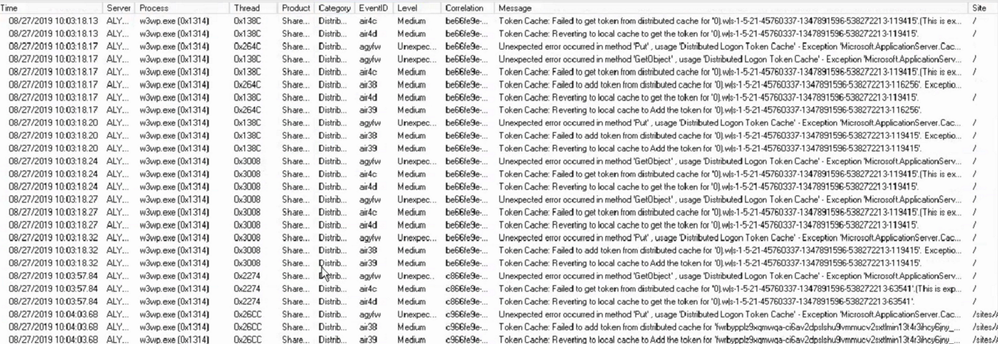
Is your SharePoint 2013 or 2016 farms Distributed Cache services Healthy? If not you might need to patch. One way to validate your Distributed Cache service is healthy is to pull some ULS logs from one of the Distributed cache servers in the farm.
Using ULSViewer, Filter your ULS log files where Category equals DistributedCache, if you see something like the screenshot below. Then your Distributed cache is not healthy and should patch your farm using the steps in this article.
EventId Found – air4c, air4d, agyfw, air4c, air38, air39
Steps for Patching Distributed cache
Patching the distributed cache service on your SharePoint farm will cause user experience to be interrupted a bit and its recommended to be performed during a maintenance window. But It can be performed during production if its all ready down in some cases.
Step 1 – Shut down the Distributed Cache service on one of the distributed cache servers in your farm.
Run the following PowerShell command to stop the distributed cache on the server at a SharePoint command prompt.
Stop-SPDistributedCacheServiceInstance -Graceful
Step 2 – Patch AppFabric 1.1 on the one server you stopped the Distributed Cache service on. Patch the server with CU7 found in the following article where you can download it – https://support.microsoft.com/en-us/kb/3092423
Step 3 – Update the “DistributedCacheService.exe.config” file to run garbage collection process in the background on each Distributed Cache server.
File location – C:Program FilesAppFabric 1.1 for Windows ServerDistributedCacheService.exe.config
Update the file with the section below, see screen shot below – Make sure you put it in the right section or it will not work correctly.
<appSettings>
<add key=”backgroundGC” value=”true”/>
</appSettings>

Step 4 – Repeat steps 1 through 3 on the next distributed cache sever in the farm, repeat these steps until you have patched all the Distributed cache servers using these steps. Once you have them all patched, move on to Step 5.
Step 5 – Fine-tune the Distributed Cache service by using a Windows PowerShell script found in this Microsoft article near the bottom in the section called:
“Fine-tune the Distributed Cache service by using a Windows PowerShell script”
https://technet.microsoft.com/en-us/library/jj219613.aspx
Run the script found in the article on one of your SharePoint servers in the farm. This only has to be done once.
Note – there is a section for SharePoint 2013 and 2016 in the Microsoft article – Use the section that matches your farm.

Step 6 – Start the Distributed cache service using the below PowerShell script in a SharePoint PowerShell command prompt on one of the Distributed cache servers.
$instanceName =”SPDistributedCacheService Name=AppFabricCachingService”
$serviceInstance = Get-SPServiceInstance | ? {($_.service.tostring()) -eq $instanceName -and ($_.server.name) -eq $env:computername}
$serviceInstance.Provision()
Step 7 – Verify the health of the Distributed cache server you started in Step 6 using the below PowerShell commands, Do not go to Step 8 until the server shows UP. You might have to wait a bit for it to come up, its usually slow on the first server to start up.
Use-CacheCluster
Get-CacheHost
NOTE – If you have servers listed as Down, try starting the Distributed cache service in Central admin and re-run the above commands to verify it came up.
Step 8 – Repeat Step 6 through 7 on the rest of the Distributed cache servers until they are all started.
Step 9 – Once all the servers are up, check their health one more time to make sure they are all UP.
Use-CacheCluster
Get-CacheHost


Get started with Microsoft Lists with Microsoft Lists engineers – lots to learn and lots of demos. If you have any questions or feedback for the team, please join us right after the webinar for an Ask Microsoft Anything (AMA) event within the Microsoft Tech Community. Train your brain and the tech will follow.
UPCOMING WEBINAR | ‘Working with Microsoft Lists’
Learn how to get started with Microsoft Lists from the Microsoft Lists engineers themselves. Start a list from a template, add your information, and then use conditional formatting, rules, and key collaboration features to make the list your own – to make it work across your team. Lots to learn. Lots of demos. [below Lists AMA directly after for all your questions]
- Date and time: Wednesday, August 5th, 2020 at 9am PST (12pm EST; 5pm CET) [60 minutes]
- Presented by: Harini Saladi, Miceile Barrett, Chakkaradeep Chandran and Mark Kashman
- Add to your calendar. And join us live on the above date and time.
UPCOMING AMA | “Microsoft Lists AMA”
This will be a 1-hour Ask Microsoft Anything (AMA) within the Microsoft Tech Community. An AMA is like an “Ask Me Anything (AMA)” on Reddit, providing the opportunity for the community to ask questions and have a discussion with a panel of Microsoft experts taking questions about Microsoft Lists, SharePoint list, Lists + Teams integrations, Lists + Power Platform integrations, and more.
- When: Wednesday, August 5th, 2020 at 10am PST (12pm EST; 5pm CET) [60 minutes]
- Where: Microsoft 365 AMA space within the Microsoft Tech Community site
“Working with Microsoft Lists” webinar and AMA [August 5th, 2020 starting at 9:00 AM PST]
Thanks, Mark Kashman (Microsoft Lists PMM — @MKashman)
Learn how to get started with Microsoft Lists from the Microsoft Lists engineers themselves – lots to learn and lots of demos. And if you have any questions or feedback for the team, please join us right after the webinar for an Ask Microsoft Anything (AMA) event within the Microsoft Tech Community. Train your brain and the tech will follow.
UPCOMING WEBINAR | ‘Working with Microsoft Lists’
Learn how to get started with Microsoft Lists from the Microsoft Lists engineers themselves. Start a list from a template, add your information, and then use conditional formatting, rules, and key collaboration features to make the list your own – to make it work across your team. Lots to learn. Lots of demos. [below Lists AMA directly after for all your questions]
- Date and time: Wednesday, August 5th, 2020 at 9am PST (12pm EST; 5pm CET) [60 minutes]
- Presented by: Harini Saladi, Miceile Barrett, Chakkaradeep Chandran and Mark Kashman
- Add to your calendar. And join us live on the above date and time.
UPCOMING AMA | “Microsoft Lists AMA”
This will be a 1-hour Ask Microsoft Anything (AMA) within the Microsoft Tech Community. An AMA is like an “Ask Me Anything (AMA)” on Reddit, providing the opportunity for the community to ask questions and have a discussion with a panel of Microsoft experts taking questions about Microsoft Lists, SharePoint list, Lists + Teams integrations, Lists + Power Platform integrations, and more.
- When: Wednesday, August 5th, 2020 at 10am PST (12pm EST; 5pm CET) [60 minutes]
- Where: Microsoft 365 AMA space within the Microsoft Tech Community site
“Working with Microsoft Lists” webinar and AMA [August 5th, 2020 starting at 9:00 AM PST]
Thanks, Mark Kashman (Microsoft Lists PMM — @MKashman)

Every month, thousands of M365 Administrators turn to Support Central to engage in various self-help options. Support issues can vary in complexity and while sometimes you want to talk to a support agent directly, in other situations it’s more convenient to solve the topic independently via articles , diagnostics or other self-help solutions. In one of my previous posts, I explained how administrators can engage with Support Central to run diagnostics for SharePoint and OneDrive. In this update, I want to dive into some of the other capabilities that our team works on within Support Central as well as ask you for your direct feedback and how we can improve our solutions.
Let’s dive into the details…
What is Support Central?
Support Central is the area within the M365 Admin center where administrators go to engage directly with support agents or other self-help solutions. To access this area, simply navigate to Microsoft 365 Admin Center > Support > New Service Request. Once you are in Support Central you will receive self-help solutions based on your specific query as well as have the option to engage directly with agents. These solutions, based on the query you provided, are run through telemetry and machine learning to provide you with the best possible answer. Based on this information, we not only point you to further relevant resources – such as diagnostics, videos, or help articles – but in many cases, we also directly recommend a specific action for you in-line to solve the problem.
Quickly engage with support central via the “New Service Request” button in the M365 Admin Center.

Get solutions specifically catered to your help query based on machine learning. You can see above that one customer is getting assistance with optimizing SharePoint Migration performance while another is running a diagnostic on OneDrive Quota.
Learning from your feedback!
The OneDrive and SharePoint supportability teams are looking for your feedback on the current Support Central experience – What can we change to ensure you as Administrators have the best possible experience and resources when troubleshooting or learning within the product?
Please take a few minutes to complete our survey regarding diagnostics and self-help solutions. Please ensure you are authorized to provide this information and not violating any company policies. Your responses will be kept confidential with restricted access. For more information, see the Microsoft Privacy Statement. If you have questions about this survey, please contact TechCommunity@microsoft.com
Additional resources:
Thanks, Sam Larson, Supportability Program Manager – Microsoft







