May 2024 update of Power Automate for desktop
Power Automate for desktop comes a new addition in 2024 May’s release, the introduction of Microsoft Dataverse connector actions!

Power Automate for desktop comes a new addition in 2024 May’s release, the introduction of Microsoft Dataverse connector actions!

We are excited to share that we are releasing video page templates in SharePoint Pages and News. With this feature, we’re enabling authors to create video centric page content. These templates are available in both SharePoint and Stream, making it easy to showcase video with a customized and branded pages experience from either application.
This feature enables the creation of Pages and News outside of the SharePoint platform. Navigate to a video on the Stream Web App. Under the share dropdown, you will see a new entry point: Create video news post.
Tip: This entry point is only available when the video is stored on a SharePoint site where you have editing permission. If you are not seeing the entry point, try copying the video to another site.
Within the template picker, select your template type, page type, and any related documents you want to include on your page.
Tip: Video metadata, such as the title and description, is copied to the page so make sure it is up to date.
After finalizing your selections in the template picker, go to the canvas for editing. Edit your video page like other SharePoint Pages, then publish and share when you are ready!
The video page templates surface in the Page and News template pickers within a SharePoint site.
Choose a video page template, then add your video to the Stream web part and edit the rest of your page before publishing.
Features and capabilities mentioned in this blog post, are demonstrated in the following video with Katelyn Helms (Microsoft) and Vesa Juvonen (Microsoft).
When will this happen?
The feature has rolled out to Targeted Release customers and will continue to roll out to all customers through the end of June.
This message is associated with Microsoft 365 Roadmap ID 124823.
What do you need to prepare?
There is nothing you need to do to prepare, but you can let your users know about this new experience and guide them to make video pages with a few examples.
Thanks for reading. Please enjoy making beautiful pages with videos and let us know any feedback or questions in the comments.
AI Builder releases new GPT powered AI actions, giving citizen developers advanced tools to automate content processing with GPT-4.

Welcome to Microsoft Build 2024! Whether you’ll be joining us live in Seattle or online, get a look at how Microsoft AI innovations can help you unlock opportunities and drive productivity.
Microsoft SharePoint is the platform trusted by countless organizations for storing, managing, and sharing content. In the face of growing content repositories, how do you ensure you’re getting answers based on the most accurate information? How can you share that knowledge with others without overwhelming them? The answer lies in harnessing the power of AI to refine workflows and foster collaboration that’s tailored for your team or organization. This allows you to concentrate on actual work rather than sifting through content to find what you need to accomplish your tasks.
We’re excited to introduce the ability for anyone to create custom copilots from SharePoint. In just a few clicks, you— whether an admin or business user— can create and share a copilot from SharePoint that’s grounded in the curated, authoritative content you choose. Since you rarely work alone, you can also easily share your copilots with others in Teams chat, email, and more. It’s like a subject matter expert ready to help you, your team, department, or even the whole company while respecting all your existing security settings and permissions.
Site owners can enable any site to get a built-in copilot, scoped to the content of that site. This copilot is a new way for users to interact with the content on the site and can be shared to other Microsoft 365 apps and experiences.
Imagine you’re on the Marketing team, which has a SharePoint site that stores all the materials for an upcoming product launch— content such as demo videos, spec sheets, pitch decks, and press releases. This copilot for the site gives organizations or groups, like yours, specific and trustworthy responses to questions like, “what is the final decision on the product launch date?”. Because the copilot is scoped to the content of this site, you’ll get the latest, most accurate answer about the project based on your permissions.
If the copilot’s default scope doesn’t work for your site, you— as the site owner— can customize this copilot by changing the content, identity and behavior. You can also choose a copilot that you’ve created through Microsoft Copilot Studio or Visual Studio to be the default copilot for this site.
Built-in custom copilot for this site
Beyond only site owner or admins, anyone who has edit permissions on a site (such as a site member) can create a copilot for the site with a few clicks, no coding skills required.
Creating a custom copilot from SharePoint is a simple starting point for users looking to use AI tools to efficiently collaborate for a particular purpose, such as a specific project or topic, or users that want to spend less time looking for information, and more time focused on more meaningful work at hand.
Continuing the scenario above with the marketing site for the product launch, a cross-functional team of 20 people across marketing and engineering are working together with you to launch a new product. You are collaborating together via this SharePoint site that has a document library with the most accurate and up-to-date information.
Create a custom copilot from a file selection
As a member of this site, select “Create a copilot” and choose the folders or files that you want your copilot scoped to. The copilot will reason over only this content when providing responses.
You can start using this copilot immediately or make lightweight customizations, such as adjusting the identity, sources, and behavior of the copilot.
Custom copilot is pre-populated with information from the file/folder selection
The copilot has a default folder name, branding, description, sources you’ve selected, and other fields already. You can keep these fields and parameters as-is, or easily update them.
Customize the identity with a name change
Customize the grounding knowledge
Customize the behavior
This newly created custom copilot is now ready to use. It can answer your questions, summarize information, or find files, all based on the selected, authoritative content to give the most current and accurate response available. If you need deeper customizations for your copilot or to automate workflows, launch Copilot Studio directly from SharePoint.
Custom copilot with customized name, sources and start prompts
While you can use custom copilots on your own, they’re also shareable with your team, so you can interact with and learn from the same authoritative sources of information. There are a few ways to collaborate and share knowledge using these copilots. With the copilot that will be part of every SharePoint site, these are automatically scoped to the site content. You and your teammates can ask questions in the sidebar chat interface as soon as you visit the site.
Use the copilot on the SharePoint site
You can easily share this built-in copilot and your own custom copilots with others in the same way you would share a link to content in SharePoint by selecting “Share”.
Share the copilot
Just like other Microsoft 365 productivity apps, you can select “Copy link” and drop the link to team members in an email or select “Invite” to have an email auto-sent to them. The recipient can open the copilot in SharePoint.
Copy link or Invite to share
For real-time group collaboration, you can also easily share copilots in Microsoft Teams. You’ll take the same copied link and paste it in a Teams chat, and the copilot becomes part of the chat.
For example, you can share the custom copilot with your core launch team in a Teams group chat, where everyone already interacts with one another in the thread. Your teammate can ask the copilot in this chat, “What is the list of contacts?” This ensures that we can all, together, get up to speed quickly on the latest details of the product launch.
Drop the link in chat to collaborate with your team
The custom copilot follows existing SharePoint user permissions, so it’s accessible by those who are already permissioned and there’s no risk of oversharing information.
You will also be able to use your custom copilots or ones shared with you in Microsoft Copilot, as they will appear with your recently used copilot extensions.
ReleCloud Delivery Drone copilot could be used in Microsoft Copilot
If you need to expand the content that this copilot is grounded on beyond SharePoint, you can add additional data sources in Copilot Studio with over 1,000 different data connectors. For example, if the launch team needs to add a structured database that maintains customer leads, they can add this source. You can also add actions to automate workflows, such as updating customer lead records and notifying human agents on promising leads.
Tap “Add advanced customization in Copilot Studio” to launch Copilot Studio
Continue customization in Copilot Studio
When these advanced customizations are ready, you can publish via Copilot Studio, as usual, so the updated copilot is available across SharePoint, Teams, and Microsoft Copilot for your organization.
We can’t wait to see the custom copilots our incredible SharePoint user base will create! Everyone will now be empowered to create, use, and share copilots for better collaboration and knowledge sharing —always with the trusted Microsoft governance capabilities you already have.
Sign up for the private preview today and stay tuned for the public preview coming later this year.
Don’t miss us this week at Microsoft Build in Seattle and online, May 21-23, 2024, to learn more and chat about creating copilots from SharePoint and other AI innovations we’re bringing to our maker community.
• KEY01: Opening keynote with Satya Nadella, Kevin Scott, Rajesh Jha, and me.
• BRK144: Integrating your bots and Copilot experiences natively into SharePoint and Viva Connections
• BRK210: What’s new with Microsoft Copilot Studio
• Expert Meet-up station (Expo Hall, in-person only)
Continue reading to learn about new ways to automate, from outcome-based AI flows that simplify complex processes, to multi-modal AI recording that makes UI automation more natural, accessible, and resilient.
Super charge your Copilot with 6 new connector-based Plugins along with 74 New Connectors releases and; 116 Connector Updates from Power Platform
Announcing Partner Center to certify and publish Power Platform Copilot connectors and plugins
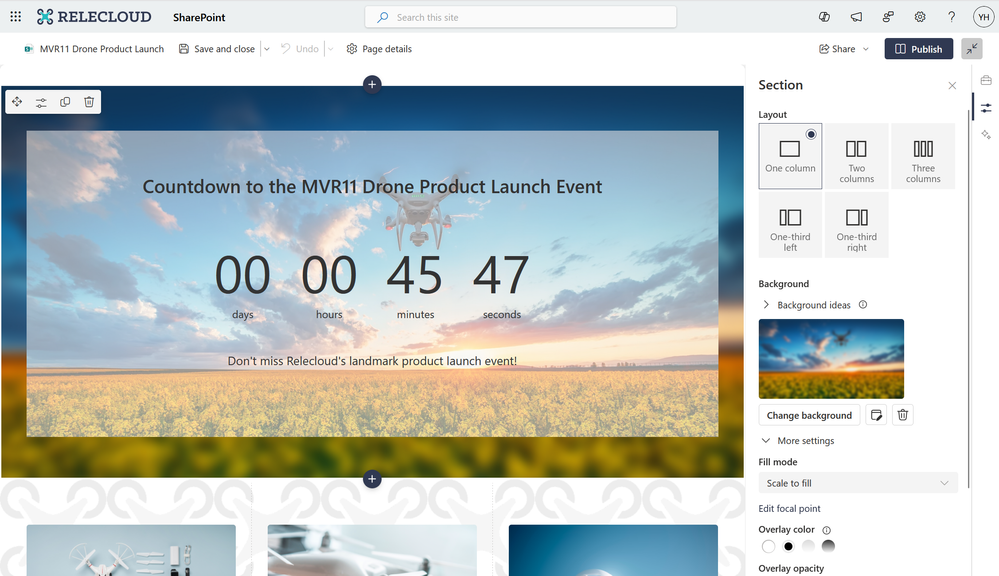
We are excited to share that we’re updating the section background feature in SharePoint Pages and News. With this feature, we’re enabling authors to create beautiful pages with featured sections.
SharePoint now lets you add an image or gradient color to the page sections from a new set of options. And lets you personalize the sections backgrounds with your own images.
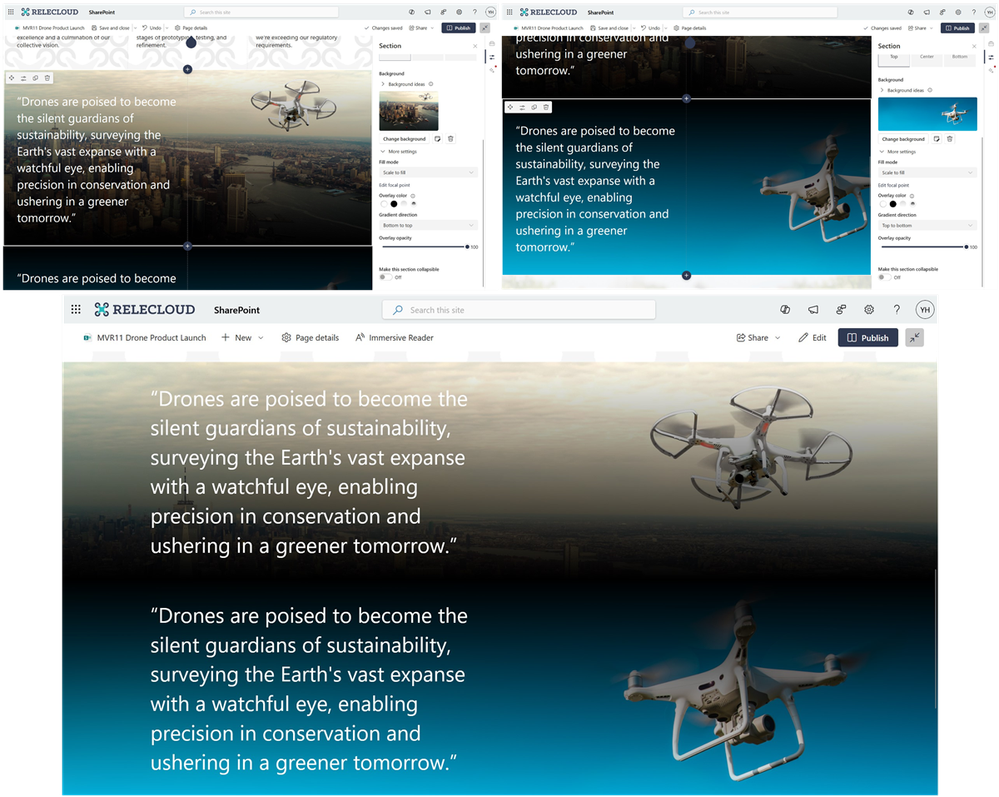
A see-through overlay has been automatically added to make the text easier to read when you set an image or gradient color as section background.
We’ve added more settings like Fill mode, Overlay color, Overlay opacity to help you do more customization, and follow accessibility best practices and ensure that the.
Tip! How to create a smooth border between two sections in View mode: For the upper section (sky), choose Dark Gradient Overlay – Bottom to top – Set Opacity to 100; For the lower section (lake), pick Dark Gradient Overlay – Top to bottom – Set Opacity to 100.
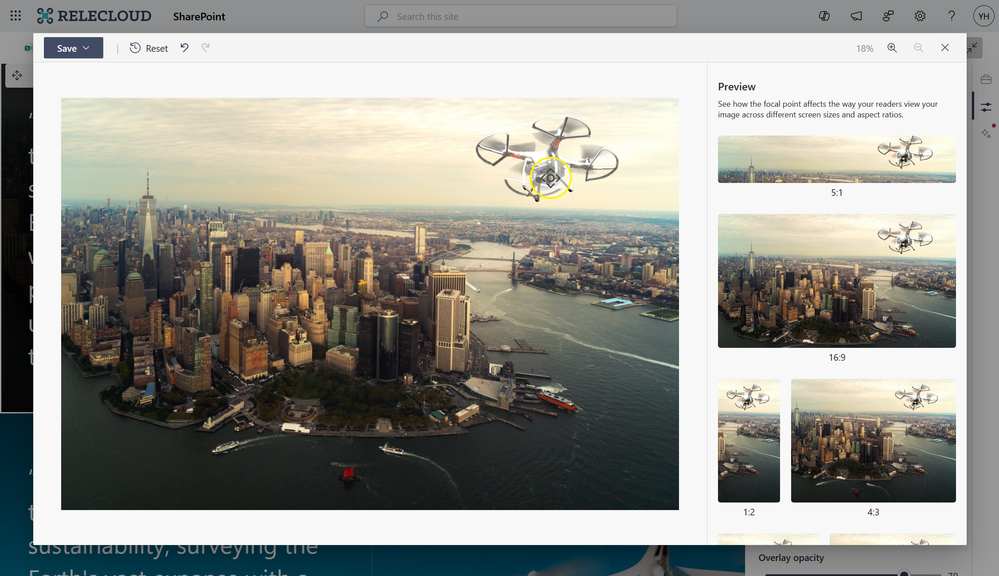
We’ve enhanced the focal point setting experience. You will be able to set it when Fill mode of background is “Scale to fill”.
New experience to preview to see how the focal point affects the way your readers view your image across different screen sizes and aspect ratios.
Features and capabilities, mentioned in this blog post, are demonstrated in the following video with Yi Han (Microsoft) & Vesa Juvonen (Microsoft)
When will this happen?
The first version of Section background (16 background options) is in 100% production already. of v1.1 will roll out to Targeted Release customers starting May 2024, and to all customers by the end of June.
This message is associated with Microsoft 365 Roadmap ID 378647 and Roadmap ID 378648.
How will this affect your organization?
With this update, SharePoint Page and News authors can set section background color or image to make it an appealing experience.
What do you need to prepare?
There is nothing you need to do to prepare, but you can let your users know about this new experience and guide them to make beautiful pages with a few examples.
How does it look in emails?
Site theme colors will be used in place of section backgrounds that aren’t supported in email when you send a news post or a page as an email.
Here’s a short list of the following roadmap items in our plans which were also discussed in the associated video discussion.
Thanks for reading. Please enjoy making beautiful pages and let us know any feedback or questions in the comments.
Power Automate for desktop comes with new great additions in 2024 April’s release, including UI elements collections, Copilot for flow descriptions, multiple new actions in several modules, and more!
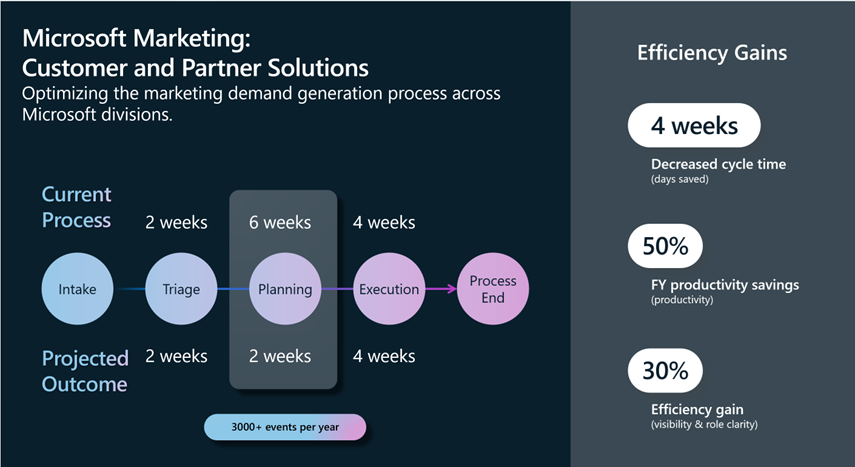
In the fast-paced world of marketing and sales, efficiency and agility are key. That’s why the Microsoft Customer and Partner Solutions (MCAPS) organization has embarked on an exciting journey to better understand internal processes by monitoring them, uncovering inefficiencies, and optimizing them to excellence. The threefold approach using combined capabilities of Power Automate, Process Mining and Copilot have become a staple, internally.
The Power Automate Process Mining solution helps the organization get the full lifecycle visibility into their processes, understand the inefficiencies and targeted improvements to drive via process alignments and automation. Microsoft’s Process Mining offering is easy to use with powerful features including rework detectors, root cause analysis, custom reporting, and seamless integration and automation. The power of Copilot and general ease of use of the platform allow the team to not only scale across all of its processes quickly, but also augments the products owner toolkit to drive process optimization as a critical lever for accelerating digital transformation.
Given the large coverage of the customer base, Marketing execution is inherently complex, involving multiple roles and activities. By focusing on the demand generation process step, the MCAPS team was able to delve into the nested processes and uncover areas for improvement.
By utilizing Power Automate Process Mining, the team gathered event log data, transformed it using Power Query, and completed data attribution. The resulting process map was then analyzed with the help of Copilot, which provided insights and identified bottlenecks that could be addressed through automation.
The analysis revealed that the average duration of this process component was ~60 days, with five different variants spanning across 33 activities. Notably, 20% of the cases required rework activities, indicating a significant area for potential optimization. Roles such as event lead marketing Operations and Integrated Marketing Manager were found to be the most involved in the process, contributing to 80% of the executional activities. By zooming in on individual activities, the team discovered that the intake for content creation averaged 8 days to complete, accounting for about 10% of the total time spent in the process.
With the insights provided by Copilot, the team identified the review loop as the longest-running activity and a major bottleneck. But Copilot didn’t stop there; it went a step further by leveraging Power Automate to automate the process steps, providing improvement suggestions along the way.
The team chose to create digital process flows, and Copilot seamlessly handed it off to Power Automate with a prompt to build the automation. As the flows were built out, Power Automate Copilot continued to refine then until they were ready to be published.
Through iterative process mining and the acceleration provided by Copilot’s automation recommendations, the team projects an outcome of reducing the timeline from 12 weeks to 8 weeks.
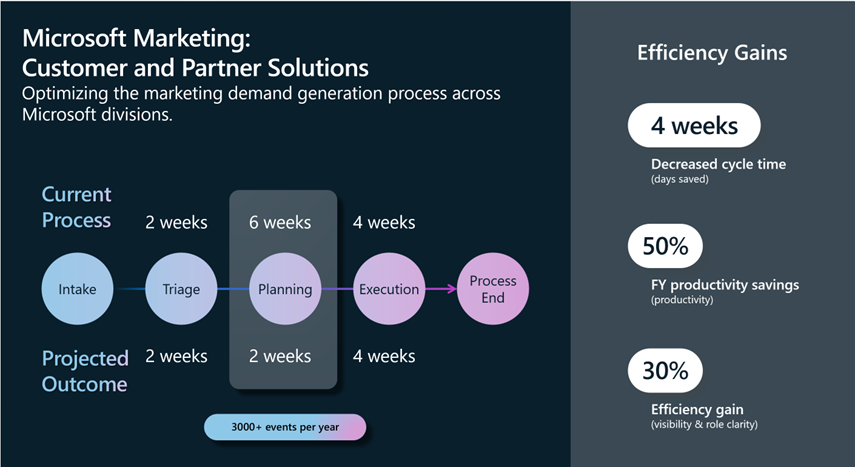
“With the recommendations using Power Automate with Process Mining, we project accelerated time in our demand generation process from twelve to eight weeks. Copilot has given us a lot of confidence as it allows us to scale process simplification as the tip of the spear for our digital transformation!”, says Sandeep Bhanot, Corporate Vice President within Microsoft Customer & Partner Solutions.
This case study is just one example that showcases the power of AI in transforming organizational processes. Within Microsoft Customer and Partner Solutions organization, process mining is being scaled to all business-critical sales processes to realize accelerated efficiencies through process simplification, improved seller productivity, increased compliance and accelerated time to value for Microsoft and our Customers. The team is projecting at least $20 million+ labor productivity improvement across these process areas.
By embracing Process Mining with AI-powered Copilots, businesses can achieve greater efficiency and agility, paving the way for innovation and success.
The post Transforming digital processes with AI: A Power Automate Process Mining Case Study at Microsoft Customer and Partner Solutions (MCAPS) appeared first on Microsoft Power Platform Blog.