How can businesses streamline their processes and optimize their performance with process mining? Microsoft Customer and Partner Solutions organization has been using Power Automate Process Mining with Copilot to analyze, improve, and monitor their sales processes. The results have been impressive for their marketing demand generation process. Read on to learn how they did it, and how you can benefit from Power Automate Process Mining too.
The enterprise journey toward operational excellence is ongoing, and the adoption of hyperautomation has become a pivotal milestone. Microsoft Power Platform stands at the forefront of this movement, offering a suite of tools that transform the way businesses approach digital transformation at scale – and Microsoft Power Automate is a key accelerator.
Imagine a world where every repetitive task, every mundane process, and every time-consuming operation is transformed into a symphony of automated actions, working in perfect harmony to deliver results at lightning speed. This isn’t just a fantasy; it’s a reality that Power Automate can bring, and it’s revolutionizing the way enterprises operate on a global scale.
Below you will learn about a comprehensive scenario with a Center of Excellence (CoE) team, using many of the capabilities in Power Automate, such as Microsoft Copilot, process mining, digital and robotic process automation (RPA), AI models, and more across Power Platform.
Watch the following overview video or continue reading for more details!
Optimizing with precision
Take, for example, a large insurance company bogged down by the weight of its claims process. With the magic of Copilot and process mining in Power Automate, data is ingested from Microsoft Azure Data Lake. The data is analyzed, insights are provided, bottlenecks are identified, and recommendations from Copilot to create an app or automation moves you to action.
Watch the video below to go deeper or continue reading!
Leveraging the power of AI
But why stop there? Power Automate doesn’t just automate; it hyperautomates. It takes the data from process mining and help crafts a late payment prediction AI model that can foresee issues before they arise. This predictive prowess is akin to having foresight, enabling better decision-making and resource allocation that can save time and money.
Watch the video below to go deeper or continue reading!
The approval symphony
And let’s not forget the settlement approval process, often a maze of documentation, is now simplified with task mining. Power Automate, with its task mining capabilities, records each step and transforms them into a process map that’s as clear as day. It then guides the creation of an automation that uses AI, RPA, and API-based automation together to connect data to SAP.
Watch the video below to go deeper or continue reading!
Deploying solutions at scale
Now we move from proof of concept (POC) to enterprise-wide deployment, where IT is empowered with robust Application Lifecycle Management (ALM) that extends across Power Platform. With custom dashboards, automation, apps, and more you can visually track and act on the transformative impact of hyperautomation.
Watch the video below to go deeper or continue reading!
Embrace the future of productivity
Hyperautomation with Power Automate is not just about adopting new technology; it’s about embracing a future where efficiency and productivity are paramount. Let’s embark on this journey together, leveraging the power of hyperautomation to achieve a new standard of excellence.
The post Hyperautomation: Unleashing enterprise efficiency with Microsoft Power Automate appeared first on Microsoft Power Platform Blog.

If you don’t Share, what’s the Point! The community motto, “Sharing is caring” is in full swing – and there’s a ton of sharing in preparation, and we, the SharePoint Team, want to invite you.
Join us in Orlando, Florida for the biggest Microsoft 365 Community Conference to date | April 30 – May 2, 2024. Microsoft is sending over 175 Microsoft product makers — to share and discuss innovation and real-world solutions across keynotes, sessions, and pre/post event deep-dive workshops to build your expertise.
Register today | Note: Use the MSCMTY discount code to save $100 USD.
Below is a subset of the event content, so you know what to expect to hear and see from the SharePoint team. Expect clarity on what SharePoint is today AND directions content management and communications for the future. To see all that Microsoft is planning for the event, please review our Microsoft 365 Community Conference event guide.
 Join in: The Microsoft 365 Community Conference in Orlando, FL | April 30 – May 2, 2024 | aka.ms/M365Conf24 – Sponsored by Microsoft.
SharePoint content at the Microsoft 365 Community Conference
Join us to learn how AI-powered content management in Microsoft 365 enables content intelligence, optimizes critical business processes, improves governance, and prepares your content for Copilot. Below is a subset of content related to SharePoint:
- Opening keynote | “The Age of Copilots” with Jeff Teper (President of Collaboration Apps and Platforms) | Tuesday, April 30th, 8:00am – 9:30am EDT
- The general SharePoint session
- Breakout sessions
- “Introducing SharePoint Premium: AI-powered content management for Microsoft 365” with Adam Harmetz, Chris McNulty, and Sesha Mani | Tuesday, April 30, 3:15pm – 4:15pm
- “Transform your content experiences with AI-powered SharePoint Premium” With Chris Bortlik, Kristen Kamath, and Vijay Sharma | Wednesday, May 1, 8:00am – 9:00am
- “Prepare your content for Microsoft Copilot with SharePoint Premium content governance” with Chris Bortlik | Thursday, May 2, 9:15am – 10:15am
- “Branding SharePoint sites, Clipchamp videos, Teams meetings, and more” with Cathy Dew | Thursday, May 2, 11:00am – 12:00pm
- “The Ins and Outs of Microsoft 365 Backup and Archive” with Jaclynn Hiranaka and Trent Green | Thursday, May 2, 8:00am – 9:00am
- “The Intranet of tomorrow: beautiful, flexible and AI ready” with Dave Cohen and Denise Trabona | Wednesday, May 1, 10:00am – 11:00am
- “Microsoft Power Automate – the AI-first way to automate Microsoft 365” with Harysh Menon and Ravon Lingard | Wednesday, May 1, 2:00pm – 3:00pm
- “Supercharge Microsoft Copilot with Your Enterprise Data” with Mankirat Kaur Bajwa and Sameer Chabungbam | Tuesday, April 30, 3:15pm – 4:15pm
Register today | Note: Use the MSCMTY discount code to save $100 USD.
In addition to our main sessions and content, expect a lot of community time and networking with executives and product makers in the Expo Hall – Microsoft will have a booth with a stage for lightning talks, meet and greets throughout the week, day and evening activities – including the main attendee party at Universal Islands of Adventure, plus a variety of roundtable discussion with our researchers and product team members to listen and help share future product/feature direction.
We asked three Microsoft technology and event experts, @Sharon Weaver, @Sean Bugler, and Derek Cash Peterson — to share their in-person tips and tricks so you can best prepare to have an awesome and optimal Microsoft 365 Community Conference experience:
Join in! The Microsoft 365 Community Conference in Orlando, FL | April 30 – May 2, 2024 | aka.ms/M365Conf24 – Sponsored by Microsoft.
- What: Microsoft 365 Community Conference 2024
- Content: 1 Microsoft keynote + 1 AMA || 150+ overall sessions – 88 Microsoft-led sessions (see all below in product-area buckets) | 18 full-day workshops (pre-day and post) – 4 supported by Microsoft
- When & where: April 30 – May 2nd, 2024
- In-person: Orlando, Florida – Swan & Dolphin Resort – Disneyworld
- Workshops: April 28, 29, and May 3, 2024
- Twitter & hashtag: @M365CONF | #M365Con
- Cost: $1,899 – full conference (Includes 3 continental breakfasts, 3 lunches, a T-shirt, and backpack. Additional costs for full-day workshops.)
Thank you, Mark Kashman, Senior product manager – Microsoft
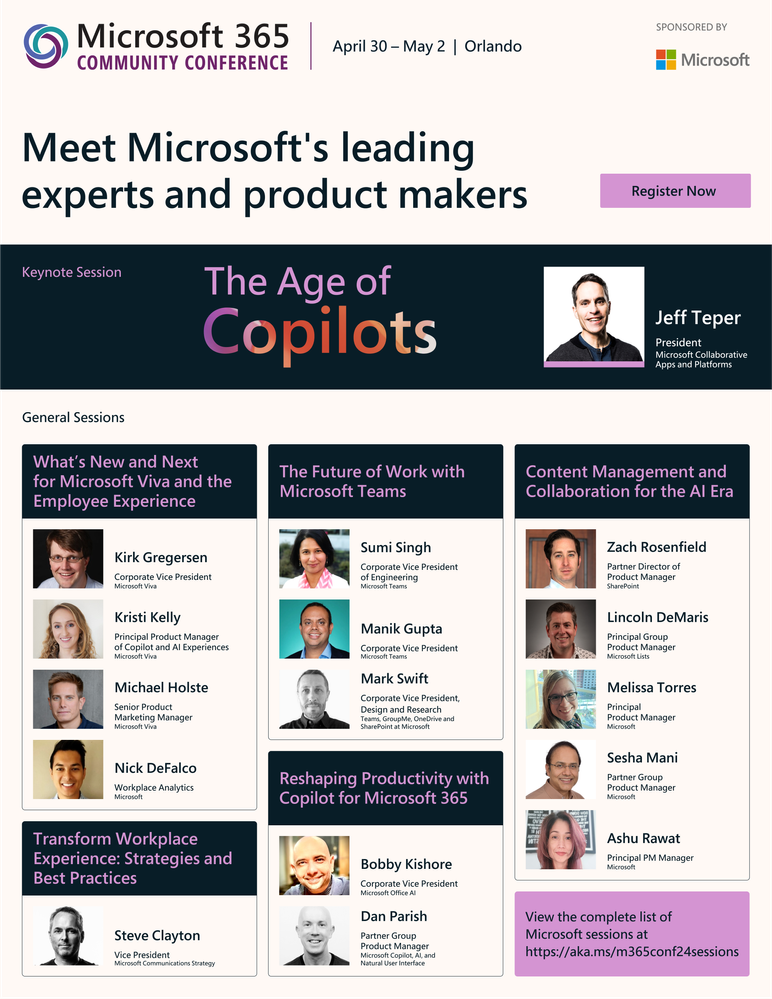 Join in: The Microsoft 365 Community Conference in Orlando, FL | April 30 – May 2, 2024 | aka.ms/M365Conf24 – Sponsored by Microsoft.
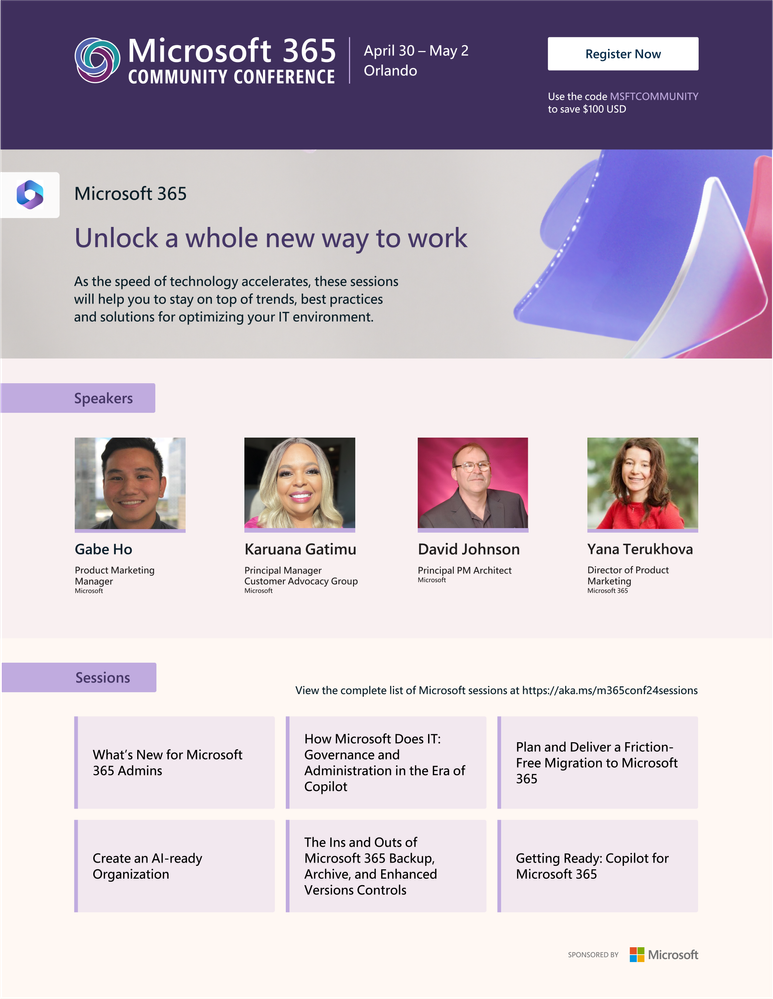 Join in: The Microsoft 365 Community Conference in Orlando, FL | April 30 – May 2, 2024 | aka.ms/M365Conf24 – Sponsored by Microsoft.
 Join in: The Microsoft 365 Community Conference in Orlando, FL | April 30 – May 2, 2024 | aka.ms/M365Conf24 – Sponsored by Microsoft.
The enterprise journey toward operational excellence is ongoing, and the adoption of hyperautomation has become a pivotal milestone. Microsoft Power Platform stands at the forefront of this movement, offering a suite of tools that transform the way businesses approach digital transformation at scale – and Microsoft Power Automate is a key accelerator.
Introducing a new data governance feature for desktop flows that allows administrators to control when desktop flow run action logs are captured or disable them completely
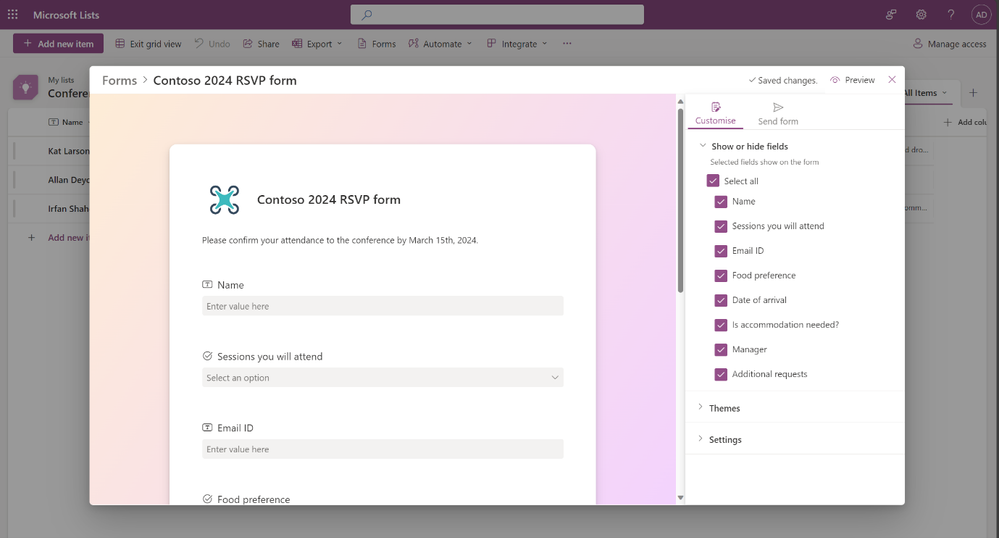
We are excited to announce that we are currently rolling out the new forms experience in Microsoft Lists for Microsoft 365 work and school. Our goal is to make it easier to collect and gather information directly into your lists – saving you time and effort. Thus, we are excited to launch a new forms experience built right inside Microsoft Lists – rolling out now. Note: This relates to Microsoft 365 roadmap ID: 124865.
Let’s start with a short ‘how it works’ video tour of the new forms experience in Microsoft Lists:
With a modern design experience, Lists forms can be created quickly and shared via a link to anyone within your organization. The recipient focuses on filling out the details without seeing your full list. All submitted responses appear immediately as new list items. From there, it’s just like any other item in a list – and get the benefits of formatting, automations, and commenting.
Lists forms work well to track recruitment, manage orders, intake customer issues, file expenses, and more. For example, an event organizer can create and manage multiple forms for the same list tracking attendees, feedback, logistics and more – each form collecting elements of the full list.
The new Forms experience in Microsoft Lists – showing how you add and edit columns as segments to collect various pieces of information.
Take advantage of the built-in design capabilities to make your forms more relevant, professional, and beautiful. You , choose from several themes, add descriptions and user-friendly questions instead of the default column names – without affecting the list itself.
Form designers can hide fields that are not required and add new fields directly. You can build the whole schema of a list right inside the form designer if you do desire.
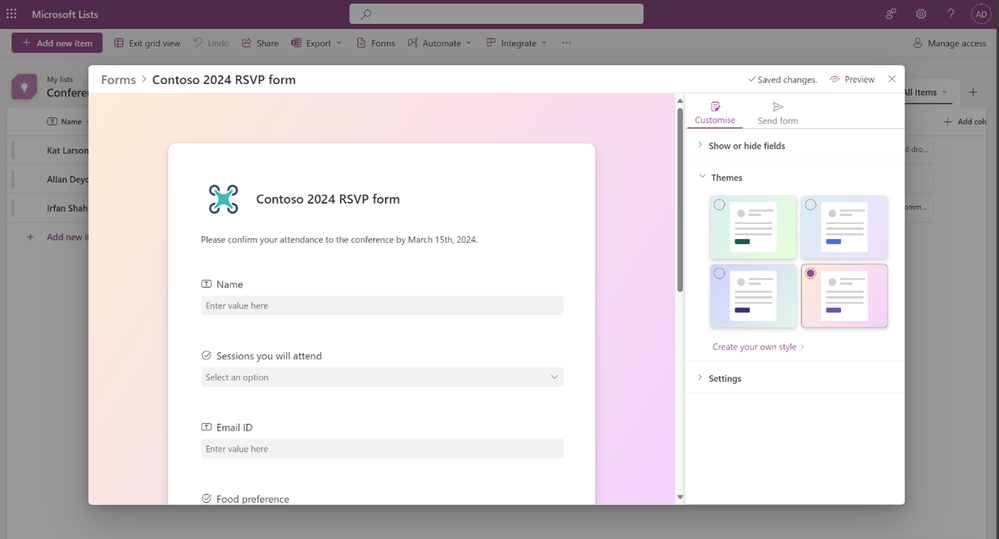 The new Forms experience in Microsoft Lists – showing how you can select pre-made themes or create your own style.
As a form creator, you can create a form by clicking Forms on the command bar at the top of a list. This section lets you make new forms or access existing forms created by other list collaborators. When you create a new form, the form builder opens and uses the fields from the list schema. You can add or show/hide fields on the form. You can choose to change the theme and share the form with a link. You can also stop accepting responses on a form at any time. NOTE: The Forms section is hidden from people who do not have permission to edit the list.
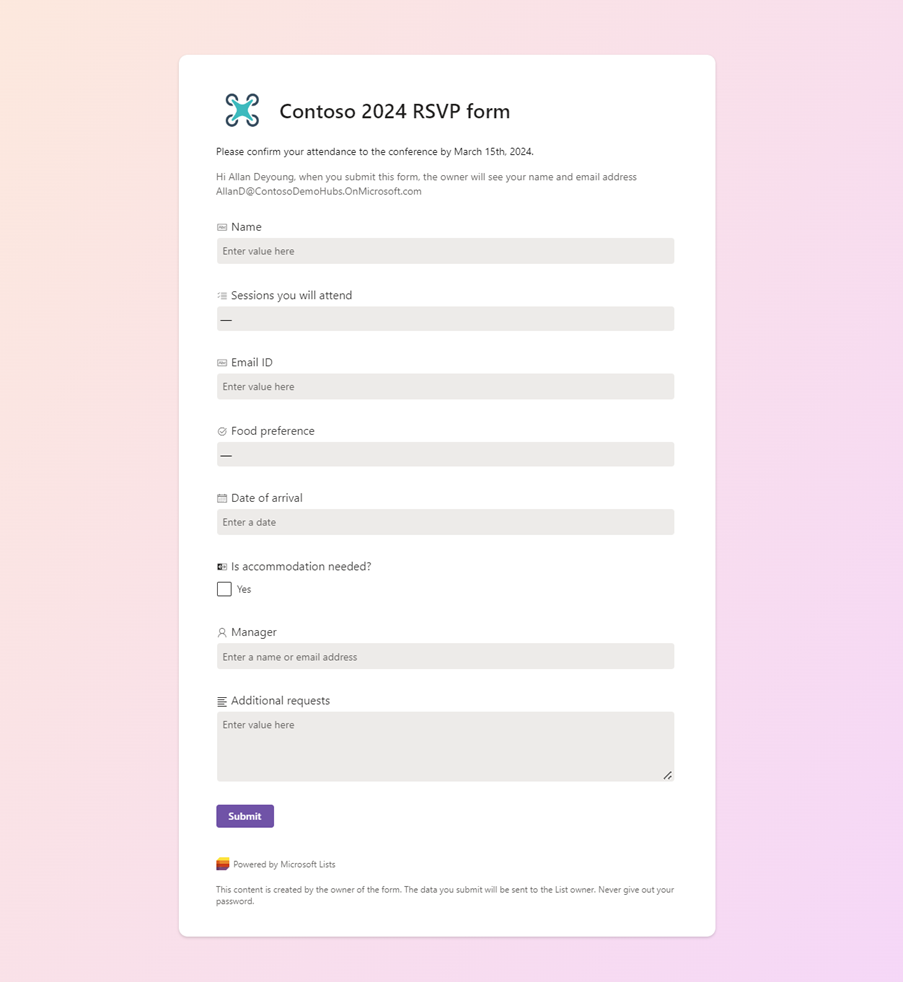 The new Forms experience in Microsoft Lists – showing what a recipient sees when they click on the Form share link – they simply, and only, see the form as you designed it.
Anyone in your organization can access the form through a link – click Share link and include it in an email, chat, or as a link on a SharePoint page. When they submit their responses (as shown above), the information goes directly to your list as a new list item (as shown below). From there, it’s just like any other item in a list – to take advantage of formatting, rules, and maybe you’ll even feel compelled to add a Ratings column and rate those submissions as they come in.
 Once a new item is submitted from the form, you will see it appear on your list as a new list item.
And, not to worry about where your recipients receive the form link. They can view the form, put in their details, and submit it on a desktop or mobile browser. The form submitter must be logged into Microsoft 365. And the good news, they cannot see the entirety of the list or gain any extra permissions by filling out and submitting the form.
We are working to bring more value to this forms experience and would deeply appreciate feedback and suggestions from you. Don’t be shy; use the Feedback button at the top of the page when looking at a List to let us know what you think. Submit your feature ideas at any time to the Microsoft Lists – Feedback Portal. And coming soon, a new Help article to help you through all the steps on how to create a form in Microsoft Lists.
I’ll be demo’ing the new Microsoft Lists Forms experience on the upcoming Microsoft 365 & Power Platform community call: Tuesday, April 16th, 2024, at 8:00 AM PDT; it’s free to join and it’s a great community to learn from. See you there.
To learn more about Microsoft Lists, please visit our dedicated Lists resource center. And come say hi to the team and ask questions at the Microsoft 365 Community Conference (Orlando, FL | April 30 – May 2, 2024).
Thank you, Sahil Baid, Senior product manager – Microsoft Lists
Power Automate for desktop comes with new additions in 2024 March’s release, including new functionalities for Power Fx enabled desktop flows, a new Excel action, and more.
General availability of auto-claim for Power Automate licenses, a feature that simplifies license management for admins and enhances the user experience.
Power Automate for desktop’s March release includes major updates for Power Fx enabled desktop flows (preview). IntelliSense capabilities, a revamped variable picker and a dedicated function picker assist makers in creating complex functions with minimal effort.
In this article:
SharePoint Server Subscription Edition Version 24H1 feature update
Today we’re delighted to share the latest steps in our evergreen journey for SharePoint Server with the release of the Version 24H1 feature update for SharePoint Server Subscription Edition. This feature update brings greater customization capabilities to our modern UX, simplifies Open ID Connect configuration, and opens up a new channel for on-premises customers to share their feedback directly with the SharePoint Server product team.
Search vertical customization in modern search results
Long-time SharePoint Server customers are aware of the breadth of functionality available in the classic SharePoint UX. This power can also be its Achilles’ heel, overwhelming users with options as they carry out their day-to-day work. Microsoft introduced the modern UX to address these concerns, simplifying the SharePoint experience and making it easier for users to perform their most common tasks.
While the modern UX has been a welcome redesign of the SharePoint experience, Microsoft recognizes that there are opportunities to further enhance the modern UX without negating its advantages in ease of use. Search verticals are a good example of this.
Search verticals provide a way for users to quickly filter the types of search results returned for a query, such as by only returning documents, news posts, and so on. Customers have the flexibility to customize which search verticals are present in the classic search results page. However, search verticals couldn’t be customized in the modern search results page. Customers were locked into using the default search verticals that were built-in to SharePoint Server Subscription Edition.
This limitation is removed starting with the SharePoint Server Subscription Edition Version 24H1 feature update. Customers now have the ability to add custom search verticals to their modern search results page at both the site and organization level. This will help users to quickly find what they’re looking for while staying in the simplified modern UX.
OpenID Connect (OIDC) integration with SharePoint certificate management
The initial RTM release of SharePoint Server Subscription Edition introduced several new features that were designed to improve the security and manageability of SharePoint Server.
One of those new features was OpenID Connect (OIDC) authentication support. OpenID Connect is a modern authentication protocol that makes it easy to integrate applications and devices with an organization’s identity and authentication management solutions to better meet their evolving security and compliance needs. For example, organizations can enforce authentication policies such as multifactor authentication (MFA), conditional access policies based on device compliance, and more.
Another new feature was SSL/TLS certificate management. This feature allows farm administrators to directly manage the deployment and lifecycle of SSL/TLS certificates in their SharePoint farms. This includes importing and exporting certificates into SharePoint, deploying those certificates to each server in their SharePoint farm, assigning certificates to web applications or other SharePoint resources, and automatic notifications when certificates are approaching their expiration date.
SharePoint Server Subscription Edition’s OIDC implementation includes a nonce cookie certificate, which is part of the infrastructure that ensures OIDC authentication tokens are secure. However, this nonce cookie certificate wasn’t managed by the SharePoint certificate management feature. As a result, customers had to manually deploy, configure, and monitor the expiration of this certificate on each server in their SharePoint farm.
Starting with the SharePoint Server Subscription Edition Version 24H1 feature update, the OpenID Connect (OIDC) nonce cookie certificate is now integrated into the SharePoint certificate management experience. SharePoint farm administrators can use the SharePoint certificate management feature to manage the full lifecycle of the OIDC nonce cookie certificate, including deployment of the certificate to all servers in the farm and automatic configuration of the necessary permissions. A new SharePoint Health Analyzer health rule has also been added to notify administrators if the nonce cookie certificate isn’t being managed through SharePoint certificate management.
Customer feedback experience in SharePoint Central Administration
Microsoft aspires to bring the best possible experiences for users around the world through its innovative product offerings. Customer feedback is critical to ensure we’re meeting the needs of our customers. That’s why we’re happy to announce a new way for customers to share their feedback with Microsoft from directly in the product.
Starting with the SharePoint Server Subscription Edition Version 24H1 feature update, an optional survey will appear to SharePoint farm administrators from time to time when they visit the SharePoint Central Administration site. The feedback shared through this survey will go directly to the SharePoint Server product team to help us improve the product to meet your needs. Customers can disable this customer feedback experience on a per-user or farm-wide basis if they so choose.
For more information about these new feature experiences, see New and improved features in SharePoint Server Subscription Edition Version 24H1.
End of support reminder for SharePoint 2016 and SharePoint 2019
It may be hard to believe, but SharePoint Server 2019 reached the end of Mainstream Support on January 9th of this year and is now in Extended Support. This means that it’s no longer eligible to receive non-security quality updates. Going forward, it’s only eligible to receive security updates.
In fact, the end of support for SharePoint Server 2016 and SharePoint Server 2019 is just over 2 years away. On July 14, 2026, both of these products will reach end of support. After that date, these products will no longer be eligible to receive support of any kind, including security updates.
If you’re currently using either of these products, now is the perfect time to start thinking about your future. There are two paths forward to remain supported:
- Migrate to SharePoint in Microsoft 365, which is our recommended approach. SharePoint in Microsoft 365 is our premier SharePoint experience and gives customers access to all of the latest productivity, security, and usability investments that Microsoft is making now and in the future.
- Upgrade to SharePoint Server Subscription Edition, which is the latest version of SharePoint Server. SharePoint Server Subscription Edition is based on our modern engineering and support lifecycle, which means we’ll continue to introduce new feature experiences and capabilities for it on a regular basis through feature updates, focusing on security and key customer scenarios. Note that while we’ll continue to make investments in SharePoint Server Subscription Edition, the scope of those investments will be much smaller compared to SharePoint in Microsoft 365, so the feature gap between them will only increase over time. For this reason, we encourage customers to migrate what they can to SharePoint in Microsoft 365 and only keep what they must in SharePoint Server Subscription Edition.
Summary
We hope SharePoint Server Subscription Edition customers take this opportunity to explore the new feature experiences we’ve introduced in the Version 24H1 feature update. We look forward to sharing even more new feature experiences with you in our next feature update, coming in the second half of this year.
And for SharePoint 2016 and SharePoint 2019 customers, don’t wait to begin planning your path forward to remain supported once these products reach end of support. Planning now will give you plenty of time to evaluate your options to either migrate to the cloud or remain on-premises, and begin executing on your decision. Whichever option you choose, Microsoft stands behind you with products and services designed to meet your needs today and in the future.