We’ve been continuing to update and modernize user experiences throughout OneDrive and SharePoint. And as we noted earlier this month, we’re making it easier than ever to share these updates with more and more users. Today, we’re happy to share news about modern features coming to SharePoint this quarter. Some of these are updates to classic features, while others are brand new. Let’s look.
Bulk check in/out
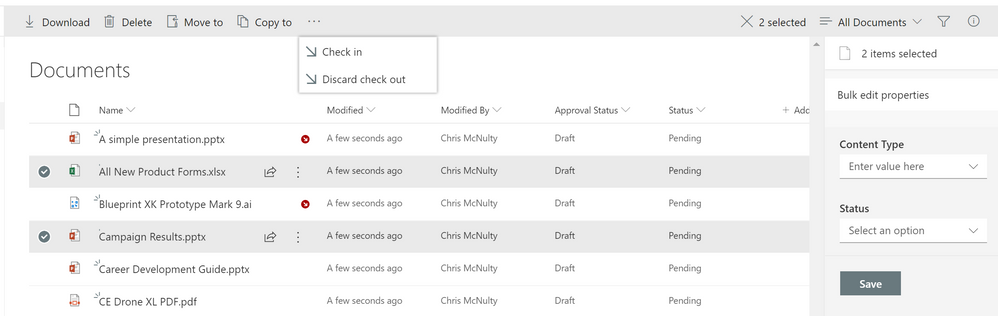
Coming in February 2019. We had previously released the ability to make bulk edits to documents in a library. Now, you’ll be able to check in and check out multiple files at the same time from the command bar in the document library. When you check out a file you have exclusive edit control until it is “returned” (checked in).
Bulk check-in and check-out
Signals
Coming in February 2019. Sharpeyed readers may notice some new icons next to the filenames in the screenshot above. These are signals – visual cues about the status of a file. Here’s what we’re rolling out:
| Signal |
Summary
|
Comments
|
 |
Malware
|
Malicious software or packages have been detected in the file.
|
 |
Personal checkout
|
This file has been checked out to you.
|
 |
Other checkout
|
This file has been checked out by someone else (not you).
|
 |
Missing metadata
|
Required metadata is missing for this file.
|
 |
DLP blocked
|
Sharing access to this file is blocked by a data loss protection (DLP) policy
|
 |
DLP warning
|
The file is triggering a warning from a data loss protection (DLP) policy.
|
 |
Trending
|
This file has gathered increased viewership recently.
|
 |
Record
|
The file is tagged as a record – a read-only compliance policy is in effect.
|
 |
“New”
|
The file has been recently created or uploaded.
|
|

|
Shared
|
The file has been shared with additional people.
|
Over time, we’ll be adding more signals to give you visual indicators about items and documents in lists and libraries. We’ll also be extending them beyond SharePoint’s native views, in services such as OneDrive, Microsoft Teams, and the Office clients.
Column Totals
Coming in February 2019. Custom views allow you to add calculated fields, such as totals or averages, to the footer of a group or the entire list. Now, totals will display in the modern view without forcing users back to the classic interface. Totals will also show in the modern web parts for lists and libraries.
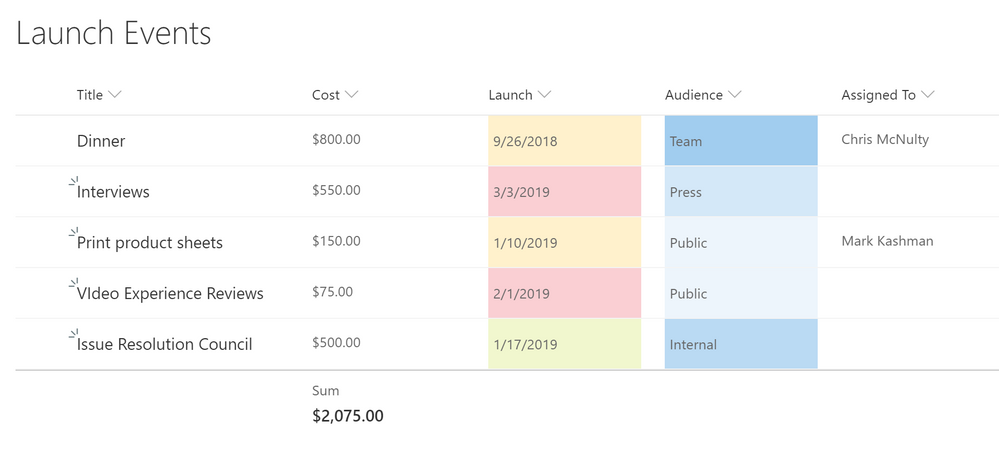 Modern column totals
Sticky Headers
Coming in March 2019. Libraries and lists can get extremely large – up to 30 million items in a single list. Soon, as you scroll down through ever-larger lists, SharePoint keeps the column headers pinned at the top of the scrolling window. This helps you identify list values as you move vertically and horizontally through the view. Column headers will also remain in place inside the list/library web parts.
Add Columns in between columns
Coming in February 2019. Those column headers are also getting additional capabilities. Soon, you’ll be able to add a column in place between other columns in a view, without adding them at the end and moving them separately to your preferred location. Just hover your mouse on the border between two columns to open up the column creation dialog.
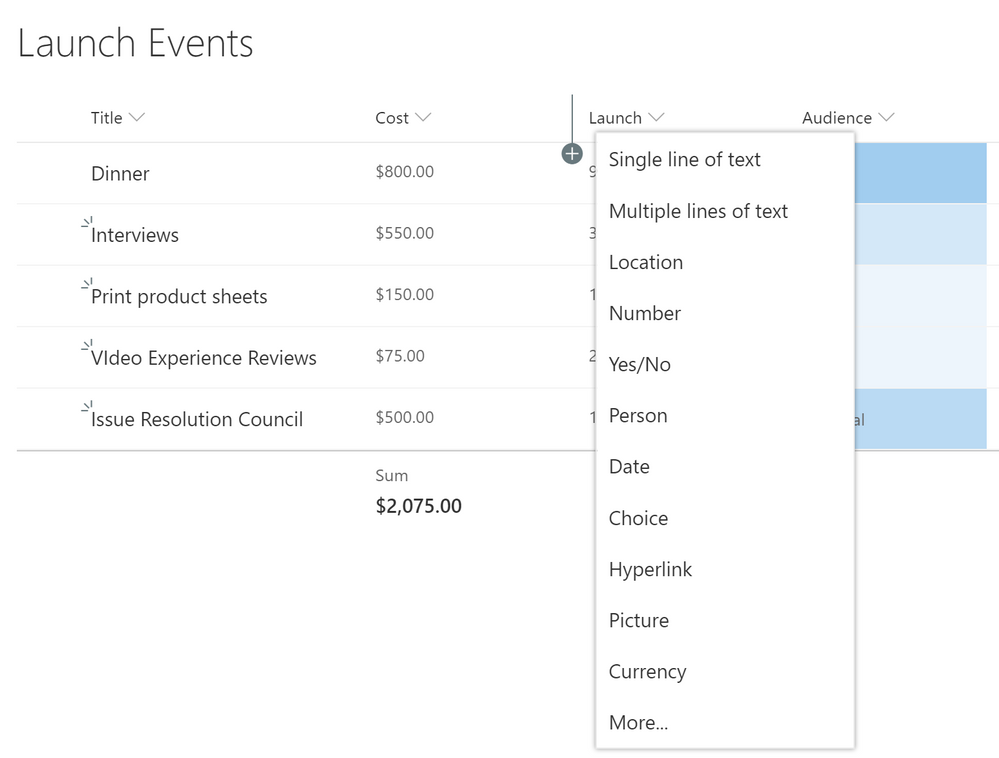 Column insert
Column Drag and Drop
Coming in February 2019. If you need to move a column around in a list or library, that’s also getting simpler. You can drag the column header to a new location to tailor the view to match your needs.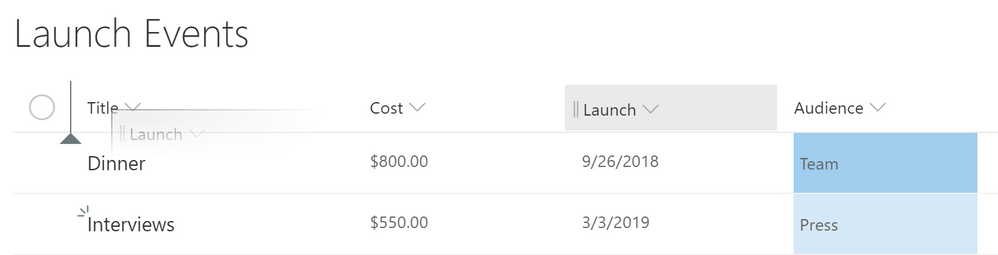 Column drag & drop
Document sets
Coming in March 2019. Document sets group related documents together with shared metadata, routing and visual experiences. They’ve been available in classic mode, and now you can work with them from the modern experience as shown below.
 A document set shown in the modern user experience
As a reminder, document sets require you to activate the site-collection scoped “Document Sets” feature in site settings. Then you can add Document Set as a content type to the library. We’ll have more updates for modern document sets in the future.
Conclusion
Our modern interface offers significant advantages in speed, simplicity, accessibility and responsive design. And we’re not done. We’re making it simpler to extend modern experiences of lists and libraries throughout Office 365, including OneDrive, Microsoft Teams, and the Office clients. Microsoft is committed to updating all critical classic scenarios to the modern experience.
Please share your feedback here on the Tech Community or on UserVoice. Thanks.
In 2016, we introduced a new “modern” experience for SharePoint, bringing extensibility, accessibility, and responsive design to a complete overhaul of the user experience. Since then, modern has been the center of innovation in SharePoint and OneDrive, although classic mode remains supported and available.
We’re making it easier for users to get to our latest feature updates. Starting April 1, 2019, it will no longer be possible to restrict an entire organization (tenant) to classic mode for lists and libraries. Lists and libraries may still use classic mode using the granular opt-out switches that we provide at the site collection, site, list, and library levels. Additionally, lists that use certain features and customizations that are not supported by modern will still be automatically switched to classic mode.
After April 1, lists and libraries that are in classic mode as a result of tenant opt-out will automatically be shifted to modern. Users will benefit from enhancements and new features such as attention views, PowerApps integration, Flow, column formatting, and the filters pane.
If you still wish to restrict users to the classic experience, you have several tools to help you:
- Identify the impact. The SharePoint Modernization scanner identifies sites and lists that have customizations that are not supported by modern UI. Although many of these lists will automatically remain in classic mode even after this change, you may wish to keep some sites running entirely in classic to avoid users switching between different experience modes within a single site.
- Disable modern experience for specific site collections. Administrators can use a PowerShell script to enable or disable the modern experience for a single site collection or for a list of site collections as provided by the SharePoint Modernization scanner. Alternately, users can still use the “return to classic” option on modern views of lists or libraries to temporary return to classic, and list owners can use List Settings to configure that list to use the classic experience for all users.
Frequently asked Questions
What lists in my environment will be affected by this change?
Today, a list or library might appear in classic mode for any of these reasons:
- The list is in a tenant that has opted out of modern lists via the tenant setting.
- The list is in a site collection or site that has opted out of modern lists via PowerShell.
- The list itself has opted out of modern lists through the list advanced setting.
- The list has an unsupported template or customization that causes it to fall back to classic mode. For example, if the list is a Calendar or Task list, or if the list has a JSLink customization applied.
- The user has chosen “return to classic” from inside the modern view.
This change will only affect lists that are currently in classic mode as a result of #1 – because of the tenant opt-out switch. Lists that have overlapping reasons will not be affected either. For example, a calendar list in a tenant that’s opted out has reasons #1 and #4. This list will not be affected by this change.
When will Microsoft remove or deprecate classic mode?
There are no plans to remove classic mode. We’ll maintain the current feature set for classic lists and library experiences, but all our new feature innovation will be going into the modern interface.
Are there any other changes to user experiences as a result of this change?
This update is only a change to the administrative settings, not the user interface. It makes it simpler to deploy modern experiences to more users, while providing enhanced tools to identify and manage lists and libraries that need to stay classic.
I’m still using a calendar list that is only available in classic mode. Why aren’t you modernizing these lists?
We’ve already modernized many classic scenarios, such as document sets. At the same time, we’ve also released new modern-only features, such as Microsoft Flow integration. Modernization is an ongoing process. We evaluate many data sources to help set priorities – including usage data, customer meetings and UserVoice. Features with the greatest impact and usage are updated before features with less usage or demand.
More modernizations will come. We do recognize that individual needs may vary from collective priorities. Microsoft is committed to updating all critical classic scenarios to the modern experience.
I’m going to use my classic publishing portal for a long time because of features and investment. Is that going away?
Classic publishing remains a critical scenario for many customers. Although we are not delivering new features, we are actively updating and optimizing performance for classic publishing features.
We’ve also released many updates for publishing modern pages and communication sites. You can see examples of pages and sites in our new SharePoint lookbook. More details about modern intranets are available on the TechCommunity Resource Center .
What other updates can we expect to modern experiences?
As mentioned earlier, we have already announced plans to release column totals and modern document sets early in 2019. Expect to see many more updates announced here on the TechCommunity throughout 2019.
In 2016, we introduced a new “modern” experience for SharePoint, bringing extensibility, accessibility, and responsive design to a complete overhaul of the user experience. Since then, modern has been the center of innovation in SharePoint and OneDrive, although classic mode remains supported and available.
We’re making it easier for users to get to our latest feature updates. Starting April 1, 2019, it will no longer be possible to restrict an entire organization (tenant) to classic mode for lists and libraries. Lists and libraries may still use classic mode using the granular opt-out switches that we provide at the site collection, site, list, and library levels. Additionally, lists that use certain features and customizations that are not supported by modern will still be automatically switched to classic mode.
After April 1, lists and libraries that are in classic mode as a result of tenant opt-out will automatically be shifted to modern. Users will benefit from enhancements and new features such as attention views, PowerApps integration, Flow, column formatting, and the filters pane.
If you still wish to restrict users to the classic experience, you have several tools to help you:
- Identify the impact. The SharePoint Modernization scanner identifies sites and lists that have customizations that are not supported by modern UI. Although many of these lists will automatically remain in classic mode even after this change, you may wish to keep some sites running entirely in classic to avoid users switching between different experience modes within a single site.
- Disable modern experience for specific site collections. Administrators can use a PowerShell script to enable or disable the modern experience for a single site collection or for a list of site collections as provided by the SharePoint Modernization scanner. Alternately, users can still use the “return to classic” option on modern views of lists or libraries to temporary return to classic, and list owners can use List Settings to configure that list to use the classic experience for all users.
Frequently asked Questions
What lists in my environment will be affected by this change?
Today, a list or library might appear in classic mode for any of these reasons:
- The list is in a tenant that has opted out of modern lists via the tenant setting.
- The list is in a site collection or site that has opted out of modern lists via PowerShell.
- The list itself has opted out of modern lists through the list advanced setting.
- The list has an unsupported template or customization that causes it to fall back to classic mode. For example, if the list is a Calendar or Task list, or if the list has a JSLink customization applied.
- The user has chosen “return to classic” from inside the modern view.
This change will only affect lists that are currently in classic mode as a result of #1 – because of the tenant opt-out switch. Lists that have overlapping reasons will not be affected either. For example, a calendar list in a tenant that’s opted out has reasons #1 and #4. This list will not be affected by this change.
When will Microsoft remove or deprecate classic mode?
There are no plans to remove classic mode. We’ll maintain the current feature set for classic lists and library experiences, but all our new feature innovation will be going into the modern interface.
Are there any other changes to user experiences as a result of this change?
This update is only a change to the administrative settings, not the user interface. It makes it simpler to deploy modern experiences to more users, while providing enhanced tools to identify and manage lists and libraries that need to stay classic.
I’m still using a calendar list that is only available in classic mode. Why aren’t you modernizing these lists?
We’ve already modernized many classic scenarios, such as document sets. At the same time, we’ve also released new modern-only features, such as Microsoft Flow integration. Modernization is an ongoing process. We evaluate many data sources to help set priorities – including usage data, customer meetings and UserVoice. Features with the greatest impact and usage are updated before features with less usage or demand.
More modernizations will come. We do recognize that individual needs may vary from collective priorities. Microsoft is committed to updating all critical classic scenarios to the modern experience.
I’m going to use my classic publishing portal for a long time because of features and investment. Is that going away?
Classic publishing remains a critical scenario for many customers. Although we are not delivering new features, we are actively updating and optimizing performance for classic publishing features.
We’ve also released many updates for publishing modern pages and communication sites. You can see examples of pages and sites in our new SharePoint lookbook. More details about modern intranets are available on the TechCommunity Resource Center .
What other updates can we expect to modern experiences?
As mentioned earlier, we have already announced plans to release column totals and modern document sets early in 2019. Expect to see many more updates announced here on the TechCommunity throughout 2019.

Latest monthly summary of SharePoint Development guidance for SharePoint Online and on-premises now available from the Office 365 Dev Blog. Check the latest news, samples and other guidance from this summary.
Latest monthly summary of SharePoint Development guidance for SharePoint Online and on-premises now available from the Office 365 Dev Blog. Check the latest news, samples and other guidance from this summary.
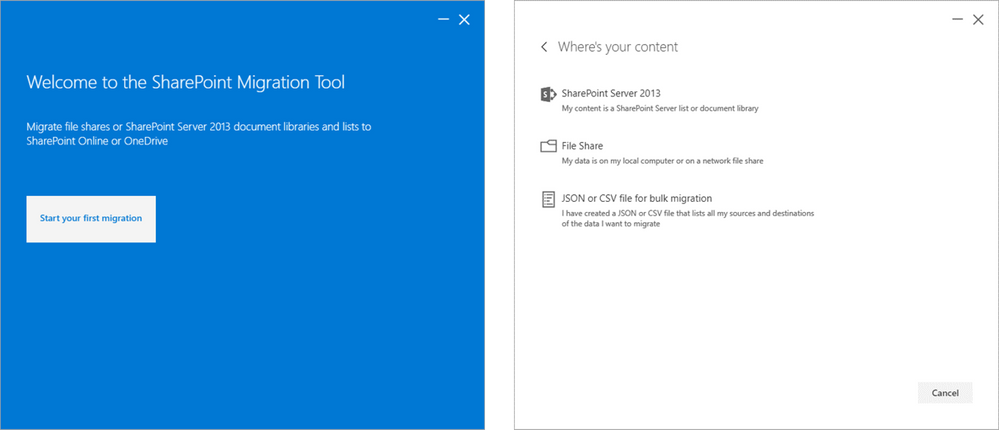
We’re excited to announce new improvements to the SharePoint Migration Tool for the month of January.
Designed to be used for migrations ranging from the smallest set of files to a large scale enterprise migration, the SharePoint Migration Tool will let you bring your information to the cloud and take advantage of the latest collaboration, intelligence, and security solutions with Office 365.
Improvements this month include:
A new, updated UI aligned with the Office 365 user experience
This release of the SharePoint Migration Tool includes improvements to the user interface with a new, simplified control service more aligned to the visual themes of SharePoint Online.
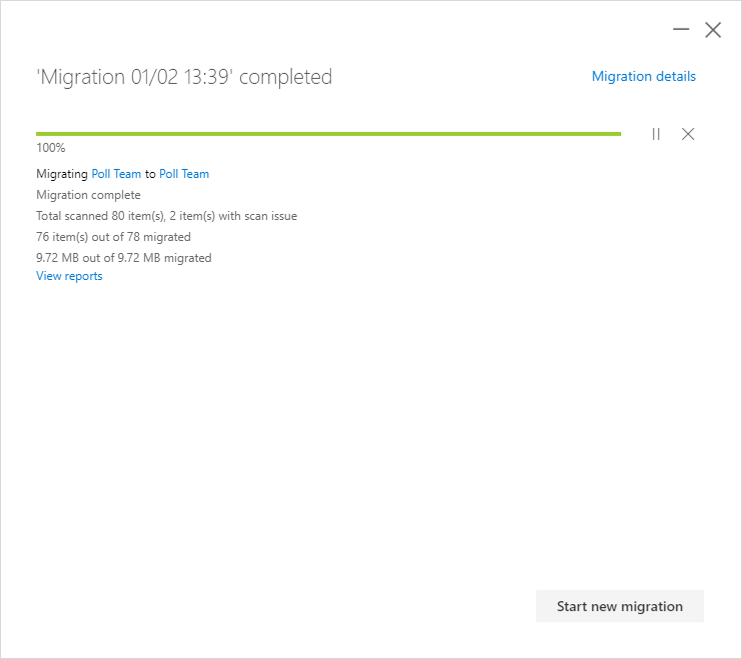
Ability to start new migrations without having to restart the SharePoint Migration Tool
Now in this release of the SharePoint Migration Tool you can start new migrations without having to restart the migration tool.
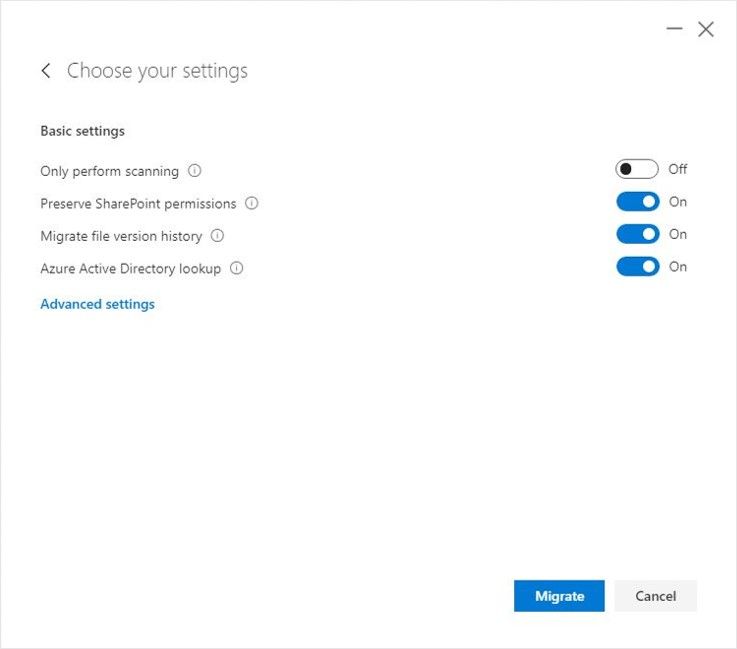
Improved interaction flow including simplified setting review experience
More easily access and view the settings needed to support your migration scenario with a new simplified interaction flow and review experience.
About the SharePoint Migration Tool
The SharePoint Migration Tool is designed to simplify your journey to the cloud through a free, simple, and fast solution to migrate content from on-premises SharePoint sites and file shares to SharePoint or OneDrive in Office 365. The SharePoint Migration Tool allows you to accelerate your journey to Office 365 overcoming obstacles typically associated with migration projects. With the SharePoint Migration Tool you can evaluate and address the information that matters the most to your organization, the Libraries, and now Lists that form the foundation of the SharePoint experience. Using the SharePoint Migration Tool you can start your migration today and take advantage of the full suite of features and security capabilities that Office 365 offers.
Keep reading to learn more about the SharePoint Migration Tool or download the latest version now at https://aka.ms/SPMT.
Getting Started
You can download the SharePoint Migration Tool at http://aka.ms/SPMT. Through this version of the SharePoint Migration Tool you’ll have available to you the innovation we’re delivering to help you bring your information to the cloud and take advantage of the latest collaboration, intelligence, and security solutions with Office 365.
What’s next…
Through continued innovation across migration scenarios we’ll be adding more capabilities over time to the SharePoint Migration Tool, including support for more SharePoint versions, site structure migrations, and more. Subscribe here to stay up to date on future announcements for SharePoint and Office 365.
Wrapping Up…
Whether you’re looking to migrate from file shares on-premises to SharePoint or OneDrive or from on-premises versions of SharePoint, the SharePoint Migration Tool is designed to support the smallest of migrations to large scale migrations with support for bulk scenarios.
Learn more about migrating to Office 365 at https://resources.techcommunity.microsoft.com/cloud-migration/.
Learn more about the SharePoint Migration Tool at https://support.office.com/en-us/article/Introducing-the-SharePoint-Migration-Tool-9c38f5df-300b-4adc-8fac-648d0215b5f7.
Prepare your environment for migration using the SharePoint Migration Assessment Tool by learning more at https://www.microsoft.com/en-us/download/details.aspx?id=53598.
We’re excited to announce new improvements to the SharePoint Migration Tool for the month of January.
Designed to be used for migrations ranging from the smallest set of files to a large scale enterprise migration, the SharePoint Migration Tool will let you bring your information to the cloud and take advantage of the latest collaboration, intelligence, and security solutions with Office 365.
Improvements this month include:
A new, updated UI aligned with the Office 365 user experience
This release of the SharePoint Migration Tool includes improvements to the user interface with a new, simplified control service more aligned to the visual themes of SharePoint Online.
Ability to start new migrations without having to restart the SharePoint Migration Tool
Now in this release of the SharePoint Migration Tool you can start new migrations without having to restart the migration tool.
Improved interaction flow including simplified setting review experience
More easily access and view the settings needed to support your migration scenario with a new simplified interaction flow and review experience.
About the SharePoint Migration Tool
The SharePoint Migration Tool is designed to simplify your journey to the cloud through a free, simple, and fast solution to migrate content from on-premises SharePoint sites and file shares to SharePoint or OneDrive in Office 365. The SharePoint Migration Tool allows you to accelerate your journey to Office 365 overcoming obstacles typically associated with migration projects. With the SharePoint Migration Tool you can evaluate and address the information that matters the most to your organization, the Libraries, and now Lists that form the foundation of the SharePoint experience. Using the SharePoint Migration Tool you can start your migration today and take advantage of the full suite of features and security capabilities that Office 365 offers.
Keep reading to learn more about the SharePoint Migration Tool or download the latest version now at https://aka.ms/SPMT.
Getting Started
You can download the SharePoint Migration Tool at http://aka.ms/SPMT. Through this version of the SharePoint Migration Tool you’ll have available to you the innovation we’re delivering to help you bring your information to the cloud and take advantage of the latest collaboration, intelligence, and security solutions with Office 365.
What’s next…
Through continued innovation across migration scenarios we’ll be adding more capabilities over time to the SharePoint Migration Tool, including support for more SharePoint versions, site structure migrations, and more. Subscribe here to stay up to date on future announcements for SharePoint and Office 365.
Wrapping Up…
Whether you’re looking to migrate from file shares on-premises to SharePoint or OneDrive or from on-premises versions of SharePoint, the SharePoint Migration Tool is designed to support the smallest of migrations to large scale migrations with support for bulk scenarios.
Learn more about migrating to Office 365 at https://resources.techcommunity.microsoft.com/cloud-migration/.
Learn more about the SharePoint Migration Tool at https://support.office.com/en-us/article/Introducing-the-SharePoint-Migration-Tool-9c38f5df-300b-4adc-8fac-648d0215b5f7.
Prepare your environment for migration using the SharePoint Migration Assessment Tool by learning more at https://www.microsoft.com/en-us/download/details.aspx?id=53598.
EDITORS NOTE 1/3/2019
We have updated the blog to reflect that we’ve expanded the ability to control if Office attachments are protected for recipients inside Office 365 – previously this was only supported for non-Office 365 users. Changes are reflected below in the blog.
Summary
Administrators can now control whether Office attachments are protected for recipients inside and outside of Office 365 when the Encrypt-Only template is used. This was a key ask from Office 365 Message Encryption customers and is now available as a tenant-level setting.
Background
We have now made it possible for administrators to control how Encrypt-Only behaves for attachments. By default, when a user sends an email and attachments using Encrypt-only, the Office attachments are also protected with Encrypt-Only permissions and that encryption persists throughout lifecycle of the content. To provide more flexible controls for recipients, organizations can control if recipients have unrestricted permissions on the attachment or not for Encrypt-Only emails. For example, one scenario this is valued is when a doctor shares a protected attachment to her patient, and the patient wants to share this with his family, the attachment is no longer encrypted so they can open the attachment without any additional steps.
What is available
Admins can control whether attachments have unrestricted permissions for Encrypt-Only emails. Details on implementing the settings are below.
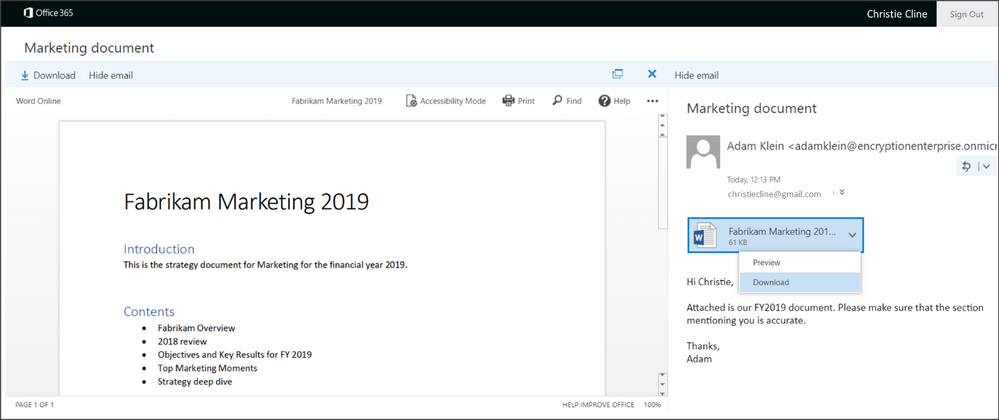
When the recipient signs-in to the Office 365 Message Encryption portal, they can preview attachments as before.
If the control to unrestrict the attachment is enabled, the document will be decrypted and the recipient will be able to view it normally. Additionally, the content will remain decrypted and unrestricted unless additional protections are applied.
Scope
This setting is available for the Encrypt-only template and not for the Do Not Forward or Custom templates.
It’s enforced at the tenant level.
How to control the setting
To manage whether to allow recipients to download Encrypt-only attachments without encryption, follow these steps:
Connect to Exchange Online Using Remote PowerShell (see https://aka.ms/exopowershell)
Run the Set-IRMConfiguration cmdlet with the DecryptAttachmentForEncryptOnly parameter as follows:
Set-IRMConfiguration – DecryptAttachmentForEncryptOnly <$true|$false>
For example, to allow download of attachments without protection for Encrypt-only:
Set-IRMConfiguration – DecryptAttachmentForEncryptOnly $true
If you decide that you want to revert the setting and keep attachments protected even after download:
Set-IRMConfiguration – DecryptAttachmentForEncryptOnly $false
Please note, as of 12/13/18, we have deprecated DecryptAttachmentFromPortal. It will continue working for existing customers who have run the old cmdlet but new customers should start using the new cmdlet (DecryptAttachmentForEncryptOnly) updated above.
Additional Resources
This was a key ask from organizations that had a broad set of scenarios which requires email recipients to “own” the attachment by unrestricting permissions on the attachment. We hope this additional control can provide more flexibility in collaborating on protected content for all users. Your feedback matters- leave us a comment below or go to uservoice and submit your feedback/vote!
For additional resources on Office 365 Message Encryption – you can find them below:
EDITORS NOTE 1/3/2019
We have updated the blog to reflect that we’ve expanded the ability to control if Office attachments are protected for recipients inside Office 365 – previously this was only supported for non-Office 365 users. Changes are reflected below in the blog.
Summary
Administrators can now control whether Office attachments are protected for recipients inside and outside of Office 365 when the Encrypt-Only template is used. This was a key ask from Office 365 Message Encryption customers and is now available as a tenant-level setting.
Background
We have now made it possible for administrators to control how Encrypt-Only behaves for attachments. By default, when a user sends an email and attachments using Encrypt-only, the Office attachments are also protected with Encrypt-Only permissions and that encryption persists throughout lifecycle of the content. To provide more flexible controls for recipients, organizations can control if recipients have unrestricted permissions on the attachment or not for Encrypt-Only emails. For example, one scenario this is valued is when a doctor shares a protected attachment to her patient, and the patient wants to share this with his family, the attachment is no longer encrypted so they can open the attachment without any additional steps.
What is available
Admins can control whether attachments have unrestricted permissions for Encrypt-Only emails. Details on implementing the settings are below.
When the recipient signs-in to the Office 365 Message Encryption portal, they can preview attachments as before.
If the control to unrestrict the attachment is enabled, the document will be decrypted and the recipient will be able to view it normally. Additionally, the content will remain decrypted and unrestricted unless additional protections are applied.
Scope
This setting is available for the Encrypt-only template and not for the Do Not Forward or Custom templates.
It’s enforced at the tenant level.
How to control the setting
To manage whether to allow recipients to download Encrypt-only attachments without encryption, follow these steps:
Connect to Exchange Online Using Remote PowerShell (see https://aka.ms/exopowershell)
Run the Set-IRMConfiguration cmdlet with the DecryptAttachmentForEncryptOnly parameter as follows:
Set-IRMConfiguration – DecryptAttachmentForEncryptOnly <$true|$false>
For example, to allow download of attachments without protection for Encrypt-only:
Set-IRMConfiguration – DecryptAttachmentForEncryptOnly $true
If you decide that you want to revert the setting and keep attachments protected even after download:
Set-IRMConfiguration – DecryptAttachmentForEncryptOnly $false
Please note, as of 12/13/18, we have deprecated DecryptAttachmentFromPortal. It will continue working for existing customers who have run the old cmdlet but new customers should start using the new cmdlet (DecryptAttachmentForEncryptOnly) updated above.
Additional Resources
This was a key ask from organizations that had a broad set of scenarios which requires email recipients to “own” the attachment by unrestricting permissions on the attachment. We hope this additional control can provide more flexibility in collaborating on protected content for all users. Your feedback matters- leave us a comment below or go to uservoice and submit your feedback/vote!
For additional resources on Office 365 Message Encryption – you can find them below:
EDITORS NOTE 1/3/2019
We have updated the blog to reflect that we’ve expanded the ability to control if Office attachments are protected for recipients inside Office 365 – previously this was only supported for non-Office 365 users. Changes are reflected below in the blog.
Summary
Administrators can now control whether Office attachments are protected for recipients inside and outside of Office 365 when the Encrypt-Only template is used. This was a key ask from Office 365 Message Encryption customers and is now available as a tenant-level setting.
Background
We have now made it possible for administrators to control how Encrypt-Only behaves for attachments. By default, when a user sends an email and attachments using Encrypt-only, the Office attachments are also protected with Encrypt-Only permissions and that encryption persists throughout lifecycle of the content. To provide more flexible controls for recipients, organizations can control if recipients have unrestricted permissions on the attachment or not for Encrypt-Only emails. For example, one scenario this is valued is when a doctor shares a protected attachment to her patient, and the patient wants to share this with his family, the attachment is no longer encrypted so they can open the attachment without any additional steps.
What is available
Admins can control whether attachments have unrestricted permissions for Encrypt-Only emails. Details on implementing the settings are below.
When the recipient signs-in to the Office 365 Message Encryption portal, they can preview attachments as before.
If the control to unrestrict the attachment is enabled, the document will be decrypted and the recipient will be able to view it normally. Additionally, the content will remain decrypted and unrestricted unless additional protections are applied.
Scope
This setting is available for the Encrypt-only template and not for the Do Not Forward or Custom templates.
It’s enforced at the tenant level.
How to control the setting
To manage whether to allow recipients to download Encrypt-only attachments without encryption, follow these steps:
Connect to Exchange Online Using Remote PowerShell (see https://aka.ms/exopowershell)
Run the Set-IRMConfiguration cmdlet with the DecryptAttachmentForEncryptOnly parameter as follows:
Set-IRMConfiguration – DecryptAttachmentForEncryptOnly <$true|$false>
For example, to allow download of attachments without protection for Encrypt-only:
Set-IRMConfiguration – DecryptAttachmentForEncryptOnly $true
If you decide that you want to revert the setting and keep attachments protected even after download:
Set-IRMConfiguration – DecryptAttachmentForEncryptOnly $false
Please note, as of 12/13/18, we have deprecated DecryptAttachmentFromPortal. It will continue working for existing customers who have run the old cmdlet but new customers should start using the new cmdlet (DecryptAttachmentForEncryptOnly) updated above.
Additional Resources
This was a key ask from organizations that had a broad set of scenarios which requires email recipients to “own” the attachment by unrestricting permissions on the attachment. We hope this additional control can provide more flexibility in collaborating on protected content for all users. Your feedback matters- leave us a comment below or go to uservoice and submit your feedback/vote!
For additional resources on Office 365 Message Encryption – you can find them below:







