This week we shared an update on recent enhancements to Office 365 threat protection services and enhancements to the end user experience with Office 365 Advanced Threat Protection (ATP). We conclude our week at InfoSec Europe with an update on the Office 365 admin experience.
Empowering Admins with Insights
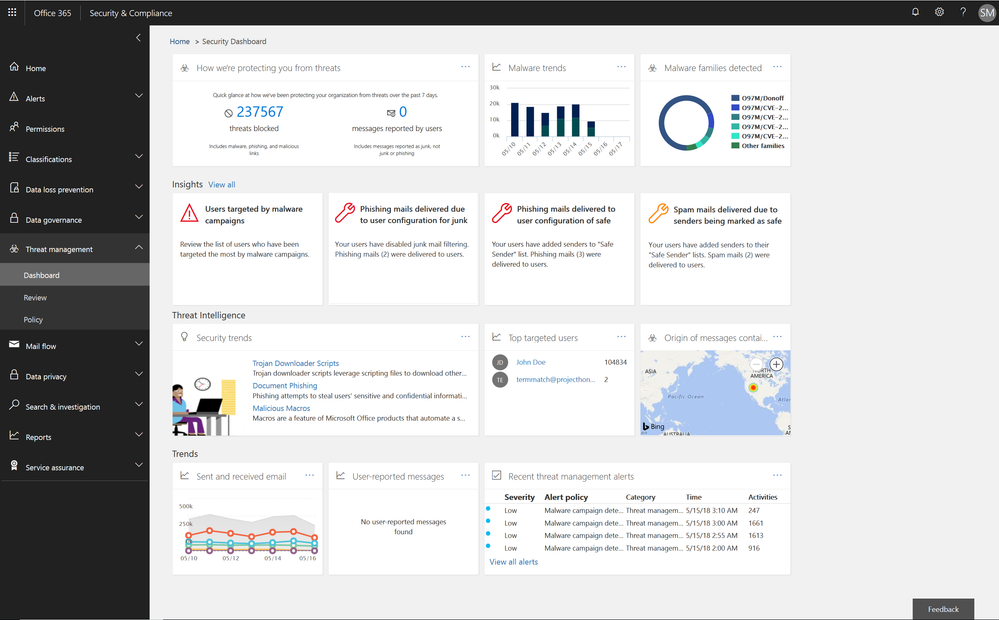
The Office 365 Security and Compliance Center already provides access to malware trends, real-time reports, and granular threat details. We are now adding organizational insights such as anomalous behavior or repeat policy offenders. These insights are presented both in the reports and in the threat dashboard, correlating signals from a broad range of data to help identify, prioritize, and provide recommendations on how to address potential problems. The recommendations are generally remediation actions empowering admins to proactively secure their organization. The insights are holistic and cover both information and threat protection.
Threat Protection Insights include:
- Policy or end user configurations (e.g. transport or mail flow rules, custom policy settings, junk mail folder settings) that can be improved to block delivery of malware, phish, or spam.
- Policies and configurations enhancing protection for users targeted by malware and phishing campaigns in an organization.
Figure 1.. Threat protection insights in the Security dashboard in the Security and Compliance Center
Soon we will release an enhanced Threat Protection status trending report, offering a single view with drill downs into malicious emails identified within the organization, including detection details for malware and phish.
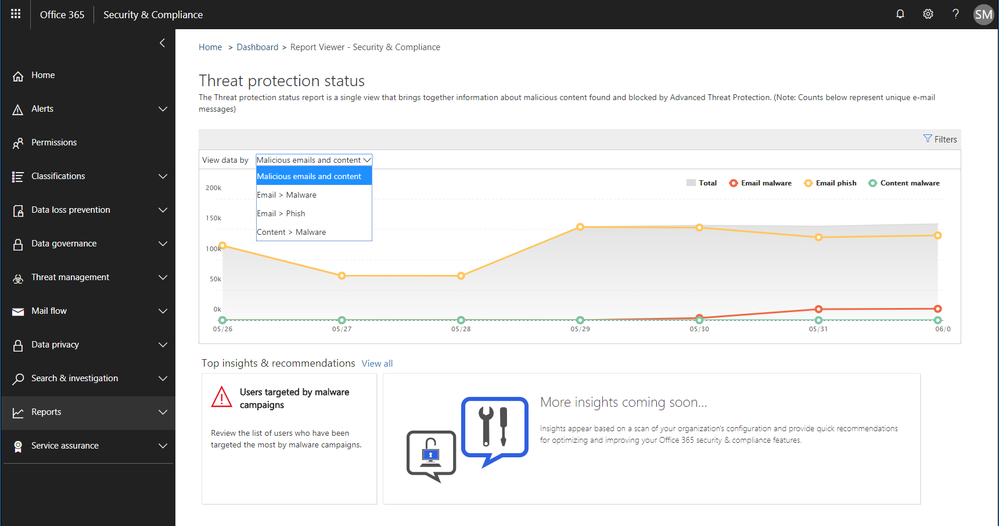 Figure 2. Threat protection status report with email malware and phish detections in the Security and Compliance Center
Information Protection Insights include:
- Views into users who violate large volumes of Office 365 Data Loss Prevention (DLP) policies
- Anomaly insights showing unusual trends in your DLP policy violations
We are also introducing a new report of DLP policy matches on a per item level enabling easier identification of documents or emails which violate policies.
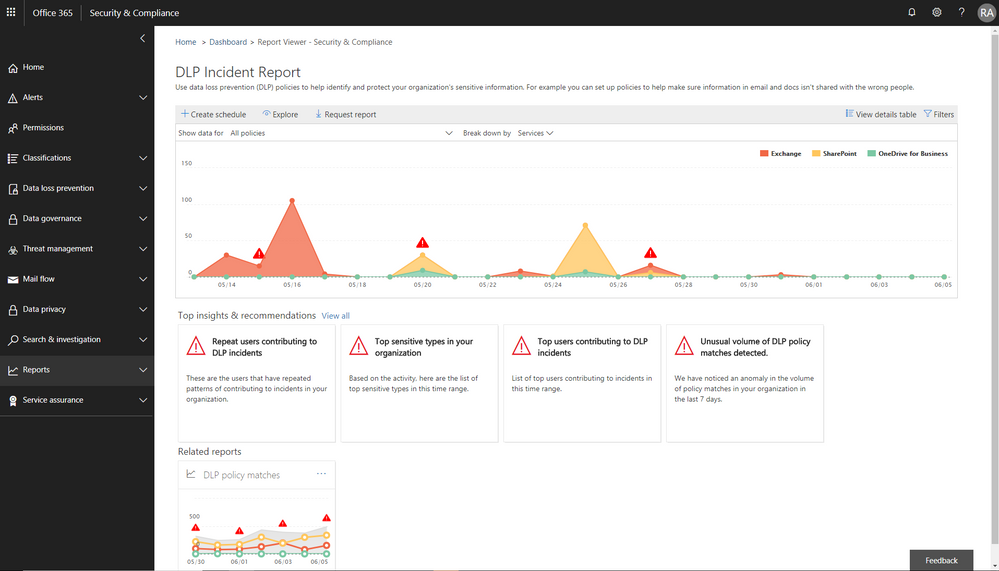 Figure 3. DLP incident report with information protection insights embedded in the Security and Compliance Center
Enhanced Admin Quarantine
Admins can now view, release, delete, and report false positive quarantined messages in Office 365. Quarantine for the Office 365 Security and Compliance Center (SCC) is enriched with a more in-depth investigation and analysis experience including:
- Enhanced search and filtering capabilities for messages in quarantine.
- In line actions for message download and release to any recipient, supporting security investigation and analysis workflows in the organization.
- Restricting the ability to view, download, release, delete, and report phishing messages in quarantine to admins (due to rise in phishing campaigns)
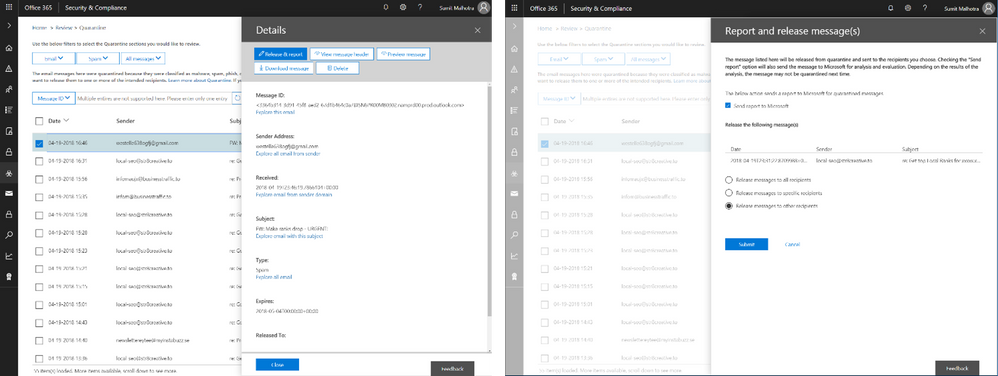 Figure 4. Download quarantined messages (left) and release quarantined messages to recipients (right)
We recently announced the extension of Office 365 Advanced Threat Protection (ATP) to protect files in SharePoint Online, OneDrive for Business and Microsoft Teams and we’re excited to now extend quarantine capabilities to files stored in these applications. This includes download, release, report and delete features in quarantine.
- ‘Release’ removes the end user block on the file
- ‘Delete’ removes the file from quarantine; however, the file is still blocked in SharePoint Online, OneDrive for Business and Microsoft Teams and must be deleted from the respective document libraries in these services to preserve content specific audited activities
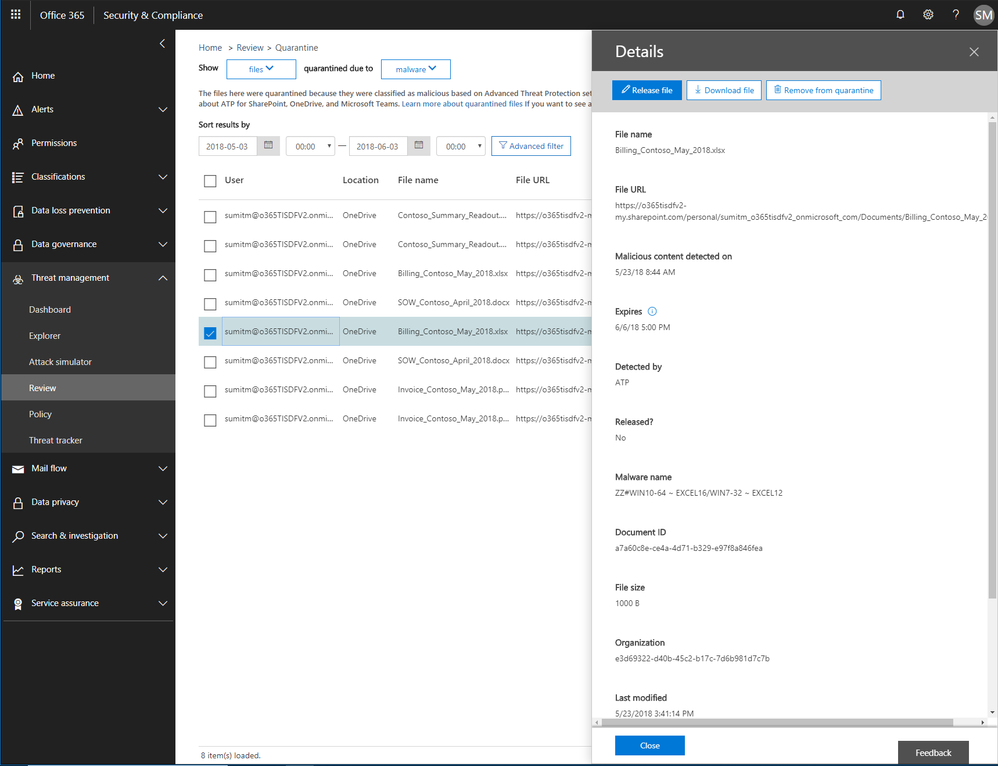 Figure 5. Malicious files detected by Office 365 ATP with actions to release, report, download and delete the files from quarantine
Now admins can create policies to send filtered messages to quarantine when they were identified as spam, bulk, phish, or when they match a mail flow rule. By default, Office 365 sends phishing messages and messages containing malware directly to quarantine. Other filtered messages are sent to users’ Junk Email folder unless the policy specifies sending them to quarantine.
Send Us Your Feedback
Your valuable feedback enables us to continue improving and adding features that support the goal of making Office 365 more secure. We encourage you to begin a free Office 365 E5 trial today and begin further enhancing your security for Office 365 today.
This week we shared an update on recent enhancements to Office 365 threat protection services and enhancements to the end user experience with Office 365 Advanced Threat Protection (ATP). We conclude our week at InfoSec Europe with an update on the Office 365 admin experience.
Empowering Admins with Insights
The Office 365 Security and Compliance Center already provides access to malware trends, real-time reports, and granular threat details. We are now adding organizational insights such as anomalous behavior or repeat policy offenders. These insights are presented both in the reports and in the threat dashboard, correlating signals from a broad range of data to help identify, prioritize, and provide recommendations on how to address potential problems. The recommendations are generally remediation actions empowering admins to proactively secure their organization. The insights are holistic and cover both information and threat protection.
Threat Protection Insights include:
- Policy or end user configurations (e.g. transport or mail flow rules, custom policy settings, junk mail folder settings) that can be improved to block delivery of malware, phish, or spam.
- Policies and configurations enhancing protection for users targeted by malware and phishing campaigns in an organization.
Figure 1.. Threat protection insights in the Security dashboard in the Security and Compliance Center
Soon we will release an enhanced Threat Protection status trending report, offering a single view with drill downs into malicious emails identified within the organization, including detection details for malware and phish.
Figure 2. Threat protection status report with email malware and phish detections in the Security and Compliance Center
Information Protection Insights include:
- Views into users who violate large volumes of Office 365 Data Loss Prevention (DLP) policies
- Anomaly insights showing unusual trends in your DLP policy violations
We are also introducing a new report of DLP policy matches on a per item level enabling easier identification of documents or emails which violate policies.
Figure 3. DLP incident report with information protection insights embedded in the Security and Compliance Center
Enhanced Admin Quarantine
Admins can now view, release, delete, and report false positive quarantined messages in Office 365. Quarantine for the Office 365 Security and Compliance Center (SCC) is enriched with a more in-depth investigation and analysis experience including:
- Enhanced search and filtering capabilities for messages in quarantine.
- In line actions for message download and release to any recipient, supporting security investigation and analysis workflows in the organization.
- Restricting the ability to view, download, release, delete, and report phishing messages in quarantine to admins (due to rise in phishing campaigns)
Figure 4. Download quarantined messages (left) and release quarantined messages to recipients (right)
We recently announced the extension of Office 365 Advanced Threat Protection (ATP) to protect files in SharePoint Online, OneDrive for Business and Microsoft Teams and we’re excited to now extend quarantine capabilities to files stored in these applications. This includes download, release, report and delete features in quarantine.
- ‘Release’ removes the end user block on the file
- ‘Delete’ removes the file from quarantine; however, the file is still blocked in SharePoint Online, OneDrive for Business and Microsoft Teams and must be deleted from the respective document libraries in these services to preserve content specific audited activities
Figure 5. Malicious files detected by Office 365 ATP with actions to release, report, download and delete the files from quarantine
Now admins can create policies to send filtered messages to quarantine when they were identified as spam, bulk, phish, or when they match a mail flow rule. By default, Office 365 sends phishing messages and messages containing malware directly to quarantine. Other filtered messages are sent to users’ Junk Email folder unless the policy specifies sending them to quarantine.
Send Us Your Feedback
Your valuable feedback enables us to continue improving and adding features that support the goal of making Office 365 more secure. We encourage you to begin a free Office 365 E5 trial today and begin further enhancing your security for Office 365 today.
This week we shared an update on recent enhancements to Office 365 threat protection services and enhancements to the end user experience with Office 365 Advanced Threat Protection (ATP). We conclude our week at InfoSec Europe with an update on the Office 365 admin experience.
Empowering Admins with Insights
The Office 365 Security and Compliance Center already provides access to malware trends, real-time reports, and granular threat details. We are now adding organizational insights such as anomalous behavior or repeat policy offenders. These insights are presented both in the reports and in the threat dashboard, correlating signals from a broad range of data to help identify, prioritize, and provide recommendations on how to address potential problems. The recommendations are generally remediation actions empowering admins to proactively secure their organization. The insights are holistic and cover both information and threat protection.
Threat Protection Insights include:
- Policy or end user configurations (e.g. transport or mail flow rules, custom policy settings, junk mail folder settings) that can be improved to block delivery of malware, phish, or spam.
- Policies and configurations enhancing protection for users targeted by malware and phishing campaigns in an organization.
Figure 1.. Threat protection insights in the Security dashboard in the Security and Compliance Center
Soon we will release an enhanced Threat Protection status trending report, offering a single view with drill downs into malicious emails identified within the organization, including detection details for malware and phish.
Figure 2. Threat protection status report with email malware and phish detections in the Security and Compliance Center
Information Protection Insights include:
- Views into users who violate large volumes of Office 365 Data Loss Prevention (DLP) policies
- Anomaly insights showing unusual trends in your DLP policy violations
We are also introducing a new report of DLP policy matches on a per item level enabling easier identification of documents or emails which violate policies.
Figure 3. DLP incident report with information protection insights embedded in the Security and Compliance Center
Enhanced Admin Quarantine
Admins can now view, release, delete, and report false positive quarantined messages in Office 365. Quarantine for the Office 365 Security and Compliance Center (SCC) is enriched with a more in-depth investigation and analysis experience including:
- Enhanced search and filtering capabilities for messages in quarantine.
- In line actions for message download and release to any recipient, supporting security investigation and analysis workflows in the organization.
- Restricting the ability to view, download, release, delete, and report phishing messages in quarantine to admins (due to rise in phishing campaigns)
Figure 4. Download quarantined messages (left) and release quarantined messages to recipients (right)
We recently announced the extension of Office 365 Advanced Threat Protection (ATP) to protect files in SharePoint Online, OneDrive for Business and Microsoft Teams and we’re excited to now extend quarantine capabilities to files stored in these applications. This includes download, release, report and delete features in quarantine.
- ‘Release’ removes the end user block on the file
- ‘Delete’ removes the file from quarantine; however, the file is still blocked in SharePoint Online, OneDrive for Business and Microsoft Teams and must be deleted from the respective document libraries in these services to preserve content specific audited activities
Figure 5. Malicious files detected by Office 365 ATP with actions to release, report, download and delete the files from quarantine
Now admins can create policies to send filtered messages to quarantine when they were identified as spam, bulk, phish, or when they match a mail flow rule. By default, Office 365 sends phishing messages and messages containing malware directly to quarantine. Other filtered messages are sent to users’ Junk Email folder unless the policy specifies sending them to quarantine.
Send Us Your Feedback
Your valuable feedback enables us to continue improving and adding features that support the goal of making Office 365 more secure. We encourage you to begin a free Office 365 E5 trial today and begin further enhancing your security for Office 365 today.
This week we shared an update on recent enhancements to Office 365 threat protection services and enhancements to the end user experience with Office 365 Advanced Threat Protection (ATP). We conclude our week at InfoSec Europe with an update on the Office 365 admin experience.
Empowering Admins with Insights
The Office 365 Security and Compliance Center already provides access to malware trends, real-time reports, and granular threat details. We are now adding organizational insights such as anomalous behavior or repeat policy offenders. These insights are presented both in the reports and in the threat dashboard, correlating signals from a broad range of data to help identify, prioritize, and provide recommendations on how to address potential problems. The recommendations are generally remediation actions empowering admins to proactively secure their organization. The insights are holistic and cover both information and threat protection.
Threat Protection Insights include:
- Policy or end user configurations (e.g. transport or mail flow rules, custom policy settings, junk mail folder settings) that can be improved to block delivery of malware, phish, or spam.
- Policies and configurations enhancing protection for users targeted by malware and phishing campaigns in an organization.
Figure 1.. Threat protection insights in the Security dashboard in the Security and Compliance Center
Soon we will release an enhanced Threat Protection status trending report, offering a single view with drill downs into malicious emails identified within the organization, including detection details for malware and phish.
Figure 2. Threat protection status report with email malware and phish detections in the Security and Compliance Center
Information Protection Insights include:
- Views into users who violate large volumes of Office 365 Data Loss Prevention (DLP) policies
- Anomaly insights showing unusual trends in your DLP policy violations
We are also introducing a new report of DLP policy matches on a per item level enabling easier identification of documents or emails which violate policies.
Figure 3. DLP incident report with information protection insights embedded in the Security and Compliance Center
Enhanced Admin Quarantine
Admins can now view, release, delete, and report false positive quarantined messages in Office 365. Quarantine for the Office 365 Security and Compliance Center (SCC) is enriched with a more in-depth investigation and analysis experience including:
- Enhanced search and filtering capabilities for messages in quarantine.
- In line actions for message download and release to any recipient, supporting security investigation and analysis workflows in the organization.
- Restricting the ability to view, download, release, delete, and report phishing messages in quarantine to admins (due to rise in phishing campaigns)
Figure 4. Download quarantined messages (left) and release quarantined messages to recipients (right)
We recently announced the extension of Office 365 Advanced Threat Protection (ATP) to protect files in SharePoint Online, OneDrive for Business and Microsoft Teams and we’re excited to now extend quarantine capabilities to files stored in these applications. This includes download, release, report and delete features in quarantine.
- ‘Release’ removes the end user block on the file
- ‘Delete’ removes the file from quarantine; however, the file is still blocked in SharePoint Online, OneDrive for Business and Microsoft Teams and must be deleted from the respective document libraries in these services to preserve content specific audited activities
Figure 5. Malicious files detected by Office 365 ATP with actions to release, report, download and delete the files from quarantine
Now admins can create policies to send filtered messages to quarantine when they were identified as spam, bulk, phish, or when they match a mail flow rule. By default, Office 365 sends phishing messages and messages containing malware directly to quarantine. Other filtered messages are sent to users’ Junk Email folder unless the policy specifies sending them to quarantine.
Send Us Your Feedback
Your valuable feedback enables us to continue improving and adding features that support the goal of making Office 365 more secure. We encourage you to begin a free Office 365 E5 trial today and begin further enhancing your security for Office 365 today.
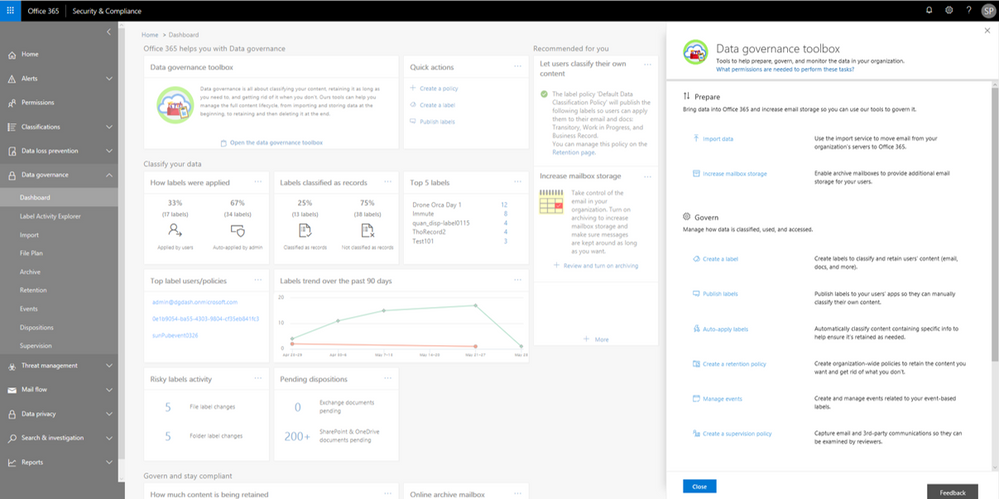
The new Label Activity Explorer helps you easily validate how data has been labeled and investigate risky or abnormal label activity in your organization. As data grows in your organization, so does the need to classify and govern it to ensure business continuity and readiness for regulations such as the GDPR. To help meet these goals, you can create Office 365 labels and either publish them to users’ apps (so they can manually classify their own content) or automatically apply them to content containing sensitive information.
Data Governance dashboard refresh
In addition to the Label Activity Explorer, we have also refreshed the Data Governance dashboard to include new features, such as the Data Governance toolbox and label insights widgets. Let’s take a closer look.
Data Governance toolbox
The new Data Governance toolbox is your one-stop-shop for guidance and links to common data governance tasks. These tools can help you manage the full content lifecycle, including how to:
- Import data into Office 365 and increase email storage so you can use Office 365 features to govern it
- Manage how data is classified, retained, accessed, and disposed of
- Track label usage, monitor alerts, and respond to disposition reviews
Data Governance toolbox provides guidance on getting started with Data Governance in Office 365.
Label insights widgets and supporting reports
Label insights widgets provide you with a quick view into the classification of data in your organization, including how labels were applied, labels that have been classified as records, top labels, top users of labels, label trends, and risky label activities. Click on the label insights widgets to open a more detailed report so you can drill down further.
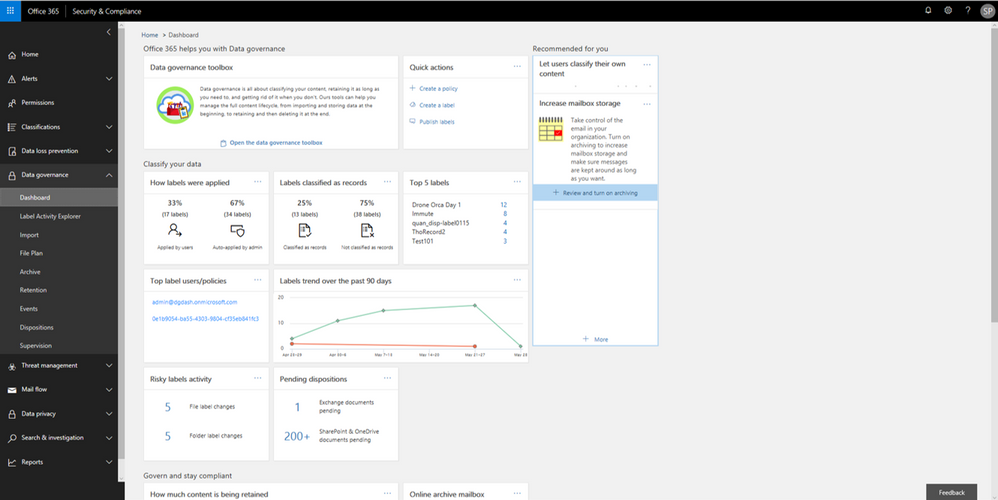 Labels insights widgets provide information about labels usage in your organization.
Label Activity Explorer
The Label Activity Explorer that was previewed in April is now generally available. This new experience provides real-time data that lets you investigate risky label activity and verify that labels are being applied to content as you intended. Use this information to increase confidence that your sensitive data has been detected, classified, and retained according to your organization’s policies.
Filter on labels applied at either the file or folder level to learn more about activities and changes. Once you find the label and file or folder of interest, you can investigate further by reviewing details such as the user who applied the label, file name, and parent site. If you have the right permissions, you can even access the in-place content directly. Learn more about the label activity explorer.
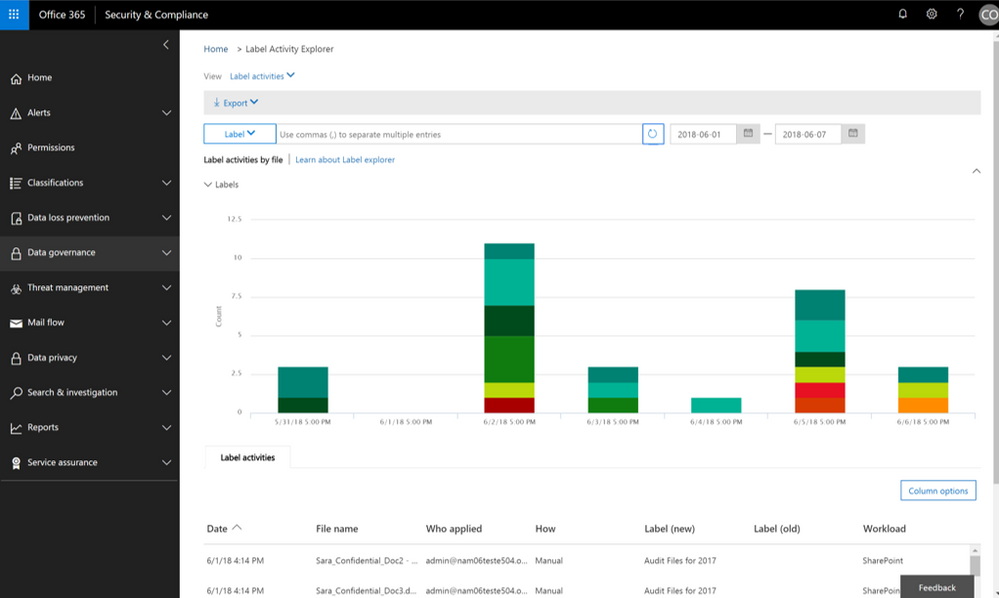 Validate or investigate label activity in your organization.
Auto-label items as Records
The ability to auto-apply labels to content with sensitive data or based on custom keyword or query has been enabling organizations to classify and retain vast amounts of data, and now you can use that same technology to auto-label a document as a record.
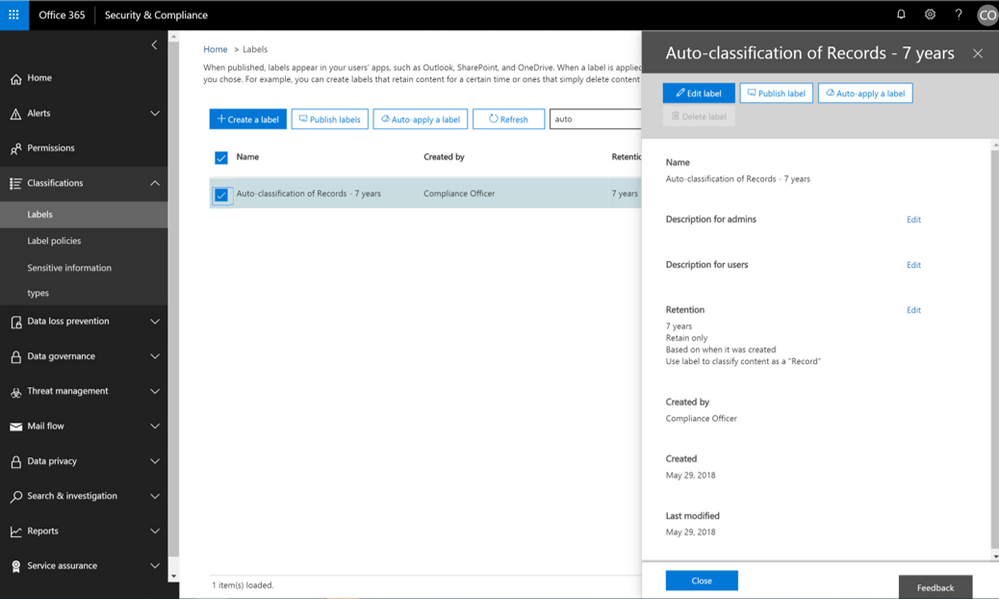 Now auto-apply a label marked as a record.
In addition, we have also recently provided updates to the user experience of items that have been identified as records. Once an item has been tagged as a record, the SharePoint user experience will show a small lock icon to denote that this item has been classified as a record.
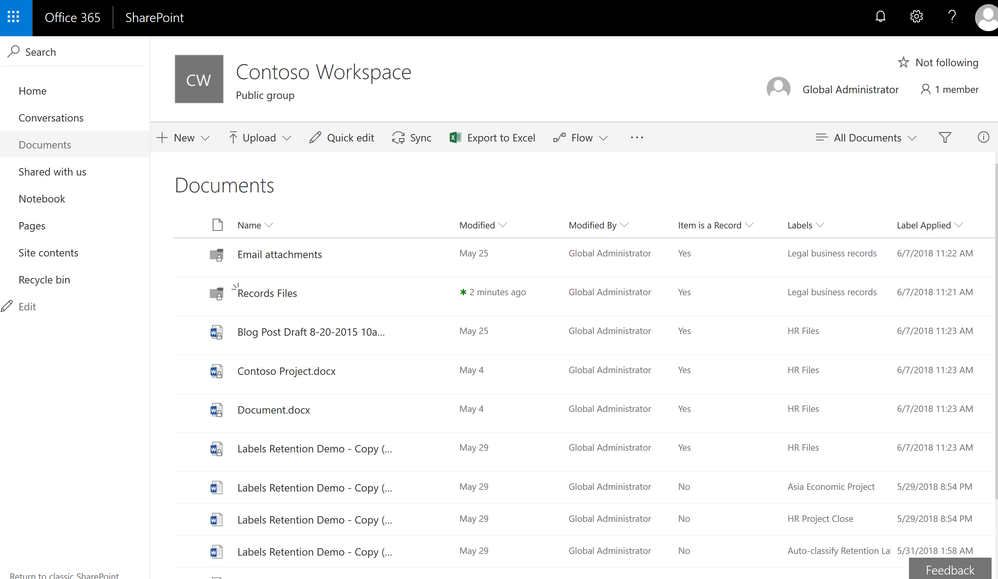 Items labeled as records will now show the small padlock icon to indicate they are records.
Event-based Retention
In case you missed it, Events Based Retention is now generally available in Advanced Data Governance, make sure to read the blog post and watch the video showing how this works. For further information read the supporting documentation here.
To learn more about Data Governance in Office 365 read more here.
The new Label Activity Explorer helps you easily validate how data has been labeled and investigate risky or abnormal label activity in your organization. As data grows in your organization, so does the need to classify and govern it to ensure business continuity and readiness for regulations such as the GDPR. To help meet these goals, you can create Office 365 labels and either publish them to users’ apps (so they can manually classify their own content) or automatically apply them to content containing sensitive information.
Data Governance dashboard refresh
In addition to the Label Activity Explorer, we have also refreshed the Data Governance dashboard to include new features, such as the Data Governance toolbox and label insights widgets. Let’s take a closer look.
Data Governance toolbox
The new Data Governance toolbox is your one-stop-shop for guidance and links to common data governance tasks. These tools can help you manage the full content lifecycle, including how to:
- Import data into Office 365 and increase email storage so you can use Office 365 features to govern it
- Manage how data is classified, retained, accessed, and disposed of
- Track label usage, monitor alerts, and respond to disposition reviews
Data Governance toolbox provides guidance on getting started with Data Governance in Office 365.
Label insights widgets and supporting reports
Label insights widgets provide you with a quick view into the classification of data in your organization, including how labels were applied, labels that have been classified as records, top labels, top users of labels, label trends, and risky label activities. Click on the label insights widgets to open a more detailed report so you can drill down further.
Labels insights widgets provide information about labels usage in your organization.
Label Activity Explorer
The Label Activity Explorer that was previewed in April is now generally available. This new experience provides real-time data that lets you investigate risky label activity and verify that labels are being applied to content as you intended. Use this information to increase confidence that your sensitive data has been detected, classified, and retained according to your organization’s policies.
Filter on labels applied at either the file or folder level to learn more about activities and changes. Once you find the label and file or folder of interest, you can investigate further by reviewing details such as the user who applied the label, file name, and parent site. If you have the right permissions, you can even access the in-place content directly. Learn more about the label activity explorer.
Validate or investigate label activity in your organization.
Auto-label items as Records
The ability to auto-apply labels to content with sensitive data or based on custom keyword or query has been enabling organizations to classify and retain vast amounts of data, and now you can use that same technology to auto-label a document as a record.
Now auto-apply a label marked as a record.
In addition, we have also recently provided updates to the user experience of items that have been identified as records. Once an item has been tagged as a record, the SharePoint user experience will show a small lock icon to denote that this item has been classified as a record.
Items labeled as records will now show the small padlock icon to indicate they are records.
Event-based Retention
In case you missed it, Events Based Retention is now generally available in Advanced Data Governance, make sure to read the blog post and watch the video showing how this works. For further information read the supporting documentation here.
To learn more about Data Governance in Office 365 read more here.
The new Label Activity Explorer helps you easily validate how data has been labeled and investigate risky or abnormal label activity in your organization. As data grows in your organization, so does the need to classify and govern it to ensure business continuity and readiness for regulations such as the GDPR. To help meet these goals, you can create Office 365 labels and either publish them to users’ apps (so they can manually classify their own content) or automatically apply them to content containing sensitive information.
Data Governance dashboard refresh
In addition to the Label Activity Explorer, we have also refreshed the Data Governance dashboard to include new features, such as the Data Governance toolbox and label insights widgets. Let’s take a closer look.
Data Governance toolbox
The new Data Governance toolbox is your one-stop-shop for guidance and links to common data governance tasks. These tools can help you manage the full content lifecycle, including how to:
- Import data into Office 365 and increase email storage so you can use Office 365 features to govern it
- Manage how data is classified, retained, accessed, and disposed of
- Track label usage, monitor alerts, and respond to disposition reviews
Data Governance toolbox provides guidance on getting started with Data Governance in Office 365.
Label insights widgets and supporting reports
Label insights widgets provide you with a quick view into the classification of data in your organization, including how labels were applied, labels that have been classified as records, top labels, top users of labels, label trends, and risky label activities. Click on the label insights widgets to open a more detailed report so you can drill down further.
Labels insights widgets provide information about labels usage in your organization.
Label Activity Explorer
The Label Activity Explorer that was previewed in April is now generally available. This new experience provides real-time data that lets you investigate risky label activity and verify that labels are being applied to content as you intended. Use this information to increase confidence that your sensitive data has been detected, classified, and retained according to your organization’s policies.
Filter on labels applied at either the file or folder level to learn more about activities and changes. Once you find the label and file or folder of interest, you can investigate further by reviewing details such as the user who applied the label, file name, and parent site. If you have the right permissions, you can even access the in-place content directly. Learn more about the label activity explorer.
Validate or investigate label activity in your organization.
Auto-label items as Records
The ability to auto-apply labels to content with sensitive data or based on custom keyword or query has been enabling organizations to classify and retain vast amounts of data, and now you can use that same technology to auto-label a document as a record.
Now auto-apply a label marked as a record.
In addition, we have also recently provided updates to the user experience of items that have been identified as records. Once an item has been tagged as a record, the SharePoint user experience will show a small lock icon to denote that this item has been classified as a record.
Items labeled as records will now show the small padlock icon to indicate they are records.
Event-based Retention
In case you missed it, Events Based Retention is now generally available in Advanced Data Governance, make sure to read the blog post and watch the video showing how this works. For further information read the supporting documentation here.
To learn more about Data Governance in Office 365 read more here.
The new Label Activity Explorer helps you easily validate how data has been labeled and investigate risky or abnormal label activity in your organization. As data grows in your organization, so does the need to classify and govern it to ensure business continuity and readiness for regulations such as the GDPR. To help meet these goals, you can create Office 365 labels and either publish them to users’ apps (so they can manually classify their own content) or automatically apply them to content containing sensitive information.
Data Governance dashboard refresh
In addition to the Label Activity Explorer, we have also refreshed the Data Governance dashboard to include new features, such as the Data Governance toolbox and label insights widgets. Let’s take a closer look.
Data Governance toolbox
The new Data Governance toolbox is your one-stop-shop for guidance and links to common data governance tasks. These tools can help you manage the full content lifecycle, including how to:
- Import data into Office 365 and increase email storage so you can use Office 365 features to govern it
- Manage how data is classified, retained, accessed, and disposed of
- Track label usage, monitor alerts, and respond to disposition reviews
Data Governance toolbox provides guidance on getting started with Data Governance in Office 365.
Label insights widgets and supporting reports
Label insights widgets provide you with a quick view into the classification of data in your organization, including how labels were applied, labels that have been classified as records, top labels, top users of labels, label trends, and risky label activities. Click on the label insights widgets to open a more detailed report so you can drill down further.
Labels insights widgets provide information about labels usage in your organization.
Label Activity Explorer
The Label Activity Explorer that was previewed in April is now generally available. This new experience provides real-time data that lets you investigate risky label activity and verify that labels are being applied to content as you intended. Use this information to increase confidence that your sensitive data has been detected, classified, and retained according to your organization’s policies.
Filter on labels applied at either the file or folder level to learn more about activities and changes. Once you find the label and file or folder of interest, you can investigate further by reviewing details such as the user who applied the label, file name, and parent site. If you have the right permissions, you can even access the in-place content directly. Learn more about the label activity explorer.
Validate or investigate label activity in your organization.
Auto-label items as Records
The ability to auto-apply labels to content with sensitive data or based on custom keyword or query has been enabling organizations to classify and retain vast amounts of data, and now you can use that same technology to auto-label a document as a record.
Now auto-apply a label marked as a record.
In addition, we have also recently provided updates to the user experience of items that have been identified as records. Once an item has been tagged as a record, the SharePoint user experience will show a small lock icon to denote that this item has been classified as a record.
Items labeled as records will now show the small padlock icon to indicate they are records.
Event-based Retention
In case you missed it, Events Based Retention is now generally available in Advanced Data Governance, make sure to read the blog post and watch the video showing how this works. For further information read the supporting documentation here.
To learn more about Data Governance in Office 365 read more here.
Often admins with privileged accounts have broad standing access, and therefore, become lucrative targets of repeated attacks as access to admin credentials can lead to deeper access to sensitive data. Due to this risk, regulators are increasingly looking for appropriate limits on privileged access, greater oversight, and audit trails.
To help customers protect and control their sensitive data, and meet their compliance needs, today, we are announcing preview of privileged access management in Office 365.
New privileged access management capabilities in Office 365 provides an approval workflow that’s scoped to your high-risk tasks within Office 365. For example, standing admin privileges enable admins to execute tasks that can provide unfettered access to organizational data, such as a journal rule, which can copy emails to a shadow mailbox and exfiltrate sensitive data undetected.
Privileged access management in Office 365 was designed based on the principle of Zero Standing Access, which is how we run our own data centers at Microsoft through Lockbox and Customer Lockbox. With privileged access management in Office 365, access requests must be approved by an authorized set of approvers. Access is then time-bound for a limited duration — often referred to as “Just-In-Time” (JIT) access. This level of rigor is how we manage administrative access privileges internally for Office 365 today.
Requests for access can be automatically or manually approved. Either way, all the activity is logged and auditable, so that both privileged access requests and approvals can be reviewed and seamlessly provided for internal reviews and auditor requests.
Read below for more details.
Creating Access Policies
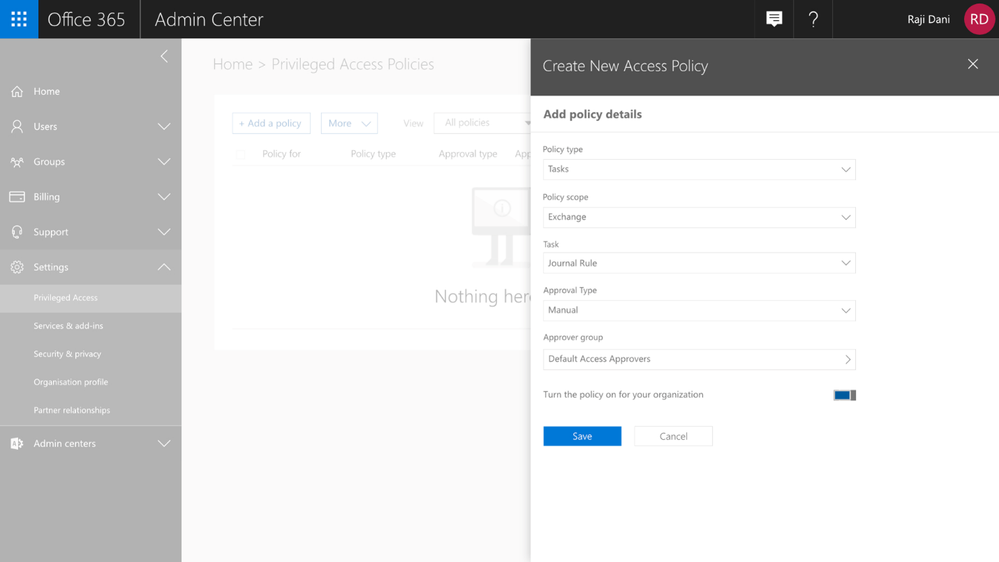
Getting started with privileged access management in Office 365 in your organization is simple. Within the Office 365 Admin Center, you can create access policies at a task level, scope it to an Office 365 workload, and to a specific task within that workload. The policies also allow for flexibility in how requests can be approved – automatically or manually through a set of designated approvers.
Graphic: Configuring a new access policy in the Office 365 Admin Center.
Enforcing an Approval Workflow
Once policies are in place, privileged access management in Office 365 will enforce the approval workflow, and when needed, users can request Just-in-Time access to execute these privileged tasks. Their privileges will endure only for the time requested and approved, vastly reducing the risk to the organization from privileged credential compromise.
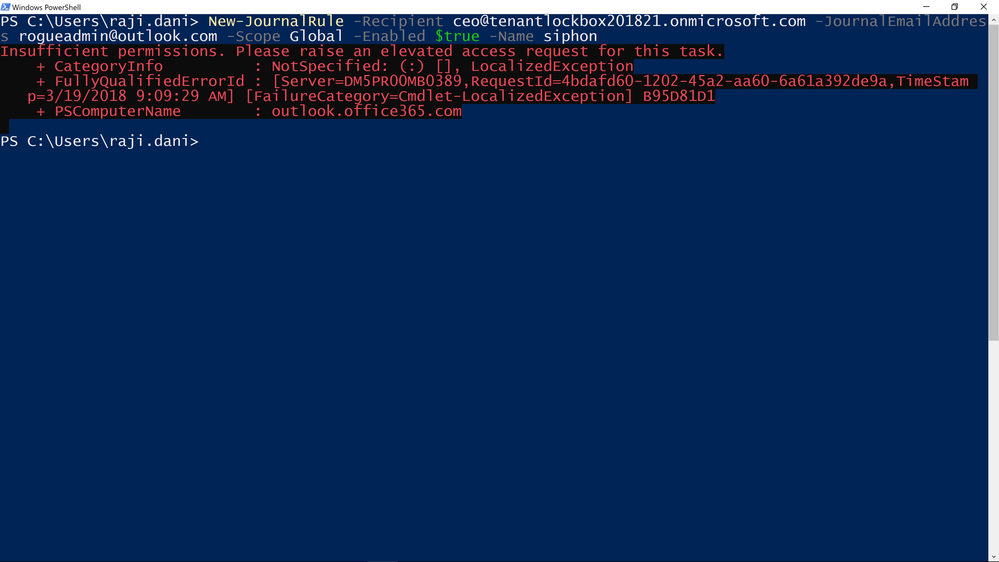 Graphic: Cmdlet fails with an error and asks to raise an elevation request to get access.
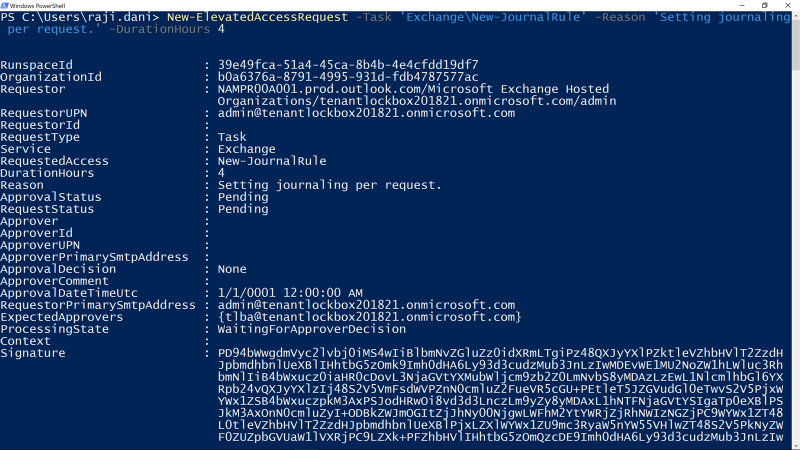 Graphic: Request access using New-Elevated Access Request cmdlet, request is scoped to New-JournalRule with a limited duration of 4 hours.
Approving Access
All access requests generated through the privileged access management workflow are available to view in the Office 365 Admin center. Designated approvers can review the details of the request –the requester, requested duration, and specified reason – and can then approve or deny the request.
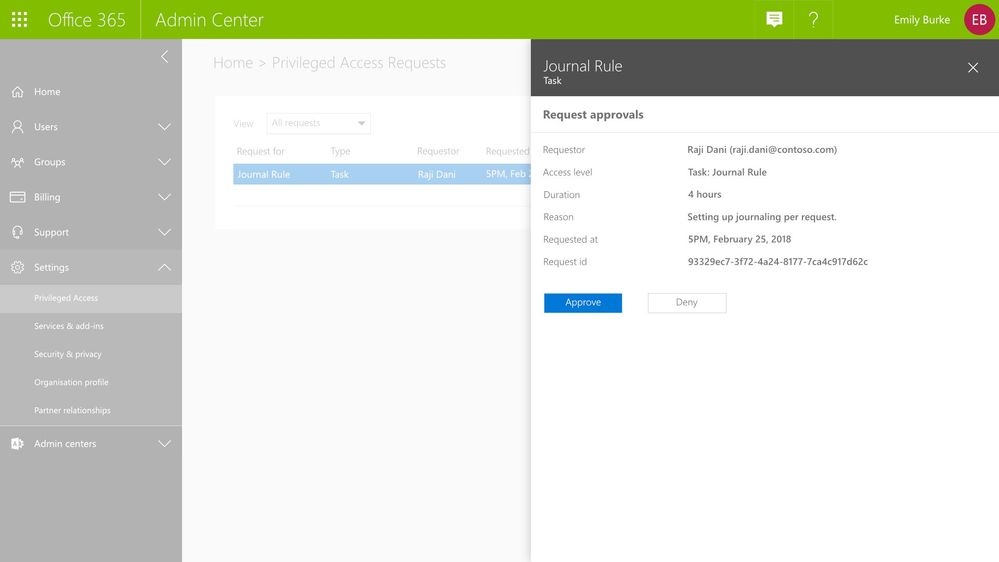 Graphic: As the approver, you can see the pending request with option to approve or deny request.
Audit Documentation
All activities – requests, approver actions, and subsequent tasks performed by the requesters – are logged and available for review in the Office 365 Management Activity logs. These audit logs provide a chain of events that also serve as evidence for compliance requirements.
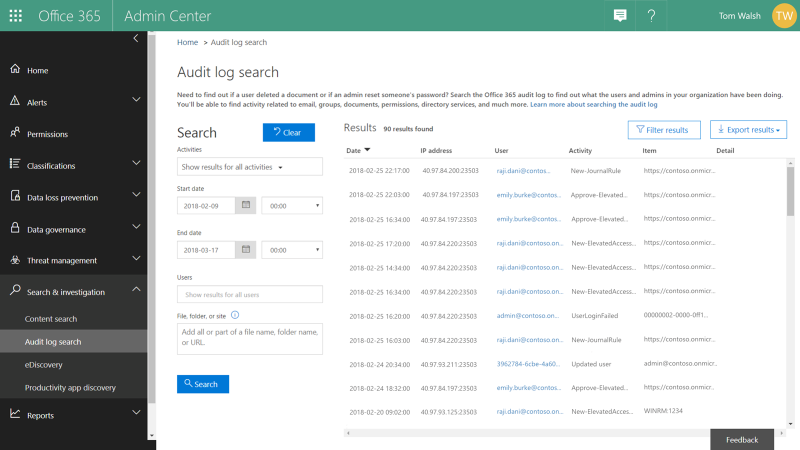 Graphic: Review audit logs for all privileged access management activity.
Get Started Today!
Privileged access management in Office 365 is available in preview for our customers with Office 365 E5 and Advanced Compliance SKUs who register for the option. We hope you take that extra step to enable these features for advanced access control capabilities in your Office 365 tenant today. You can get started by:
- Watching the Mechanics Video on privileged access management in Office 365.
- Signing up for the preview at https://previews.office.com, with code PAM044.
- Attending the Ask Me Anything (AMA) – sign up for the event here.
We hope you like what you see – please do sign up for preview so we can get your feedback!
Frequently Asked Questions
Q: What SKUs do I need to use privileged access management in Office 365?
A: We plan to offer this capability in the Office 365 E5 or the Advanced Compliance SKU when we release to general availability.
Q: Which Office 365 services are supported with privileged access management in Office 365?
A: During this preview, privileged access management in Office 365 applies to tasks available in Exchange Online. We are working to expand privileged access management capabilities to other Office 365 workloads.
Q: How is this different from the Azure Active Directory Privileged Identity Management (AAD PIM)?
A: Azure AD Privileged Identity Management (PIM) and privileged access management (PAM) in Office 365 together provide a robust set of controls for protecting privileged access to your corporate data. With Azure AD PIM, customers can secure admin roles to ensure protection across Office 365 and Azure clouds. PAM in Office 365 can provide another granular layer of protection by controlling access to tasks within Office 365.
Q: What permissions do I need to turn this feature on?
A: You need to be a Global or Tenant administrator to be able to turn this feature on. Soon we will enable a new user Role that also will be able to perform these actions.
Q: How is privileged access management in Office 365 related to Customer Lockbox?
A: Customer Lockbox allows a level of access control for organizations around accessed to data by their service provider, i.e. Microsoft. Privileged access management in Office 365, allows granular access control within an organization for all Office 365 privileged tasks.
Often admins with privileged accounts have broad standing access, and therefore, become lucrative targets of repeated attacks as access to admin credentials can lead to deeper access to sensitive data. Due to this risk, regulators are increasingly looking for appropriate limits on privileged access, greater oversight, and audit trails.
To help customers protect and control their sensitive data, and meet their compliance needs, today, we are announcing preview of privileged access management in Office 365.
New privileged access management capabilities in Office 365 provides an approval workflow that’s scoped to your high-risk tasks within Office 365. For example, standing admin privileges enable admins to execute tasks that can provide unfettered access to organizational data, such as a journal rule, which can copy emails to a shadow mailbox and exfiltrate sensitive data undetected.
Privileged access management in Office 365 was designed based on the principle of Zero Standing Access, which is how we run our own data centers at Microsoft through Lockbox and Customer Lockbox. With privileged access management in Office 365, access requests must be approved by an authorized set of approvers. Access is then time-bound for a limited duration — often referred to as “Just-In-Time” (JIT) access. This level of rigor is how we manage administrative access privileges internally for Office 365 today.
Requests for access can be automatically or manually approved. Either way, all the activity is logged and auditable, so that both privileged access requests and approvals can be reviewed and seamlessly provided for internal reviews and auditor requests.
Read below for more details.
Creating Access Policies
Getting started with privileged access management in Office 365 in your organization is simple. Within the Office 365 Admin Center, you can create access policies at a task level, scope it to an Office 365 workload, and to a specific task within that workload. The policies also allow for flexibility in how requests can be approved – automatically or manually through a set of designated approvers.
Graphic: Configuring a new access policy in the Office 365 Admin Center.
Enforcing an Approval Workflow
Once policies are in place, privileged access management in Office 365 will enforce the approval workflow, and when needed, users can request Just-in-Time access to execute these privileged tasks. Their privileges will endure only for the time requested and approved, vastly reducing the risk to the organization from privileged credential compromise.
Graphic: Cmdlet fails with an error and asks to raise an elevation request to get access.
Graphic: Request access using New-Elevated Access Request cmdlet, request is scoped to New-JournalRule with a limited duration of 4 hours.
Approving Access
All access requests generated through the privileged access management workflow are available to view in the Office 365 Admin center. Designated approvers can review the details of the request –the requester, requested duration, and specified reason – and can then approve or deny the request.
Graphic: As the approver, you can see the pending request with option to approve or deny request.
Audit Documentation
All activities – requests, approver actions, and subsequent tasks performed by the requesters – are logged and available for review in the Office 365 Management Activity logs. These audit logs provide a chain of events that also serve as evidence for compliance requirements.
Graphic: Review audit logs for all privileged access management activity.
Get Started Today!
Privileged access management in Office 365 is available in preview for our customers with Office 365 E5 and Advanced Compliance SKUs who register for the option. We hope you take that extra step to enable these features for advanced access control capabilities in your Office 365 tenant today. You can get started by:
- Watching the Mechanics Video on privileged access management in Office 365.
- Signing up for the preview at https://previews.office.com, with code PAM044.
- Attending the Ask Me Anything (AMA) – sign up for the event here.
We hope you like what you see – please do sign up for preview so we can get your feedback!
Frequently Asked Questions
Q: What SKUs do I need to use privileged access management in Office 365?
A: We plan to offer this capability in the Office 365 E5 or the Advanced Compliance SKU when we release to general availability.
Q: Which Office 365 services are supported with privileged access management in Office 365?
A: During this preview, privileged access management in Office 365 applies to tasks available in Exchange Online. We are working to expand privileged access management capabilities to other Office 365 workloads.
Q: How is this different from the Azure Active Directory Privileged Identity Management (AAD PIM)?
A: Azure AD Privileged Identity Management (PIM) and privileged access management (PAM) in Office 365 together provide a robust set of controls for protecting privileged access to your corporate data. With Azure AD PIM, customers can secure admin roles to ensure protection across Office 365 and Azure clouds. PAM in Office 365 can provide another granular layer of protection by controlling access to tasks within Office 365.
Q: What permissions do I need to turn this feature on?
A: You need to be a Global or Tenant administrator to be able to turn this feature on. Soon we will enable a new user Role that also will be able to perform these actions.
Q: How is privileged access management in Office 365 related to Customer Lockbox?
A: Customer Lockbox allows a level of access control for organizations around accessed to data by their service provider, i.e. Microsoft. Privileged access management in Office 365, allows granular access control within an organization for all Office 365 privileged tasks.







