Publishers note: I am posting this on behalf my colleague Jon Nordstrom who is part of the Office 365 customer experience team. Myself and few other engineers thought you would all benefit from his knowledge of the Office 365 management activity API.
Once you have the data you need for your investigation, it can be helpful to use graphs to analyze activity data to identify relationships and outliers during an investigation. On TechNet we shared how the Office 365 team uses graphs to analyze incident data but in this last post of our two-part series we will focus on using Power BI to visualize the data for the following scenarios:
A. What changes have been made to my environment by Exchange administrators?
B. Is there excessive sign in failures from specific IP addresses?
C. Who has accessed sensitive content?
To help you understand how you can get the data necessary to perform a security analysis of it check out the previous post here.
The sample graphs generated in this post were created with the free version of the ZoomCharts add-in for Power BI Desktop. The data was transferred to Azure Cosmos DB using these sample scripts.
Use Cases
A. What changes were made to my environment by Exchange administrators?
What operations can I expect of my Exchange Online administrators and what operations do they have in common? Has an account run any commands that allow for access to user data? Are there any connections between these operations?
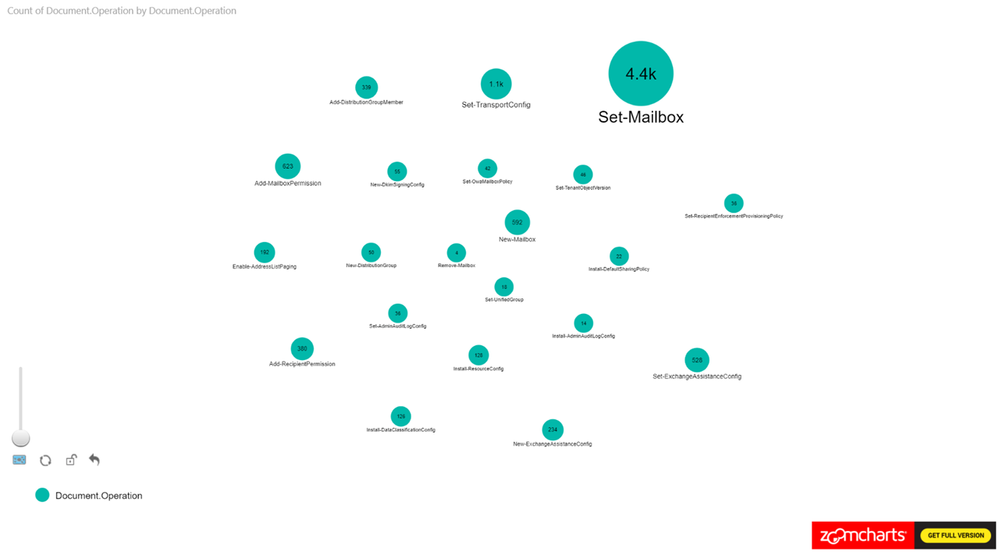
Figure 1 is a sample where we are only looking at the Exchange Operations. Looking at the pure count of operations may be good for alerts but how is it all connected?
To filter on Exchange Online events from Power BI, search the Fields pane for “workloads”, drag the workloads field to Page level filters and select the workload to filter on. When working with large sets of data either filter the information on import to Power BI or add a page level filter for Exchange operations.
Figure 1
Let’s expand this scenario to understand the actors, since the operations in isolation doesn’t provide us with the data needed for an investigation.
In this example, we set the Nodes to Operations and UserId. The Measure is set to Operations see Figure 2 for the configuration.
This is a new tenant with many new accounts, so it is expected to see operations performed by the service itself as identified by “NT AUTHORITYSYSTEM” within the logs. You can identify cmdlets that are shared between actors and cmdlets that are unique to specific actors.
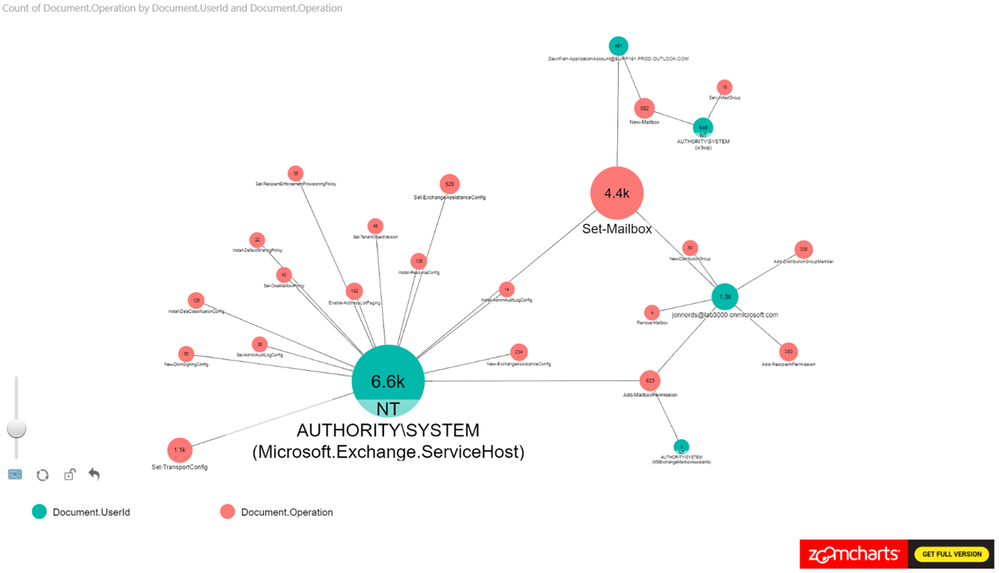 Figure 2
As a next step add the ObjectID to the Power BI view. The number of operations that have been carried out is shown along with any user objects that have been modified. We can see a cluster forming around one of the administrator accounts. As a next step we are zooming in to that cluster.
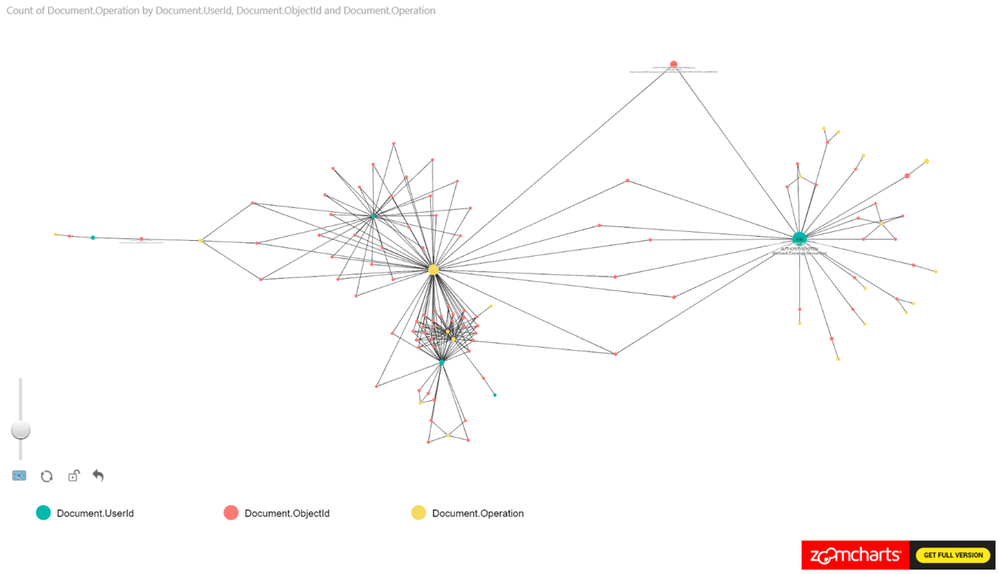 Figure 3
When zooming in on the cluster we can see Add-MailboxPermissions being run on several mailboxes. If this was to occur in a production tenant it should raise some flags.
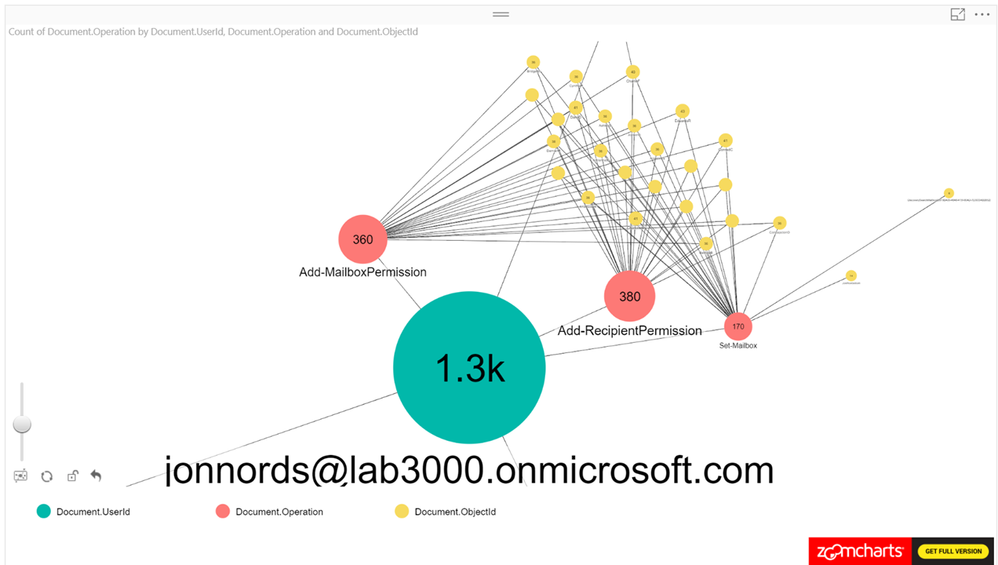 Figure 4
The next step is to filter and understand permissions that have been provisioned. You can add a table that is filtered based on the graphs. In this example, the Administrator has granted FullAccess to these mailboxes. Not a best practice… This information can be used to reverse the change by exporting the data to a csv file and loop through the modified mailboxes using Remove-MailboxPermissions.
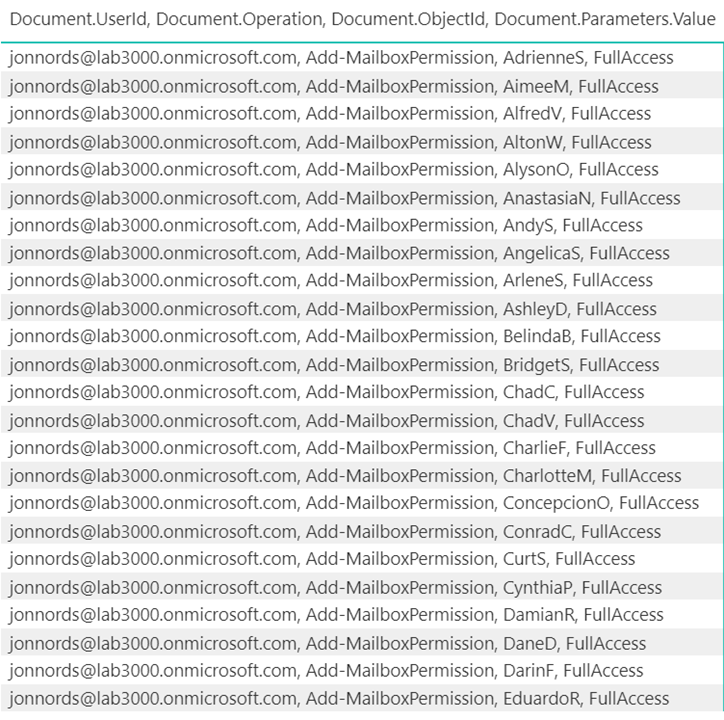 Figure 5
B. Is there excessive sign in failures from specific IP addresses?
This example was derived from a test of the Password Spray attack simulation from the Attack Simulator feature in Office 365 Threat Intelligence. One key element of creating this view is to remember to exclude internal proxies, etc., from filtering to get a representative view. IP addresses with a high ratio of failures will beacon clearly in the report even when the report contains a lot of data. Look for how data is clustered together.
As can be seen in Figure 6., we have loaded UserId, ActorIpAddress, Operation as nodes and we are using the count of UserID as the measure.
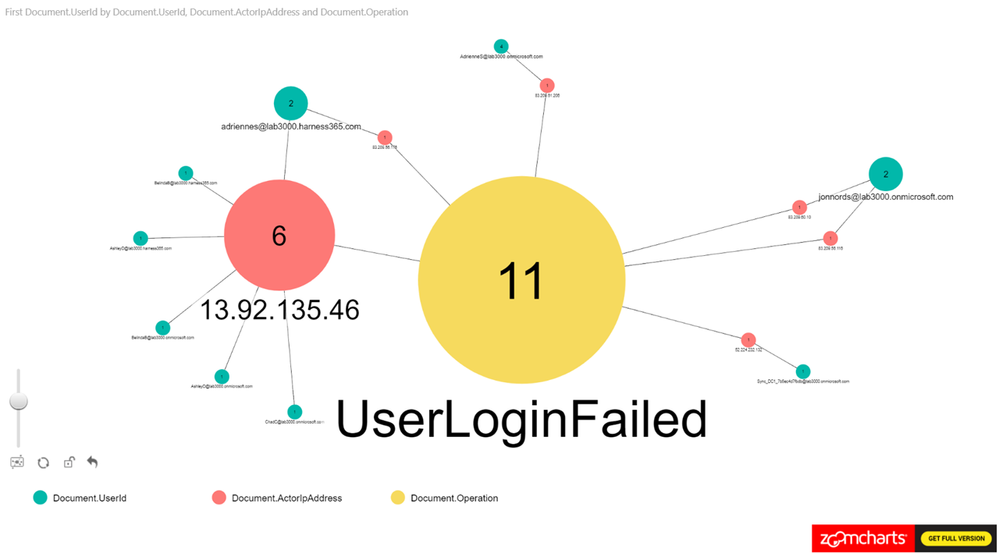 Figure 6
C. Who has accessed sensitive content?
This example is based on filtering SharePoint Online and OneDrive for Business activity to identify users who have accessed information that has the “Acquisition documentation policy enforcement” label policy applied. This view can be used to understand if new sensitive content is accessed. The policy creates an account that is used to update the sensitive content and we can use the account to link to the usage.
From Figure 7., you can see that we have been using Operation, UserID, ObjectID for the nodes and loaded count of operations as the measure.
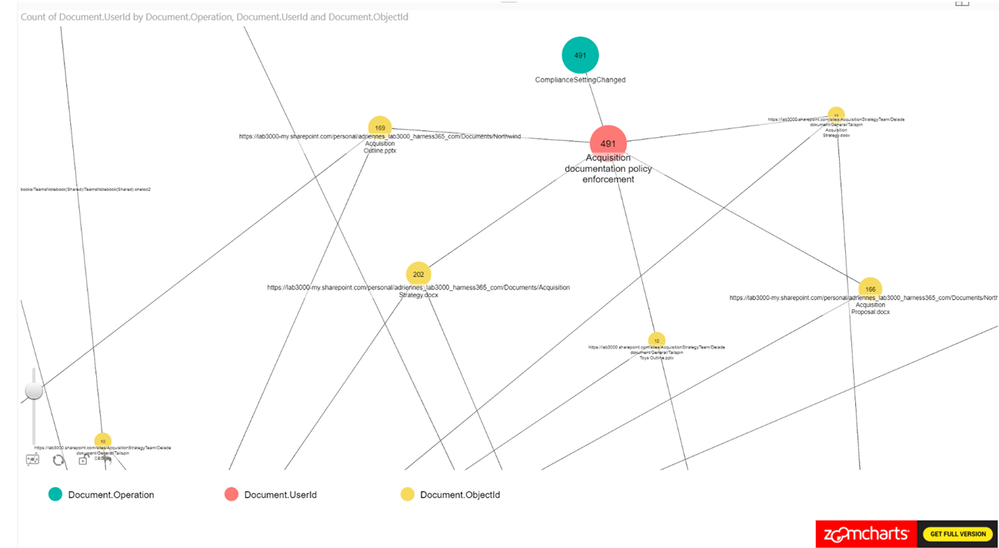 Figure 7
Summary
This post hopefully peak your interest in Graph based security analysis. If you think that analyzing data in Graphs seems like something that your organization may benefit from we hope that we have helped you get started.
We have only scratched the surface though. There are many scenarios where this may be a useful approach to get a deeper understanding. Go ahead and use the steps from the first post in the series to setup your own environment and work on your own model for Graph based analysis.
If you have any feedback please provide it at the GitHub project page or by emailing it to cxprad@microsoft.com.
We look forward to hearing from you!
—Jon Nordstrom, senior program manager, Office 365 customer experience
Publishers note: I am posting this on behalf my colleague Jon Nordstrom who is part of the Office 365 customer experience team. Myself and few other engineers thought you would all benefit from his knowledge of the Office 365 management activity API.
Once you have the data you need for your investigation, it can be helpful to use graphs to analyze activity data to identify relationships and outliers during an investigation. On TechNet we shared how the Office 365 team uses graphs to analyze incident data but in this last post of our two-part series we will focus on using Power BI to visualize the data for the following scenarios:
A. What changes have been made to my environment by Exchange administrators?
B. Is there excessive sign in failures from specific IP addresses?
C. Who has accessed sensitive content?
To help you understand how you can get the data necessary to perform a security analysis of it check out the previous post here.
The sample graphs generated in this post were created with the free version of the ZoomCharts add-in for Power BI Desktop. The data was transferred to Azure Cosmos DB using these sample scripts.
Use Cases
A. What changes were made to my environment by Exchange administrators?
What operations can I expect of my Exchange Online administrators and what operations do they have in common? Has an account run any commands that allow for access to user data? Are there any connections between these operations?
Figure 1 is a sample where we are only looking at the Exchange Operations. Looking at the pure count of operations may be good for alerts but how is it all connected?
To filter on Exchange Online events from Power BI, search the Fields pane for “workloads”, drag the workloads field to Page level filters and select the workload to filter on. When working with large sets of data either filter the information on import to Power BI or add a page level filter for Exchange operations.
Figure 1
Let’s expand this scenario to understand the actors, since the operations in isolation doesn’t provide us with the data needed for an investigation.
In this example, we set the Nodes to Operations and UserId. The Measure is set to Operations see Figure 2 for the configuration.
This is a new tenant with many new accounts, so it is expected to see operations performed by the service itself as identified by “NT AUTHORITYSYSTEM” within the logs. You can identify cmdlets that are shared between actors and cmdlets that are unique to specific actors.
Figure 2
As a next step add the ObjectID to the Power BI view. The number of operations that have been carried out is shown along with any user objects that have been modified. We can see a cluster forming around one of the administrator accounts. As a next step we are zooming in to that cluster.
Figure 3
When zooming in on the cluster we can see Add-MailboxPermissions being run on several mailboxes. If this was to occur in a production tenant it should raise some flags.
Figure 4
The next step is to filter and understand permissions that have been provisioned. You can add a table that is filtered based on the graphs. In this example, the Administrator has granted FullAccess to these mailboxes. Not a best practice… This information can be used to reverse the change by exporting the data to a csv file and loop through the modified mailboxes using Remove-MailboxPermissions.
Figure 5
B. Is there excessive sign in failures from specific IP addresses?
This example was derived from a test of the Password Spray attack simulation from the Attack Simulator feature in Office 365 Threat Intelligence. One key element of creating this view is to remember to exclude internal proxies, etc., from filtering to get a representative view. IP addresses with a high ratio of failures will beacon clearly in the report even when the report contains a lot of data. Look for how data is clustered together.
As can be seen in Figure 6., we have loaded UserId, ActorIpAddress, Operation as nodes and we are using the count of UserID as the measure.
Figure 6
C. Who has accessed sensitive content?
This example is based on filtering SharePoint Online and OneDrive for Business activity to identify users who have accessed information that has the “Acquisition documentation policy enforcement” label policy applied. This view can be used to understand if new sensitive content is accessed. The policy creates an account that is used to update the sensitive content and we can use the account to link to the usage.
From Figure 7., you can see that we have been using Operation, UserID, ObjectID for the nodes and loaded count of operations as the measure.
Figure 7
Summary
This post hopefully peak your interest in Graph based security analysis. If you think that analyzing data in Graphs seems like something that your organization may benefit from we hope that we have helped you get started.
We have only scratched the surface though. There are many scenarios where this may be a useful approach to get a deeper understanding. Go ahead and use the steps from the first post in the series to setup your own environment and work on your own model for Graph based analysis.
If you have any feedback please provide it at the GitHub project page or by emailing it to cxprad@microsoft.com.
We look forward to hearing from you!
—Jon Nordstrom, senior program manager, Office 365 customer experience
![New: Office 365 and Microsoft 365 training for your business]()
We released new Office 365 training last year. Since then we’ve heard positive feedback and requests for more!
So now we’ve made it easy to find the latest training direct from the Office 365 or Microsoft 365 admin center – choose the training option that interests you.

New training way-finder
Choose “Train yourself” to get training for business owners, admins, or IT Pros. You’ll also find new training for Teams and Yammer plus Microsoft 365.
Visit the Admin center or: aka.ms/OfficeAdminTraining.

Office 365 training for small businesses
For small business owners or admins, learn how to set up Office 365 for your business, use communications tools for email and meetings, store and share files in the cloud, and manage your employees and the service in the Admin center.
Visit: aka.ms/365smallbiz
 Short videos help you get started with Office 365.
For routine admin tasks like reassigning licenses, you’ll find a series of short videos under Management tasks.
Visit: aka.ms/OfficeAdminTraining and choose Management tasks.
 Training options
Office 365 training for IT pros
For enterprise admins or IT pros, ramp up on critical skills for Office 365 deployment, administration, and internal help desk support. Choose the LinkedIn Learning option in the admin center to view over 7 hours of premium video training for free in partnership with LinkedIn Learning. There you will find the option to get a LinkedIn Learning trial or paid subscription if you like.
Choose Advanced training in the Admin center, or visit: aka.ms/365enterprise
 Video training brought to you by LinkedIn Learning
Office 365 training for end users
For everyone else, including employees and end users, get the most out of Office 365 with training, Quick Start guides, templates, infographics, cheat sheets, and more. Choose Train your people in the Admin center or visit: aka.ms/learn365
 Office 365 Training Center
Let us know what you or your customers think. What did we miss? What could be better?
Thank you! Susan Potter & Tom Werner, Office 365 Content
![New: Office 365 and Microsoft 365 training for your business]()
Today we are announcing a preview update to the Office Customization Tool for Click-to-Run, which provides desktop admins with a simple user interface to customize their deployment of Office.
With this update, you can now customize Office application settings as part of your configuration file, which means you can build a single configuration file that installs Office and configures preferences for Office applications. You can search for Office application settings based on Office application, category, and title to quickly find the settings you’re interested in:

For this preview release, we’ve provided a limited set of Office application settings to choose from. We plan to include the full set of application settings later this summer.
In addition to application settings, we have been listening to your feedback and since we introduced the Office Customization Tool for Click-to-Run we have made a few changes to the preview experience; adding Organization Name as a setting that is included as part of the deployment configuration, an update to the language selection experience, and an update to the Automatically accept the EULA option.
In our next update we plan to add many additional enhancements including; an update to the product selection experience to allow you to have more control over the products you can select from and the apps that you exclude, an update to the language selection experience including support for MatchOS, AllowCdnFallback, Proofing Tools and more.
Please try out the new application settings feature as well as the new enhancements and let us know what you think using the Send-a-Smile feature (button in the upper right-hand corner or this web page) — your feedback helps us plan future updates.
As always, make sure you download the latest version of the Office Deployment Tool (ODT) to enable this new feature during deployment.
Chris Hopkins
Senior Program Manager – Office Engineering
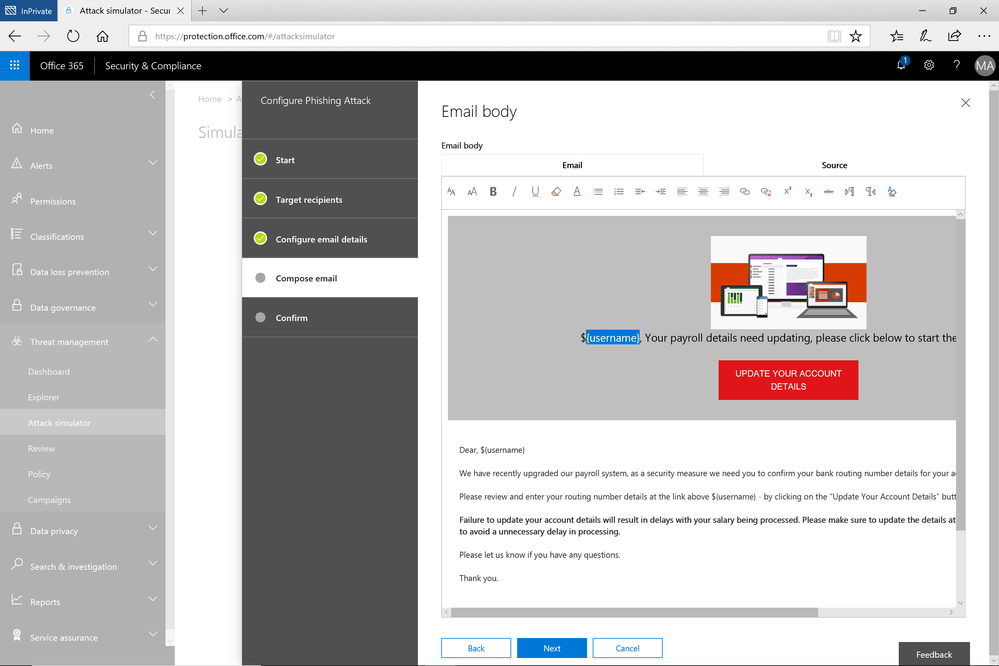
A few weeks ago, we released a public preview for Attack Simulator for Office 365 Threat Intelligence. Today, we’re excited to announce that Attack Simulator is now generally available. Attack Simulator for Office 365 Threat Intelligence is available to all Office 365 E5 or Office 365 Threat Intelligence customers.
With Attack Simulator, customers can launch simulated attacks on their end users, determine how end users behave in the event of an attack, and update policies and ensure that appropriate security tools are in place to protect the organization from threats. The GA of Attack Simulator adds a new HTML editor so realistic looking HTML emails can be sent in simulations of spear-phishing. Also, two spear-phishing templates are available for immediate use in the spear phishing simulation.
Figure 1. Email template for spear phish simulation using a fake email from an organization’s payroll department.
Attack Simulator includes the three attack scenarios from our public preview.
- Display Name Spear Phishing Attack: Phishing is the generic term for socially engineered attacks designed to harvest credentials or personally identifiable information (PII). Spear phishing is a subset of this phishing and is more targeted, often aimed at a specific group, individual, or organization. These attacks are customized and tend to leverage a sender name that generates trust with the recipient.
- Password Spray Attack: To prevent bad actors from constantly guessing the passwords of user accounts, often there are account lockout policies. For example, an account will lockout after a certain number of bad passwords are guessed for a user. However, if you were to take a single password and try it against every single account in an organization, it would not trigger any lockouts. The password spray attack leverages commonly used passwords and targets many accounts in an organization with the hope that one of the account holder uses a common password that allows a hacker to enter the account and take control of it. From this compromised account, a hacker can launch more attacks by assuming the identity of account holder.
- Brute Force Password Attack: This type of attack consists of a hacker trying many passwords or passphrases with the hope of eventually guessing correctly. The attacker systematically checks all possible passwords and passphrases until the correct one is found.
This video demonstrates how Attack Simulator can help organizations educate users to become more secure from cyber threats. With Attack Simulator, admins can train all their end users, and especially those who are attacked most often. This proactive training is a powerful way to ensure that your organization can prevent the impact from advanced threats. Over the coming months, more threat simulations will be added to Attack Simulator so organizations can simulate the most prevalent threat types from the modern threat landscape.
Begin Educating your End Users Today
Experience the benefits of Attack Simulator for Office 365 Threat Intelligence by beginning an Office 365 E5 trial or Office 365 Threat Intelligence Trial today. Also, learn more about how Microsoft leverages threat intelligence and the value of threat intelligence. Your feedback is one of the most important drivers of our innovation, so please let us know what you think.
A few weeks ago, we released a public preview for Attack Simulator for Office 365 Threat Intelligence. Today, we’re excited to announce that Attack Simulator is now generally available. Attack Simulator for Office 365 Threat Intelligence is available to all Office 365 E5 or Office 365 Threat Intelligence customers.
With Attack Simulator, customers can launch simulated attacks on their end users, determine how end users behave in the event of an attack, and update policies and ensure that appropriate security tools are in place to protect the organization from threats. The GA of Attack Simulator adds a new HTML editor so realistic looking HTML emails can be sent in simulations of spear-phishing. Also, two spear-phishing templates are available for immediate use in the spear phishing simulation.
Figure 1. Email template for spear phish simulation using a fake email from an organization’s payroll department.
Attack Simulator includes the three attack scenarios from our public preview.
- Display Name Spear Phishing Attack: Phishing is the generic term for socially engineered attacks designed to harvest credentials or personally identifiable information (PII). Spear phishing is a subset of this phishing and is more targeted, often aimed at a specific group, individual, or organization. These attacks are customized and tend to leverage a sender name that generates trust with the recipient.
- Password Spray Attack: To prevent bad actors from constantly guessing the passwords of user accounts, often there are account lockout policies. For example, an account will lockout after a certain number of bad passwords are guessed for a user. However, if you were to take a single password and try it against every single account in an organization, it would not trigger any lockouts. The password spray attack leverages commonly used passwords and targets many accounts in an organization with the hope that one of the account holder uses a common password that allows a hacker to enter the account and take control of it. From this compromised account, a hacker can launch more attacks by assuming the identity of account holder.
- Brute Force Password Attack: This type of attack consists of a hacker trying many passwords or passphrases with the hope of eventually guessing correctly. The attacker systematically checks all possible passwords and passphrases until the correct one is found.
This video demonstrates how Attack Simulator can help organizations educate users to become more secure from cyber threats. With Attack Simulator, admins can train all their end users, and especially those who are attacked most often. This proactive training is a powerful way to ensure that your organization can prevent the impact from advanced threats. Over the coming months, more threat simulations will be added to Attack Simulator so organizations can simulate the most prevalent threat types from the modern threat landscape.
Begin Educating your End Users Today
Experience the benefits of Attack Simulator for Office 365 Threat Intelligence by beginning an Office 365 E5 trial or Office 365 Threat Intelligence Trial today. Also, learn more about how Microsoft leverages threat intelligence and the value of threat intelligence. Your feedback is one of the most important drivers of our innovation, so please let us know what you think.
A few weeks ago, we released a public preview for Attack Simulator for Office 365 Threat Intelligence. Today, we’re excited to announce that Attack Simulator is now generally available. Attack Simulator for Office 365 Threat Intelligence is available to all Office 365 E5 or Office 365 Threat Intelligence customers.
With Attack Simulator, customers can launch simulated attacks on their end users, determine how end users behave in the event of an attack, and update policies and ensure that appropriate security tools are in place to protect the organization from threats. The GA of Attack Simulator adds a new HTML editor so realistic looking HTML emails can be sent in simulations of spear-phishing. Also, two spear-phishing templates are available for immediate use in the spear phishing simulation.
Figure 1. Email template for spear phish simulation using a fake email from an organization’s payroll department.
Attack Simulator includes the three attack scenarios from our public preview.
- Display Name Spear Phishing Attack: Phishing is the generic term for socially engineered attacks designed to harvest credentials or personally identifiable information (PII). Spear phishing is a subset of this phishing and is more targeted, often aimed at a specific group, individual, or organization. These attacks are customized and tend to leverage a sender name that generates trust with the recipient.
- Password Spray Attack: To prevent bad actors from constantly guessing the passwords of user accounts, often there are account lockout policies. For example, an account will lockout after a certain number of bad passwords are guessed for a user. However, if you were to take a single password and try it against every single account in an organization, it would not trigger any lockouts. The password spray attack leverages commonly used passwords and targets many accounts in an organization with the hope that one of the account holder uses a common password that allows a hacker to enter the account and take control of it. From this compromised account, a hacker can launch more attacks by assuming the identity of account holder.
- Brute Force Password Attack: This type of attack consists of a hacker trying many passwords or passphrases with the hope of eventually guessing correctly. The attacker systematically checks all possible passwords and passphrases until the correct one is found.
This video demonstrates how Attack Simulator can help organizations educate users to become more secure from cyber threats. With Attack Simulator, admins can train all their end users, and especially those who are attacked most often. This proactive training is a powerful way to ensure that your organization can prevent the impact from advanced threats. Over the coming months, more threat simulations will be added to Attack Simulator so organizations can simulate the most prevalent threat types from the modern threat landscape.
Begin Educating your End Users Today
Experience the benefits of Attack Simulator for Office 365 Threat Intelligence by beginning an Office 365 E5 trial or Office 365 Threat Intelligence Trial today. Also, learn more about how Microsoft leverages threat intelligence and the value of threat intelligence. Your feedback is one of the most important drivers of our innovation, so please let us know what you think.
A few weeks ago, we released a public preview for Attack Simulator for Office 365 Threat Intelligence. Today, we’re excited to announce that Attack Simulator is now generally available. Attack Simulator for Office 365 Threat Intelligence is available to all Office 365 E5 or Office 365 Threat Intelligence customers.
With Attack Simulator, customers can launch simulated attacks on their end users, determine how end users behave in the event of an attack, and update policies and ensure that appropriate security tools are in place to protect the organization from threats. The GA of Attack Simulator adds a new HTML editor so realistic looking HTML emails can be sent in simulations of spear-phishing. Also, two spear-phishing templates are available for immediate use in the spear phishing simulation.
Figure 1. Email template for spear phish simulation using a fake email from an organization’s payroll department.
Attack Simulator includes the three attack scenarios from our public preview.
- Display Name Spear Phishing Attack: Phishing is the generic term for socially engineered attacks designed to harvest credentials or personally identifiable information (PII). Spear phishing is a subset of this phishing and is more targeted, often aimed at a specific group, individual, or organization. These attacks are customized and tend to leverage a sender name that generates trust with the recipient.
- Password Spray Attack: To prevent bad actors from constantly guessing the passwords of user accounts, often there are account lockout policies. For example, an account will lockout after a certain number of bad passwords are guessed for a user. However, if you were to take a single password and try it against every single account in an organization, it would not trigger any lockouts. The password spray attack leverages commonly used passwords and targets many accounts in an organization with the hope that one of the account holder uses a common password that allows a hacker to enter the account and take control of it. From this compromised account, a hacker can launch more attacks by assuming the identity of account holder.
- Brute Force Password Attack: This type of attack consists of a hacker trying many passwords or passphrases with the hope of eventually guessing correctly. The attacker systematically checks all possible passwords and passphrases until the correct one is found.
This video demonstrates how Attack Simulator can help organizations educate users to become more secure from cyber threats. With Attack Simulator, admins can train all their end users, and especially those who are attacked most often. This proactive training is a powerful way to ensure that your organization can prevent the impact from advanced threats. Over the coming months, more threat simulations will be added to Attack Simulator so organizations can simulate the most prevalent threat types from the modern threat landscape.
Begin Educating your End Users Today
Experience the benefits of Attack Simulator for Office 365 Threat Intelligence by beginning an Office 365 E5 trial or Office 365 Threat Intelligence Trial today. Also, learn more about how Microsoft leverages threat intelligence and the value of threat intelligence. Your feedback is one of the most important drivers of our innovation, so please let us know what you think.
![New: Office 365 and Microsoft 365 training for your business]()
Organizations of all sizes win customers and create trust with a consistent and recognizable brand. Web and email addresses that match your organization’s name build brand equity and establish credibility. If your business is called Fourth Coffee, a web address of fourthcoffee.com makes you easy to find online, and email addresses that end in @fourthcoffee.com reassure your customers that they are dealing directly with you.
Microsoft makes it easy to integrate your custom domain with comprehensive collaboration tools like email from Office 365. Let’s look at your options.
Purchase a custom domain with your Office 365 subscription
For organizations creating their online presence for the first time, Microsoft makes it easy to purchase a custom domain and integrate it with Office 365. This new domain will instantly be linked with your Office 365 account, meaning that all your email addresses will include your new custom domain where you can also host your website. You can purchase this new custom domain from Microsoft at the same time as your subscription to Office 365 or later.
We’ve posted step by step instructions on how to purchase a custom domain directly from Microsoft in our support documentation.

Automatically join your own GoDaddy or 1&1 domain with Office 365 (UPDATED)
Many organizations will purchase a domain as soon as they have a name. As they grow and implement more advanced IT solutions, it can be challenging to integrate that custom domain. Microsoft makes it easy to join some domains to Office 365 services through an open standard called Domain Connect. Domain Connect automates many of the manual processes typically required for configuring web hosting and email service. Microsoft has enabled this standard in Office 365 to make it easy to integrate your Domain Connect enabled domains with your Office 365 subscription.
We’re excited to announce today that 1&1, a leading domain provider, has integrated the Domain Connect standard. This new partnership makes it easy to integrate your custom domain from 1&1 with your Office 365 subscription. 1&1 and GoDaddy are the first domain providers to offer compliance with the Domain Connect standard, with more on the way.
If you’re currently using another provider for your organization’s email service, it’s easy to migrate those email addresses and messages to your Office 365 subscription.
Check out the support documentation for more on how you can automatically join your existing domain to your Office 365 subscription and migrate your messages.
Manually join your domain with Office 365
You can still join your custom domain with your Office 365 services if you did not purchase it from Microsoft or a Domain Connect compliant provider. There are a few more steps to take, but it’s straight forward. The outcomes and benefits are the same.
The support documentation contains a step by step procedure for manually joining your domain to your Office 365 services.

Easier to manage; easier to focus on your goals
Automatically connecting your custom domain with your Office 365 services is another example of how we want to simplify your IT management experience so that you can focus on your actual work. Join the Office 365 Tech Community to stay up to date on the latest news and releases.
In order to drive consistent protection for US Government information, employees, and infrastructure, the Department of Homeland Security issued requirements for Federal agencies using email and web services. The “Enhance Email and Web Security” Binding Operational Directive (BOD 18-01) outlines specific controls and configurations to be applied to email servers and web services within 30, 60, and 120 days of issuance.
The Department of Homeland Security is responsible for developing and enforcing binding operational directives under the Federal Information Security Modernization Act of 2014 (FISMA) (Id. § 3553(b)(2)), and BODs are mandatory for federal, executive branch, departments and agencies (44 U.S.C. § 3552(b)(1)). While the BOD 18-01 is not compulsory for the Department of Defense, Intelligence Community, or State and Local Governments, these policies and security protocols are strongly recommended and should be heeded by all agencies in public sector, as well as commercial companies.
The cybersecurity requirements issued by the Department of Homeland Security will help protect information by enforcing encryption and more secure connections when government employees use internet systems for email and websites. Additionally, emails will require a digital signature that makes it harder to fake an email address to deliver malware or trick users into providing passwords. (Learn more in Dan Lohrmann’s cybersecurity blog on govtech.com)
Microsoft’s cloud makes it easy to enhance email and web security to comply with BOD 18-01.
(Action may be required to configure SPF/DMARC policies. Resources can be found below.)
All agencies are required to:
- Within 30 calendar days after issuance of this directive, develop and provide to DHS an “Agency Plan of Action for BOD 18-01” to:
- Enhance email security by:
- Within 90 days after issuance of this directive, configuring:
- All internet-facing mail servers to offer STARTTLS, and
- All second-level agency domains to have valid SPF/DMARC records, with at minimum a DMARC policy of “p=none” and at least one address defined as a recipient of aggregate and/or failure reports.
- Within 120 days after issuance of this directive, ensuring:
- Secure Sockets Layer (SSL)v2 and SSLv3 are disabled on mail servers, and
- 3DES and RC4 ciphers are disabled on mail servers.
- Within 15 days of the establishment of centralized National Cybersecurity & Communications Integration Center (NCCIC) reporting location, adding the NCCIC as a recipient of DMARC aggregate reports.
- Within one year after issuance of this directive, setting a DMARC policy of “reject” for all second-level domains and mail-sending hosts.
- Enhance web security by:
- Within 120 days after issuance of this directive, ensuring:
- All publicly accessible Federal websites and web services provide service through a secure connection (HTTPS-only, with HSTS),
- SSLv2 and SSLv3 are disabled on web servers, and
- 3DES and RC4 ciphers are disabled on web servers.
- Identifying and providing a list to DHS of agency second-level domains that can be HSTS preloaded, for which HTTPS will be enforced for all subdomains.
- Upon delivery of its Agency Plan of Action for BOD 18-01 within 30 days of this directive per required action 1, begin implementing that plan.
- At 60 calendar days after issuance of this directive, provide a report to DHS on the status of that implementation. Continue to report every 30 calendar days thereafter until implementation of the agency’s BOD 18-01 plan is complete.
Source: https://cyber.dhs.gov/
Email security with Exchange Online:
- Uses opportunistic TLS and possible to force TLS
- SSLv2 and SSLv3 are disabled
- RC4 cipher is disabled
- 3DES cipher will be disabled in the future
- Configuring DMARC and SPF within Office 365 is simple
Dynamics 365 (all environments and offerings):
- SSLv2 and SSLv3 are disabled
- RC4 cipher is disabled
- 3DES will be disabled by the end of January
Resources:
On disabling ciphers via GPO:
This entry does not exist in the registry by default. For information about ciphers that are used by the Schannel SSP, see Supported Cipher Suites and Protocols in the Schannel SSP.
Registry path: HKLM SYSTEMCurrentControlSetControlSecurityProvidersSCHANNEL
To disable a cipher, create an Enabled entry in the appropriate subkey. This entry does not exist in the registry by default. After you have created the entry, change the DWORD value to 0. When you disable any algorithm, you disallow all cipher suites that use that algorithm. To enable the cipher, change the DWORD value to 1.
Source: https://technet.microsoft.com/en-us/library/dn786418(v=ws.11).aspx#BKMK_SchannelTR_Ciphers
Want to stay up to date on technology trends in government, Microsoft 365 for US Government product updates, and the musings of a Microsoft product manager? Follow @brian_levenson on Twitter.