Data loss is non-negotiable. Period. As innovation in the cloud drives business value, it delivers new capabilities to the IT professionals and site admins who work tirelessly to support, configure, administer, and secure their organizations’ and teams’ content. And it is important that you are empowered to recover from accidental deletions or version issues at the speed business productivity requires.
Today we begin to roll out Files Restore for SharePoint and Microsoft Teams – a new Microsoft 365 feature. This is associated with Microsoft 365 Roadmap: ID 33714 and originally announced at Ignite 2018.
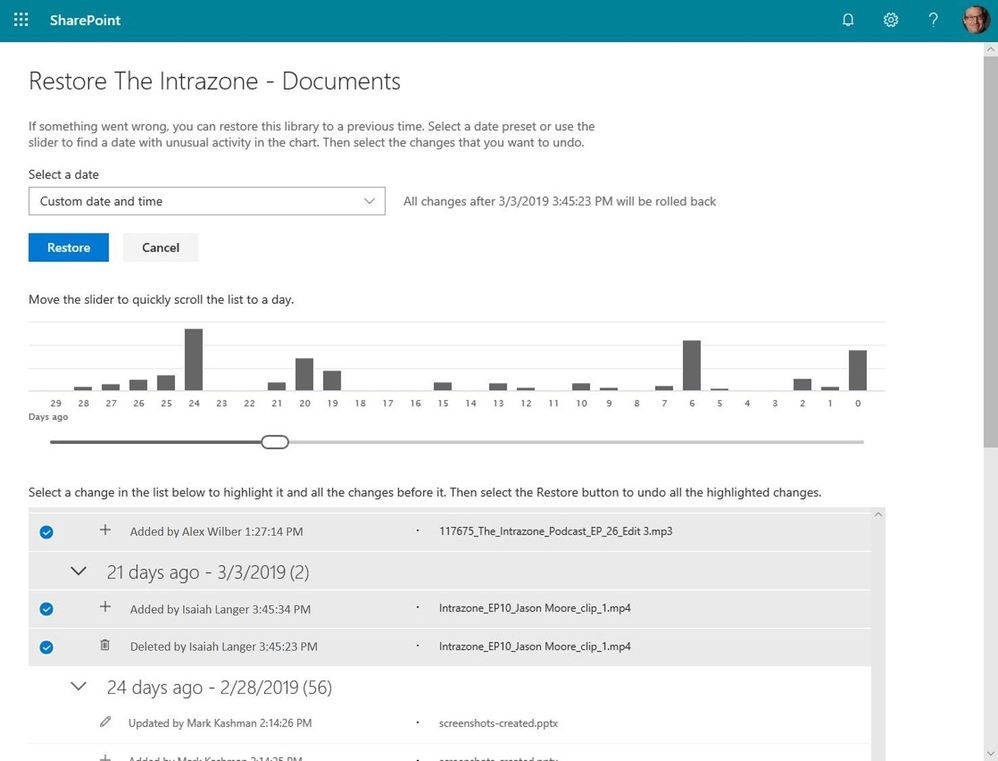
If something went wrong, you can restore a SharePoint document library (the same storage mechanism behind the Files tab in Microsoft Teams) to a previous time. Select a date preset or use the slider to find a date within unusual activity in the chart. Then select the changes that you want to undo.
We’ve built Microsoft 365 with global scale, exceptional reliability, and support for compliance across industries and geographies on top of intelligent security that keeps your service and content protected and private, we give you granular and dynamic controls so that you can manage access, distribution and recovery of your organization’s sensitive content and information.
Let’s dive into the details…
Restore your files with confidence from SharePoint and Microsoft Teams
Files restore for SharePoint and Microsoft Teams is a complete self-service recovery solution that allows administrators and site owners to restore files from any point in time during the last 30 days. Site owners will see a new “Restore this library” option within the library settings panel. This can be used as a self-service to restore the files and folders in the library you suspect have been compromised by end-user deletion, file corruption, or malware infection – to any point in the past 30 days.
Simply go to the gear icon in the upper right > select Restore this library > select a date range, select your files > click Restore.
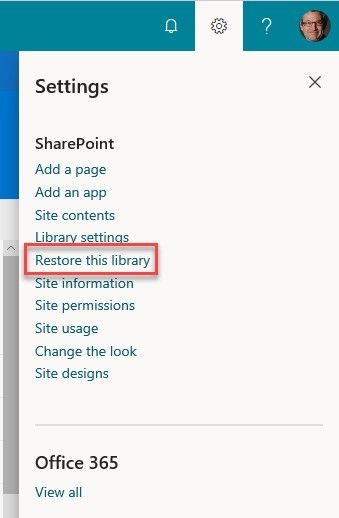 Go to Site Settings and select “Restore this library” to start the process of recovering a file or set of files based on a date prior to the issue.
If lots of your SharePoint or Teams files get deleted, overwritten, corrupted, or infected by malware, you can restore your entire document library to a previous time. Files Restore helps Office 365 subscribers undo all the actions that occurred on both files and folders within the last 30 days.
Files Restore is now available for SharePoint document libraries, protecting your shared files in SharePoint, Teams, Outlook groups, and Yammer groups connected to Office 365 groups and uses the same recovery capabilities that protect your individual files in OneDrive for Business.
Note to IT: files across the SharePoint and Teams user interfaces are stored in the same storage container (SharePoint document libraries), thus offer the same experience and capabilities as a single-source offering throughout Microsoft 365.
What else do I need to know?
Now you can rewind changes using activity data to find the exact moment to revert to.
We’ll be gradually rolling this out to Targeted Release organizations in April 2019, and the roll out will be completed worldwide by the end of May 2019.
Learn more how to restore your SharePoint and Teams files. And the related how to restore your OneDrive.
Frequently Asked Questions (FAQs)
Q: When is this all being released in Office 365?
A: Files restore for SharePoint has begun Targeted Release to customers in Office 365. We plan to extend release to all full Targeted Release customers by the end of April 2019. We then plan to fully release to all full production Office 365 customers by the end of May 2019.
Data loss is non-negotiable. Period. As innovation in the cloud drives business value, it delivers new capabilities to the IT professionals and site admins who work tirelessly to support, configure, administer, and secure their organizations’ and teams’ content. And it is important that you are empowered to recover from accidental deletions or version issues at the speed business productivity requires.
Today we begin to roll out Files Restore for SharePoint and Microsoft Teams – a new Microsoft 365 feature. This is associated with Microsoft 365 Roadmap: ID 33714 and originally announced at Ignite 2018.
If something went wrong, you can restore a SharePoint document library (the same storage mechanism behind the Files tab in Microsoft Teams) to a previous time. Select a date preset or use the slider to find a date within unusual activity in the chart. Then select the changes that you want to undo.
We’ve built Microsoft 365 with global scale, exceptional reliability, and support for compliance across industries and geographies on top of intelligent security that keeps your service and content protected and private, we give you granular and dynamic controls so that you can manage access, distribution and recovery of your organization’s sensitive content and information.
Let’s dive into the details…
Restore your files with confidence from SharePoint and Microsoft Teams
Files restore for SharePoint and Microsoft Teams is a complete self-service recovery solution that allows administrators and site owners to restore files from any point in time during the last 30 days. Site owners will see a new “Restore this library” option within the library settings panel. This can be used as a self-service to restore the files and folders in the library you suspect have been compromised by end-user deletion, file corruption, or malware infection – to any point in the past 30 days.
Simply go to the gear icon in the upper right > select Restore this library > select a date range, select your files > click Restore.
Go to Site Settings and select “Restore this library” to start the process of recovering a file or set of files based on a date prior to the issue.
If lots of your SharePoint or Teams files get deleted, overwritten, corrupted, or infected by malware, you can restore your entire document library to a previous time. Files Restore helps Office 365 subscribers undo all the actions that occurred on both files and folders within the last 30 days.
Files Restore is now available for SharePoint document libraries, protecting your shared files in SharePoint, Teams, Outlook groups, and Yammer groups connected to Office 365 groups and uses the same recovery capabilities that protect your individual files in OneDrive for Business.
Note to IT: files across the SharePoint and Teams user interfaces are stored in the same storage container (SharePoint document libraries), thus offer the same experience and capabilities as a single-source offering throughout Microsoft 365.
What else do I need to know?
Now you can rewind changes using activity data to find the exact moment to revert to.
We’ll be gradually rolling this out to Targeted Release organizations in April 2019, and the roll out will be completed worldwide by the end of May 2019.
Learn more how to restore your SharePoint and Teams files. And the related how to restore your OneDrive.
Frequently Asked Questions (FAQs)
Q: When is this all being released in Office 365?
A: Files restore for SharePoint has begun Targeted Release to customers in Office 365. We plan to extend release to all full Targeted Release customers by the end of April 2019. We then plan to fully release to all full production Office 365 customers by the end of May 2019.
SharePoint news is a content distribution system that works across personal, team and organizational news. News articles and links can be composed on browser or mobile platforms, and are easily surfaced in portals, Microsoft Teams, email, Microsoft Search and more. Rich new capabilities will empower communicators to keep groups, departments, and divisions up to date easily.
Let’s dive into each feature.
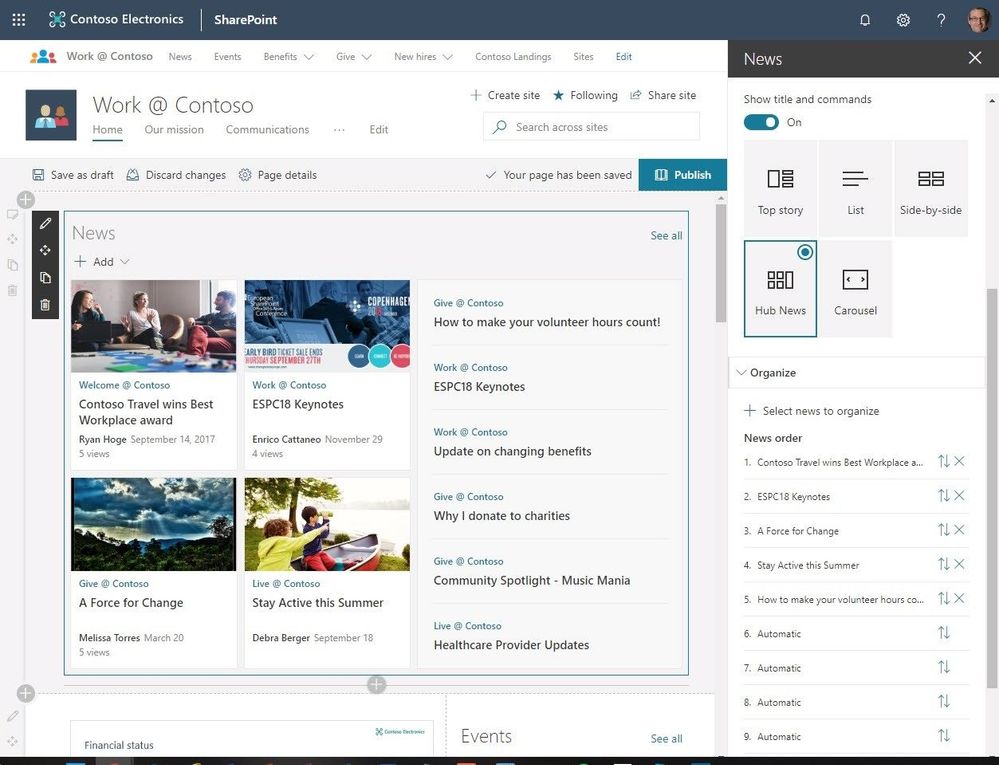
News – organize. Within the news web part, you can now organize your news posts to appear in custom order. This means you can highlight high-value content knowing it is more visible among articles published on a site. Learn more in our support article.
Figure 1 Controlling the news display sort order
Authoritative news – News can come from many different sites. But you might have “official” or “authoritative” sites for organization news. When these sites are specified as organization news sources, posts from these sites are interleaved throughout all news posts displayed for users on SharePoint home in Office 365, or via the news tab in SharePoint mobile. They are distinguished by a color block on the title as a visual cue. Admins can manage news sources using simple PowerShell commands, referenced below.
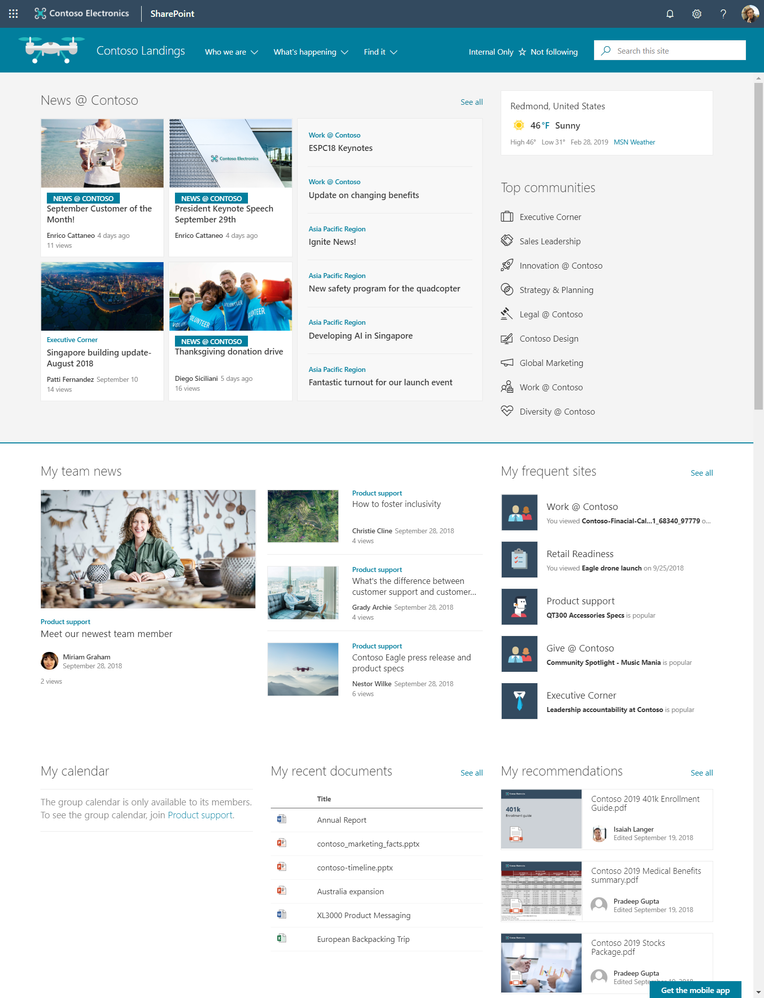 Figure 2 Site showing authoritative organization-wide news
News notifications from followed sites – Starting in March 2019, users that follow sites will start to get notifications for any news posted on those sites. They will also get notifications when people they work with posted news. And soon, news notifications can be delivered over email as well. It’s never been easier to stay up to date with information from key areas of your intranet.
Page templates. You’ve created a great page, and you want to make it available for others to use as a starting point for their pages. Or, you need to create a page, but aren’t sure where to start. Page templates can save time.
Initially, we’ll ship three page templates – basic, text-centric and visual, as shown below. You can also create your own templates from existing pages. Once a page is saved as a template, it can be chosen from the Template gallery as users create pages and news. Again, learn more in our support article.
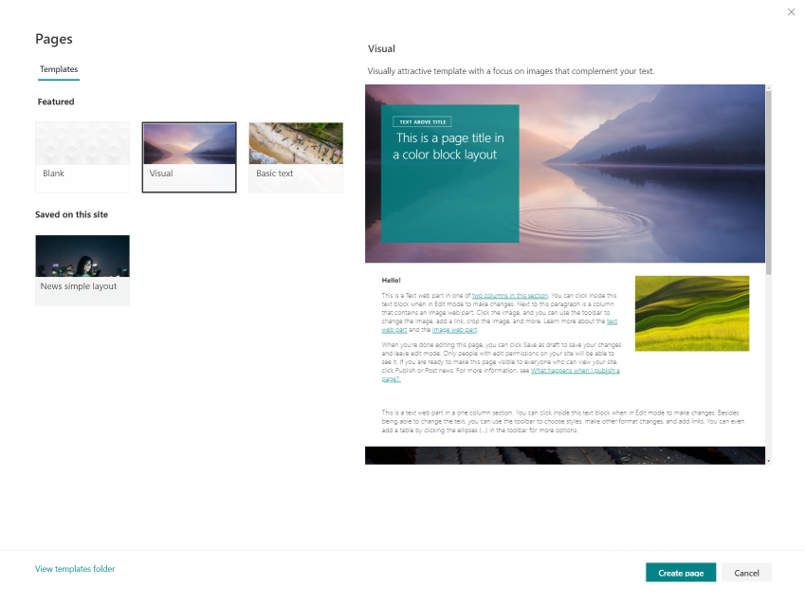 Figure 3 SharePoint page templates
Try more and more of what SharePoint offers, and let us know what you think
We want to empower you and every person on your team to achieve more. Let us know what you need next. We are always open to feedback via UserVoice and continued dialog in the SharePoint community in the Microsoft Tech Community —and we always have an eye on tweets to @SharePoint. Let us know.
—Chris McNulty, senior product manager for Microsoft 365
FAQs
Q: When is this all being released?
A: Our goal is to release all the items to Targeted Release customers by the end of March 2019.
Q: How can administrators manage authoritative news sources?
A: Your tenant admin will need to add sites to the organization news list of sites using PowerShell. Here are some helpful commands.
SharePoint news is a content distribution system that works across personal, team and organizational news. News articles and links can be composed on browser or mobile platforms, and are easily surfaced in portals, Microsoft Teams, email, Microsoft Search and more. Rich new capabilities will empower communicators to keep groups, departments, and divisions up to date easily.
Let’s dive into each feature.
News – organize. Within the news web part, you can now organize your news posts to appear in custom order. This means you can highlight high-value content knowing it is more visible among articles published on a site. Learn more in our support article.
Figure 1 Controlling the news display sort order
Authoritative news – News can come from many different sites. But you might have “official” or “authoritative” sites for organization news. When these sites are specified as organization news sources, posts from these sites are interleaved throughout all news posts displayed for users on SharePoint home in Office 365, or via the news tab in SharePoint mobile. They are distinguished by a color block on the title as a visual cue. Admins can manage news sources using simple PowerShell commands, referenced below.
Figure 2 Site showing authoritative organization-wide news
News notifications from followed sites – Starting in March 2019, users that follow sites will start to get notifications for any news posted on those sites. They will also get notifications when people they work with posted news. And soon, news notifications can be delivered over email as well. It’s never been easier to stay up to date with information from key areas of your intranet.
Page templates. You’ve created a great page, and you want to make it available for others to use as a starting point for their pages. Or, you need to create a page, but aren’t sure where to start. Page templates can save time.
Initially, we’ll ship three page templates – basic, text-centric and visual, as shown below. You can also create your own templates from existing pages. Once a page is saved as a template, it can be chosen from the Template gallery as users create pages and news. Again, learn more in our support article.
Figure 3 SharePoint page templates
Try more and more of what SharePoint offers, and let us know what you think
We want to empower you and every person on your team to achieve more. Let us know what you need next. We are always open to feedback via UserVoice and continued dialog in the SharePoint community in the Microsoft Tech Community —and we always have an eye on tweets to @SharePoint. Let us know.
—Chris McNulty, senior product manager for Microsoft 365
FAQs
Q: When is this all being released?
A: Our goal is to release all the items to Targeted Release customers by the end of March 2019.
Q: How can administrators manage authoritative news sources?
A: Your tenant admin will need to add sites to the organization news list of sites using PowerShell. Here are some helpful commands.
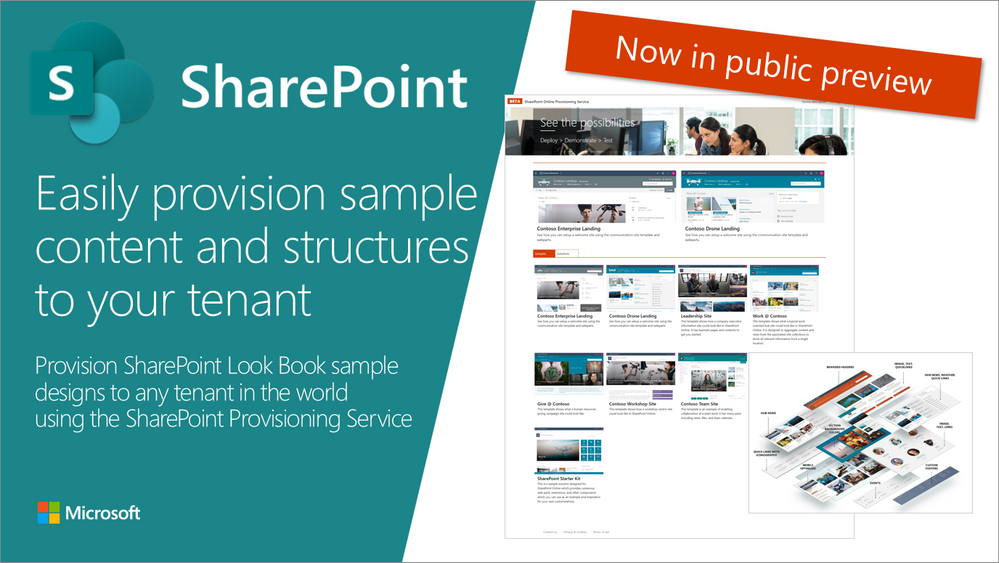
SharePoint Look Book site is an awesome web site having pictures on example modern portals build with SharePoint Online. These designs demonstrate what’s possible with the modern SharePoint and we will be releasing updated guidance on the Look Book also in future.
Having example pictures and written clarifications of the structures around the sites built with modern SharePoint is great, but wouldn’t it be even more awesome if you could provision actual site collections and structures based on those designs so that you can even adjust those based on your needs?
That would be awesome!
We thought so as well and started building a specific service to enable you to easily provision sample content and scenarios to any SharePoint tenant.
How to use the service?
It’s as easy as following these simple steps:
- Move to the provisioning service at https://provisioning.sharepointpnp.com
- Select a template which you want to use (remember to check template specific prerequisites if any)
- Click “Add to your tenant“
- Sign-in to your tenant
- Provide requested metadata like the URL to be used
- Confirm and wait for an email notification when provisioning is completed
See the following 2-minute video as a quick introduction on how the service works in practice.
Right now the service is in public preview like mentioned as we keep on polishing up the experience and the provided templates.
What are the prerequisites for the usage?
You will need to be a tenant administrator to be able to use the service. This is due to the cross tenant capabilities, which the templates might contain, like Microsoft Teams structures, SharePoint solutions, Site Designs, and Themes. We are looking into enabling simple templates also for site collection administrators in the future without tenant administrator requirements. Notice also that currently, SharePoint administrator permissions are not sufficient.
Notice also that some of the initially provided templates also contain other prerequisites, like having a tenant app catalog created for SharePoint Framework solutions or having the tenant administrator as a term store administrator before the provisioning is started. Please check the prerequisites specifically for SharePoint Starter Kit or for the Custom Learning templates.
Currently, templates have been also tested properly only for the English language, so please provide us feedback based on your experiences with non-English tenants.
Can I use the service in my production environment?
We do recommend testing the templates in a test environment to ensure that you are aware of how they work. Some of the initially provided templates, like Each provided template, has a detailed description of the contained content which is getting provisioned. You can get a test tenant by using a trial Office 365 tenants or by subscribing to the Office 365 developer program (if you are a developer).
Can I use the templates also outside of the service?
Absolutely. We are providing all used templates as an open-source solution through GitHub repository. If you are an IT Pro or a developer, you can also use those templates by using code or PowerShell.
Please provide us feedback on the service and share any issues with us which you might have as part of using it. Thank you for your input advance.







