The Next Generation of Power Platform Adoption Guidance is here
Successfully adopting Microsoft Power Platform is about more than just deploying tools. It’s about building a strategy that empowers people, ensures governance, and delivers lasting business value. And to support you on your successful adoption journey, we’re excited to announce the launch of the newly refreshed Power Platform Adoption Guidance.
This update is the most significant evolution of our adoption content to date. It reflects insights from real-world customer experiences, partner feedback, MVP expertise, and Power CAT programs, all to deliver practical, actionable guidance at every stage of your journey. Whether you’re just getting started or looking to mature your platform strategy, this guidance is designed to help you activate business-led innovation with confidence.
What’s new?
Eight Pillars of Adoption: The guidance is now structured across eight strategic pillars, making it easier to plan, scale, and sustain your adoption journey.
Redesigned Experience: We’ve overhauled the information architecture and user experience so you can find what you need faster and more intuitively.
Expanded Content: The update includes over 200 pages of fresh content, covering everything from defining vision and metrics to managing mission-critical workloads and building thriving maker communities.
Actionable Tools: The updated Adoption Workbook now includes exercises and templates that you can work through with your stakeholders to guide the development of a strategy and action plan, based on real-world customer experiences.
Why it matters
To be sure, this guidance is more than a documentation refresh. It’s a strategic resource for Power Platform product owners, adoption leads, change managers, and Center of Excellence (CoE) teams. The guidance helps you:
The newly refreshed Adoption Guidance site includes other resources as well. Real-world case studies, toolkits documentation, and white papers aim to help you be successful with Power Platform.
Get started
Explore the new guidance at https://aka.ms/PowerPlatformGuidance. Share it with your teams. Use it to shape your strategy. And most importantly, let it guide you as you build what’s next with Power Platform.
Microsoft’s Security Copilot is a new AI-powered security assistant (launched in April 2024) that integrates with Microsoft Defender, Sentinel, Intune, Entra and Purview to help analysts protect and defend at the speed and scale of AI. As a cutting-edge generative AI tool, Security Copilot has naturally sparked interest and close attention from users and experts. This has resulted in various articles and blogs sharing experiences, perspectives, and feedback about the product. As a Microsoft Certified Trainer and a Microsoft ‘Consultant’, I happen to both teach and implement Security Copilot for professionals and organizations respectively. Lucky me! But one thing that I encounter frequently in both my roles, is a list of common myths (or concerns) that people have about Security Copilot especially given that it is a relatively newer product.
Today we are going to talk about such myths (or concerns) and try to see how they are either completely hokum or does have another aspect which you may/may not know about. In other words, we will try to dot all the i’s and cross all the t’s. I’ll do it in respective sections which may have one or more myths included, so let’s get started.
I sincerely appreciate the efforts of all authors and publishers who have shared their insights on Security Copilot. This article is intended to address common concerns and encourage professionals to explore the product with confidence, rather than to challenge or dismiss any shared opinions.
Cost and Licensing
Myth #1: High Consumption Cost:
Validity: The perception of high cost is relative and often lacks full context. While the consumption-based pricing of Security Copilot may appear higher when compared to certain other tools, it delivers significantly greater value through its advanced capabilities, seamless integration with the Microsoft Security ecosystem, and ability to accelerate threat detection and response. When evaluated alongside comparable AI-driven security solutions—both Microsoft and non-Microsoft—Security Copilot stands out for its category-defining use cases and operational efficiency, helping security teams do more with less.
Reasoning: While cost considerations are valid, they should be viewed through the lens of operational impact rather than raw consumption. Security Copilot functions as an intelligent assistant operating around the clock—enhancing threat detection, accelerating incident response, and enabling deeper, more proactive threat hunting. Many organizations have reported significant improvements in reducing mean time to respond (MTTR), increasing automation in routine investigations such as phishing, and expanding their overall security coverage without scaling headcount. By augmenting human expertise with AI, Security Copilot empowers teams to focus on high value tasks and strengthens organizational resilience against evolving threats.
Myth #2: Unpredictable billing:
Validity: This is a complete myth not only with Security Copilot but with any other Microsoft solution.
Reasoning: You get a dedicated usage dashboard in the Security Copilot portal and a link to the billing view that takes you to Microsoft Azure where you can not only see the incurred costs but can also have a reliable forecast of future costs. Whether you are a large organization with multiple instances of Security Copilot or an SMB with a limited usage, these dashboards and views will help you equally to ensure you are not under or overspending on Security Copilot.
Myth #3: It’s free or covered by an existing license:
Validity: This misconception likely arises from confusion with other Copilot offerings and becomes a myth!
Reasoning: The overall pricing model of Security Copilot is completely different from other Microsoft Security solutions. While other solutions operate on a licensing model, Security Copilot works on a consumption-based model meaning there is no per user or per device charges here! Hence, no existing license whether Entra or Office 365 based, can give you access to ‘Security Copilot’. Also, please note that Microsoft 365 Copilot (available in Teams, Word, PowerPoint or Azure portal) is not the same as Security Copilot.
Performance and Reliability
Myth #4: Slow responses and high latency:
Validity: This is a completely anecdotal and definitely a myth. There are a variety of factors that affects the response latency of Security Copilot.
Reasoning: You need to consider some important factors like number of SCUs provisioned, concurrent number of Security Copilot users, number of plugins and/or skills being invoked, length and complexity of the prompt etc. in order to understand why you may have gotten a response slower than usual. Moreover, Security Copilot has the feature of showing its response in streaming mode. This approach significantly enhances perceived latency for users, enabling them to begin reading responses as they are generated, like the below image. Reference: What’s new in Microsoft Security Copilot?
Source: Security Copilot Portal
Myth #5: Poor Quality or Unreliable responses:
Validity: All I am going to say here is ‘Your Copilot is as good as the quality of your prompts’!
Reasoning: AI is here to augment our intelligence, but it can only do that when it gets sufficient, clear and well thought prompts. There is a reason to call it a ‘Co’-‘Pilot’ because you are driving/flying/learning along with it. BTW, I prefer flying almost any time! Point is, we need to understand that the quality of AI output is heavily influenced by the tone, context and specificity of prompts. There have been numerous users who agree that refined prompts can yield better results if not the best! I am not suggesting going for in-depth prompt engineering classes here but just including the following elements when writing a prompt, should give you a considerable improvement in the quality of responses. More information on effective prompting practices here: Prompting in Microsoft Security Copilot
Goal – specific, security-related information that you need
Context – why you need this information or how you plan to use it
Expectations – format or target audience you want the response tailored to
Source – known information, data sources, or plugins Security Copilot should use
Moreover, I also suggest leveraging the OOTB (Out-Of-The-Box) prompts and promptbooks in order to understand the way on how you should structure your prompts. Security Copilot has a dedicated ‘Promptbook Library’ where you can see all the custom and OOTB prompts. You have the option of duplicating and creating a custom promptbook of your own from an OOTB promptbook. This way you can ensure you are leveraging the available resources to make your own use case work more efficiently.
Myth #6: Service Interruptions:
Validity: This is a fact portrayed as a myth. If provisioned Security Copilot Units (SCUs) are fully consumed without additional configuration, service may pause until capacity is restored. This behaviour aligns with standard consumption-based service models.
Reasoning: To maintain continuous service, Security Copilot now supports Overage Units, which automatically activate when the initially provisioned SCUs are exhausted. This helps ensure uninterrupted functionality without requiring manual intervention. Additionally, the platform provides clear usage notifications and warnings in advance, allowing teams to proactively monitor and manage consumption. Combined with its role as a 24/7 AI-powered assistant, Security Copilot continues to deliver high availability and operational efficiency—even under dynamic workloads. For details on how to configure and manage overage units, refer to this blog: Overage Units in Security Copilot.
Near Limit notification in Security Copilot standalone portalAbove Limit notification in Security Copilot standalone portal
Privacy and Data Security
Myth #7: Data sharing with Microsoft:
Validity: This is one of the most common myths that still exists amongst users and make them hesitant to adopt the product.
Reasoning: Microsoft has been very transparent and vocal on claiming that ‘customer data’ is never used to train the underlying LLM model nor is it accessible by any human including any non-relevant Microsoft employees. All Security Copilot data is handled according to Microsoft’s commitments to privacy, security, compliance, and responsible AI practices. Access to the systems that house your data is governed by Microsoft’s certified processes. Even when enabled by default, the option to share your data does:
Not shared with OpenAI
Not used for sales
Not shared with third parties
Not used to train Azure OpenAI foundational model
Security Copilot provides options to enable/disable user data collection
Myth #8: Data Privacy Compromises:
Validity: Concerns about data privacy are common with AI tools but this is another completely ironical myth for a security product.
Reasoning: One important thing to know when using Microsoft products and solutions is that Microsoft provides you with contractual commitments on giving you control over your own data! Microsoft takes data security so seriously that even if a law enforcement agency or the government requests your data, you will be notified and provided with a copy of the request! And hence Microsoft defends your data through clearly defined and well-established response policies and processes like:
Microsoft uses and enables the use of industry-standard encrypted transport protocols, such as Transport Layer Security (TLS) and Internet Protocol Security (IPsec) for any customer data in transit.
The Microsoft Cloud employs a wide range of encryption capabilities up to AES-256 for data at rest.
Your control over your data is reinforced by Microsoft compliance with broadly applicable privacy laws, such as GDPR and privacy standards. These include the world’s first international code of practice for cloud privacy, ISO/IEC 27018.
Uncategorized Myths
“Security Copilot will replace our SOC team”:
No! It’s a fact that Security Copilot is an assistant, not an infallible sensor. It is created to “assist security professionals” and acknowledges it may make mistakes (false positives/negatives). The very conception of Security Copilot is essentially taking over the manual and tiresome analysis of raw logs and events while giving time to security professionals to do what they do best, discovering vulnerabilities and securing organizations! Do you ever think why there is not a single capability in Security Copilot to take an action on its own or without your approval? What? You didn’t know that?! This is by design to ensure that you and I are always in the driving seat while our “Co”-pilot augments our capabilities, automates repetitive tasks and provides actionable insights. But users must always validate its advice.
“Copilot only works well with Microsoft products”:
Another anecdotal myth. While Security Copilot is deeply integrated with Microsoft’s own security tools, it is also designed to work effectively with a variety of third-party solutions. In fact, Microsoft provides you with more than 35+ non-Microsoft plugins out-of-the-box including some popular tools like Splunk, ServiceNow, Cyware, Shodan etc. And that’s not it, you can create your own custom plugin using one the three methods amongst API, GPT and KQL.
“You cannot track Copilot’s activities”:
The notion that “you cannot track Copilot’s activities” is definitively a myth. Security Copilot’s integration with Microsoft Purview and the Office 365 Management API provides full visibility into every interaction—prompt inputs, AI responses, plugin calls, and admin configurations. Administrators can enable, search, export, and retain these logs for compliance, forensics, or integration into broader SIEM and SOAR workflows, ensuring that Copilot becomes a transparent, auditable extension of your security operations rather than an untraceable “black box.”
Conclusion
As with any transformative technology, Microsoft Security Copilot has naturally invited speculations. However, many of the concerns—ranging from cost and licensing, to performance, reliability, and data privacy—are either based on misconceptions or lack full context. Through this article, we’ve examined these myths objectively and highlighted how Security Copilot’s design, operational model, and deep integration with Microsoft’s security ecosystem work together to empower, not replace, human defenders. It is built to scale security operations with intelligence and agility, not disrupt them with unpredictability. For organizations navigating increasingly complex threat landscapes, Security Copilot offers a way to enhance response, reduce fatigue, and operationalize AI securely and responsibly. The key is not to view it as just another product, but as a strategic co-pilot—working alongside your team to defend at the speed and scale that modern security demands.
Want to have a much deeper understanding of Security Copilot? Check out these awesome resources:
Get ready for an incredible experience at Microsoft Build 2025. We’re pumped to showcase the latest advancements in Microsoft Power Pages, a platform that empowers enterprises to rapidly build secure, scalable business portals powered by agentic AI.
This week at Microsoft Build 2025, explore how Power Pages enables global scalability and availability with its robust security, administration, and governance. The native integration with Microsoft Copilot and Microsoft Copilot Studio transforms Power Pages portal design by combining conversational AI, intelligent suggestions, and contextual guidance. With generative user experience (UX) and role-based personalization, portals dynamically adapt to user behavior and context—delivering the right information at the right time to streamline workflows and elevate user engagement.
Now is the moment to see how enterprises can plan, build, and run business portals with dynamically tailored experiences.
Introducing cutting-edge security in Power Pages
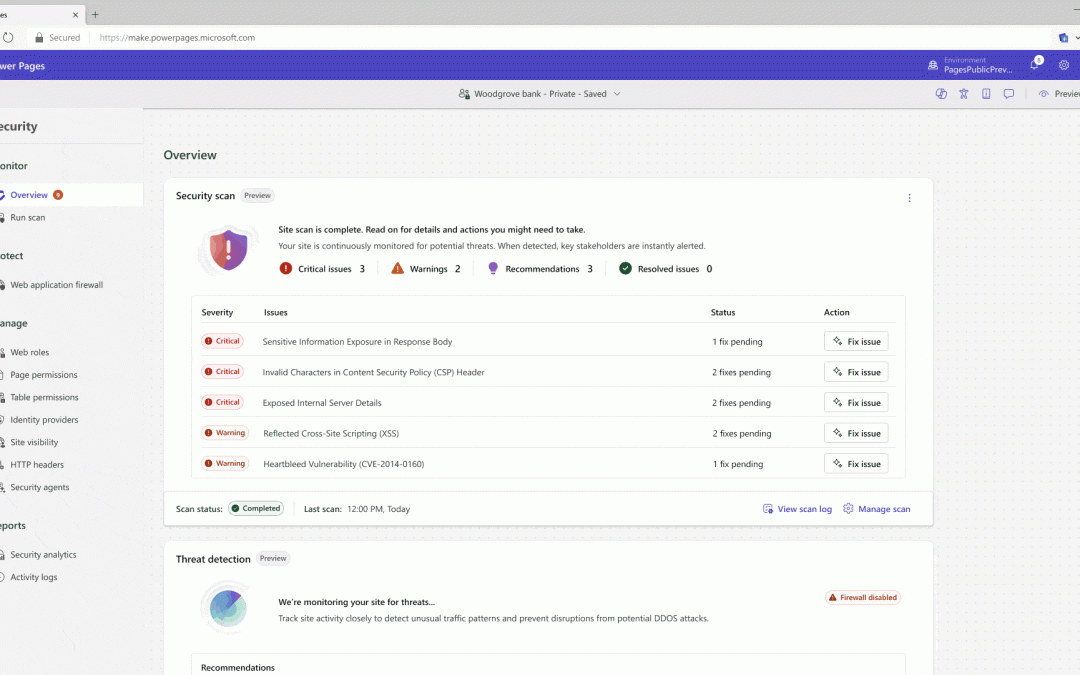
Security isn’t just a feature—it’s a foundation. That’s why we’re thrilled to unveil the new security agent in Power Pages, now available in public preview. This is a game-changer for business users and admins who need to stay ahead of evolving threats without compromising agility.
Powered by Microsoft Sentinel, the security agent continuously monitors for anomalous traffic patterns and proactively detects potential Distributed Denial of Service (DDoS) attacks. But it doesn’t stop at detection—it empowers action. Business users and admins receive real-time alerts and actionable recommendations with Microsoft Outlook and Microsoft Teams, helping them respond swiftly and confidently.
This is more than just protection—it’s intelligent, integrated defense that brings enterprise-grade security directly into your Power Pages experience.
Image represents current UI for a public preview feature. UI is subject to change.
Improving developer productivity and enabling next-generation user experiences
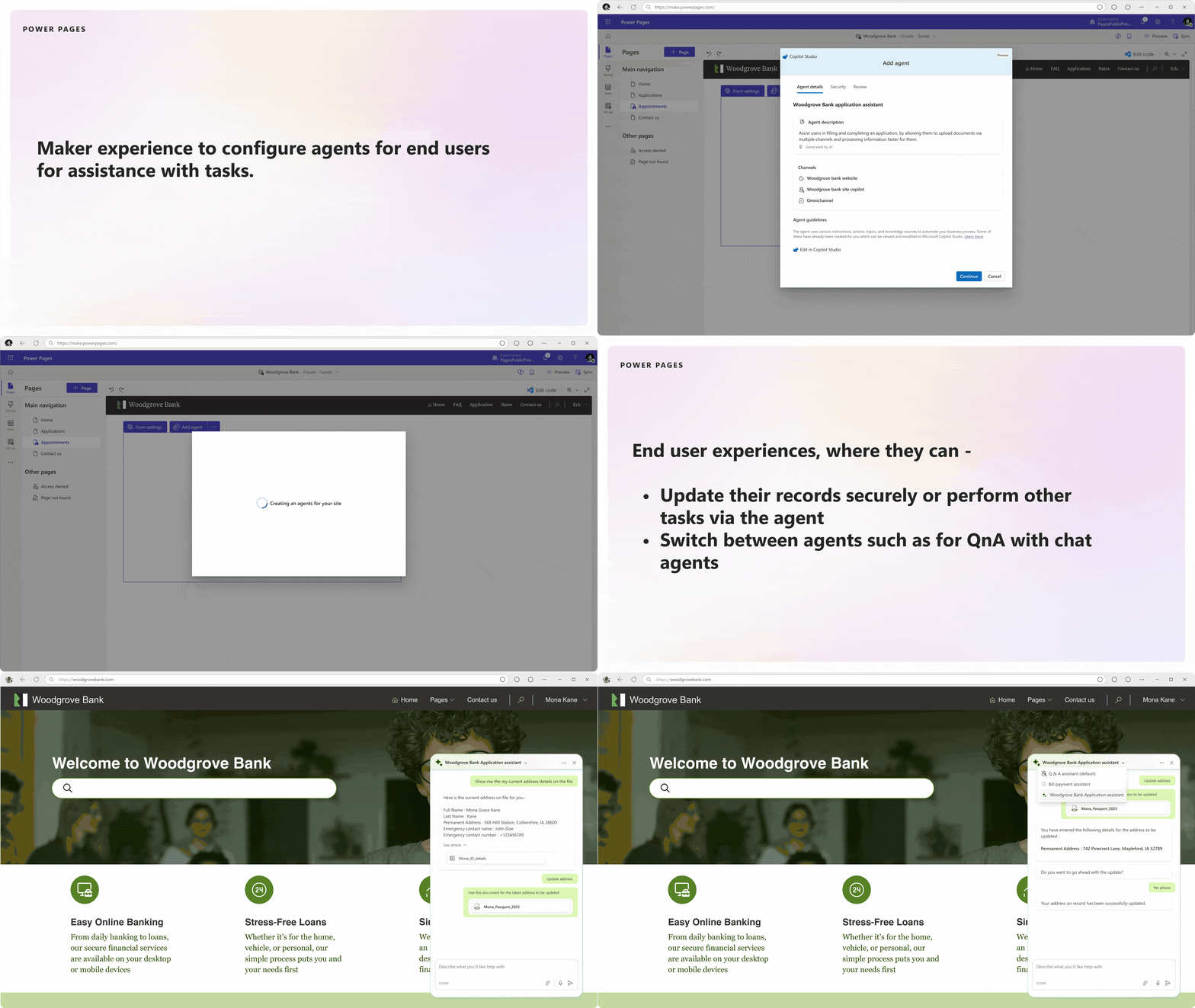
Next, we have exciting new updates for all Power Pages creators. We’re introducing the ability to integrate Copilot Studio agents in Power Pages—enabling creators to embed multiple agents into their site. This capability greatly enhances the conversational chat experience and enables end users to perform, create, and update operations on their business data. Developers also get the ability to use these agents as an API, enabling them to build complex business logic with ease and power next-generation user experiences.
Now in public preview, users can bring their own code to Power Pages using third-party, next-generation code generation tools. This unlocks a new era of “vibe coding”—where natural language becomes the interface, and the user becomes the orchestrator. Instead of writing every line, developers guide, test, and refine AI-generated code, making the process more intuitive, creative, and aligned with enterprise-grade standards.
Power Pages is also expanding its multilingual support, allowing customers to create portals in any number of custom languages. This functionality allows all out-of-the-box components like forms, lists, multistep forms, and card galleries to use content snippets for specifying content translation, allowing customers to build websites in a language of their choice. This feature will be generally available and is set to uplevel the creation process for multilingual portals.
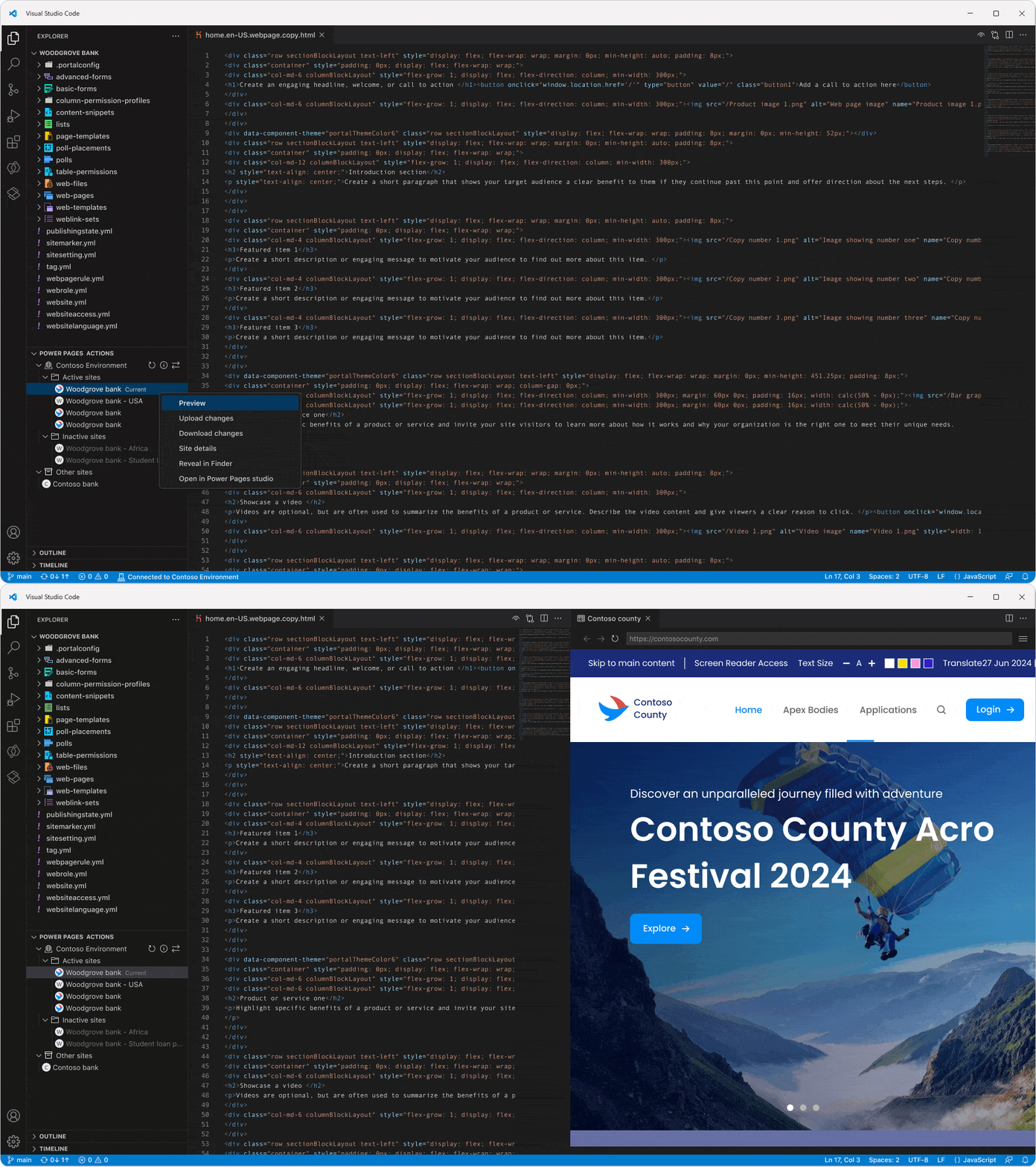
Additionally, the inline portal preview in Visual Studio Code is now in public preview. This feature lets you preview your Power Pages portals without ever leaving your development environment. With built-in user interface (UI) actions to run command-line interface (CLI) commands and switch environments, it streamlines development and testing.
Power Pages now supports Dataverse Git integration in public preview. This integration ensures that your Power Pages content is stored in a easy to read format. The file structure and naming conventions align closely with the experience provided by the Power Pages Visual Studio Code web and desktop. This integration significantly simplifies the process of reviewing, understanding, and managing your Power Pages content, enabling easier collaboration and version control.
Our event management template is also now in public preview. This template, along with custom components, is designed to streamline your development process and enhance portal capabilities, making event management more efficient and effective.
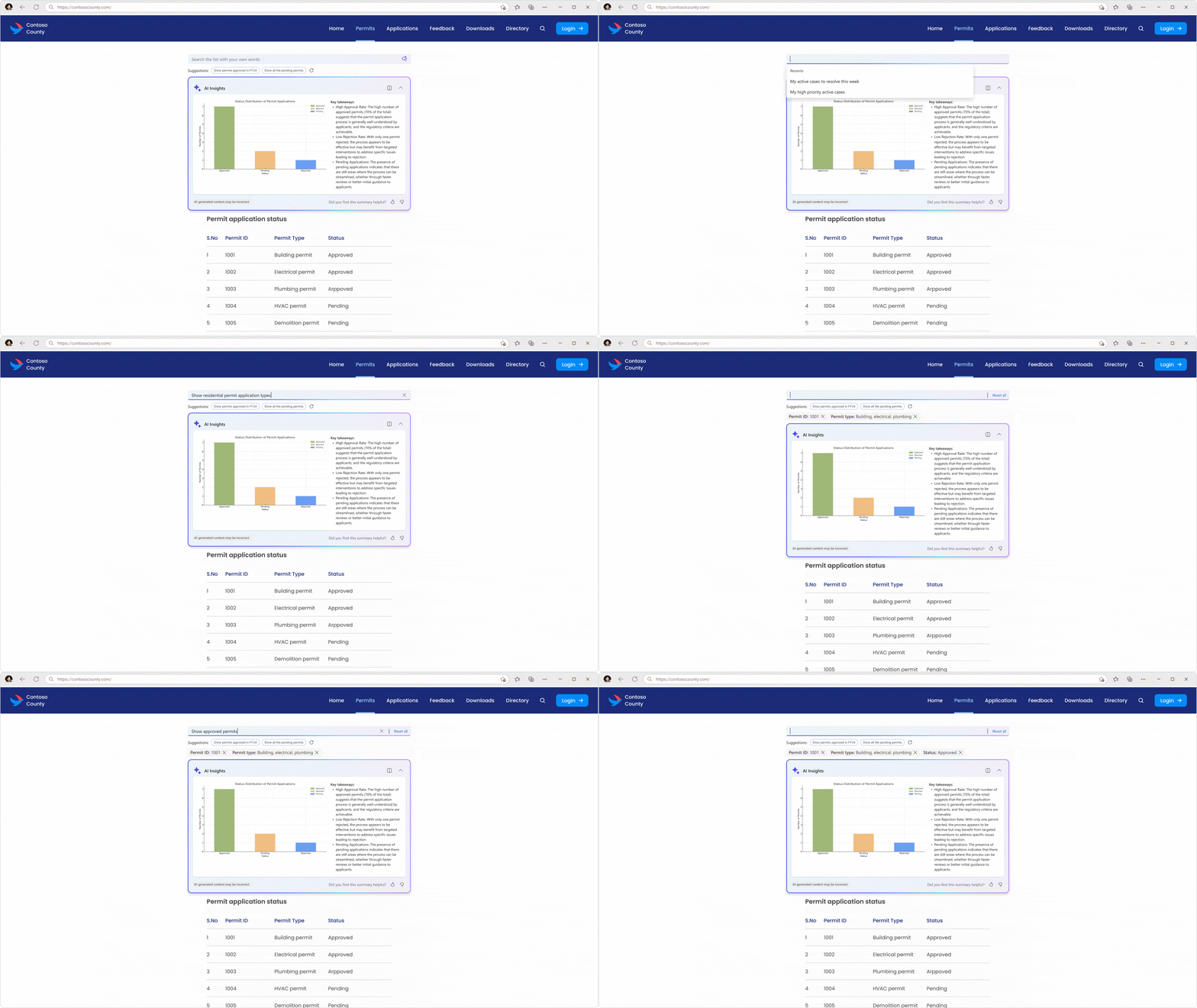
We’re also introducing the new intelligent list search and customization feature in Power Pages. This feature uses natural language to query large datasets and get filtered information. It also allows for customization of the AI insights to make data interaction more intuitive and efficient. This feature is currently in public preview.
Finally, multistep forms with Copilot in Power Pages is now generally available. This AI-assisted experience lets you design and build forms with natural language prompts, making it easier to create more dynamic and interactive forms.
Elevating admin capabilities with advanced governance and compliance tools
Now, let’s dive into some powerful tools designed to transform the administrative experience.
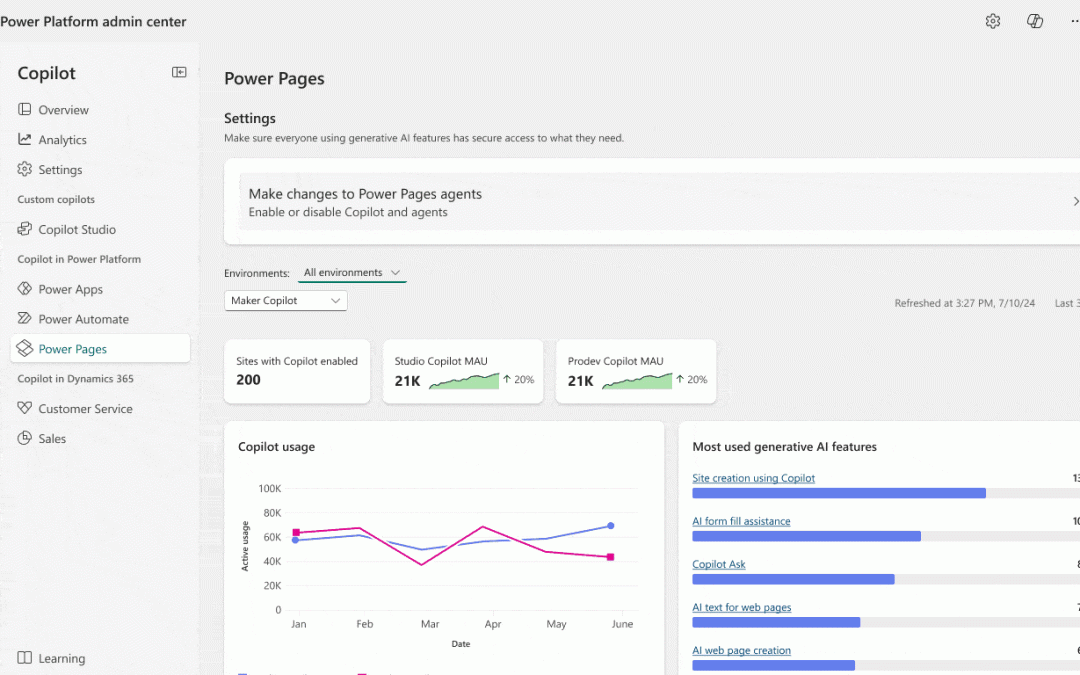
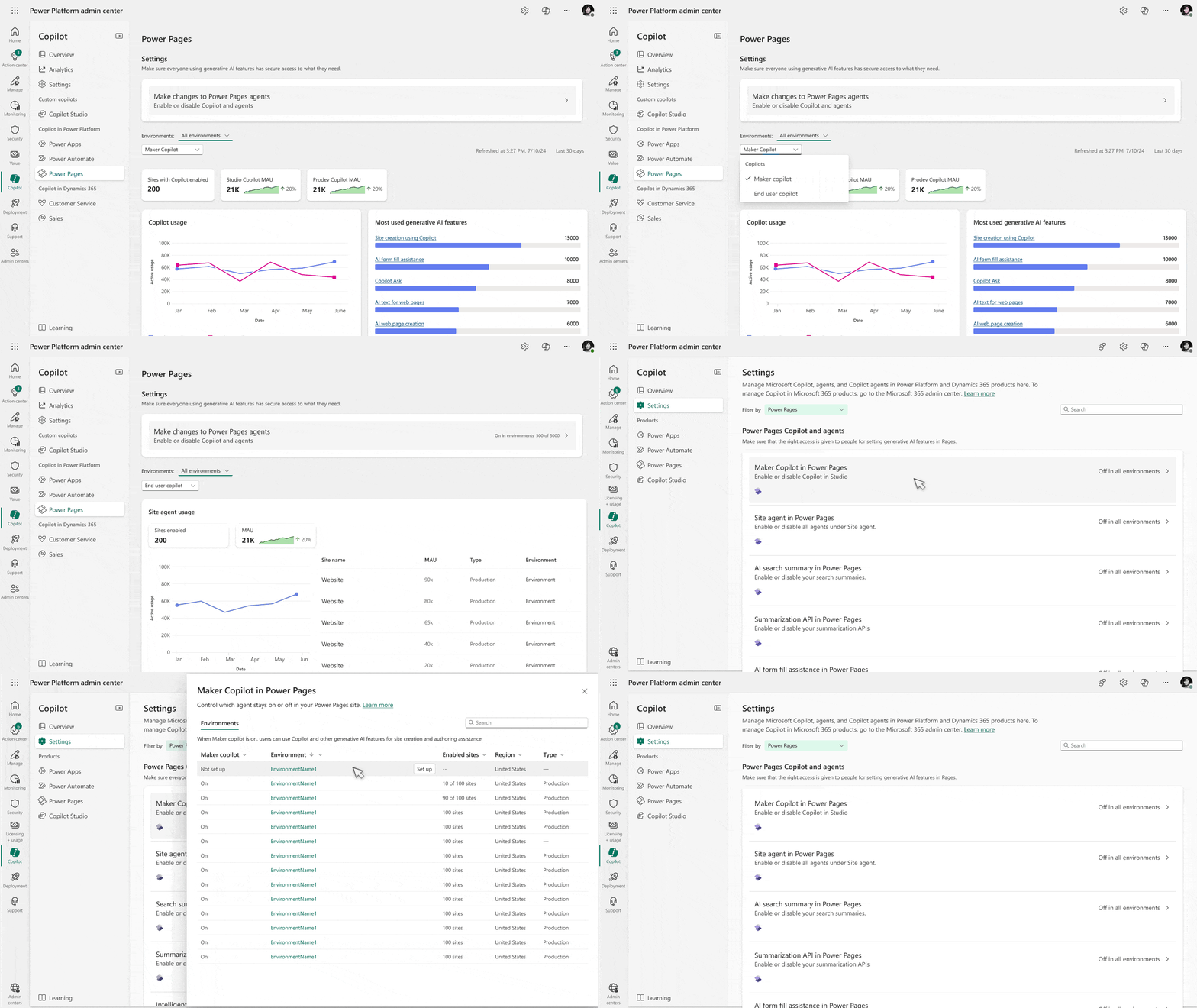
The Copilot hub is a game-changer for admins. It provides visibility into AI usage at the feature level, empowering data-driven decisions and policy enforcement. Admins can control individual AI features, such as turning specific Copilot capabilities on or off at the environment or portal level. Currently in public preview, the Copilot hub is poised to significantly enhance administrative capabilities, fostering trust and compliance.
Image represents current UI for a public preview feature. UI is subject to change.
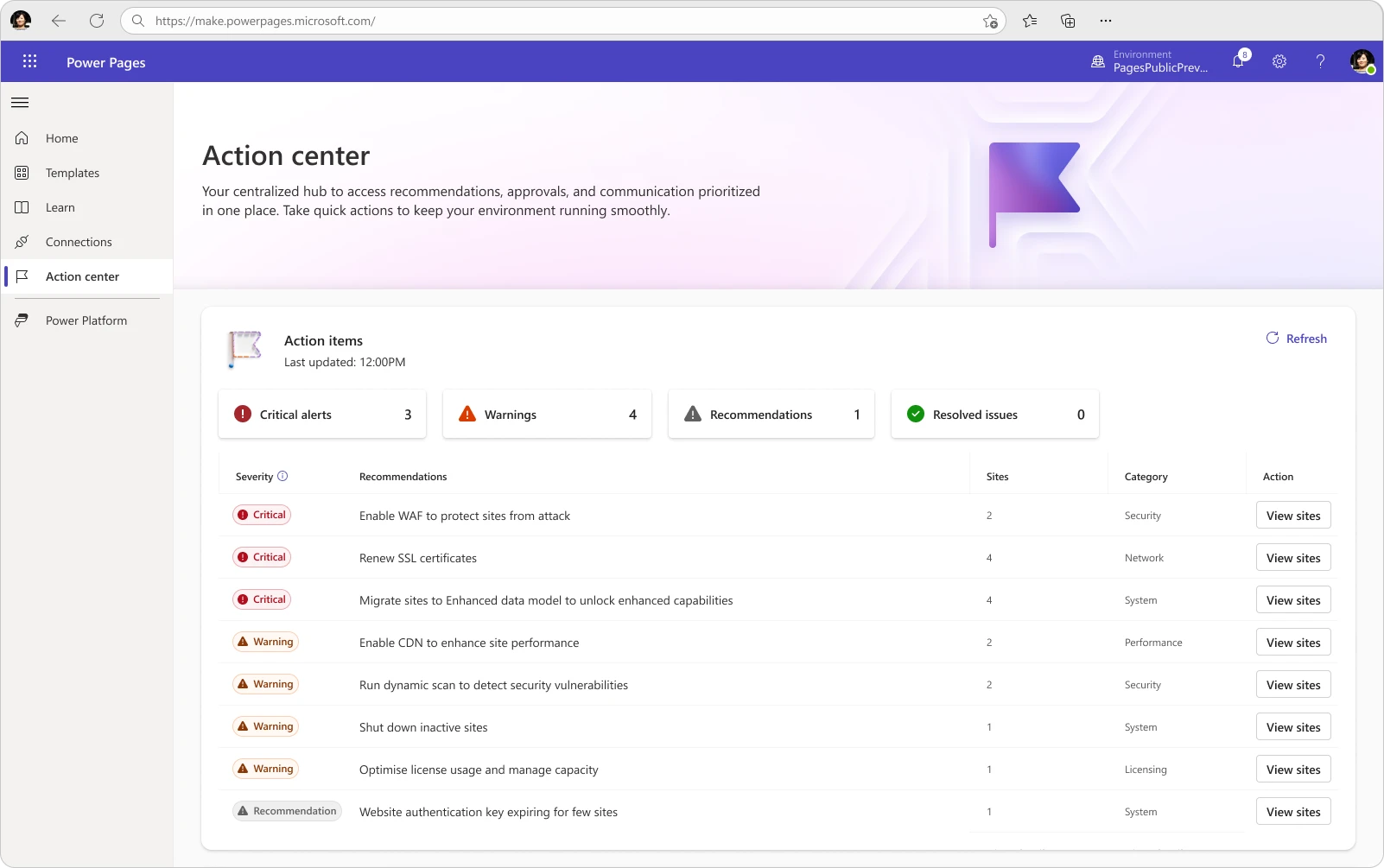
Next, the action center in the Power Pages homepage is another exciting addition to our suite of tools. This centralized hub is designed specifically for users and system admins, surfacing recommendations and actions that are applied within the Power Pages platform environment where applications, data, and resources are managed. Whether it’s enabling Web Application Firewall (WAF), renewing secure sockets layer (SSL) certificates, converting trials to production, or shutting down portals, this feature provides the insights you need to take action. It’s in public preview and ready to streamline your administrative tasks.
Image represents current UI for a public preview feature. UI is subject to change.
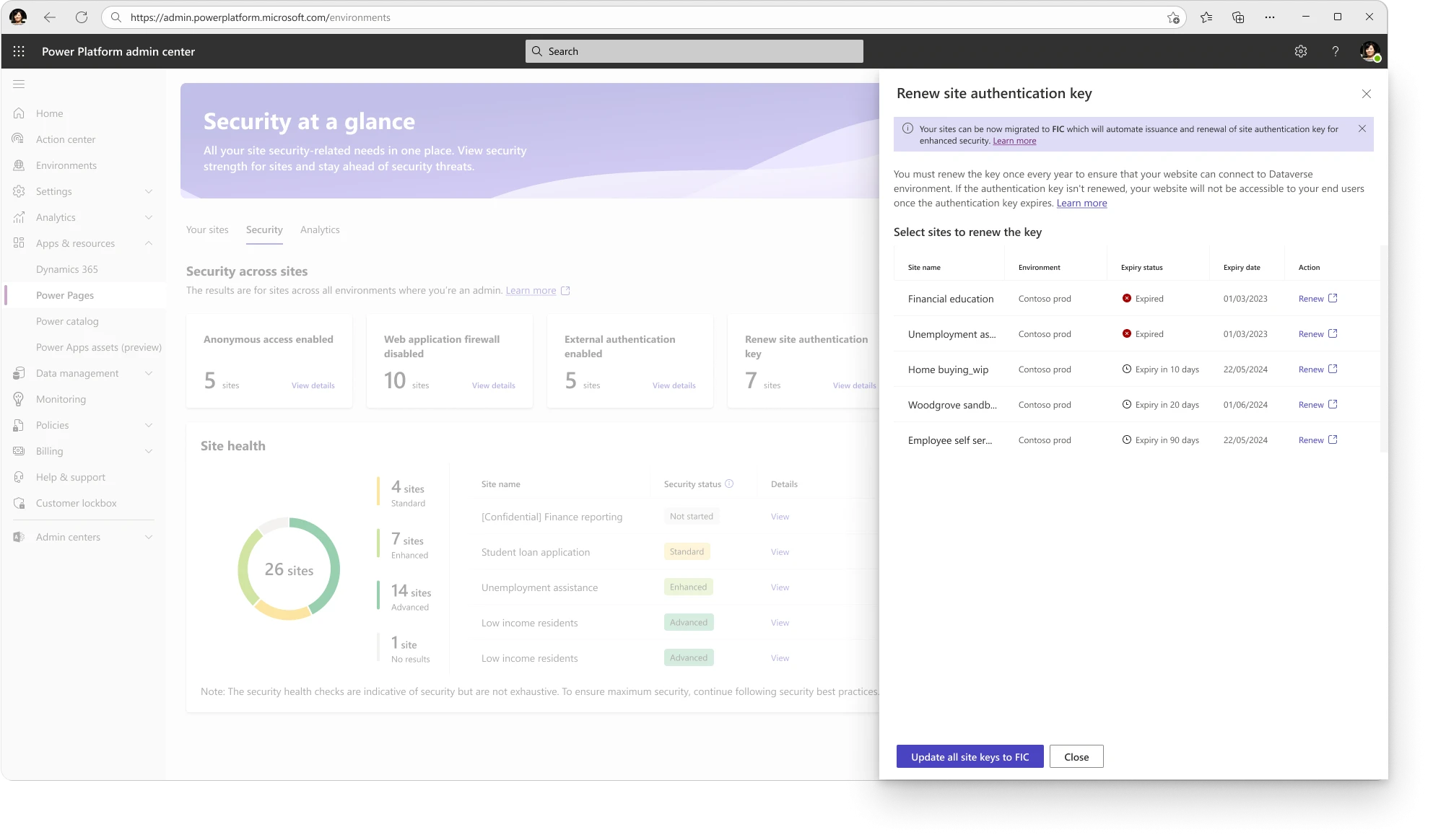
We’re also excited to introduce the self-service identity (SFI)—web authentication key renewal experience in the Power Pages Admin Center (PPAC), transitioning from certificate-based authentication to federated credentials. A one-time activity will be required to update the authentication key in PPAC. This update will be generally available and is designed to simplify and streamline your authentication processes.
Additionally, we can now surface insights and recommendations related to security scans in the PPAC security hub. This feature, currently inpublic preview, is designed to help keep your business portal secure and compliant.
Power Pages is helping organizations around the world build and enhance their online presence with remarkable efficiency
Check out how our customers have been using Power Pages across industries to create transformative business portal experiences:
Fortune Brand Innovations:Discover how Fortune Brands Innovations streamlined their customer experience across multiple brands using Power Pages and Microsoft Dynamics 365 Customer Service, creating a unified digital portal that integrates payment and enterprise resource planning system.
Belgotex:Learn how Belgotex Carpets transformed their operations and enhanced customer engagement by implementing Power Pages, Dynamics 365 Finance, Microsoft Power BI, and Microsoft Fabric, unifying their sales and manufacturing processes.
US Small Business Administration:Explore how the US Small Business Administration saved millions annually and improved disaster using recovery services by Power Pages, Dynamics 365 Customer Service, Power Automate, and Power BI to automate processes and enhance service delivery.
Okuma: Okuma has enhanced their customer and field service operations with Power Pages, unlocking new levels of efficiency and expertise utilization.
All Pro Electrical: All Pro Electrical harnesses Power Pages to streamline operations, driving efficiency and safety, with Power Automate adding seamless end-to-end automation.
Veterans’ Wellbeing Network:Discover how the Veterans’ Wellbeing Network significantly improved support for Australian service members by implementing Power Pages, Power Apps, and Power Automate to create a custom client management system that reduces case processing time by up to 40% and enhances collaboration among advocates.
How to get started with Power Pages
Power Pages offers a comprehensive set of tools designed with security at the forefront for both developers and users. Join us as we reshape the portal-building experience, empowering organizations to create secure, AI-powered business portals that scale.
As we gear up for Microsoft Build 2025, excitement is building around the latest advancements in agent governance, security, and management. This year, we’re bringing you groundbreaking insights and tools to enhance your experience with Microsoft Copilot and ensure robust governance and security for your AI agents. Join us at the booth and discover how our new offerings align with our comprehensive governance strategy for Copilot.
Come Find Us at the Copilot Control System Booth
At Microsoft Build 2025, our booth will be the hub of innovation and learning. Come and find us to explore our latest tools and strategies for agent governance, security, and management. Our experts will be on hand to discuss how these new features integrate in your agent adoption strategy.
Learn from Industry Leaders
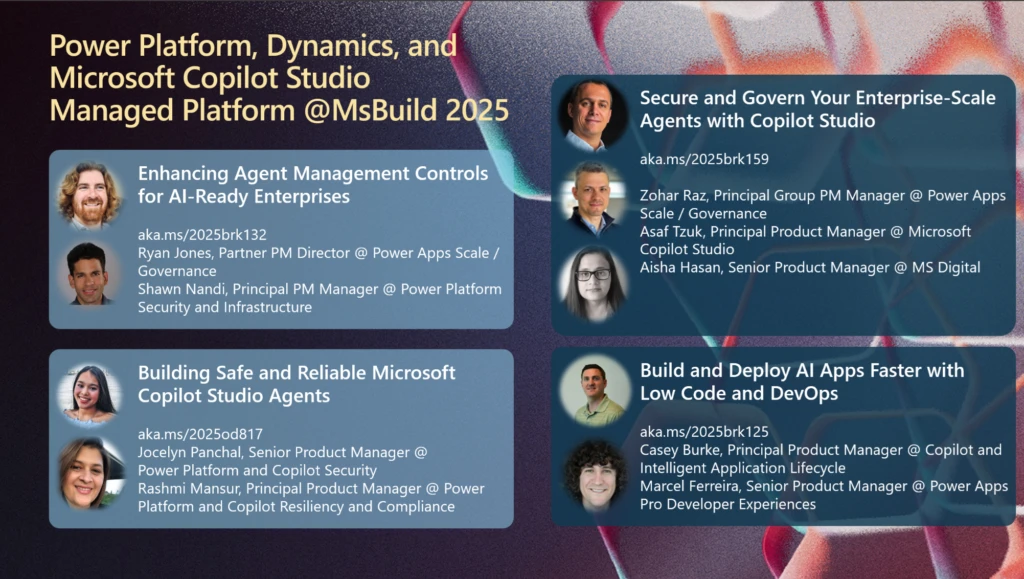
Don’t miss the opportunity to attend sessions led by industry leaders like Zohar Raz, Shawn Nandi, Ryan Jones, Jocelyn Panchal, Casey Burke, Asaf Tzuk, Rashmi Mansur, and Marcel Ferreira. These sessions will provide invaluable insights into building, managing, and governing secure agents. You’ll learn best practices for managing agent lifecycle, implementing security measures, and ensuring compliance with organizational policies. Whether you’re a seasoned developer or new to AI, these sessions will equip you with the knowledge to excel in agent governance.
Discover how to secure Microsoft Copilot Studio agents using Power Platform security and governance capabilities, Microsoft Purview, and Microsoft Admin Center. This session explores best practices for managing data access, compliance, and risk mitigation while ensuring responsible AI use. Learn how to enforce policies, monitor agent activity, and safeguard enterprise data. Gain insights into securing Copilot agents at scale while maintaining agility and innovation.
Join us as we delve into agent management controls. We’ll focus on enterprise-grade security, maintaining healthy and seamless operations, and governing at scale. Attendees will gain insights into best practices, tools, and strategies to ensure their organization is AI-ready. Discover how to leverage a robust management suite to enhance your development processes and secure your enterprise environment.
Learn how your development team can build AI enabled applications faster with Power Platform and DevOps. We’ll show you how the new developer capabilities combined with DevOps best practices can empower your team to build, test, and deploy enterprise-grade apps faster.
With the fully managed suite of capabilities for Power Platform, admins and makers alike are equipped with the necessary tools to ensure that Copilot Studio agents are protected and healthy. Tune in to learn more about the latest enhancements and upcoming plans for a fully managed platform designed for the Era of AI.
Key Topics Covered
Agent Governance Strategy: Learn about the comprehensive governance frameworks and strategies for managing AI agents across Microsoft 365, Power Platform, and Copilot Studio. Discover how existing governance models are being integrated to provide a unified experience for administrators.
Security Measures: Explore robust security measures in place to protect sensitive data and ensure compliance. From encryption and isolation to persistent label inheritance and connector management policies, you’ll see how Microsoft Copilot safeguards your information.
Management Tools: Get hands-on with the latest management tools available in the Microsoft 365 Admin Center and Power Platform Admin Center. These tools streamline the administration of permissions, policies, and compliance settings, making it easier to manage agents at scale.
Upcoming Features: Stay informed about the upcoming features and enhancements for agent governance and security. Learn about the new capabilities for monitoring, reporting, and data security, and how these will impact your agent governance strategies.
Get Ready to Learn and Build
Microsoft Build 2025 is the event of the year for developers, IT professionals, and AI enthusiasts. With a focus on agent governance, security, and management, this year’s conference will provide you with the tools and knowledge to take your AI projects to the next level. Don’t miss out on the opportunity to learn from thought leaders, explore new technologies, and connect with peers. We look forward to seeing you.
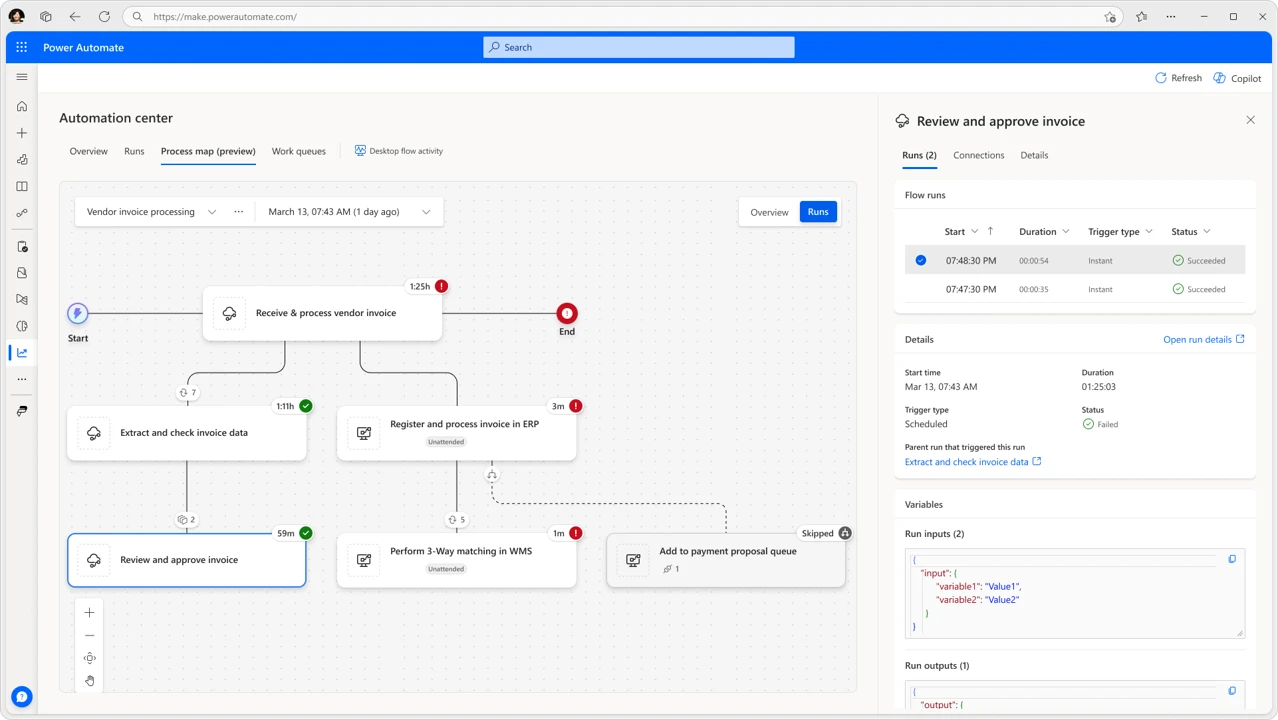
We’re thrilled to announce the public preview of Process Map in Power Automate, a significant advancement for process-centric observability at scale. This feature is seamlessly integrated into the Automation Center, your hub for end-to-end automation monitoring and management in Power Automate.
What is the Process Map?
The Process Map is designed to enhance process-centric troubleshooting and monitoring in Power Automate by providing increased visibility and efficiency. It offers a detailed, end-to-end view of a process that’s managed by a parent orchestrating flow, showing all of the associated child and desktop flows. The map also recognizes structural flow elements, such as conditions, and displays flows that didn’t execute due to specific conditional logic or upstream errors. This is critical for understanding how a problem in one part of the process can affect other parts and assists in taking appropriate countermeasures to address issues.
Key benefits:
Accelerated troubleshooting: Quickly identify and resolve issues with an end-to-end, process-centric view that includes contextual information on runs, connections, and design-time aspects.
Comprehensive visibility: Gain full transparency into your automation processes, including flows that were skipped or missed due to conditional logic or upstream issues.
Enhanced impact analysis: Understand and analyze how issues affect the entire process, facilitating faster recovery and implement effective countermeasures.
Stronger collaboration: End-to-end process visibility enables faster, context-rich communication with impacted teams, accelerating recovery and driving continuous improvement.
Key features
Runsview: Displays the main flow run that orchestrates the process and its child runs, enabling users to track execution, identify issues, and optimize processes.
Overviewview: Provides a design-time process hierarchy view with connected subprocesses, offering quick insights and serving as the future home for aggregated process data and configurations.
Runs tab integration: We’ve enhanced the flow runs page with new run row hover options. New icons let you create or view process maps for the selected process run and its child runs.
How to get started
This feature is being rolled-out now and you can test it today in the US preview region. Further details are available in the Process Map documentation.
Setting Edit Rights in a SharePoint Site – Approach with Caution!
Scenario: A marketing team is using a SharePoint site to collaborate on a critical presentation for an upcoming product launch. The document contains sensitive information such as pricing strategies and competitive analysis. All team members are given Edit rights to the site to encourage seamless collaboration. The site includes various document libraries and multiple automation points using document libraries and lists.
Incident: One of the team members, Alex, accidentally deletes a slide that outlines key metrics for the presentation while editing the document late at night. Unaware of the deletion, Alex saves the document and uploads it back to the SharePoint site.
The next morning, during a meeting with stakeholders, the team presents the incomplete document. The missing slide causes confusion, leading to miscommunication about the product’s goals. Additionally, retrieving the deleted content becomes time-consuming, as the team needs to check previous versions and piece together the missing information.
Impact:
Reputation Damage: The team appears unprepared and unprofessional in front of stakeholders.
Loss of Time: Valuable time is wasted trying to recover the deleted content and address the errors.
Potential Financial Implications: Miscommunication about product goals could lead to misaligned strategies, affecting the launch’s success.
Lesson: This scenario highlights the risks of granting Edit rights broadly. It underscores the importance of assigning Edit rights selectively and implementing controls such as versioning and approval workflows to safeguard critical documents
SharePoint is a powerful collaboration tool that allows teams to efficiently manage documents, share information, and work together on projects. However, when configuring access permissions, granting Edit rights indiscriminately can lead to several risks and challenges. Below are the key reasons why setting Edit rights in a SharePoint site should be approached with caution:
Risk of Accidental Deletion or Modification
When users have Edit rights, they can modify or delete files, folders, or even site components. While this level of access may be necessary for certain roles, it can lead to accidental changes or deletions. This may result in loss of critical information, disrupted workflows, or significant time spent restoring deleted items.
Compromised Data Integrity
Edit permissions allow users to alter content, which can introduce errors or inconsistencies. Without proper oversight, documents and information may lose their accuracy or become outdated due to untracked edits. Maintaining data integrity is essential, especially for projects or systems that rely on precise and consistent information.
Lack of Version Control Awareness
While SharePoint does offer versioning capabilities, users with Edit rights may not always use them correctly. Overwriting files or failing to save new versions can make it challenging to recover previous iterations of a document. This can be particularly problematic in scenarios where collaboration requires retaining a history of changes.
Security Risks
Granting Edit rights increases the risk of sensitive information being exposed or manipulated. Users may unintentionally or deliberately share content with unauthorized individuals, resulting in data breaches or non-compliance with organizational policies. Limiting permissions to read-only for most users helps safeguard confidential information.
Disrupted Site Structure
Users with Edit rights can modify site components, such as views, lists, or libraries, potentially disrupting the site’s structure and functionality. Such changes can create confusion among other users and hinder productivity.
Overcomplication of Permissions Management
If Edit rights are granted broadly, managing permissions becomes more complex. Revoking access, addressing security incidents, or troubleshooting issues can become tedious, especially if the site has a large user base.
Recommendations
To mitigate these risks, organisations should consider the following best practices:
Adopt the Principle of Least Privilege: Grant the minimum level of access necessary for users to perform their tasks effectively;
Use Read-Only Access for Most Users: Reserve Edit rights for a select group of individuals who truly need this level of control;
Implement Workflow Approvals: For edits to critical documents, use workflows to ensure changes are reviewed before implementation;
Regularly Audit Permissions: Periodically review user access to ensure it aligns with their current roles and responsibilities.
By carefully managing Edit rights in SharePoint, organisations can enhance collaboration while minimising risks and maintaining the integrity of their data and systems.