This series designed for IT Pros, Professional and Citizen Automation Developers, who want to learn more about the different SAP automation options available, in Power Automate. While previous SAP automation experience would be beneficial, it is not required to follow along. The demo use case for this series is based on a real-world inspired, purchase requisition process at our fictitious Retail company called Contoso.
The Desktop flow Analytics dashboard is a starter template that can be used to monitor desktop flow run logs and to identify the usage and performance of actions.

360° imagery is a great way to explore the benefits of Mixed Reality while limiting up-front investments in either equipment (e.g. HoloLens and advanced MR headsets) or specialized talent (e.g. 3D artists). There are so many different scenarios for using these images within your organization. These can include training and onboarding employees (e.g. facility tours), celebrating and sharing capabilities of new facilities, and many explorations around documenting current state and monitoring progress of physical spaces. Basically, any time you have a physical space that you need to document or communicate about to others, 360° imagery can be a great tool.
For me, that also extends outside work to backcountry ski adventures where I can show friends, family, and co-workers what it is like to experience remote backcountry destinations that can be a bit challenging to get to. Check out this video below for a quick view of what’s possible or go check out how it was made using the SharePoint spaces 360° tour web part.
SharePoint spaces offers significant flexibility for handling 360° images and videos. Most tools available to capture 360° images and videos will work with Spaces. However, there are several considerations you may not be familiar with from working with 2D images. There are also ways that you can optimize quality and performance both today and into the future as mixed reality devices expand in availability and quality. Here are a few key questions to keep in mind along with suggestions for tools that work well with Spaces today:
- What is the target device? Virtual Reality or Browser, Mobile or Desktop
- Is it better to capture 360° images or video?
- What is the right mix of content?
- What devices can capture 360° images?
- What formats does SharePoint spaces support?
Target Device
Interacting with your spaces has never been easier, SharePoint spaces supports viewing either in a web browser or using mixed reality headsets. The same content can be used for both, but if your primary use case is the browser, it does not make sense to use stereoscopic content. To create the best experience when viewing you may have to reduce resolution or file size to optimize for mobile or standalone VR headsets.
Images or Video
For the sake of simplicity, we recommend starting with 360° images and exploring video only when there is a strong need to capture a dynamic and changing space. Capturing and displaying high quality 360° video is notably more challenging than 360° images. If you pursue videos, make sure you add captions or a transcript and follow the best practices for video format, resolution, etc.
Combining 360° and 2D Images and Videos
In many cases, the best experience can be created by combining video and images, SharePoint spaces supports both 360° and 2D images and videos in the same space. You will find that 360° images are great for understanding spatial context (e.g where things are within a room) but 2D images or videos are useful to highlight specific areas within the image using a high resolution and artfully composed view of a few areas you want to highlight. Users will understand the context from the 360° image while appreciating the detail, artistry, and focused storytelling that are characteristic of high quality 2D images and videos. Spaces makes it easy to combine the two, just add your 2D images as annotations using the 360° tour web part.
Capture Devices
There are many options available for capturing 360° images ranging from smartphone apps (e.g. Google Camera Photo Spheres) to simple consumer handheld 360° cameras (e.g. Ricoh Theta, Insta 360 One X) to more complicated commercial high resolution and stereoscopic cameras (e.g. Insta360 Pro 2). These devices will generally produce outputs that are usable immediately in SharePoint spaces, but often the experience can be improved by optimizing to balance quality and file size as described below. If you are going to be capturing a lot of 360° images, a dedicated camera is recommended because it will be a much faster workflow.
Smartphone apps can produce high resolution and high-quality images, but they require you to take multiple images that are assembled into a 360° image by the app. This means the process of capturing images will be slower than a dedicated multi-lens 360° camera (consumer handheld or commercial). Unless the scene is completely static during the capture, they can also produce image artifacts such as ghosting as seen in this image:

Recommended Image Settings
Format
While SharePoint spaces supports many options for image format (JPG, TIFF, PNG, etc.), we recommend storing images as equirectangular progressive JPEG images with quality setting set to 80% or equivalent in various software tools. Most 360° cameras automatically output equirectangular JPEG images. These can be batch optimized to reduce file size and set the quality setting using various tools like Adobe Photoshop or RIOT image optimizer after the images are captured.
Resolution
It is best to capture images with the highest resolution possible. Equirectangular images have a 4:2 aspect ratio (twice as many pixels wide as tall). We recommend using 8K resolution (8192 X 4096) to achieve maximum quality 360° image output in SharePoint spaces while balancing file size, download time, etc. However, lower resolutions are often acceptable – especially if your goal is communication, documentation, or collaboration instead of a showcase visual experience.
Two examples are shown below – the first is an 8K image (captured with an Android smart phone) while the second is 5.3K resolution (captured with a consumer handheld Ricoh Theta V). Although the 5.3K resolution is acceptable quality for many applications, the 8K resolution captures notably more detail.
If using a camera that can capture above 8K resolution it would be a best practice to keep images at the highest resolution and use image editing tools like Adobe Photoshop or RIOT to save versions optimized for SharePoint spaces. That will allow you to update your SharePoint space as higher resolution mixed reality headsets become available and those extra pixels can be put to good use.
 8K Image in SharePoint spaces
 5.3K image in SharePoint spaces
Conclusion
Following these guidelines should make sure your 360° imagery maintains high quality while balancing performance and load time. Have some ideas for what we should do next with 360° imagery in SharePoint spaces? Let us know what you are looking for or share your 360° imagery scenario in the comments.

Your tenant just got the new SharePoint app bar, and you are probably wondering how it should fit in with the rest of your intranet architecture. You may be asking yourself, what should be in the global navigation and what should be home site navigation? What if my home site is also a hub site? In this blog, we’ll share best practices on how to think about global navigation, how to align with existing home site and hub navigation, and how to prepare for the app bar.
What’s the SharePoint app bar?
First, let’s review the SharePoint app bar. The SharePoint app bar is a fixed navigation experience across all modern SharePoint sites that provides quick access to the most important sites, news, and files as well as the organization’s global navigation.
The SharePoint app bar can be broken down into two main parts:
- Global navigation – Enable and customize the global navigation tab to display universally relevant links and use audience targeting to surface important content to specific audiences.
- Personalized content – The remaining tabs in the SharePoint app bar consist of My sites, My news, and My files and dynamically displays personalized content based on insights from Microsoft Graph.
 SharePoint App Bar
SharePoint global navigation and Viva Connections
Earlier this year, Microsoft announced a new product offering called Microsoft Viva, an employee experience platform that brings together communications, knowledge, learning, resources, and insights.
One of the four pillars of Microsoft Viva is Viva Connections which uses SharePoint and Microsoft Teams to engage and connect your organization on a whole new level. To take full advantage of Viva Connections for desktop, make sure your organization has a home site and enable global navigation in the SharePoint app bar. When global navigation is enabled, your organization’s most important intranet resources will display in Microsoft Teams.
Re-thinking intranet wayfinding
Now that we’ve reviewed the basic concept behind the SharePoint app bar and global navigation, let’s explore how to re-think your organization’s intranet architecture to accommodate this new wayfinding resource.
Most intranet experiences begin “at the top” with a landing destination. This is the place where users go to catch up on the latest organizational news, find out about upcoming events, and access important resources. In SharePoint this top-level landing experience is called the home site. The home site is unlike all other SharePoint sites in the sense that it has many superpowers. The home site is a vital piece of a great intranet, but users need a more efficient option to navigate between intranet resources without having to go back to the home site first. That’s where global navigation comes in because it allows you to provide a consistent set of navigational links regardless of where the user is in the intranet. For example, let’s say the user is viewing the human resources site to confirm how many hours of vacation are available and also needs to view the current time-off request policy in the policies center. Instead of having to switch back and forth between sites, global navigation enables users to navigate to universally relevant resources (like HR policy) no matter their location in SharePoint.
Previously customers could achieve this using a SharePoint hub site and associating all other intranet sites to it. This approach is great too but it’s just starting point! As your organization grows, your intranet will need to scale too. Soon, you’ll realize that you need more and more hubs (families of related sites) and you’ll need to make decisions on what resources to prioritize.
Global navigation solves this issue by providing navigation across all sites. You can then choose to use SharePoint hub sites to group and sync branding, permissions and navigation of related sites based on your departments, divisions, regions, or portfolio.

How to think about global navigation
So, what should you use global navigation for? From talking to many customers across the years, we’ve learned successful global navigation designs focus on the most important resources like:
- The home site itself and other top hubs and departmental sites (for example, HR)
- Popular destinations for resources like benefits, company policies, and how to get support
- Links to line of business apps and custom applications
- Content relevant to the daily job functions of people in your organization
What does this mean for the home site navigation? The home site navigation transitions to focus more on wayfinding inside the home site as well and other relevant (but not critical) resources.
- Wayfinding inside the home site
- Links to news from inside the organization
- Link to news from outside the organization
- Organizational profiles and stories
- Leadership teams, divisions, and stakeholders
- Topics of interest
- Public social feeds
Now, hub navigation can focus on resources related to the hub topic. For example, a human resources hub can have associated sites for all the different sites like benefits, payroll, time-off requests, and more. If the hub is for a division or department, it will have associated sites linked as topic sites that talk about business strategy, planning, metrics, leadership, and all the related teams within that division or topic. Learn more about how to think about home site, hub, and global navigation from the product team.
Next, decide the source for global navigation
Now that you know which resources are ideal for global navigation, it’s time to enable this feature and pick the source. We’ve given you multiple options so you can determine what best fits your needs.
First, to enable and customize global navigation, your organization must have a home site. From the home site’s home page, select Settings and then Global navigation.
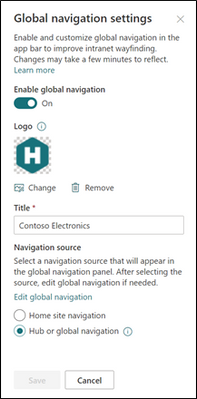
Then you can decide which source the global navigation should pull from, either the home site navigation or the hub navigation (whether it’s officially a hub or not). Now for some organizations, this decision depends on how you want your home site navigation experience to look like, so here are some tips:
- If you want global navigation to match the home site navigation, select the Home site navigation as the source. Then, decide to display or hide the site navigation on the home site
- If you want global navigation to be different from the home site navigation, select Hub or global navigation (even if your home site is not a hub).
- If the home site is already a hub, you can select either navigation source, but we recommend using hub navigation and hiding the site navigation to simplify the navigation experience.
- Finally, if the home site is a hub and you’re using the extended header style, note that the site navigation automatically becomes hidden.
Example of global navigation at Microsoft
At Microsoft, our home site is also a hub site because there are multiple sites that power the Microsoft Web intranet experience from various news resources to a leadership connection site and more. For Microsoft’s global navigation, the home site navigation is the source and is hidden from the user interface on the home site.
 The SP App bar used on Microsoft’s intranet
Enable and customize global navigation today
The SharePoint app bar is now available to most SharePoint customers. If you already have a SharePoint home site, you are ready to enable and set up global navigation. Next, integrate your SharePoint intranet with Microsoft Teams by using Viva Connections for desktop.
If you do not already have the SharePoint home site, now is a great time to plan and create a home site for your organization. Consider getting a head start on your home site by using a template named The Landing from the SharePoint look book. Learn more from the Microsoft product team on how to think about and plan home sites.
We hope you find this information useful and that it provides further clarity on you should think about leveraging global navigation for both SharePoint and Viva Connections.
More resources
Learn more about information architecture in SharePoint
Onboard end-users to the SharePoint app bar
Check out the Viva Connections desktop experience
Watch: Architecting your intelligent intranet

Form and Process (workflow) are very popular provisions for Teams and SharePoint productivity. And it really doesn’t matter which tools use to build these; great ones are Nintex Forms and Microsoft Forms. Both are modern, state of the art enterprise products which are completely integrated with the very latest versions of Office365 SharePoint and Teams instances.
To provide forms and workflow, it is vital that the information provided meets and at the same time provides return on investment. This is not simply a technological imperative; those who wish forms and workflow to enhance their user experience must provide sufficient information that helps us in turn provide the right forms and workflow directly matching requirements.
Forms are just a means to an end. Users should be able to complete them quickly and without confusion. Workflow process needs to mirror the actual process and be designed to take out / improve any manual process. These as a solution, means that designing and building require careful thought and planning.
To start off any solution work the following is required:
- What is the purpose of the form, the department it serves, justification, benefits it brings (statement), date when required live, etc.;
- What does the form look like – design (layout – what the form visually looks like to a person filling in the form);
- What does the process connected to the form do – process design (workflow – what happens when a person completes the form – for example, approval goes to whom, outcomes…);
- What protection is there applied to the process – security design (access – what person(s) can access the form – e.g. who can view, who can fill, etc.);
- Where does the solution sit – site design (experience – how does a person get to the form).
What Makes For An Effective Form
The primary goal with every form is completion. Two factors have a major impact on completion rate:
- Perception of complexity. The first thing users do when they see a new form is estimate how much time is required to complete it. Users do this by scanning the form. Perception plays a crucial role in the process of estimation. The more complex a form looks, the more likely users will abandon the process.
- Interaction cost. Interaction cost is the sum of efforts — both cognitive and physical — that the users put into interacting with an interface in order to reach their goal. Interaction cost has a direct connection with form usability. The more effort users have to make to complete a form, the less usable the form is. A high interaction cost could be the result of data that is difficult to input, an inability to understand the meaning of some questions, or confusion about error messages.
The Components Of Forms
A typical form has the following five components:
- Input fields. These include text fields, password fields, checkboxes, radio buttons, sliders and any other fields designed for user input.
- Field labels. These tell users what the corresponding input fields mean.
- Structure. This includes the order of fields, the form’s appearance on the page, and the logical connections between different fields.
- Action buttons, The form will have at least one call to action (the button that triggers data submission).
- Feedback. Feedback notifies the user about the result of an operation. Feedback can be positive (for example, indicating that the form was submitted successfully) or negative (saying something like, “The number you’ve provided is incorrect”).
What Makes For An Effective Workflow
The primary goal of every workflow is completion. Three factors have a major impact on completion.
- Actors. Those expected to get an alert to a process change, those who are expected to act to move the workflow forward (approval), those who are expected to manage data collected on any decision process and its related information
- Flow. The start to finish construct of the workflow. What happens after the user saves the form? Does it have to go through an approval? Is there something that changes the data based on a task?
- Diagram. Each element of a workflow is designed to illustrate the flow between each step. Workflows are the way people get work done, and can be illustrated as series of steps that need to be completed sequentially in a diagram or checklist. This is vital in getting a visual representation of a workflow.
Components of Workflows
A typical workflow has two key components:
- Log: A record of the state the workflow is at for audit purposes
- Actions: Any action that the workflow must trigger to enact another action (e.g. approval, rejection, alert etc.)
How you should document the process:
- Map the process “as is”;
- Ignore process exceptions;
- Involve those who execute the process;
- After a rough draft, document digitally and share;
- Make sure to map on a big canvas;
- Collect example documents for every step, if there are any.
Making calls with just analytics endpoint /sites/{site-id}/lists/{list-id}/items/{item-id}/analytics will return null data as shown below:
{‘@odata.context’: ‘https://graph.microsoft.com/v1.0/$metadata#microsoft.graph.itemAnalytics‘,
‘allTime’: None,
‘lastSevenDays’: None}
Please make calls and request ‘alltime‘ and ‘lastsevendays‘ separately as shown below:
- /sites/{site-id}/lists/{list-id}/items/{item-id}/analytics/alltime
- /sites/{site-id}/lists/{list-id}/items/{item-id}/analytics/lastsevendays
Step 1: Retrieve all the internal SharePoint ids of the all Pages in the “Site Pages”
Sample Output:
{
“@odata.etag”: “”6967cfed-0000-0000-0000-b480c1764375,3″”,
“sharepointIds”: {
“listItemId”: “1”,
“listItemUniqueId”: “6967cfed-0000-0000-0000-b480c1764375“,
“siteId”: “df6ba610-0000-0000-0000-ba2733d0182e”,
“tenantId”: “d6f932a7-0000-00000-0000-b27004970776”,
“webId”: “e0dbcdc6-0000-0000-0000-49aaa1ce4d37”
}
},
Step 2: Select any Pages “listItemUniqueId” retrieved in Step 1 and make following call:
Data returned below:
{
“aggregationInterval”: “None”,
“startDateTime”: “0001-01-01T00:00:00Z”,
“endDateTime”: “0001-01-01T00:00:00Z”,
“isTrending”: false,
“access”: {
“actionCount“: 345,
“actorCount“: 6,
“timeSpentInSeconds”: 0
},
“incompleteData”: {
“missingDataBeforeDateTime”: “2018-09-21T19:20:43Z”,
“wasThrottled”: false,
“resultsPending”: false,
“notSupported”: false
},
“activities”: [
{
“id”: “00000”,
“activityDateTime”: “2021-04-12T17:59:12Z”,
“location”: {
“address”: {
“city”: “”,
“countryOrRegion”: “”,
“postalCode”: “”,
“state”: “”,
“street”: “”
}
},
“access”: {},
“actor”: {
“user”: {
“displayName”: “Admin SPOTenant”,
“email”: “admin@spotenant.onmicrosoft.com”,
“id”: “faaa2e55-0000-0000-0000-c774a83bbbde”,
“userType”: “Internal”
}
}
},
{
“id”: “00001”,
“activityDateTime”: “2020-12-12T01:03:30Z”,
“location”: {
“address”: {
“city”: “”,
“countryOrRegion”: “”,
“postalCode”: “”,
“state”: “”,
“street”: “”
}
},
“access”: {},
“actor”: {
“user”: {
“displayName”: “Alex Darrow”,
“email”: “alexd@spotenant.onmicrosoft.com”,
“id”: “e81cac19-0000-0000-0000-4c938b101a33”,
“userType”: “Internal”
}
}
}
]
}

You might not see this feature yet. Some functionality is introduced gradually to organizations that have set up the Targeted release options in Microsoft 365. |
Imagine you’re working on a project that needs a new SharePoint site to track deadlines, record progress, and serve as a central place to collaborate with your team. Perhaps you’ve been tasked with creating an onboarding portal for your organization complete with new hire checklists and key information to help them get started. Maybe you’re leading a training series where you need to store course files and post class announcements. Where do you begin when it comes to designing sites for these scenarios?
Now you have a starting point! We’ve made it even easier to begin on the right foot with site templates that are available to you in SharePoint. SharePoint site templates are flexible enough to address a variety of needs, make it easy to create and populate site content, and show you what’s possible. These complement those found in the SharePoint lookbook, which has been and continues to be an amazing source of inspiration for modern experiences you can build with out-of-the-box SharePoint components.

Through customer conversations and user research, we identified 8 scenarios to start with that benefit from having a robust SharePoint site template. SharePoint customers can take advantage of the following SharePoint site templates:
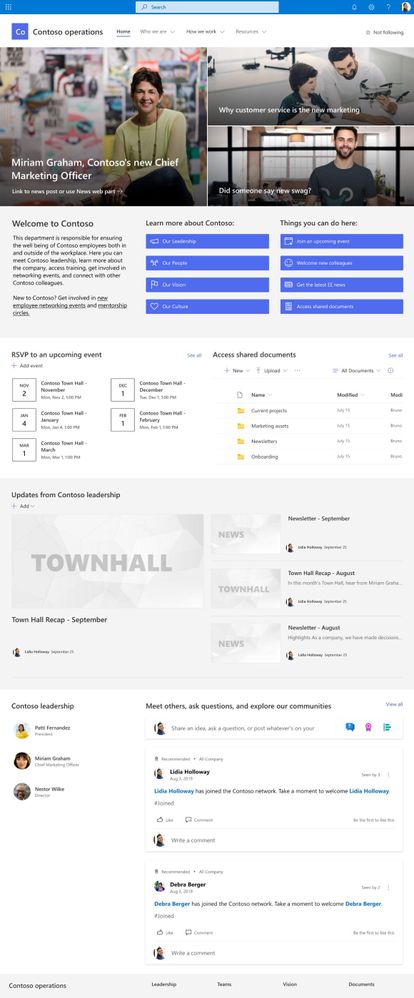
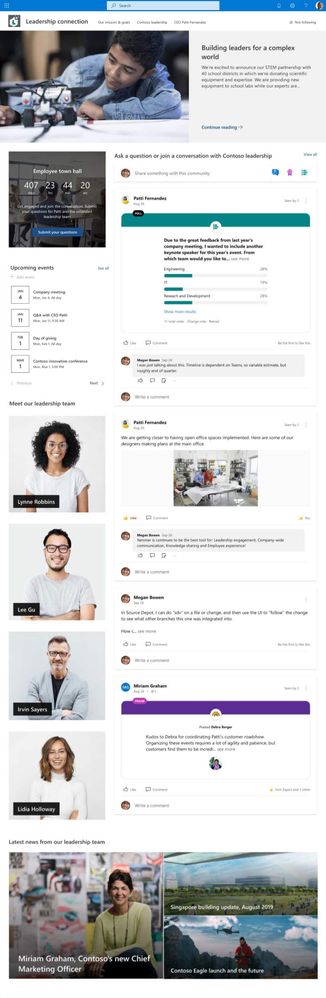
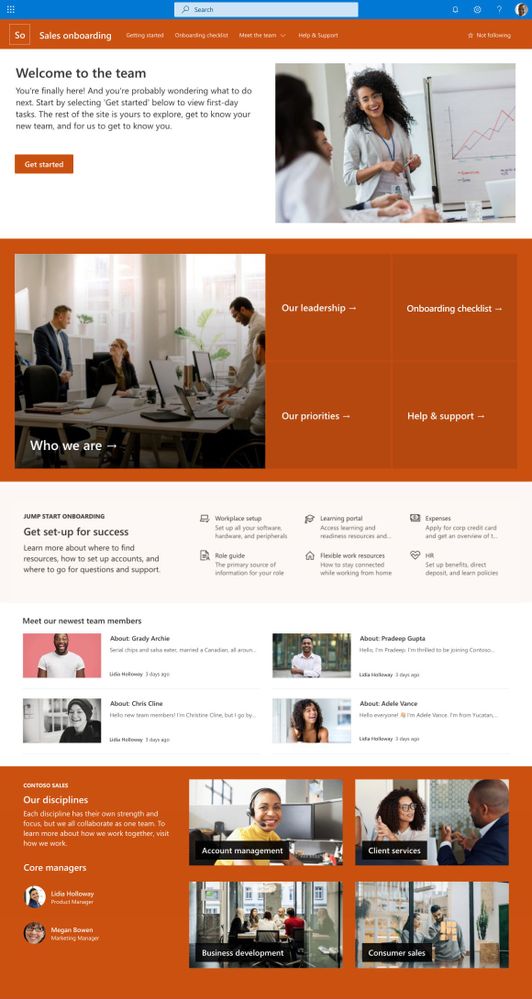
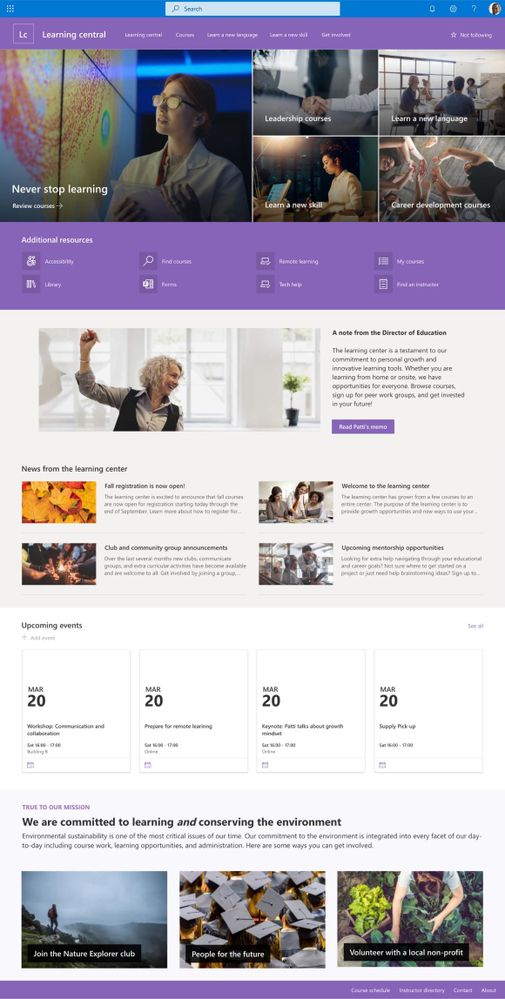
Communication site templates
- Department – Engage and connect viewers with departmental news and resources.
- Leadership connection – Build community by connecting leadership and team members.
- Learning central – Showcase learning and training opportunities.
- New employee onboarding – Streamline and refine new hire onboarding process.
Team site templates
- Event planning – Coordinate and plan event details with your team.
- Project management – Create a collaboration space for your project team.
- Training and courses – Prepare course participants for learning opportunities.
- Training and development team – Plan opportunities to help others learn and grow.
We will continue to build on these options in the future to address even more common scenarios.
How to apply a template and what to expect
SharePoint site templates will be automatically available in SharePoint tenants and can be applied by users with site owner permissions or higher. When you create a new site, you will be asked if you’d like to use a template. Select Browse templates to see Microsoft templates and templates from your organization. Or apply a template to an existing site by navigating to Settings and then select Apply a site template.
Our site templates currently offer the following features:
- Can be applied at the time of site creation or can be applied to existing sites.
- Fully customizable home pages that come with pre-populated content and web parts.
- News post templates that help users quickly and consistently publish news.
- Pre-built pages, lists, and document library folders that make it easy to build sites and inspire your own custom content.
- Each template has its own customization guidance to help site owners and editors get started.
What about my existing site designs?
If you’ve used site designs in the past, that experience has been incorporated into the site templates experience and will be referred to as site templates moving forward.
The Site designs entry point will be replaced by the Apply a site template entry point in the Site settings panel. You’ll find your organization’s existing site templates on the “From your organization” tab in the template gallery.
Additionally, as part of the new site template experience, a progress screen is displayed while the site template is being applied instead of a notification bar.
Learn more about how to create custom site templates for your organization using site scripts.
Site template FAQs
Q: What happens when I apply a template to a site that is associated with a hub site?
A: If your site is associated with a hub, the site will inherit the theme from the hub. When you apply a template, it will automatically use the theme from the template, but will update to the hub’s theme shortly after republishing.
Q: How can I undo a template I just applied?
A: There is no automatic method to undo the application of a site template. However, there is nothing that a template does that can’t be manually applied or deleted. For example, pages and navigational elements can be deleted and themes can be update.
Q: I don’t want to use a template. How can I quickly create a site?
A: There are several resources to inspire your next SharePoint site – like the SharePoint look book and Guided walkthroughs.
Q: How can I update the theme of the site template to a theme that has not been defined by my organization?
A: For themes that don’t fit into your organization’s custom or pre-defined themes, you can change the look of your site in the Settings panel to manually update the theme.
Q: What happened to Site designs in the Settings panel?
A: In previous versions of SharePoint, site templates were called site designs but will be referred to as site templates moving forward. The Site designs entry point has been replaced by the Apply a site template entry point in the Settings panel.
Q: How can I create custom site templates for my organization?
A: You can create site templates to provide reusable lists, themes, layouts, pages, or custom actions so that your users can quickly build new SharePoint sites with the features they need. Learn more about how to create custom site templates for your organization.
Q: How can I learn more about how to customize site templates created by my organization?
A: Site templates provided by your organization will appear in the From your organization tab when selecting a template type. Customization instructions will vary depending on the site template design. Review customization resources below to learn more about site personalization options.
Learn more
Apply and customize SharePoint site templates
SharePoint site design and site script overview
SharePoint Roadmap Pitstop April 2021 (microsoft.com)

Learn all you can do with Microsoft Lists – Your smart information tracking app in Microsoft 365. Pick your time zone and join a free virtual workshop (happening May 10-14, 2021) to help you become a Microsoft Lists pro!
See how Lists evolve from SharePoint lists to empower individuals and teams to create, share and track information – including innovation in Microsoft Teams, information side-by-side your team conversations. We will teach you how to use and create views, configure conditional formatting, adjust forms and more. Plus, we will highlight extending lists with the integrated Power Platform and answer all frequently, or infrequently, asked questions.
Microsoft Lists virtual workshops, “Go further with Microsoft Lists” – delivered five times across various regions.
Select a virtual workshop in your time zone!
Register today | Submit a question in advance (answered in the time zone you select)
Date & time
|
Target region
|
Presenter(s)
|
Add to calendar (.ics file)
|
Monday, May 10
11:00 AM PT
|
AMER time zone
|
Andrea Lum, Miceile Barrett, and Paul Diamond
|
Save the date (AMER)
|
Tuesday, May 11
9:00 AM IST
|
India (presented in Hindi)
|
Niket Jain, Saurabh Sood, and Bharath Manoj Manda
|
Save the date (India)
|
Wednesday, May 12
10:00 AM CEST
|
EMEA time zone
|
Andrea Lum and Harini Saladi
|
Save the date (EMEA)
|
Thursday, May 13
10:00 AM BRT
|
LATAM time zone
|
Mark Kashman
|
Save the date (LATAM)
|
Friday, May 14
11:30 AM CST
|
APAC time zone
|
Shreyas Sundararaman and Mark Kashman
|
Save the date (APAC)
|
Learn about:
- Creating a list and using ready-made templates.
- Working with Lists in Microsoft Teams.
- Customizing a list that works for you.
- Extend lists with integrated Power Platform.
Why attend?
- Learn | Gain a better understanding of Microsoft Lists and learn how easy it is to create, share, and track lists with anyone on any device.
- Connect | Hear from product experts and ask them questions about how to create and organize lists to track information within your organization.
- Inspire | Adopting what you’ve learned from this workshop to quickly simply your workflow and inspire your colleagues to easily collaborate on Microsoft Lists.
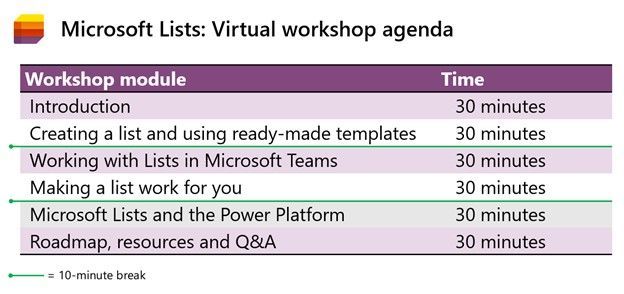 Microsoft Lists virtual workshop proposed agenda (3 hours)
Register | Submit a question in advance (answered in the time zone you select)
Get more done with Microsoft Lists.
Cheers and see you there, Mark Kashman, senior product manager – Microsoft

Attendees, to the starting line!
Get those electrolytes flowing, the Microsoft 365 Virtual Marathon is coming to Onlinetown. Speakers are prepping content, ready to coach you through each mile. And the content, the content is what’ll get you across the finish line. A lot of great sessions on all types of products and solutions.
Jeff Teper (CVP), Karuana Gatimu (Principal manager), Heather Newman (Principal PM manager), and Laurie Pottmeyer (Community lead) will be giving Microsoft keynote and overview sessions that’ll get you up-to-speed across our most recent updates and announcements. Plus, we’ll have Microsoft speakers delivering breakout sessions among thought leaders and community members from around the world.
What: Microsoft 365 Virtual Marathon to lean more | Register today
When: April 26 – 28, 2021 (60-hours / 3 days)
Presenters: 240+ speakers speaking in 7 different languages; view all sessions
Cost: Free
Primary Twitter hashtag: #M365VM
Microsoft 365 Virtual Marathon – April 26-28, 2021 (online training – keynotes and breakout sessions)
The Marathon event team has content going the whole time with speakers from around the globe. This event is free for all wanting to attend. Join in to learn about the many different pieces of Microsoft 365, including Azure.
Below is a list of the Microsoft sessions and presenters – including Jeff’s keynote:
- Keynote | “Update on Roadmap and Plans for Teams, SharePoint, OneDrive and Viva” by Jeff Teper
- “Microsoft 365 adoption best practices” by Karuana Gatimu
- “Introducing Microsoft Viva Connections” by Adam Harmetz
- “Microsoft Viva Topics: Put knowledge to work with content and AI” by Chris McNulty and Naomi Moneypenny
- “Improve IT efficiency and agility and stay informed as you enable self-service tasks” by Karissa Larson
- “Microsoft 365 Groups overview and architecture deep dive” by Arunkumaran Varadharajan
- “Microsoft 365 network connectivity for remote users” by Roshan Padmanabhan Kanaka Sabapaty
- “Metadata Services in Microsoft 365: Deep Dive with the Product Team” by Anupam Francis
- “Build a Beautifully Designed Intranet: Tips and Tricks from the Product Team” by Katie Swanson and Cathy Dew
- “Make data-driven decisions with Power BI and Visio” by Mukul Kumar and Shilpa Goyal
- “Liven up your Intranet with SharePoint Spaces: Be there virtually with 360° virtual tours” by Matt Crisler
- “Make Microsoft Search uniquely yours with new customization options” by Roshan Dheram and Ram Poornalingam
- “Video in Microsoft 365” by Segun Bright and Struan Robertson
Shout out to community members , , , and and the #M365VM team for putting together the online race, mapping the course and for supporting and promoting the knowledge and expertise that reaffirms this: Microsoft 365 has the best tech community in the world – with the endurance to prove it.
Cheers,
Mark “Huffin’ and Puffin’” Kashman 🏃🏻

Note: Please take extreme caution before making any changes in Production. Make sure you test the changes in a test environment first.
Recently due to a spate of updates to various endpoints in SharePoint, Azure, and the AAD auth login endpoints, we are seeing projects compiled with version of .NET before 4.6 cause TLS errors which don’t always show as TLS errors in the PHA.
The error messages The underlying connection was closed” or “System.Net.Sockets.SocketException: An existing connection was forcibly closed by the remote host” you are seeing is mainly due to deprecation of TLS1 1.0 & 1.1. Please see:
Preparing for TLS 1.2 in Office 365 and Office 365 GCC – Microsoft 365 Compliance | Microsoft Docs
Enable TLS 1.2 on servers – Configuration Manager | Microsoft Docs
TLS 1.0 and 1.1 deprecation – Microsoft Tech Community
The updates were communicated in the Office 365 message center.
- MC218794 – July 17, 2020 | TLS 1.0 and 1.1 retirement date in Office 365 to be October 15, 2020
- MC240160 – Feb 16, 2021 | Reminder: Disabling TLS 1.0 and TLS 1.1 in Microsoft 365
If the PHA app web is hosted on a remote physical server, then.
3 ways you can resolve the error:
1] You can either update applications web.config file and update httpRuntime to 4.7 example:
<httpRuntime targetFramework=”4.7″/>
Or
2] You can add the following registry key settings on your remote app web server(s):
[HKEY_LOCAL_MACHINESOFTWAREMicrosoft.NETFrameworkv4.0.30319]
“SystemDefaultTlsVersions” = dword:00000001
“SchUseStrongCrypto” = dword:00000001
Note: You may need to restart your server(s)
Or
3] Add this one line of code above each instantiation of the ClientContext in your code:
System.Net.ServicePointManager.SecurityProtocol = System.Net.SecurityProtocolType.Tls12;
Note: Extensive code updates will be needed.
If the App web is hosted on Azure, then.
Log into the Azure portal (portal.azure.com) with an account with admin rights on the web app in question.
Once you open the App Services and select the web app hosting the PHA site, click on the App Service Editor (Preview).
This will open the editor, then select the web.config file and change the circled targetFramework attribute to 4.7 preferably (any setting higher than 4.6 will work too). Note the status in the upper right will say ‘DIRTY’ for a bit, then it should auto-save and change back to ‘SAVED’-

At this point you should be set, refresh the page with the PHA and all should be good.
if the application is a Azure WebJob, then.
You will have to re-target/re-compile the app to 4.6+ (recommend 4.7) and re-upload it to fix it.
You can’t use the config file for the exe to re-target the same way we can for a web application.