In an earlier blog, we showed you how the Microsoft Customer and Partner Solutions (MCAPS) organization is optimizing internal processes using Copilot for automation and process mining in Microsoft Power Automate. In this blog, we explore how another Microsoft division is using the same tools to get similar results.
Streamlining security access requests
Microsoft Customer Experience & Success (CE&S) is one of the largest customer support teams in the world. With over 17,000 employees worldwide, CE&S is responsible for shaping the strategy, design, and implementation of Microsoft’s end-to-end customer experience.
For one of their projects, CE&S focused on their Just in Time (JIT) security process used to grant access to resources. “Leveraging the process mining capabilities in Power Automate, we wanted to explore ways to improve our responsiveness – without compromising on security,” says Kirk McNesby, Senior Business Process Manager at Microsoft.
In just one week, CE&S successfully deployed process mining and began gathering insights. “With process mining in Power Automate, we were able to easily input data and immediately jump behind the wheel to do meaningful exploration,” says Kirk. “We had no prior knowledge or training. We were ingesting data and learning how to use the tool – all at the same time.”
To begin using process mining, over 14GB of event log data (consisting of SR events and JIT security logs) was loaded into the tool. The team was particularly impressed with the easy-to-use interface. “We liked the out of the box presentations. Variances were presented in a clear, visual format and filtering worked really well with our data,” says Kirk.
The team used the filtering capabilities within process mining to quickly segment access requests by type and looked for patterns that would contribute to optimization. This strategy revealed bottlenecks in a specific access request for users acting as backup support on cases when the main support engineer was unavailable.
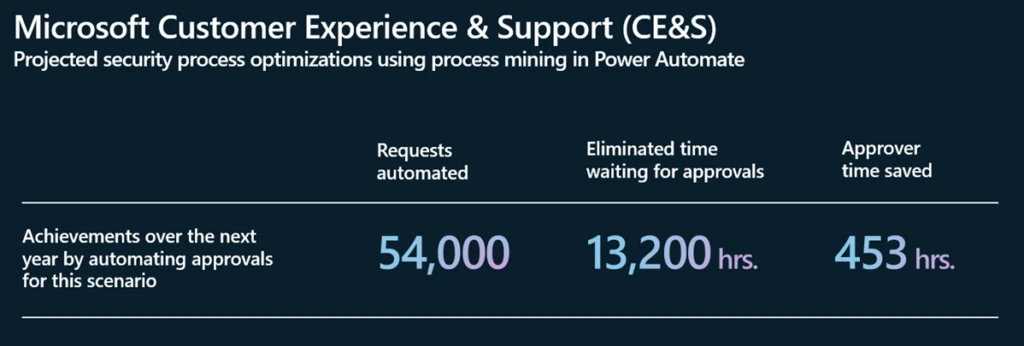
By automating approvals for this scenario, the team estimated that they could automate up to 54,000 approval requests per year, saving users 13,200 hours of wait time. As Kirk adds, “The process mining capabilities in Power Automate were critical to achieving insights this quickly.”
We are excited to introduce new SharePoint design ideas feature with AI powered suggestions for improving the structure of your SharePoint content. With this feature, authors can now use Design Ideas in Microsoft SharePoint to rearrange and reformat their image section, text section, and banner webpart.
Design ideas identify the text and webpart content of the section you are currently authoring, and suggesting new layouts, backgrounds, text formatting, and image webparts to enhance your section. The author then clicks on the suggestions to try and apply different ideas.
When you click into a new section with one blank text webpart, Design ideas will offer you formatting options you can add to get started.
Once your section has additional content, Design ideas will then summarize your text to provide appropriate image webpart and background suggestions, along with basic text formatting.
When you first start an editing session, a red dot will appear in the design ideas content pane pivot to let you know it has ideas available. Click on this pivot to open the design ideas panel.
Upon this first release, Design Ideas will only be available for the following sections containing:
1 Banner webpart
1, 2, and 3 text webparts
1, 2 and 3 text and image webparts
1 blank text webpart
Features and capabilities mentioned in this blog post, are demonstrated in the following video with Sara Cummings (Microsoft) and Vesa Juvonen (Microsoft).
Frequently asked questions
When will this happen?
The feature starts rolling out to customers in August 2024 and will be available gradually worldwide by end of September.
Kick off your journey with SharePoint Embedded. At the SharePoint Embedded for Enterprise Apps events, you’ll explore best practices for your projects, glimpse the future of SharePoint Embedded, and learn to integrate Copilot into document-centric apps. We’re eager for your feedback and experiences; your creations shape ours.
The SharePoint Embedded product team is coming to New York Cityand London in September! Come join us for an all-day event to learn how SharePoint Embedded can deliver Copilot, Collaboration, Compliance, and Core Enterprise Storage for your document centric apps. Specifically, you’ll have the opportunity to do the following:
Learn about SharePoint Embedded, a new way to build file and document centric apps.
Get hands-on coding experience with this new technology and learn how to build your own custom app.
Take a deep dive into critical features, like compliance, collaboration and copilot.
Hear from others who have implemented SharePoint Embedded solutions.
Get insight into the SharePoint Embedded roadmap
New York City, US Date: Thursday, September 12th, 9AM-7PM (times are approximate, including social hour) Where: Microsoft Offices NYC Times Square London, UK Date:Thursday, September 26th, 9AM-7PM (times are approximate, including social hour) Where: Central London, UK (Exact location TBD) RSVP Details (Please note that this event is only open to certain countries and the following will not be accepted: Russia, Belarus)
21+, free event, no registration fees
First come, first served (limited seats)
1 RSVP = 1 person
NDA required (if your company does not have an NDA on record, one will be sent)
NDA must be signed to attend event
Event will be IN PERSON ONLY and will not be recorded
Bring your own device for coding portions (tablets and smartphones will not work)
We are excited to share that we are releasing the new content pane in SharePoint pages and news. This feature serves as a convenient hub for various panes that support authors in crafting their publications. This centralized space now features a user-friendly toolbox that enables authors to easily explore and insert content for creating dynamic and captivating pages. Additionally, the content pane incorporates other useful panes like configuration tools and design ideas.
Within Viva Amplify, the content pane hosts more tools such as the distribution channel selection, writing guidance, and audience selection.
Crafting your pages with the content pane
After entering edit mode, you will notice new icons on the right side of the canvas that serve as the navigation for the content pane. The first icon opens a new toolbox, where you can quickly find web parts, images, and section templates.
Tip: You can click-and-drag web parts and images from the toolbox directly onto the canvas!
You can find more items for any of the toolbox categories by selecting See more/all… on the toolbox.
The second icon in the content pane navigation is a new entry point for the properties pane of web parts and sections.
Tip: You’ll notice an updated design of the “Edit properties” button on webpart toolbars. Clicking this button will also open the properties pane for the selected item.
With the introduction of the content pane, we have also redesigned the section tools. To add a section, select the plus button located on the section borders and select which type of section you want to add. All section tools (move, edit, duplicate, and delete) are now in the section toolbar at the top left of a selected section.
We’re excited to announce that we’ve started rolling out the ability for multiple authors to collaborate on SharePoint pages. Multiple authors will be able to edit the same page at the same time, without having to take turns. Authors can see real-time changes made by others as they happen in pages, sections, and web parts.
After an author starts editing a page, they can see if other authors are also editing by viewing their avatar in the command bar. Changes made by authors are saved automatically every few seconds. If authors want to leave edit mode, they can select Save and close.
Version history has also been improved to enhance support for collaborative authoring.To undo more changes or changes made by other users, authors can restore a prior version from Version History (under Page details).
We have begun rolling out to targeted release tenants and expect to complete by late July 2024. We expect general availability rollout to start in August.
Track the feature status with Microsoft 365 Roadmap ID 124853.
How will this affect your organization?
Before this rollout, only one author can edit a page. While an author is editing the page no other user can edit until the author publishes or saves their draft.
After this rollout, authors will have the ability to edit a page or news post while others are editing as well.
What do you need to prepare?
You do not need to do anything to prepare for this update, but you may want to let your authors know about this new capability.
Examples of new Figma color variables added to the SharePoint Web UI Kit in the Figma Community.
Our SharePoint Web UI Kit in Figma has been updated with some great new additions! This update includes the exciting addition of Figma Variables and more components so you have more options when designing your SharePoint sites and pages.
What’s new in v3.0.0
Introduced Figma Variables for color, size, spacing, corner radius, and stroke width
Added new components:Site activity web part, Content pane
What’s updated in v3.0.0
Themes and background colors can now be switched using modes
Removed dark background variants from all components
Re-factored components and bug fixes
Updated documentation on using Figma Variables effectively
To get started with our updated UI kit, simply download the latest version from the Figma Microsoft Community website: SharePoint Web UI Kit – Figma.
Figma is a subscription-based application that is the industry standard tool for web design. It provides an alternative to designing sites and pages outside of SharePoint. Figma does not build the pages in SharePoint, so once you finalize a design in Figma, you will need to build it in SharePoint. You should evaluate if Figma is the right solution for mocking up sites and pages for SharePoint.
Design without organizational limitations
This UI kit provides SharePoint users with another tool in their toolbox. While building a page in SharePoint is easy, we wanted to provide the ability to mockup sites and pages. It allows you to explore different design options for your site without the limitation of admin privileges and tenant restrictions, and doesn’t expose organization data.
Figma mockups provide a quick snapshot of SharePoint updates which business stakeholders can use to plan and make decisions. They can provide appropriate requirements and use this UI kit in collaboration with their design team to iterate in the life cycle of your organization’s intranet.
Share designs with ease
This UI kit provides you with page layouts and a selection of web parts to allow you to mockup and share new ideas across organizations and companies. Figma gives you the flexibility of reviewing and sharing your designs without having to spend time and resources creating it in SharePoint. Figma also allows you to download your designs into easy-to-use formats that can be used in documentation and presentations.
Please tell us what’s missing, what doesn’t work for you, and where your biggest challenges are by leaving a comment on the Figma SharePoint Web UI kit page or by visiting the SharePoint Community.
We hope you enjoy our latest update and look forward to seeing what you create with it!
There’s the thinking cap. And then there’s the deep-thinking cap. It’s time to put on the latter.
This article contains eight in-depth videos about SharePoint – now on demand and embedded below, with five more coming soon.
You’ll discover SharePoint’s capabilities and upcoming features, focusing on content management, collaboration, and leveraging AI in Microsoft 365. You’ll gain a deeper understanding of AI’s role in content creation and management. As the intranet evolves, too shall you advance along with tools to help build strategies for corporate communications. As your own brand ambassador, you’ll learn how to personalize SharePoint – to create content consistent with organizational identity. And of course, we have updated content for admins and devs – to see the latest ways to manage and extend SharePoint. Last, we added Jeff Teper’s recent keynote to give you the broadest insights on the transformative impact of Copilot in the mix with Microsoft 365, signaling a new era of AI-driven productivity.
OK, on to the show(s) (on demand)!!! All content is as it was presented during the Microsoft 365 Community Conference, presented by top product makers from Microsoft.
Note: Beyond the SharePoint content below, you can view all recorded sessions on demand now within the full Microsoft 365 Community Conference playlist on the Microsoft Community Learning channel (YouTube). You’ll find keynotes, general sessions, and numerous breakout sessions — in their entirety.
The best, recent overview of SharePoint in the era of AI
“Content Management and Collaboration for the AI Era” presented by Zach Rosenfield, Melissa Torres, Lincoln DeMaris, Ashu Rawat, and Sesha Mani. Learning how creating content in the era of AI provides you with opportunities to unleash your creativity and simplify large-scale content management. You’ll see and hear ways to enrich your content, get insights from your store of knowledge, and transform document-driven solutions with experiences across Microsoft 365. Watch below:
SharePoint powers your intranet and communicators
“The intranet of tomorrow: beautiful, flexible, and AI ready” presented by Denise Trabona and Dave Cohen. What is the intranet of the future all about? We’ll cover industry trends around content presentation, more robust authoring experiences, and what the era of AI means for your intranet. The video contains many demos and design tips and tricks throughout. Watch now:
“Planning a Corporate Comms strategy w/SharePoint News & Viva Amplify” presented by Naomi Moneypenny, Maeneka Grewal, and Dave Cohen. This transformation track session spans strategy, best practices, and product guidance. Learn how to plan a corporate communications strategy leveraging the power of SharePoint news and Viva Amplify. Watch now:
Look and feel: Make SharePoint your own.
“Branding SharePoint Sites, Clipchamp Videos, Teams Meetings, & More” presented by Cathy Dew. Learn how to take control of your authoring experience, to create rich content, easily, by your design and on brand – throughout your intranet, across applications, and consistently. Cathy brings a lot of demos, how to guidance, and best practices. Watch now:
Manage and control: Get up to speed as an admin.
“What’s New in SharePoint Admin Center, Copilot, and Beyond” presented by Dave Minasyan. Learn how you can leverage Copilot within the SharePoint admin center to discover and learn new management and control capabilities, understand the impact to your organization, and quickly implement them. Watch now:
“Plan and Deliver a Friction Free Migration to Microsoft 365” presented by Visha Chadha, Tony Mathew, and Yogesh Ratnaparkhi. Are you considering migrating to Microsoft 365? Learn about the latest enhancements in Microsoft 365 migrations and how you can seamlessly migrate your organization to Microsoft from the current productivity stack including Google Workspace, Box, Dropbox, and on-premises networks. Watch now:
A new offer for developers
“SharePoint Embedded: Build custom content apps with Microsoft 365” presented by Marc Windle and Farreltin Fan. Explore how SharePoint Embedded accelerates content-centric app development and leverages Microsoft 365’s robust security, compliance, and collaboration capabilities. Build your custom app with SharePoint built in, as your app’s primary, robust content service. Watch below:
Get the broadest view of Microsoft 365, watch Jeff Teper’s opening keynote.
“The Age of Copilots” presented by Jeff Teper, Miceile Barrett, Derek Snyder, and Naomi Moneypenny. See how innovation in Microsoft Copilot, SharePoint, OneDrive, and Teams – combined with the familiarity and scale of Microsoft 365 – unlocks productivity and transforms business processes for everyone across all functions and industry in this new era of AI. Watch now:
Coming soon
We’ll update this blog post with more content as soon as the below gets published.
For now, review what related session content is “coming soon”:
“SharePoint: Maximize the value of your content with AI-powered content processing.”
“SharePoint: Transform your content experiences in the era of AI.”
“The Ins and Outs of Microsoft 365 Backup, Archive”
“SharePoint Architecture: A Look Behind the Scenes”
“Copilot for Microsoft 365: Extensibility 101”
SharePoint is the primary content services platform across Microsoft 365 apps.
Whether you’re collaborating with a project team on a Loop, watching a meeting recording via Stream, or using sites to supercharge your intranet, SharePoint is at the center of it all. This is that PB/month of content at work for you – be it a loop, a list, a file, a video, a site – it’s stored in and powered by SharePoint. This allows us to deliver a best-in-class content platform that our customers love, using apps that also abide by our trusted data security and privacy standards.
SharePoint is the primary content services platform across Microsoft 365 apps.
Thank you for your interest in taking your knowledge and depth of SharePoint to the next level. It warms our metadata-driven hearts!
We are excited to share that we are releasing video page templates in SharePoint Pages and News. With this feature, we’re enabling authors to create video centric page content. These templates are available in both SharePoint and Stream, making it easy to showcase video with a customized and branded pages experience from either application.
Creating a video page from Stream Web App
This feature enables the creation of Pages and News outside of the SharePoint platform. Navigate to a video on the Stream Web App. Under the share dropdown, you will see a new entry point: Create video news post.
Tip: This entry point is only available when the video is stored on a SharePoint site where you have editing permission. If you are not seeing the entry point, try copying the video to another site.
Within the template picker, select your template type, page type, and any related documents you want to include on your page.
Tip: Video metadata, such as the title and description, is copied to the page so make sure it is up to date.
After finalizing your selections in the template picker, go to the canvas for editing. Edit your video page like other SharePoint Pages, then publish and share when you are ready!
Create a video page from a SharePoint Site
The video page templates surface in the Page and News template pickers within a SharePoint site.
Choose a video page template, then add your video to the Stream web part and edit the rest of your page before publishing.
Features and capabilities mentioned in this blog post, are demonstrated in the following video with Katelyn Helms (Microsoft) and Vesa Juvonen (Microsoft).
Frequently asked questions
When will this happen?
The feature has rolled out to Targeted Release customers and will continue to roll out to all customers through the end of June.
There is nothing you need to do to prepare, but you can let your users know about this new experience and guide them to make video pages with a few examples.
What is next?
We are planning to create more video page templates that include the latest and greatest features.
We are considering an updated template picker experience and support of custom templates.
Thanks for reading. Please enjoy making beautiful pages with videos and let us know any feedback or questions in the comments.