Bill Baer
Senior Product Manager
@williambaer
Today at the SharePoint Virtual Summit, we unveiled the latest innovations for SharePoint and OneDrive, including powerful integrations across Office 365, Windows and Azure – and while we continue to drive forward with a cloud-first, mobile-first vision – we’re excited to also announce new innovation for our customers on-premises.
When we launched SharePoint Server 2019 in November of 2018, we shared a vision of a server that was cloud-born, future-proof, and built on the success of SharePoint Server 2016. A new, modern version of SharePoint that shared a codebase with SharePoint Online enabling us to deliver at a more rapid cadence. Innovation that is born in the cloud, innovation to help you succeed with the cloud, and most importantly, innovation based on your feedback.
Over the past year, we’ve made significant progress against those goals and today we’re announcing additional improvements for SharePoint Server 2016 and SharePoint Server 2019 to help your organization meet your business challenges, enabling the freedom to build, manage, and deploy applications on a massive, global network using your favorite tools and frameworks with Azure.
Now with SharePoint Server 2019 we’re providing more flexible deployment options to include support for Azure Stack and SQL Managed Instances.
In addition to our existing support for Azure virtual machines, these new support options allow you to create a truly consistent experience across your hybrid cloud using comprehensive Azure cloud capabilities so you can reduce complexity and risk with the platform, tools, and services designed to work together across your on-premises and cloud environments. Through combining our existing support for SharePoint implementations in Azure with these new options for deployment, you can build and deploy your SharePoint environments and applications consistently, seamlessly, and deliver integrated security and management across on-premises and the cloud.
Managed Instance
A managed instance in Azure SQL Database is a fully managed SQL Server Database Engine Instance hosted in Azure cloud. This is the best PaaS option for migrating your SQL Server database to the cloud. New managed instance support for SharePoint Server 2019 allows you to leverage the benefits of managed instances with SharePoint environments hosted in Azure.
To learn more about managed instances, benefits over traditional deployment models, and how to get started see https://docs.microsoft.com/en-us/azure/sql-database/sql-database-managed-instance.
Azure Stack
In addition to new support for managed instances with SharePoint Server 2019, we’re also extending support for deploying SharePoint Server 2016 (SharePoint Server 2019) on Azure Stack so you can build and run SharePoint environments using consistent Azure services on-premises to meet regulatory or technical requirements. Learn more at https://azure.microsoft.com/en-us/overview/azure-stack/.
Resources
Get technical resources for SharePoint Server at https://docs.microsoft.com/en-us/sharepoint/sharepoint-server.
Latest monthly summary of SharePoint Development guidance for SharePoint Online and on-premises is now available from the SharePoint Dev Blog. Check the latest news, samples and other guidance from this summary.
Latest monthly summary of SharePoint Development guidance for SharePoint Online and on-premises is now available from the SharePoint Dev Blog. Check the latest news, samples and other guidance from this summary.
– Bill Baer, Senior Product Manager, Microsoft Search
@williambaer
Introducing Microsoft Search
Today, we’re announcing general availability of Microsoft Search, an intelligent, enterprise search experience from Microsoft that applies the artificial intelligence technology (AI) from Bing and deep personalized insights surfaced by the Microsoft Graph, to make search more effective for you – so whether you’re looking to complete a task, pick up where you left off, or discover answers or insights, it’s just a click away, across all of your applications, your desktop, and your browser.
Microsoft Search is everywhere you are, in the header of the apps you’re already using including Office, Outlook, SharePoint, OneDrive, Bing and Windows to name a few. It’s a single, unified and consistent search experience that evolves the definition of search in the enterprise. We believe search is more than just a list of links, search needs to work both for and with you, anticipating your needs where you are working, with answers and insights in the flow of your work. Microsoft Search brings you natural language understanding, instant query predictions, contextual results, and more.
Search that works with and for you
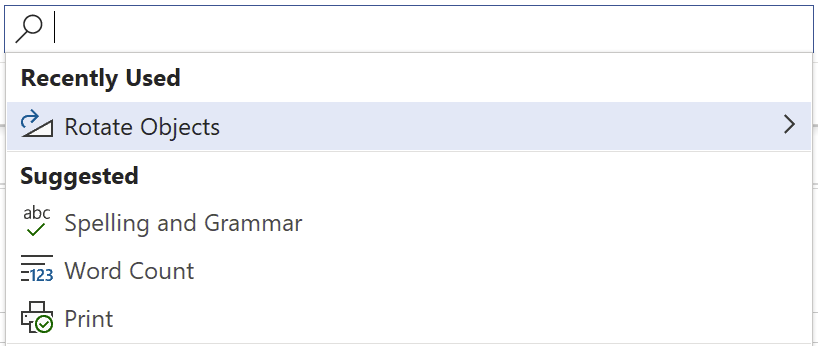
Wherever you’re working, Microsoft Search is there to help. Features like instant query predictions help you find content that is relevant at the point in time such as documents you were recently working on, the people you’re working with, as well as recommended documents that your colleagues have mentioned you in, keeping you up to date with what has been worked on since you last looked at, all by just clicking in the new search box.
Microsoft Search is even more than just helping you find information – it works for you. Powerful features like task completion help you accomplish key tasks. If you’re adding an image to a document or presentation, Microsoft Search will guide you through the most common tasks to work with that object, such as cropping, rotating, and more. Task completion with Microsoft Search is not only available across Microsoft 365 apps but is contextually aware based on where you’re working so you can complete tasks more efficiently and with better outcomes, for example, you can type /files in Microsoft Teams to get back to your most recent files.
Everything you need, everywhere you’re working
Microsoft Search connects you with what matters the most – people, files and conversations, connecting you to a world of information in the context of your work. With Microsoft Search you can discover your files, recent and relevant conversations across Microsoft Teams and Yammer and more, whether you’re working in SharePoint, OneDrive, Office, Windows, or Bing.
You can also search for people listed in your organization. You’ll see colleagues’ contact information, conversations, events and files you have in common. You can even start a Microsoft Teams conversation, place a phone call, send an email or get a map to their office location right from an adaptive card, accelerating productivity and reducing the time you spend searching for the right answer.
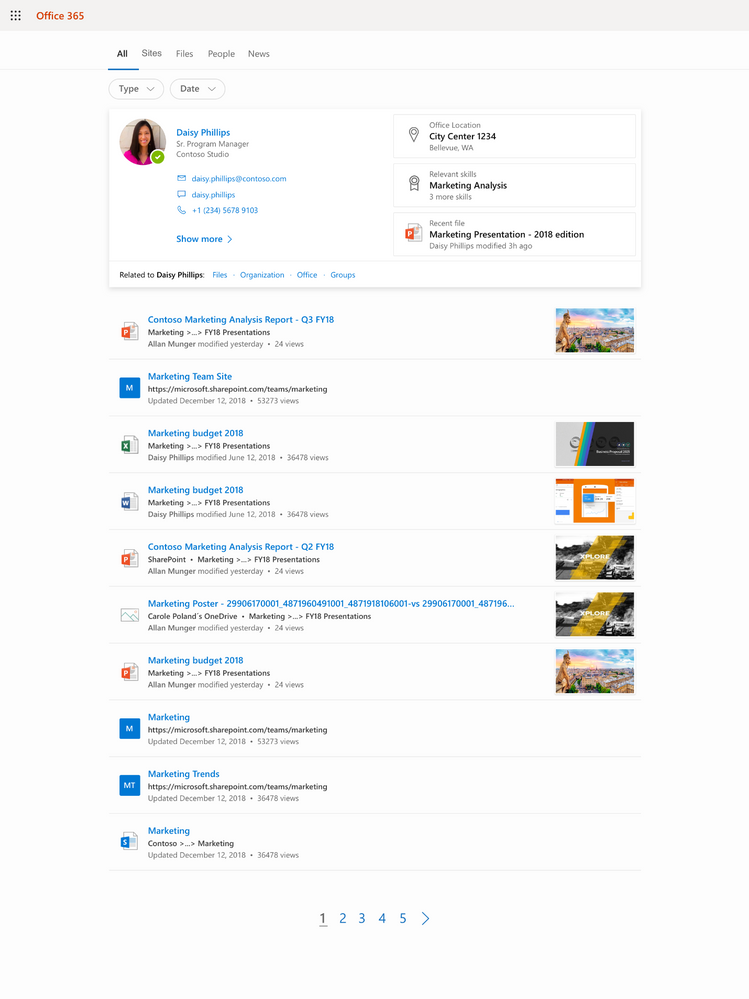
Microsoft Search works in and across the apps you’re using. You don’t need to remember where something is located, so if you’re working in Word and want to reuse information from a presentation that a colleague shared from OneDrive, there’s no need to switch to OneDrive and search for that presentation, you can simply search from Word.
When you need to get back to work quickly, you can use your own personalized query history or Office applications like Word, Excel, and PowerPoint so you won’t have to recall those important results and files or sift through pages of history to get back to where you were.
Work knowledge, meet world knowledge
The address bar has become a natural place to discover information. Microsoft Search helps you save time by bringing you the best of the web and work in a single experience, all without switching context or apps. Using the advanced AI technology from Bing and its world knowledge combined with insights from the Microsoft Graph we’ll be soon making it simple to ask simple, natural language questions and get answers – whether searching in Bing or right from the address bar. For example, you can ask “Can I bring my cat to work?”. We use Bing’s knowledge of the world to expand and understand “cat” and couple that with mining your organization’s intranet to derive the answer and get you to the right place.
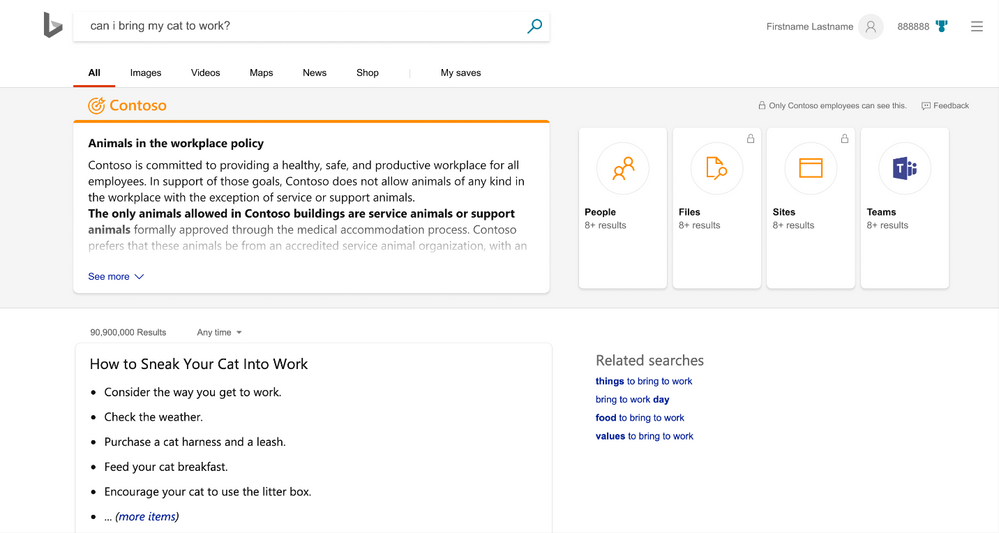
Sometimes knowledge is not always contained within the organization. Sometimes answers come from both inside and outside. Bringing together work knowledge and world knowledge means you just need to search once to find what you need to get work done. Microsoft Search in Bing federates these queries, so there’s separation between your business and web results. Search queries are de-identified and logs are separated from public Bing search traffic. This level of protection is unavailable anywhere else in the industry.
Privacy and control to meet your needs
Microsoft Search inherits the industry leading privacy and security controls in Microsoft 365 and reflects the security of your information as it changes over time. With near-instant updates to permissions — so you only see search results for content you have access to.
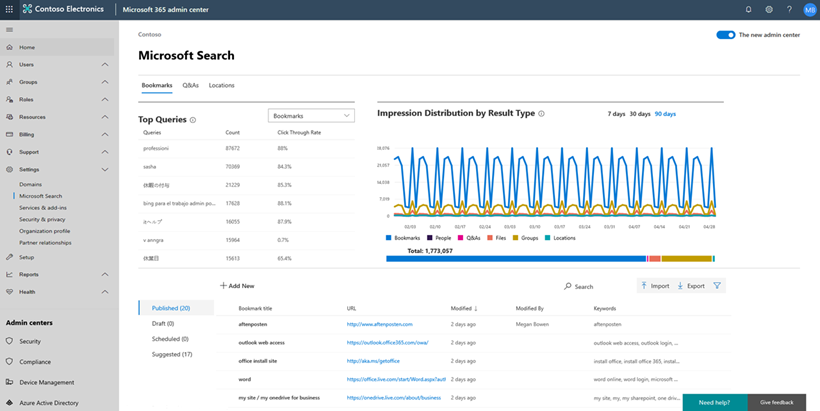
For IT administrators, Microsoft Search puts advanced controls and analytics at your fingertips, providing the insights and settings that allow you to make the most of your search experience and empower the people across your organization to do more, by finding more. As an example, you can provide the information and answers people need to complete tasks, like policies, benefits, resources, tools, and more in work results. You can also target specific groups, like new hires or remote workers and these are just a few things you can do.
Coming soon to Microsoft Search
Microsoft Search brings together the best of Bing and the Microsoft Graph to get insights from the people, sites, devices, and documents you work with and is the basis for consistent learning across your organization ranking search results relevant to your needs. You can already see all the results that satisfy your query, and personalized search prioritizes the results that are most likely to achieve your objective. With that said, we’re also excited to announce that coming soon we’ll provide a universal endpoint that spans the applications and services in Microsoft 365. The Microsoft Search API will enable developers to implement queries to provide complete recall results, suggestions and recommendations in the search box control in addition to an event API to send relevance signals. We’ll share more details in late May.
This is just the start of the journey. As we move forward we’ll continue to add new capabilities including the ability to integrate Microsoft Search into your own applications with popular 3rd party connectors so you can make the most of all of your information whether that is located in Microsoft 365 or in your own systems, we’ll make it customizable to tailor to your liking, and surround it with a rich set of APIs. We’ll also continue to extend the unified search control to applications like Yammer and Microsoft Teams in Microsoft 365.
Getting started…
Microsoft Search is ready when you are. Use the power of Microsoft Search to search across your company’s content. From Outlook and OneDrive to Office and Microsoft Teams, and more, Microsoft Search answers your questions and delivers relevant suggestions to help you make the most of your time.
Need some motivation? Try searching for “me” in Office.com, “my documents” in Bing – or just click in the new search box for intelligent suggestions tailored to you.
Keep update to date on news and announcements, learn more about Microsoft Search, and start discovering the information trending around you to help you get work done at https://aka.ms/MicrosoftSearch and follow us @MicrosoftSearch.
– Bill Baer, Senior Product Manager, Microsoft Search
@williambaer
Introducing Microsoft Search
Today, we’re announcing general availability of Microsoft Search, an intelligent, enterprise search experience from Microsoft that applies the artificial intelligence technology (AI) from Bing and deep personalized insights surfaced by the Microsoft Graph, to make search more effective for you – so whether you’re looking to complete a task, pick up where you left off, or discover answers or insights, it’s just a click away, across all of your applications, your desktop, and your browser.
Microsoft Search is everywhere you are, in the header of the apps you’re already using including Office, Outlook, SharePoint, OneDrive, Bing and Windows to name a few. It’s a single, unified and consistent search experience that evolves the definition of search in the enterprise. We believe search is more than just a list of links, search needs to work both for and with you, anticipating your needs where you are working, with answers and insights in the flow of your work. Microsoft Search brings you natural language understanding, instant query predictions, contextual results, and more.
Search that works with and for you
Wherever you’re working, Microsoft Search is there to help. Features like instant query predictions help you find content that is relevant at the point in time such as documents you were recently working on, the people you’re working with, as well as recommended documents that your colleagues have mentioned you in, keeping you up to date with what has been worked on since you last looked at, all by just clicking in the new search box.
Microsoft Search is even more than just helping you find information – it works for you. Powerful features like task completion help you accomplish key tasks. If you’re adding an image to a document or presentation, Microsoft Search will guide you through the most common tasks to work with that object, such as cropping, rotating, and more. Task completion with Microsoft Search is not only available across Microsoft 365 apps but is contextually aware based on where you’re working so you can complete tasks more efficiently and with better outcomes, for example, you can type /files in Microsoft Teams to get back to your most recent files.
Everything you need, everywhere you’re working
Microsoft Search connects you with what matters the most – people, files and conversations, connecting you to a world of information in the context of your work. With Microsoft Search you can discover your files, recent and relevant conversations across Microsoft Teams and Yammer and more, whether you’re working in SharePoint, OneDrive, Office, Windows, or Bing.
You can also search for people listed in your organization. You’ll see colleagues’ contact information, conversations, events and files you have in common. You can even start a Microsoft Teams conversation, place a phone call, send an email or get a map to their office location right from an adaptive card, accelerating productivity and reducing the time you spend searching for the right answer.
Microsoft Search works in and across the apps you’re using. You don’t need to remember where something is located, so if you’re working in Word and want to reuse information from a presentation that a colleague shared from OneDrive, there’s no need to switch to OneDrive and search for that presentation, you can simply search from Word.
When you need to get back to work quickly, you can use your own personalized query history or Office applications like Word, Excel, and PowerPoint so you won’t have to recall those important results and files or sift through pages of history to get back to where you were.
Work knowledge, meet world knowledge
The address bar has become a natural place to discover information. Microsoft Search helps you save time by bringing you the best of the web and work in a single experience, all without switching context or apps. Using the advanced AI technology from Bing and its world knowledge combined with insights from the Microsoft Graph we’ll be soon making it simple to ask simple, natural language questions and get answers – whether searching in Bing or right from the address bar. For example, you can ask “Can I bring my cat to work?”. We use Bing’s knowledge of the world to expand and understand “cat” and couple that with mining your organization’s intranet to derive the answer and get you to the right place.
Sometimes knowledge is not always contained within the organization. Sometimes answers come from both inside and outside. Bringing together work knowledge and world knowledge means you just need to search once to find what you need to get work done. Microsoft Search in Bing federates these queries, so there’s separation between your business and web results. Search queries are de-identified and logs are separated from public Bing search traffic. This level of protection is unavailable anywhere else in the industry.
Privacy and control to meet your needs
Microsoft Search inherits the industry leading privacy and security controls in Microsoft 365 and reflects the security of your information as it changes over time. With near-instant updates to permissions — so you only see search results for content you have access to.
For IT administrators, Microsoft Search puts advanced controls and analytics at your fingertips, providing the insights and settings that allow you to make the most of your search experience and empower the people across your organization to do more, by finding more. As an example, you can provide the information and answers people need to complete tasks, like policies, benefits, resources, tools, and more in work results. You can also target specific groups, like new hires or remote workers and these are just a few things you can do.
Coming soon to Microsoft Search
Microsoft Search brings together the best of Bing and the Microsoft Graph to get insights from the people, sites, devices, and documents you work with and is the basis for consistent learning across your organization ranking search results relevant to your needs. You can already see all the results that satisfy your query, and personalized search prioritizes the results that are most likely to achieve your objective. With that said, we’re also excited to announce that coming soon we’ll provide a universal endpoint that spans the applications and services in Microsoft 365. The Microsoft Search API will enable developers to implement queries to provide complete recall results, suggestions and recommendations in the search box control in addition to an event API to send relevance signals. We’ll share more details in late May.
This is just the start of the journey. As we move forward we’ll continue to add new capabilities including the ability to integrate Microsoft Search into your own applications with popular 3rd party connectors so you can make the most of all of your information whether that is located in Microsoft 365 or in your own systems, we’ll make it customizable to tailor to your liking, and surround it with a rich set of APIs. We’ll also continue to extend the unified search control to applications like Yammer and Microsoft Teams in Microsoft 365.
Getting started…
Microsoft Search is ready when you are. Use the power of Microsoft Search to search across your company’s content. From Outlook and OneDrive to Office and Microsoft Teams, and more, Microsoft Search answers your questions and delivers relevant suggestions to help you make the most of your time.
Need some motivation? Try searching for “me” in Office.com, “my documents” in Bing – or just click in the new search box for intelligent suggestions tailored to you.
Keep update to date on news and announcements, learn more about Microsoft Search, and start discovering the information trending around you to help you get work done at https://aka.ms/MicrosoftSearch and follow us @MicrosoftSearch.
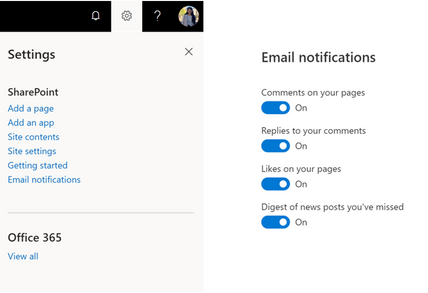
SharePoint email notifications help you stay up-to-date with news, comments, and activities. We’ve recently announced notifications for comments, replies and likes on modern pages and news posts.
We know you want to control what lands in your inbox. Currently, you can unsubscribe from a category of notifications by clicking the Unsubscribe link in a notification email.
Email notifications settings panel
The email notifications settings panel, rolling out in late June 2019, enables you to manage all your email notifications from a single place. You can select the categories of email notifications you want to receive.
To access the email notifications settings panel, click the Manage your preferences link in a notification email.
Alternately, click SharePoint in the Office launcher (also known as the “waffle menu”). From the SharePoint start page, click the settings cog, then click Email notifications.
As we add new categories of notifications, we will add them to the settings panel.
SharePoint email notifications help you stay up-to-date with news, comments, and activities. We’ve recently announced notifications for comments, replies and likes on modern pages and news posts.
We know you want to control what lands in your inbox. Currently, you can unsubscribe from a category of notifications by clicking the Unsubscribe link in a notification email.
Email notifications settings panel
The email notifications settings panel, rolling out in late June 2019, enables you to manage all your email notifications from a single place. You can select the categories of email notifications you want to receive.
To access the email notifications settings panel, click the Manage your preferences link in a notification email.
Alternately, click SharePoint in the Office launcher (also known as the “waffle menu”). From the SharePoint start page, click the settings cog, then click Email notifications.
As we add new categories of notifications, we will add them to the settings panel.
Data loss is non-negotiable. Period. As innovation in the cloud drives business value, it delivers new capabilities to the IT professionals and site admins who work tirelessly to support, configure, administer, and secure their organizations’ and teams’ content. And it is important that you are empowered to recover from accidental deletions or version issues at the speed business productivity requires.
Today we begin to roll out Files Restore for SharePoint and Microsoft Teams – a new Microsoft 365 feature. This is associated with Microsoft 365 Roadmap: ID 33714 and originally announced at Ignite 2018.
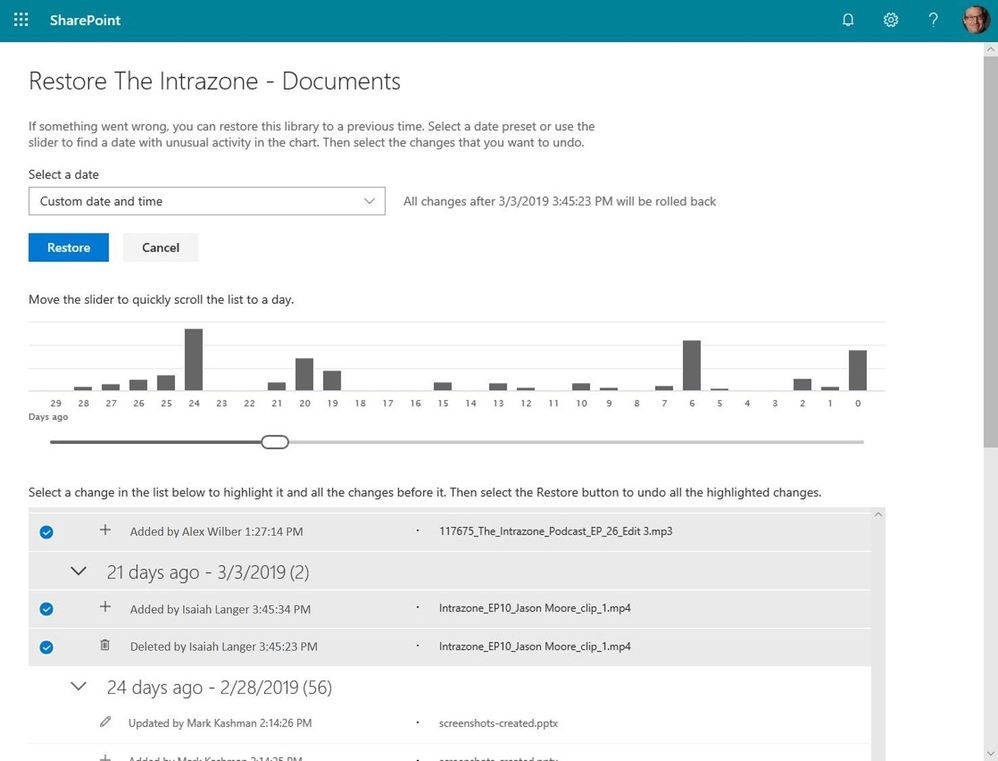
If something went wrong, you can restore a SharePoint document library (the same storage mechanism behind the Files tab in Microsoft Teams) to a previous time. Select a date preset or use the slider to find a date within unusual activity in the chart. Then select the changes that you want to undo.
We’ve built Microsoft 365 with global scale, exceptional reliability, and support for compliance across industries and geographies on top of intelligent security that keeps your service and content protected and private, we give you granular and dynamic controls so that you can manage access, distribution and recovery of your organization’s sensitive content and information.
Let’s dive into the details…
Restore your files with confidence from SharePoint and Microsoft Teams
Files restore for SharePoint and Microsoft Teams is a complete self-service recovery solution that allows administrators and site owners to restore files from any point in time during the last 30 days. Site owners will see a new “Restore this library” option within the library settings panel. This can be used as a self-service to restore the files and folders in the library you suspect have been compromised by end-user deletion, file corruption, or malware infection – to any point in the past 30 days.
Simply go to the gear icon in the upper right > select Restore this library > select a date range, select your files > click Restore.
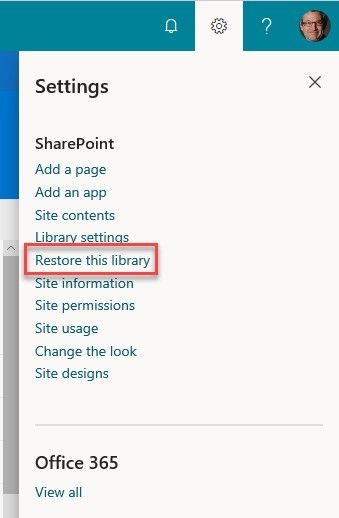 Go to Site Settings and select “Restore this library” to start the process of recovering a file or set of files based on a date prior to the issue.
If lots of your SharePoint or Teams files get deleted, overwritten, corrupted, or infected by malware, you can restore your entire document library to a previous time. Files Restore helps Office 365 subscribers undo all the actions that occurred on both files and folders within the last 30 days.
Files Restore is now available for SharePoint document libraries, protecting your shared files in SharePoint, Teams, Outlook groups, and Yammer groups connected to Office 365 groups and uses the same recovery capabilities that protect your individual files in OneDrive for Business.
Note to IT: files across the SharePoint and Teams user interfaces are stored in the same storage container (SharePoint document libraries), thus offer the same experience and capabilities as a single-source offering throughout Microsoft 365.
What else do I need to know?
Now you can rewind changes using activity data to find the exact moment to revert to.
We’ll be gradually rolling this out to Targeted Release organizations in April 2019, and the roll out will be completed worldwide by the end of May 2019.
Learn more how to restore your SharePoint and Teams files. And the related how to restore your OneDrive.
Frequently Asked Questions (FAQs)
Q: When is this all being released in Office 365?
A: Files restore for SharePoint has begun Targeted Release to customers in Office 365. We plan to extend release to all full Targeted Release customers by the end of April 2019. We then plan to fully release to all full production Office 365 customers by the end of May 2019.
Data loss is non-negotiable. Period. As innovation in the cloud drives business value, it delivers new capabilities to the IT professionals and site admins who work tirelessly to support, configure, administer, and secure their organizations’ and teams’ content. And it is important that you are empowered to recover from accidental deletions or version issues at the speed business productivity requires.
Today we begin to roll out Files Restore for SharePoint and Microsoft Teams – a new Microsoft 365 feature. This is associated with Microsoft 365 Roadmap: ID 33714 and originally announced at Ignite 2018.
If something went wrong, you can restore a SharePoint document library (the same storage mechanism behind the Files tab in Microsoft Teams) to a previous time. Select a date preset or use the slider to find a date within unusual activity in the chart. Then select the changes that you want to undo.
We’ve built Microsoft 365 with global scale, exceptional reliability, and support for compliance across industries and geographies on top of intelligent security that keeps your service and content protected and private, we give you granular and dynamic controls so that you can manage access, distribution and recovery of your organization’s sensitive content and information.
Let’s dive into the details…
Restore your files with confidence from SharePoint and Microsoft Teams
Files restore for SharePoint and Microsoft Teams is a complete self-service recovery solution that allows administrators and site owners to restore files from any point in time during the last 30 days. Site owners will see a new “Restore this library” option within the library settings panel. This can be used as a self-service to restore the files and folders in the library you suspect have been compromised by end-user deletion, file corruption, or malware infection – to any point in the past 30 days.
Simply go to the gear icon in the upper right > select Restore this library > select a date range, select your files > click Restore.
Go to Site Settings and select “Restore this library” to start the process of recovering a file or set of files based on a date prior to the issue.
If lots of your SharePoint or Teams files get deleted, overwritten, corrupted, or infected by malware, you can restore your entire document library to a previous time. Files Restore helps Office 365 subscribers undo all the actions that occurred on both files and folders within the last 30 days.
Files Restore is now available for SharePoint document libraries, protecting your shared files in SharePoint, Teams, Outlook groups, and Yammer groups connected to Office 365 groups and uses the same recovery capabilities that protect your individual files in OneDrive for Business.
Note to IT: files across the SharePoint and Teams user interfaces are stored in the same storage container (SharePoint document libraries), thus offer the same experience and capabilities as a single-source offering throughout Microsoft 365.
What else do I need to know?
Now you can rewind changes using activity data to find the exact moment to revert to.
We’ll be gradually rolling this out to Targeted Release organizations in April 2019, and the roll out will be completed worldwide by the end of May 2019.
Learn more how to restore your SharePoint and Teams files. And the related how to restore your OneDrive.
Frequently Asked Questions (FAQs)
Q: When is this all being released in Office 365?
A: Files restore for SharePoint has begun Targeted Release to customers in Office 365. We plan to extend release to all full Targeted Release customers by the end of April 2019. We then plan to fully release to all full production Office 365 customers by the end of May 2019.
SharePoint news is a content distribution system that works across personal, team and organizational news. News articles and links can be composed on browser or mobile platforms, and are easily surfaced in portals, Microsoft Teams, email, Microsoft Search and more. Rich new capabilities will empower communicators to keep groups, departments, and divisions up to date easily.
Let’s dive into each feature.
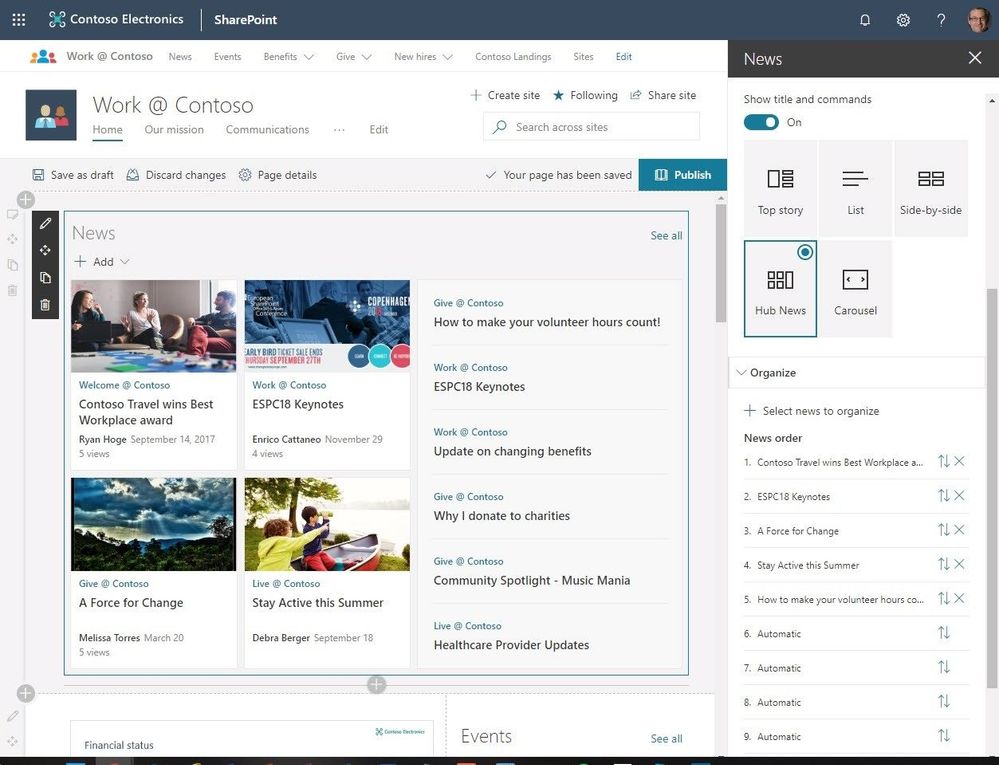
News – organize. Within the news web part, you can now organize your news posts to appear in custom order. This means you can highlight high-value content knowing it is more visible among articles published on a site. Learn more in our support article.
Figure 1 Controlling the news display sort order
Authoritative news – News can come from many different sites. But you might have “official” or “authoritative” sites for organization news. When these sites are specified as organization news sources, posts from these sites are interleaved throughout all news posts displayed for users on SharePoint home in Office 365, or via the news tab in SharePoint mobile. They are distinguished by a color block on the title as a visual cue. Admins can manage news sources using simple PowerShell commands, referenced below.
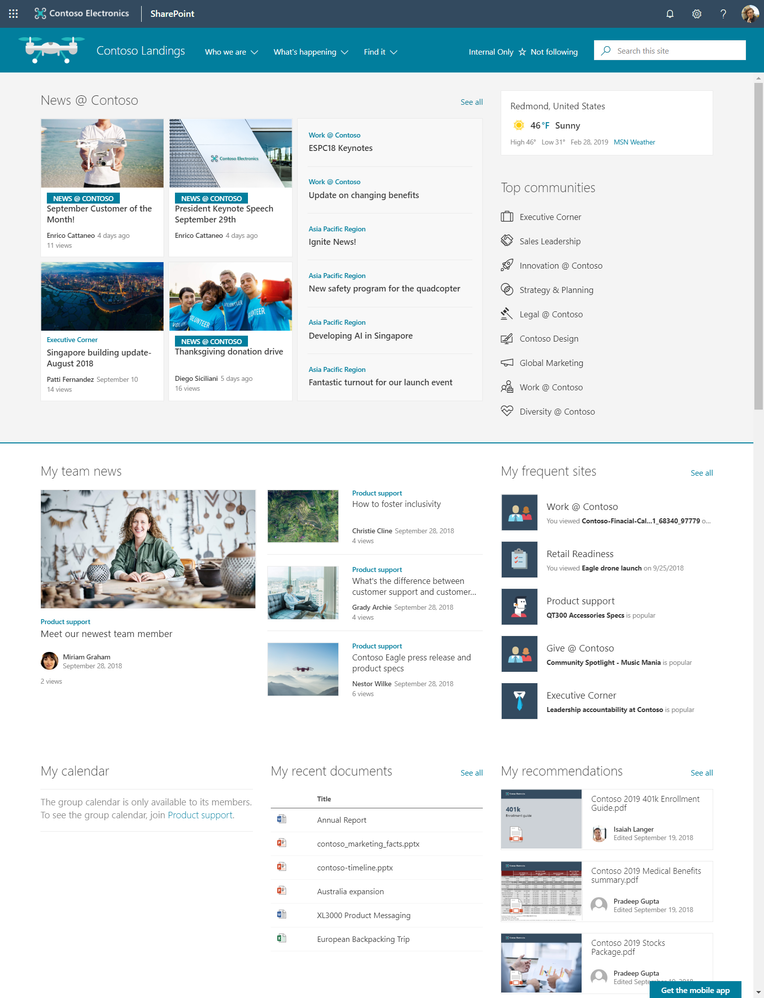 Figure 2 Site showing authoritative organization-wide news
News notifications from followed sites – Starting in March 2019, users that follow sites will start to get notifications for any news posted on those sites. They will also get notifications when people they work with posted news. And soon, news notifications can be delivered over email as well. It’s never been easier to stay up to date with information from key areas of your intranet.
Page templates. You’ve created a great page, and you want to make it available for others to use as a starting point for their pages. Or, you need to create a page, but aren’t sure where to start. Page templates can save time.
Initially, we’ll ship three page templates – basic, text-centric and visual, as shown below. You can also create your own templates from existing pages. Once a page is saved as a template, it can be chosen from the Template gallery as users create pages and news. Again, learn more in our support article.
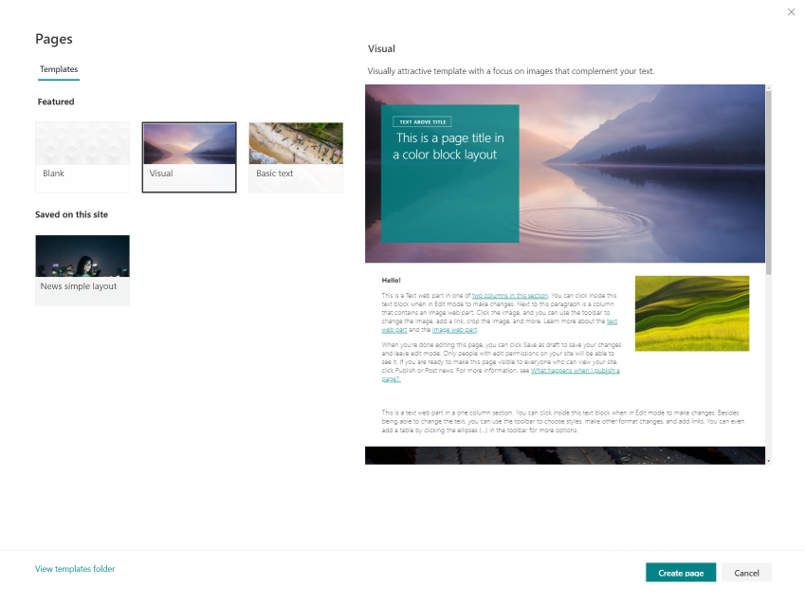 Figure 3 SharePoint page templates
Try more and more of what SharePoint offers, and let us know what you think
We want to empower you and every person on your team to achieve more. Let us know what you need next. We are always open to feedback via UserVoice and continued dialog in the SharePoint community in the Microsoft Tech Community —and we always have an eye on tweets to @SharePoint. Let us know.
—Chris McNulty, senior product manager for Microsoft 365
FAQs
Q: When is this all being released?
A: Our goal is to release all the items to Targeted Release customers by the end of March 2019.
Q: How can administrators manage authoritative news sources?
A: Your tenant admin will need to add sites to the organization news list of sites using PowerShell. Here are some helpful commands.







