
You might not see this feature yet. Some functionality is introduced gradually to organizations that have set up the Targeted release options in Microsoft 365. |
Imagine you’re working on a project that needs a new SharePoint site to track deadlines, record progress, and serve as a central place to collaborate with your team. Perhaps you’ve been tasked with creating an onboarding portal for your organization complete with new hire checklists and key information to help them get started. Maybe you’re leading a training series where you need to store course files and post class announcements. Where do you begin when it comes to designing sites for these scenarios?
Now you have a starting point! We’ve made it even easier to begin on the right foot with site templates that are available to you in SharePoint. SharePoint site templates are flexible enough to address a variety of needs, make it easy to create and populate site content, and show you what’s possible. These complement those found in the SharePoint lookbook, which has been and continues to be an amazing source of inspiration for modern experiences you can build with out-of-the-box SharePoint components.

Through customer conversations and user research, we identified 8 scenarios to start with that benefit from having a robust SharePoint site template. SharePoint customers can take advantage of the following SharePoint site templates:
Communication site templates
- Department – Engage and connect viewers with departmental news and resources.
- Leadership connection – Build community by connecting leadership and team members.
- Learning central – Showcase learning and training opportunities.
- New employee onboarding – Streamline and refine new hire onboarding process.
Team site templates
- Event planning – Coordinate and plan event details with your team.
- Project management – Create a collaboration space for your project team.
- Training and courses – Prepare course participants for learning opportunities.
- Training and development team – Plan opportunities to help others learn and grow.
We will continue to build on these options in the future to address even more common scenarios.
How to apply a template and what to expect
SharePoint site templates will be automatically available in SharePoint tenants and can be applied by users with site owner permissions or higher. When you create a new site, you will be asked if you’d like to use a template. Select Browse templates to see Microsoft templates and templates from your organization. Or apply a template to an existing site by navigating to Settings and then select Apply a site template.
Our site templates currently offer the following features:
- Can be applied at the time of site creation or can be applied to existing sites.
- Fully customizable home pages that come with pre-populated content and web parts.
- News post templates that help users quickly and consistently publish news.
- Pre-built pages, lists, and document library folders that make it easy to build sites and inspire your own custom content.
- Each template has its own customization guidance to help site owners and editors get started.
What about my existing site designs?
If you’ve used site designs in the past, that experience has been incorporated into the site templates experience and will be referred to as site templates moving forward.
The Site designs entry point will be replaced by the Apply a site template entry point in the Site settings panel. You’ll find your organization’s existing site templates on the “From your organization” tab in the template gallery.
Additionally, as part of the new site template experience, a progress screen is displayed while the site template is being applied instead of a notification bar.
Learn more about how to create custom site templates for your organization using site scripts.
Site template FAQs
Q: What happens when I apply a template to a site that is associated with a hub site?
A: If your site is associated with a hub, the site will inherit the theme from the hub. When you apply a template, it will automatically use the theme from the template, but will update to the hub’s theme shortly after republishing.
Q: How can I undo a template I just applied?
A: There is no automatic method to undo the application of a site template. However, there is nothing that a template does that can’t be manually applied or deleted. For example, pages and navigational elements can be deleted and themes can be update.
Q: I don’t want to use a template. How can I quickly create a site?
A: There are several resources to inspire your next SharePoint site – like the SharePoint look book and Guided walkthroughs.
Q: How can I update the theme of the site template to a theme that has not been defined by my organization?
A: For themes that don’t fit into your organization’s custom or pre-defined themes, you can change the look of your site in the Settings panel to manually update the theme.
Q: What happened to Site designs in the Settings panel?
A: In previous versions of SharePoint, site templates were called site designs but will be referred to as site templates moving forward. The Site designs entry point has been replaced by the Apply a site template entry point in the Settings panel.
Q: How can I create custom site templates for my organization?
A: You can create site templates to provide reusable lists, themes, layouts, pages, or custom actions so that your users can quickly build new SharePoint sites with the features they need. Learn more about how to create custom site templates for your organization.
Q: How can I learn more about how to customize site templates created by my organization?
A: Site templates provided by your organization will appear in the From your organization tab when selecting a template type. Customization instructions will vary depending on the site template design. Review customization resources below to learn more about site personalization options.
Learn more
Apply and customize SharePoint site templates
SharePoint site design and site script overview
SharePoint Roadmap Pitstop April 2021 (microsoft.com)

Learn all you can do with Microsoft Lists – Your smart information tracking app in Microsoft 365. Pick your time zone and join a free virtual workshop (happening May 10-14, 2021) to help you become a Microsoft Lists pro!
See how Lists evolve from SharePoint lists to empower individuals and teams to create, share and track information – including innovation in Microsoft Teams, information side-by-side your team conversations. We will teach you how to use and create views, configure conditional formatting, adjust forms and more. Plus, we will highlight extending lists with the integrated Power Platform and answer all frequently, or infrequently, asked questions.
Microsoft Lists virtual workshops, “Go further with Microsoft Lists” – delivered five times across various regions.
Select a virtual workshop in your time zone!
Register today | Submit a question in advance (answered in the time zone you select)
Date & time
|
Target region
|
Presenter(s)
|
Add to calendar (.ics file)
|
Monday, May 10
11:00 AM PT
|
AMER time zone
|
Andrea Lum, Miceile Barrett, and Paul Diamond
|
Save the date (AMER)
|
Tuesday, May 11
9:00 AM IST
|
India (presented in Hindi)
|
Niket Jain, Saurabh Sood, and Bharath Manoj Manda
|
Save the date (India)
|
Wednesday, May 12
10:00 AM CEST
|
EMEA time zone
|
Andrea Lum and Harini Saladi
|
Save the date (EMEA)
|
Thursday, May 13
10:00 AM BRT
|
LATAM time zone
|
Mark Kashman
|
Save the date (LATAM)
|
Friday, May 14
11:30 AM CST
|
APAC time zone
|
Shreyas Sundararaman and Mark Kashman
|
Save the date (APAC)
|
Learn about:
- Creating a list and using ready-made templates.
- Working with Lists in Microsoft Teams.
- Customizing a list that works for you.
- Extend lists with integrated Power Platform.
Why attend?
- Learn | Gain a better understanding of Microsoft Lists and learn how easy it is to create, share, and track lists with anyone on any device.
- Connect | Hear from product experts and ask them questions about how to create and organize lists to track information within your organization.
- Inspire | Adopting what you’ve learned from this workshop to quickly simply your workflow and inspire your colleagues to easily collaborate on Microsoft Lists.
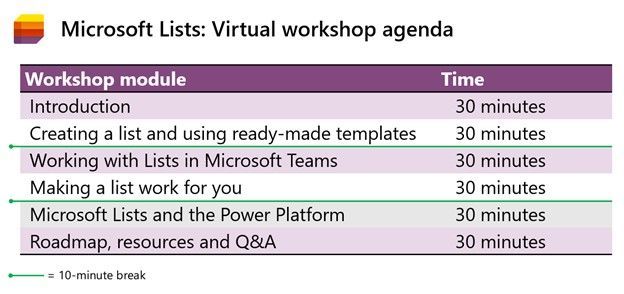 Microsoft Lists virtual workshop proposed agenda (3 hours)
Register | Submit a question in advance (answered in the time zone you select)
Get more done with Microsoft Lists.
Cheers and see you there, Mark Kashman, senior product manager – Microsoft

Attendees, to the starting line!
Get those electrolytes flowing, the Microsoft 365 Virtual Marathon is coming to Onlinetown. Speakers are prepping content, ready to coach you through each mile. And the content, the content is what’ll get you across the finish line. A lot of great sessions on all types of products and solutions.
Jeff Teper (CVP), Karuana Gatimu (Principal manager), Heather Newman (Principal PM manager), and Laurie Pottmeyer (Community lead) will be giving Microsoft keynote and overview sessions that’ll get you up-to-speed across our most recent updates and announcements. Plus, we’ll have Microsoft speakers delivering breakout sessions among thought leaders and community members from around the world.
What: Microsoft 365 Virtual Marathon to lean more | Register today
When: April 26 – 28, 2021 (60-hours / 3 days)
Presenters: 240+ speakers speaking in 7 different languages; view all sessions
Cost: Free
Primary Twitter hashtag: #M365VM
Microsoft 365 Virtual Marathon – April 26-28, 2021 (online training – keynotes and breakout sessions)
The Marathon event team has content going the whole time with speakers from around the globe. This event is free for all wanting to attend. Join in to learn about the many different pieces of Microsoft 365, including Azure.
Below is a list of the Microsoft sessions and presenters – including Jeff’s keynote:
- Keynote | “Update on Roadmap and Plans for Teams, SharePoint, OneDrive and Viva” by Jeff Teper
- “Microsoft 365 adoption best practices” by Karuana Gatimu
- “Introducing Microsoft Viva Connections” by Adam Harmetz
- “Microsoft Viva Topics: Put knowledge to work with content and AI” by Chris McNulty and Naomi Moneypenny
- “Improve IT efficiency and agility and stay informed as you enable self-service tasks” by Karissa Larson
- “Microsoft 365 Groups overview and architecture deep dive” by Arunkumaran Varadharajan
- “Microsoft 365 network connectivity for remote users” by Roshan Padmanabhan Kanaka Sabapaty
- “Metadata Services in Microsoft 365: Deep Dive with the Product Team” by Anupam Francis
- “Build a Beautifully Designed Intranet: Tips and Tricks from the Product Team” by Katie Swanson and Cathy Dew
- “Make data-driven decisions with Power BI and Visio” by Mukul Kumar and Shilpa Goyal
- “Liven up your Intranet with SharePoint Spaces: Be there virtually with 360° virtual tours” by Matt Crisler
- “Make Microsoft Search uniquely yours with new customization options” by Roshan Dheram and Ram Poornalingam
- “Video in Microsoft 365” by Segun Bright and Struan Robertson
Shout out to community members , , , and and the #M365VM team for putting together the online race, mapping the course and for supporting and promoting the knowledge and expertise that reaffirms this: Microsoft 365 has the best tech community in the world – with the endurance to prove it.
Cheers,
Mark “Huffin’ and Puffin’” Kashman 🏃🏻

Note: Please take extreme caution before making any changes in Production. Make sure you test the changes in a test environment first.
Recently due to a spate of updates to various endpoints in SharePoint, Azure, and the AAD auth login endpoints, we are seeing projects compiled with version of .NET before 4.6 cause TLS errors which don’t always show as TLS errors in the PHA.
The error messages The underlying connection was closed” or “System.Net.Sockets.SocketException: An existing connection was forcibly closed by the remote host” you are seeing is mainly due to deprecation of TLS1 1.0 & 1.1. Please see:
Preparing for TLS 1.2 in Office 365 and Office 365 GCC – Microsoft 365 Compliance | Microsoft Docs
Enable TLS 1.2 on servers – Configuration Manager | Microsoft Docs
TLS 1.0 and 1.1 deprecation – Microsoft Tech Community
The updates were communicated in the Office 365 message center.
- MC218794 – July 17, 2020 | TLS 1.0 and 1.1 retirement date in Office 365 to be October 15, 2020
- MC240160 – Feb 16, 2021 | Reminder: Disabling TLS 1.0 and TLS 1.1 in Microsoft 365
If the PHA app web is hosted on a remote physical server, then.
3 ways you can resolve the error:
1] You can either update applications web.config file and update httpRuntime to 4.7 example:
<httpRuntime targetFramework=”4.7″/>
Or
2] You can add the following registry key settings on your remote app web server(s):
[HKEY_LOCAL_MACHINESOFTWAREMicrosoft.NETFrameworkv4.0.30319]
“SystemDefaultTlsVersions” = dword:00000001
“SchUseStrongCrypto” = dword:00000001
Note: You may need to restart your server(s)
Or
3] Add this one line of code above each instantiation of the ClientContext in your code:
System.Net.ServicePointManager.SecurityProtocol = System.Net.SecurityProtocolType.Tls12;
Note: Extensive code updates will be needed.
If the App web is hosted on Azure, then.
Log into the Azure portal (portal.azure.com) with an account with admin rights on the web app in question.
Once you open the App Services and select the web app hosting the PHA site, click on the App Service Editor (Preview).
This will open the editor, then select the web.config file and change the circled targetFramework attribute to 4.7 preferably (any setting higher than 4.6 will work too). Note the status in the upper right will say ‘DIRTY’ for a bit, then it should auto-save and change back to ‘SAVED’-

At this point you should be set, refresh the page with the PHA and all should be good.
if the application is a Azure WebJob, then.
You will have to re-target/re-compile the app to 4.6+ (recommend 4.7) and re-upload it to fix it.
You can’t use the config file for the exe to re-target the same way we can for a web application.

Let’s give GlobalCon a collective high-5 and make it GlobalCon5. Hey, don’t leave me hangin’! I’m pleased to be joining in the fun along with a wonderful lineup of speakers and depth of content.
Yes, the Collab 365 team is at it again. I don’t think they ever stopped. They have been paving the way forward for virtual events for some time, and this go around won’t disappoint. They’re planning great, unique training, presented by world-class trainers and new content – across three days. It’s easy to plug in no matter where you live, engaging Q&A throughout, with much to take with you and learn at your own pace.
GlobalCon5: “I feel the need, the need for speed!” (that’s the kind of high-5 I’m talkin’ about) 😉
GlobalCon5 – March 16-18, 2021 (online training)
Microsoft 365 is big and changes often – the GC5 team could run a conference every week! Each session brings a fresh new perspective. You’ll learn the latest to keep your skills fresh. GlobalCon5 covers Teams, Power Platform, SharePoint, and everything else stacked into Microsoft 365.
Below is a quick view of the sessions by day – including my kickoff session:
- Day 1 sessions | March 16th
- Day 2 sessions | March 17th
- Day 3 workshops | March 18th
Shout out to community “high-5’ers” Helen Jones, Mark Jones, and the #GlobalCon5 crew who are navigating this conference by day and night, supporting, and promoting the knowledge and expertise that reaffirms this: Microsoft 365 has the best tech community in the world – one that spans the globe.
See you there, Mark
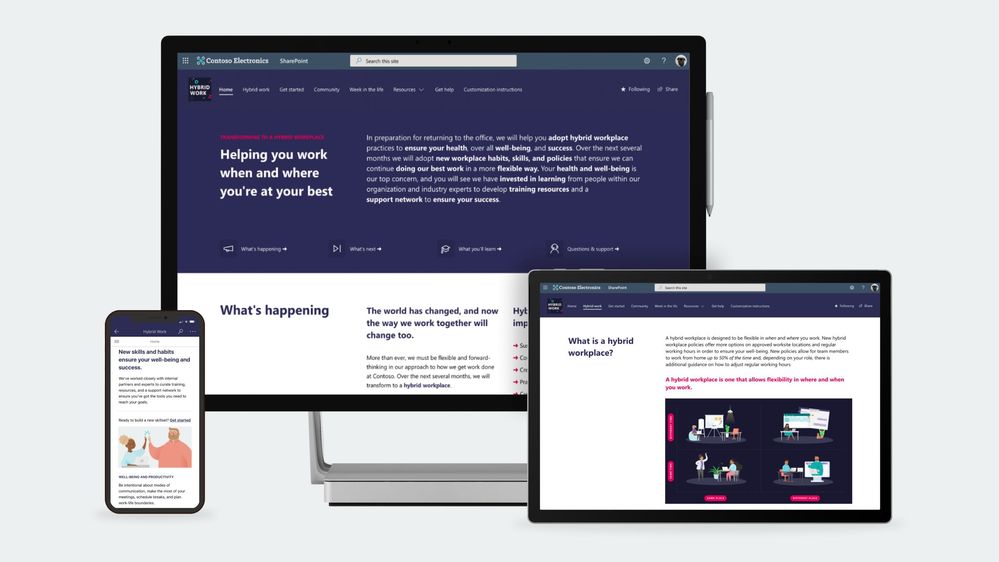
The pandemic has fundamentally changed how we all live, learn, and work. As we begin to recover from the pandemic and plan our return to the office, many organizations are rethinking the future of work:
- Over 80% of managers surveyed expect to have more flexible work from home policies post-pandemic.
- More than 70% of the employees and managers reported a desire to continue working from home at least part-time.
Source: Harris Poll survey commissioned by Microsoft, May 2020
At Microsoft, we believe the future of work is hybrid. The essence of hybrid work is extreme flexibility, in terms of where and when people work. Organizations are creating new policies that empower employees to spend some portions of their week working from home, as well as flexible working hours. While certain measures may need to be put in place to optimize hybrid workplace functions, there is no turning back when it comes to the future of work. A large majority of people prefer a mix of remote-work and office-work instead of a return to the traditional work model, or permanent all-remote work.
As we return to the workplace, moving to a hybrid work model will not just be about continuing the great work-from-home experiment many of us have been participating in for almost 12 months now. We will need to change our behavior by developing new skills and habits to help us stay healthy, finding new ways to engage and stay connected as we adopt this new way of working. It is going to take a collective effort for organizations to make a successful transition to a hybrid workplace.
There are big changes ahead for those of us moving to a hybrid work model. Like any organizational change initiative, we must be thoughtful about how we guide people through the journey. If not, organizations face risks such as decreased productivity, increased turnover, or employees that are just not engaged.
To help our customers lead their organization’s transition to a hybrid workplace we have launched a SharePoint site template on the SharePoint look book called the Workplace transformation site as well as new end-user training to help employees learn new habits and skills that support hybrid work.
Workplace transformation site
The Workplace transformation site template helps organizations:
- Inspire employees on the new possibilities the hybrid workplace offers.
- Provide employees with the information, resources, and support they will need to buy-in and adopt the new way of working.
- Prepare employees for a successful transition to a hybrid workplace with a change journey checklist and quick tips.
The Workplace transformation site features:
- A fully configured and customizable hybrid work transformation site built on SharePoint communication sites: The Workplace transformation site brings together information architecture, pre-populated content, site design and webparts to help inform and support employees through the transition to a new way of working. The site can be customized to add your organization’s content and to align with its look and feel.
- Hybrid work checklist: Any organizational change initiative can be stressful for employees. Help your employees through the change process by providing them a curated change journey checklist. Guide employees through organizational changes with a customizable activity list of tasks such as required training courses and learning events.
- Inspirational help content: Understanding how the day-to-day workplace will change in the new hybrid model is key to helping onboard employees. The Workplace transformation site includes “quick tip” guides for employees and managers, and a week in the hybrid workplace content.
- Support resources: As employees’ transition to a hybrid work model, they will need multiple levels of support from self-service support like FAQs to one-on-one help from champions. The hybrid work transformation site includes a champions program overview page, a Yammer community web part, and pre-populated FAQs to help support employees.
- Mobile-ready: The Workplace transformation site can be easily accessed on mobile devices so employees can continue their hybrid work transition journey from wherever they may be working.
Hybrid work end user training
To help employees develop new hybrid workplace habits and discover new tools that set them up for success, we have developed new end-user training content based on Microsoft research insights. The training content is focused on collaboration and meetings in a hybrid world, using asynchronous collaboration methods, well-being, productivity, security, and data protection. Embed hybrid workplace training content into your Workplace transformation site using Microsoft 365 learning pathways – a free, on-demand training solution. Microsoft 365 learning pathways can be easily deployed in your Microsoft 365 tenant environment and can be used to customize new hybrid work training playlists to suit your organization, along with other Microsoft-maintained product training playlists.
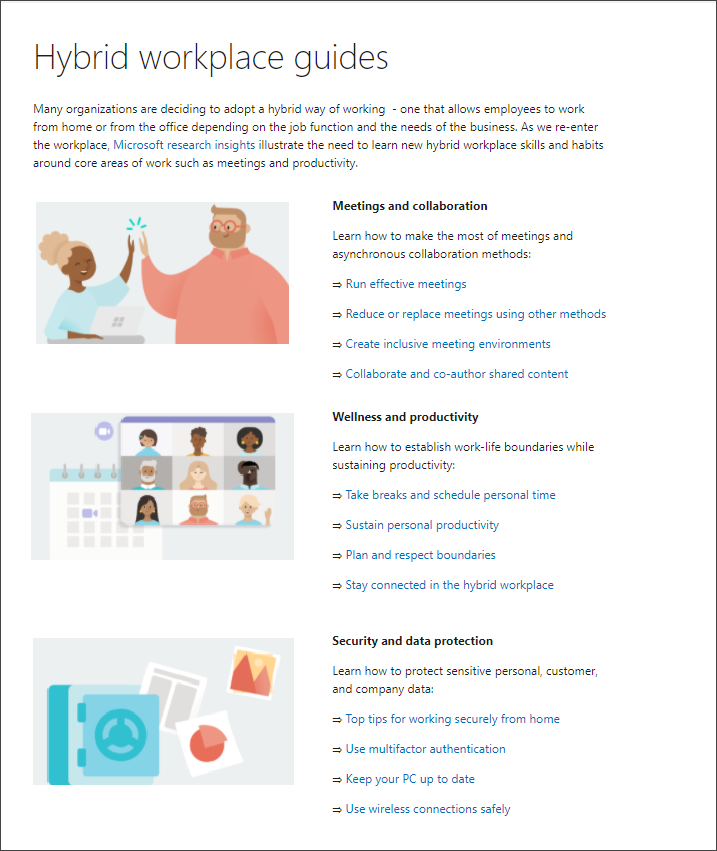
Learn more about the Workplace transformation site template and new end user training. Provision the Workplace transformation site to your tenant today and customize it to help your colleagues transition to a new way of working.
Frequently asked questions:
Question: What are the requirements for installing the Workplace transformation site into my tenant environment?
Answer:
Ensure SharePoint Online is enabled in your environment.
The individual that will provision the hybrid work transformation site must be the tenant admin.
Question: How long will it take to install the site in our tenant environment?
Answer: Based on our testing of the installation, it should take 10 minutes or less. Individual tenant configurations could cause differences in installation duration. This does not include time to customize the site to your organizations’ requirements.
Question: What customization options are available for the Workplace transformation site?
Answer: The site can be fully customized to fit the needs of your change management project, users, and organization. Review the Workplace transformation site template provisioning and customization guidance before getting started.

In this installment of the weekly discussion revolving around the latest news and topics on Microsoft 365, hosts – Vesa Juvonen (Microsoft) | @vesajuvonen, Waldek Mastykarz (Microsoft) | @waldekm, are joined by UK-based Office Development MVP, MCT, MCM, focused on Microsoft 365, Microsoft Teams, mobile and AI/ML – Bill Ayers (Flow Simulation Ltd) | @SPDoctor.
In this session Bill shares his tips on dealing with data overload, technology updates, event management, and religious like enthusiasm. His advice – learn broadly, go deep as necessary to solve specific problem, avoid reacting to notifications, beware of same functionality, new name. Adopt latest technology when clear business reason is established.
The session was recorded on Monday, February 15, 2021.
Did we miss your article? Please use #PnPWeekly hashtag in the Twitter for letting us know the content which you have created.
As always, if you need help on an issue, want to share a discovery, or just want to say: “Job well done”, please reach out to Vesa, to Waldek or to your Microsoft 365 PnP Community.
Sharing is caring!

In this installment of the weekly discussion revolving around the latest news and topics on Microsoft 365, hosts – Vesa Juvonen (Microsoft) | @vesajuvonen, Waldek Mastykarz (Microsoft) | @waldekm, are joined by UK based MVP and Developer focused on Teams, Bots and Voice – Tom Morgan (Modality Systems) | @tomorgan.
Topics raised in today’s discussion include voice extensibility, Microsoft Teams – the OS for work, and the value of integrating communications into apps or business processes enabling users to take action without having jump from environment to environment. Viewing the Microsoft Graph as APIs organized by workload with the benefit of shared authentication and discussion and articles on the recent Microsoft Viva announcement.
The session was recorded on Monday, February 8, 2021.
Did we miss your article? Please use #PnPWeekly hashtag in the Twitter for letting us know the content which you have created.
As always, if you need help on an issue, want to share a discovery, or just want to say: “Job well done”, please reach out to Vesa, to Waldek or to your Microsoft 365 PnP Community.
Sharing is caring!

In this installment of the weekly discussion revolving around the latest news and topics on Microsoft 365, hosts – Vesa Juvonen (Microsoft) | @vesajuvonen, Waldek Mastykarz (Microsoft) | @waldekm, are joined by Ed Everett, Principal Group Program Manager from Microsoft, leading the platform extensibility efforts for OneDrive and SharePoint areas.
The trio talk about continued integrations of infrastructure and app platform across Microsoft 365, including still tighter integration with Microsoft Teams, Microsoft Graph, Power Platform, resource-based consent for app development, several SPFx updates, and more on forms customization.
The session was recorded on Monday, February 1, 2021.
Did we miss your article? Please use #PnPWeekly hashtag in the Twitter for letting us know the content which you have created.
As always, if you need help on an issue, want to share a discovery, or just want to say: “Job well done”, please reach out to Vesa, to Waldek or to your Microsoft 365 PnP Community.
Sharing is caring!

One of my favorite quotes about design comes from Mad Men. This quote says a lot about how we think of site headers for SharePoint Online and how we create layouts.
“Make it simple, but significant.” – Don Draper, Mad Men, Season 4, Episode 6, “Waldorf Stories”
Hand holds open a color swatch book displaying multiple colors.
Branding your site header is an easy way to provide impact and expression to your SharePoint sites. Over the years we have heard great feedback from our customers that they would like more options for site headers. With this feedback in mind, we recently introduced 2 new site header layouts – Minimal and Extended. But this is not all we heard, so we added more header configuration options giving you more control over the elements in your headers. These simple and small changes can have a big impact on the look of your site. Each header can be used for different reasons and we want to go through a few of these options and recommendations with you.
By combining site logos, site headers, footers, and themes you can make striking changes to emphasize your brand within each site. Picking the right combination of options amongst the site header layouts and configuration options can emphasize or minimize the impact and focus of the brand and content.
When you begin to think about your site header, it is important to first understand what information is available to be included in the header. With this knowledge you can make informed choices about the layout and configuration options to truly make your brand shine on each site.
Content can be included in site headers:
Element
|
Description
|
Site Type
|
Recommendations
|
Site Logo
|
Larger logo that can be non-square and transparent based off design uploaded
|
All
|
Size: 192 px width 64 px height
Format: PNG, JPEG, SVG (svg not allowed for Group connected sites)
|
Site Logo Thumbnail
|
A square logo thumbnail that is used if no site logo is uploaded or in places that a square format is required
This element is required.
|
All
|
Size: 64 px width; 64 px height
Format: PNG, JPEG, SVG (svg not allowed for Group connected sites)
|
Site Title
|
Text displayed for the site title.
This element is required.
|
All
|
Avoid repeating text in the site logo and site title if both are desired to be displayed
|
Extended Layout Site Logo
|
The extended header layout has an extended site logo width.
|
All
|
Size: 300px wide x 64px height
Format: jpeg, png, svg
|
Extended Layout Background image
|
A new background image that can be utilized with the extended header.
|
All
|
Size: 2560px wide x 164px height
Format: jpeg, png
|
Horizontal Site Navigation
|
Navigation specific to the site in either Mega Menu or Cascading format
|
Communication
|
|
Vertical Site Navigation/Quick Launch
|
Navigation specific to the site that appears on the left side of the site
|
Team
|
|
Site Label (4 types)
|
1. Site Classification sets a label on a SharePoint site to protect and identify the content within the site.
2. Sensitivity labels are used across containers and can be applied to SharePoint sites as well as other Microsoft 365 products consistently.
3. Information Barriers indicator if configured and applied to the site.
4. Privacy Setting is a setting applied to the M365 Group for the site.
|
All
|
The type of site label is defined by what is configured for your tenant and type of site. This can vary from site to site based off your organizations policies.
|
Following
|
An indicator of whether the user has followed the site or not.
|
All
|
|
Share
|
A quick action icon to easily share the site with other users.
|
All *except private channel sites connected to Teams
|
|
Membership
|
A count of the current members of a site/group are displayed if available.
|
Group connected team sites *except private channel sites connected to Teams
|
|
Multilingual Picker/Language
|
A language selector for the page if multilingual has been configured for the site.
|
All where configured
|
|
With all these potential items that could be included in your site header, you will need to decide for each site how you want to present the content and intended use of your site. With these factors in mind, you can make the right choices for layout and configuration. For many sites, the focus might be the brand or showcasing a new concept, while for others the focus might be the contents of the site and information on the pages. Each header layout can assist in promoting the intent of your site and highlight your brand at the same time.
Let us start with the common header elements, once you determine the purpose of your site and select the theme that you wish to utilize, you can look towards the site header to provide information and impact for the site. The theme selected is an important related factor for your site header as it will determine the colors utilized in the header. You will make these selections through the Change the Look panel accessed through the Settings gear.
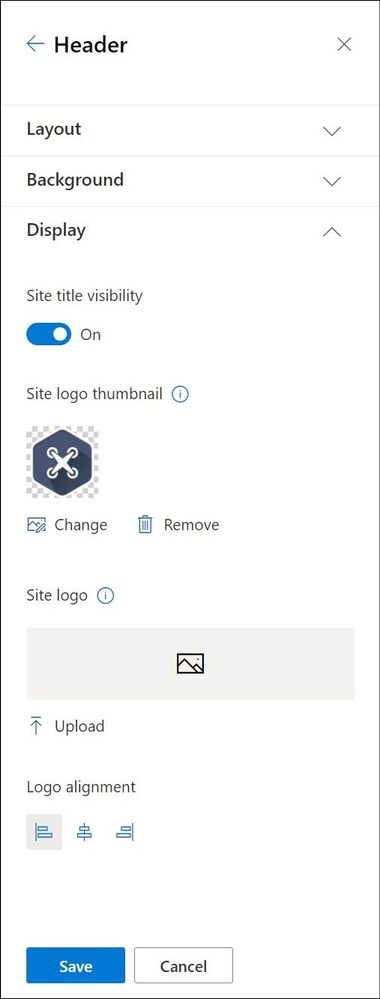
An expanded view of the Change the Look panel for Headers.
|
The site logo is one of the first visual elements that a user will interact with and view on your site. You can use this logo to highlight your brand, create a wayfinding element, or provide information about the site. In the past you could utilize a non-square transparent logo or the provided square icon.
However, we heard feedback that many people would like to utilize the non-square transparent logo and control how their site logo appeared in the square aspect ratio utilized in some SharePoint features. With this in mind, we are introducing the site logo thumbnail. The site logo thumbnail is required for every site and upon site creation we provide an icon that is autogenerated using an Office color and the initials of the site title.
In addition to the site logo thumbnail, we also have the site logo. This optional logo allows the upload of a non-square, transparent logo that will be displayed in the site header and other SharePoint features not utilizing the square aspect ratio.
The next visual element that a user will interact with in the site header is the site title. The site title is a required element in a SharePoint site, but is often repeated as text displayed within the site logo. As we heard from our customers, this repetition has a negative impact to the users. With the understanding of the value of having a text site title for uses within SharePoint, we have included the option of hiding the visibility of the site title text in the site header.
Once you have made decisions about the site title and the site logo, you will want to shift your attention to exactly how these elements will be presented on the site. The site header layout options will give you multiple options for combining all the possible elements into a single presentation. SharePoint now has 4 different site header layout options, each with advantages and potential visual impact for your site.
|
Minimal Header
 SharePoint Minimal site header
The Minimal Header layout option is our smallest site header and will work best for sites where you want to provide a clear focus on the content or the hub navigation. This header utilizes the smallest height and the smallest site logo size possible. With the minimal nature of this header, it provides the least visual weight and impact on your site.
To best create a minimal header, we have minimized the content that is included in this header layout, you will find additional content in the overflow menu to the right of the header, including the multilingual language selector. The minimal header should be used very strategically on sites where this restricted content in the header will work best.
It is important to note that if you choose to use this minimal header layout for a multilingual sites the language selector is included in the ellipsis overflow menu.
Compact Header
 SharePoint Compact site header
If you use the site header layout of Compact, you will see an increase in the height of the site header and a single line of content across the header area. This layout option is best suited for most of your communication and team sites, allowing you to optimize the space afforded for your site content with a smaller height that includes the most information. Due to the flexibility of the compact header, it is the default header layout provisioned with each site.
With the compact layout you can provide additional wayfinding and identifying information by uploading a site logo. The site header background color, you can also add visual impact to your header with a header background color from your selected site theme.
Standard Header
 SharePoint Standard site header
The standard header layout increases the height of the site header and splits the site information into multiple lines for display purposes. This header layout is a good choice if you have a site not connected to a hub and have additional room to allow for the larger height.
You can also optimize the standard site header with a header background color from your site theme and site logo to highlight the site and give emphasis to site specific wayfinding.
Extended Header
 SharePoint Extended site header
The extended header layout is the largest layout option that introduces a secondary area to provide a separate area for a background image or color. This layout should be utilized for sites that want to provide impact or become a showcase site for your organization brand or concept within your organization. For additional visual weight we have increased the maximum width site logo that can be included to provide additional impact and introduced the ability to align the logo left, center or right within the header. The site information and navigation (depending on site type) are moved below to a separate site theme colored bar for increased accessibility on these items.
There are some notable exceptions in behavior based on site type for the extended header. If your site is a Hub site and has been designated as Home, and you are utilizing the Extended Header, the site navigation will be removed. For these Hub + Home sites the Hub navigation bar will move to the bottom of the background image as the only navigation presented. If you are utilizing a team site template, you will notice that the navigation will continue to be presented on the left as the quick launch and not in the site header.
As you begin to explore using the extended header, there are a few design recommendations for how you should think about and design the extended header background images. These images will need to scale to fit both wide and small screens, without conflicts and introducing accessibility issues for the site logo and site title. We encourage you to think about these header background images in 3 distinct categories:
Brand Pattern:
By utilizing a pattern that is related to your brand in either shapes or colors, you can create a design that is visually appealing, while maintaining the appropriate open spaces for the site logo to avoid conflicts and potential accessibility issues with the site logo. These patterns will add great visual detail to your site.
Tips for creating brand patterns for your site headers:
- Use colors that are a part of your brand and related to the site theme.
- Repeating shapes, colors, and details can provide interest and simplicity.
- Keep your pattern simple.
 Brand Pattern samples for extended SharePoint site header
Brand Photography:
A picture speaks a thousand words as they say, however photography is especially challenging in reduced height spaces like the site header that will need to scale for large and small width screens. Utilizing photography tied to your brand allows you to be specific on the items included in the photographs so that it relates to the content within the site, while also controlling the amount of visual focal draws within the image to keep clear focus on the site logo and site title.
Tips for picking photography for your site headers:
- Avoid the introduction of numerous visual elements.
- Keep colors to a minimum.
- Be aware of color contrasts.
- Provide clear open space for your site logo and site title.
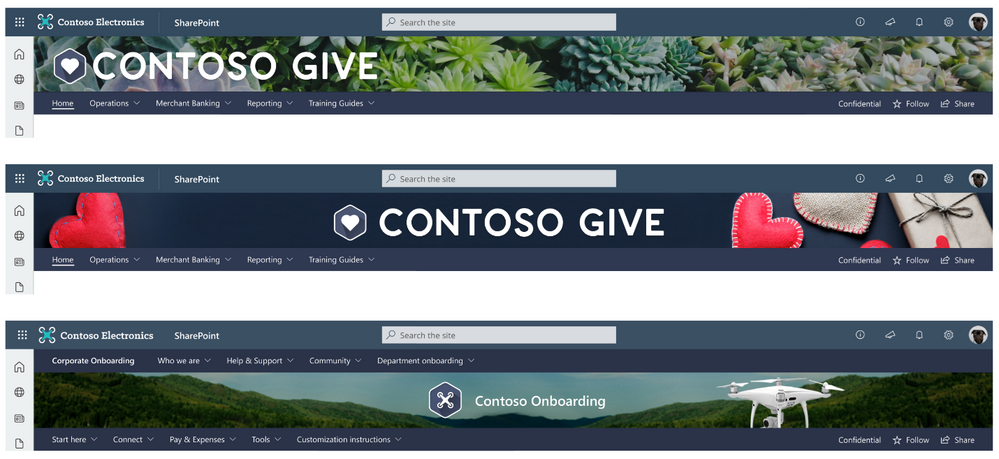 Brand photography samples SharePoint extended site header
Brand Illustration:
By creating an illustration for your site header, you can tie the content of the header to the visual elements of your image in a noticeably clear way. By custom tailoring an illustration for your brand and the site contents, you are able to increase the connection impact of your visual elements to the subject of the site.
Tips for brand illustrations in your site header:
- Minimize colors utilized in your illustration.
- Create or use illustrations that reinforce the content or focus of your site.
 Brand Illustration samples SharePoint extended site header
Brand can play a vital role in your portals and sites; these options will allow you to create the perfect introduction of your site to your users. As you can see, all these changes to site headers really took Don Draper’s advice to heart. While they are simple, they are significant.
No matter if you want to make a big splash, or provide minimal interruption, you cannot go wrong with any of these site header options. The additional configuration options for the site title and site logo thumbnail allow you to control the presentation of the visual and text elements for your site and brand throughout the SharePoint features. With these great options for site headers, we are excited to see the great ways that you use each of these layouts to enhance your SharePoint portals and experiences.
Want to learn even more about designing beautiful SharePoint sites, watch a full session in the Video
Hub:

 Project management
 Event planning
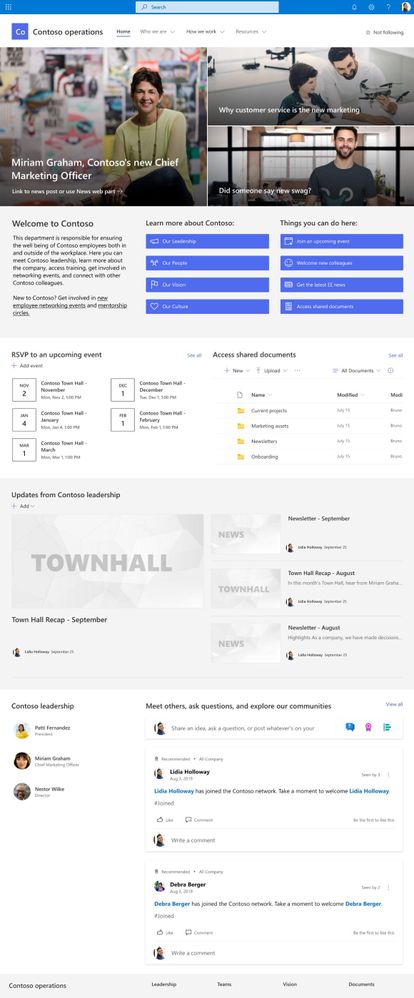 Department
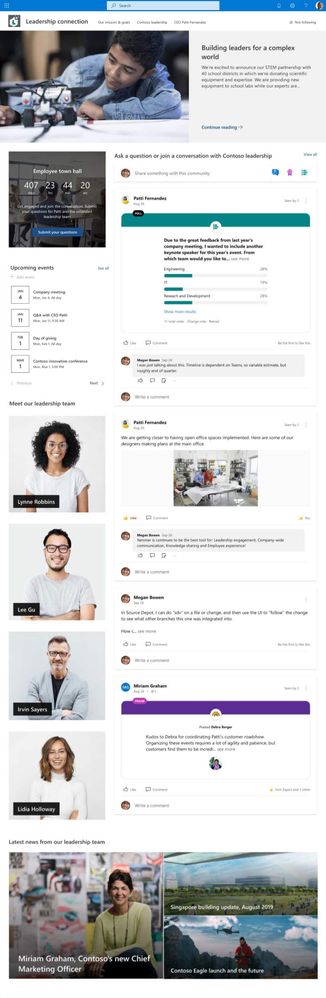 Leadership connection
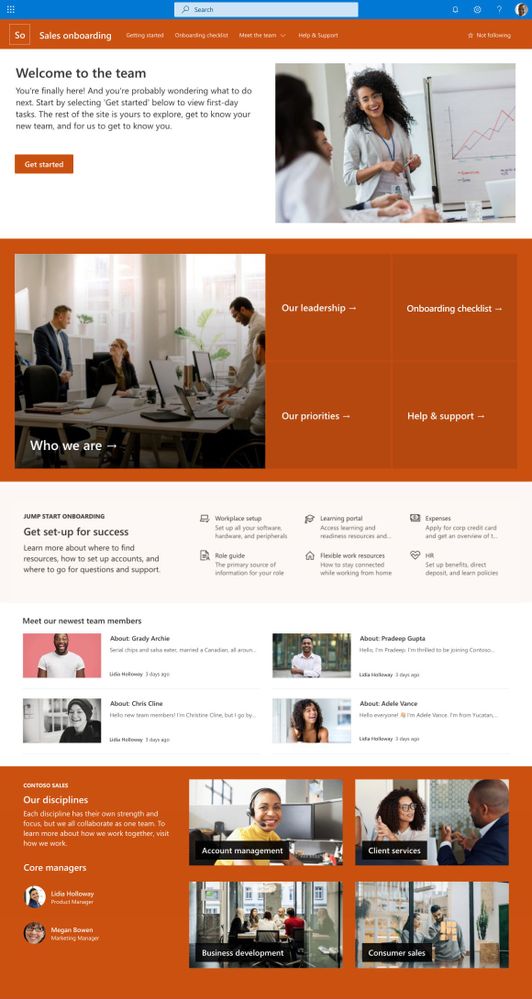 New employee onboarding
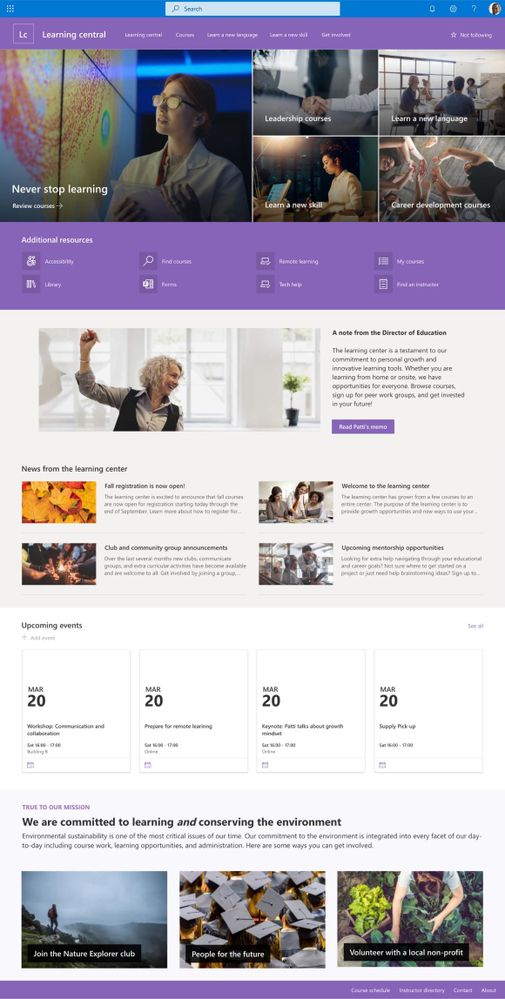 Learning central
 Training and courses
 Training and development team






