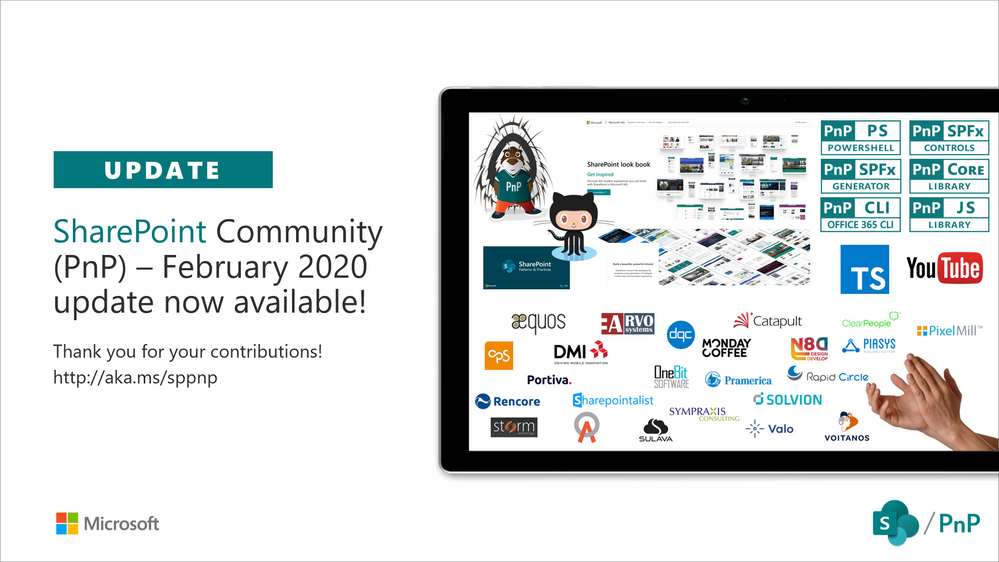
Latest monthly summary of SharePoint Development guidance for SharePoint Online and on-premises is now available from the SharePoint Dev Blog. Check the latest news, samples and other guidance from this summary.
SharePoint in Microsoft 365 is continuously evolving and improving, especially in areas where Microsoft can refine the first-run experience and guide people to the best use and adoption of the technology that supports their day to day.
Today, we expand the in-product help that appears at the top-right of your SharePoint team sites – to make people’s first SharePoint experiences with sites that much easier and actionable. This is especially true for those who help manage sites and train people at scale within your organization. The question is, how do you get the most out of SharePoint and other integrated apps today? How do you ensure a great first-run experience for your people? What is the next step?
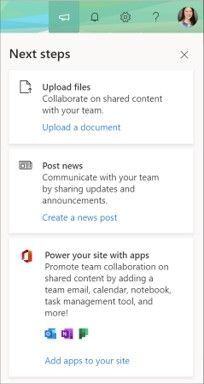
SharePoint Next steps appear when you click on the megaphone icon in the upper-right of the site.
The answer lies in two options: one “self-service” approach and one “at-scale” method:
- Self-service | people click Next steps and choose from the suggested tips to improve teamwork collaboration.
- At-scale | SharePoint admins perform bulk operations across multiple SharePoint sites at once
No matter which option you choose, your site(s) get improved list and library experiences, an updated home page, and mobile readiness. You, too, can the added benefit from other integrated apps such as Planner and Outlook; this process is often referred to as “groupify” as it begins with adding a new Office 365 Groups membership. Updated sites then present helpful, first-run experiences to guide people through the upload of their first set of files, posting news articles for other team members, and adding others as new members.
And with one additional, sequential step you add a Microsoft Teams team as an additional app for your team members to bring communication alongside content; this is sometimes referred to as “teamify” as you are adding a Microsoft Teams team to your team site; yes, a mouth full, but well worth using beyond saying.
Let’s dive into the details of both options …
Self-service “Next steps” tips improve SharePoint site first-run experiences
We’re expanding the in-product help that appears at the top-right of your SharePoint team sites. More and more, SharePoint in Microsoft 365 helps people get the most value from new sites by providing contextual, actionable help. And today, we’re pleased to announce the expansion and location of the Next steps panel.
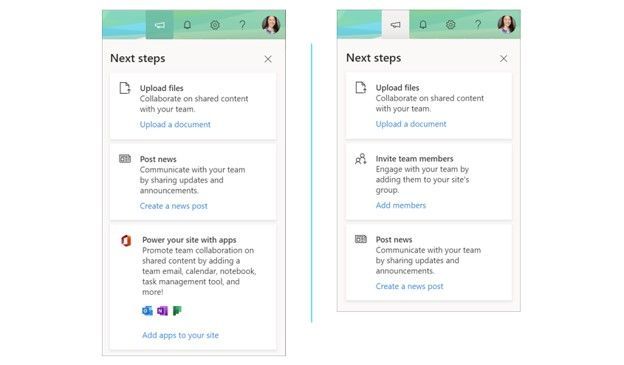 Left-to-right: “Next steps” showing from a classic team site and “Next steps” showing from a group-connected team site. Simply click on the megaphone icon to bring up “Next steps” tips from the Office 365 suite header at the top of the SharePoint site.
The SharePoint site “Next steps” panel provides helps for a great first-run experience. All to help you move forward as a team and work out-loud and with confidence and awareness on how everything works in and around your SharePoint site interaction.
Currently there are four tips (cards) site members and owners may see within the Next steps panel:
- Upload files – Collaborate on shared content with your team; encourages people to Upload a document.
- Post news – Communicate with your team by sharing updates and announcements; helps Create a news post the first few times.
- Invite team members – Engage with your team by adding them to your site’s group; makes it easier to see how to Add members.
- Power your site with apps – Promote team collaboration on shared content by adding a team email, calendar, notebook, task management tool, and more; integrates additional capabilities when you Add apps to your site. #groupify
These tips help your users customize and improve their team sites. Tips are useful for anyone learning more about SharePoint or setting up a new team site for the first time.
Note: the “Power your site with apps” card will appear only on classic SharePoint team site that have not yet connected to a new Office 365 Groups group. Once this update has run, that option will no longer appear for that team site and the additional “Invite team members” may then appear.
For clarity, we also wanted to take a moment to highlight the other four top-right icons you will see above and to the right of your site – next to Next Steps:
- Notifications – people will see various alerts from across Microsoft 365 services based on their notification’s preferences.
- Settings – this gives access to deeper level site settings, like Site contents, Site information, Site usage and more.
- Help – this pulls in contextual “how to” information from support.office.com
- Your Office profile – where you can be you and adjust your account settings and Office profile.
Note: “Connect site to a new Office 365 group” may still appear in upper-right gear icon. This is the same as the new “Power your site with apps” Next steps card.
Learn more how to connect your SharePoint team site to a new Office 365 group.
At-scale, SharePoint admins plan and move multiple sites to modern experiences
Beyond individual site owners being able to connect to new Office 365 Groups from either the new Next steps action described above, it’s important to note that SharePoint admins can do this at scale using bulk operations across numerous sites deemed ready for modernization.
You can perform a bulk operation (known as a group-connection) in which you connect an Office 365 group to a series of sites at one time. This option is preferred for enterprise customers because it enables you to control the configuration (public/private, site classification, alias name) – and save time doing it on behalf of people and sites that qualify and request it.
Below are the two main steps to plan and execute the move to the latest SharePoint and Office 365 Groups experiences at scale:
FIRST | Use the Modernization Scanner tool to better understand classic SharePoint sites and the available capabilities to modernize them. The tool provides factual data about optimizing lists and libraries, connecting to Office 365 Groups, rebuilding classic publishing portals, workflow, blogs and more. Using the dashboards generated by the scanner you’ll be able to better assess the readiness of your sites and plan moving forward and any suggested remediation guidance.
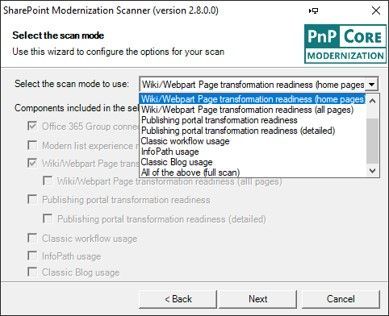 Select the SharePoint Modernization Scanner option you want in the dropdown and then the checkboxes will show which components will be included in the scan. The “Office 365 Group connection readiness” component is the main component that will be included all scan modes.
Select the SharePoint Modernization Scanner option you want in the dropdown and then the checkboxes will show which components will be included in the scan. The “Office 365 Group connection readiness” component is the main component that will be included all scan modes.
Learn how to get started with the SharePoint modernization scanner. And then download the SharePoint Modernization Scanner and try it today.
SECOND | Programmatically modernize your sites using a CSV files and bulk group-connect PowerShell script. After running the scanner and processing the results, you have identified which sites are ready to group-connect. The next step is to prepare a CSV file to drive the bulk group-connection process.
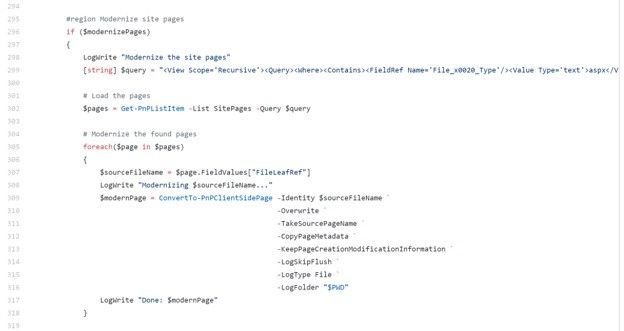 Section of the sample PowerShell script to modernize SharePoint pages.
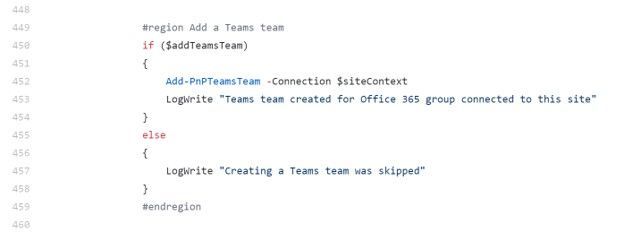 Section of the sample PowerShell script to create a new Microsoft Teams team and associated it to the SharePoint site.
As you move through the options of what you can do, note you’ll be able to:
- Add a Microsoft Teams team to each SharePoint site
- Modernize all the pages within each site
- Clean up site branding
- Apply a tenant theme to each site
Learn how to connect new Office 365 groups to across multiple sites at once (includes sample PowerShell script); this, too contains a best practices guide to managing SharePoint modernization projects.
Wrapping it up…
We recently spoke to Nicole Woon (Twitter | LinkedIn), a program manager at Microsoft. She helped update the above-mentioned “Next Steps” experience for SharePoint sites. In the podcast episode, I interview Nicole about this new feature update and dig into the design, customer use and future action cards that help customers have a great first-run experience with SharePoint sites:
You, too, can learn from the person behind the modernization tool, Bert Jansen (Twitter | LinkedIn), as he shares how to get started transforming classic SharePoint sites to modern experiences using the admin patterns, practices and tools mentioned above:
We hope you enjoy not only the move to more modern experiences, but improved ways to support your growth and engagement throughout your organization.
What is the next step? Click Next steps and see.
Thanks, Mark Kashman – senior product manager – Microsoft
![Microsoft Graph Security API add-on is now available for Splunk Cloud!]()
The Microsoft Graph Security API add-on for Splunk is now supported on Splunk Cloud, in addition to Splunk Enterprise, and includes support for Python 3.0. The support is enabled as an enhancement to the Microsoft Graph Security API add-on for Splunk released last year. Refer to the Microsoft Graph Security API add-on for Splunk announcement blogpost for further details. This add-on enables customers to easily integrate security alerts and insights from their security products, services, and partners in Splunk. The Splunk add-on is built by Microsoft, certified by Splunk, and is available on Splunkbase at no additional cost.
This add-on, powered by the Microsoft Graph Security API, supports streaming of alerts from different Microsoft solutions like Microsoft Defender ATP, Azure Sentinel, Azure Security Center, and more into Splunk using a single add-on and common schema, enabling easier correlation of data across these products.
Note: If you have an earlier version of the Microsoft Graph Security API add-on installed on Splunk Enterprise, and upgrade to this version, please follow the upgrade guidance to reconfigure your inputs.
Getting Started
Choose one of these options depending on your scenario.
Scenario: New Installations on Splunk Cloud or Splunk Enterprise
Follow these steps to install and configure this app as a first-time add-on user. Refer to the documentation for more details.
- Register your application for this Splunk add-on on Azure portal.
- Configure permissions and be sure to add the SecurityEvents.Read.All permission to your application. Get your Azure AD tenant administrator to grant tenant administrator consent to your application. This is a one-time activity unless permissions change for the application.
- Copy and save your registered Application ID and Directory ID from the Overview page. You will need them later to complete the add-on configuration process.
- Generate an application secret by going to Certificates & secrets Save the generated secret as well for add-on configuration purposes.
- In Splunk, click on Find More Apps to browse more apps.
- Search for Microsoft Graph Security as shown below (the picture below is on Splunk Cloud).
 Find the add-on
- Installation of the add-on
- For Splunk Enterprise – Install Microsoft Graph Security API add-on for Splunk. Restart, if prompted to do so.
- For Splunk Cloud – This add-on requires an Inputs Data Manager (IDM) on Splunk Cloud. Contact Splunk Cloud support per the Splunk Cloud IDM installation guidance.
- Verify that the add-on appears in the list of apps and add-ons as shown in the diagram below.
 Add-on installed
- Set up a new account in the Account tab in the Configuration page. Then click Add to create an account.
- Enter a unique Account Name, the Application ID and Client Secret registered in abovementioned steps 1 through 4 as shown in the diagram below.
 Add account
- Configure Microsoft Graph Security data inputs illustrated in the diagram below as per the detailed guidance in the section Configuring Microsoft Graph Security data input. This add-on provides the capability to pre-filter your data by specific alert providers or by alert category or severity, etc. by specifying the OData Filter field as shown in the diagram below.
 Add input
- Now you can use your Microsoft Graph Security alerts for further processing in Splunk, in dashboards, etc.
If you have Splunk and relevant add-ons running behind a proxy server, follow the additional steps for Splunk behind a Proxy Server in the installation documentation for this add-on. For specific guidance on distributed set up, follow the steps in Where to Install the add-on in the installation documentation for this add-on
Scenario: Upgrade on Splunk Enterprise
If you have an existing version of the add-on installed on Splunk Enterprise that is lower than this version (1.1.0), the best practice recommended is to remove your older version of the Microsoft Graph Security API add-on for Splunk before re-installing version 1.1.0 of the Microsoft Graph Security API add-on for Splunk per abovementioned guidelines.
If you are upgrading on Splunk Enterprise, follow these steps.
- Disable all your inputs before you upgrade the add-on. Otherwise you may see errors in the log files which may result data loss against your already configured inputs.
- On the app list, navigate to the Microsoft Graph Security add-on for Splunk, to see an option to upgrade the app. Click on Update button.
- A new screen appears with the standard Splunk Terms to upgrade an app. Click Accept and Continue.
 Splunk terms
-
Enter your username and password to log in the app. Click Login and Continue.  Login and continue
- After login, an Overview page appears, and the Update button disappears. Follow the instructions in the Configuring Microsoft Graph Security data inputs section in the installation documentation for this add-on to get alerts from Microsoft Graph Security API using the new configuration experience
Closing
We would love your continued feedback on this add-on. Please share your feedback by filing a GitHub issue.
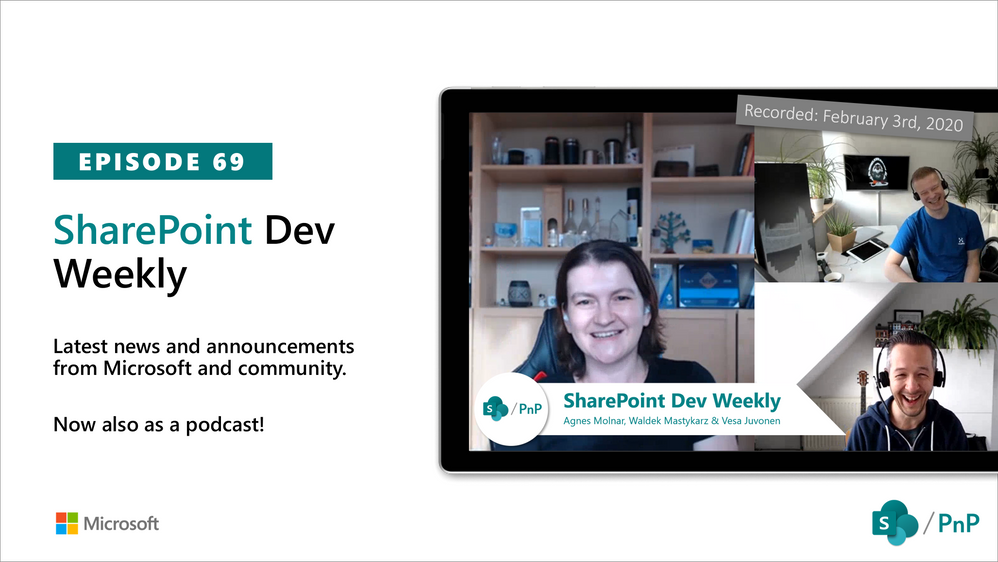
In this session of SharePoint Dev Weekly, hosts – Vesa Juvonen (Microsoft), Waldek Mastykarz (Rencore), and typically a special guest from the SharePoint PnP Community, discuss the latest news and topics around SharePoint development.
In this episode, Vesa and Waldek are joined by Agnes Molnar, owner of Search Explained based in Budapest, delivering consulting and training services worldwide. In addition to drawing attention to the recent advancements being delivered by the SharePoint Community and Microsoft, Vesa, Waldek and Agnes’ discussion this week centered on why search is again cool.
This episode was recorded on Monday, February 3, 2020.
2020 is officially here and we are ready to help you understand and master all the possibilities that are available in the new modern SharePoint. If you haven’t had a chance to sign up for our hands-on Intelligent Intranet Accelerator Workshop yet, now is your chance.
We have a team of enthusiastic SharePoint, One Drive, Yammer and Stream experts traveling the globe in 2020. From half-day workshops to multiple day shows with breakouts and hands on training, the team is ready! No matter where you are in the world, we will be close by to help you discover the art of the possible with Microsoft and SharePoint technologies. Come see the team at an event near you!
February 2020
February 7 – The Intelligent Intranet Accelerator Workshop- Featured as part of Microsoft Ignite The Tour, Washington DC
As part of Microsoft Ignite The Tour, the Microsoft Intelligent Intranet Accelerator Workshop will bring a deeply technical and immersive hands-on experience where you will build real-world applications to connect, succeed, and engage – faster. You will enjoy a plethora of keynotes, breakout sessions and one-on-one networking opportunities. This free event provides technical training led by Microsoft experts and your community. You’ll learn new ways to build solutions, migrate and manage infrastructure, and connect with local industry leaders and peers.
Register Today!
February 11 – The Intelligent Intranet Accelerator Workshop- Featured as part of Microsoft Ignite The Tour, Dubai
The Microsoft Intelligent Intranet Accelerator Workshop is a hands-on session within Microsoft Ignite The Tour in this location. By registering, you’ll receive instant access to not only the Microsoft Intelligent Intranet Accelerator Workshop, but also the free 2-day Microsoft Ignite The Tour.
Register Today!
February 12 – The Intelligent Intranet Accelerator Workshop – Hosted at the Microsoft Offices in Sydney, Australia
Get inspired with the art of the possible at the FREE Microsoft Intelligent Intranet Accelerator Workshop. Complete the registration today and reserve your spot in your city. By attending the workshop, you’ll walk away with the tools and capabilities necessary to accelerate your time-to-value.
Register today!
February 18 – The Intelligent Intranet Accelerator Workshop- Featured as part of SPTechCon San Francisco 2020
Featured as a part of SPTechCon San Francisco 2020, the Microsoft Intelligent Intranet Accelerator Workshop will bring a deeply technical and immersive hands-on experience where you will build real-world applications to connect, succeed, and engage – faster.
Register today!
February 21 – The Intelligent Intranet Accelerator Workshop- Featured as part of Microsoft Ignite The Tour Singapore
The Microsoft Intelligent Intranet Accelerator Workshop is a hands-on session within Microsoft Ignite The Tour in this location. By registering today, you’ll receive instant access to not only the Microsoft Intelligent Intranet Accelerator Workshop, but also the free 2-day Microsoft Ignite The Tour. You will enjoy a plethora of keynotes, breakout sessions and one-on-one networking opportunities. This free tour provides technical training led by Microsoft experts and your community. You’ll learn new ways to build solutions, migrate and manage infrastructure, and connect with local industry leaders and peers.
Register today!
February 28 – The Intelligent Intranet Accelerator Workshop- Featured as part of Microsoft Ignite The Tour, Copenhagen
As part of Microsoft Ignite The Tour, the Microsoft Intelligent Intranet Accelerator Workshop will bring a deeply technical and immersive hands-on experience where you will build real-world applications to connect, succeed, and engage – faster. You’ll learn new ways to build solutions, migrate and manage infrastructure, and connect with local industry leaders and peers.
Register today!
March 2020
March 10 – The Intelligent Intranet Accelerator Workshop – Hosted at the Microsoft Offices in Amsterdam
Get inspired with the art of the possible at the FREE Microsoft Intelligent Intranet Accelerator Workshop. Complete the registration today and reserve your spot in your city. By attending the workshop, you’ll walk away with the tools and capabilities necessary to accelerate your time-to-value.
Register today!
March 25 – The Intelligent Intranet Accelerator Workshop- Featured as part of Microsoft Ignite The Tour Hong Kong
The Microsoft Intelligent Intranet Accelerator Workshop is a hands-on session within Microsoft Ignite The Tour in this location. By registering below, you’ll receive instant access to not only the Microsoft Intelligent Intranet Accelerator Workshop, but also the free 2-day Microsoft Ignite The Tour.
Register today!
April 2020
April 16 – The Intelligent Intranet Accelerator Workshop- Featured as part of Microsoft Ignite The Tour Chicago
The Microsoft Intelligent Intranet Accelerator Workshop is a hands-on session within Microsoft Ignite The Tour in this location. By registering below, you’ll receive instant access to not only the Microsoft Intelligent Intranet Accelerator Workshop, but also the free 2-day Microsoft Ignite The Tour. You will enjoy a plethora of keynotes, breakout sessions and one-on-one networking opportunities. This free tour provides technical training led by Microsoft experts and your community. You’ll learn new ways to build solutions, migrate and manage infrastructure, and connect with local industry leaders and peers.
Register today!
April 28 – The Intelligent Intranet Accelerator Workshop- Hosted at the Microsoft Offices in Berlin, Germany
Get inspired with the art of the possible at the FREE Microsoft Intelligent Intranet Accelerator Workshop. Complete the registration today and reserve your spot in your city. By attending the workshop, you’ll walk away with the tools and capabilities necessary to accelerate your time-to-value.
Register today!
May 2020
May 5 – The Intelligent Intranet Accelerator Workshop- Featured as part of Microsoft Ignite The Tour Stockholm
As part of Microsoft Ignite The Tour, the Microsoft Intelligent Intranet Accelerator Workshop will bring a deeply technical and immersive hands-on experience where you will build real-world applications to connect, succeed, and engage – faster. You will enjoy a plethora of keynotes, breakout sessions and one-on-one networking opportunities. This free tour provides technical training led by Microsoft experts and your community. You’ll learn new ways to build solutions, migrate and manage infrastructure, and connect with local industry leaders and peers.
Register today!
We hope we will see you on the road!
Register today for a city near you for our Intelligent Intranet Accelerator Workshop!
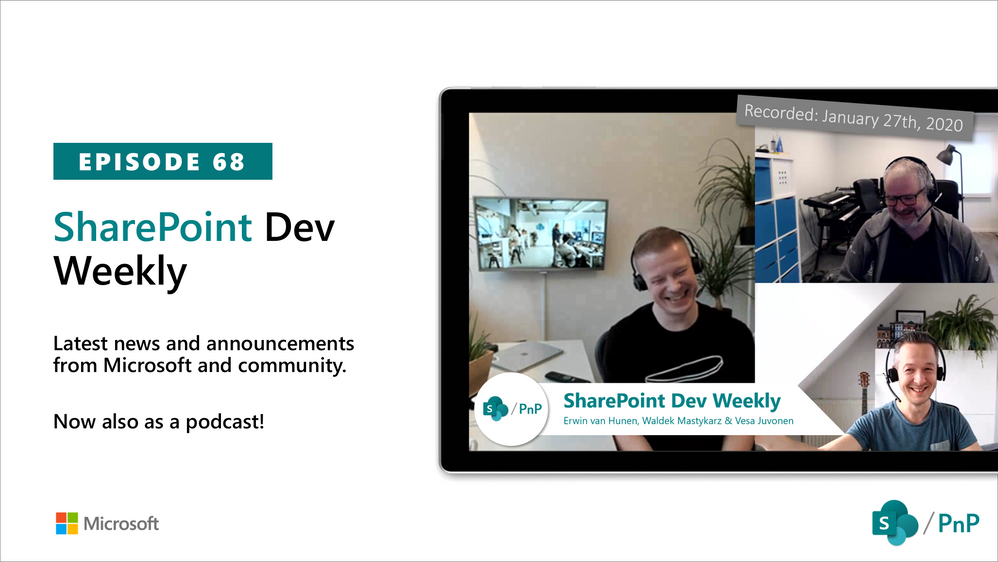
In this session of SharePoint Dev Weekly, hosts – Vesa Juvonen (Microsoft), Waldek Mastykarz (Rencore), and typically a special guest from the SharePoint PnP Community, discuss the latest news and topics around SharePoint development.
In this episode, Vesa and Waldek are joined by Erwin van Hunen – Lead architect at Valo Intranet. In addition to drawing attention to the recent advancements being delivered by the SharePoint Community and Microsoft, Vesa, Waldek and Erwin’s discussion this week focused on Erwin’s pioneering work on and evolution of PnP Provisioning and PnP PowerShell, the shaping of a tenant templating engine (support for Azure, Teams, OneDrive, SharePoint) – PnP .Net Core SDK, .NET frameworks, and tools – CLI and PowerShell.
This episode was recorded on Monday, January 27, 2020.
![Microsoft Graph Security API add-on is now available for Splunk Cloud!]()
Early last year, we launched the Microsoft 365 compliance center for Microsoft 365 E3 and E5 customers. Since then we’ve been hard at work making it a unified and comprehensive compliance administration console for all our customers. Today, we are excited to announce that we’ve shipped several new enhancements to the portal, and are making it available to all customers with Microsoft 365, Office 365, Enterprise Mobility + Security (EMS), and Windows 10 Enterprise plans.

In this release we’ve focused on three areas: integrated management, easier on-boarding, and improved controls.
Integrated management
Microsoft 365 compliance center is now truly a one-stop compliance destination. We’ve converged disparate admin experiences into one console, and we’ve built integrations with third-party data as well, giving you a single pane of glass to manage your entire compliance posture
- Converged console
Microsoft 365 compliance center is now truly a single destination to manage your compliance posture. Admins no longer need to go to the Office 365 Security & Compliance Center for compliance administration. Existing compliance capabilities within the Office 365 Security & Compliance Center are now available in the Microsoft 365 compliance center. Any data and policies authored in the Office 365 portal will automatically carry over to the Microsoft 365 one, since they share the same data back-end.
Additionally, we’ve introduced several exciting features and capabilities on the Microsoft 365 compliance center. Some of them are highlighted in this post, but you can see the full list here.
While you can choose to continue using Office 365 Security & Compliance Center by visiting protection.office.com, we encourage you to move your admin experience to the Microsoft 365 compliance center, since all the new capabilities will be available only in the new center.
2. Data connectors
You can now easily import and archive your business data from third-party social media platforms, instant messaging platforms, and document collaboration platforms. After this data is imported, you can apply Microsoft 365 compliance features—such as Litigation Hold, eDiscovery, In-Place Archiving, Auditing, Communication compliance, and retention policies—to this data. Examples of supported sources are Bloomberg, LinkedIn, Facebook, and Twitter. Learn more
 Easier onboarding
A recurring theme of feedback from you, our customers, has been that compliance is complex and it’s hard to get started. We looked at ways to make this easier and have introduced three key capabilities towards this goal.
- Microsoft Compliance Score helps you simplify compliance and reduce risks and gives you simple, actionable recommendations to improve your compliance posture.
- Solution catalog: We’ve organized our compliance capabilities into integrated solutions that help you manage an end-to-end compliance scenario. A solution’s capabilities might include a combination of policies, alerts, reports, end-user facing experiences, and more. The solution catalog is your one-stop-shop for discovering, learning about, and quickly getting started with our compliance and risk management solutions. It provides information about the benefits and target use cases for a solution, and how to get started with it. Solutions in the catalog are organized into three compliance categories: Information protection & governance, Insider risk management, and Discovery & response.

 3. Insights: To make it easier to get started with compliance, we’ve provided out-of-the-box insights into the sensitive data across various locations in your organization: Exchange, SharePoint, OneDrive for Business, and endpoints. You can easily determine the right retention and DLP policies to apply based on these insights. This feature is in public preview.


Improved administrative controls
We’ve invested in more administrative flexibility by adding new roles and enabling more customizable experiences.
- Support for new roles
We’ve added support for the much-requested Global Reader and Compliance Data Admin roles. Learn more about these roles. These new roles allow you to delegate administration tasks and reduce the number of Global administrators in your directory.
The Global Reader role can view everything a Global administrator can view without the ability to edit or change. The Compliance Data Admin role can create and manage compliance data policies and alerts.
2. Customizable experience
Every admin has different priorities when it comes to compliance. The Microsoft 365 compliance center allows you to customize your experience to suit your needs. You can customize the homepage dashboard by selecting from a catalog of cards.

You can also customize the left navigation bar by selecting and pinning the solutions that you use most frequently.

If you’re ready to try the new center out, be sure to visit the Microsoft 365 compliance center at compliance.microsoft.com today. You can learn more about the new center in this supporting documentation.
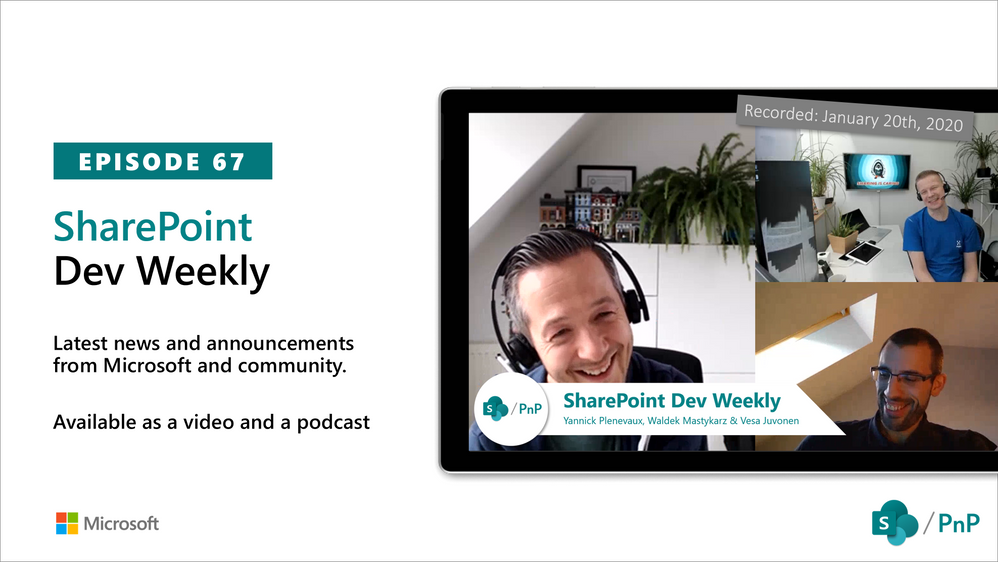
In this session of SharePoint Dev Weekly, hosts – Vesa Juvonen (Microsoft), Waldek Mastykarz (Rencore), and typically a special guest from the SharePoint PnP Community, discuss the latest news and topics around SharePoint development.
In this episode Vesa and Waldek are joined by Yannick Plenevaux – Microsoft 365 Solutions Architect, new MVP and owner of PVX Solutions, Belgium.
This episode was recorded on Monday, January 20, 2020.
![Microsoft Graph Security API add-on is now available for Splunk Cloud!]()
Security research shows most successful enumeration and brute force attacks use either NTLM or Kerberos authentication protocols for entry. In fact, they’re the most popular discovery-phase attacks Azure ATP observed in the past 12 months.
Why does account enumeration matter?
In an account enumeration attack, the malicious actor attempts to use different usernames to access a server, with the goal of discovering which users exist within the organization. Once an attacker identifies these users, a brute force attacks begins to get their credentials and move laterally within the organization toward higher-profile assets.
What is NTLM and how does it work?
The NTLM protocol authenticates users and computers, using a challenge/response mechanism designed to prove to a server or domain controller that the user knows the password associated with the account they’re trying to access. Whenever a new access token is needed for domain accounts, a resource server must contact the domain controller to verify the identity of a computer or user.
Standard NTLM authentication flow includes 2 major steps:
- The user tries to access a resource server.
- The resource server validates the user with a domain controller.

How does Azure ATP provide visibility into NTLM authentications?
Network traffic and Windows Events 4776 and 8004 capture NTLM data. In turn, Azure ATP parses the NTLM traffic and events from your domain controllers.
NTLM 8004 events provide full information on your NTLM authentications, including:
- Source account
- Source device
- Accessed resource server
- Domain controller that is doing the account validation
Why do some devices show up as “unknown” in Azure ATP alerts?
The source device in Azure ATP account enumeration and brute force detection alerts can be marked as coming from “unknown” devices, such as Workstation, MSTSC, or Unknown. This happens because the source device name field is occasionally overwritten when the attacker is already inside your organization, or when they try to enumerate accounts from the internet. This is common when the accessed server is opened to the internet and used by adversaries to enumerate users from outside the organization.
With enhanced support for Windows event 8004, Azure ATP now determines which servers were attacked and how the attacks happened.
How can Azure ATP detect the actual server accessed inside the network?
Azure ATP sensors parse Windows event 8004 for NTLM authentications. When NTLM auditing is enabled and Windows event 8004 is logged, Azure ATP sensors automatically read the event and enrich your NTLM authentications with the accessed server data.

In addition, Azure ATP now provides Resource Access over NTLM activity, showing the source user, source device, and accessed resource server:

Example of enhanced NTLM activity details
Use the following links to learn more about enabling NTLM auditing when working with Azure ATP to detect, protect, and remediate NTLM and brute force attacks:
Get Started Today
Just starting your Azure ATP journey? Begin a trial of Microsoft Threat Protection to leverage integrated defenses and unparalleled intelligence across the threat landscape to defend the modern workplace.
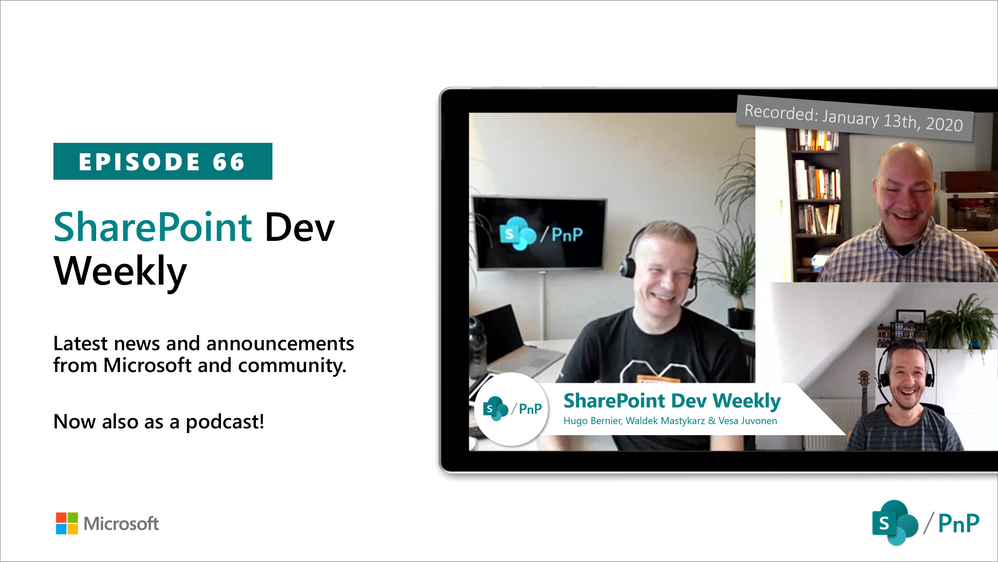
In this session of SharePoint Dev Weekly, hosts – Vesa Juvonen (Microsoft), Waldek Mastykarz (Rencore), and typically a special guest from the SharePoint PnP Community, discuss the latest news and topics around SharePoint development.
In this episode Vesa and Waldek are joined by Hugo Bernier – Director of Consulting Services at Point Alliance in Toronto. Hugo is an old friend and contributor to the PnP community and now a MVP who has delivered many code samples and reusable controls to-date (SharePoint Framework Samples repository) with more to come in 2020.
This episode was recorded on Monday, January 13, 2020.