The volume and variety of today’s electronic communications are causing many organizations to struggle to meet their communications monitoring and compliance obligations and we’ve heard your concerns about the need to simplify and streamline compliance tools in the modern workplace. Today, we’re rolling out a new supervision solution to support your organization’s compliance needs and journey.
For a quick overview of Supervision policies, see the Supervision policy video on the Microsoft Mechanics channel.
Scenarios for Supervision
Monitoring digital communications is critical to mitigating conduct, reputational, and financial risks. Organizations require a supervision system that meets both business control needs and regulatory compliance requirements. Our supervision solutions help you address the following concerns:
- Corporate policies: employees must comply with acceptable use, ethical standards, and other corporate policies in all business-related communications. Supervision can detect policy violations and help you take corrective actions to help mitigate these types of incidents. For example, you could monitor your organization for potential human resources violations such as harassment or the use of inappropriate or offensive language in employee communications.
- Risk management: organizations are responsible for communications distributed through corporate systems. Implementing a supervision program helps identify and manage legal exposure and other risks before they damage corporate reputation and operations. For example, you could monitor your organization for unauthorized communications for confidential projects such as upcoming acquisitions, mergers, earnings disclosures, reorganizations, or leadership team changes.
- Regulatory compliance: most organizations must comply with some type of regulatory compliance standards as part of their normal operating procedures. These regulations often require organizations to implement some type of supervisory or oversight process for messaging that is appropriate for their industry. The Financial Industry Regulatory Authority (FINRA) Rule 3110 is a good example of a requirement for organizations to have supervisory procedures in place to monitor the activities of its employees and the types of businesses in which it engages. Another example may be a need to monitor broker-dealers in your organization to safeguard against potential money-laundering, insider trading, collusion, or bribery activities. Supervision policies can help your organization meet these requirements by providing a process to both monitor and report on corporate communications.
New in Supervision
With Supervision policies, you can monitor internal or external Exchange email, Microsoft Teams chats and channels, or 3rd-party communication in your organization. Listed below are key new features in our integrated Supervision solution that reduce the need to export Microsoft 365 data for compliance management or review.
Intelligent policies
- Intelligent filters (in private preview): the offensive language data model helps identify inappropriate language by leveraging machine learning and artificial intelligence to identify communication patterns over time.
- Sensitive information types: you can now leverage either the 100 sensitive information types (financial, medical and health or privacy) such as credit card or social security number or custom data types such as your own custom dictionary/lexicon to flag content for review, or a combination of both.
- Advanced message filters: with domain and retention labels conditions you can now include or exclude emails based on domains and include or exclude emails based on their retention labels.
Policy creation
Efficient reviews
- Integrated review: you can now easily review, tag, comments and resolve items flagged for review within the Security & Compliance Center using your favorite browser. If needed, you can also continue to manage flagged items using Microsoft Outlook and Outlook on the web.
- Bulk resolve: within the new built-in review feature in the Security & Compliance Center, you can easily tag, comment or resolve multiple items with just one click.
Supervision review
Defensible insights
- Productivity reporting: Compliance officers can monitor and ensure items are being reviewed directly in the Security & Compliance Center.
- Stay ready for audits: All review activities are now fully audited and policy tracking allows you to document the complete history of supervised employees, reviewers, and policy rules at any point in time.
These new supervision innovations, based on customer feedback and pain points with existing solutions, will help your organization more effectively manage compliance risk and the efficiently manage the ever-increasing volume of communications data. Going forward, we’ll continue to invest in intelligent policies to handle the growing volume communications data and to make compliance reviews more efficient to help save time & money.
“With Microsoft’s Supervision solution we can get a 360 view of our risk management portfolio to understand how employees in the firm are complying to policies and procedures. For example, with domain exclusions, we now create various policies to understand how our attorneys are communicating with internal and external parties. We also set various supervision filters to capture data on engagement letter terms and SOWs to make sure employees are complying to the policies and levels of risks the partners have agreed to at the firm.“
— Chad Ergun, DGS Law’s CIO
Ready to get started?
Regardless of where you are in your compliance journey, there’s plenty of compliance solutions to explore and implement in Microsoft 365. Learn more about Supervision with Supervision policies in Office 365 and start implementing supervision policies with Configure supervision policies for your organization.
You can also engage with us in our Tech Community and provide additional feedback on UserVoice.
Frequently Asked Questions
Q: What licenses are required to use Supervision?
A: All users monitored by supervision policies must have either a Microsoft 365 E5 Compliance license, Office 365 Enterprise E3 license with the Advanced Compliance add-on or be included in an Office 365 Enterprise E5 subscription. If you don’t have an existing Enterprise E5 plan and want to try supervision, you can sign up for a trial of Office 365 Enterprise E5.
Q: When will these updates be available for my organization?
A: We have started rolling out the new Supervision updates to Office 365 today and most customers should have access to the new features over the next several weeks.
Q: How can I join the Offensive Language private preview?
A: Please email us at: supervisionolpreview@service.microsoft.com with a description of the use case you are trying to address and your tenant information (tenant ID or domain).We’ll review submissions and let you know if your tenant has been accepted in the program.
—Christophe Fiessinger, principal program manager Microsoft 365 Security & Compliance
Bill Baer
Senior Product Manager
@williambaer
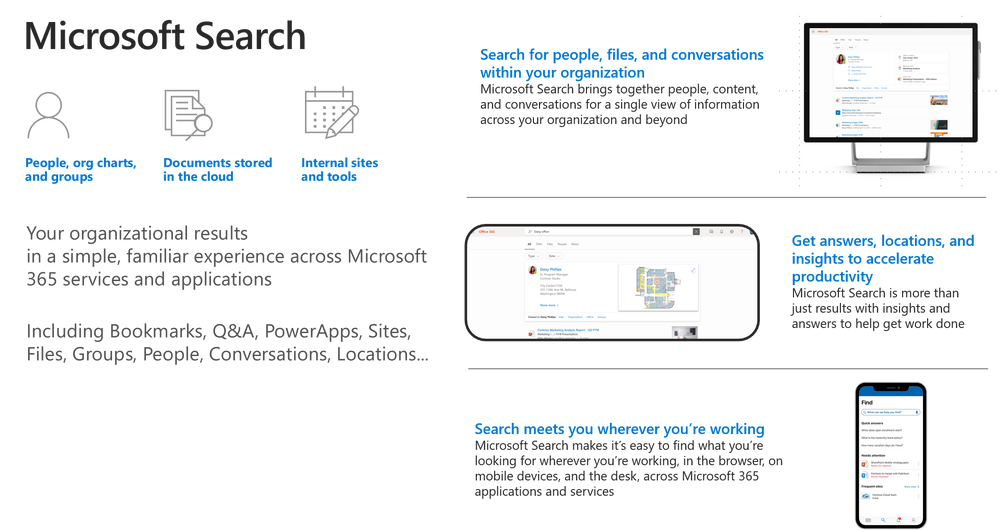
Introduction to Microsoft Search
Microsoft Search is an intelligent, enterprise search experience from Microsoft that applies the artificial intelligence technology (AI) from Bing and deep personalized insights surfaced by the Microsoft Graph, to make search more effective for you, increasing productivity and saving you time – so whether you’re looking to find people, files, or conversations, complete a task, pick up where you left off, or discover answers or insights, it’s just a click away, across all of your applications, your desktop, and your browser. Microsoft Search is ready when you are, so there’s nothing you need to do to start benefiting from this new search experience – just look for the new search box in the header of the applications you’re using everyday.
Microsoft Search works where you are, in the context of your work, across applications and services in Microsoft 365, so you can find what you need without switching between apps. It goes beyond queries and a list of links. Microsoft Search helps you complete a task, pick up where you left off, or discover answers or insights. It applies natural language understanding, AI technology and deep understanding of you and your work to make search more relevant and effective. And Microsoft Search is a unified experience everywhere you are-in the apps you’re already using including Office, Outlook, SharePoint, OneDrive, Bing and Windows to name a few. There’s also a new admin center to help you configure Microsoft Search settings across all of your apps and services.
The upcoming general availability of Microsoft Search, announced at Microsoft Build, is just the start of our journey, and we’re pleased to announce that coming soon we’ll provide a universal endpoint for Microsoft Search that will enable developers to implement queries to provide complete recall results, suggestions and recommendations in the search box in addition to an event API to send relevance signals with Exchange, OneDrive, and more apps and services as we expand its scope. As we move forward we’ll continue to add new capabilities including the bringing Microsoft Search to applications like Yammer and Microsoft Teams, and, with search connectors to information in third-party or line-of-business applications. We will also provide extensibility models to support advanced search capabilities, that are, today, limited to classic SharePoint search, including entity definitions and customer refiners.
Getting started with Microsoft Search
With Microsoft Search, we’re introducing new organizational search experiences into the apps you use every day, including Bing.com and Windows, to connect across your organization’s network of data. No matter where you choose to search, Microsoft Search is available across Microsoft 365, Bing, Windows, and more, delivering the same insights, actions, and results.
Microsoft Search in Bing (available now)
Microsoft Search in Bing securely brings together work and world knowledge so users can quickly find the information and answers they need, from any browser and any device.
With Microsoft Search in Bing you can search across all of your content in Microsoft 365, including people, files, Teams and Yammer conversations, org charts, internal tools and resources, groups, and building locations. Whether you’re researching a client or competitor, looking up product information, or just trying to figure out how to change your password, Microsoft Search in Bing makes it easy to find information from within your organization and the web with just a single query. Users can also discover internal resources they didn’t know existed, for example discovering organizational daycare benefits when searching the web for local daycare centers. Microsoft Search in Bing also brings additional security to users’ web searches. While surfacing public web results, Microsoft Search in Bing protects your query from the internet. Searches across your organization are anonymized to your employer and advertisers, and are separated from public search traffic.
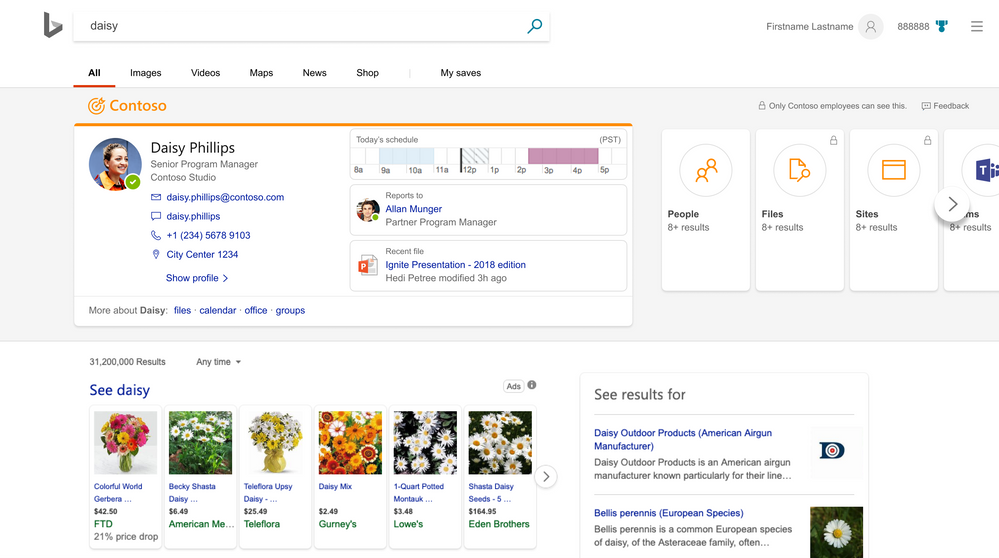
When searching for useful information, Microsoft Search in Bing is the best of both worlds – work and the web. Using Microsoft Search in Bing securely retrieves information from all your organization and SharePoint resources, such as company data, people, documents, sites, and locations. Paired with all this data, you will also have public web results displayed, all in one experience. Bing for business can be used with a browser on any device, transforming the way employees search for information at work. While surfacing public web results, Microsoft Search in Bing protects your query from the internet. Searches across your organization are anonymized and separated from public search traffic. Beginning your search with Bing, you will quickly discover if the information you need has been created by your organization or if you need to explore the web results. Searching with Microsoft Search in Bing is streamlined and allows you to get started on your work immediately.
Get started with Microsoft Search in Bing
Getting started with Microsoft Search in Bing has never been easier, just visit https://www.bing.com/business/explore and enroll your organization or sign in to start experiencing the blend of world and work knowledge.
Microsoft Search in Office (available now)
Get back to your work faster with Microsoft Search in Office. Microsoft Search in Office is a quick way to discover your network of apps, files, folders, people, organization charts, SharePoint sites, site pages, lists and list items. If defined, answers to common questions, bookmarks that lead to authoritative information, map locations, and tools. The same file types can be found here as in SharePoint. In addition, Microsoft Search in Office provides intelligent recommendations in the context of your work such as intent-based commands for performing common tasks and actions to help you work smarter.
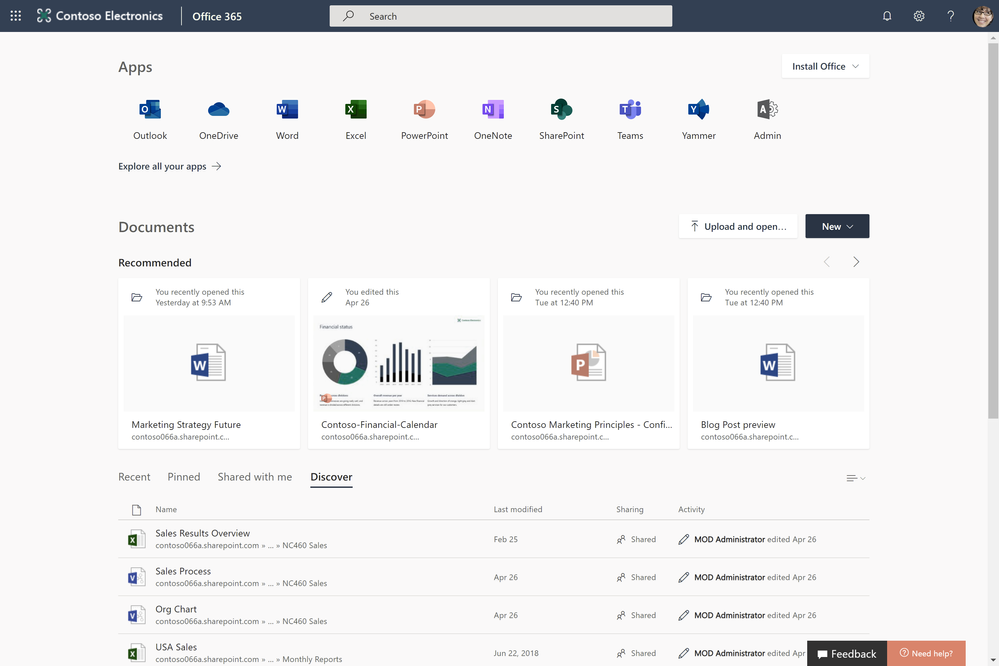
Search and discovery in Office.com is a great way to get started across Office 365. Office.com shows you search results from SharePoint, OneDrive, and more. It shows search suggestions as soon as you start typing in the search box and lets you see recent documents you worked on, as well as those documents shared with you, all powered by Microsoft Search. This personalized experience can also help you explore new tools and apps in Office 365 and also offers a discovery section within the search results, suggesting files that are relevant to you that your colleagues are using.
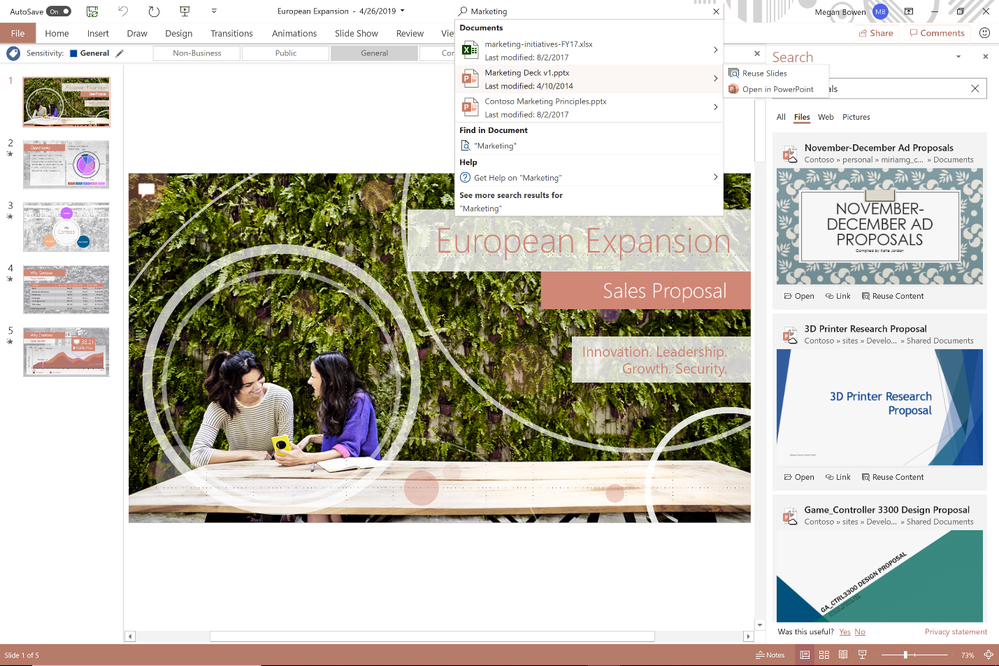
Search and discovery is being intelligently incorporated into your productivity apps. Microsoft Search delivers relevant results across all of Office, including Word, Excel, and PowerPoint. You now can easily find and reuse actions, services, and content to help you complete your work. Microsoft Search enables you to filter through the files you and others within your team use frequently and have the rights to access without having to switch apps.
Microsoft Search in SharePoint (available now)
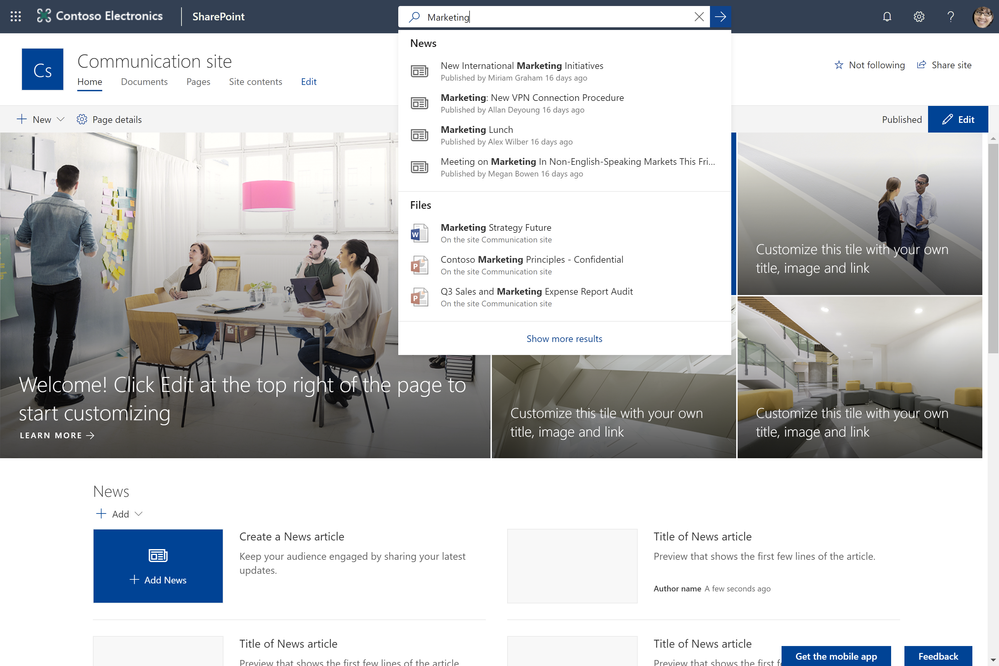
Microsoft Search is ready when you are and where you are. With Microsoft Search in SharePoint, get back to those important moments, like catching up on news and announcements, finding the sites that are relevant to you without scrolling through endless bookmarks, or pick up on that shared document you were working on. Microsoft Search in SharePoint is featured prominently in the header, just like in other Microsoft 365 apps and services, so it’s easy to find, and it’s even easier to use with features like zero intent queries – which puts contextually relevant information at your fingertips, just by clicking in the new search box.
SharePoint puts you at the center of search, powered by Microsoft Search. Deploying smarter and faster search and discovery functionality, SharePoint is providing you with more relevant results. From the minute you click into the search box, you’ll see suggestions and documents you recently used. People are also featured prominently, with the ability to search for skills, interests, and projects. You’ll see people matches and rich previews from over 270+ different file types as well as live site preview directly in the search results page, making it easy to identify exactly the content you want. In the SharePoint experience, Microsoft Search uses insights from documents, sites, and people you work with to rank results to suit your need. You can even see results from lists and news items across sites, giving you more relevant results immediately.
Microsoft Search in OneDrive (available now)
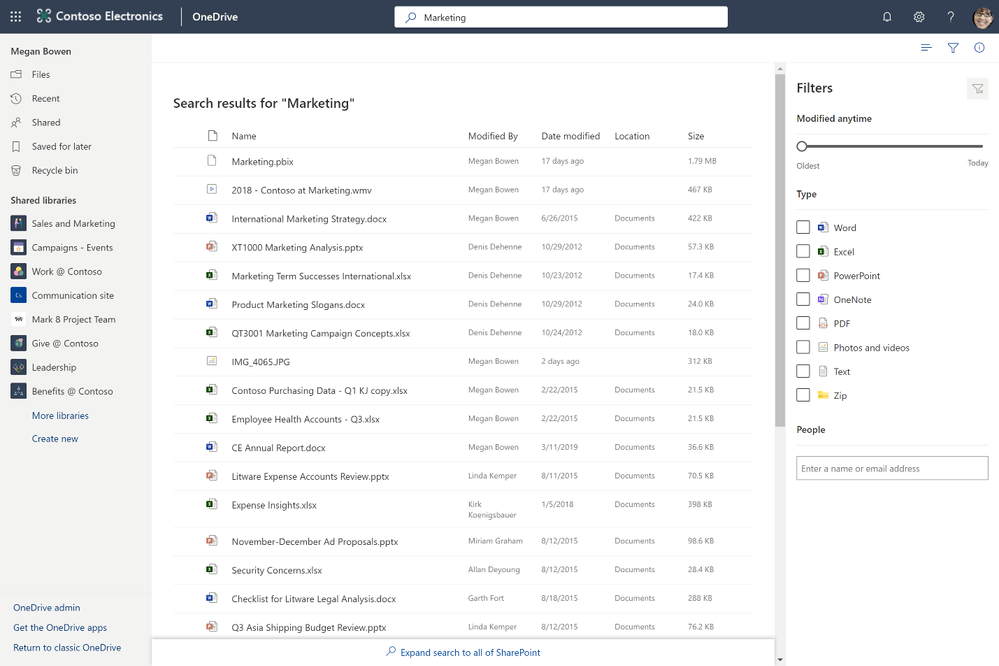
Put search to work where you work with Microsoft Search in OneDrive. Microsoft Search in OneDrive allows you do discover relevant information to help you get work done where you’re working through intelligent results and sophisticated refinement. You can even up scope your search to SharePoint to help find the content that matters.
Microsoft Search in Windows (available soon)
Search Windows and the web from the taskbar to find help, apps, files, settings—you name it.
Microsoft Search gives you a quick way to search right from your Windows desktop. This search functionality is personalized and delivers results from your organization and your device. Using Windows search, you can find documents locally, in Office 365, and even query content within documents. You can also search for a person in your organization with smart suggestions based on the people you work with most, and quickly access their contact details to help you connect faster.
Administering Microsoft Search
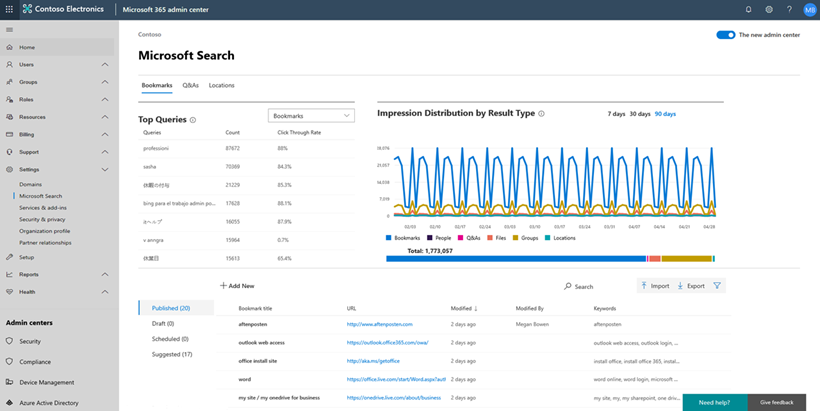
Microsoft Search provides a powerful, new, admin center for managing Microsoft Search across all of its endpoints.
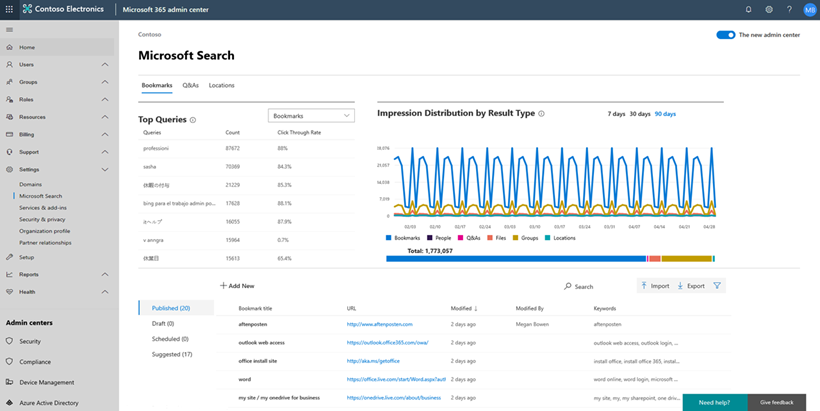
Using the new Microsoft Search admin center you see valuable insights across your organization, such as top queries, impression distribution, and more.
Conclusion
Microsoft is transforming the way you search your organization with Microsoft Search. Our new search and discovery capabilities are used across many of your Microsoft 365 experiences, with the list growing every day. Microsoft Search is ready when you are. Use the power of Microsoft Search to search across your company’s content. From Outlook and OneDrive to Office and Microsoft Teams, and more, Microsoft Search answers your questions and delivers relevant suggestions to help you make the most of your time.
Need some motivation? Try searching for “me” in Office.com, “my documents” in Bing – or just click in the new search box for intelligent suggestions tailored to you.
We are rolling out new features in Microsoft Search every month. Keep update to date on news and announcements, learn more about Microsoft Search, and start discovering the information trending around you to help you get work done at https://aka.ms/MicrosoftSearch and follow us @MicrosoftSearch.
Bill Baer
Senior Product Manager
@williambaer
Introduction to Microsoft Search
Microsoft Search is an intelligent, enterprise search experience from Microsoft that applies the artificial intelligence technology (AI) from Bing and deep personalized insights surfaced by the Microsoft Graph, to make search more effective for you, increasing productivity and saving you time – so whether you’re looking to find people, files, or conversations, complete a task, pick up where you left off, or discover answers or insights, it’s just a click away, across all of your applications, your desktop, and your browser. Microsoft Search is ready when you are, so there’s nothing you need to do to start benefiting from this new search experience – just look for the new search box in the header of the applications you’re using everyday.
Microsoft Search works where you are, in the context of your work, across applications and services in Microsoft 365, so you can find what you need without switching between apps. It goes beyond queries and a list of links. Microsoft Search helps you complete a task, pick up where you left off, or discover answers or insights. It applies natural language understanding, AI technology and deep understanding of you and your work to make search more relevant and effective. And Microsoft Search is a unified experience everywhere you are-in the apps you’re already using including Office, Outlook, SharePoint, OneDrive, Bing and Windows to name a few. There’s also a new admin center to help you configure Microsoft Search settings across all of your apps and services.
The upcoming general availability of Microsoft Search, announced at Microsoft Build, is just the start of our journey, and we’re pleased to announce that coming soon we’ll provide a universal endpoint for Microsoft Search that will enable developers to implement queries to provide complete recall results, suggestions and recommendations in the search box in addition to an event API to send relevance signals with Exchange, OneDrive, and more apps and services as we expand its scope. As we move forward we’ll continue to add new capabilities including the bringing Microsoft Search to applications like Yammer and Microsoft Teams, and, with search connectors to information in third-party or line-of-business applications. We will also provide extensibility models to support advanced search capabilities, that are, today, limited to classic SharePoint search, including entity definitions and customer refiners.
Getting started with Microsoft Search
With Microsoft Search, we’re introducing new organizational search experiences into the apps you use every day, including Bing.com and Windows, to connect across your organization’s network of data. No matter where you choose to search, Microsoft Search is available across Microsoft 365, Bing, Windows, and more, delivering the same insights, actions, and results.
Microsoft Search in Bing (available now)
Microsoft Search in Bing securely brings together work and world knowledge so users can quickly find the information and answers they need, from any browser and any device.
With Microsoft Search in Bing you can search across all of your content in Microsoft 365, including people, files, Teams and Yammer conversations, org charts, internal tools and resources, groups, and building locations. Whether you’re researching a client or competitor, looking up product information, or just trying to figure out how to change your password, Microsoft Search in Bing makes it easy to find information from within your organization and the web with just a single query. Users can also discover internal resources they didn’t know existed, for example discovering organizational daycare benefits when searching the web for local daycare centers. Microsoft Search in Bing also brings additional security to users’ web searches. While surfacing public web results, Microsoft Search in Bing protects your query from the internet. Searches across your organization are anonymized to your employer and advertisers, and are separated from public search traffic.
When searching for useful information, Microsoft Search in Bing is the best of both worlds – work and the web. Using Microsoft Search in Bing securely retrieves information from all your organization and SharePoint resources, such as company data, people, documents, sites, and locations. Paired with all this data, you will also have public web results displayed, all in one experience. Bing for business can be used with a browser on any device, transforming the way employees search for information at work. While surfacing public web results, Microsoft Search in Bing protects your query from the internet. Searches across your organization are anonymized and separated from public search traffic. Beginning your search with Bing, you will quickly discover if the information you need has been created by your organization or if you need to explore the web results. Searching with Microsoft Search in Bing is streamlined and allows you to get started on your work immediately.
Get started with Microsoft Search in Bing
Getting started with Microsoft Search in Bing has never been easier, just visit https://www.bing.com/business/explore and enroll your organization or sign in to start experiencing the blend of world and work knowledge.
Microsoft Search in Office (available now)
Get back to your work faster with Microsoft Search in Office. Microsoft Search in Office is a quick way to discover your network of apps, files, folders, people, organization charts, SharePoint sites, site pages, lists and list items. If defined, answers to common questions, bookmarks that lead to authoritative information, map locations, and tools. The same file types can be found here as in SharePoint. In addition, Microsoft Search in Office provides intelligent recommendations in the context of your work such as intent-based commands for performing common tasks and actions to help you work smarter.
Search and discovery in Office.com is a great way to get started across Office 365. Office.com shows you search results from SharePoint, OneDrive, and more. It shows search suggestions as soon as you start typing in the search box and lets you see recent documents you worked on, as well as those documents shared with you, all powered by Microsoft Search. This personalized experience can also help you explore new tools and apps in Office 365 and also offers a discovery section within the search results, suggesting files that are relevant to you that your colleagues are using.
Search and discovery is being intelligently incorporated into your productivity apps. Microsoft Search delivers relevant results across all of Office, including Word, Excel, and PowerPoint. You now can easily find and reuse actions, services, and content to help you complete your work. Microsoft Search enables you to filter through the files you and others within your team use frequently and have the rights to access without having to switch apps.
Microsoft Search in SharePoint (available now)
Microsoft Search is ready when you are and where you are. With Microsoft Search in SharePoint, get back to those important moments, like catching up on news and announcements, finding the sites that are relevant to you without scrolling through endless bookmarks, or pick up on that shared document you were working on. Microsoft Search in SharePoint is featured prominently in the header, just like in other Microsoft 365 apps and services, so it’s easy to find, and it’s even easier to use with features like zero intent queries – which puts contextually relevant information at your fingertips, just by clicking in the new search box.
SharePoint puts you at the center of search, powered by Microsoft Search. Deploying smarter and faster search and discovery functionality, SharePoint is providing you with more relevant results. From the minute you click into the search box, you’ll see suggestions and documents you recently used. People are also featured prominently, with the ability to search for skills, interests, and projects. You’ll see people matches and rich previews from over 270+ different file types as well as live site preview directly in the search results page, making it easy to identify exactly the content you want. In the SharePoint experience, Microsoft Search uses insights from documents, sites, and people you work with to rank results to suit your need. You can even see results from lists and news items across sites, giving you more relevant results immediately.
Microsoft Search in OneDrive (available now)
Put search to work where you work with Microsoft Search in OneDrive. Microsoft Search in OneDrive allows you do discover relevant information to help you get work done where you’re working through intelligent results and sophisticated refinement. You can even up scope your search to SharePoint to help find the content that matters.
Microsoft Search in Windows (available soon)
Search Windows and the web from the taskbar to find help, apps, files, settings—you name it.
Microsoft Search gives you a quick way to search right from your Windows desktop. This search functionality is personalized and delivers results from your organization and your device. Using Windows search, you can find documents locally, in Office 365, and even query content within documents. You can also search for a person in your organization with smart suggestions based on the people you work with most, and quickly access their contact details to help you connect faster.
Administering Microsoft Search
Microsoft Search provides a powerful, new, admin center for managing Microsoft Search across all of its endpoints.
Using the new Microsoft Search admin center you see valuable insights across your organization, such as top queries, impression distribution, and more.
Conclusion
Microsoft is transforming the way you search your organization with Microsoft Search. Our new search and discovery capabilities are used across many of your Microsoft 365 experiences, with the list growing every day. Microsoft Search is ready when you are. Use the power of Microsoft Search to search across your company’s content. From Outlook and OneDrive to Office and Microsoft Teams, and more, Microsoft Search answers your questions and delivers relevant suggestions to help you make the most of your time.
Need some motivation? Try searching for “me” in Office.com, “my documents” in Bing – or just click in the new search box for intelligent suggestions tailored to you.
We are rolling out new features in Microsoft Search every month. Keep update to date on news and announcements, learn more about Microsoft Search, and start discovering the information trending around you to help you get work done at https://aka.ms/MicrosoftSearch and follow us @MicrosoftSearch.
Bill Baer
Senior Product Manager
@williambaer
Today at the SharePoint Virtual Summit, we unveiled the latest innovations for SharePoint and OneDrive, including powerful integrations across Office 365, Windows and Azure – and while we continue to drive forward with a cloud-first, mobile-first vision – we’re excited to also announce new innovation for our customers on-premises.
When we launched SharePoint Server 2019 in November of 2018, we shared a vision of a server that was cloud-born, future-proof, and built on the success of SharePoint Server 2016. A new, modern version of SharePoint that shared a codebase with SharePoint Online enabling us to deliver at a more rapid cadence. Innovation that is born in the cloud, innovation to help you succeed with the cloud, and most importantly, innovation based on your feedback.
Over the past year, we’ve made significant progress against those goals and today we’re announcing additional improvements for SharePoint Server 2016 and SharePoint Server 2019 to help your organization meet your business challenges, enabling the freedom to build, manage, and deploy applications on a massive, global network using your favorite tools and frameworks with Azure.
Now with SharePoint Server 2019 we’re providing more flexible deployment options to include support for Azure Stack and SQL Managed Instances.
In addition to our existing support for Azure virtual machines, these new support options allow you to create a truly consistent experience across your hybrid cloud using comprehensive Azure cloud capabilities so you can reduce complexity and risk with the platform, tools, and services designed to work together across your on-premises and cloud environments. Through combining our existing support for SharePoint implementations in Azure with these new options for deployment, you can build and deploy your SharePoint environments and applications consistently, seamlessly, and deliver integrated security and management across on-premises and the cloud.
Managed Instance
A managed instance in Azure SQL Database is a fully managed SQL Server Database Engine Instance hosted in Azure cloud. This is the best PaaS option for migrating your SQL Server database to the cloud. New managed instance support for SharePoint Server 2019 allows you to leverage the benefits of managed instances with SharePoint environments hosted in Azure.
To learn more about managed instances, benefits over traditional deployment models, and how to get started see https://docs.microsoft.com/en-us/azure/sql-database/sql-database-managed-instance.
Azure Stack
In addition to new support for managed instances with SharePoint Server 2019, we’re also extending support for deploying SharePoint Server 2016 (SharePoint Server 2019) on Azure Stack so you can build and run SharePoint environments using consistent Azure services on-premises to meet regulatory or technical requirements. Learn more at https://azure.microsoft.com/en-us/overview/azure-stack/.
Resources
Get technical resources for SharePoint Server at https://docs.microsoft.com/en-us/sharepoint/sharepoint-server.
Bill Baer
Senior Product Manager
@williambaer
Today at the SharePoint Virtual Summit, we unveiled the latest innovations for SharePoint and OneDrive, including powerful integrations across Office 365, Windows and Azure – and while we continue to drive forward with a cloud-first, mobile-first vision – we’re excited to also announce new innovation for our customers on-premises.
When we launched SharePoint Server 2019 in November of 2018, we shared a vision of a server that was cloud-born, future-proof, and built on the success of SharePoint Server 2016. A new, modern version of SharePoint that shared a codebase with SharePoint Online enabling us to deliver at a more rapid cadence. Innovation that is born in the cloud, innovation to help you succeed with the cloud, and most importantly, innovation based on your feedback.
Over the past year, we’ve made significant progress against those goals and today we’re announcing additional improvements for SharePoint Server 2016 and SharePoint Server 2019 to help your organization meet your business challenges, enabling the freedom to build, manage, and deploy applications on a massive, global network using your favorite tools and frameworks with Azure.
Now with SharePoint Server 2019 we’re providing more flexible deployment options to include support for Azure Stack and SQL Managed Instances.
In addition to our existing support for Azure virtual machines, these new support options allow you to create a truly consistent experience across your hybrid cloud using comprehensive Azure cloud capabilities so you can reduce complexity and risk with the platform, tools, and services designed to work together across your on-premises and cloud environments. Through combining our existing support for SharePoint implementations in Azure with these new options for deployment, you can build and deploy your SharePoint environments and applications consistently, seamlessly, and deliver integrated security and management across on-premises and the cloud.
Managed Instance
A managed instance in Azure SQL Database is a fully managed SQL Server Database Engine Instance hosted in Azure cloud. This is the best PaaS option for migrating your SQL Server database to the cloud. New managed instance support for SharePoint Server 2019 allows you to leverage the benefits of managed instances with SharePoint environments hosted in Azure.
To learn more about managed instances, benefits over traditional deployment models, and how to get started see https://docs.microsoft.com/en-us/azure/sql-database/sql-database-managed-instance.
Azure Stack
In addition to new support for managed instances with SharePoint Server 2019, we’re also extending support for deploying SharePoint Server 2016 (SharePoint Server 2019) on Azure Stack so you can build and run SharePoint environments using consistent Azure services on-premises to meet regulatory or technical requirements. Learn more at https://azure.microsoft.com/en-us/overview/azure-stack/.
Resources
Get technical resources for SharePoint Server at https://docs.microsoft.com/en-us/sharepoint/sharepoint-server.
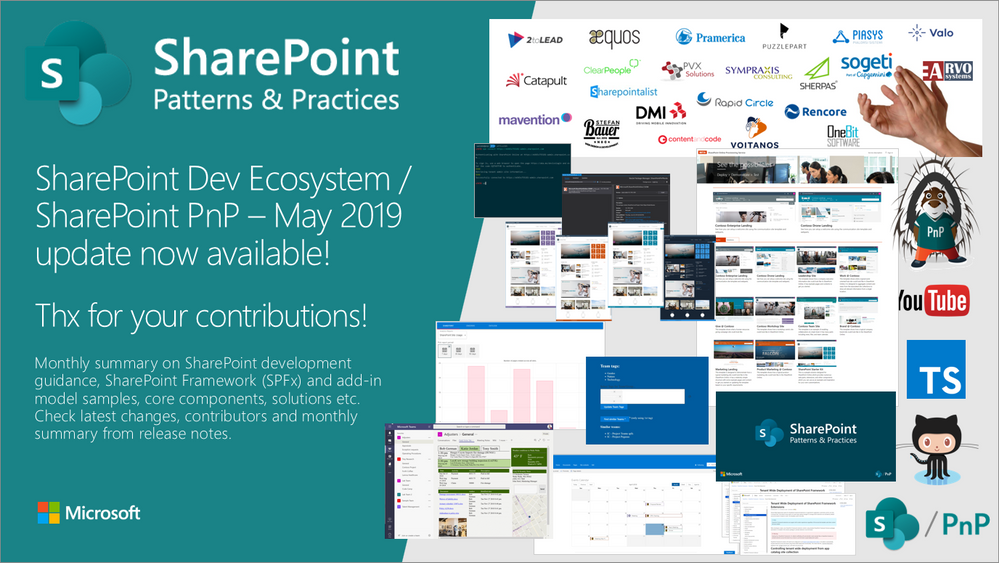
Latest monthly summary of SharePoint Development guidance for SharePoint Online and on-premises is now available from the SharePoint Dev Blog. Check the latest news, samples and other guidance from this summary.
Latest monthly summary of SharePoint Development guidance for SharePoint Online and on-premises is now available from the SharePoint Dev Blog. Check the latest news, samples and other guidance from this summary.
– Bill Baer, Senior Product Manager, Microsoft Search
@williambaer
Introducing Microsoft Search
Today, we’re announcing general availability of Microsoft Search, an intelligent, enterprise search experience from Microsoft that applies the artificial intelligence technology (AI) from Bing and deep personalized insights surfaced by the Microsoft Graph, to make search more effective for you – so whether you’re looking to complete a task, pick up where you left off, or discover answers or insights, it’s just a click away, across all of your applications, your desktop, and your browser.
Microsoft Search is everywhere you are, in the header of the apps you’re already using including Office, Outlook, SharePoint, OneDrive, Bing and Windows to name a few. It’s a single, unified and consistent search experience that evolves the definition of search in the enterprise. We believe search is more than just a list of links, search needs to work both for and with you, anticipating your needs where you are working, with answers and insights in the flow of your work. Microsoft Search brings you natural language understanding, instant query predictions, contextual results, and more.
Search that works with and for you
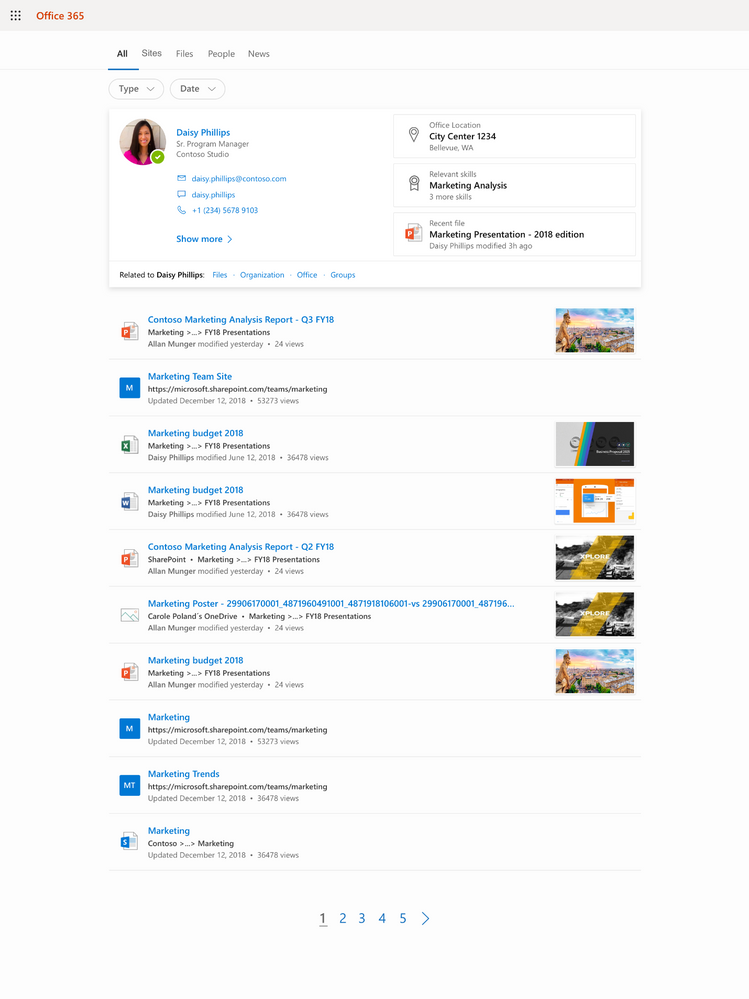
Wherever you’re working, Microsoft Search is there to help. Features like instant query predictions help you find content that is relevant at the point in time such as documents you were recently working on, the people you’re working with, as well as recommended documents that your colleagues have mentioned you in, keeping you up to date with what has been worked on since you last looked at, all by just clicking in the new search box.
Microsoft Search is even more than just helping you find information – it works for you. Powerful features like task completion help you accomplish key tasks. If you’re adding an image to a document or presentation, Microsoft Search will guide you through the most common tasks to work with that object, such as cropping, rotating, and more. Task completion with Microsoft Search is not only available across Microsoft 365 apps but is contextually aware based on where you’re working so you can complete tasks more efficiently and with better outcomes, for example, you can type /files in Microsoft Teams to get back to your most recent files.
Everything you need, everywhere you’re working
Microsoft Search connects you with what matters the most – people, files and conversations, connecting you to a world of information in the context of your work. With Microsoft Search you can discover your files, recent and relevant conversations across Microsoft Teams and Yammer and more, whether you’re working in SharePoint, OneDrive, Office, Windows, or Bing.
You can also search for people listed in your organization. You’ll see colleagues’ contact information, conversations, events and files you have in common. You can even start a Microsoft Teams conversation, place a phone call, send an email or get a map to their office location right from an adaptive card, accelerating productivity and reducing the time you spend searching for the right answer.
Microsoft Search works in and across the apps you’re using. You don’t need to remember where something is located, so if you’re working in Word and want to reuse information from a presentation that a colleague shared from OneDrive, there’s no need to switch to OneDrive and search for that presentation, you can simply search from Word.
When you need to get back to work quickly, you can use your own personalized query history or Office applications like Word, Excel, and PowerPoint so you won’t have to recall those important results and files or sift through pages of history to get back to where you were.
Work knowledge, meet world knowledge
The address bar has become a natural place to discover information. Microsoft Search helps you save time by bringing you the best of the web and work in a single experience, all without switching context or apps. Using the advanced AI technology from Bing and its world knowledge combined with insights from the Microsoft Graph we’ll be soon making it simple to ask simple, natural language questions and get answers – whether searching in Bing or right from the address bar. For example, you can ask “Can I bring my cat to work?”. We use Bing’s knowledge of the world to expand and understand “cat” and couple that with mining your organization’s intranet to derive the answer and get you to the right place.
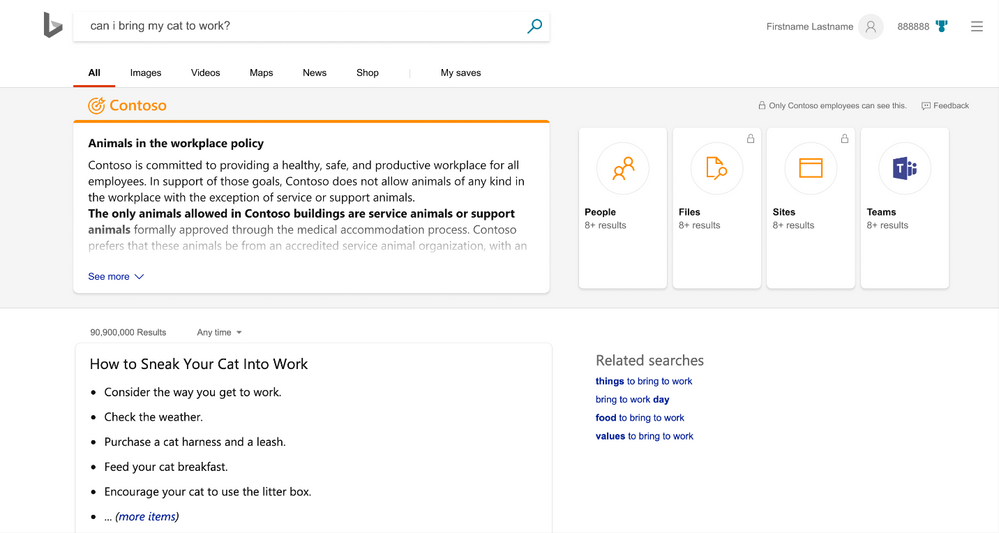
Sometimes knowledge is not always contained within the organization. Sometimes answers come from both inside and outside. Bringing together work knowledge and world knowledge means you just need to search once to find what you need to get work done. Microsoft Search in Bing federates these queries, so there’s separation between your business and web results. Search queries are de-identified and logs are separated from public Bing search traffic. This level of protection is unavailable anywhere else in the industry.
Privacy and control to meet your needs
Microsoft Search inherits the industry leading privacy and security controls in Microsoft 365 and reflects the security of your information as it changes over time. With near-instant updates to permissions — so you only see search results for content you have access to.
For IT administrators, Microsoft Search puts advanced controls and analytics at your fingertips, providing the insights and settings that allow you to make the most of your search experience and empower the people across your organization to do more, by finding more. As an example, you can provide the information and answers people need to complete tasks, like policies, benefits, resources, tools, and more in work results. You can also target specific groups, like new hires or remote workers and these are just a few things you can do.
Coming soon to Microsoft Search
Microsoft Search brings together the best of Bing and the Microsoft Graph to get insights from the people, sites, devices, and documents you work with and is the basis for consistent learning across your organization ranking search results relevant to your needs. You can already see all the results that satisfy your query, and personalized search prioritizes the results that are most likely to achieve your objective. With that said, we’re also excited to announce that coming soon we’ll provide a universal endpoint that spans the applications and services in Microsoft 365. The Microsoft Search API will enable developers to implement queries to provide complete recall results, suggestions and recommendations in the search box control in addition to an event API to send relevance signals. We’ll share more details in late May.
This is just the start of the journey. As we move forward we’ll continue to add new capabilities including the ability to integrate Microsoft Search into your own applications with popular 3rd party connectors so you can make the most of all of your information whether that is located in Microsoft 365 or in your own systems, we’ll make it customizable to tailor to your liking, and surround it with a rich set of APIs. We’ll also continue to extend the unified search control to applications like Yammer and Microsoft Teams in Microsoft 365.
Getting started…
Microsoft Search is ready when you are. Use the power of Microsoft Search to search across your company’s content. From Outlook and OneDrive to Office and Microsoft Teams, and more, Microsoft Search answers your questions and delivers relevant suggestions to help you make the most of your time.
Need some motivation? Try searching for “me” in Office.com, “my documents” in Bing – or just click in the new search box for intelligent suggestions tailored to you.
Keep update to date on news and announcements, learn more about Microsoft Search, and start discovering the information trending around you to help you get work done at https://aka.ms/MicrosoftSearch and follow us @MicrosoftSearch.
– Bill Baer, Senior Product Manager, Microsoft Search
@williambaer
Introducing Microsoft Search
Today, we’re announcing general availability of Microsoft Search, an intelligent, enterprise search experience from Microsoft that applies the artificial intelligence technology (AI) from Bing and deep personalized insights surfaced by the Microsoft Graph, to make search more effective for you – so whether you’re looking to complete a task, pick up where you left off, or discover answers or insights, it’s just a click away, across all of your applications, your desktop, and your browser.
Microsoft Search is everywhere you are, in the header of the apps you’re already using including Office, Outlook, SharePoint, OneDrive, Bing and Windows to name a few. It’s a single, unified and consistent search experience that evolves the definition of search in the enterprise. We believe search is more than just a list of links, search needs to work both for and with you, anticipating your needs where you are working, with answers and insights in the flow of your work. Microsoft Search brings you natural language understanding, instant query predictions, contextual results, and more.
Search that works with and for you
Wherever you’re working, Microsoft Search is there to help. Features like instant query predictions help you find content that is relevant at the point in time such as documents you were recently working on, the people you’re working with, as well as recommended documents that your colleagues have mentioned you in, keeping you up to date with what has been worked on since you last looked at, all by just clicking in the new search box.
Microsoft Search is even more than just helping you find information – it works for you. Powerful features like task completion help you accomplish key tasks. If you’re adding an image to a document or presentation, Microsoft Search will guide you through the most common tasks to work with that object, such as cropping, rotating, and more. Task completion with Microsoft Search is not only available across Microsoft 365 apps but is contextually aware based on where you’re working so you can complete tasks more efficiently and with better outcomes, for example, you can type /files in Microsoft Teams to get back to your most recent files.
Everything you need, everywhere you’re working
Microsoft Search connects you with what matters the most – people, files and conversations, connecting you to a world of information in the context of your work. With Microsoft Search you can discover your files, recent and relevant conversations across Microsoft Teams and Yammer and more, whether you’re working in SharePoint, OneDrive, Office, Windows, or Bing.
You can also search for people listed in your organization. You’ll see colleagues’ contact information, conversations, events and files you have in common. You can even start a Microsoft Teams conversation, place a phone call, send an email or get a map to their office location right from an adaptive card, accelerating productivity and reducing the time you spend searching for the right answer.
Microsoft Search works in and across the apps you’re using. You don’t need to remember where something is located, so if you’re working in Word and want to reuse information from a presentation that a colleague shared from OneDrive, there’s no need to switch to OneDrive and search for that presentation, you can simply search from Word.
When you need to get back to work quickly, you can use your own personalized query history or Office applications like Word, Excel, and PowerPoint so you won’t have to recall those important results and files or sift through pages of history to get back to where you were.
Work knowledge, meet world knowledge
The address bar has become a natural place to discover information. Microsoft Search helps you save time by bringing you the best of the web and work in a single experience, all without switching context or apps. Using the advanced AI technology from Bing and its world knowledge combined with insights from the Microsoft Graph we’ll be soon making it simple to ask simple, natural language questions and get answers – whether searching in Bing or right from the address bar. For example, you can ask “Can I bring my cat to work?”. We use Bing’s knowledge of the world to expand and understand “cat” and couple that with mining your organization’s intranet to derive the answer and get you to the right place.
Sometimes knowledge is not always contained within the organization. Sometimes answers come from both inside and outside. Bringing together work knowledge and world knowledge means you just need to search once to find what you need to get work done. Microsoft Search in Bing federates these queries, so there’s separation between your business and web results. Search queries are de-identified and logs are separated from public Bing search traffic. This level of protection is unavailable anywhere else in the industry.
Privacy and control to meet your needs
Microsoft Search inherits the industry leading privacy and security controls in Microsoft 365 and reflects the security of your information as it changes over time. With near-instant updates to permissions — so you only see search results for content you have access to.
For IT administrators, Microsoft Search puts advanced controls and analytics at your fingertips, providing the insights and settings that allow you to make the most of your search experience and empower the people across your organization to do more, by finding more. As an example, you can provide the information and answers people need to complete tasks, like policies, benefits, resources, tools, and more in work results. You can also target specific groups, like new hires or remote workers and these are just a few things you can do.
Coming soon to Microsoft Search
Microsoft Search brings together the best of Bing and the Microsoft Graph to get insights from the people, sites, devices, and documents you work with and is the basis for consistent learning across your organization ranking search results relevant to your needs. You can already see all the results that satisfy your query, and personalized search prioritizes the results that are most likely to achieve your objective. With that said, we’re also excited to announce that coming soon we’ll provide a universal endpoint that spans the applications and services in Microsoft 365. The Microsoft Search API will enable developers to implement queries to provide complete recall results, suggestions and recommendations in the search box control in addition to an event API to send relevance signals. We’ll share more details in late May.
This is just the start of the journey. As we move forward we’ll continue to add new capabilities including the ability to integrate Microsoft Search into your own applications with popular 3rd party connectors so you can make the most of all of your information whether that is located in Microsoft 365 or in your own systems, we’ll make it customizable to tailor to your liking, and surround it with a rich set of APIs. We’ll also continue to extend the unified search control to applications like Yammer and Microsoft Teams in Microsoft 365.
Getting started…
Microsoft Search is ready when you are. Use the power of Microsoft Search to search across your company’s content. From Outlook and OneDrive to Office and Microsoft Teams, and more, Microsoft Search answers your questions and delivers relevant suggestions to help you make the most of your time.
Need some motivation? Try searching for “me” in Office.com, “my documents” in Bing – or just click in the new search box for intelligent suggestions tailored to you.
Keep update to date on news and announcements, learn more about Microsoft Search, and start discovering the information trending around you to help you get work done at https://aka.ms/MicrosoftSearch and follow us @MicrosoftSearch.
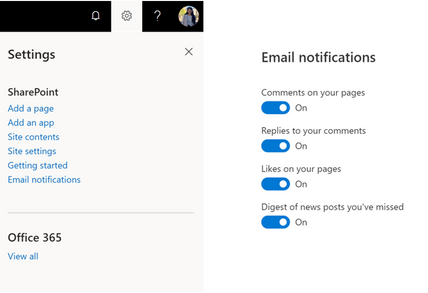
SharePoint email notifications help you stay up-to-date with news, comments, and activities. We’ve recently announced notifications for comments, replies and likes on modern pages and news posts.
We know you want to control what lands in your inbox. Currently, you can unsubscribe from a category of notifications by clicking the Unsubscribe link in a notification email.
Email notifications settings panel
The email notifications settings panel, rolling out in late June 2019, enables you to manage all your email notifications from a single place. You can select the categories of email notifications you want to receive.
To access the email notifications settings panel, click the Manage your preferences link in a notification email.
Alternately, click SharePoint in the Office launcher (also known as the “waffle menu”). From the SharePoint start page, click the settings cog, then click Email notifications.
As we add new categories of notifications, we will add them to the settings panel.







