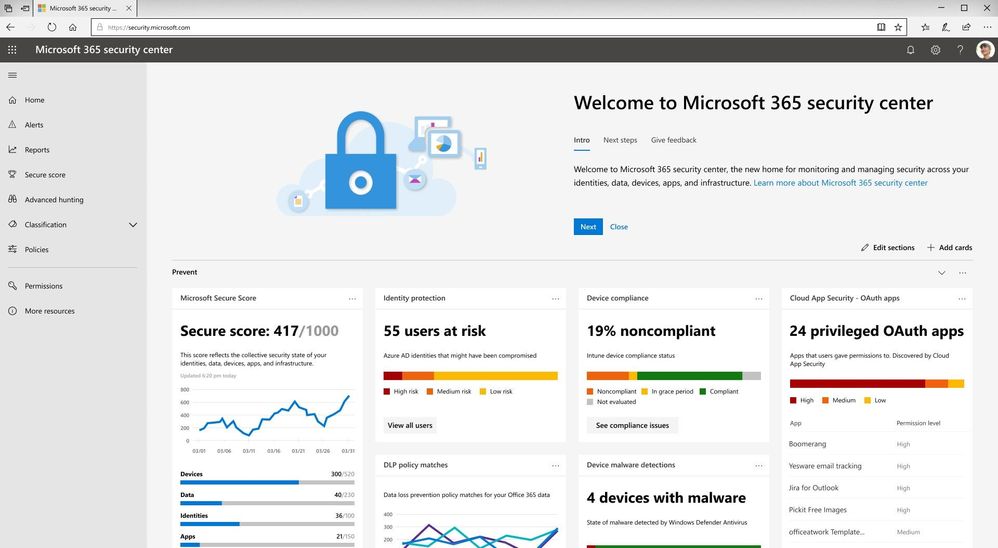
In the past few years, we have been heavily investing in the security and compliance areas to help organizations safeguard their digital estate and achieve compliance. According to recent customer research, we heard that while security and compliance are both top of mind areas in data protection, most organizations have different teams working in these two spaces. To empower your security and compliance professionals to work more efficiently in dedicated platforms, we are excited to announce the availability of Microsoft 365 security center (security.microsoft.com) and Microsoft 365 compliance center (compliance.microsoft.com).
The new specialized workspaces enable your security and compliance teams to have centralized management across your Microsoft 365 services, bringing together Office 365, Windows 10, and Enterprise Mobility + Security (EMS), with several Azure capabilities.
In both specialized centers, you can easily find actionable insights, alerts, and scores to help you understand your security and compliance risks and leverage artificial intelligence to strengthen your security and compliance posture. You can find more details about each center in the following paragraphs.
Microsoft 365 security center
The new Microsoft 365 security center provides security administrators and other risk management professionals with a centralized hub and specialized workspace that enables them to manage and take full advantage of Microsoft 365 intelligent security solutions for identity and access management, threat protection, information protection, and security management. With it they’ll gain the visibility, control, and guidance necessary to understand and act on the threats that their organization is facing today, have faced in the past, and may face in the future.
This new workspace is organized around the products that make up Microsoft Threat Protection by rendering them in a completely new way, one that’s focused on the entities that our customers must secure across their entire digital estate. We have consolidated the experience across Microsoft 365 products and designed around the concepts of Identity, Endpoints, User Data, Cloud App and Infrastructure, and not the underlying products that help secure them. This enables end-to-end security insights and management and paves the way for a comprehensive Microsoft 365 security solution.
In addition, the Microsoft 365 security center enables organizations to reduce security risks by providing them with the tools necessary to assess their current and historical security postures and to determine the appropriate set of actions to take to mitigate future risks. These tools consist of rich dashboards, reports, and interactive experiences like Microsoft Secure Score, each of which are designed to provide security administrators with the visibility, controls, and guidance they need to drive maximum security posture improvements. Microsoft 365 security center also provides experiences for security operators (SecOps) through the integration of incident response capabilities such as a centralized alerts view and hunting capabilities which can be used to perform ad-hoc investigations.
Microsoft 365 compliance center
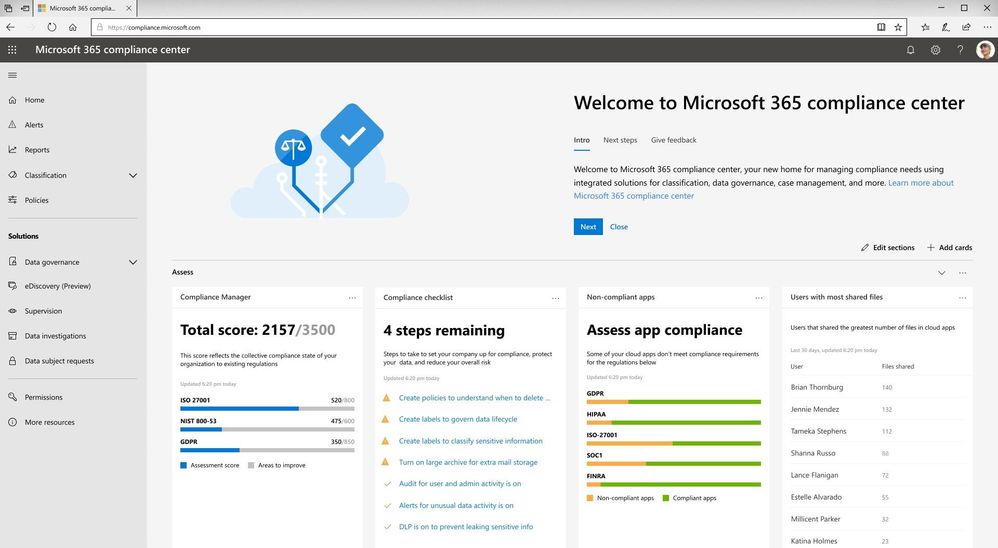
The new Microsoft 365 compliance center is a specialized workspace for your compliance, privacy, and risk management professionals. In the new center, you can assess your compliance risks through Compliance Manager, protect and govern your data with sensitivity and retention labels, respond to regulatory requests like Data Subject Requests, and access to more other compliance and privacy solutions.
The new experience helps you reduce compliance risks and protect your digital estate more easily and effectively with three new insights:
- With the Compliance Manager integration, Microsoft 365 compliance center provides you with visibility into your compliance posture against key regulations and standards like the GDPR, ISO 27001, NIST 800-53, and more on the homepage. You can then perform risk assessments and follow step-by-step guidance to enhance your compliance and privacy controls.
- Additionally, to help you label data more accurately, the new Microsoft 365 Label Analytics preview can enable you to analyze and validate how sensitivity and retention labels are being used beyond your Office 365 workloads.
- We also brought in the Microsoft Cloud App Security (MCAS) insights into Microsoft 365 compliance center to help you identify compliance risks across applications, discover shadow IT, and monitor employees’ non-compliant behaviors.
We will be gradually rolling out the new experience from the end of January, and the rollout will be completed worldwide by the end of March. Once this new experience is rolled out, you can access it by visiting security.microsoft.com or compliance.microsoft.com or from the Microsoft 365 admin center.
You can learn more about the new Microsoft 365 security center and Microsoft 365 compliance center in our technical supporting document.
Today’s guest blog was authored by Vlad Catrinescu.
Vlad is a SharePoint and Office 365 Consultant specializing in SharePoint and SharePoint Online deployments as well as hybrid scenarios. As a Pluralsight Author, Microsoft Certified Trainer and recognized international speaker, Vlad has helped hundreds of thousands of users and IT Pros across the globe to better understand and to get the most out of SharePoint. Vlad is also a Microsoft Most Valuable Professional (MVP) in SharePoint since 2013 and has his own blog at www.absolute-sharepoint.com and he often shares his knowledge by speaking at local conferences and community events.
Almost every time we see a mention of SharePoint Server 2019, hybrid features are almost always mentioned. Unfortunately, there is not that much content out there that shows you exactly how those features look, and what the business benefits of a hybrid deployment are! Since this is a topic I can talk (and apparently also write) a lot about, I will keep the introduction short and we’ll go right in the details!
What Is a Hybrid Deployment?
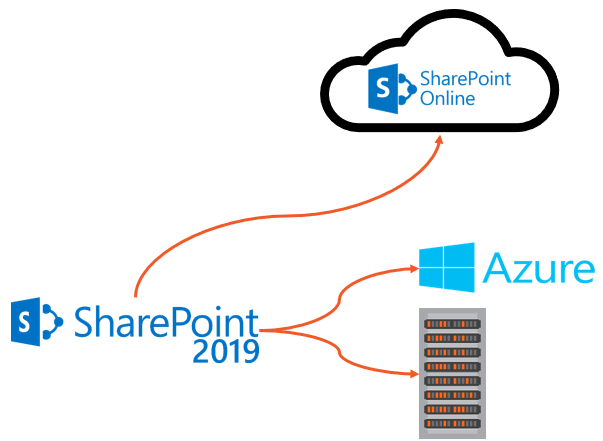
Before going into more details, let’s first understand what a SharePoint hybrid deployment is. A hybrid SharePoint deployment is a link between a SharePoint Server farm and Office 365. The SharePoint Server farm can be hosted in our own datacenter, in a private cloud, or in a public cloud such as Azure or even AWS.
There are multiple reasons to deploy a hybrid SharePoint Server 2019 Infrastructure. As you probably heard countless times already, Microsoft’s vision is Cloud-First, meaning that all the newest features come in the cloud first, and then (maybe) make their way in the next On-Premises release. Furthermore, some features such as Delve, Office 365 Groups, Flow, PowerApps, Stream will not be available as purely on-premises servers.
At the same time, there can be multiple reasons to keep using SharePoint On-Premises. Most popular reasons are the level of customization and integration of SharePoint with other On-Premises system, and legal/compliance reasons where the data must remain in a certain geographical area such as a State or a Province!
This is why a Hybrid deployment is the best of both worlds. By using the right system for the right business need, your business users will be able to have the custom SharePoint solutions and control they need On-Premises, as well as the latest and greatest features in the cloud.
Hybrid Features Overview
Before starting the configuration, we will do an overview of what features are available in hybrid, and what each one offers!
Hybrid app launcher
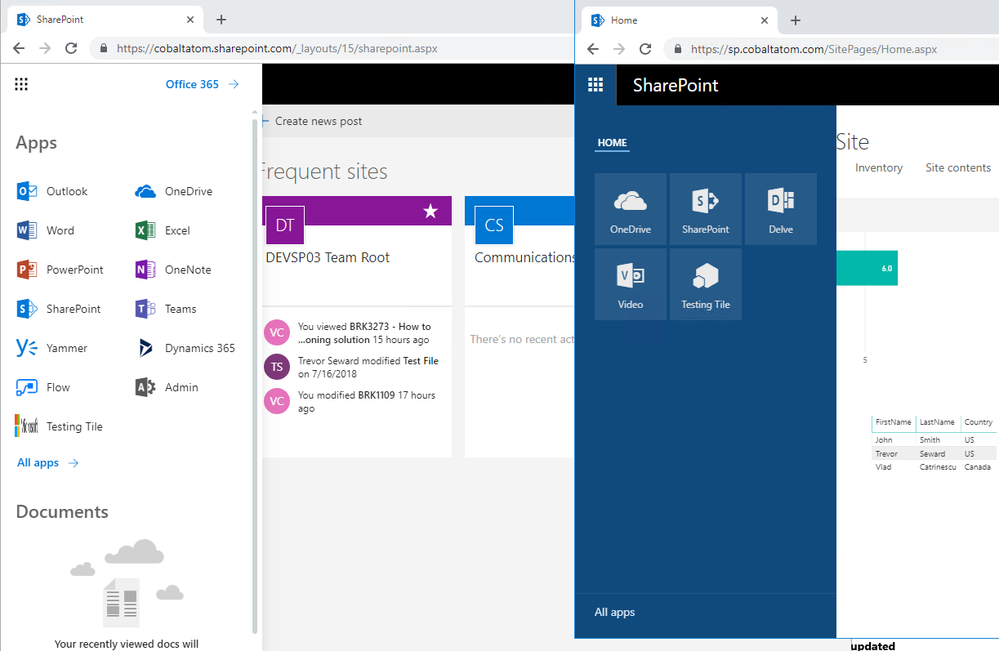
The Hybrid App launcher modifies the SharePoint 2019 app launcher to be more in sync with the app launcher in Office 365. The hybrid app launcher, seen on the right side of the figure below, shows Office 365 only apps such as Delve and Office 365 video, as well as any custom apps you pin to your Office 365 app launcher such as “Testing Tile”. The All apps button will direct the user to Office 365 to see all the apps they have access to. This will allow users to access all their apps, whether On-Premises or Online from both SharePoint 2019 and Office 365 environments.
Hybrid Sites
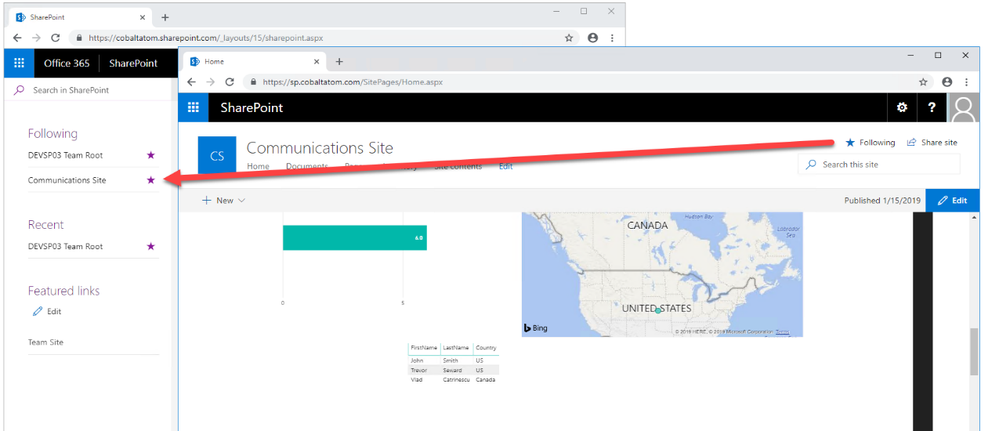
The Hybrid Sites functionality in SharePoint 2019 and SharePoint Online allows a user’s Followed Sites from both On-Premises and Online to display in a single location; their SharePoint Home in Office 365. In the figure below, I have followed the site called “Communication Site”, and it shows up in my SharePoint Online Home page. This allows users to be able to quickly access all of their favourite sites from the SharePoint Home, whether those sites are hosted Online or On-Premises.
Hybrid OneDrive for Business
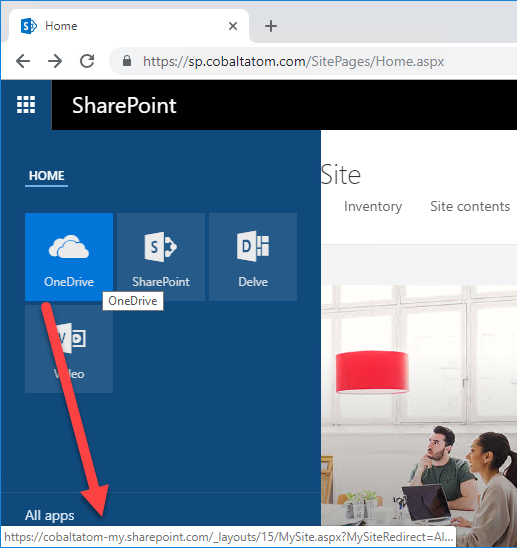
Once enabled, Hybrid OneDrive for Business will create user’s OneDrive for Business in SharePoint Online instead of SharePoint On-Premises. With Office 365 , every user get’s between 1TB or unlimited storage , so you won’t have to worry about hosting this content on our SQL Server anymore, or worry about (and pay) the backup tapes for it. From an integration point of view, the OneDrive icon inside SharePoint On-Premises app launcher will now redirect users to their OneDrive inside Office 365. In the figure below, you can see the OneDrive icon in the SharePoint 2019 app launcher redirecting me to my SharePoint Online OneDrive for Business site.
Hybrid Business to Business (B2B) sites
While you will see this feature in the hybrid configuration wizard and on many Microsoft Docs pages, this feature does not really create any integrations between your SharePoint On-Premises farm and Office 365 tenant. It’s only there as a reminder of the extranet features in SharePoint Online and how you can benefit from hosting your external collaboration sites in Office 365 rather than On-Premises.
You can learn more about using SharePoint Online as a business-to-business (B2B) extranet solution on Microsoft Docs at the following link: https://docs.microsoft.com/en-us/sharepoint/create-b2b-extranet
Hybrid self-service site creation
Hybrid self-service site creation allows you to redirect the default self-service site creation page in SharePoint Server (if you have it enabled) to SharePoint Online. By enabling this feature, you can make sure all newly created sites are in SharePoint Online, therefore having less content to migrate in an eventual migration to Office 365.
Hybrid auditing
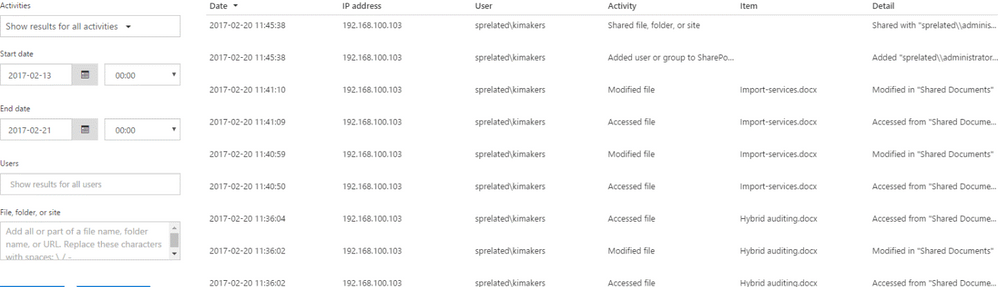
Hybrid Auditing is a feature that allows SharePoint Administrators to push audit logs from On-Premises to the Office 365 Unified Audit Log, and therefore having a single location to view audit logs for both on-premises and online. At the time of writing this article, Hybrid Auditing was in preview for SharePoint Server 2016, and not yet available in SharePoint Server 2019. Once this feature comes out of preview, it should make it’s way in SharePoint Server 2019. Here is a screenshot from my good friend Nico Martens that shows how a user doing actions in SharePoint 2016 are showed in the Office 365 Unified Audit Log.
Hybrid taxonomy and content types
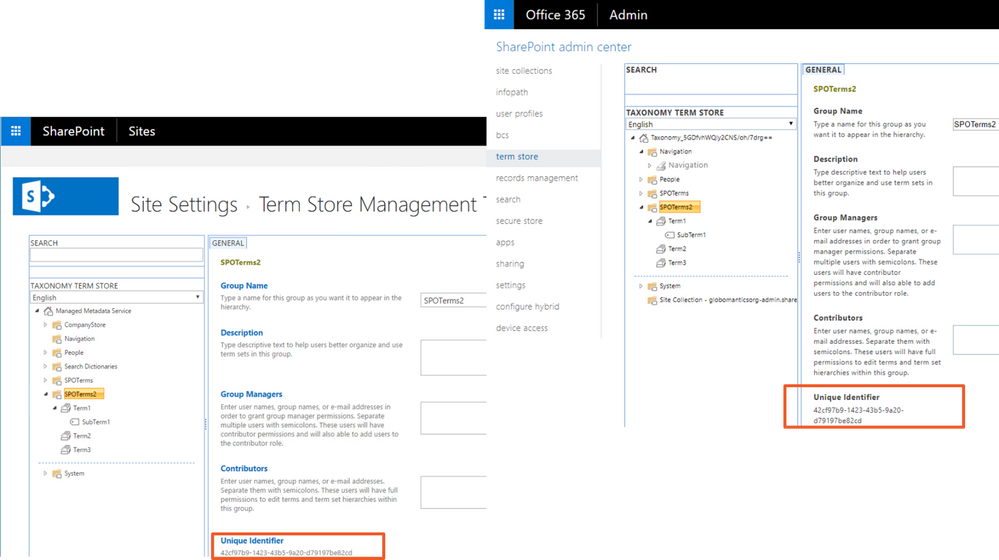
The hybrid taxonomy and content types feature allow you to have a shared taxonomy and set of Content Types between your SharePoint Online tenant and SharePoint On-premises farm. After the initial term store migration is done by an admin via PowerShell, users will be able to create all of their content types, as well as taxonomy in SharePoint Online, and a timer job will automatically replicate it to SharePoint On-Premises on a schedule set by your administrator. Both Content Types and your Managed Metadata terms will keep the same IDs, allowing developers to create custom solutions using the SharePoint Framework that would work both On-Premises and Online.
Hybrid Business Connectivity Services
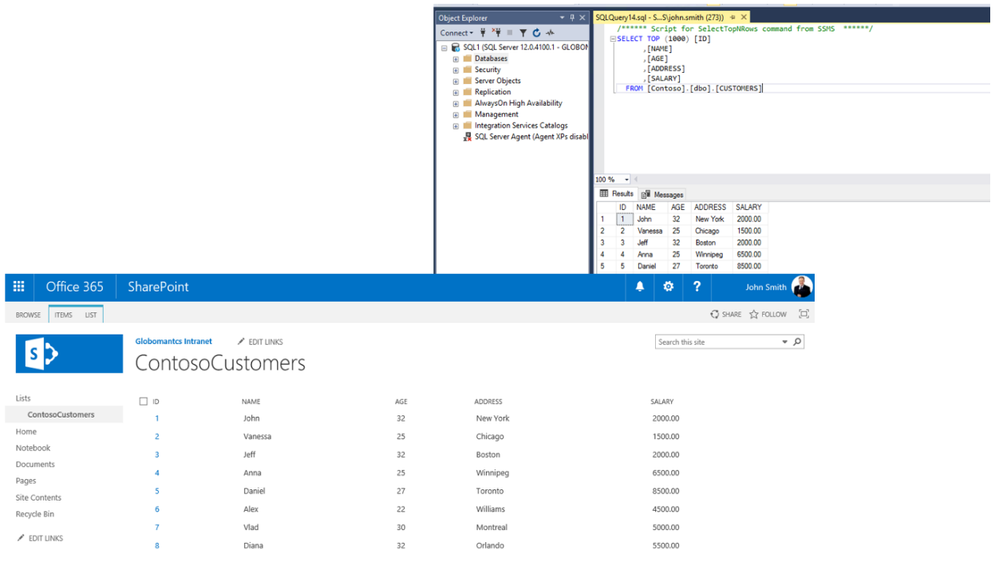
Hybrid Business Connectivity Services allows you to securely display data from external system, such as a SQL Server Database, as a SharePoint list in Office 365. Users can then view and edit the data from wherever they are in the world, without needing to be connected to their on-premises infrastructure. In the screenshot below, you can see information from a SQL Server database being displayed in a SharePoint Online list.
Hybrid Search
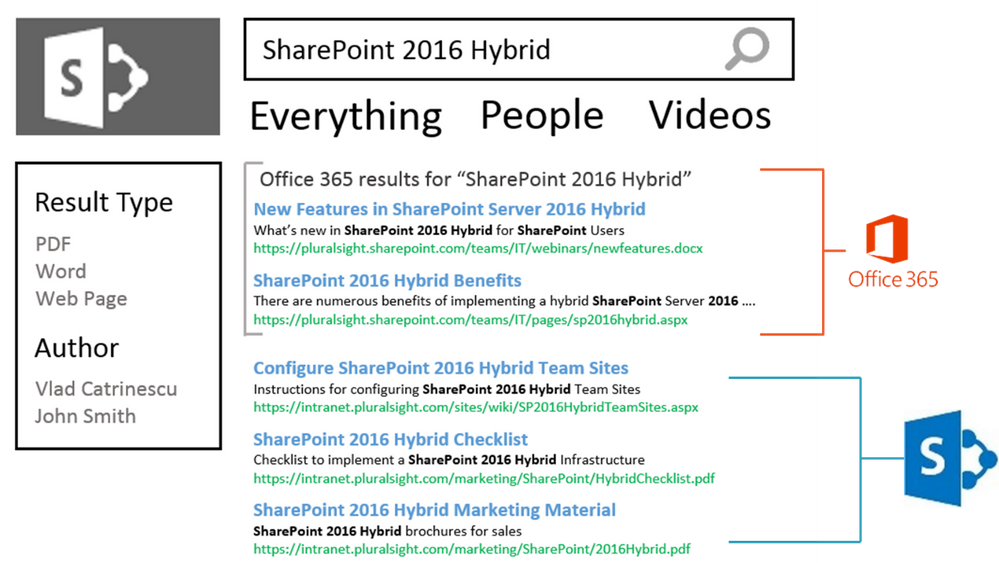
SharePoint Server 2019 offers us two options to integrate search between SharePoint On-Premises and SharePoint Online. The first option is called Federated Search. In a Federated Search setup, SharePoint Server 2019 can show results from SharePoint Online by making a Remote SharePoint query, and users can also search SharePoint On-Premises directly from SharePoint Online. What is important to understand is that in a Federated Search scenario, the index stays on the same system as the data. The SharePoint Server 2019 index remains On-Premises while the SharePoint Online index remains in the cloud. From a user experience point of view, users will see results as two different systems on the search page as seen in the mock up below.
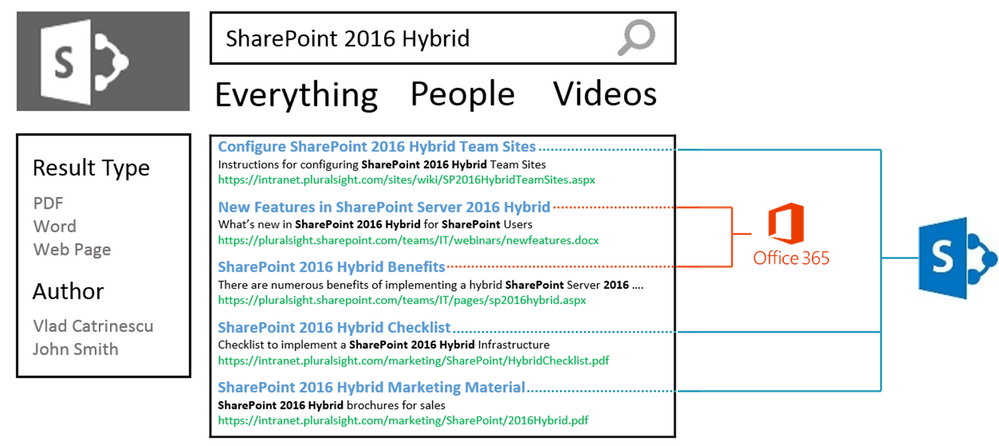
The second option is called Cloud Hybrid Search. This option requires a different type of Search Service Application called the Cloud Search Service Application, and the main difference between Federated Search and Cloud Hybrid Search is that in a Cloud Hybrid Search scenario, SharePoint Server 2019 pushes the index of On-Premises items and documents to Office 365, where it’s merged with the SharePoint Online index. By having the index of both On-Premises and Cloud documents merged in the cloud, your users will have access to Office 365–only features such as Delve and the Office Graph. Since we only have one single index, the search results will be shown and ranked in a single set for the user as seen in the screenshot below.
Hybrid Federated Search Overview
In a Hybrid Federated Search setup, the index of SharePoint On-Premises documents remains On-Premises, and all the SharePoint Online index remains in Office 365. When configuring Hybrid Federated Search, we have three possible topologies we can choose from.
One-Way Outbound Topology
In a One-Way Outbound Topology, SharePoint Server can query SharePoint Online; however, SharePoint Online cannot query SharePoint Server. Therefore, a user who logs on to SharePoint On-Premises and performs a search query will be able to retrieve both SharePoint On-Premises and SharePoint Online results. However, a user performing a query on SharePoint Online will not be able to get results from SharePoint On-Premises.
One-Way Inbound Topology
In a One-Way Inbound Topology, SharePoint Online can query SharePoint Server 2019; however, SharePoint On-Premises cannot query SharePoint Online. Therefore, a user that logs on to SharePoint Online and performs a query will be able to see results from both SharePoint Online and SharePoint On-Premises. However, a user performing a query in SharePoint On-Premises will only see results from SharePoint On-Premises and not SharePoint Online.
Two-Way (Bidirectional) Topology
In a Two-Way (Bidirectional) topology, we basically configure both the One-Way Inbound and One-Way Outbound topologies. In this topology, both systems can query each other and therefore return results from the other system.
Hybrid Cloud Search Overview
The main difference in the Hybrid Cloud Search topology is that the Cloud Search Service Application does not store the index on the SharePoint On-Premises; instead, it pushes it to Office 365. Out of the six Search components in the Search Service Application, only the Admin, Crawl and Query components are active. The Index, Content Processing and Analytics components do need to exist, but they are not used in a Hybrid Cloud Search scenario. All the Content Processing and Analytics are done in Office 365, where the Index is stored.
The Cloud Search Service Application can crawl the same type of Content Sources as a normal Search Service Application; therefore, you can push items from Remote SharePoint Sites, File Shares, BCS, and more in the SharePoint Online Index.
One of the disadvantages of the Hybrid Cloud Search topology is that you are limited to the Search customization options of SharePoint Online, since that is where the content processing is done and Index is stored. Therefore, some options like Custom Entity Extraction and Content Enrichment Web Service are not available. The big advantage of the Hybrid Cloud Search is having homogeneous results when doing a query, whether those results come from SharePoint Online or SharePoint On-Premises.
Which Option Should You Choose?
The choice between Federated Search and Hybrid Cloud Search will ultimately depend on your business requirements and on the regulation applicable to your data. In a Federated Search scenario, the index of your On-Premises documents remains On-Premises. In a Cloud Hybrid Search scenario, your index, and therefore the content of all your documents, will be in Office 365. Some regulations about the data and the documents might not allow your business to put the content of your documents in Office 365.
Furthermore, in a Cloud Hybrid Search topology, since the index is stored in the SharePoint Online, all your SharePoint users will have to be licensed in Office 365 even if they only want to search SharePoint On-Premises and never use SharePoint Online. With Hybrid Federated Search, users who are only licensed On-Premises can still search all the SharePoint On-Premises items.
Microsoft recommends using the Cloud Hybrid Search whenever possible since it will provide a better experience for your users, enable cloud-only features on On-Premises content, save disk space, and maybe even SharePoint Server 2019 licenses On-Premises, as you need a small search footprint in your On-Premises SharePoint Server 2019 infrastructure.
PowerApps and Flow
Microsoft Flow is the recommended way of doing workflows and PowerApps is the recommended tool to create business applications in Office 365 and hybrid SharePoint Deployments. By leveraging the Data Gateway, we can create Flows and PowerApps in Office 365, that connect to our On-Premises content. After creating the on-prem SharePoint connector in Microsoft Flow, you can enter an On-premises Site Collection URL, and you will be able to use most triggers On-Premises!
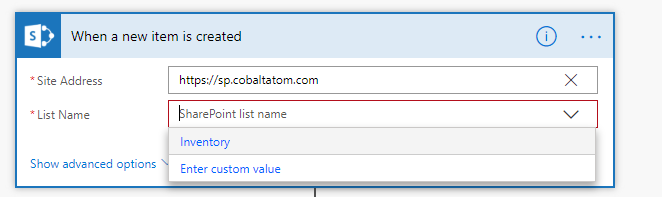
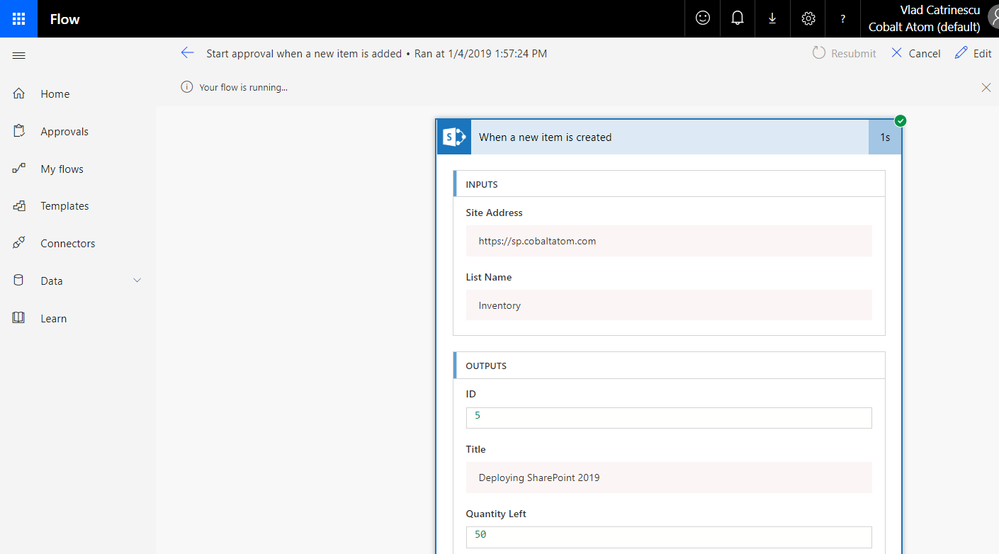
In the screenshot blow, you can see that the Flow successfully launched when I added an item in my On-Premises Inventory list!
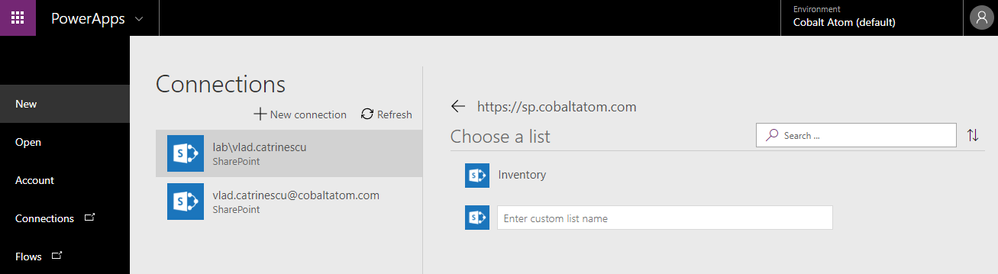
Same thing for PowerApps, once the connection is created, you can use On-Premises lists as data sources for your Business Apps!
Even if the integration with Microsoft Flow and On-Premises SharePoint is great, something that is missing from SharePoint 2019 in comparison to SharePoint Online is the ability to manually trigger Flows from On-Premises. There is no Flow button in SharePoint On-premises lists and Document Libraries, so triggers such as On Selected Item are available in Flow but cannot be used with SharePoint On-Premises.
Conclusion
To finish off, let’s review the benefits of hybrid!
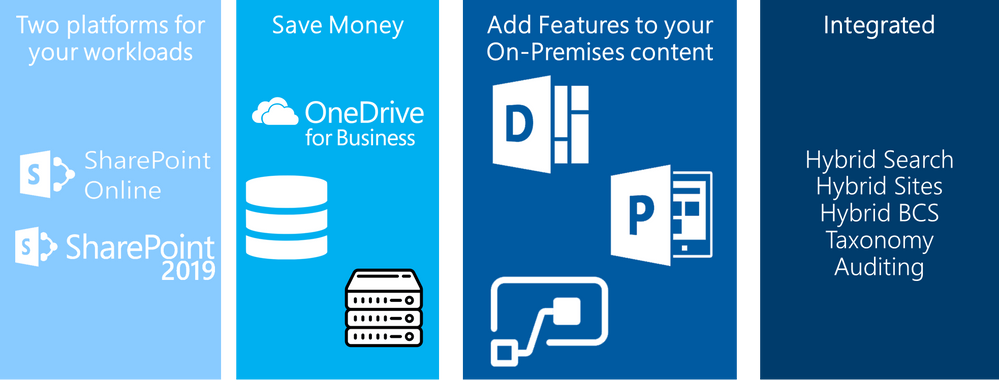
- Two Platforms for your workloads: Instead of having one single choice of platform, you can now analyze every new business request, and decide what the best platform would be to host it between SharePoint On-Premises and SharePoint Online
- Save Money: By moving some of your contents On-Premises and leveraging hybrid OneDrive for Business, you will need way less database space in your on-premises environment! Furthermore, since some of your sites are now in SharePoint Online, and with the cloud Search Service Application some Search Components are hosted in SharePoint Online, you will need less SharePoint Servers On-Premises to handle your user load. That will not only save you computing resources, but also SharePoint Server Licenses!
- Add Features to your On-Premises Content: Even if some content needs to remain On-Premises, it doesn’t mean that it cannot profit from the latest features in Office 365. With Hybrid SharePoint you will be able to leverage featudfres such as Delve, PowerApps, Flow and more with your on-premises content
- Integrated: Lastly, even if you have two platforms for your workloads the goal is that it doesn’t feel like that for your users! With features such as Hybrid Sites, Taxonomy and Content Types, Auditing and hybrid search, users can work from any of those two platforms, and still have access to the other one without any additional effort. With modern SharePoint Team Sites and Communication Sites part of SharePoint 2019, the experience between those platforms is even more integrated!
Today’s guest blog was authored by Vlad Catrinescu.
Vlad is a SharePoint and Office 365 Consultant specializing in SharePoint and SharePoint Online deployments as well as hybrid scenarios. As a Pluralsight Author, Microsoft Certified Trainer and recognized international speaker, Vlad has helped hundreds of thousands of users and IT Pros across the globe to better understand and to get the most out of SharePoint. Vlad is also a Microsoft Most Valuable Professional (MVP) in SharePoint since 2013 and has his own blog at www.absolute-sharepoint.com and he often shares his knowledge by speaking at local conferences and community events.
Almost every time we see a mention of SharePoint Server 2019, hybrid features are almost always mentioned. Unfortunately, there is not that much content out there that shows you exactly how those features look, and what the business benefits of a hybrid deployment are! Since this is a topic I can talk (and apparently also write) a lot about, I will keep the introduction short and we’ll go right in the details!
What Is a Hybrid Deployment?
Before going into more details, let’s first understand what a SharePoint hybrid deployment is. A hybrid SharePoint deployment is a link between a SharePoint Server farm and Office 365. The SharePoint Server farm can be hosted in our own datacenter, in a private cloud, or in a public cloud such as Azure or even AWS.
There are multiple reasons to deploy a hybrid SharePoint Server 2019 Infrastructure. As you probably heard countless times already, Microsoft’s vision is Cloud-First, meaning that all the newest features come in the cloud first, and then (maybe) make their way in the next On-Premises release. Furthermore, some features such as Delve, Office 365 Groups, Flow, PowerApps, Stream will not be available as purely on-premises servers.
At the same time, there can be multiple reasons to keep using SharePoint On-Premises. Most popular reasons are the level of customization and integration of SharePoint with other On-Premises system, and legal/compliance reasons where the data must remain in a certain geographical area such as a State or a Province!
This is why a Hybrid deployment is the best of both worlds. By using the right system for the right business need, your business users will be able to have the custom SharePoint solutions and control they need On-Premises, as well as the latest and greatest features in the cloud.
Hybrid Features Overview
Before starting the configuration, we will do an overview of what features are available in hybrid, and what each one offers!
Hybrid app launcher
The Hybrid App launcher modifies the SharePoint 2019 app launcher to be more in sync with the app launcher in Office 365. The hybrid app launcher, seen on the right side of the figure below, shows Office 365 only apps such as Delve and Office 365 video, as well as any custom apps you pin to your Office 365 app launcher such as “Testing Tile”. The All apps button will direct the user to Office 365 to see all the apps they have access to. This will allow users to access all their apps, whether On-Premises or Online from both SharePoint 2019 and Office 365 environments.
Hybrid Sites
The Hybrid Sites functionality in SharePoint 2019 and SharePoint Online allows a user’s Followed Sites from both On-Premises and Online to display in a single location; their SharePoint Home in Office 365. In the figure below, I have followed the site called “Communication Site”, and it shows up in my SharePoint Online Home page. This allows users to be able to quickly access all of their favourite sites from the SharePoint Home, whether those sites are hosted Online or On-Premises.
Hybrid OneDrive for Business
Once enabled, Hybrid OneDrive for Business will create user’s OneDrive for Business in SharePoint Online instead of SharePoint On-Premises. With Office 365 , every user get’s between 1TB or unlimited storage , so you won’t have to worry about hosting this content on our SQL Server anymore, or worry about (and pay) the backup tapes for it. From an integration point of view, the OneDrive icon inside SharePoint On-Premises app launcher will now redirect users to their OneDrive inside Office 365. In the figure below, you can see the OneDrive icon in the SharePoint 2019 app launcher redirecting me to my SharePoint Online OneDrive for Business site.
Hybrid Business to Business (B2B) sites
While you will see this feature in the hybrid configuration wizard and on many Microsoft Docs pages, this feature does not really create any integrations between your SharePoint On-Premises farm and Office 365 tenant. It’s only there as a reminder of the extranet features in SharePoint Online and how you can benefit from hosting your external collaboration sites in Office 365 rather than On-Premises.
You can learn more about using SharePoint Online as a business-to-business (B2B) extranet solution on Microsoft Docs at the following link: https://docs.microsoft.com/en-us/sharepoint/create-b2b-extranet
Hybrid self-service site creation
Hybrid self-service site creation allows you to redirect the default self-service site creation page in SharePoint Server (if you have it enabled) to SharePoint Online. By enabling this feature, you can make sure all newly created sites are in SharePoint Online, therefore having less content to migrate in an eventual migration to Office 365.
Hybrid auditing
Hybrid Auditing is a feature that allows SharePoint Administrators to push audit logs from On-Premises to the Office 365 Unified Audit Log, and therefore having a single location to view audit logs for both on-premises and online. At the time of writing this article, Hybrid Auditing was in preview for SharePoint Server 2016, and not yet available in SharePoint Server 2019. Once this feature comes out of preview, it should make it’s way in SharePoint Server 2019. Here is a screenshot from my good friend Nico Martens that shows how a user doing actions in SharePoint 2016 are showed in the Office 365 Unified Audit Log.
Hybrid taxonomy and content types
The hybrid taxonomy and content types feature allow you to have a shared taxonomy and set of Content Types between your SharePoint Online tenant and SharePoint On-premises farm. After the initial term store migration is done by an admin via PowerShell, users will be able to create all of their content types, as well as taxonomy in SharePoint Online, and a timer job will automatically replicate it to SharePoint On-Premises on a schedule set by your administrator. Both Content Types and your Managed Metadata terms will keep the same IDs, allowing developers to create custom solutions using the SharePoint Framework that would work both On-Premises and Online.
Hybrid Business Connectivity Services
Hybrid Business Connectivity Services allows you to securely display data from external system, such as a SQL Server Database, as a SharePoint list in Office 365. Users can then view and edit the data from wherever they are in the world, without needing to be connected to their on-premises infrastructure. In the screenshot below, you can see information from a SQL Server database being displayed in a SharePoint Online list.
Hybrid Search
SharePoint Server 2019 offers us two options to integrate search between SharePoint On-Premises and SharePoint Online. The first option is called Federated Search. In a Federated Search setup, SharePoint Server 2019 can show results from SharePoint Online by making a Remote SharePoint query, and users can also search SharePoint On-Premises directly from SharePoint Online. What is important to understand is that in a Federated Search scenario, the index stays on the same system as the data. The SharePoint Server 2019 index remains On-Premises while the SharePoint Online index remains in the cloud. From a user experience point of view, users will see results as two different systems on the search page as seen in the mock up below.
The second option is called Cloud Hybrid Search. This option requires a different type of Search Service Application called the Cloud Search Service Application, and the main difference between Federated Search and Cloud Hybrid Search is that in a Cloud Hybrid Search scenario, SharePoint Server 2019 pushes the index of On-Premises items and documents to Office 365, where it’s merged with the SharePoint Online index. By having the index of both On-Premises and Cloud documents merged in the cloud, your users will have access to Office 365–only features such as Delve and the Office Graph. Since we only have one single index, the search results will be shown and ranked in a single set for the user as seen in the screenshot below.
Hybrid Federated Search Overview
In a Hybrid Federated Search setup, the index of SharePoint On-Premises documents remains On-Premises, and all the SharePoint Online index remains in Office 365. When configuring Hybrid Federated Search, we have three possible topologies we can choose from.
One-Way Outbound Topology
In a One-Way Outbound Topology, SharePoint Server can query SharePoint Online; however, SharePoint Online cannot query SharePoint Server. Therefore, a user who logs on to SharePoint On-Premises and performs a search query will be able to retrieve both SharePoint On-Premises and SharePoint Online results. However, a user performing a query on SharePoint Online will not be able to get results from SharePoint On-Premises.
One-Way Inbound Topology
In a One-Way Inbound Topology, SharePoint Online can query SharePoint Server 2019; however, SharePoint On-Premises cannot query SharePoint Online. Therefore, a user that logs on to SharePoint Online and performs a query will be able to see results from both SharePoint Online and SharePoint On-Premises. However, a user performing a query in SharePoint On-Premises will only see results from SharePoint On-Premises and not SharePoint Online.
Two-Way (Bidirectional) Topology
In a Two-Way (Bidirectional) topology, we basically configure both the One-Way Inbound and One-Way Outbound topologies. In this topology, both systems can query each other and therefore return results from the other system.
Hybrid Cloud Search Overview
The main difference in the Hybrid Cloud Search topology is that the Cloud Search Service Application does not store the index on the SharePoint On-Premises; instead, it pushes it to Office 365. Out of the six Search components in the Search Service Application, only the Admin, Crawl and Query components are active. The Index, Content Processing and Analytics components do need to exist, but they are not used in a Hybrid Cloud Search scenario. All the Content Processing and Analytics are done in Office 365, where the Index is stored.
The Cloud Search Service Application can crawl the same type of Content Sources as a normal Search Service Application; therefore, you can push items from Remote SharePoint Sites, File Shares, BCS, and more in the SharePoint Online Index.
One of the disadvantages of the Hybrid Cloud Search topology is that you are limited to the Search customization options of SharePoint Online, since that is where the content processing is done and Index is stored. Therefore, some options like Custom Entity Extraction and Content Enrichment Web Service are not available. The big advantage of the Hybrid Cloud Search is having homogeneous results when doing a query, whether those results come from SharePoint Online or SharePoint On-Premises.
Which Option Should You Choose?
The choice between Federated Search and Hybrid Cloud Search will ultimately depend on your business requirements and on the regulation applicable to your data. In a Federated Search scenario, the index of your On-Premises documents remains On-Premises. In a Cloud Hybrid Search scenario, your index, and therefore the content of all your documents, will be in Office 365. Some regulations about the data and the documents might not allow your business to put the content of your documents in Office 365.
Furthermore, in a Cloud Hybrid Search topology, since the index is stored in the SharePoint Online, all your SharePoint users will have to be licensed in Office 365 even if they only want to search SharePoint On-Premises and never use SharePoint Online. With Hybrid Federated Search, users who are only licensed On-Premises can still search all the SharePoint On-Premises items.
Microsoft recommends using the Cloud Hybrid Search whenever possible since it will provide a better experience for your users, enable cloud-only features on On-Premises content, save disk space, and maybe even SharePoint Server 2019 licenses On-Premises, as you need a small search footprint in your On-Premises SharePoint Server 2019 infrastructure.
PowerApps and Flow
Microsoft Flow is the recommended way of doing workflows and PowerApps is the recommended tool to create business applications in Office 365 and hybrid SharePoint Deployments. By leveraging the Data Gateway, we can create Flows and PowerApps in Office 365, that connect to our On-Premises content. After creating the on-prem SharePoint connector in Microsoft Flow, you can enter an On-premises Site Collection URL, and you will be able to use most triggers On-Premises!
In the screenshot blow, you can see that the Flow successfully launched when I added an item in my On-Premises Inventory list!
Same thing for PowerApps, once the connection is created, you can use On-Premises lists as data sources for your Business Apps!
Even if the integration with Microsoft Flow and On-Premises SharePoint is great, something that is missing from SharePoint 2019 in comparison to SharePoint Online is the ability to manually trigger Flows from On-Premises. There is no Flow button in SharePoint On-premises lists and Document Libraries, so triggers such as On Selected Item are available in Flow but cannot be used with SharePoint On-Premises.
Conclusion
To finish off, let’s review the benefits of hybrid!
- Two Platforms for your workloads: Instead of having one single choice of platform, you can now analyze every new business request, and decide what the best platform would be to host it between SharePoint On-Premises and SharePoint Online
- Save Money: By moving some of your contents On-Premises and leveraging hybrid OneDrive for Business, you will need way less database space in your on-premises environment! Furthermore, since some of your sites are now in SharePoint Online, and with the cloud Search Service Application some Search Components are hosted in SharePoint Online, you will need less SharePoint Servers On-Premises to handle your user load. That will not only save you computing resources, but also SharePoint Server Licenses!
- Add Features to your On-Premises Content: Even if some content needs to remain On-Premises, it doesn’t mean that it cannot profit from the latest features in Office 365. With Hybrid SharePoint you will be able to leverage featudfres such as Delve, PowerApps, Flow and more with your on-premises content
- Integrated: Lastly, even if you have two platforms for your workloads the goal is that it doesn’t feel like that for your users! With features such as Hybrid Sites, Taxonomy and Content Types, Auditing and hybrid search, users can work from any of those two platforms, and still have access to the other one without any additional effort. With modern SharePoint Team Sites and Communication Sites part of SharePoint 2019, the experience between those platforms is even more integrated!
We’ve been continuing to update and modernize user experiences throughout OneDrive and SharePoint. And as we noted earlier this month, we’re making it easier than ever to share these updates with more and more users. Today, we’re happy to share news about modern features coming to SharePoint this quarter. Some of these are updates to classic features, while others are brand new. Let’s look.
Bulk check in/out
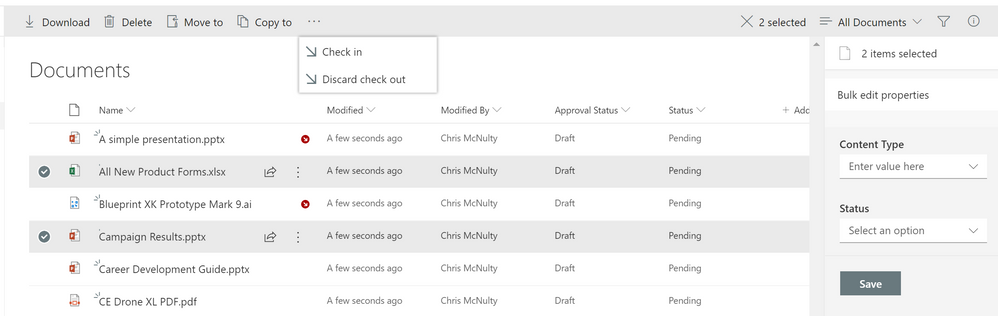
Coming in February 2019. We had previously released the ability to make bulk edits to documents in a library. Now, you’ll be able to check in and check out multiple files at the same time from the command bar in the document library. When you check out a file you have exclusive edit control until it is “returned” (checked in).
Bulk check-in and check-out
Signals
Coming in February 2019. Sharpeyed readers may notice some new icons next to the filenames in the screenshot above. These are signals – visual cues about the status of a file. Here’s what we’re rolling out:
| Signal |
Summary
|
Comments
|
 |
Malware
|
Malicious software or packages have been detected in the file.
|
 |
Personal checkout
|
This file has been checked out to you.
|
 |
Other checkout
|
This file has been checked out by someone else (not you).
|
 |
Missing metadata
|
Required metadata is missing for this file.
|
 |
DLP blocked
|
Sharing access to this file is blocked by a data loss protection (DLP) policy
|
 |
DLP warning
|
The file is triggering a warning from a data loss protection (DLP) policy.
|
 |
Trending
|
This file has gathered increased viewership recently.
|
 |
Record
|
The file is tagged as a record – a read-only compliance policy is in effect.
|
 |
“New”
|
The file has been recently created or uploaded.
|
|

|
Shared
|
The file has been shared with additional people.
|
Over time, we’ll be adding more signals to give you visual indicators about items and documents in lists and libraries. We’ll also be extending them beyond SharePoint’s native views, in services such as OneDrive, Microsoft Teams, and the Office clients.
Column Totals
Coming in February 2019. Custom views allow you to add calculated fields, such as totals or averages, to the footer of a group or the entire list. Now, totals will display in the modern view without forcing users back to the classic interface. Totals will also show in the modern web parts for lists and libraries.
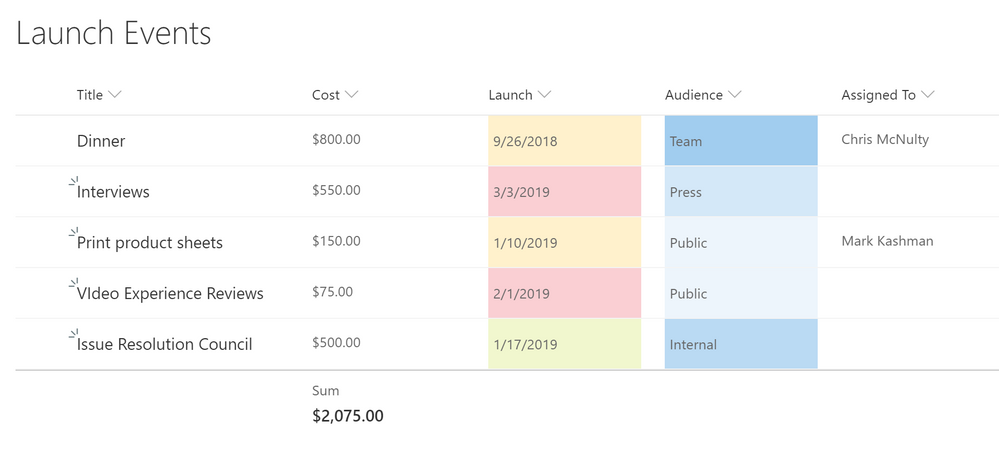 Modern column totals
Sticky Headers
Coming in March 2019. Libraries and lists can get extremely large – up to 30 million items in a single list. Soon, as you scroll down through ever-larger lists, SharePoint keeps the column headers pinned at the top of the scrolling window. This helps you identify list values as you move vertically and horizontally through the view. Column headers will also remain in place inside the list/library web parts.
Add Columns in between columns
Coming in February 2019. Those column headers are also getting additional capabilities. Soon, you’ll be able to add a column in place between other columns in a view, without adding them at the end and moving them separately to your preferred location. Just hover your mouse on the border between two columns to open up the column creation dialog.
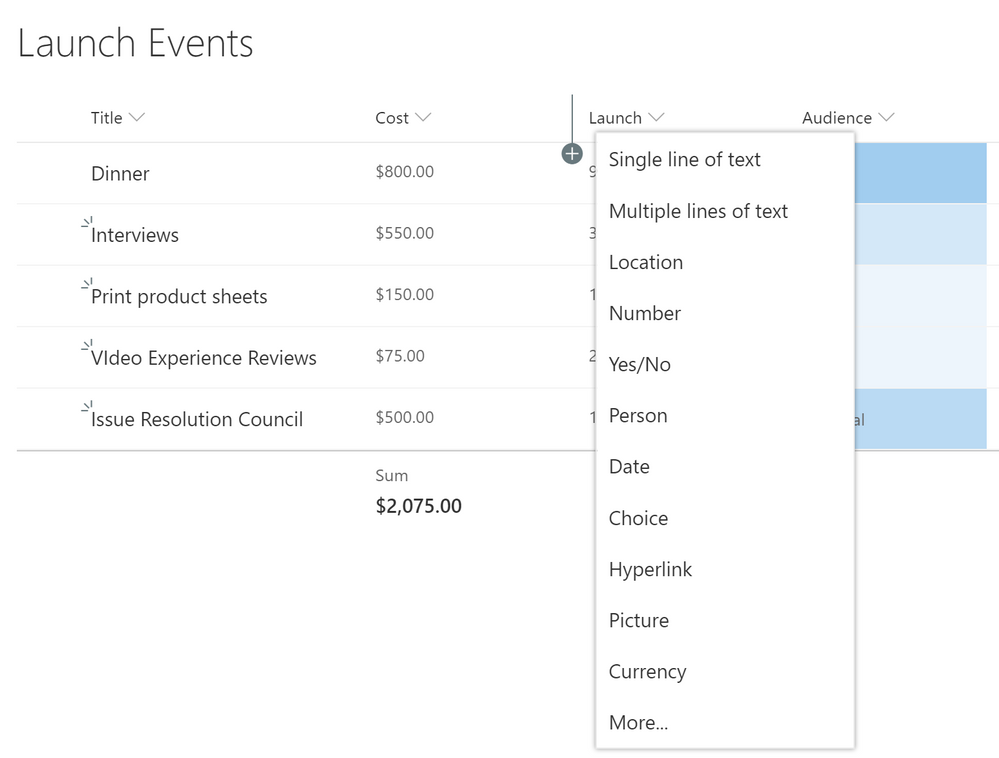 Column insert
Column Drag and Drop
Coming in February 2019. If you need to move a column around in a list or library, that’s also getting simpler. You can drag the column header to a new location to tailor the view to match your needs.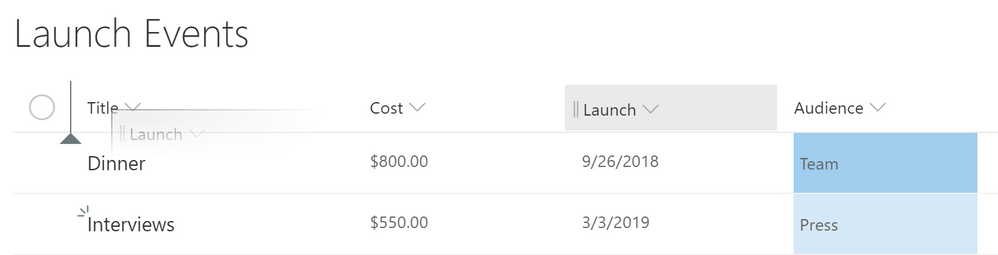 Column drag & drop
Document sets
Coming in March 2019. Document sets group related documents together with shared metadata, routing and visual experiences. They’ve been available in classic mode, and now you can work with them from the modern experience as shown below.
 A document set shown in the modern user experience
As a reminder, document sets require you to activate the site-collection scoped “Document Sets” feature in site settings. Then you can add Document Set as a content type to the library. We’ll have more updates for modern document sets in the future.
Conclusion
Our modern interface offers significant advantages in speed, simplicity, accessibility and responsive design. And we’re not done. We’re making it simpler to extend modern experiences of lists and libraries throughout Office 365, including OneDrive, Microsoft Teams, and the Office clients. Microsoft is committed to updating all critical classic scenarios to the modern experience.
Please share your feedback here on the Tech Community or on UserVoice. Thanks.
We’ve been continuing to update and modernize user experiences throughout OneDrive and SharePoint. And as we noted earlier this month, we’re making it easier than ever to share these updates with more and more users. Today, we’re happy to share news about modern features coming to SharePoint this quarter. Some of these are updates to classic features, while others are brand new. Let’s look.
Bulk check in/out
Coming in February 2019. We had previously released the ability to make bulk edits to documents in a library. Now, you’ll be able to check in and check out multiple files at the same time from the command bar in the document library. When you check out a file you have exclusive edit control until it is “returned” (checked in).
Bulk check-in and check-out
Signals
Coming in February 2019. Sharpeyed readers may notice some new icons next to the filenames in the screenshot above. These are signals – visual cues about the status of a file. Here’s what we’re rolling out:
| Signal |
Summary
|
Comments
|
| |
Malware
|
Malicious software or packages have been detected in the file.
|
| |
Personal checkout
|
This file has been checked out to you.
|
| |
Other checkout
|
This file has been checked out by someone else (not you).
|
| |
Missing metadata
|
Required metadata is missing for this file.
|
|
DLP blocked
|
Sharing access to this file is blocked by a data loss protection (DLP) policy
|
|
DLP warning
|
The file is triggering a warning from a data loss protection (DLP) policy.
|
|
Trending
|
This file has gathered increased viewership recently.
|
|
Record
|
The file is tagged as a record – a read-only compliance policy is in effect.
|
|
“New”
|
The file has been recently created or uploaded.
|
|
|
Shared
|
The file has been shared with additional people.
|
Over time, we’ll be adding more signals to give you visual indicators about items and documents in lists and libraries. We’ll also be extending them beyond SharePoint’s native views, in services such as OneDrive, Microsoft Teams, and the Office clients.
Column Totals
Coming in February 2019. Custom views allow you to add calculated fields, such as totals or averages, to the footer of a group or the entire list. Now, totals will display in the modern view without forcing users back to the classic interface. Totals will also show in the modern web parts for lists and libraries.
Modern column totals
Sticky Headers
Coming in March 2019. Libraries and lists can get extremely large – up to 30 million items in a single list. Soon, as you scroll down through ever-larger lists, SharePoint keeps the column headers pinned at the top of the scrolling window. This helps you identify list values as you move vertically and horizontally through the view. Column headers will also remain in place inside the list/library web parts.
Add Columns in between columns
Coming in February 2019. Those column headers are also getting additional capabilities. Soon, you’ll be able to add a column in place between other columns in a view, without adding them at the end and moving them separately to your preferred location. Just hover your mouse on the border between two columns to open up the column creation dialog.
Column insert
Column Drag and Drop
Coming in February 2019. If you need to move a column around in a list or library, that’s also getting simpler. You can drag the column header to a new location to tailor the view to match your needs.Column drag & drop
Document sets
Coming in March 2019. Document sets group related documents together with shared metadata, routing and visual experiences. They’ve been available in classic mode, and now you can work with them from the modern experience as shown below.
A document set shown in the modern user experience
As a reminder, document sets require you to activate the site-collection scoped “Document Sets” feature in site settings. Then you can add Document Set as a content type to the library. We’ll have more updates for modern document sets in the future.
Conclusion
Our modern interface offers significant advantages in speed, simplicity, accessibility and responsive design. And we’re not done. We’re making it simpler to extend modern experiences of lists and libraries throughout Office 365, including OneDrive, Microsoft Teams, and the Office clients. Microsoft is committed to updating all critical classic scenarios to the modern experience.
Please share your feedback here on the Tech Community or on UserVoice. Thanks.
In 2016, we introduced a new “modern” experience for SharePoint, bringing extensibility, accessibility, and responsive design to a complete overhaul of the user experience. Since then, modern has been the center of innovation in SharePoint and OneDrive, although classic mode remains supported and available.
We’re making it easier for users to get to our latest feature updates. Starting April 1, 2019, it will no longer be possible to restrict an entire organization (tenant) to classic mode for lists and libraries. Lists and libraries may still use classic mode using the granular opt-out switches that we provide at the site collection, site, list, and library levels. Additionally, lists that use certain features and customizations that are not supported by modern will still be automatically switched to classic mode.
After April 1, lists and libraries that are in classic mode as a result of tenant opt-out will automatically be shifted to modern. Users will benefit from enhancements and new features such as attention views, PowerApps integration, Flow, column formatting, and the filters pane.
If you still wish to restrict users to the classic experience, you have several tools to help you:
- Identify the impact. The SharePoint Modernization scanner identifies sites and lists that have customizations that are not supported by modern UI. Although many of these lists will automatically remain in classic mode even after this change, you may wish to keep some sites running entirely in classic to avoid users switching between different experience modes within a single site.
- Disable modern experience for specific site collections. Administrators can use a PowerShell script to enable or disable the modern experience for a single site collection or for a list of site collections as provided by the SharePoint Modernization scanner. Alternately, users can still use the “return to classic” option on modern views of lists or libraries to temporary return to classic, and list owners can use List Settings to configure that list to use the classic experience for all users.
Frequently asked Questions
What lists in my environment will be affected by this change?
Today, a list or library might appear in classic mode for any of these reasons:
- The list is in a tenant that has opted out of modern lists via the tenant setting.
- The list is in a site collection or site that has opted out of modern lists via PowerShell.
- The list itself has opted out of modern lists through the list advanced setting.
- The list has an unsupported template or customization that causes it to fall back to classic mode. For example, if the list is a Calendar or Task list, or if the list has a JSLink customization applied.
- The user has chosen “return to classic” from inside the modern view.
This change will only affect lists that are currently in classic mode as a result of #1 – because of the tenant opt-out switch. Lists that have overlapping reasons will not be affected either. For example, a calendar list in a tenant that’s opted out has reasons #1 and #4. This list will not be affected by this change.
When will Microsoft remove or deprecate classic mode?
There are no plans to remove classic mode. We’ll maintain the current feature set for classic lists and library experiences, but all our new feature innovation will be going into the modern interface.
Are there any other changes to user experiences as a result of this change?
This update is only a change to the administrative settings, not the user interface. It makes it simpler to deploy modern experiences to more users, while providing enhanced tools to identify and manage lists and libraries that need to stay classic.
I’m still using a calendar list that is only available in classic mode. Why aren’t you modernizing these lists?
We’ve already modernized many classic scenarios, such as document sets. At the same time, we’ve also released new modern-only features, such as Microsoft Flow integration. Modernization is an ongoing process. We evaluate many data sources to help set priorities – including usage data, customer meetings and UserVoice. Features with the greatest impact and usage are updated before features with less usage or demand.
More modernizations will come. We do recognize that individual needs may vary from collective priorities. Microsoft is committed to updating all critical classic scenarios to the modern experience.
I’m going to use my classic publishing portal for a long time because of features and investment. Is that going away?
Classic publishing remains a critical scenario for many customers. Although we are not delivering new features, we are actively updating and optimizing performance for classic publishing features.
We’ve also released many updates for publishing modern pages and communication sites. You can see examples of pages and sites in our new SharePoint lookbook. More details about modern intranets are available on the TechCommunity Resource Center .
What other updates can we expect to modern experiences?
As mentioned earlier, we have already announced plans to release column totals and modern document sets early in 2019. Expect to see many more updates announced here on the TechCommunity throughout 2019.
In 2016, we introduced a new “modern” experience for SharePoint, bringing extensibility, accessibility, and responsive design to a complete overhaul of the user experience. Since then, modern has been the center of innovation in SharePoint and OneDrive, although classic mode remains supported and available.
We’re making it easier for users to get to our latest feature updates. Starting April 1, 2019, it will no longer be possible to restrict an entire organization (tenant) to classic mode for lists and libraries. Lists and libraries may still use classic mode using the granular opt-out switches that we provide at the site collection, site, list, and library levels. Additionally, lists that use certain features and customizations that are not supported by modern will still be automatically switched to classic mode.
After April 1, lists and libraries that are in classic mode as a result of tenant opt-out will automatically be shifted to modern. Users will benefit from enhancements and new features such as attention views, PowerApps integration, Flow, column formatting, and the filters pane.
If you still wish to restrict users to the classic experience, you have several tools to help you:
- Identify the impact. The SharePoint Modernization scanner identifies sites and lists that have customizations that are not supported by modern UI. Although many of these lists will automatically remain in classic mode even after this change, you may wish to keep some sites running entirely in classic to avoid users switching between different experience modes within a single site.
- Disable modern experience for specific site collections. Administrators can use a PowerShell script to enable or disable the modern experience for a single site collection or for a list of site collections as provided by the SharePoint Modernization scanner. Alternately, users can still use the “return to classic” option on modern views of lists or libraries to temporary return to classic, and list owners can use List Settings to configure that list to use the classic experience for all users.
Frequently asked Questions
What lists in my environment will be affected by this change?
Today, a list or library might appear in classic mode for any of these reasons:
- The list is in a tenant that has opted out of modern lists via the tenant setting.
- The list is in a site collection or site that has opted out of modern lists via PowerShell.
- The list itself has opted out of modern lists through the list advanced setting.
- The list has an unsupported template or customization that causes it to fall back to classic mode. For example, if the list is a Calendar or Task list, or if the list has a JSLink customization applied.
- The user has chosen “return to classic” from inside the modern view.
This change will only affect lists that are currently in classic mode as a result of #1 – because of the tenant opt-out switch. Lists that have overlapping reasons will not be affected either. For example, a calendar list in a tenant that’s opted out has reasons #1 and #4. This list will not be affected by this change.
When will Microsoft remove or deprecate classic mode?
There are no plans to remove classic mode. We’ll maintain the current feature set for classic lists and library experiences, but all our new feature innovation will be going into the modern interface.
Are there any other changes to user experiences as a result of this change?
This update is only a change to the administrative settings, not the user interface. It makes it simpler to deploy modern experiences to more users, while providing enhanced tools to identify and manage lists and libraries that need to stay classic.
I’m still using a calendar list that is only available in classic mode. Why aren’t you modernizing these lists?
We’ve already modernized many classic scenarios, such as document sets. At the same time, we’ve also released new modern-only features, such as Microsoft Flow integration. Modernization is an ongoing process. We evaluate many data sources to help set priorities – including usage data, customer meetings and UserVoice. Features with the greatest impact and usage are updated before features with less usage or demand.
More modernizations will come. We do recognize that individual needs may vary from collective priorities. Microsoft is committed to updating all critical classic scenarios to the modern experience.
I’m going to use my classic publishing portal for a long time because of features and investment. Is that going away?
Classic publishing remains a critical scenario for many customers. Although we are not delivering new features, we are actively updating and optimizing performance for classic publishing features.
We’ve also released many updates for publishing modern pages and communication sites. You can see examples of pages and sites in our new SharePoint lookbook. More details about modern intranets are available on the TechCommunity Resource Center .
What other updates can we expect to modern experiences?
As mentioned earlier, we have already announced plans to release column totals and modern document sets early in 2019. Expect to see many more updates announced here on the TechCommunity throughout 2019.
Latest monthly summary of SharePoint Development guidance for SharePoint Online and on-premises now available from the Office 365 Dev Blog. Check the latest news, samples and other guidance from this summary.
Latest monthly summary of SharePoint Development guidance for SharePoint Online and on-premises now available from the Office 365 Dev Blog. Check the latest news, samples and other guidance from this summary.
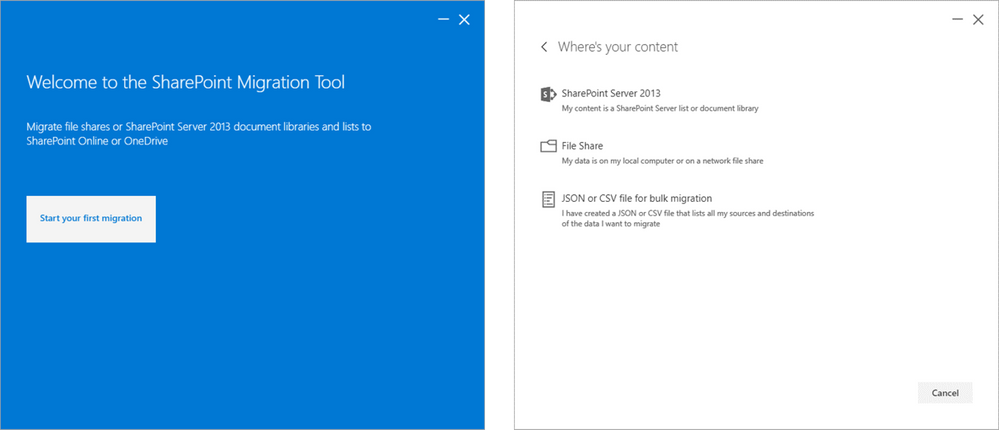
We’re excited to announce new improvements to the SharePoint Migration Tool for the month of January.
Designed to be used for migrations ranging from the smallest set of files to a large scale enterprise migration, the SharePoint Migration Tool will let you bring your information to the cloud and take advantage of the latest collaboration, intelligence, and security solutions with Office 365.
Improvements this month include:
A new, updated UI aligned with the Office 365 user experience
This release of the SharePoint Migration Tool includes improvements to the user interface with a new, simplified control service more aligned to the visual themes of SharePoint Online.
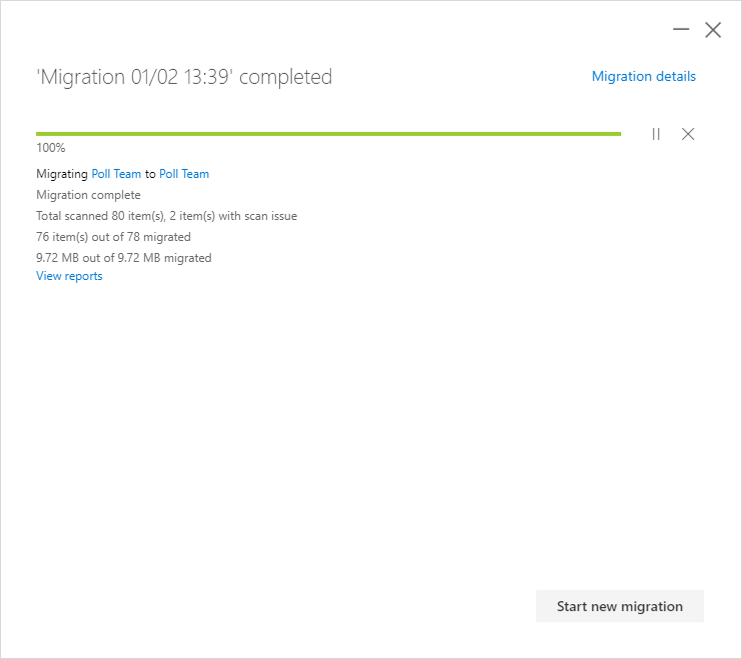
Ability to start new migrations without having to restart the SharePoint Migration Tool
Now in this release of the SharePoint Migration Tool you can start new migrations without having to restart the migration tool.
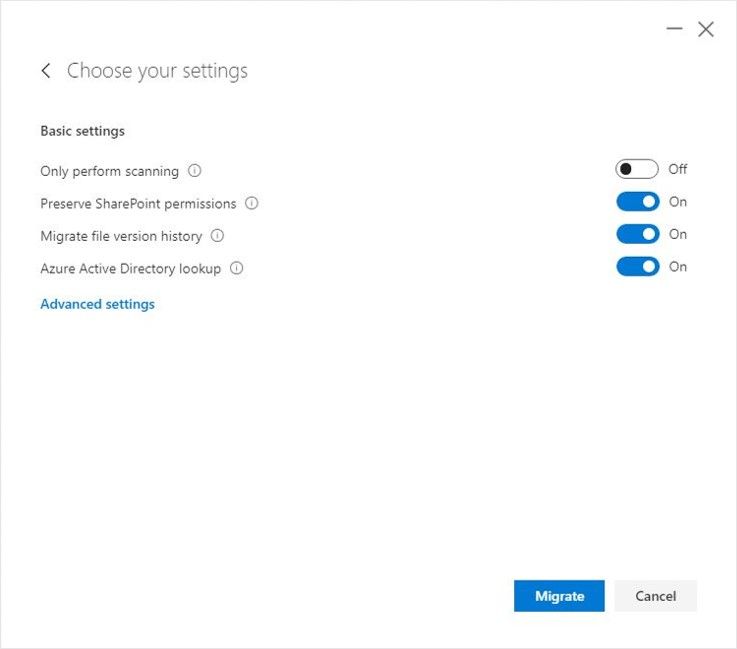
Improved interaction flow including simplified setting review experience
More easily access and view the settings needed to support your migration scenario with a new simplified interaction flow and review experience.
About the SharePoint Migration Tool
The SharePoint Migration Tool is designed to simplify your journey to the cloud through a free, simple, and fast solution to migrate content from on-premises SharePoint sites and file shares to SharePoint or OneDrive in Office 365. The SharePoint Migration Tool allows you to accelerate your journey to Office 365 overcoming obstacles typically associated with migration projects. With the SharePoint Migration Tool you can evaluate and address the information that matters the most to your organization, the Libraries, and now Lists that form the foundation of the SharePoint experience. Using the SharePoint Migration Tool you can start your migration today and take advantage of the full suite of features and security capabilities that Office 365 offers.
Keep reading to learn more about the SharePoint Migration Tool or download the latest version now at https://aka.ms/SPMT.
Getting Started
You can download the SharePoint Migration Tool at http://aka.ms/SPMT. Through this version of the SharePoint Migration Tool you’ll have available to you the innovation we’re delivering to help you bring your information to the cloud and take advantage of the latest collaboration, intelligence, and security solutions with Office 365.
What’s next…
Through continued innovation across migration scenarios we’ll be adding more capabilities over time to the SharePoint Migration Tool, including support for more SharePoint versions, site structure migrations, and more. Subscribe here to stay up to date on future announcements for SharePoint and Office 365.
Wrapping Up…
Whether you’re looking to migrate from file shares on-premises to SharePoint or OneDrive or from on-premises versions of SharePoint, the SharePoint Migration Tool is designed to support the smallest of migrations to large scale migrations with support for bulk scenarios.
Learn more about migrating to Office 365 at https://resources.techcommunity.microsoft.com/cloud-migration/.
Learn more about the SharePoint Migration Tool at https://support.office.com/en-us/article/Introducing-the-SharePoint-Migration-Tool-9c38f5df-300b-4adc-8fac-648d0215b5f7.
Prepare your environment for migration using the SharePoint Migration Assessment Tool by learning more at https://www.microsoft.com/en-us/download/details.aspx?id=53598.







