Designed to simplify your journey to the cloud through a free, simple, and fast solution, the SharePoint Migration Tools enables you to migrate content from on-premises SharePoint sites and shares to SharePoint, OneDrive, and Microsoft Teams in Office 365.
Content provides the center of gravity for collaboration, whether in SharePoint, OneDrive, or Microsoft Teams.
Using the SharePoint Migration Tool, you can quickly bring your most important content to Microsoft Teams to create a more open, digital environment.
Microsoft Teams is a chat-based workspace that brings together people, conversations, content and tools—creating a more open, digital environment. Threaded conversations make it easy to understand what each employee is referencing, and employees can co-author and collaborate on Word, Excel, PowerPoint, and OneNote documents without ever leaving the app.
Since each team in Microsoft Teams has a team site in SharePoint Online, the SharePoint Migration Tool provides a quick and simple solution to bringing your files to Microsoft Teams in Office 365.
Getting started with Microsoft Teams Migrations
Download the latest release of the SharePoint Migration Tool at https://aka.ms/SPMT.
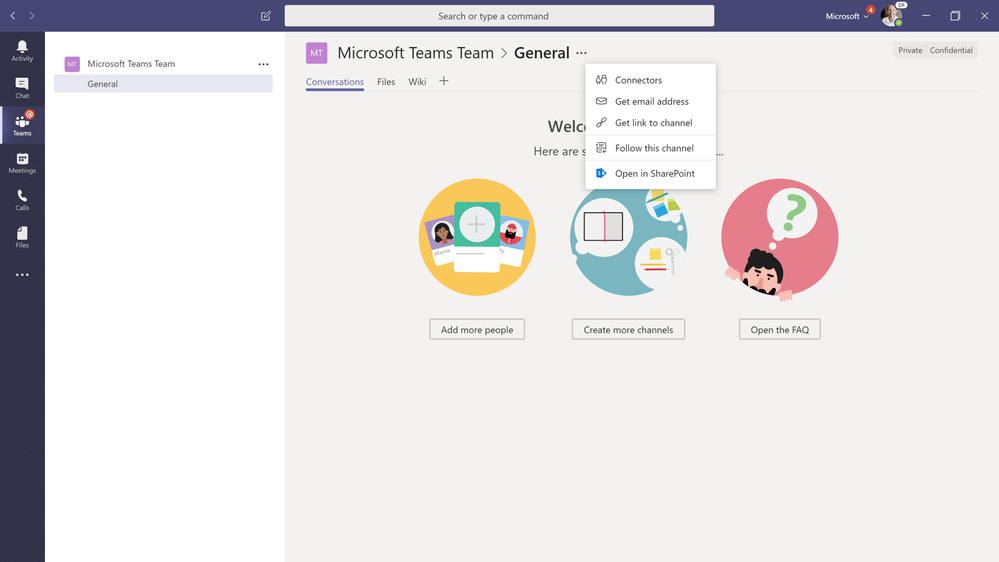
Select the Team you would like to migrate your network shares, home directories, on-premises SharePoint or OneDrive files to in Microsoft Teams.
Select the ellipses in the Team and then select open in SharePoint.
Note the SharePoint site URL associated with the selected Microsoft Team.
Open the SharePoint Migration Tool. When you first launch the SharePoint Migration Tool (SPMT), you will be prompted for your Office 365 username and password. The Office 365 credentials you provide will be where the files will be migrated.
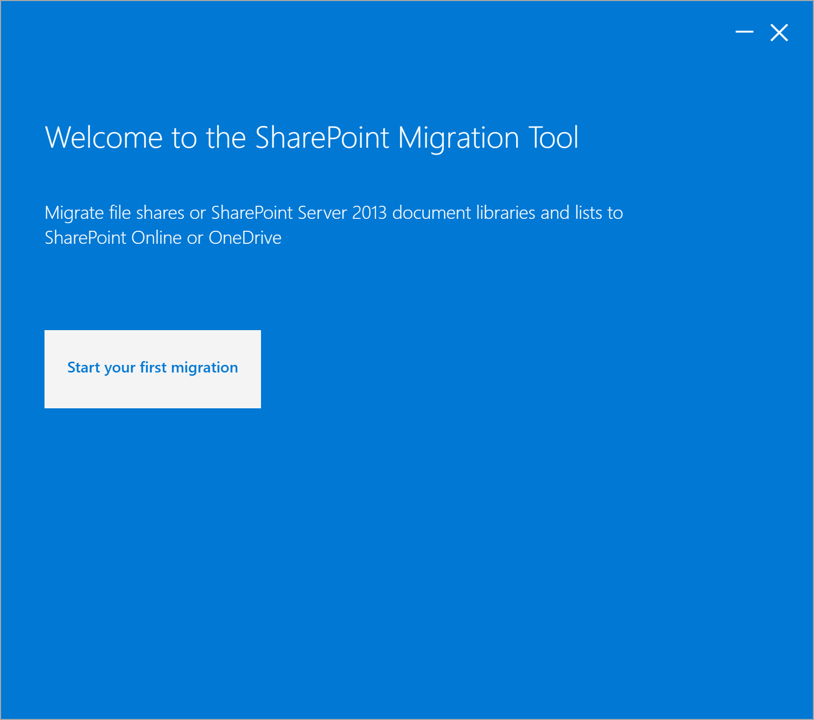
Choose the location of the source files. The SharePoint Migration Tool supports local, shared content such as network shares, home directories, etc. and SharePoint Server 2013 lists and libraries.
Enter the SharePoint site URL from the previous steps associated with the Team.
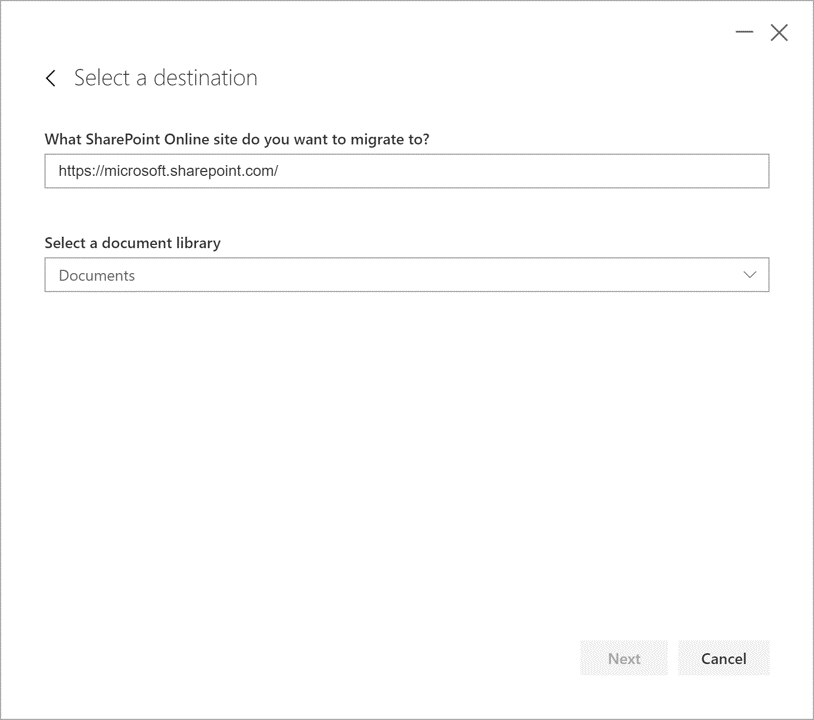
Click Next to setup and complete the migration.
NOTE The SharePoint Migration Tool user interface supports mapping migration tasks that are scoped to Document Libraries. For scenarios in which you would like to migrate files into specific Microsoft Teams Channels folders, you can use the Windows PowerShell cmdlets and specify the appropriate relative paths. For more information on mapping folders with SharePoint Migration Tool see also https://docs.microsoft.com/en-us/sharepointmigration/how-to-format-your-csv-file-for-data-content-migration.
Next Steps
Learn more on how to use the SharePoint Migration Tool at https://docs.microsoft.com/en-us/sharepointmigration/how-to-use-the-sharepoint-migration-tool.
Learn more about Microsoft Teams and SharePoint at https://docs.microsoft.com/en-us/MicrosoftTeams/sharepoint-onedrive-interact.
Designed to simplify your journey to the cloud through a free, simple, and fast solution, the SharePoint Migration Tools enables you to migrate content from on-premises SharePoint sites and shares to SharePoint, OneDrive, and Microsoft Teams in Office 365.
Content provides the center of gravity for collaboration, whether in SharePoint, OneDrive, or Microsoft Teams.
Using the SharePoint Migration Tool, you can quickly bring your most important content to Microsoft Teams to create a more open, digital environment.
Microsoft Teams is a chat-based workspace that brings together people, conversations, content and tools—creating a more open, digital environment. Threaded conversations make it easy to understand what each employee is referencing, and employees can co-author and collaborate on Word, Excel, PowerPoint, and OneNote documents without ever leaving the app.
Since each team in Microsoft Teams has a team site in SharePoint Online, the SharePoint Migration Tool provides a quick and simple solution to bringing your files to Microsoft Teams in Office 365.
Getting started with Microsoft Teams Migrations
Download the latest release of the SharePoint Migration Tool at https://aka.ms/SPMT.
Select the Team you would like to migrate your network shares, home directories, on-premises SharePoint or OneDrive files to in Microsoft Teams.
Select the ellipses in the Team and then select open in SharePoint.
Note the SharePoint site URL associated with the selected Microsoft Team.
Open the SharePoint Migration Tool. When you first launch the SharePoint Migration Tool (SPMT), you will be prompted for your Office 365 username and password. The Office 365 credentials you provide will be where the files will be migrated.
Choose the location of the source files. The SharePoint Migration Tool supports local, shared content such as network shares, home directories, etc. and SharePoint Server 2013 lists and libraries.
Enter the SharePoint site URL from the previous steps associated with the Team.
Click Next to setup and complete the migration.
NOTE The SharePoint Migration Tool user interface supports mapping migration tasks that are scoped to Document Libraries. For scenarios in which you would like to migrate files into specific Microsoft Teams Channels folders, you can use the Windows PowerShell cmdlets and specify the appropriate relative paths. For more information on mapping folders with SharePoint Migration Tool see also https://docs.microsoft.com/en-us/sharepointmigration/how-to-format-your-csv-file-for-data-content-migration.
Next Steps
Learn more on how to use the SharePoint Migration Tool at https://docs.microsoft.com/en-us/sharepointmigration/how-to-use-the-sharepoint-migration-tool.
Learn more about Microsoft Teams and SharePoint at https://docs.microsoft.com/en-us/MicrosoftTeams/sharepoint-onedrive-interact.
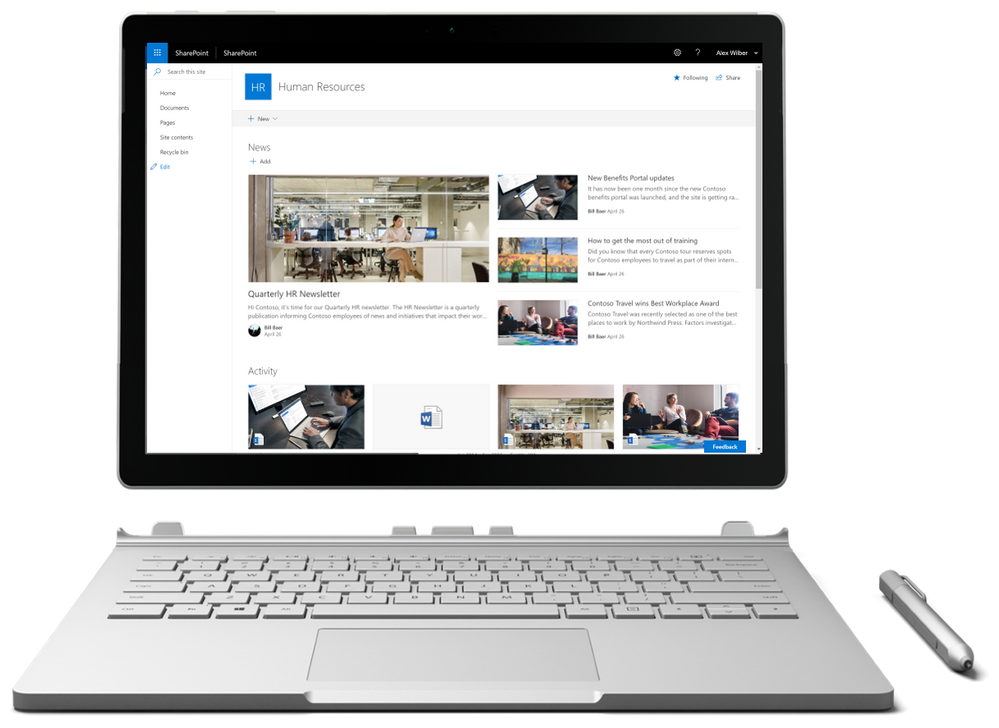
At Microsoft Ignite we broadly announced our vision, strategy, timeline, and investment areas for SharePoint Server 2019.
Today we’re excited to announce general availability of both SharePoint Server 2019 and Project Server 2019. As we developed SharePoint Server 2019, we paid close attention to trends in team collaboration, user experiences across devices, and how the cloud can be blended into existing on-premises scenarios in new and compelling ways.
SharePoint Server 2019
Since we announced our preview for SharePoint Server 2019, we’ve been working hard to get this out to you and we know that you’ve been waiting patiently since we announced that it was coming.
SharePoint Server 2019 represents a whole new generation of SharePoint, one born in the cloud, and representative of the ease of use we delivered in SharePoint Online.
SharePoint Server 2019 was built on the same core platform as SharePoint Server 2016, providing the scale and performance you’ve come to expect in addition to new, modern experiences for users, that are both intuitive and familiar.
What’s in SharePoint Server 2019
New user experiences
More than ever, how people interact with technology is much more than just “look and feel.” Great experiences are those that both look great and work flawlessly, entertain and engage, with rich, contextual, and relevant content. The improvements to the SharePoint Server 2019 user experiences are those that are easy to use, and ensure reliability, performance, and security under real-world pressures of scale and complexity.
Modern sites
Sites have always been at the heart of collaboration with SharePoint. They connect your team with the content, the information and the apps you rely on and they enable sharing and communication within the team and across the organization.
The modern experience is designed to be compelling, flexible, mobile, and easier to use. It is available in SharePoint
In SharePoint Server 2019 you’ll find a modern team site experience, with an engaging home page personalized by the power of SharePoint search.
Learn more about modern experiences in SharePoint in Office 365 including what they are and how you recognize them at https://support.office.com/article/sharepoint-classic-and-modern-experiences-5725c103-505d-4a6e-9350-300d3ec7d73f?ui=en-US&rs=en-US&ad=US.
Modern pages
SharePoint Server 2019 includes modern site pages, using modern pages is a great way to share ideas using images, Excel, Word and PowerPoint documents, embed video content, and more. You can create and publish modern pages quickly and easily, and they look great on any device.
Modern pages provide a fast, easy way to build responsive pages using the functionality of modern web parts. Pages are similar to classic web part pages and publishing pages, but are less structured and easier to create. To learn more about modern pages, see https://support.office.com/article/add-a-page-to-a-site-b3d46deb-27a6-4b1e-87b8-df851e503dec.
Modern lists
SharePoint lists provide individual and teams the ability to access, share, and collaborate around structured data and to bring information from other systems into SharePoint to support business process. SharePoint Server 2019 introduces a modern list experience that simplifies how people create, curate, and interact with information with a rich set of capabilities that work across devices and browsers.
For more detailed information, see https://support.office.com/article/differences-between-the-new-and-classic-experiences-for-lists-and-libraries-30e1aab0-a5cc-4363-b7f2-09e2ae07d4dc.
Modern libraries
Helping people share files and collaborate on content has always been central to SharePoint. SharePoint Server 2019 provides a better experience for document libraries that’s faster, more intuitive and responsive with modern document libraries.
Modern document libraries combine the power of SharePoint with OneDrive usability – modern document libraries have an updated user interface that offers an experience similar to OneDrive, so it’s more intuitive to create a new folder and upload files in the browser.
For more detailed information, see https://support.office.com/article/differences-between-the-new-and-classic-experiences-for-lists-and-libraries-30e1aab0-a5cc-4363-b7f2-09e2ae07d4dc.
Communication sites
SharePoint has always been at the core of collaboration – people working together on files, lists, and libraries. SharePoint Server 2019 embraces and provides a new generation of the mobile and intelligent intranet, allowing you to communicate to people throughout your organization with beautiful, dynamic, mobile-ready communication sites and pages that keep everyone informed and engaged.
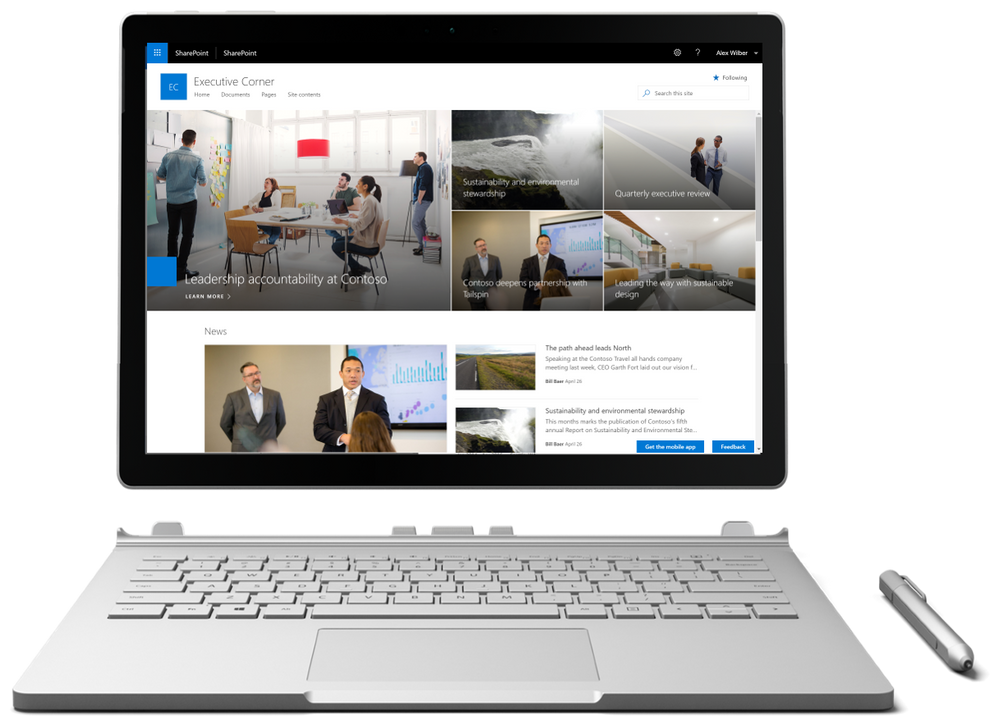
Learn more about communication sites at https://support.office.com/article/what-is-a-sharepoint-communication-site-94a33429-e580-45c3-a090-5512a8070732.
OneDrive for Business
SharePoint Server 2019 provides improved mobile access to content, people, and applications along with engaging and responsive experiences across devices and screen sizes. It makes file storage and document collaboration more people-centric with new support for the latest generation of sync clients with OneDrive for Business.
SharePoint Mobile
The intranet is the nerve center of many organizations. It provides content-centric collaborative spaces that give teams the resources they need to work together. It lets users consume and contribute news and information within their teams and across the organization. It manages knowledge and connects users to content through navigation and search. It hosts applications that support and automate business processes.
SharePoint Server 2019 makes your intranet more accessible on the go, more intelligent, and more personalized, based on your activities across sites, the people you work with, the content you work on and the business processes you drive.
Get the SharePoint mobile at https://aka.ms/getSPmobile.
Large File Support, Character Restrictions, and File/Folder Names
The world of collaboration has changed, text-based files are shifting to modern media, videos, audio, and more. SharePoint Server 2019 provides support for uploading files up to 15GB.
Files are as unique as the people who create them. SharePoint Server 2019 delivers support for a broad array of types and naming conventions to include support for # and % as supported characters in file and folder names across document libraries in SharePoint and OneDrive for Business. This will allow people to create, store, and sync files containing # and % characters whether those characters are used as a prefix or suffix to the file or folder name.
In addition, SharePoint Server 2019 increases the URL path length restrictions from 260 Unicode code units to 400.
This is just the tip of the iceberg when it comes to what’s new in SharePoint Server 2019. For a complete list of new features and capabilities refer to the new SharePoint Server 2019 Reviewer’s Guide at https://go.microsoft.com/fwlink/?linkid=2006360.
Try it out and share your feedback
You can download SharePoint Server 2019 today via the Microsoft Download Center and share feedback directly with our engineering teams through the new SharePoint Server 2019 Forum. We also welcome feature requests and feedback via the SharePoint Server Suggestion Box on UserVoice, @SharePoint on Twitter, and in the comments below. We’re eager to hear your feedback and use it to make SharePoint Server 2019 the best experience for information workers, IT professionals, and developers alike!
In addition, we’ve put together several resources to help you get started with SharePoint Server 2019:
We look forward to hearing how you’re using SharePoint Server 2019 and what you think in the comments below.
Frequently Asked Questions
Q: Can I install SharePoint Server 2019 in production environments?
A: Yes.
Q: Can I upgrade SharePoint Server 2019 Preview to RTM?
A: No. SharePoint Server 2019 Preview cannot be upgraded to RTM.
Q: Where can I find technical documentation on SharePoint Server 2019?
A: Technical documentation for SharePoint Server 2019 is available at https://technet.microsoft.com/en-us/library/fp179725.aspx.
At Microsoft Ignite we broadly announced our vision, strategy, timeline, and investment areas for SharePoint Server 2019.
Today we’re excited to announce general availability of both SharePoint Server 2019 and Project Server 2019. As we developed SharePoint Server 2019, we paid close attention to trends in team collaboration, user experiences across devices, and how the cloud can be blended into existing on-premises scenarios in new and compelling ways.
SharePoint Server 2019
Since we announced our preview for SharePoint Server 2019, we’ve been working hard to get this out to you and we know that you’ve been waiting patiently since we announced that it was coming.
SharePoint Server 2019 represents a whole new generation of SharePoint, one born in the cloud, and representative of the ease of use we delivered in SharePoint Online.
SharePoint Server 2019 was built on the same core platform as SharePoint Server 2016, providing the scale and performance you’ve come to expect in addition to new, modern experiences for users, that are both intuitive and familiar.
What’s in SharePoint Server 2019
New user experiences
More than ever, how people interact with technology is much more than just “look and feel.” Great experiences are those that both look great and work flawlessly, entertain and engage, with rich, contextual, and relevant content. The improvements to the SharePoint Server 2019 user experiences are those that are easy to use, and ensure reliability, performance, and security under real-world pressures of scale and complexity.
Modern sites
Sites have always been at the heart of collaboration with SharePoint. They connect your team with the content, the information and the apps you rely on and they enable sharing and communication within the team and across the organization.
The modern experience is designed to be compelling, flexible, mobile, and easier to use. It is available in SharePoint
In SharePoint Server 2019 you’ll find a modern team site experience, with an engaging home page personalized by the power of SharePoint search.
Learn more about modern experiences in SharePoint in Office 365 including what they are and how you recognize them at https://support.office.com/article/sharepoint-classic-and-modern-experiences-5725c103-505d-4a6e-9350-300d3ec7d73f?ui=en-US&rs=en-US&ad=US.
Modern pages
SharePoint Server 2019 includes modern site pages, using modern pages is a great way to share ideas using images, Excel, Word and PowerPoint documents, embed video content, and more. You can create and publish modern pages quickly and easily, and they look great on any device.
Modern pages provide a fast, easy way to build responsive pages using the functionality of modern web parts. Pages are similar to classic web part pages and publishing pages, but are less structured and easier to create. To learn more about modern pages, see https://support.office.com/article/add-a-page-to-a-site-b3d46deb-27a6-4b1e-87b8-df851e503dec.
Modern lists
SharePoint lists provide individual and teams the ability to access, share, and collaborate around structured data and to bring information from other systems into SharePoint to support business process. SharePoint Server 2019 introduces a modern list experience that simplifies how people create, curate, and interact with information with a rich set of capabilities that work across devices and browsers.
For more detailed information, see https://support.office.com/article/differences-between-the-new-and-classic-experiences-for-lists-and-libraries-30e1aab0-a5cc-4363-b7f2-09e2ae07d4dc.
Modern libraries
Helping people share files and collaborate on content has always been central to SharePoint. SharePoint Server 2019 provides a better experience for document libraries that’s faster, more intuitive and responsive with modern document libraries.
Modern document libraries combine the power of SharePoint with OneDrive usability – modern document libraries have an updated user interface that offers an experience similar to OneDrive, so it’s more intuitive to create a new folder and upload files in the browser.
For more detailed information, see https://support.office.com/article/differences-between-the-new-and-classic-experiences-for-lists-and-libraries-30e1aab0-a5cc-4363-b7f2-09e2ae07d4dc.
Communication sites
SharePoint has always been at the core of collaboration – people working together on files, lists, and libraries. SharePoint Server 2019 embraces and provides a new generation of the mobile and intelligent intranet, allowing you to communicate to people throughout your organization with beautiful, dynamic, mobile-ready communication sites and pages that keep everyone informed and engaged.
Learn more about communication sites at https://support.office.com/article/what-is-a-sharepoint-communication-site-94a33429-e580-45c3-a090-5512a8070732.
OneDrive for Business
SharePoint Server 2019 provides improved mobile access to content, people, and applications along with engaging and responsive experiences across devices and screen sizes. It makes file storage and document collaboration more people-centric with new support for the latest generation of sync clients with OneDrive for Business.
SharePoint Mobile
The intranet is the nerve center of many organizations. It provides content-centric collaborative spaces that give teams the resources they need to work together. It lets users consume and contribute news and information within their teams and across the organization. It manages knowledge and connects users to content through navigation and search. It hosts applications that support and automate business processes.
SharePoint Server 2019 makes your intranet more accessible on the go, more intelligent, and more personalized, based on your activities across sites, the people you work with, the content you work on and the business processes you drive.
Get the SharePoint mobile at https://aka.ms/getSPmobile.
Large File Support, Character Restrictions, and File/Folder Names
The world of collaboration has changed, text-based files are shifting to modern media, videos, audio, and more. SharePoint Server 2019 provides support for uploading files up to 15GB.
Files are as unique as the people who create them. SharePoint Server 2019 delivers support for a broad array of types and naming conventions to include support for # and % as supported characters in file and folder names across document libraries in SharePoint and OneDrive for Business. This will allow people to create, store, and sync files containing # and % characters whether those characters are used as a prefix or suffix to the file or folder name.
In addition, SharePoint Server 2019 increases the URL path length restrictions from 260 Unicode code units to 400.
This is just the tip of the iceberg when it comes to what’s new in SharePoint Server 2019. For a complete list of new features and capabilities refer to the new SharePoint Server 2019 Reviewer’s Guide at https://go.microsoft.com/fwlink/?linkid=2006360.
Try it out and share your feedback
You can download SharePoint Server 2019 today via the Microsoft Download Center and share feedback directly with our engineering teams through the new SharePoint Server 2019 Forum. We also welcome feature requests and feedback via the SharePoint Server Suggestion Box on UserVoice, @SharePoint on Twitter, and in the comments below. We’re eager to hear your feedback and use it to make SharePoint Server 2019 the best experience for information workers, IT professionals, and developers alike!
In addition, we’ve put together several resources to help you get started with SharePoint Server 2019:
We look forward to hearing how you’re using SharePoint Server 2019 and what you think in the comments below.
Frequently Asked Questions
Q: Can I install SharePoint Server 2019 in production environments?
A: Yes.
Q: Can I upgrade SharePoint Server 2019 Preview to RTM?
A: No. SharePoint Server 2019 Preview cannot be upgraded to RTM.
Q: Where can I find technical documentation on SharePoint Server 2019?
A: Technical documentation for SharePoint Server 2019 is available at https://technet.microsoft.com/en-us/library/fp179725.aspx.
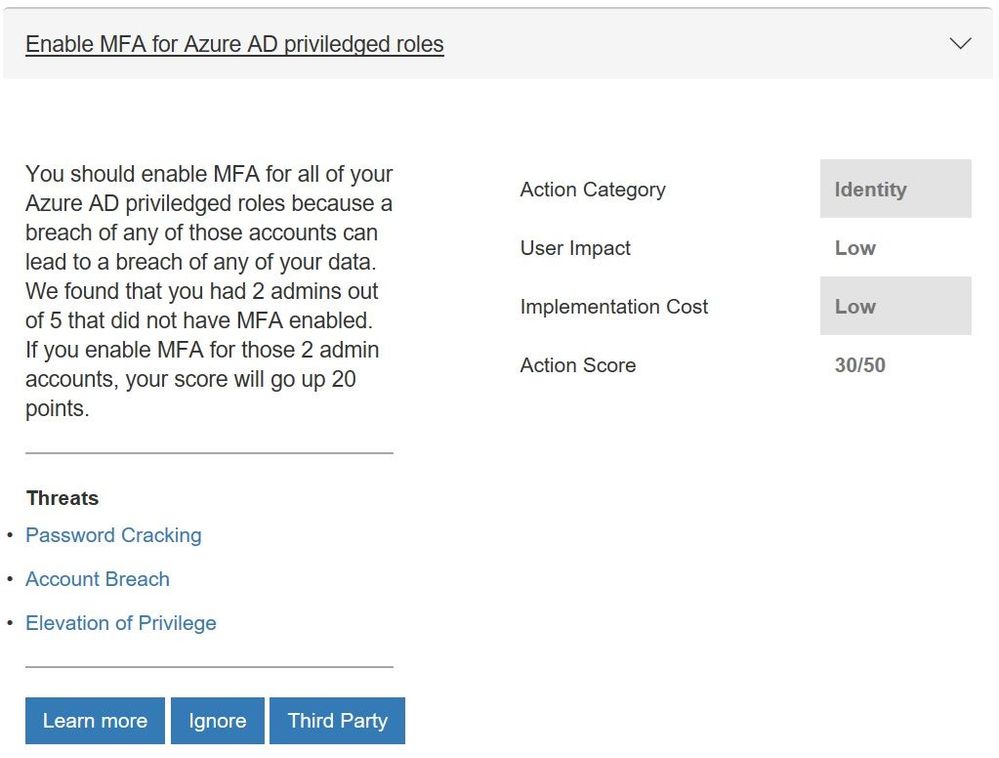
It has been a busy few weeks since we previewed the new Secure Score API. While the team was working on this, they also were working on another common request, support for additional controls. In particular we heard that you wanted controls from the Enterprise Mobility + Security (EMS) suite. As you might have seen in the Microsoft Secure Blog we are expanding Secure Score to support additional EMS solutions and are happy to share that we have new controls for Microsoft Cloud App Security and additional controls for Azure Active Directory (Azure AD).
Azure AD Controls
We have seen the feedback from many of you that you wanted support for additional Azure Active Directory (Azure AD) controls to help you manage user identities and create intelligence-driven access policies to secure your resources. In particular you wanted the multifactor authentication (MFA) controls to support conditional access. Working with the Azure AD team this is now available and 8 more controls which include:
- Enabling self-service password reset that helps empower users and reduce help desk costs
- Require just in time access for global administrators using Privileged Identity Management
- Turning on password hash sync which helps you leverage the same password you use to sign in to your on-premises Active Directory for Azure AD services
- Enable user risk policies that can block access or require a user to use MFA to login in when there is a likelihood that a user’s identity has been compromised
Updated control for Azure AD multi-factor authentication
Microsoft Cloud App Security Controls
More and more organizations are adopting SaaS apps, not only to reduce costs but also to unlock competitive advantages such as faster time to market and improved collaboration. Even if your company hasn’t embraced cloud applications, your employees are probably using them. Microsoft Cloud App Security is our cloud access security broker that gives you visibility into your cloud apps and services, provides sophisticated analytics to identify and combat cyberthreats and enables you to control how your data travels. If you are taking advantage of the solution, you will now get points for actions like:
- Reviewing permissions and blocking risky OAuth applications that your users have installed and have access to Office 365 data
- Reviewing anomaly detection policies that help you understand if users are logging in from locations that they normally don’t log in from, using anonymous IP addresses, and have multiple failed login attempts
- Discover risky and non-compliant Shadow IT applications used in your organization through the Cloud Discovery Dashboard and automatic uploading of your firewall/proxy logs
- Creating custom activity policies to discover risky behavior in cloud apps like a mass downloads of data.
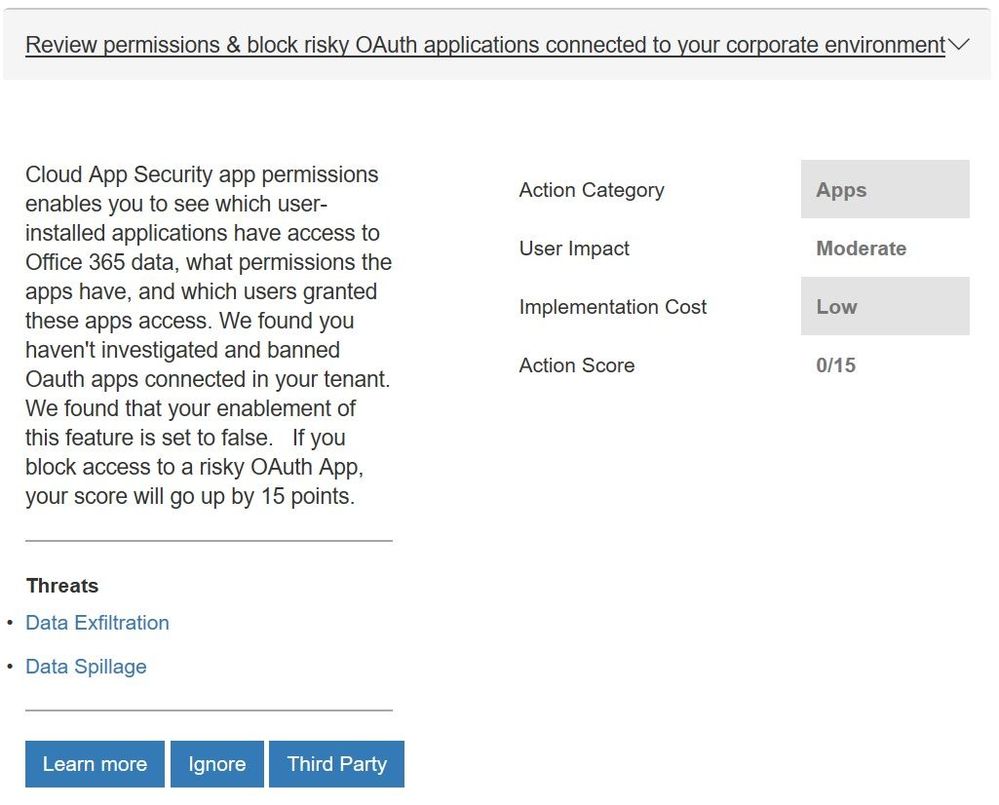 New control from Microsoft Cloud App Security
We will be looking to add more controls in the future. For example, we will look to add controls from Azure Security Center as they have launched a public preview of their own score.
With all the new controls we are rethinking how we show the points you have obtained. Today we display the overall Microsoft Secure Score and the points by solution (Office 365 and Windows). With the addition of controls from EMS and eventually Azure Security Center, along with the fact that organizations have told us that they think about their environment more broadly then just solutions, this approach will be less effective in helping you understand your security posture. To help solve this, in the future we will move to a category view that will show a score for controls that focus on identity, apps, data, devices, and infrastructure. You can see the beginnings of this change in the filter box within the “Take Action, Improve Your Microsoft Secure Score” section of Secure Score.
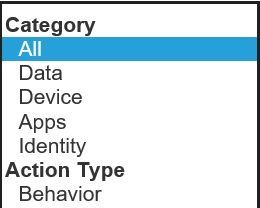 Category options to filter on in the “Take Action, Improve Your Microsoft Secure Score” section
To see what your score looks like with the new controls, login with administrative credentials at https://securescore.microsoft.com and start thinking about which ones you will enable. We hope that these changes help you get even greater visibility into your security posture and the guidance to help you find the right level of security for your organization.
As always, feel free to leave your questions, thoughts, and comments below.
It has been a busy few weeks since we previewed the new Secure Score API. While the team was working on this, they also were working on another common request, support for additional controls. In particular we heard that you wanted controls from the Enterprise Mobility + Security (EMS) suite. As you might have seen in the Microsoft Secure Blog we are expanding Secure Score to support additional EMS solutions and are happy to share that we have new controls for Microsoft Cloud App Security and additional controls for Azure Active Directory (Azure AD).
Azure AD Controls
We have seen the feedback from many of you that you wanted support for additional Azure Active Directory (Azure AD) controls to help you manage user identities and create intelligence-driven access policies to secure your resources. In particular you wanted the multifactor authentication (MFA) controls to support conditional access. Working with the Azure AD team this is now available and 8 more controls which include:
- Enabling self-service password reset that helps empower users and reduce help desk costs
- Require just in time access for global administrators using Privileged Identity Management
- Turning on password hash sync which helps you leverage the same password you use to sign in to your on-premises Active Directory for Azure AD services
- Enable user risk policies that can block access or require a user to use MFA to login in when there is a likelihood that a user’s identity has been compromised
Updated control for Azure AD multi-factor authentication
Microsoft Cloud App Security Controls
More and more organizations are adopting SaaS apps, not only to reduce costs but also to unlock competitive advantages such as faster time to market and improved collaboration. Even if your company hasn’t embraced cloud applications, your employees are probably using them. Microsoft Cloud App Security is our cloud access security broker that gives you visibility into your cloud apps and services, provides sophisticated analytics to identify and combat cyberthreats and enables you to control how your data travels. If you are taking advantage of the solution, you will now get points for actions like:
- Reviewing permissions and blocking risky OAuth applications that your users have installed and have access to Office 365 data
- Reviewing anomaly detection policies that help you understand if users are logging in from locations that they normally don’t log in from, using anonymous IP addresses, and have multiple failed login attempts
- Discover risky and non-compliant Shadow IT applications used in your organization through the Cloud Discovery Dashboard and automatic uploading of your firewall/proxy logs
- Creating custom activity policies to discover risky behavior in cloud apps like a mass downloads of data.
New control from Microsoft Cloud App Security
We will be looking to add more controls in the future. For example, we will look to add controls from Azure Security Center as they have launched a public preview of their own score.
With all the new controls we are rethinking how we show the points you have obtained. Today we display the overall Microsoft Secure Score and the points by solution (Office 365 and Windows). With the addition of controls from EMS and eventually Azure Security Center, along with the fact that organizations have told us that they think about their environment more broadly then just solutions, this approach will be less effective in helping you understand your security posture. To help solve this, in the future we will move to a category view that will show a score for controls that focus on identity, apps, data, devices, and infrastructure. You can see the beginnings of this change in the filter box within the “Take Action, Improve Your Microsoft Secure Score” section of Secure Score.
Category options to filter on in the “Take Action, Improve Your Microsoft Secure Score” section
To see what your score looks like with the new controls, login with administrative credentials at https://securescore.microsoft.com and start thinking about which ones you will enable. We hope that these changes help you get even greater visibility into your security posture and the guidance to help you find the right level of security for your organization.
As always, feel free to leave your questions, thoughts, and comments below.
It has been a busy few weeks since we previewed the new Secure Score API. While the team was working on this, they also were working on another common request, support for additional controls. In particular we heard that you wanted controls from the Enterprise Mobility + Security (EMS) suite. As you might have seen in the Microsoft Secure Blog we are expanding Secure Score to support additional EMS solutions and are happy to share that we have new controls for Microsoft Cloud App Security and additional controls for Azure Active Directory (Azure AD).
Azure AD Controls
We have seen the feedback from many of you that you wanted support for additional Azure Active Directory (Azure AD) controls to help you manage user identities and create intelligence-driven access policies to secure your resources. In particular you wanted the multifactor authentication (MFA) controls to support conditional access. Working with the Azure AD team this is now available and 8 more controls which include:
- Enabling self-service password reset that helps empower users and reduce help desk costs
- Require just in time access for global administrators using Privileged Identity Management
- Turning on password hash sync which helps you leverage the same password you use to sign in to your on-premises Active Directory for Azure AD services
- Enable user risk policies that can block access or require a user to use MFA to login in when there is a likelihood that a user’s identity has been compromised
Updated control for Azure AD multi-factor authentication
Microsoft Cloud App Security Controls
More and more organizations are adopting SaaS apps, not only to reduce costs but also to unlock competitive advantages such as faster time to market and improved collaboration. Even if your company hasn’t embraced cloud applications, your employees are probably using them. Microsoft Cloud App Security is our cloud access security broker that gives you visibility into your cloud apps and services, provides sophisticated analytics to identify and combat cyberthreats and enables you to control how your data travels. If you are taking advantage of the solution, you will now get points for actions like:
- Reviewing permissions and blocking risky OAuth applications that your users have installed and have access to Office 365 data
- Reviewing anomaly detection policies that help you understand if users are logging in from locations that they normally don’t log in from, using anonymous IP addresses, and have multiple failed login attempts
- Discover risky and non-compliant Shadow IT applications used in your organization through the Cloud Discovery Dashboard and automatic uploading of your firewall/proxy logs
- Creating custom activity policies to discover risky behavior in cloud apps like a mass downloads of data.
New control from Microsoft Cloud App Security
We will be looking to add more controls in the future. For example, we will look to add controls from Azure Security Center as they have launched a public preview of their own score.
With all the new controls we are rethinking how we show the points you have obtained. Today we display the overall Microsoft Secure Score and the points by solution (Office 365 and Windows). With the addition of controls from EMS and eventually Azure Security Center, along with the fact that organizations have told us that they think about their environment more broadly then just solutions, this approach will be less effective in helping you understand your security posture. To help solve this, in the future we will move to a category view that will show a score for controls that focus on identity, apps, data, devices, and infrastructure. You can see the beginnings of this change in the filter box within the “Take Action, Improve Your Microsoft Secure Score” section of Secure Score.
Category options to filter on in the “Take Action, Improve Your Microsoft Secure Score” section
To see what your score looks like with the new controls, login with administrative credentials at https://securescore.microsoft.com and start thinking about which ones you will enable. We hope that these changes help you get even greater visibility into your security posture and the guidance to help you find the right level of security for your organization.
As always, feel free to leave your questions, thoughts, and comments below.
It has been a busy few weeks since we previewed the new Secure Score API. While the team was working on this, they also were working on another common request, support for additional controls. In particular we heard that you wanted controls from the Enterprise Mobility + Security (EMS) suite. As you might have seen in the Microsoft Secure Blog we are expanding Secure Score to support additional EMS solutions and are happy to share that we have new controls for Microsoft Cloud App Security and additional controls for Azure Active Directory (Azure AD).
Azure AD Controls
We have seen the feedback from many of you that you wanted support for additional Azure Active Directory (Azure AD) controls to help you manage user identities and create intelligence-driven access policies to secure your resources. In particular you wanted the multifactor authentication (MFA) controls to support conditional access. Working with the Azure AD team this is now available and 8 more controls which include:
- Enabling self-service password reset that helps empower users and reduce help desk costs
- Require just in time access for global administrators using Privileged Identity Management
- Turning on password hash sync which helps you leverage the same password you use to sign in to your on-premises Active Directory for Azure AD services
- Enable user risk policies that can block access or require a user to use MFA to login in when there is a likelihood that a user’s identity has been compromised
Updated control for Azure AD multi-factor authentication
Microsoft Cloud App Security Controls
More and more organizations are adopting SaaS apps, not only to reduce costs but also to unlock competitive advantages such as faster time to market and improved collaboration. Even if your company hasn’t embraced cloud applications, your employees are probably using them. Microsoft Cloud App Security is our cloud access security broker that gives you visibility into your cloud apps and services, provides sophisticated analytics to identify and combat cyberthreats and enables you to control how your data travels. If you are taking advantage of the solution, you will now get points for actions like:
- Reviewing permissions and blocking risky OAuth applications that your users have installed and have access to Office 365 data
- Reviewing anomaly detection policies that help you understand if users are logging in from locations that they normally don’t log in from, using anonymous IP addresses, and have multiple failed login attempts
- Discover risky and non-compliant Shadow IT applications used in your organization through the Cloud Discovery Dashboard and automatic uploading of your firewall/proxy logs
- Creating custom activity policies to discover risky behavior in cloud apps like a mass downloads of data.
New control from Microsoft Cloud App Security
We will be looking to add more controls in the future. For example, we will look to add controls from Azure Security Center as they have launched a public preview of their own score.
With all the new controls we are rethinking how we show the points you have obtained. Today we display the overall Microsoft Secure Score and the points by solution (Office 365 and Windows). With the addition of controls from EMS and eventually Azure Security Center, along with the fact that organizations have told us that they think about their environment more broadly then just solutions, this approach will be less effective in helping you understand your security posture. To help solve this, in the future we will move to a category view that will show a score for controls that focus on identity, apps, data, devices, and infrastructure. You can see the beginnings of this change in the filter box within the “Take Action, Improve Your Microsoft Secure Score” section of Secure Score.
Category options to filter on in the “Take Action, Improve Your Microsoft Secure Score” section
To see what your score looks like with the new controls, login with administrative credentials at https://securescore.microsoft.com and start thinking about which ones you will enable. We hope that these changes help you get even greater visibility into your security posture and the guidance to help you find the right level of security for your organization.
As always, feel free to leave your questions, thoughts, and comments below.

We’re facing a data explosion – changes in the way we do business have resulted in a rapid increase in the amount of data and information being collected throughout your business. As this data grows, so do the problems of managing it all. Where, or what, can you turn to for help?
Our modern business techniques require a modern approach to managing the increased data in our systems. For many, the chosen system is Office 365 – but, no matter what the system, the data still needs to be managed, governed, and supervised to provide value.
More details from the event page:
“In this webinar, AIIM’s chief evangelist John Mancini and Nishan DeSilva from Microsoft will discuss the latest ways Office 365 is providing the tools to develop and implement a modern records management strategy to take charge of the data explosion, including:
- Improved Findability: How to find and retain important data while eliminating ROT (redundant, outdated and trivial information) – with classification, archiving, retention, disposition, supervision, and more
- New Approaches to Governance: Where the Office 365 governance capabilities are today and what’s in store for the future, highlighted by the newest features and scenarios available
- Increased Business Intelligence: How machine learning algorithms can automatically or manually detect, classify sensitive data mapping to enterprise taxonomies
In addition, Nishan DeSilva will share customer use case stories that illustrate these modern approaches to the latest functionality found in Office 365. Hear how information professionals are succeeding with governing their data in Office 365. And envision how you can succeed, too.”
We’re facing a data explosion – changes in the way we do business have resulted in a rapid increase in the amount of data and information being collected throughout your business. As this data grows, so do the problems of managing it all. Where, or what, can you turn to for help?
Our modern business techniques require a modern approach to managing the increased data in our systems. For many, the chosen system is Office 365 – but, no matter what the system, the data still needs to be managed, governed, and supervised to provide value.
More details from the event page:
“In this webinar, AIIM’s chief evangelist John Mancini and Nishan DeSilva from Microsoft will discuss the latest ways Office 365 is providing the tools to develop and implement a modern records management strategy to take charge of the data explosion, including:
- Improved Findability: How to find and retain important data while eliminating ROT (redundant, outdated and trivial information) – with classification, archiving, retention, disposition, supervision, and more
- New Approaches to Governance: Where the Office 365 governance capabilities are today and what’s in store for the future, highlighted by the newest features and scenarios available
- Increased Business Intelligence: How machine learning algorithms can automatically or manually detect, classify sensitive data mapping to enterprise taxonomies
In addition, Nishan DeSilva will share customer use case stories that illustrate these modern approaches to the latest functionality found in Office 365. Hear how information professionals are succeeding with governing their data in Office 365. And envision how you can succeed, too.”







